
Route Performance Insights – Track Route Progress And Efficiency
The Performance Metrics panel on the Routes Page helps enterprise teams monitor route progress and measure operational efficiency. This guide explains how to open and navigate the panel, review key metrics, and compare averages and totals across routes. Using these insights makes it easier to evaluate performance and identify trends across operations.
Table of Contents
Performance Metrics Panel – Open And Navigate The Panel
To begin, open your Routes Page. Go to “Dynamic Routing” > “Routes” from the Navigation Menu or click the button below.
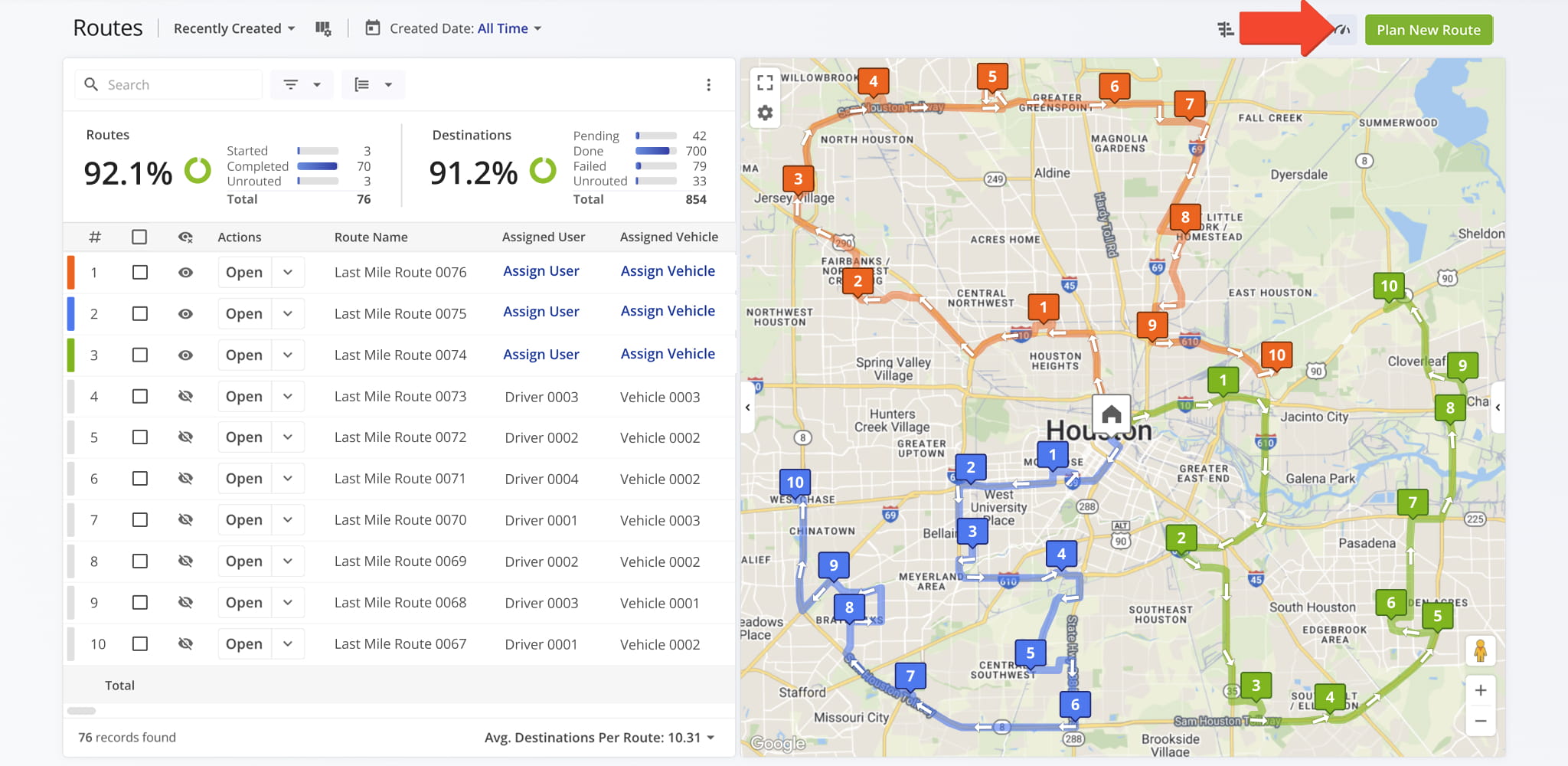
Then, to open the Performance Metrics panel, click the Performance Insights Button in the top-right corner of the Routes Page. For convenience, the panel is open by default. To close it, simply click the Button again.
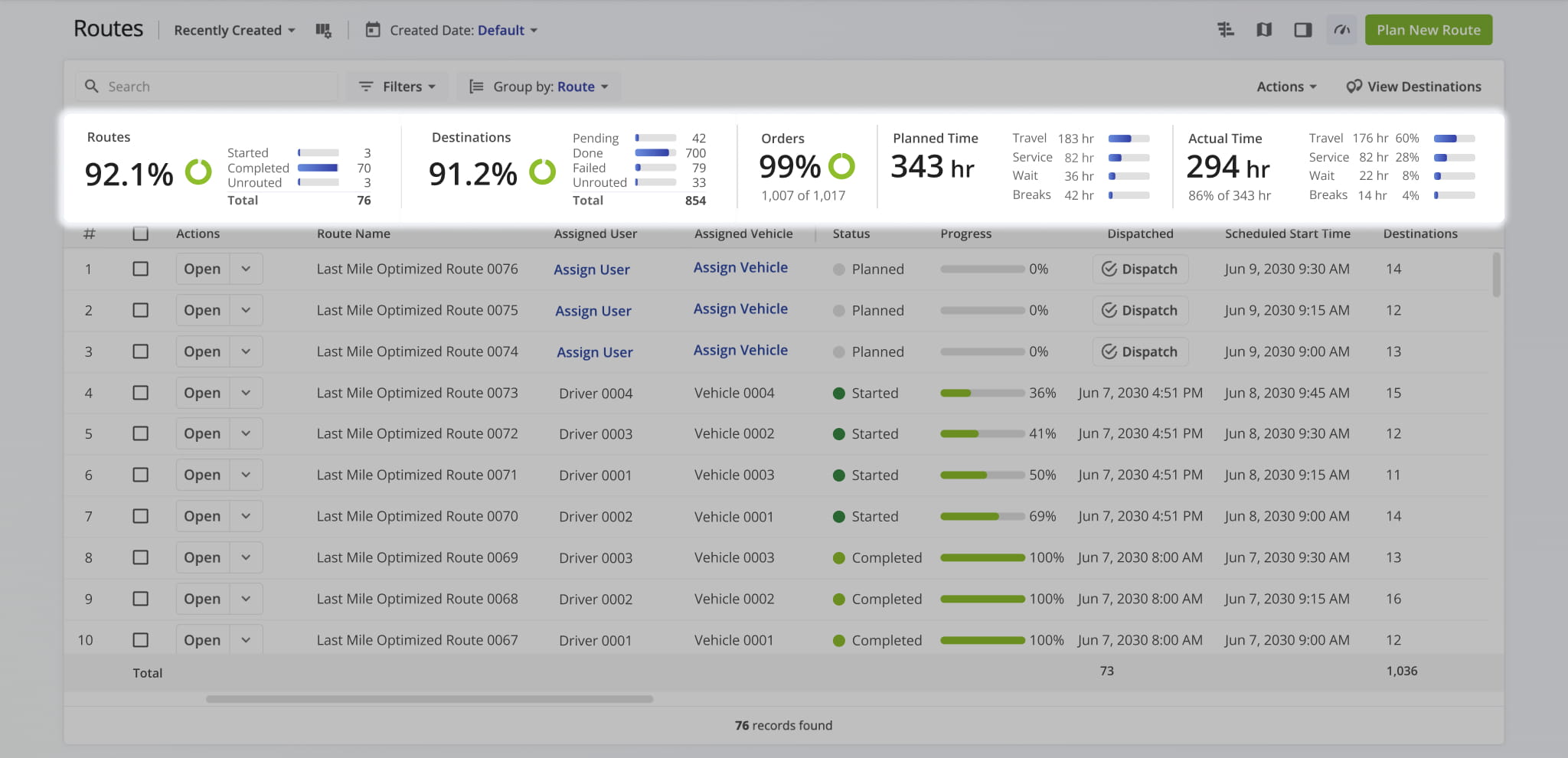
The panel displays statistics for the routes currently visible on your Routes Page, updating automatically as filters or view modes change. This allows you to see key performance data for the routes you are reviewing without navigating away from the page.
Track Route Progress And Efficiency – Monitor Key Metrics
The Performance Metrics panel provides a summary of route performance for the routes displayed on your Routes Page. It helps you quickly monitor progress, track efficiency, and evaluate operational performance across one or multiple routes.
Detailed explanations of each metric are provided in the table below.
Overall Route Progress & Performance Metrics
Route Performance Analysis – Compare Averages And Totals
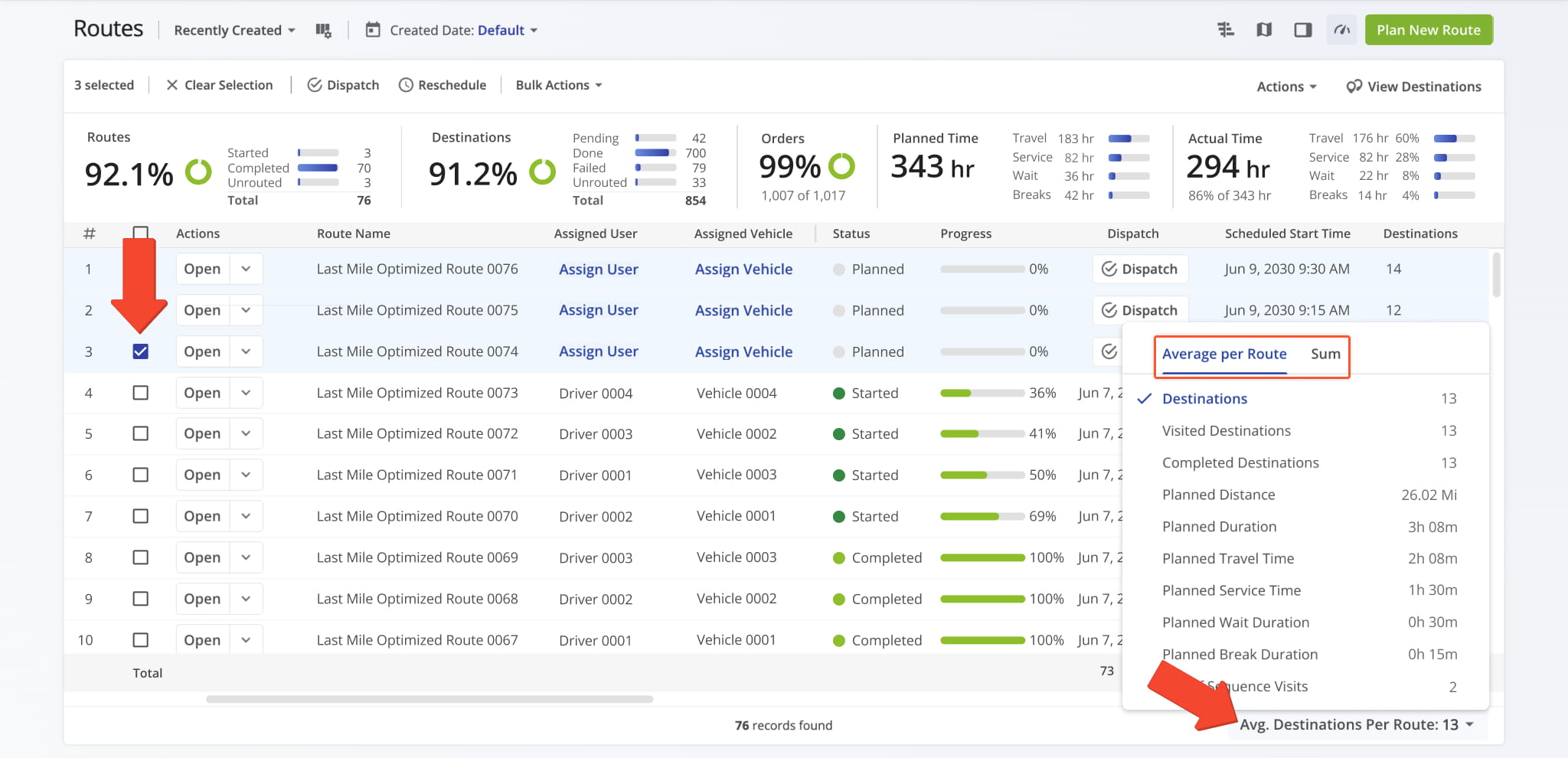
You can view additional performance statistics by selecting one or more routes from your Routes List. When routes are selected, the “Avg. Completed Destinations Per Route” button appears in the bottom-right corner of the screen.
Clicking the button opens two views: the “Average per Route” view, which shows metrics for a single route, and the “Sum” view, which displays combined totals across all selected routes.
These views help you quickly compare individual route performance with overall results. Detailed explanations of each metric are provided in the table below.
Average & Totals Route Progress Values
Visit Route4Me's Marketplace to Check out Various Modules and Add-Ons:
- Route Optimization
Time Windows
- Operations
Advanced Team Management Add-On
About author: Daniel Archer

