Routes List View Modes – Recently Created, Dispatch Mode, And Exception Management
The Routes List gives your enterprise business a centralized place to manage planned, active, and completed routes. Whether you’re handling last mile route optimization for a small fleet or thousands of daily routes, the right view mode helps you find specific routes quickly. Route4Me offers four view modes, each with customizable route data columns and filter and grouping options to narrow your Routes List further. Use this guide to learn more about each mode.
Table of Contents
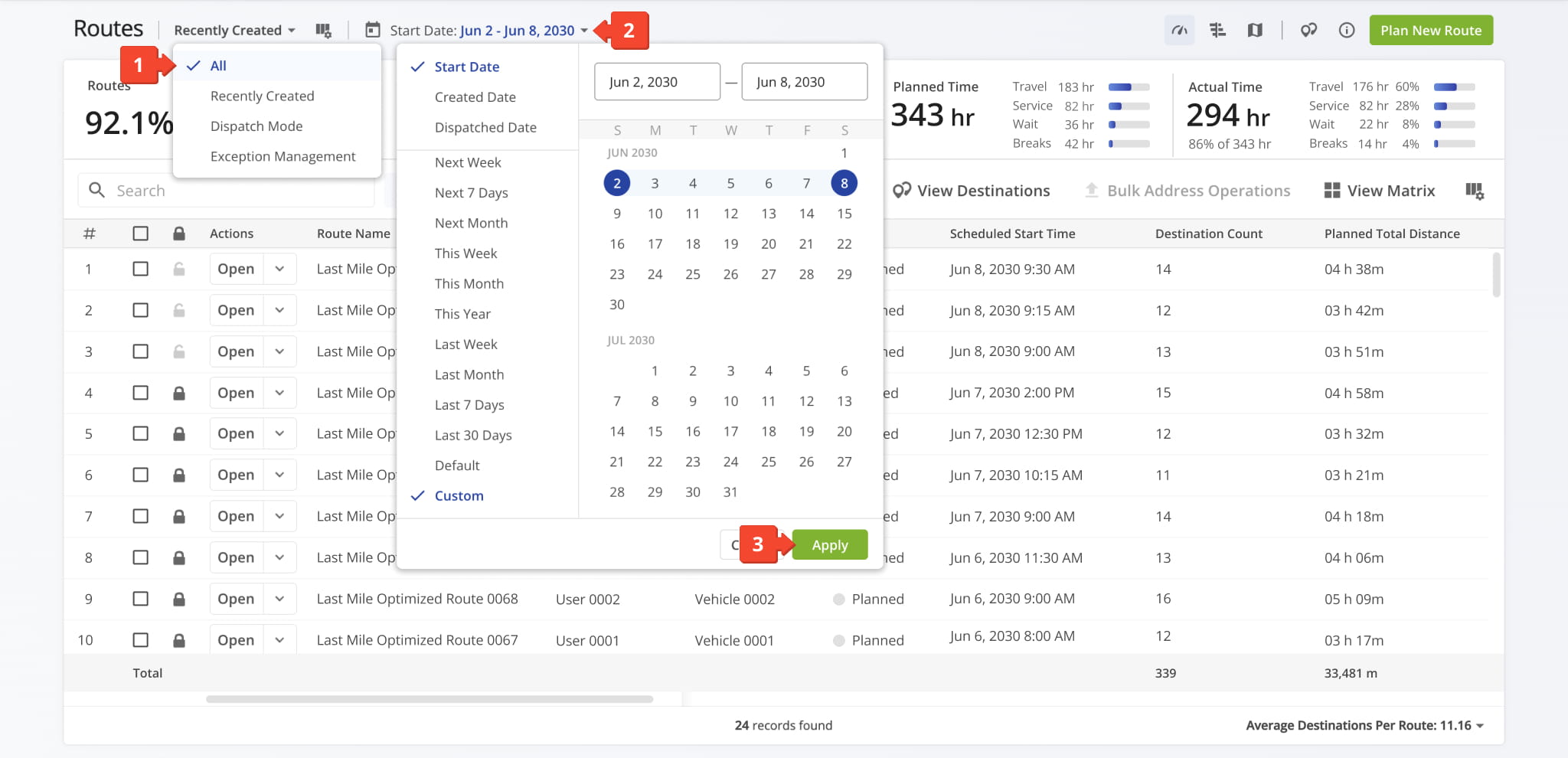
All Routes View Mode – View Every Route In Your Account
“All” view mode displays your complete route inventory without automatic grouping or exception filtering. This view mode makes it easy to view all planned, active, and completed routes across your account and perform general route administration.
In “All” mode, routes are presented in a comprehensive table format, giving you full flexibility to search, group by specific attributes, or apply filters. To enable this view mode:
- Select “All” from the top menu.
- Click “Start Date” to set your desired scheduled date range.
- Click “Apply” to display all routes within the selected period.
Recently Created View Mode – View Routes By Created Date
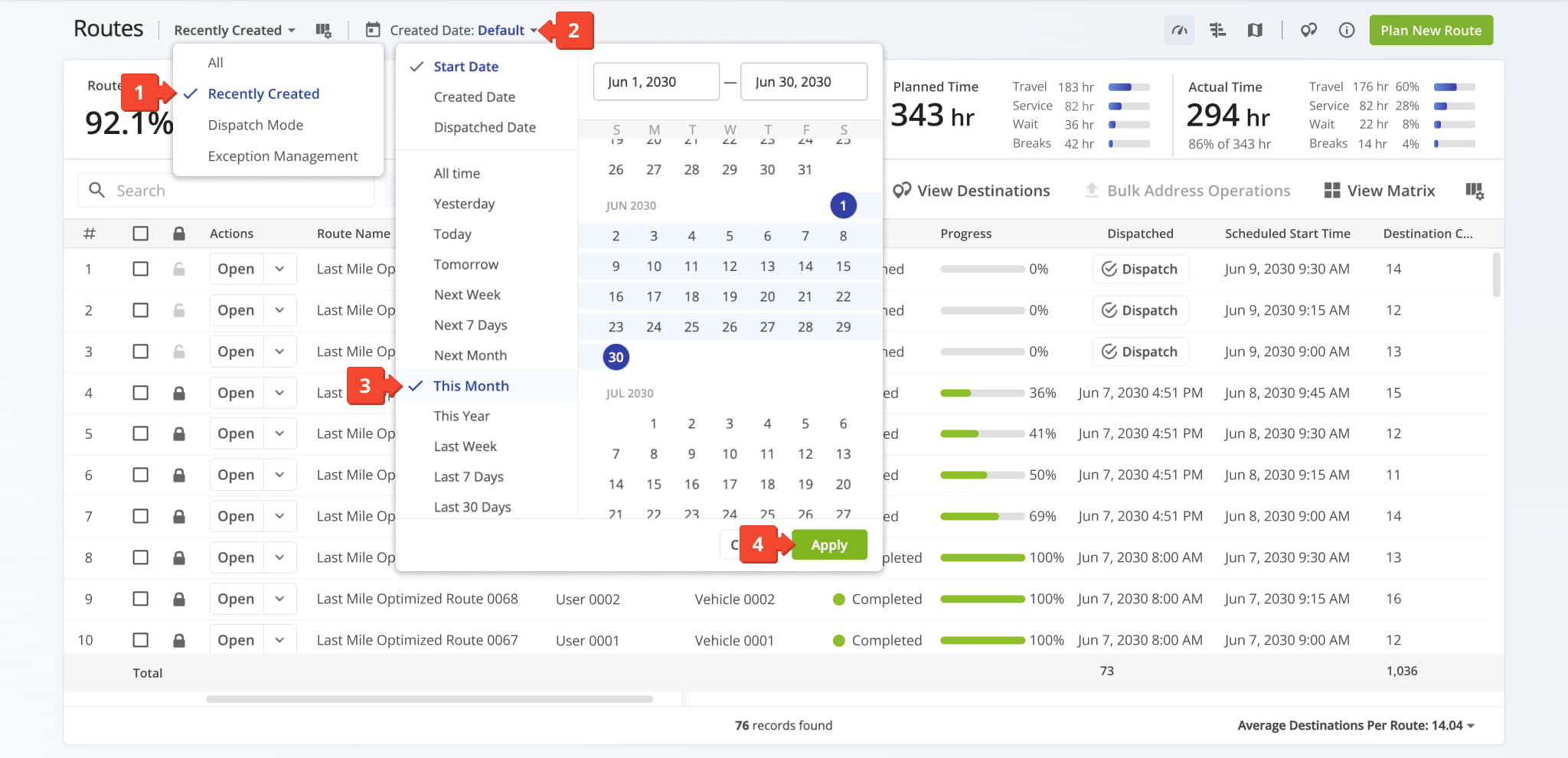
“Recently Created” mode sorts routes by created date to help you monitor the newest routes added to your system. This view mode makes it easy to see the most recent activity and quickly find newly created routes.
In “Recently Created” mode, routes are sorted by created date, with the most recently created routes appearing at the top of the list. To enable this view mode:
- Select “Recently Created” from the top menu.
- Click “Created Date” to sort routes by creation date.
- Set your desired date range.
- Click “Apply” to save and apply your date range setting.
Dispatch View Mode – View Routes By Scheduled Start Date
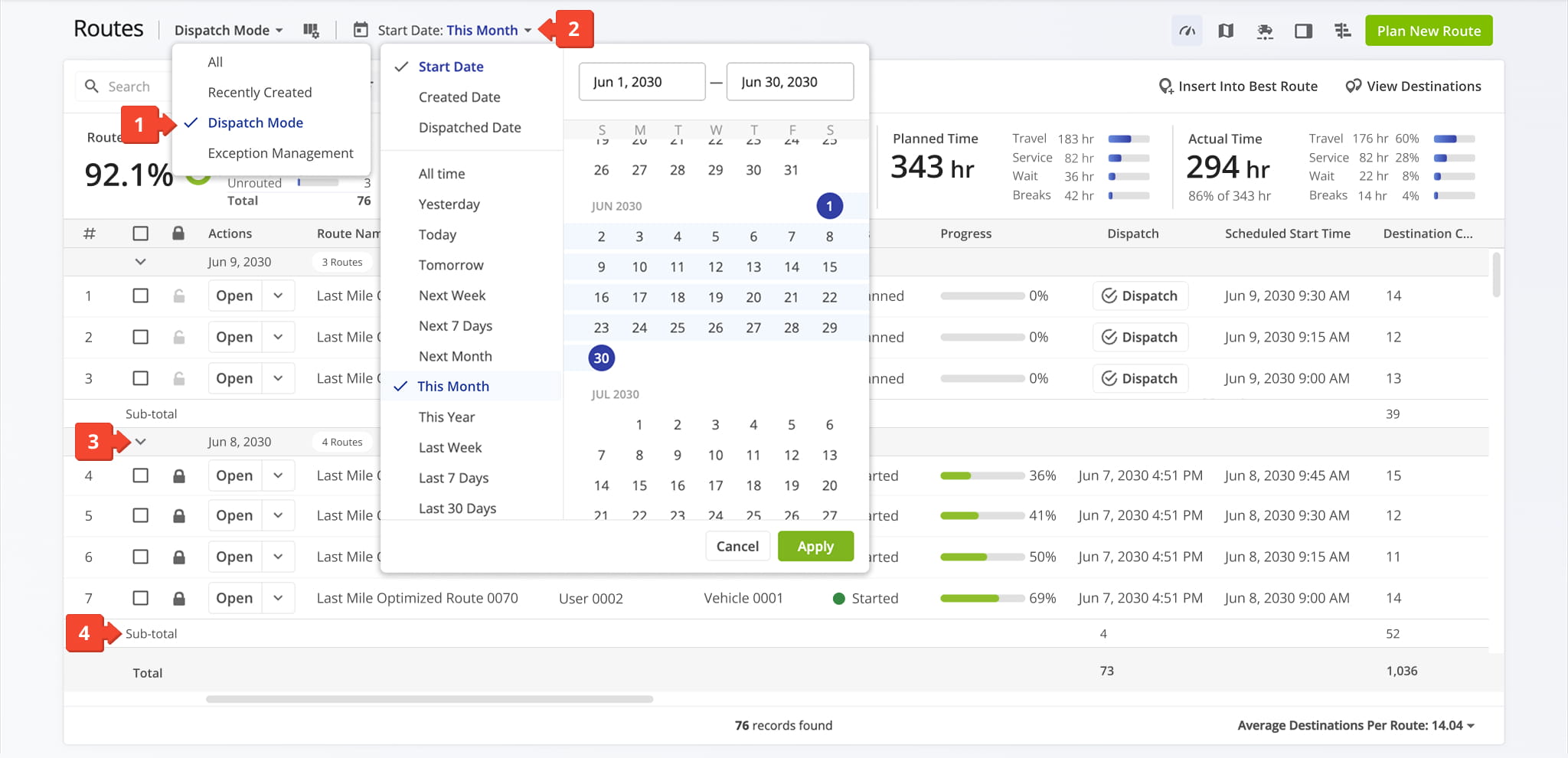
“Dispatch Mode” groups routes by scheduled start date to simplify daily dispatch planning. This view mode helps dispatchers quickly view upcoming routes and identify which routes are scheduled for each day.
In “Dispatch Mode“, routes are sorted and grouped by scheduled start date, with the latest dates appearing at the top of your Routes List. To enable this view mode:
- Select “Dispatch Mode” from the top menu.
- Click “Start Date” to sort routes by scheduled start and set your desired date range.
- Click the Down Arrow next to a date to expand or collapse the list of routes associated with the date.
- View the Sub-total for each group to see the total number of routes.
Exception Management View Mode – View Routes With Operational Exceptions
“Exception Management” mode filters routes by operational anomalies so dispatchers can quickly find routes that need immediate attention. This mode makes it easy to catch schedule delays, missed commitments, and route deviations in real time.
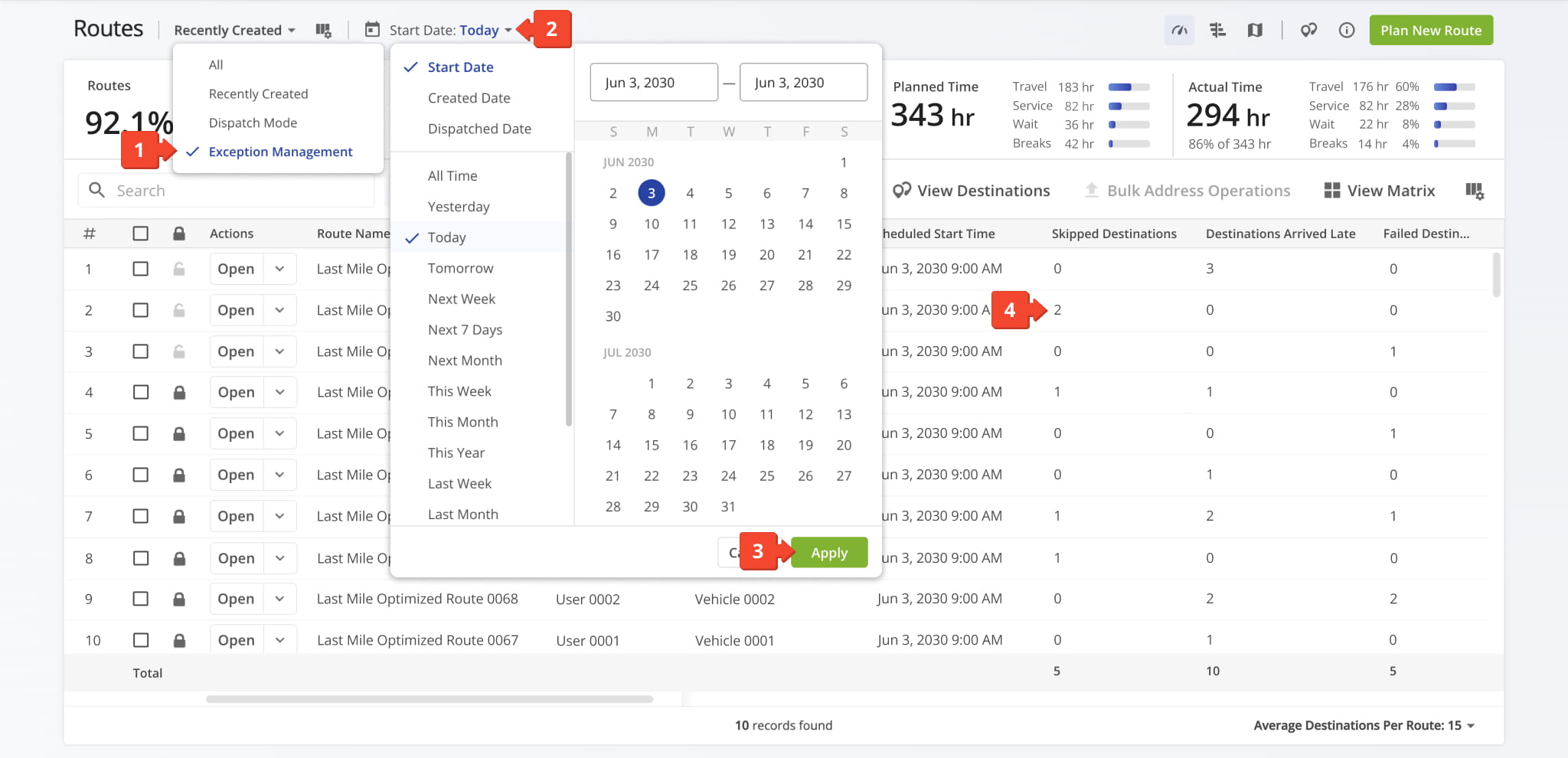
In “Exception Management” mode, the Routes List automatically isolates routes with performance exceptions, such as delayed starts, lagging route progress, high failed destination counts, or route deviations. To enable this view mode:
- Select “Exception Management” from the top menu.
- Click “Start Date” to set your desired scheduled date range.
- Click “Apply” to save and apply your date range setting.
- Review the filtered list to resolve routes with operational exceptions.
Visit Route4Me's Marketplace to Check out Various Modules and Add-Ons:
- Route Optimization
Time Windows
- Operations
Advanced Team Management Add-On
About author: Daniel Archer