
Dynamic Location Routing – Plan And Optimize Dynamic Routes With Locations
The Locations feature makes it easy to create and optimize Dynamic routes using saved location data in your Route4Me account. Instead of adding stops manually, you can filter, group, and select locations from your database to quickly build optimized multi-stop routes. You can also add new locations to existing routes and automatically place them in the most efficient sequence. This guide explains how to use Locations for route planning, route optimization, and ongoing route management.
Table of Contents
Plan Routes With Locations – Convert Saved Locations Into Routes
To create a Dynamic route with Customer Locations, start by clicking “Database” >”Locations” from the Navigation Menu.
From the “Locations” page, filter locations by a chosen metric or group them by Customer, Location Type, or Facility. Then, select the Locations you want to include in the route.

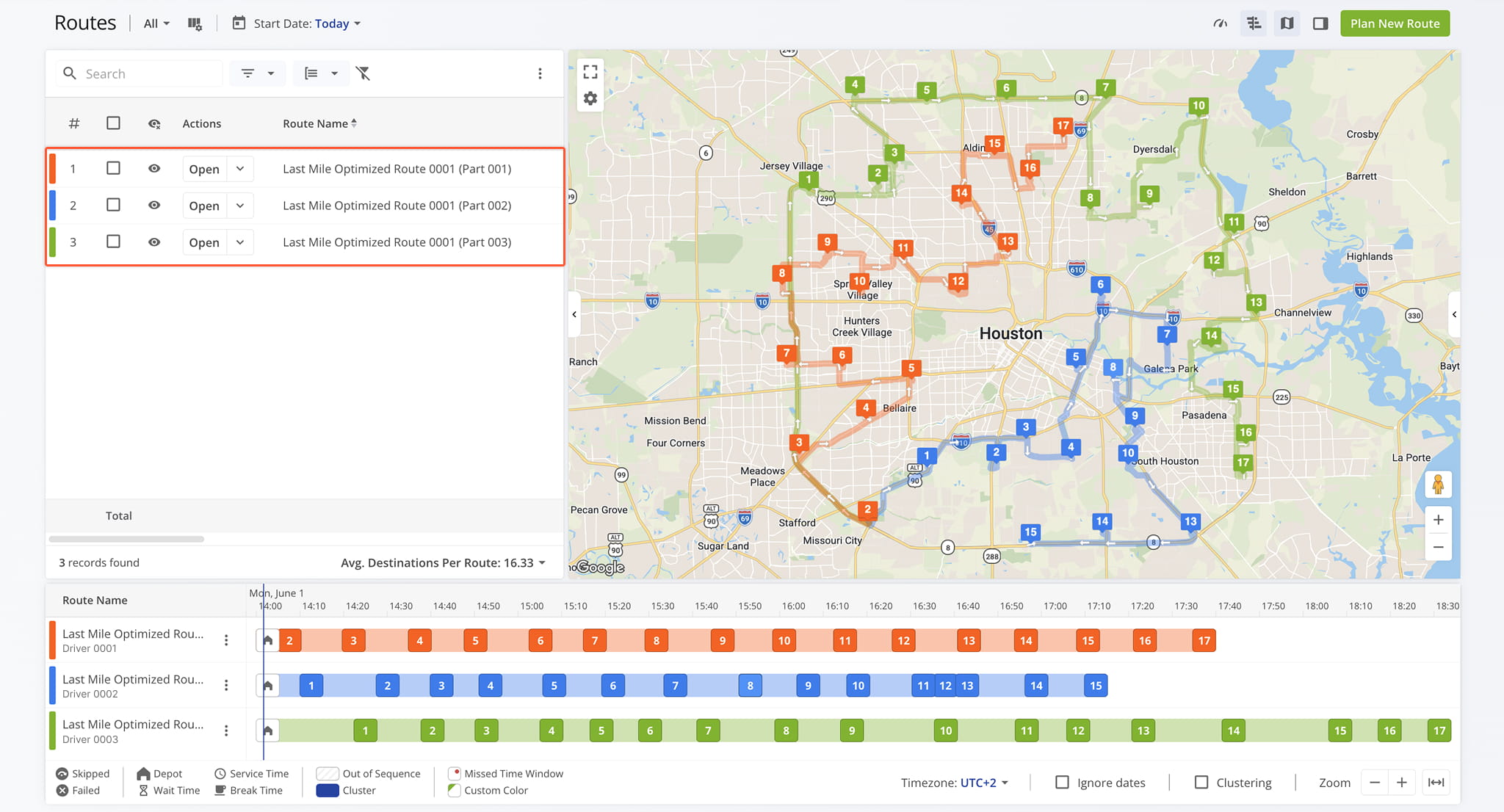
After selecting your Locations, click “Bulk Actions” and select “Plan New Route(s)“. You’ll be redirected to your Route Planner where you can plan and optimize the route manually or apply an Optimization Profile to automate the process.

Your newly planned and optimized route(s) will automatically appear in your Routes List.
Insert Locations Into Best Route – Update Routes With New Stops
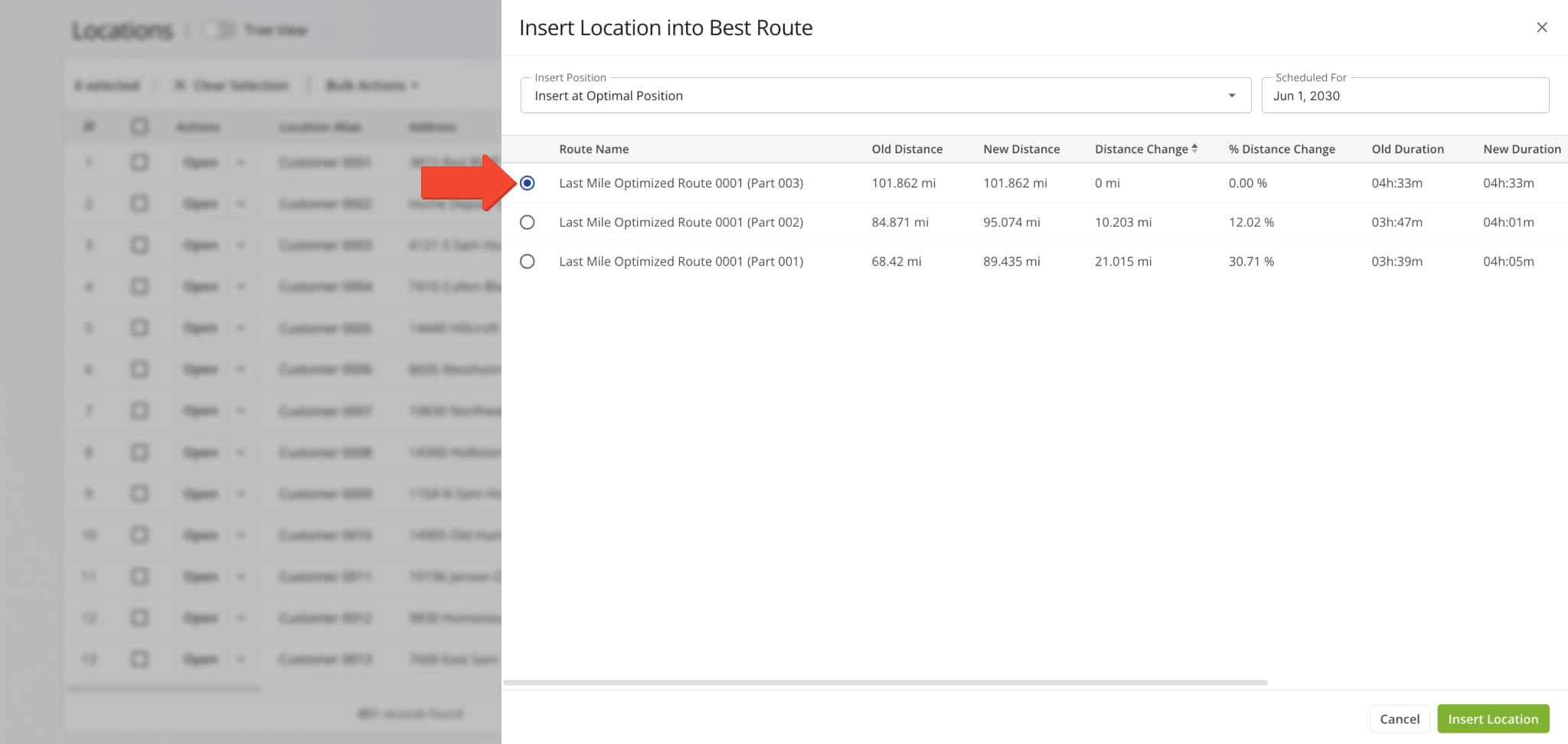
You can also add Locations to routes that have already been planned. From the “Locations Page“, click the Down Arrow next to a Location, then click “Insert Location into Best Route“.

Then, choose the route where you want to add the Location. Route4Me will insert it at the most optimal sequence position, whether between existing stops, after the last visited address, or at the beginning or end of the route.
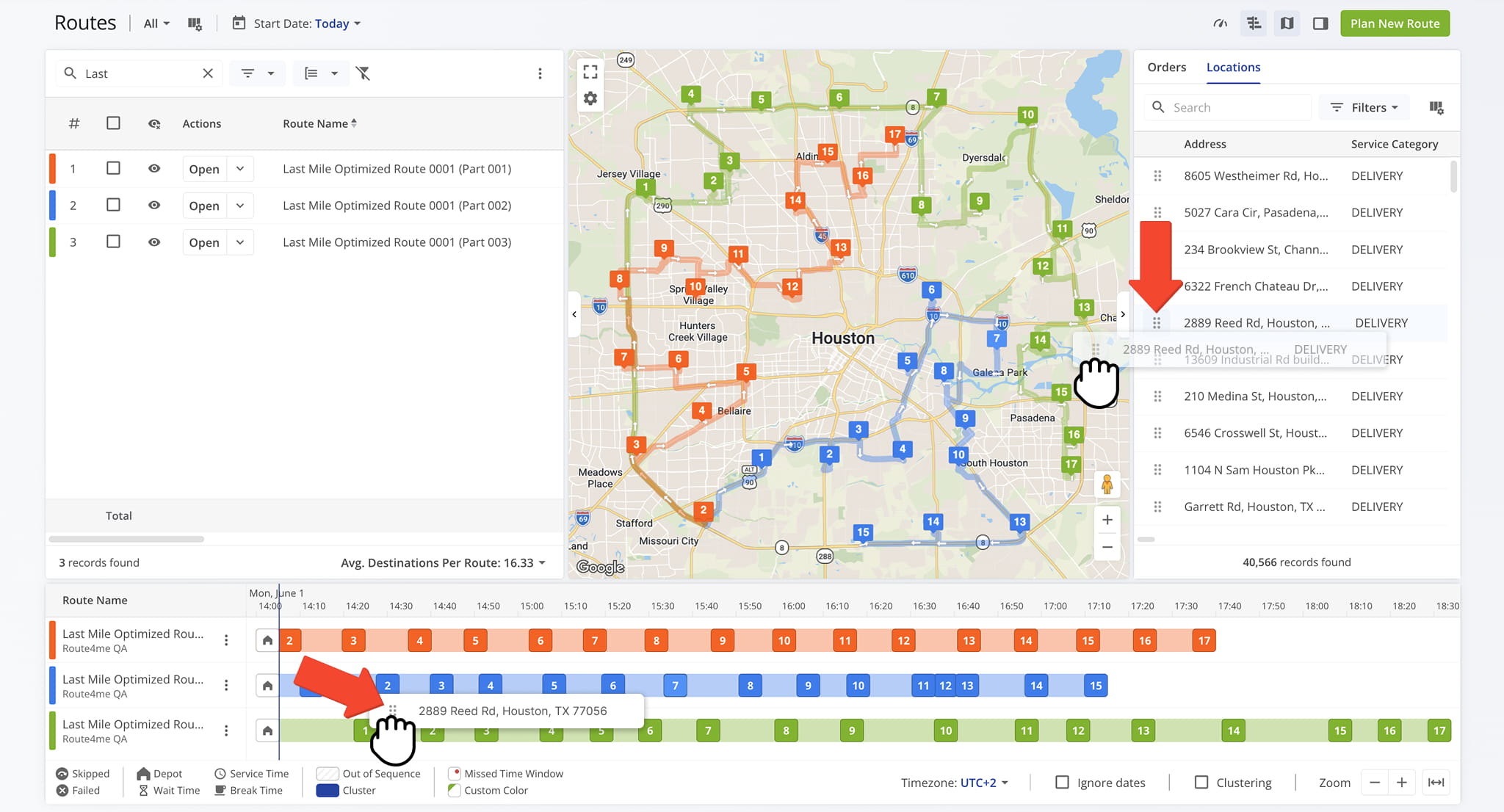
Alternatively, from the Routes Page, you can drag and drop Locations into a specific route via the Routes Map or Routes Timeline, a quick and easy way to add individual Locations to existing routes.
Visit Route4Me's Marketplace to Check out Various Modules and Add-Ons:
- Route Optimization
Time Windows
- Operations
Advanced Team Management Add-On
About author: Daniel Archer

