
Drag & Drop Orders – Move Orders Into Planned And Started Routes
With Route4Me, you can effortlessly insert orders into planned last mile routes and instantly re-optimize them. To simplify adding orders to routes even further, from the Route’s Page Assignable Work Panel you can also drag and drop them into planned routes at any sequence position. You can drop orders onto the Routes List, Routes Map, or Routes Timeline, whichever view fits how you’re working. Learn more in this guide.
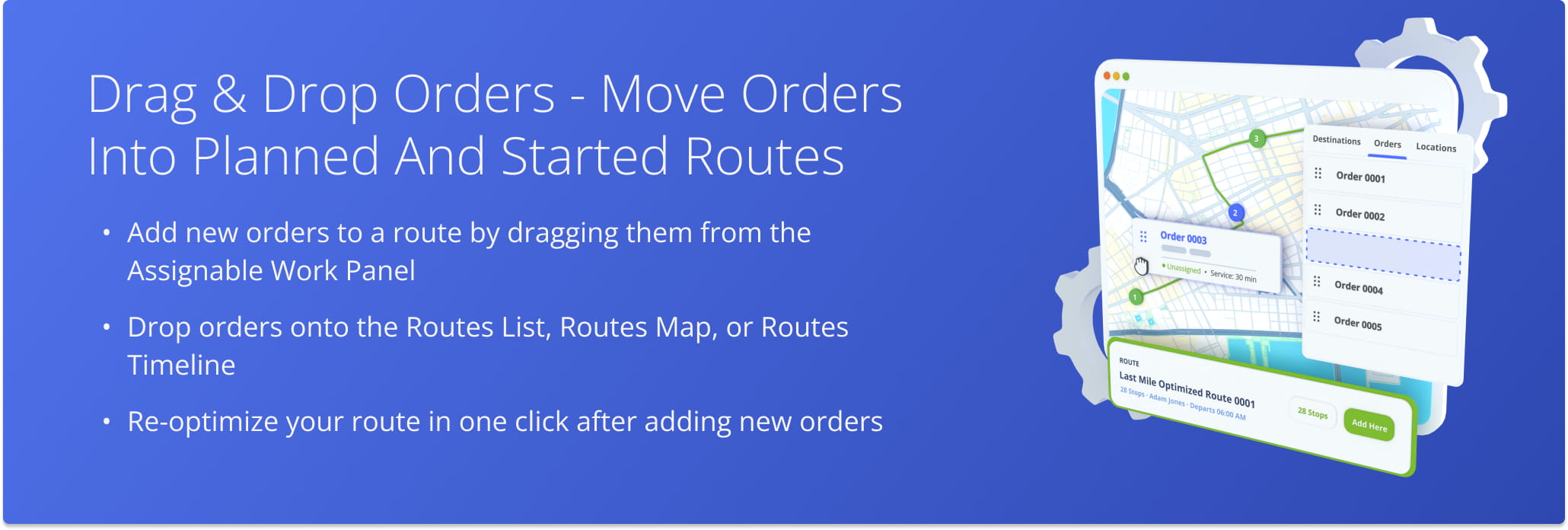
Table of Contents
Assignable Work Panel – Drag And Drop New Orders
Drag And Drop Order Onto Routes List – Add Order To Route
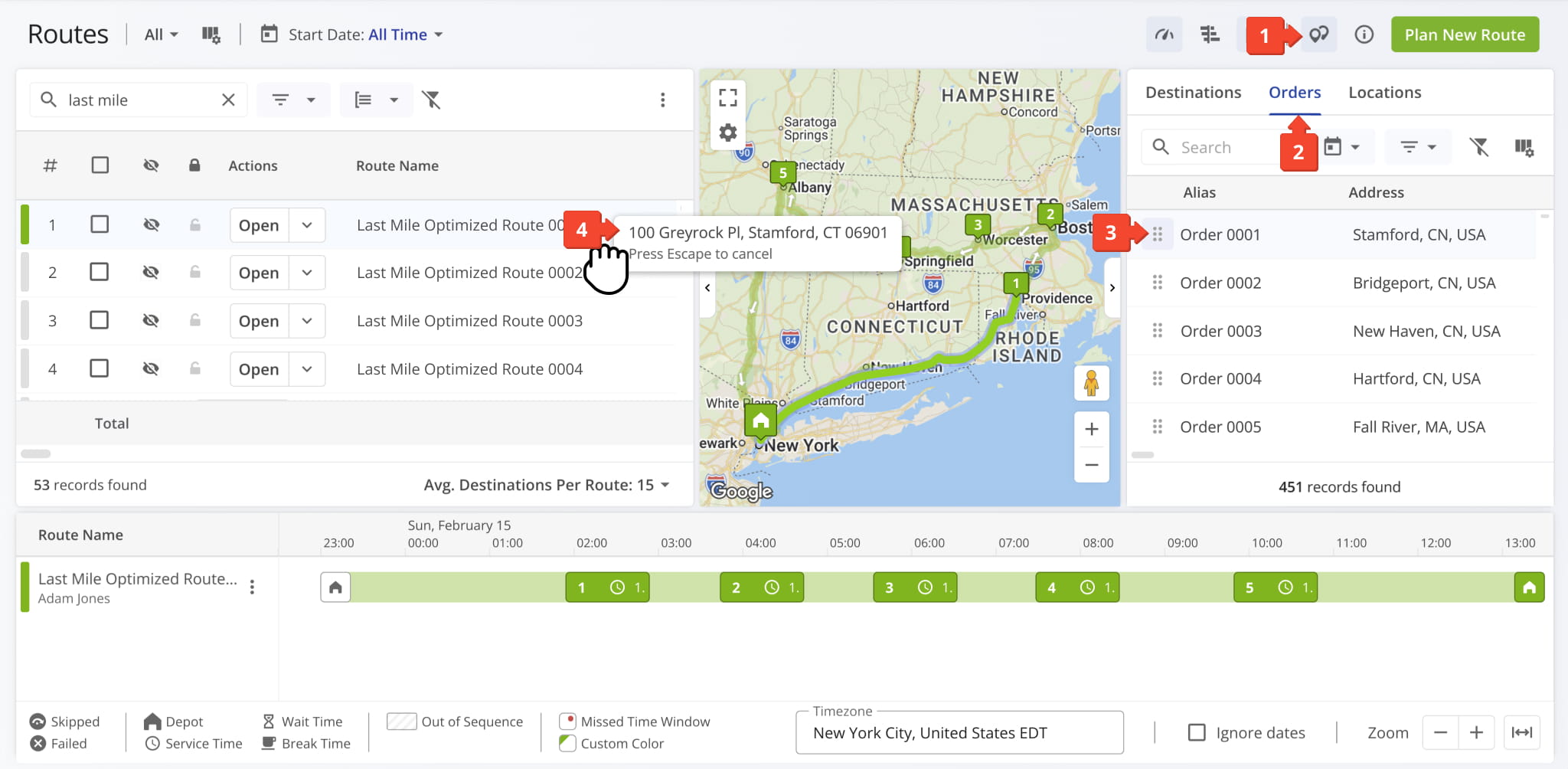
To drag and drop an order from the Assignable Work Panel to a route in the Routes List:
- Click the Order Icon to open the panel.
- Click on the “Orders” Tab.
- Select the order you want to add to a route.
- Drag the order to the preferred route in the Routes List.
Once inserted, Route4Me will automatically update the route with the new order. This works for upcoming routes as well as ones already in progress, though a few limitations apply once a route has started.
NOTE: New orders can only be added to the unvisited portion of an in-progress route. Add new destinations to the end of the route or, if you add them elsewhere, re-optimize the remaining stops to keep the route efficient.
Drag And Drop Order Onto Routes Map – Drop Order Into Route
To drag and drop an order from the Assignable Work Panel to a route in the Routes Map:
- Click the Order Icon to open the panel.
- Click on the “Orders” Tab.
- Select the order you want to add to a route.
- Drag the order to the preferred route on the Routes Map.
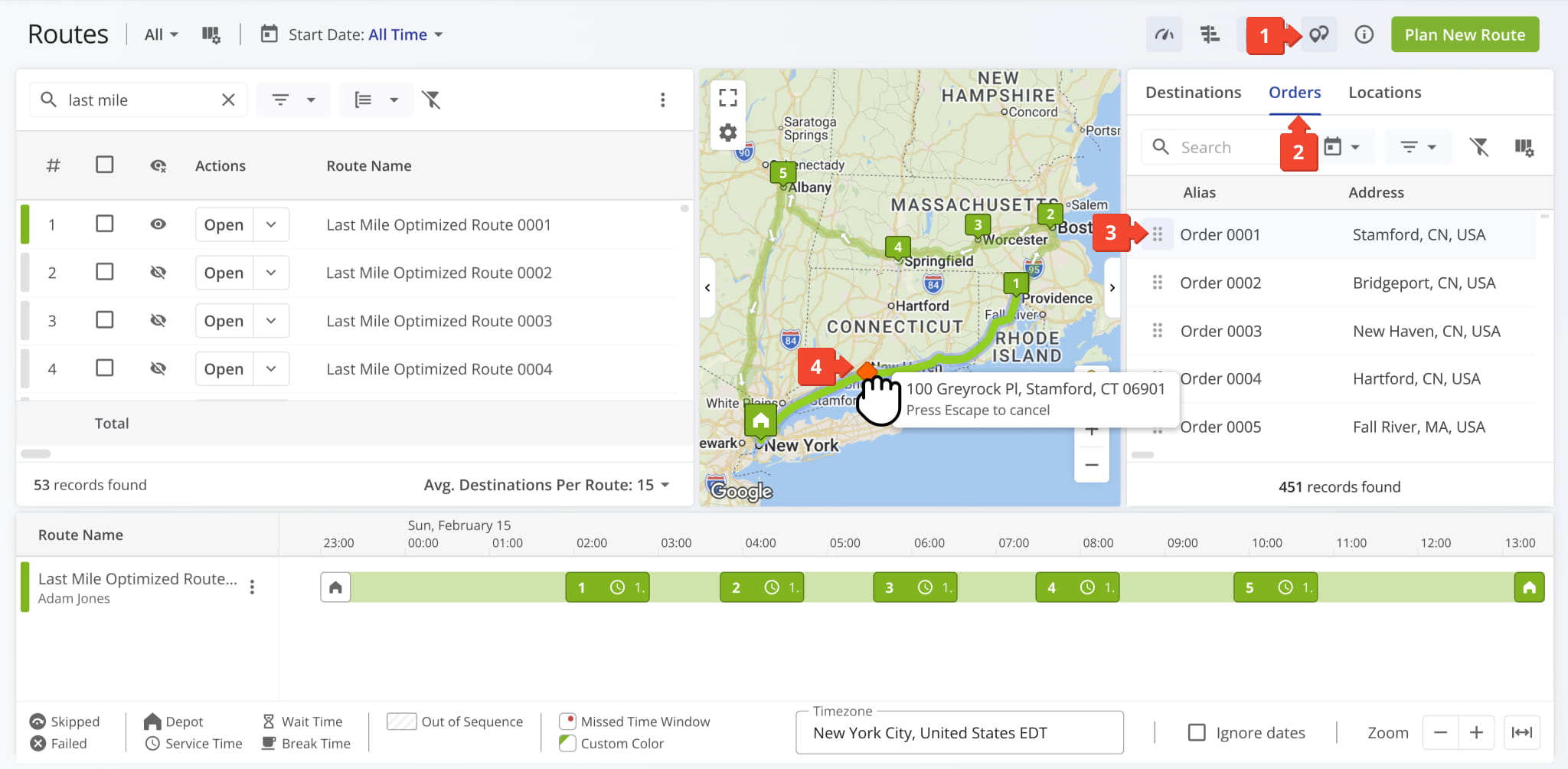
Once added, Route4Me updates the Routes Map to show the new order along the route path.
NOTE: New orders can only be added to the unvisited portion of an in-progress route. Completed stops can’t be changed. Re-optimize the remaining stops to keep the route efficient.
Drag And Drop Order Onto Routes Timeline – Schedule Order
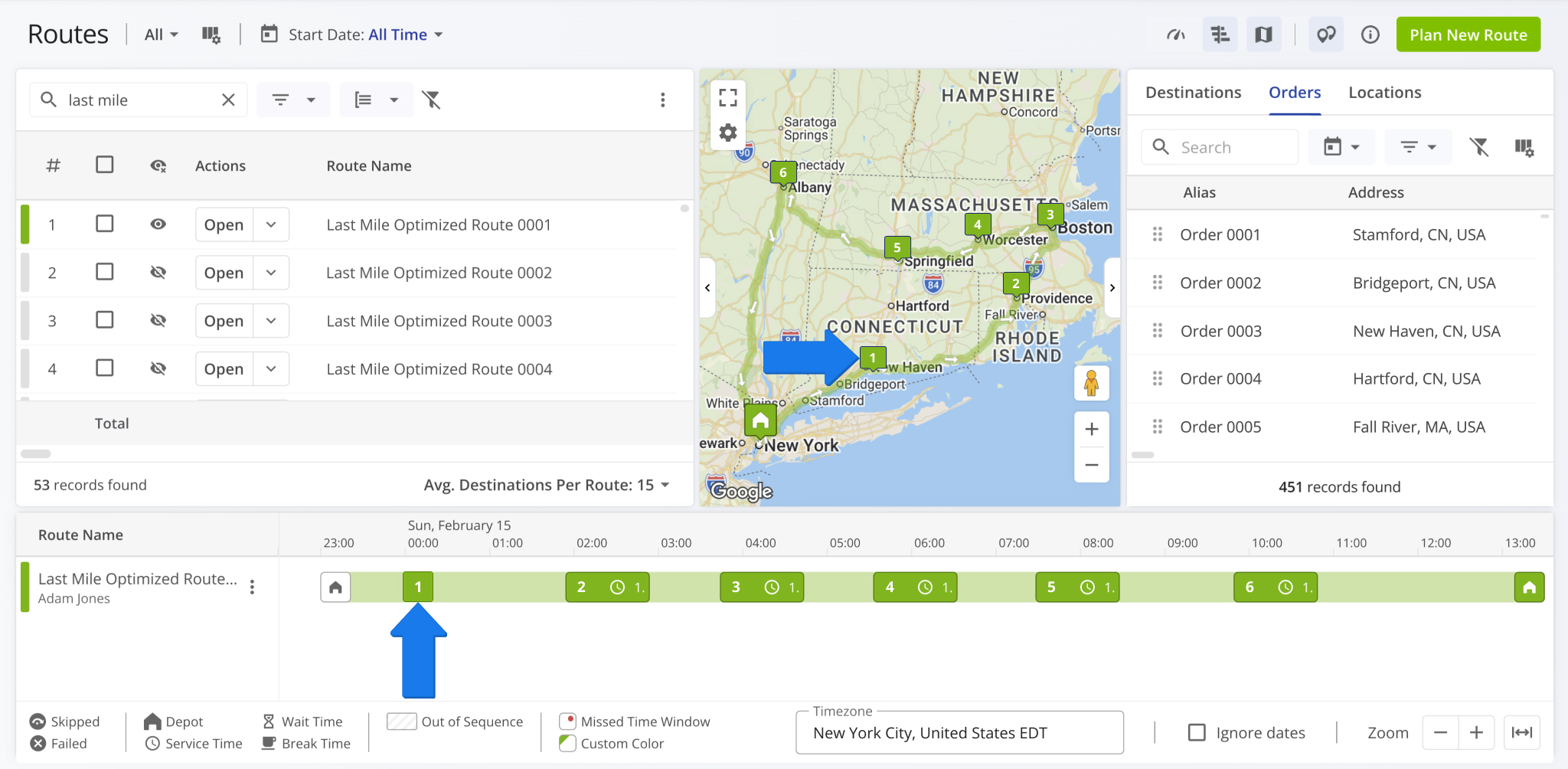
To drag and drop an order from the Assignable Work Panel to a route in the Routes Timeline:
- Click the Order Icon to open the panel.
- Click on the “Orders” Tab.
- Select the order you want to add to a route.
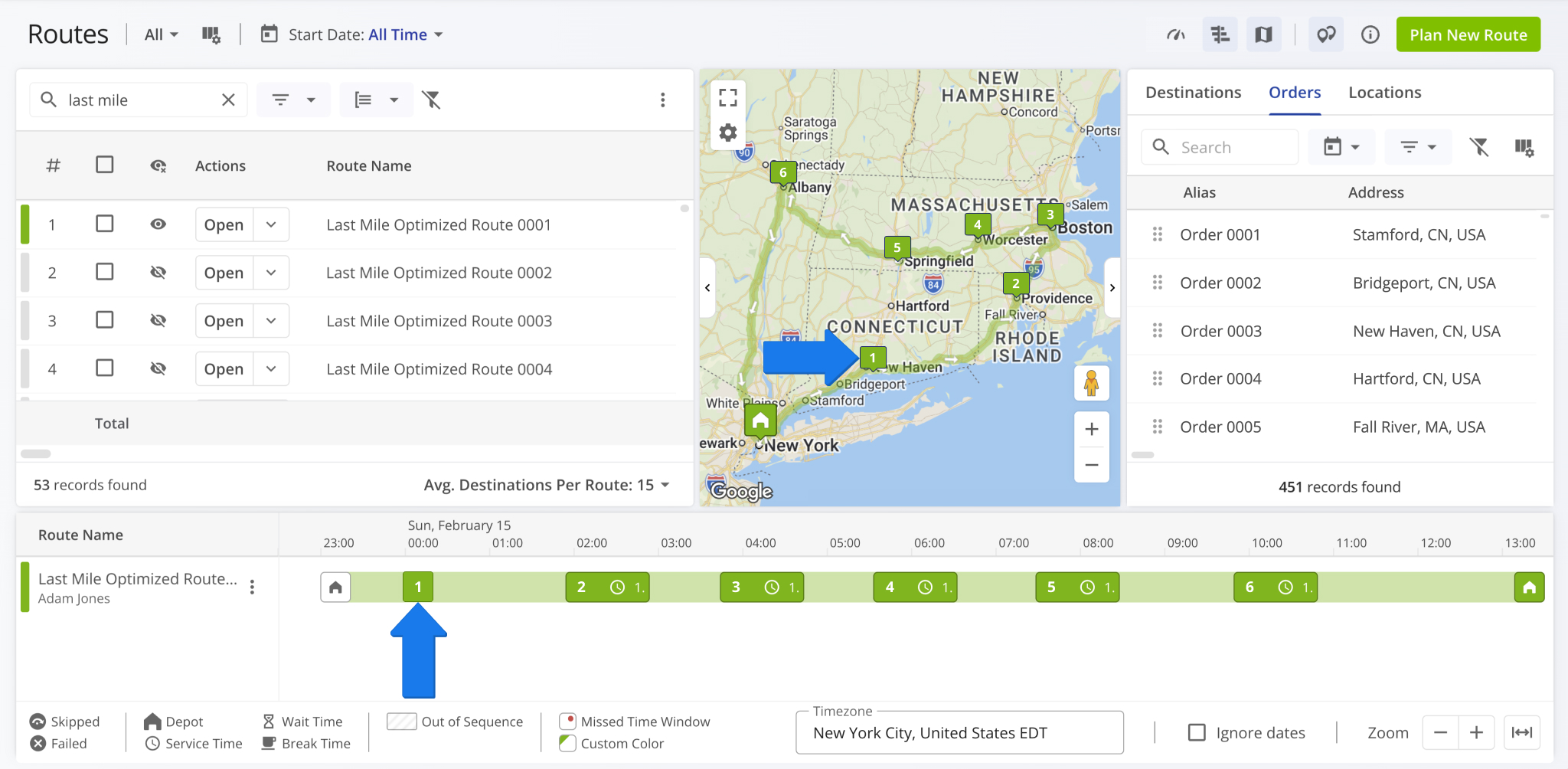
- Drag the order to the preferred route on the Routes Timeline.
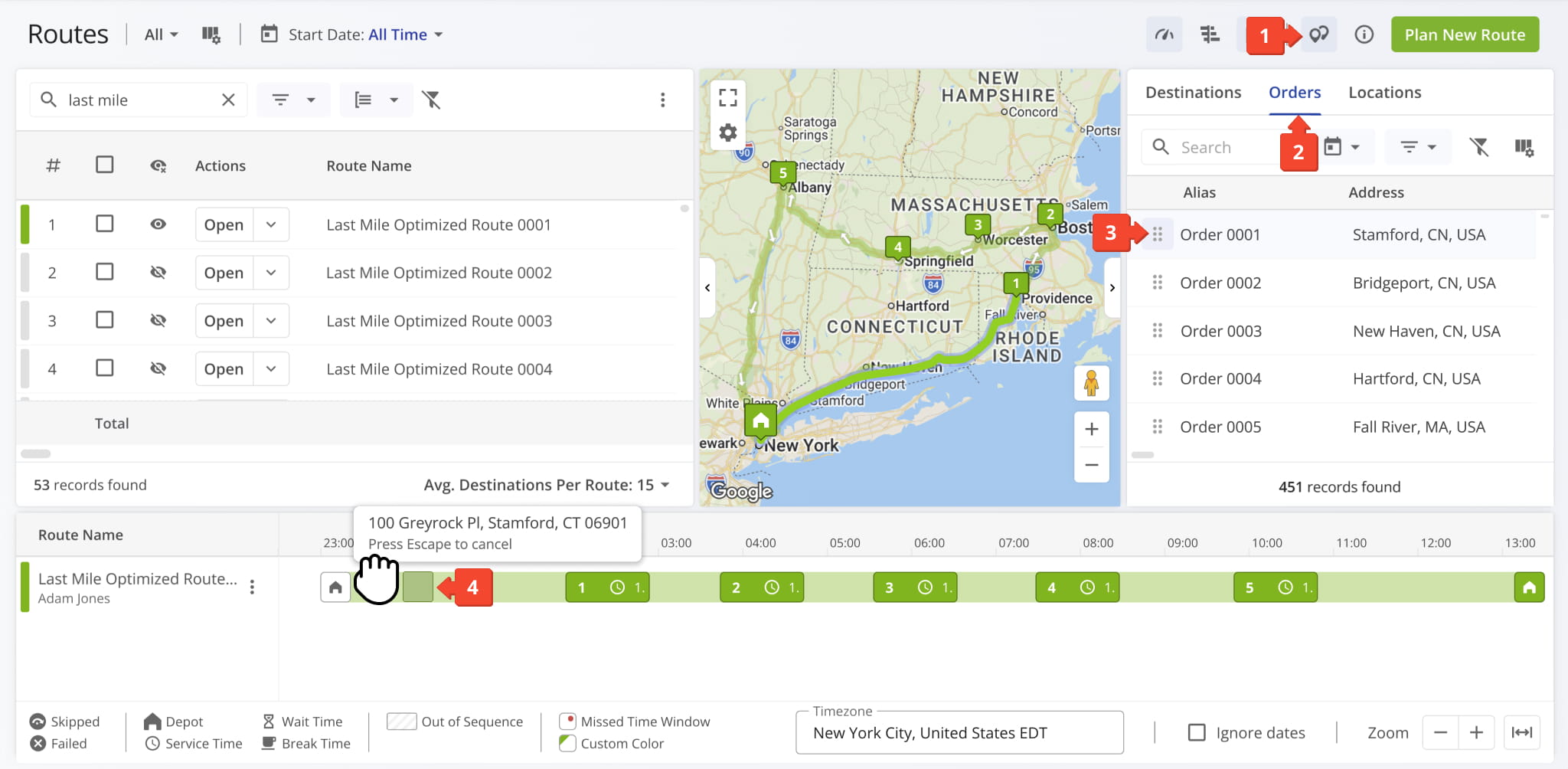
Once added, Route4Me updates the Routes Map to show the new order along the route path.
NOTE: New orders can only be added to the unvisited portion of an in-progress route. Completed stops can’t be changed. Re-optimize the remaining stops to keep the route efficient.
Re-Optimize Routes After Making Changes – Route Optimization Tip
After adding an order using any of the methods above, you can re-optimize your route to ensure directions and timing stay accurate.
From the Route Editor, select “Route” from the top menu, then choose “Re-Optimize This Route“. From the Routes Page, check the box next to the route and select “Re-Optimize Routes” from the “Bulk Actions” menu.
For routes already in progress, select “Re-Optimize Remaining Destinations” instead, which updates only unvisited stops without affecting those already completed. NOTE: Learn more about re-optimizing routes and destinations.
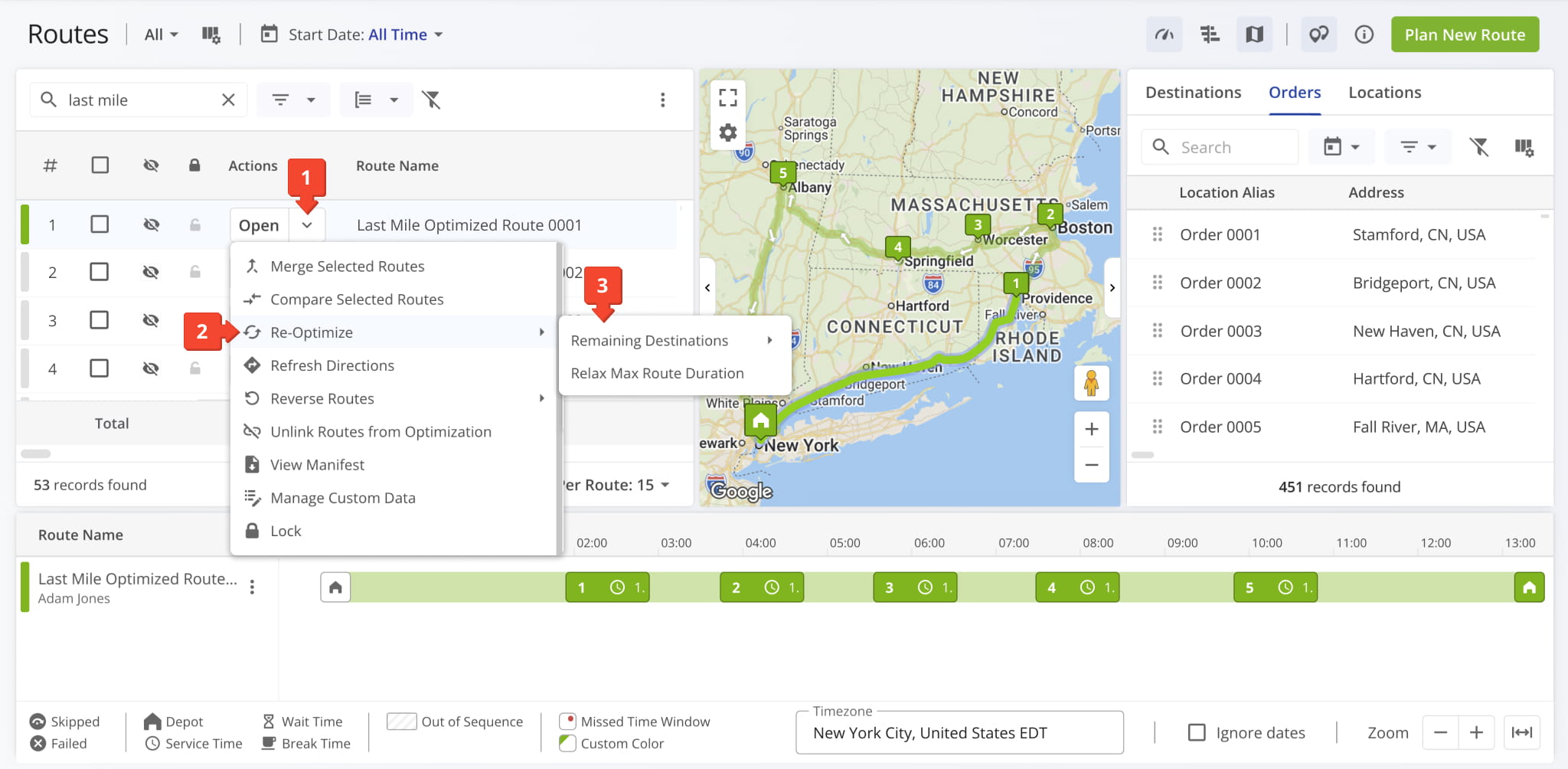
Re-Optimize Routes
Visit Route4Me's Marketplace to Check out Various Modules and Add-Ons:
- Route Optimization
Time Windows
- Operations
Advanced Team Management Add-On
Last Updated:
About author: Kristian Andreev

