
Navigate Dispatched Routes With In-App Voice-Guided GPS Navigation
Route4Me’s Multi Stop Route Planner app provides seamless continuity for users and drivers as they navigate and complete routes. The app supports integrated GPS navigation, allowing you to easily navigate your dispatched routes without switching between different apps. Specifically, in-app navigation supports voice-guided driving directions for driver safety, walking and bicycling directions, adjustable 3D maps, dynamic ETAs, live traffic, and more.
NOTE: If your route includes commercial vehicles, not all areas may support truck-safe routing. See where Route4Me provides commercial navigation to plan accordingly.
Table of Contents
Using Android Route Planner In-App Voice-Guided GPS Navigation
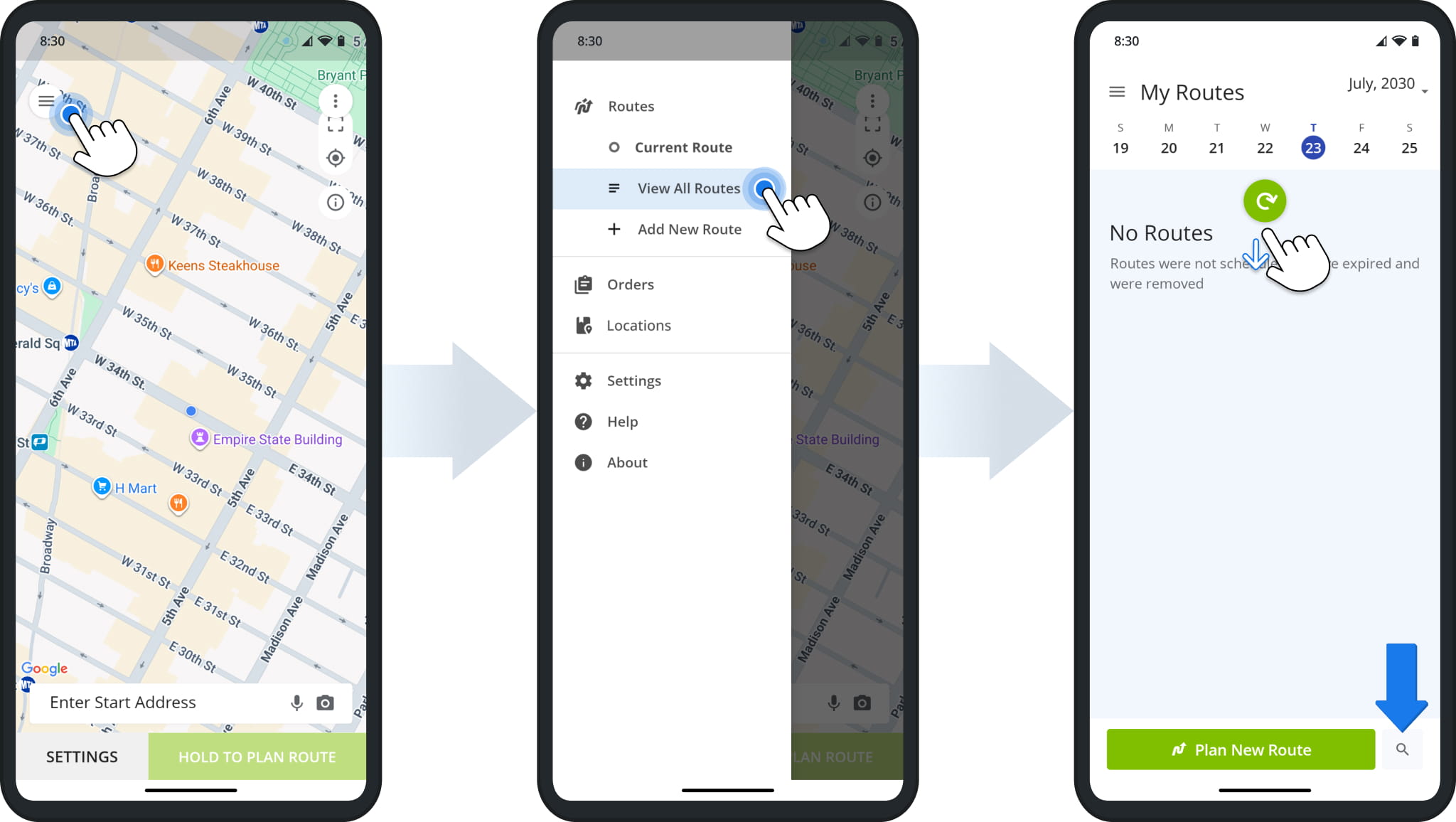
Tap the Menu Button in the top-left, then tap “Routes” or “View All Routes” to open “My Routes”.
“My Routes” shows the routes dispatched to you by day. Swipe down to refresh and load the most recent data. You can also tap the Search Icon next to “Plan New Route” to find routes by name or other attributes.
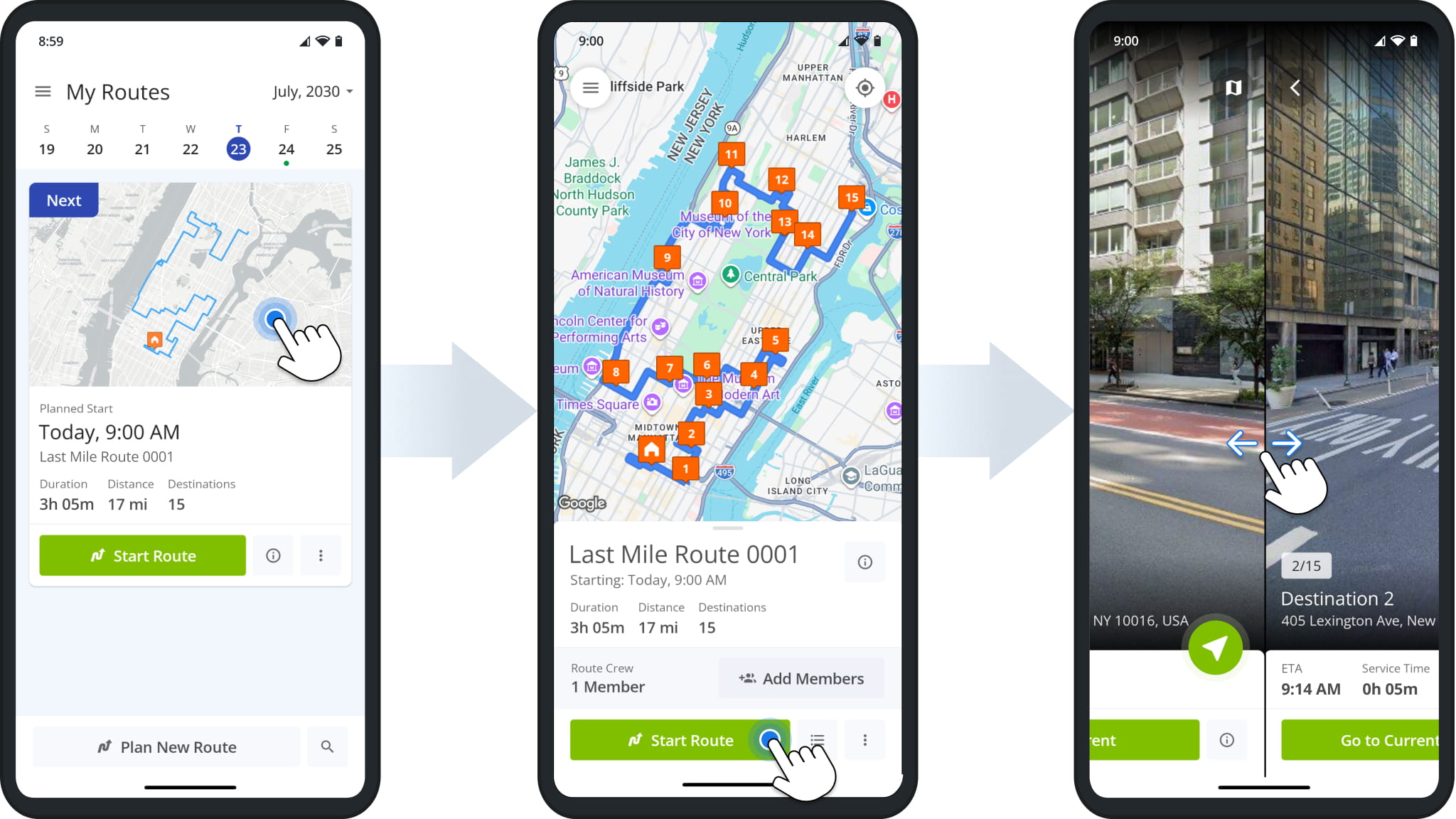
Tap a route to open it. The route you’re scheduled to run next is marked “Next”. To open the route, tap directly on its card in “My Routes”, then tap “Start Route“. This opens the first destination and changes the route’s status to “Started”.
You can then swipe left or right to scroll through route destinations.
NOTE: When opening an already started route, “Start Route” is replaced with “Navigate”.
Once you’ve started or continued a route, you’ll see the next Destination in its sequence. To start navigating to it, tap the Navigate Button and select “Route4Me In-App Navigation”.
After the first time you select a navigation app, it’ll be set as your default navigation method. You can change it anytime in the Navigation Settings described further in this guide.
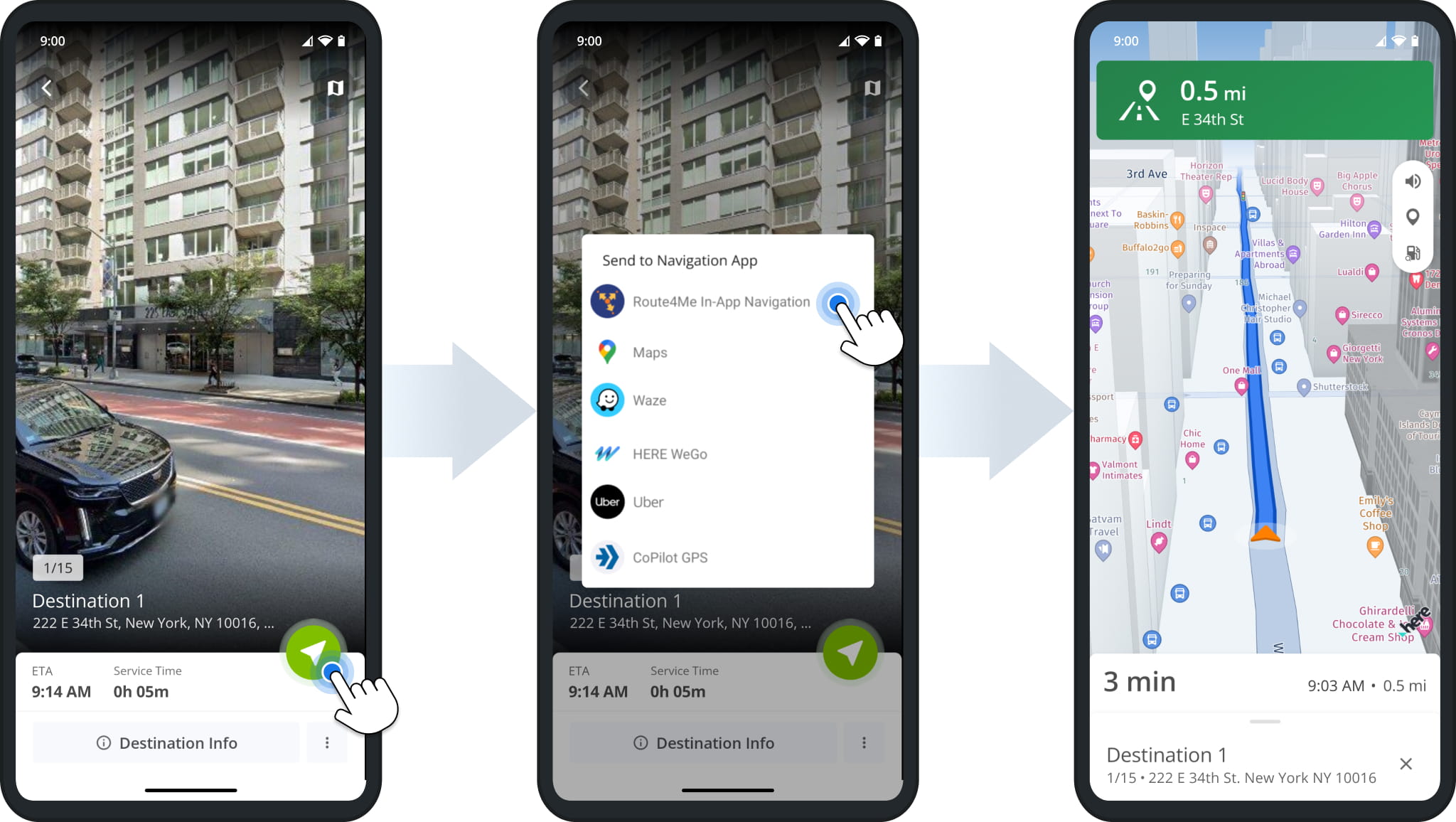
At the top, you’ll see live turn directions and a preview of the following turn. The app automatically voices every turn. At the bottom, you can see the ETA and distance to the current Destination. Use the buttons on the right side of the map to:
- Mute or unmute the voice-guided GPS directions.
- Move the map to your position, your next destination, or see the whole route.
- Show nearby fueling stations if you need to refuel on a route.
Route4Me’s in-app navigation factors in traffic and other real-time conditions, so the ETA can change while you navigate.
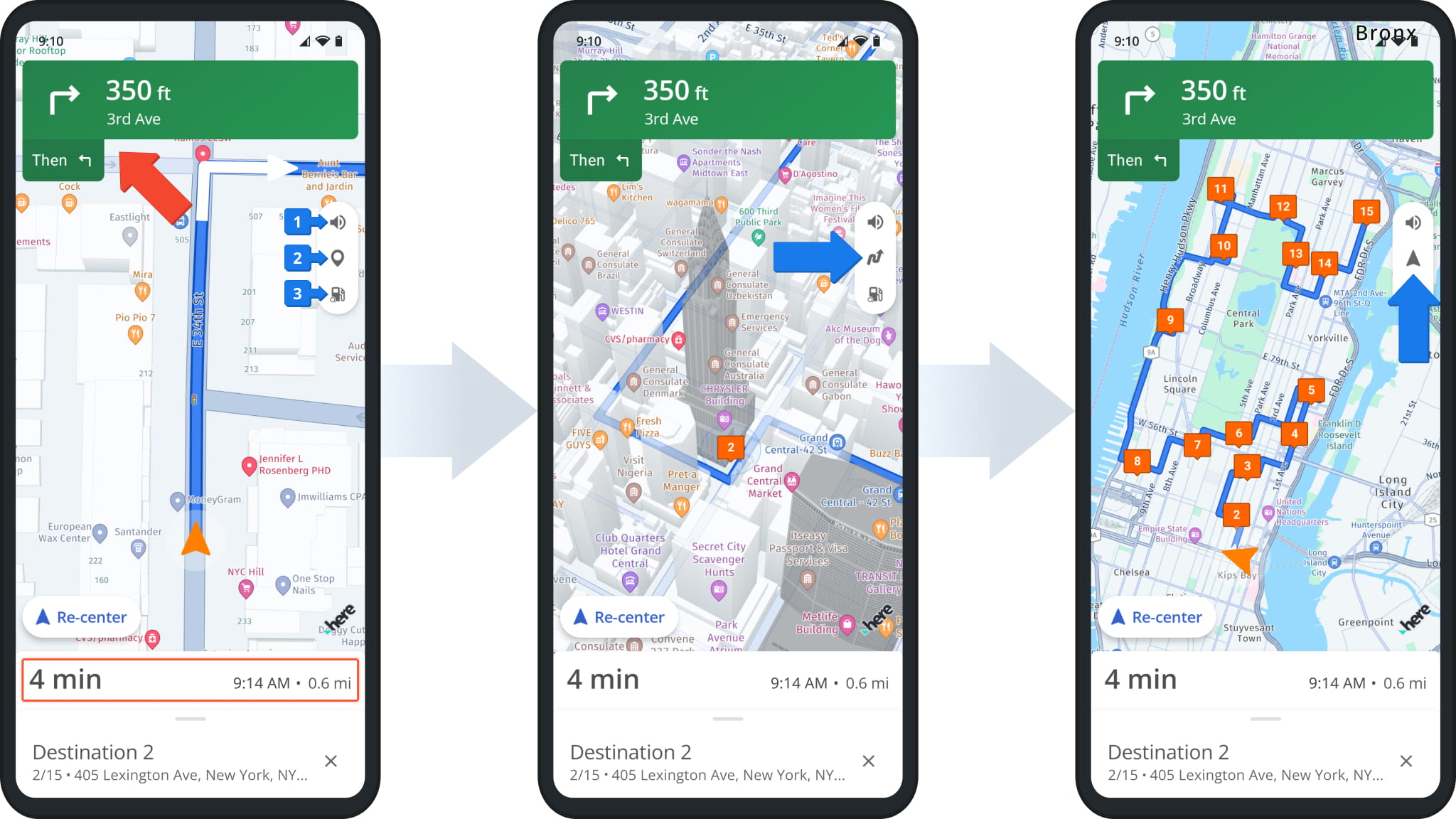
NOTE: The Navigation Map supports standard control gestures you’re familiar with, i.e. two-finger pinch to zoom in and out, two-finger swipe up and down to tilt, and two-finger rotation to rotate the map.
Route4Me Android Route Planner In-App Navigation Settings
To change your navigation settings, tap the Menu Button, select “Settings”, and tap “Navigation Settings”. For example, to change how in-app navigation handles multi-stop routes:
- Tap “Navigation Mode”.
- Select “Single Destination Navigation” or “Continuous Route Navigation”.
The table below lists all options in the Navigation Settings menu. Learn more about Route4Me app settings.
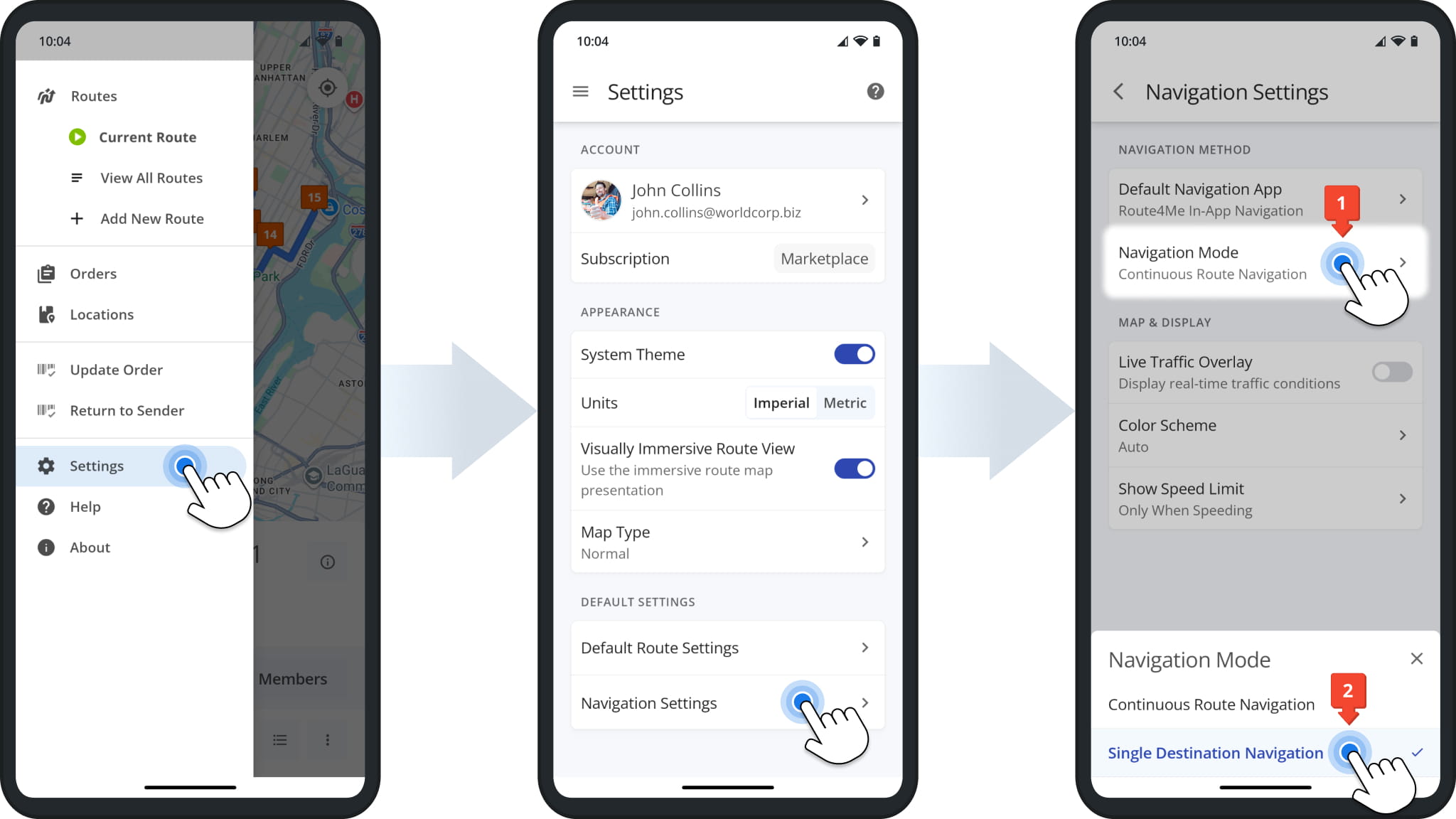
Navigation Settings In The Route4Me Driver App
Single Destination Vs Continuous Route Navigation
The image below shows the difference between navigation modes. Specifically, “Single Destination Navigation” is used to navigate to one location, and navigation closes once you’ve arrived.
With “Continuous Route Navigation”, the whole route is visible in the navigation interface, and it remains open after arriving at and completing destinations. Learn about single destination and continuous route navigation modes.
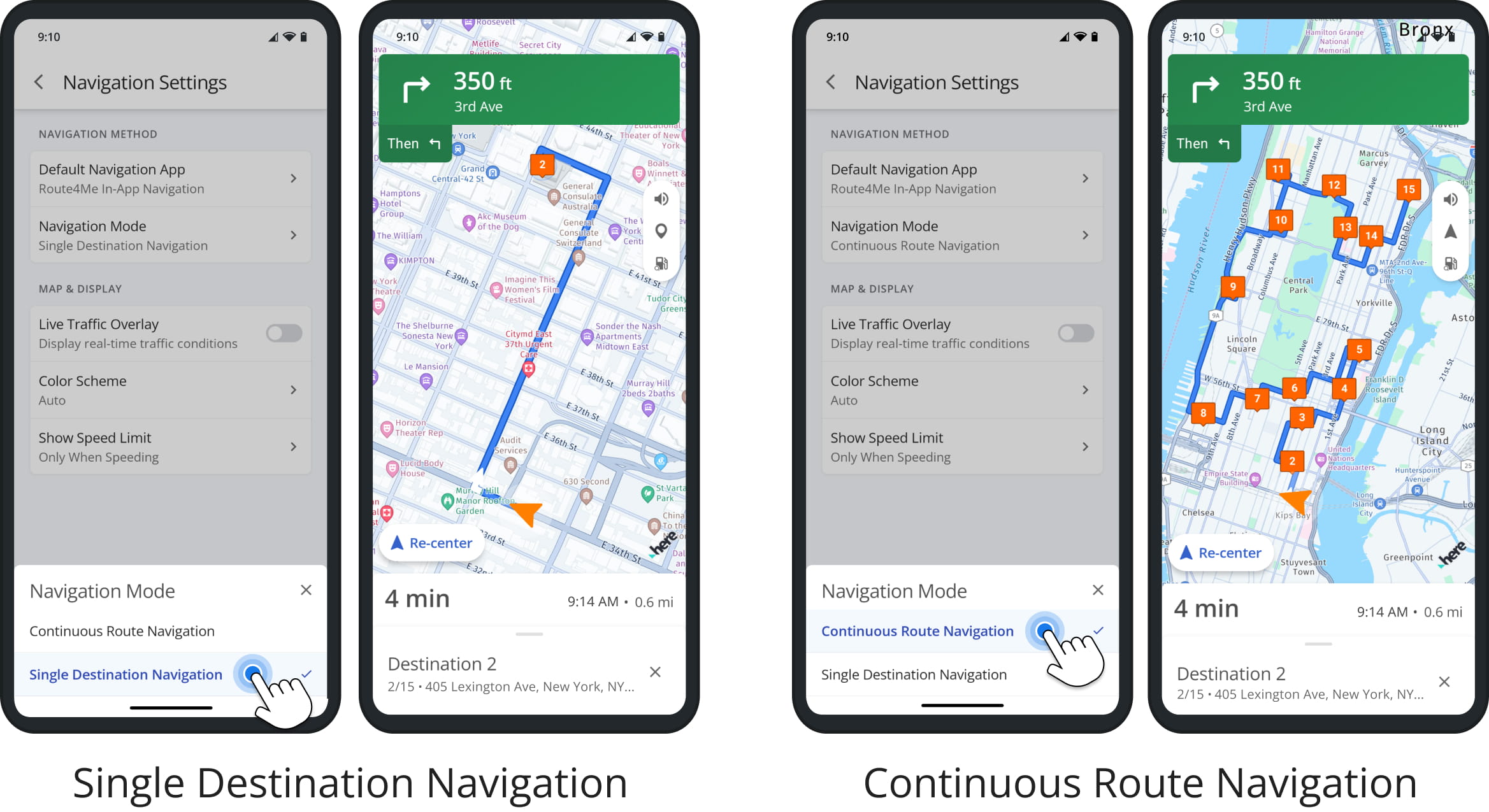
NOTE: The “In-App Navigation Mode” setting applies to Route4Me’s integrated navigation only. Third-party GPS navigation apps only support single-stop navigation.
Visit Route4Me's Marketplace to Check out Associated Modules:
- Operations
Custom Data Add-On
- Operations
Advanced Team Management Add-On
About author: Kristian Andreev

