
Asset Snapshot – Centralized Asset Data And Analytics Overview
Managing an Asset across multiple Routes, Users, and Facilities can get complicated fast. The Asset Snapshot solves that by putting everything in one centralized, real-time view, whether you’re running a single last mile optimized route or coordinating full-scale enterprise route planning. From this page, you can search, filter, and open related records directly, without ever switching screens. Learn more about the Asset Snapshot in this guide.
NOTE: If you can’t open Assets Snapshots, contact Customer Support for assistance.
Table of Contents
Access Asset Snapshots – View Asset Data And Analytics
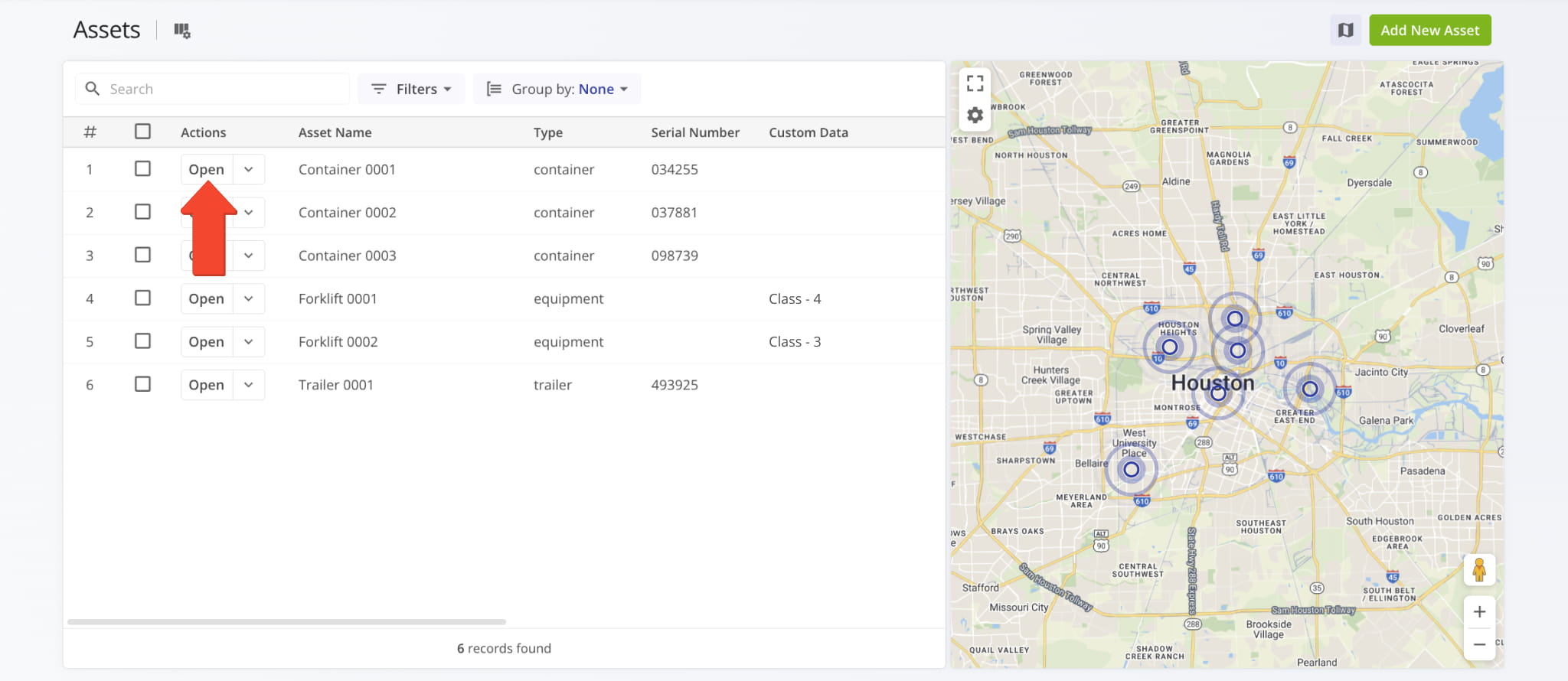
To open an Asset Snapshot, go to “Team & Equipment” > “Assets” from the Navigation Menu. On the Assets Page, click “Open” next to the desired Asset.
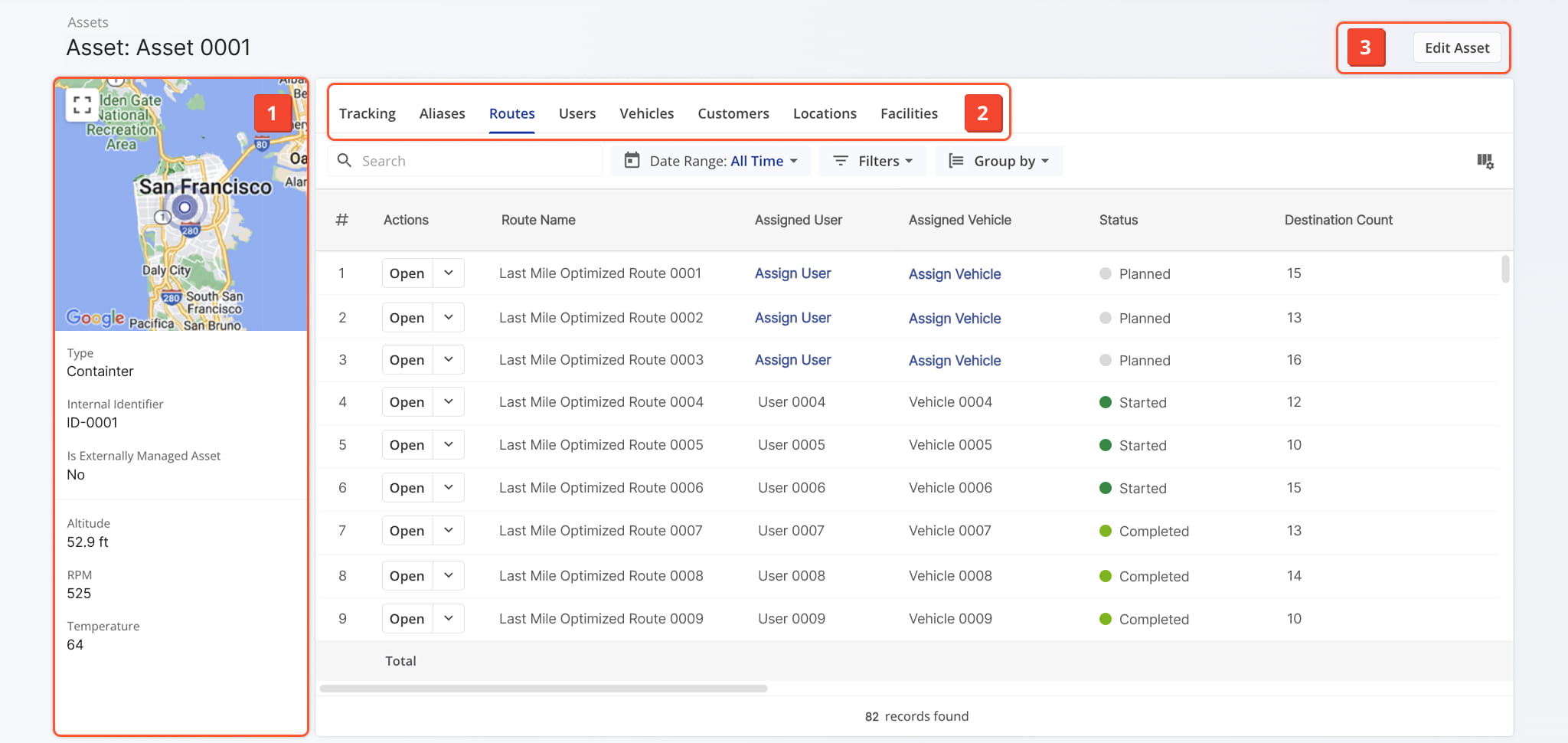
Once the Snapshot is opened, you’ll see a detailed interface designed to help you review and manage all Asset data:
- Summary Panel: Overview of key information about the Asset, including a real-time tracking map.
- Data Tabs: Switch between tabs to explore Asset-related data, which you can filter and customize as needed.
- Edit Controls: Click the “Edit Asset” button in the top-right corner to modify Asset details.
Asset Summary – Detailed Snapshot Information Panel
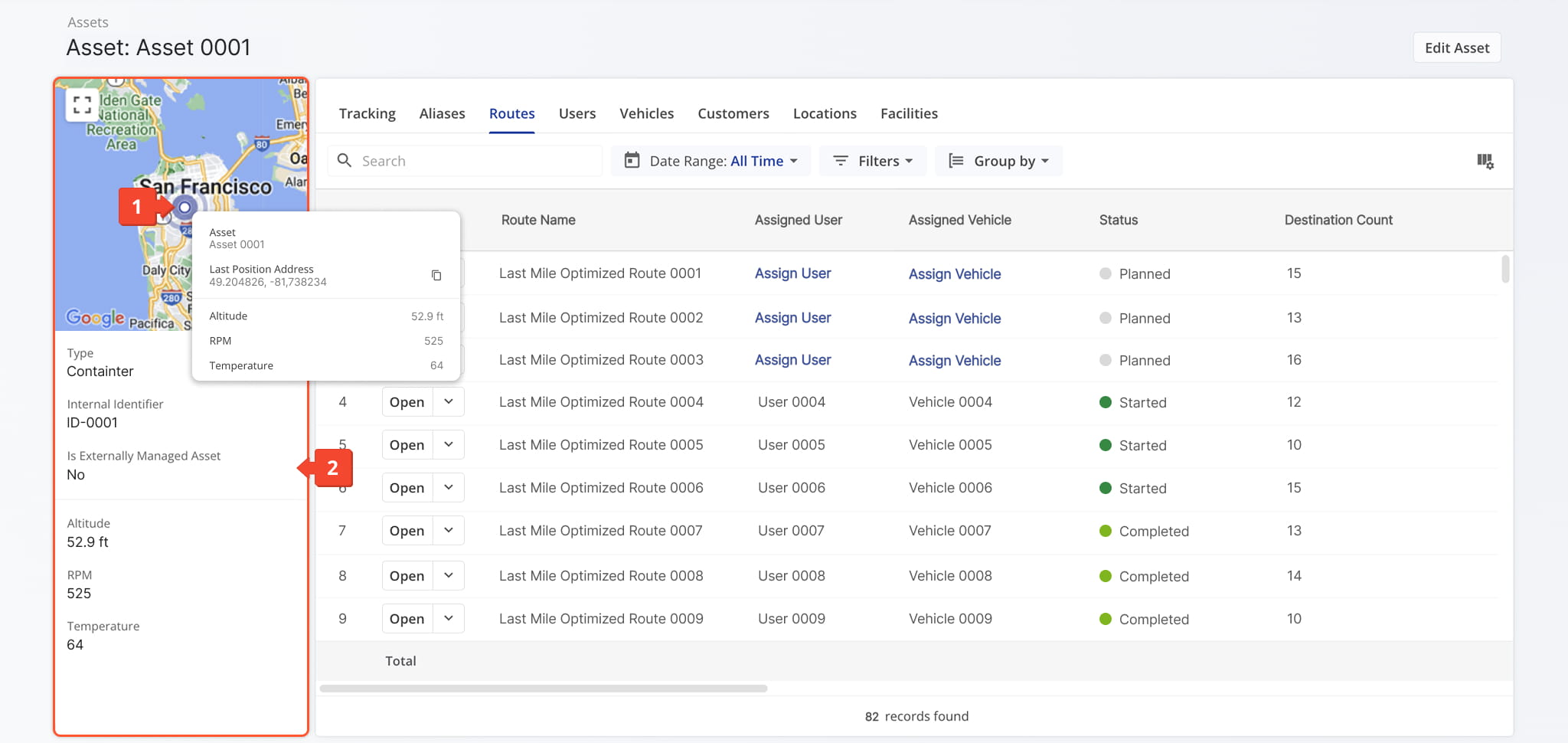
The Assets Summary panel displays key asset information, including its current location on a map. From this panel you can:
- View the Asset in real time on the map. Hover over the asset’s location to view and copy its coordinates.
- Quickly scan its assigned Asset Type, internal ID, external management status, and additional details.
Asset Snapshot Categories – Asset Analytics Data Tabs
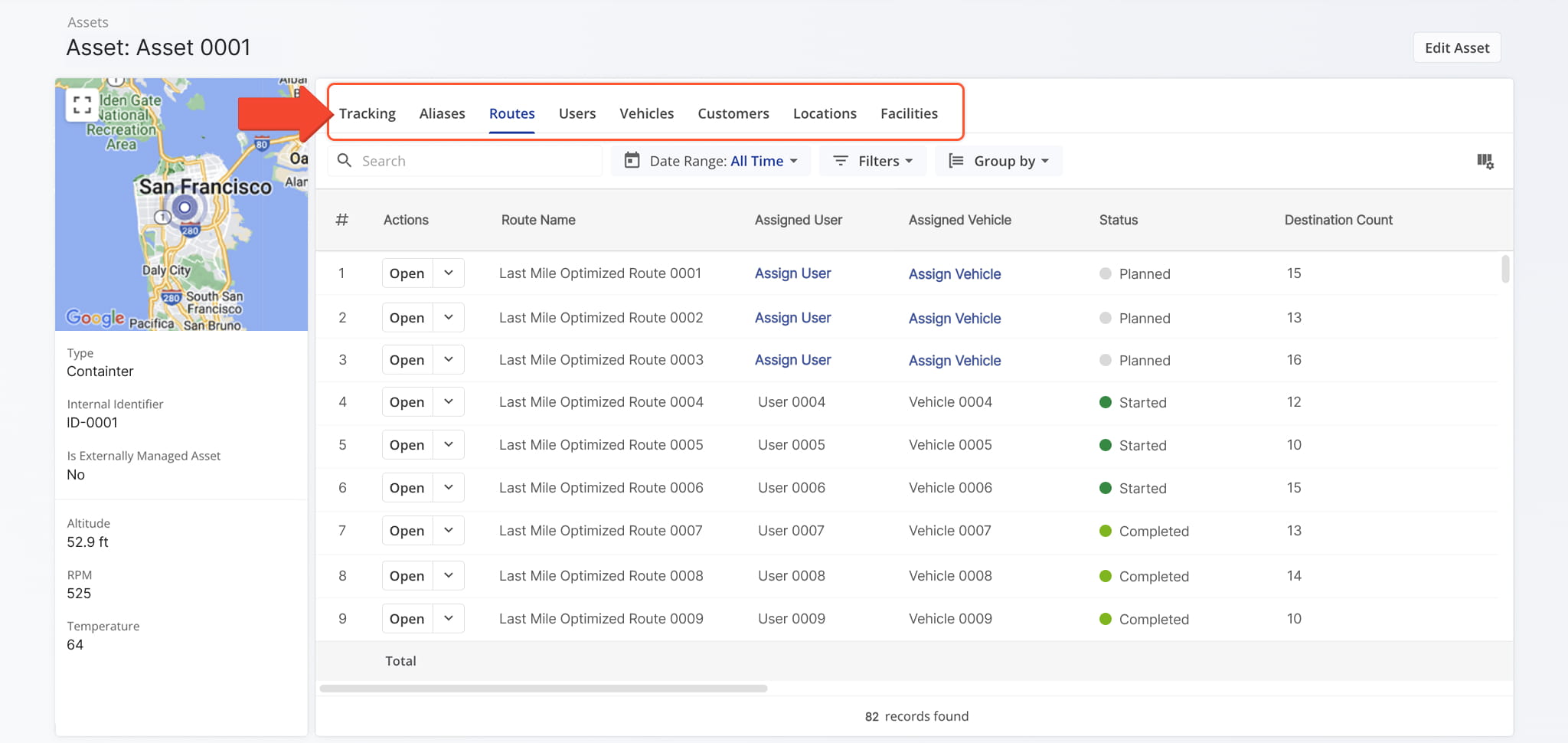
The Asset Snapshot is organized into tabs, each corresponding to a specific category of data described below.
Tracking Tab – Current Location Information And Insights
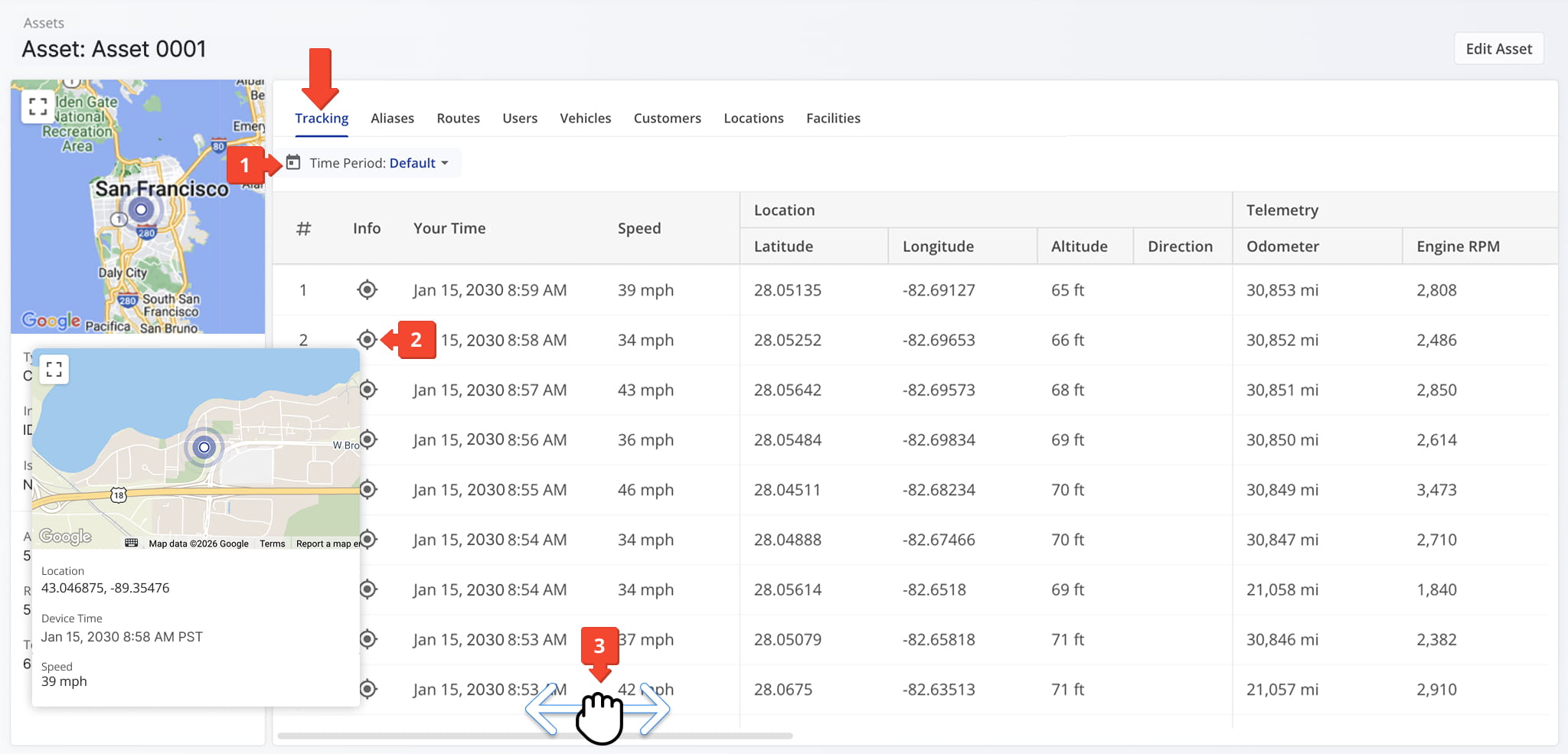
The “Tracking” tab displays all location updates associated with an Asset, including telemetry data when available via Telematics Integration. From this tab you can:
- Filter data by specific time period.
- Click an Info Icon to view the Vehicle’s tracked location on a map, with key details such as latitude, longitude, speed, and timestamp.
- Scroll horizontally to view all available data columns, described in the table below.
Asset Snapshot – Tracking Tab Data Columns
#
Sequential tracking instance, representing the order in which the Vehicle was recorded during its route.
Info
Click to view the Vehicle’s location on the map, including location and speed at a specific date and time.
Your Time
Timestamp showing when this tracking record was captured.
Speed
Vehicle speed at the recorded time.
Latitude
Vehicle latitude at the recorded time.
Longitude
Vehicle longitude at the recorded time.
Altitude
Vehicle altitude at the recorded time.
Direction
Direction the vehicle is facing at the recorded time.
Odometer
The total distance the vehicle has traveled, as recorded by the vehicle’s odometer at the time of this tracking instance.
Engine RPM
The engine’s revolutions per minute, indicating how fast the engine is running at this moment.
Engine Coolant Temperature
The temperature of the engine’s coolant, helping monitor engine operating conditions and prevent overheating.
Battery Health
An overall assessment of the vehicle’s battery condition, showing its capacity to hold and deliver charge.
Battery Temperature
The current temperature of the vehicle’s battery, which can affect performance and longevity.
Battery Level
The remaining charge in the battery, expressed as a percentage of full capacity.
Charge Status
Indicates whether the battery is currently charging, discharging, or fully charged.
Engine Status
Shows whether the engine is currently running or off at the time of this tracking instance.
Driver Seatbelt Status
Indicates whether the driver’s seatbelt is fastened.
Fuel Level
The remaining fuel in the Vehicle’s tank.
Source
Origin of the data, e.g., Route4Me.
Device Time
Timestamp of the device recording the data.
Aliases Tab – Asset Aliases And Identifiers
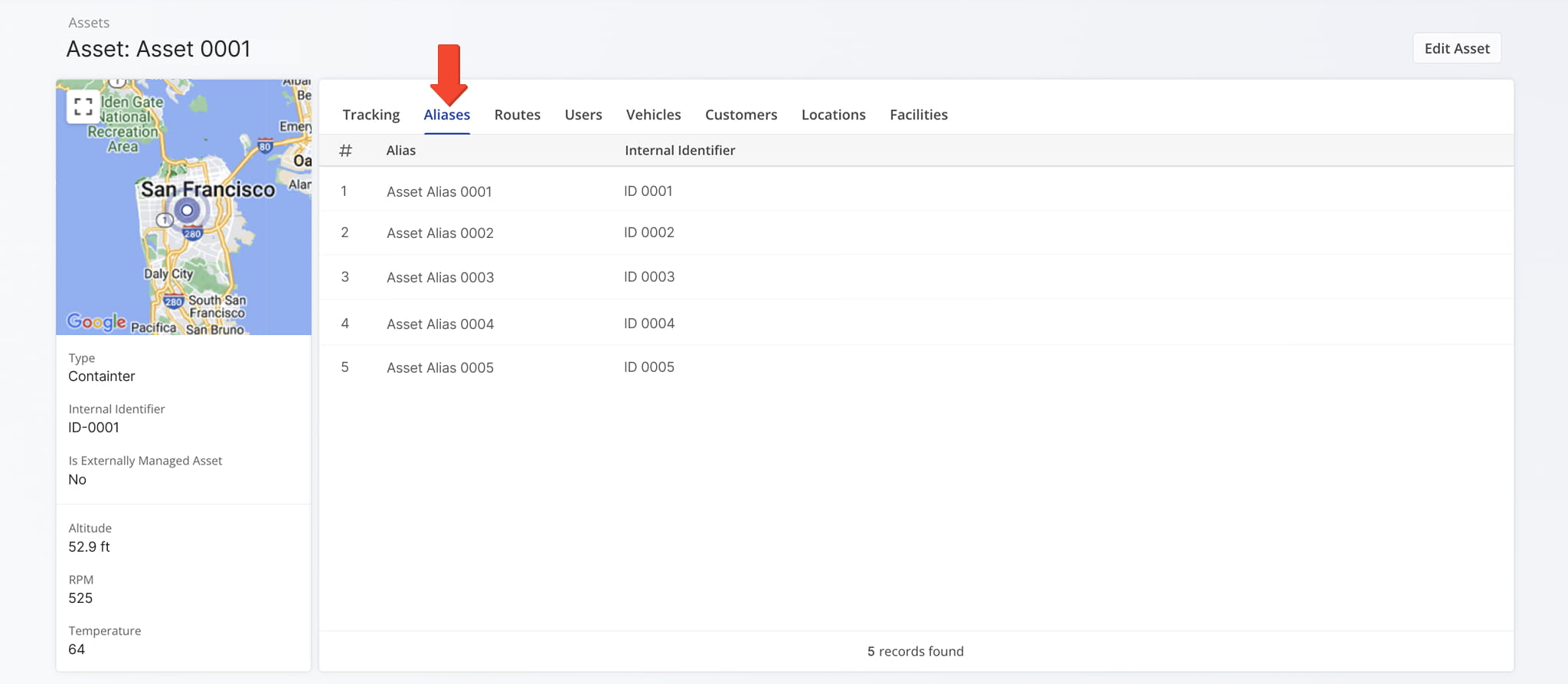
The “Aliases” tab displays all alternate names and internal identifiers assigned to the Asset, making it easier to identify and locate them within your database.
Routes Tab – Asset Route History And Key Metrics
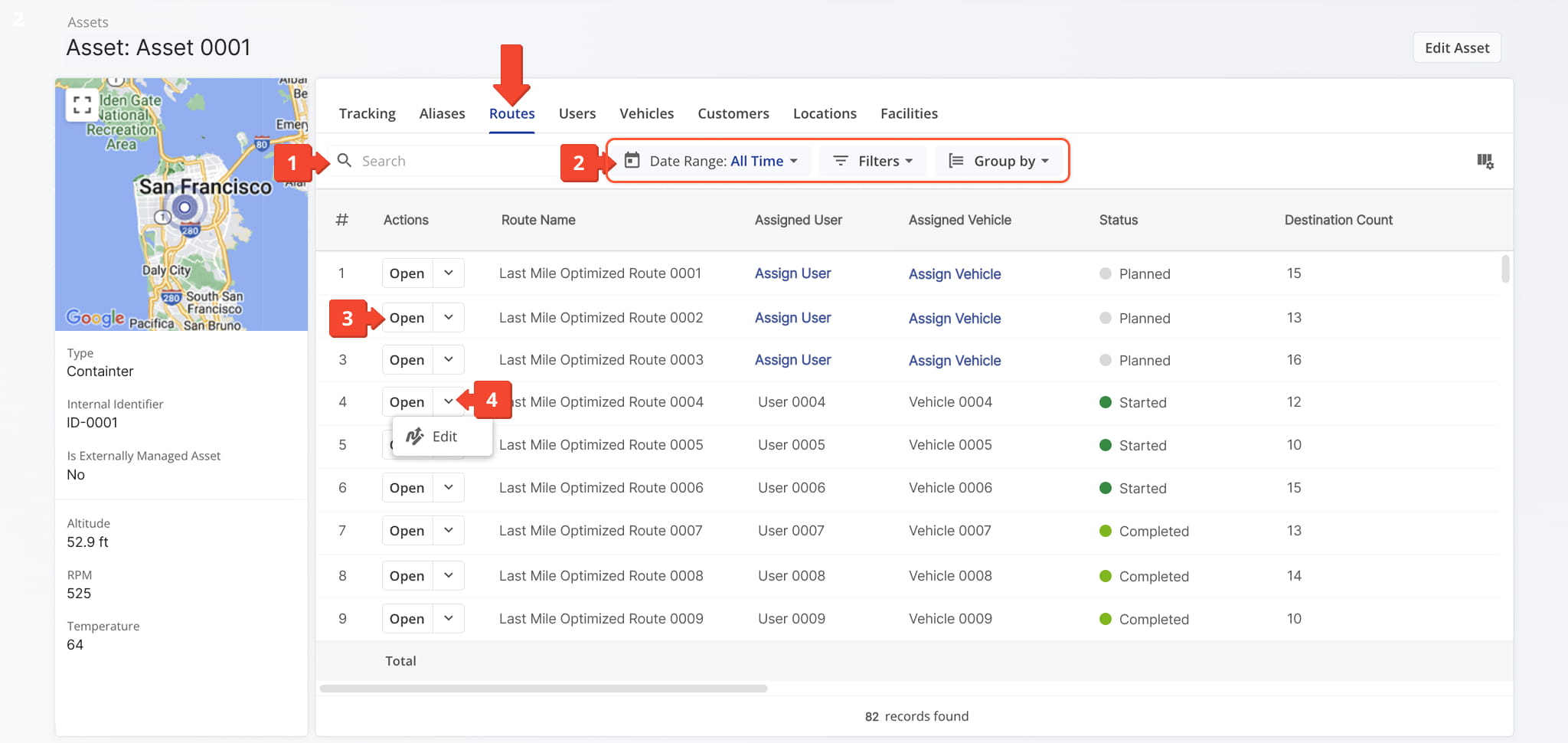
The “Routes” tab displays every Route the Asset has been assigned to, giving you quick access to route details and editing tools. From this tab you can:
- Use the Search field to locate specific Routes.
- Narrow down the displayed list of Routes using the Date Range, Group By, or Filter options, detailed in the table below.
- Click “Open” next to a Route to access its Route Snapshot.
- Click the Down Arrow button to make modifications to the Route from the Route Editor.
Asset Snapshot - Route Filters
You can also customize the data displayed in the table. Click the Column Icon to select which route data fields appear and adjust their order to suit your operational needs.
The table below provides an overview of all available data columns, which you can reorder by dragging them into place.
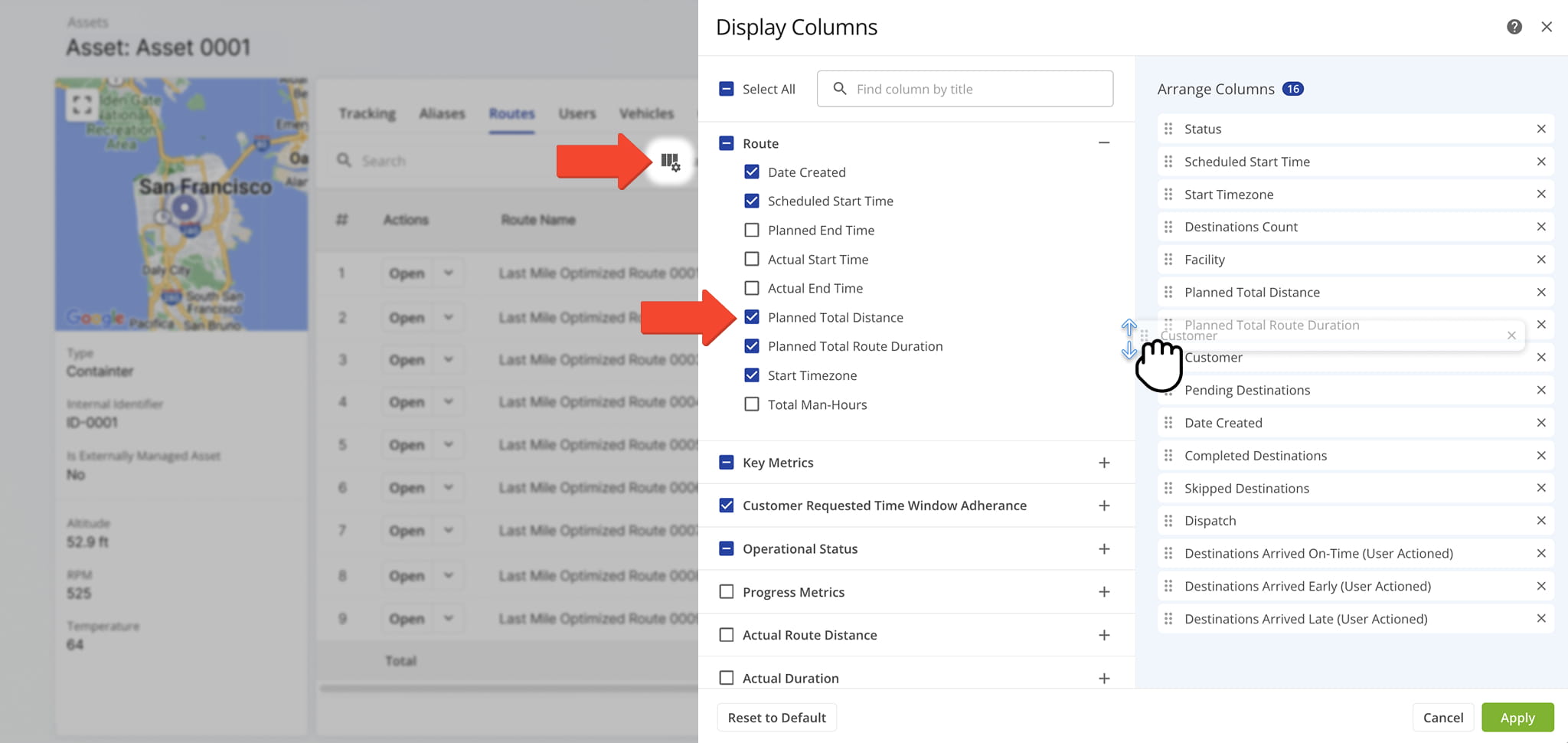
Asset Snapshot - Route Data Columns
Users Tab – Asset User Assignments And Activity
The “Users” tab helps you keep track of who has access to or responsibility for the Asset across your organization. From this tab you can:
- Use the Search field to locate specific Users.
- Filter Users using the options described in the table below.
- Click “Open” next to a User to access their User Snapshot.
- Click the Down Arrow button to see which routes the User has been assigned to.
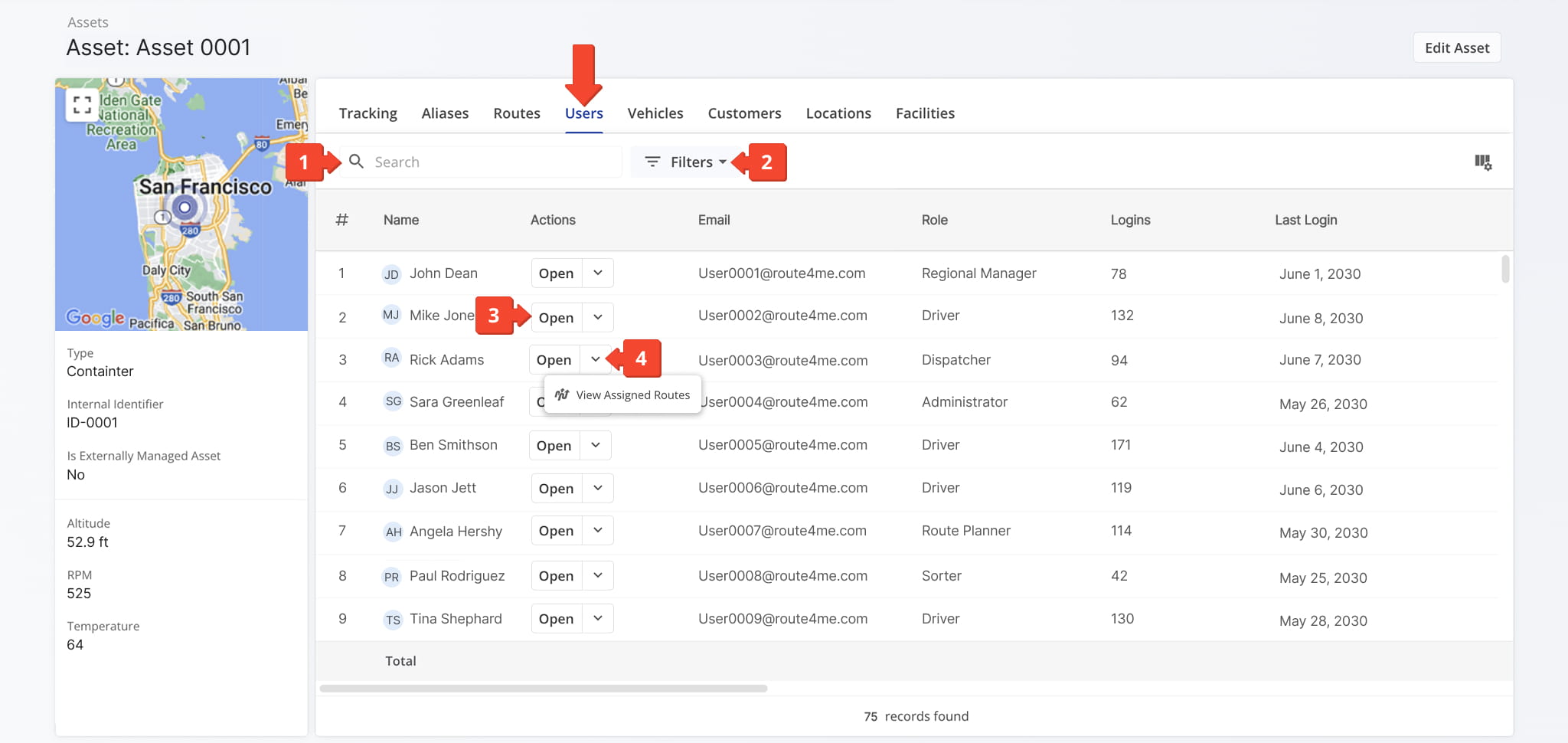
Asset Snapshot - User Filters
You can also customize the data displayed in the table. Click the Column Icon to select which route data fields appear and adjust their order to suit your operational needs.
The table below provides an overview of all available data columns, which you can reorder by dragging them into place.
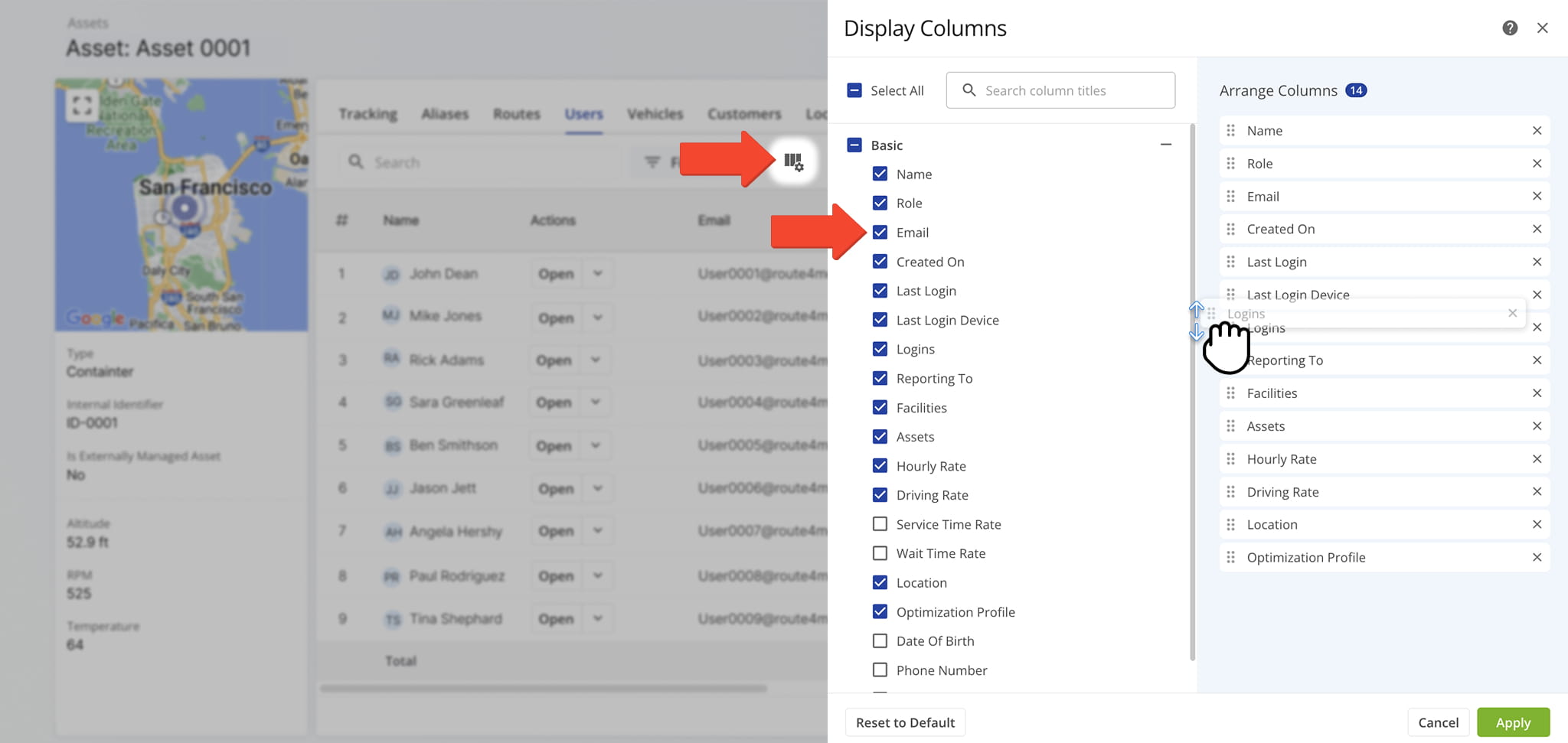
Asset Snapshot - User Data Columns
Vehicles Tab – Asset Vehicle Assignments And Activity
The “Vehicles” tab helps you keep track of which Vehicles are tied to the Asset across your fleet. From this tab you can:
- Use the Search field to locate specific Vehicles.
- Use Filters and Group By options, described in the table below, to narrow down the displayed list of Vehicles.
- Click “Open” next to a Vehicle to access its Vehicle Snapshot.
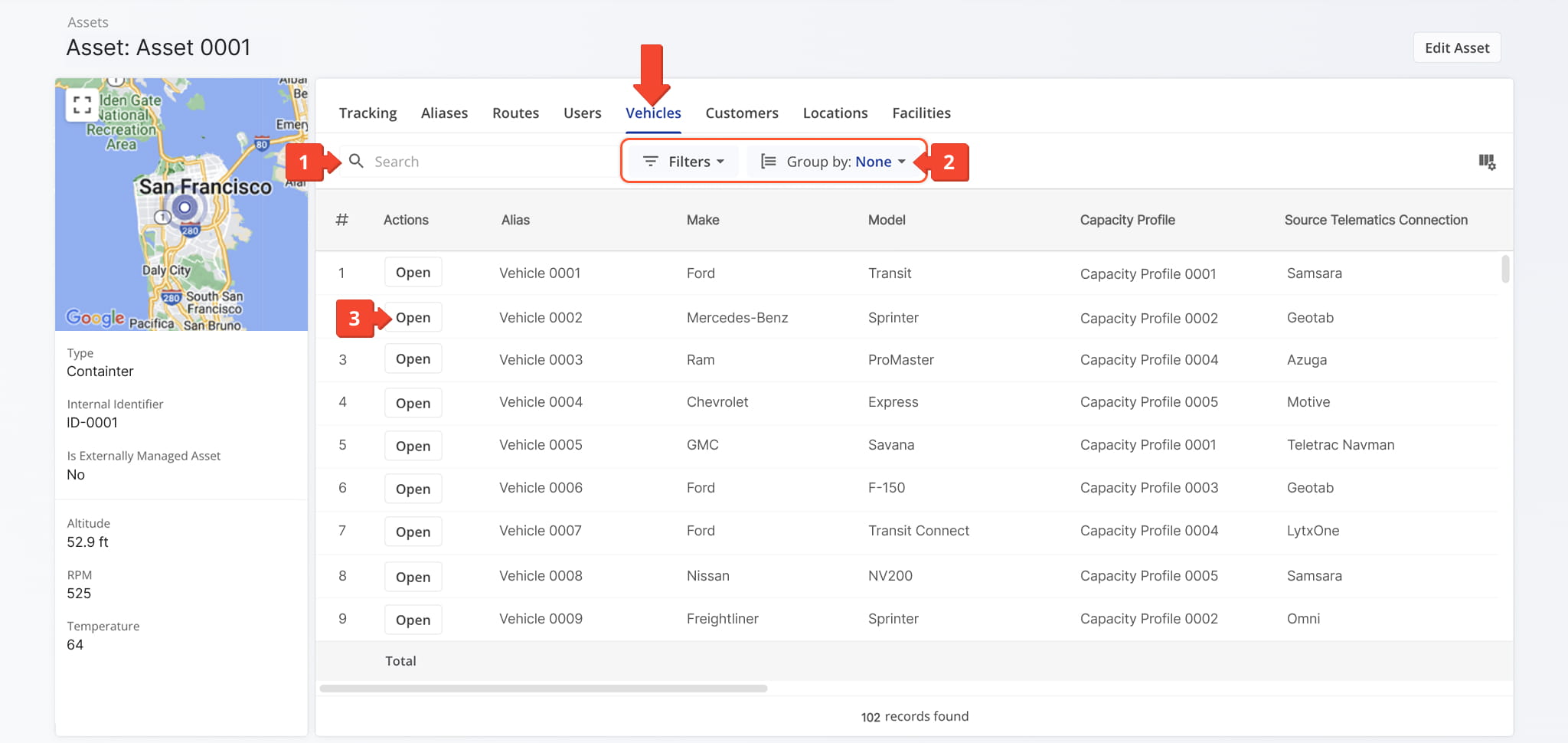
Asset Snapshot - Vehicle Filters
You can also customize the data displayed in the table. Click the Column Icon to select which route data fields appear and adjust their order to suit your operational needs.
The table below provides an overview of all available data columns, which you can reorder by dragging them into place.
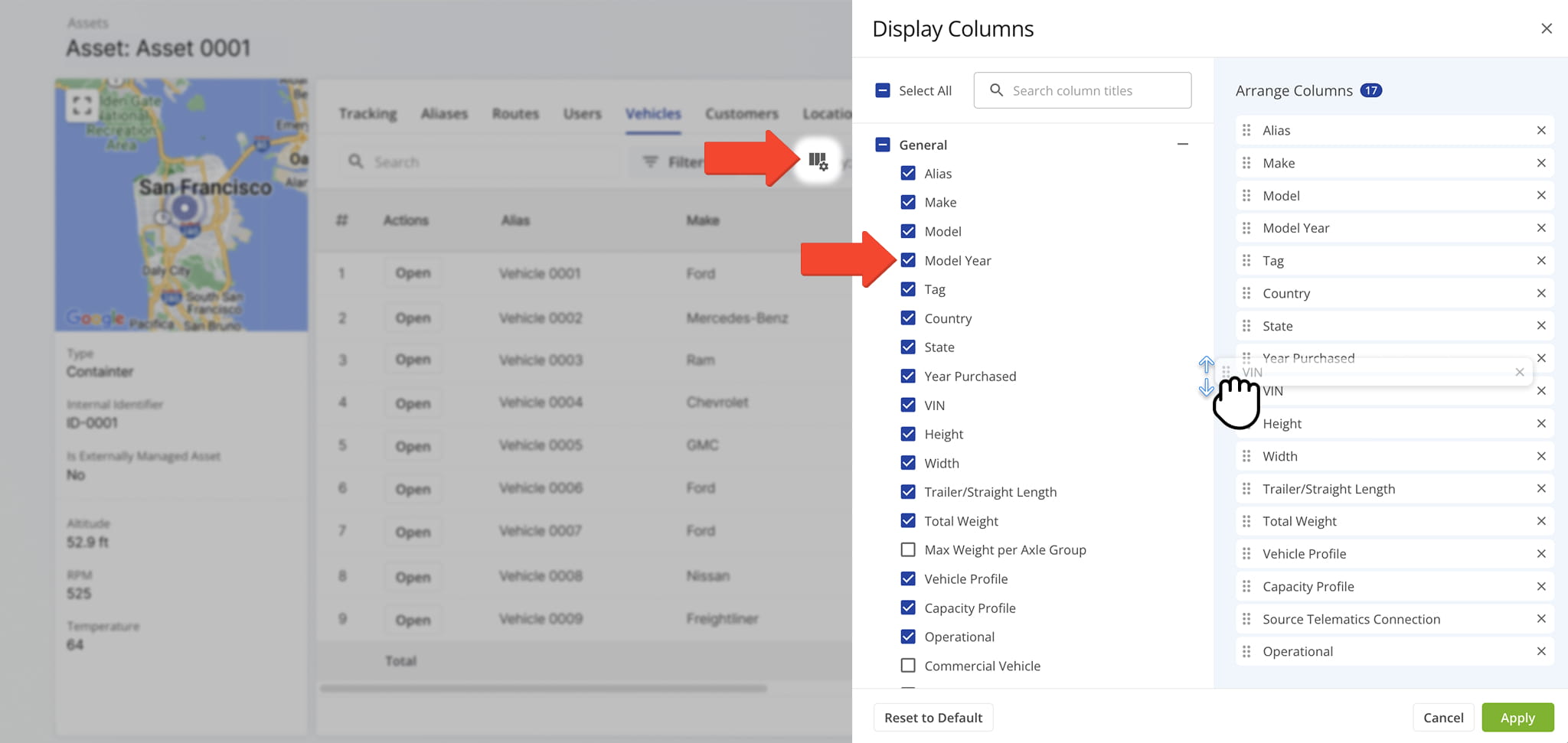
Asset Snapshot - Vehicle Data Columns
Customers Tab – Asset Customer History And Key Metrics
The “Customers” tab centralizes every Customer relationship associated with the Asset, so you can monitor service history at a glance. From this tab you can:
- Use the Search field to locate specific Customers.
- Use Filters, described in the table below, to narrow down the displayed list of Customers.
- Click “Open” next to a Customer to access their Customer Snapshot.
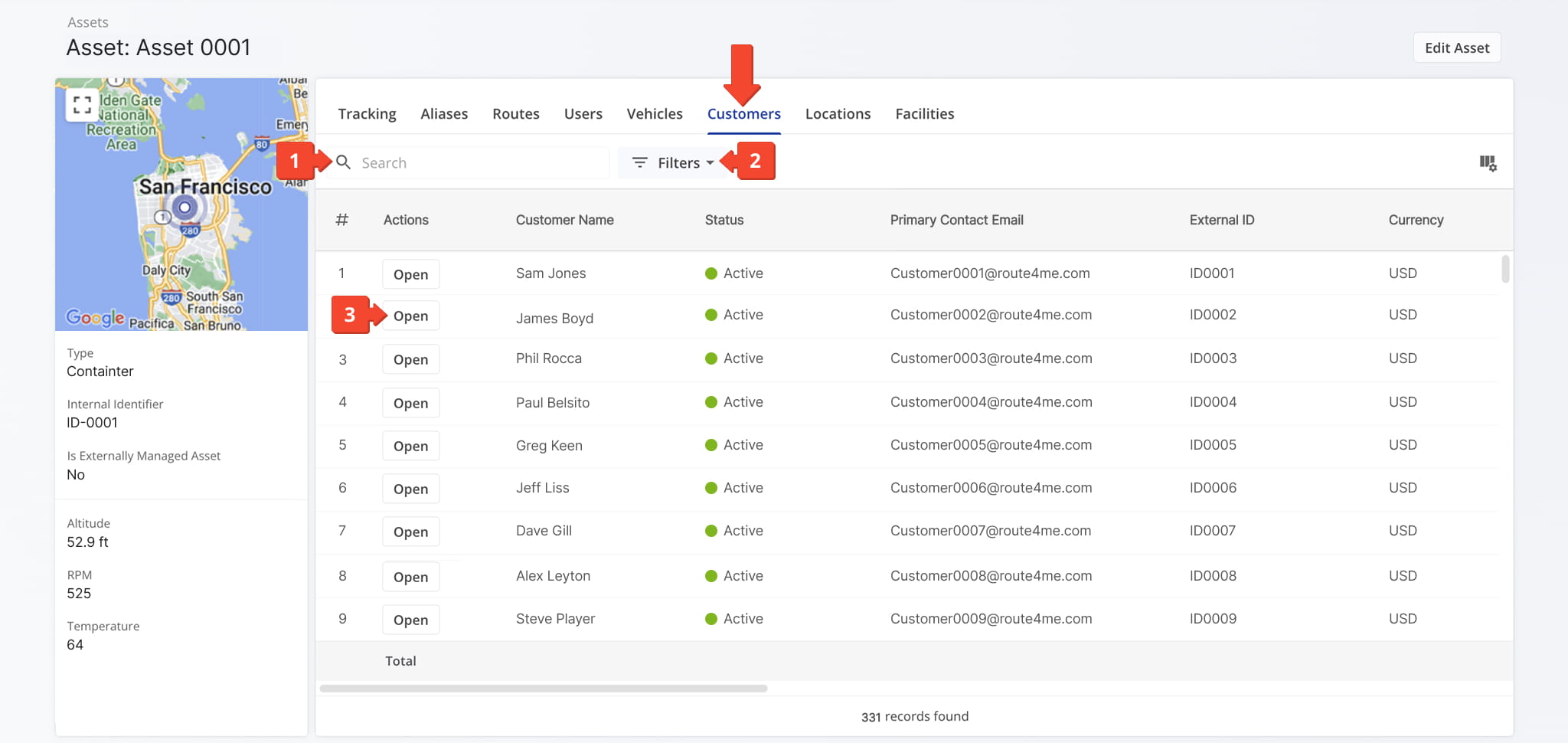
Asset Snapshot - Customer Filters
You can also customize the data displayed in the table. Click the Column Icon to select which route data fields appear and adjust their order to suit your operational needs.
The table below provides an overview of all available data columns, which you can reorder by dragging them into place.
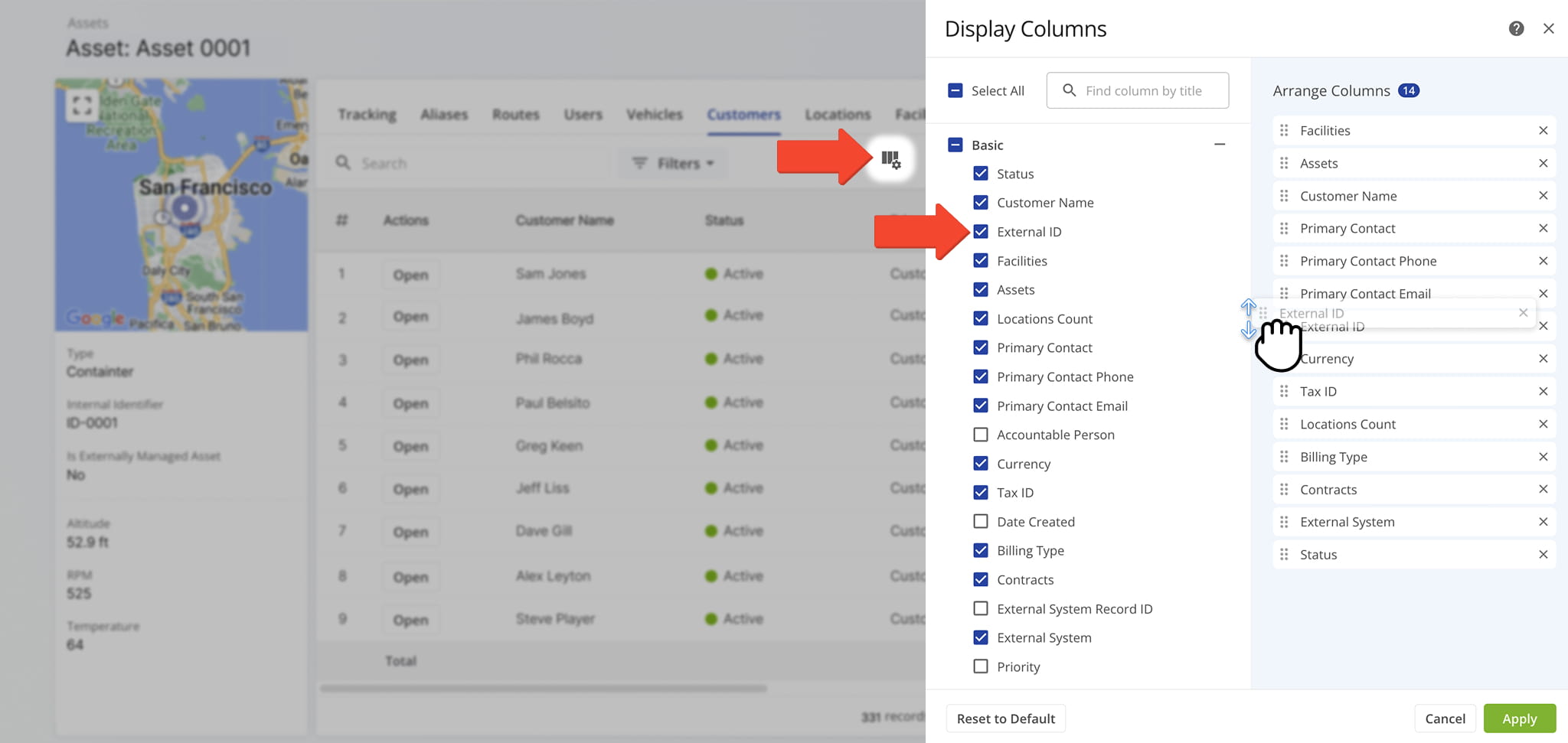
Asset Snapshot - Customer Data Columns
Locations Tab – Asset Location Assignments And History
The “Locations” tab centralizes every Location associated with the Asset, so you can monitor site assignments at a glance. From this tab you can:
- Use the Search field to locate specific Locations.
- Use Filters, described in the table below, to narrow down the displayed list of Locations.
- Click “Open” next to a Location to access its Location Snapshot.
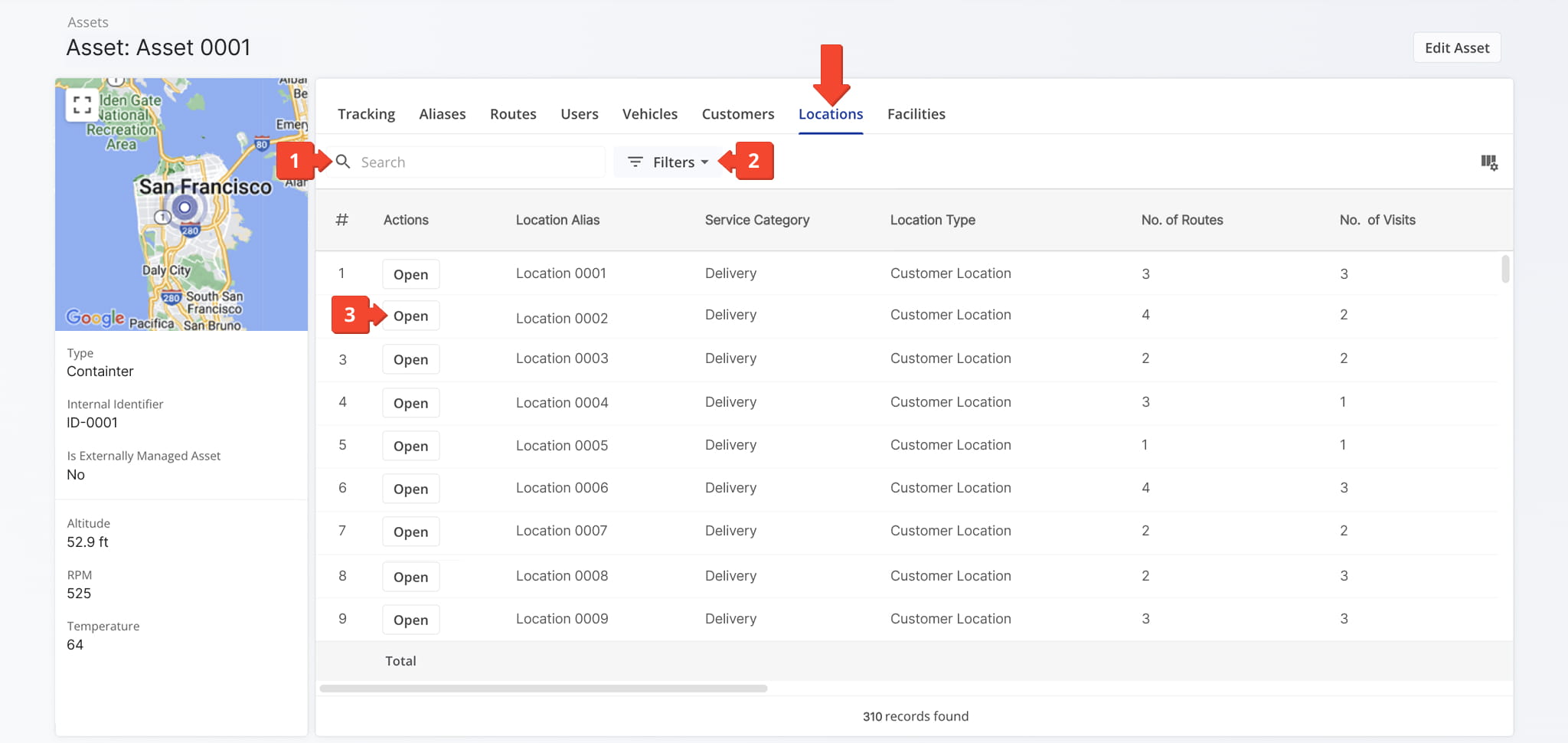
Asset Snapshot - Location Filters
You can also customize the data displayed in the table. Click the Column Icon to select which route data fields appear and adjust their order to suit your operational needs.
The table below provides an overview of all available data columns, which you can reorder by dragging them into place.
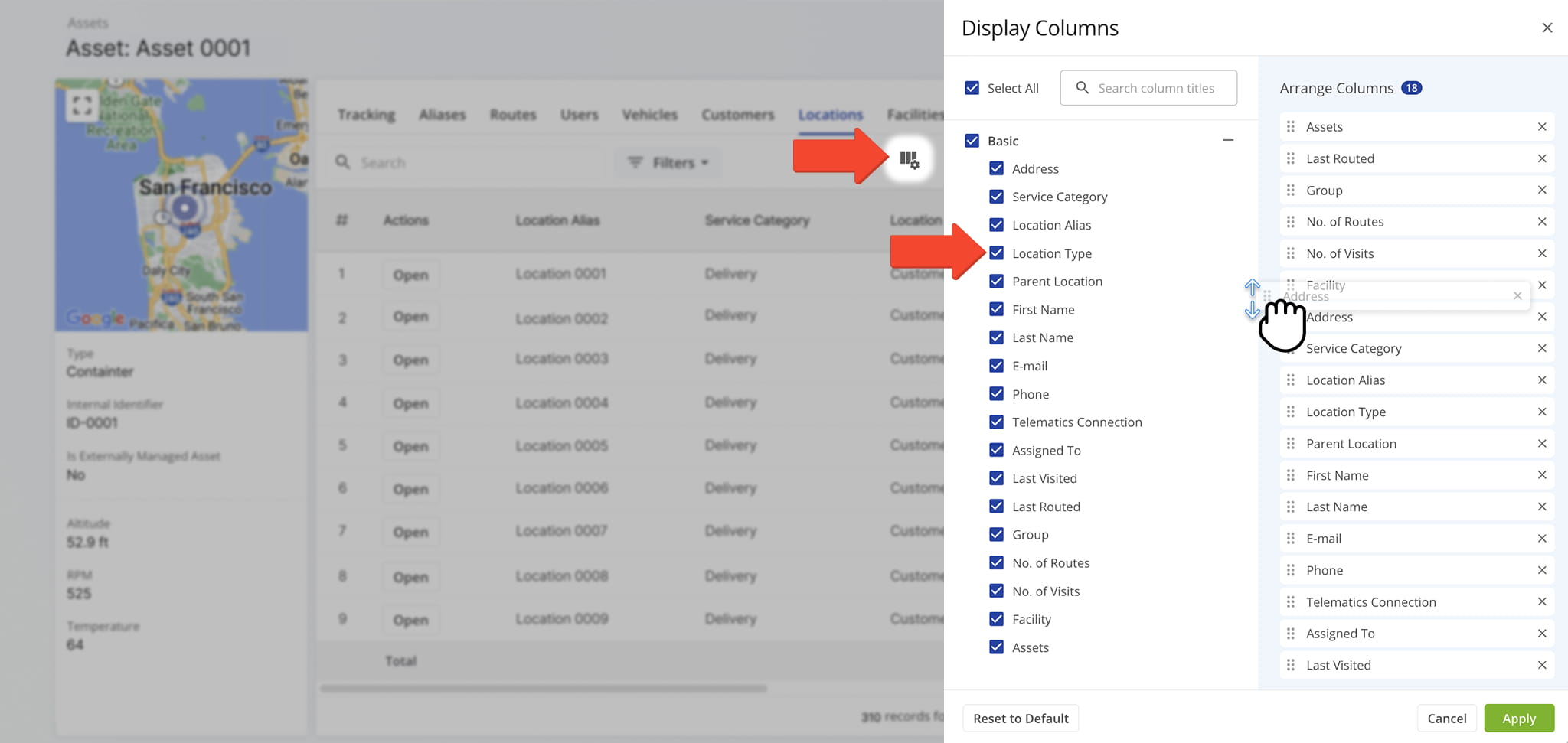
Asset Snapshot - Location Data Columns
Facilities Tab – Asset Facility Assignments And Activity
The Facilities tab centralizes every Facility associated with the Asset, so you can monitor warehouse, depot, and other Facility assignments in one place. From this tab you can:
- Use the Search field to locate specific Facilities.
- Narrow the list by filtering Facilities by Status or Facility Type.
- Click “Open” next to a Facility to access its Facility Snapshot.
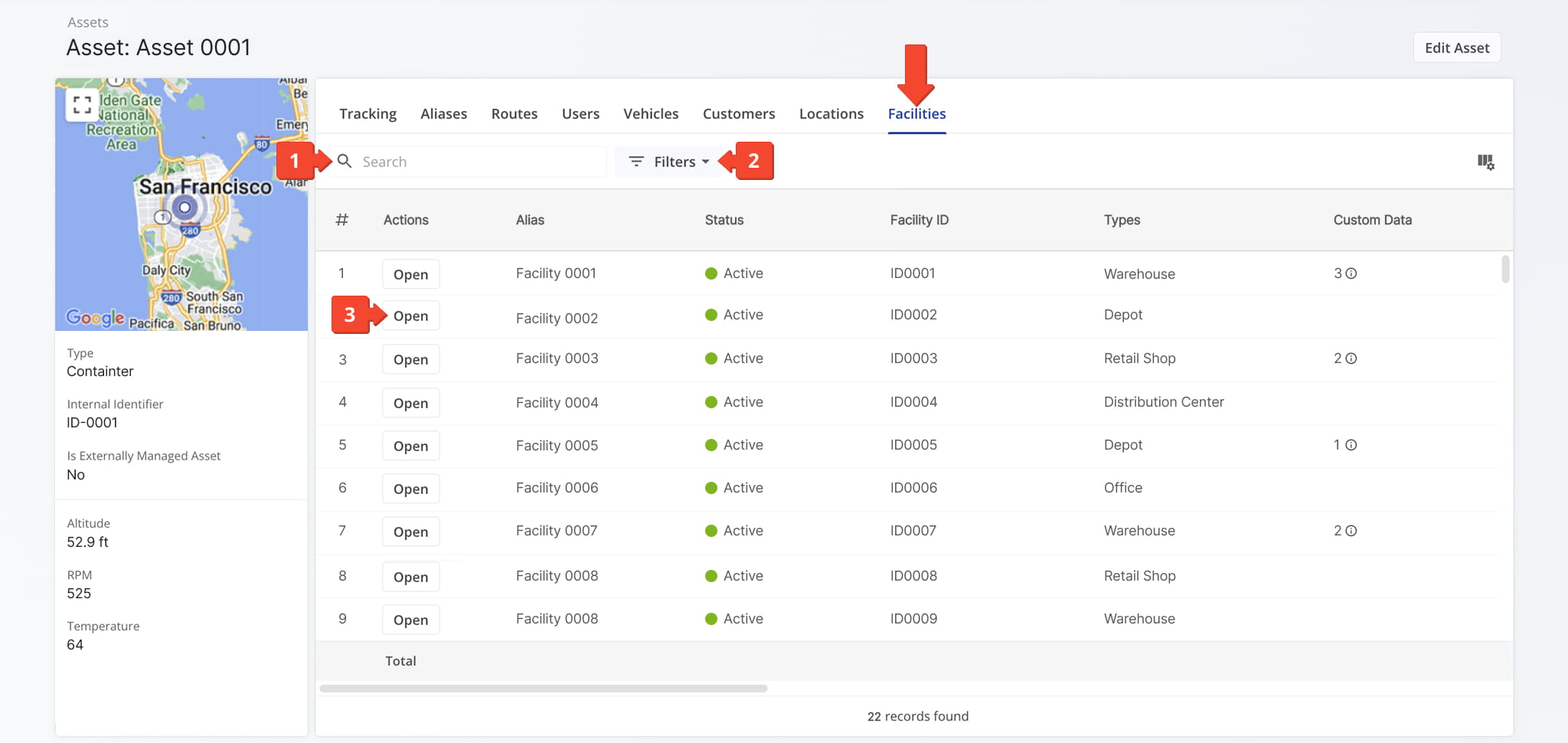
You can also customize the data displayed in the table. Click the Column Icon to select which route data fields appear and adjust their order to suit your operational needs.
The table below provides an overview of all available data columns, which you can reorder by dragging them into place.
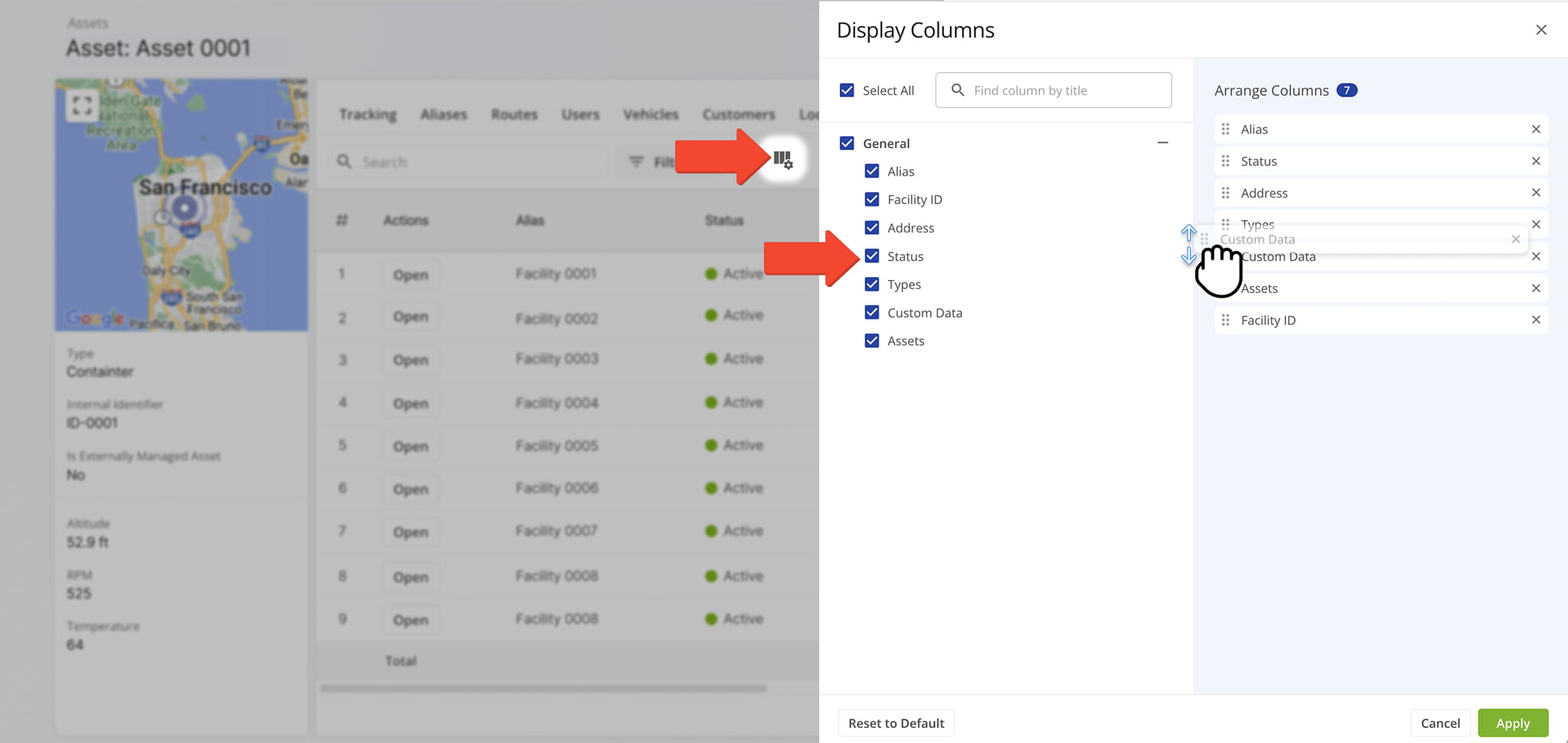
Asset Snapshot - Facilities Data Columns
Visit Route4Me's Marketplace to Check out Associated Modules:
- Operations
Audit Logging and Activity Stream
- Operations
Custom Data Add-On
- Operations
Advanced Team Management Add-On
About author: Daniel Archer

