
Operational Assessment – Manage Telematics Connections
Telematics Connections in in Route4Me’s Operational Assessment system allow affiliate partners and participants to automatically import fleet data from telematics vendors into Route4Me’s Operational Assessment system. This enables real-time visibility into vehicle activity and supports route and performance analysis. Once a connection is created, telematics data flows automatically from the vendor into the OA account without manual uploads. Learn more in this guide.
NOTE: Operational Assessment through Optimization4Me is currently available by request only through the Route4Me Support Team. Please contact Route4Me Support to get set up.
Table of Contents
Create Telematics Connections – Set Up And Configuration
To create a new Telematics Connection in your Operational Assessment Affiliate account, (1) go to “User Management” in the top Navigation Menu, (2) click the “Telematics Connections” button, then (3) click the “Create New” button.
You’ll be redirected to “Creating New Telematics Connection” window where, in the “Participant” field, you’ll be prompted to select the Participant who you want to link the new Connection to.
Add a custom alias, choose the Telematics Vendor from the drop-down list, and complete any required vendor-specific authentication fields. To finalize, authorize Route4Me to connect to the selected vendor and click “Save” to create the Connection.
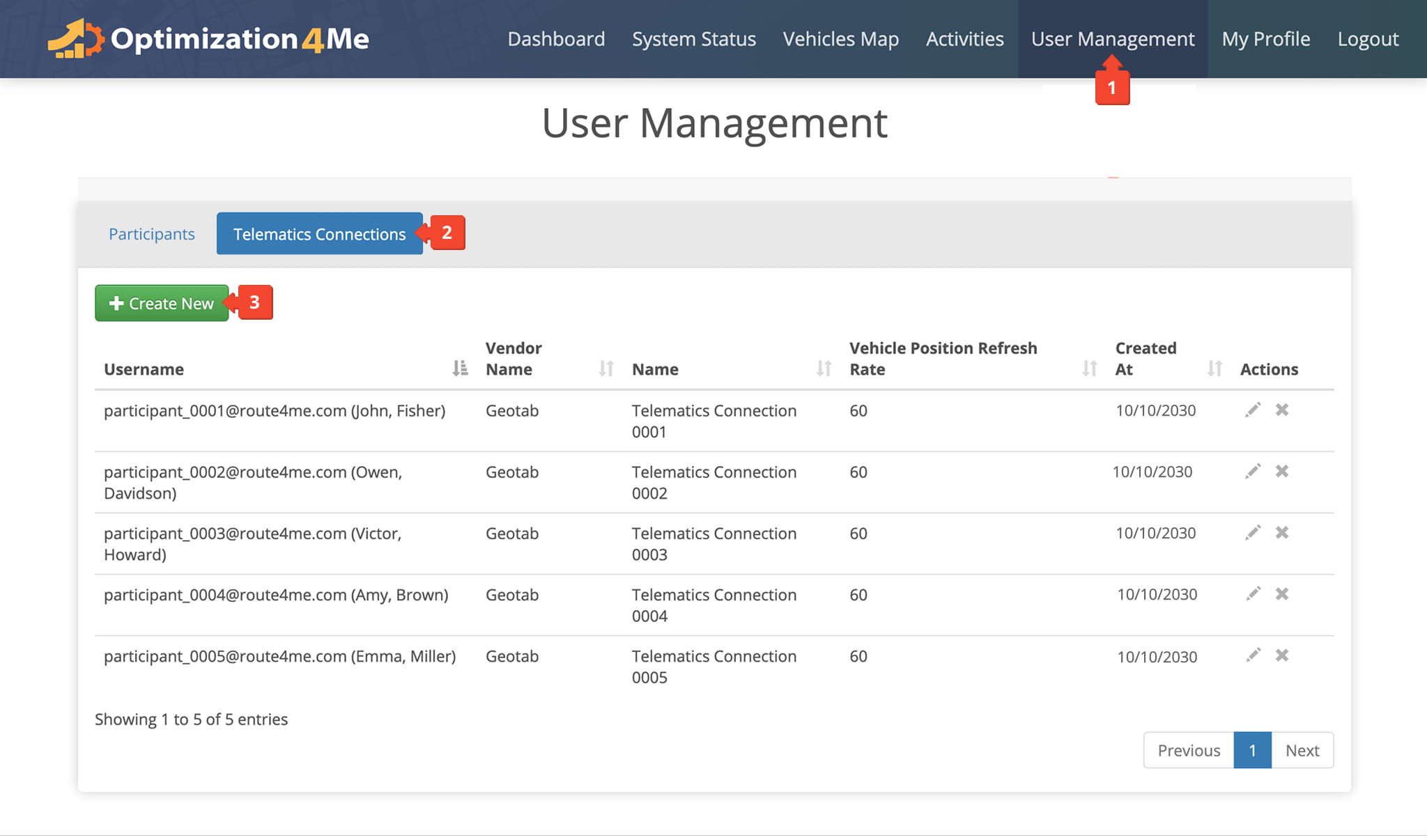
Once a Telematics Connection is created, it will appear under the “Name” column in the “User Management” tab. The name of the associated Telematics Provider will appear under the “Vendor Name” column.
Repeat this process for each Participant in your Operational Assessment Affiliate account to ensure all required Telematics data sources are connected.
Manage Telematics Connections – View, Edit, And Delete Connections
View Telematics Connections
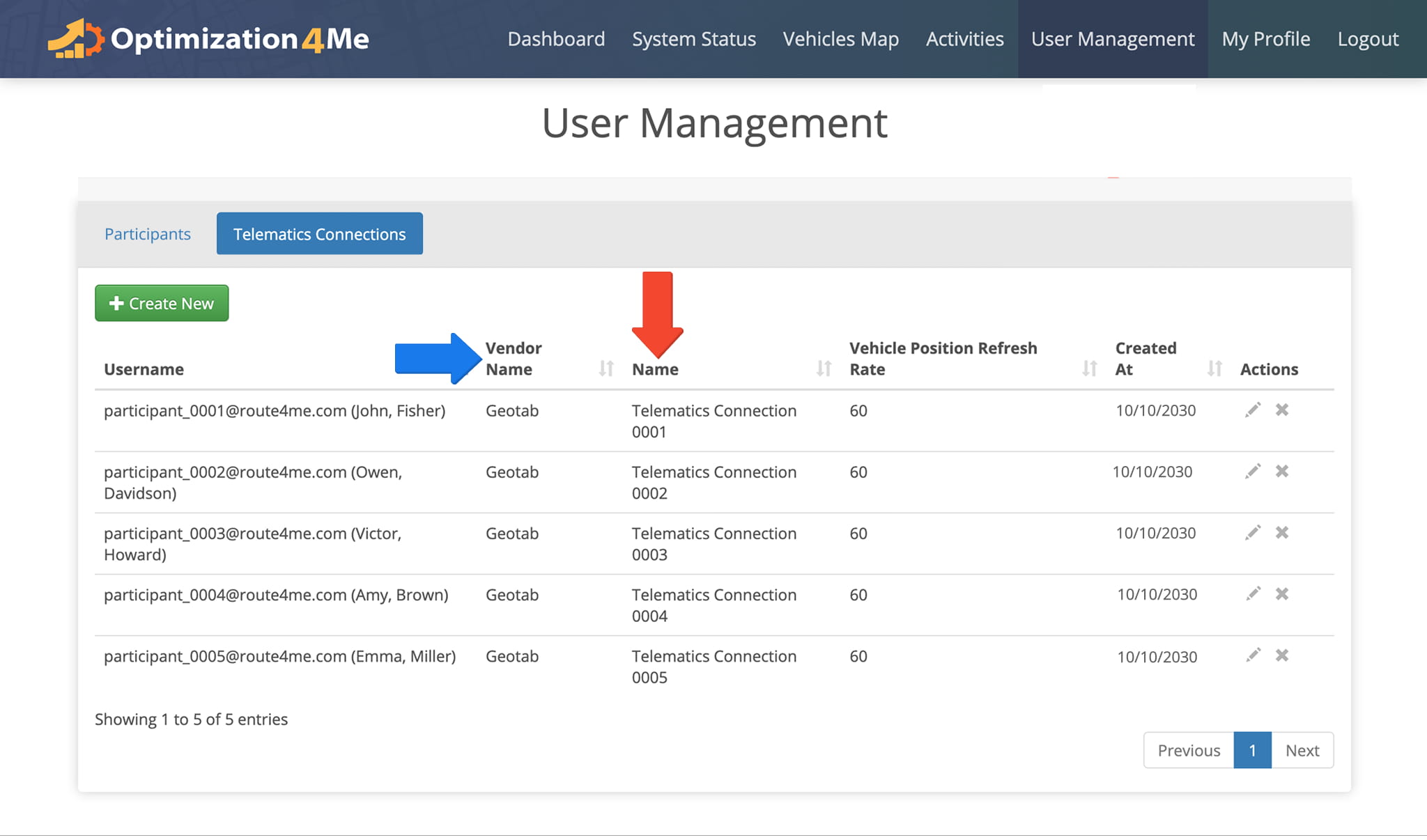
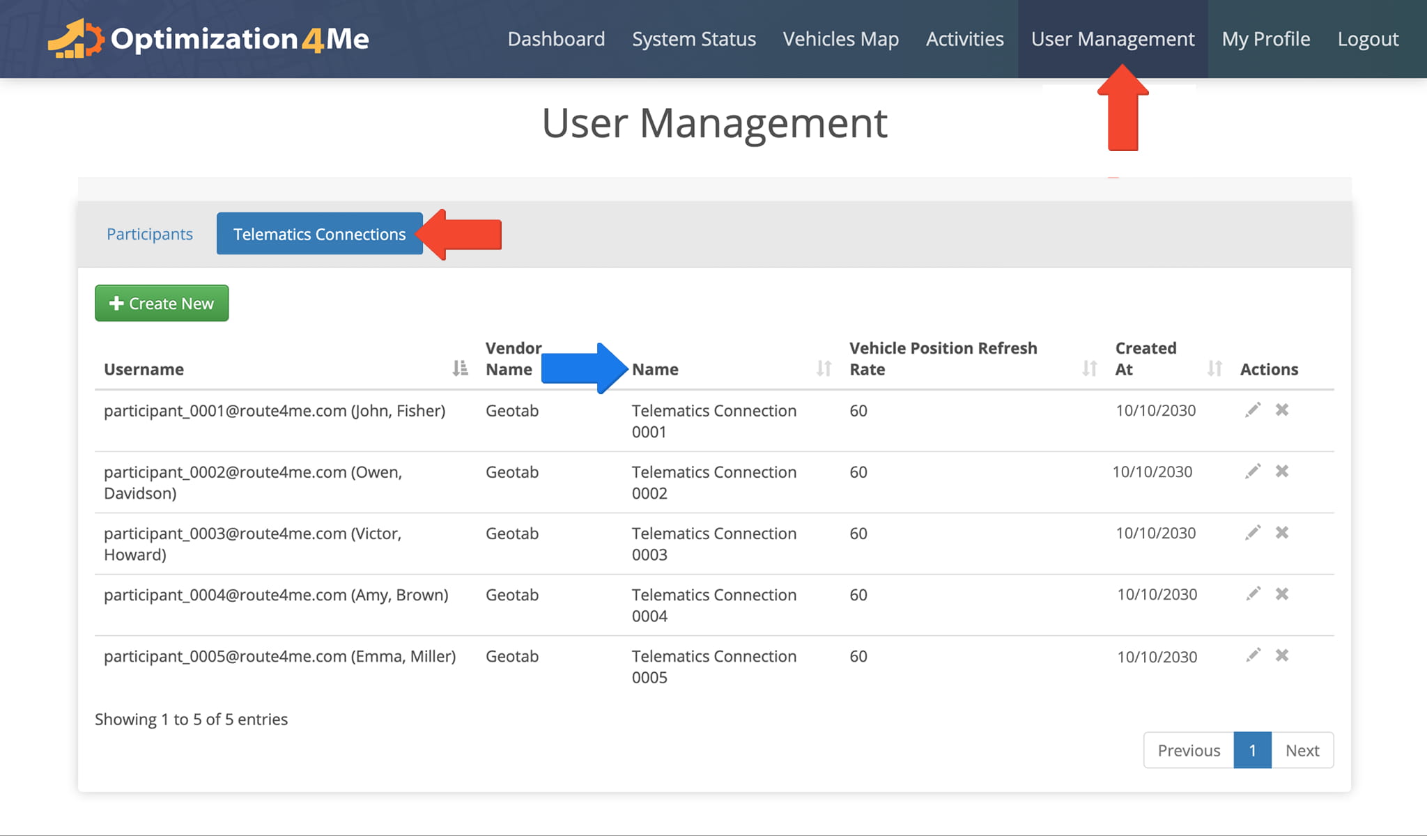
All Telematics Connections can be viewed and managed from the “Telematics Connections” tab under “User Management“.
Edit Telematics Connections
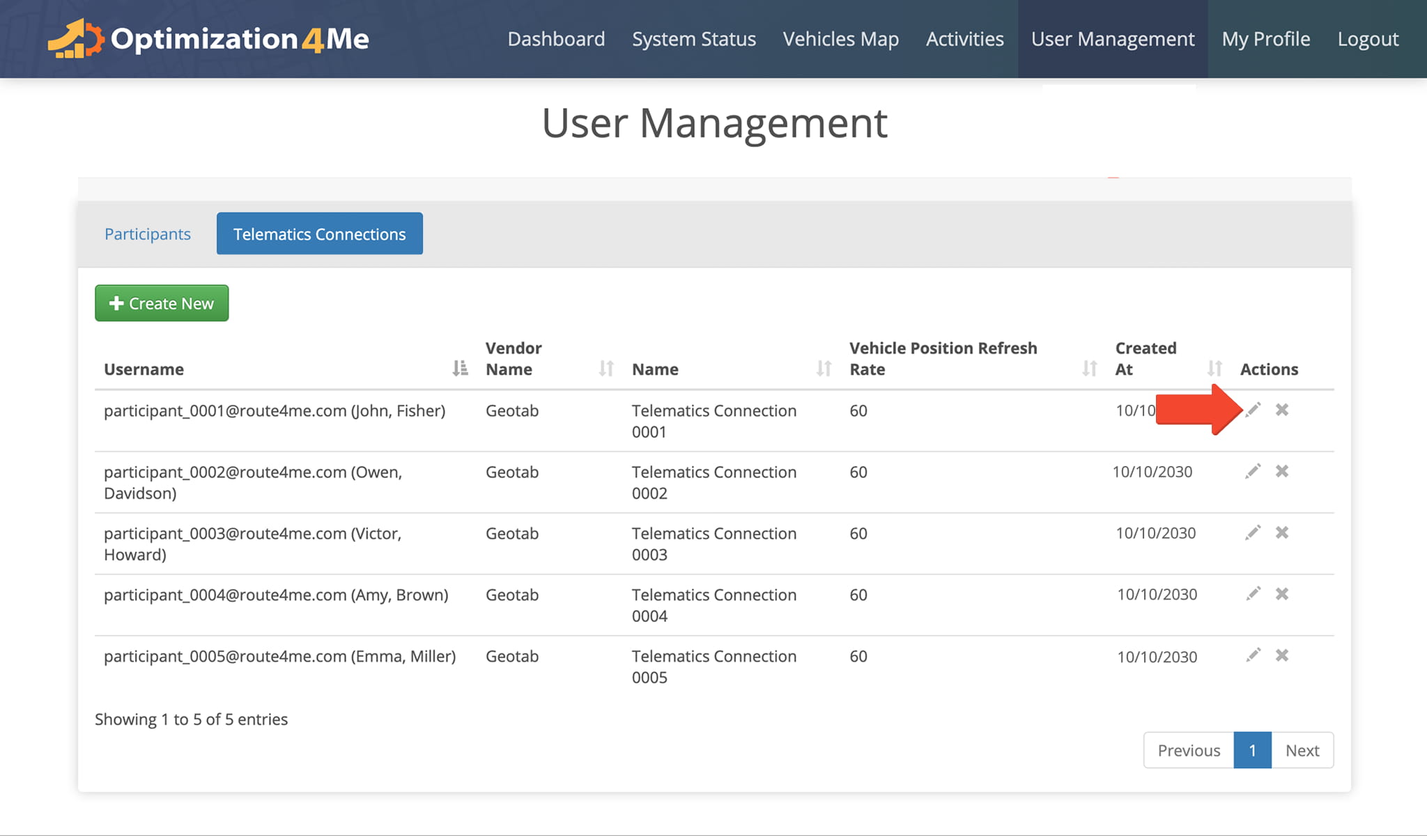
To modify an existing Connection, click the Pencil Icon under the “Actions” column. Then, update the vendor details or authorization settings, re-authorize access if prompted, and click “Save” to apply changes.
Updates take effect immediately and do not interrupt data synchronization unless re-authorization is required.
Delete Telematics Connections
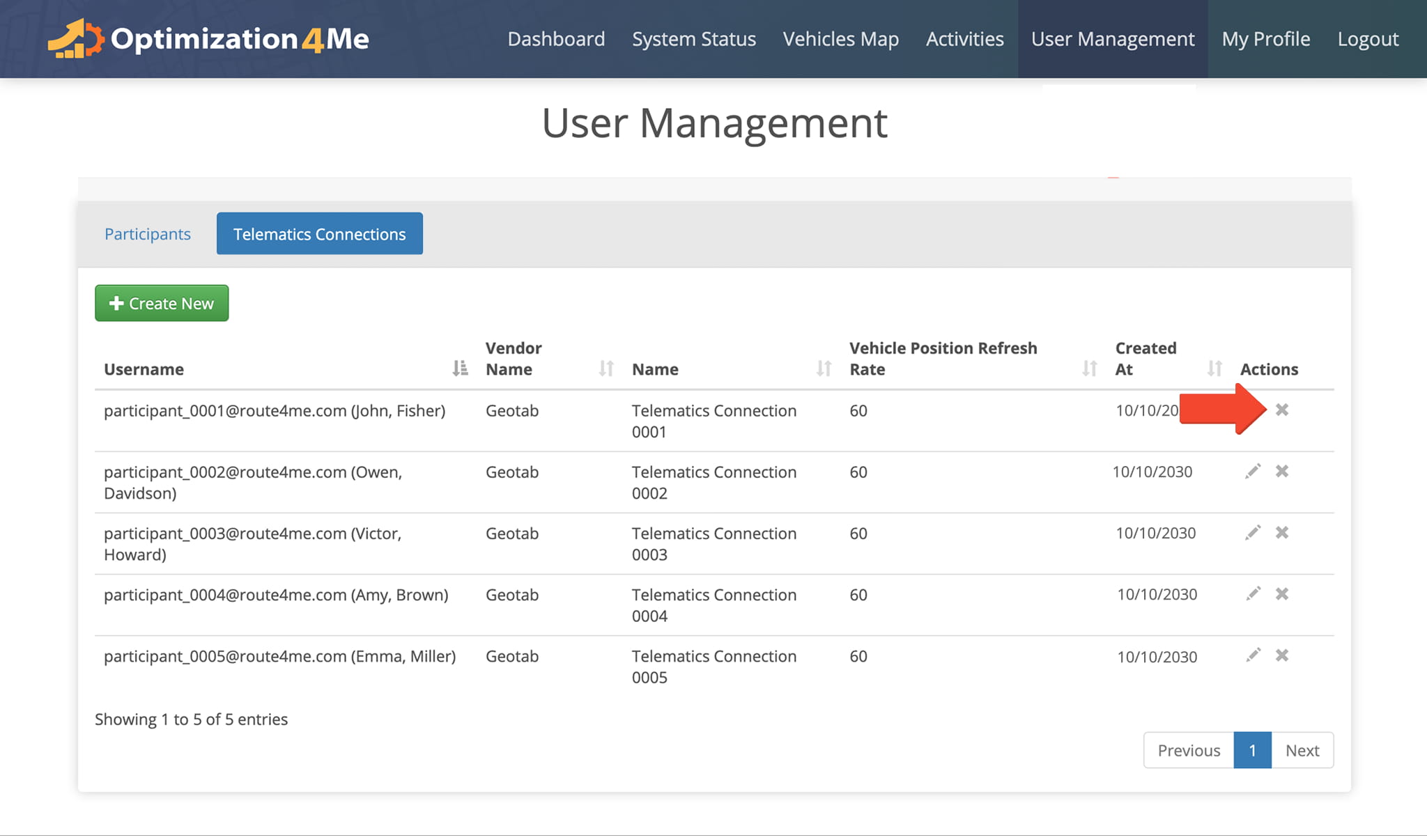
To delete a telematics connection, locate the connection in the list, click the Delete (X) Icon, and confirm deletion. Once deleted, data syncing from the telematics vendor will stop and the connection will be removed from the account.
Visit Route4Me's Marketplace to Check out Various Modules and Add-Ons:
- Operations
Advanced Team Management Add-On
About author: Daniel Archer

