
Route Members – Associate Multiple Users With Routes
The Route Members feature enables you to associate additional Users with routes alongside their assigned Users. This way, technicians, dispatchers, managers, and additional drivers can be accounted for in the system. You can view and edit Route Members on the Routes Page and Route Snapshots, with a full history of added and removed users.
Table of Contents
Route Members Overview – See Which Users Are Associated With Routes
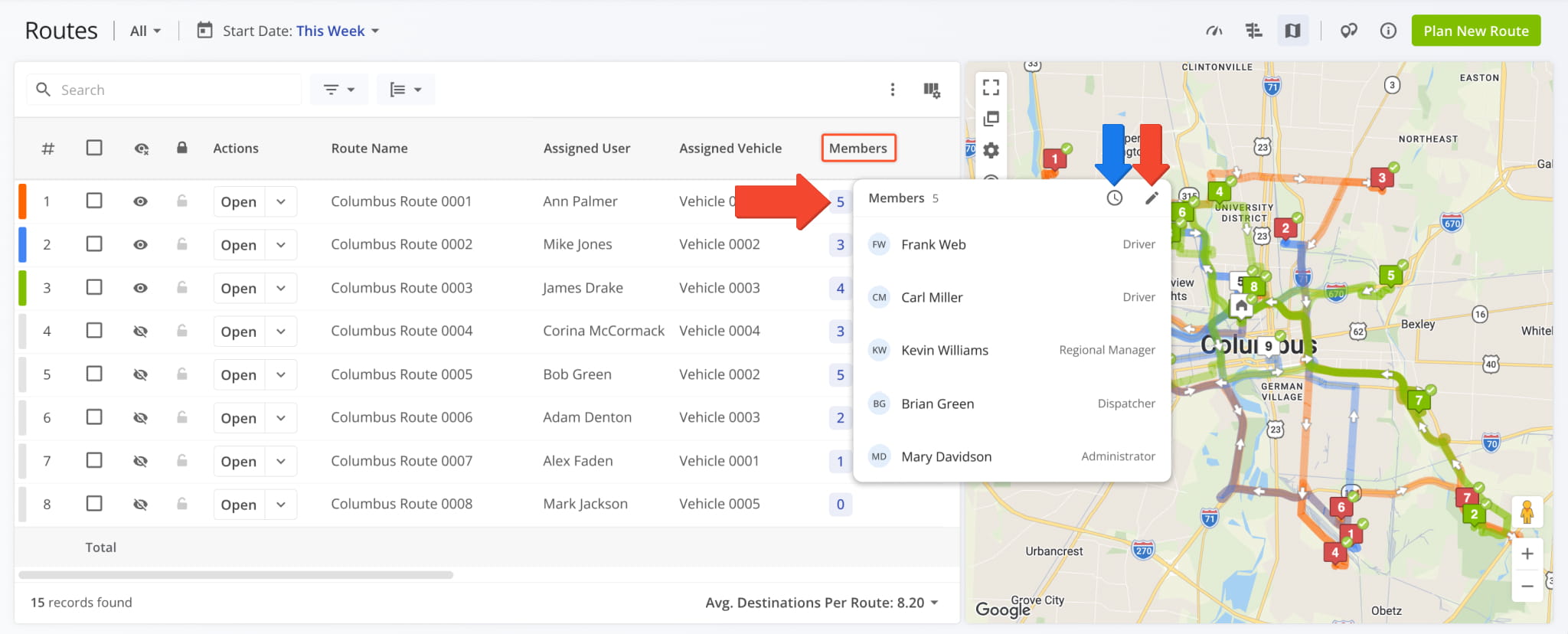
The “Members” column on the Routes Page shows how many Members each route has. To see who they are, click the Member Count next to a route. The popup lists each Member’s name and User Type, such as Driver, Dispatcher, Administrator.
Click the Edit Icon to add and remove Members or the History Icon to see when and by whom Members were added or removed.
Edit Route Members – Add Or Remove Team Members From Routes
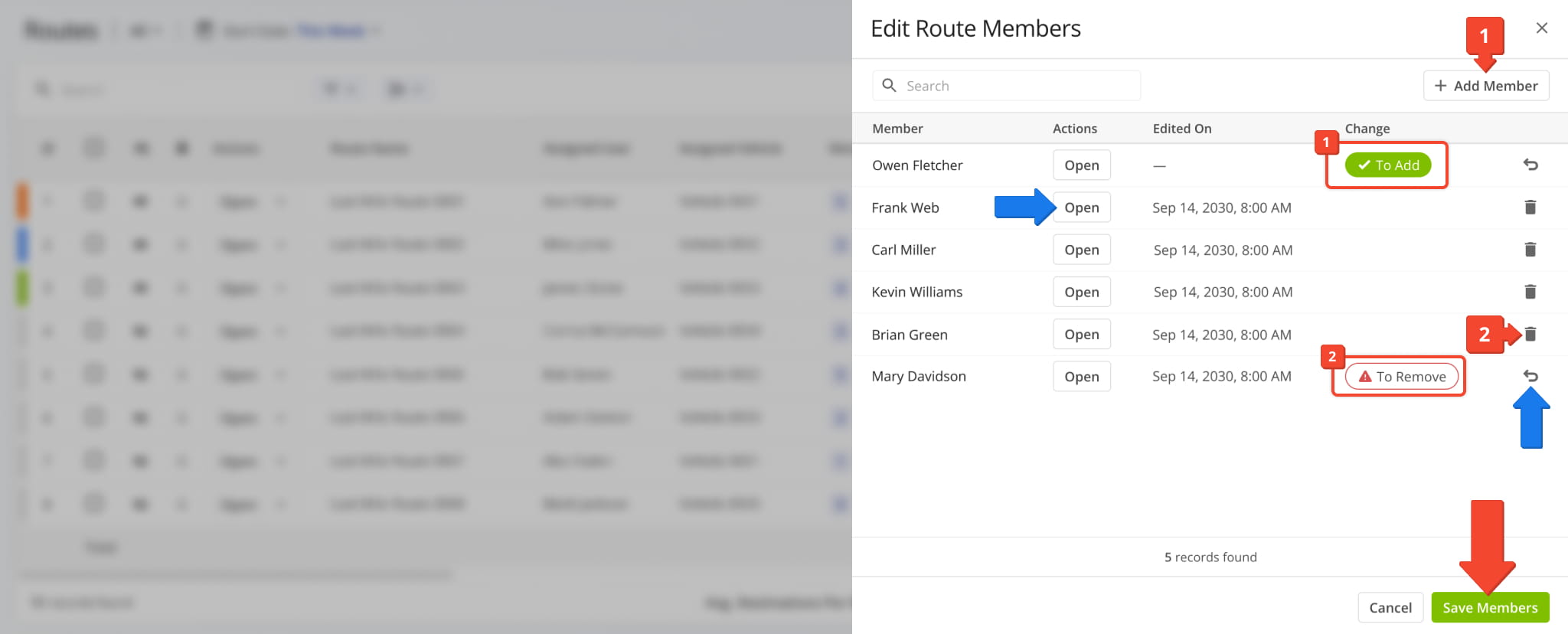
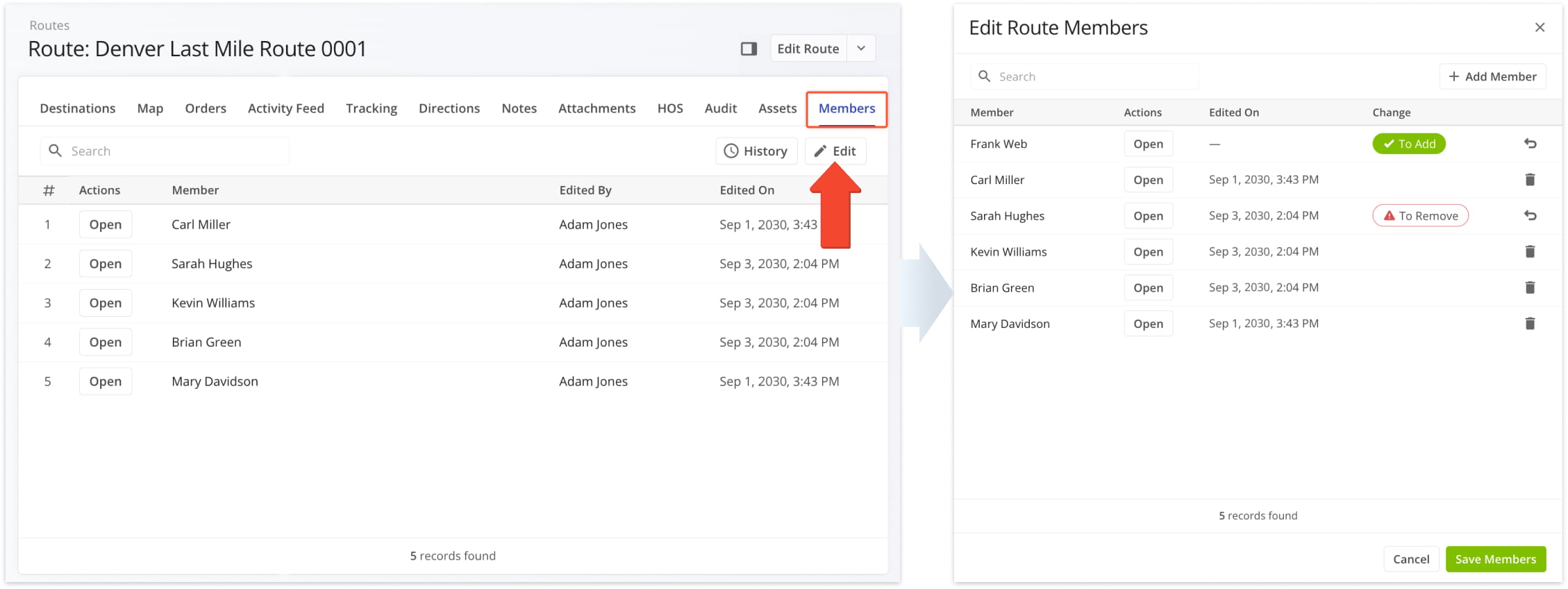
In the “Edit Route Members” panel, you can:
- Click “Add Member” and select a User to add them to the route.
You’ll see a green “To Add” badge in the “Change” column when adding Members. - Click the Delete Icon next to a Member to remove them from the route.
You’ll see a red “To Remove” badge in the “Change” column when removing Members.
To save your changes, click the “Save Members” button. You can also click the Revert Icon to undo changes before saving. For convenience, you can also open User Snapshots by clicking the “Open” button next to any Route Member.
Route Member History – See Member Addition And Removal History
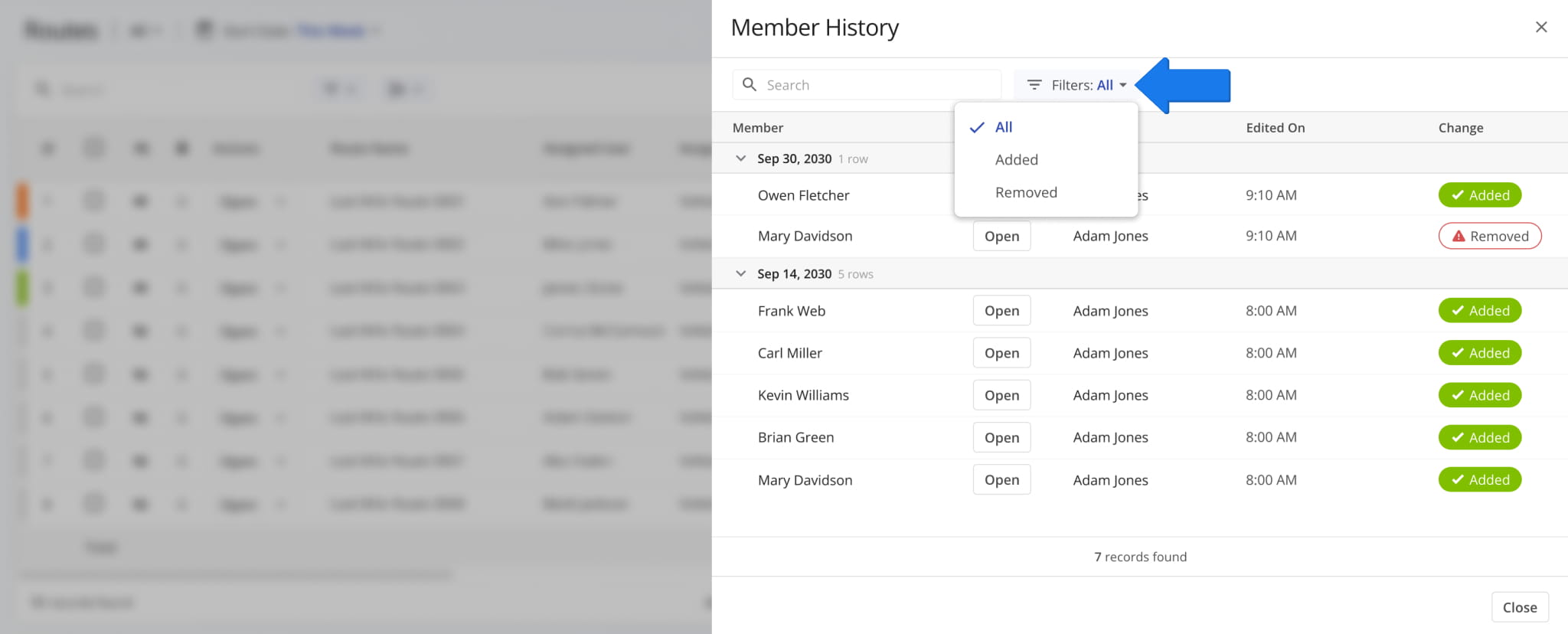
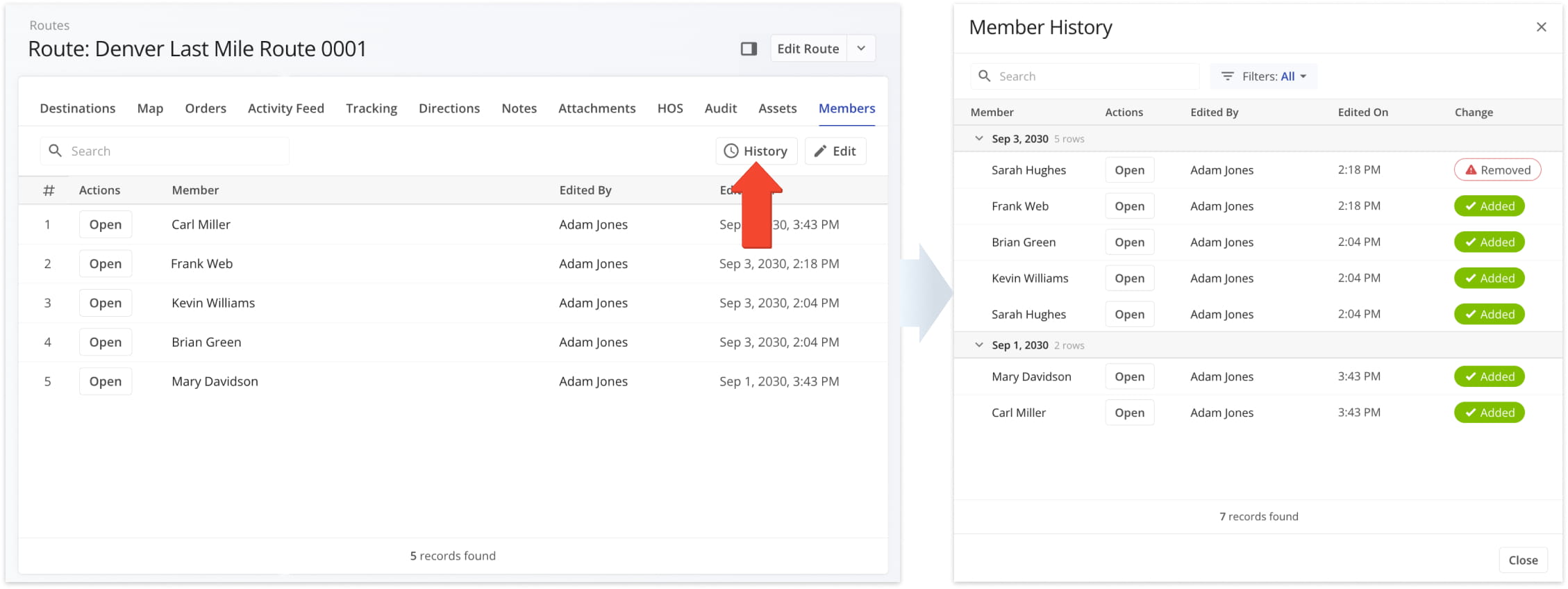
The “Member History” panel lists who was added to or removed from a route. Changes are grouped by date, and you can see when they were made and who made them. The most recent changes are at the top of the list.
To show only one type of change, click “Filters” and select “Added” or “Removed“. You can also search for a specific Member.
Members In Snapshots – Manage Route Members In Route Snapshots
You can also manage Members from Route Snapshots. Open the Route Snapshot and go to the “Members” tab to see the route’s current Members, who added them, and when. To add or remove Members, click “Edit“.
The Edit Route Members panel works the same way as on the Routes Page.
To see the route’s full Members History, click “History” in the “Members” tab.
The Member History panel has the same filters and search field as on the Routes Page.
Visit Route4Me's Marketplace to Check out Associated Modules:
- Operations
Audit Logging and Activity Stream
- Operations
Custom Data Add-On
- Operations
Advanced Team Management Add-On
About author: Kristian Andreev

