Load Planner – Live 3D Truck Load Planning & Dock Loading Dashboard
The Load Planner turns route cargo into live 3D load plans that show exactly how load units fit into your Fleet Vehicles. Plans are built for Vehicles from their Vehicle Profiles and Capacity Profiles, accounting for dimensions, door opening, wheel wells, axle limits, etc. The planner also checks required Vehicle Attributes at destinations and automatically updates when anything changes.
Units are sequenced so the last stop is loaded first and nothing is re-handled on the way. They’re placed according to their stacking, orientation, and HAZMAT rules, and checked for axle load and center of gravity at departure and after every stop. Approved plans go to Dock Loading, where crews scan and load units while planners track the process in real time.
Table of Contents
Select Route & Vehicle – Match Route Cargo To The Right Truck
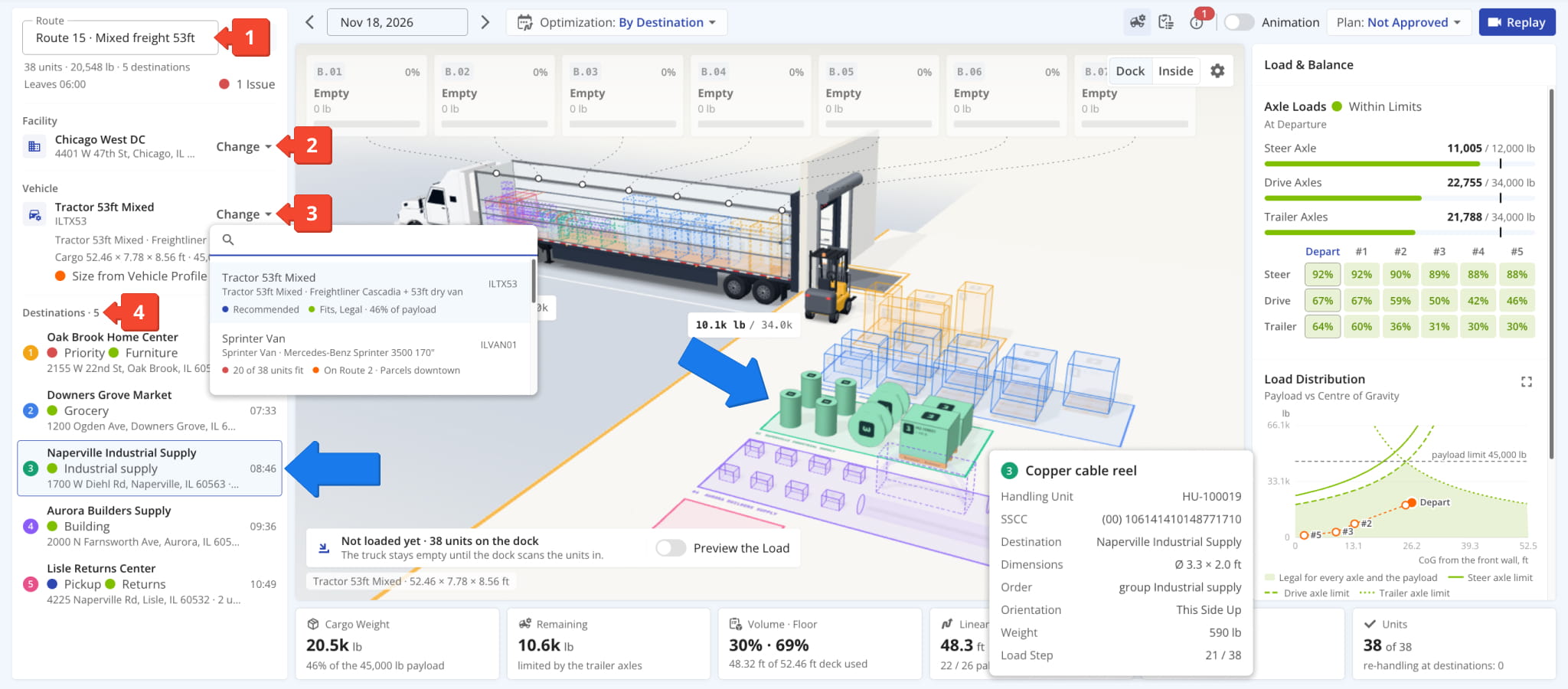
The Load Planner lists every route scheduled for the selected day with its departure time, destinations, load units, assigned Vehicle, and loading stage. When you select a route, you’ll see its cargo staged at the dock next to a 3D model of its Vehicle, with the load plan already calculated. You can use the panel on the left of the screen to select:
- Route: Switch between the day’s routes or filter them by load stage to see which trucks still need a plan.
- Facility: Pick which Facility or depot the selected route will start from.
- Vehicle: Click “Change” to check the whole fleet against the current route’s cargo.
- Destinations: Click a Destination to highlight its cargo in 3D and see which units go where in the Vehicle.
Vehicles show whether the load currently fits within their legal limits, how much of the payload would be used, and how many units each can take. The best match is marked “Recommended”. Vehicles already on another route are flagged accordingly.
Preview Load Plan – Watch The Optimized Loading Sequence In 3D
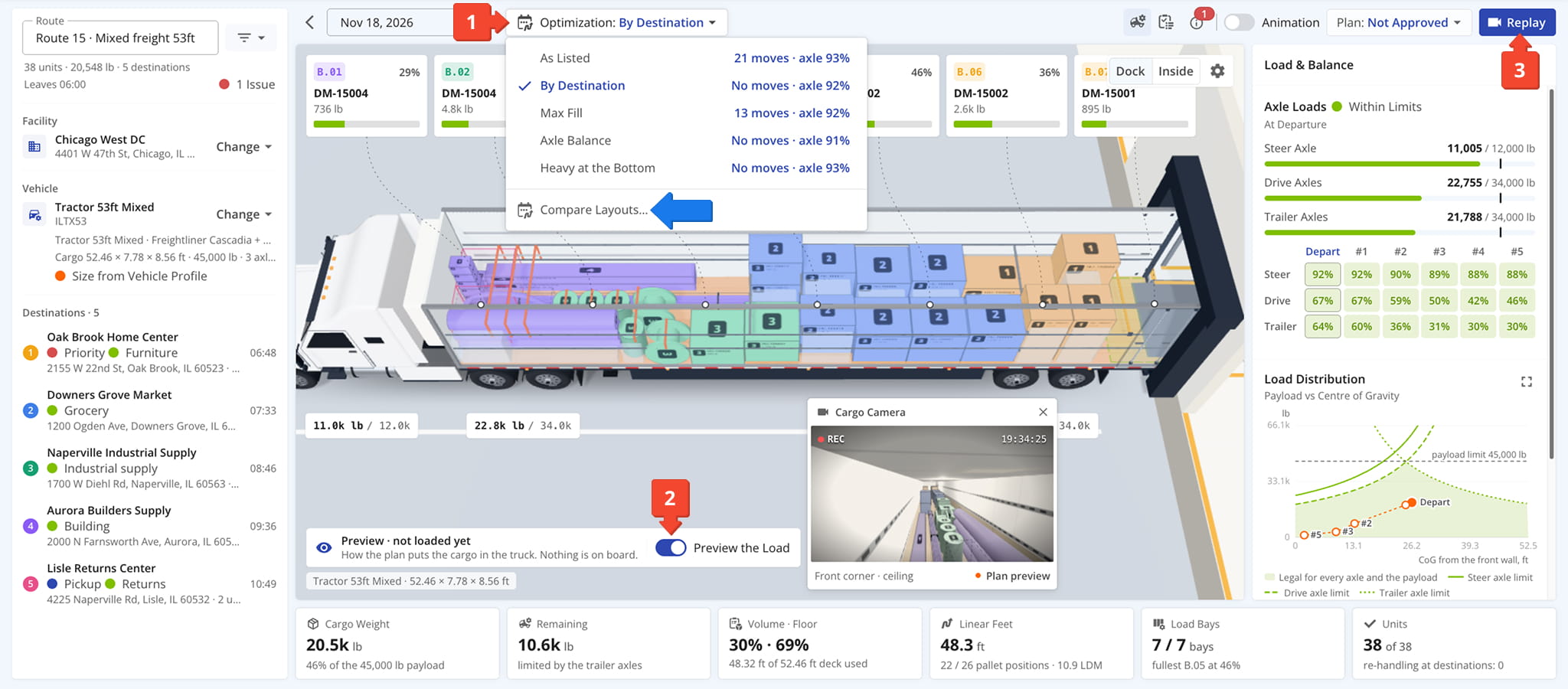
Load plans are generated automatically for the selected optimization goal, so you can check how trucks will be loaded before a single unit goes in. Preview the finished load or replay the loading sequence to see how each one reaches its assigned spot.
- Optimization: Build the plan by Destination, maximum fill, axle balance, or heavy loads at the bottom.
Each Optimization shows its re-handling moves and heaviest axle load. You can “Compare Layouts…” to apply the best one in two clicks. - Preview: Turn on “Preview the Load” to see the finished plan inside the truck while the cargo is still on the dock.
- Replay: Click “Replay” to watch each unit go into the truck in loading order, with its bay, side, level, and weight shown as it goes.
The replay shows how the load plan will be completed, one unit at a time. The progress bar follows the loading sequence by destination, and the “Now Loading” field shows each unit with its bay, side, level, and weight.
Axle loads and bay fill update after every unit, so you can confirm trucks stay within their limits during loading.
Review Completed Load – Inspect The Loaded Truck From Every Angle
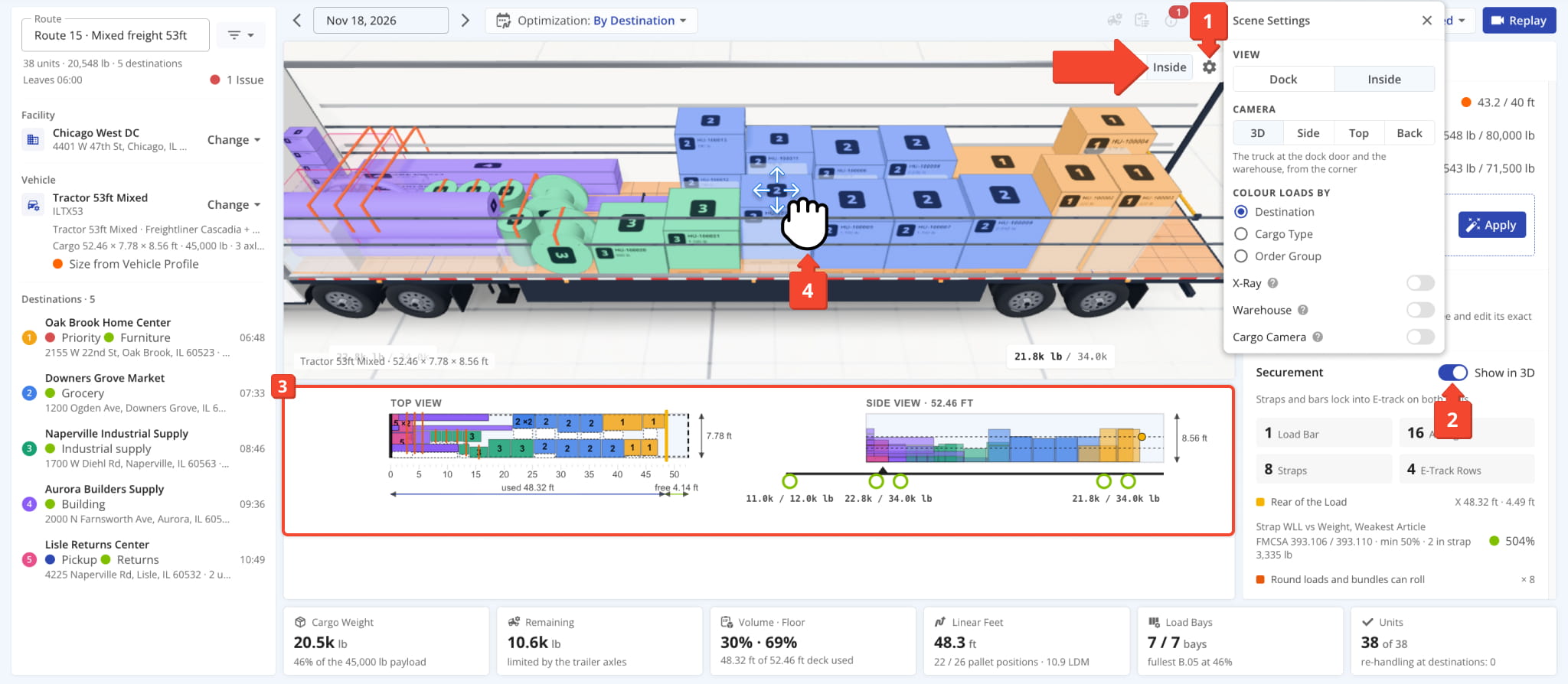
Once a plan is built, you can look “Inside” by clicking the button in the top-right of the 3D view. It enables you to inspect the cargo space according to the plan. Units are shown in their final positions, color-coded by destination, with top and side drawings of the deck underneath that mark used and free length and axle load. To visualize and adjust, you have:
- Scene Settings: View the load in 3D, from the side, from above, or through the rear doors, and turn on “X-Ray” to find units hidden behind others. Color loads by Destination, cargo type, or order group.
- Securement: Load bars, airbags, and straps are calculated for the load and shown in 3D, with load limits checked against FMCSA rules.
- Load Metrics: See payload used and remaining, volume and floor use, linear feet, and pallet positions at a glance.
- Manual Adjustments: Drag, rotate, or swap units by hand, with every move checked for fit, stacking, and support before it’s placed.
Identify & Fix Issues – Automated One-Click Load Plan Fixes
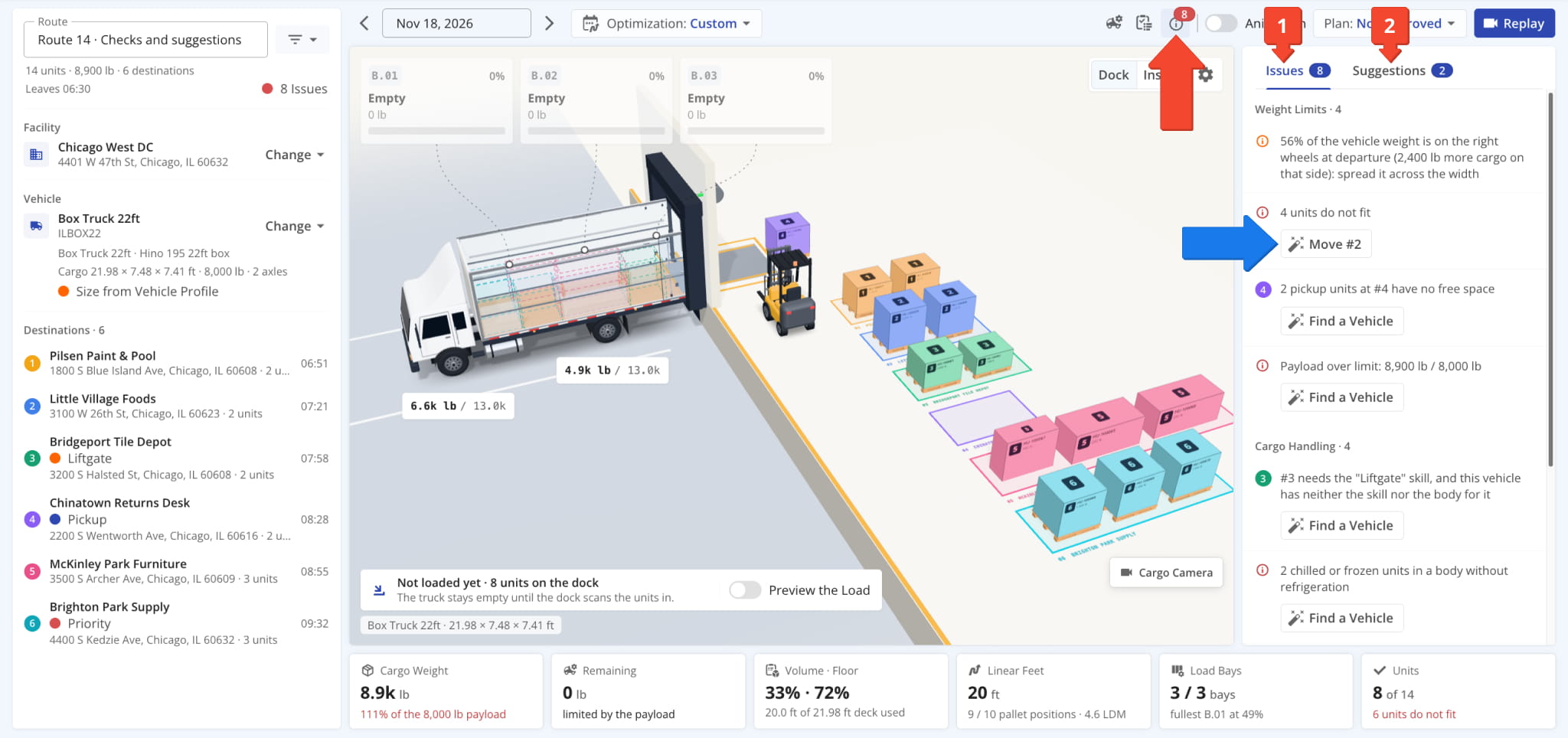
The Load Planner compares every plan against its Vehicle, cargo, and route. It shows issues that need attention in the “Plan Checks” panel which lists issues, fixes, and suggestions in the following two tabs:
- Issues: Each issue is explained in plain terms such as overloaded axles, missing refrigeration, HAZMAT permissions, or Vehicle Attributes. Most issues come with a one-click fix, and each fix shows what it changes and which issues it solves before you apply it.
- Suggestions: The planner tests the day’s other routes and suggests moving a destination to a route whose Vehicle has room for it or swapping destinations to cut re-handling and clear overloads. Applied suggestions update the routes in your Route4Me account.
The plan rebuilds after every fix, so you can watch the issue count drop in real time as you apply fixes.
Approve Load Plans – Release Plans To Dock Loading
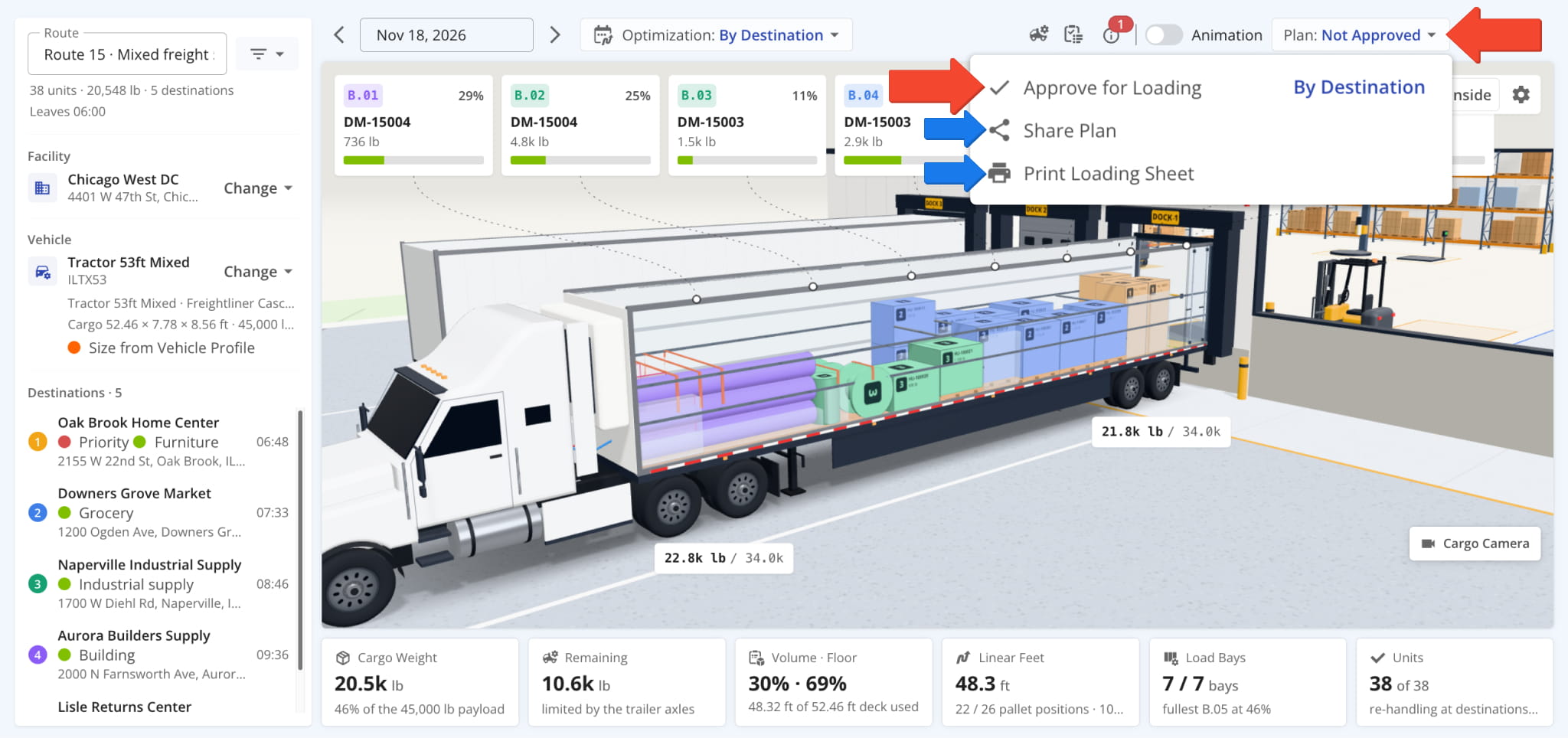
When your load plan is ready, open the “Plan” menu and click “Approve for Loading” to release it to the dock. Approved routes move to the “Ready to Load” stage and open in Dock Loading with the approved plan.
Users without approval rights can “Send for Approval” instead. If the route changes after approval, the plan is marked out of date and has to be approved again before loading can start. From the same menu, you can also:
- Share Plan: Copy a view-only link to the load plan, open an email draft with it, or send the route itself to the driver.
- Print Loading Sheet: Print the plan for the dock crew with top and side views, the step-by-step loading sequence, unit positions and weights, axle loads after every stop, securement, and sign-off fields for the loader, seal number, and driver.
NOTE: Approval for loading records a timestamp of when a plan was approved and who approved it.
Scan, Load & Seal – Guided Dock Loading From First Scan To Sealed Doors
Dock Loading is built for the dock crew’s phones, tablets, and handheld scanners. It lists the day’s routes with their assigned Vehicles and corresponding details, so loaders can quickly and easily find the right trucks.
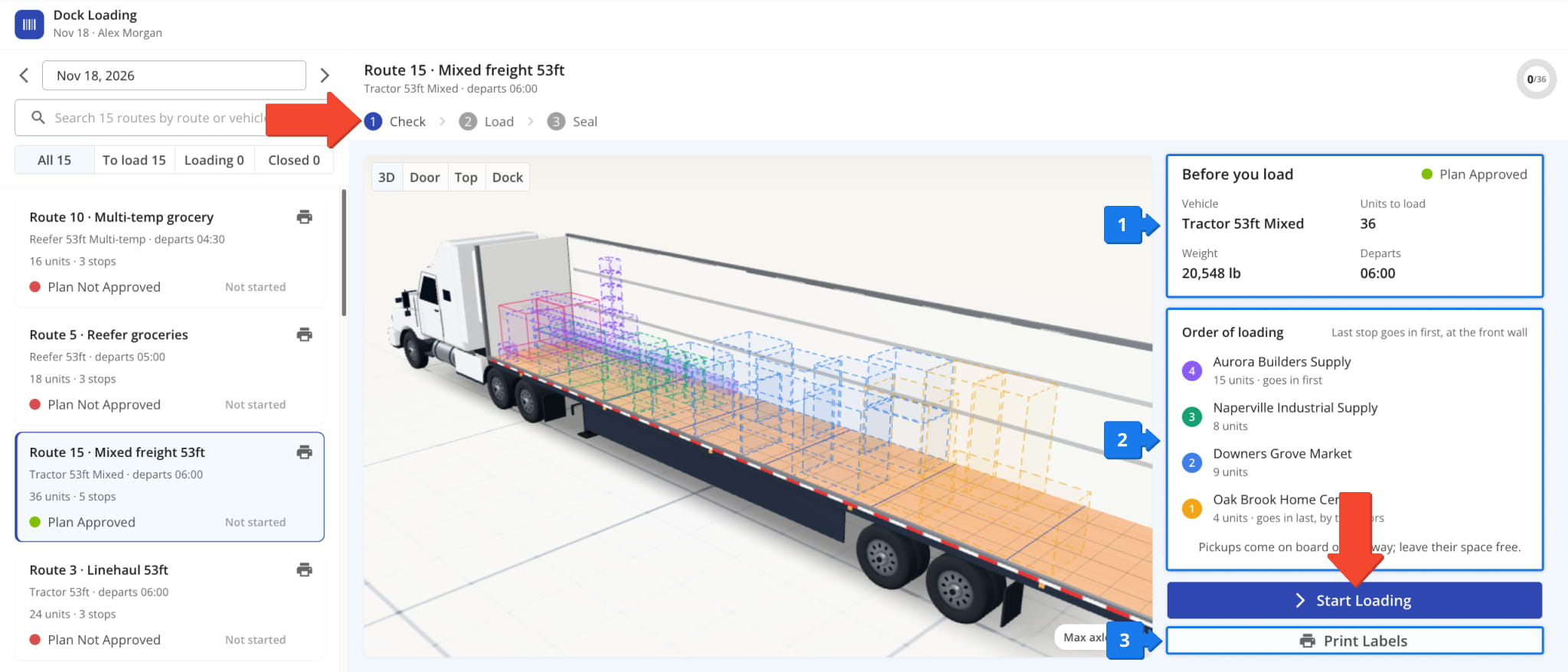
Loading can only start from an approved plan, and the “Check” step shows everything the crew needs, including the planned load in 3D, through the rear doors, from above, or at the dock. On the right, you can confirm and prepare for loading:
- Before You Load: Confirm the Vehicle, number of units, total weight, and departure time.
- Order of Loading: See destinations in load order. The last stop’s units go in first, and space is left free for scheduled pickups.
- Print Labels: Print a barcode label for every unit with its destination, route, and load step.
After the details of the load plan are confirmed and load units labeled, you can click “Start Loading” and proceed.
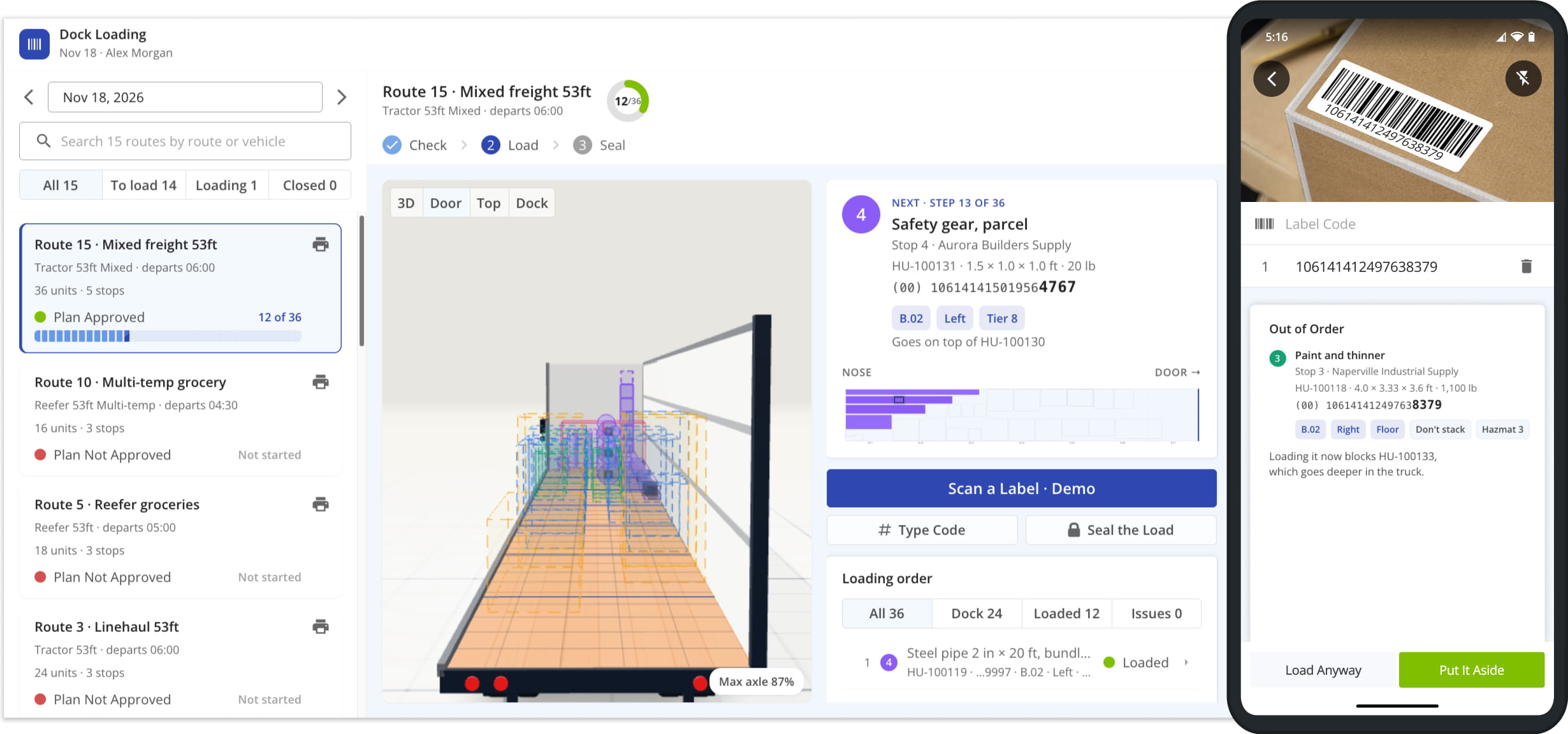
Scan each unit’s label with the device camera or a handheld scanner, or type in the code. Mistakes are caught on the spot:
- Wrong Truck or Order: Units from another route are flagged with the route they belong to, and units scanned too early warn that they would block units going deeper in the truck. Loading crews can then select to “Put It Aside” or “Load Anyway”.
- Pickups & Extras: Pickups, units already on board, and units outside the plan are stopped before they’re loaded.
- Exceptions: Damaged or missing units are reported with a note and a photo, so dispatch knows right away.
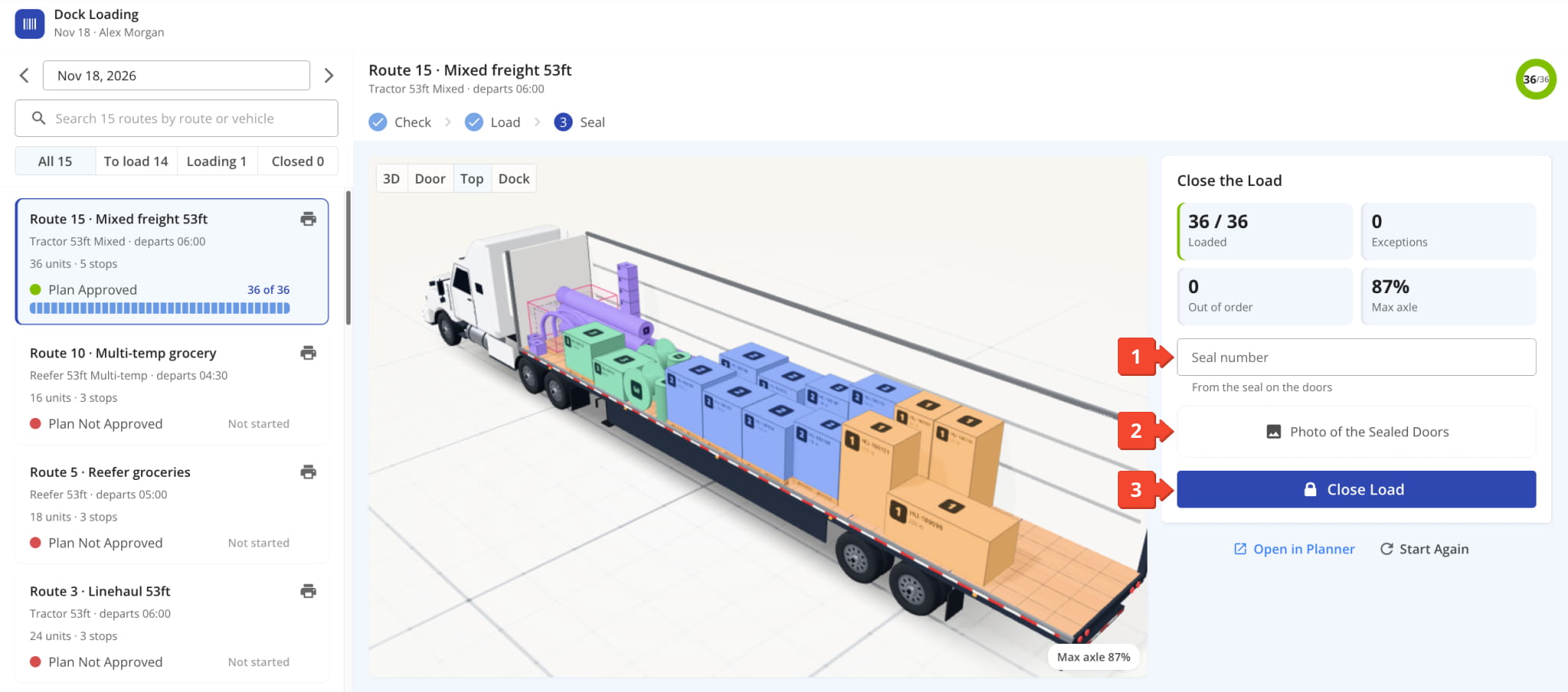
When the last unit is on board, you’ll see a summary where you can check the units loaded, exceptions, and the heaviest axle load. Once you’re ready to seal the truck, you can:
- Seal Number: Enter the number from the seal on the truck’s doors.
- Photo of the Sealed Doors: Take a photo of the sealed doors as proof of a secure load.
- Click “Close Load” to finish.
Every scan, exception, and seal syncs to the Load Planner instantly, so dispatchers can follow loading live and see the route marked as loaded with its seal number.
Sign Up For A Demo – See The Load Planner & Dock Loading In Action
To see how the Load Planner and Dock Loading take the guesswork out of every loading operation, sign up below, and a Route4Me expert will walk you through it live, from the first 3D plan to the sealed truck.
About author: Kristian Andreev