
Lock Routes – Protect Finalized Route Plans & Freeze Further Changes
Route Locking lets you freeze a finalized route so its plan can’t be changed. When a route is locked, Route4Me blocks changes to its destination sequence, settings, schedule, driver and vehicle assignment, and re-optimization. Everything assigned Users do in the field is completely unaffected, so locking doesn’t prevent collecting proof of delivery or other field activity.
Locking marks a route as planning-finalized, so the work that went into it is protected. You can lock a single route or multiple at once and see who locked or unlocked each route and when using the Activity Feed. Keep reading to learn more.
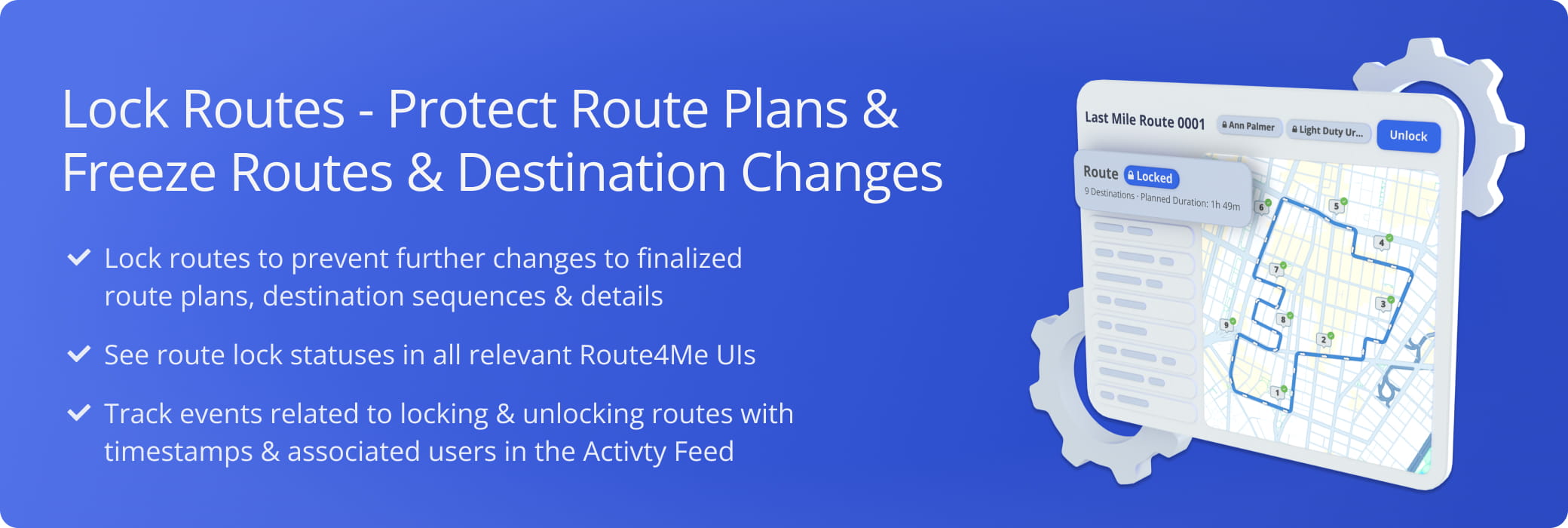
Table of Contents
Lock Routes On The Routes Page – Freeze A Finalized Plan
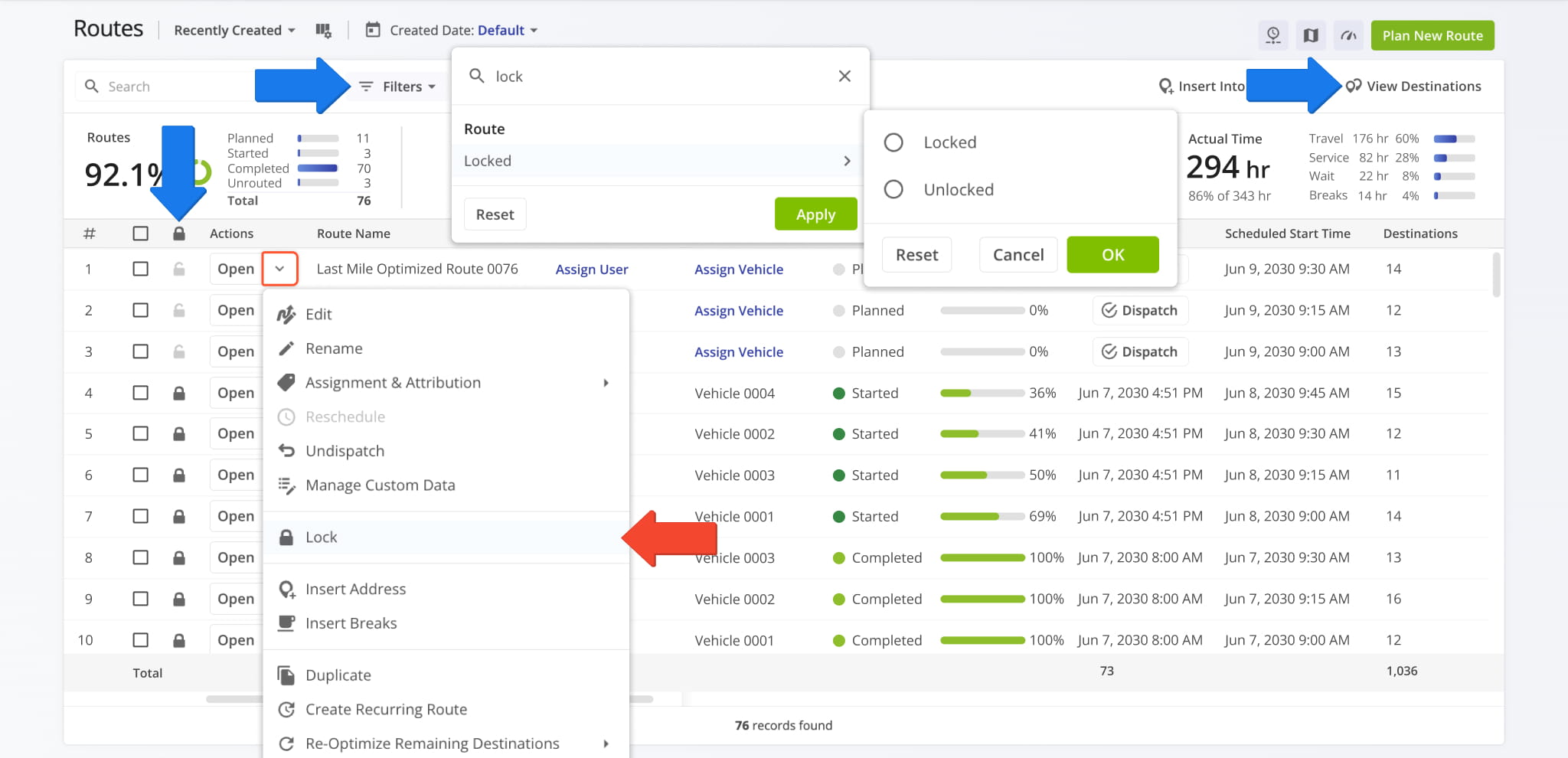
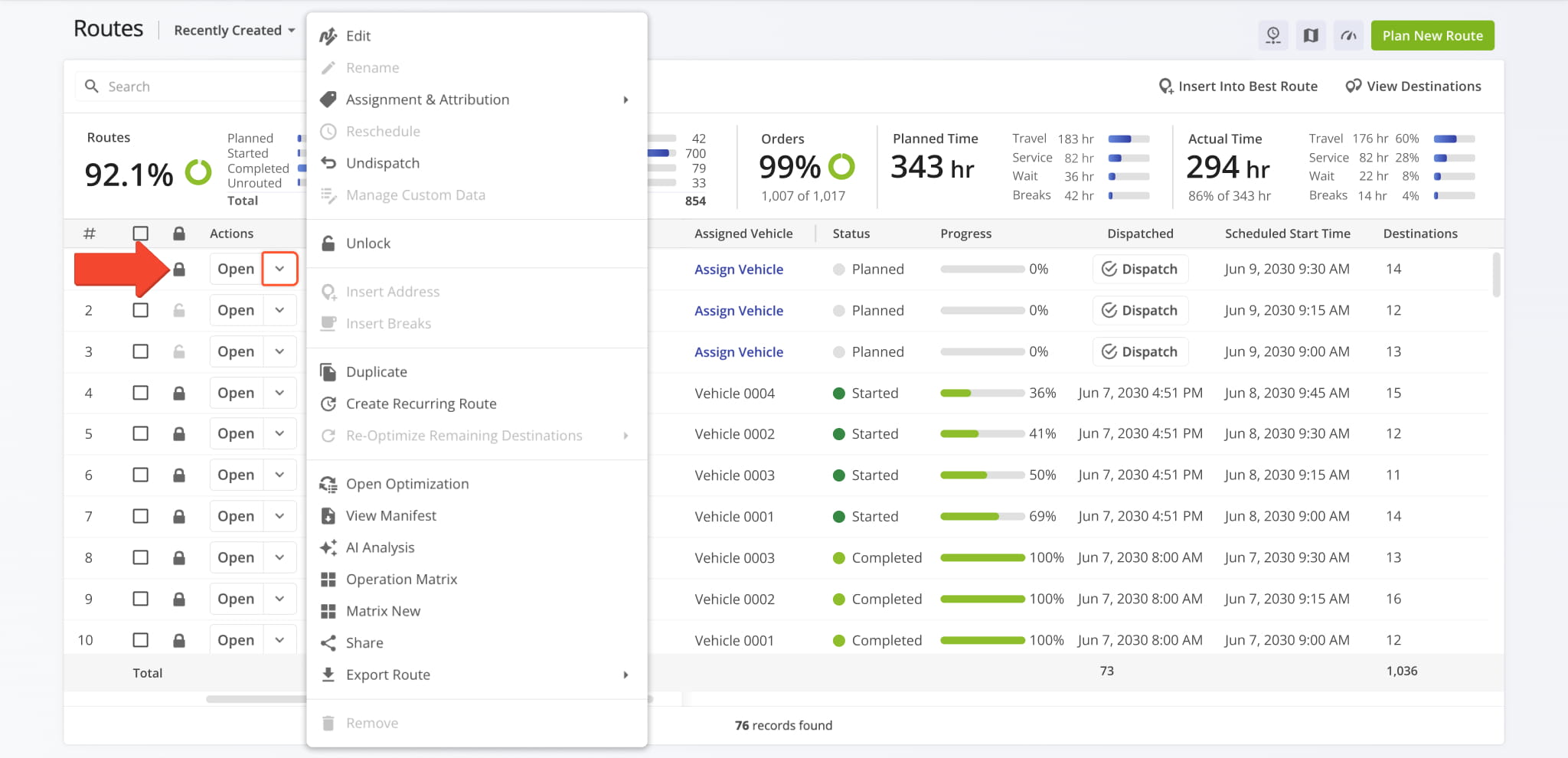
Like most route management actions, you can access locking from the Routes Page. Simply click the Down Arrow next to a route and select “Lock“. You can lock a route at any stage, including routes that are already started or completed.
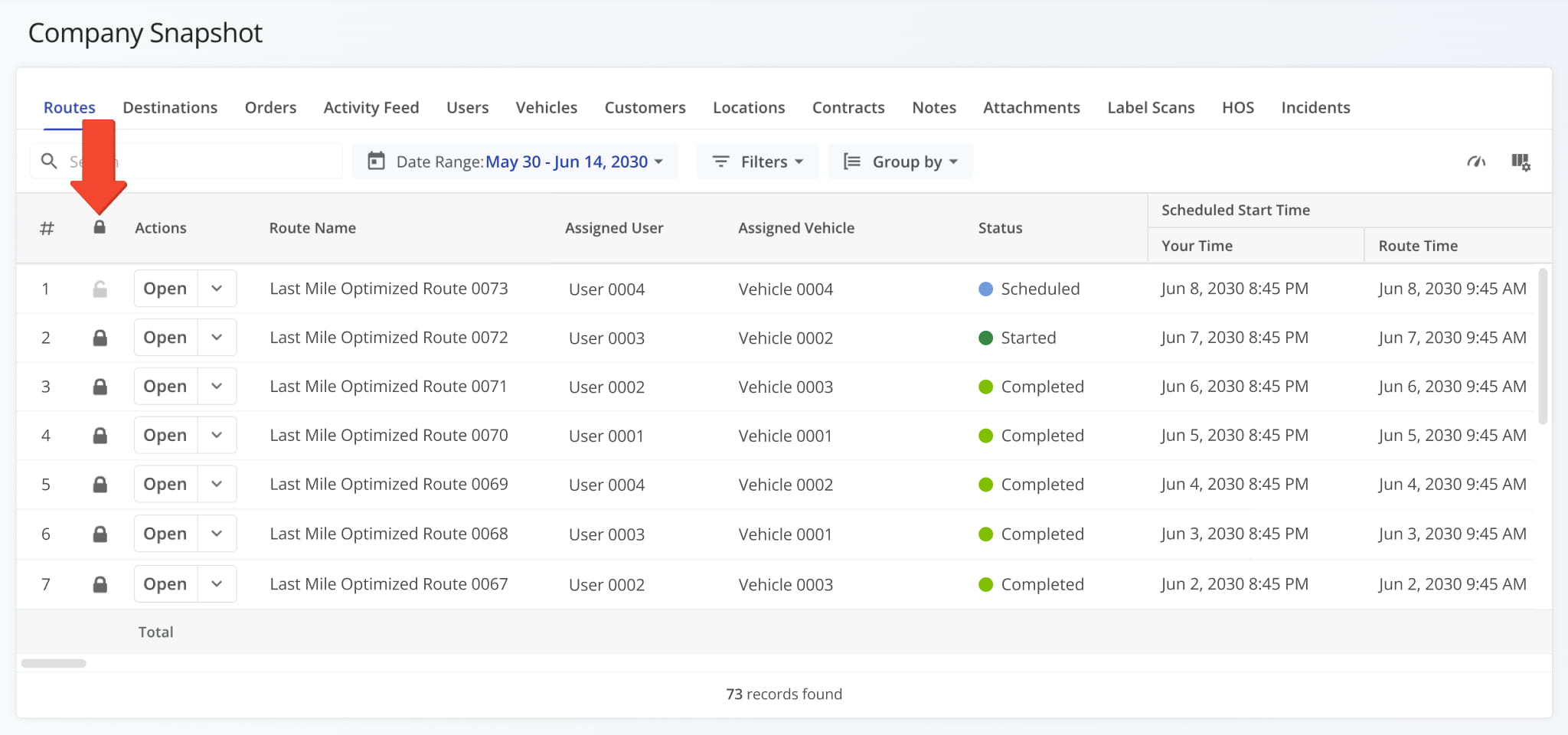
To make locked routes easy to see, the Routes List has a Locked column showing a pale Unlocked Icon or a dark Locked Icon. You can also filter and sort your routes by lock status. Lock status is also shown on the Destinations Page and when you Compare Routes. Additionally, all snapshots that show routes also show their lock status.
NOTE: Users who can edit a route can lock and unlock it, regardless of who locked it. Routes never lock or unlock on their own.
Lock And Unlock Multiple Routes With Bulk Actions
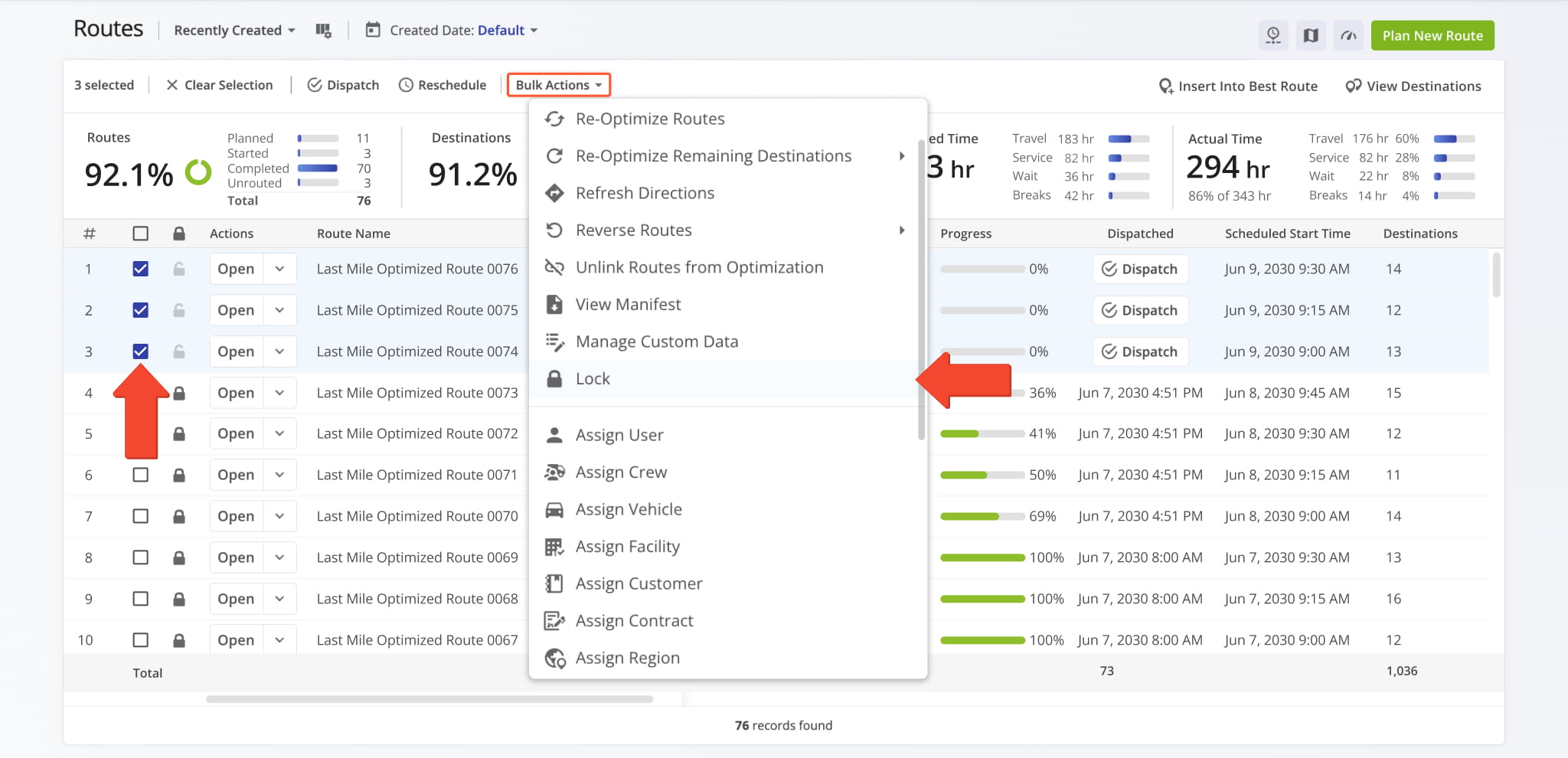
To lock multiple routes at once, check their boxes to select them, click “Bulk Actions“, and select “Lock” from the menu. The process for unlocking routes is the same. The “Lock” option is replaced with “Unlock” when a route is already locked.
Locked Route Prohibited And Allowed Actions
Locking a route blocks changes to its settings and Destinations, along with re-optimization. Everything else stays available, including dispatch, status updates, and all activity in the field. See the table below for the full list.
NOTE 1: When using bulk actions on a mix of locked and unlocked routes, Route4Me notifies you that it will skip the locked ones.
NOTE 2: Re-optimizing multiple routes will fail when any route in a batch is locked. Unlock or exclude it from the batch.
Locked Routes - Prohibited & Allowed Actions
Route Locking In The Route Editor – Change And Check Status
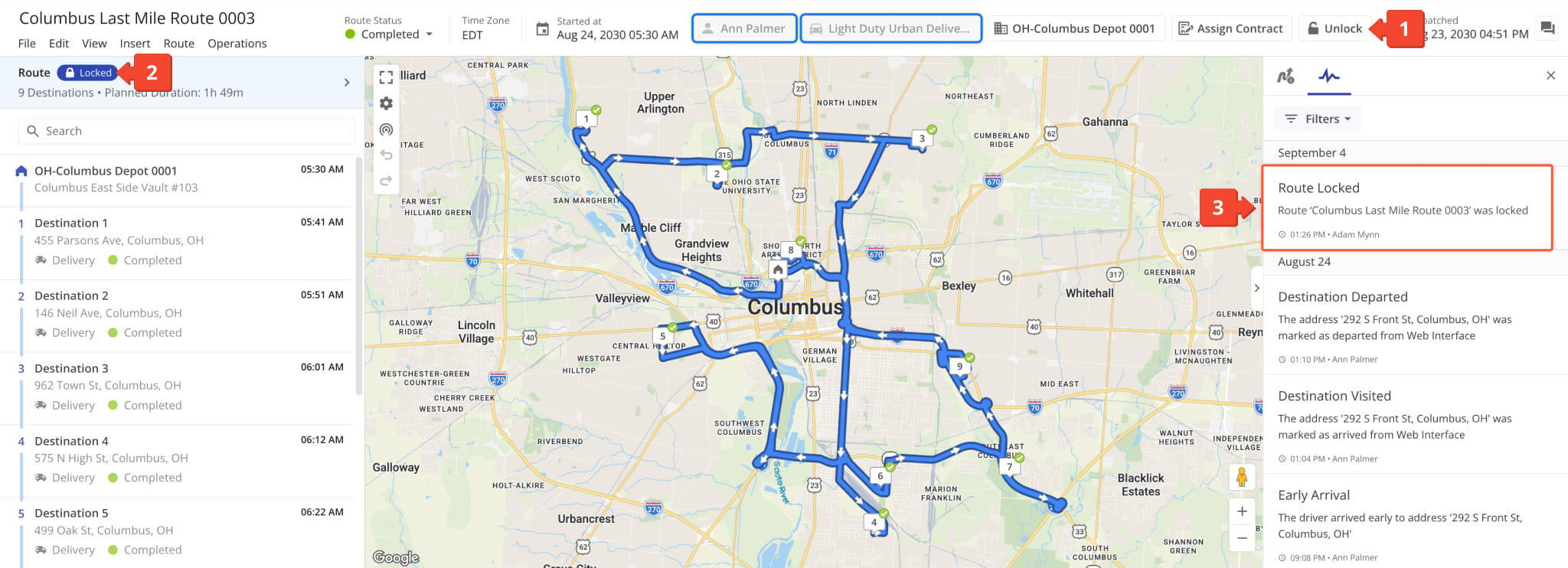
You can also lock and unlock routes and check their lock status from the Route Editor by:
- Click the “Lock“/”Unlock” button in the top-right to change a route’s lock status.
- You’ll see a “Locked” indicator in a route’s header when the route is locked.
- You can check changes to a route’s lock status in the Route Editor Activity Feed.
When a route is locked, prohibited actions will have their buttons and menu options grayed out. In the image below, you can see grayed out buttons for the Assigned User and Assigned Vehicle of the route.
NOTE: Elsewhere in Route4Me, prohibited actions are either grayed out or refused when you try to apply them.
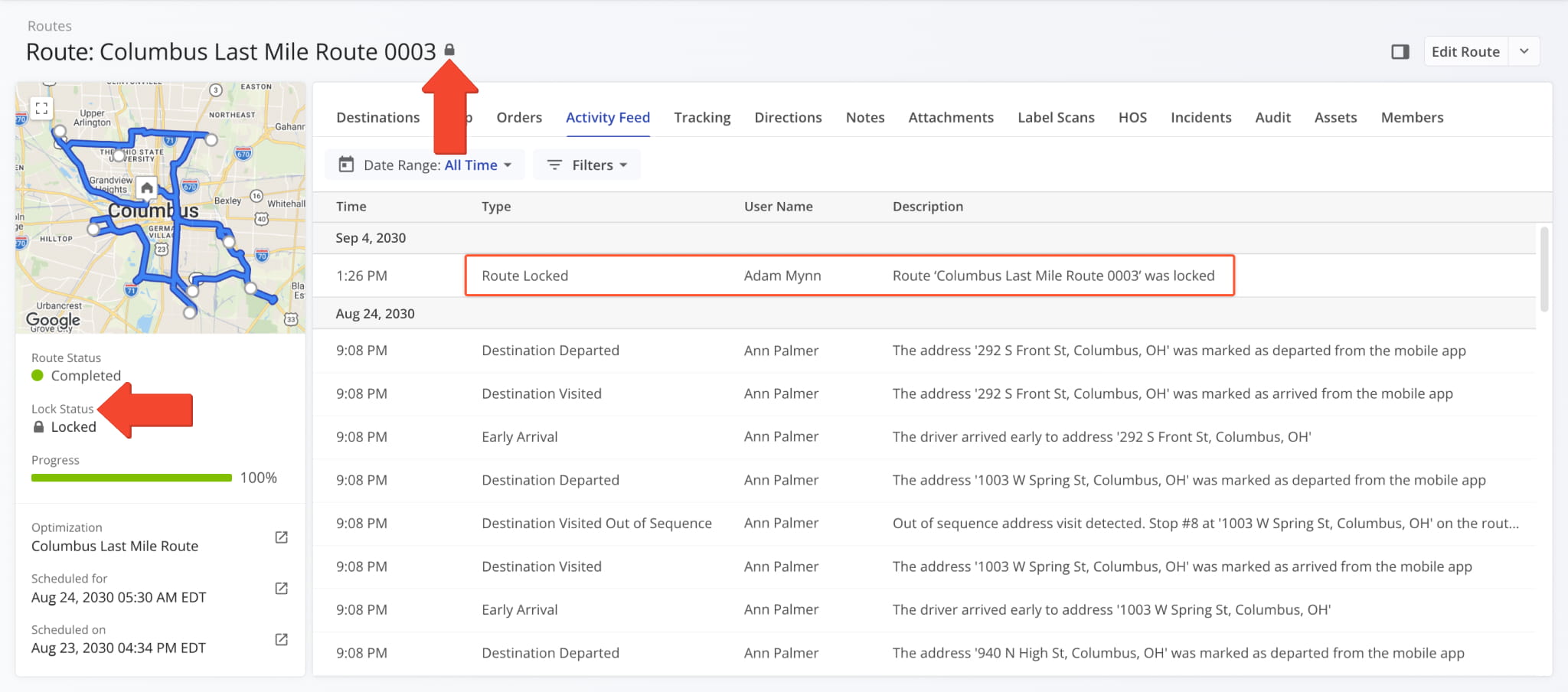
Route Lock Status In Snapshots
In Route Snapshots, you’ll see a “Lock Status” field in the summary panel and a Locked Icon next to the name of the route. Additionally, the “Activity Feed” tab shows lock status updates as timestamped events, along with the associated User.
Additionally, any snapshot that has a “Routes” tab will show route lock status in the Locked column, just like the Routes Page.
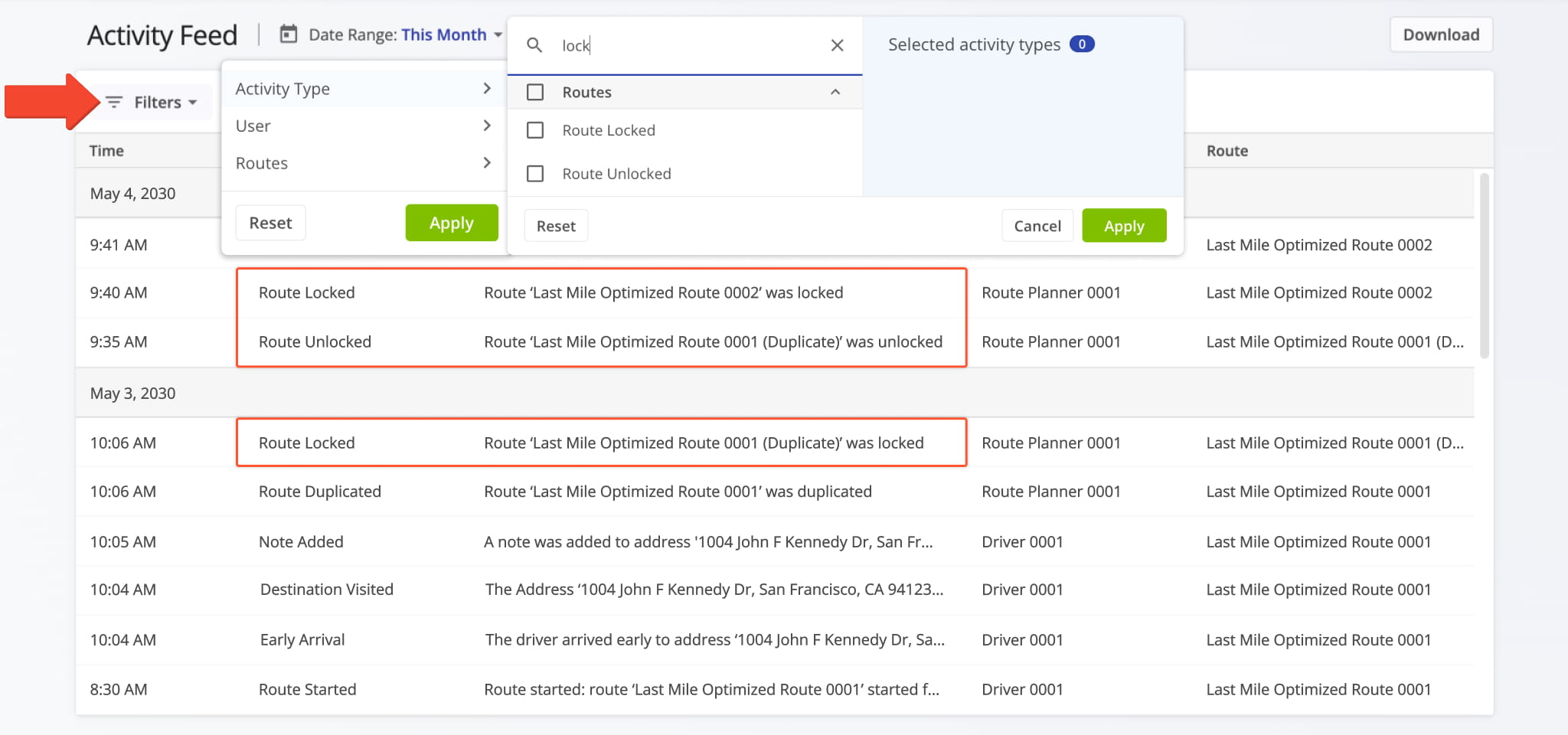
Track Route Changes In Your Company Activity Feed
You can use your company Activity Feed to see all changes made to routes, including when routes were locked or unlocked. The “Route Locked” and “Route Unlocked” activity types are also available as filters, making it quick and easy to see relevant events and updates across your organization.
Open Your Account Activity Feed
Visit Route4Me's Marketplace to Check out Associated Modules:
- Operations
Custom Data Add-On
- Operations
Advanced Team Management Add-On
About author: Kristian Andreev

