
Mobile App Troubleshooting – Route4Me iOS And Android Help
This guide provides answers to common questions about the Route4Me mobile route app for iOS and Android. It is designed to help you quickly resolve issues and better understand key features for managing multi-stop routes. From planning and navigation to sharing and exporting, these FAQs cover essential mobile workflows. Use it to quickly find clear, step-by-step instructions.
Table of Contents
Route4Me Mobile Apps Troubleshooting & Frequently Asked Questions
You can access your Route4Me account on the web using the same login as the mobile app. However, web functionality is limited compared to the mobile app.
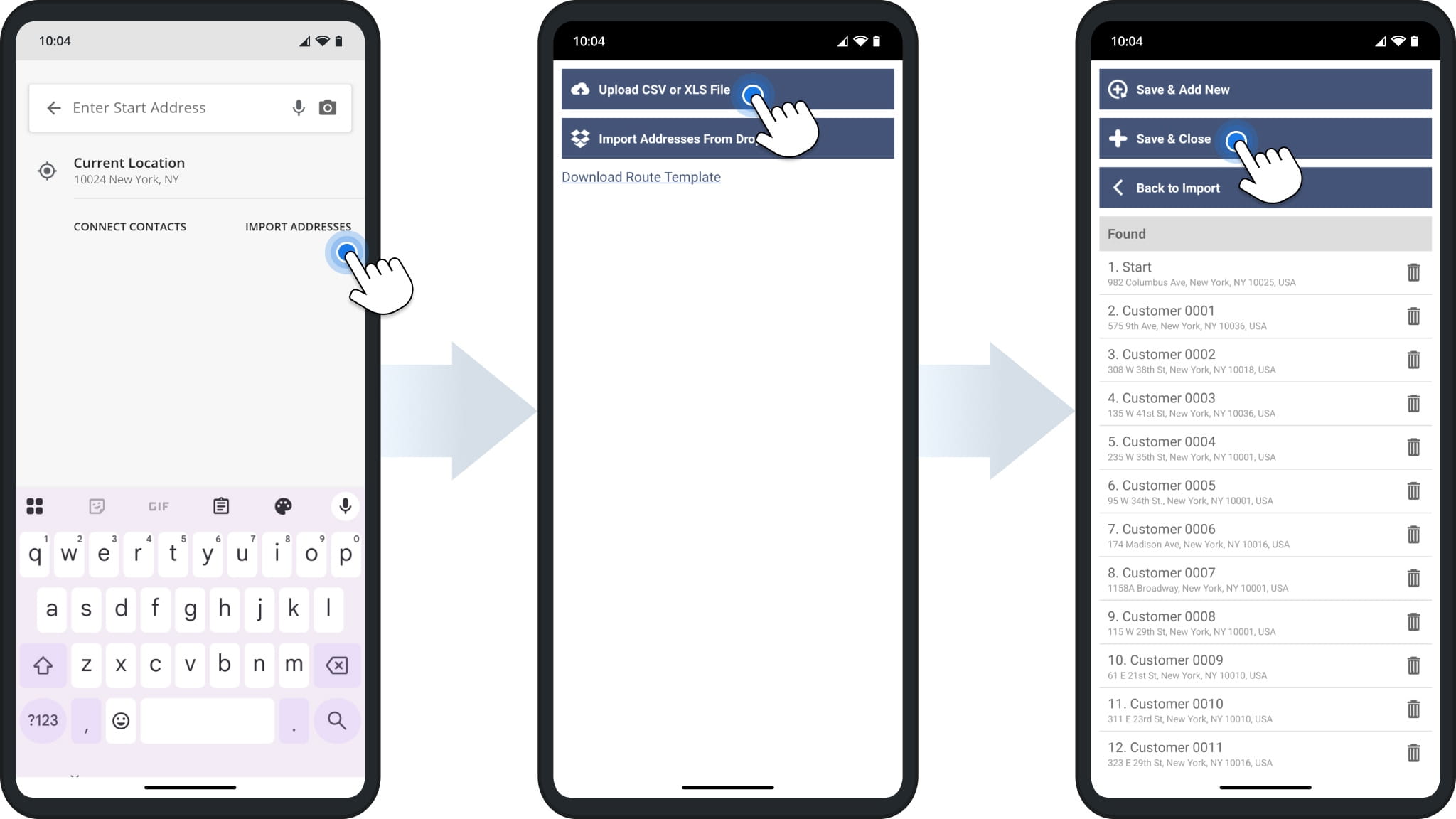
To upload or import addresses, tap the “Search Here” (iPhone) or “Enter Address” (Android) field to start planning a route. Then select “Import Addresses” and choose a file from your device, iCloud, Google Drive, or Dropbox.
Tap “Save & Close” to add them to your route.
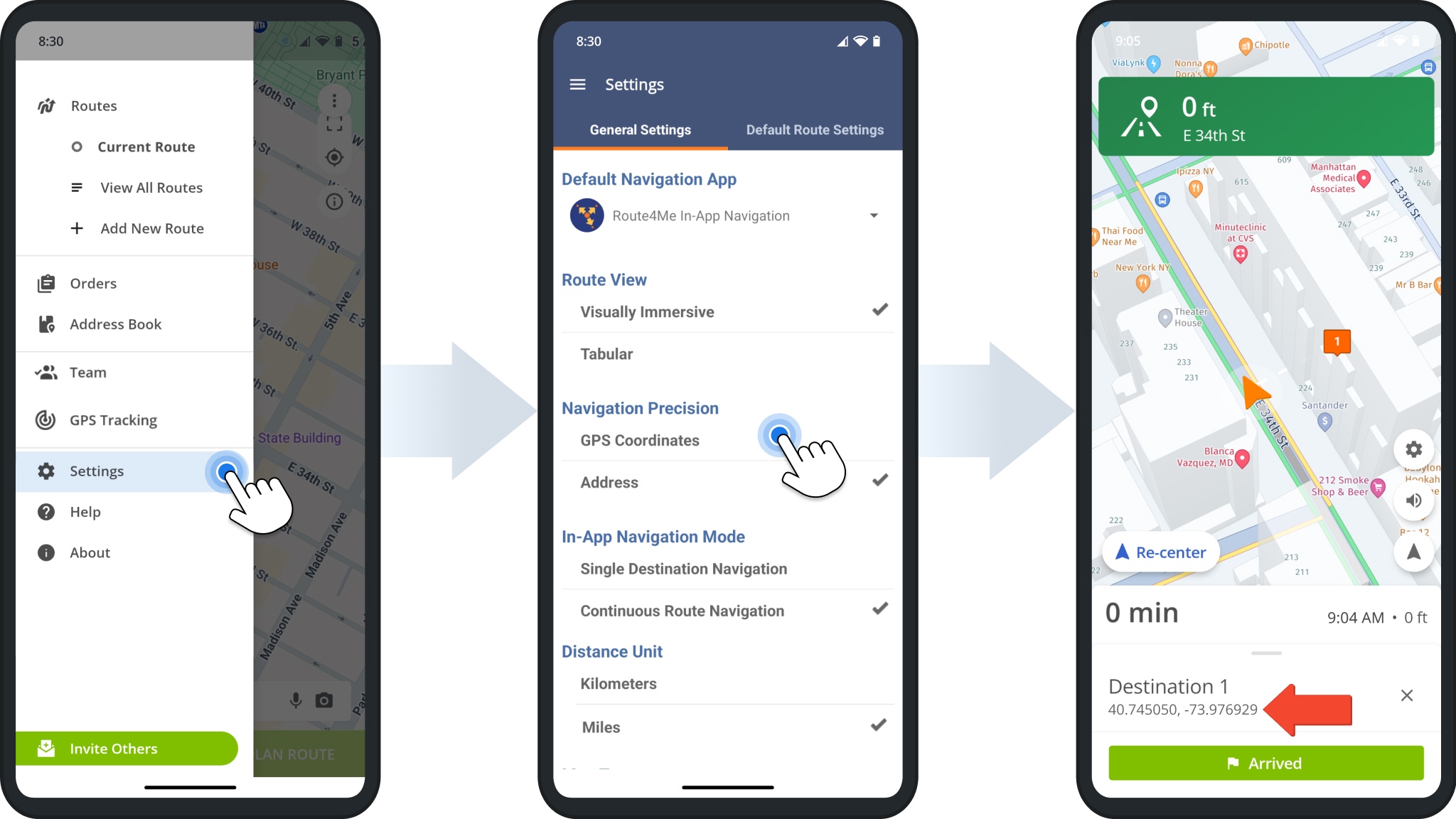
To increase navigation precision, open the app menu and select “Settings“. Then tap “GPS Coordinates” under “Navigation Precision“.
NOTE: Routes planned with addresses instead of destination coordinates will use the default coordinates associated with the input addresses.
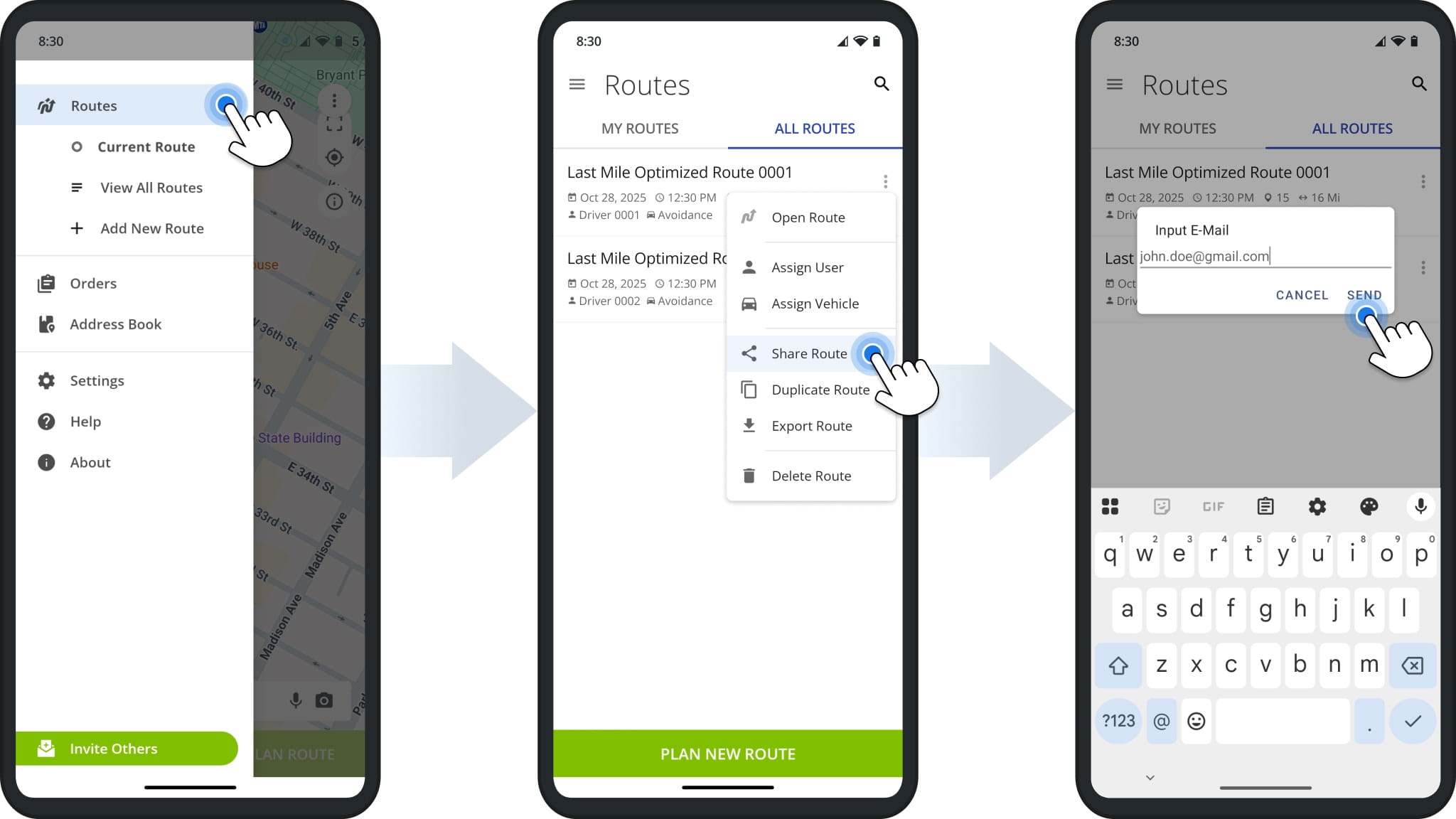
To share a route via email from the mobile app, go to “Routes” from the main menu. Tap the Three-dot Icon next to a route and select “Share Route“.
On Android, enter an email address. On iPhone, you can also select a contact. Tap “Send” to share the route.
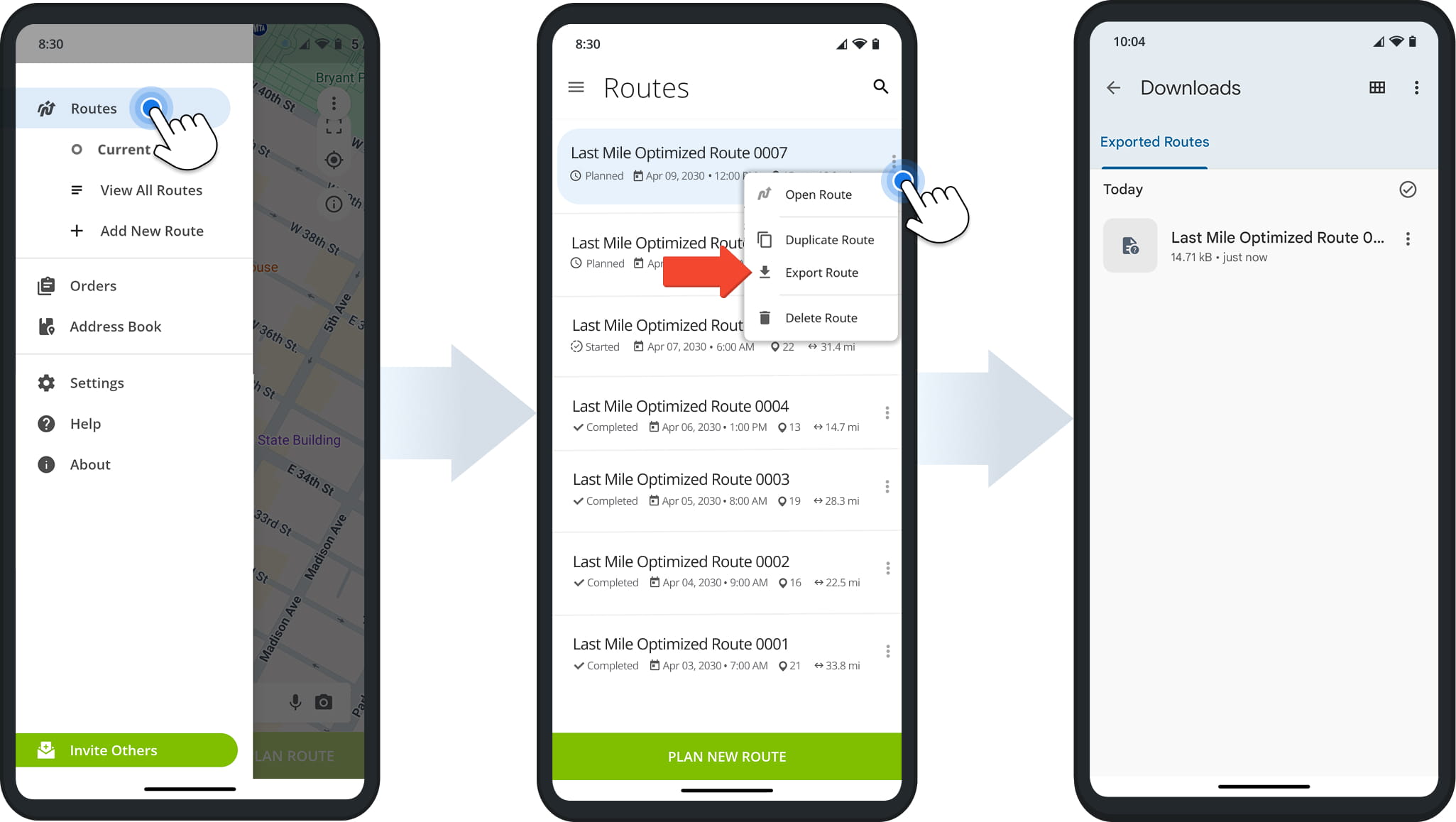
Open the Route4Me app menu and tap “Routes“. Then tap the “Three-dot Icon” next to a route and select “Export Route“.
On Android, the exported CSV file is saved to your device’s “Downloads” folder. On iPhone, you can choose where to save the exported route data file.
Route4Me’s route planning and navigation apps support most countries where road map data is available for standard vehicle navigation. Commercial vehicle, pedestrian, and bicycling modes are available in fewer countries.
See Supported Countries And Route Planner Routing Profile Types for more information.
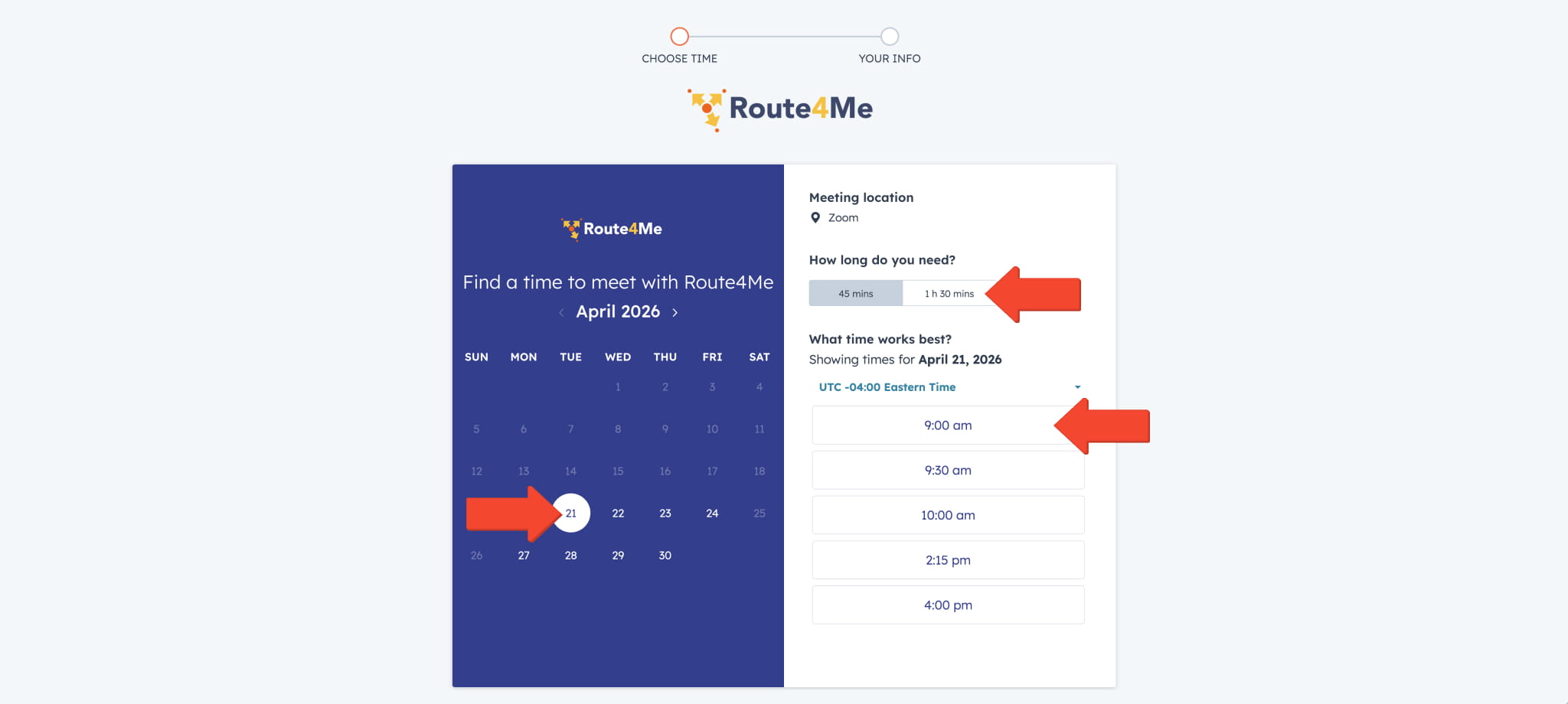
Use the Route4Me Onboarding Calendar to schedule a training session. Select a date, session length, and available time slot.
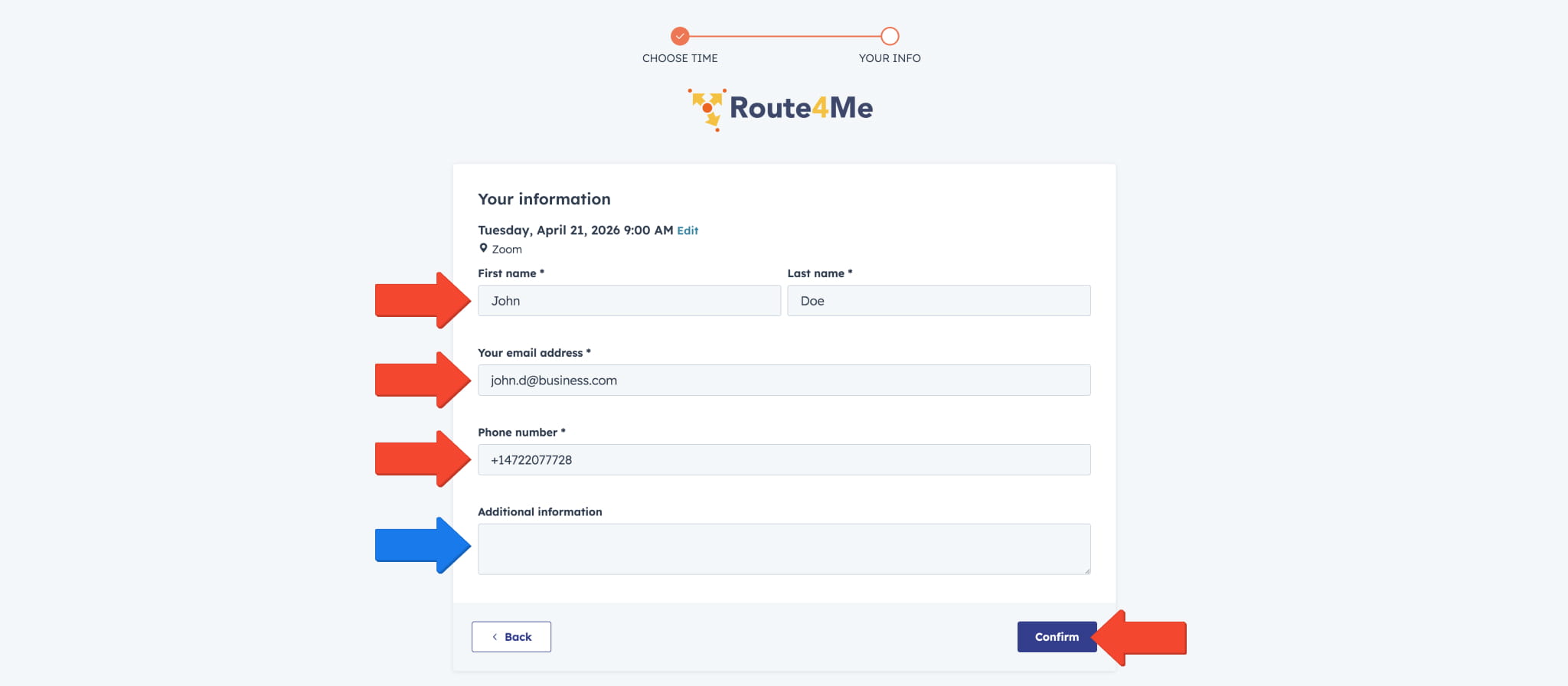
Then, enter your contact information so we can send your training session details.
Optionally, use the “Additional Information” field to share helpful details or resources, such as questions, routing goals, or an address spreadsheet URL to review during the session.
Click “Confirm” to complete the booking.
iOS & iPhone Mobile App Troubleshooting & Frequently Asked Questions
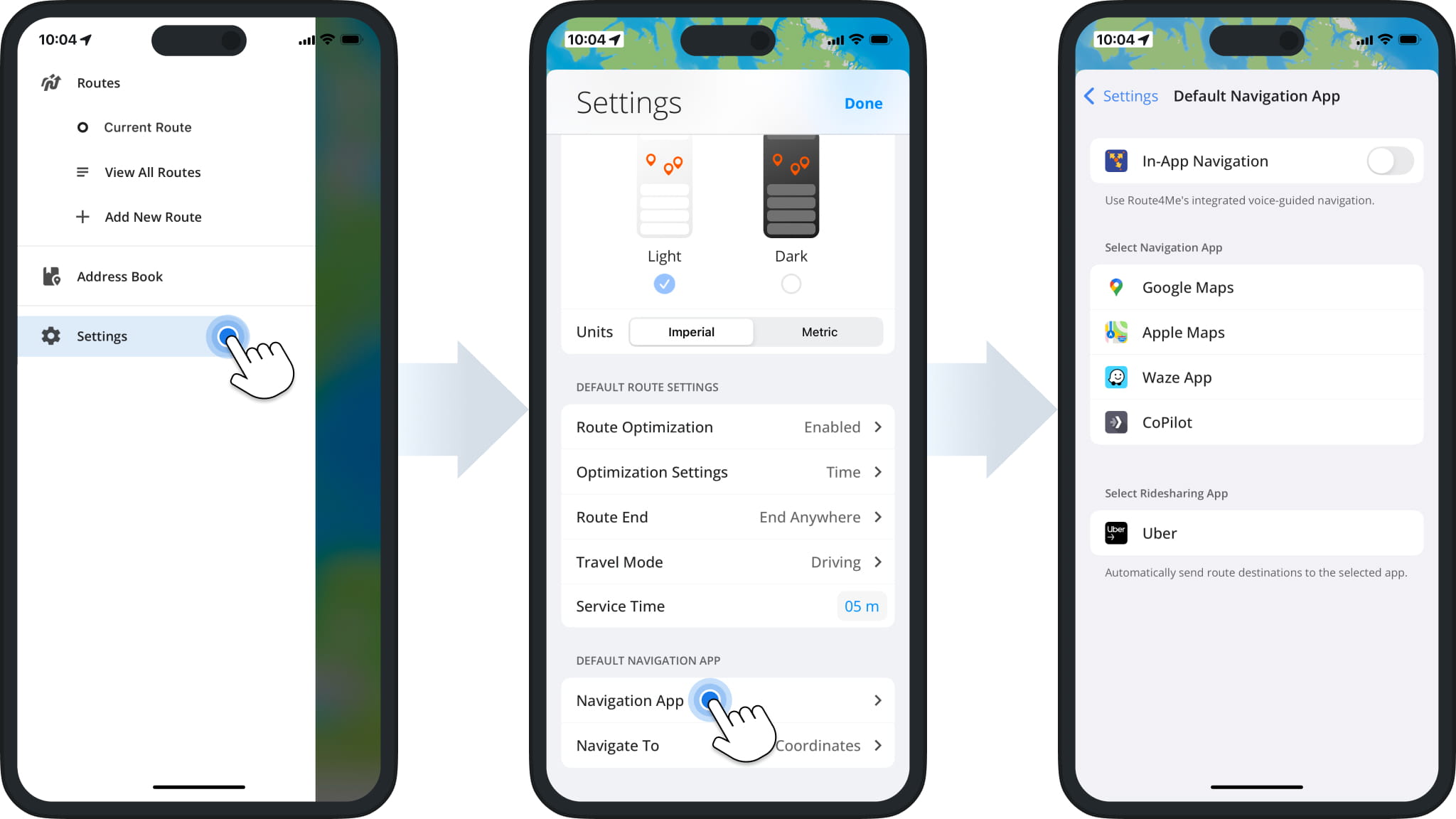
Open the Route4Me app menu and tap “Settings“. Scroll down to the “Default Navigation App” section and tap “Navigation App“, then select your preferred navigation provider on the next screen.
The selected app will be used as the default navigation app for routes.
Subscriptions purchased on iPhone or iPad are tied to your Apple ID. Route4Me cannot cancel them on your behalf. Learn more at the Apple Support Center.
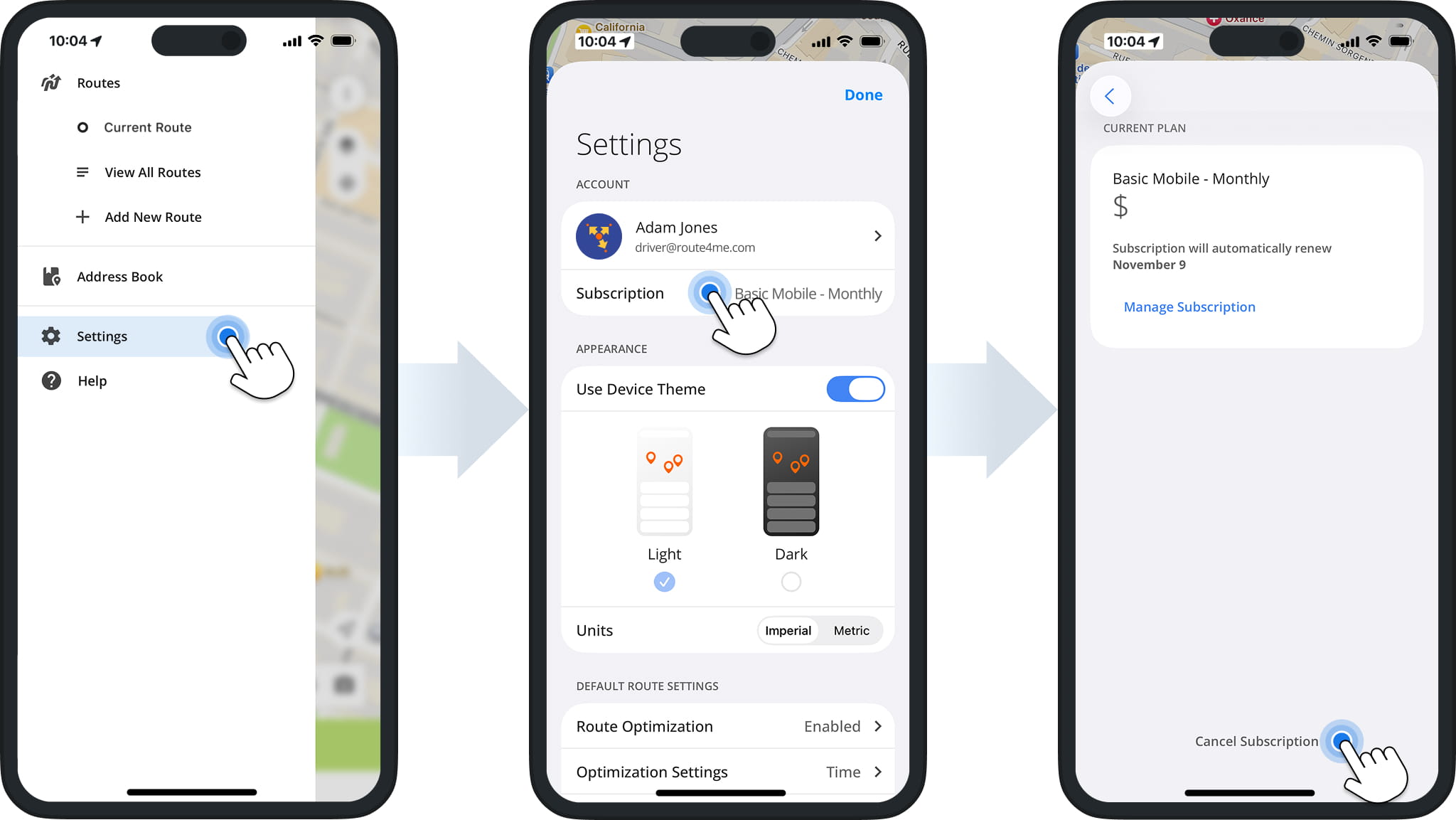
To cancel your subscription, go to “Settings” > “Account” > “Subscription” and tap “Cancel Subscription“. This will open Apple Subscriptions, where you can confirm the cancellation.
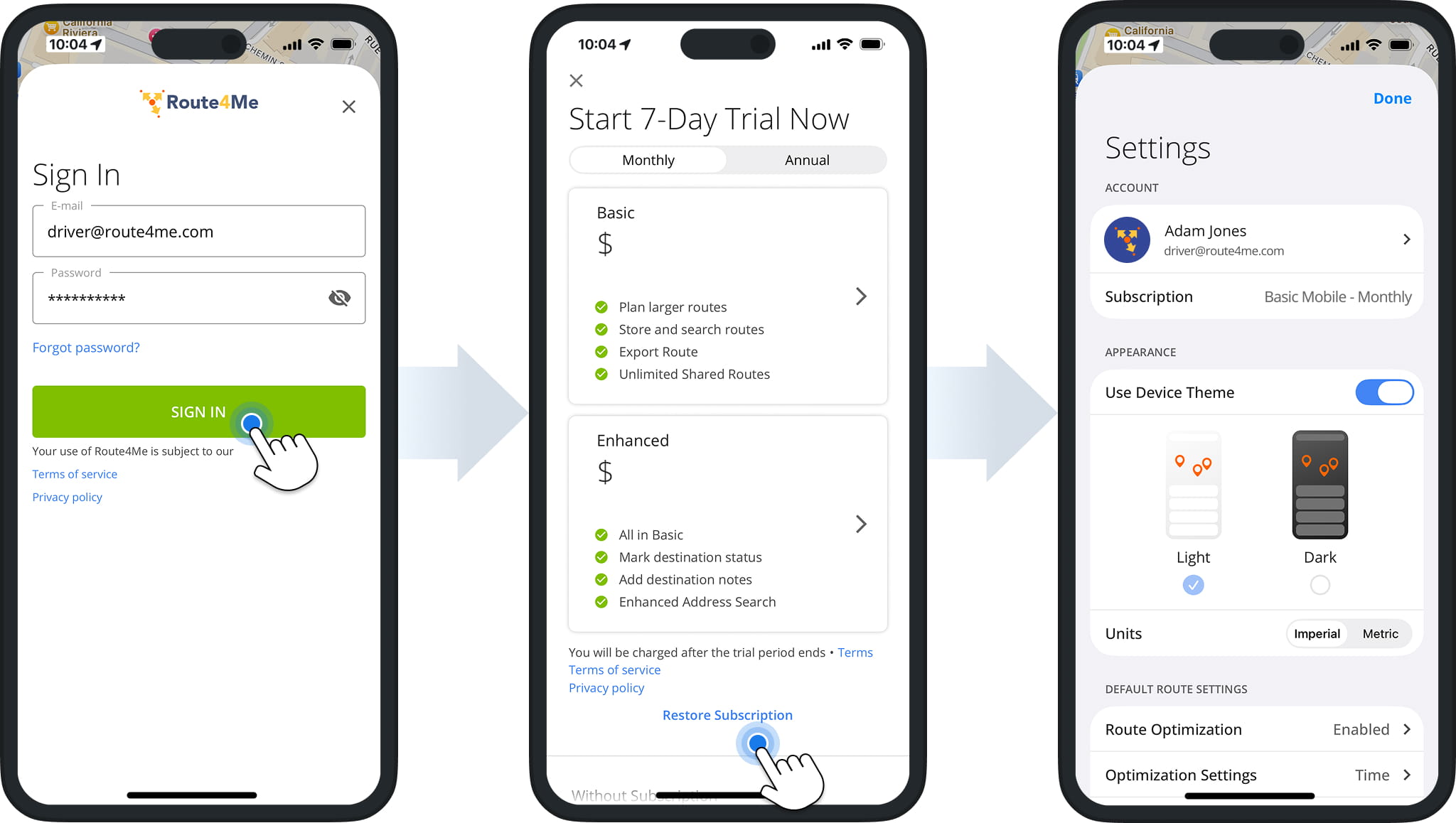
To restore your subscription, make sure your device is signed in to the same Apple ID used for the purchase. Then, sign in to your Route4Me account and tap “Restore Subscription“.
Android Mobile App Troubleshooting & Frequently Asked Questions
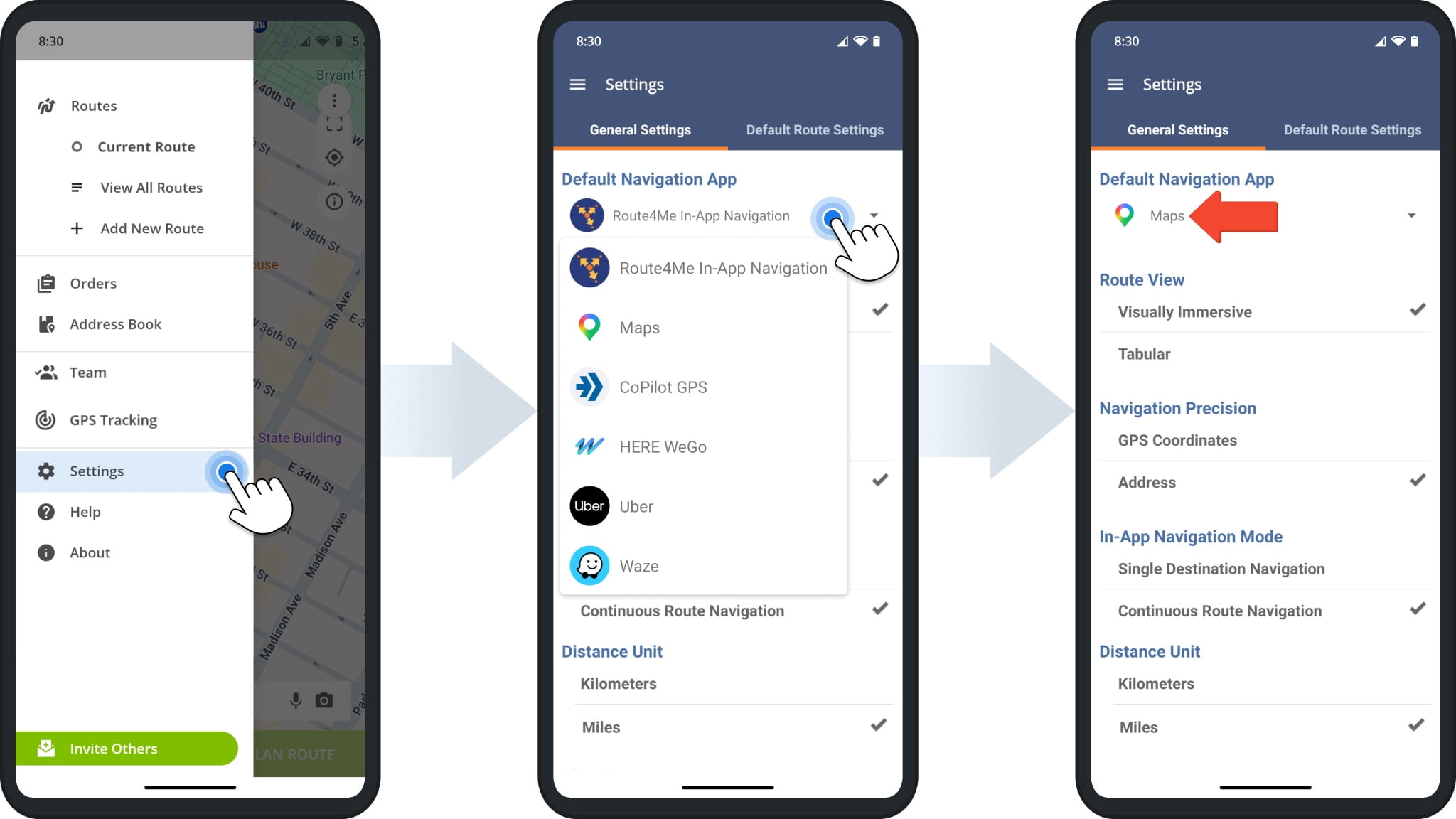
Open the Route4Me app menu and tap “Settings“. Then tap the navigation provider shown under “Default Navigation App“. Select your preferred navigation provider from the dropdown menu.
The selected app will be used as the default navigation app for routes.
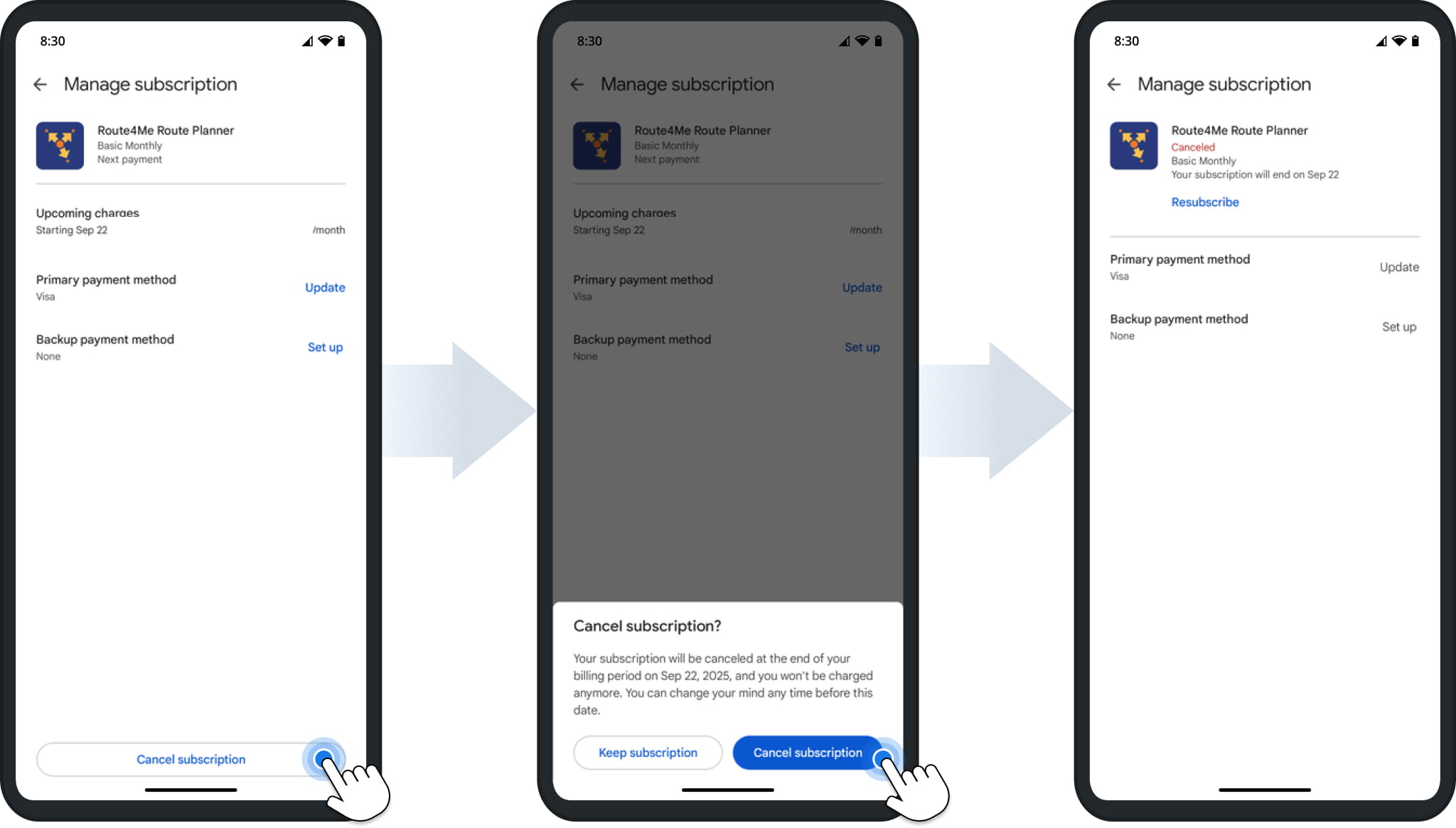
You can cancel your Route4Me subscription directly in the Google Play Store. Google automatically links your subscription to your signed-in Google Account, so Route4Me cannot cancel it for you.
Open the Play Store, tap your profile picture, and select “Manage Your Google Account“. Then go to “Wallet & subscriptions” > “Subscriptions” > “Route4Me Route Planner“.
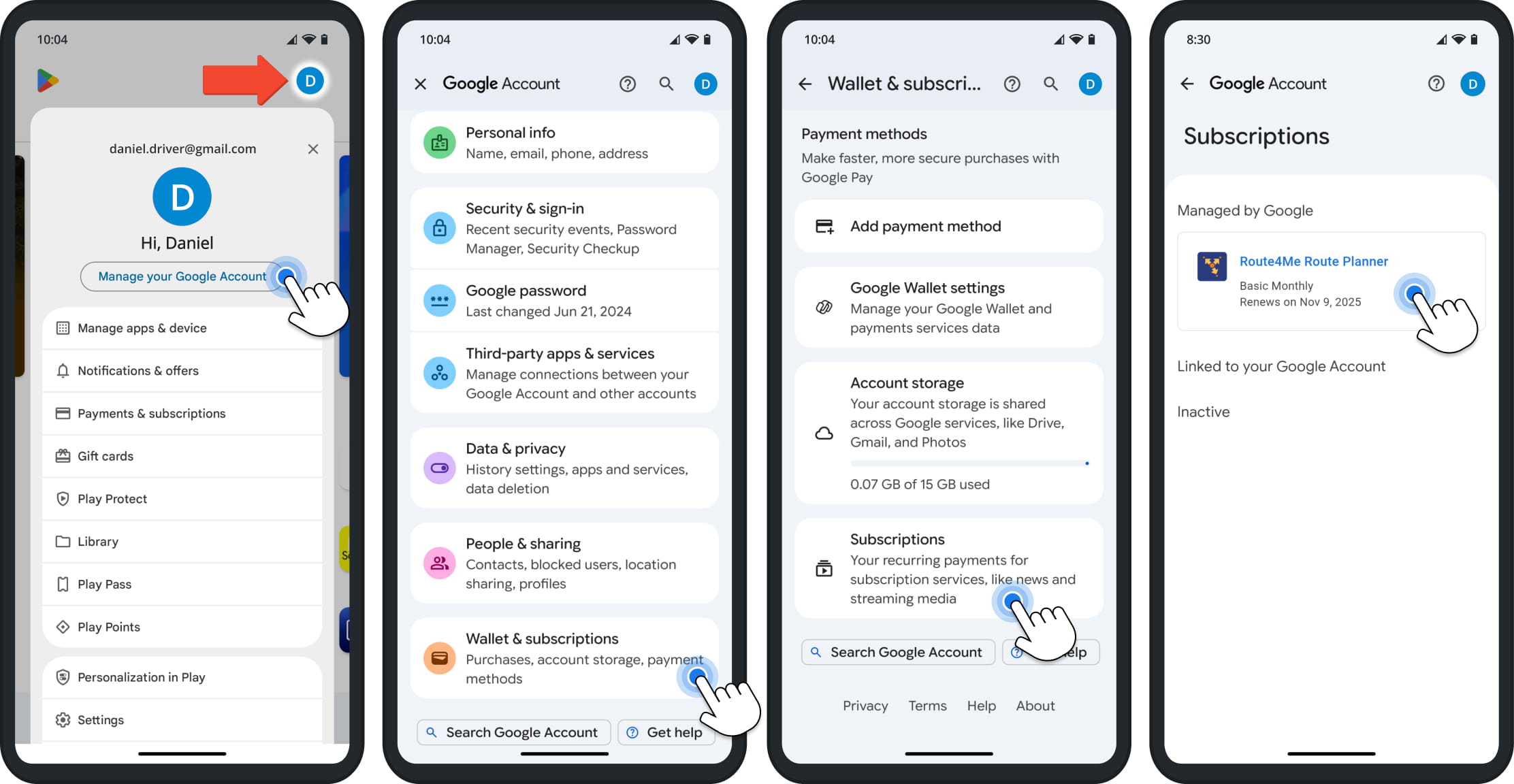
Tap “Cancel subscription” and confirm your cancellation.
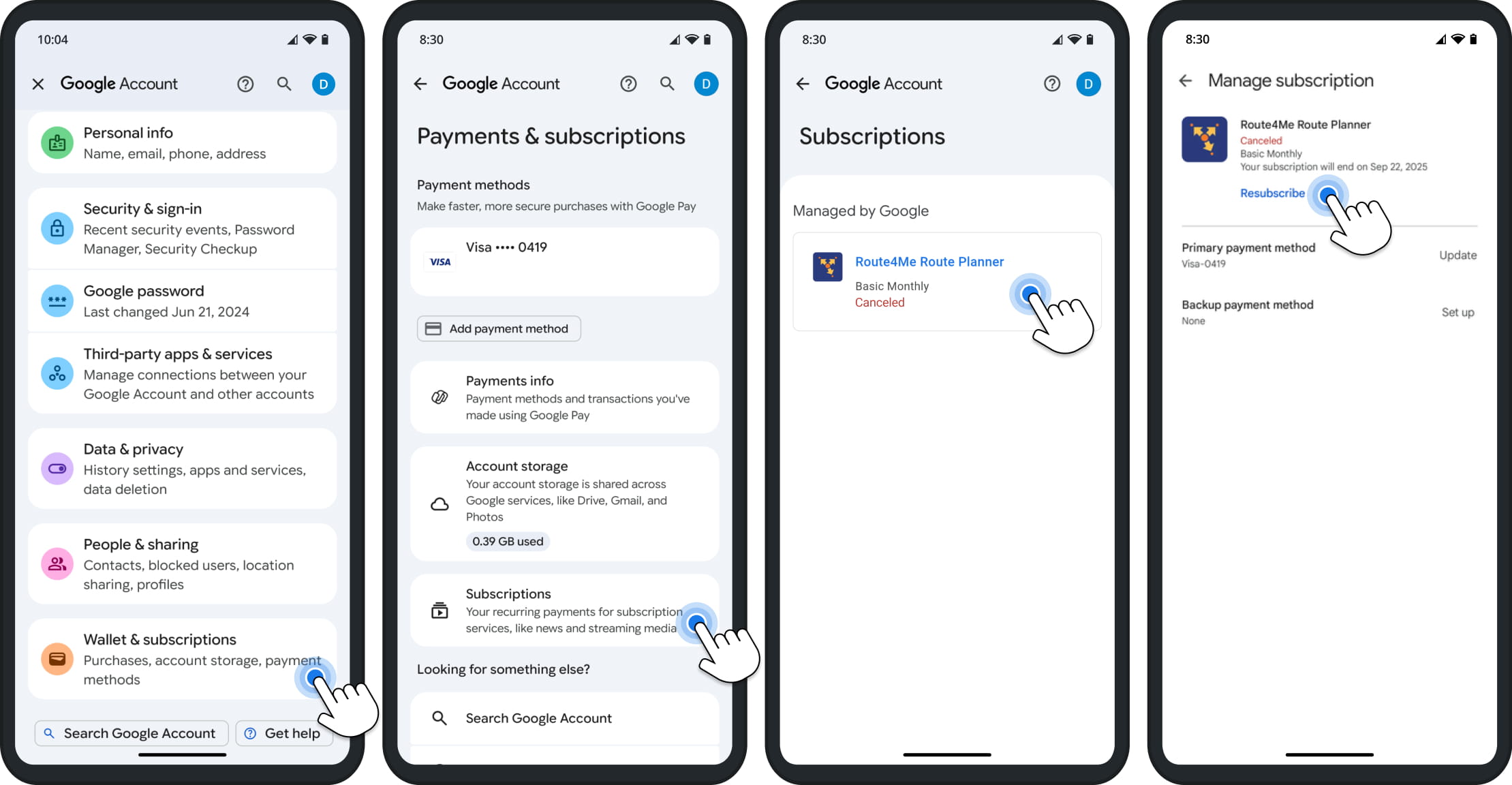
To restore a cancelled Route4Me subscription, open the Google account settings from the Play Store as described above. Then go to “Wallet & subscriptions” > “Subscriptions“, and select “Route4Me Route Planner“.
Tap “Resubscribe” to restore your subscription.
Visit Route4Me's Marketplace to Check Out More Add-Ons and Modules:
- Route Optimization
Address Book and Territories Planning
- Operations
Custom Data Add-On
About author: Daniel Archer

