
Insert Destinations – Add Stops To Planned And Optimized Routes
Route4Me’s destination insertion and drag-and-drop tools give you two ways to add stops to a route without rebuilding it. Insertion automatically re-optimizes the route to fit the new stop efficiently, whether the route hasn’t started yet or is already in progress. You can insert destinations from either the Routes List or the Route Editor, with options to add a single stop, add to multiple routes at once, or let Route4Me find the best-fit route for you.
Table of Contents
Update Routes With New Addresses – Add Stops From Routes List
Add Stop To A Single Planned Route – Move Destination Into A Route
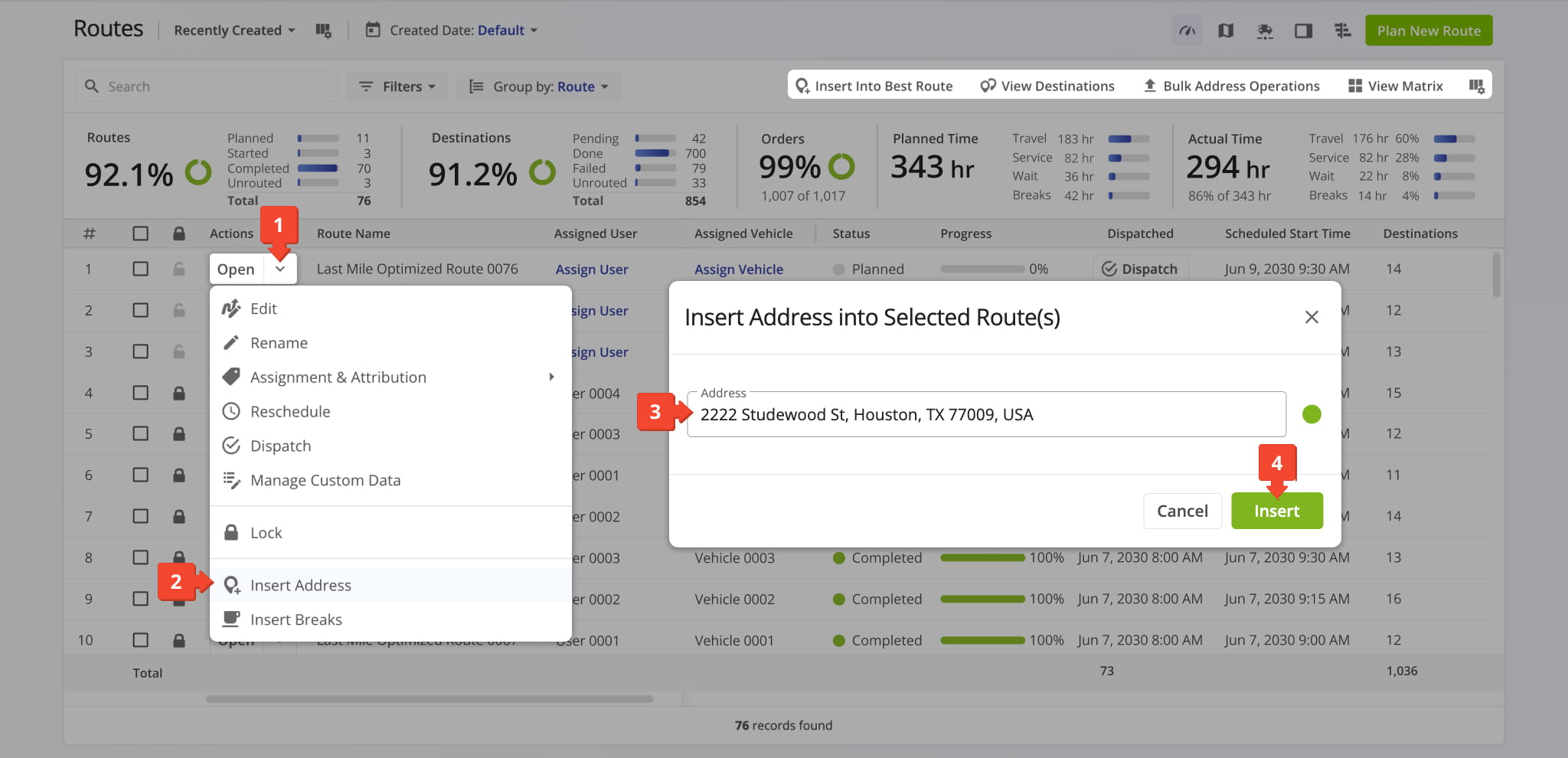
To add a stop to a planned route from the Routes List:
- Click the Down Arrow next to the route you want to add a destination to.
- Select “Insert Address” from the menu.
- In the “Insert Address into Selected Route(s)” panel, input the address as shown in the example below.
Route4Me’s address verification and geocoding will find and suggest the closest valid address. - Click “Insert” to add a new stop with the corresponding address to the route.
Route4Me’s multiple stop route optimizer will automatically update the route’s destination sequence and directions to include the new destination in the most optimal way.
Add Stop To Multiple Planned Routes – Apply New Destination To Several Routes
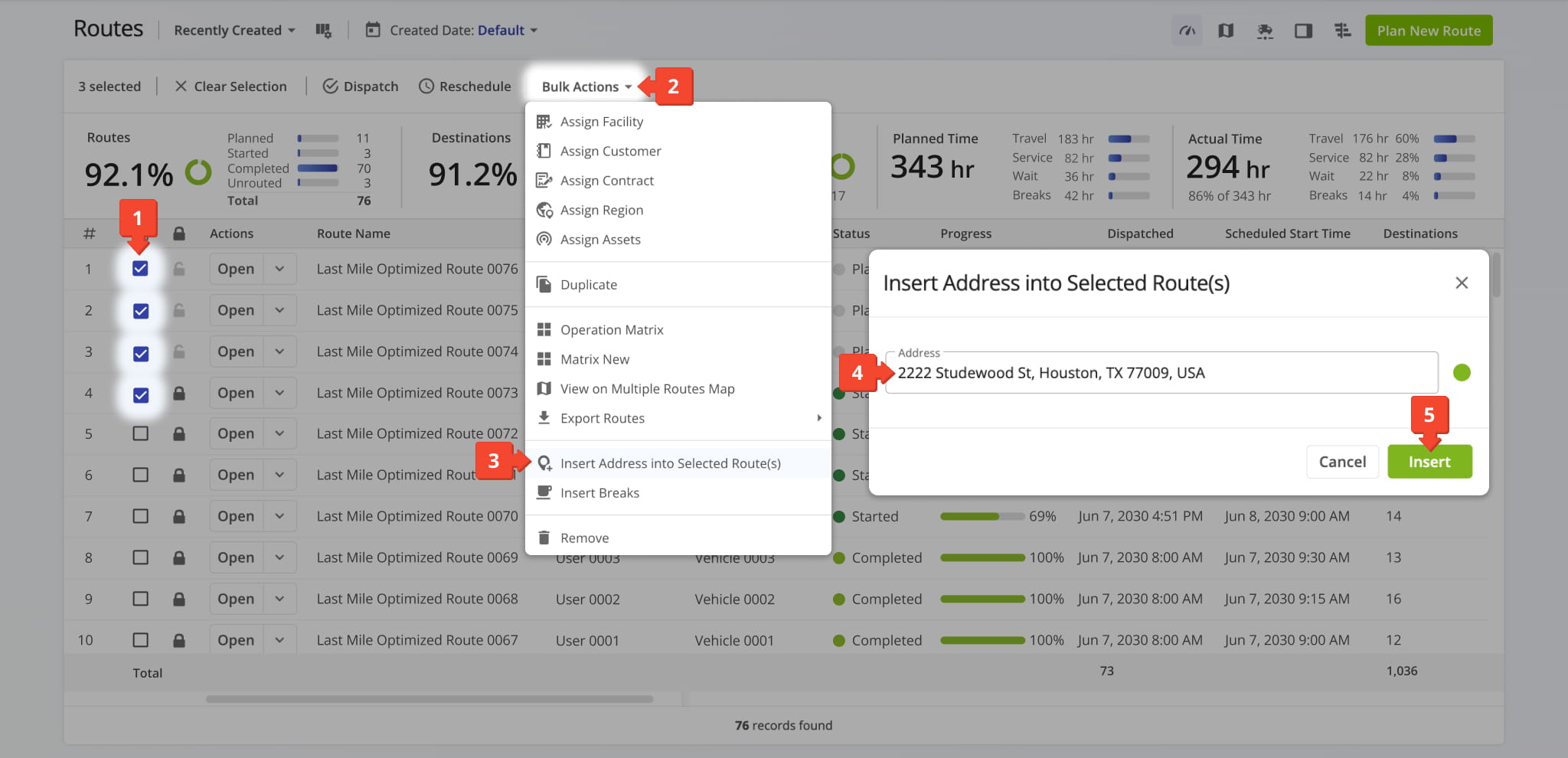
To insert an address into multiple planned routes from the Routes List:
- Select your preferred routes by checking the boxes next to them.
- Click “Bulk Actions” to open the multiple route actions menu.
- Select “Insert Address into Selected Route(s)” from the menu.
- In the “Insert Address into Selected Route(s)” panel, input the address as shown in the example below.
Route4Me’s address verification and geocoding will find and suggest the closest valid address. - Click “Insert” to add a new stop with the corresponding address to the selected routes.
Route4Me automatically updates the destination sequence and directions for each selected route to include the new stop in the most optimal order. The same address is added to all selected routes.
Add Stop To Best Planned Route – Insert Destination Into Optimal Route
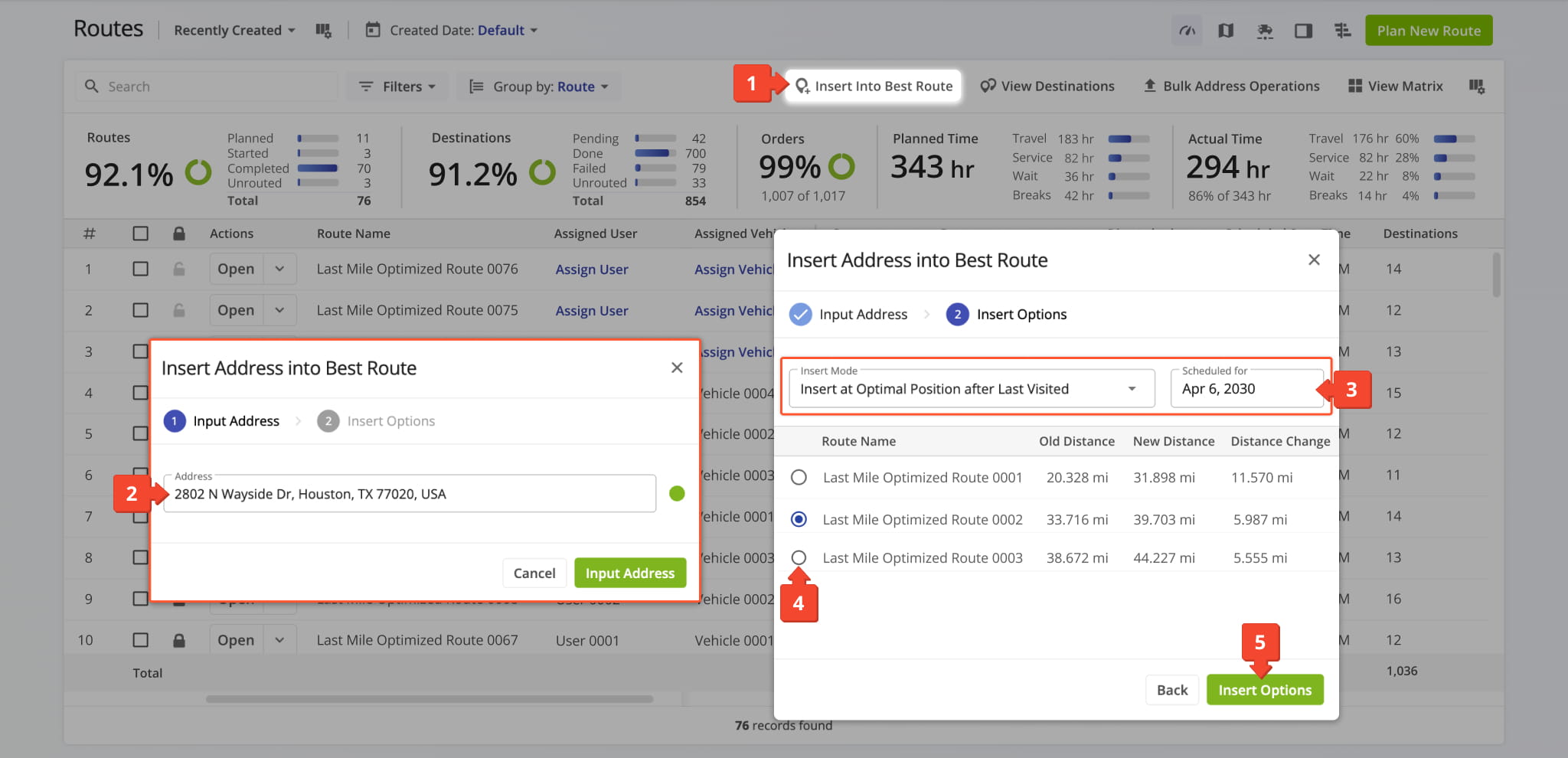
Use the Routes List to insert an address into the route which will be least impacted by the additional destination:
- Click “Insert Into Best Route” from the top-right of the Routes List.
- Enter an address in the “Address” field and click the “Input Address” button.
- Select your preferred “Insert Mode” and the “Scheduled for” date in the respective fields.
The window will show routes scheduled for the selected date and the distance and time impact of adding the new destination. - Select a route by clicking the Radio Button next to it.
- Click the “Insert Options” button.
Route4Me will add a new destination to the route according to the specified “Insert Mode“. The route’s sequence and driving directions will be recalculated to include the new destination in the best possible way to ensure your routes stay optimized.
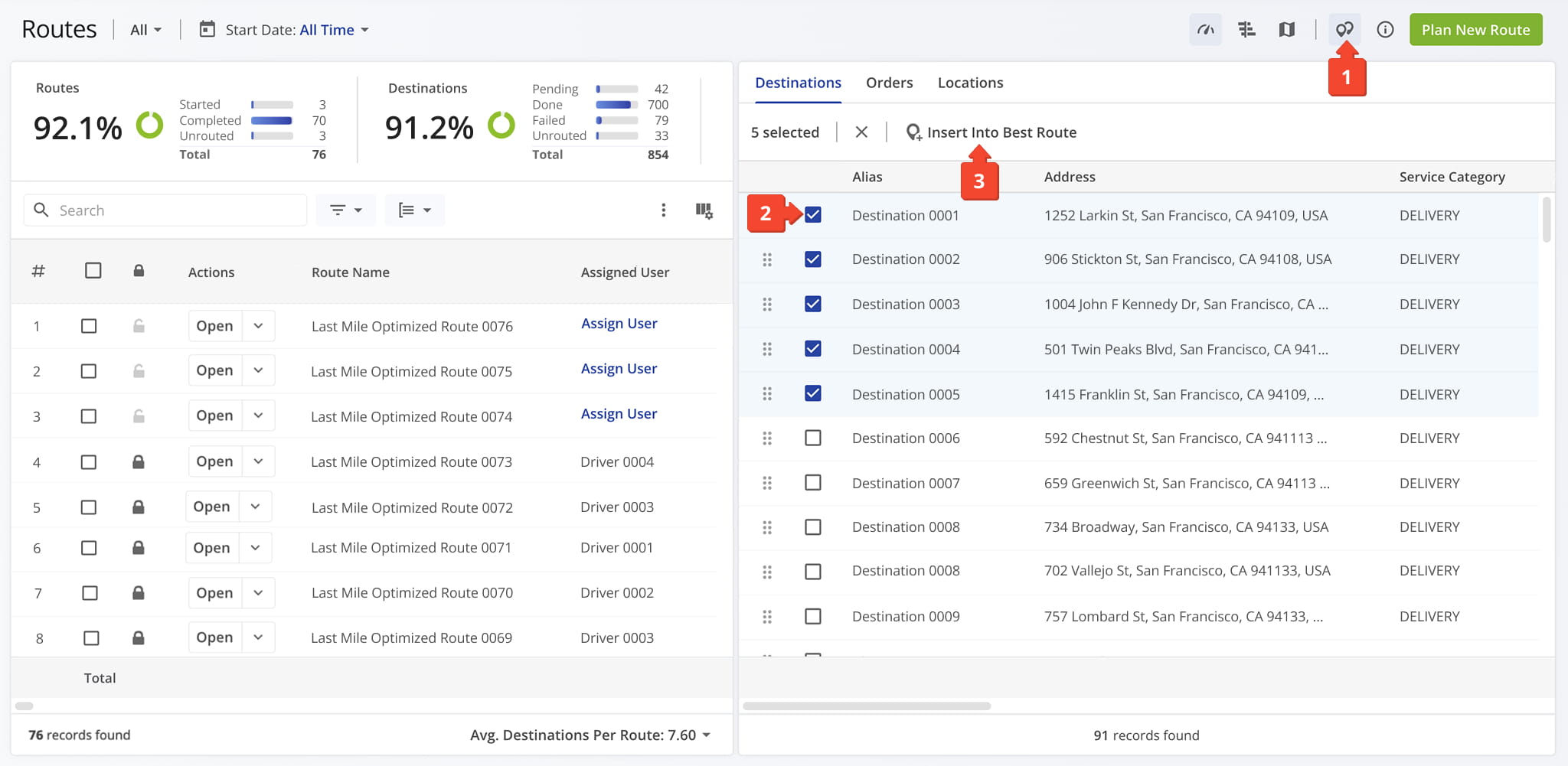
You can also add addresses to the best planned route from the Assignable Work panel:
- Click the Destination Icon at the upper-right of the screen to open the panel.
- Select the destinations(s) you wish to add.
- Click the “Insert Into Best Route” button and follow steps 3 – 5 above.
Add Stop To An Already Started Route – Insert Destination To Route In Progress
You can add stops to routes that are already in progress from the Routes List:
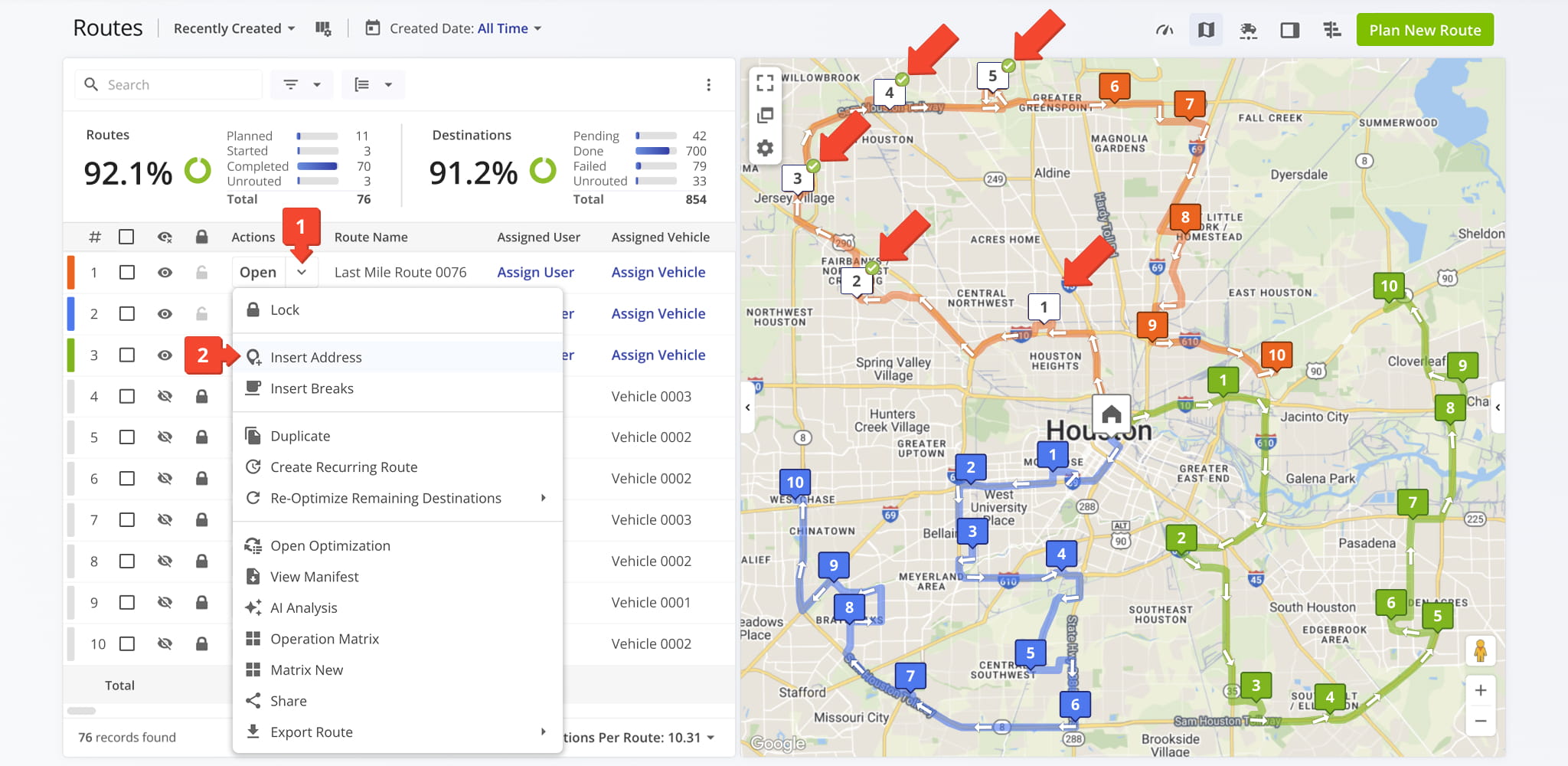
- Click the Down Arrow button next to the route you want to add a stop to.
- Click “Insert Address” and enter the address you want to add.
New stops can only be added to the part of a started route that hasn’t been completed yet. Stops that have already been visited can’t be changed.
You can either re-optimize the remaining stops so the rest of the route is as efficient as possible, or add the new stop as the last destination on the route.
Modify Routes With New Location – Add Stops From The Route Editor
Add Stop By Selecting Locations On The Map – Click On The Map To Add Destination
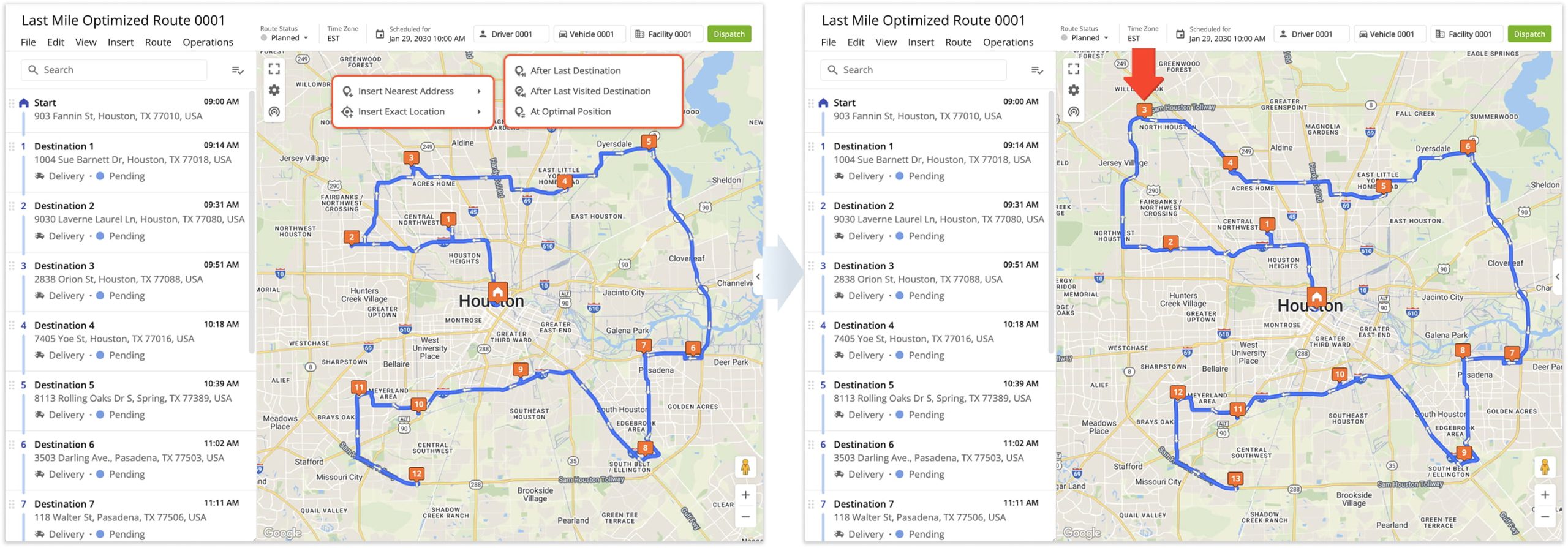
From the Route Editor, you can pick an address to insert into an already planned route directly from the map. Right-click the map and select “Insert Nearest Address” or “Insert Exact Location“. Then, choose where to add the new destination:
- After Last Destination: Adds the new destination as the final stop on the route.
- After Last Visited Destination: For routes with visited destinations, inserts the new stop immediately after the last visited destination.
- At Optimal Position: Inserts the new destination at the most efficient position in the route sequence to minimize distance and duration.
The example below shows a destination inserted into the optimal position to minimally increase the route’s distance and duration.
NOTE: Zoom in before you select a location on the map, especially with “Insert Exact Location“. That option places the stop at the exact coordinates you click, so a small miss can put it in the wrong spot.
Add Stop By Manually Entering Addresses – Insert Destination By Typing It In
To manually enter one or more addresses and insert them into a route from the Route Editor:
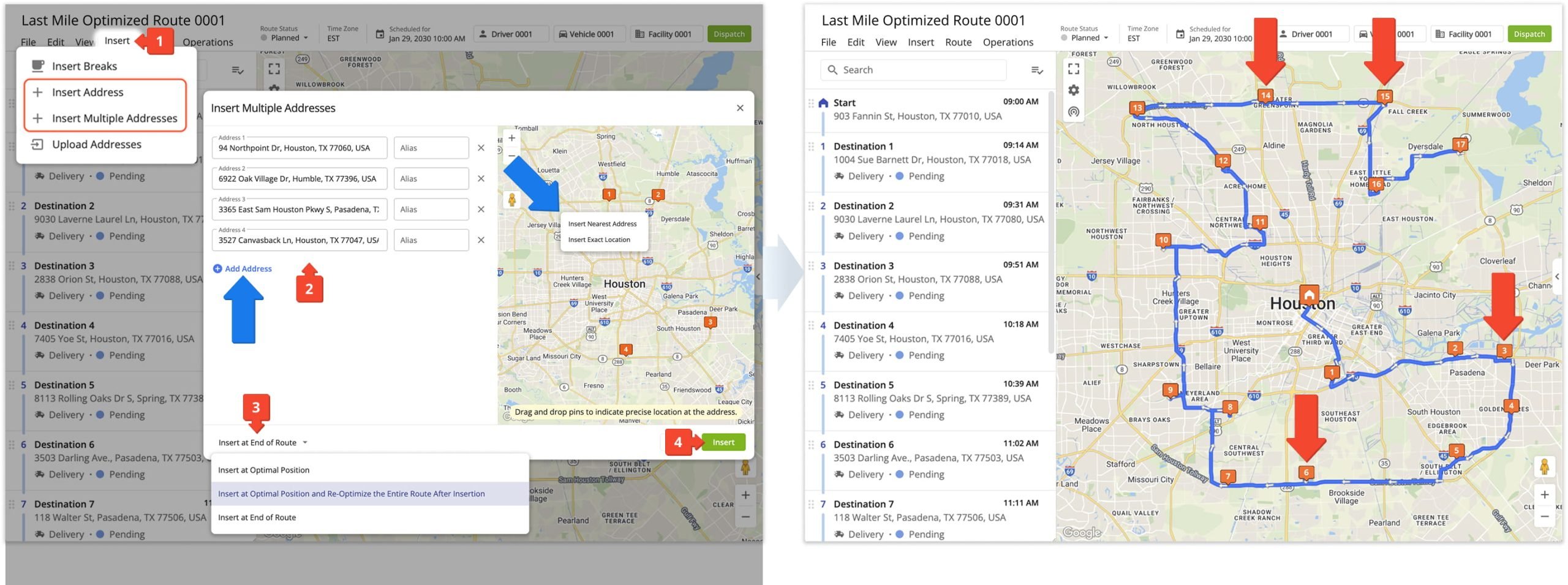
- Click “Insert” from the top menu bar and select “Insert Address” or “Insert Multiple Addresses“.
- In the window that opens, enter the address or addresses you want to add. Optionally, use the “Alias” field to assign a custom name to each new destination.
When inserting multiple destinations, click the “Add Address” button to add more fields to the window. - Use the menu at the bottom left of the window to choose where the new stops go in the route sequence.
- Click “Insert” to add the destinations to the route.
You can also right-click the map in this window to select locations the same way you can on the main Route Editor map. The example below shows multiple destinations inserted at the optimal position on the route.
Re-Optimize Routes After Making Changes – Route Optimization Tip
After inserting destinations using any of the methods above, you can re-optimize your routes to ensure directions and timing stay accurate.
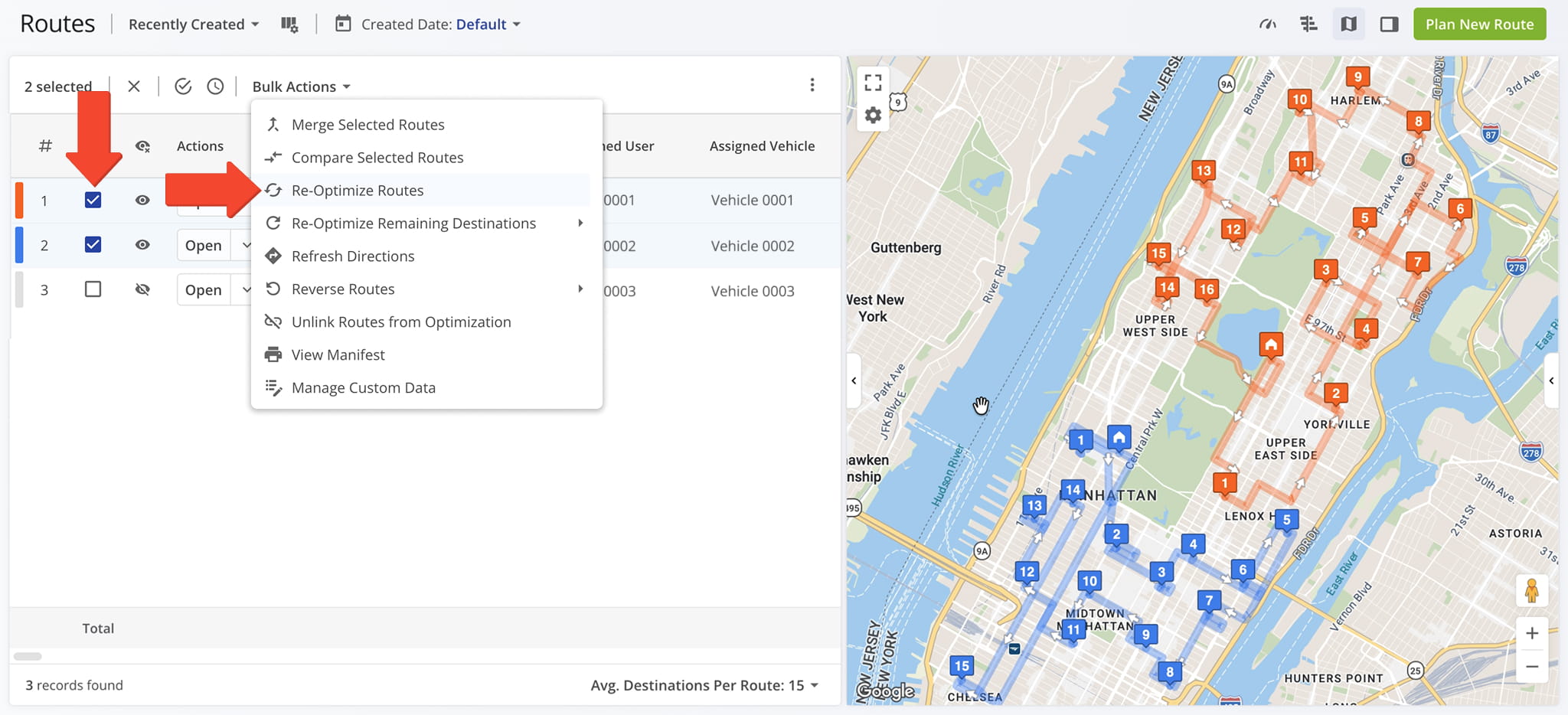
From the Route Editor, select “Route” from the top menu, then choose “Re-Optimize This Route“. From the Routes Page, check the box next to the route and select “Re-Optimize Routes” from the “Bulk Actions” menu.
For routes already in progress, select “Re-Optimize Remaining Destinations” instead, which updates only unvisited stops without affecting those already completed. NOTE: Learn more about re-optimizing routes and destinations.
Visit Route4Me's Marketplace to Check out Associated Modules:
- Route Optimization
Mixed Vehicles Routing
- Route Optimization
Route Optimization for Multiple Drivers Without Advanced Constraints
- Route Optimization
Commercial Vehicle Route Planning
About author: Daniel Archer

