
Destination Snapshot – Real-Time Route Destination Data Summary
Route4Me’s Destination Snapshot provide a centralized, easy-to-navigate view of all data related to a specific Destination. You can review order details, customer information, scheduled activities, Destination Activity history, and more. It also lets you view real-time updates, explore delivery events, status changes, and user actions. By consolidating this information, the Destination Snapshot helps improve efficiency, reduces service errors, and supports better decision-making. Learn more in this guide.
Table of Contents
Open Destination Snapshot – Destination Data And Analytics Overview
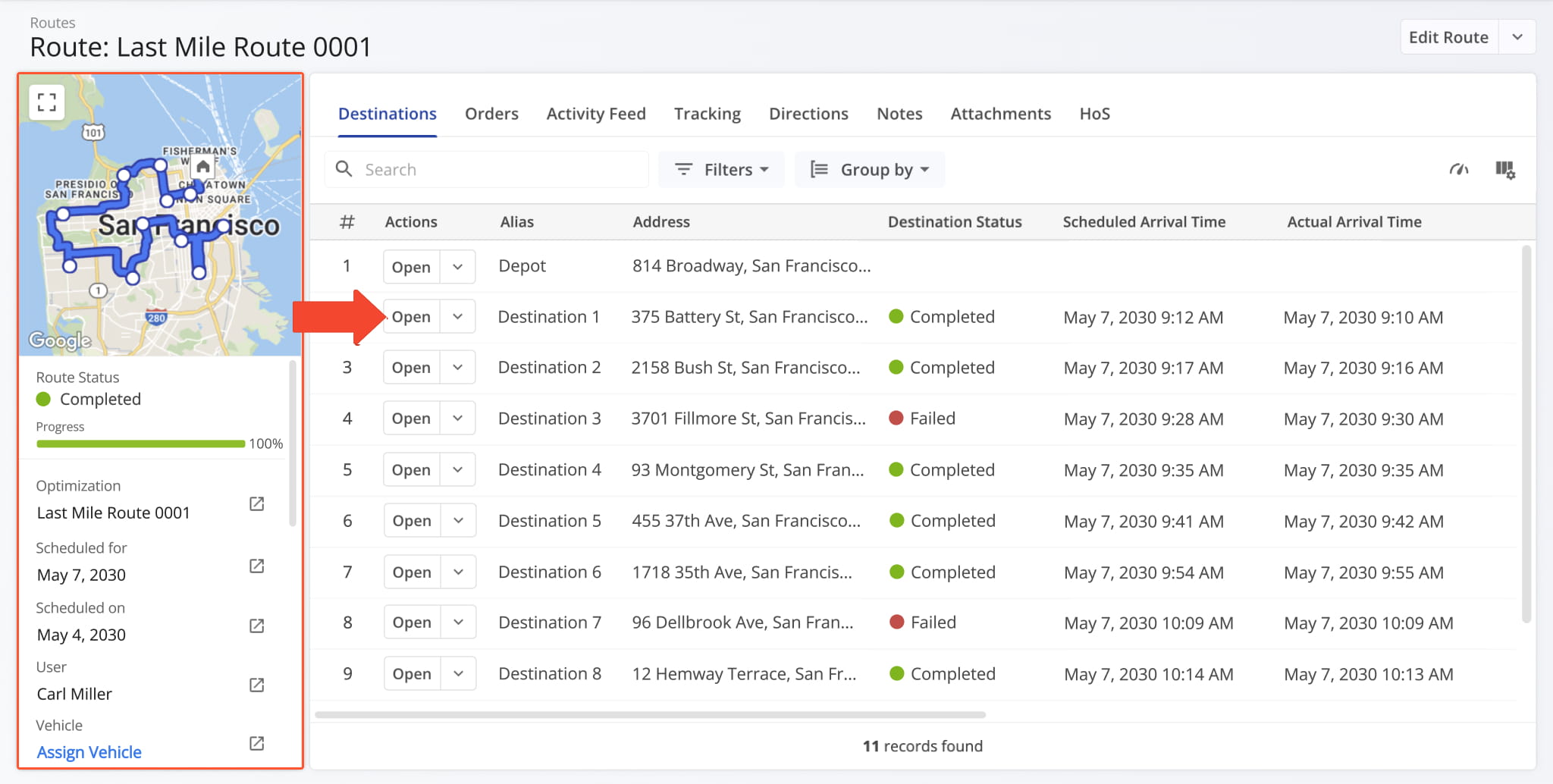
To open a Destination Snapshot, go to “Dynamic Routing” > “Routes” from the Navigation Menu and click “Open” next to a route. This opens the Route Snapshot. From the Snapshot, click “Open” next to a Destination to open its Destination Snapshot.
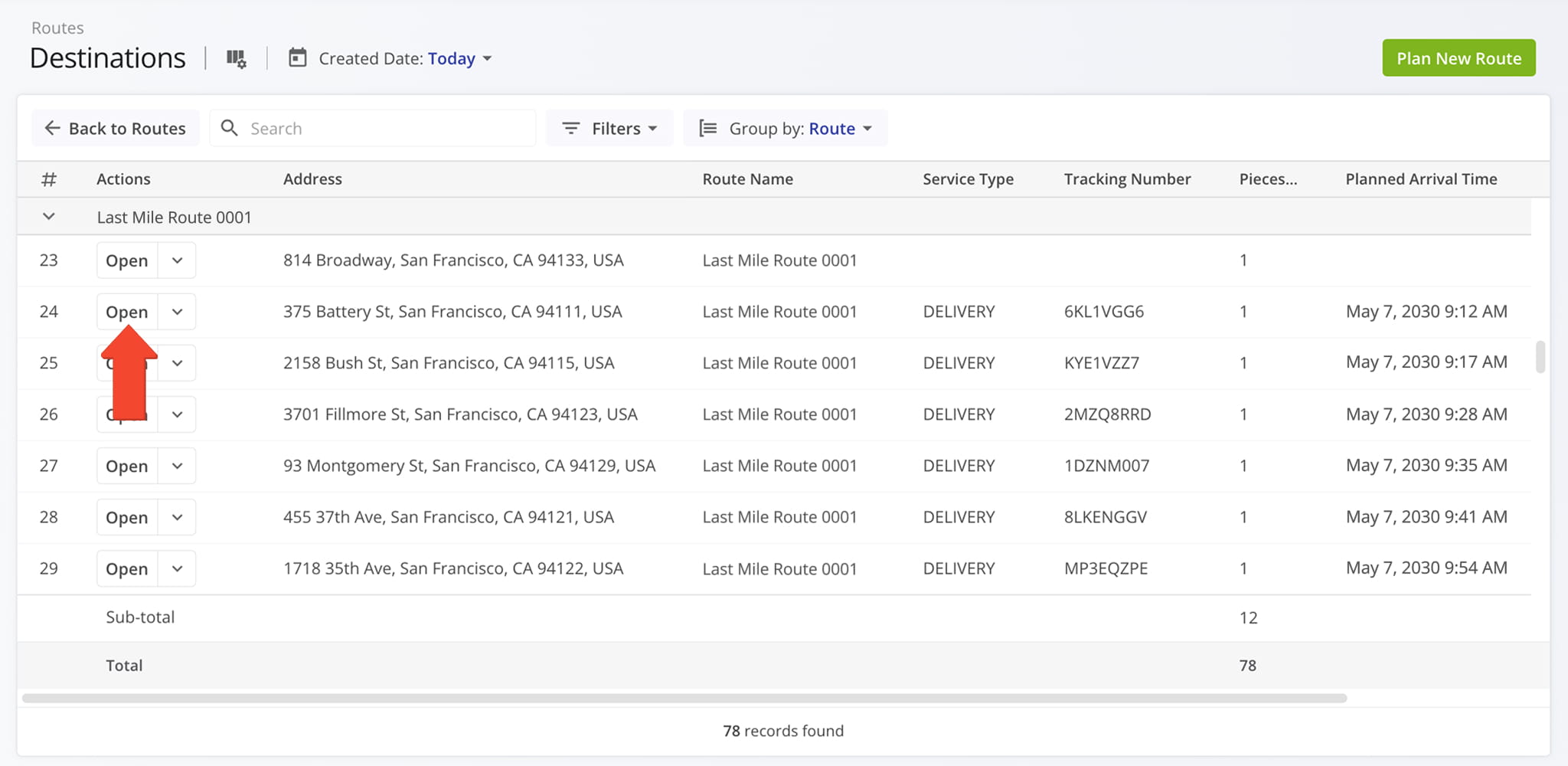
You can also open Destination Snapshots from your Destinations List by going to “Dynamic Routing” > “Destinations” in the Navigation Menu and clicking “Open” next to a destination.
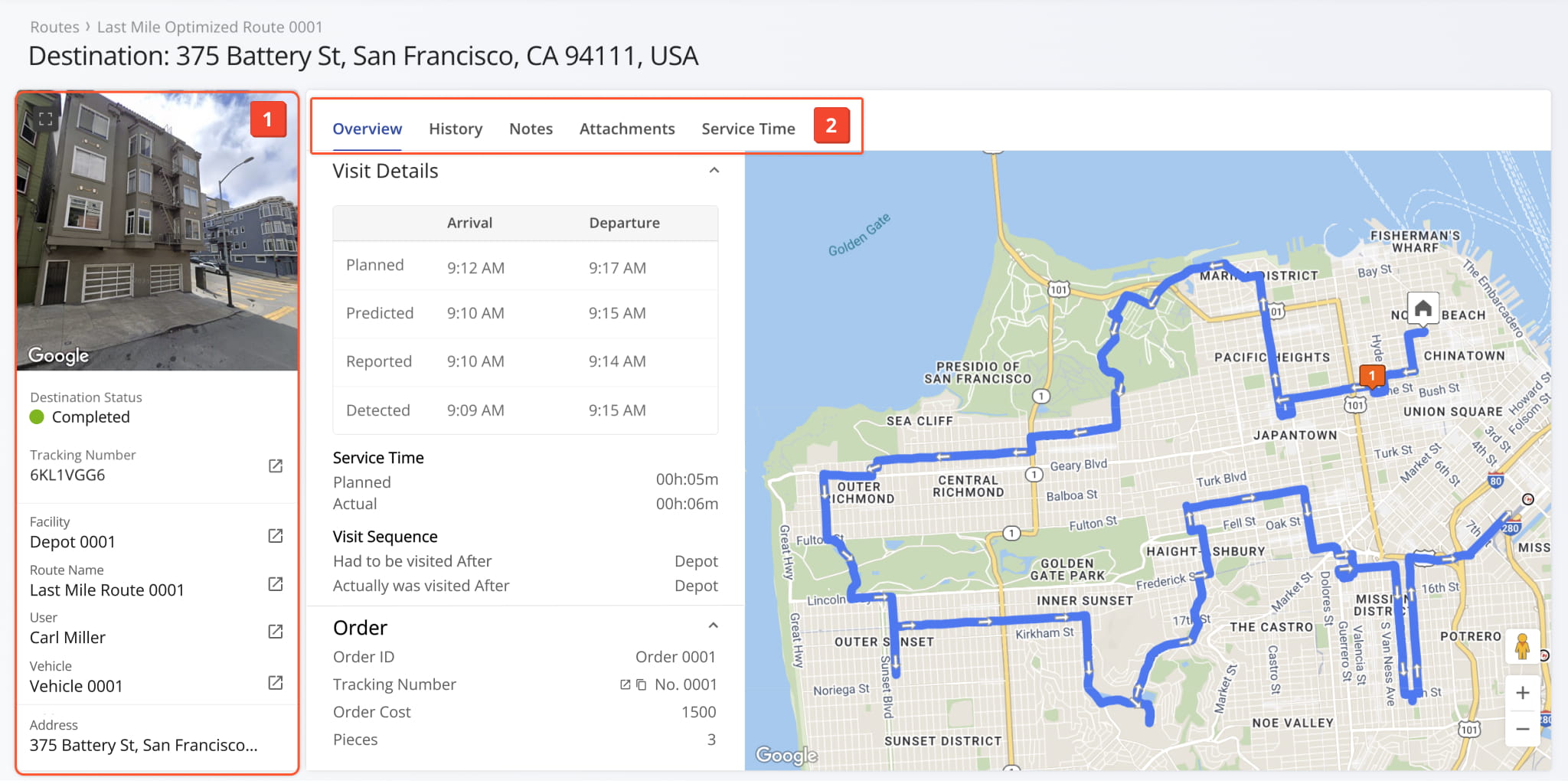
This opens the selected Destination Snapshot. From here, you can review all destination details and activity in one place:
- Destination Summary: Essential information such as the assigned User, Vehicle, Facility, Order tracking number, and more.
- Destination Data Tabs: Switch between Destination Snapshot categories to explore data which you can filter and customize as needed.
All data is centralized and accessible, making it easy to analyze Destination information and review activity history.
Destination Details Overview – Location, Assignments, And Attributes
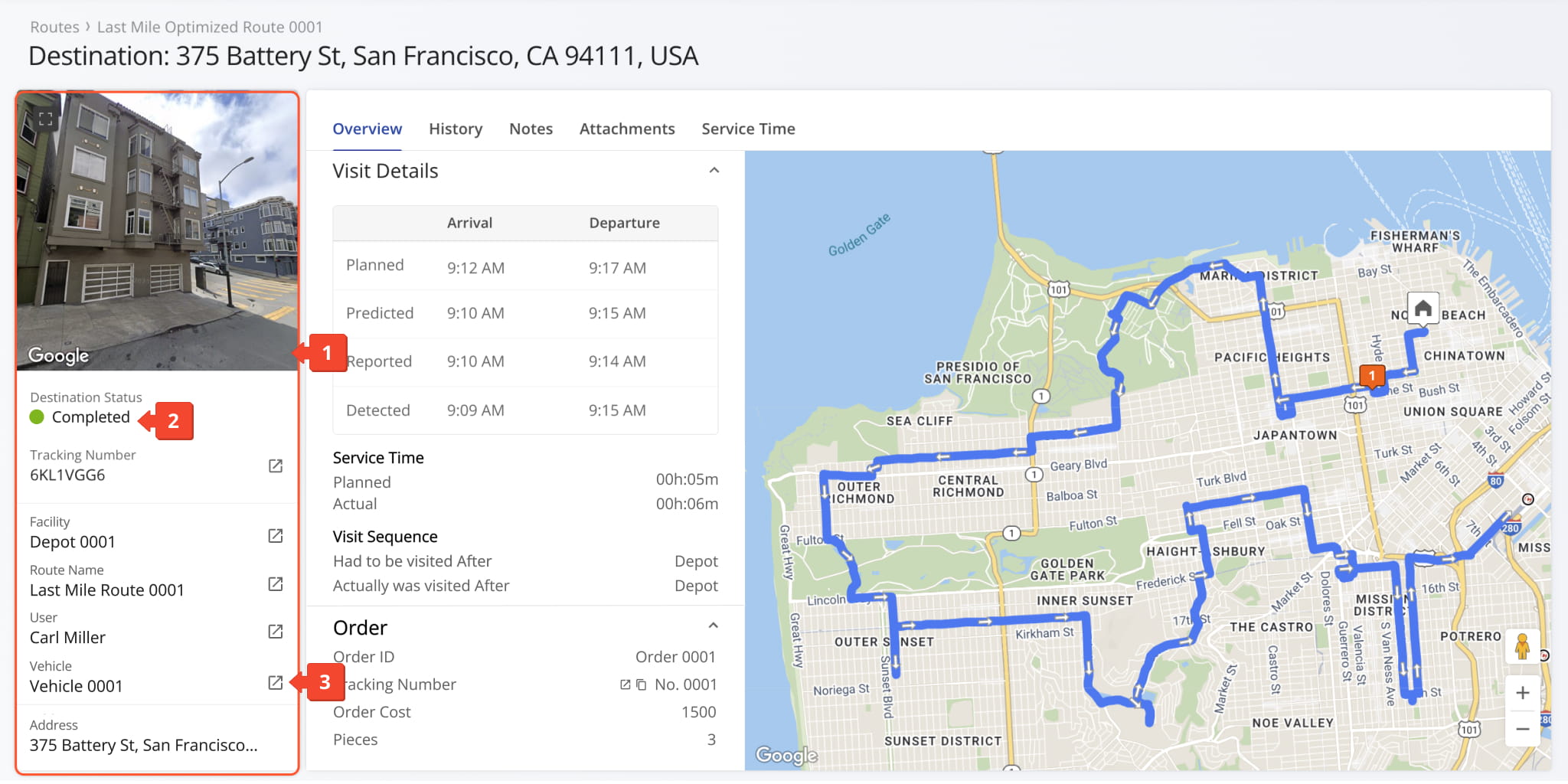
The Destination Information panel provides a summary of key details for the selected destination, including address, route, status, and order tracking information. From this panel, you can:
- View a dynamic Google Street View of the destination to get visual context of the location and surrounding area.
- Review destination status and scheduled route details, along with assigned user, vehicle, and facility information.
- Click the Go-To Icon next to any entity to open its snapshot, including Order, Facility, Route, User, or Vehicle Snapshot.
Destination Snapshot Categories – Analytics Overview Data Tabs
The Destination Snapshot is organized into multiple tabs, each corresponding to a specific data category, described below.
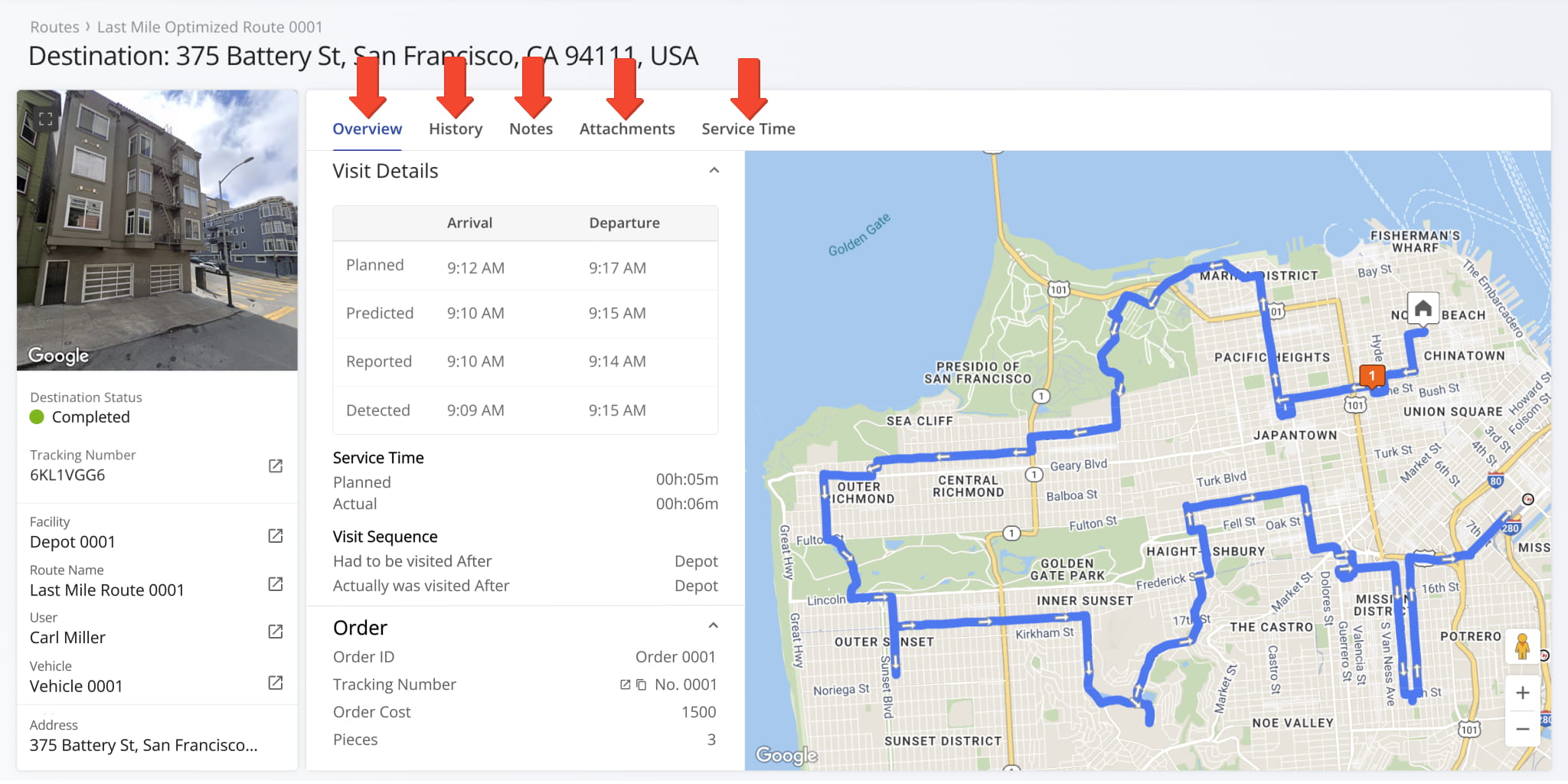
Overview Tab – Visit, Order, And Custom Data
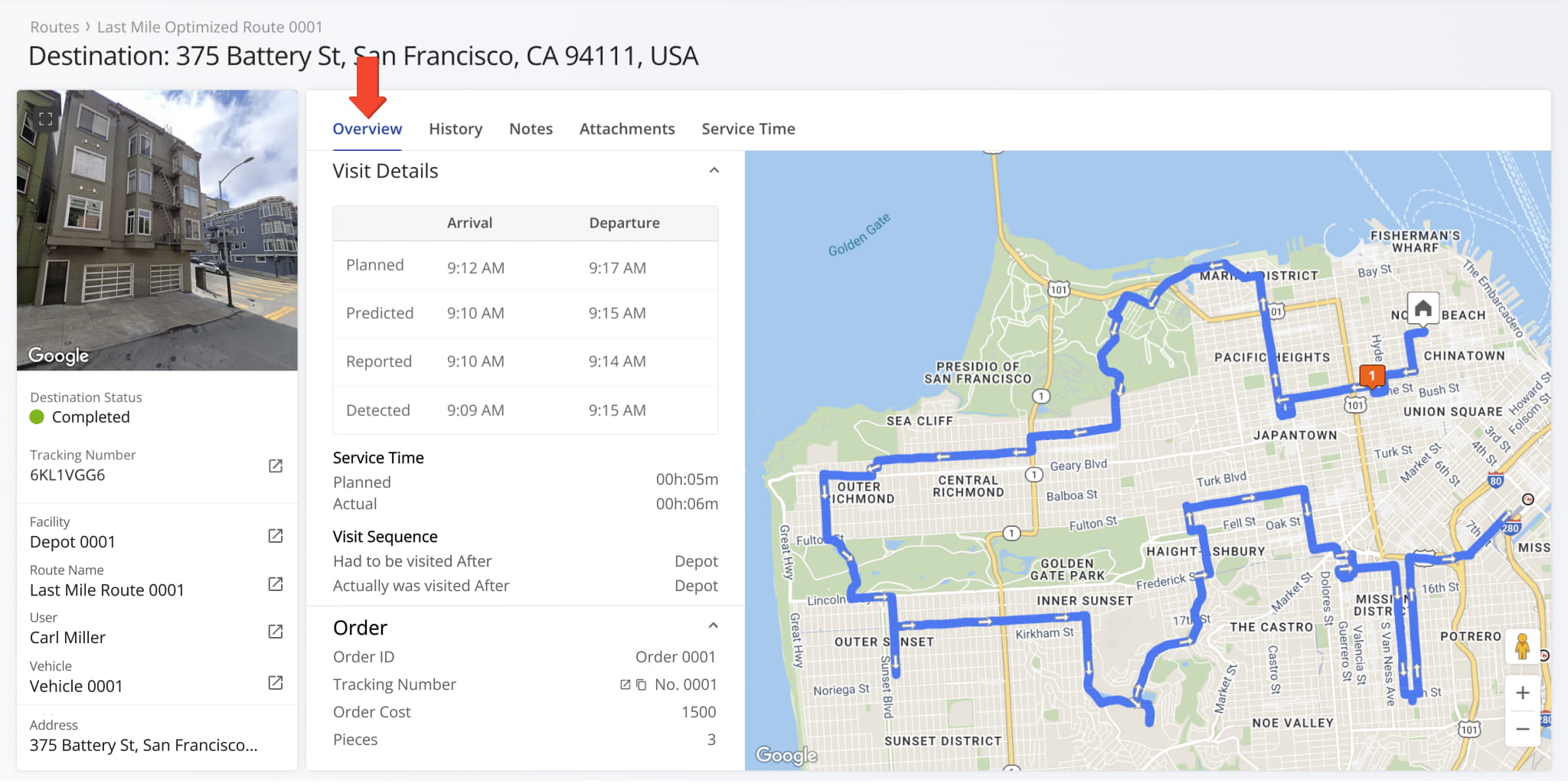
The Overview tab is selected by default when opening a Destination Snapshot. It shows the associated route and provides a detailed view of visit activity, including planned, predicted, user-reported, and geofence-detected arrival and departure.
You can also review Service Time, Order details, Custom Data fields, and a map of the route associated with the Destination.
History Tab – Destination Activities And Updates
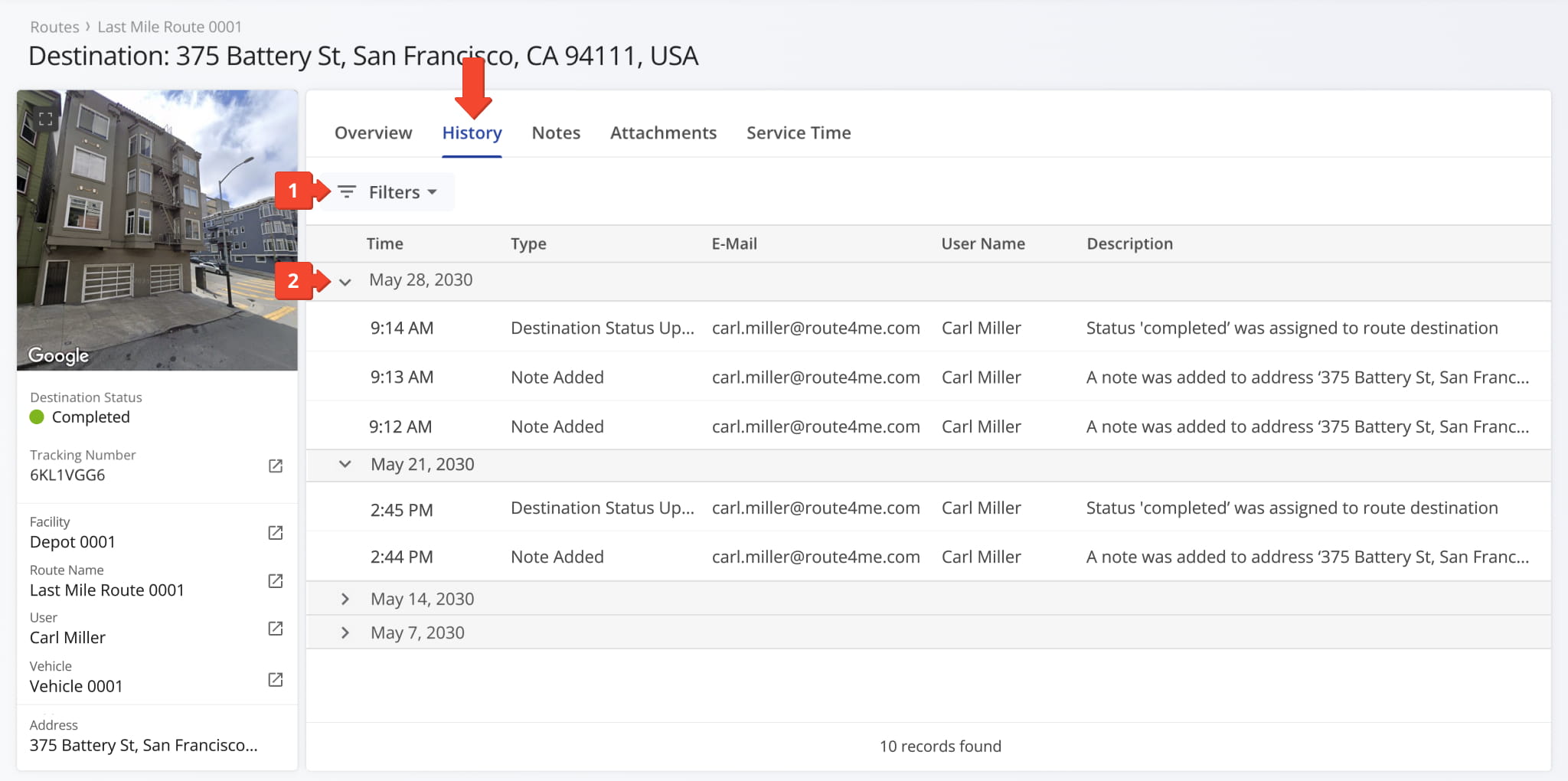
Click the History tab to view a chronological list of destination activity updates grouped by date. Each entry shows the exact time of the activity, the User responsible, and a detailed description of the event or change. From this tab, you can:
- Apply filters to quickly find specific activity updates. Ssee the table below for all available filter options.
- Click the Arrow Icon next to a date to expand or collapse activity details for that day.
History Filters
Notes Tab – Proof Of Visit And Destination Notes
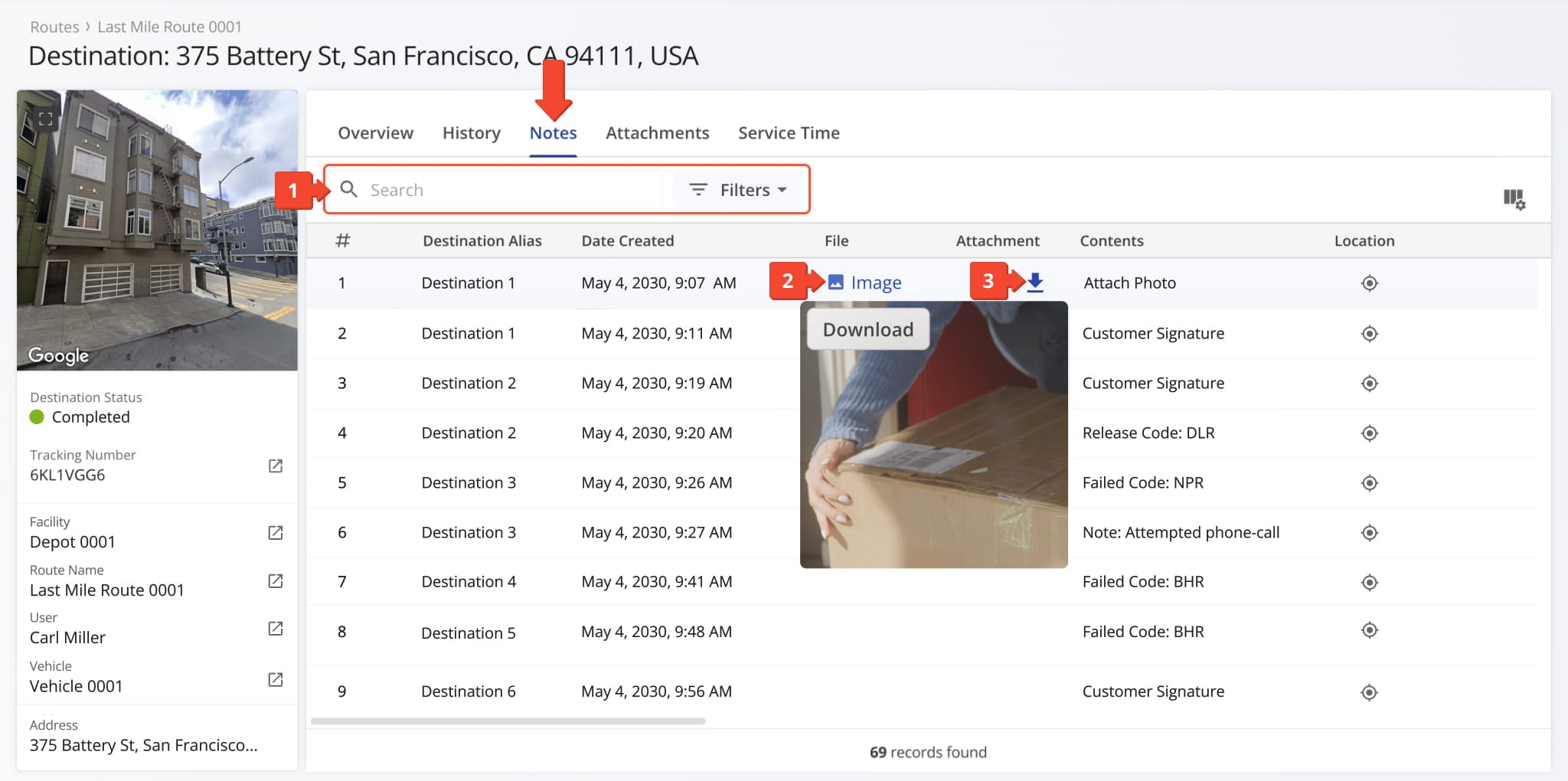
Click the Notes tab to view all proof of visit, service, and delivery Notes attached to the Destination by the assigned User. Each Note includes timestamps, location details, and attached media. From the tab, you can:
- Use the search field to quickly find specific Notes or apply filters, described below, to narrow results.
- Click any image, such as a signature or photograph, to view an enlarged version.
- Click the Download Arrow Icon to save the image.
Notes Filters
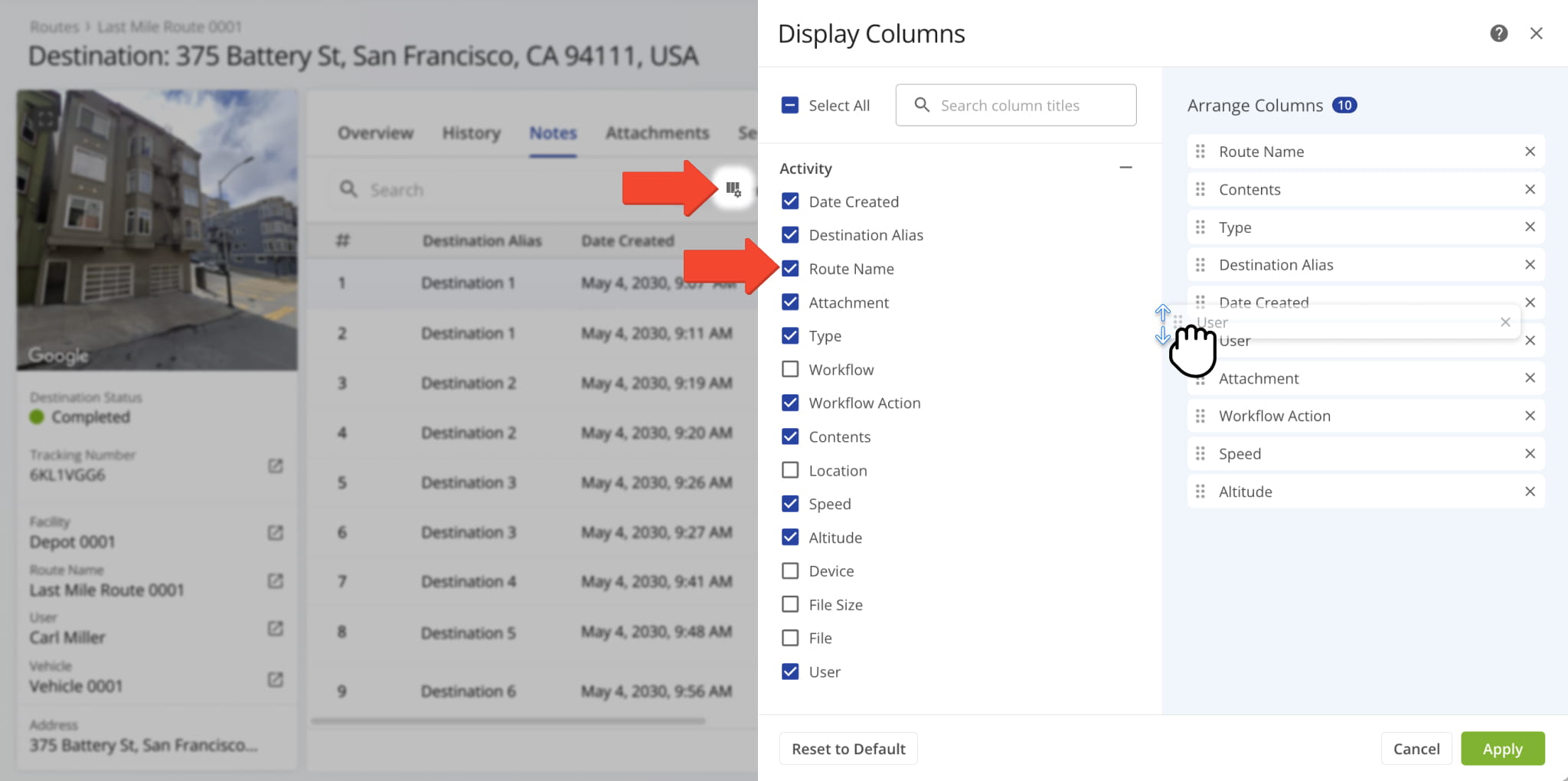
You can also customize the data displayed in the table. Click the Column Icon to select which route fields appear and adjust their order to suit your operational needs.
The table below provides an overview of all available data columns, which you can reorder by dragging them into place.
Notes Data Columns
Attachments Tab – Proof Of Visit Files
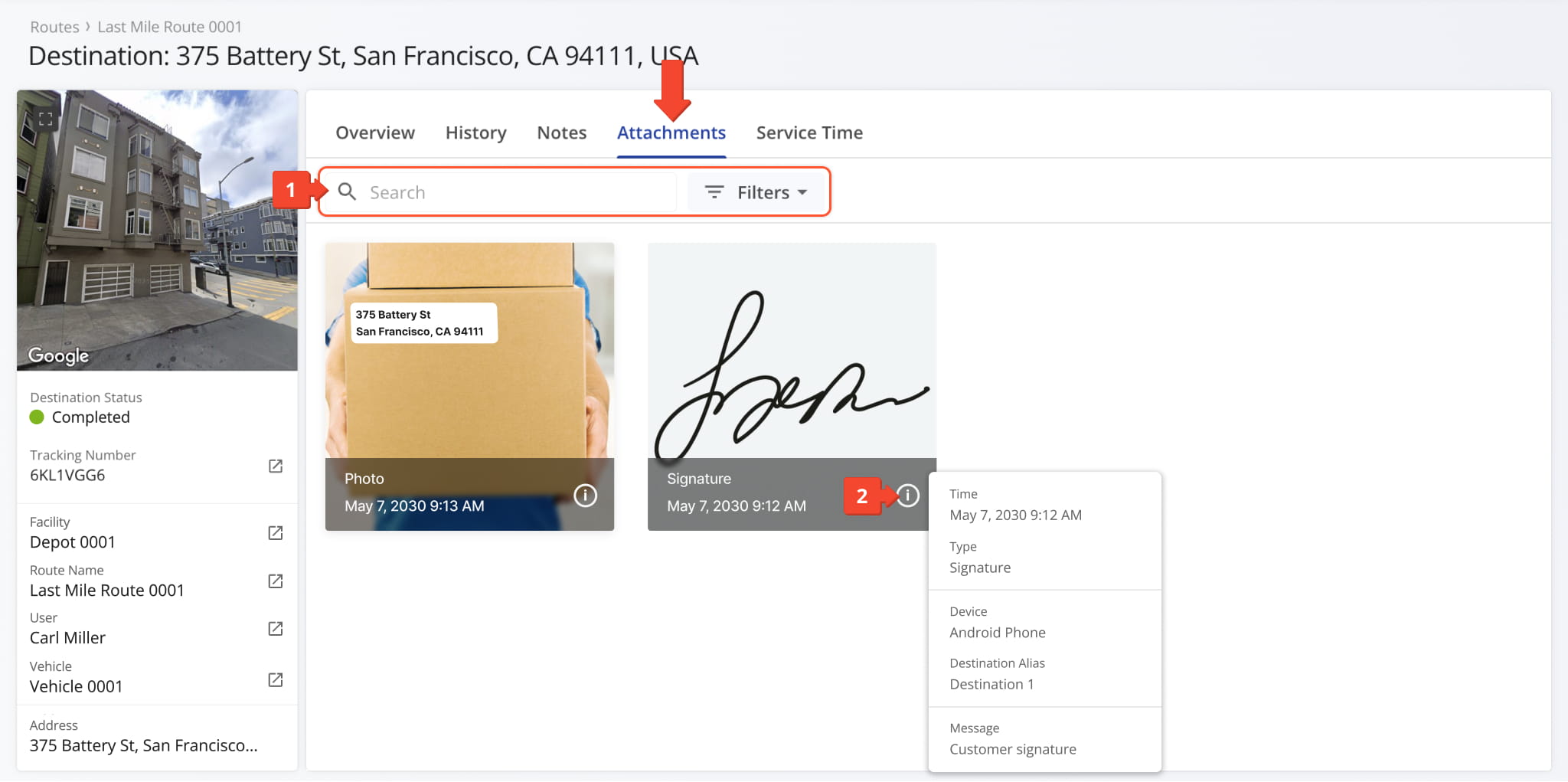
Click the Attachments tab to view all files linked to the Destination, including proof of visit workflow attachments created when the assigned User completes mandatory or optional tasks, such as uploading delivery photos or collecting customer signatures.
From this tab, you can:
- Use the search field to quickly find specific Notes or apply filters, described below, to narrow results.
- Hover over the Information Icon to view additional details for each file.
NOTE: Learn more about managing proof of visit.
Attachments Filters
Service Time – Service Time Distribution And Metrics
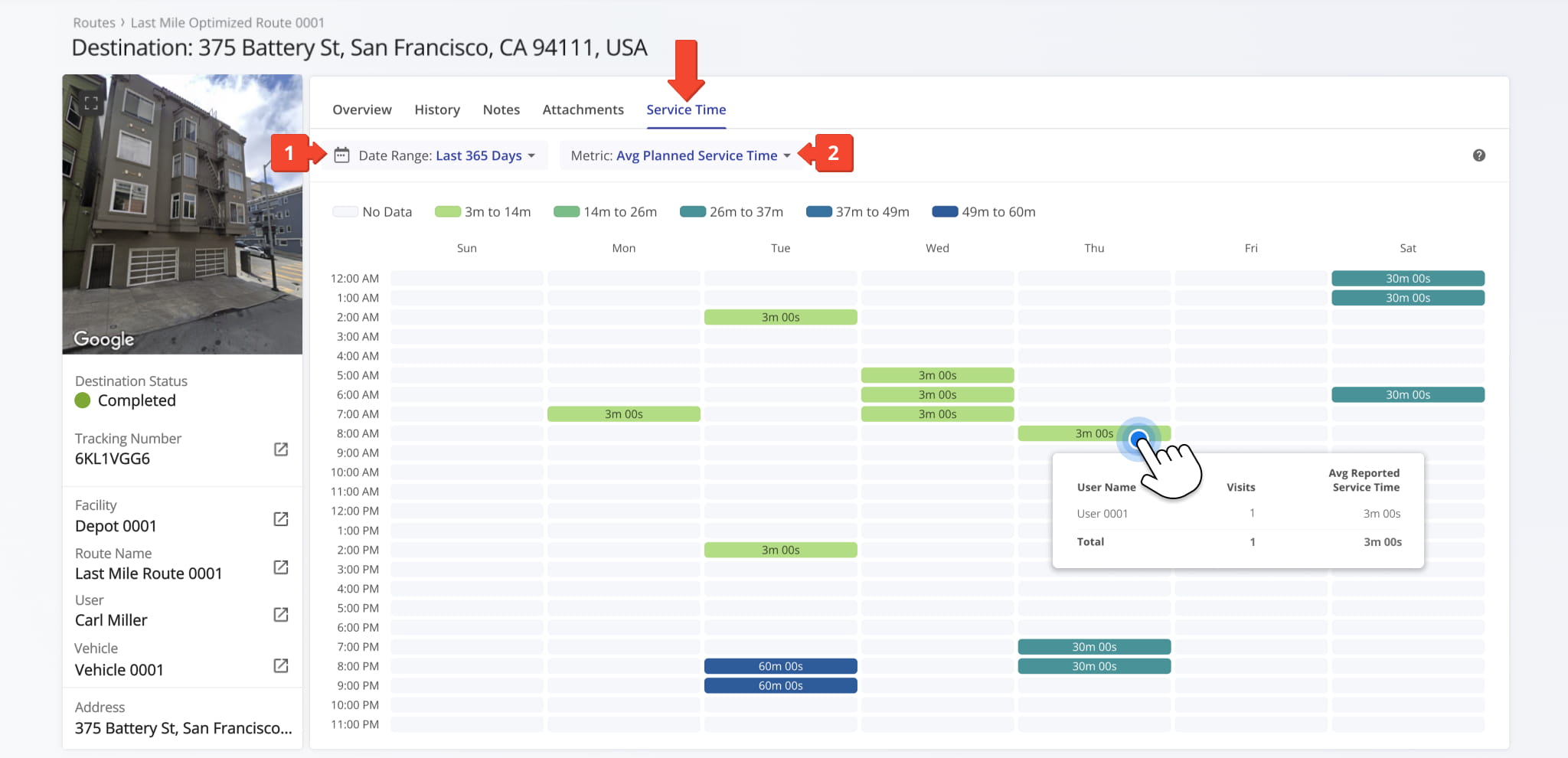
Click the Service Time tab to view how Service Time is distributed at the Destination across days of the week within a selected date range. The overview of planned, user-reported, and geofence-detected Service Time highlights performance patterns and trends.
From this tab, you can:
- Use the date range selector to analyze Service Time over a specific period.
- Sort and evaluate Service Time using available metrics, described in the table below.
Service Time Metrics
Visit Route4Me's Marketplace to Check out Associated Modules:
- Operations
Audit Logging and Activity Stream
- Operations
Custom Data Add-On
- Operations
Advanced Team Management Add-On
About author: Kristian Andreev

