
Destinations View Mode – Dynamic Routes List Destinations Database
The Destinations View Mode in the Route4Me Routes List offers a clear overview of routes, performance metrics, and vehicle utilization. Customer Destinations are grouped by their optimized routes, offering insights into trends, performance, and resource use. Destinations Mode is accessible with a single click and can be customized to show the data most relevant to your business and routing needs. Learn how to maximize Destinations Mode, including using filters, customizing columns, and more.
Table of Contents
Open Destinations Mode – Show Customer Destinations Grouped By Route
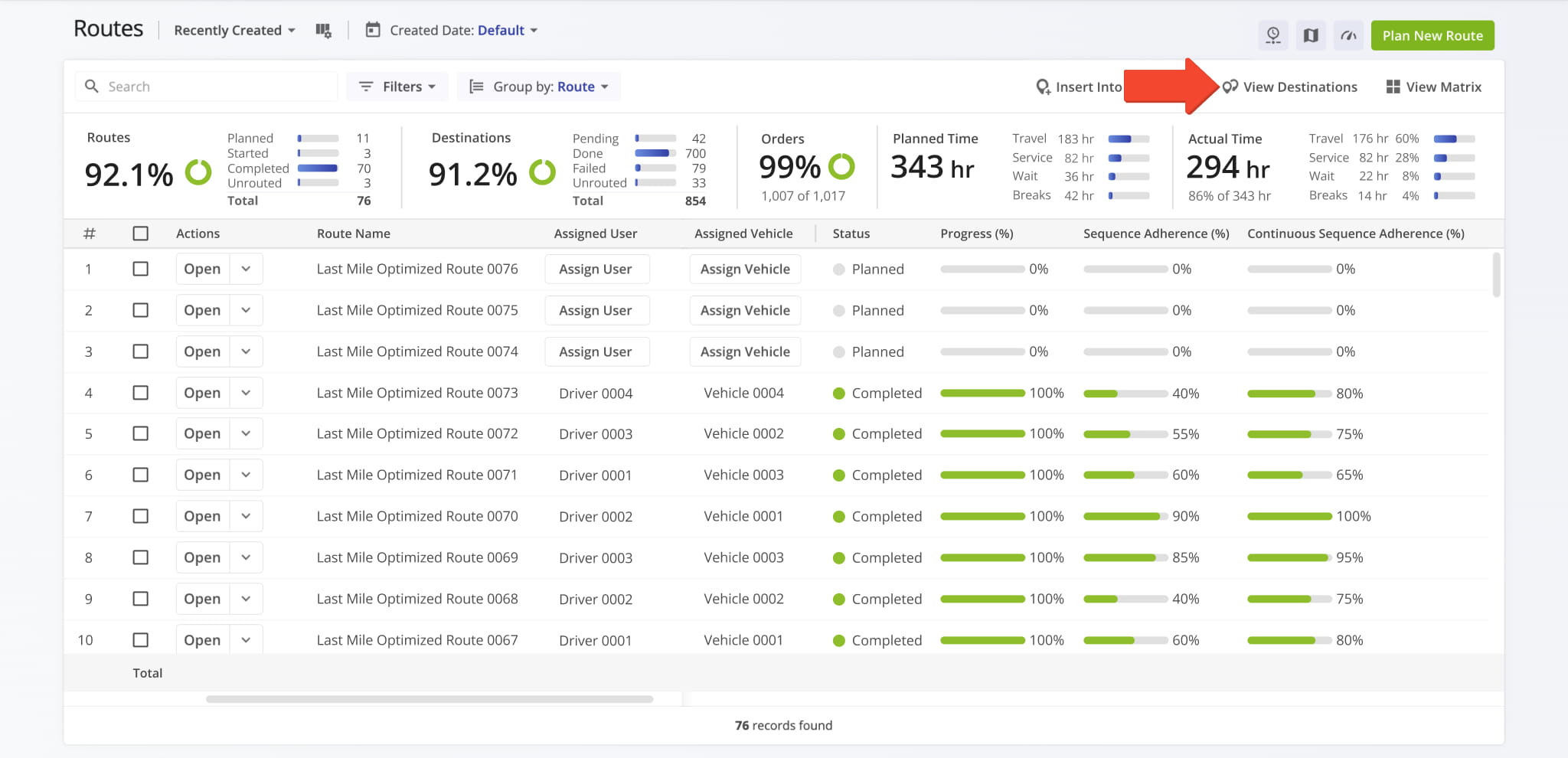
In addition to filtering and sorting routes and viewing route data, the Routes List enables you to switch to Destinations Mode. This allows you to view data and information associated with individual customer Destinations grouped by their respective routes.
To switch to Destinations Mode, click the “View Destinations” button in the top-right of the Routes List. You can also open the Destinations Page from the Navigation Menu by clicking “Dynamic Routing” > “Destinations“.
Filter Destinations By Route Start Date, Custom Filters And More
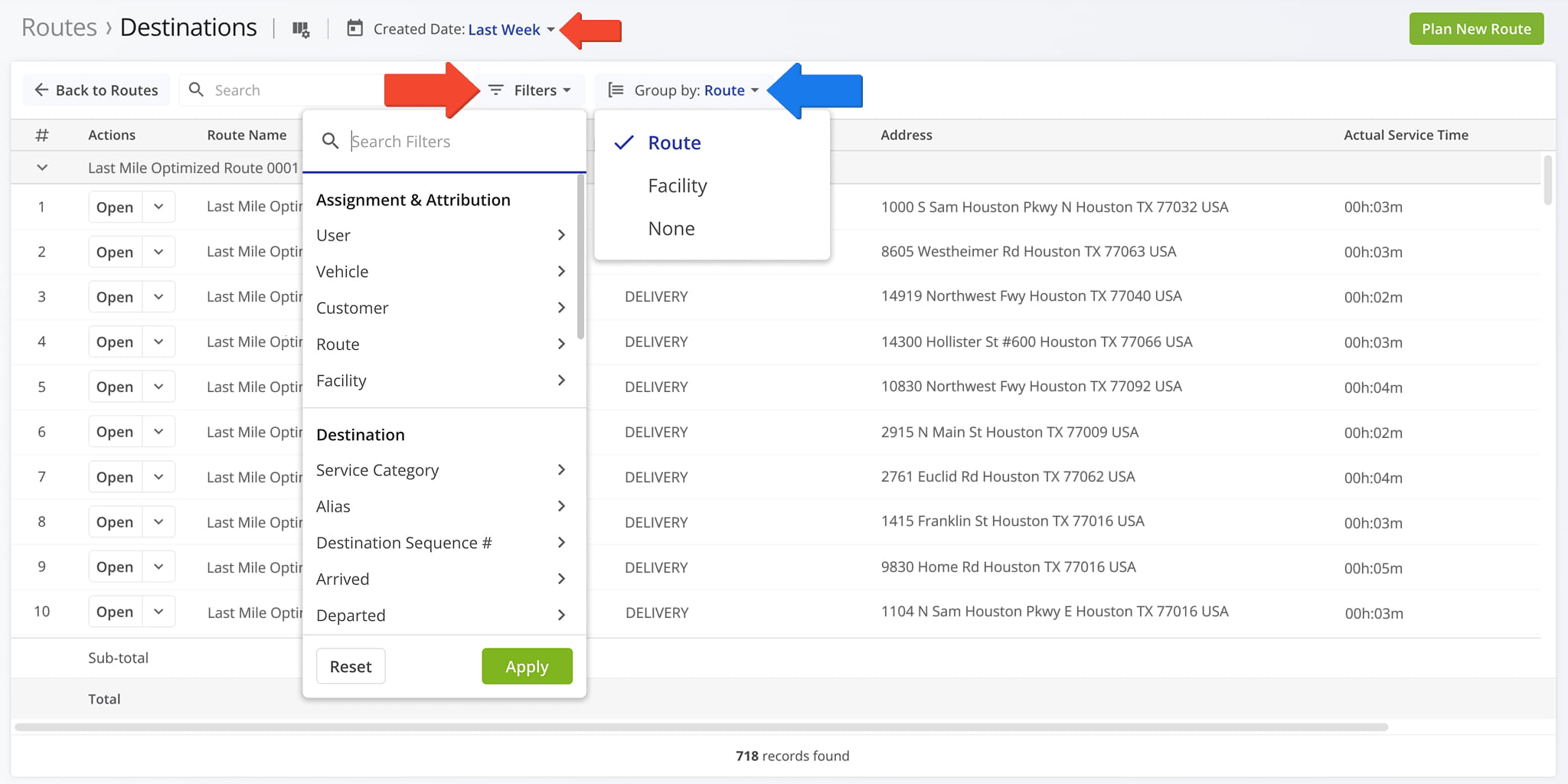
You can use filters as you would on the Routes Page, by selecting a date range and clicking “Filters” and selecting attributes. Destinations are automatically grouped by route. To see all Destinations without grouping, click “Group by” > “None“.
See the table below for more details on available filters in Destinations View Mode.
Destinations Filter Options
Customize Destinations Mode – Enable Custom Data Columns In Destinations View
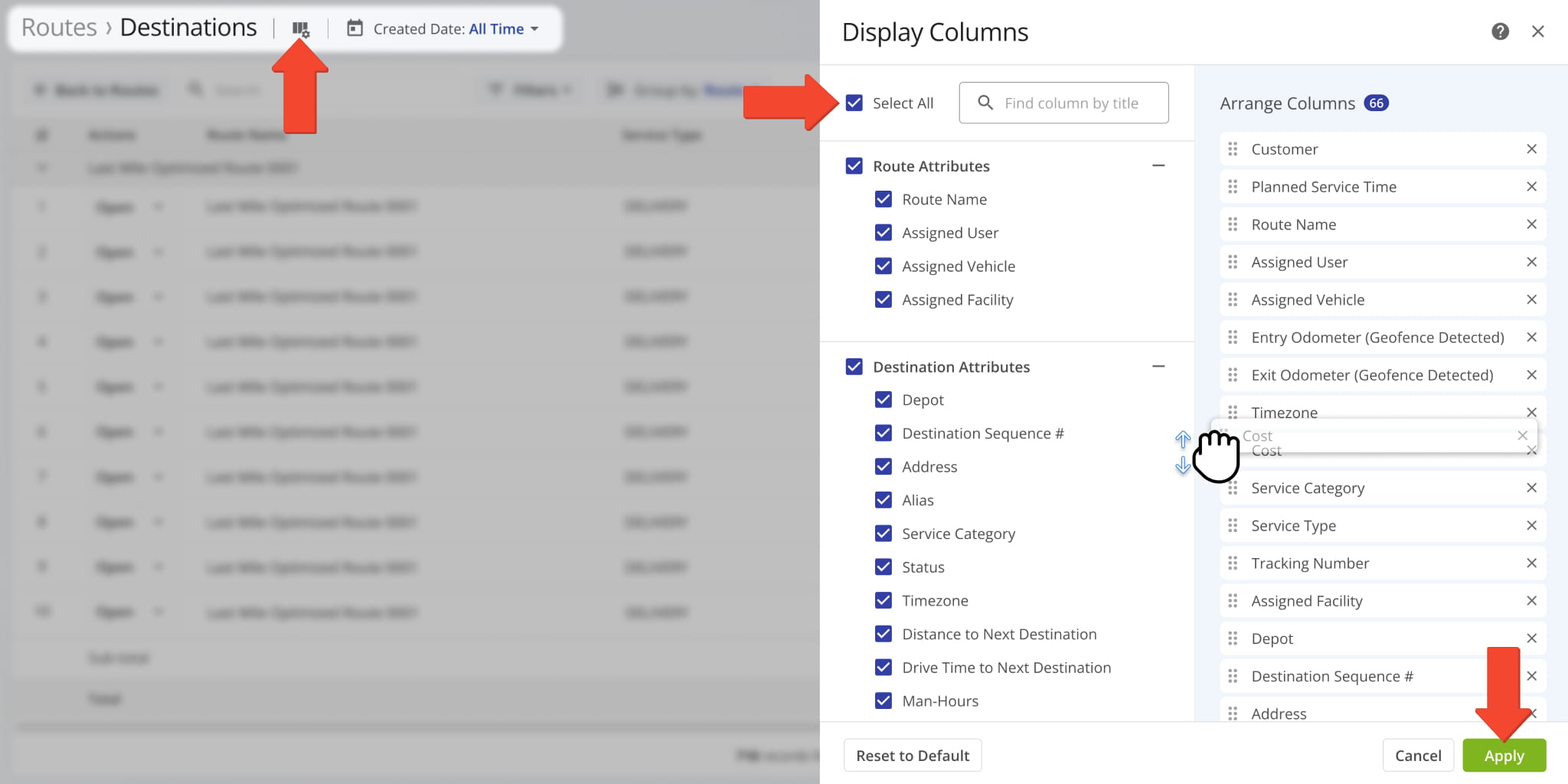
Destinations Mode uses the same controls as the Routes List, including customizable data columns, so you can quickly view the most relevant destination data and KPIs.
This makes it easy to analyze performance, monitor inventory, review vehicle utilization, and gather other key insights.
To customize the Destinations List, click the “Display Columns” button. In the Display Columns panel, select the columns you want to enable, then drag and drop column names to set their order, and click “Apply” to finalize.
Destinations Data Columns
Edit Destinations And Customer Visit Details
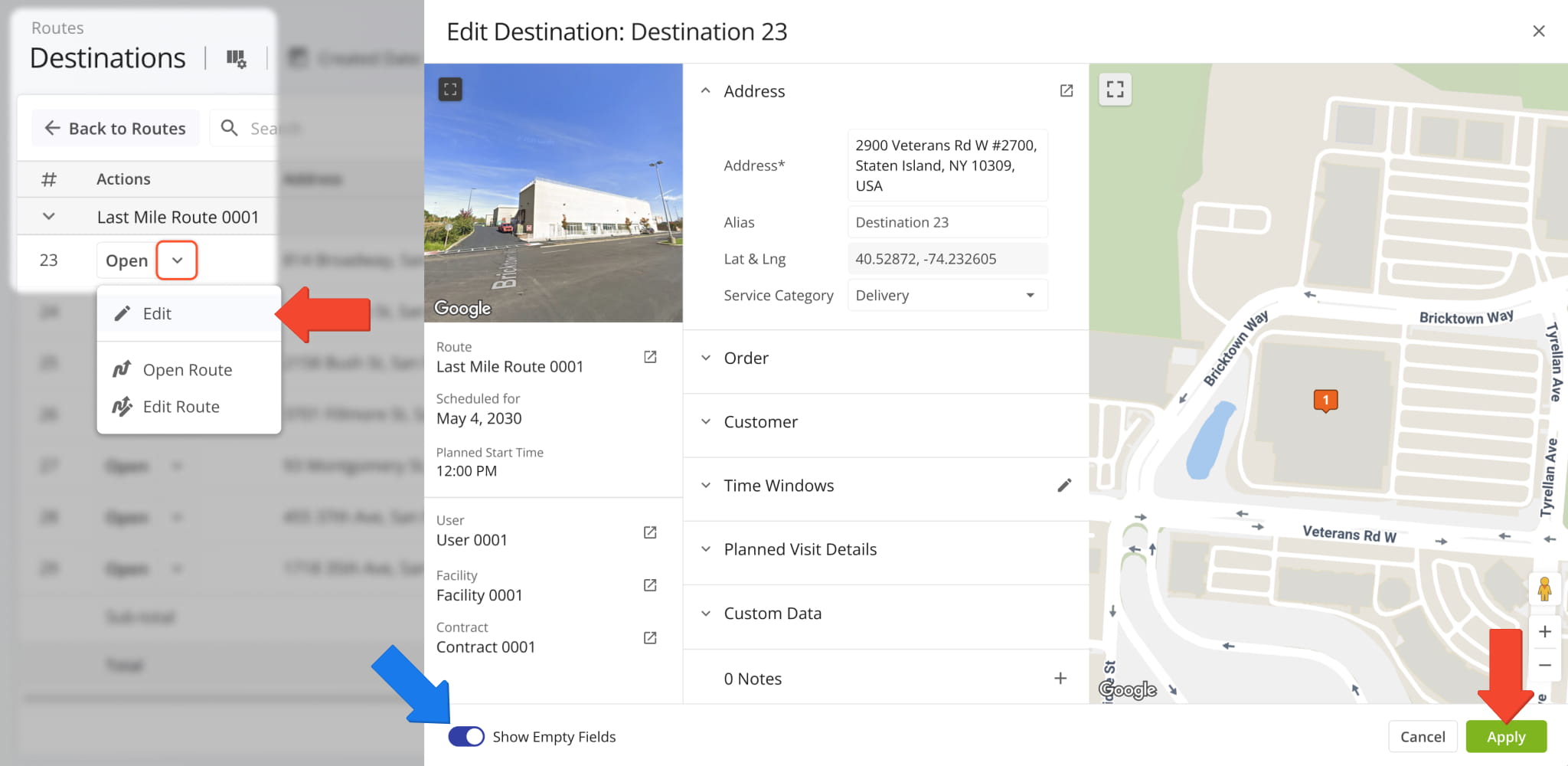
To view or edit a Destination’s associated information and details, click the Down Arrow and select “Edit“.
Then, click a field to add or edit information and click “Apply” to save your changes. Fields with no associated information are hidden by default. To see all available fields, toggle “Show Empty Fields“. Learn more about the available fields in the table below.
Destination Information Fields
Open Destination Snapshots For In-Depth Metrics And KPIs
You can open Destination Snapshots from your Destinations List by clicking “Open” next to a Destination.
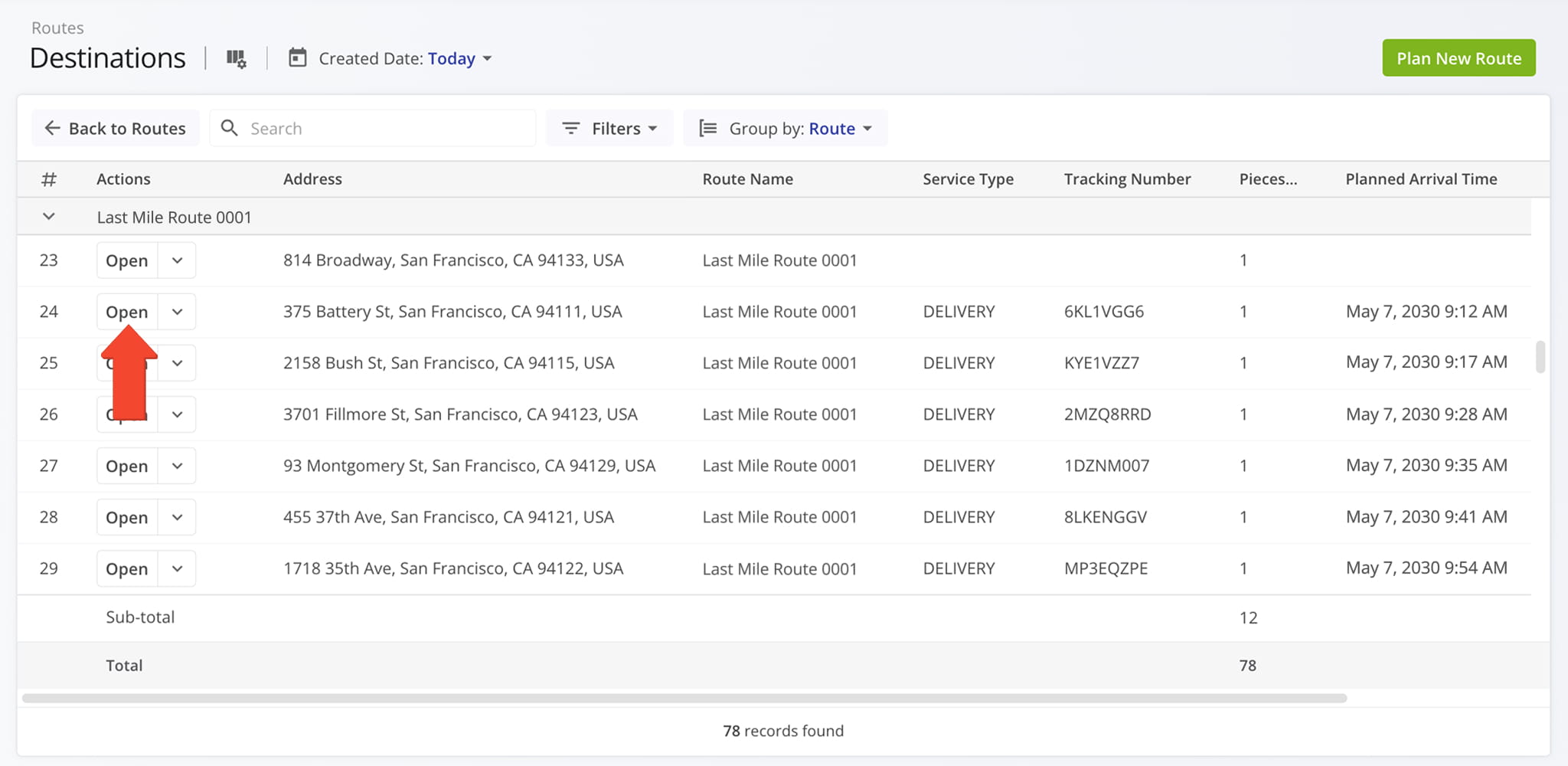
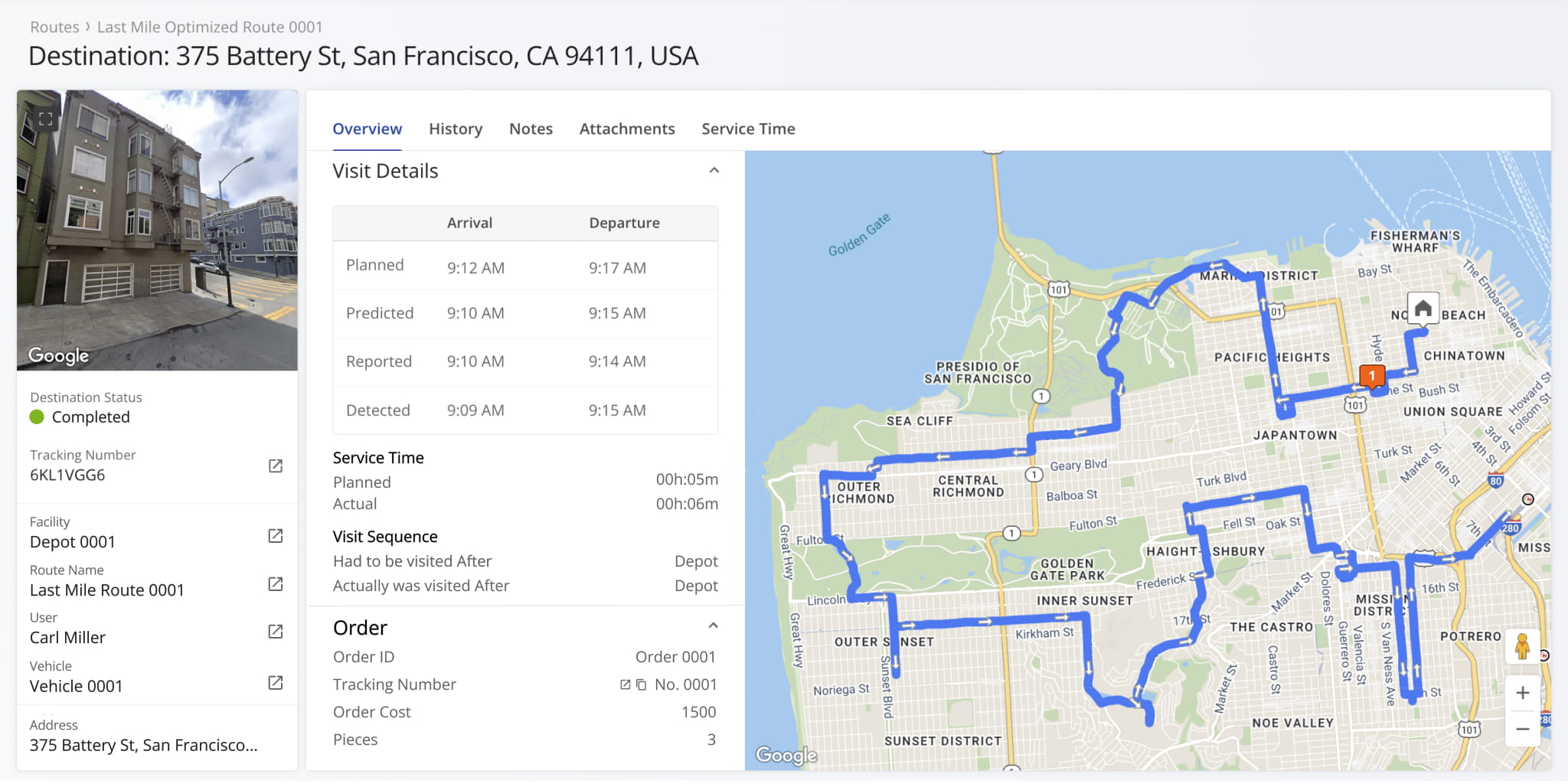
This opens the selected Destination Snapshot. From here, you can review all destination details and activity in one place. Learn more about Destination Snapshots.
Visit Route4Me's Marketplace to Check out Various Modules and Add-Ons:
- Route Optimization
Time Windows
- Operations
Advanced Team Management Add-On
About author: Kristian Andreev

