
Export History – Manage Files Exported From Your Account
For convenience and security, Route4Me saves copies of all exported files in your Export History, including exports by both you and your sub users. The Account Owner and users with sub users, unless prohibited in permissions settings, can view, manage, and download all exports. Learn more about Route4Me’s User Types and Team Hierarchy.
Table of Contents
Export Route Overview – View All Exported Route Data Files On Route4Me Account
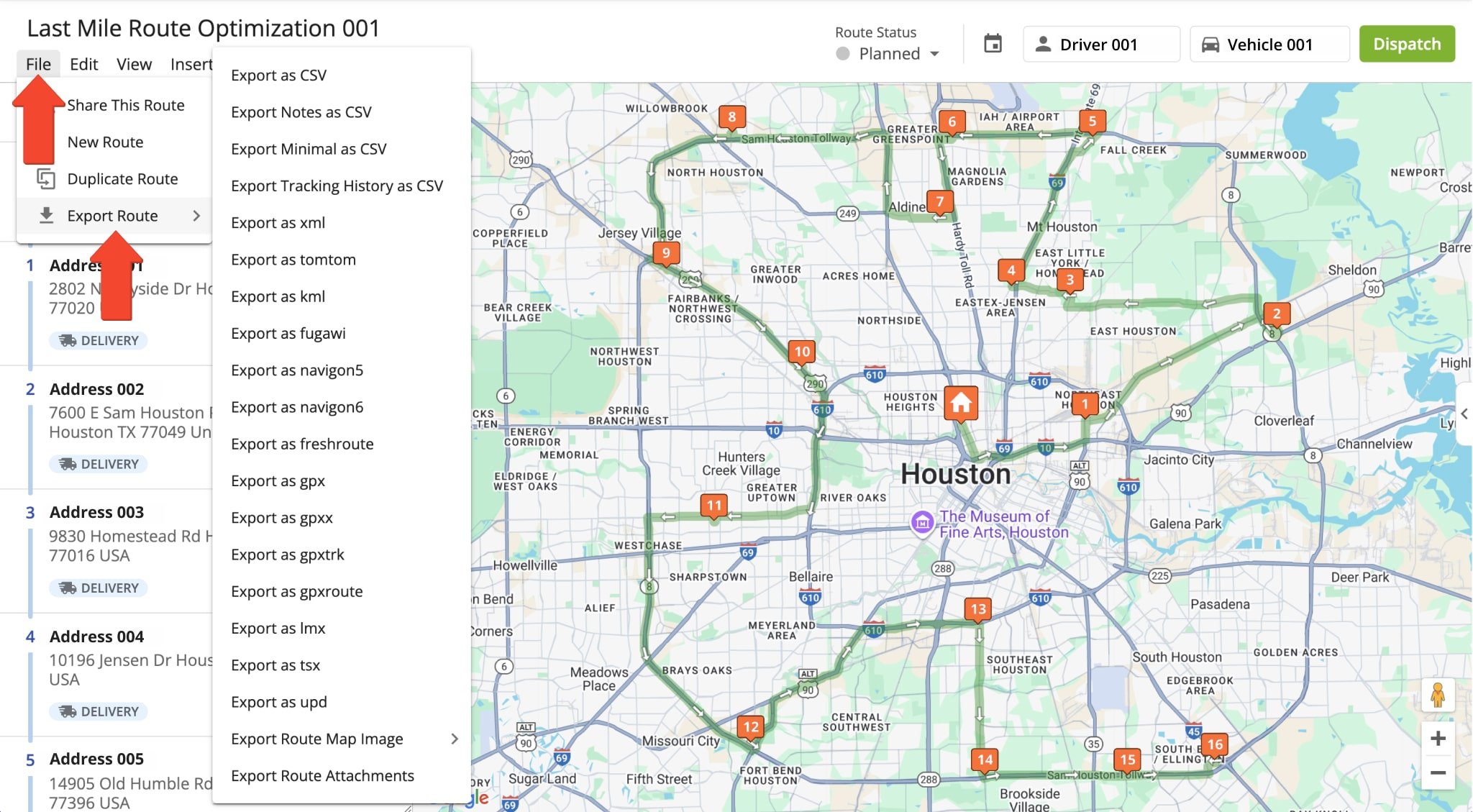
You can export route data from the Routes List, Routes Map, and the Route Editor. For example, to export from the Route Editor, select “File” from the top menu bar, hover over “Export Route“, and choose your preferred file format. For in-depth information on file formats, explore our dedicated guide to export methods and file formats.
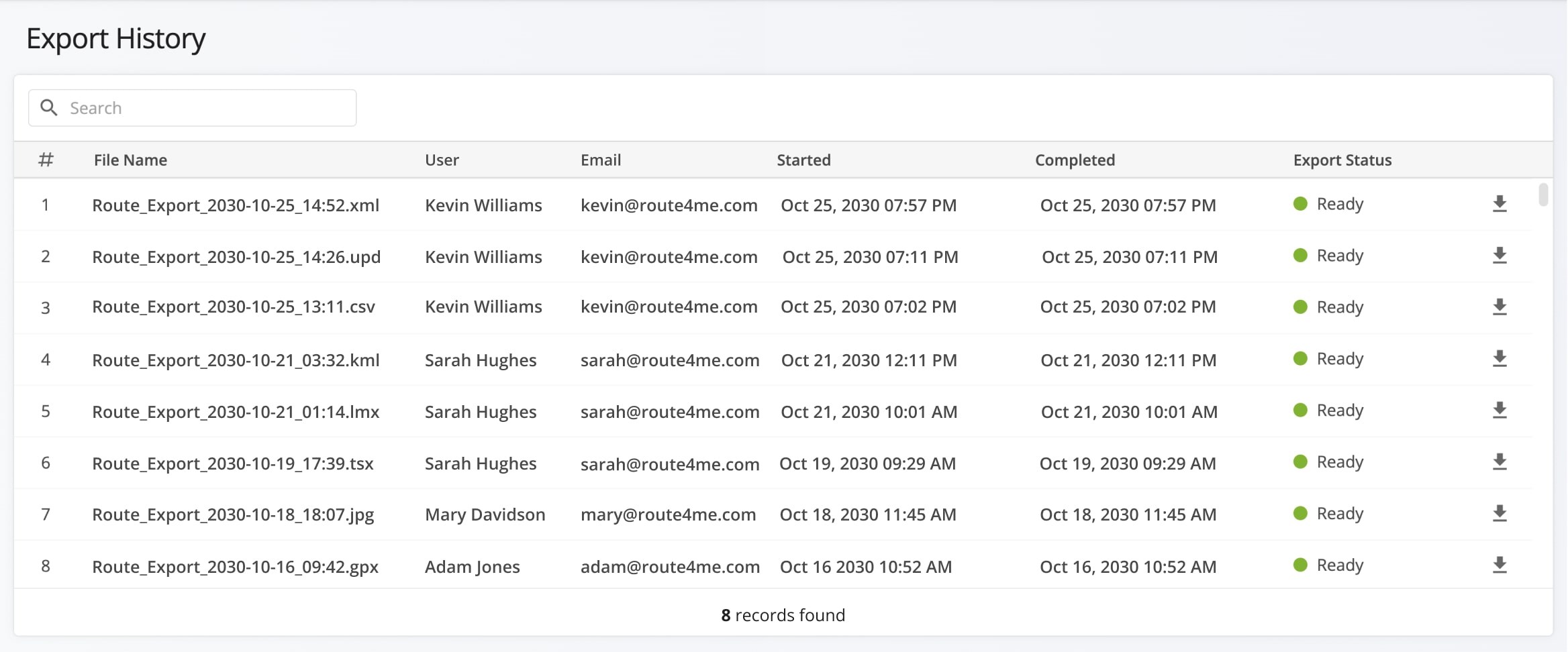
When you export route data, the files are automatically saved in your Export History. To access them, click on “Security” in the Navigation Menu and select “Export History“.
Manage Export History – Search, Sort, And Download Exported Data Files
In your Export History page, you can search for files by name, export date, or by a particular file type. Just enter the relevant details in the search field.
You can view and manage all files exported by yourself and your sub users. Learn more about Route4Me’s Team Hierarchy and User Account-Level Permissions.
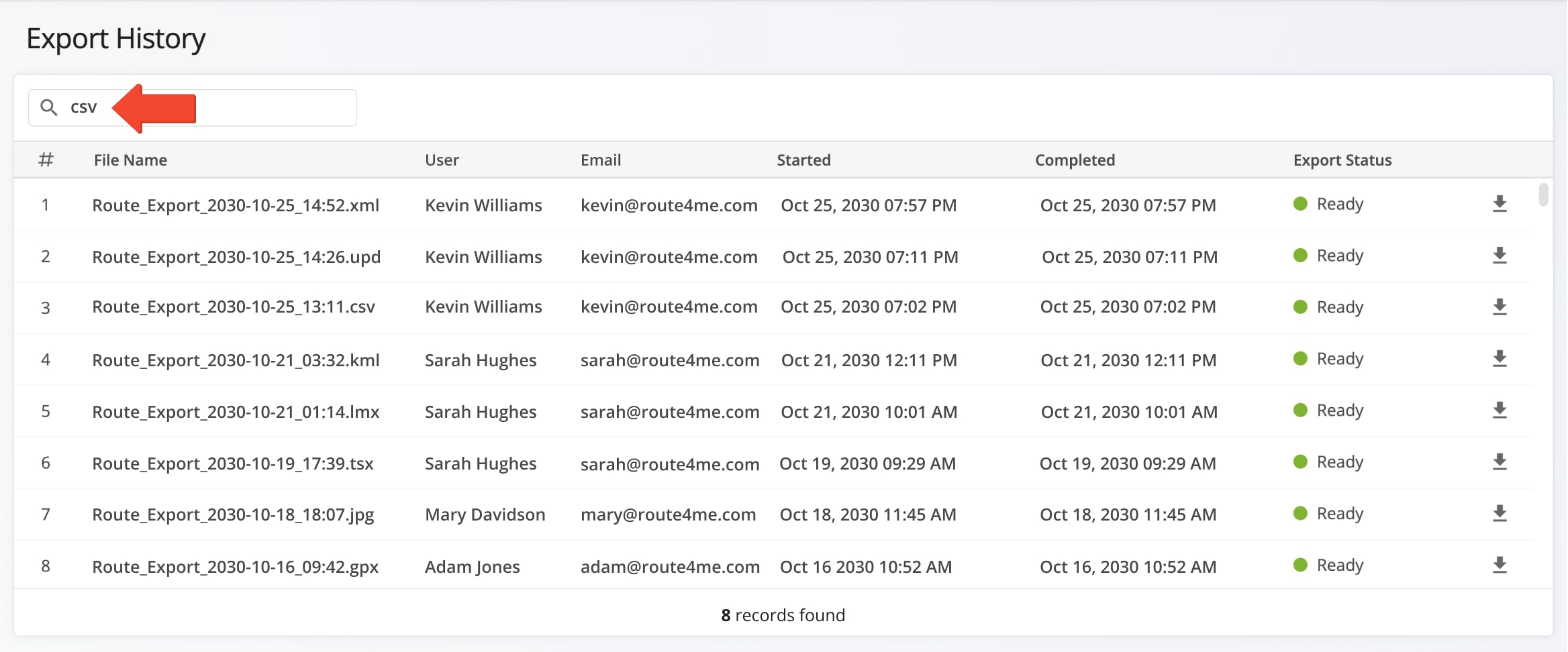
You can also use the header to sort and manage your Export History. Click on any column name to sort files in ascending or descending order based on that column. To download a file, simply click the Download Button next to the file you want to export.
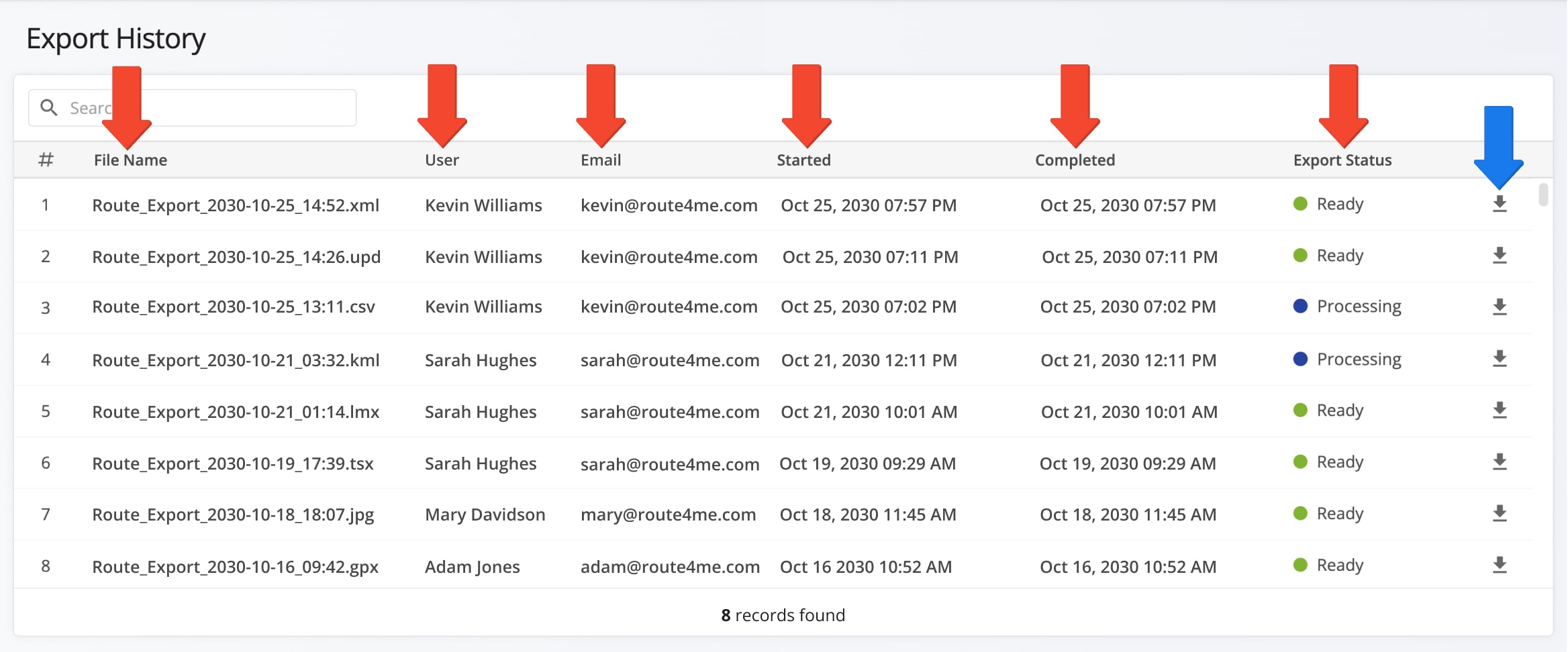
Export History Data Columns
Export History Formats – Route Data Export File Formats
You can export files in various formats depending on your business needs. The exported route file will appear in your Export History with its corresponding file format extension.
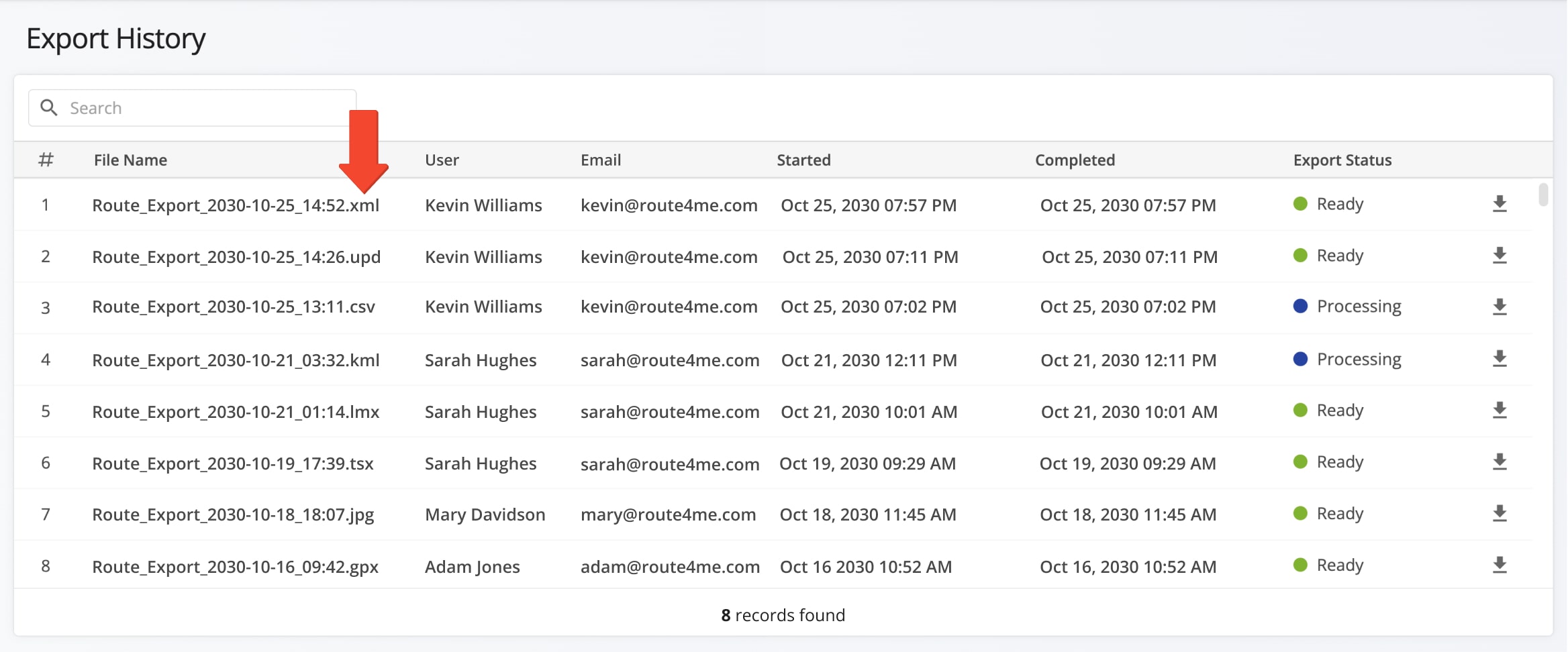
Export File Formats
Visit Route4Me's Marketplace to Check Out More Add-Ons and Modules:
- Route Optimization
Address Book and Territories Planning
- Operations
Custom Data Add-On
About author: Daniel Archer

