
Currency Units – Account Preferences For Revenue And Cost Tracking
Currency Settings let you select the default currency used throughout your Route4Me account for revenue, cost, and other financial values. Applying a single currency helps maintain consistency across routes, Orders, Capacity Profiles, exports, and related account data. This document explains how to manage your preferred currency and where it is reflected across Route4Me. You will also learn how currency settings affect financial information displayed in different areas of your account.
Table of Contents
Manage Currency Settings In Your Account
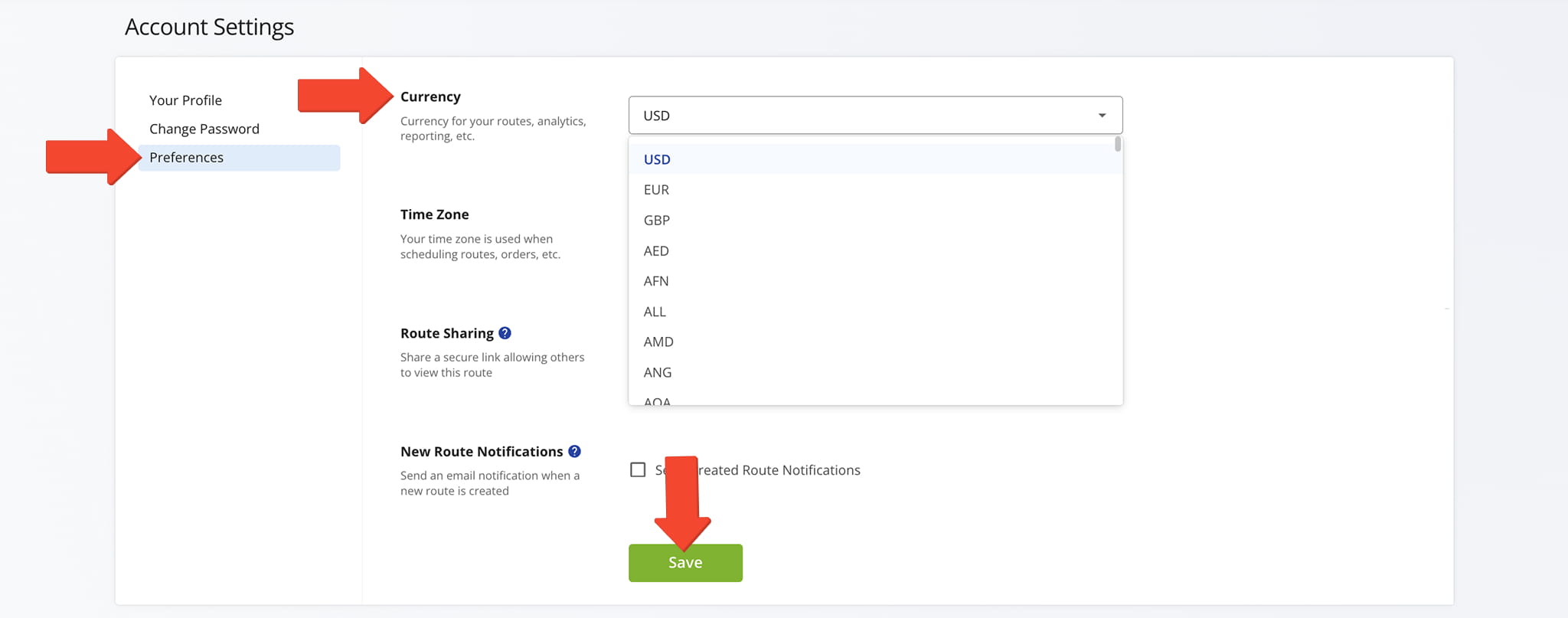
To access Currency settings, click “Settings” > “Account Settings” from the Navigation Menu, then open the “Preferences” tab. From the “Currency” field, select your preferred currency unit and click “Save“.
See the table below for a list of all available currency types.
Currency Types
United States Dollar
USD
Euro
EUR
British Pound Sterling
GBP
UAE Dirham
AED
Afghan Afghani
AFN
Albanian Lek
ALL
Armenian Dram
AMD
Netherlands Antillean Guilder
ANG
Angolan Kwanza
AOA
Argentine Peso
ARS
Australian Dollar
AUD
Aruban Florin
AWG
Azerbaijani Manat
AZN
Bosnia and Herzegovina Convertible Mark
BAM
Barbadian Dollar
BBD
Bangladeshi Taka
BDT
Bulgarian Lev
BGN
Bahraini Dinar
BHD
Burundian Franc
BIF
Bermudian Dollar
BMD
Brunei Dollar
BND
Bolivian Boliviano
BOB
Brazilian Real
BRL
Bahamian Dollar
BSD
Bhutanese Ngultrum
BTN
Botswana Pula
BWP
Belarusian Ruble
BYN
Belarusian Ruble (old)
BYR
Belize Dollar
BZD
Canadian Dollar
CAD
Congolese Franc
CDF
Swiss Franc
CHF
Chilean Peso
CLP
Chinese Yuan Renminbi
CNY
Colombian Peso
COP
Costa Rican Colón
CRC
Cuban Convertible Peso
CUC
Cuban Peso
CUP
Cape Verdean Escudo
CVE
Czech Koruna
CZK
Djiboutian Franc
DJF
Danish Krone
DKK
Dominican Peso
DOP
Algerian Dinar
DZD
Egyptian Pound
EGP
Eritrean Nakfa
ERN
Ethiopian Birr
ETB
Fijian Dollar
FJD
Falkland Islands Pound
FKP
Georgian Lari
GEL
Ghanaian Cedi
GHS
Gibraltar Pound
GIP
Gambian Dalasi
GMD
Guinean Franc
GNF
Guatemalan Quetzal
GTQ
Guyanese Dollar
GYD
Hong Kong Dollar
HKD
Honduran Lempira
HNL
Haitian Gourde
HTG
Hungarian Forint
HUF
Indonesian Rupiah
IDR
Israeli New Shekel
ILS
Indian Rupee
INR
Iraqi Dinar
IQD
Iranian Rial
IRR
Icelandic Króna
ISK
Jamaican Dollar
JMD
Jordanian Dinar
JOD
Japanese Yen
JPY
Kenyan Shilling
KES
Kyrgyzstani Som
KGS
Cambodian Riel
KHR
Comorian Franc
KMF
North Korean Won
KPW
South Korean Won
KRW
Kuwaiti Dinar
KWD
Cayman Islands Dollar
KYD
Kazakhstani Tenge
KZT
Lao Kip
LAK
Lebanese Pound
LBP
Sri Lankan Rupee
LKR
Liberian Dollar
LRD
Lesotho Loti
LSL
Libyan Dinar
LYD
Moroccan Dirham
MAD
Moldovan Leu
MDL
Malagasy Ariary
MGA
Macedonian Denar
MKD
Myanmar Kyat
MMK
Mongolian Tögrög
MNT
Macanese Pataca
MOP
Mauritanian Ouguiya
MRU
Mauritian Rupee
MUR
Maldivian Rufiyaa
MVR
Malawian Kwacha
MWK
Mexican Peso
MXN
Malaysian Ringgit
MYR
Mozambican Metical
MZN
Namibian Dollar
NAD
Nigerian Naira
NGN
Nicaraguan Córdoba
NIO
Norwegian Krone
NOK
Nepalese Rupee
NPR
New Zealand Dollar
NZD
Omani Rial
OMR
Panamanian Balboa
PAB
Peruvian Sol
PEN
Papua New Guinean Kina
PGK
Philippine Peso
PHP
Pakistani Rupee
PKR
Polish Złoty
PLN
Paraguayan Guaraní
PYG
Qatari Riyal
QAR
Romanian Leu
RON
Serbian Dinar
RSD
Russian Ruble
RUB
Rwandan Franc
RWF
Saudi Riyal
SAR
Solomon Islands Dollar
SBD
Seychellois Rupee
SCR
Singapore Dollar
SGD
Saint Helena Pound
SHP
Sierra Leonean Leone
SLL
Somali Shilling
SOS
Surinamese Dollar
SRD
South Sudanese Pound
SSP
São Tomé and Príncipe Dobra
STN
Syrian Pound
SYP
Swazi Lilangeni
SZL
Thai Baht
THB
Tajikistani Somoni
TJS
Turkmenistani Manat
TMT
Tunisian Dinar
TND
Tongan Paʻanga
TOP
Turkish Lira
TRY
Trinidad and Tobago Dollar
TTD
New Taiwan Dollar
TWD
Tanzanian Shilling
TZS
Ukrainian Hryvnia
UAH
Ugandan Shilling
UGX
Uruguayan Peso
UYU
Uzbekistani Som
UZS
View Selected Currency Type Across Your Account
Your preferred currency unit is automatically applied wherever currency values appear in your account. The following examples show some, but not all, of the areas where this setting takes effect.
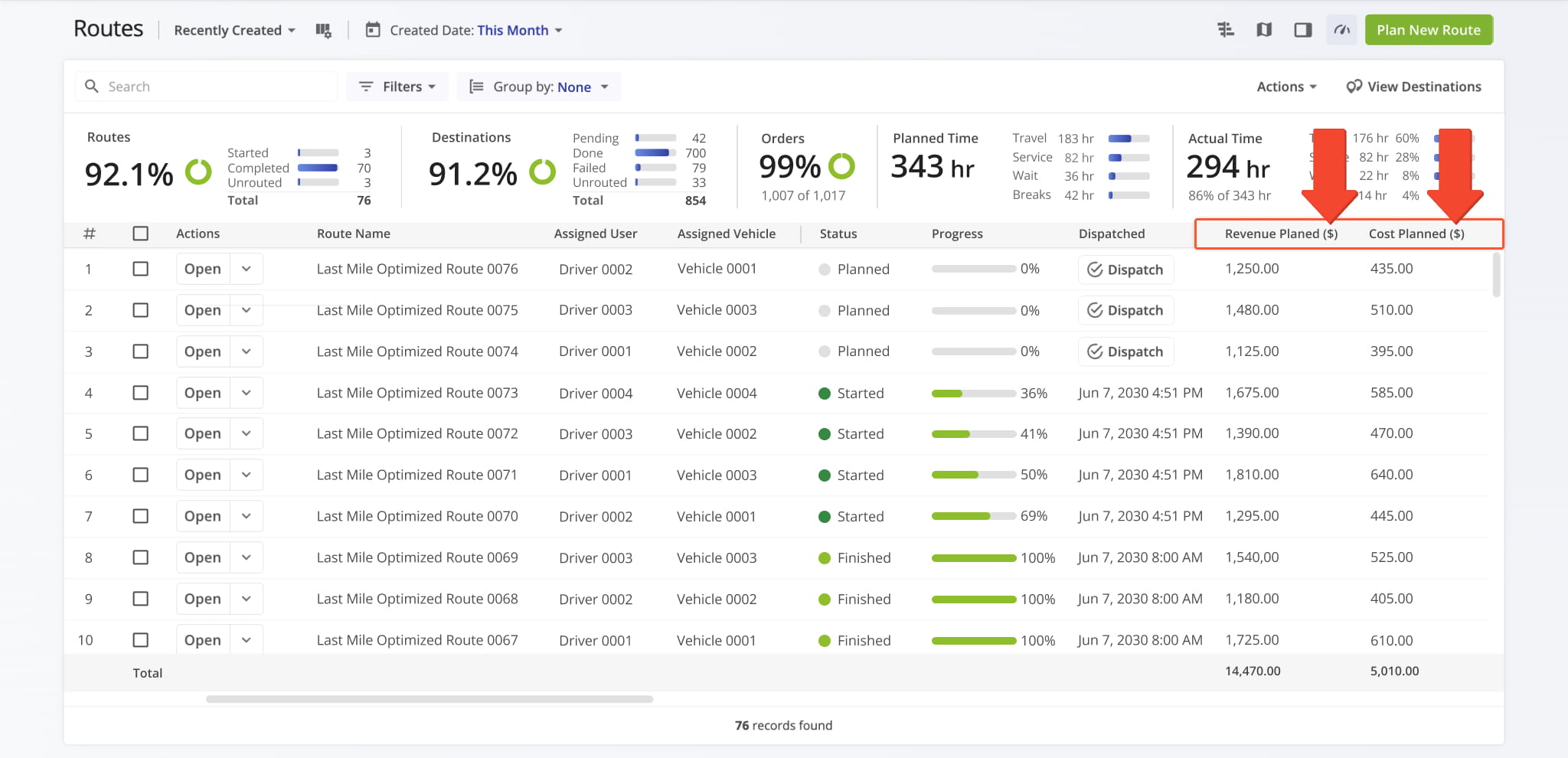
Routes List – Financial Data Displayed In Your Selected Currency
All Revenue and Cost amounts shown in your Routes List data columns appear in your selected currency.
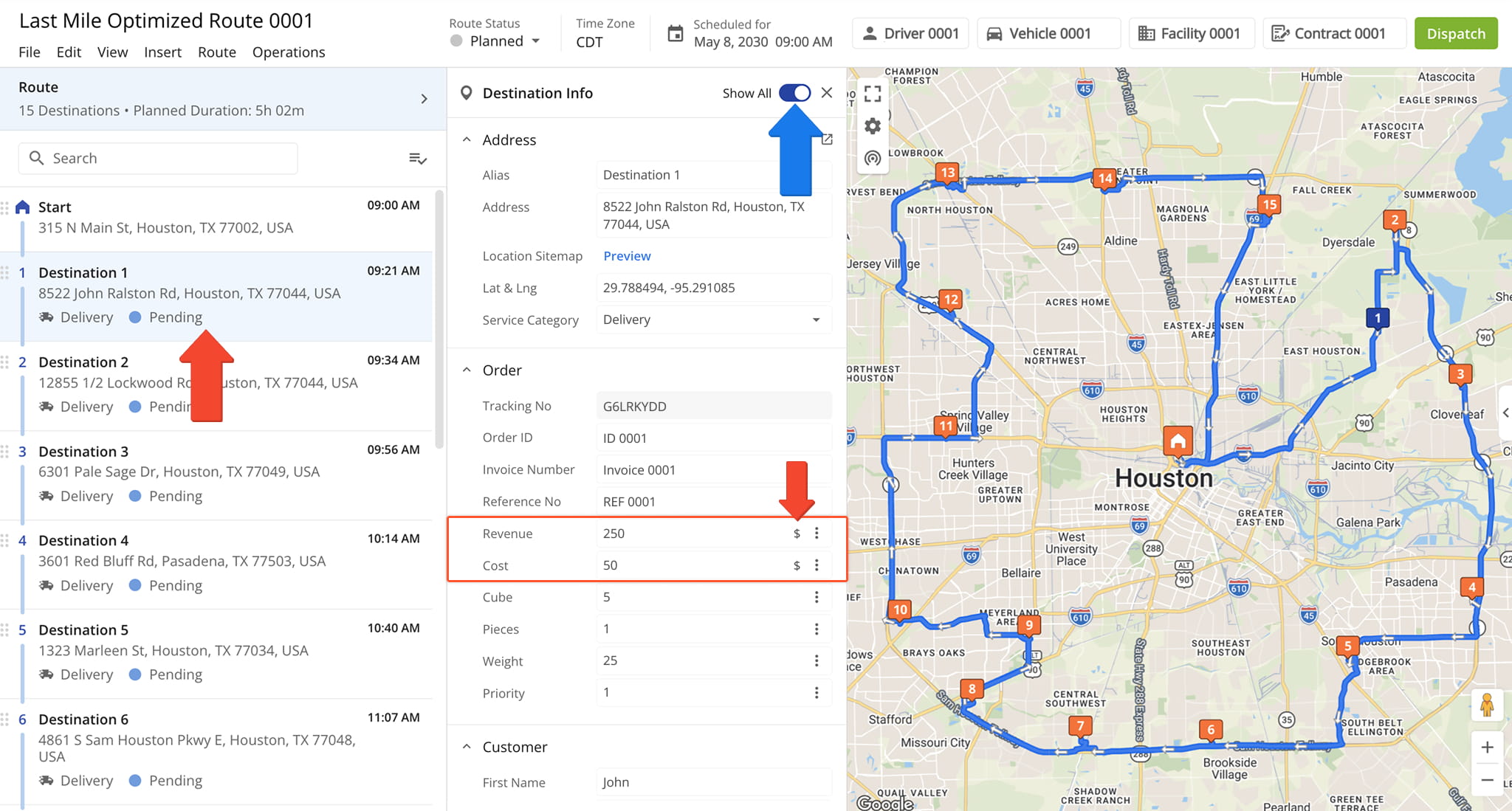
Route Editor – Currency Applied To Destination Revenue And Cost
From the Destination Info Panel of the Route Editor, you can view Revenue and Cost amounts in the configured currency.
NOTE: Revenue and Cost amounts displayed in Route Snapshots also reflect your selected currency.
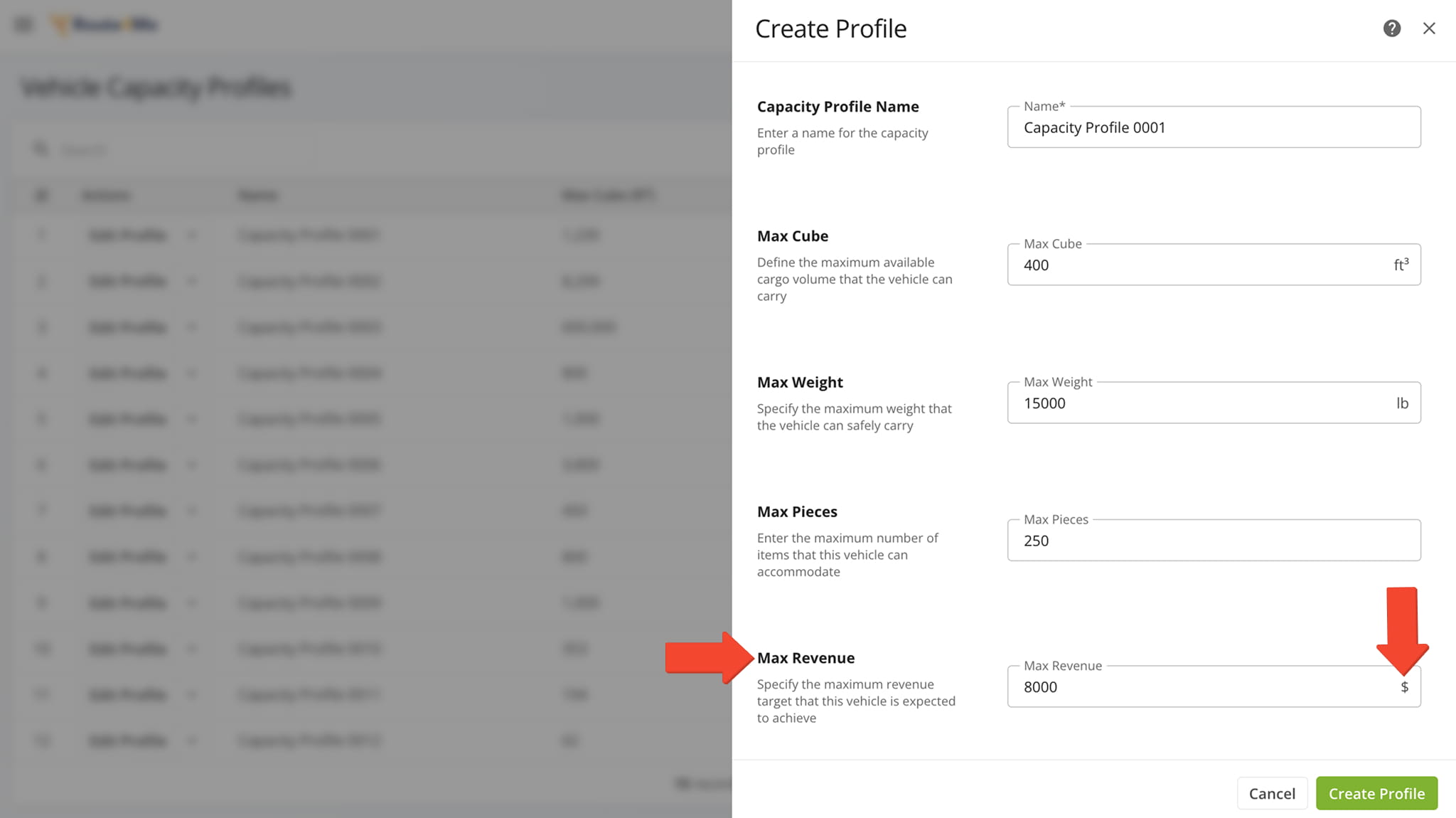
Capacity Profile – Revenue Thresholds In Your Selected Currency
Maximum revenue thresholds in Capacity Profiles are calculated in your account currency.
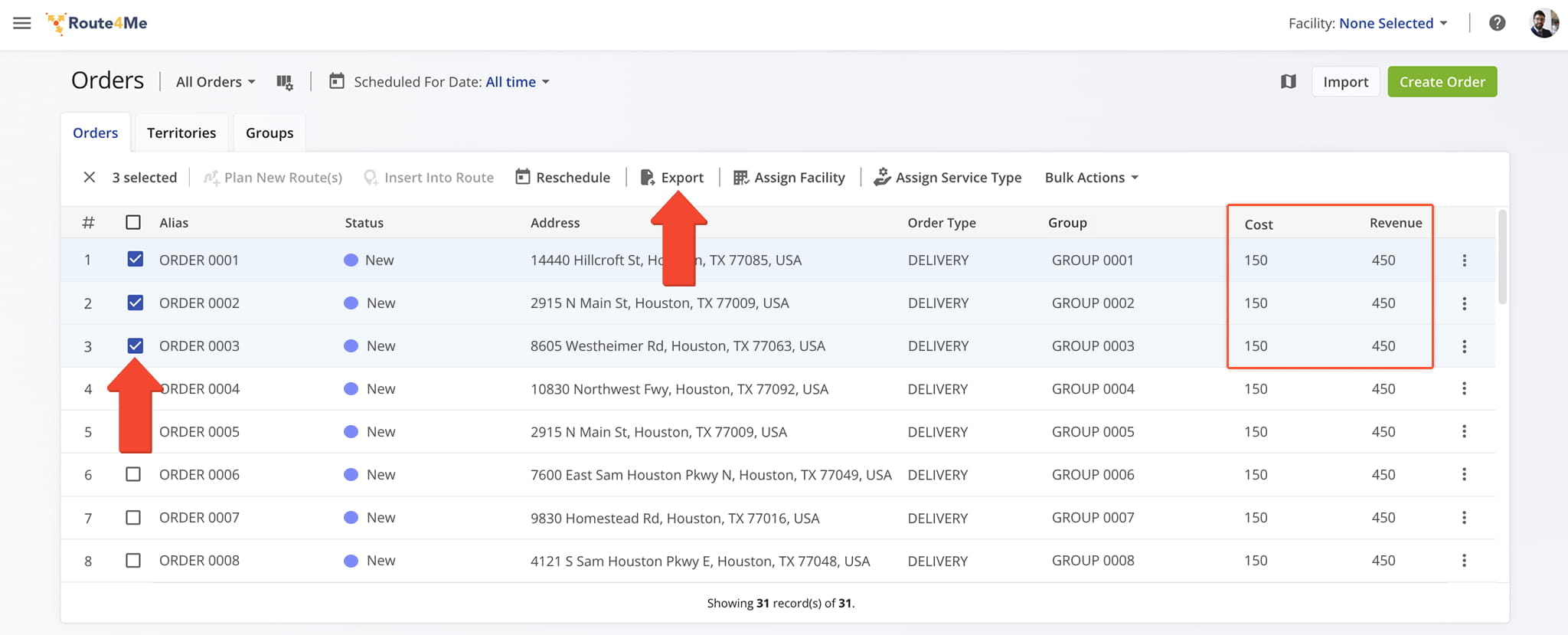
Order Exports – Currency Formatting Applied To Exported Order Values
When exporting Orders, currency values for Cost and Revenue are displayed in your account currency.
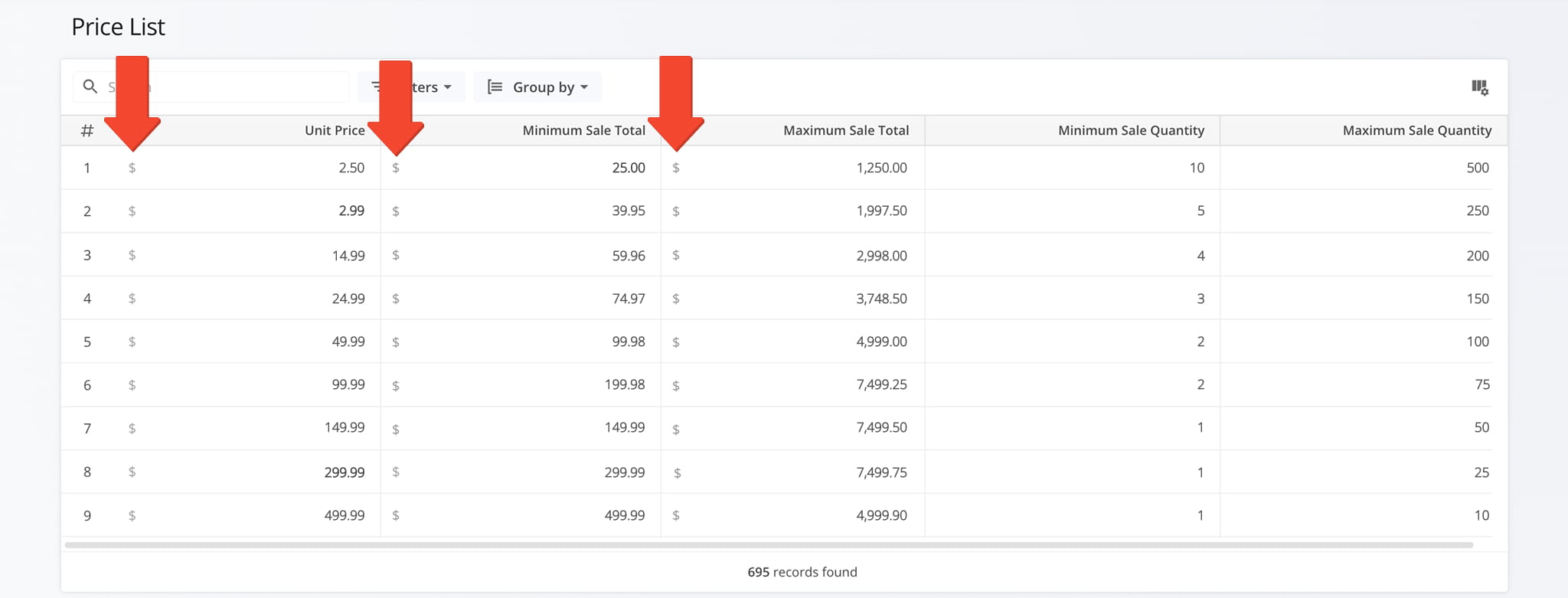
Price List Page – Currency Consistency Across ERP Price List Data
From your Price List Page, all financial values are displayed in your configured currency. The “Unit Price“, “Minimum Sale Total“, and “Maximum Sale Total” columns all clearly reflect your selected currency, ensuring consistency across pricing data.
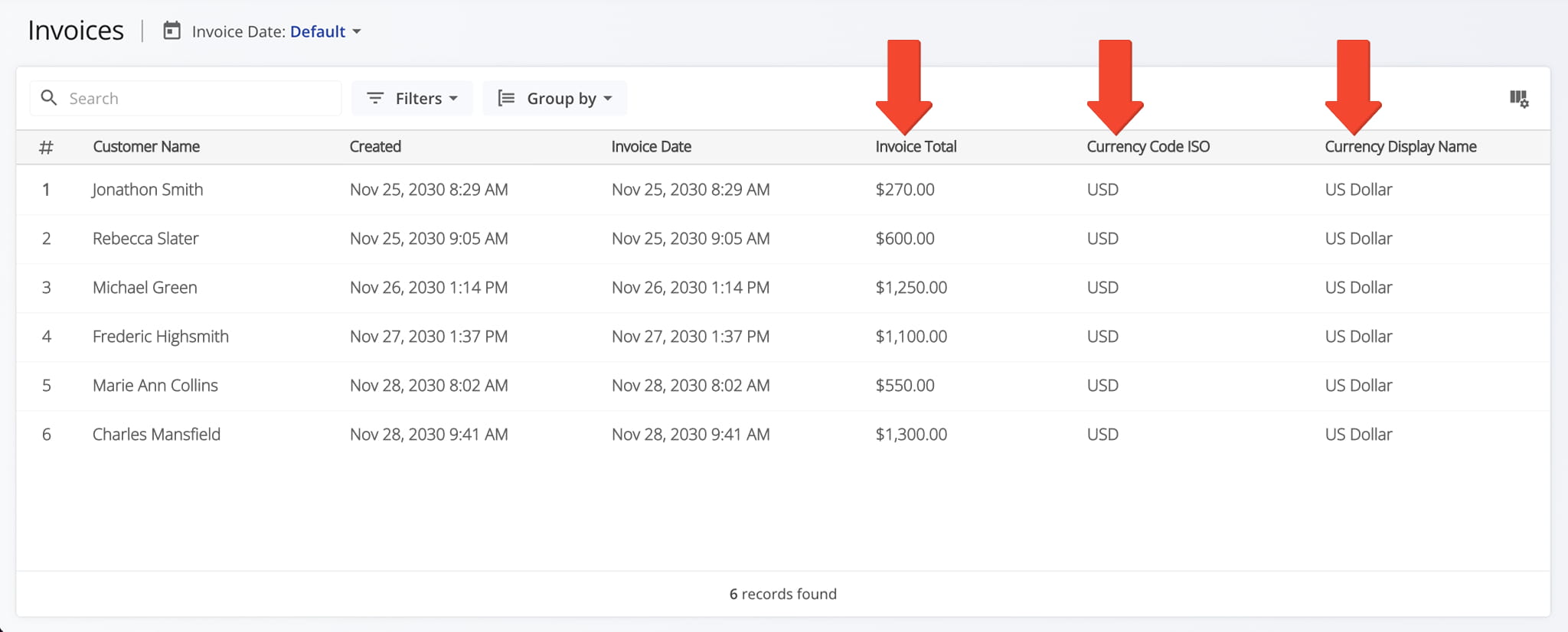
Invoices Page – Your Configured Currency Applied To ERP Invoice Data
From your Invoices Page, financial data is displayed using your configured currency. The “Currency Code (ISO)” and “Currency Display Name” columns clearly identify the currency in use, and all “Invoice Total” values are shown in your selected currency.
NOTE: Your chosen Currency Unit also appears in Invoice Snapshots.
Business Insights – Currency Units In Data Table
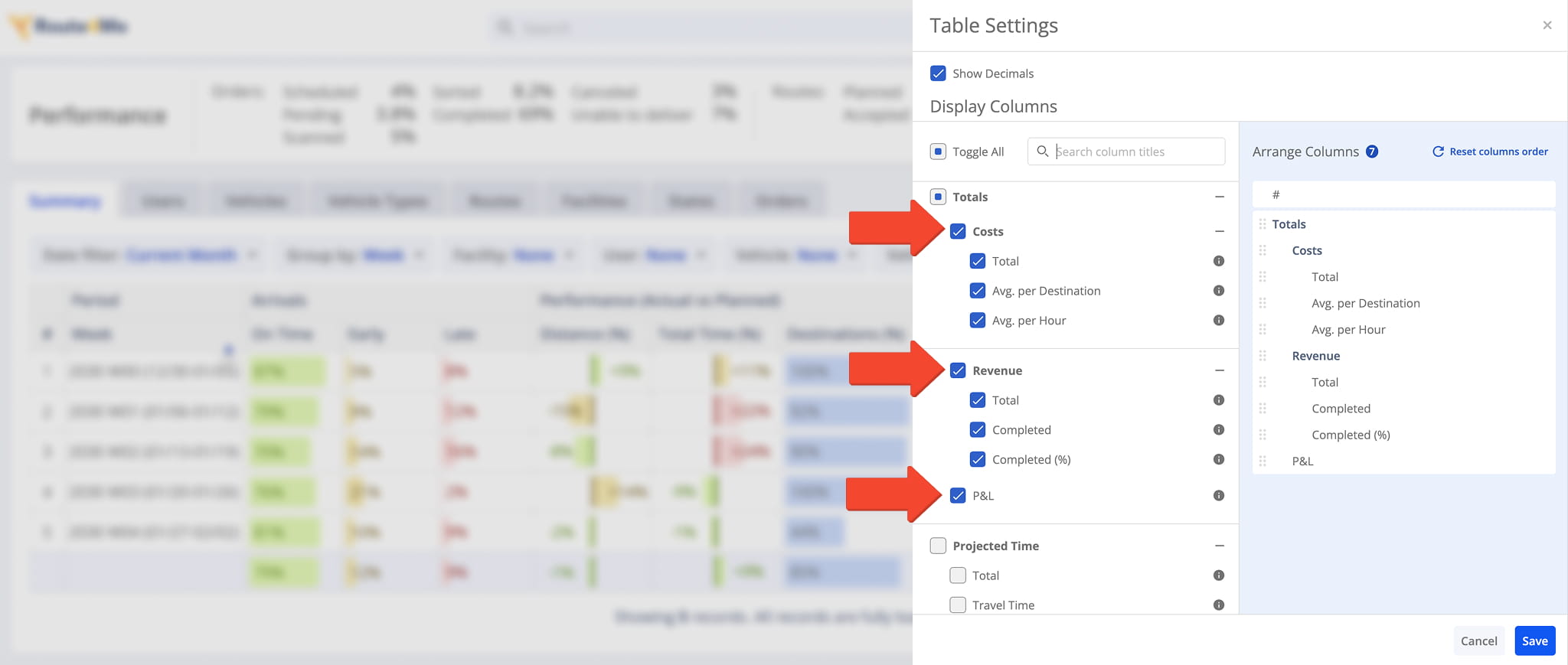
From Business Insights, you can configure your data table to include financial columns – such as costs, revenue, and P&L – all displayed in your selected currency, consistent with your Account Settings.
Visit Route4Me's Marketplace to Check out Associated Modules:
- Route Optimization
Mixed Vehicles Routing
- Route Optimization
Route Optimization for Multiple Drivers Without Advanced Constraints
- Route Optimization
Commercial Vehicle Route Planning
About author: Daniel Archer

