
Insert Customer Notifications Placeholders – Placeholder Reference Table
Notification Placeholders are dynamic variables that automatically insert route, order, customer, and other available data into customer messages. Placeholders can display information such as customer details, estimated arrival times, tracking links, and other notification-related data. This document explains how to add Placeholders to Customer Notifications. It also includes a complete reference table of available Placeholders and their corresponding values.
Table of Contents
Insert Placeholders Into Customer Notifications (Updated Version)
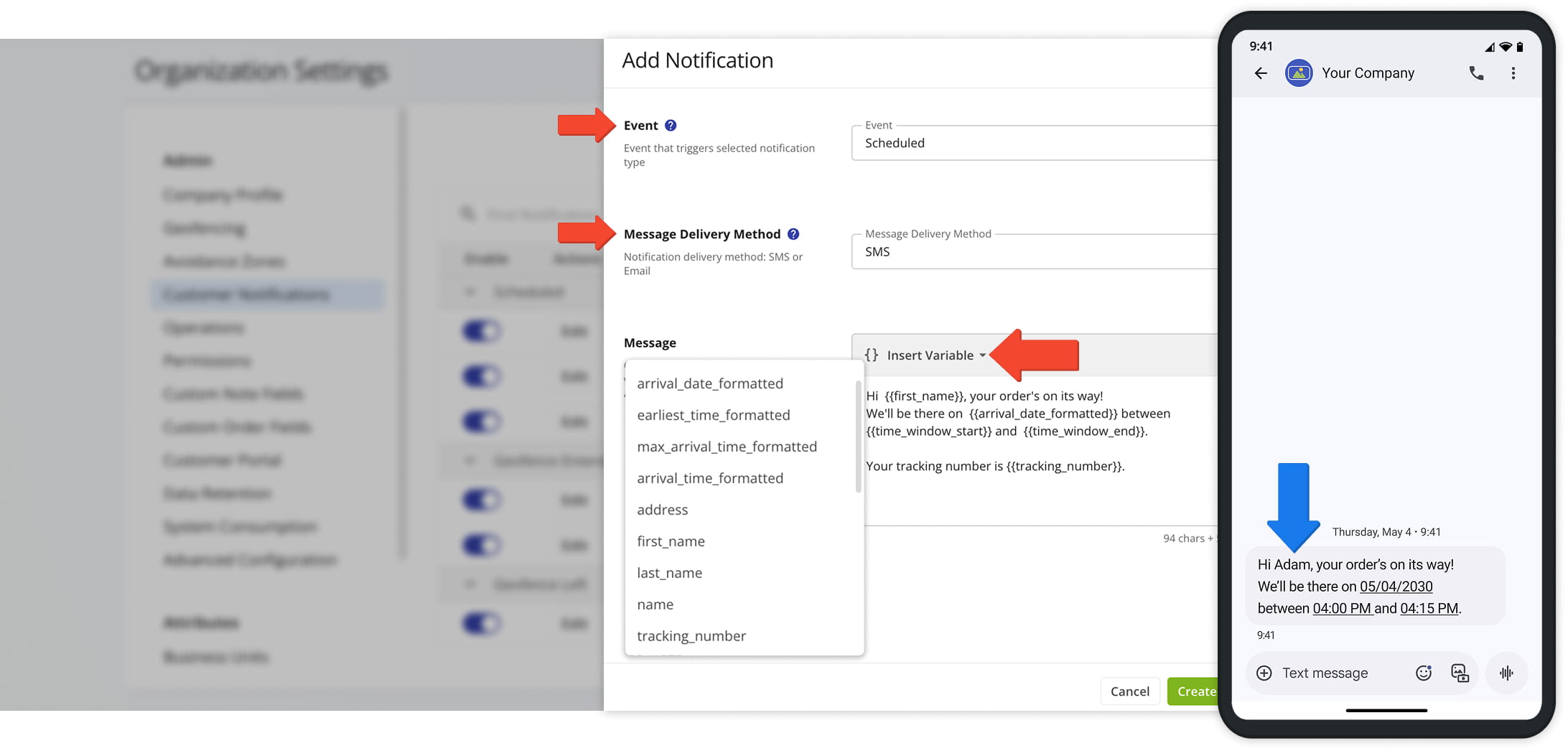
To insert placeholders into a Customer Notification from Route4Me’s updated Customer Notifications portal, go to “Settings” > “Organization Settings” >”Customer Notifications” from the Navigation Menu.
To create a new Notification, select an “Event” and “Message Delivery Method“. Then, in the “Message” field, choose from the “Insert Variable” dropdown menu the variables you wish to embed into your message.
The table below lists all available Notification placeholders.
Open Your Notification Settings
Insert Placeholders Into Customer Notifications (Classic Version)
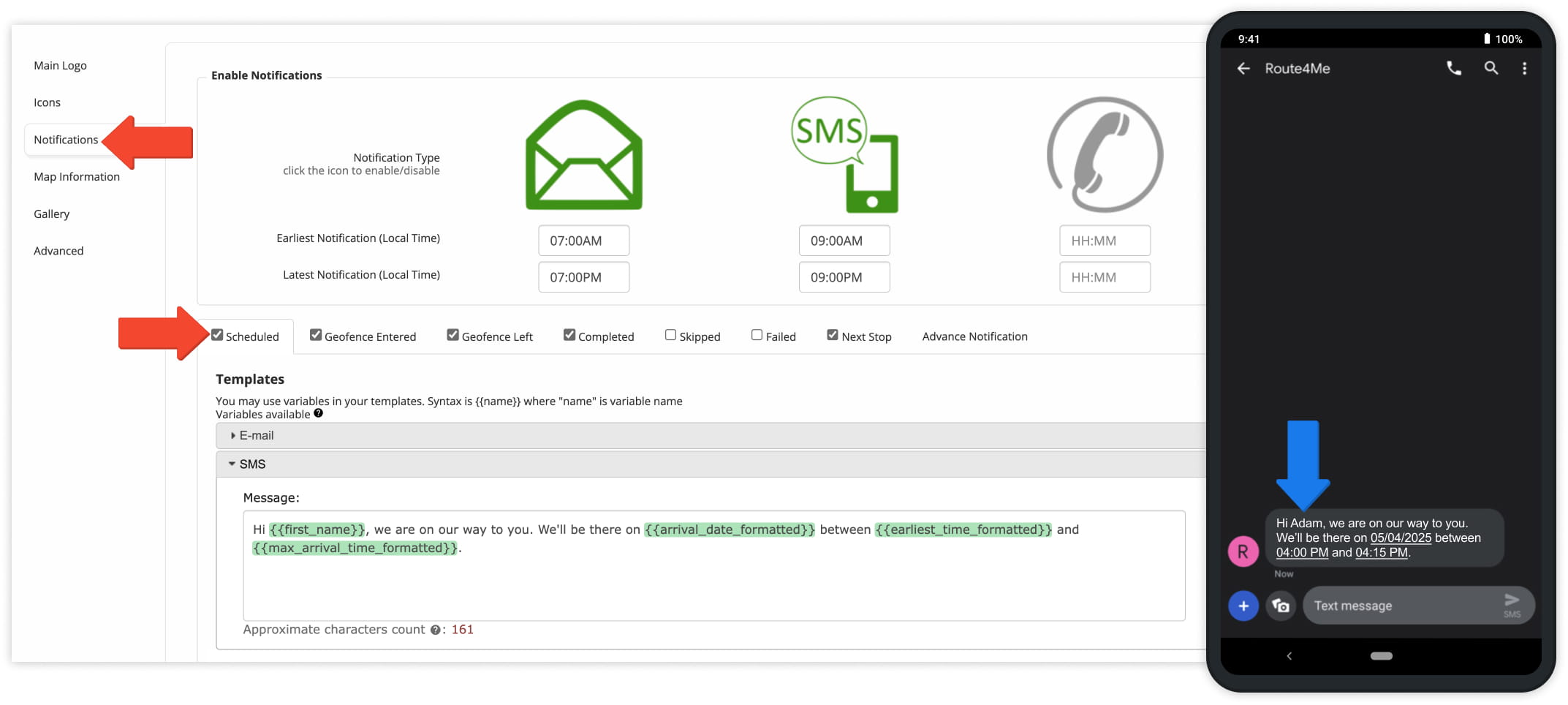
To insert placeholders into a Customer Notification from Route4Me’s classic Customer Notifications portal, go to “Customer Experience” > “Customer Notifications“ > “Notifications” from the Navigation Menu.
Select the type of Notification you want to configure (such as Scheduled, Geofence Entered, or Next Stop). Based on the selected Notification type, Route4Me provides pre-populated placeholders.
You can also customize the message using any of the Placeholders listed in the the table below.
Open Your Notification Settings
Dynamic Notifications Variables – Table Of All Available Placeholders
Use dynamic variables in Notification templates to automatically insert relevant data into customer messages. The table below lists all available placeholders.
{{address}}
Address
Street address of the customer associated with the corresponding destination.
405 Lexington Ave, New York, NY 10174, USA
{{alias}}
Alias
A user-defined name assigned to a customer or address for internal use.
Customer 001
{{lat}}
Lat, Lng
Latitude coordinates of the customer's location.
40.751868
{{lng}}
{{lng}}
Longitude coordinates of the customer's location.
-73.975554
{{address_stop_type}}
Address Stop Type
The type of destination.
Delivery
{{now_time}}
Address Visit Details
The current time when the corresponding notification was triggered and sent to the customer. The format of this time can be adjusted in the advanced settings.
07:00 AM
{{now_date}}
Address Visit Details
The current date when the corresponding notification was triggered and sent to the customer. The format of this date can be adjusted in the advanced settings.
10.10.2025
{{now_time_formatted}}
Address Visit Details
The current time when the corresponding notification was triggered and sent to the customer. The format of this time can be adjusted in the advanced settings.
04:10 PM
{{geofence_detected_visited_timestamp}}
Detected as Visited
The timestamp that was automatically generated by the system when the driver entered the geofenced area set around the address.
07/07/2025 05:00 PM
{{geofence_detected_departed_timestamp}}
Detected as Departed
The timestamp that was automatically generated by the system when the driver left the geofenced area set around the address.
07/07/2025 05:00 PM
{{order_no}}
Order No
The order number associated with the destination.
QA000007188
{{cost}}
Cost
The cost of visiting and servicing the destination.
100
{{cube}}
Cube
The cubic volume of the cargo or order that is being delivered to or picked up at the address.
0.5
{{invoice_no}}
Invoice No
The order invoice number associated with the address.
ALT12341
{{pieces}}
Pieces
The number of pieces (items) that are being delivered to or picked up at the destination.
20
{{reference_no}}
Reference No
The order reference number associated with the destination.
789
{{revenue}}
Revenue
The revenue that is expected to be generated from visiting and servicing the destination.
1000
{{weight}}
Weight
The weight of the cargo or order that is being delivered to or picked up at the address.
100
{{tracking_number}}
Tracking Number
The tracking number that is automatically assigned to the order by the system. Tracking numbers can be used by customers to check their orders on the customer tracking portal.
E27YMNGK
{{name}}
First Name + Last Name
Full name (first name and last name) of the customer associated with the destination.
John Smith
{{first_name}}
First Name
First name of the customer associated with the destination.
John
{{last_name}}
Last Name
Last name of the customer associated with the destination.
Smith
{{email}}
Contact e-mail address of the customer associated with the destination.
{{phone}}
Phone
Contact phone number of the customer associated with the destination.
+1 212-682-3070
{{customer_po}}
Customer PO
Purchase order of the customer associated with the destination.
PI000347
{{time_window_start}}
The start of the destination's time window (normally used for opening hours).
09:00 AM
{{time_window_end}}
Time Window End
The end of the destination's time window (normally used for closing hours).
09:00 PM
{{arrival_time_formatted}}
Planned Arrival Time
The estimated time when the driver is expected to arrive at the destination. The format of this time can be adjusted in the advanced settings.
4:10 PM
{{arrival_date_formatted}}
Planned Arrival Date
The estimated date when the driver is expected to arrive at the destination. The format of this date can be adjusted in the advanced settings.
07.07.2025
{{earliest_time_formatted}}
Planned Arrival Time with ETA Padding
The estimated time of arrival minus 50% of the defined "ETA Padding" value (i.e., minus 5 minutes from the estimated arrival time). The format of this time can be adjusted in the advanced settings.
2:10 PM
{{max_arrival_time_formatted}}
Planned Arrival Time with ETA Padding
The estimated time of arrival plus 50% of the defined "ETA Padding" value (i.e., plus 5 minutes to the Estimated Arrival Time). The format of this time can be adjusted in the advanced settings.
1:50 PM
{{note_attachment_url}}
Note Attachment URL
Online URL for media attached to the respective note of the respective route destination.
Appears as a URL
{{driver_rating_short_link}}
Customer Satisfaction Survey Link
Online shortened URL link for the Customer Satisfaction Survey of the respective route destination.
Appears as a shortened URL
{{data.short_note_attachment_url}}
Note Attachment URL
Online shortened URL for media attached to the respective note of the respective route destination.
Appears as a shortened URL
{{custom_fields.field_name}}
Custom Data
Custom Data attached to route destinations.
{{custom_fields.item_1}}
Visit Route4Me's Marketplace to Check out Associated Add-Ons:
- Notifications & Alerts
Route Scheduled
- Notifications & Alerts
Geofence Entered
- Notifications & Alerts
Geofence Departed
- Notifications & Alerts
Visit Completed
- Notifications & Alerts
Notify Next Customer


