Route Manifest – Route4Me Dynamic Route Manifest
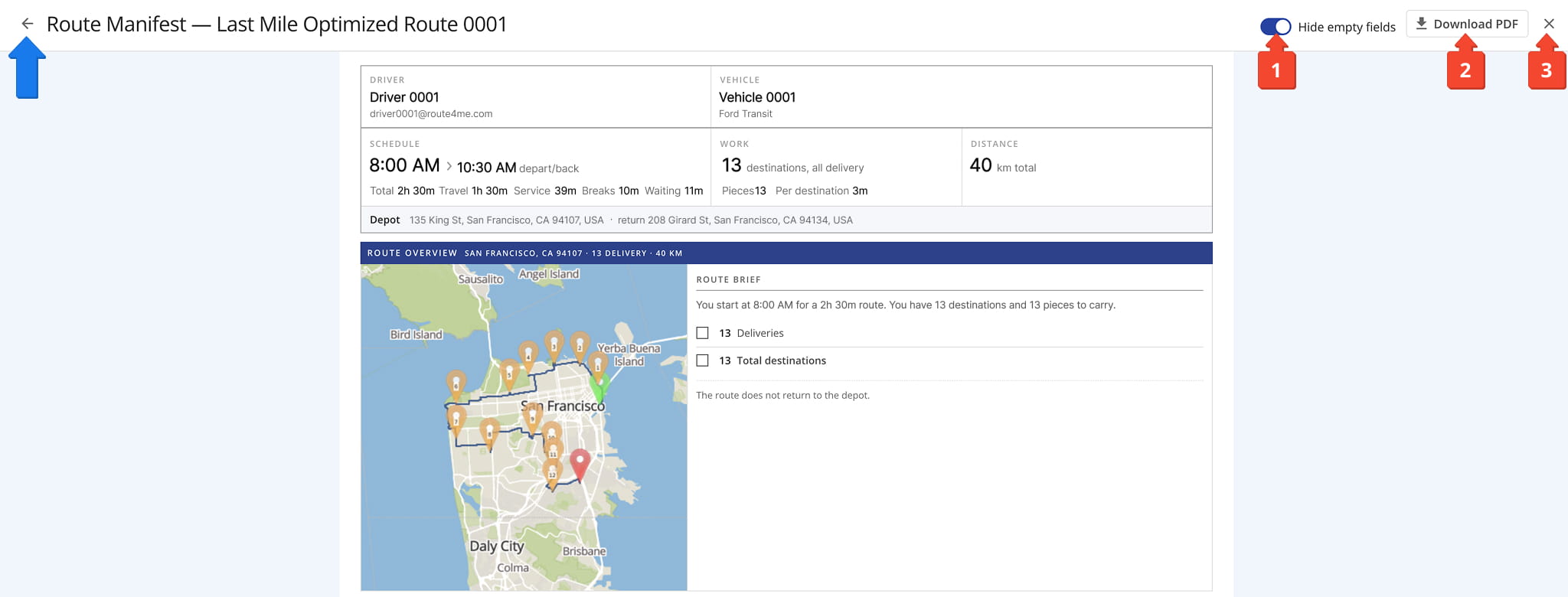
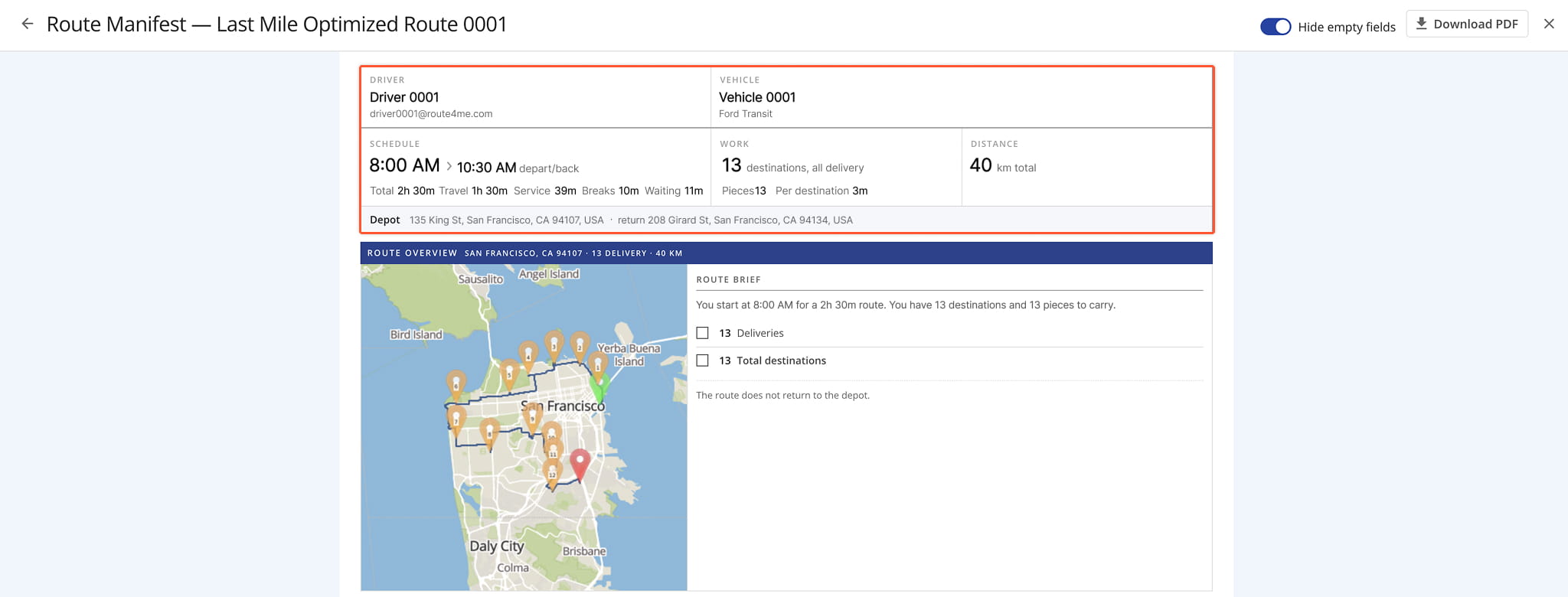
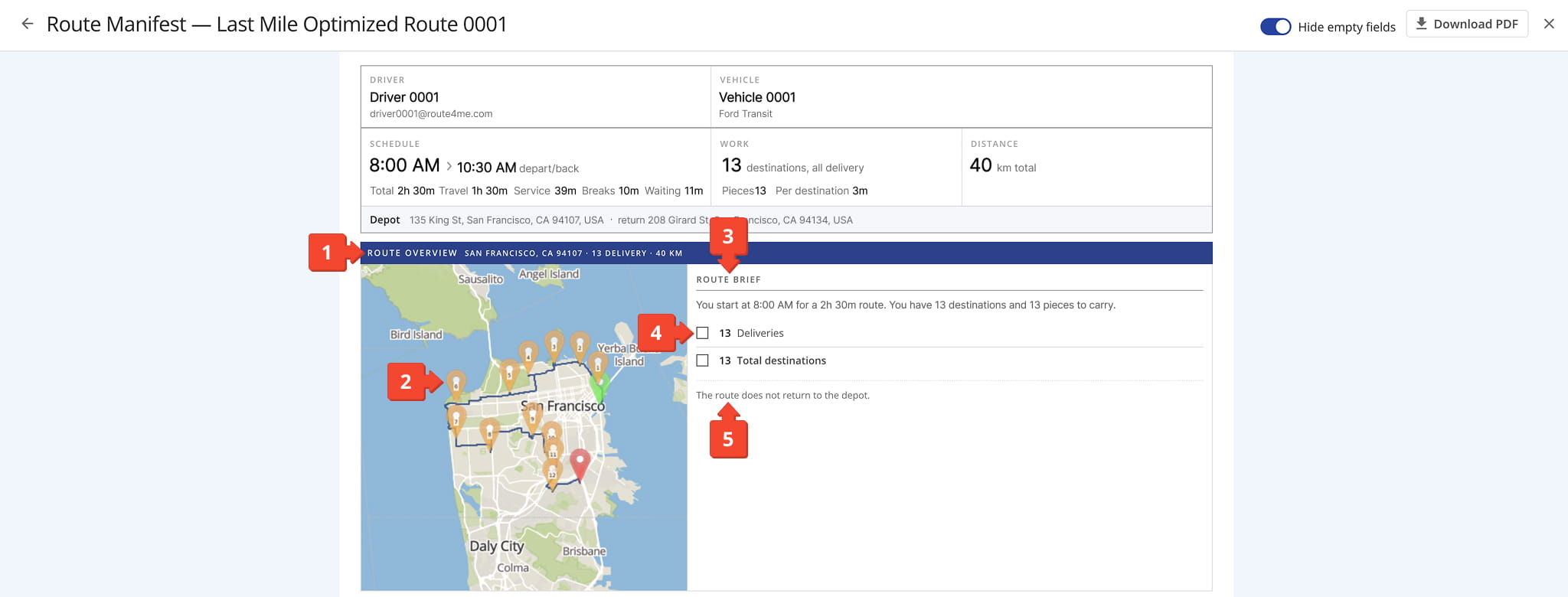
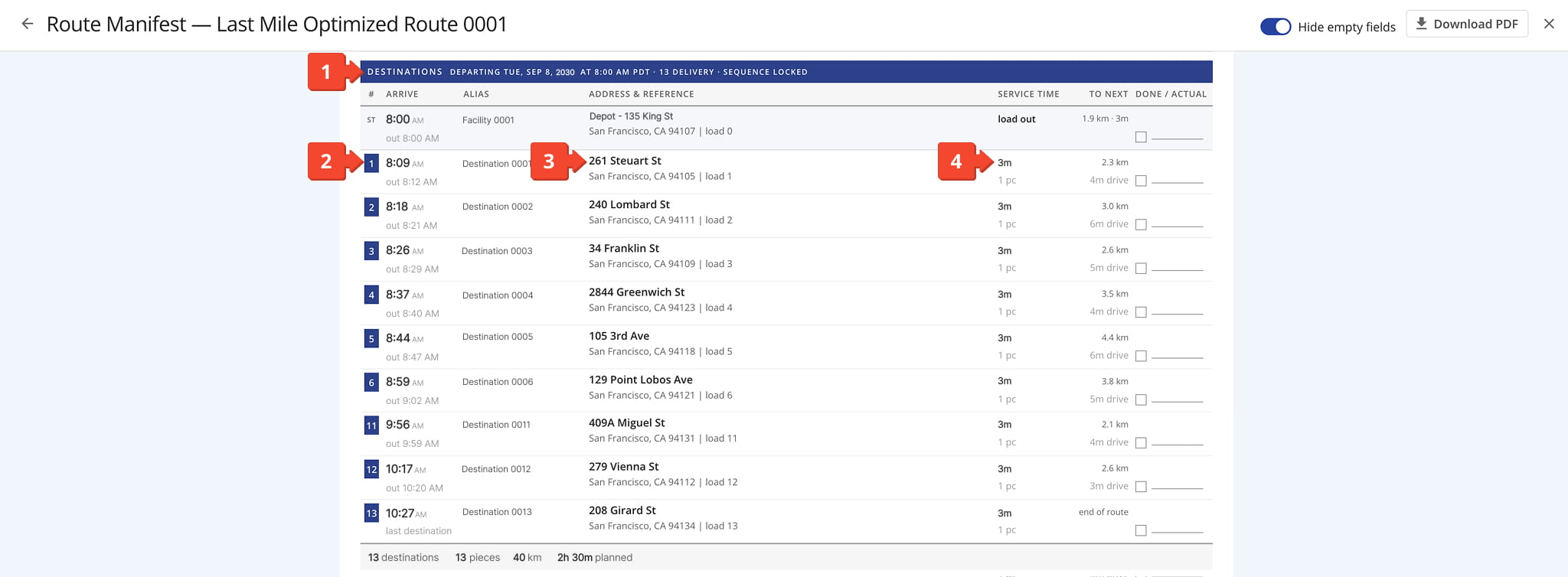
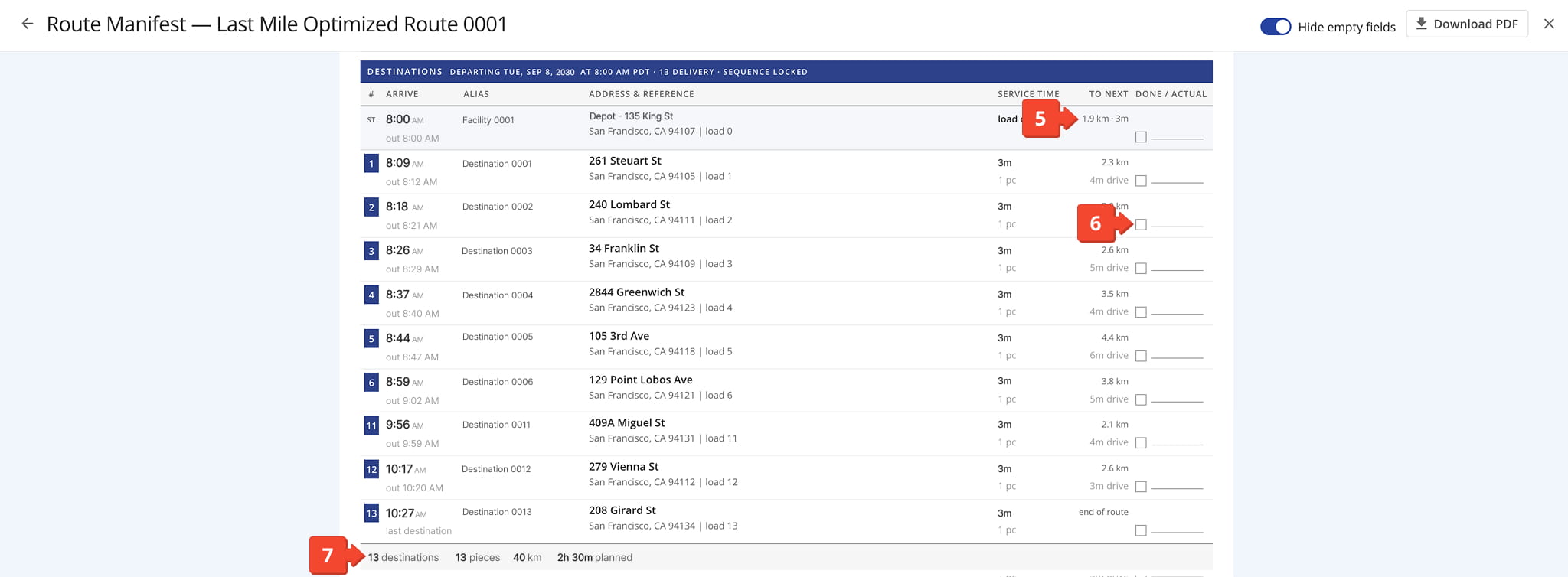
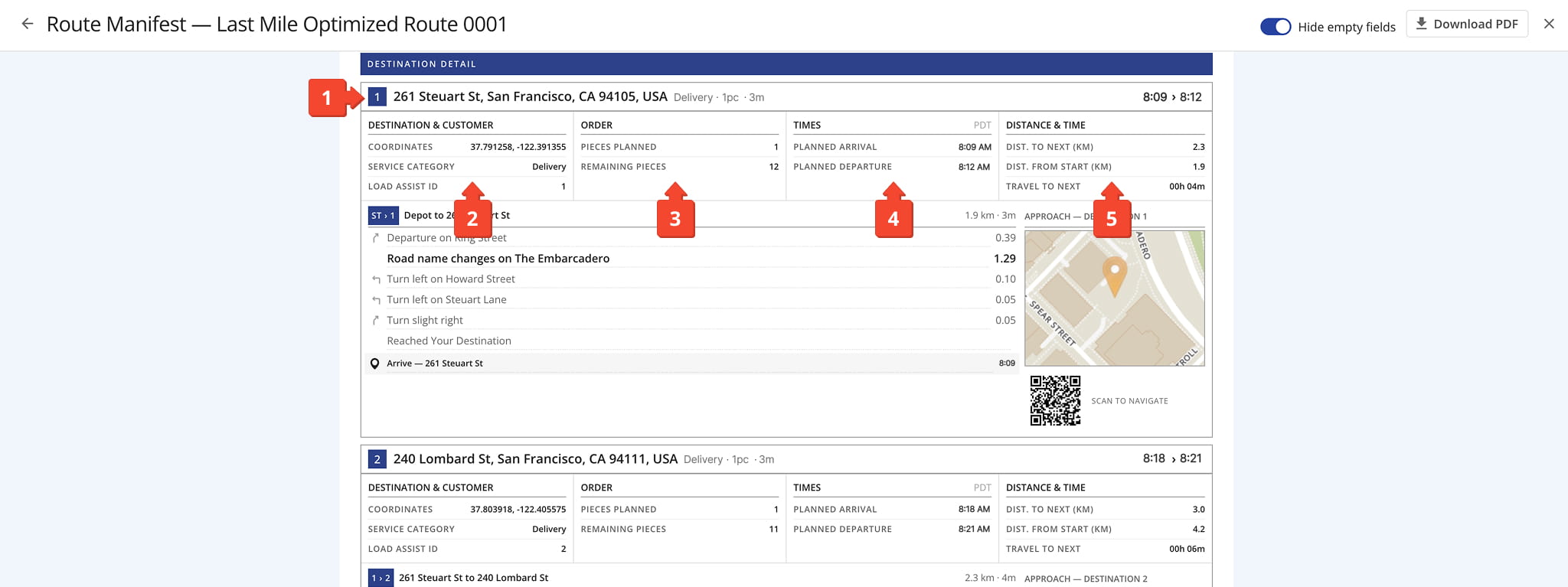
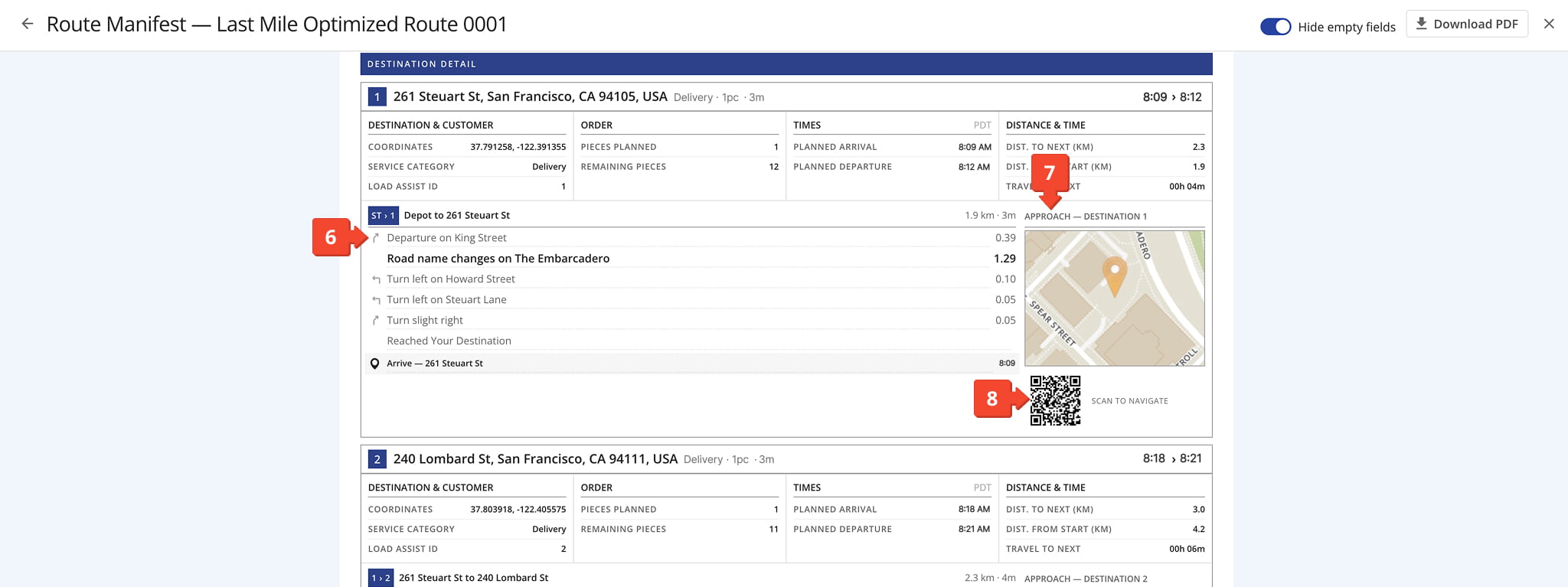
Route4Me’s Dynamic Route Manifest streamlines route planning and optimizes operations for enterprise businesses managing large-scale logistics. It provides a comprehensive view of route metrics, including order details, capacity, driving directions, and destination progress, along with key logistics KPIs. The Manifest is customizable, so you can display the metrics that matter most. By using it to monitor multiple deliveries, you can stay on top of progress and ensure timely visits.
NOTE: If you need access to the Route Manifest, and it’s been disabled on your account, Contact Route4Me Support.
Table of Contents
Open Route Manifest – Download Route Metrics And Details
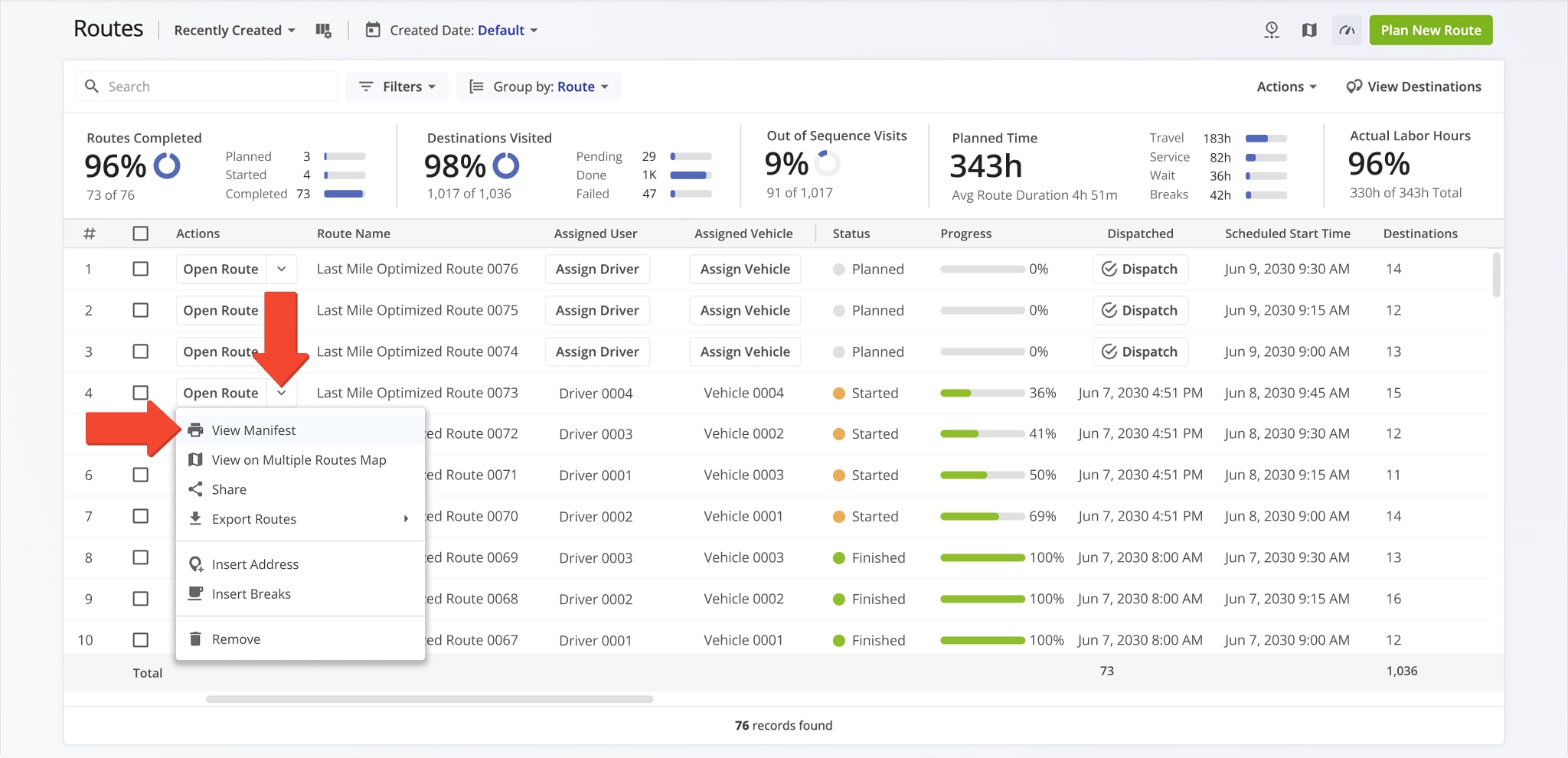
You can open a Route Manifest from your Routes List, Route Editor, or Routes Map. To access a Manifest from the Routes List, click the Down Arrow button next to a route and select “View Manifest“.
Customize the Manifest by selecting the sections and subsections you want to include, then click “Print” to download it. Specific details related to each section and subsection are described below. Keep reading to learn more.
Manifest Sections – View Route Maps, Metrics, And More
The “Manifest Sections” tab lets you choose which types of route-related information to include, such as maps, directions, metrics, and custom data. See the table below for more details.
Cover Page Map
Displays a high-resolution map with an overview of the route.
Directions
Displays detailed stop-by-stop driving directions for the route, including drive times to destination, planned arrival times, and planned departure times.
Map Matrix View
Displays a matrix of zoomed-in mini-maps that show each stop on the route.
Route Notes
Displays all notes added to destinations on the route.
Route Metrics
Displays a summary table that contains the aggregated metrics of the route.
Custom Data
Highlights destinations on the route that contain Custom Data.
Address – View Addresses, Aliases, Coordinates, And Destination Types
The “Address” tab allows you to display key location details for each destination on the route, including addresses, aliases, coordinates, and destination types. More information is available in the table below.
Address
Displays the address of each destination on the route.
Alias
Displays the alias of the customer for each destination on the route.
Coordinates (lat, lng)
Displays the exact latitude and longitude coordinates of each destination on the route.
Address Destination Type
Displays the destination type assigned to each stop on the route (e.g., “Delivery”, "Service", “Pickup”, "Dropoff", etc.).
Customer – View Customer Names, Emails, Phone Numbers, And More
The “Customer” tab lets you display customer-related details for each destination, such as names, contact information, purchase order numbers, and group associations. Refer to the table below for a breakdown of each option.
First Name
Displays the first name of the customer associated with the corresponding destination/order.
Last Name
Displays the last name of the customer associated with the corresponding destination/order.
Displays the contact email address of the customer associated with the corresponding destination/order.
Phone
Displays the contact phone number of the customer associated with the corresponding destination/order.
Customer PO
Displays the number of the purchase order of the customer associated with the corresponding destination/order.
Group
Displays the name of the Address Book group of the customer associated with the corresponding destination/order.
Order – View Order Numbers, Capacity Data, Priority Status, And More
The “Order” tab lets you view order-specific information for each destination, including order numbers, capacity data, associated costs, and priority levels. Details for each field are listed in the table below.
Order No
Displays the order number associated with the corresponding destination.
Cost
Displays the cost of visiting and servicing the corresponding destination on the route.
Cube Planned
Displays the total planned cubic volume being picked up or dropped off at the corresponding destination.
Invoice No
Displays the invoice number associated with the corresponding destination.
Pieces Planned
Displays the total planned number of pieces being picked up or dropped off at the corresponding destination.
Reference No
Displays the reference number associated with the corresponding destination.
Revenue Planned
Displays the total planned revenue that is expected to be generated after visiting and servicing the corresponding destination.
Weight Planned
Displays the total planned weight of the cargo being picked up or dropped off at the corresponding destination.
Priority
Displays the priority of the corresponding destination on the route (1 - highest priority; 255 - lowest priority).
Address Visit Details – View Destination Arrival And Departure Data
The “Address Visit Details” tab provides timestamps for driver arrivals, departures, and time spent at each destination, both manually and automatically generated. See the table below for more details.
Marked Arrival Time
Displays the timestamp that is manually created by a driver upon visiting the corresponding destination.
Marked Departure Time
Displays the timestamp that is manually created by a driver upon departing from the corresponding destination.
Marked Time on Site
Displays the time a driver spent at the corresponding destination, calculated from the "Marked Arrival Time" and "Marked Departure Time" ).
Detected as Arrived
Displays the automatically generated timestamp that is created upon a driver entering the geofenced area set around the corresponding destination on the route. To trigger an automatic timestamp, a driver must remain within the geofenced area for a user-defined period (e.g. 2 minutes).
Detected as Departed
Displays the automatically generated timestamp that is created upon a driver departing from the geofenced area set around the corresponding destination. To trigger an automatic timestamp, a driver must remain outside the geofenced area for a user-defined period (e.g. 2 minutes).
Detected Time on Site
Displays the automatically detected time spent by a driver at the corresponding destination, calculated from the "Detected as Visited" and "Detected as Departed" timestamps).
Time – View Service Times, Time Windows, And Time Discrepancies
The “Time” tab provides detailed information about Service Times, Time Windows, and any discrepancies that may affect the timing of each stop, including both planned and actual arrival and departure times. See the table below for a full breakdown.
Service Time
Displays the user-defined amount of time that it takes to service the corresponding destination on the route.
Time Windows
Displays the time windows (working hours) during which the corresponding destination can be visited and serviced.
Time Windows (Secondary)
Displays the secondary time windows (working hours) during which the corresponding destination can be visited and serviced.
Planned Arrival Time
The estimated arrival time for a driver at the destination, calculated based on the route start time, travel time to the next destination, any applicable wait time, and service time at each destination.
Planned Departure Time
The estimated departure time from the destination, calculated based on the route start time, travel time to the next destination, any applicable wait time, and service time at each destination.
Actual Arrival Time
The actual arrival time at the destination, determined using the most accurate data available, such as when the driver manually marks the destination as visited or when the driver enters the geofence, triggering the automatic "Detected as Visited" timestamp (M/D/YYYY HH:MM).
Actual Departure Time
The actual departure time from the destination, determined using the most accurate data available, such as when the driver manually marks the destination as departed or when the driver exits the geofence, triggering the automatic "Detected as Departed" timestamp (M/D/YYYY HH:MM).
Predicted Arrival Time
When a driver arrives early or late at a destination, the Predicted Arrival Time for all subsequent destinations on the route are adjusted accordingly to reflect the updated timeline.
Predicted Departure Time
When a driver arrives early or late at a destination, the Predicted Departure Time for all subsequent destinations on the route are adjusted accordingly to reflect the updated timeline.
Time Impact
Displays how the time spent by the driver at the destination impacts the remaining route schedule.
Distance Travel Details – View Estimated And Total Route Distance
This tab provides details on both the estimated driving distance to the next destination and the total distance traveled from the start of the route to each destination. Refer to the table below for more information on each option.
Est. Driving Distance to Next (Mi.)
Displays the estimated driving distance from the corresponding destination to the next destination on the route.
Distance From Start (Mi.)
Display the total distance from the start of the route to the corresponding destination.
Time Travel Details – View Travel And Service Time Metrics
From this tab, you can view Travel Time and Service Times metrics for each destination, including estimated, cumulative, and traffic-adjusted times. See the table below for details.
Est. Travel Time to Next
Displays the estimated travel time from the corresponding destination to the next stop on the route.
Est. Wait Time to Next
Displays the total travel time from the start of the route to the corresponding destination.
Wait Time from Start
Displays the total inactive waiting time from the start of the route to the corresponding destination.
Service Time from Start
Displays the cumulative service time for all destinations visited from the start of the route to the current stop.
Travel and Service Time from Start
Displays the cumulative total service time and travel time from the start of the route to the current stop.
Travel in Traffic to Next
Displays the estimated time spent in traffic from the corresponding destination to the next stop on the route.
Uncongested Time to Next
Displays the estimated travel time from the corresponding destination to the next stop on the route without the time spent in traffic.
Fuel – View Fuel Usage And Fuel Cost Data
The “Fuel” tab enables you to track fuel usage and associated costs from the start of the route to each destination. See the table below for a breakdown of each fuel-related metric.
Fuel from Start
Displays the amount of fuel (in gallons) consumed from the start of the route to the corresponding destination.
Fuel Cost from Start
Displays the total cost of fuel consumed from the start of the route to the corresponding destination.
Operations – View Operational Constraint Data
The “Operations” tab helps you monitor remaining operational constraints based on weight, pieces, and volume. See the table below for details on the remaining capacity metrics for each destination.
Remaining Weight
Positive Remaining Weight values indicate the occupied weight capacity of a vehicle when negative values indicate the reserved/free weight capacity of a vehicle upon visiting the corresponding destination on the route.
Remaining Pieces
Positive Remaining Pieces values indicate the occupied space on a vehicle when negative values indicate the reserved/free space on a vehicle upon visiting the corresponding destination on the route.
Remaining Cube
Positive Remaining Cube values indicate the occupied space on a vehicle when negative values indicate the reserved/free space on a vehicle upon visiting the corresponding destination on the route.