Commercial Vehicle And Truck Route Planning And Optimization
Route4Me’s Commercial Vehicle and Truck Route Planning ensures fleets of all sizes can operate efficiently and in compliance with commercially approved roads. Route4Me’s route mapping software accounts for commercial vehicle parameters, such as weight, height, width, and hazardous material restrictions, to make sure your trucks avoid unsuitable or restricted areas. Use this guide to learn how to add and manage Vehicle Profiles, plan routes for commercial vehicles, and navigate commercial routes.
Table of Contents
Quick Start – Commercial Truck Route Planning Overview
To plan and optimize a commercial route:
- Create a Commercial Vehicle Profile.
- Assign the Commercial Vehicle Profile to one or multiple vehicles.
- Assign commercial vehicles when planning routes.
- Use Route4Me’s in-app commercial truck navigation to navigate routes.
Create Vehicle Profiles – Add New Commercial Vehicles To Your Fleet
To plan and optimize commercial vehicle routes, your Route4Me fleet needs commercial vehicles, which are vehicles with a Vehicle Profile that includes commercial parameters.
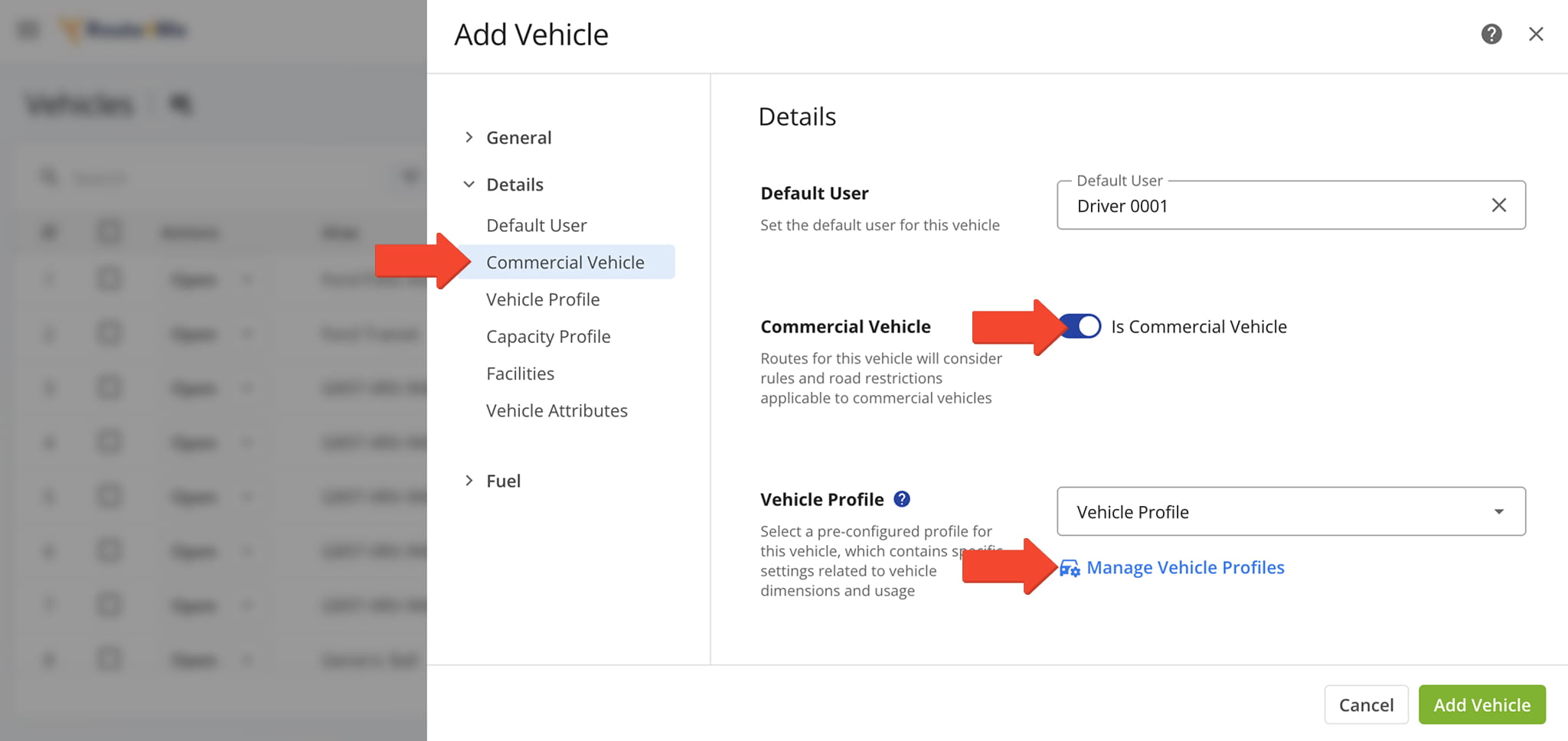
To access your Commercial Vehicle Profiles, click “Team & Equipment” > “Vehicles” in the Navigation Menu. From the Vehicles page, click “Add Vehicle” or, from an existing vehicle, click “Edit“.
In the “Details” tab, toggle “Is Commercial Vehicle”, then click “Manage Vehicle Profiles” in the “Vehicle Profile” dropdown menu. NOTE: The “Vehicle Profile” field is available only when “Is Commercial Vehicle” is on.
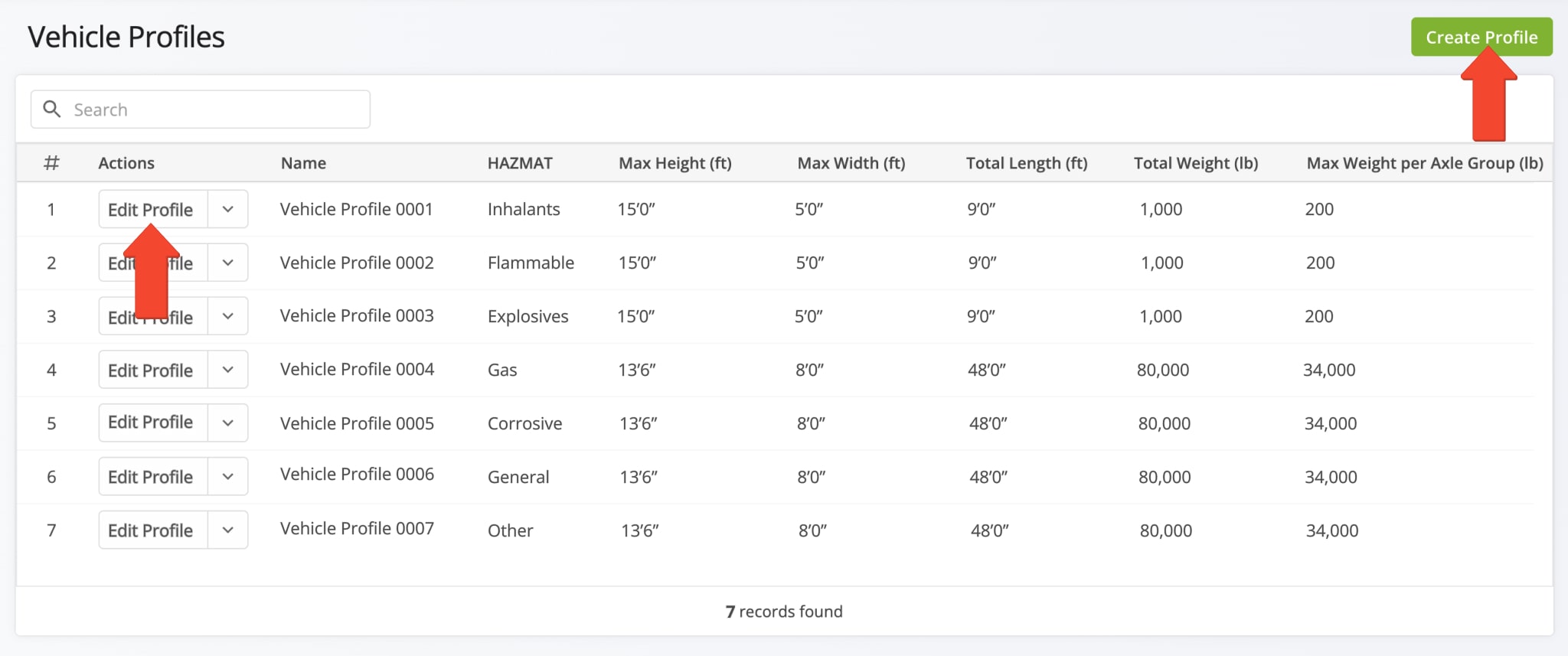
You’ll be redirected to the Vehicle Profiles page, where you can see your existing Commercial Profiles and create new profiles.
To edit an existing Profile, click the “Edit Profile” button. To create a new Commercial Vehicle Profile, click the “Create Profile” button.
NOTE: Learn more about editing commercial vehicles and managing vehicle profiles.
Assign Vehicle Profiles – Apply Commercial Parameters To Fleet Vehicles
After you’ve created a Vehicle Profile, you can assign it to a vehicle in your fleet. To do this, go to “Team” in the Navigation Menu and click “Vehicles“.
From there, if you are adding a new vehicle, click the “Add Vehicle” button. If you are modifying a vehicle already in your list, click the Down Arrow button and select “Edit”.
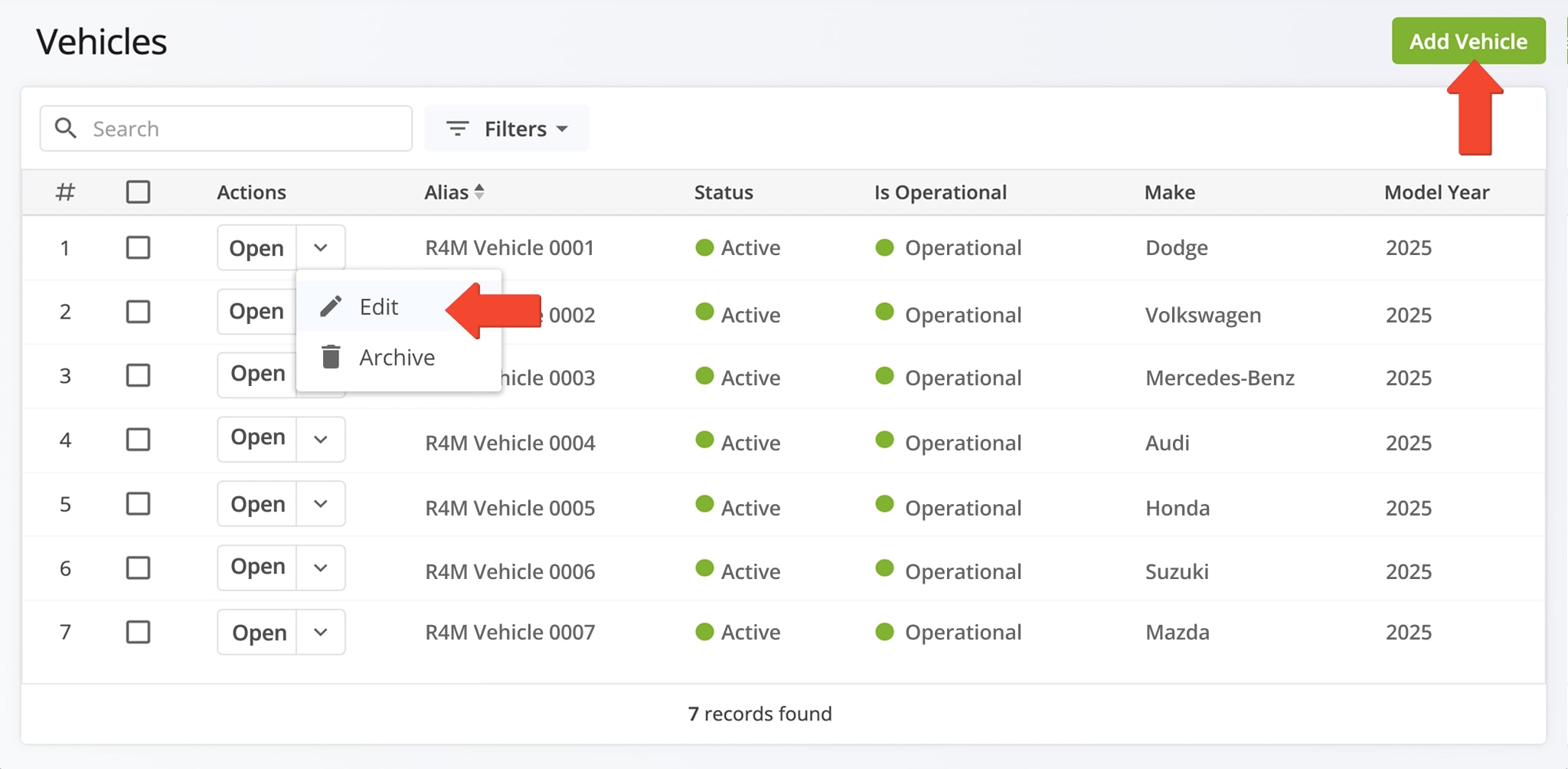
Under “Details“, you’ll find “Vehicle Profiles“. Select a pre-configured profile from the dropdown menu. You can also select for the vehicle a Vehicle Capacity Profile, assign Vehicle Facilities, and provide Vehicle Attributes for Mixed Fleet Routing.
Learn more about how to use Route4Me’s commercial navigation software to create commercial vehicles and manage Vehicle Profiles for streamlined fleet vehicle management.

Plan Truck Routes With Commercial Vehicles
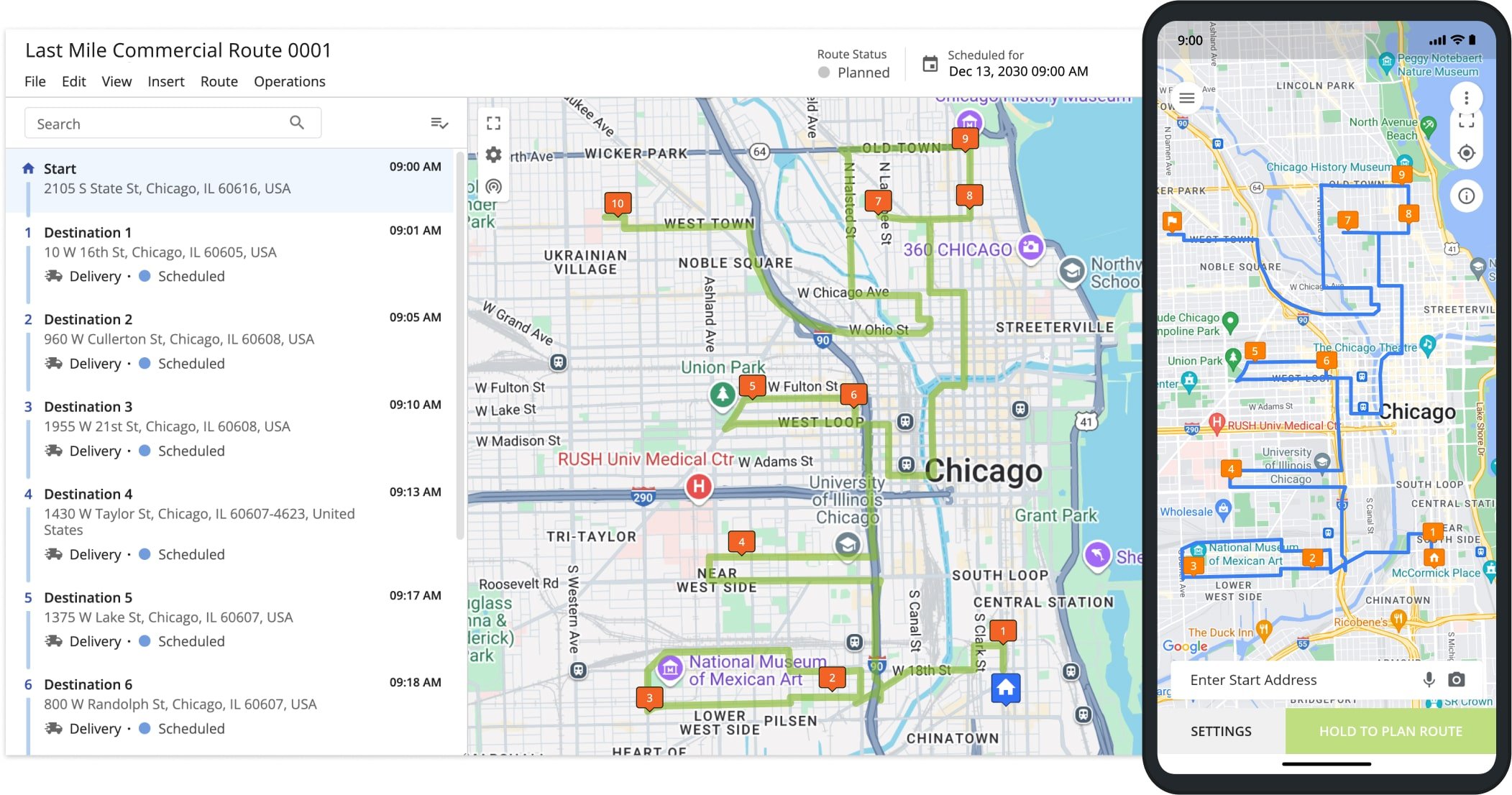
To plan and optimize truck routes for commercial vehicles, go to “Plan New Route” in the Navigation Menu.
Select your preferred route data import method: Interactive Map Editor, Copy-and-Paste, Upload a File, or Import Data. Then select how to plan a route. You can disable optimization, plan routes with Optimization Profiles, or manually optimize a route.
Disable Optimization – Plan Commercial Truck Routes Without Automatic Sequencing
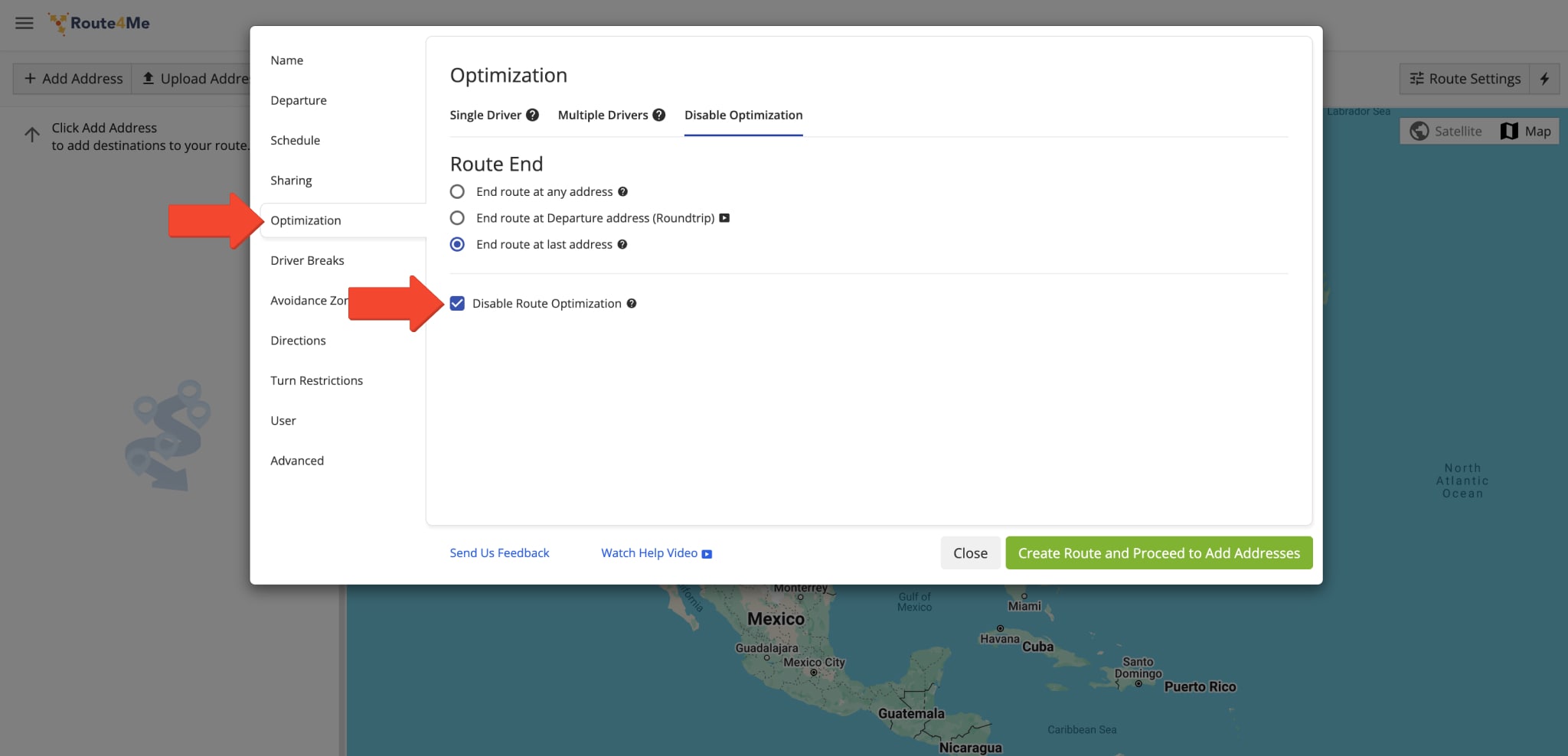
If you check “Disable Route Optimization” box in the “Optimization” tab when planning a route, Route4Me will sequence destinations in the same order they are uploaded or entered into the system.
You may want to leave a route unoptimized if you already have a predefined delivery sequence. Learn more about how to manually plan routes without optimization.
Optimization Profiles – Plan Truck Routes With Predefined Business Rules And Constraints
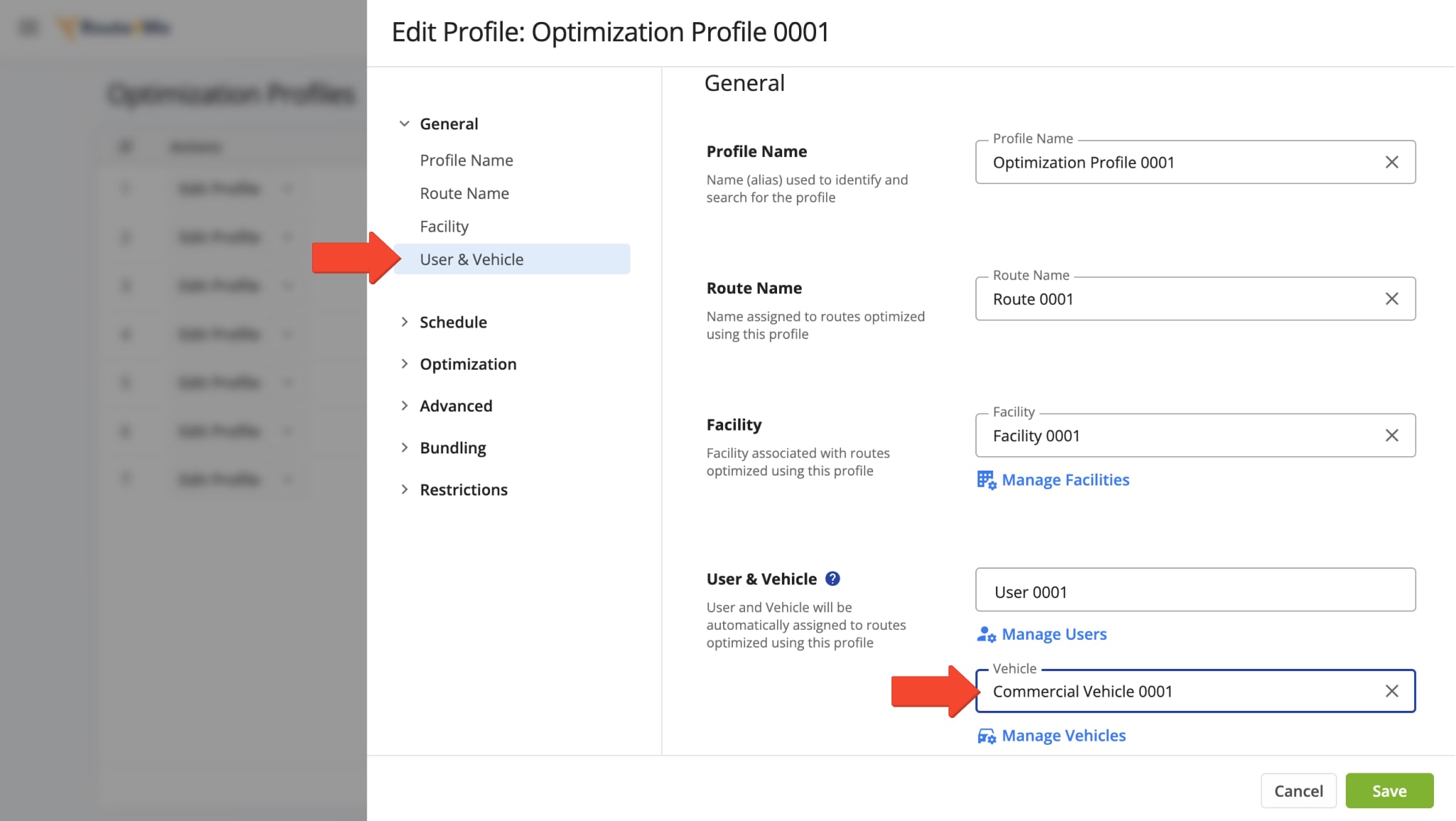
You can select a vehicle with a Commercial Vehicle Profile within the Optimization Profile. To review your list of currently available profiles, go to “Optimization Settings” > “Optimization Profiles” in the Navigation Menu.
To create a new Profile, click “Create New Profile“. To edit an existing Profile, click “Edit Profile“.
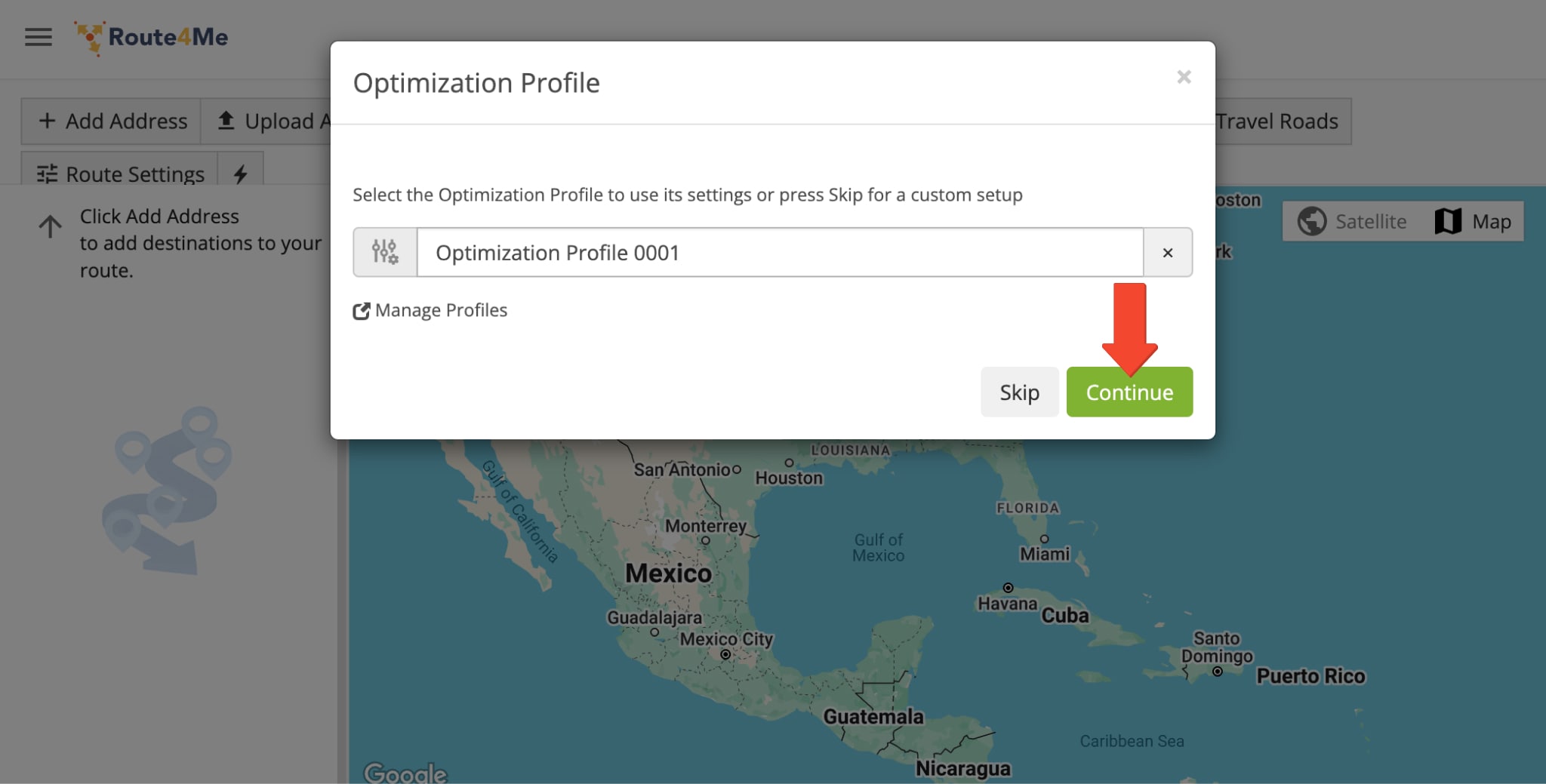
When planning a new commercial route, you have the option to select an Optimization Profile associated with a commercial vehicle. Route4Me will account for the vehicle’s commercial constraints when planning the route.
NOTE: Learn more about route planning with optimization profiles.
Manual Optimization Settings Adjustment – Plan Truck Routes With Customized Route Settings
If you want to manually optimize a route, go to the “Optimization” tab and select the desired optimization type: Single Driver or Multiple Drivers. Then choose where to end the route: at any address, at departure address, or at last address.
For Multiple Drivers, you’ll need to complete additional advanced optimization fields: “Destination Distribution“, “Mixed Vehicle Fleet“, and “Business Rules“. Learn more about Business Rules and custom route optimization settings.
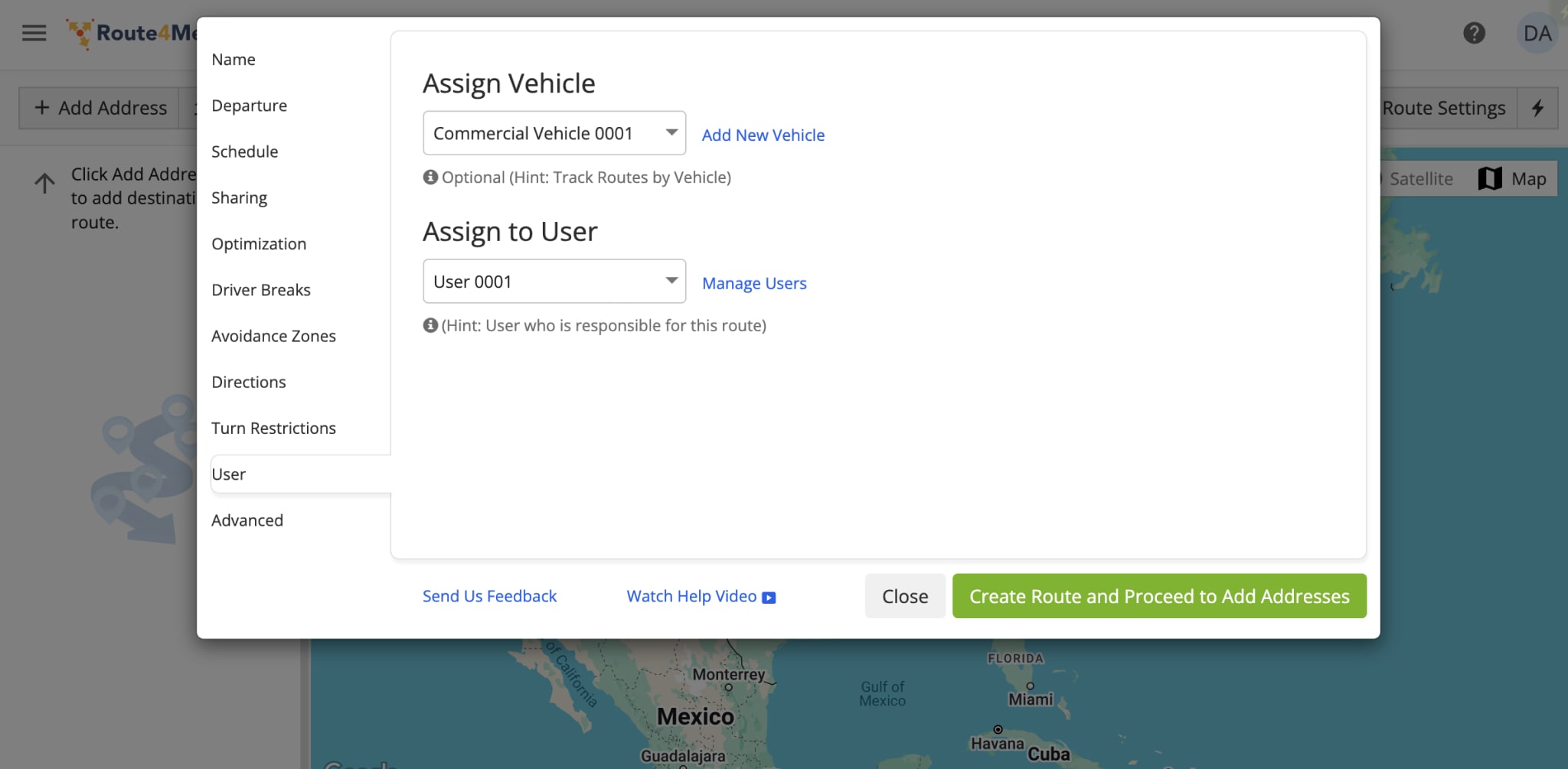
After configuring your optimization settings, go to the “User” tab and select the commercial vehicle you want to assign to the route. Then, click “Create Route and Proceed to Add Addresses“.
NOTE: If the vehicle assigned to the route lacks a Vehicle Profile with commercial parameters, the route will not be optimized for commercial use.
Commercial Road Restriction Violations – View Restricted Areas On Your Route
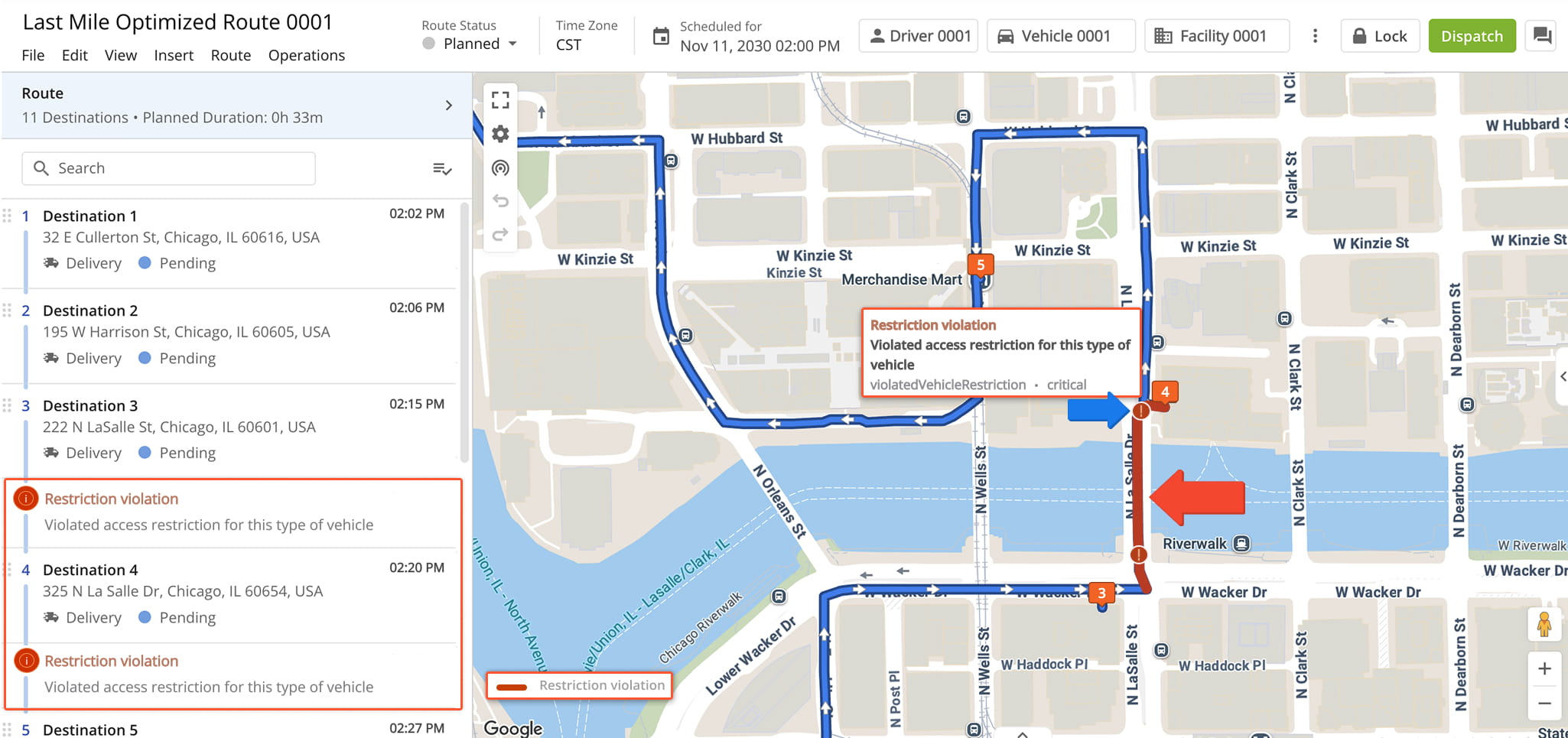
Some destinations can only be reached by driving through roads that are restricted for your commercial vehicle.
In these cases, Route4Me can still plan and optimize the route, and it marks every restricted stretch on the map so you can see where the restrictions are. Because these sections are not approved for your vehicle, following them is at your own risk.
NOTE: Learn more about commercial road restriction violations.
View Truck Restrictions On Map – Truck Route Map Layers
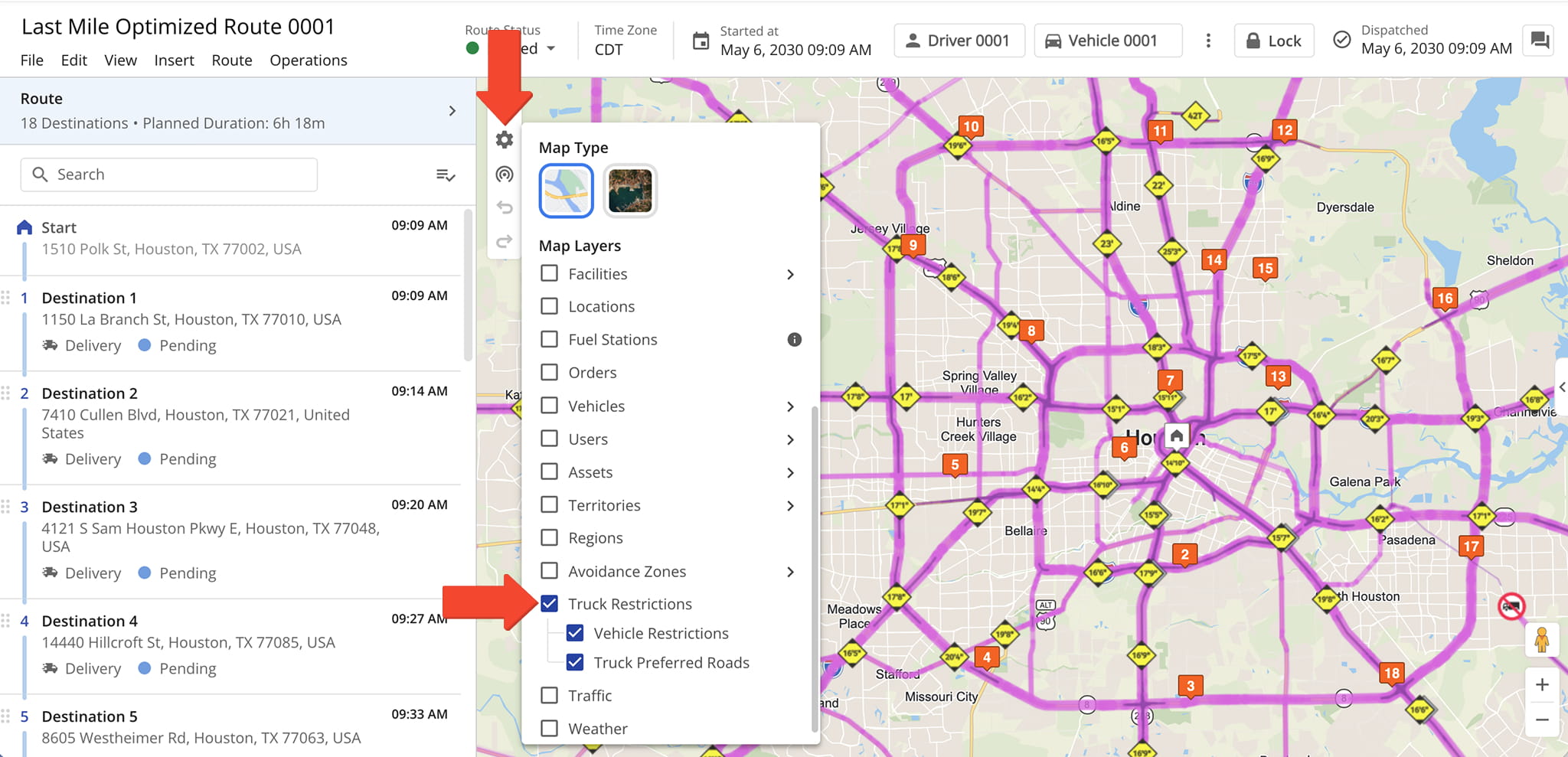
The Routes Map can display commercial road restrictions on the map. See why a commercial route takes longer, such as when the most direct road is restricted for commercial vehicles, and confirm the route follows suitable roads before dispatch.
To view this from the Route Editor or Routes Page map, open the Routes Map and click the Gear Icon. Under “Map Layers“, select “Truck Restrictions” and choose one or both options:
- Vehicle Restrictions: Highlights roads with commercial vehicle restrictions.
- Truck Preferred Roads: Highlights roads where trucks are preferred.
Commercial Vehicle Navigation – Truck Navigation App
After planning a route with a Commercial Vehicle Profile, you’ll be able to assign it to a User. The User, typically a Driver, can access the route via their account on Route4Me’s Android Route Planning app, or iPhone Route Planning app.
They will be prompted to navigate the commercial truck route as it was sequenced in Route4Me’s last mile route optimization software.
NOTE: Actual navigation can differ from the initially planned route due to real-time factors like weather, traffic, and road closures. Use Route4Me’s mandatory navigation feature if you require a driver to follow the route path as planned.
Commercial Truck Navigation Versus Regular Truck Navigation
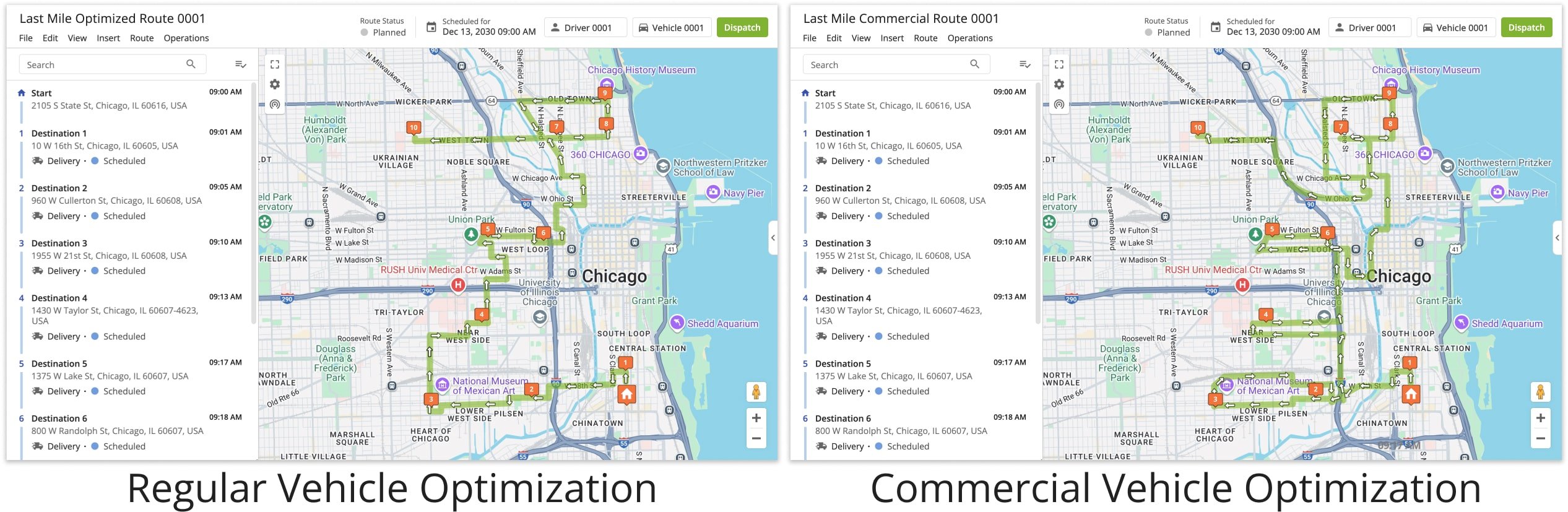
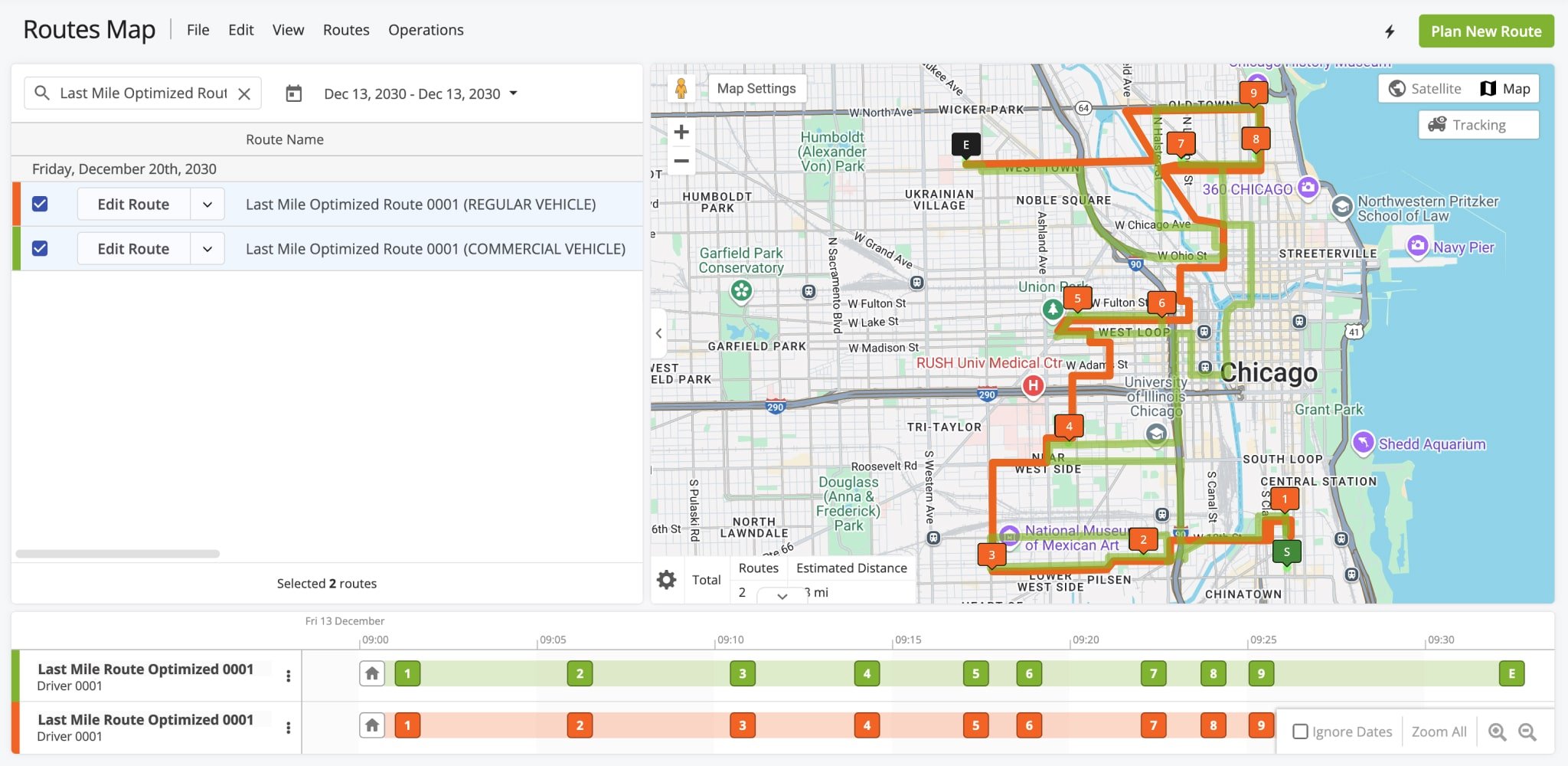
With Route4Me’s dynamic routing software, you can convert a regular vehicle route into a commercial route by assigning a vehicle with a Commercial Vehicle Profile and re-optimizing.
You can assign vehicles to routes from the Routes List, Routes Map, and the Route Editor. Open the route in the Routes Map to see how your changes affect its directions and metrics.
Supported Countries And Commercial Road Network Coverage
Commercial routing functions based on the available road network data for truck restrictions and regulations. While supported in most countries, commercial routing data may only be available for certain road types in different regions.
See the table below for a full list of supported countries and commercial routing coverage defined as:
- Full Coverage: Truck restrictions and regulations are available everywhere, except for some of the smallest local roads.
- Motorway Coverage: Truck regulations and restrictions are available along motorways and main roads.
Commercial Coverage by Country
FAQ & Troubleshooting – Common Commercial Vehicle Routing Questions
Visit Route4Me's Marketplace to Check out Associated Modules:
- Operations
Advanced Team Management Add-On
- Operations
Audit Logging and Activity Stream
About author: Alex Yasko