
Plan Multiple Routes With Multi-Stop Route Planner App
Route4Me’s Mobile Route Planner provides seamless continuity throughout the entire process of multi-stop route planning, optimization, navigating, and completing routes. With Route4Me, you can easily sequence fast and profitable routes. In this guide, you can learn how to plan multiple routes from a single set of addresses Specifically, how to set optimization constraints, sequence and schedule multi-address routes, and use the mobile route editor.
Table of Contents
Plan Multiple Routes – Route Settings And Optimization Constraints
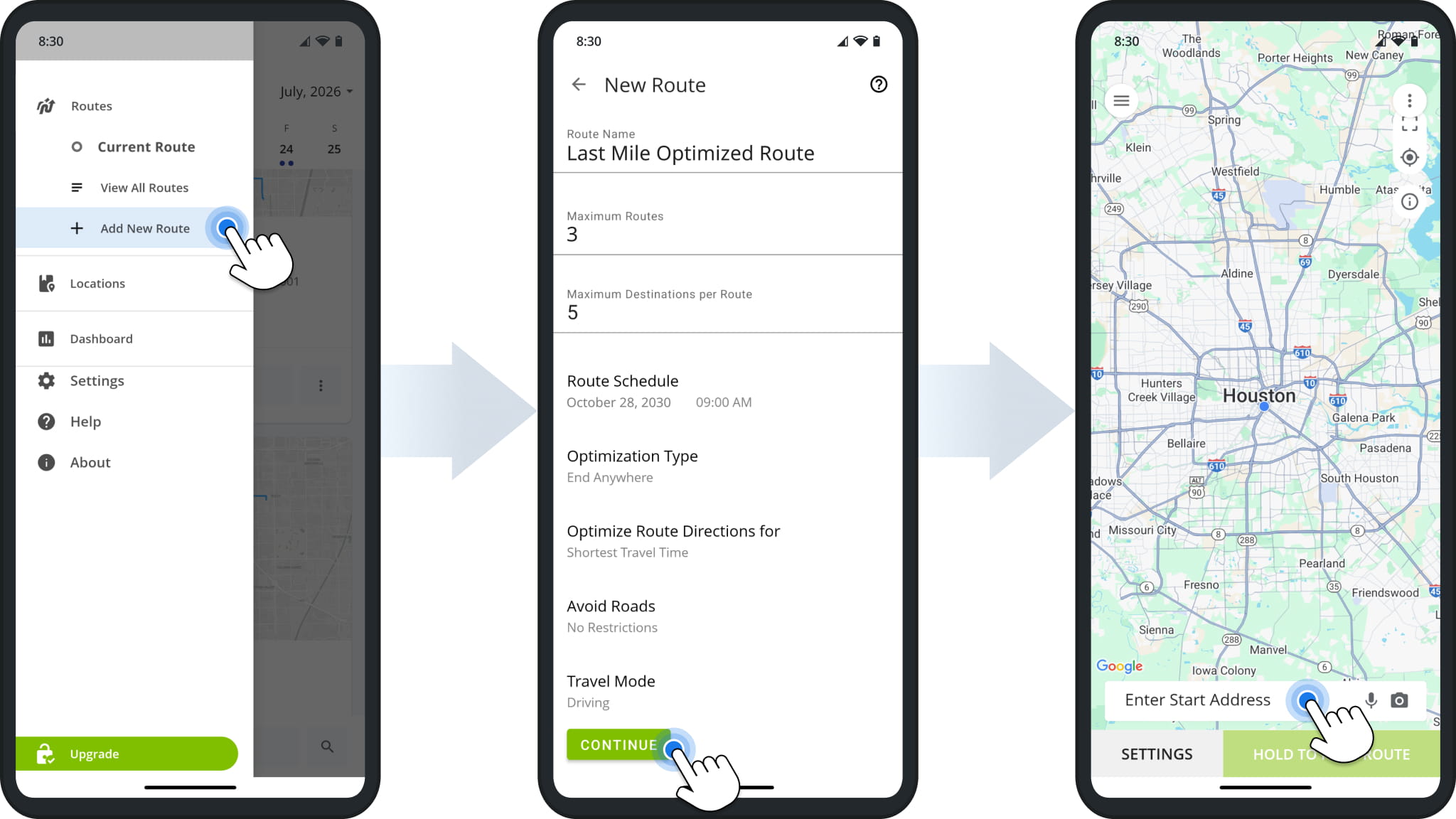
To plan multiple routes on the mobile app, tap “Add New Route” from the main menu. Then, set your optimization constraints, tap “Continue“, and proceed with mobile route planning as usual by tapping “Enter Start Address“.
See the table below for a breakdown of route settings and optimization constraints.
Mobile App Route Settings
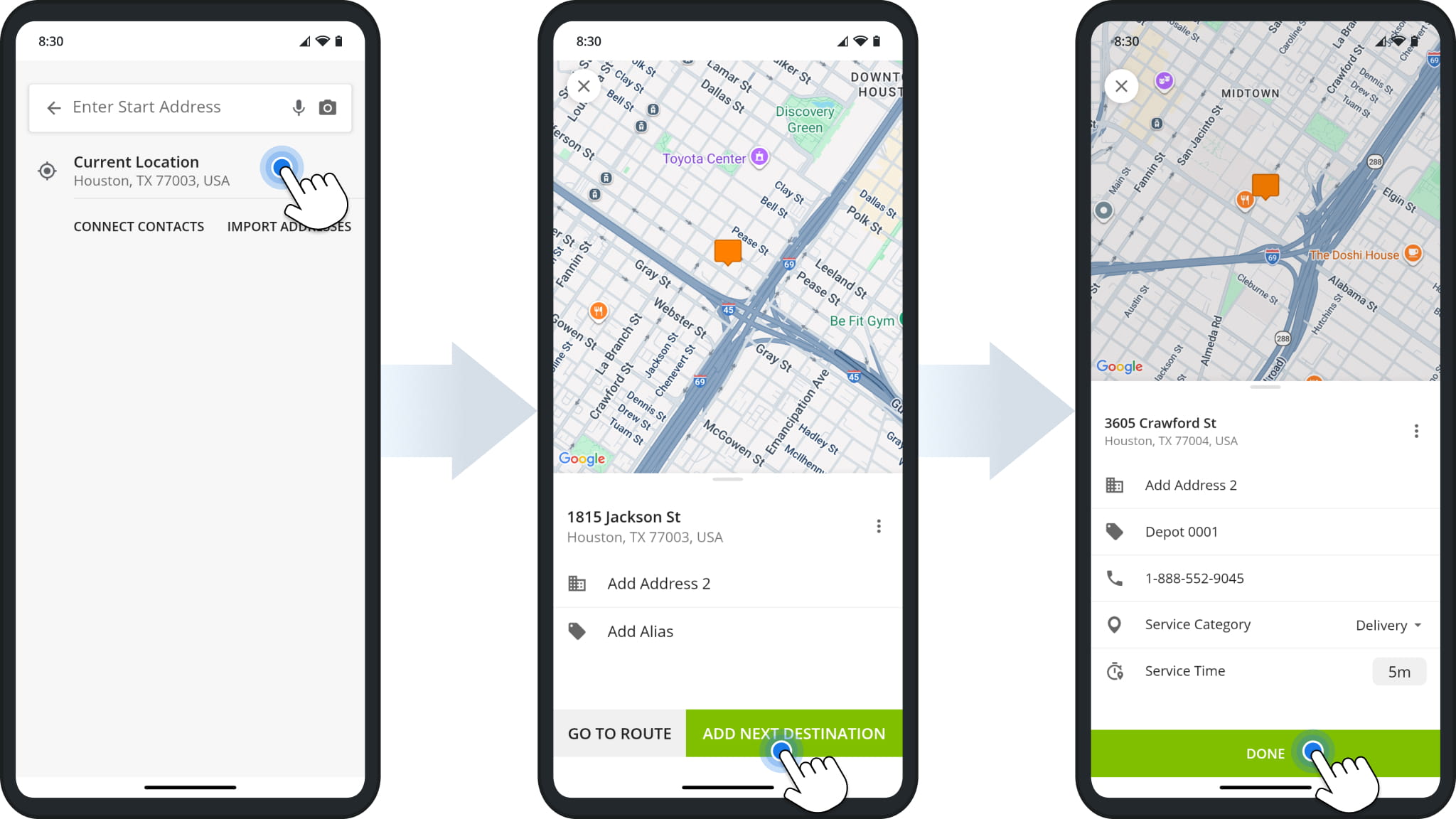
Select your current location or enter an address from which your routes will start. From there, add addresses on the app as usual and tap “Go To Route” when finished.
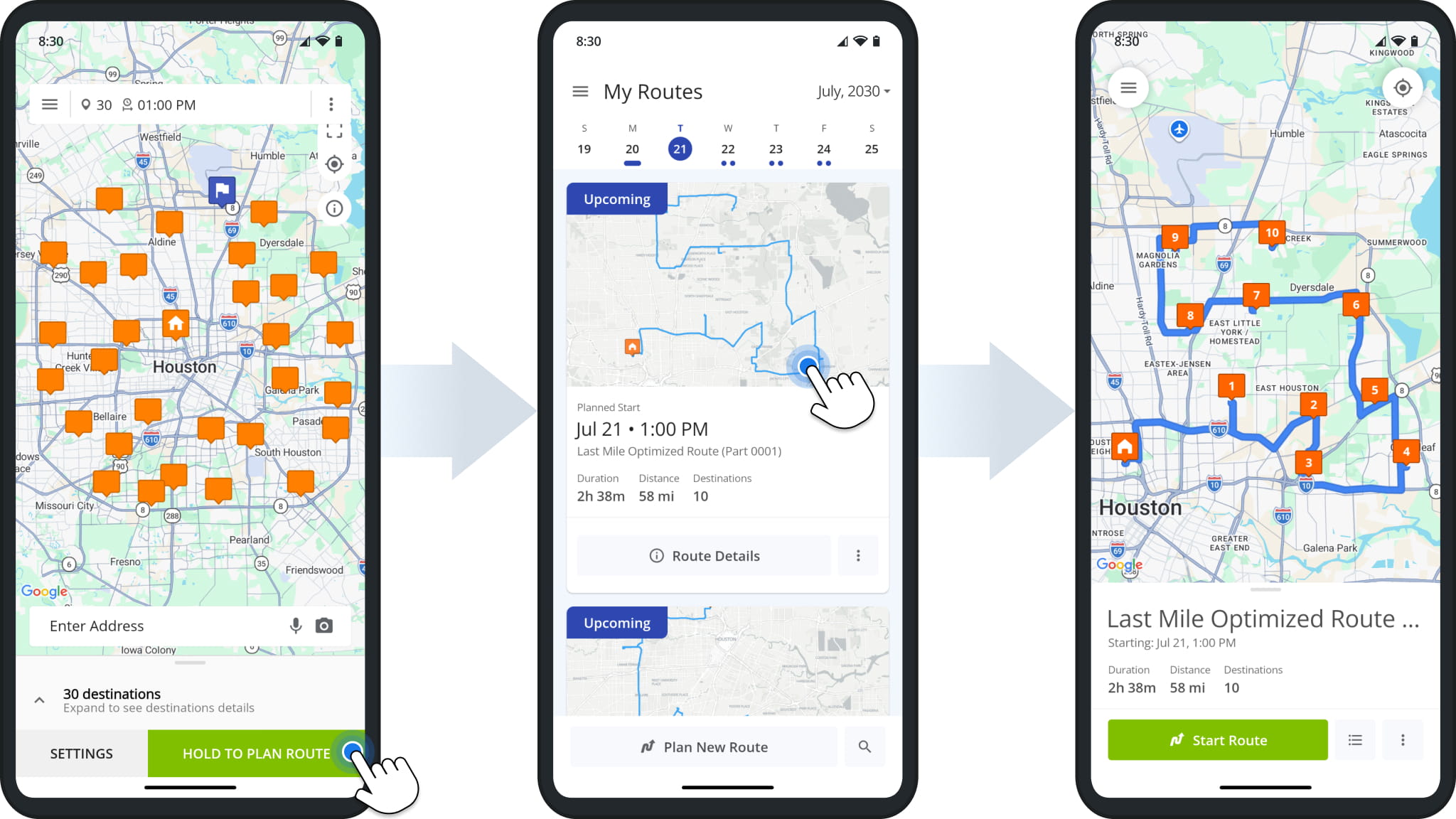
Tap “Hold To Plan Route“, and the app will automatically sequence the optimal number of routes and distribute addresses among them according to your settings. You can find the new routes in the Routes List.
When you plan multiple routes, they’ll be scheduled for the same date and time. Keep reading to learn how to reschedule routes.
Schedule Routes – Edit Route And Schedule Settings
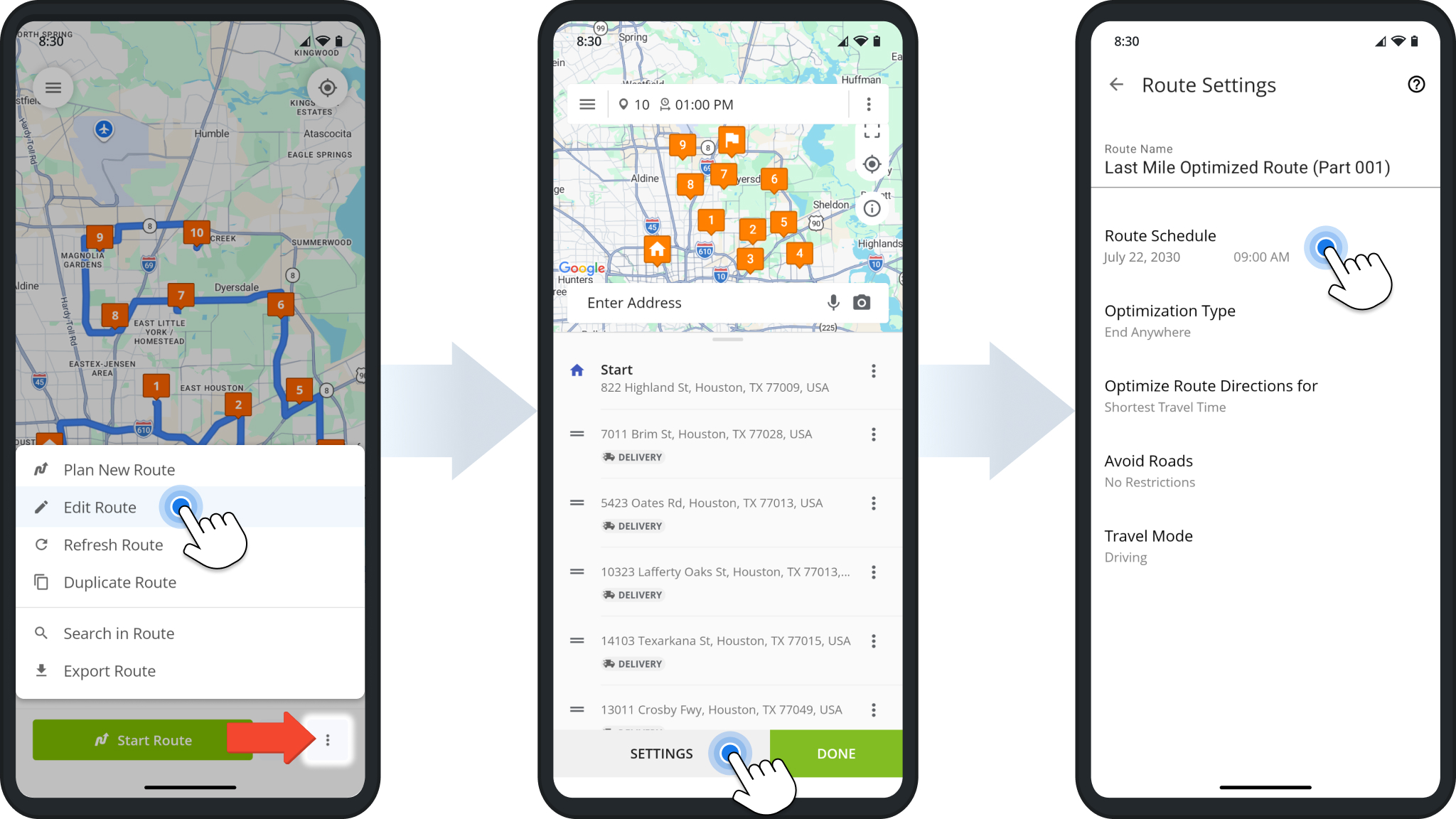
To change the date and time when a route is scheduled to start, open the route, tap the Three-dot Button in the bottom-right, and select “Edit Route“. Then, tap “Settings” to see the same options as when planning routes.
Tap the “Route Schedule” field and input a new date and time. After that, go back and tap the “Done” button to save your changes.
Unrouted Destinations – Resolve Settings Conflicts And Re-Optimize
Depending on constraints like maximum routes and destinations per route, you may get Unrouted Destinations. These are addresses that couldn’t be included in an optimized route based on your settings. They appear as a route without directions or optimization in your Routes List. To resolve this conflict, you can:
- Plan routes with different settings that allow all your addresses to be included in optimized routes.
- Delete routes marked as “(Unrouted Destinations)” from your Routes List (not recommended).
- Use the Route Editor to adjust the “(Unrouted Destinations)” and optimize a new route as described below.
– To do so, first open and edit the Unrouted Destinations route as described above in the section on scheduling.
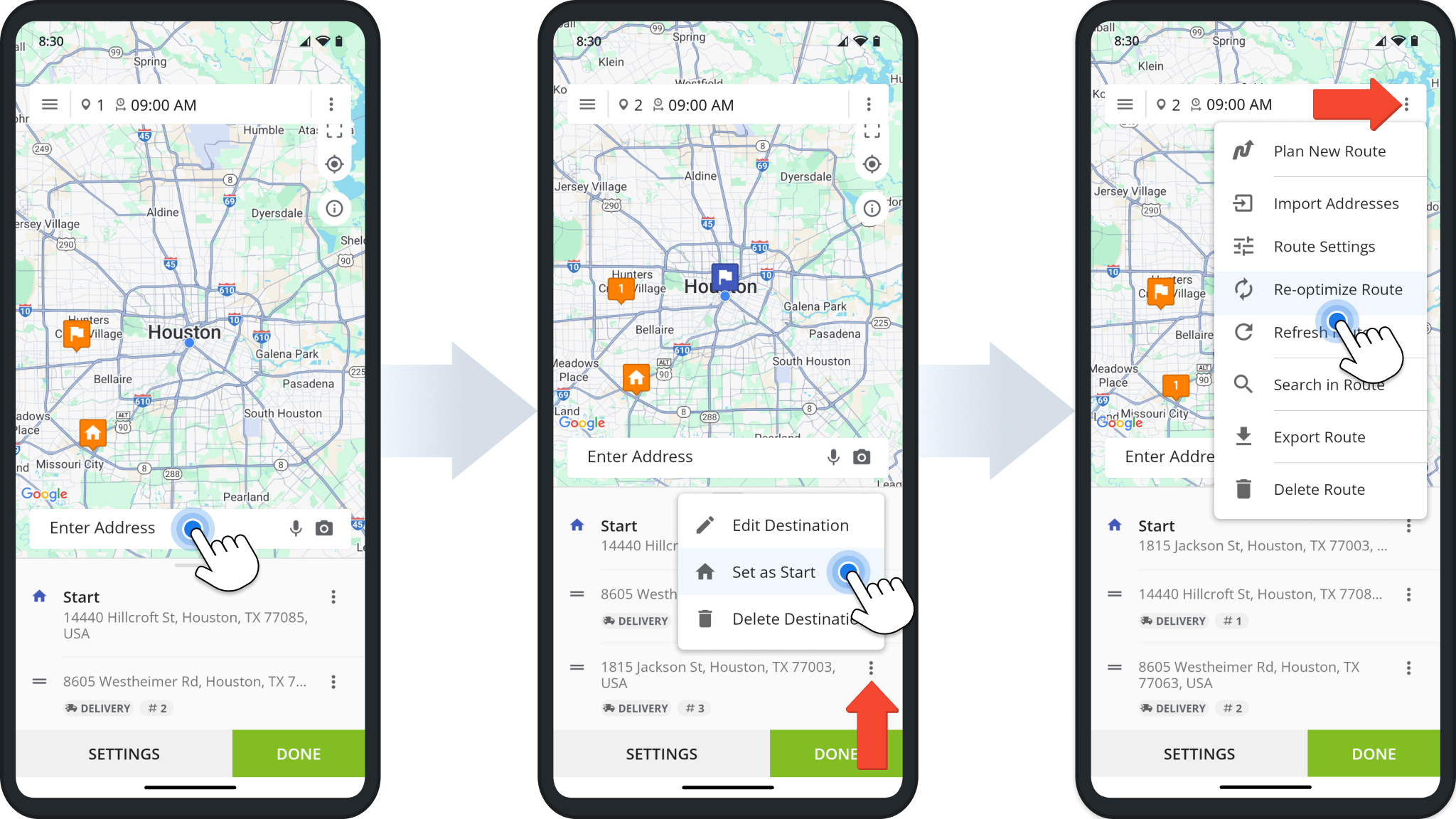
To avoid using an unrouted destination as the route start, tap “Enter Address” and add a new destination. Then, tap the Three-dot Icon next to it and select “Set as Start“. Finally, tap the Three-dot Icon in the top-right and select “Re-optimize Route“.
Free Android And iPhone Route Planner Unlimited Stops Test Drive
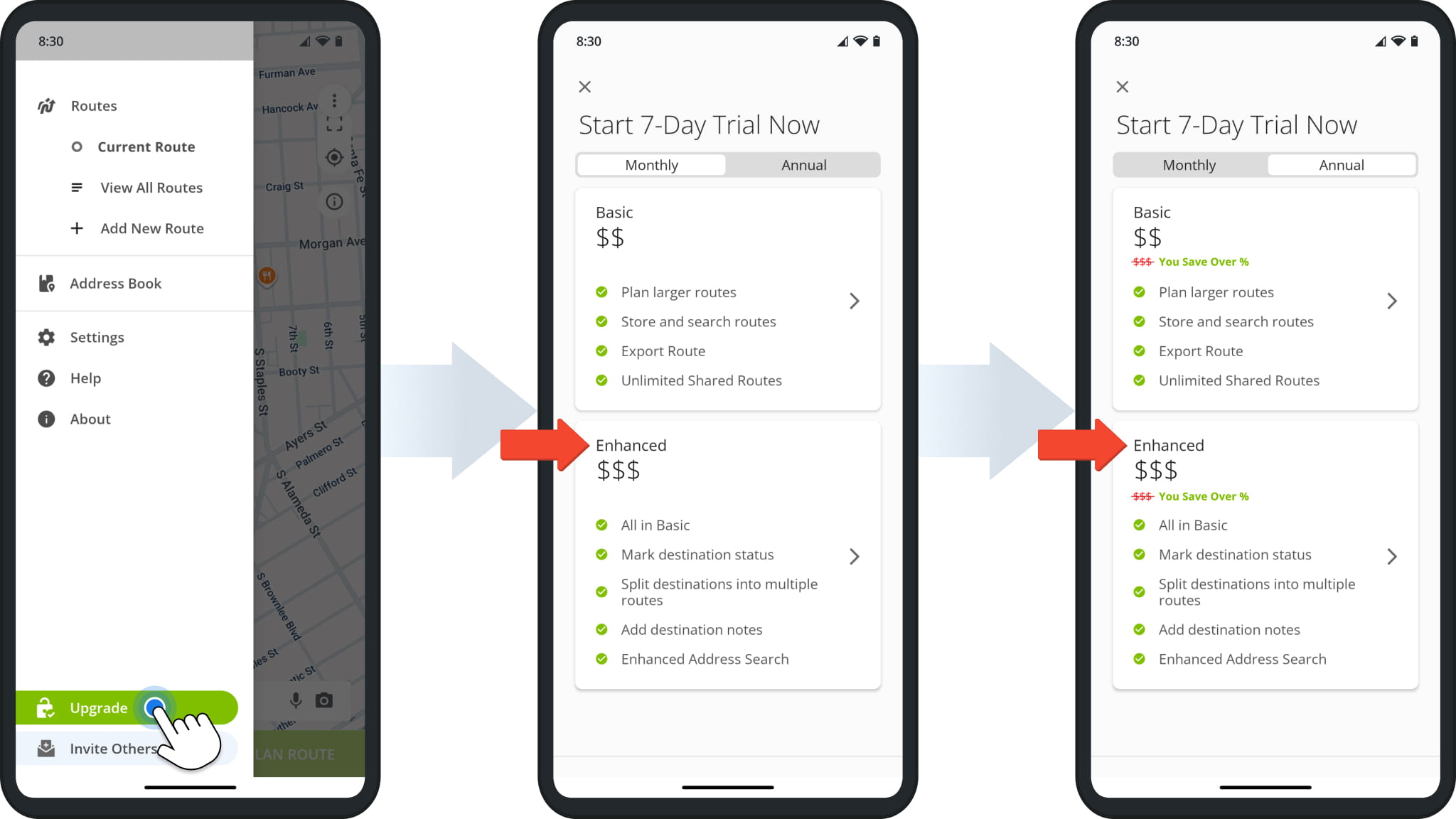
You can try out Route4Me before subscribing by starting a free route planner trial. For 7 days, you can enjoy a free route planner with unlimited stops, giving you a free test drive of all the app’s multi-stop route planning features.
To plan multiple routes for free during your 7-day test drive, pick the “Enhanced” package. You can choose between starting a monthly subscription after your trial is over or an annual subscription to reduce monthly costs.
Visit Route4Me's Marketplace to Check out Associated Modules:
- Operations
Custom Data Add-On
- Operations
Advanced Team Management Add-On
About author: Kristian Andreev

