Incident Replay – Reconstruct Safety Incidents In Spatial 3D
When a vehicle incident happens, the facts are usually scattered across GPS breadcrumbs, a flat map, and a separate dashcam clip. Route4Me 3D Incident Replay brings them together in one place, rebuilding the moments before, during, and after an incident. Safety managers can review what happened from any angle, slow down the critical seconds, and share the replay with claims adjusters or legal teams. Here is a look at how it works. To see it with your own fleet’s data, request a demo.
The replay below shows a sample rear-end collision as it appears in the Route4Me Incident Center. In this example, playback slows down at the point of impact so you can see exactly how the incident unfolded.
Map data © OpenStreetMap contributors.
Table of Contents
What Is Incident Replay? – Fleet Incident Reconstruction In 3D
Incident Replay turns an incident from the Incident Center into a 3D reconstruction you can play back. It combines the vehicle’s telematics data, road and building layers built from OpenStreetMap data, and synced dashcam footage when available.
Instead of a single pin on a flat map, you can see the vehicle’s path, speed, and surroundings as the event unfolds. The result is a clearer, faster incident review for everyone involved:
- Defend against false claims. Show insurers and legal counsel a shareable reconstruction of what happened.
- Coach drivers with context. Walk drivers through risky moments with the road, the speed, and the camera view in front of them.
- Speed up investigations. Review the incident timeline in minutes instead of piecing it together from separate tools.
- Share in one click. Send a secure replay link to adjusters, attorneys, or internal reviewers.
How To Open An Incident Replay – View Safety Incident Details
To open a replay, go to “Dispatch & Tracking” > “Incident Center” from the main navigation menu. To view an incident’s details, click “Open” next it, then click “Open Replay”.
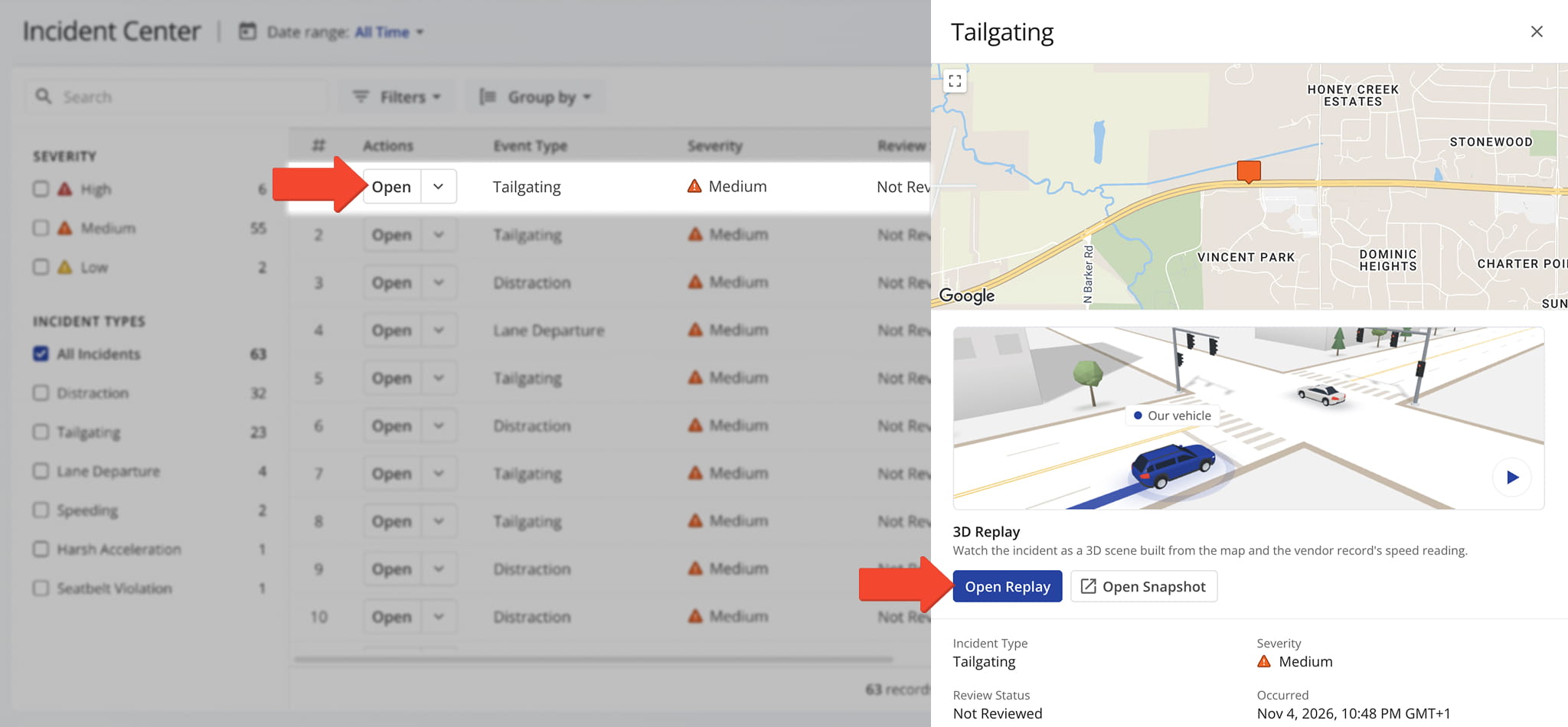
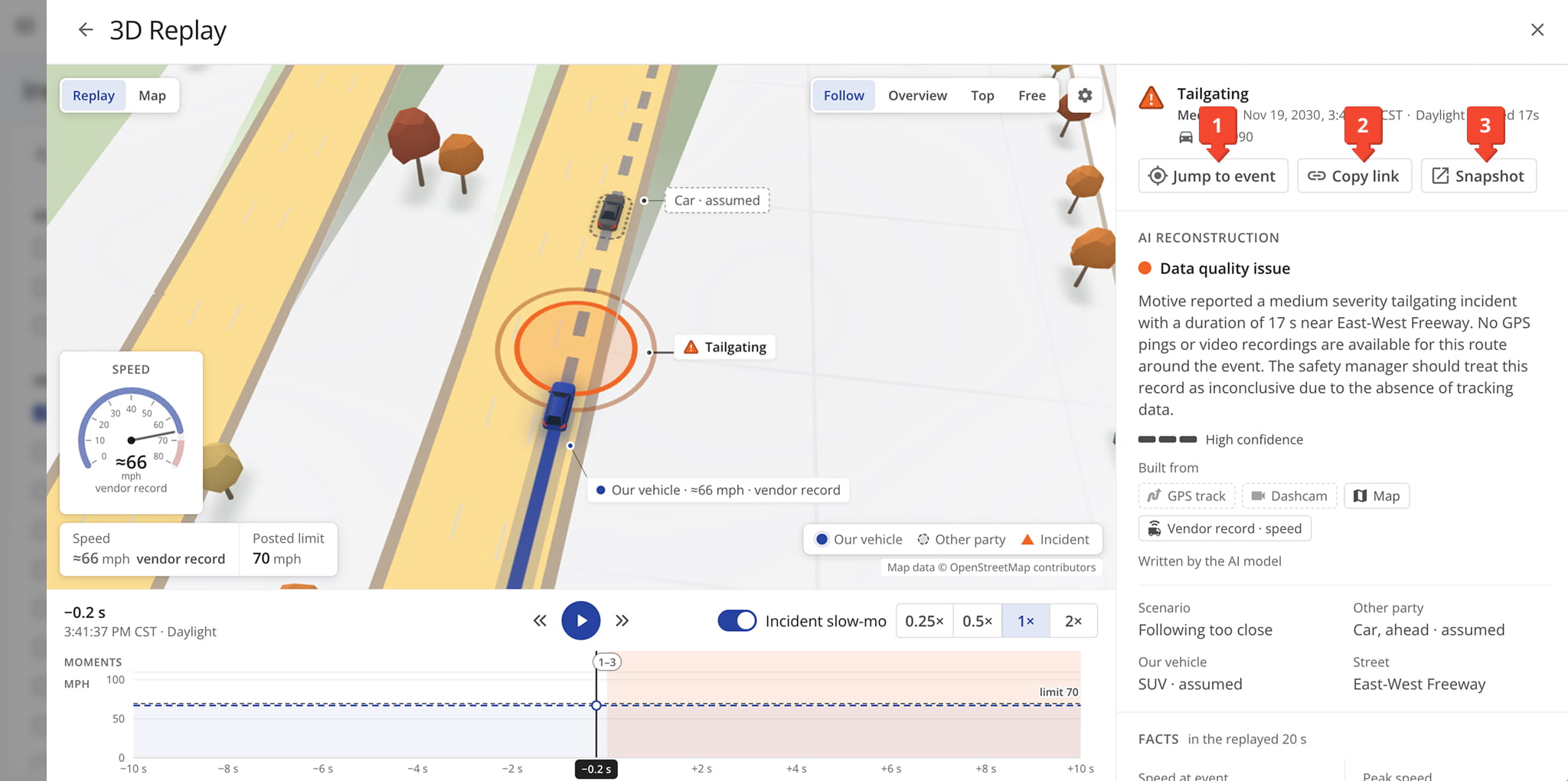
When you open a 3D Replay, the reconstruction appears on the left and the incident details appear on the right. From the details panel, you can share the replay, open the related snapshot, or find the incident on the map:
- Jump to event – Click “Jump to event” to move the map to where the incident happened.
- Copy link – Click “Copy link” at the top of the details panel to share the replay.
- Snapshot – Click “Snapshot” to open the Incident Snapshot and review the incident further.
Incident Replay Settings – Views, Cameras, And Playback Speed
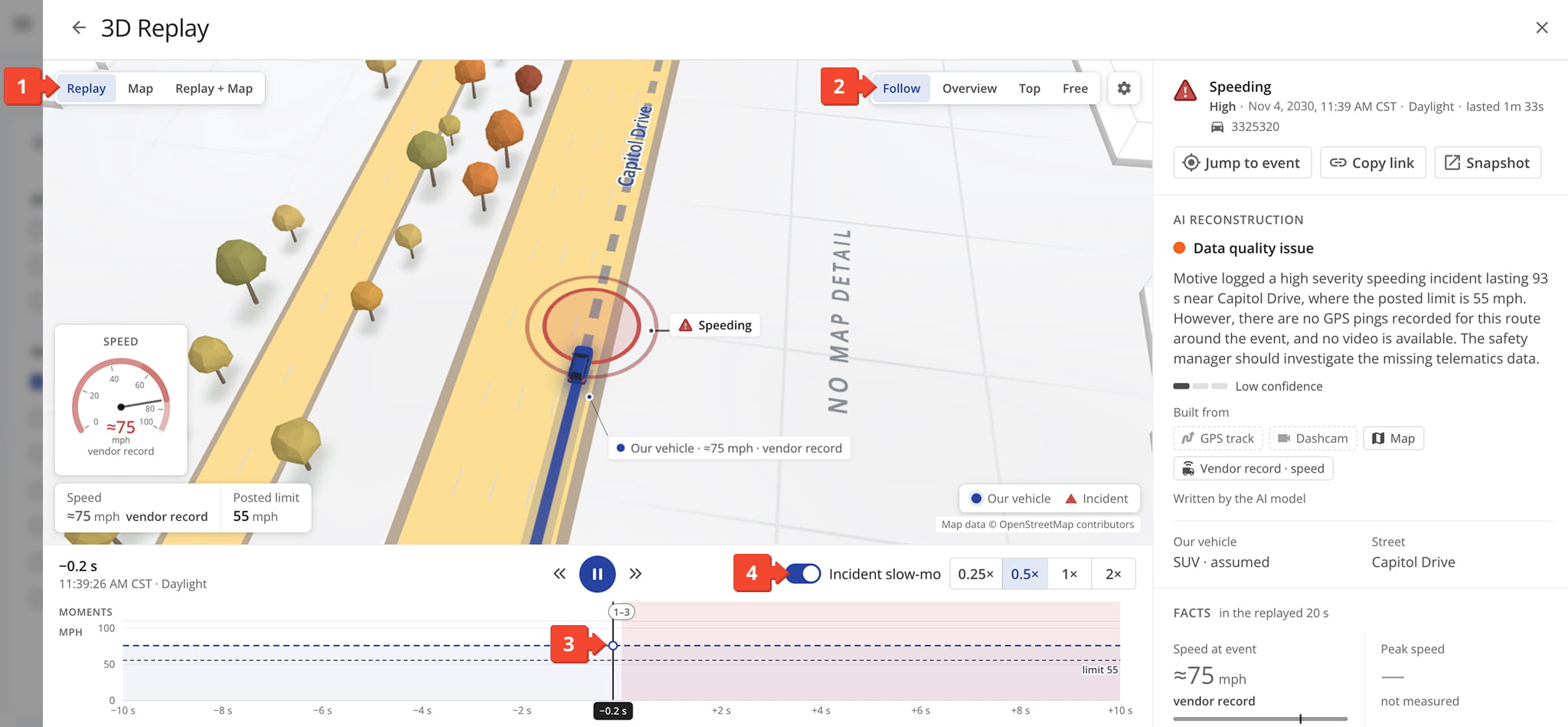
Use the Replay controls to choose how you view an incident, from which angle, and at what speed:
- View tabs – Switch between “Replay” (3D reconstruction), “Map” (standard map), and “Replay + Map” (both side by side).
- Camera modes – Choose “Follow” to track behind the vehicle, “Overview” for a wider view of the intersection, “Top” for lane position and spacing, or “Free” to click and drag to any angle.
- Timeline – Drag to jump to any point. Press the Blue Button above the Timeline to play or pause.
- Playback speed – Play at 0.25× to 2× speed, or turn on “Incident Slow-Mo” to slow down automatically around the key moment.
Managing Incident Replays – Search, Filter, And Group Incidents
Your Incident Center page shows all recorded incidents. To quickly find a specific incident or type of incident, use the “Search” field, or narrow the list with the “Group By” or “Filters” options, detailed below.
NOTE: Learn more about your Route4Me Incident Center page.
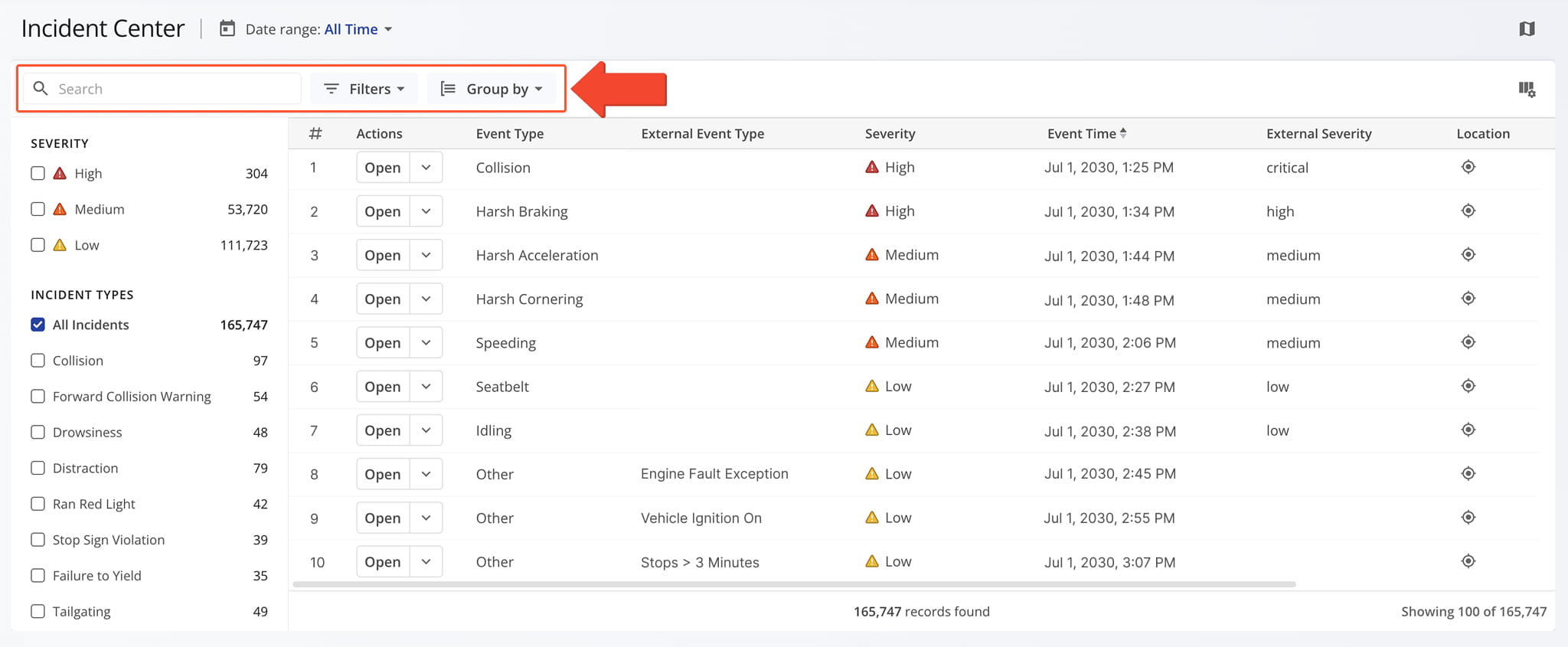
Incident Replay Group By Options
Incident Replay Filters
Common Incident Types – Reconstructing Fleet Safety Events In 3D
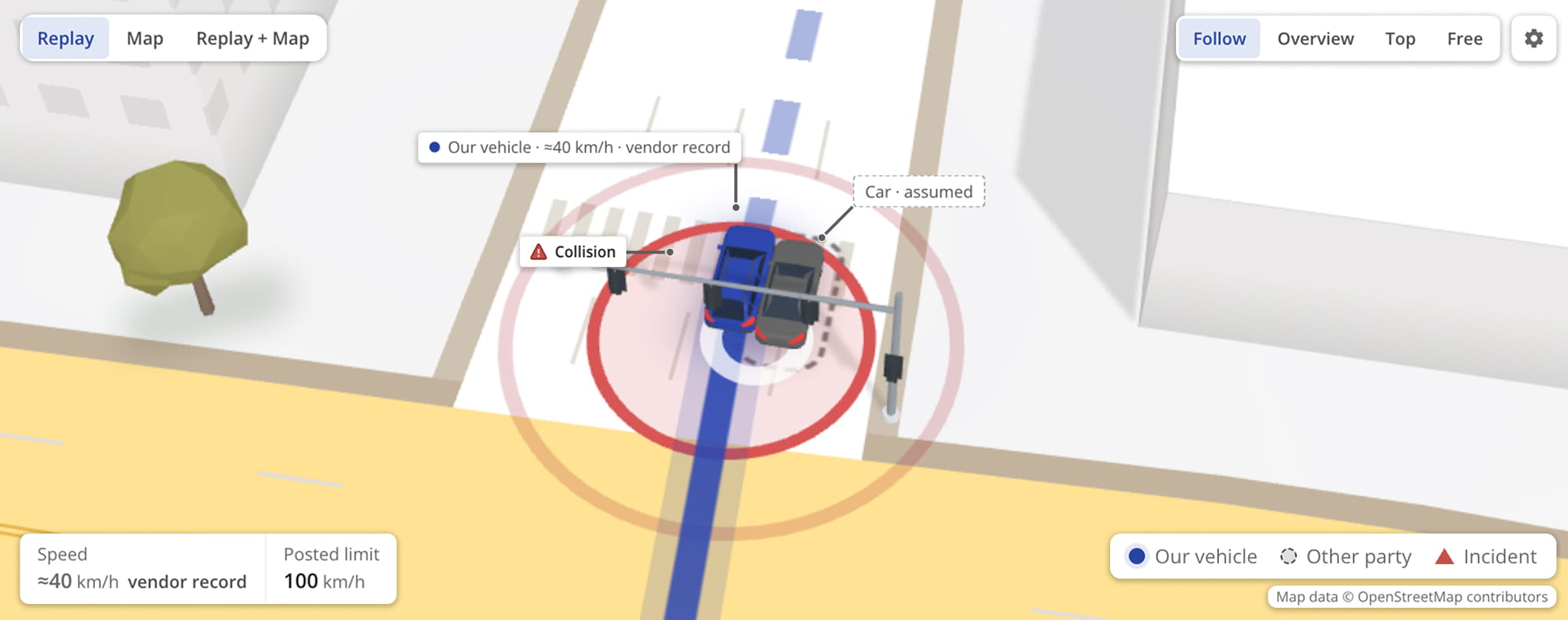
Collisions – Sudden Braking And Following Distance
A safe driver keeps a cushion of space around the vehicle, not just in front. See where that space ran out and whether the collision could have been avoided.
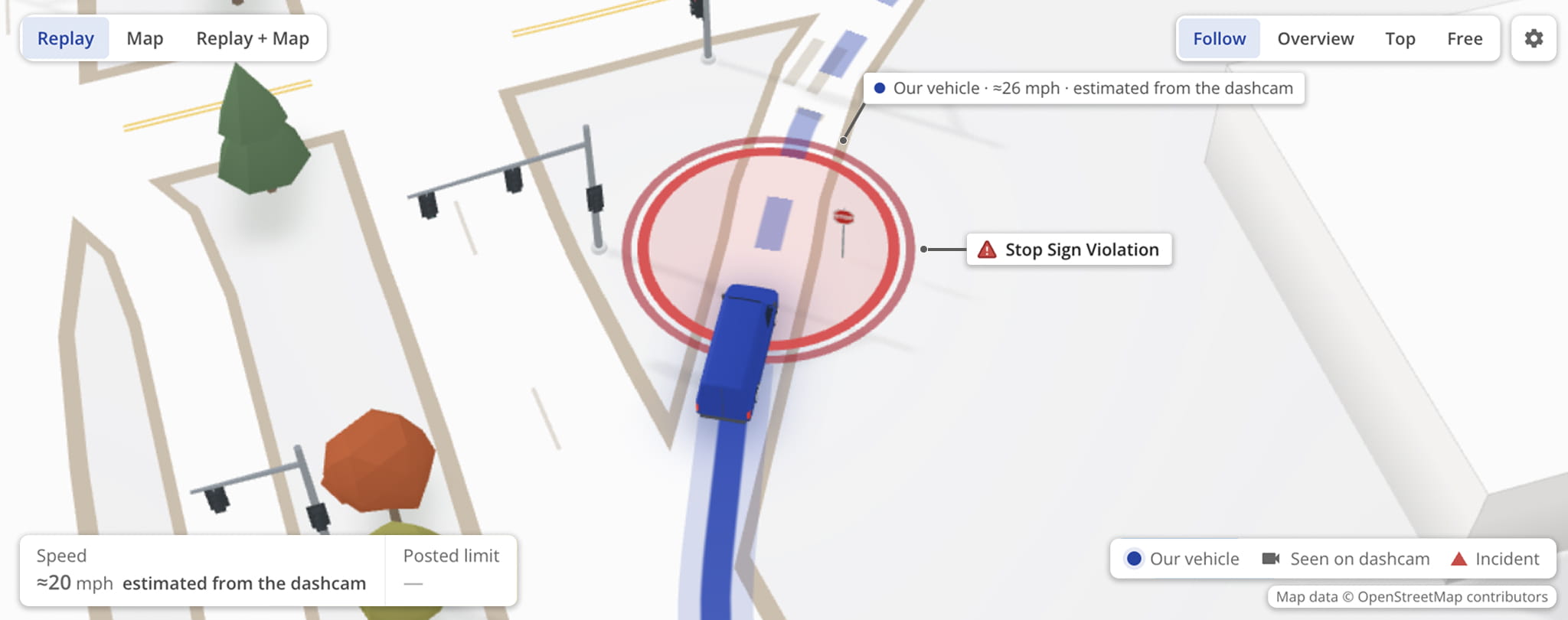
Stop Sign Violation – Rolling Stops At Intersections
A full stop means the wheels stop turning completely at the stop line, not just slowing down. See your driver’s speed as they reached the line and whether they stopped or rolled through.
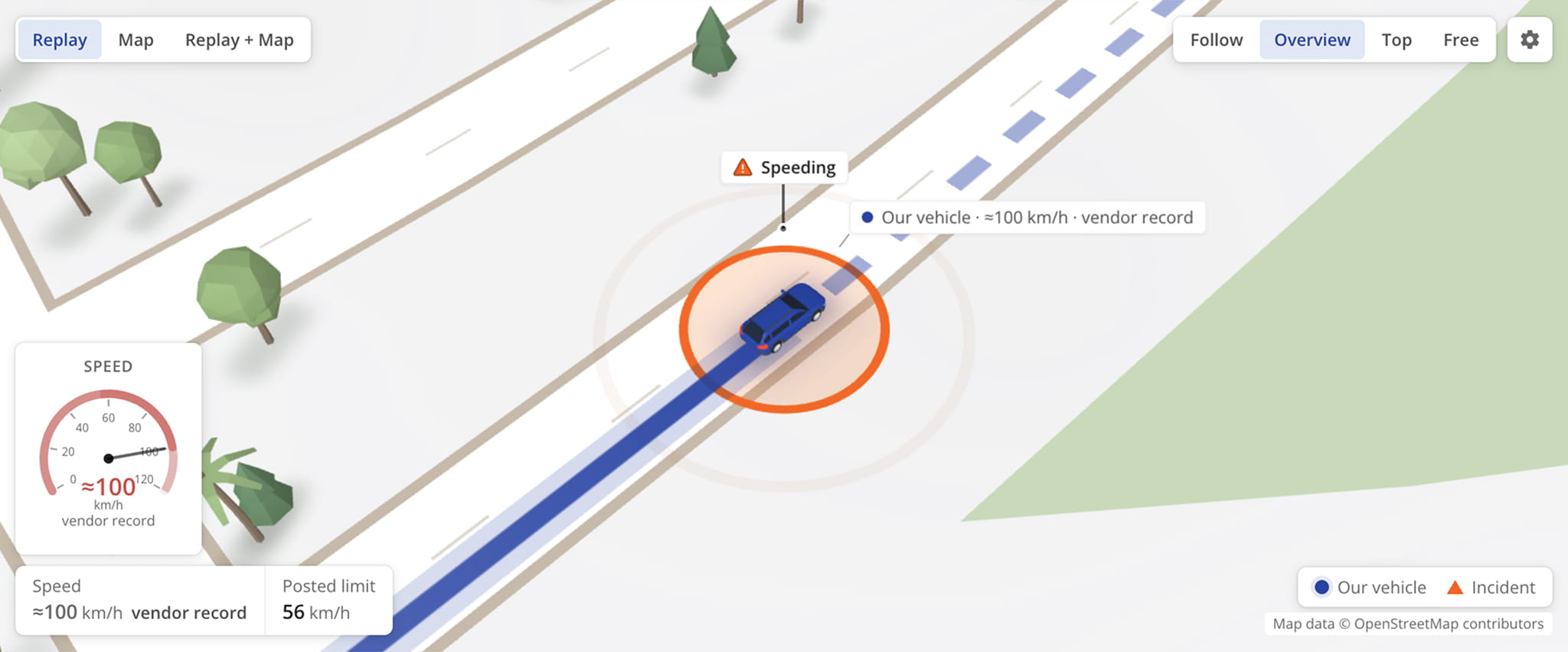
Speeding – Vehicle Speed Versus The Posted Limit
Speeding means driving above the posted limit, or faster than is safe for the conditions even when under it. See how far over the limit your driver went and for how long.
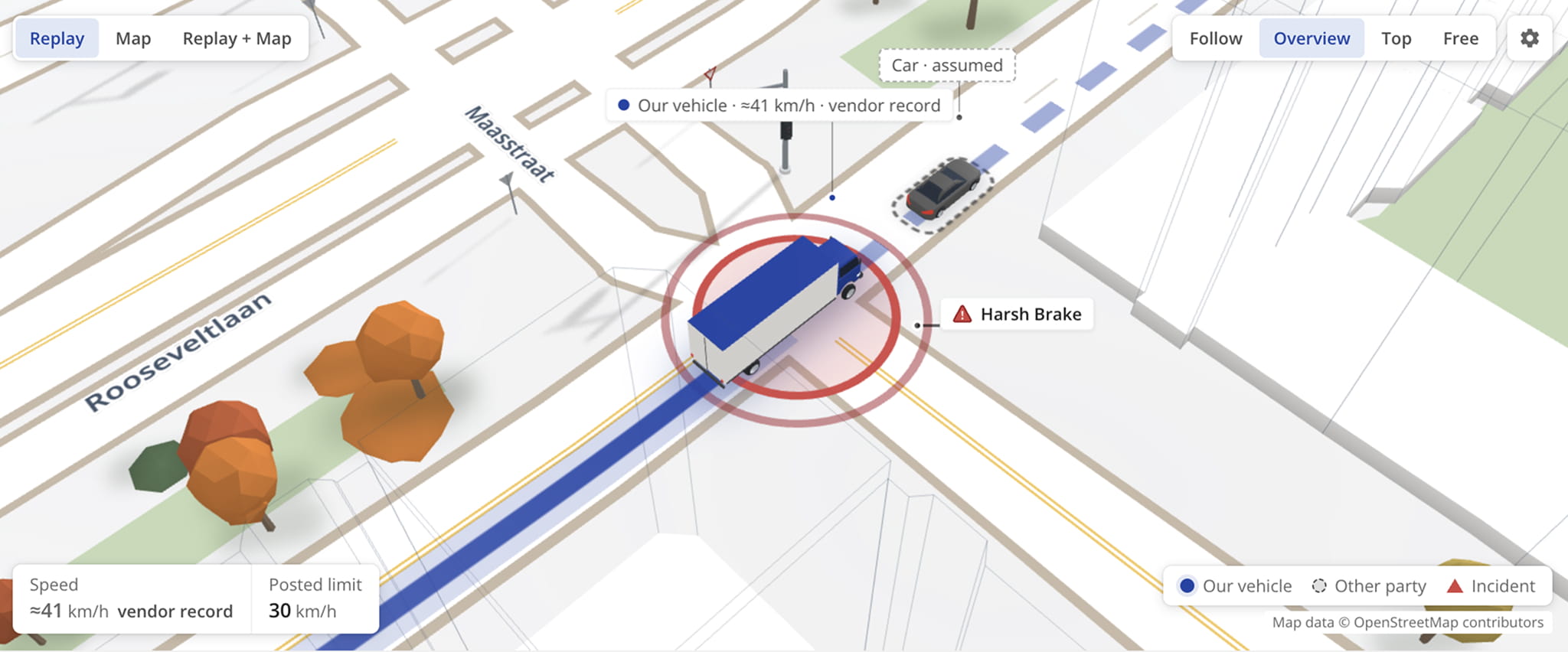
Harsh Braking – Late Braking Behind Slower Traffic
Harsh braking is a sudden, sharp drop in speed, usually a sign the driver reacted late to something ahead. See what your driver saw before braking and how much room they had left.
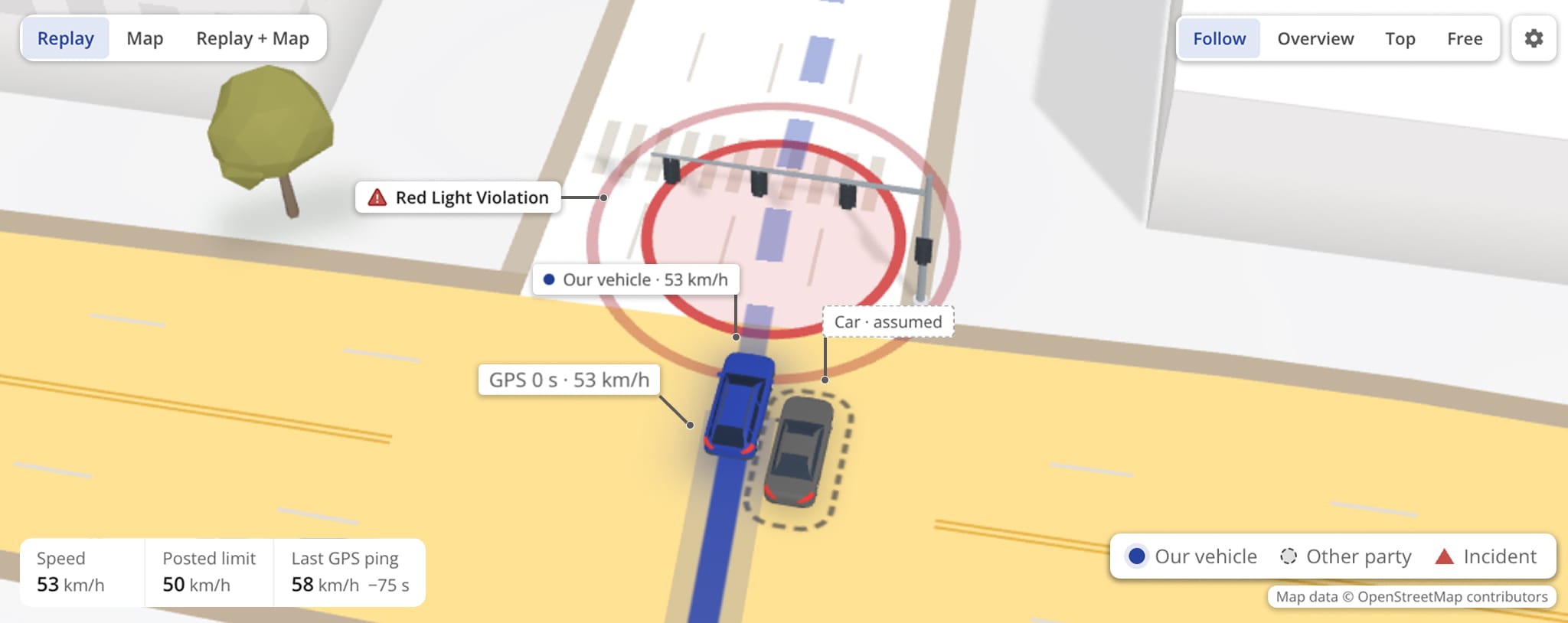
Ran Red Light – Entering The Intersection On Red
Running a red light means crossing the stop line after the signal has already turned red. See your driver’s speed on the approach and whether they had time to stop safely.
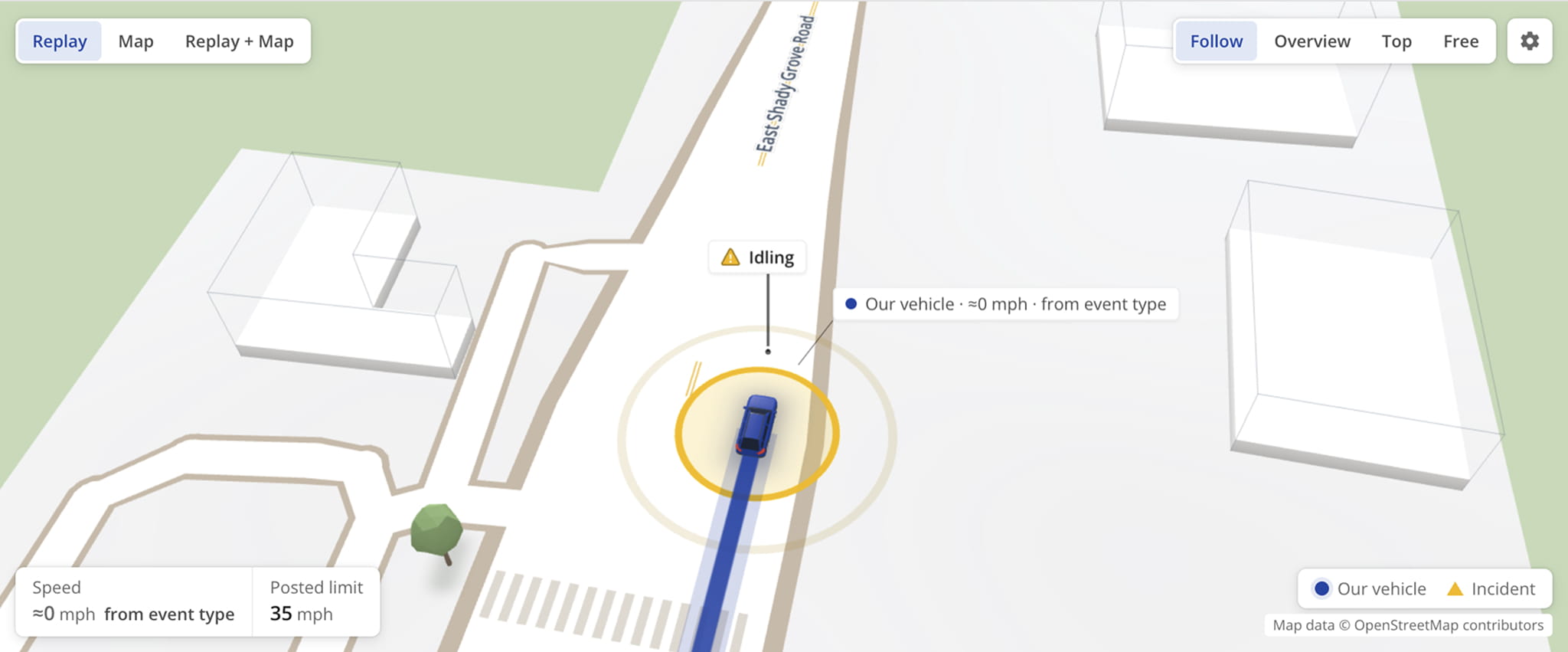
Excessive Idling – Where And How Long The Engine Ran
Excessive idling means leaving the engine running while the vehicle is stopped for longer than your fleet allows. See where your driver was parked and how long the engine kept running.
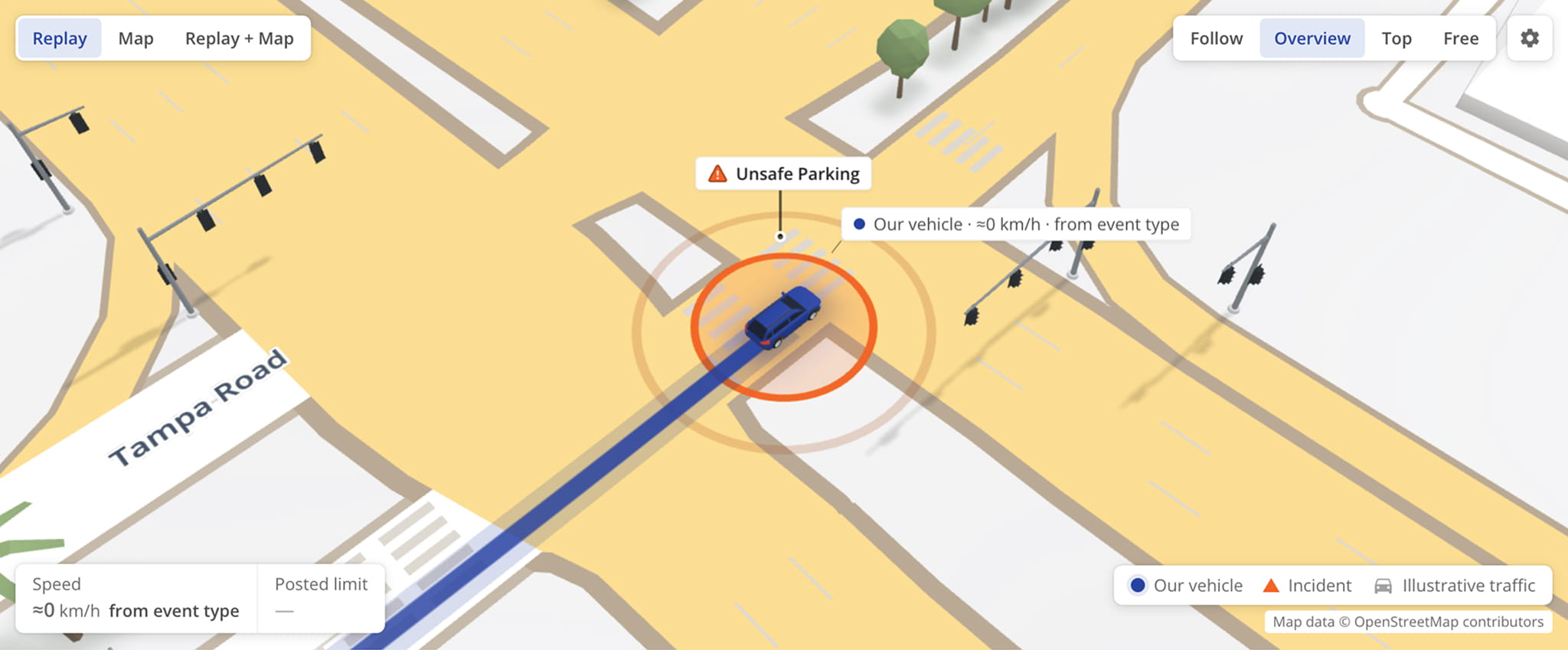
Unsafe Parking – Where The Vehicle Stopped And Why
Unsafe parking means stopping where the vehicle blocks traffic, cuts visibility or puts people at risk, such as a shoulder, a travel lane or a no-parking zone. See exactly where your driver stopped and what was around them.
Get Started With Incident Replay – Request A Demo
See how 3D Incident Replay can bring clarity to your fleet safety reviews and claims. Our team will walk you through a live replay with sample incident data and help you turn on the feature for your account.
Contact Route4Me Support at [email protected] or +1-888-552-9045.
Visit Route4Me's Marketplace to Check out Associated Modules:
- Route Optimization
Stops Bundling
- Route Optimization
Mixed Vehicles Routing
- Route Optimization
Max Weight per Route
- Route Optimization
Max Stops Per Route
About author: Daniel Archer