Operations Matrix – Track Multiple Routes Progress In Real-Time

Route4Me’s Operations Matrix gives you a comprehensive visual overview of your routes’ progress in real-time. The Operations Matrix displays your selected routes or all routes scheduled for the current date.

You can view the precise visitation progress of each route with color-coded metrics that update in real time. In this guide, you’ll learn how to use the Operations Matrix to view multiple routes, destinations, route stop details, progress, schedule predictions, and more.
Route4Me Operations Matrix, near real-time route tracking, stop details and schedule tracking, color-coded stop status and schedule tracking.


Open Operations Matrix – Routes List And Routes Map Operations Matrix

To open an Operations Matrix, go to “Dynamic Routing” > “Routes” in the Navigation Menu to open your Routes List. Then, follow these steps:

  1. Check the box next to one or more routes you want to open in the Operations Matrix.
  2. Click “Bulk Actions” from the action bar above the Routes List.
  3. Hover over “Operations Matrix” in the Bulk Actions menu.
  4. Select whether to open the Operations Matrix with routes scheduled for the current date or the routes you selected on the Routes List.

Once you’ve opened the preferred routes in the Operations Matrix, you can track their progress in more detail than the Routes List “Progress” tracker. Keep reading to learn how to use the Operations Matrix for tracking route progress.
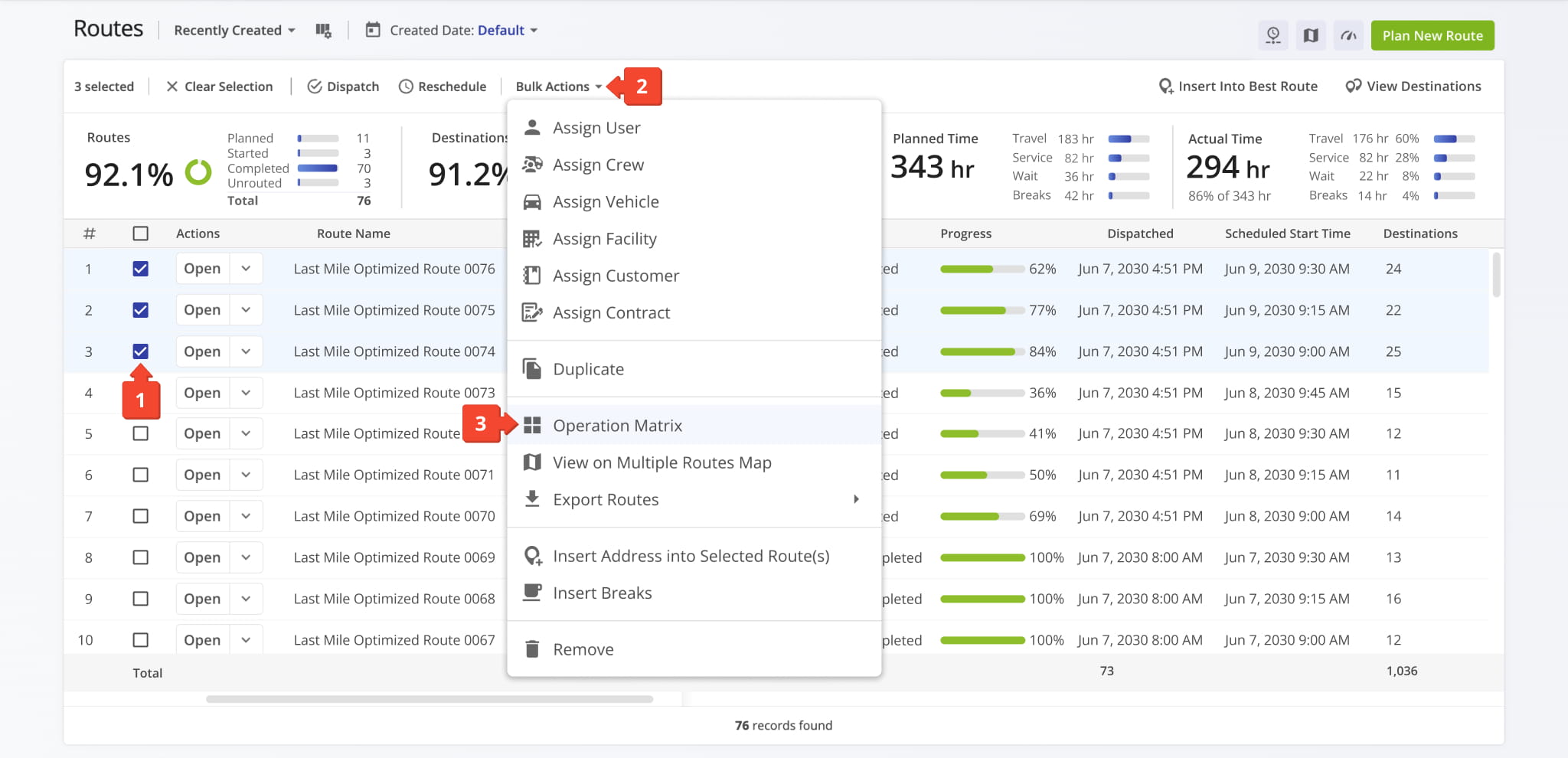
To open the Operations Matrix, go to the Routes List, select one or more routes, and choose to view routes scheduled for today or the selected routes.


You can also open the Operations Matrix from the Routes Map. Go to “Dynamic Routing” > “Routes Map” in the Navigation Menu. Then, click “View” and “Operations Matrix“.

To open routes scheduled for the current date, select “With Routes Scheduled for Today” from the menu. Alternatively, you can open the Operations Matrix for selected routes. Select the routes you want to open by checking the respective boxes. Then, select “With Selected Routes” from the menu. To open the Operation Matrix from the Routes Map, go to


Operations Matrix Overview

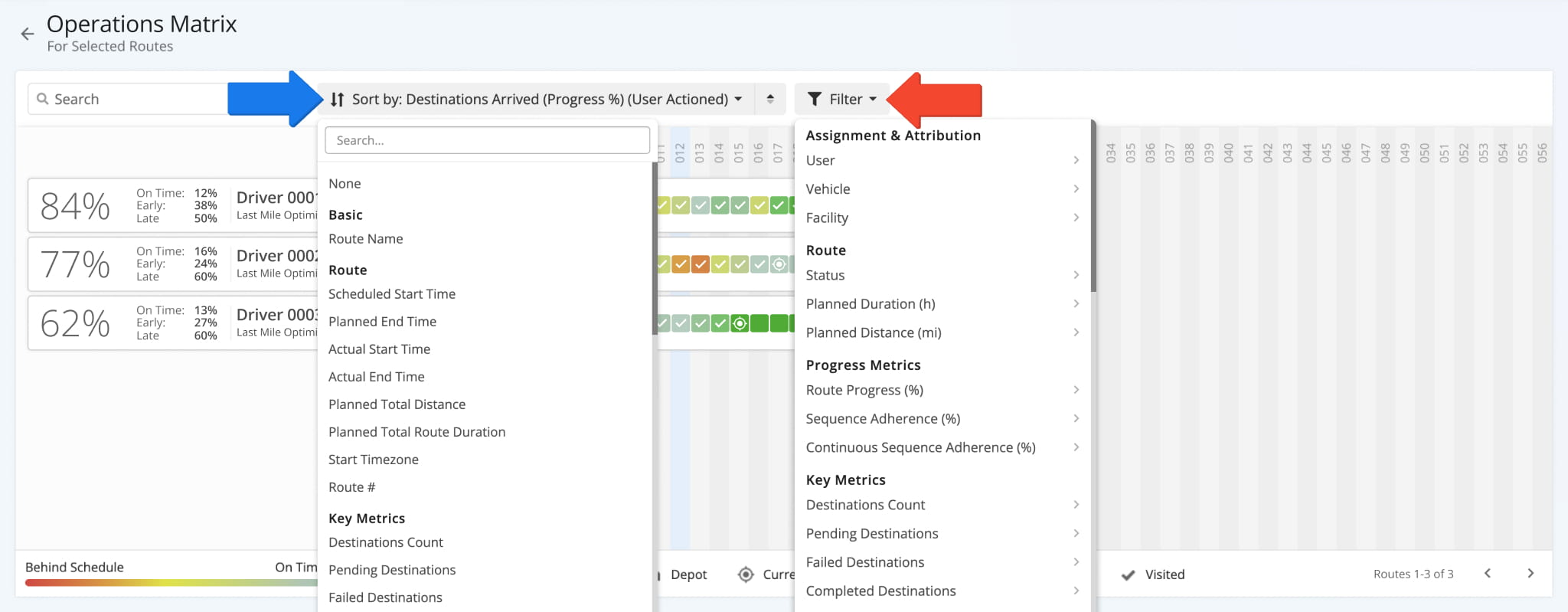
Once you’ve opened the preferred routes in the Operations Matrix, you can track their progress. The earliest route is displayed first, and the latest route is at the bottom.

Additionally, the percentage displayed next to each route indicates how many destinations have already been marked as “Arrived” or have been Detected as Visited by geofencing. These visited destinations are broken down into the percentage of destinations visited “On Time“, “Early“, and “Late” respectively.
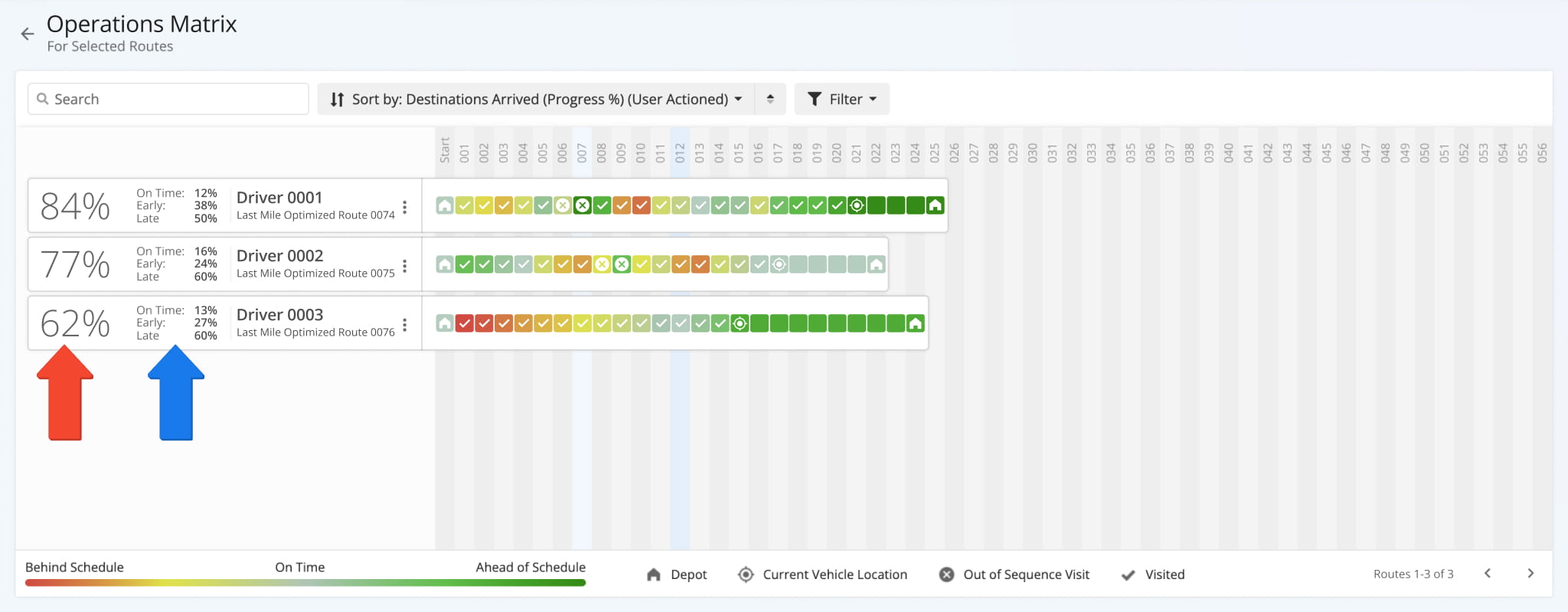
The Operations Matrix shows routes by number based on their scheduled start. Additionally, you can see route progress, destination status, and color-coded route updates.


The Operations Matrix displays route progress based on the set Destination Status on route addresses by drivers using Route4Me’s mobile apps. Additionally, the route origin, or depot, and any destinations visited out of the planned route sequence are marked with corresponding icons.

IconsDescription
DepotThe depot, or Departure Address from which the corresponding routes start.
Current Vehicle LocationShows the route destination the User is currently at or traveling to.
Out Of Sequence VisitAny destination visited out of route sequence as planned is marked with the corresponding icon.
VisitedShows which destinations have a status assigned by the User on the mobile app.

Furthermore, destinations in the Operations Matrix are color-coded. Each color corresponds to when a destination was Marked as Visited compared to the expected route schedule.

Red (Behind Schedule): The destination was Marked as Visited five minutes or more after the Planned Visit Time.
Gray (On Time): The destination was Marked as Visited within five minutes before or after the Planned Visit Time.
Green (Ahead of Schedule): The destination was Marked as Visited five minutes or more before the Planned Visit Time.
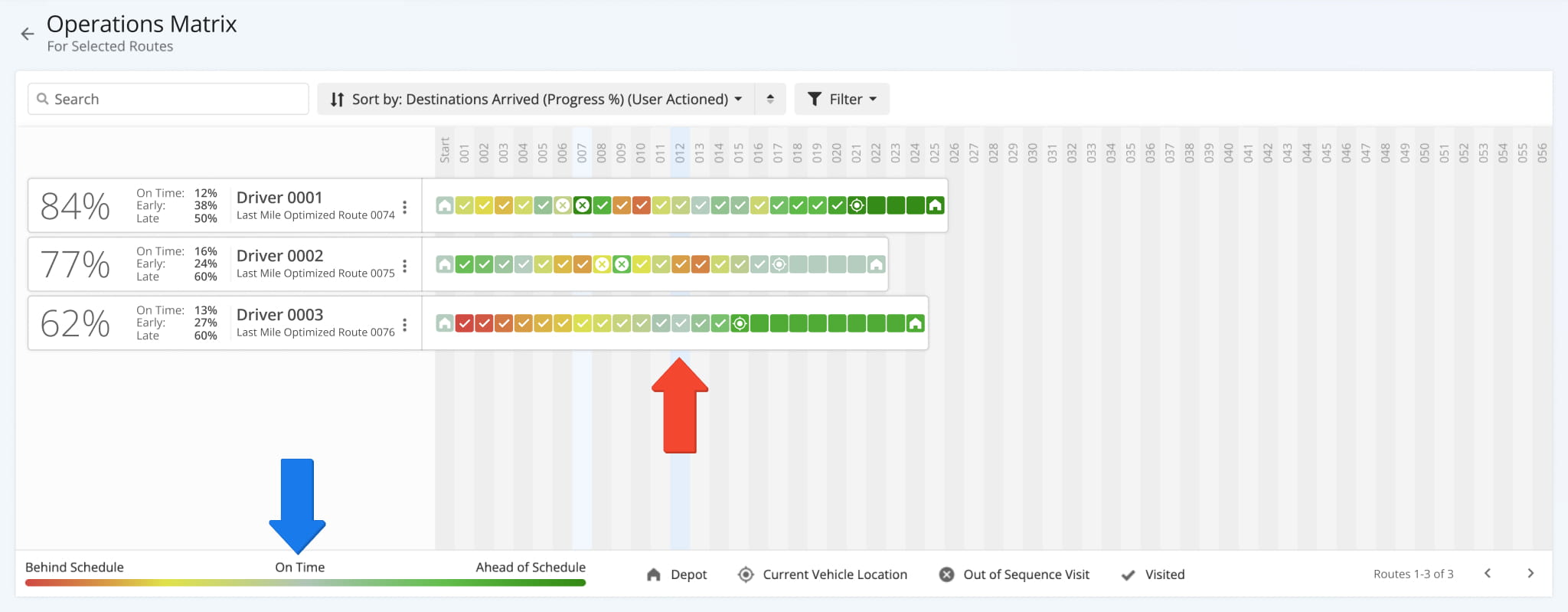
Destinations in the Operation Matrix are color-coded. Each color corresponds to a respective status and when it was set compared to the expected route schedule.


View Destinations Details And Schedule In Operations Matrix

Furthermore, the Operations Matrix enables you to view the scheduling details of destinations.

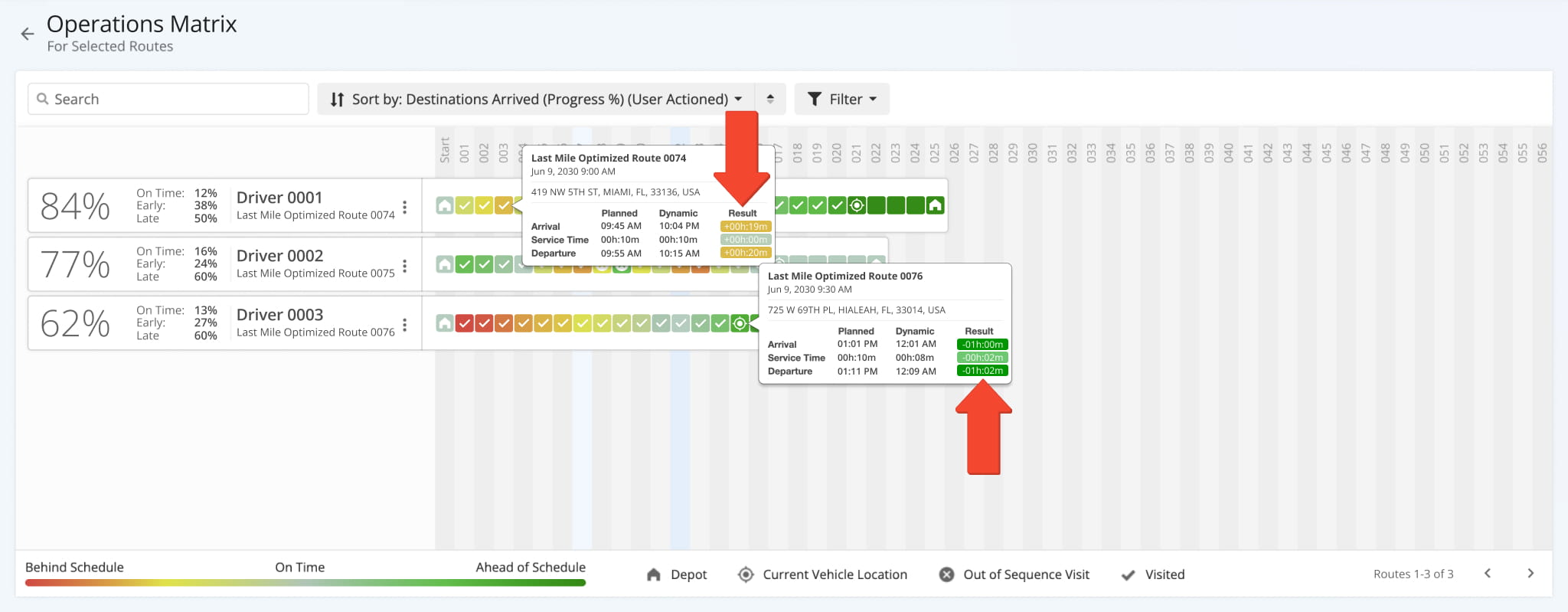
To do so, simply click the preferred destination. The details panel shows the name of the associated route, the date for which the route is scheduled, the destination’s alias and address, and the available visitation scheduling details, which show the following information.

To see stop schedule details, hover over the respective stop in the Operation Matrix.

Details ColumnDescription
PlannedThe estimated arrival or departure time when a driver is expected to arrive at or depart from the respective address.
Dynamic (Predicted)The time when a driver is predicted to arrive at or depart from the destination, taking into account the visitation progress of previous addresses.
ResultThe difference between the Planned and Dynamic (Predicted) times. The Result time indicates how far behind or ahead of schedule the given address is expected to be visited. When a destination is expected to be visited ahead of schedule, the “Result” time is displayed as a negative value in green. When a destination is expected to be visited behind schedule, the “Result” time is displayed as a positive value in red, orange, and yellow, depending on how close it is to being on schedule.

You can also see a full breakdown of a route’s planned and current information. Simply hover over a route’s name to see a summary of all its key metrics, schedule details, order information, and more.
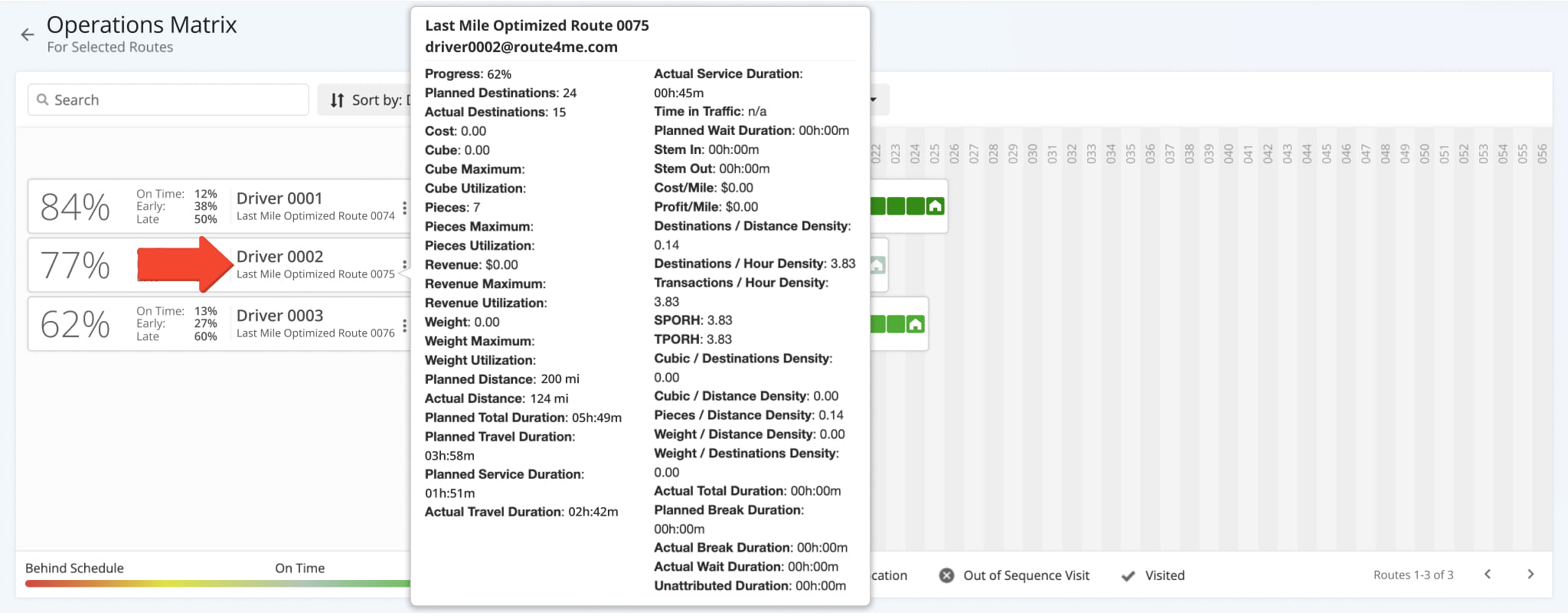
 

Managing, Sharing And Exporting Operations Matrix Data

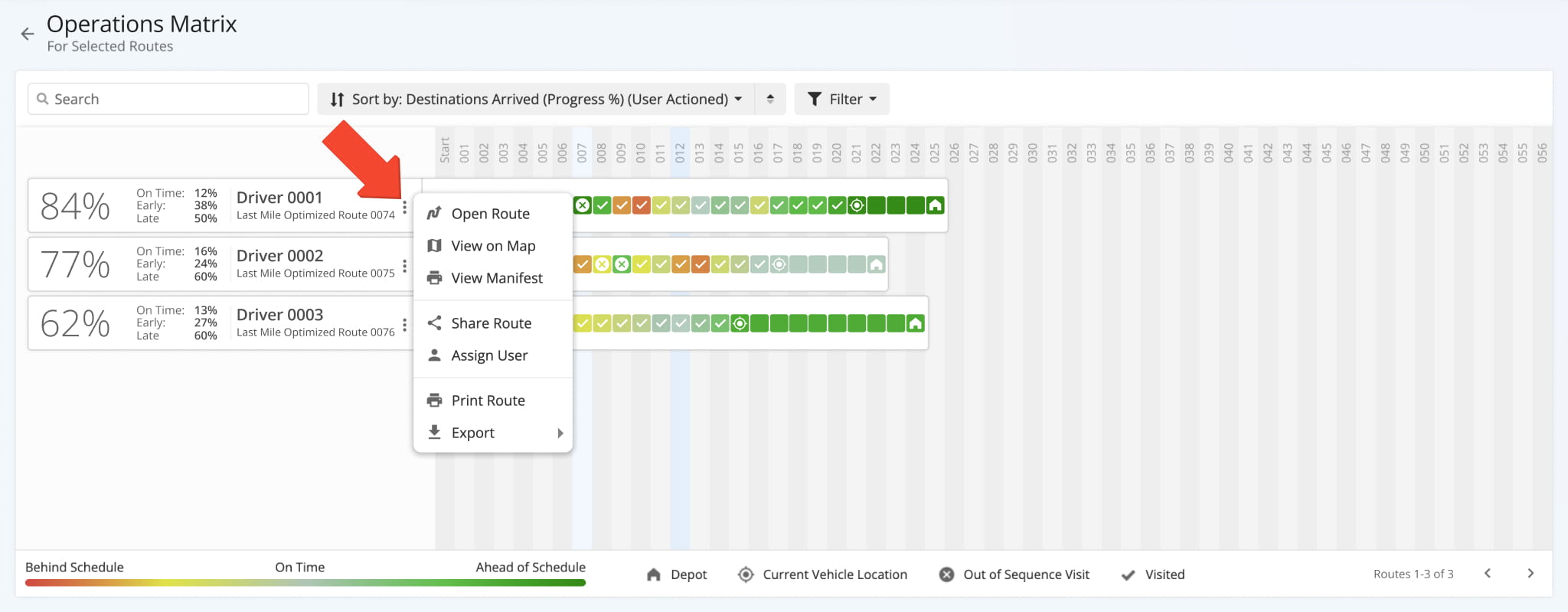
Additionally, from the Operations Matrix, you can access route management features, share routes, and export routes. To do so, click the Three-dot Icon next to a route to access the following options:

Access additional management, sharing, and export features on the Operation Matrix by clicking the Three-dot Icon on the preferred route.

OptionsDescription
Open RouteOpen a particular route from the Operations Matrix in the Route Editor, where you can view the route’s progress and modify this route accordingly.
View on MapOpen the selected route on the Routes Map, where you can view and compare it to other planned routes side by side on the map, move stops between planned routes using the timeline, and more.
View ManifestView the Dynamic Predictive Manifest for a particular route. You can customize the Route Manifest to get a detailed overview of the route’s metrics and other relevant information.
Assign UserAssign a user to a particular route in the Operations Matrix by selecting one of the available users from a list.
Print RouteOpen and customize the Route Manifest for a particular route for the purpose of printing out a route map and data sheet.
Export RouteExport a route from the Operations Matrix with a preferred file type.


Visit Route4Me's Marketplace to Check Out More Add-Ons and Modules:

Last Updated:

About author: Alex Yasko

Alex Yasko is the Go-to-Market Product Manager and Information Architecture Manager at Route4Me. With thousands of hours of experience, Alex specializes in breaking down complex last-mile optimization and routing scenarios into simple, actionable instructions, helping last-mile businesses streamline their operations effortlessly.

Was this article helpful?
Still can't find what you're looking for? Contact us
Route4Me

About Route4Me

Route4Me has over 40,000 customers globally. Route4Me's Android and iPhone mobile apps have been downloaded over 2 million times since 2009. Extremely easy-to-use, Route4Me's apps create optimized routes, synchronize routes to mobile devices, enable communication with drivers and customers, offer turn-by-turn directions, delivery confirmation, and more. Behind the scenes, Route4Me's operational optimization platform combines high-performance algorithms with data science, machine learning, and big data to plan, optimize, and analyze routes of almost any size in real-time.