
Automate Recurring Routes – Create, Schedule, And Manage Route Templates
Recurring schedules help you automate route planning so routes can be generated on a regular basis without starting from scratch each time. By building them from Route Templates, you can maintain consistent routing patterns while reducing manual setup. In this guide, you’ll learn how to use Route Templates to set up and manage recurring schedules within Route4Me. You’ll also see how to adjust and update them as your planning needs change over time.
Table of Contents
Create A Route Template – Build The Foundation For Recurring Routes
Access The Schedule Editor – Configure Your Route Template
A Route Template is the foundation of every recurring schedule. Route4Me uses it to generate your recurring routes. You can plan a new route or use an existing one as your template.
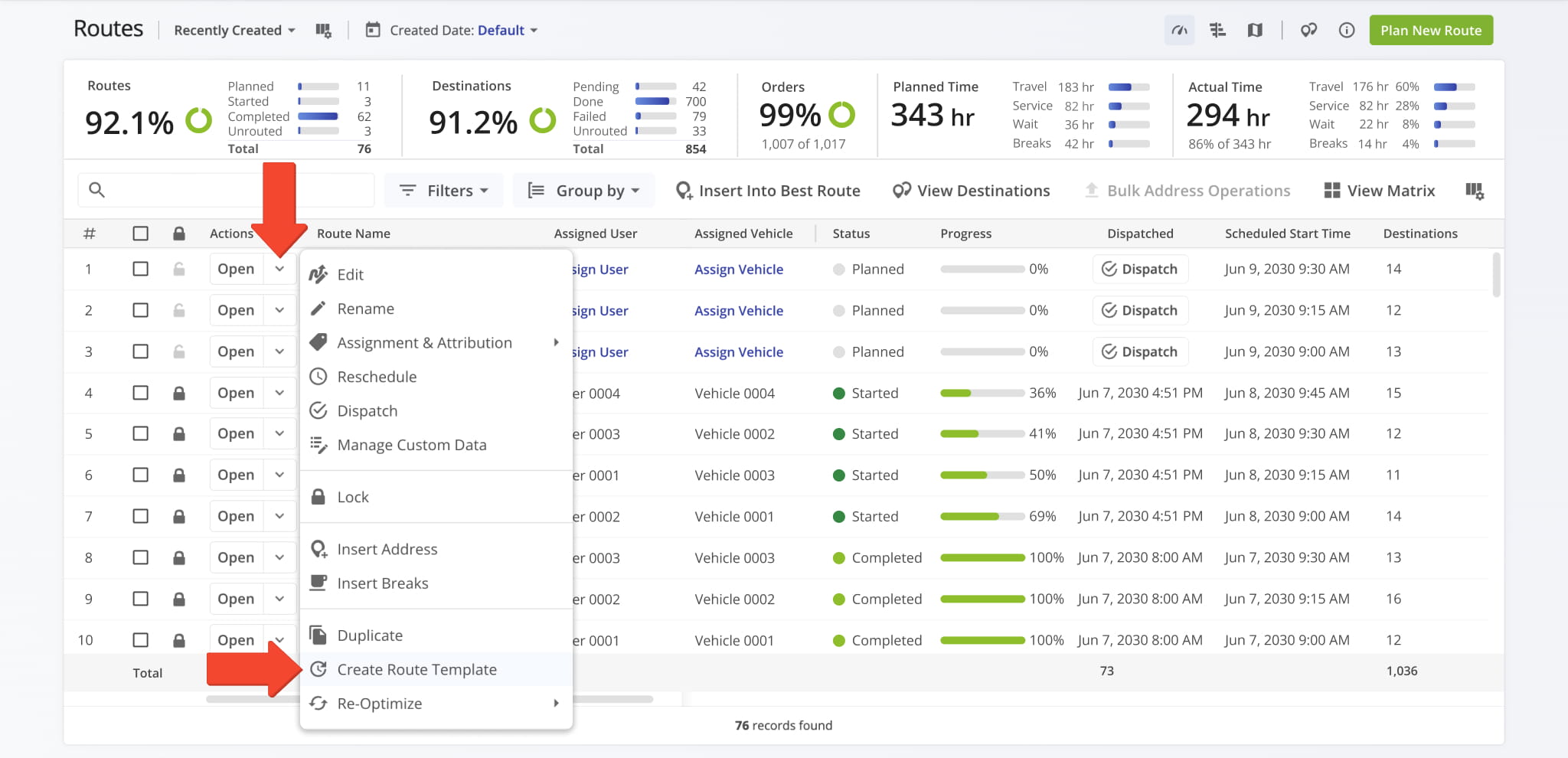
To use an existing route from your Routes List, go to “Dynamic Routing” > “Routes” in the Navigation Menu. Click the Down Arrow next to the route and select “Create Route Template”. You can also do this from the Route Editor.
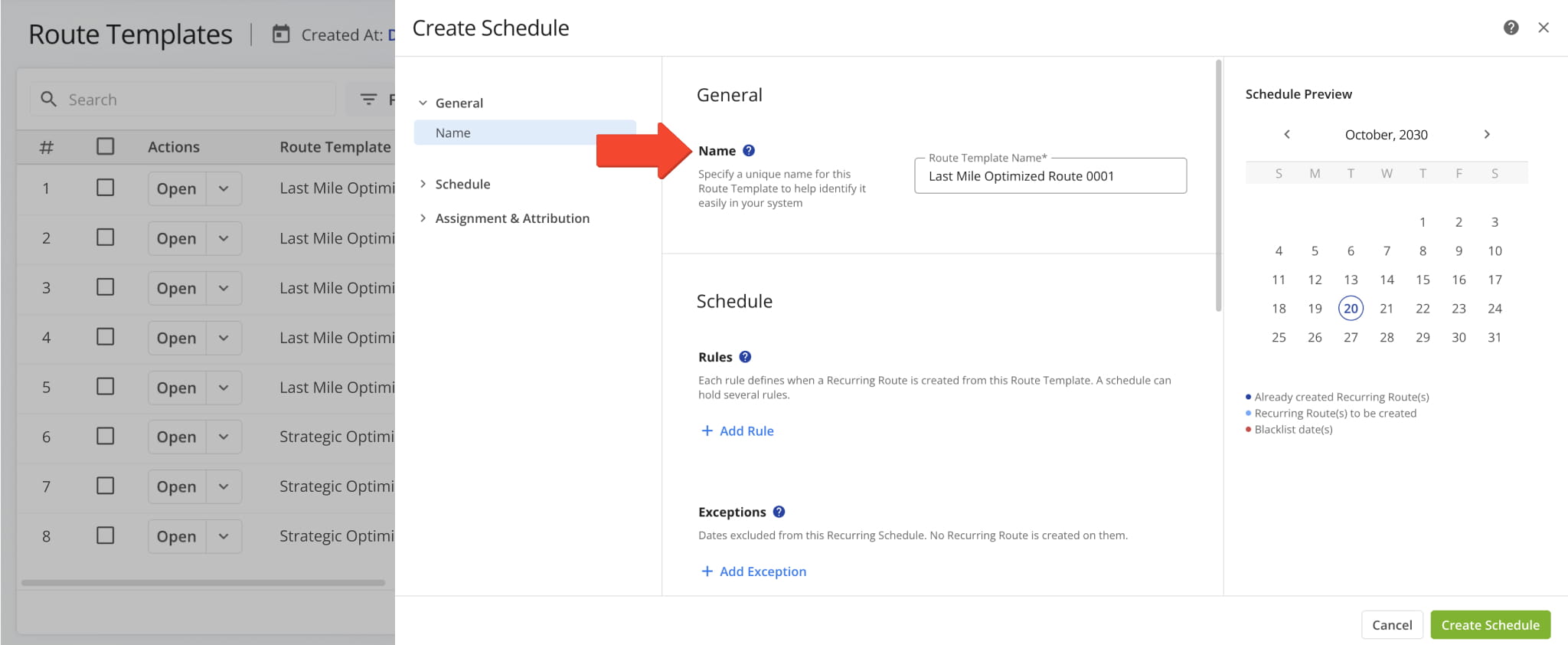
You’ll be redirected to the Schedule Editor. Start by entering a unique name in the “Name” field so you can easily find it later.
Create Recurring Route Rules – Control When Route Templates Repeat
Next, add one or more rules to your schedule. Under “Schedule”, click “Add Rule” and complete these fields:
- Date Range: Set a start and end date, or enable “Repeat Forever” for a schedule with no end date. You can add multiple Date Range rules to support seasonal changes or different recurring patterns.
- Repeat Frequency: Choose daily, weekly, monthly, or annually.
- Repeat Settings: Set the interval, such as every 2 days, every week, or every 3 months.
Click “Save” to add the rule to the Schedule Editor. From there, use the Toggle Button to activate or deactivate the rule, the Pencil Icon to edit it, or the Trash Icon to delete it.
The Schedule Preview highlights in light blue all dates when recurring routes will be generated.
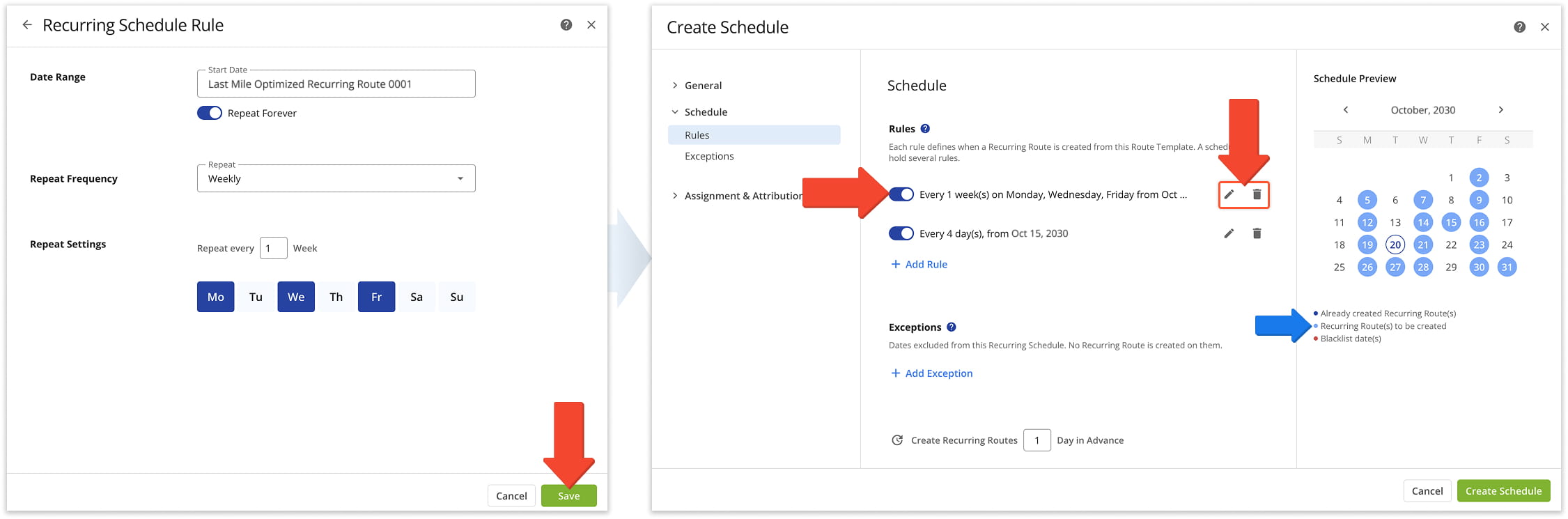
To exclude specific dates, ideal for holidays and other non-working days, click “Add Exception” and select the dates. No routes are generated on those dates, which appear in red in the Schedule Preview.
You can temporarily deactivate an exception with its toggle or permanently delete it with the Trash Icon.
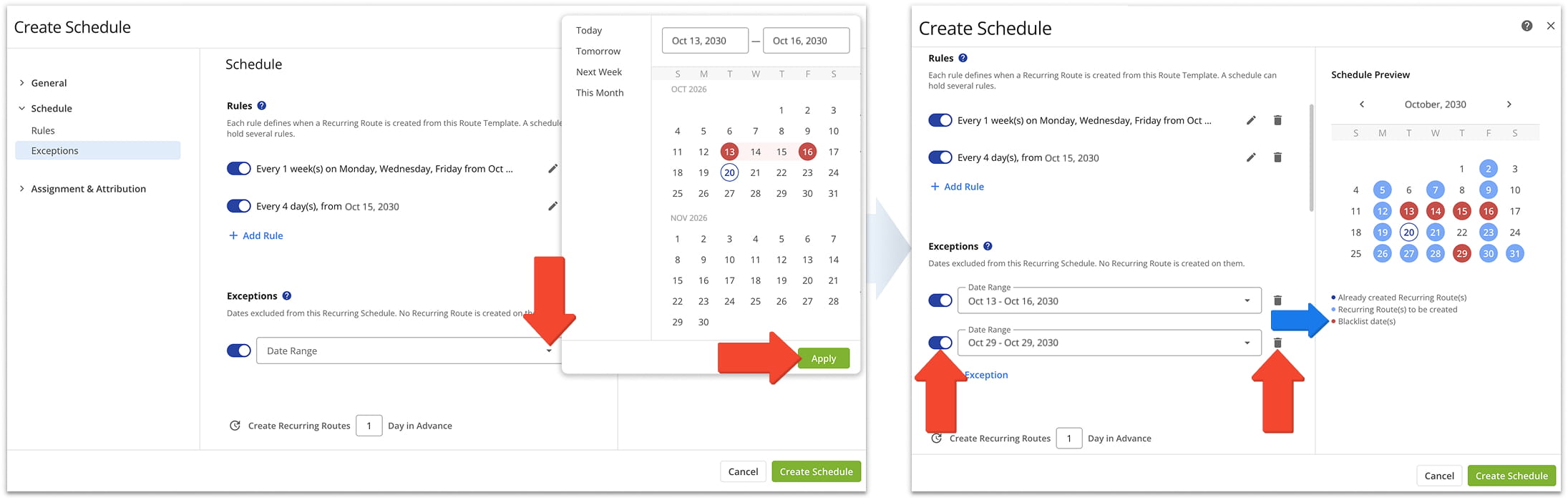
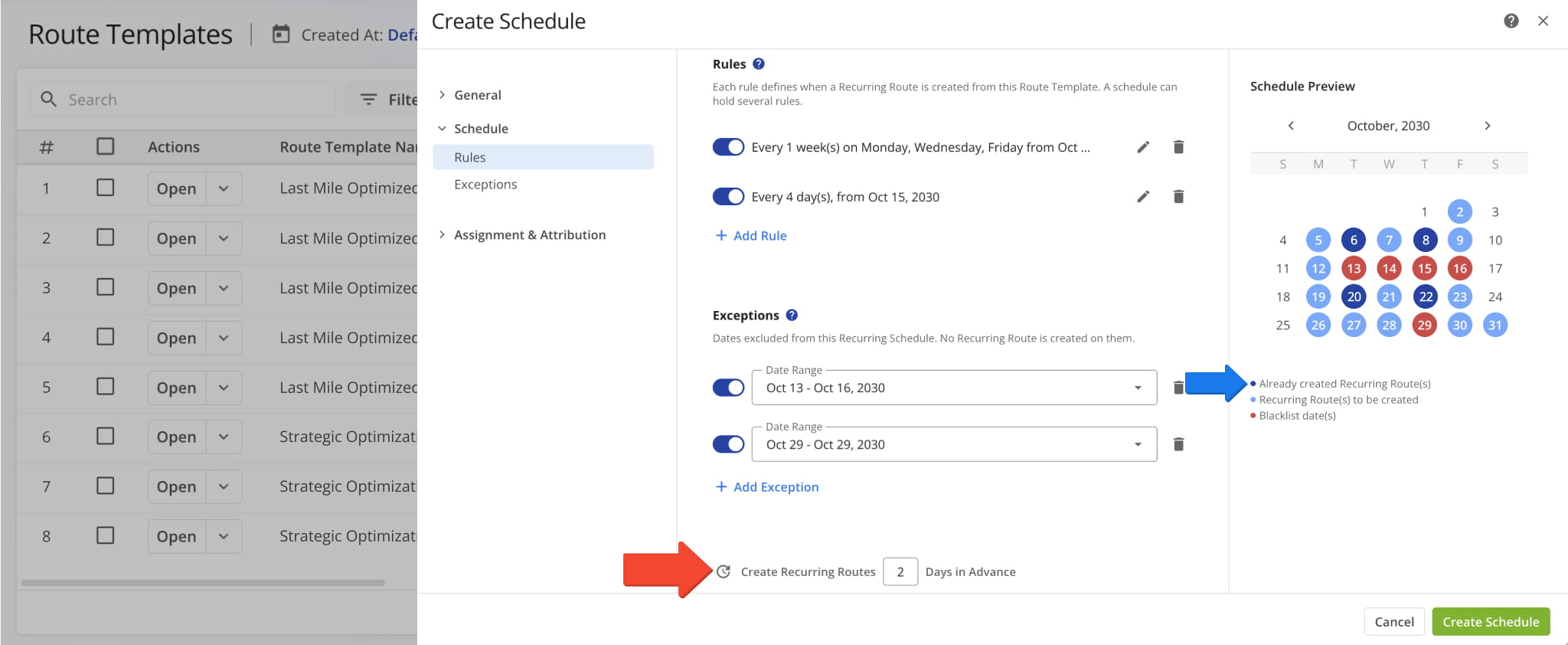
Finally, enter how many days in advance Route4Me should create recurring routes from the Route Template.
NOTE: The Schedule Preview highlights previously created recurring routes in dark blue.
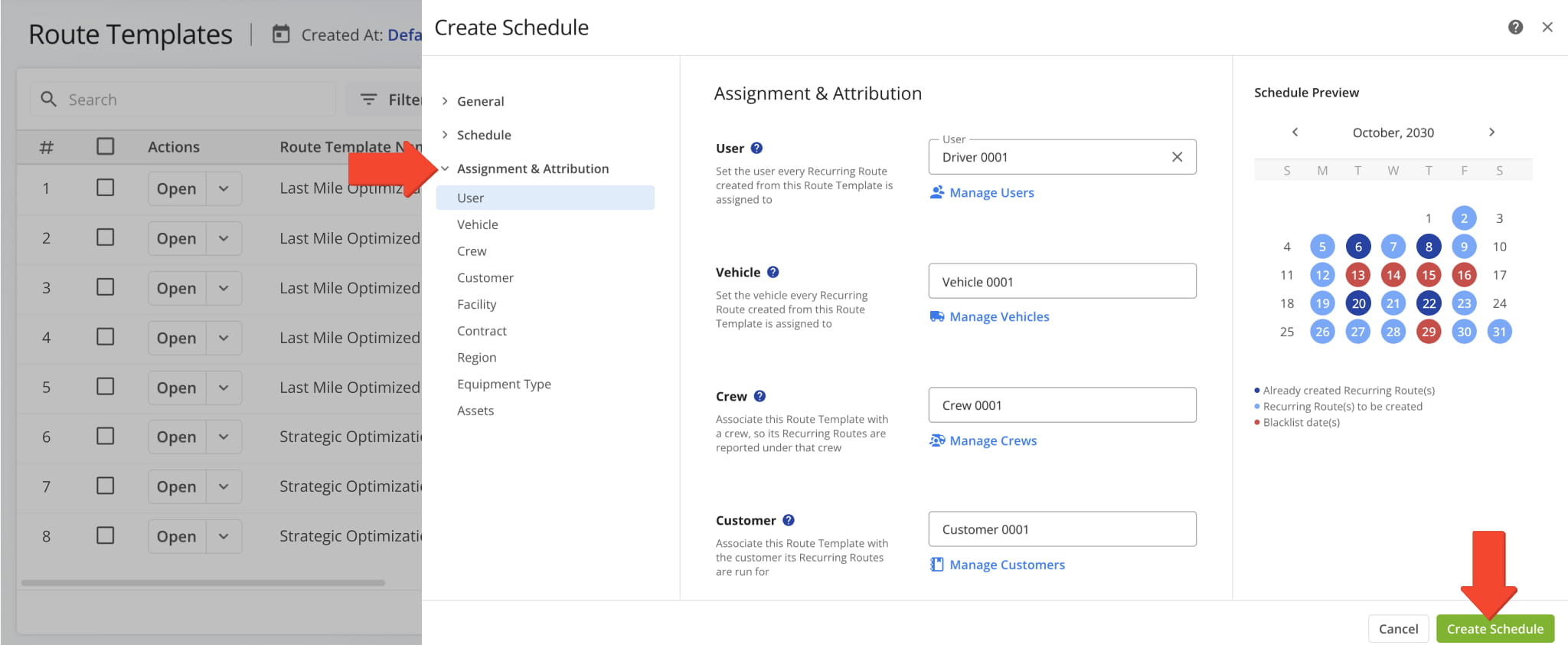
Add Assignment And Attribution – Define Route Template Details For Recurring Routes
Use the “Assignment & Attribution” section to link your Route Template to the people, assets, and accounts it involves. Every recurring route created from the template inherits these details. See the table below for all available fields.
When you’re done, click “Create Schedule” to finalize it. Route4Me will start generating recurring routes from your template based on the rules, exceptions, and advance settings you have specified.
Assignment & Attribution
Manage Route Templates – View, Filter, And Edit Recurring Routes
View Route Templates – Filter And Refine Recurring Routes
You can view your Route Templates and their schedules on the Route Templates page. Use the filters, detailed in the table below, and grouping options to narrow the list, or use the “Created At” calendar to filter by creation date.
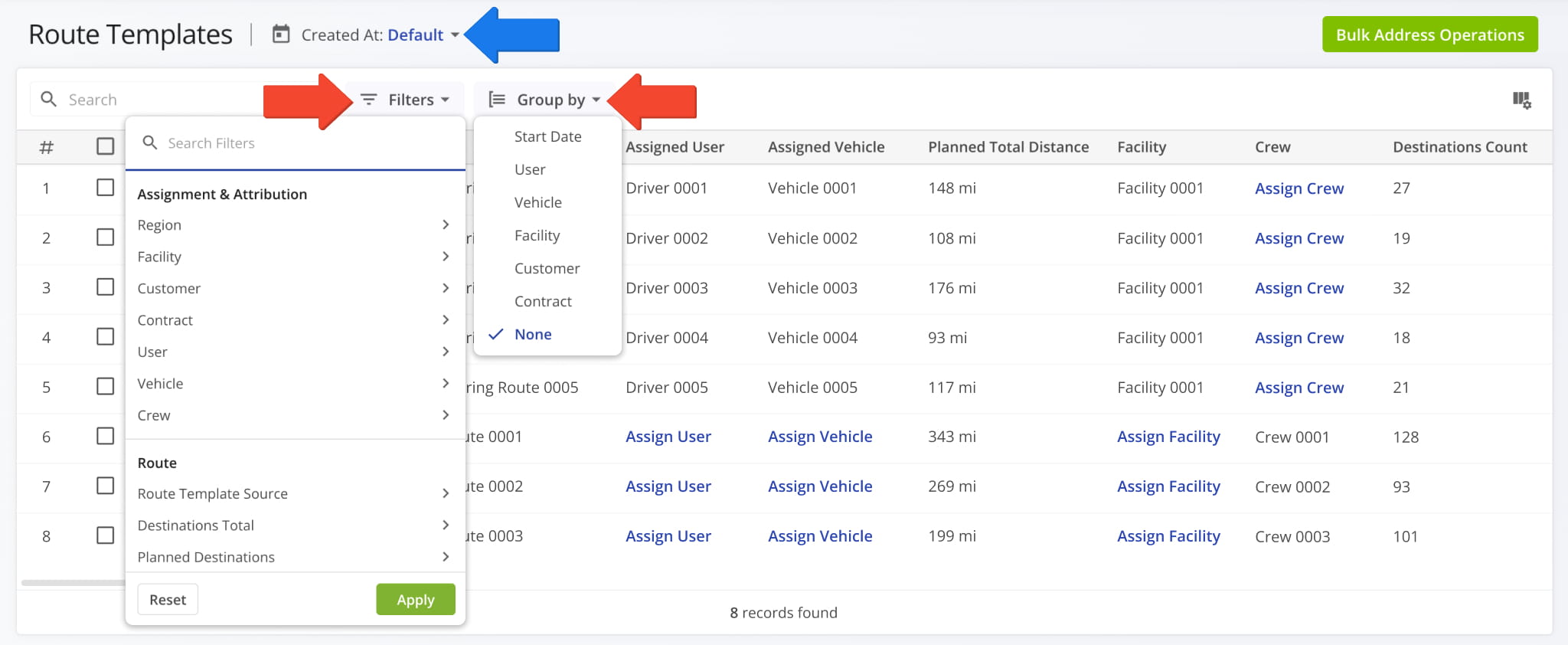
Route Template Filters
Customize Data Display Columns – Adjust The Route Template’s Data Table Layout
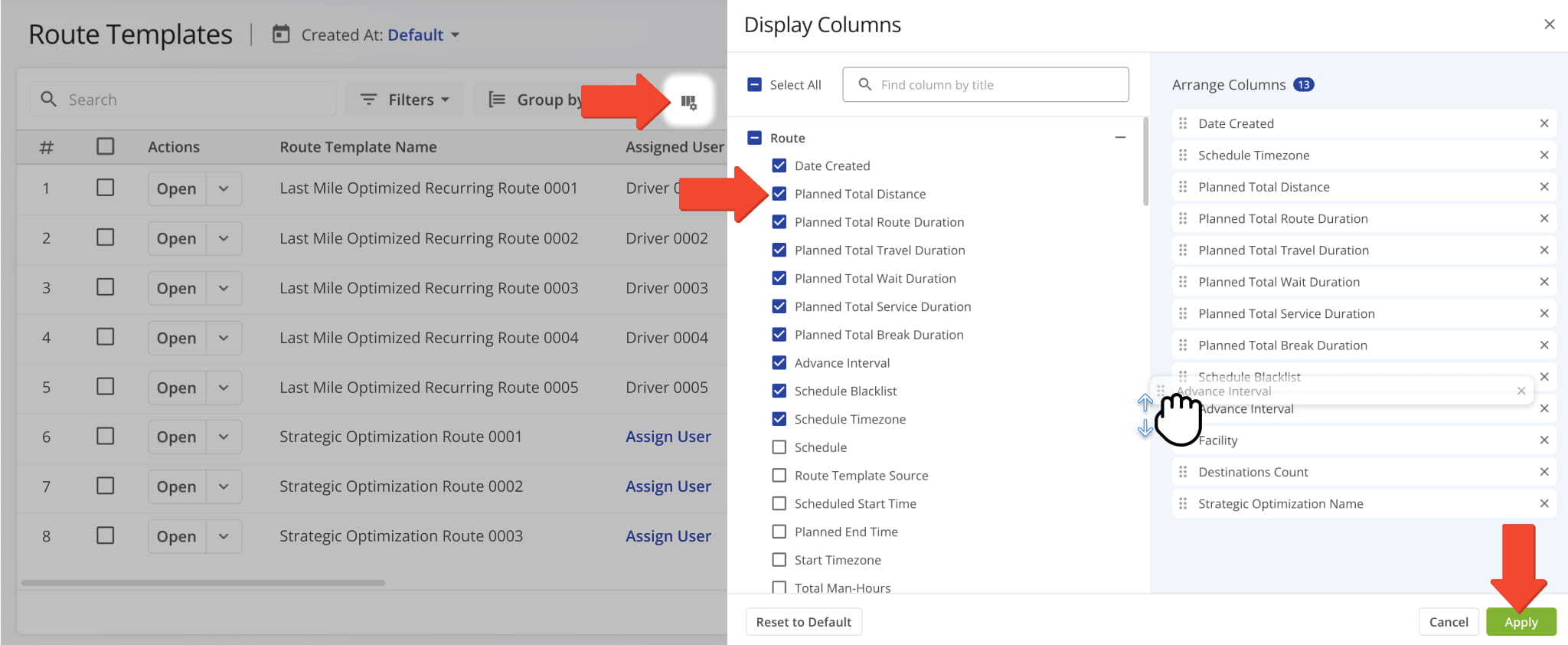
To customize which data columns appear, click the Display Columns Icon in the upper-right and select the checkboxes for the data columns you wish to see, detailed in the table below.
Drag and drop column names to reorder them, then click “Apply” to save.
Data Columns
Edit Recurring Schedules – Update Route Schedule Details
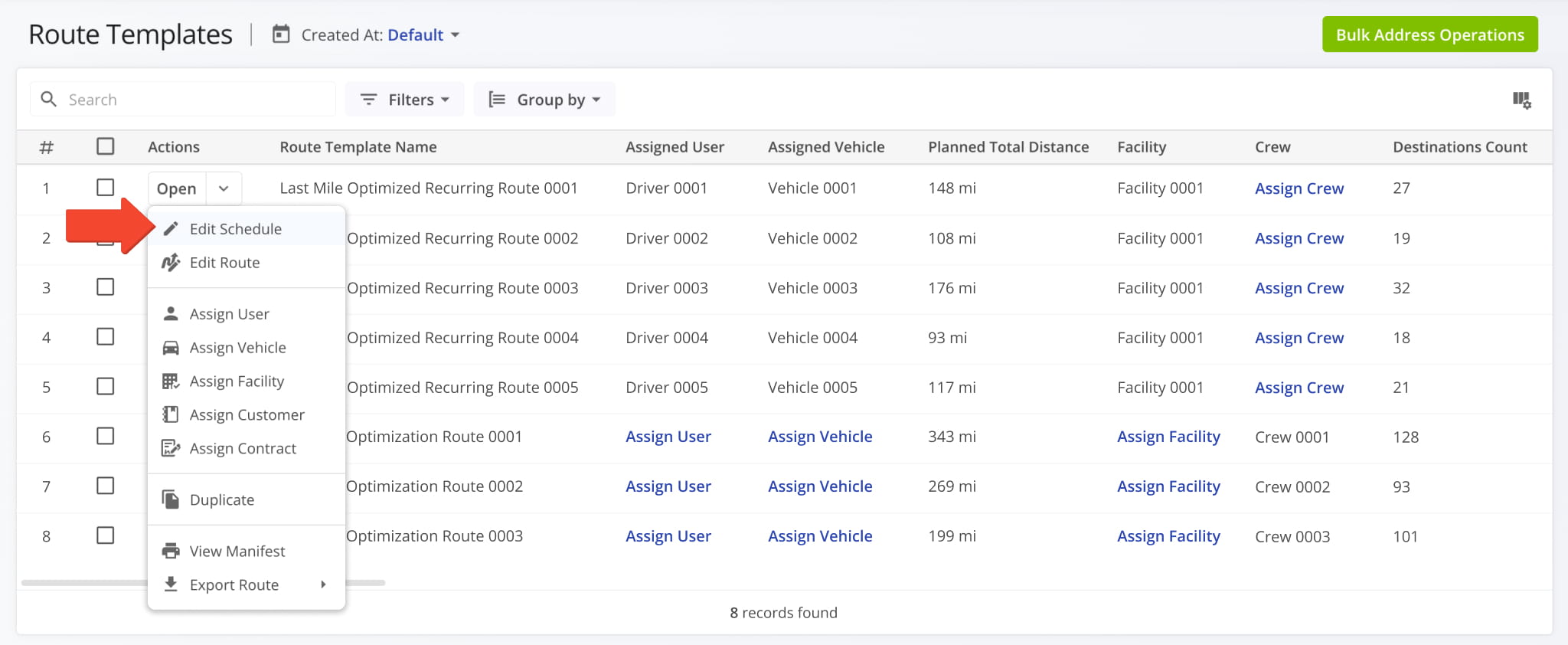
To update a schedule, click the Down Arrow next to the Route Template and select “Edit Schedule”. This opens the Schedule Editor, where you can change the Route Template’s name, rules and exceptions.
To change only an assigned user, vehicle, facility, customer, or contract, select the matching “Assign” option from the action’s menu.
Visit Route4Me's Marketplace to Check out Associated Modules:
- Operations
Custom Data Add-On
- Operations
Advanced Team Management Add-On
About author: Daniel Archer

