Assets – Add And Manage Delivery Assets, Containers, Trailers And Equipment
Route4Me’s transportation and enterprise resource management software offers multiple tools for managing your entire business on a single Web Platform. With the Assets Page, you can add, organize, and manage your physical assets and equipment, such as containers and trailers. Whether you have five forklifts or five hundred drones, you can filter, group, and customize your logistics equipment data in one centralized database, track equipment location on a live map, and more. Use this guide to learn about managing your assets and equipment.
Table of Contents
Open Assets Page – Enterprise Asset And Equipment Database
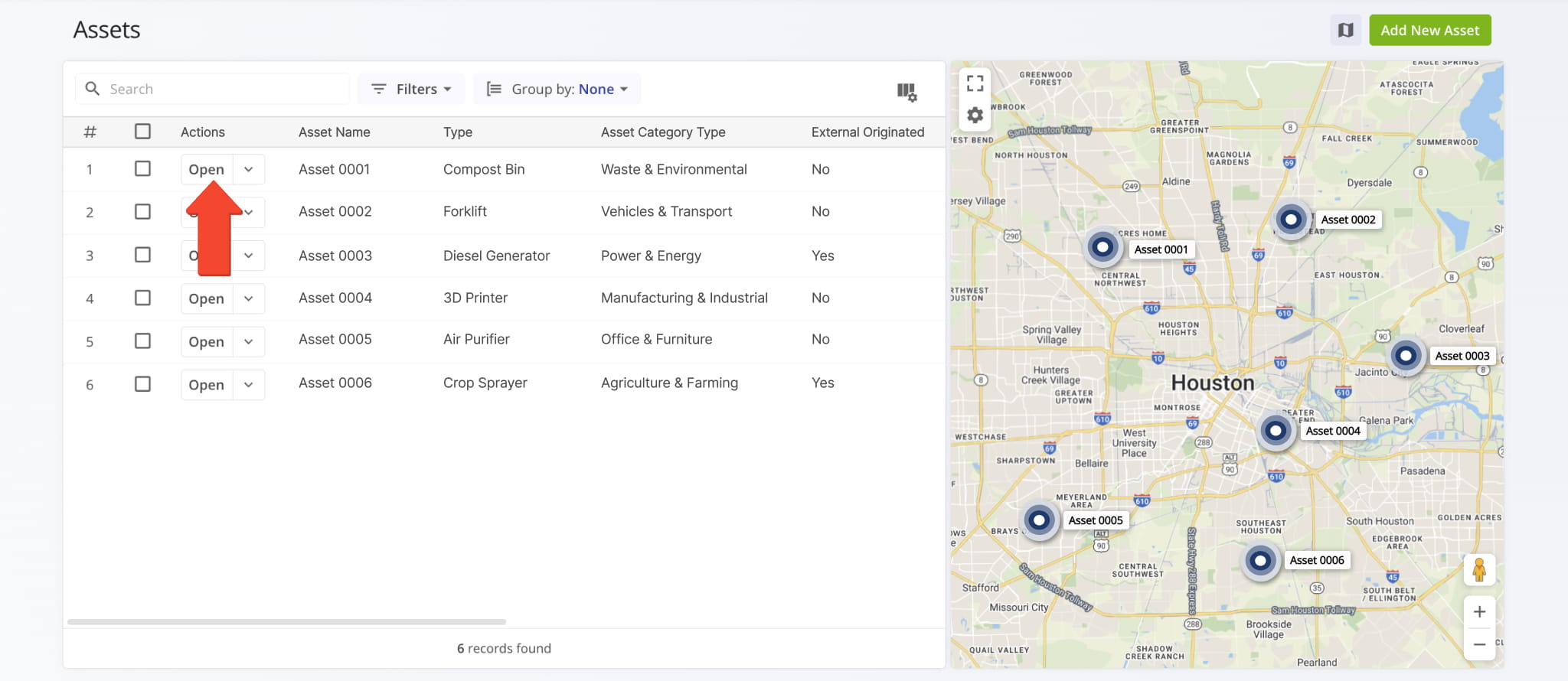
To open your Assets Page, go to “Team & Equipment” > “Assets” from the Platform Menu.
From this page, you can add and manage assets and equipment, filter and group your enterprise assets, and more. To view detailed information about a specific asset, click the “Open” button next to it to access its Asset Snapshot.
Add Assets – Create Data Entries For Physical Assets And Equipment
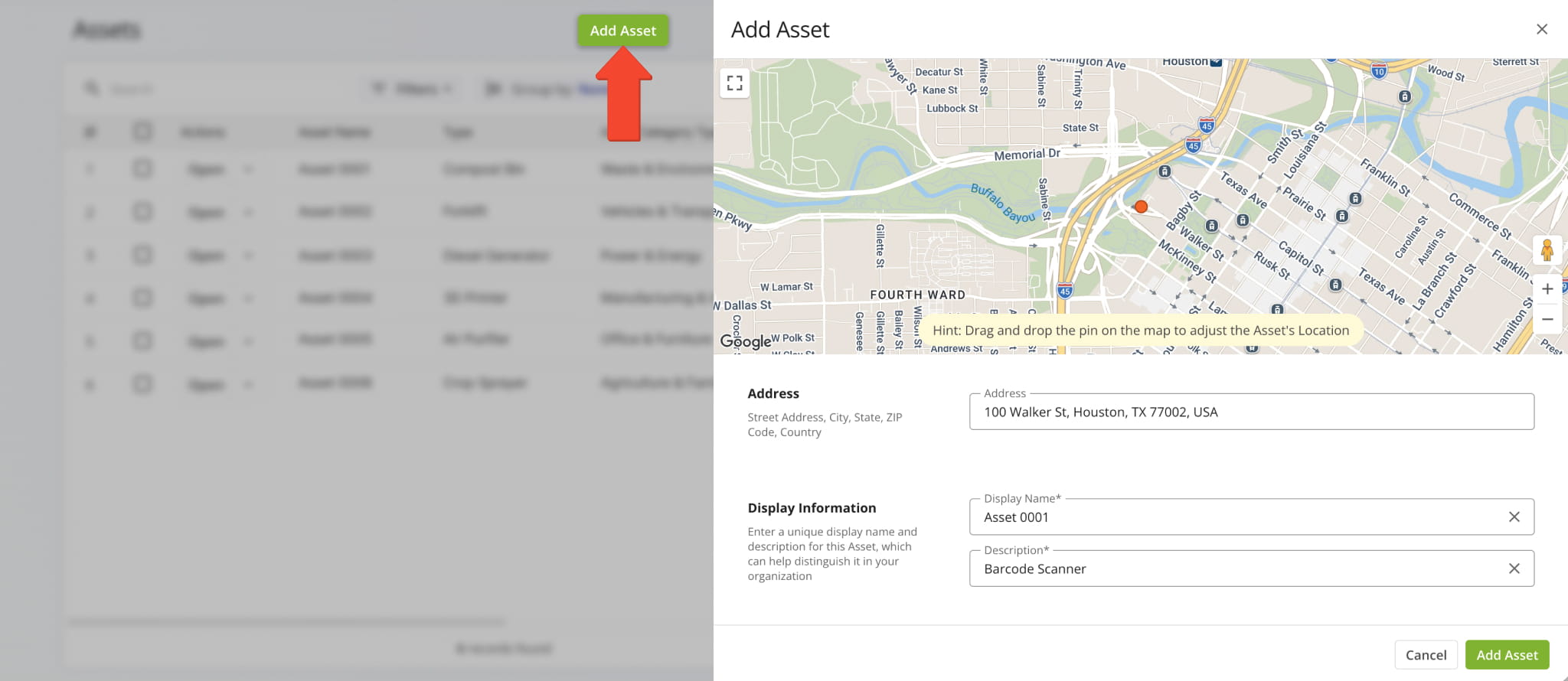
Adding physical assets and equipment to your Route4Me account takes just a few steps. Click “Add Asset” in the top-right corner of the Assets page, complete the relevant fields in the “Add Asset” panel, and then click “Add Asset” to save the entry.
The table below describes all available fields for creating new asset and equipment entries.
Asset Fields
Manage Assets – Open, Edit, And Delete Assets On Your Account
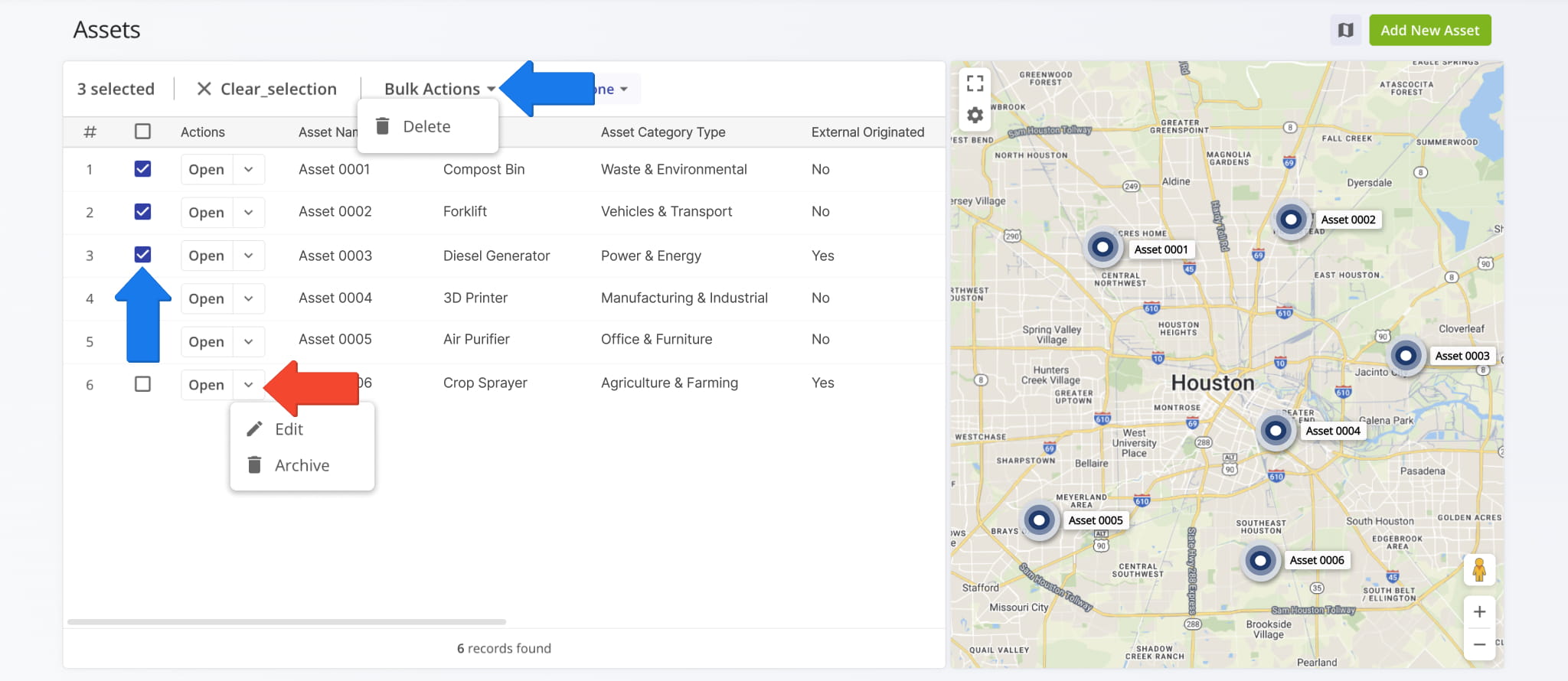
To edit an existing asset, click the Down Arrow button next to it and select “Edit“. To archive an asset, click the Down Arrow and select “Archive“.
To delete multiple assets at once, select the checkboxes next to them, click “Bulk Action“, and then choose “Delete“.
Find Assets – Search, Filter, And Group Assets On Last Mile TMS
The Assets page lets you find, filter, and group assets using the following tools:
- Search: Enter an alias or another asset attribute in the “Search” field to find a specific asset.
- Filters: Click “Filters” above the assets list to narrow the list by specific criteria, detailed in the table below.
- Group by: Click “Group by” above the assets list to organize assets into groups, detailed in the table below.
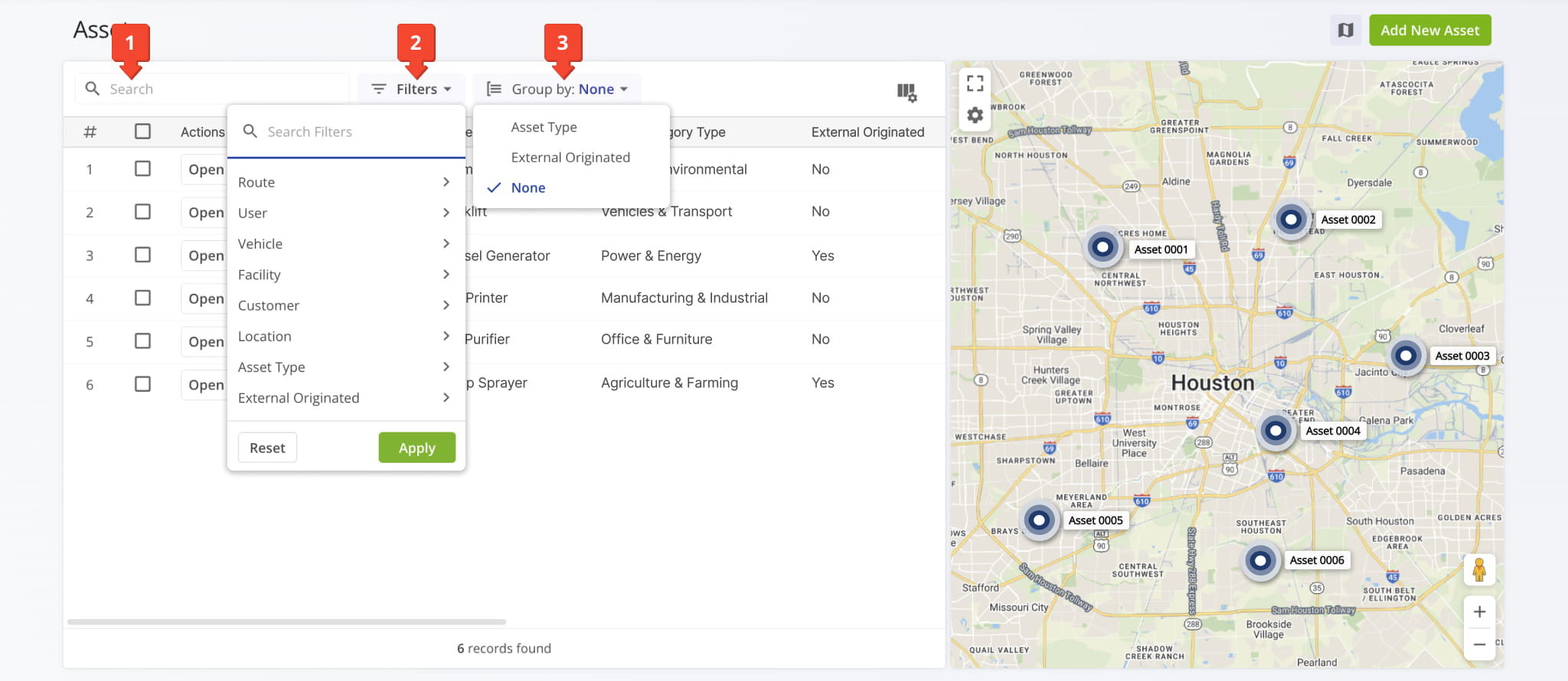
Assets Filters and Group By Options
Assets Map – Dynamic Real-Time Asset And Equipment Tracking
To see where trackable assets are located, click the Map Button in the top-right corner to open the Assets map. The map automatically displays the last-synced location of each asset or piece of equipment.
Hover over an asset on the map to view its details. Click the Gear Icon to enable map overlays, which show assets alongside Avoidance Zones, Territories, Facilities, and other map layers, detailed in the table below.
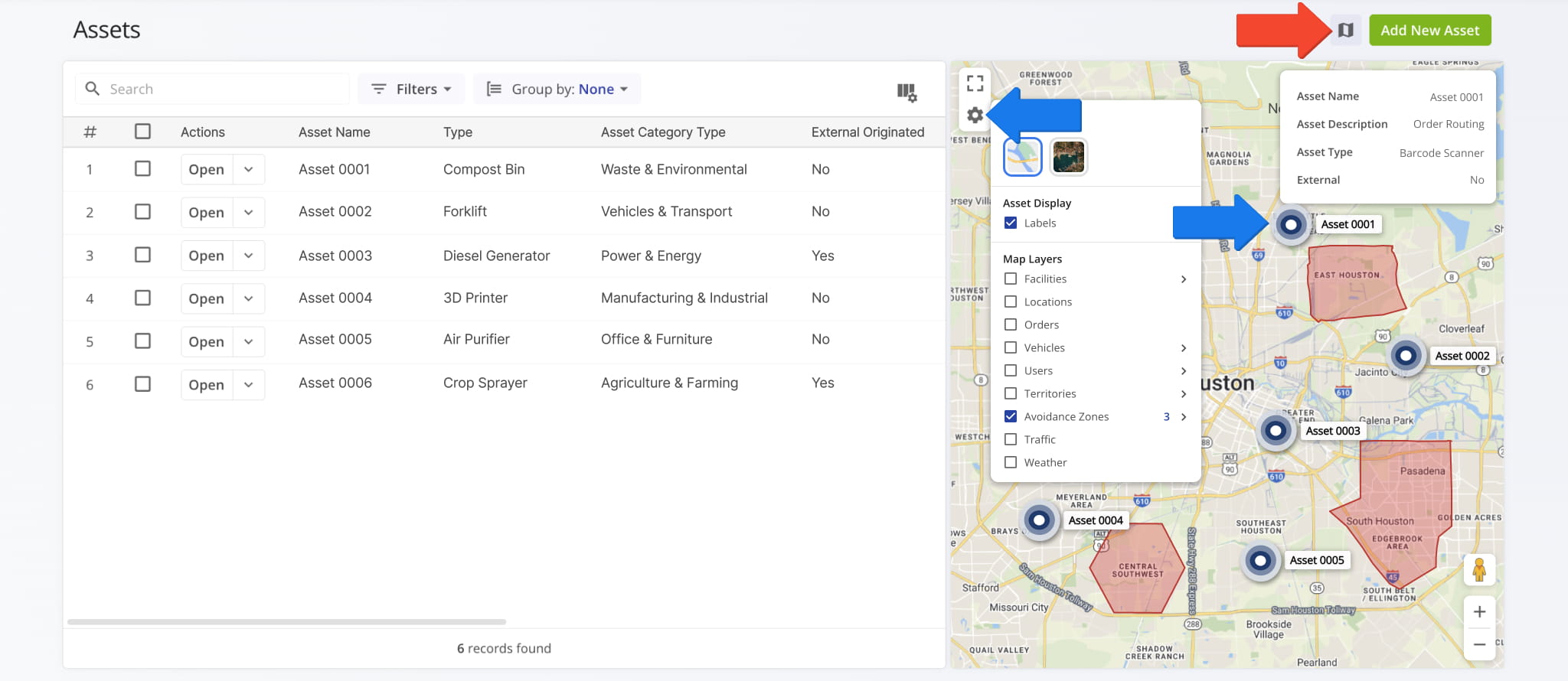
Map Settings
Data Columns – Customize And Reorder Your Asset Data Table
With Route4Me, you can customize any data table on your TMS Web Platform. To choose which columns appear on the Assets page and set their order, click the Columns button in the top-left corner.
In the “Display Columns” Panel, select the checkboxes next to the columns you want to display. To change their order, drag and drop the column names in the list. Click “Apply” to save your changes.
The table below lists the data columns available on the Assets page.
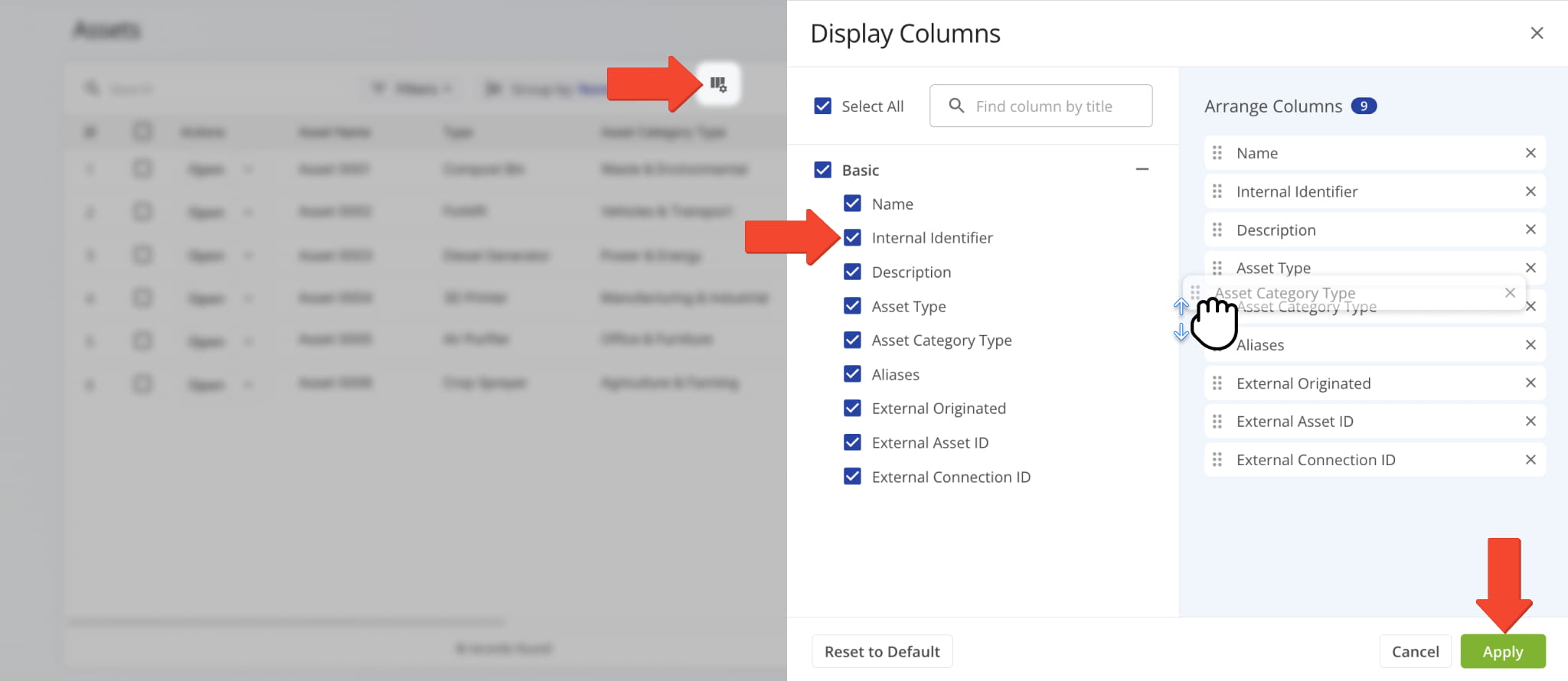
Assets Data Columns
Pre-Configured Asset Types – Built-In Categories For Enterprise Asset Management
Route4Me provides pre-configured asset types for setting up and managing equipment, containers, vehicles, and infrastructure. These asset types support RFID and barcode tracking, so you can identify assets accurately and monitor them across operations.
If your organization requires asset types tailored to specific workflows or equipment categories, contact Route4Me Support to configure custom asset types that meet your operational needs.
The table below lists all available preconfigured asset types.
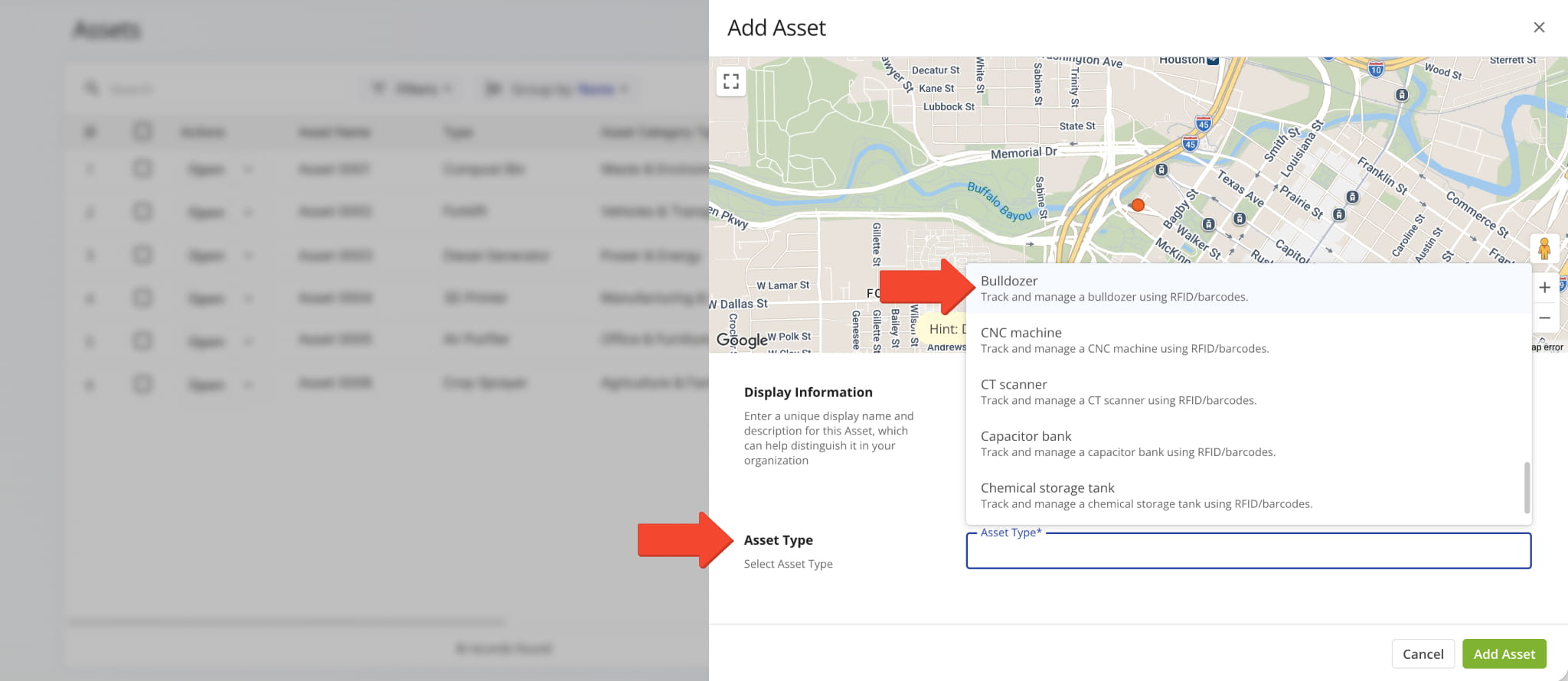
Asset Types
Visit Route4Me's Marketplace to Check out Associated Modules:
- Operations
Facilities
- Operations
Custom Data
- Analytics
Business Insights
About author: Kristian Andreev