
Weather Slowdown Route Constraint – Optimize Routes For Weather Delays
To account for weather-related impacts on travel and service times, Route4Me’s Weather Slowdown Business Rule identifies affected routes and notifies you when schedule adjustments may be needed. When you set a route’s start date or time, the system evaluates the forecast and, if necessary, prompts you to adjust travel and service times to reflect expected delays. This guide shows how to use these weather-based recommendations to optimize routes and maintain on-time performance.
Table of Contents
Optimization Profiles – Weather-Based Route Planning
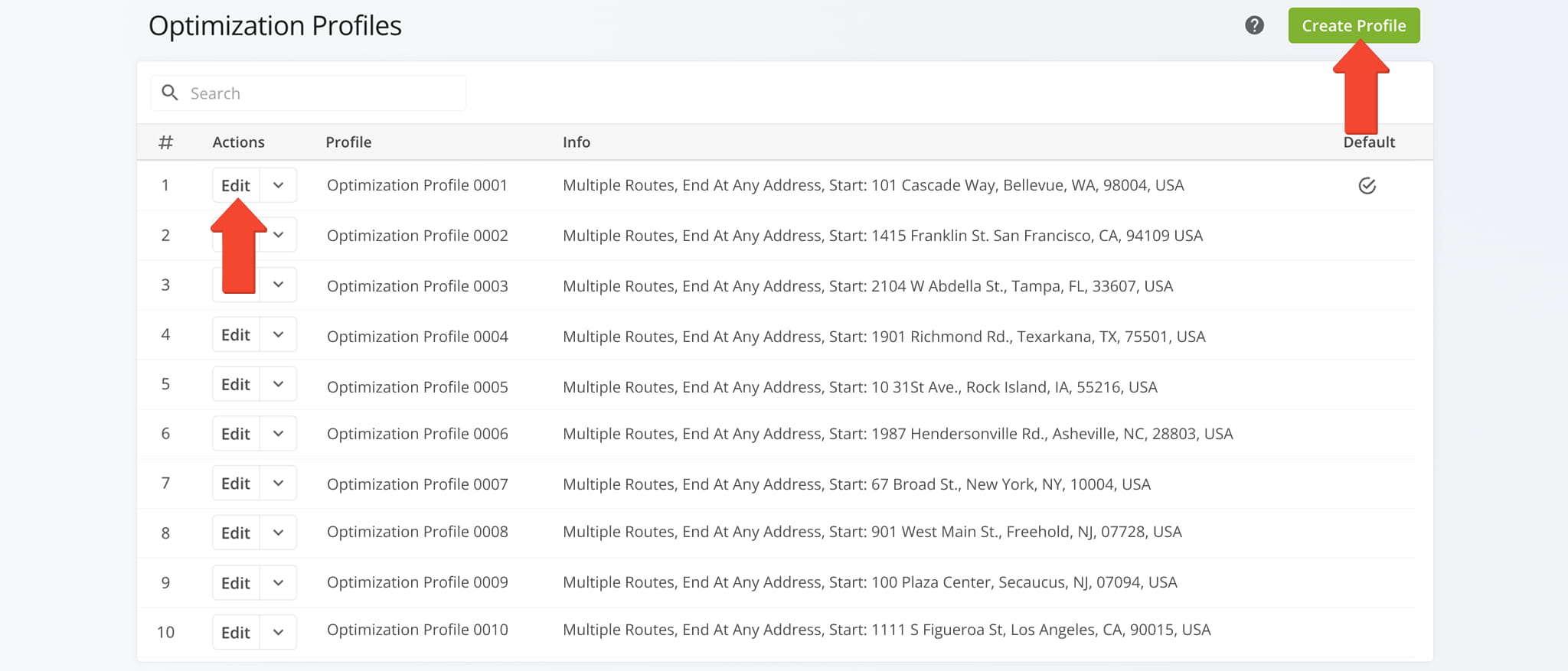
You can account for weather delays by adjusting your Optimization Profiles. From the Navigation Menu, go to “Optimization Settings” > “Optimization Profiles“. To create a new Profile, click “Create Profile“. To edit an existing Profile, click “Edit Profile“.
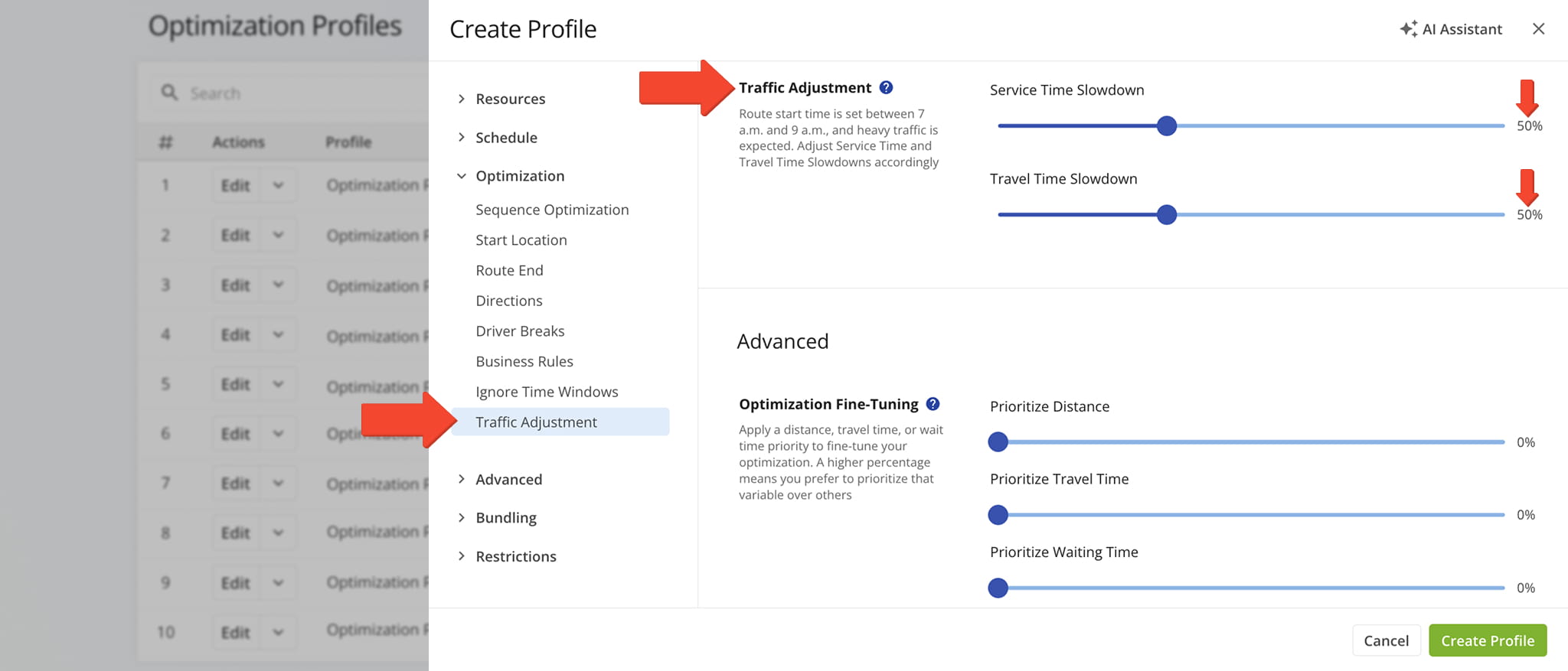
Under the “Optimization” tab, select “Traffic Adjustment” and use the sliders to set Service Time and Travel Time Slowdowns as a percentage.
For example, a 50% slowdown applied to a 10-minute service time adds 5 minutes, bringing the total to 15 minutes per stop. The same 50% slowdown on a 60-minute drive extends travel time to 90 minutes.
Setting these percentages based on forecasted conditions gives your routes a built-in buffer, so weather delays don’t cascade into missed stops or late arrivals.
Open Your Optimization Profiles
Manual Optimization Settings – Fine-Tune Travel Times For Weather
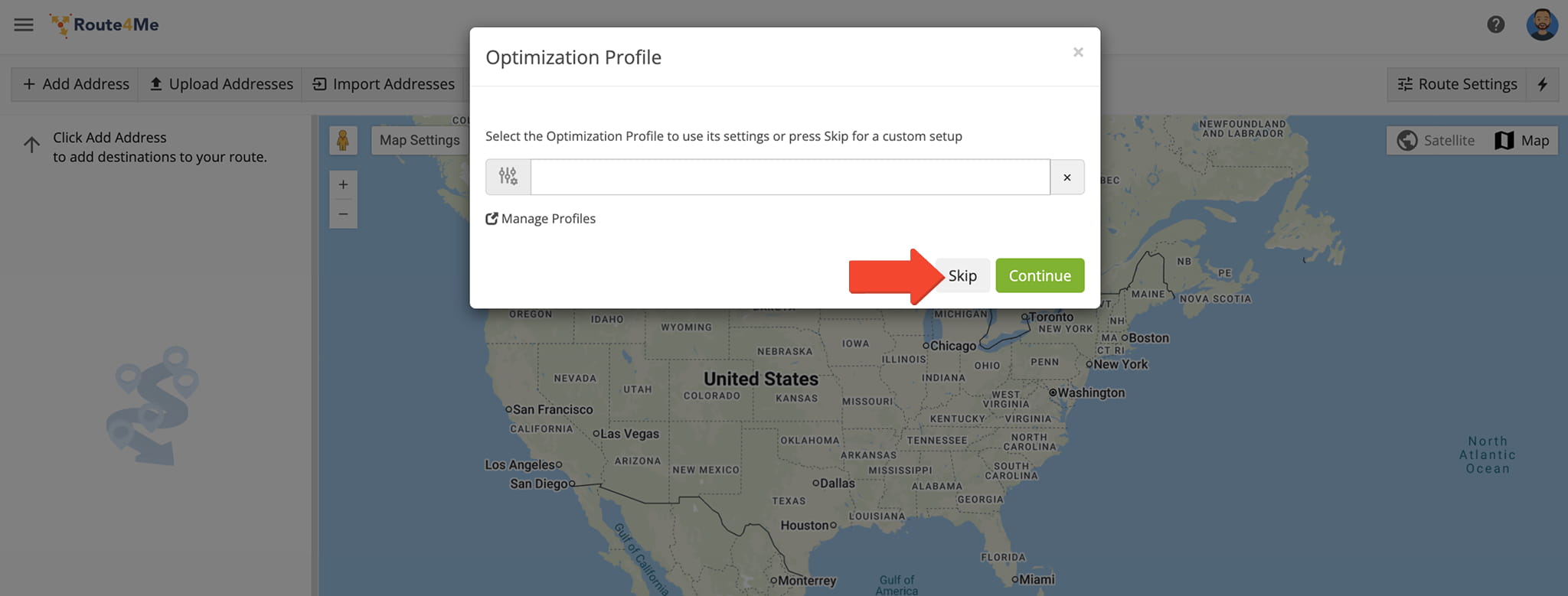
You can also account for weather delays through manual optimization settings when planning a new route. From the Navigation Menu, select “Plan New Route” and choose your route planning method.
When prompted to select an Optimization Profile, click “Skip” to access manual settings.
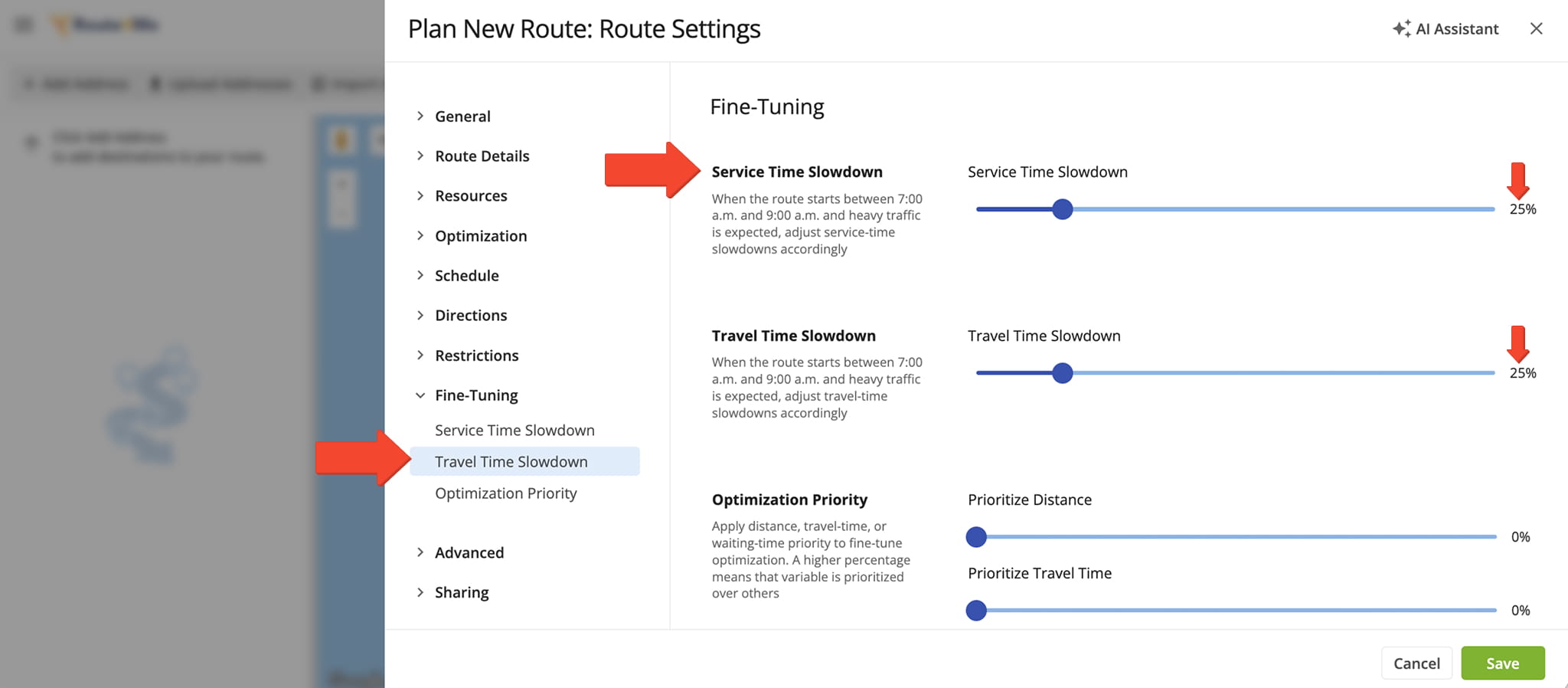
Under “Fine-Tuning“, use the sliders to set your Service and Travel Time Slowdowns as a percentage, then click “Save“.
To illustrate, a 25% Slowdown applied to a 10-minute service time adds 2.5 minutes, bringing the total to 12.5 minutes per stop. The same 25% Slowdown on a 60-minute drive extends travel time to 75 minutes.
By calibrating these values to match expected weather severity, you can plan routes that stay realistic even when rain, snow, or fog slow things down on the road.
Verify Weather Slowdowns – Review Routes Map Weather Forecast
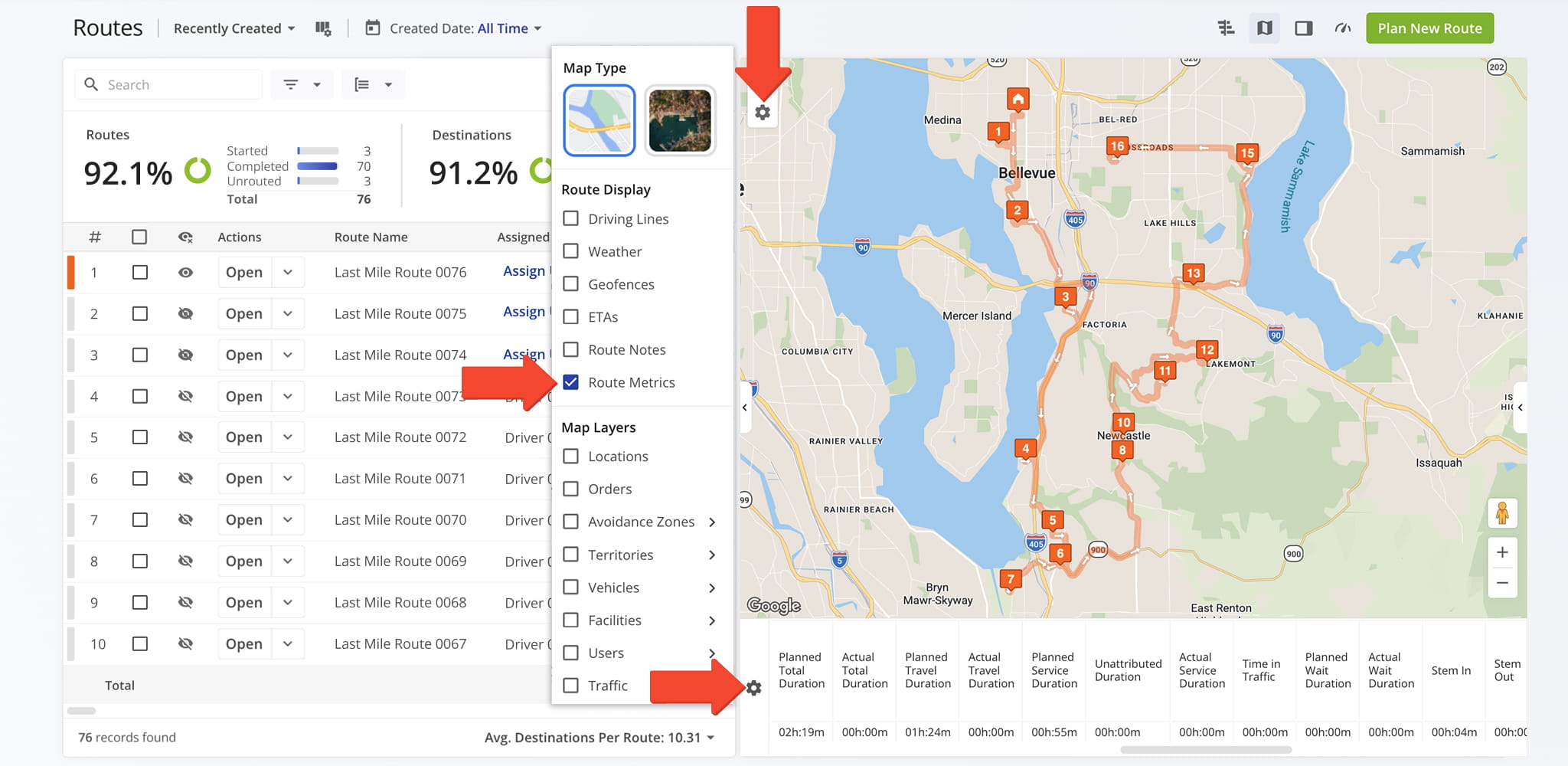
After planning and optimizing a route, you can verify your Slowdown adjustments directly on the Routes Map.
Enable the “Route Metrics” display to see duration adjustments applied to the route, confirming that your Service Time and Travel Time slowdowns are reflected as expected.
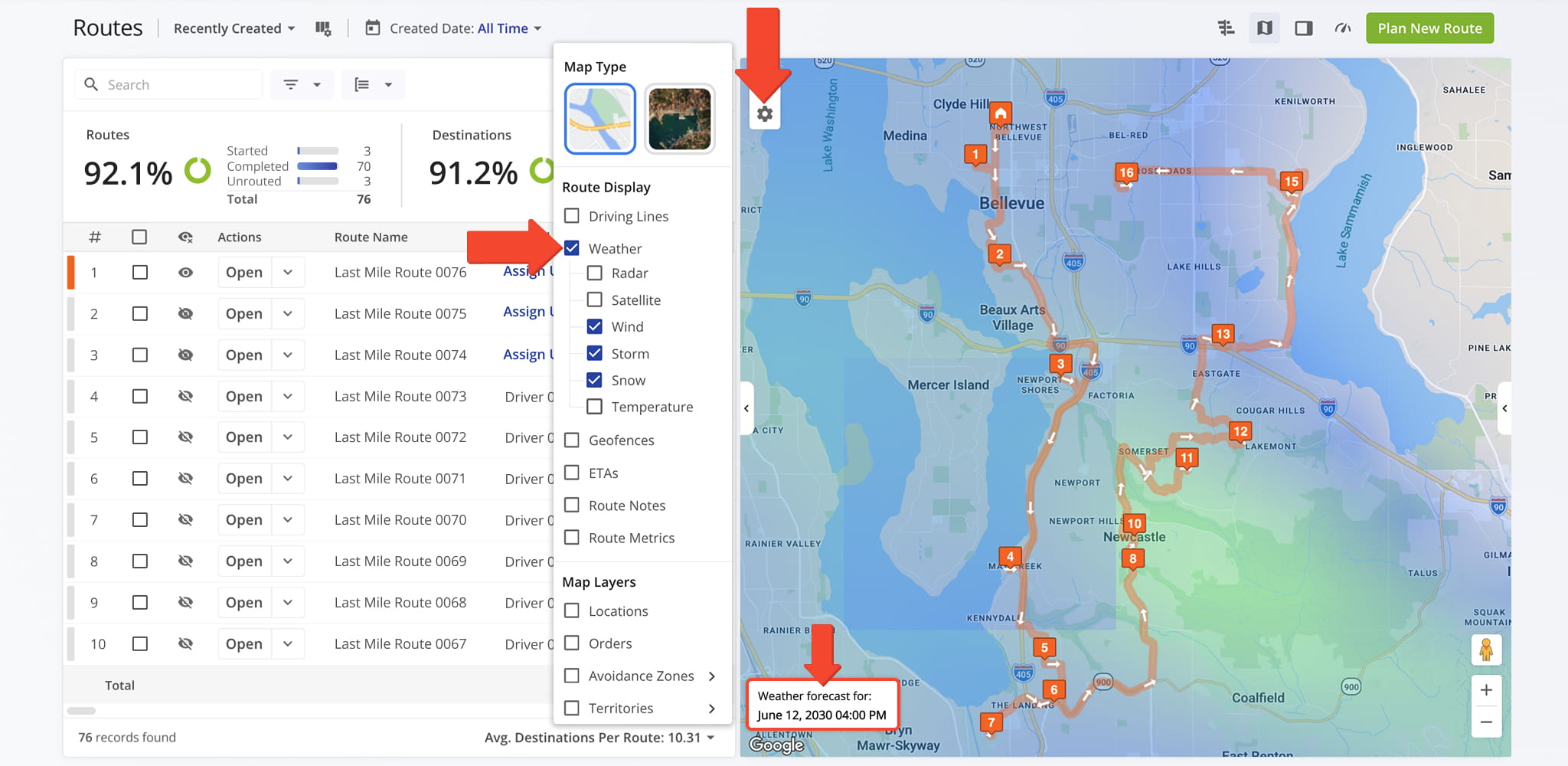
You can then enable the Weather Map Layer to see predictive weather forecasts for your route’s scheduled start date so you can confirm your Slowdown settings are appropriate and, if needed, proactively adjust before dispatching.
Visit Route4Me's Marketplace to Check out Associated Modules:
- Operations
Custom Data Add-On
- Operations
Advanced Team Management Add-On
About author: Daniel Archer

