
Route4Trucks Android Install & Sign In – Android Mobile App For Company Truck Drivers
Route4Trucks is supported on iOS and Android. You can easily download and install the Route4Trucks Trucking GPS App on your iPhone, iPad, or Android device. Our trucker app provides identical functionality and supports identical features on both iOS and Android GPS apps for truckers. To quickly install Route4Trucks on your device, scan the QR code in the image below. Further in this starter guide, you can learn how to install and sign in to Route4Trucks on your Android device.
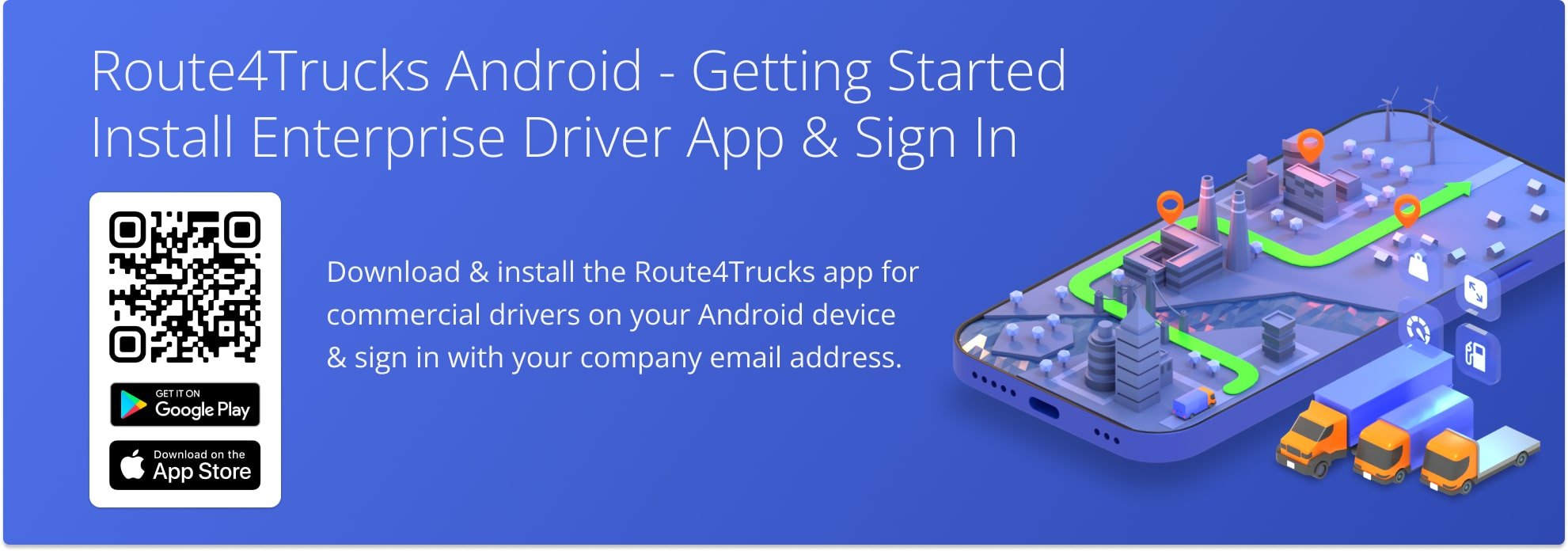
Download And Install Route4Trucks On Android From Google Play Store
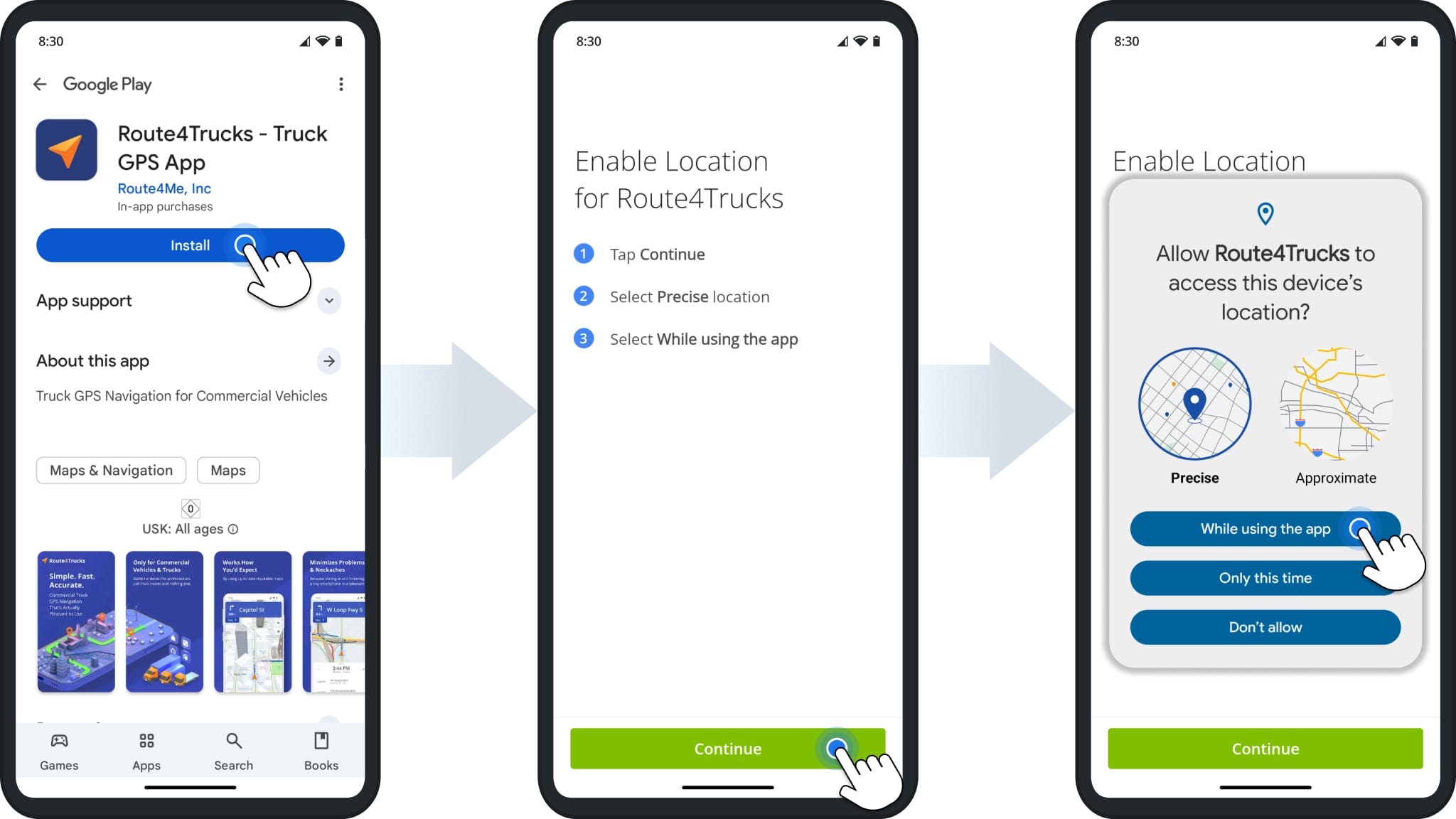
You can download the best Android truck app quickly and easily. To do so, go to the Play Store, search for “Route4Trucks“, and tap the “Install” button. Alternatively, tap the button below and install the app. Then, tap “Continue” and select “While using the app” to enable location permissions for GPS truck navigation.
Download Route4Trucks Android App
Get Started With The Route4Trucks Android Trucker App
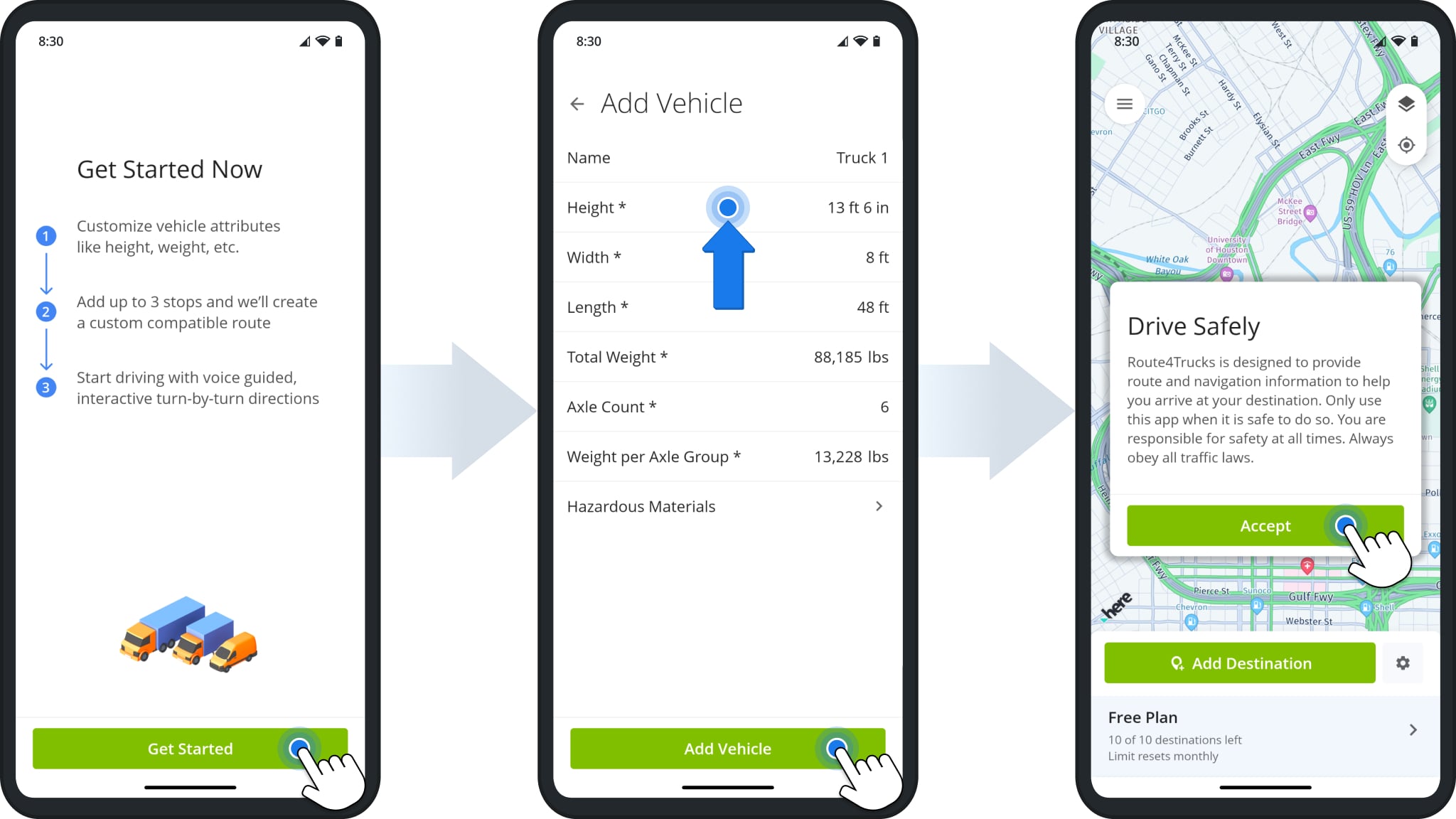
After installing Route4Trucks on your Android device and enabling location permissions, tap “Get Started“. Proceed by filling the mandatory fields in the “Add Vehicle” screen.
To quickly get through the Get Started process and sign in with your company account, you can tap each field, confirm the default values, and tap “Add Vehicle“. Next, tap “Accept” to confirm you’ve read the “Drive Safely” message.
Sign In To Android App For Truckers With Company Account
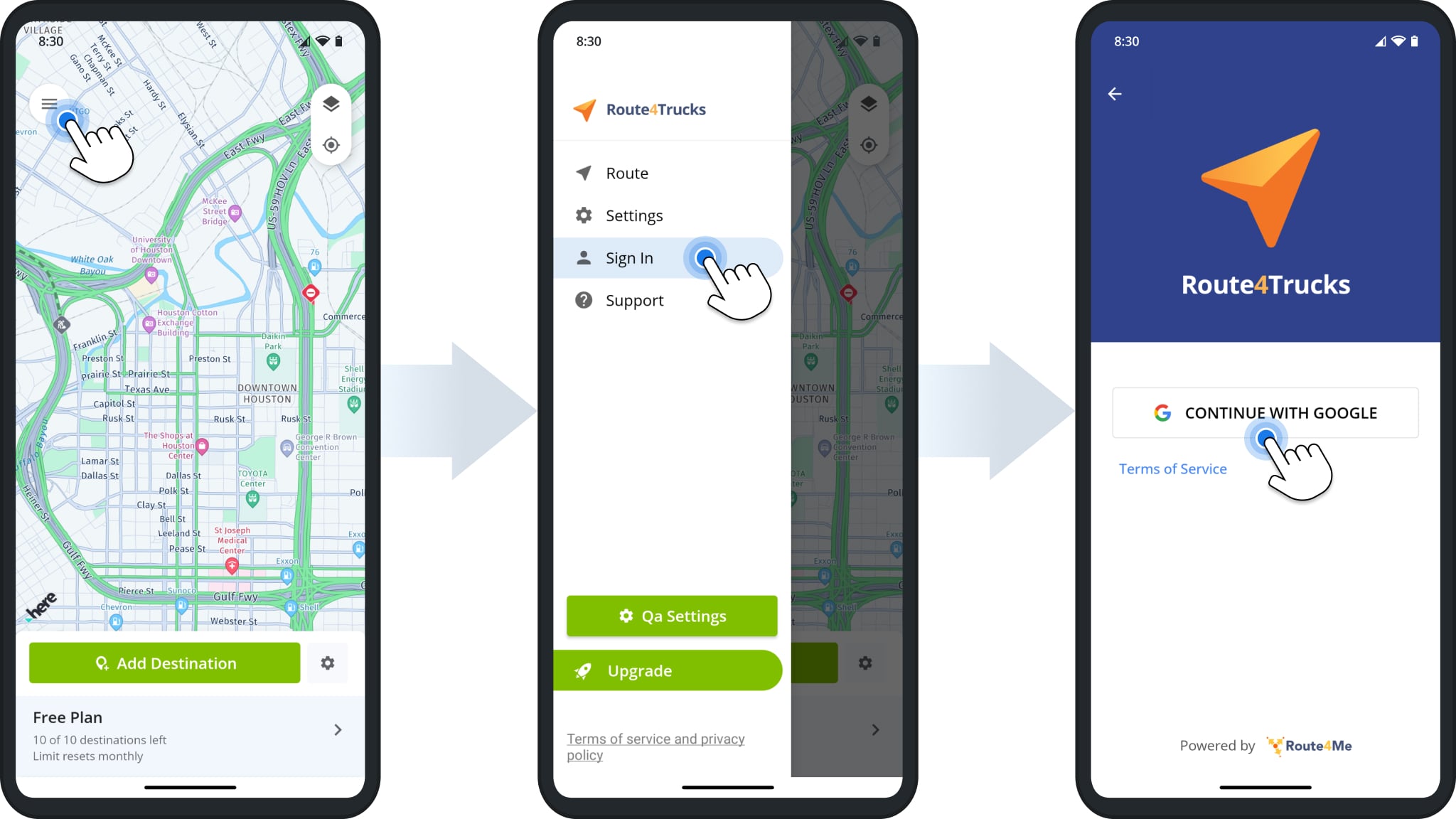
Once you’ve completed the Get Started process, tap the Menu Button in the top-left of the app. Then, select “Sign In” from the menu. Tap “Continue With Google” to use Google SSO to sign in with your Google account.
NOTE: Contact your direct manager or supervisor to confirm your sign-in email address and password.
Visit Route4Me's Marketplace to Check Out More Add-Ons and Modules:
- Route Optimization
Commercial Vehicle & Truck Routing

