
Facilities Permissions And Visibility – Assign And Configure Facility Access
Facilities are central to how enterprise businesses manage last mile routing and route optimization in Route4Me, serving as the depots, warehouses, or distribution centers that routes originate from or return to. Because they represent sensitive operational infrastructure, access to Facilities is tightly controlled. This guide explains how that access is determined and how to configure it for your account.
Table of Contents
Facilities Access By User Type – Depot Permission Levels By Role
Each User is assigned a User Type by an Account Owner or Administrator, which determines their level of access to the Facilities page. See the table below for details on what each User Type can view, create, edit, or delete.
NOTE: Learn more about managing users and assigning User Types.
Open Your Users Management Page
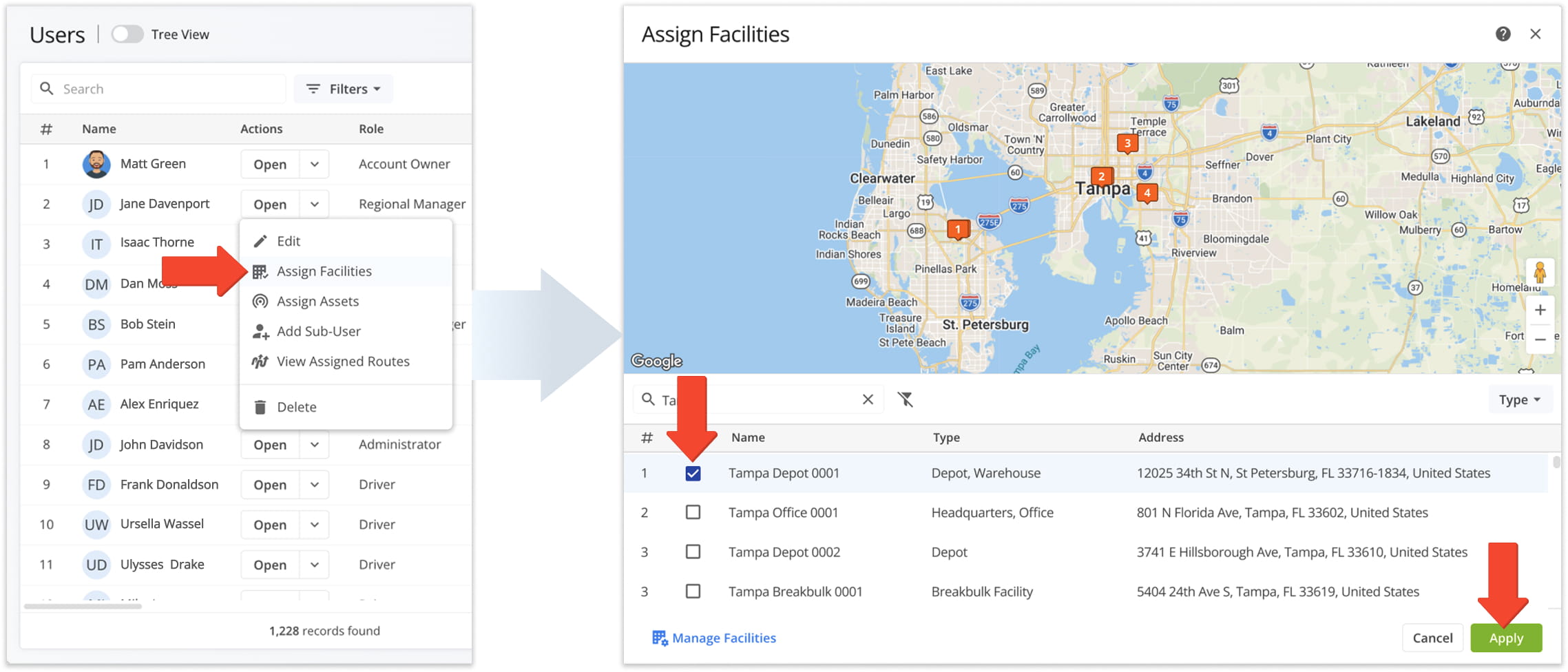
User Access & Permissions
Facility Visibility Rules – Assignment-Based Depot Visibility
While User Type determines what a User can do on the Facilities page, Facility assignment determines which Facilities they can see and act on. Which Facilities a User sees depends on whether they’ve been assigned to one:
- Not assigned to any Facility: The User sees all Facilities their User Type permits them to access.
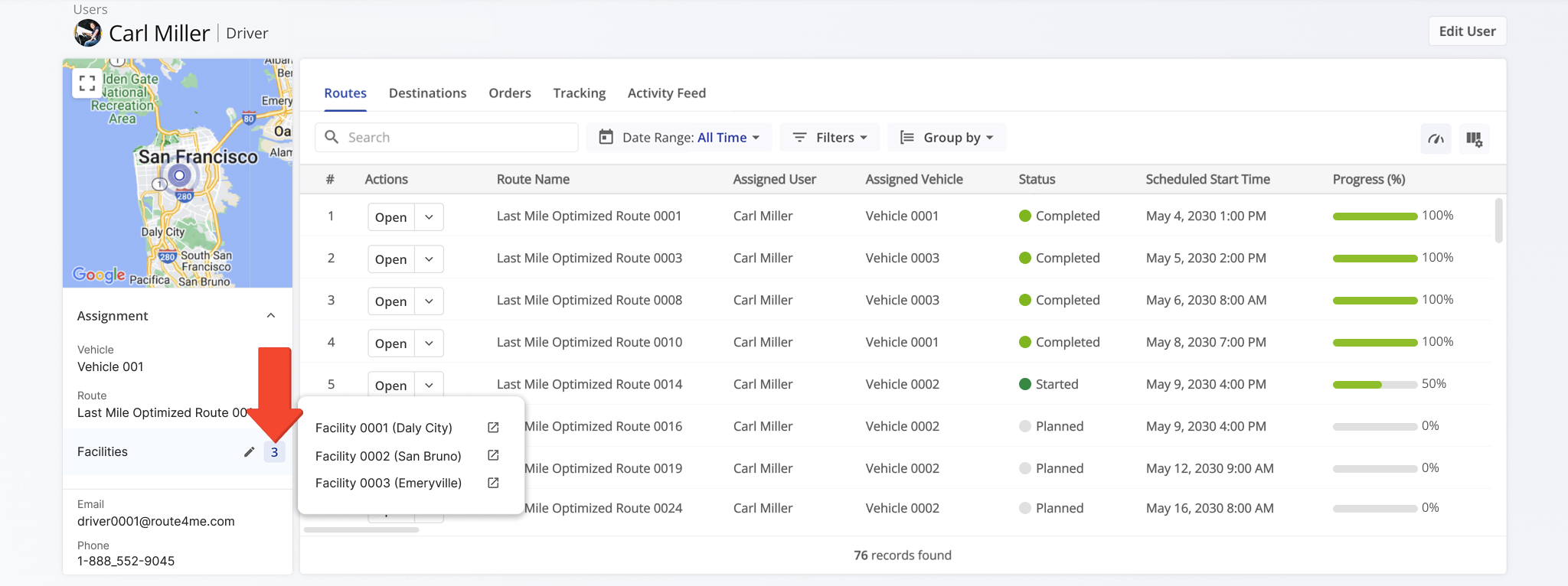
- Assigned to one or more Facilities: The User sees only the Facility (or Facilities) they’ve been assigned to. For drivers, assigned Facilities are also automatically applied to their routes.
Assigned Users can also only select and assign Users from their own Facilities in Route Snapshot, Optimization Snapshot, and the Assignment Board.
NOTE: Facility assignment affects visibility only. Permissions are still determined by the User Type.
Custom Configurations And Settings – Optional Facilities Features
Route4Me offers several optional Facility-related configurations that extend the standard functionality described in this guide. These settings are not enabled by default and are configured on a per-account basis.
To enable any of the settings detailed in the following table, please contact Route4Me Customer Support. NOTE: Learn more about Route4Me’s advanced configurations.
Open Your Advanced Configuration Page
Custom Configurations & Settings
Visit Route4Me's Marketplace to Check out Associated Modules:
- Operations
Advanced Team Management Add-On
- Operations
Custom Data Add-On
About author: Daniel Archer

