
Route4Trucks – Select And Confirm Commercial Vehicles From Facilities
The Route4Trucks app for company truckers enables you to select and confirm trucks from company Facilities. Use this guide to learn how to select Facility Vehicles from the Route4Trucks Settings and the in-app License Plate Scanner.
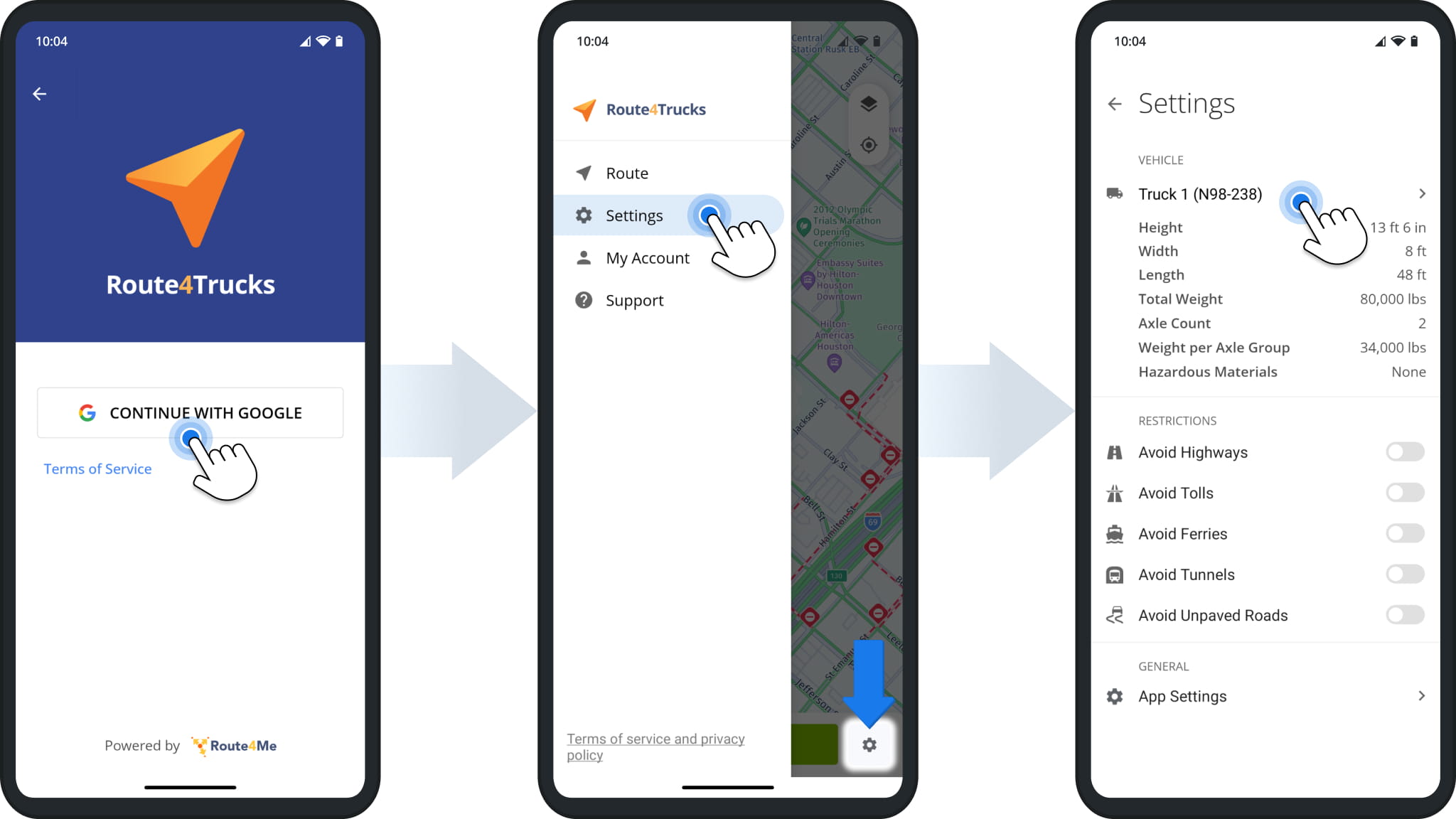
To manually confirm vehicles from Facilities assigned to you, first sign in with your Google account. If you already have a commercial vehicle selected in the app, go to “Settings” in the main menu and tap the active vehicle.
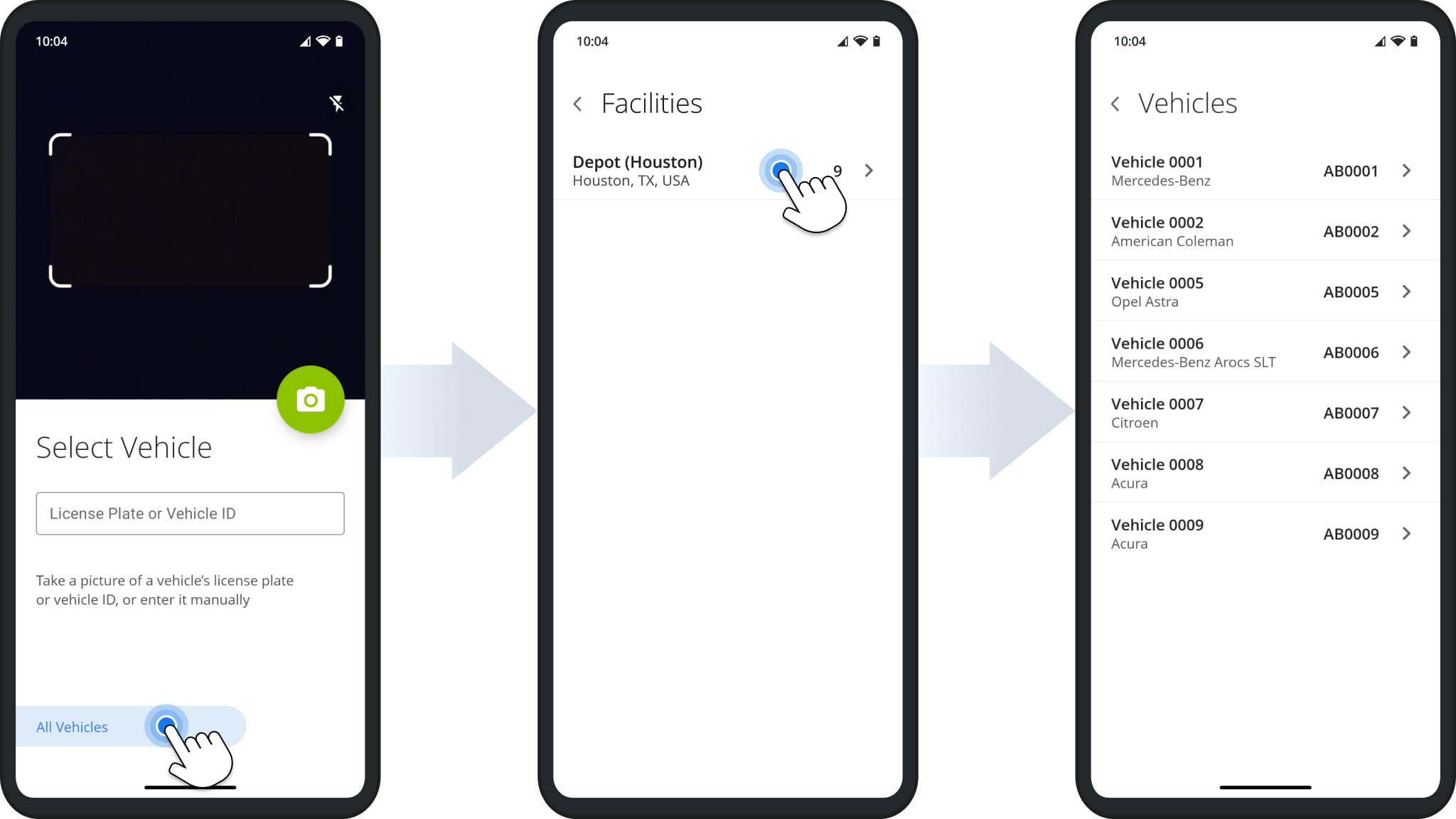
The app will open the Truck License Plate Scanner. Tap “All Vehicles“, and you’ll see a list of Facilities you have access to. Select the correct Facility, and you’ll see a list of Vehicles associated with it.
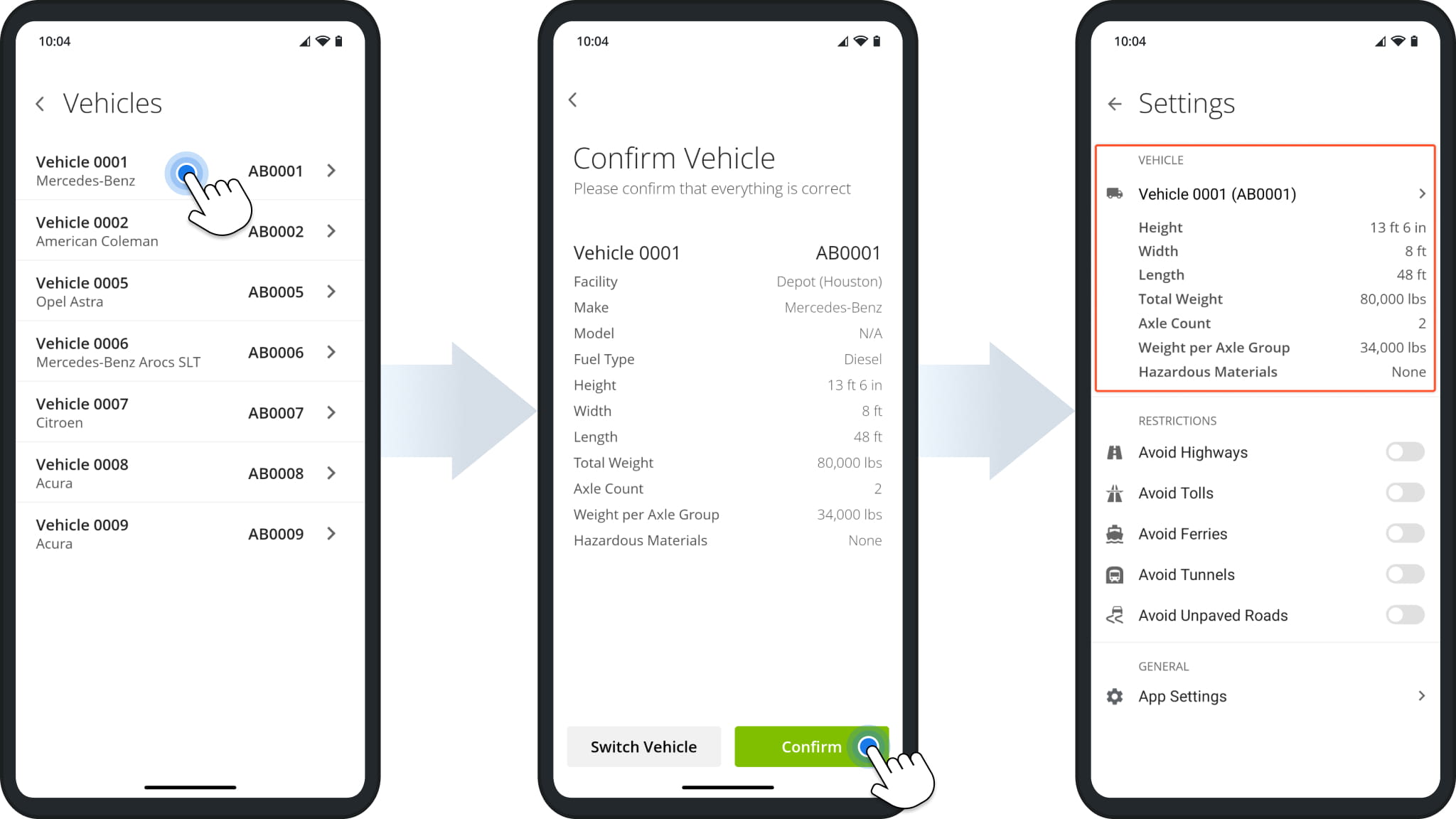
Tap a vehicle from the list to check and confirm its details. If everything is correct, tap “Confirm” to proceed. Finally, you’ll see the vehicle you confirmed in the trucker app settings. Route4Trucks always uses the active vehicle’s parameters such as height, width, weight, etc. to provide the most accurate and compliant truck route directions when you navigate commercial vehicle routes.
Visit Route4Me's Marketplace to Check Out More Add-Ons and Modules:
- Route Optimization
Commercial Vehicle & Truck Routing
About author: Kristian Andreev

