
2026 Route4Me Release Notes & Product Updates
Discover what’s new in Route4Me and stay up to date with the latest releases, improvements, and product updates. This page provides a comprehensive overview of our completed and upcoming releases for 2026.
NOTE: If some features are not available on your account, Contact Route4Me Support.
Table of Contents
Q1 2026 – Planned & Completed Releases
In this section, you can find a list of features, enhancements, and updates we’ve released during the first quarter of 2026. Our relase notes are updated regularly as the Route4Me Transportation Mangement Software is constantly improving.
February 2026 Route4Me Update Release Notes
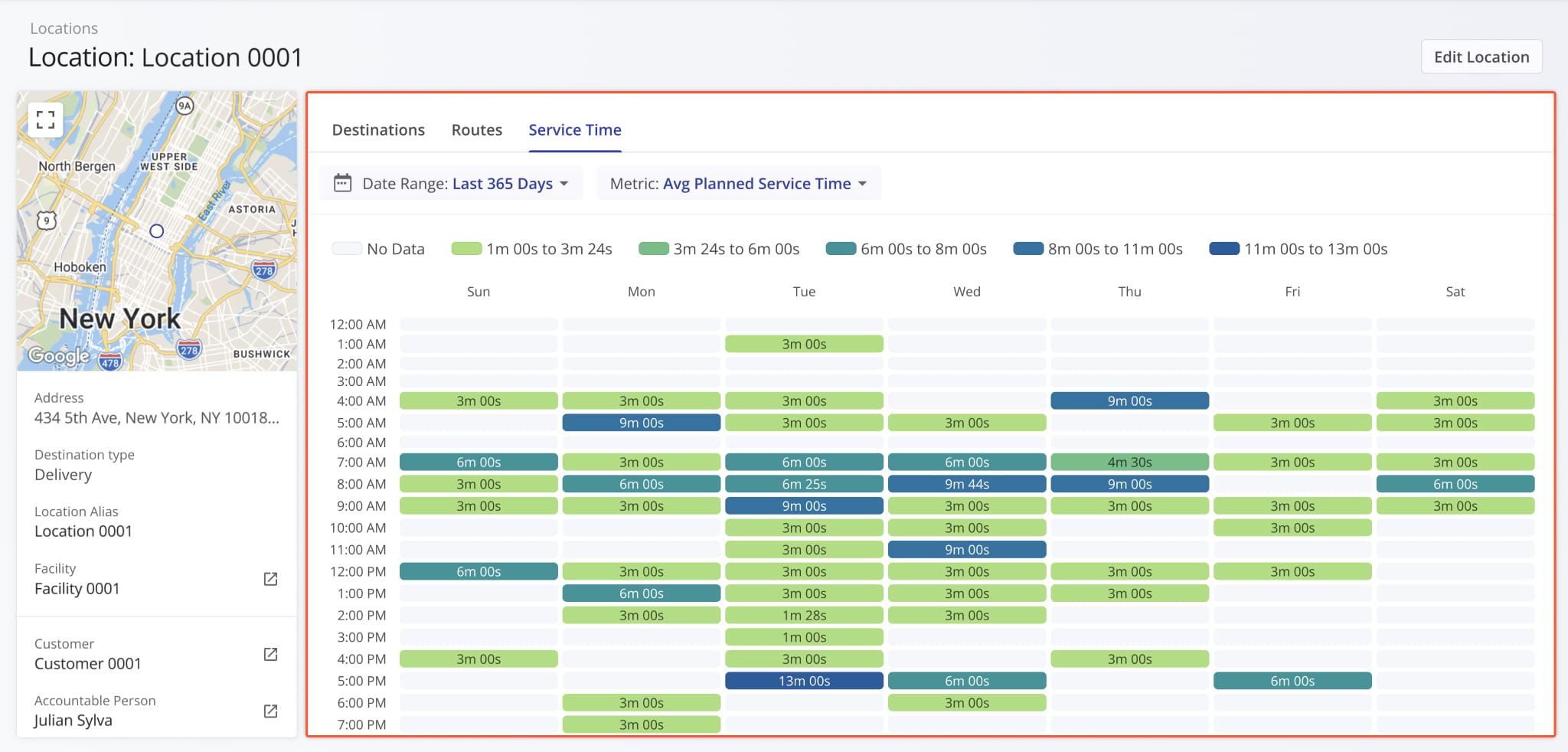
A new “Service Time” category was added to Location Snapshots. It shows the distribution of Destination Service Time at a Location across the days of the week over the specified time period. This update enables you to get a clear overview of how the planned, reported, and detected Service Time at a Location is distributed.
Previously, you could only see specific Service Time values at route destinations but couldn’t track its distribution.
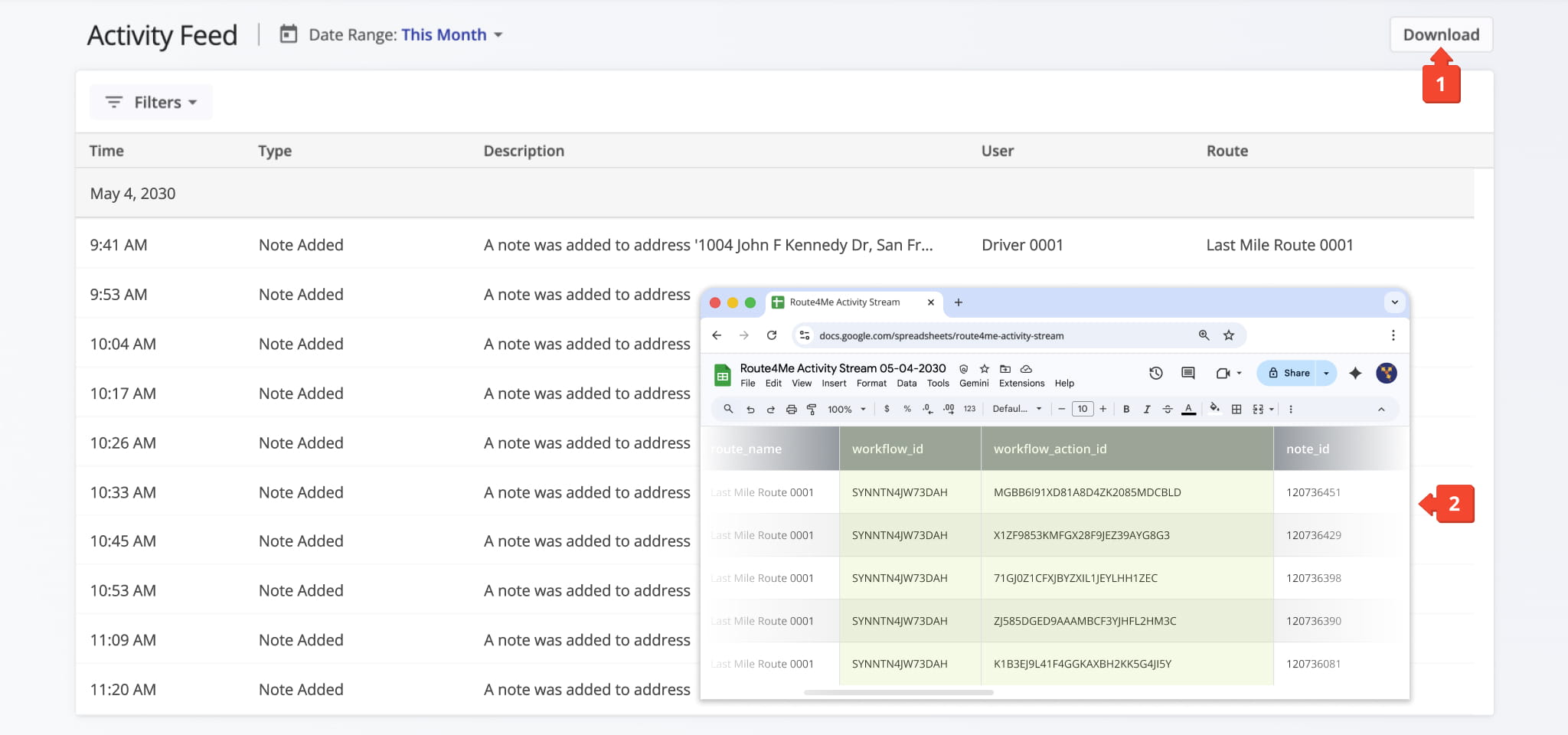
Your account’s Activity Feed now supports matching Workflow IDs and Workflow Action IDs to Destination Notes. Currently, the new data fields are visible when you export Activity Feed data by clicking the “Download” button.
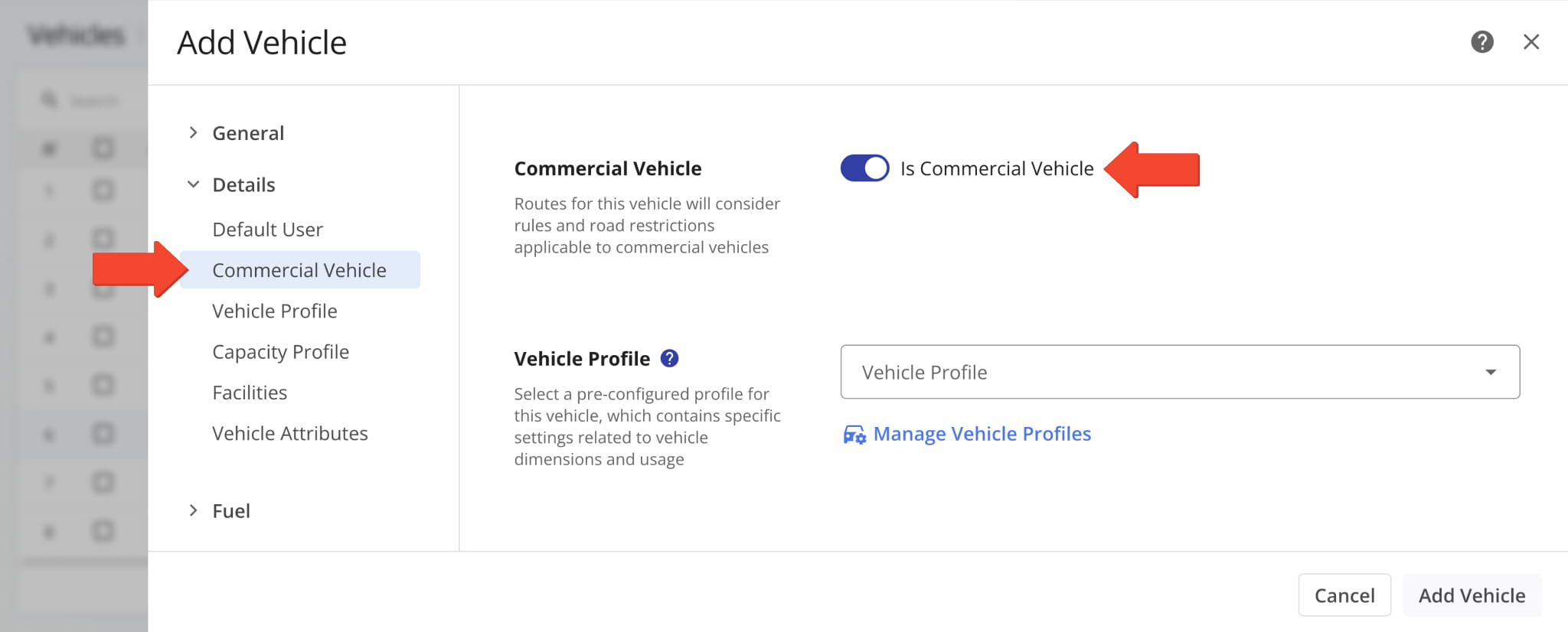
A new “Is Commercial Vehicle” toggle option was added to the “Details” section when you add and manage vehicles. When enabled, it allows you to select of a Commercial Vehicle Profile in the “Vehicle Profile” field.
Previously, you’d select a vehicle type separate from Vehicle Profiles. The new toggle option streamlines the process of commercial vehicle management by reducing ambiguity and overlap between interfaces.
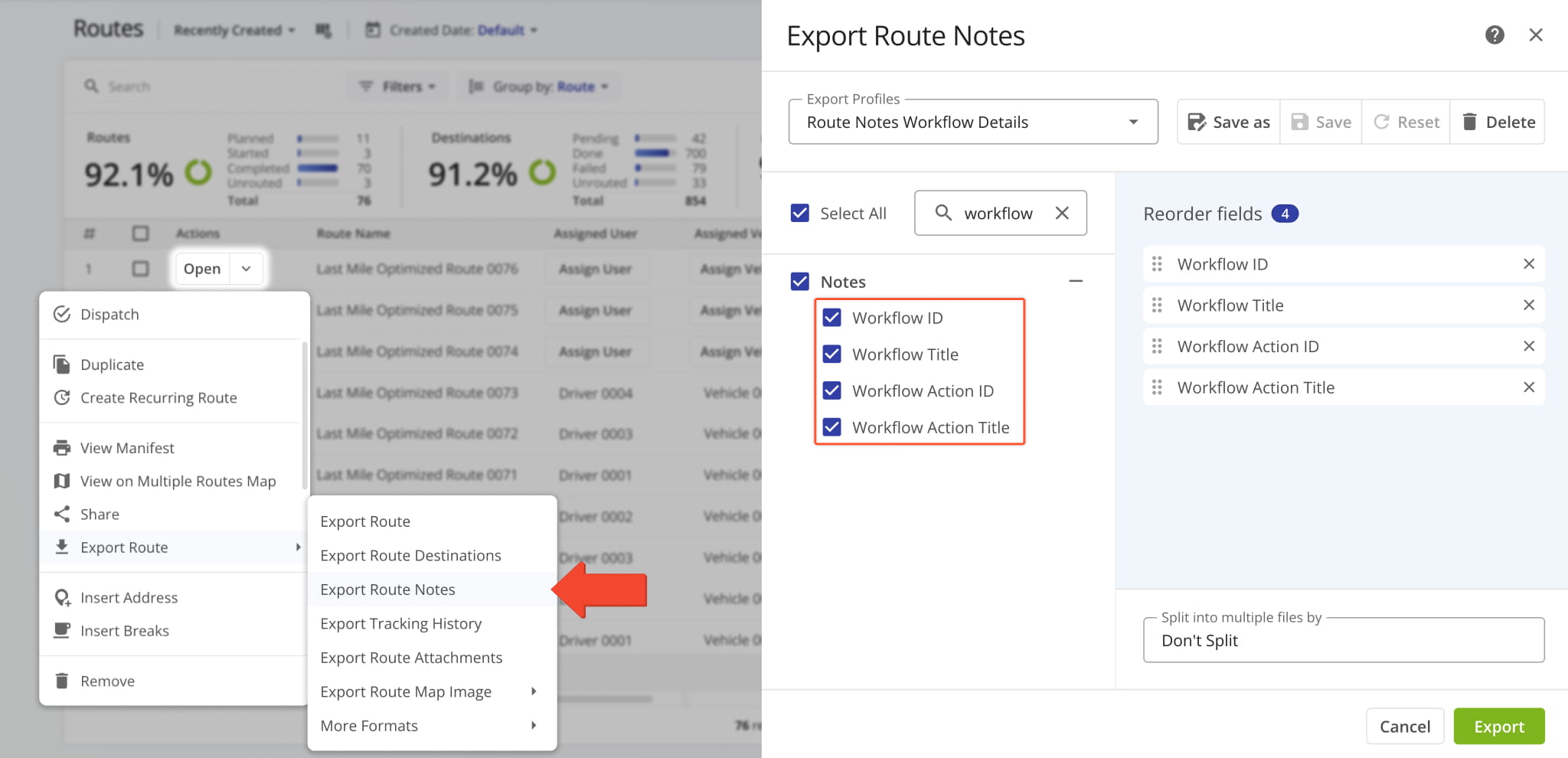
New Workflow data items were added to the “Export Route Notes” settings. They enable you to see the names and internal system IDs of Workflows and Workflow Actions associated with specific Destination Notes.
Previously, Workflow data wasn’t available when exporting Notes.
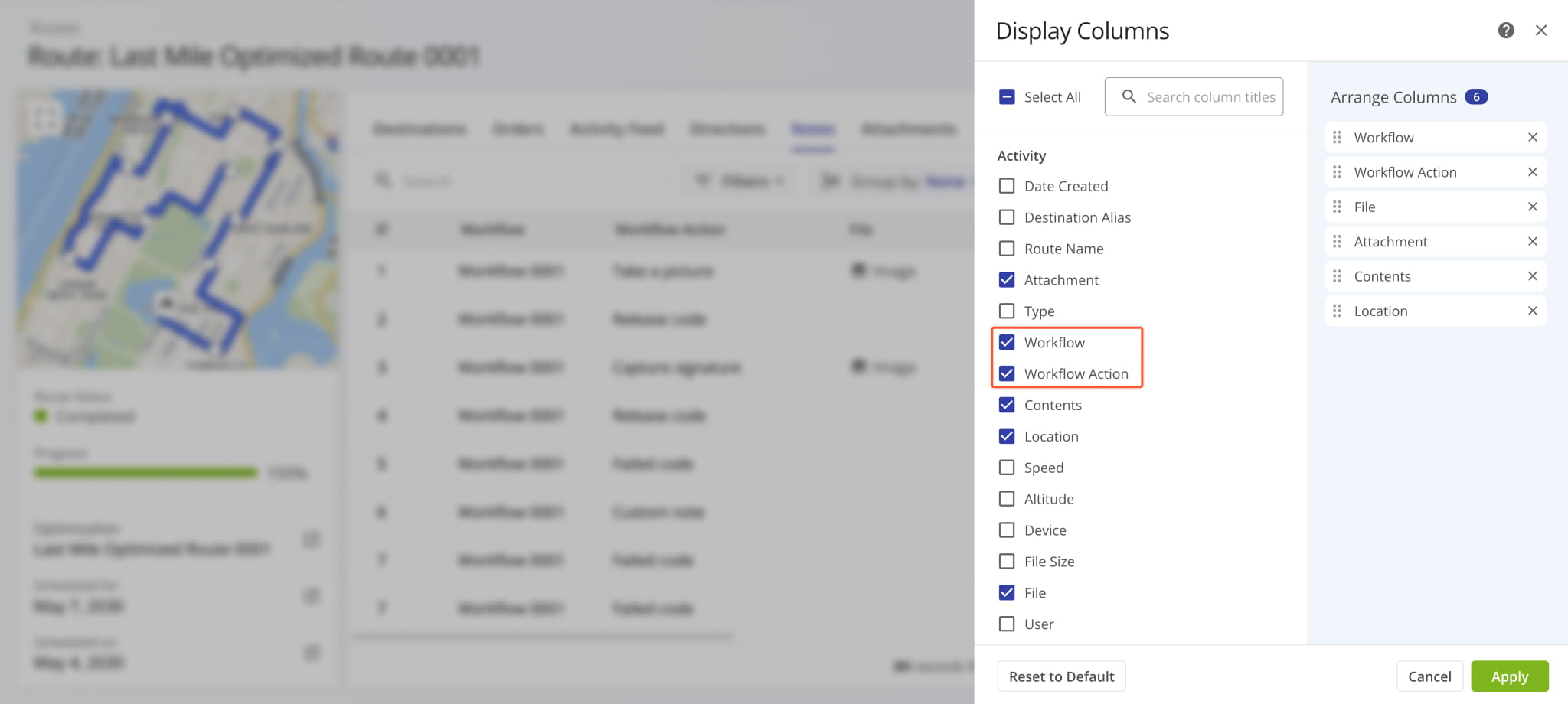
New “Workflow” and “Workflow Action” Display Columns were added to Route Snapshots in the “Notes” category.
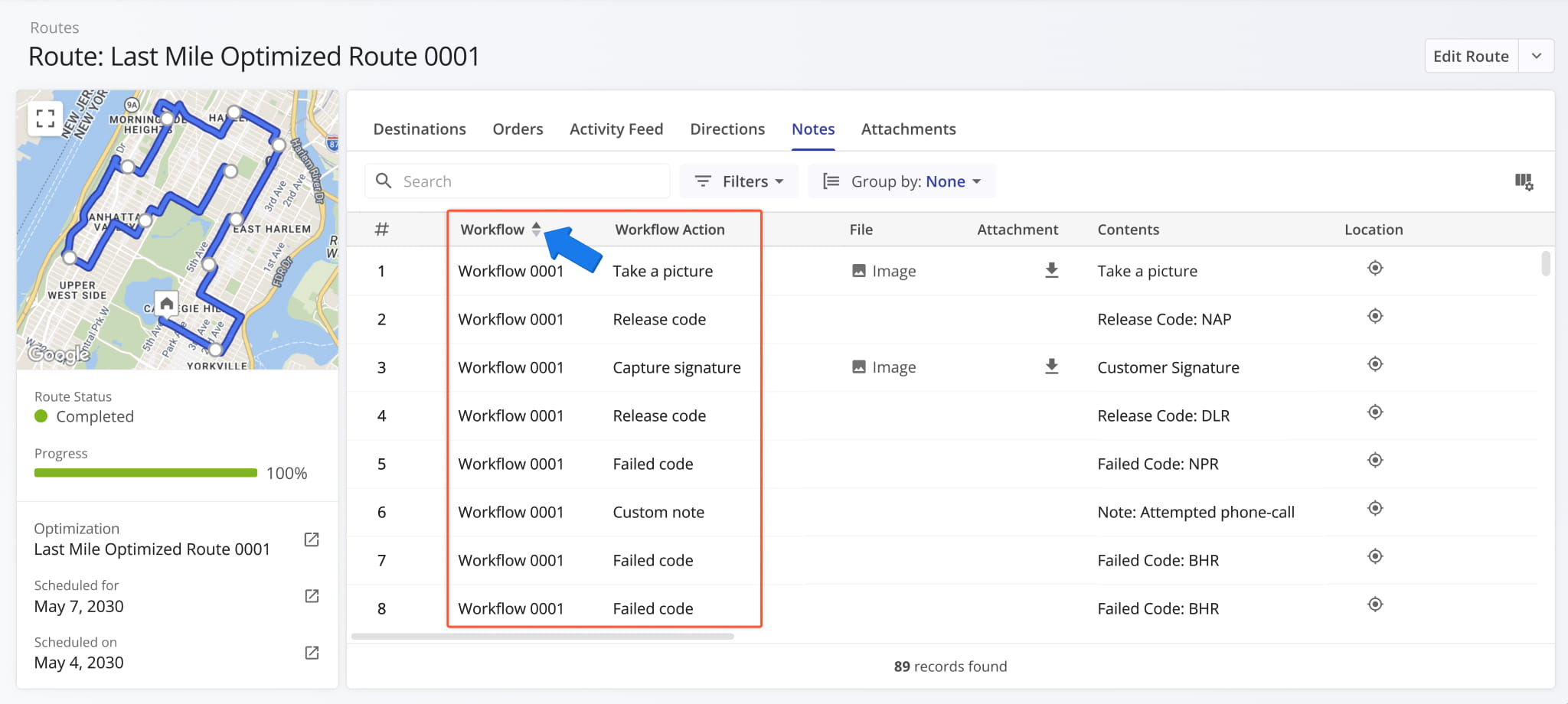
These new workflow data columns show which Workflow and action specific Destination Notes are associated with. Additionally, just like most Route4Me Display Columns, you can click the column header to sort the entire data table accordingly.
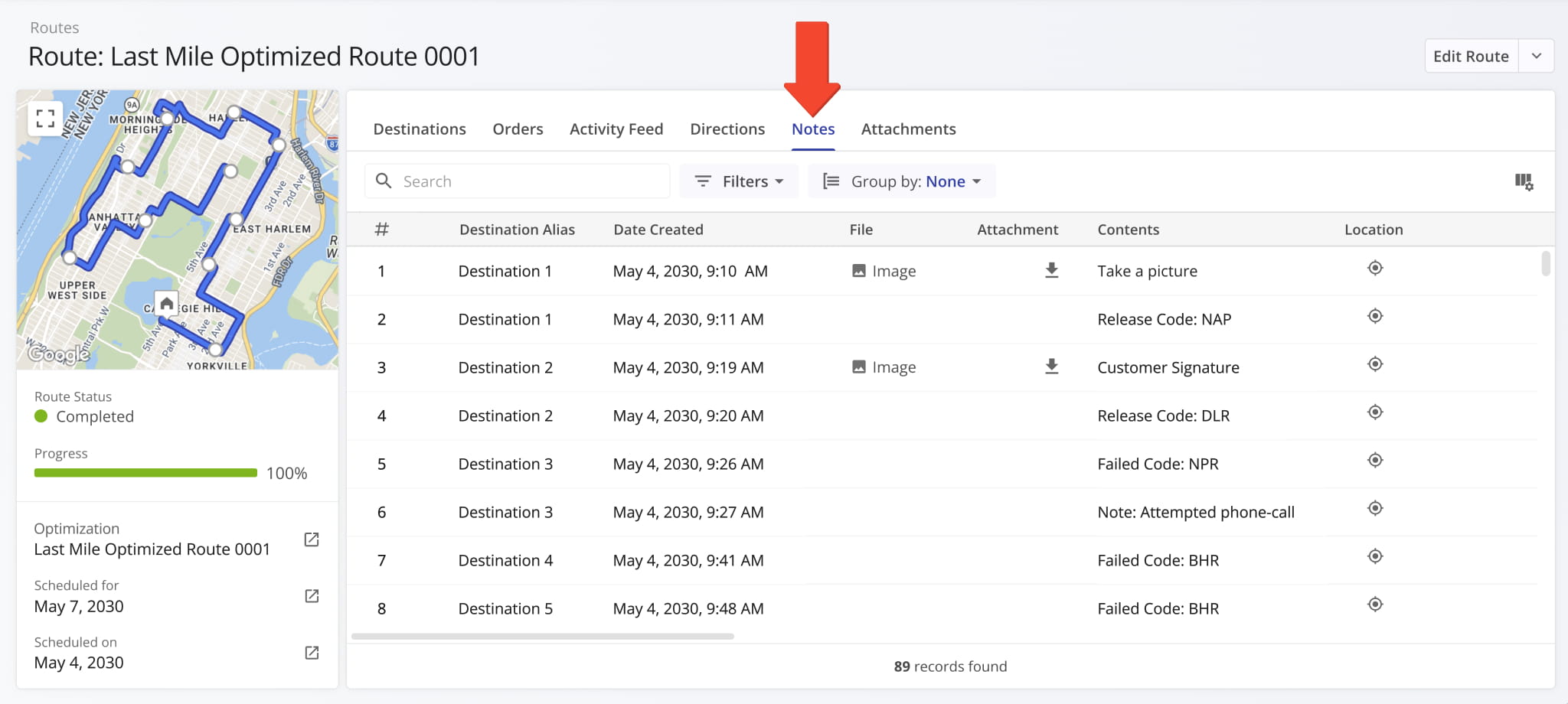
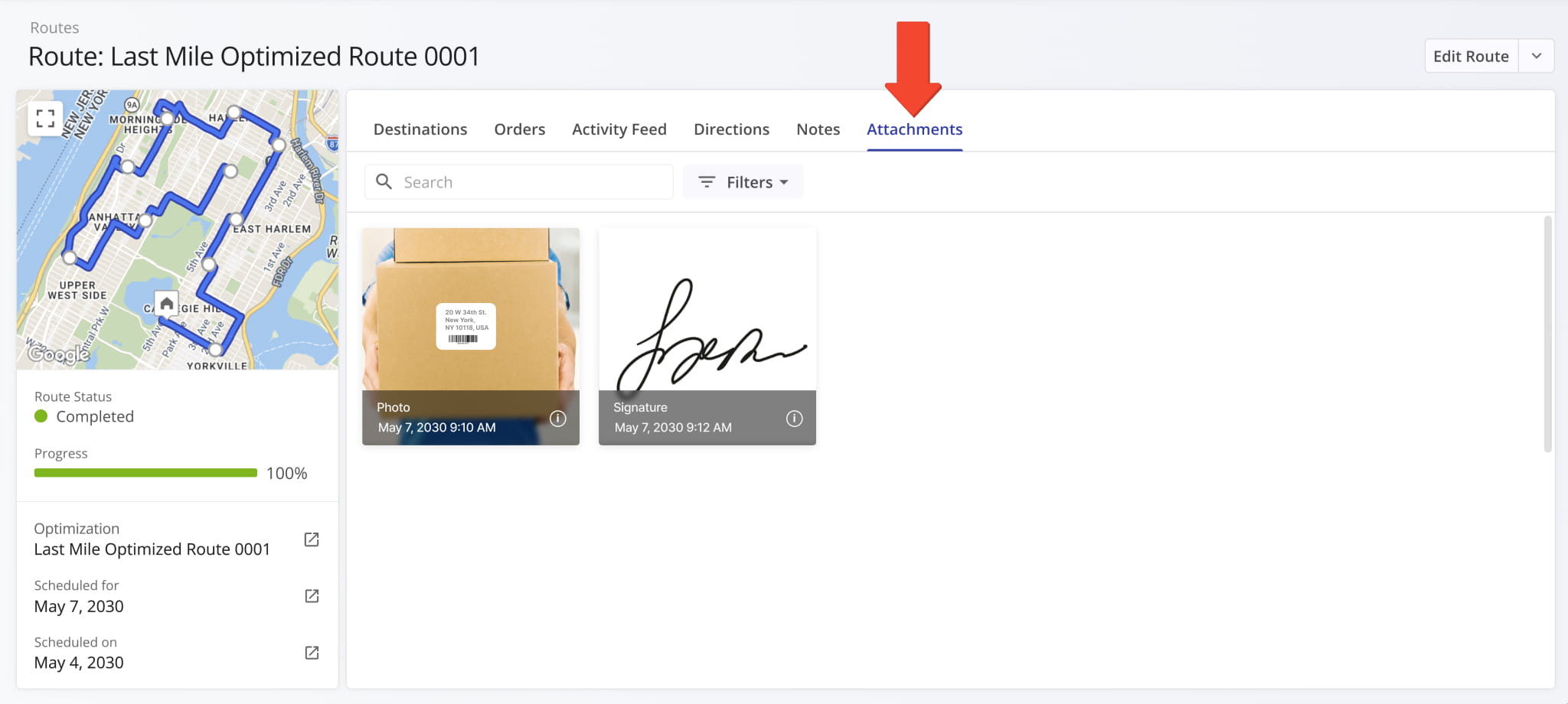
The “Notes” section of Route Snapshots was redesigned to match how Notes are displayed in Order Snapshots. This updated, unified interface enables you to easily find the Destination Notes you’re looking for, no matter which Route4Me tool you’re using.
The “Attachments” section of Route Snapshots is now also standardized across different snapshots. Just like the “Notes” tab, this provides a unified experience which helps you save time looking for the data you need.
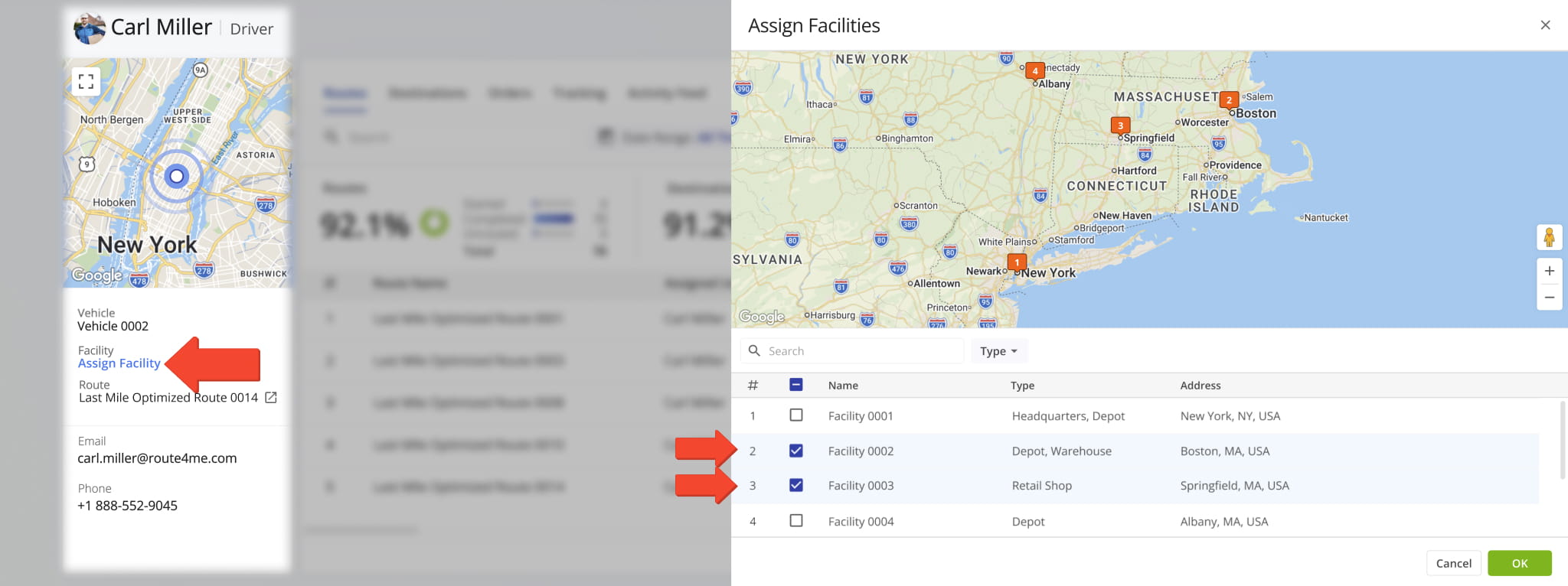
The “Assign Facility” button in User Snapshots now opens a new dynamic panel where you can assign multiple facilities to the respective user and see where those facilities are located on the map.
Previously, you could only assign facilities through a search field in the User Snapshot summary on the left.
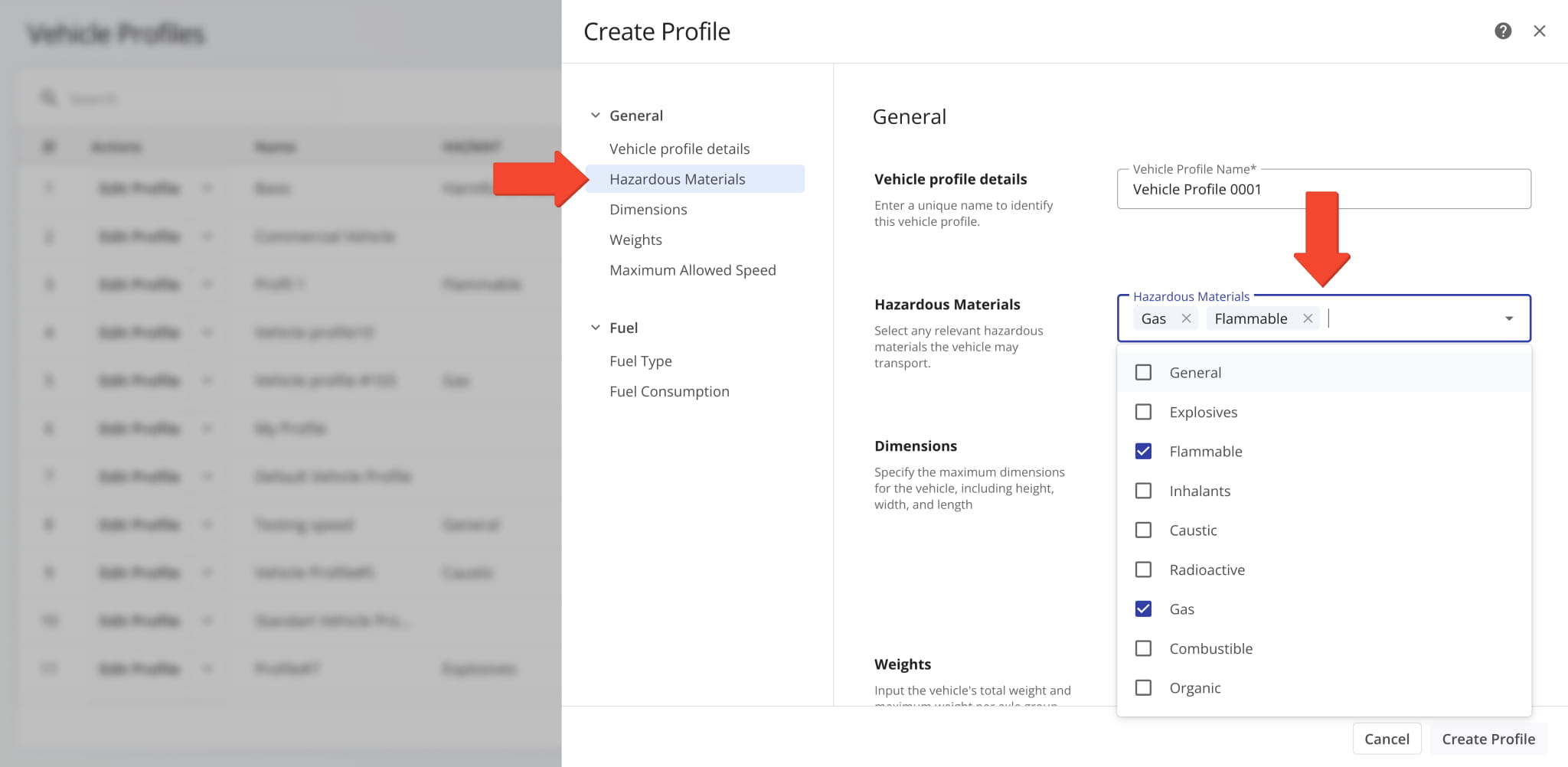
The “Hazardous Materials” field in Vehicle Profiles now supports multi-selection. Check the boxes next to options you want to include in a profile. This new functionality streamlines creating and managing profiles for commercial HAZMAT vehicles.
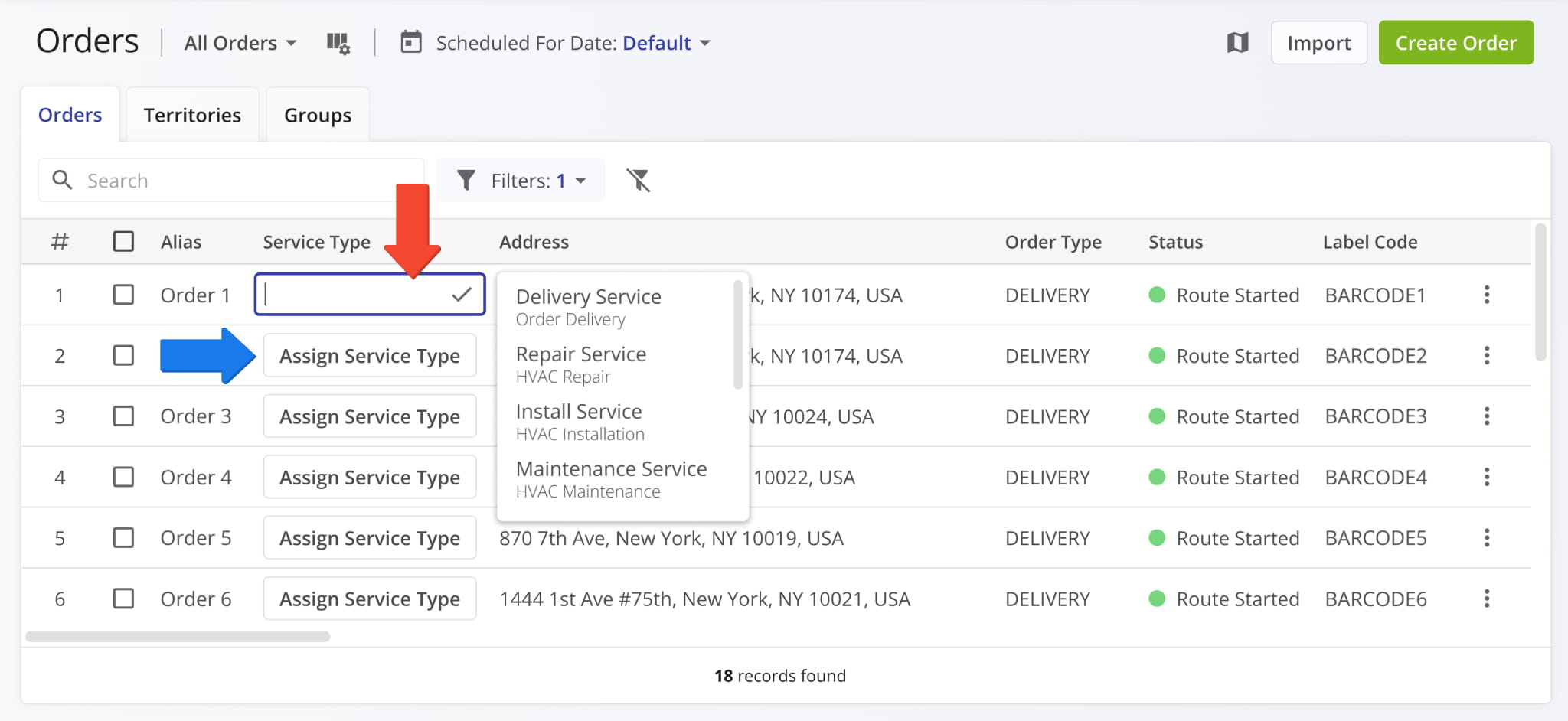
The “Service Type” column on the Orders Page now supports dynamic assignment. You can click the “Assign Service Type” button and find or select a service type for orders. To add or manage service types on your account, contact Route4Me support.
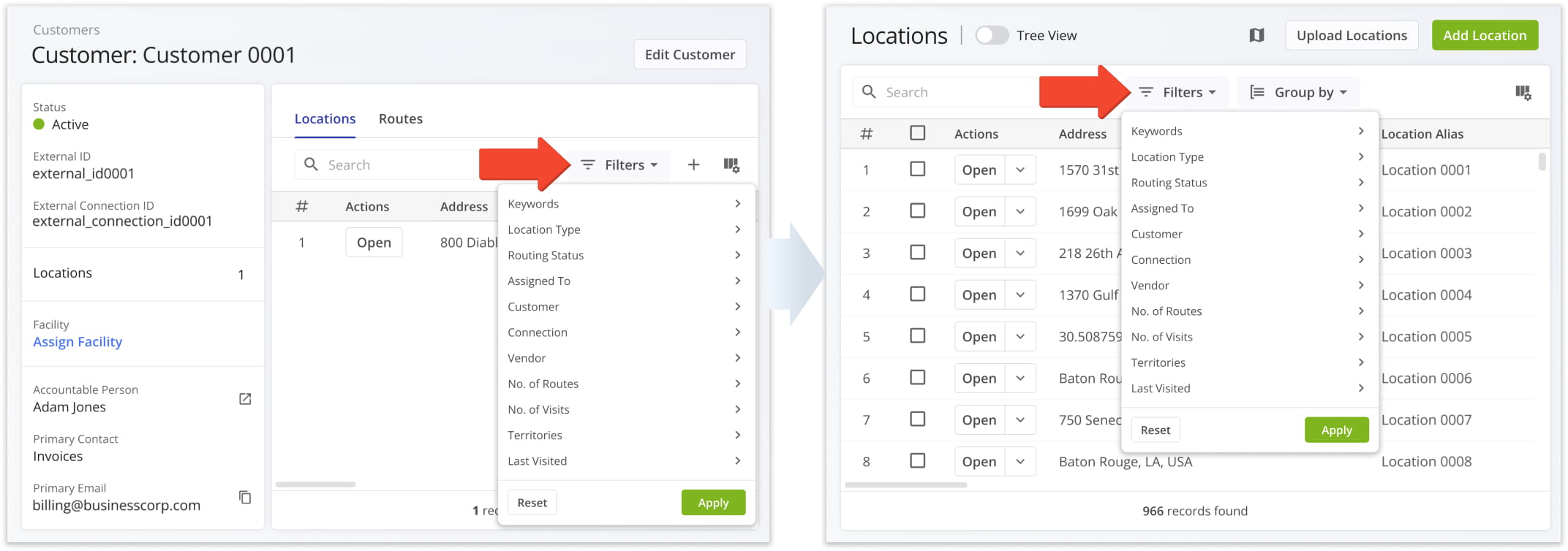
The available filters in the “Locations” section of Customer Snapshots now match the filters available on your Locations Page. Unified filters enable you to easily find Locations no matter which interface you’re using, improving consistency and efficiency.
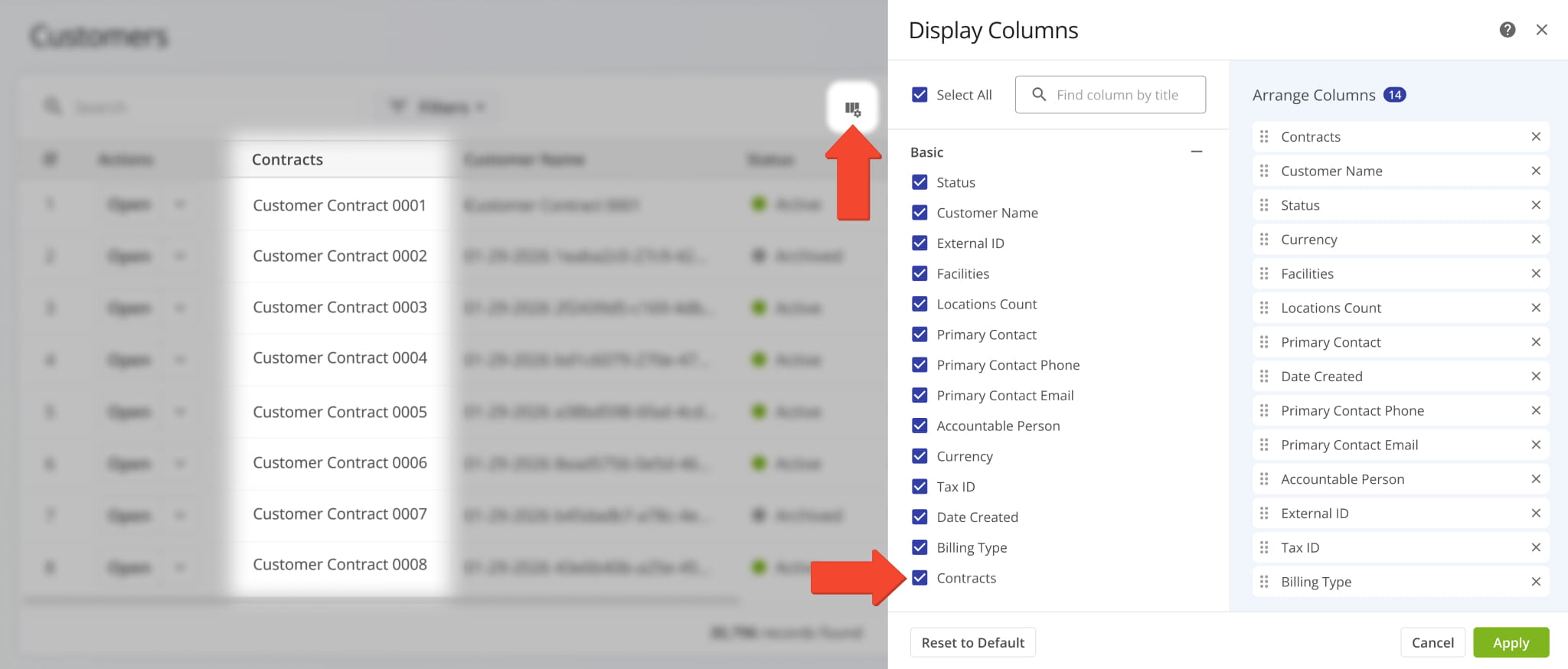
A new “Contracts” Display Column was added to your Customers Page. It shows the specific contracts associated with Customers.
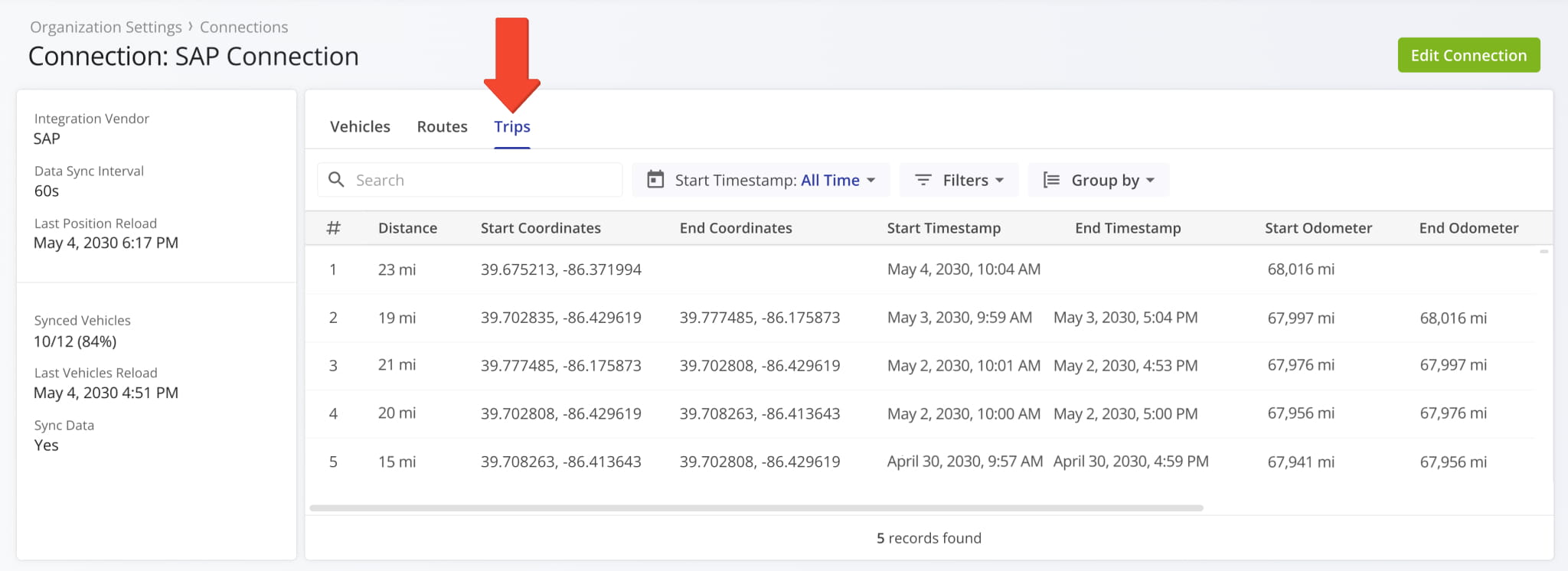
A new “Trips” category was added to Connection Snapshots. It shows telematics vehicle data associated with the respective Vendor Connection such as trip distance, timestamps, odometer readings, and more.
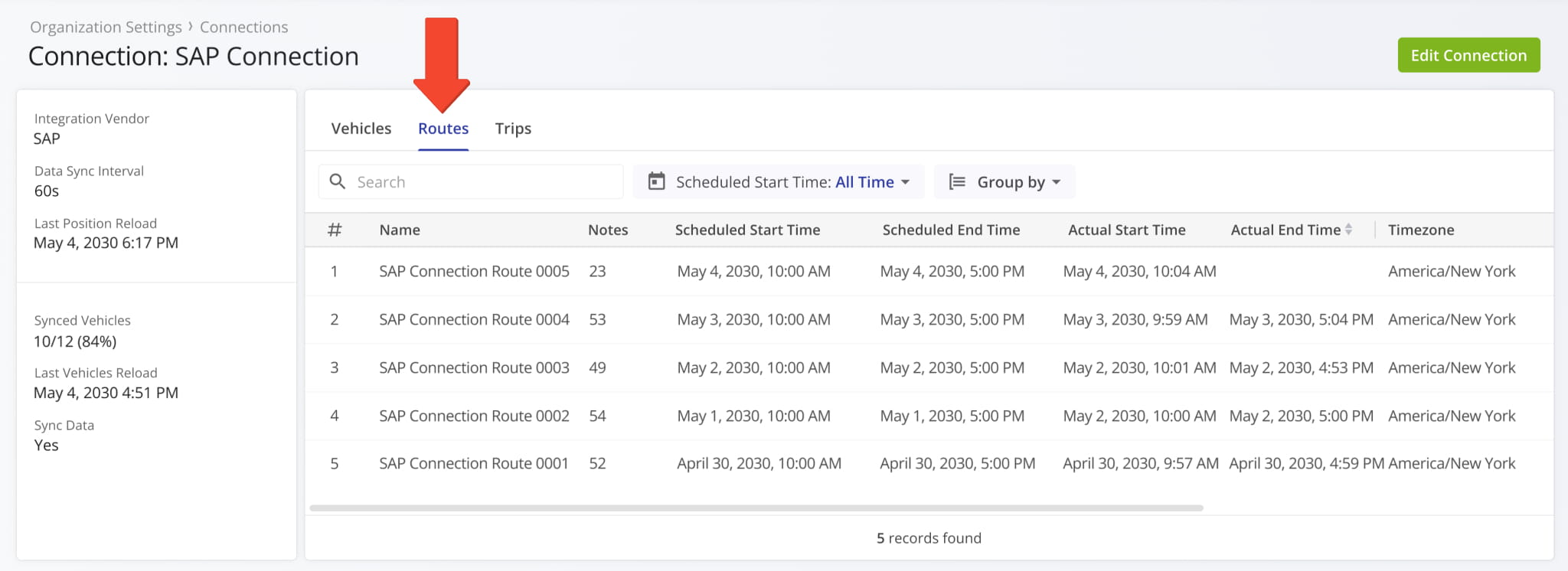
A new “Routes” category was added to Connection Snapshots. It shows route data associated with the respective Vendor Connection such as route schedule data, actual timestamps, route destination notes, and more.
A new “Tracking” section was added to Route Snapshots. In the “Tracking” tab, you can see a list of location updates associated with a route. Each update corresponds to an instance when the assigned user or vehicle’s location was synced. Tracking updates contain timestamps, coordinate and location details, and detailed vehicle information if synced via Telematics Integration.
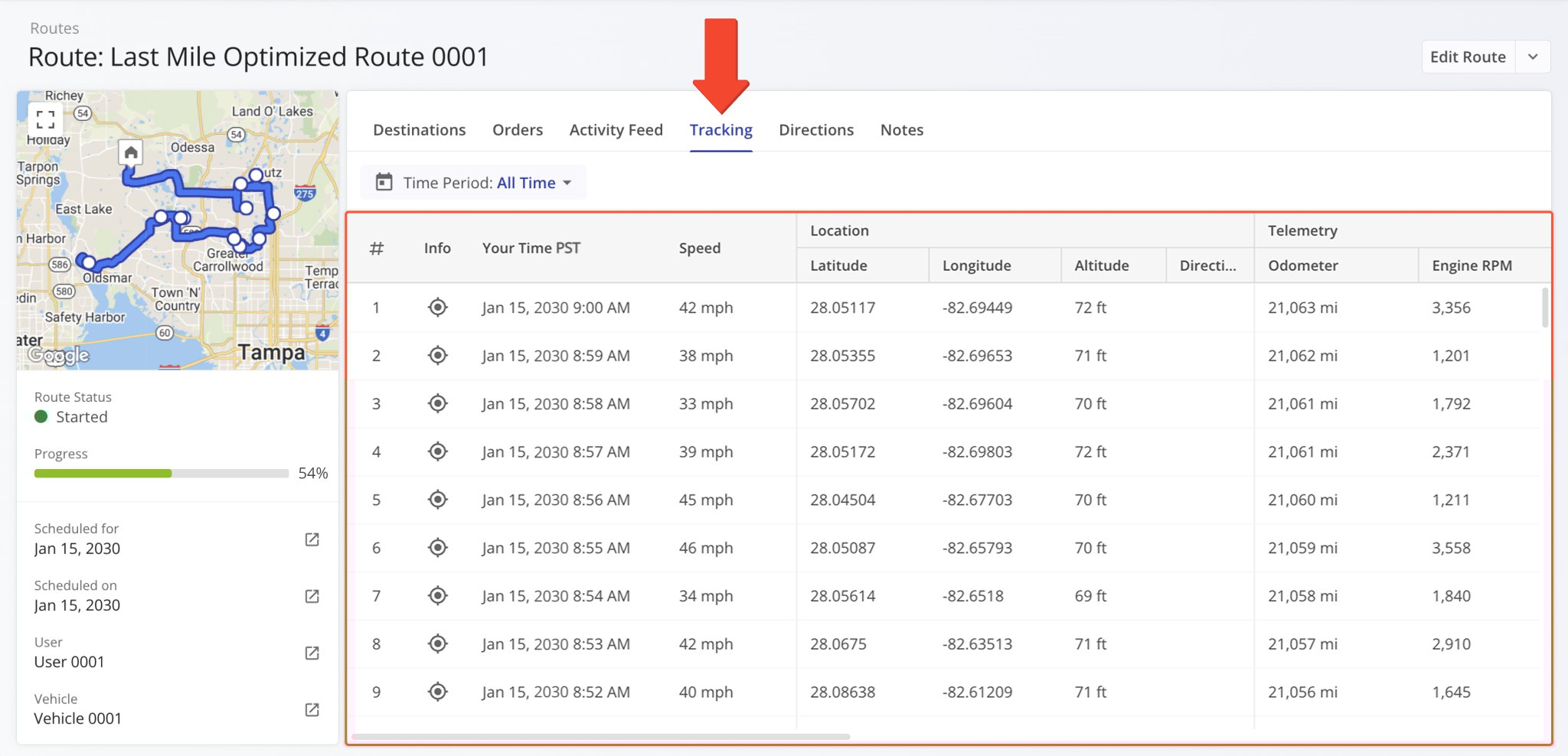
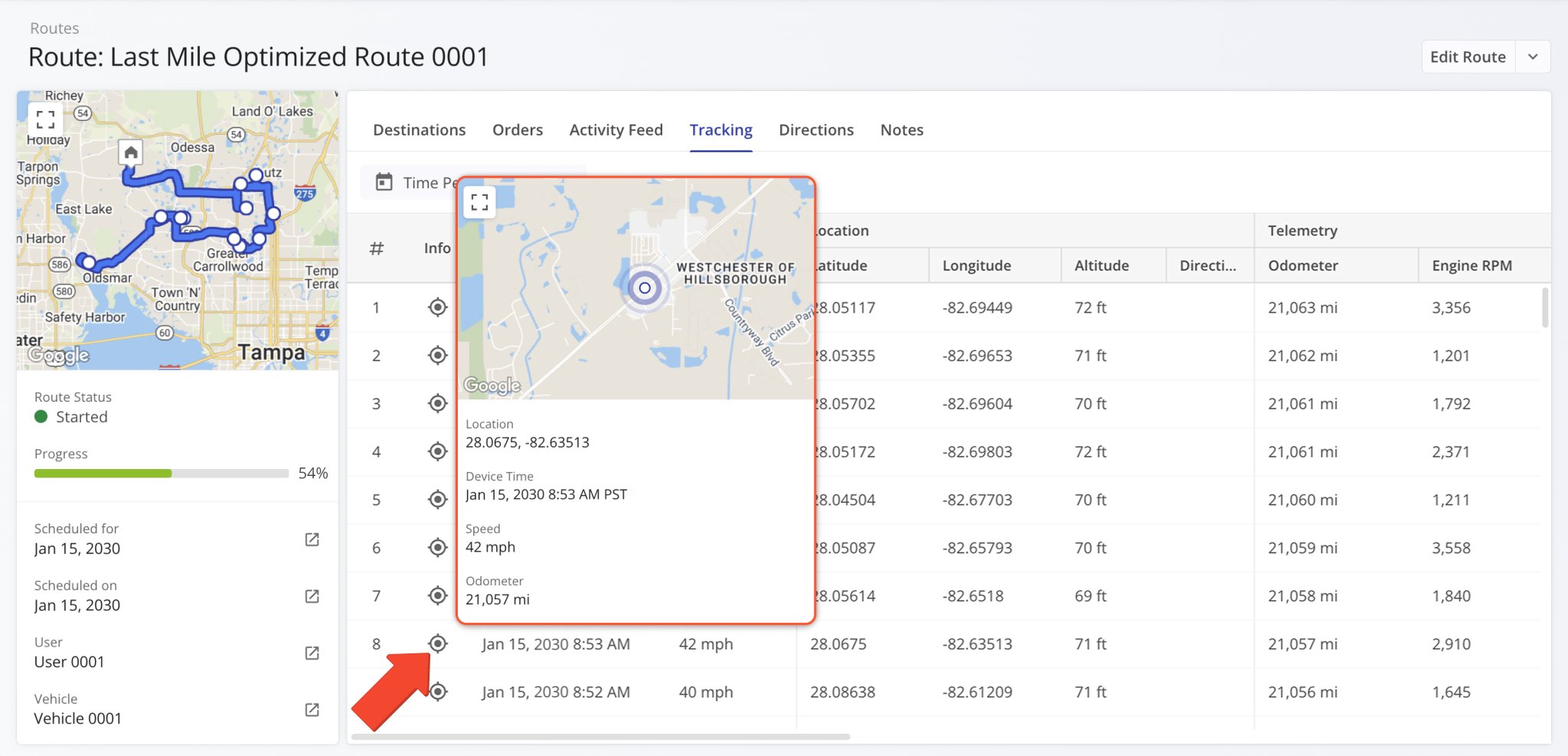
Additionally, you can hover over the Tracking Icon in the “Info” column to view a tracking summary for the respective location update. In detail, this will open a pop-up window that shows the location update’s associated coordinates, device timestamp, vehicle speed, odometer reading, and the assigned vehicle’s location on the map at the time of the location update.
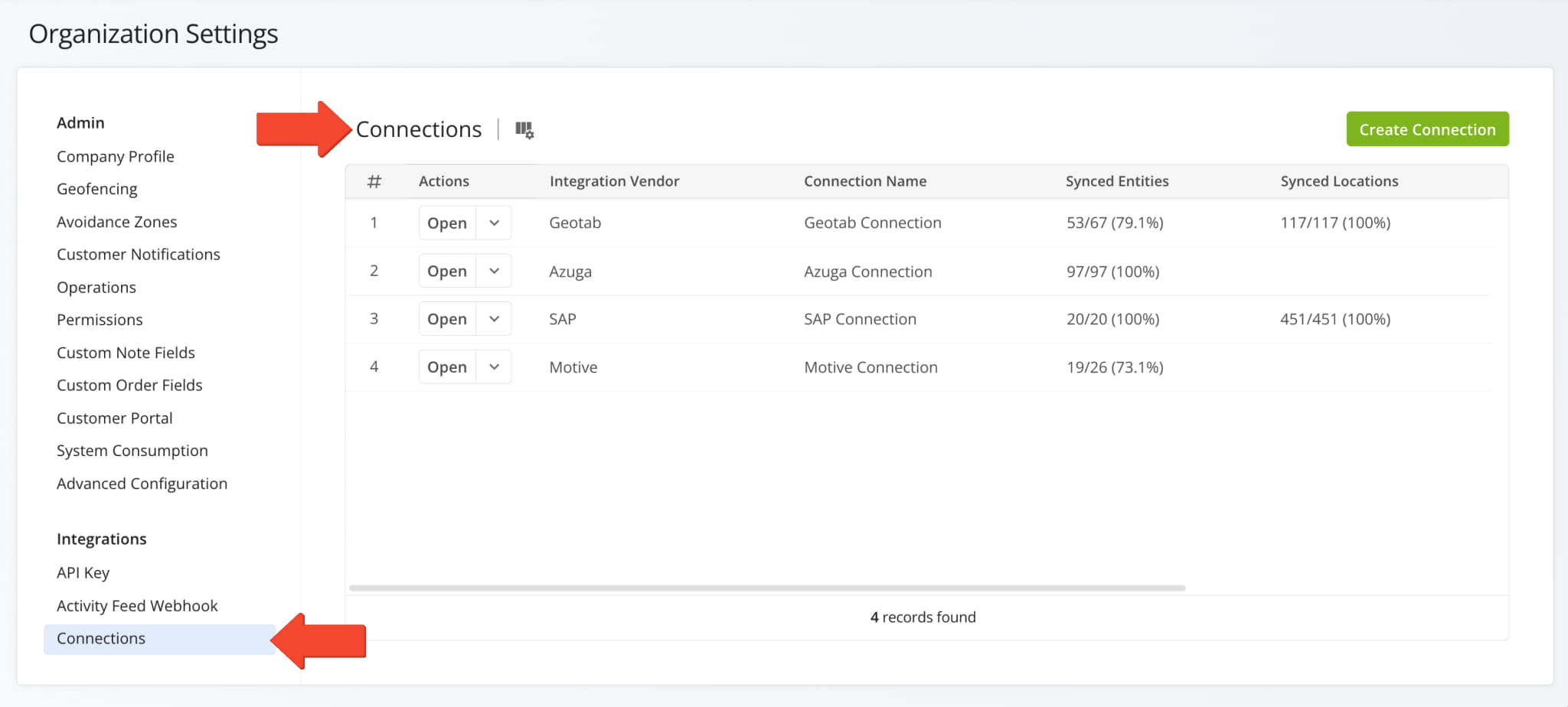
The “Telematics Connections” section of the Organization Settings page has been renamed to “Connections“. Accordingly, “Telematics Vendors” have been renamed to “Vendors“. This update reflects Route4Me’s expanded integration and connection functionality, enabling you to sync not just telematics vehicles to your account but also locations and other entities.
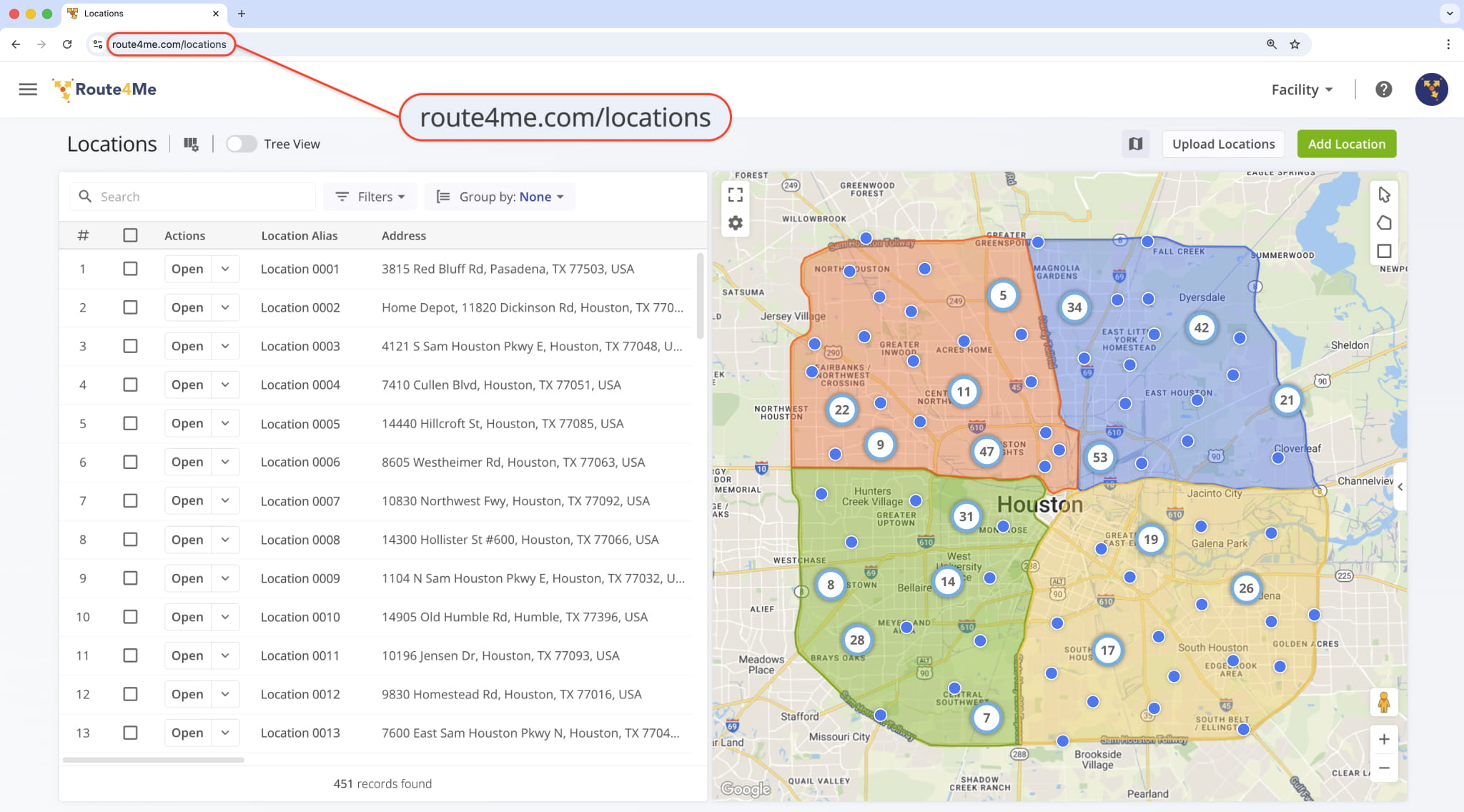
The URL of your Locations Page has been moved from “route4me.com/customer-locations” to “route4me.com/locations” to better align with Route4Me’s enterprise-grade transportation management software. Learn more about Locations.
January 2026 Route4Me Update Release Notes
Man-Hours values associated with destinations can now be viewed in the Route Editor Destination Info panel.
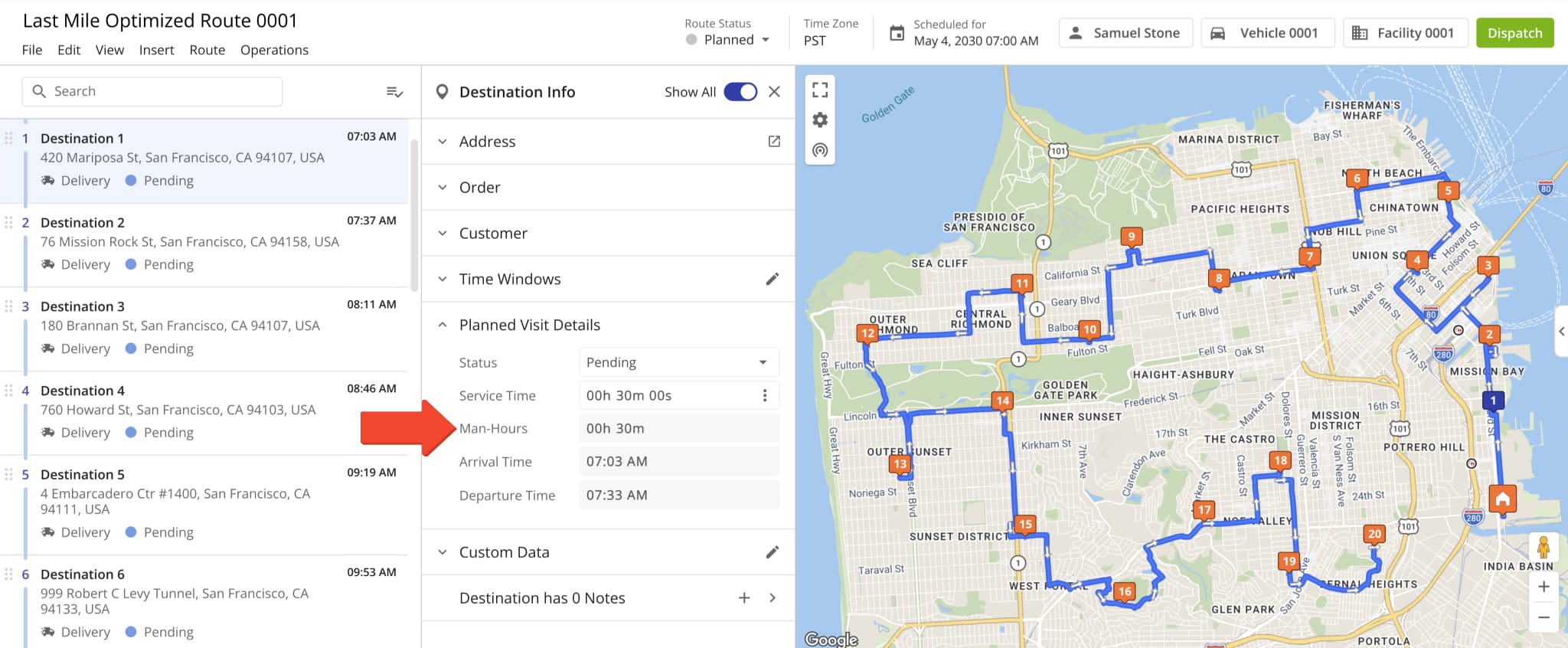
Additionally, the “Total Man-Hours” data column was added as an option in the Route Metrics Display Columns. It shows the combined “Man-Hours” values for all destinations on the opened route.
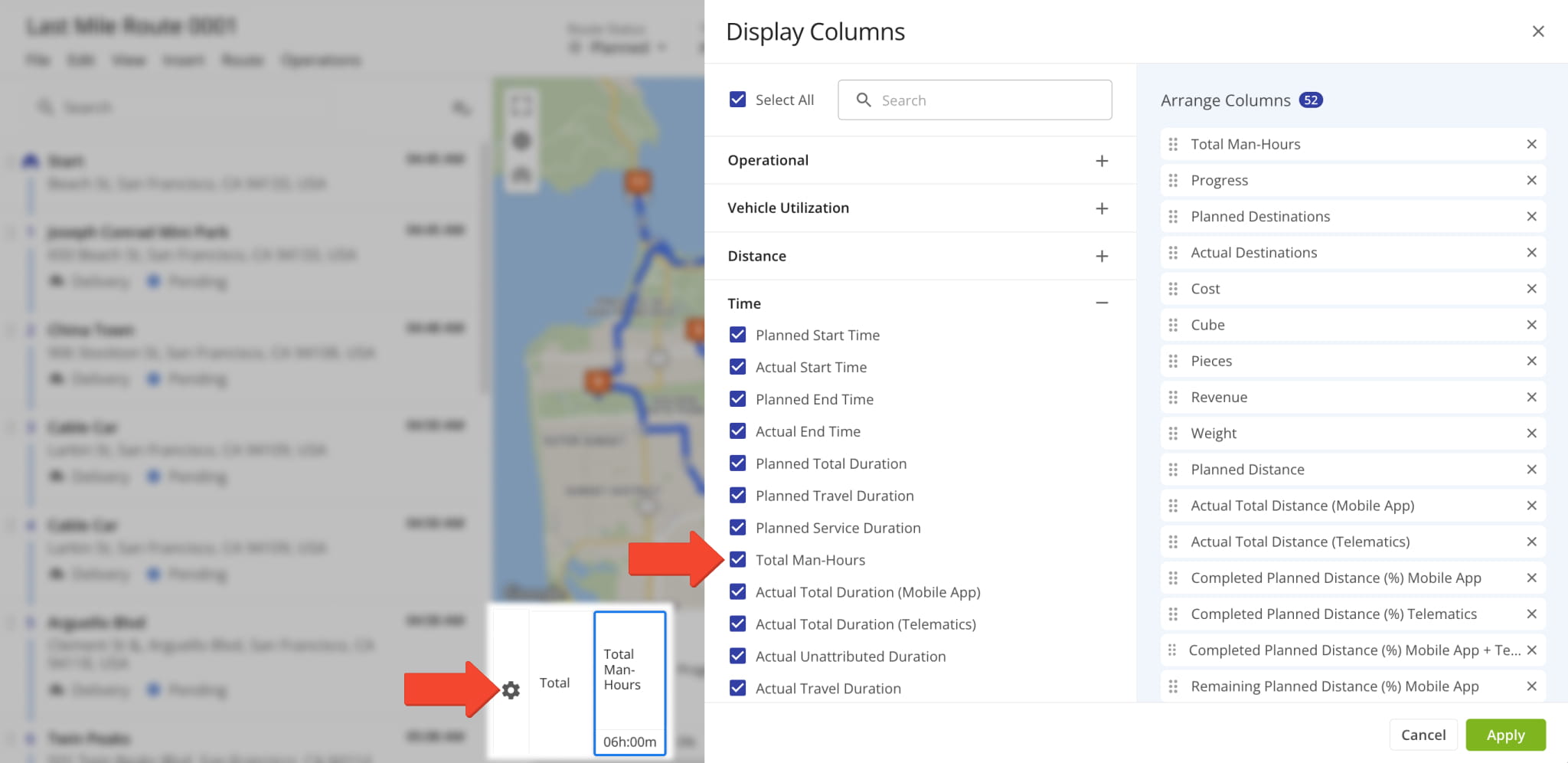
Destination ETAs on the Interactive Routes Map now show “Service Time” and “Man-Hours“. Previously, only four destination schedule fields were available. Now, our dynamic ETAs provide a more comprehensive overview of destination schedules.
To enable Destination ETAs, click the Gear Icon on the Routes Page Map and check the “ETAs” box.
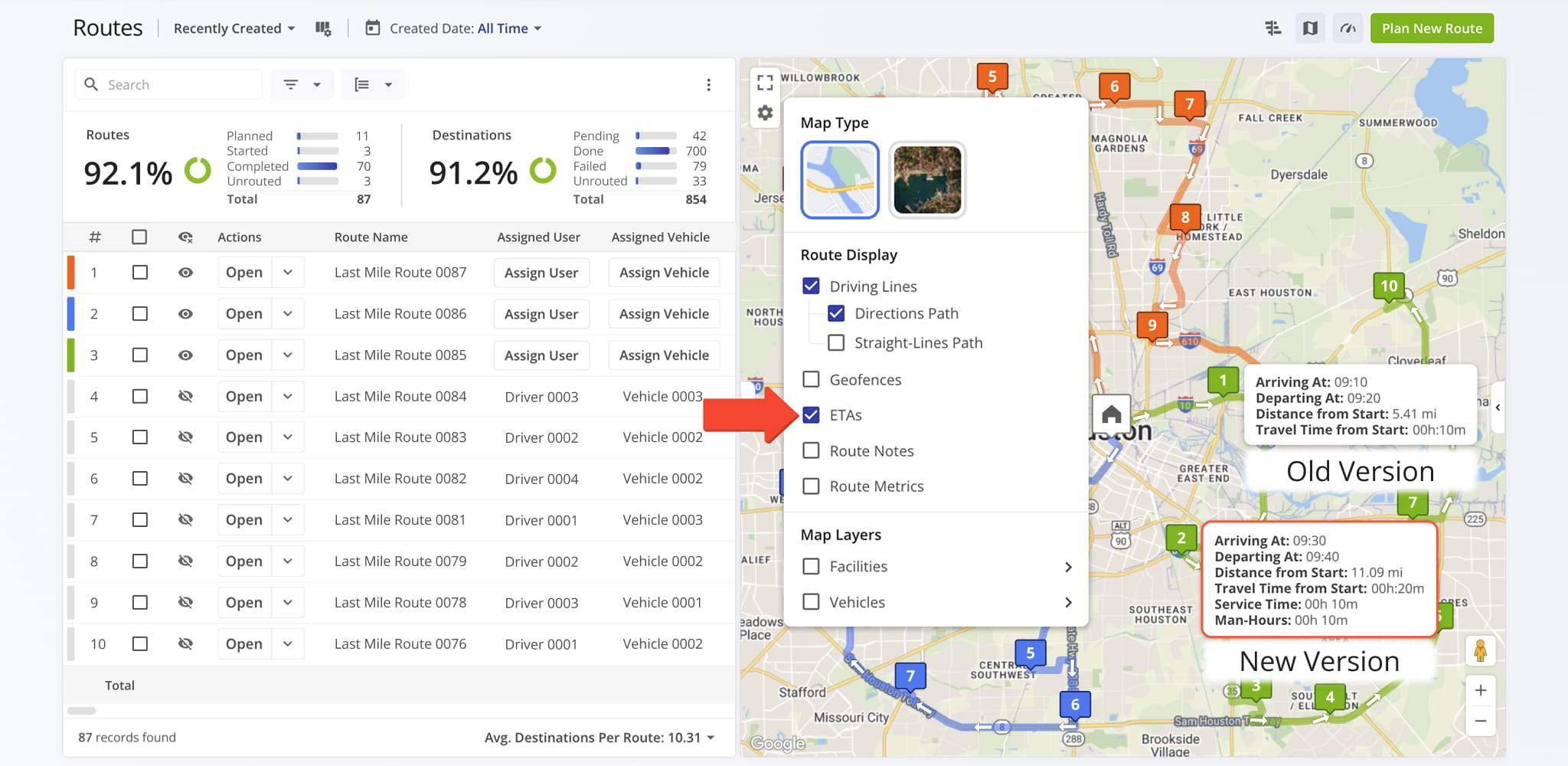
A new feature was added to the Strategic Optimizations interface that enables you to compare optimizations side by side. Simply check the boxes next to optimizations you want to compare, click “Bulk Actions” and select “Compare Selected Optimizations“.
Open Your Strategic Optimizations
The “Compare Optimizations” interface will arrange your selected optimizations side by side. From there, you can add more optimizations by clicking the Plus Button or remove an optimization by clicking the Three-dot Button and selecting “Remove from Comparison“. When you’re finished comparing Strategic Optimizations, click the “Done” button to go back.
Learn more about Strategic Optimization Management.
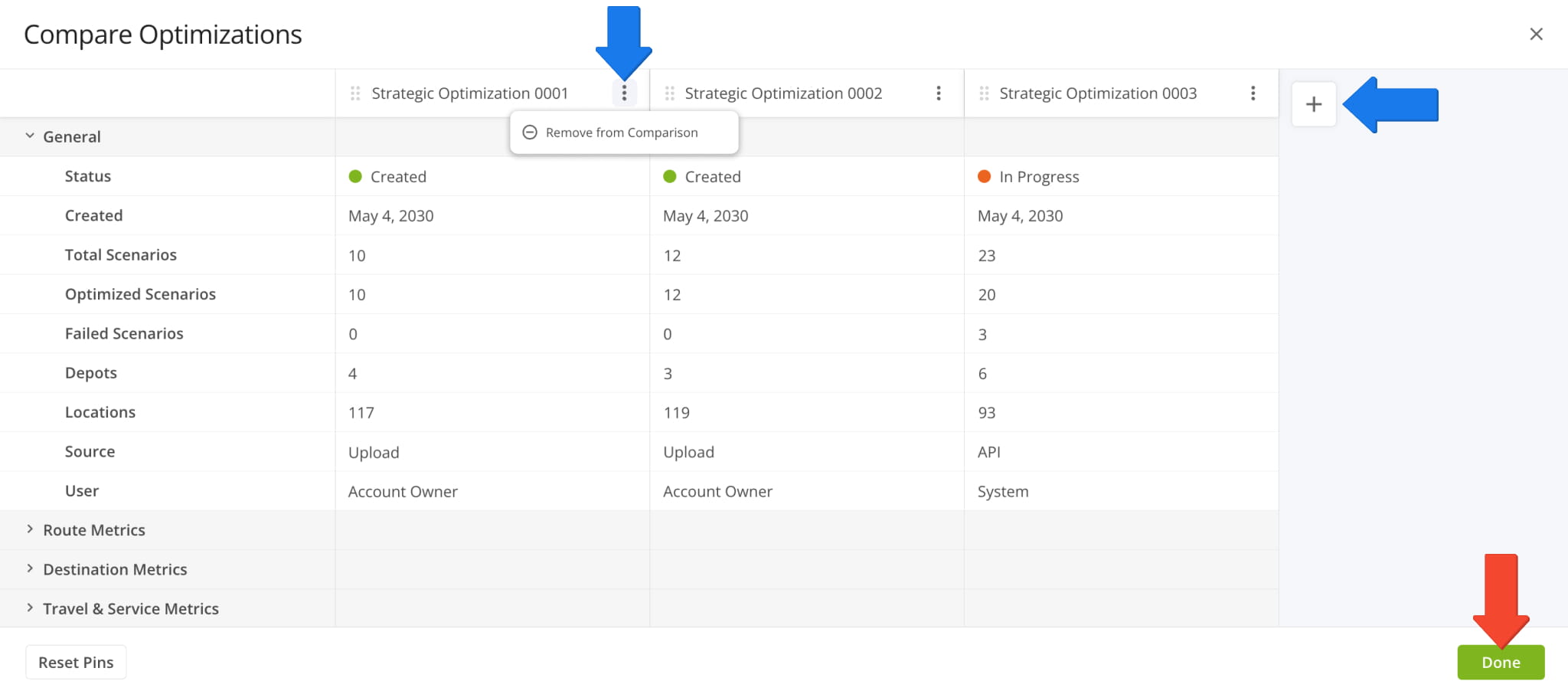
Comparison functionality was also added to Strategic Scenarios in open Strategic Optimizations. Go to the “Scenarios” tab, check the boxes next to the scenarios you want to compare, click “Bulk Actions“, and select “Compare Selected Scenarios“.
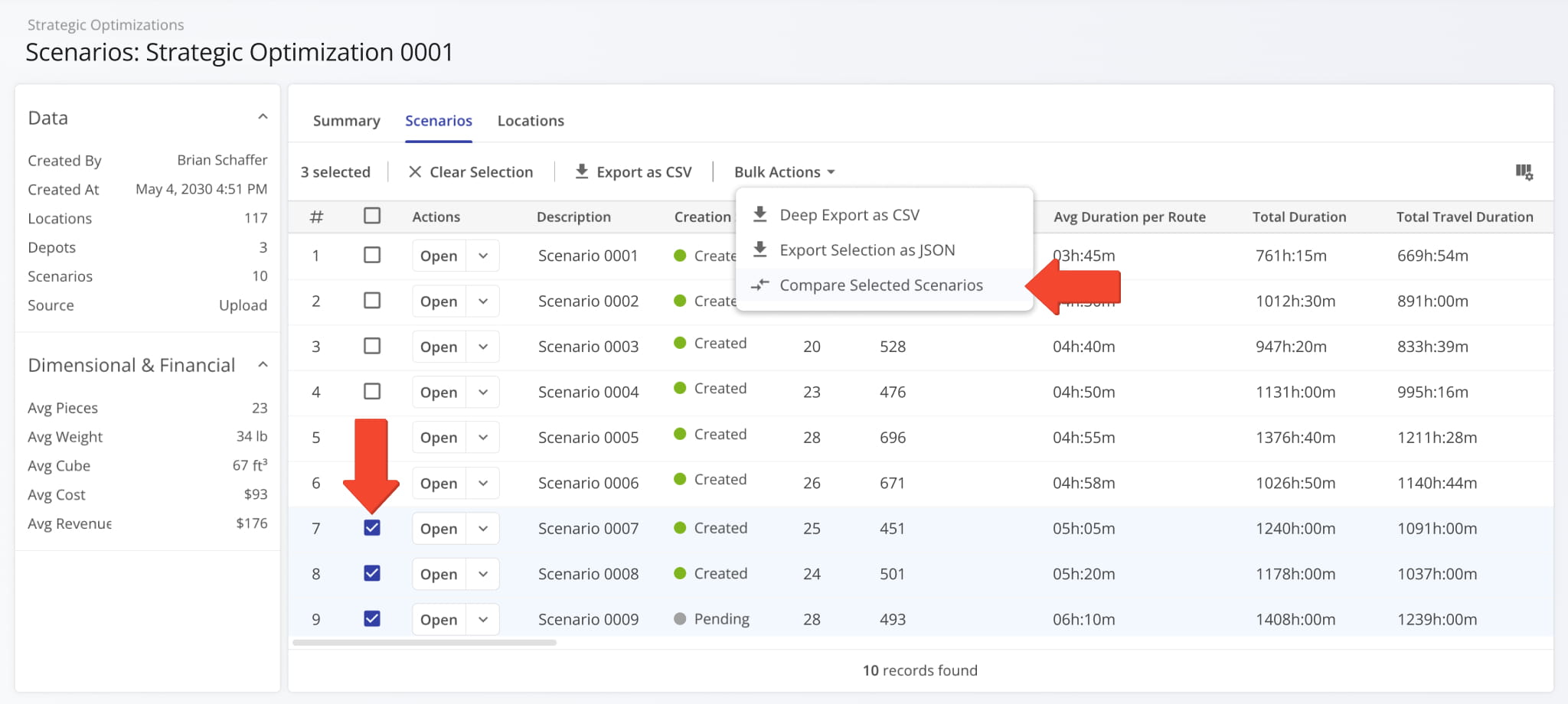
The “Compare Scenarios” interface will arrange your selected scenarios side by side. From there, you can add more scenarios by clicking the Plus Button or remove a scenario by clicking the Three-dot Button and selecting “Remove from Comparison“. When you’re finished comparing Strategic Scenarios, click the “Done” button to go back.
Learn more about Strategic Scenario Management.
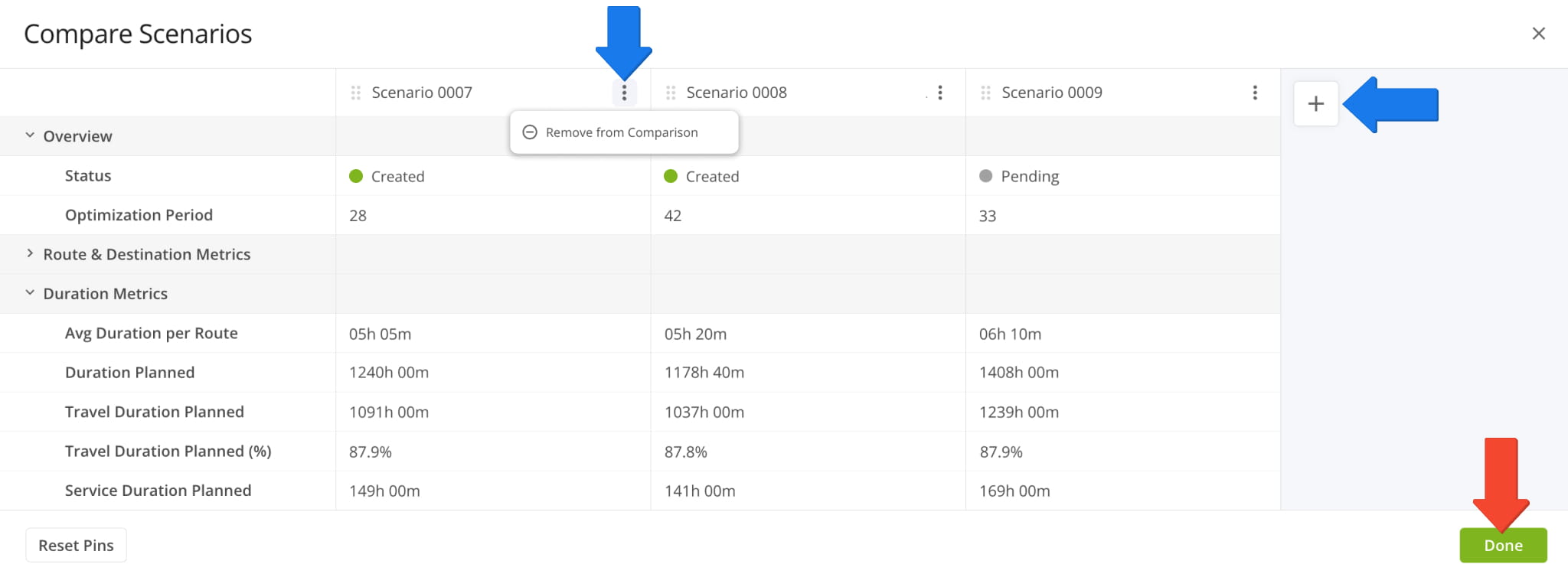
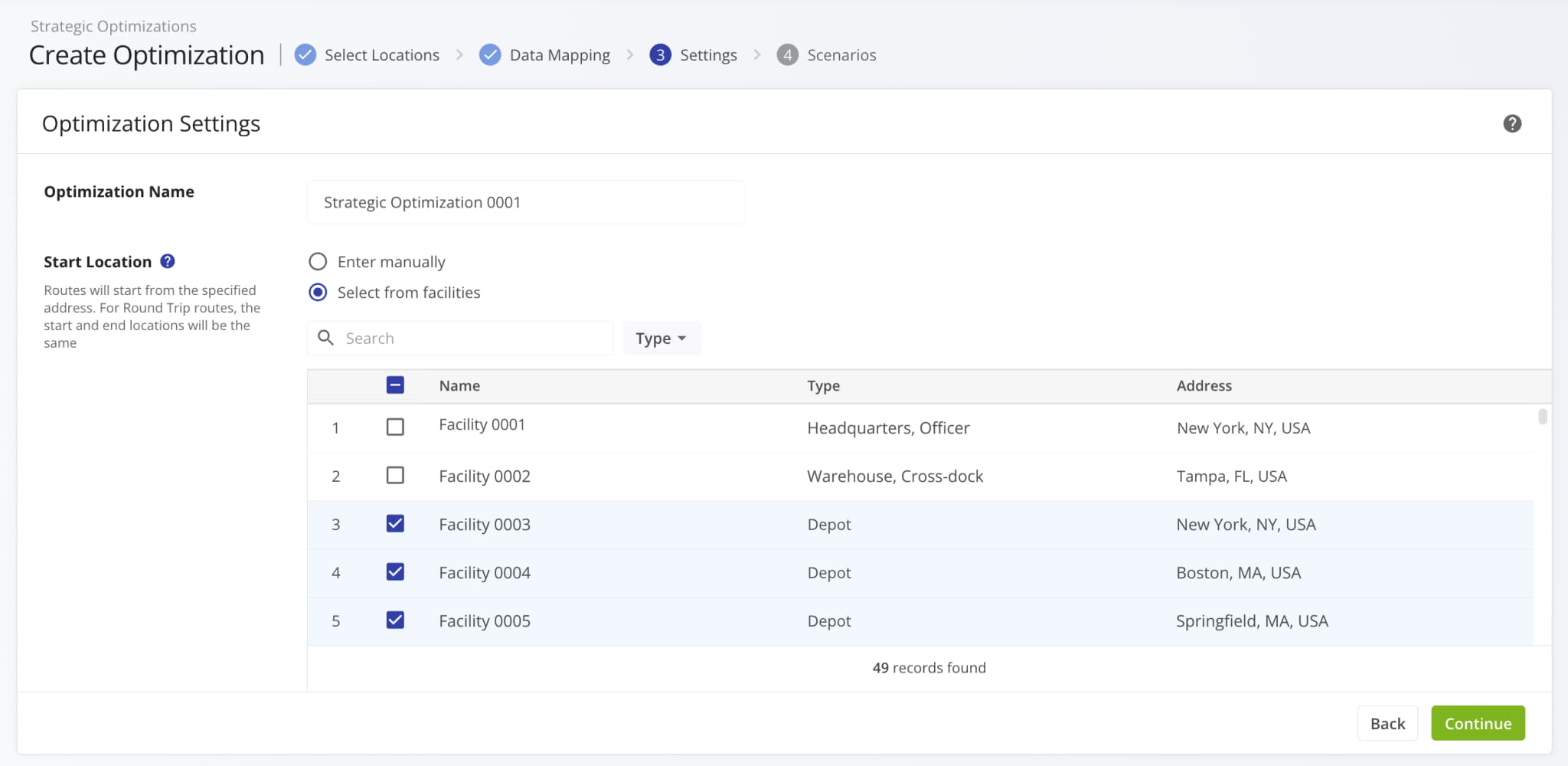
The “Start Location” section of the settings screen when you Create Strategic Optimizations was improved. A new dynamic map provides a visual overview of the start locations you’ve added. Additionally, you can now add start locations from your account Facilities or add addresses on the same screen by clicking the respective buttons.
Each button opens a new window with a set of filters and search options, making start location selection faster and easier.
Open Your Strategic Optimizations
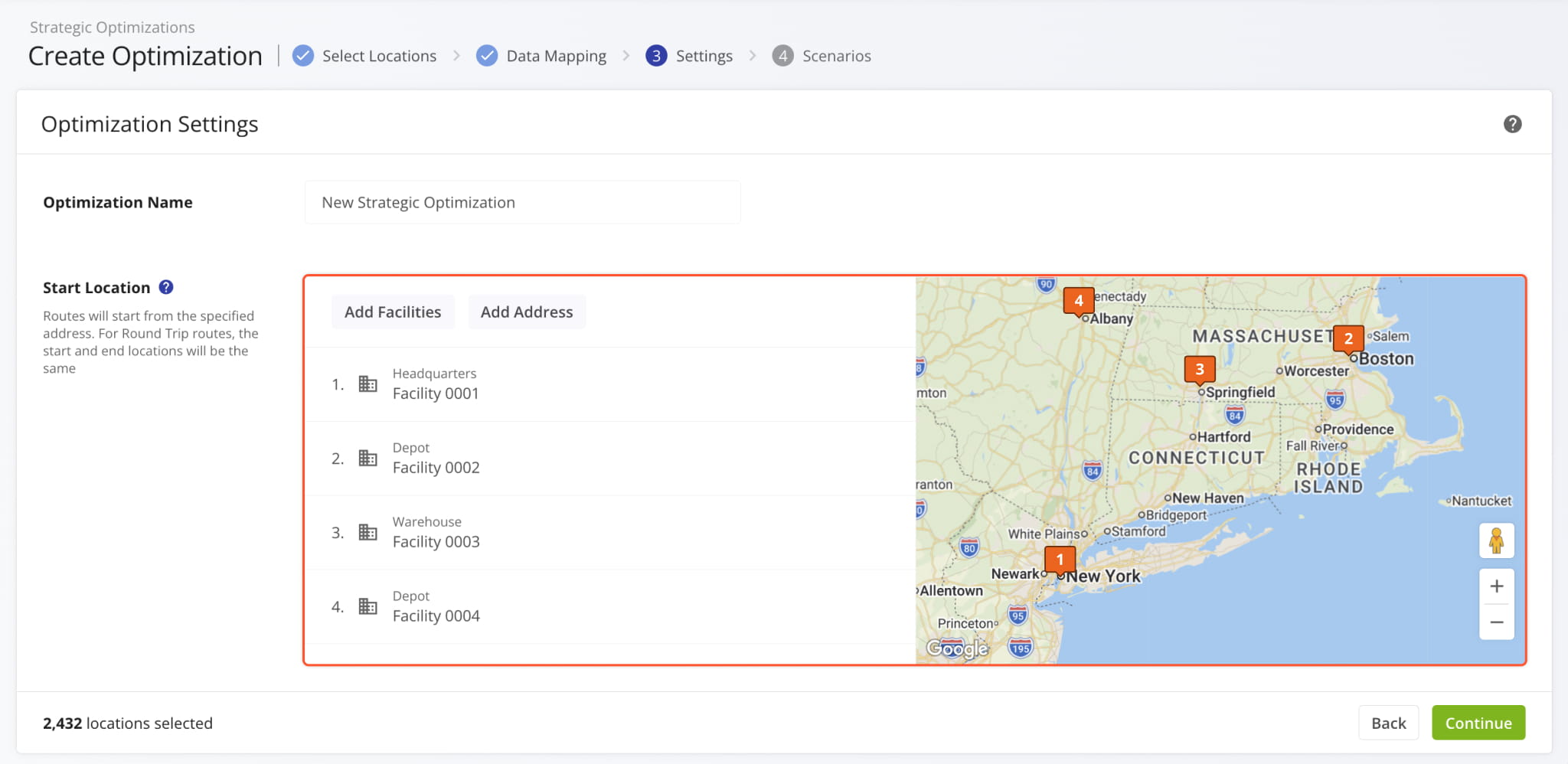
Previously, the map wasn’t available, and you had to switch between entering start location addresses manually or selecting start locations from your Facilities. The image below shows how “Optimization Settings” looked before the new update.
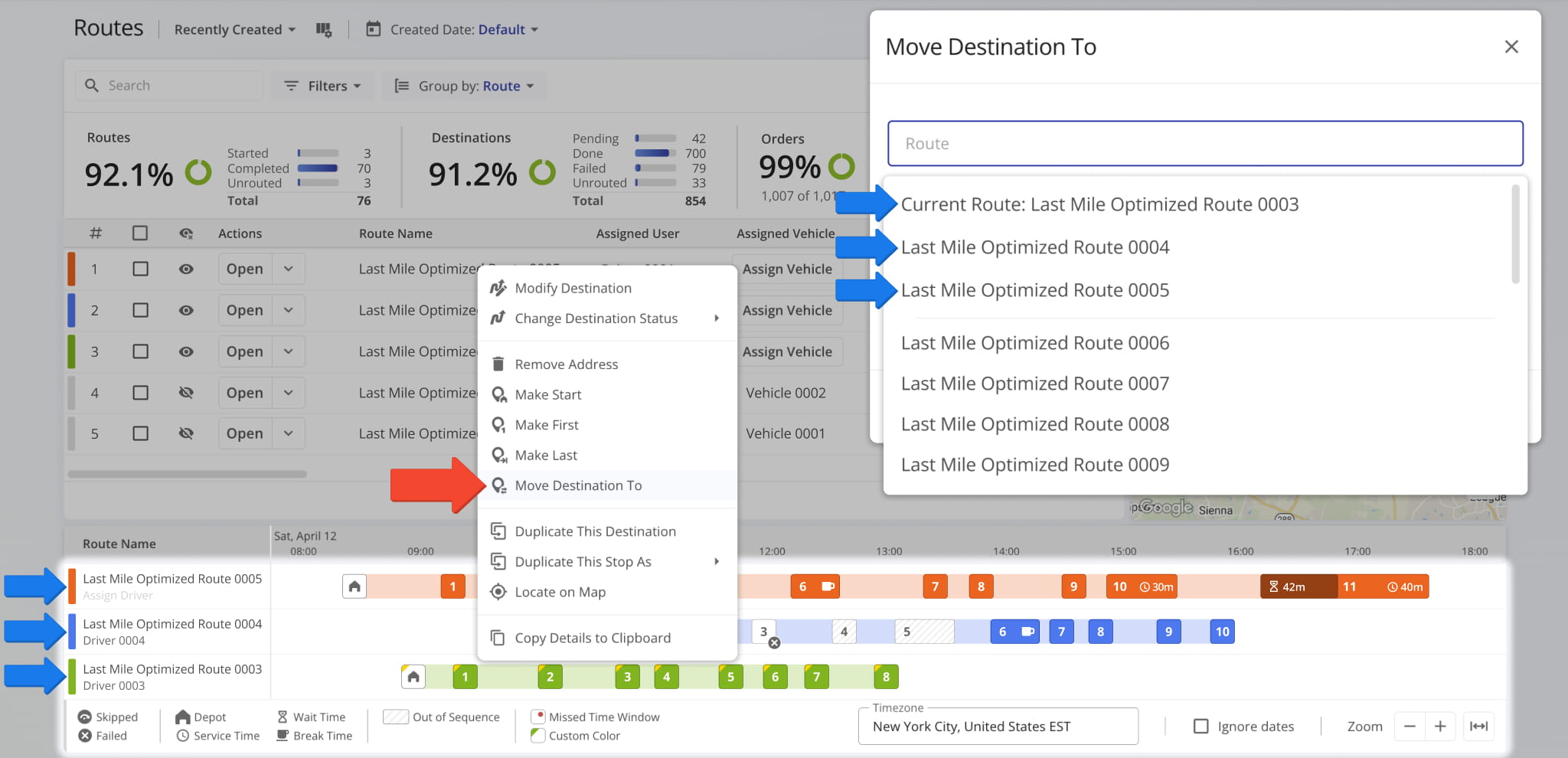
When you right-click a destination in the Routes Timeline, you can select “Move Destination To” to change its position in the sequence. Now, you’re also able to move it into a different route at any sequence position. The routes currently enabled in the timeline will be grouped at the top of the suggested routes list.
Previously, you could only move a destination to another sequence position in the same route.
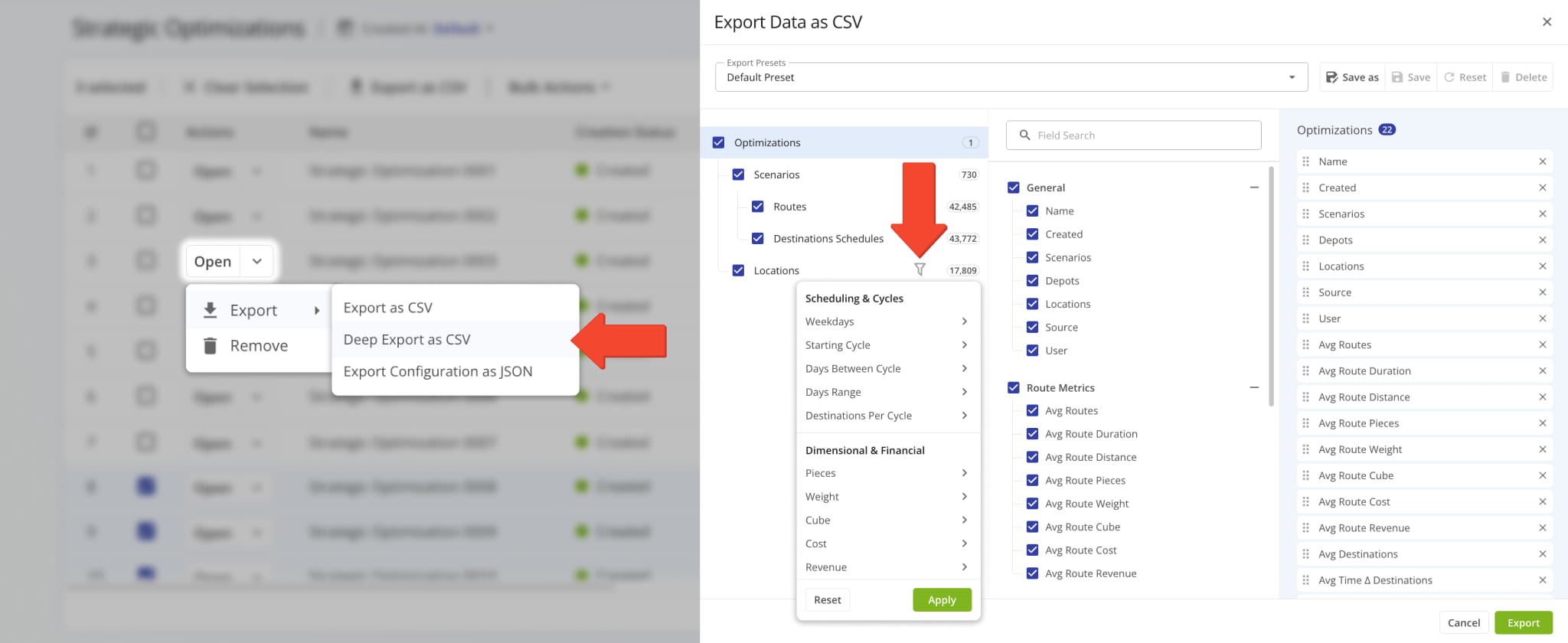
When you manage Strategic Optimizations and Strategic Scenarios, you have access to in-depth export customization through the “Deep Export” option. This update introduces dynamic filter options for optimization and scenario deep export. Additionally, new counters next to the Filter Button help you see exactly how many data items are available according to your settings.
Open Your Strategic Optimizations
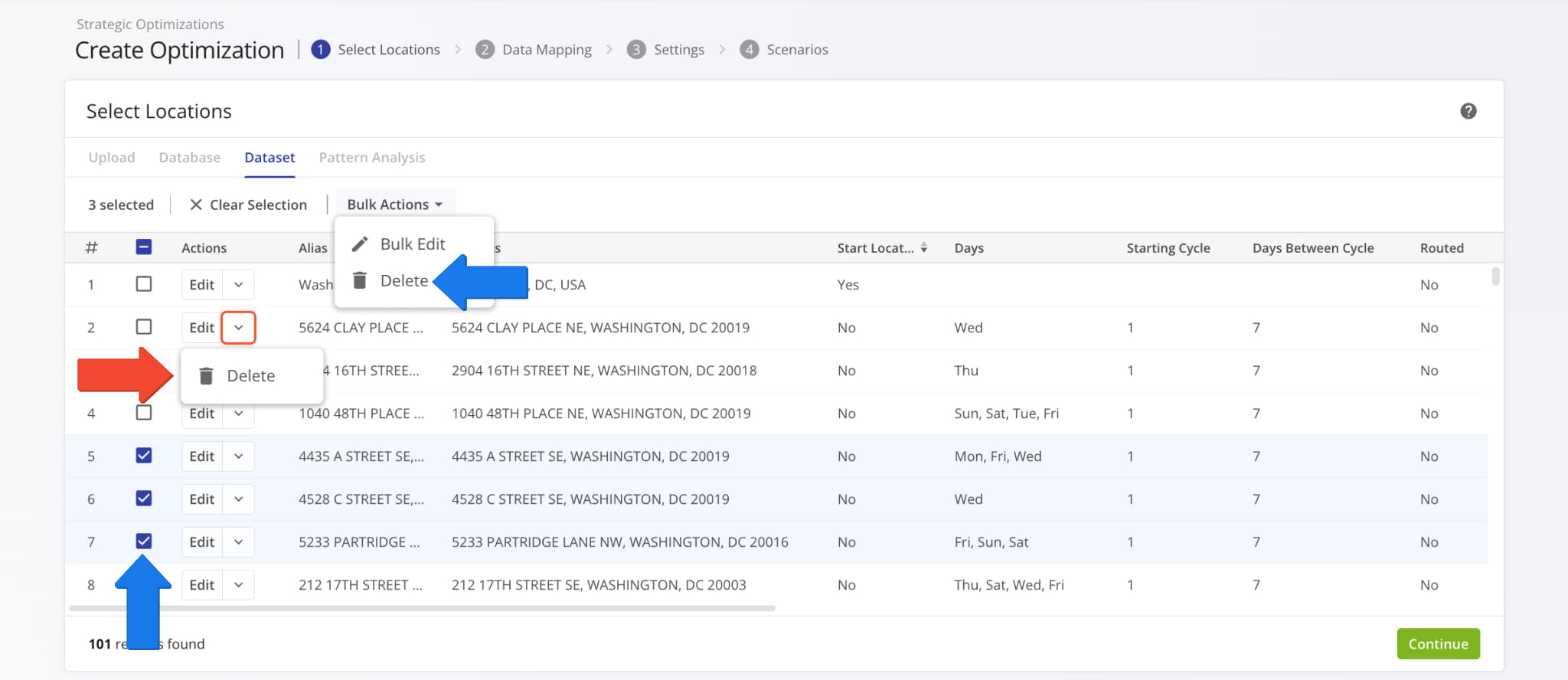
When you Manage Strategic Optimizations, you have the option to duplicate an optimization as a customizable draft. This update enables you to refine the Location Dataset of your duplicated draft by allowing the deletion of Locations.
Click the Down Arrow and select “Delete” to remove a Location. To delete multiple Locations, check the boxes next to them, click “Bulk Actions“, and select “Delete“. Previously, duplicated Strategic Optimization datasets couldn’t be customized.
Open Your Strategic Optimizations
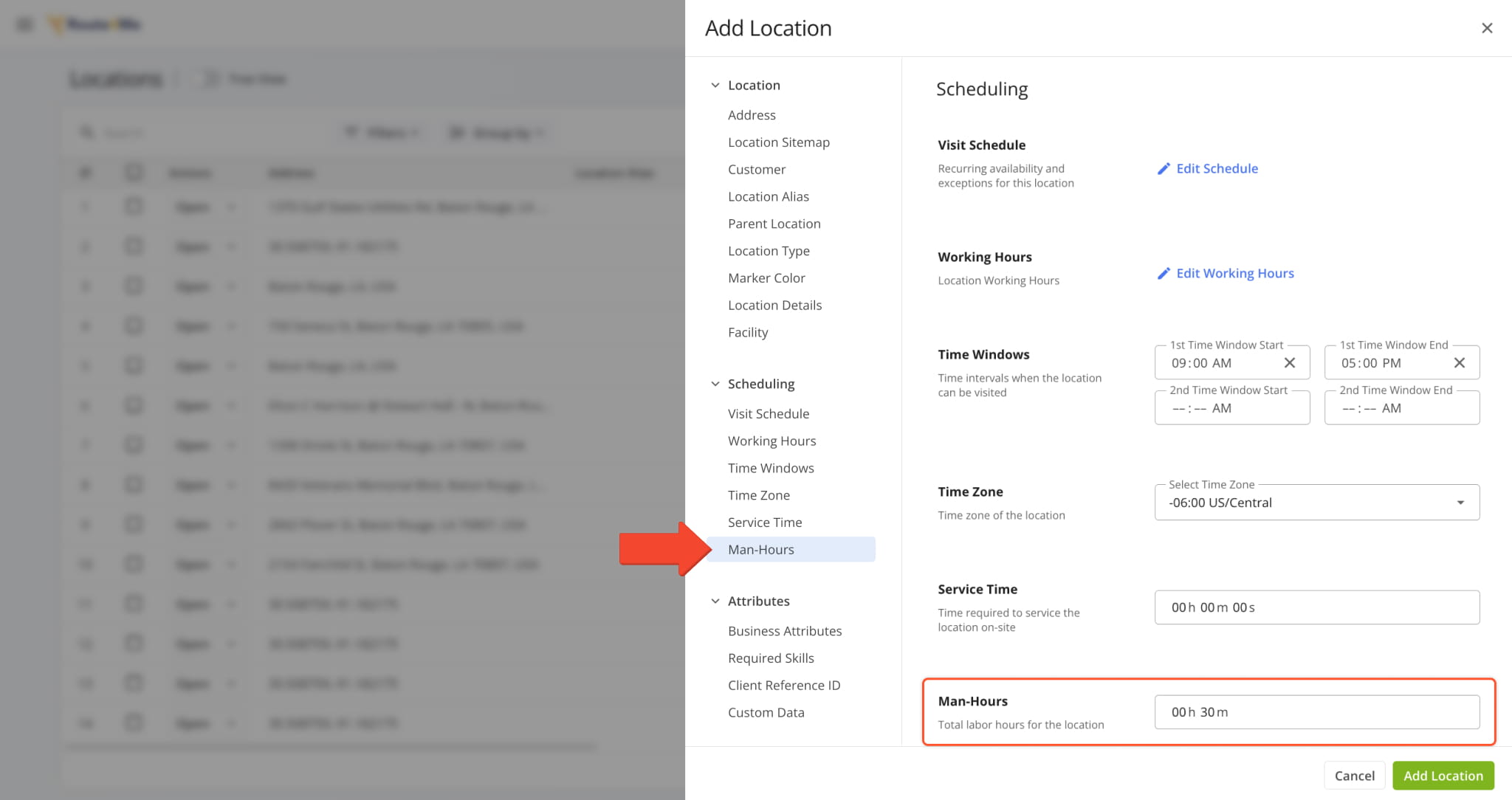
Route4Me TMS now supports adding “Man-Hours” values to Routes, Orders, and Locations via upload or manual creation settings. The image below shows an example of adding “Man-Hours” to a Location manually. Learn more about Adding Locations.
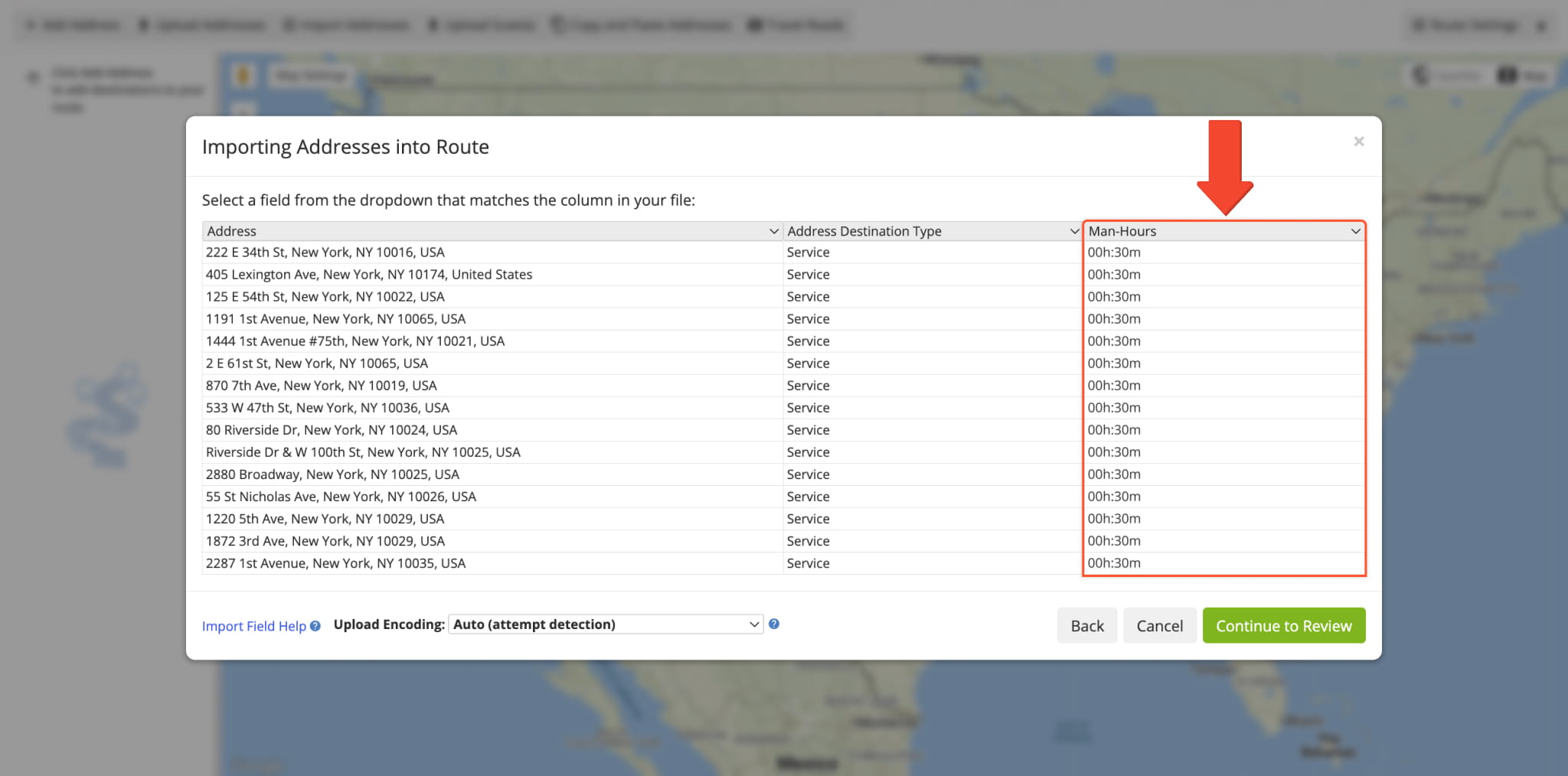
When you upload addresses to plan routes, you can add a “Man-Hours” column with time values for each address, and Route4Me will automatically validate your data and assign the corresponding man-hours values to each route destination.
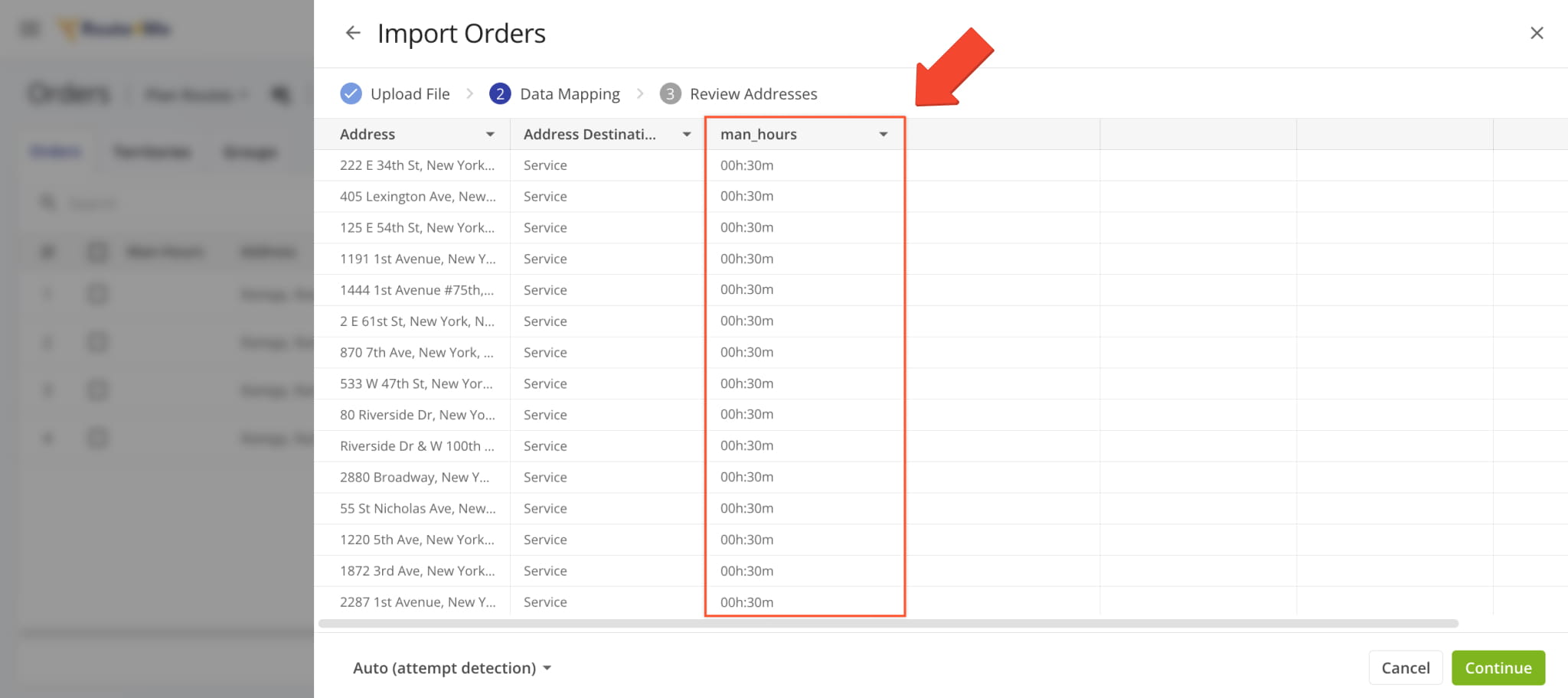
The same functionality is present when you Upload Orders and include the “man_hours” column with time values for each order. After importing, “Man-Hours” values will be applied to route destinations when planning routes with orders.
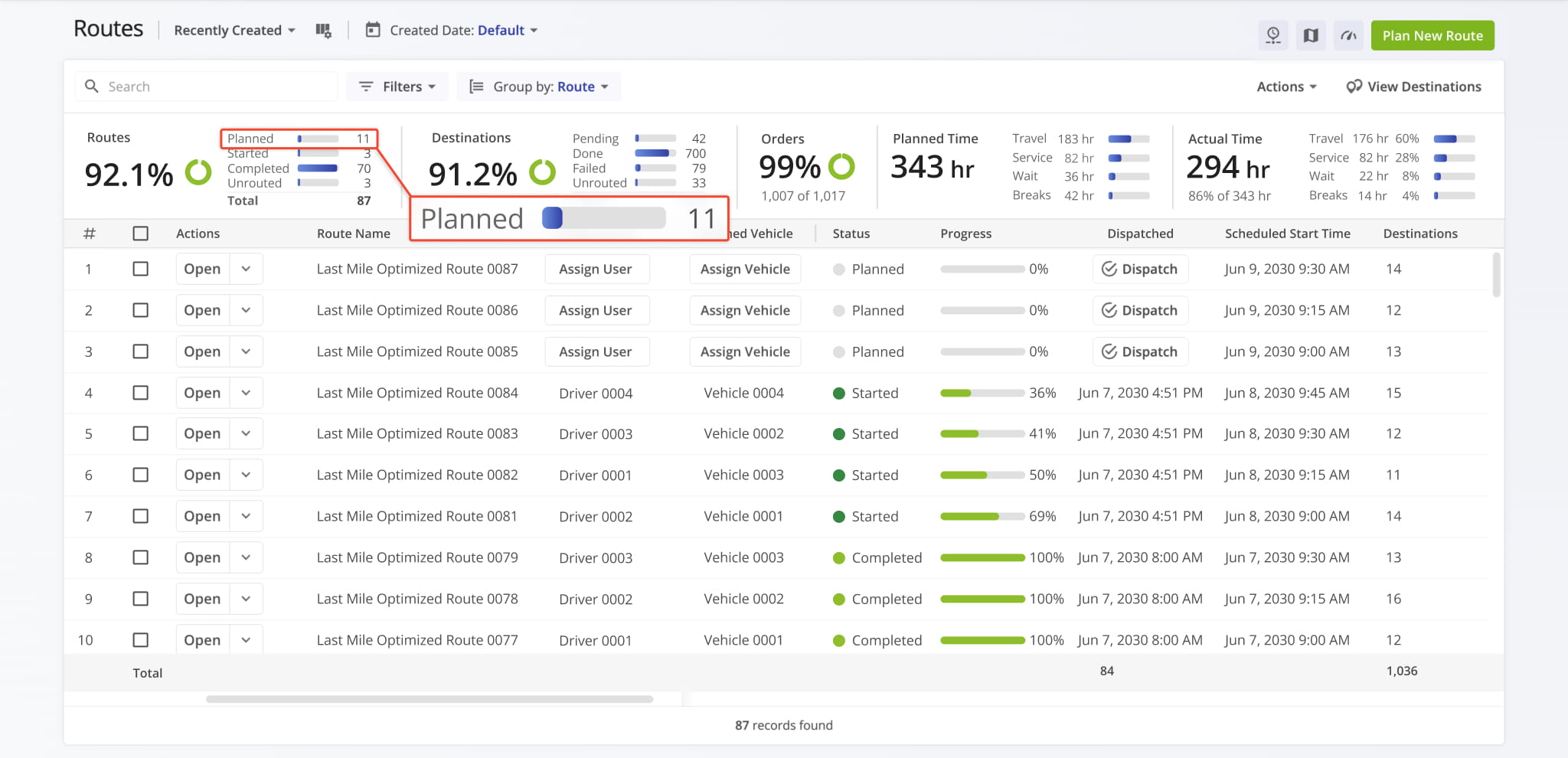
A new “Planned” field was added to the “Routes” section of the Route Performance Metrics dashboard. It shows the total number of filtered routes that have the “Planned” status (optimized and scheduled).
Previously, only three fields were available: “Unrouted“, “Started“, and “Completed“.
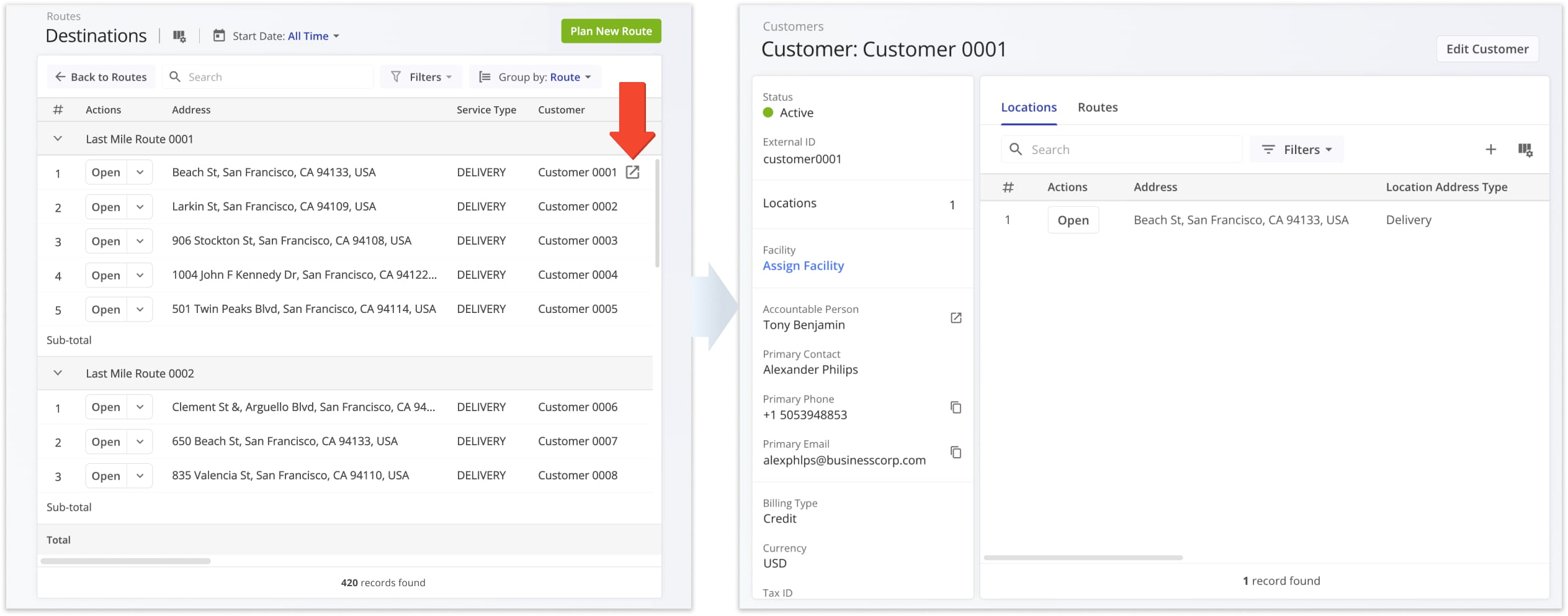
The Destinations Page “Customer” column was updated with new dynamic functionality. When you hover over a Customer, you’ll see a new button. You can click the new Open Button, to go directly to the corresponding Customer Snapshot.
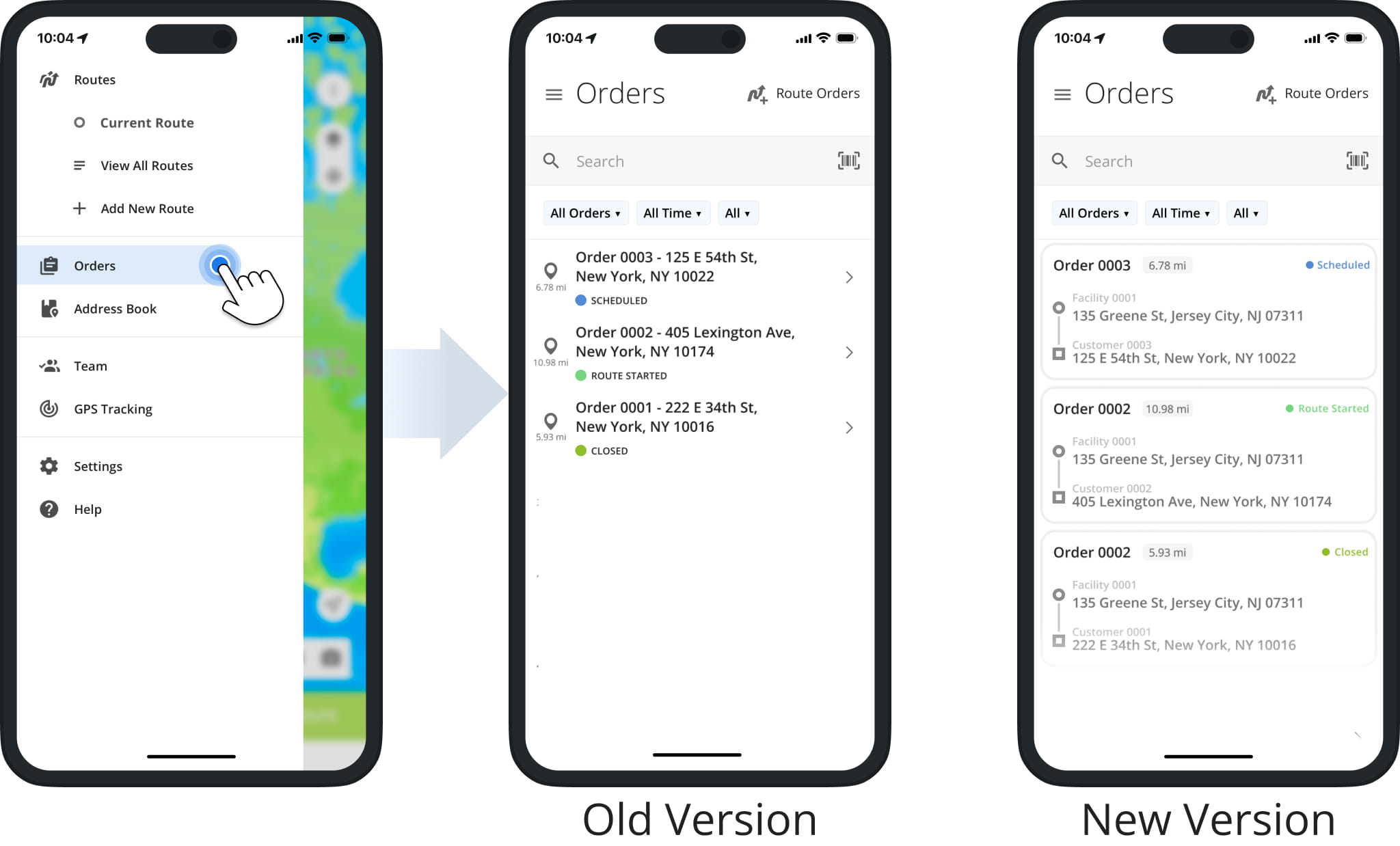
The Orders List in the Route4Me Mobile Driver App has been redesigned to show Facility Attribution and more order details. In addition to previously available information, you can see the name and address of an order’s associated facility and destination.
Previously, only order alias, distance, and status were available on the mobile app orders list.
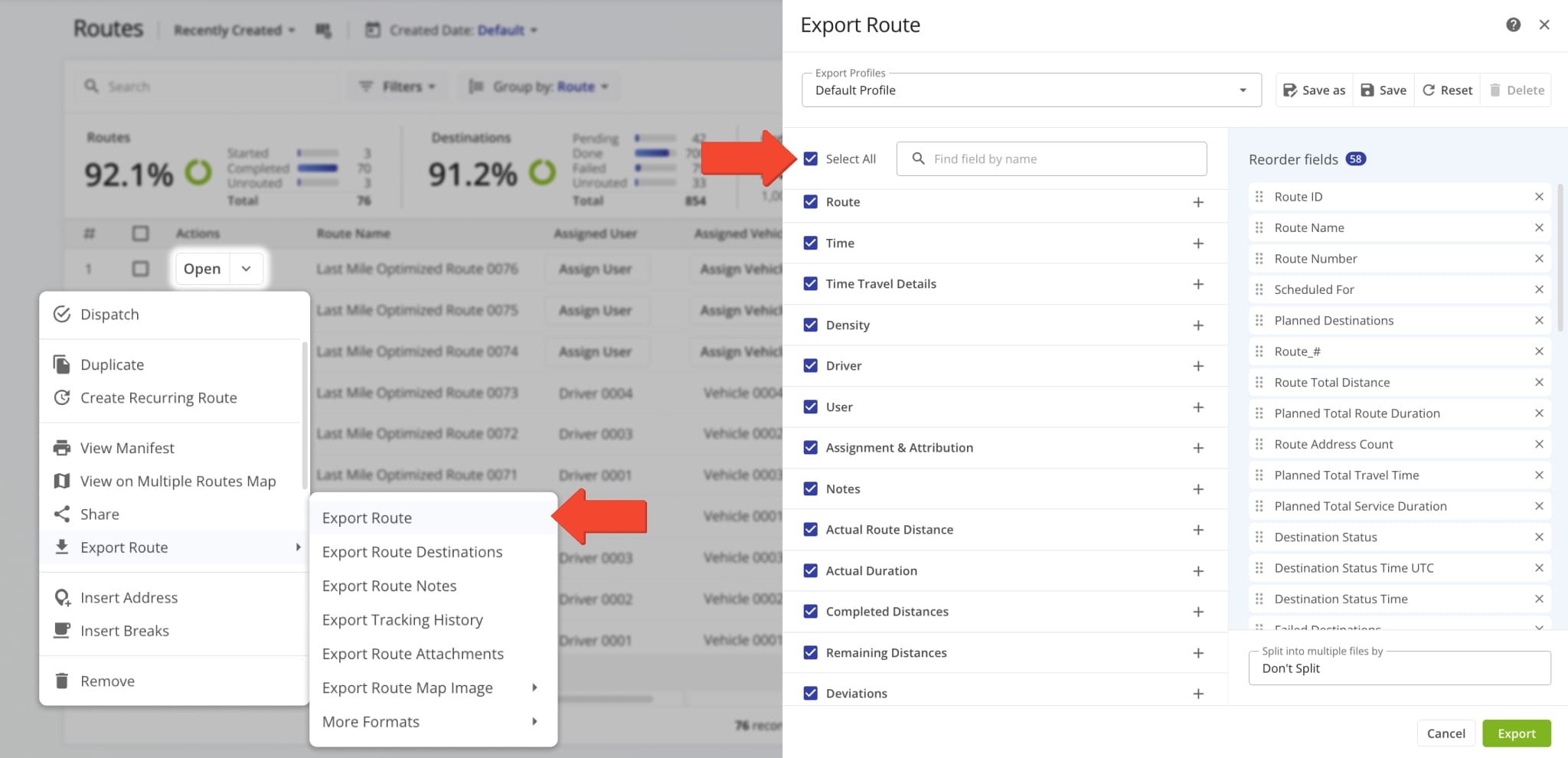
A new “Select All” option was added to the Route Export configurator. This enables you to select every available route data option for your export file with a single click, streamlining the process of downloading route data. Learn more about exporting routes.
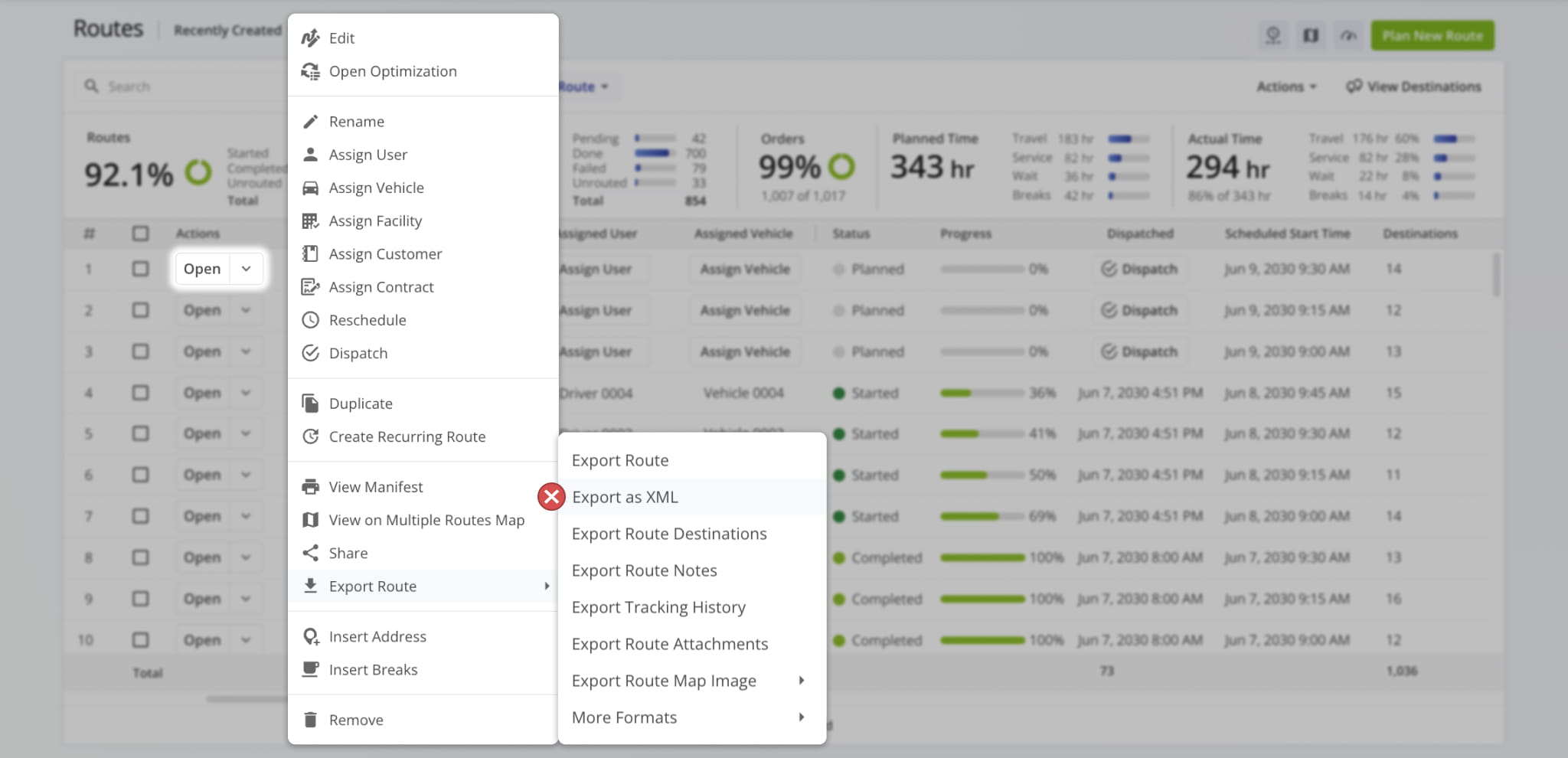
The XML file format is no longer supported for data export due to being outdated. Learn more about exporting routes.
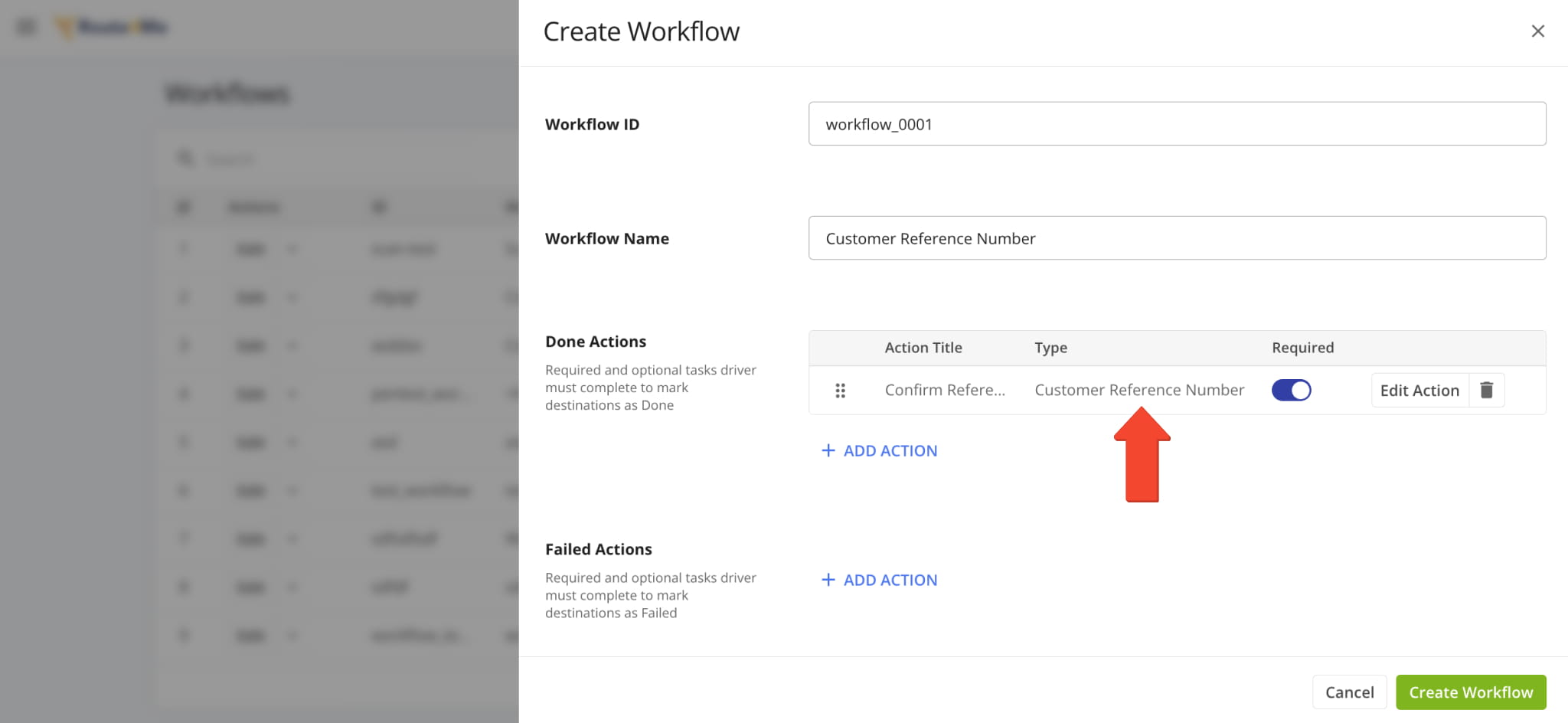
A new “Customer Reference Number” action was added to Workflows. With this new action type, assigned users can easily confirm a customer’s reference number when visiting route destinations. Learn more about collecting proof of service.
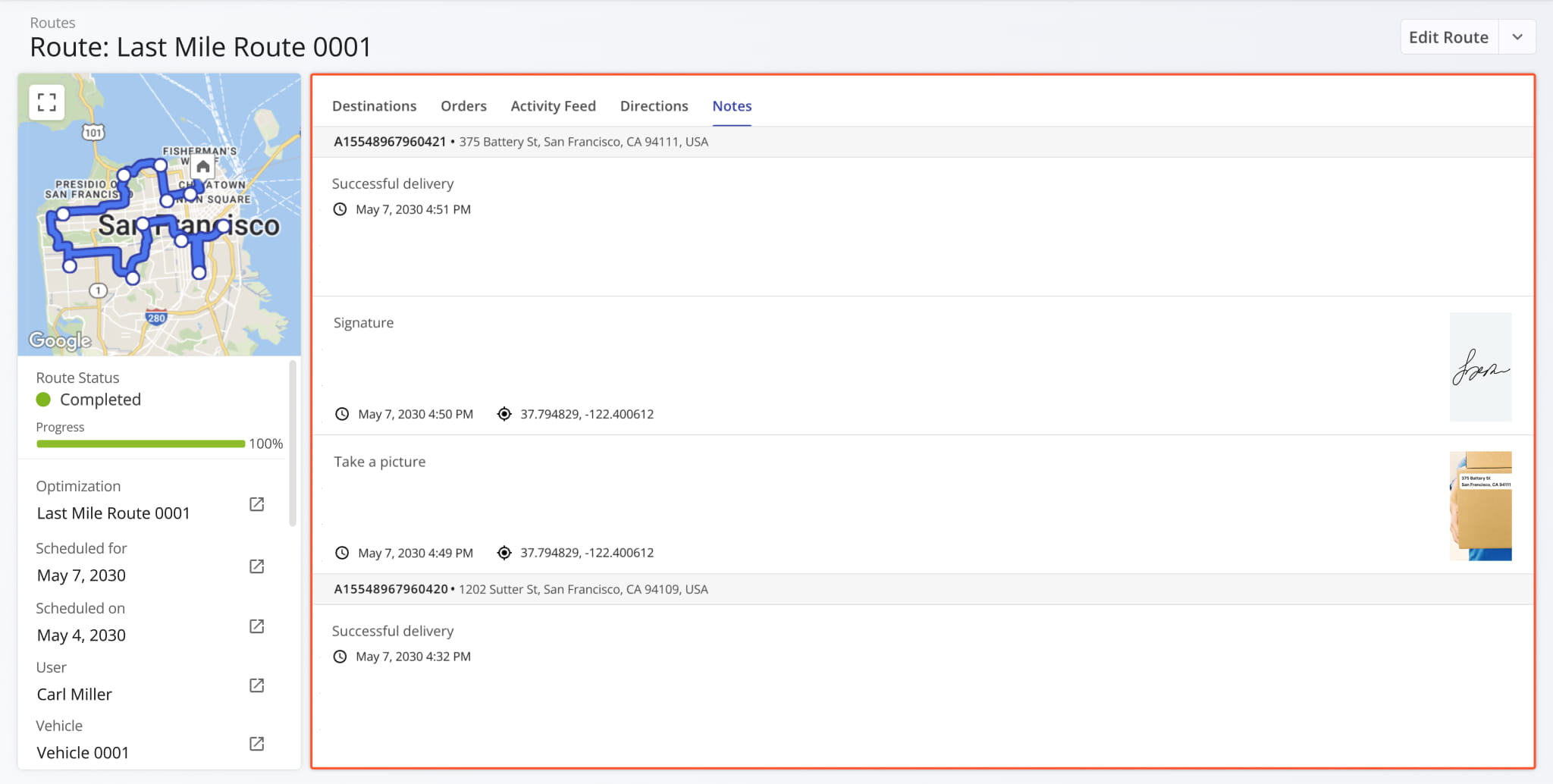
The “Notes” section of Route Snapshots has been redesigned. Previously, the “Notes” tab contained a simple data table showing Destination Note information. Now, each Note has additional context with its associated address and time always visible, as well as attachment media previews, timestamps, and more.
Additionally, you can click any image (photo, signature, etc.) to open it in full size in a new tab.
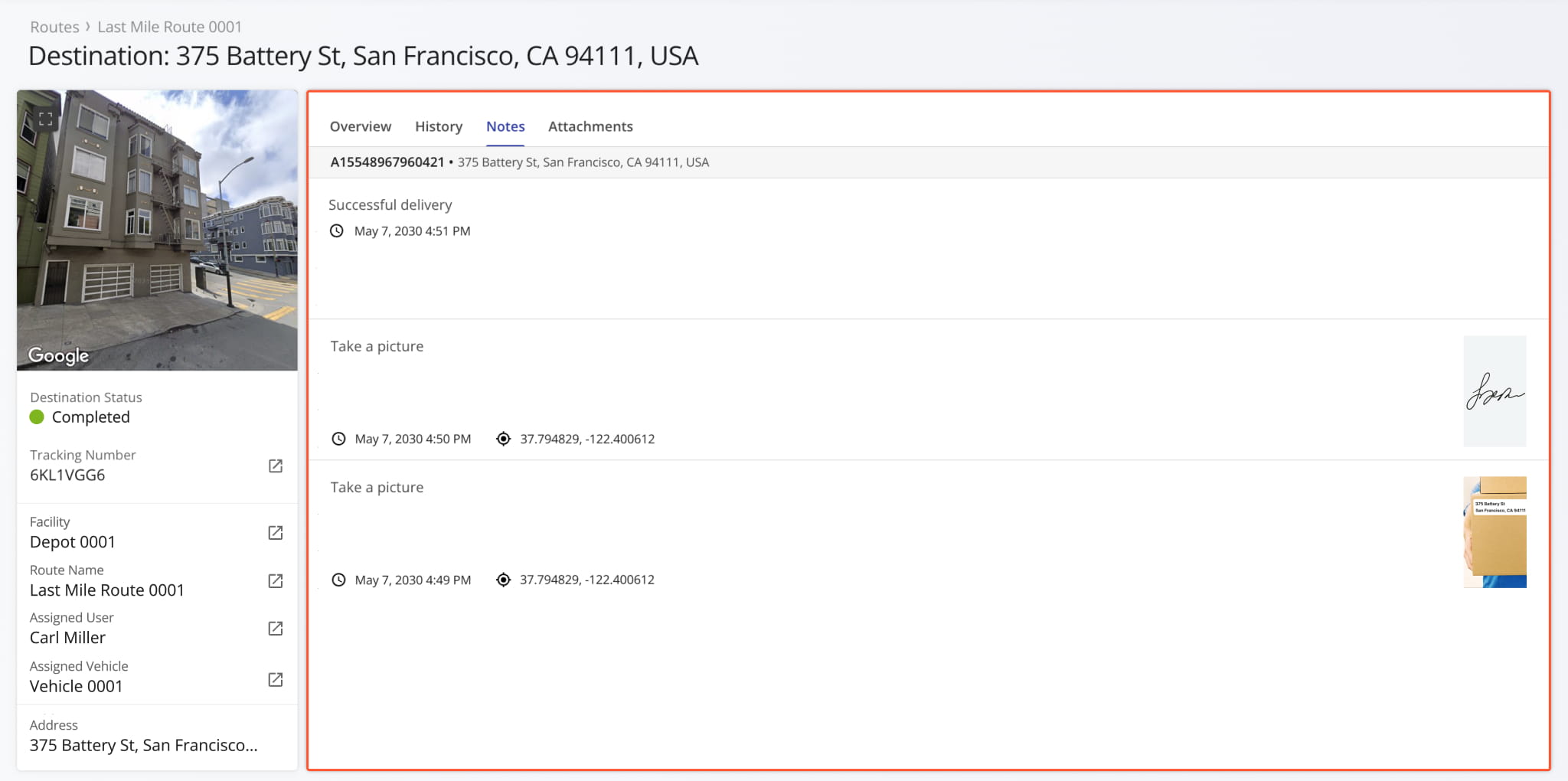
The “Notes” section of Destination Snapshots has been redesigned. Previously, the “Notes” tab contained a simple data table showing Destination Note information. Now, each Note has additional context with its associated address and time always visible, as well as attachment media previews, timestamps, and more.
Additionally, you can click any image (photo, signature, etc.) to open it in full size in a new tab.
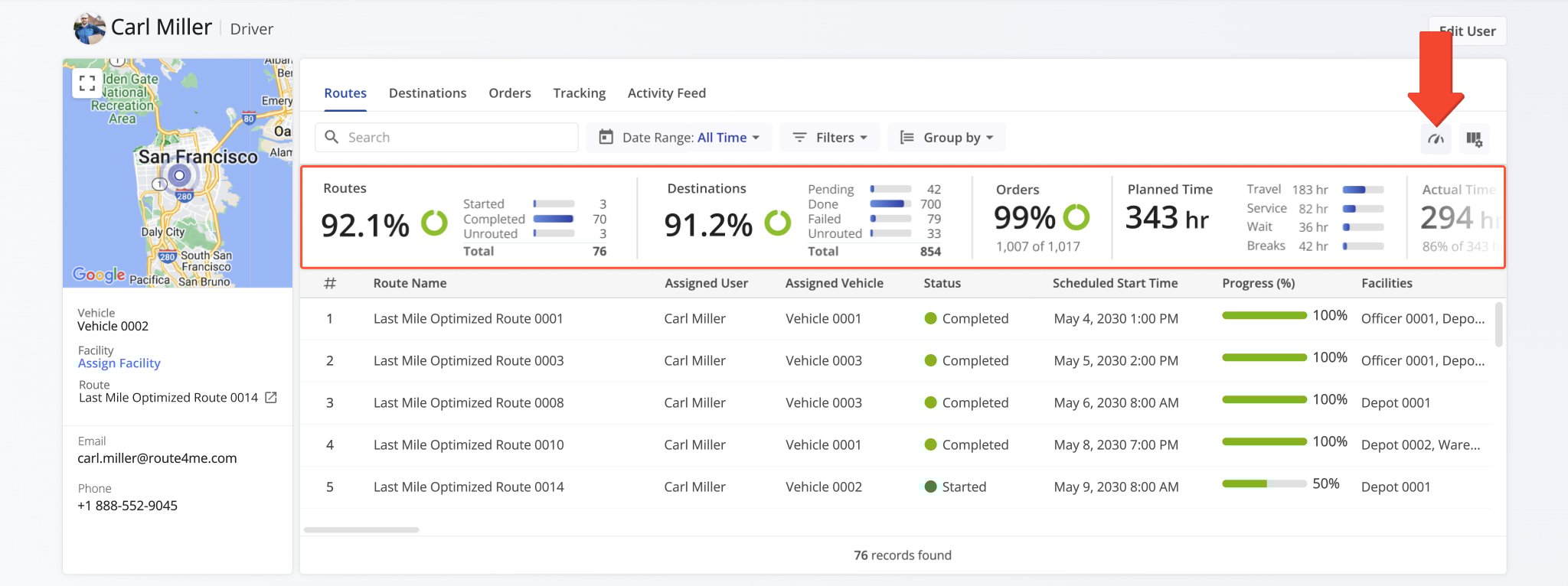
The Route Performance Metrics feature was added to User Snapshots. The Performance Metrics panel provides a summary of the user’s planned and completed routes, destinations, orders, time distribution, etc. It enables you to monitor progress, track efficiency, and evaluate the operational performance of a user across your filtered routes with real-time data visualization.
The Route Performance Metrics feature was added to Vehicle Snapshots. The Performance Metrics panel provides a summary of the vehicle’s planned and completed routes, destinations, orders, time distribution, etc. It enables you to monitor progress, track efficiency, and evaluate the operational performance and vehicle utilization of your fleet with real-time data visualization.
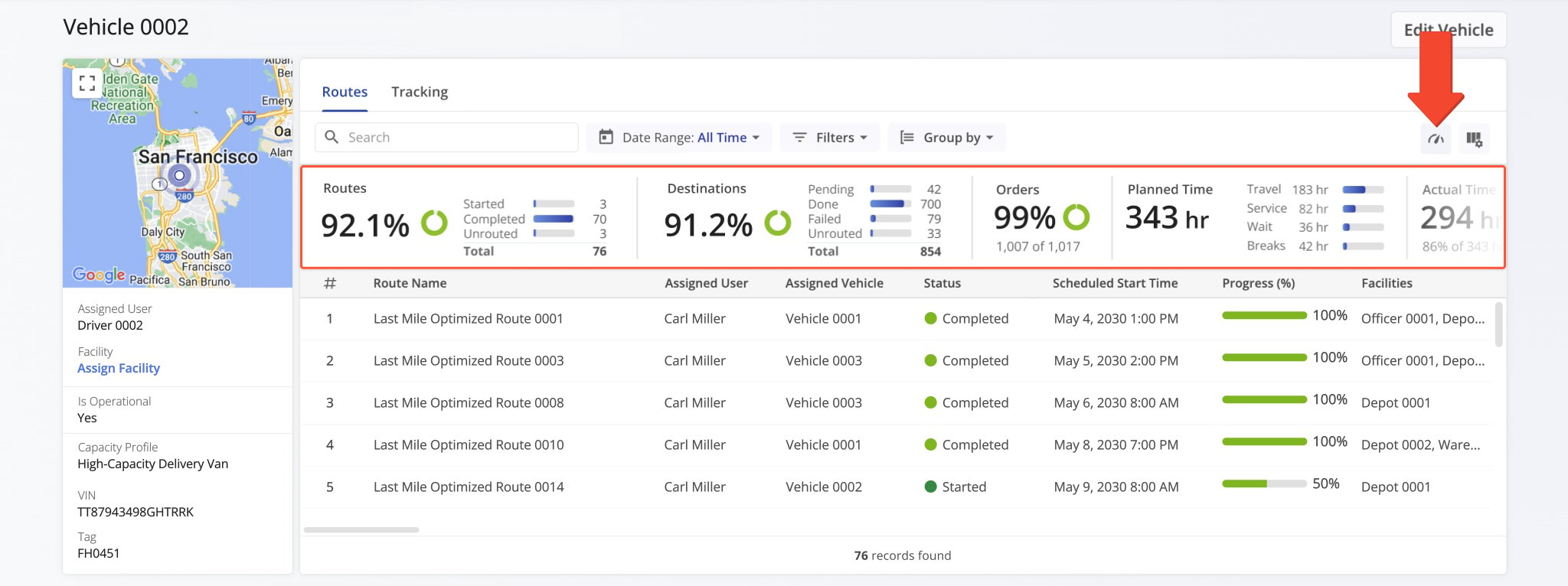
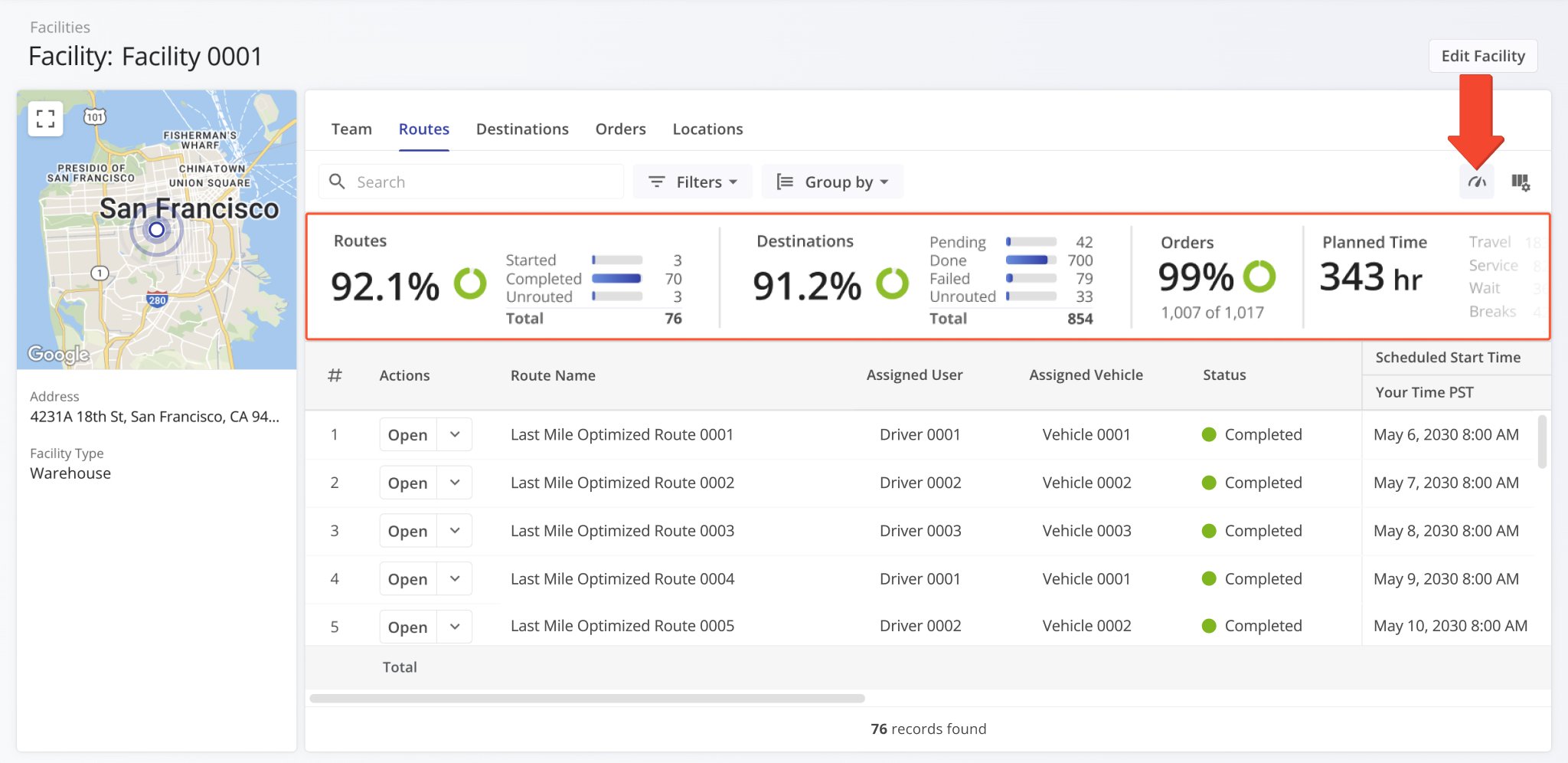
The Route Performance Metrics feature was added to Facility Snapshots. The Performance Metrics panel provides a summary of the facility’s associated planned and completed routes, destinations, orders, time distribution, etc. It enables you to monitor progress, track efficiency, and evaluate operational performance across your organization with clear data visualization.
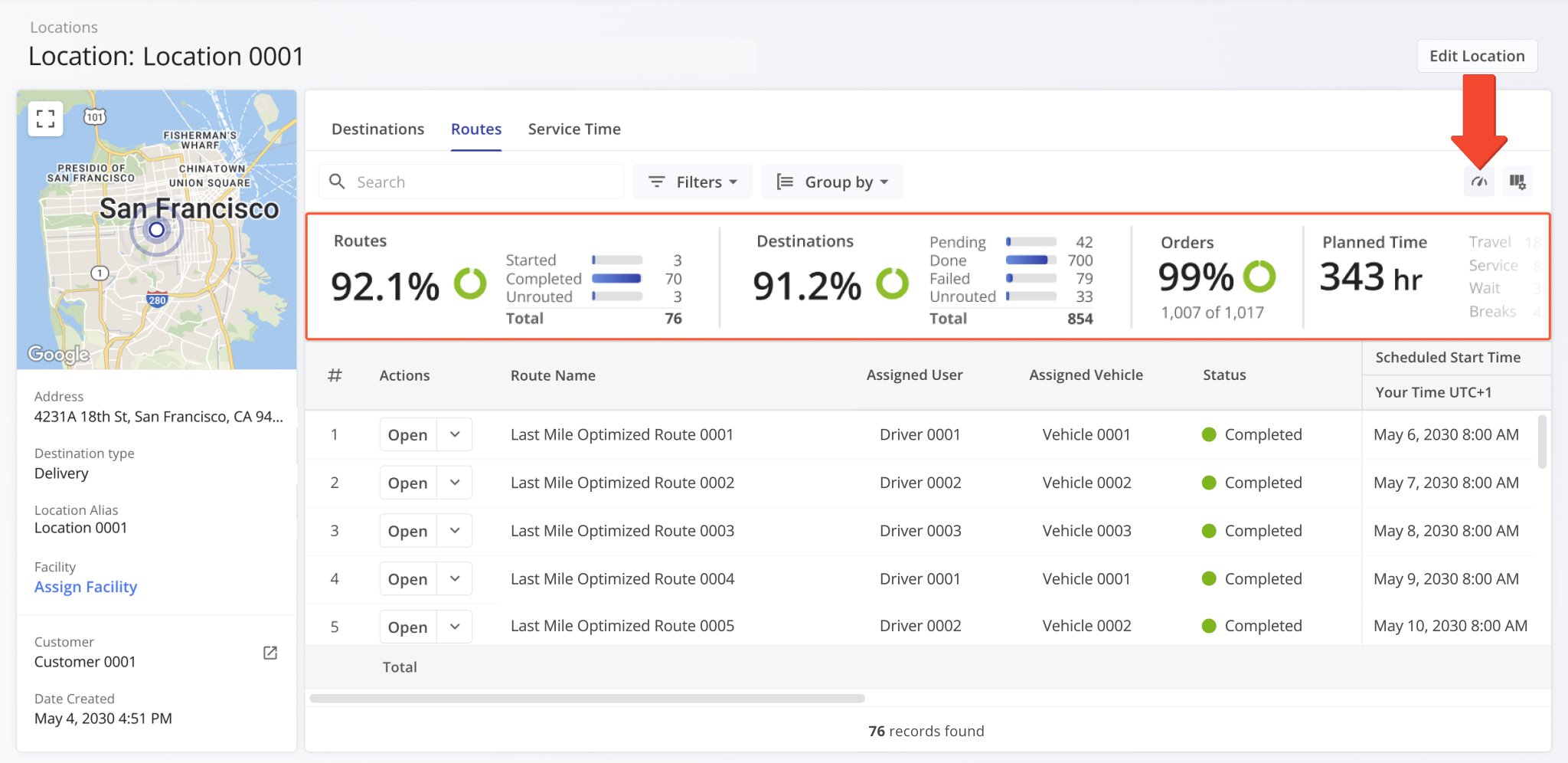
The Route Performance Metrics feature was added to Location Snapshots. The Performance Metrics panel provides a summary of a location’s associated planned and completed routes, destinations, orders, time distribution, etc. It enables you to monitor progress, track efficiency, and evaluate operational performance at customer locations with clear data visualization.
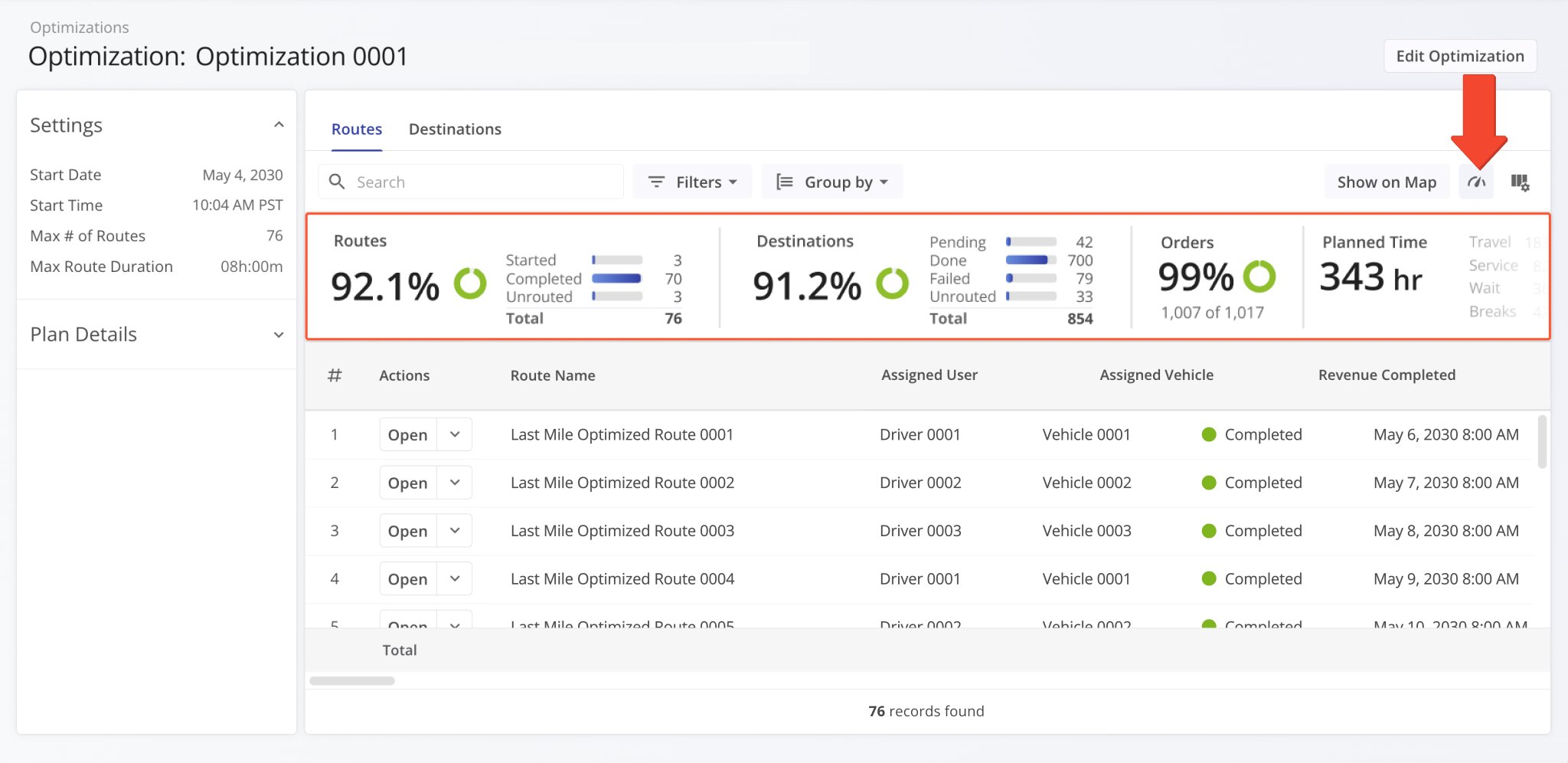
The Route Performance Metrics feature was added to Optimization Snapshots. The Performance Metrics panel provides a summary of an optimization’s associated planned and completed routes, destinations, orders, time distribution, etc. It enables you to monitor progress, track efficiency, and evaluate operational performance with clear data visualization.
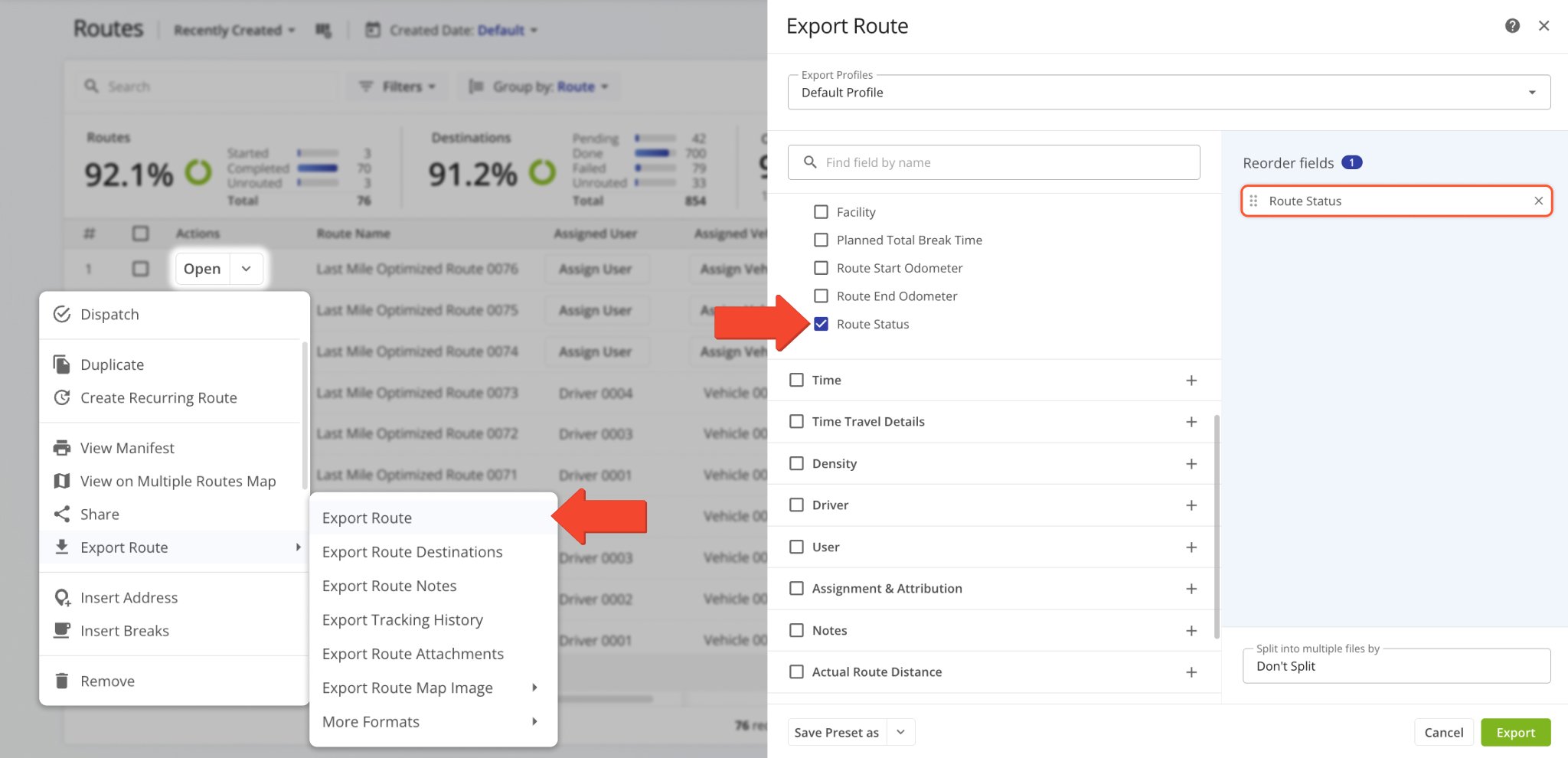
The “Route Status” data column was added to the Route Export customizer. This column shows the current status (“Planned“, “Started“, or “Completed“) of the route at the time of export. Learn more about exporting routes.
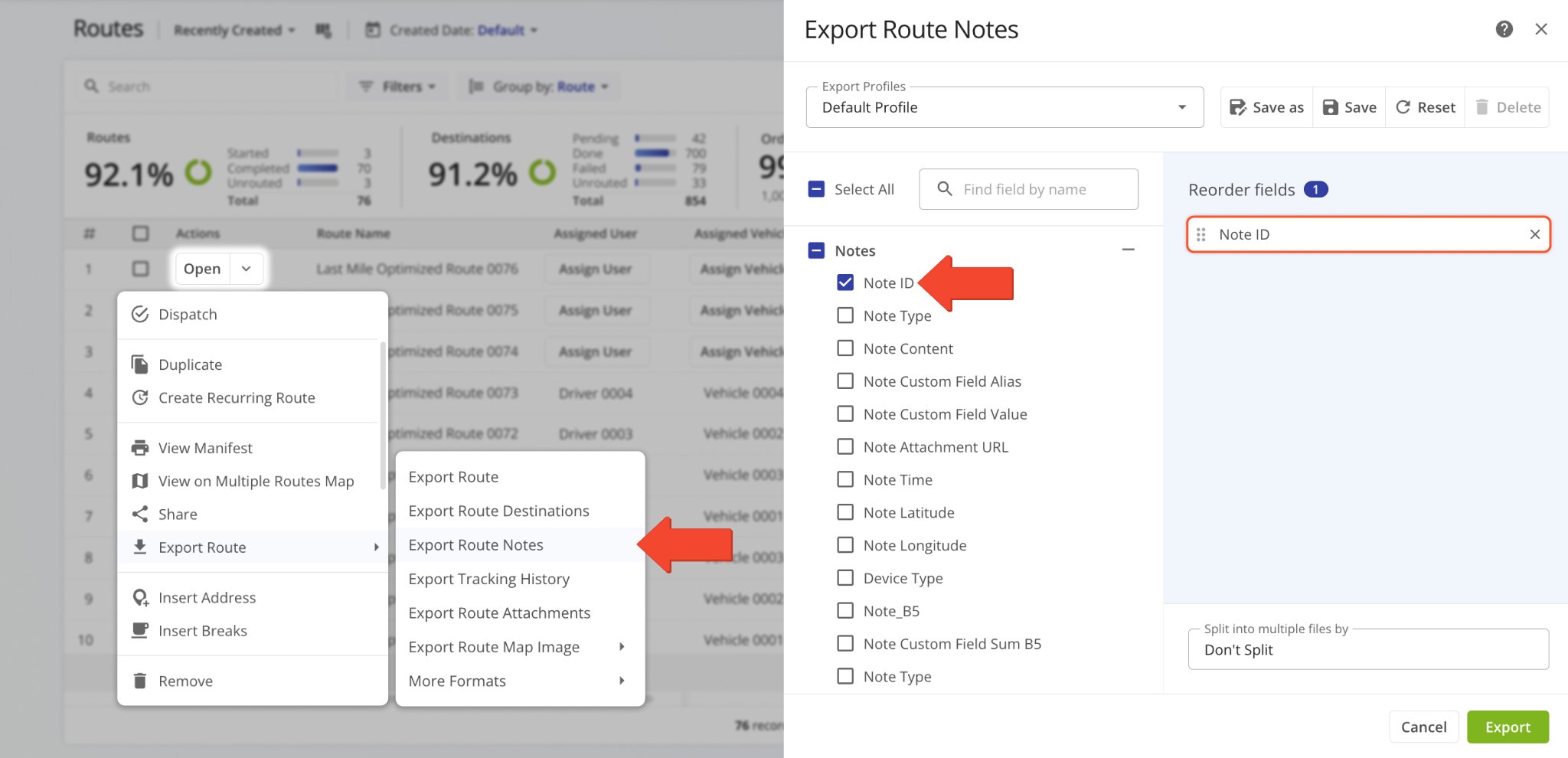
Additionally, the “Note ID” data column was added to the Route Notes Export customizer. This column shows the unique alphanumeric IDs Destination Notes on the route. Learn more about exporting routes.
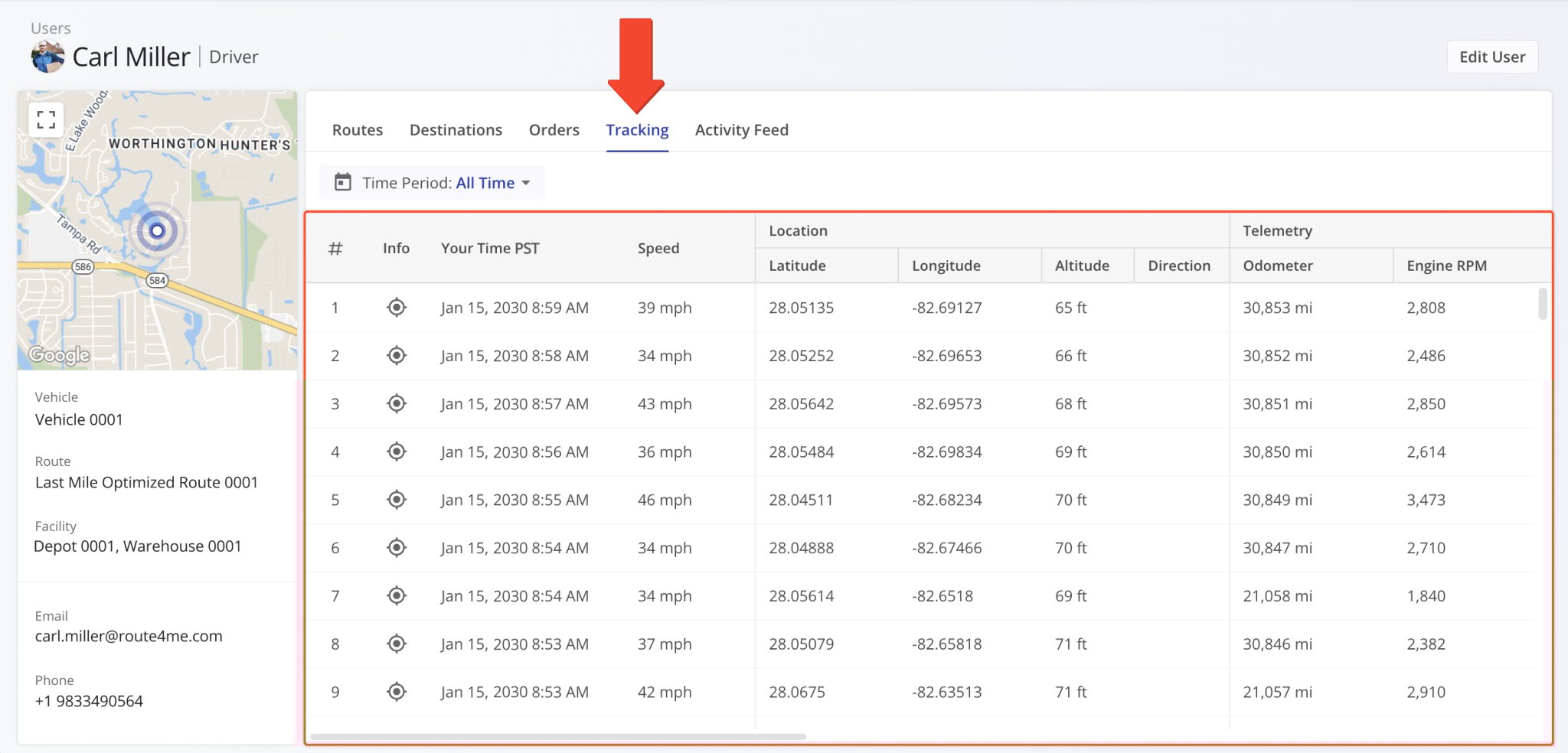
A new “Tracking” section was added to User Snapshots. In the “Tracking” tab, you can see a list of location updates associated with a user. Each update corresponds to an instance when the user’s location was synced. Tracking updates contain timestamps, coordinate and location details, and detailed vehicle information if synced via Telematics Integration.
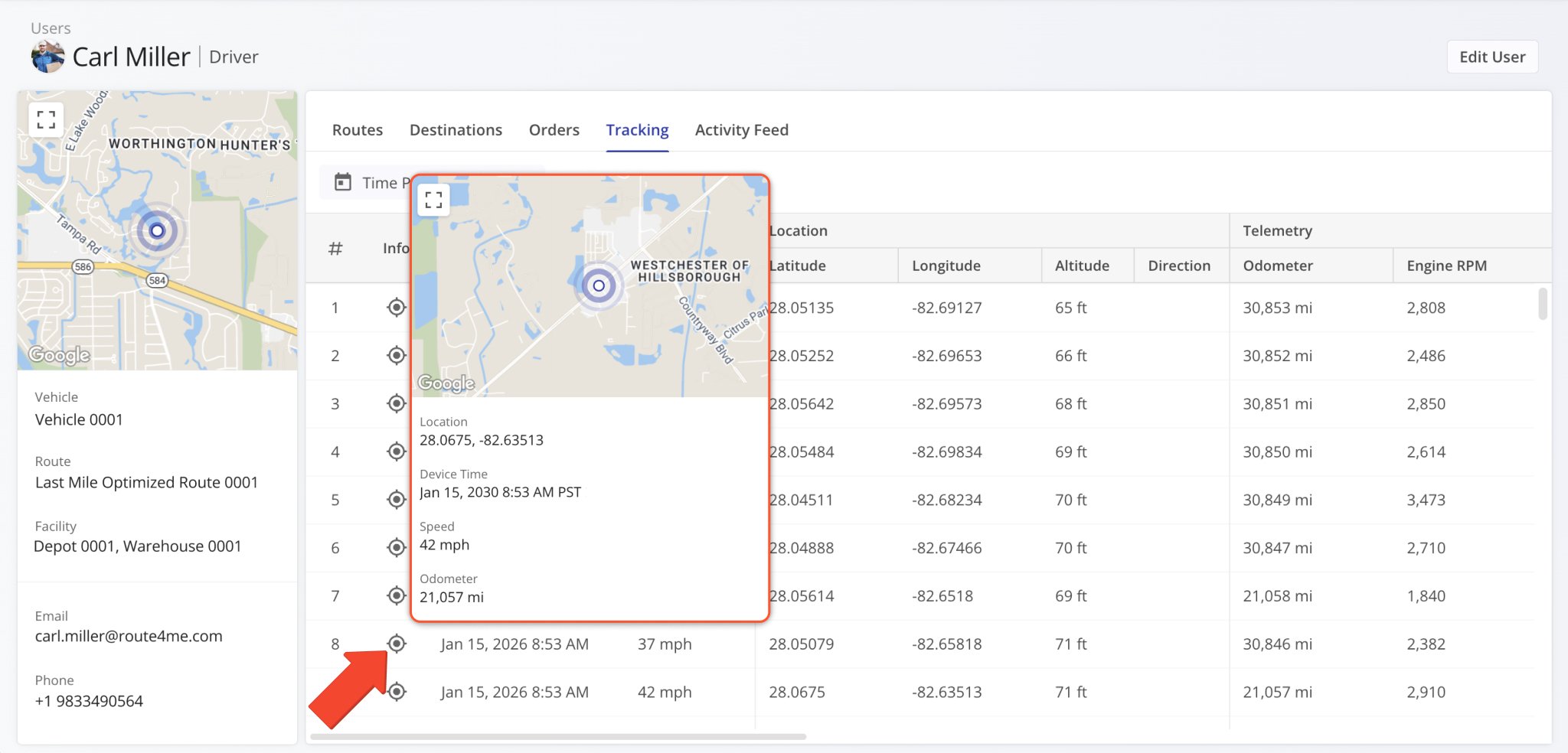
Additionally, you can hover over the Tracking Icon in the “Info” column to view a tracking summary for the respective location update. In detail, this will open a pop-up window that shows the location update’s associated coordinates, device timestamp, vehicle speed, odometer reading, and the user’s location on the map at the time of the location update.
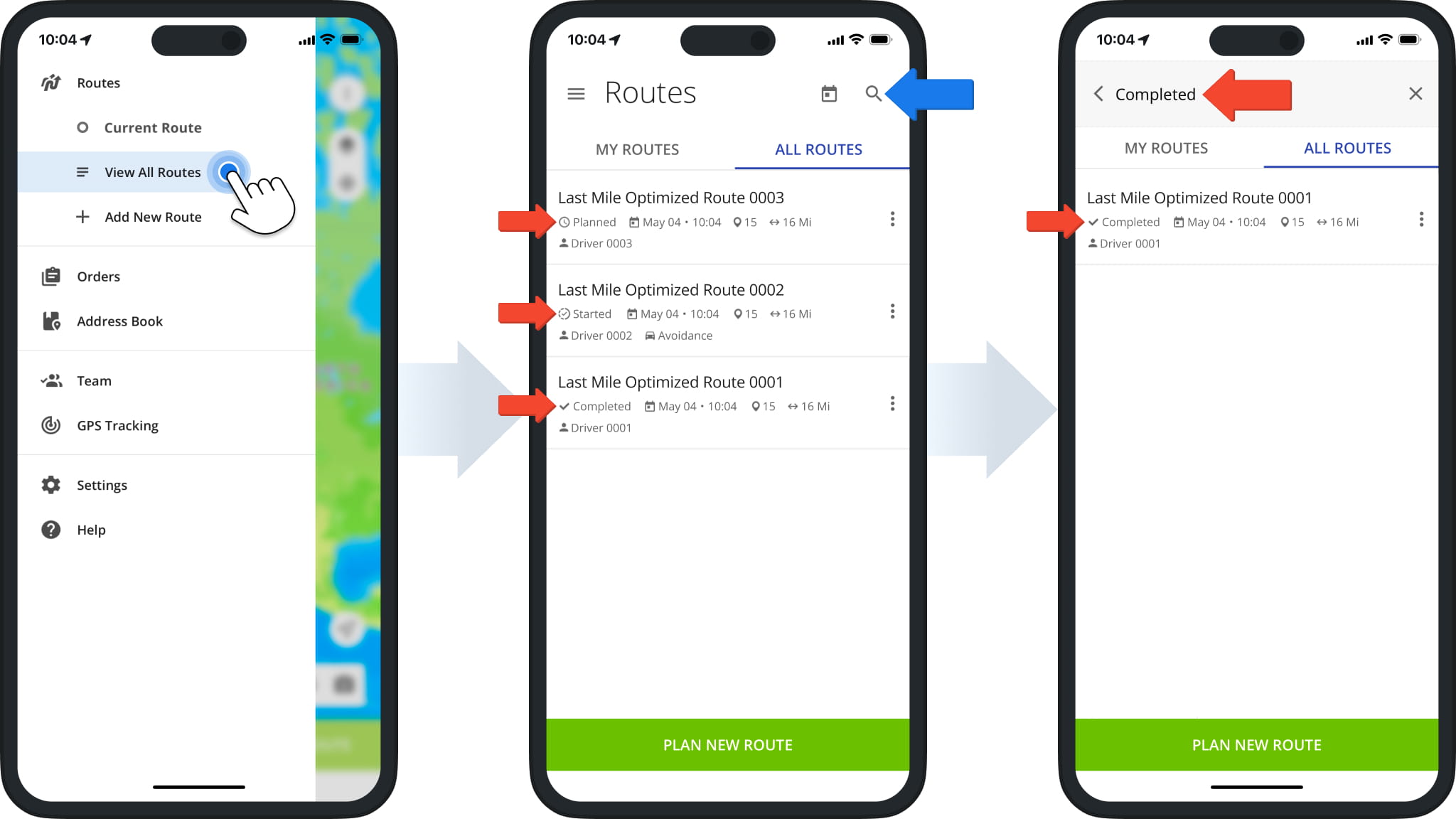
A new “Tracking” section was added to Vehicle Snapshots. In the “Tracking” tab, you can see a list of location updates associated with a vehicle. Each update corresponds to an instance when the vehicle’s location was synced. Tracking updates contain timestamps, coordinate and location details, and detailed vehicle information if synced via Telematics Integration.
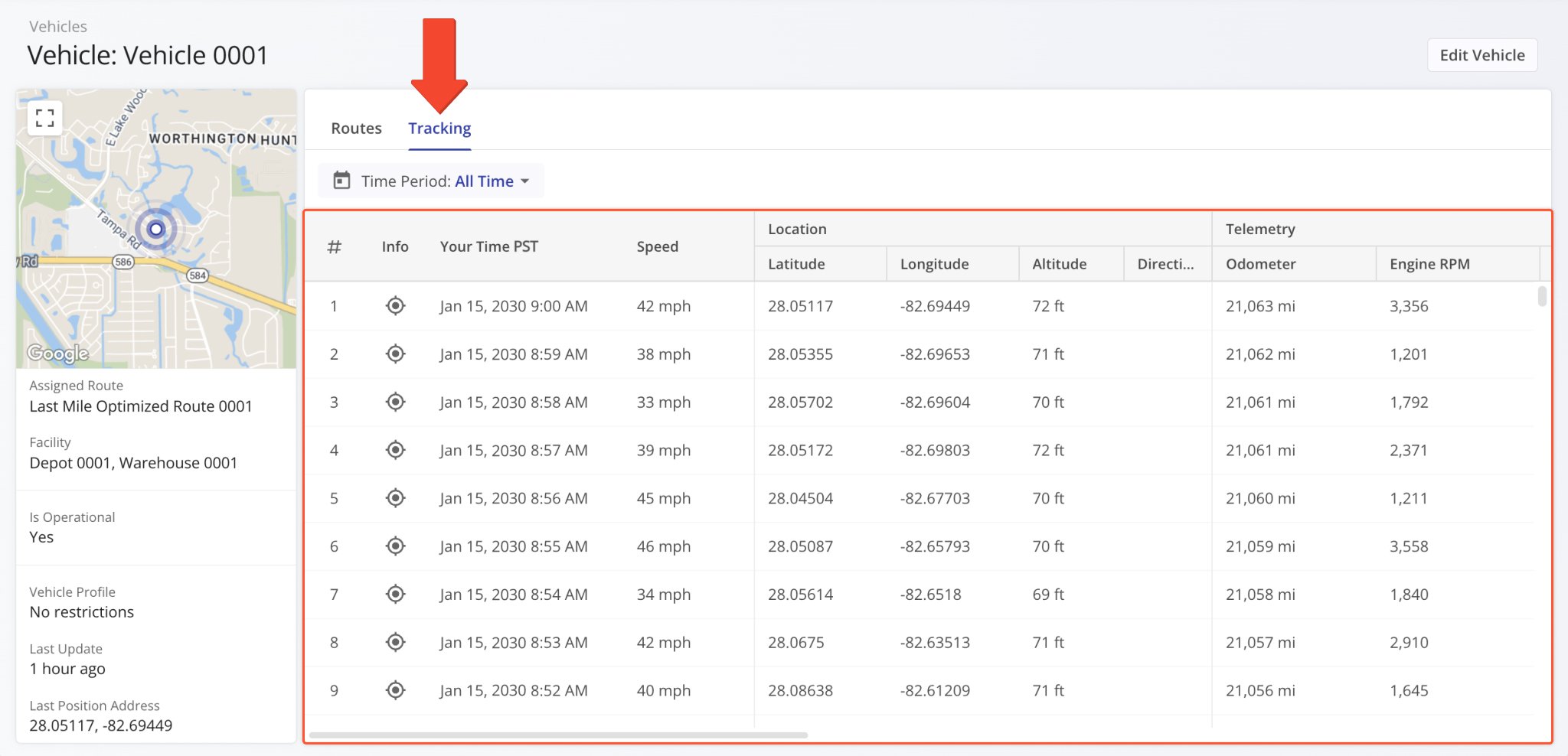
Additionally, you can hover over the Tracking Icon in the “Info” column to view a tracking summary for the respective location update. In detail, this will open a pop-up window that shows the location update’s associated coordinates, device timestamp, vehicle speed, odometer reading, and the vehicle’s location on the map at the time of the location update.
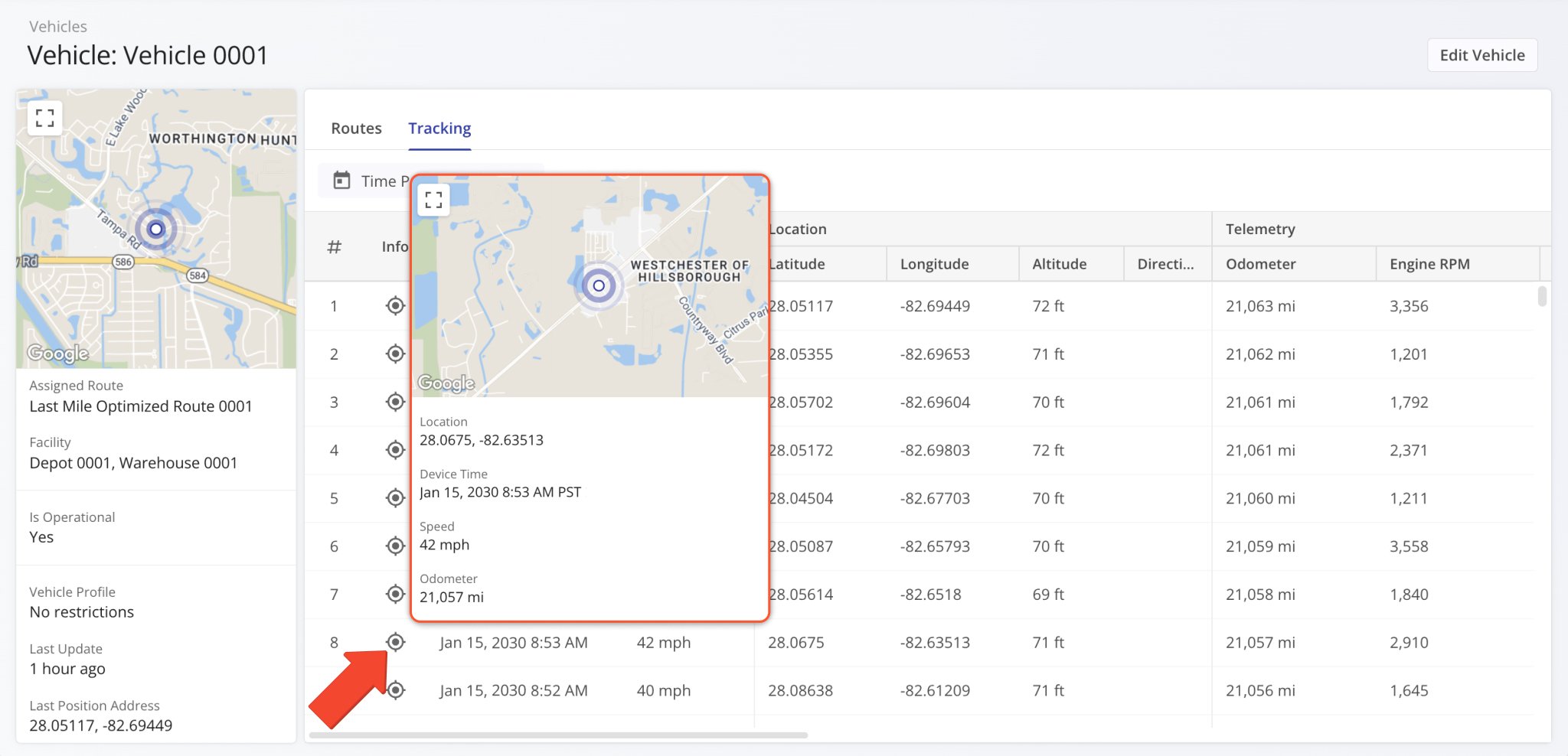
Notifications History - Recipient Phone and Email Columns | Enhancement | Web Platform | V1 | Jan 14
The “Recipient Phone” and “Recipient Email” columns were added to the Notifications History page. They show a contact person’s phone number and email address, respectively. This enables you to easily find the contact details associated with any of your customer notifications. Previously, only the timestamp, trigger, and message text were available.
Open Your Notifications History
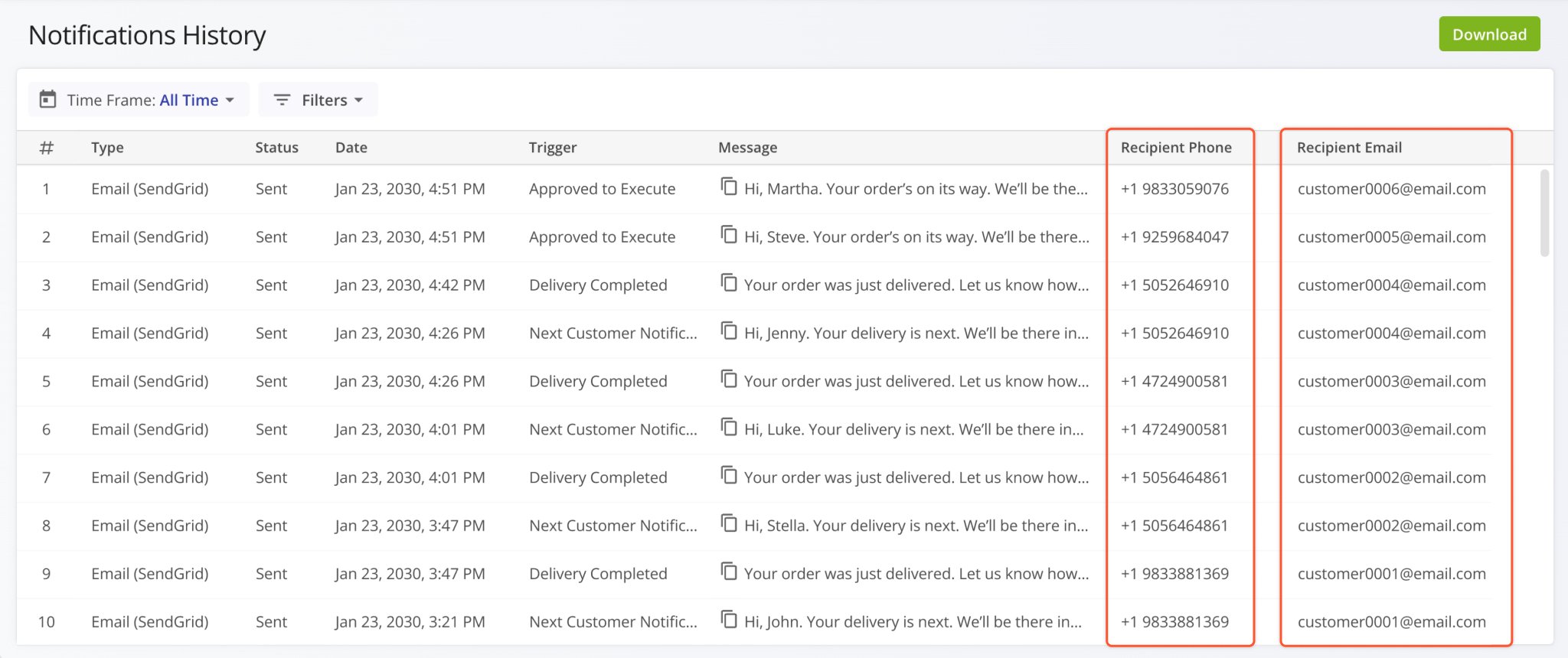
Route Status indicators were added to the Routes List in the Route4Me Mobile App. This enables users to easily see the the current status (“Planned“, “Started“, or “Completed“) of routes. By tapping the Search Icon and inputting a status, users can easily find all routes visible to them with the corresponding route status. Learn more about Mobile Route Management.
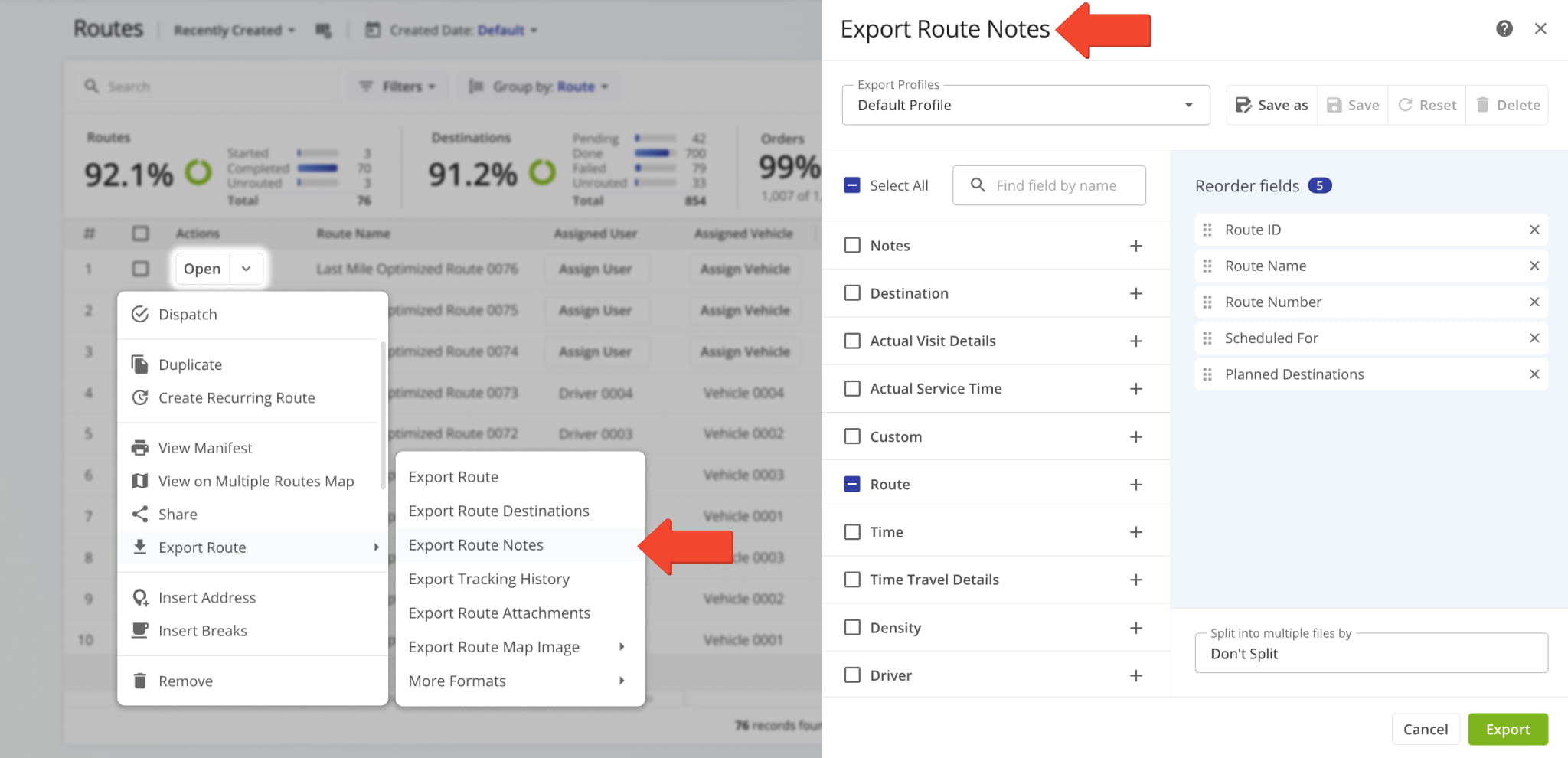
A new “Export Route Notes” option was added to the Route Export menu. It enables you to export all destination notes associated with the selected routes with full export column customization functionality.
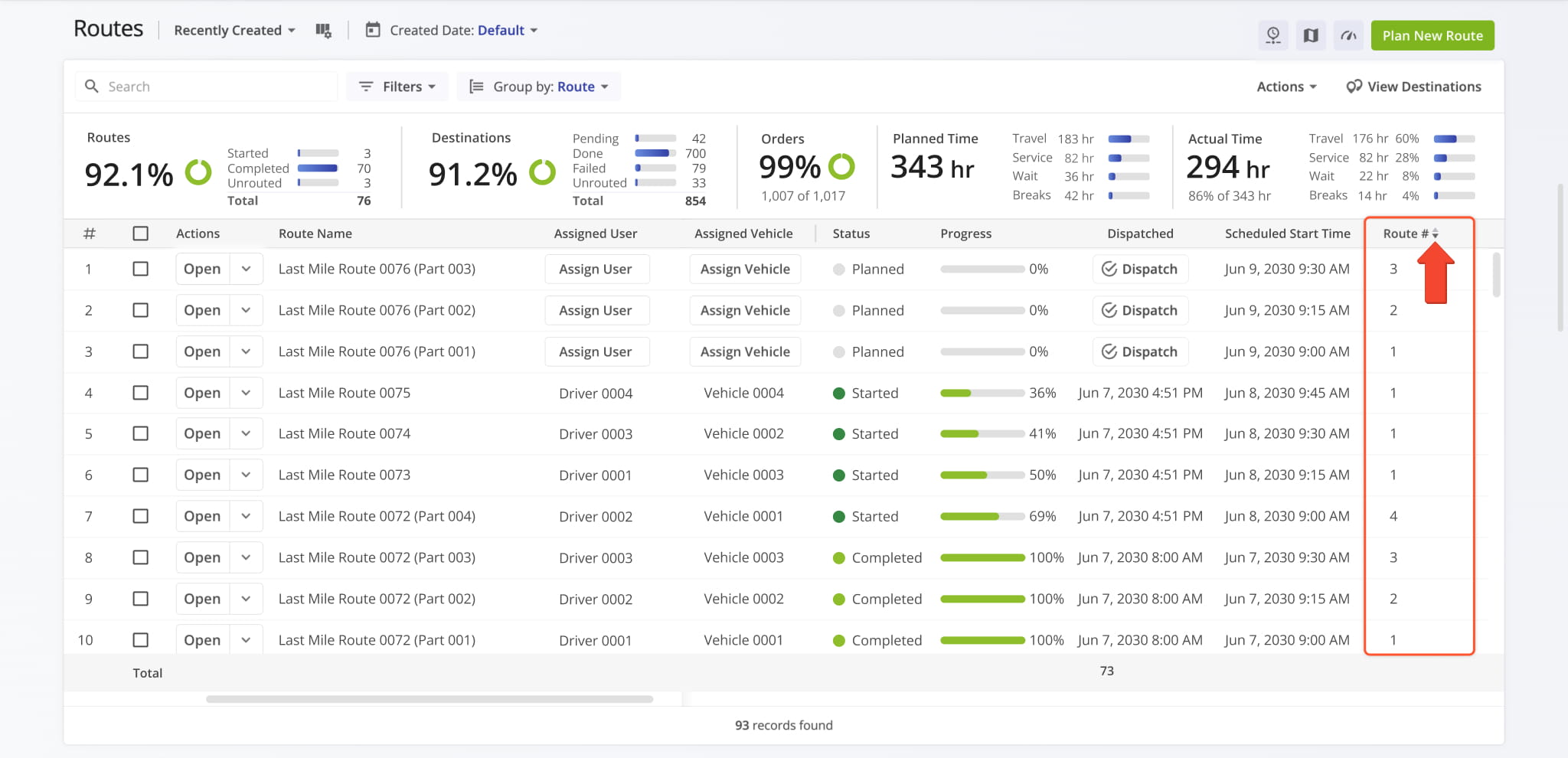
The route sequence display column “Route #” on the Routes Page can now be used to sort routes according to their optimization sequence. When you optimize multiple routes with one optimization, routes optimized earlier have a lower number than routes optimized later. When you optimize a single route, its “Route #” value will always be “1“.
Learn more about Route4Me Optimizations.
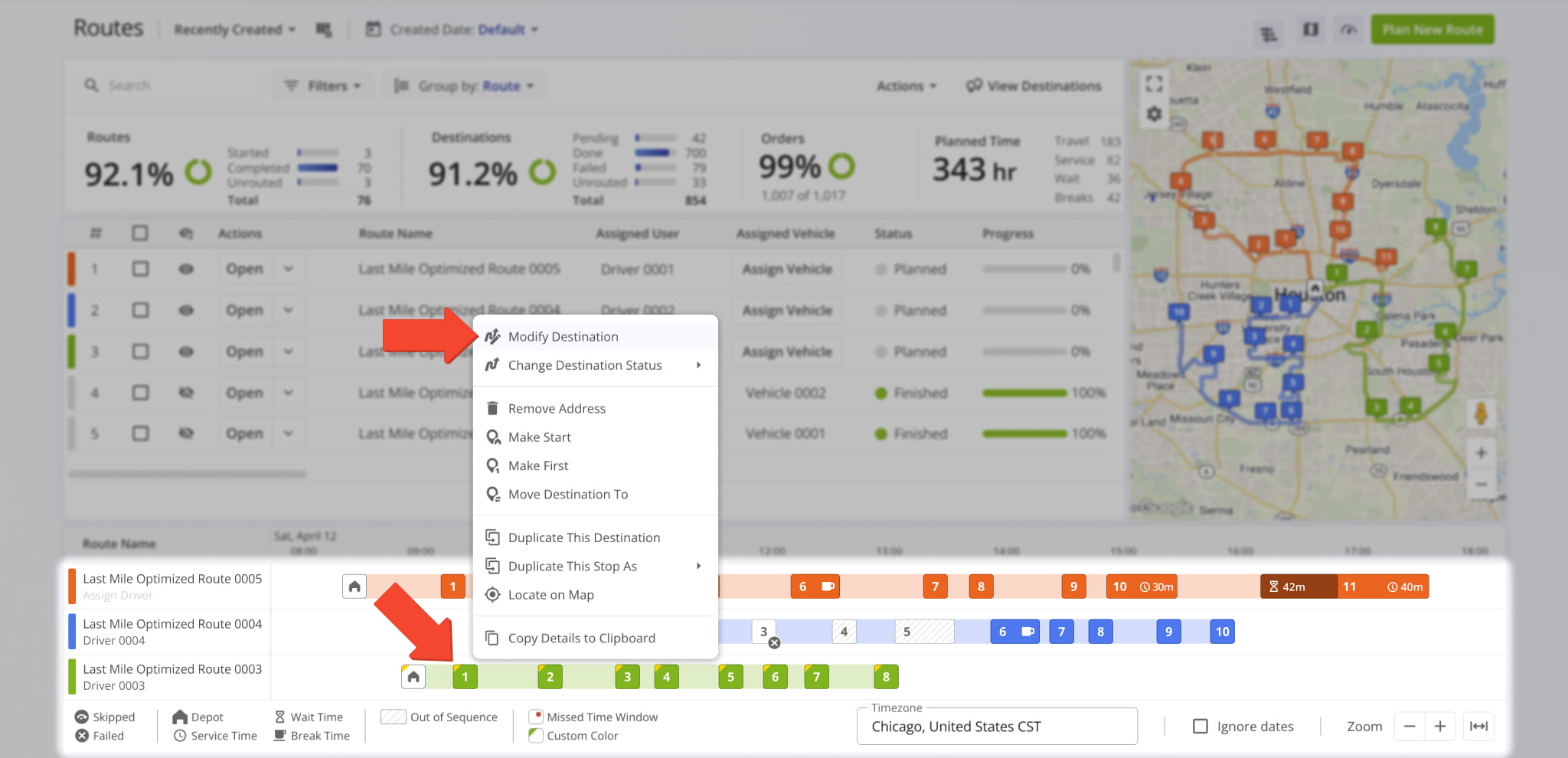
A new option to “Modify Destination” was added when you right-click a destination in the Routes Page Timeline.
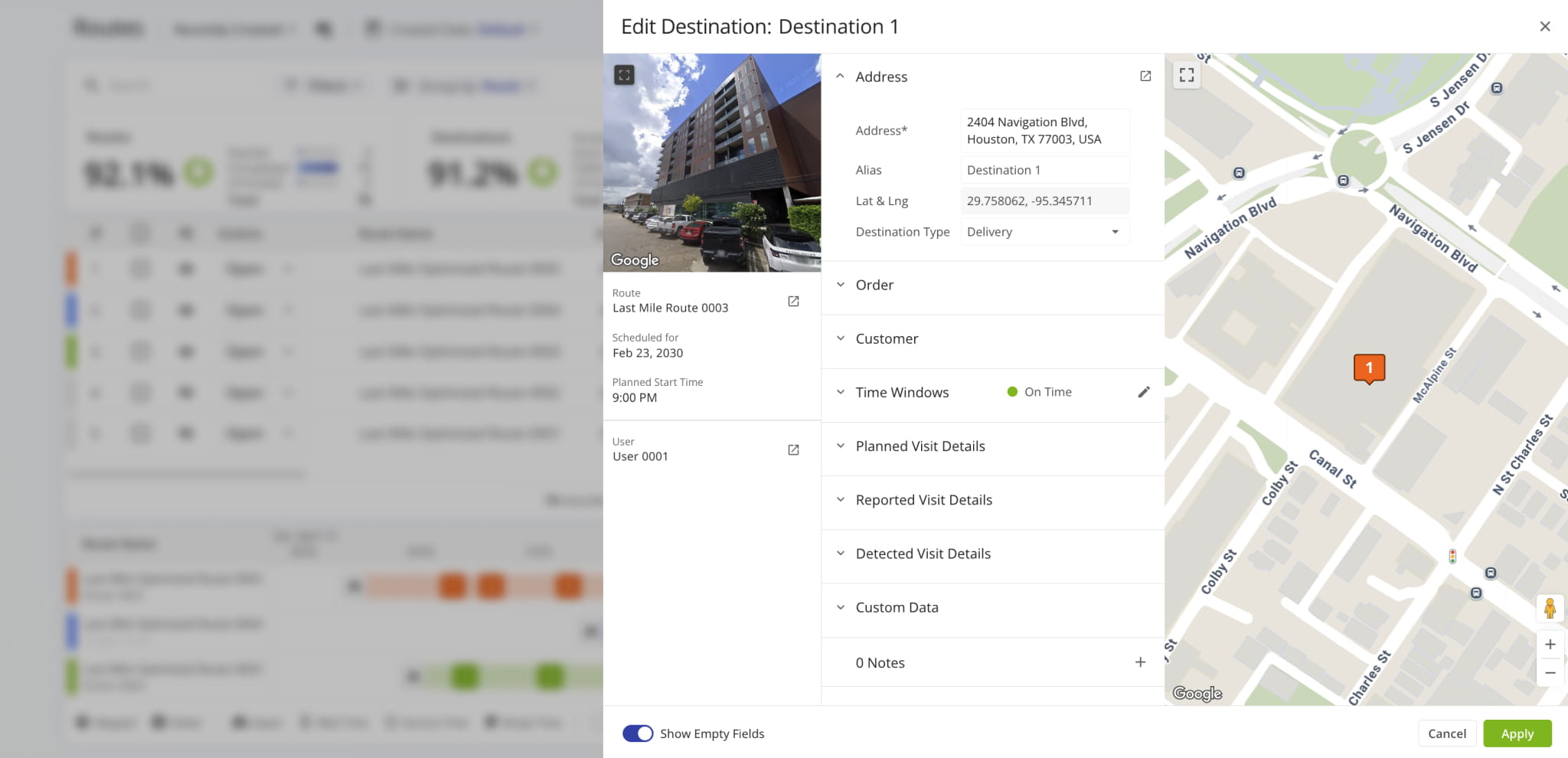
This opens the “Edit Destination” panel where you can see and modify destination details and open associated entities (route, user, etc.). The functionality of the “Edit Destination” interface is similar to the “Destination Info” in of your Route Editor.
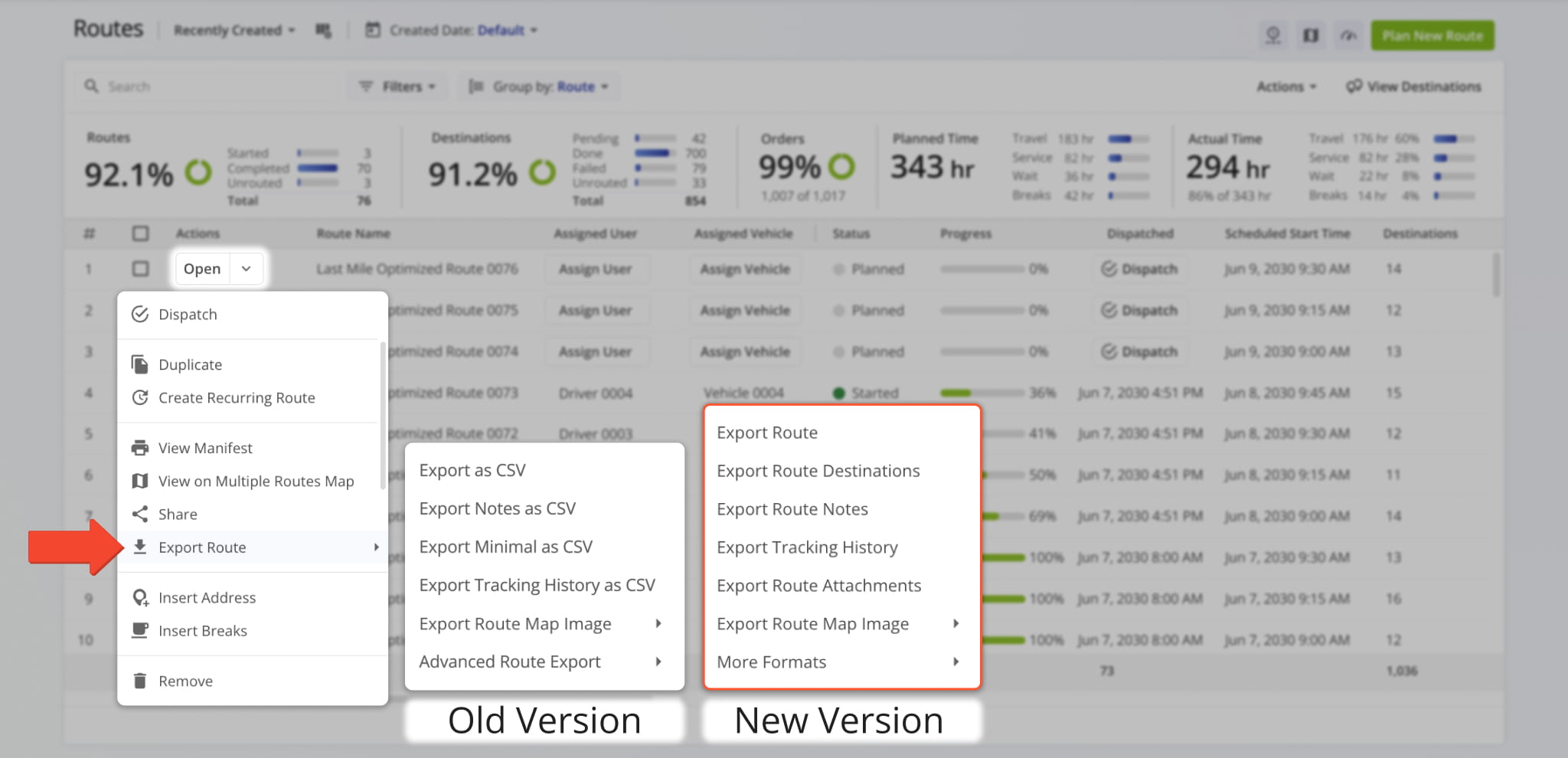
The available options in the “Export Route” menu have been renamed and resequenced to provide a more streamlined and efficient experience when you download routes. Learn more about exporting routes.
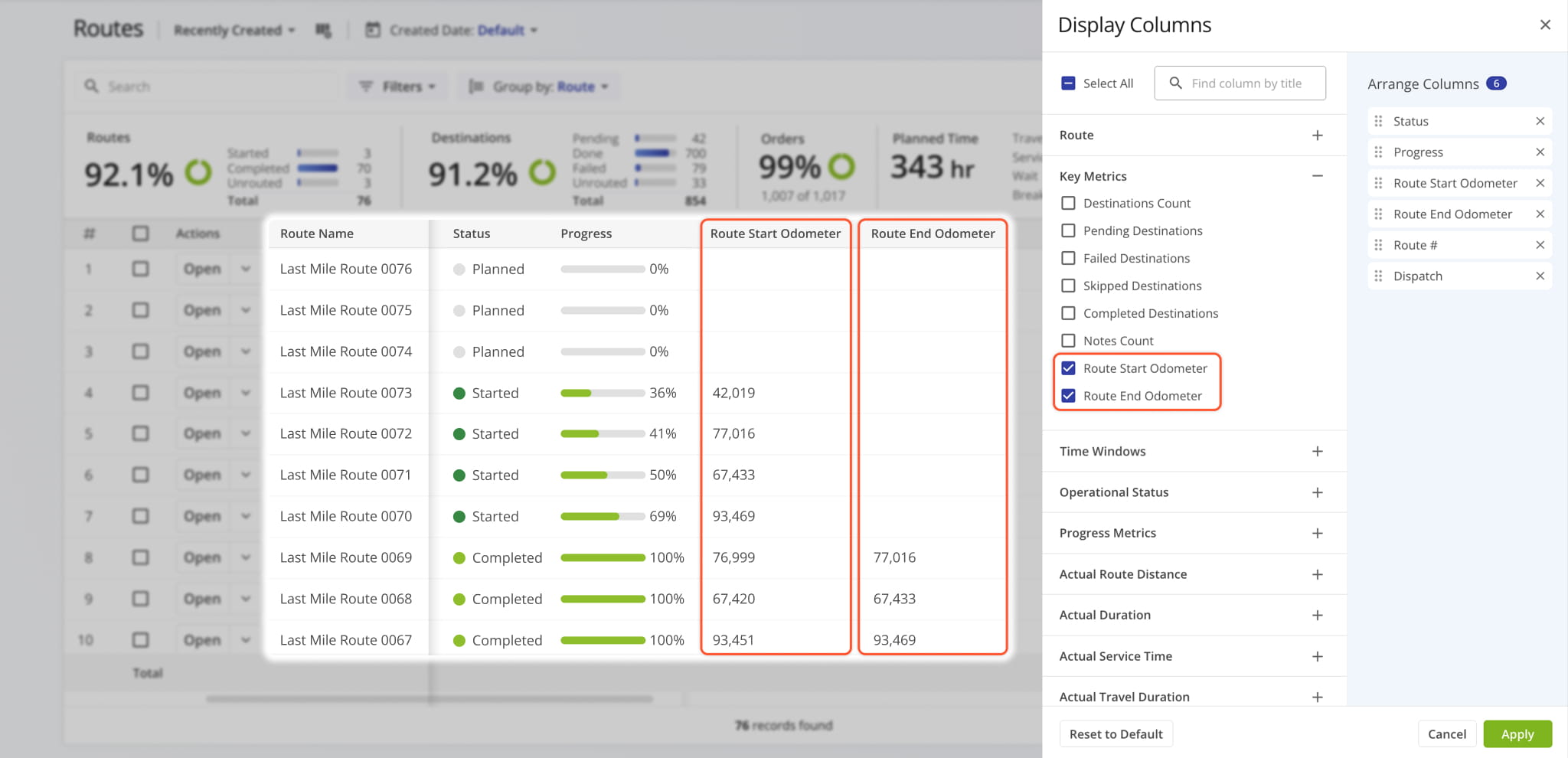
New vehicle odometer columns have been added to the Routes Page in “Display Columns” > “Key Metrics“.
The “Route Start Odometer” column shows the odometer reading of an Assigned Vehicle at the start of a route.
The “Route End Odometer” column shows the odometer reading of an Assigned Vehicle at the end of a route.
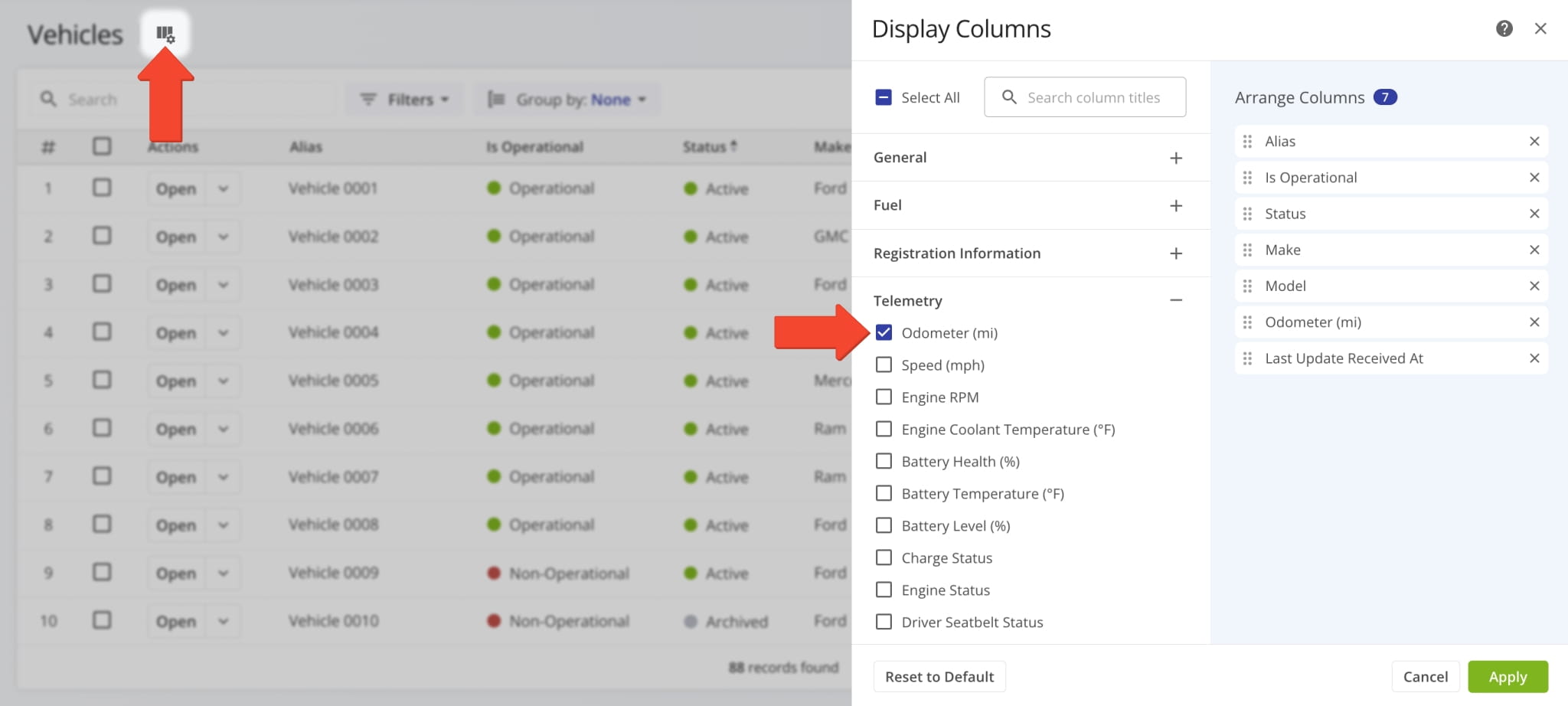
A new vehicle odometer column was added to the Vehicles Page in “Display Columns” > “Telemetry“.
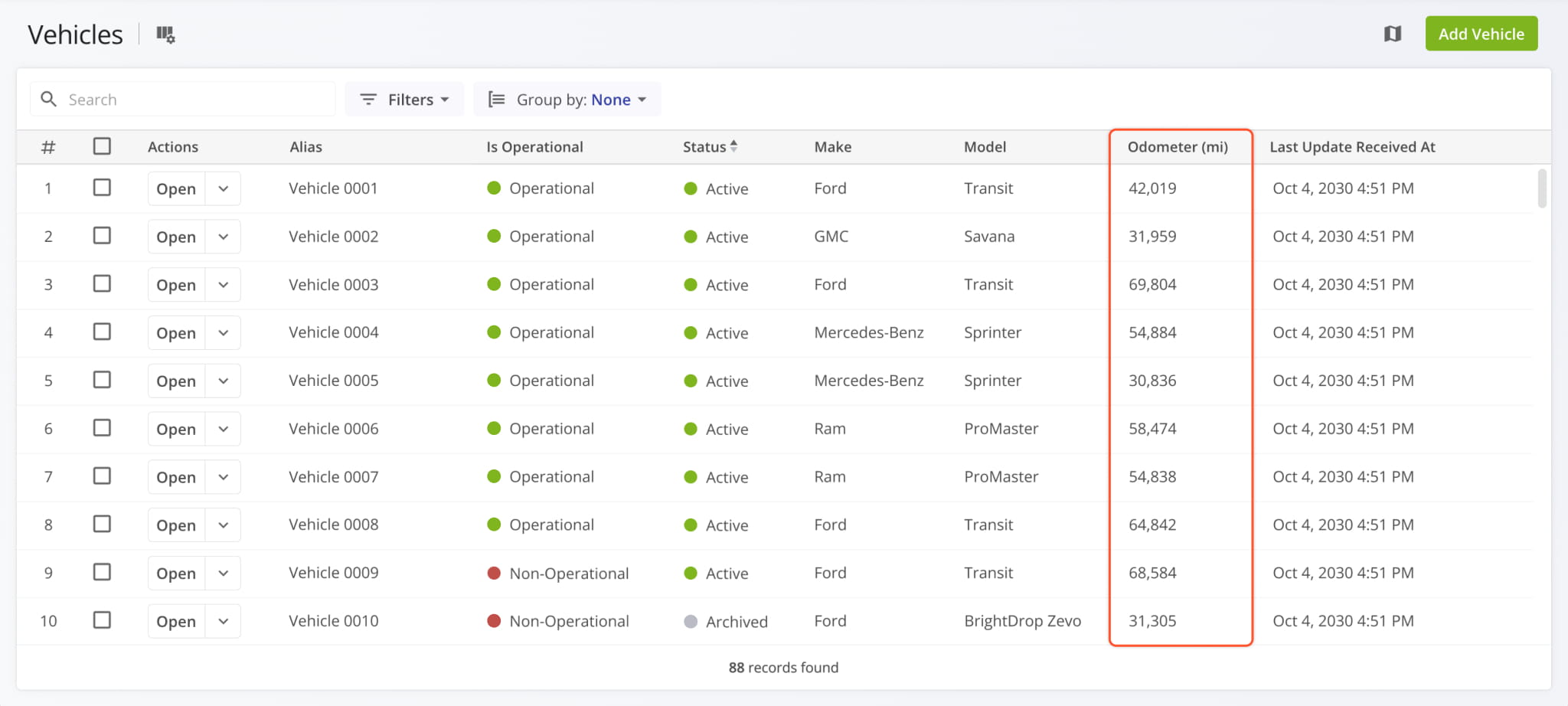
The “Odometer (mi)” column shows the most recent total mileage value of your fleet vehicles.
A new button was added to open Strategic Optimizations which enables you to add scenarios to an optimization.
Open Your Strategic Optimizations
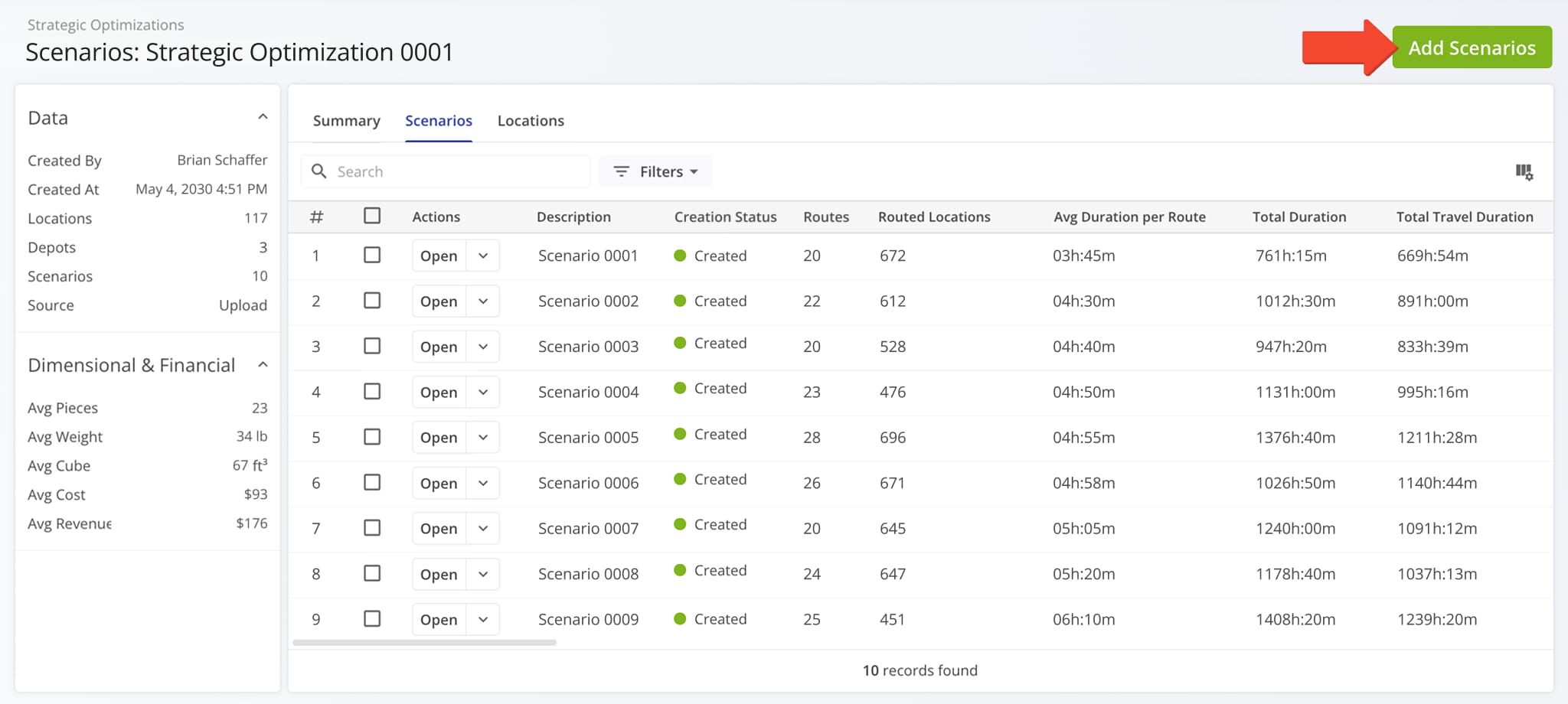
The “Add Scenarios” panel supports all the same options as creating strategic optimizations.
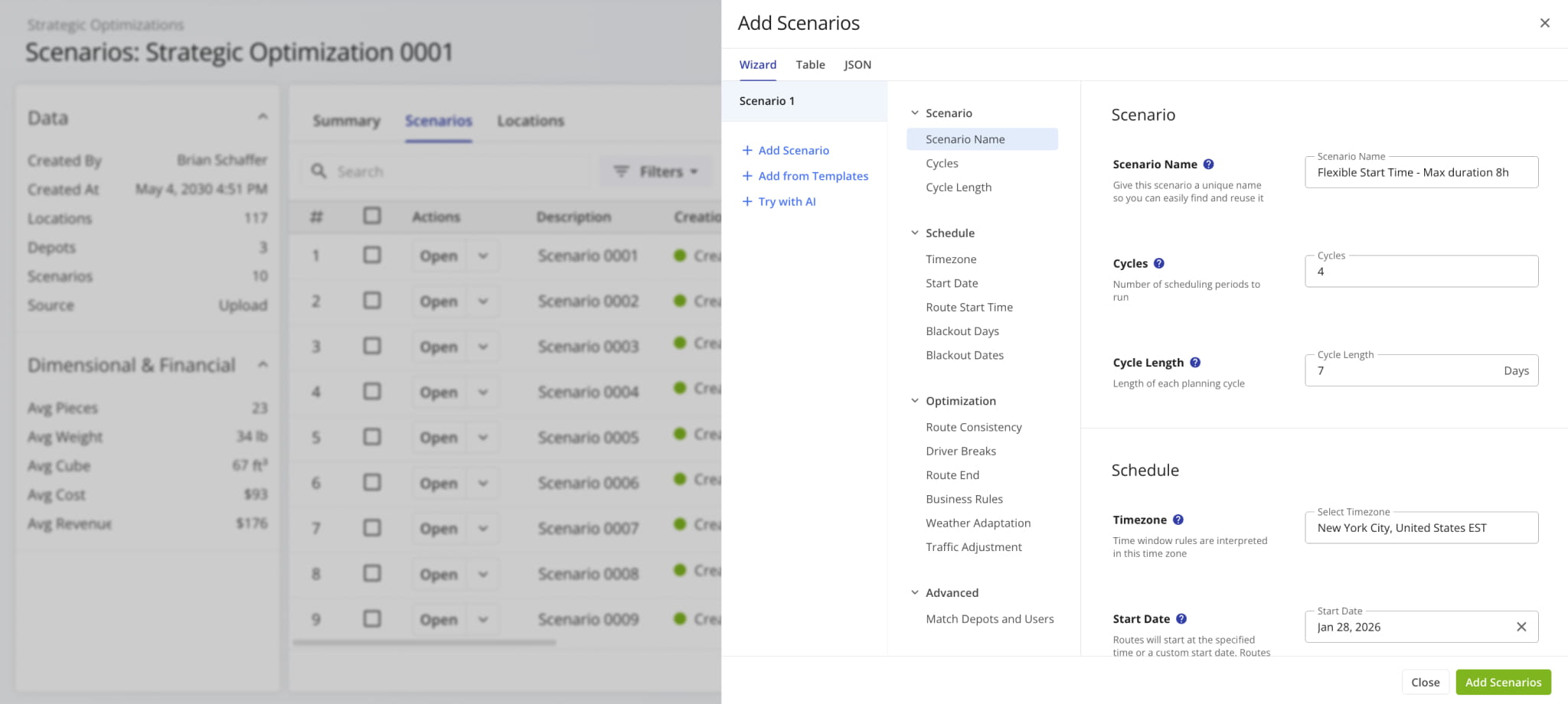
A new “Duplicate Optimization and Edit All” button was added to the “Locations” tab of open Strategic Optimizations. It enables you to create an editable draft based on the current optimization with all locations and scenarios.
Open Your Strategic Optimizations
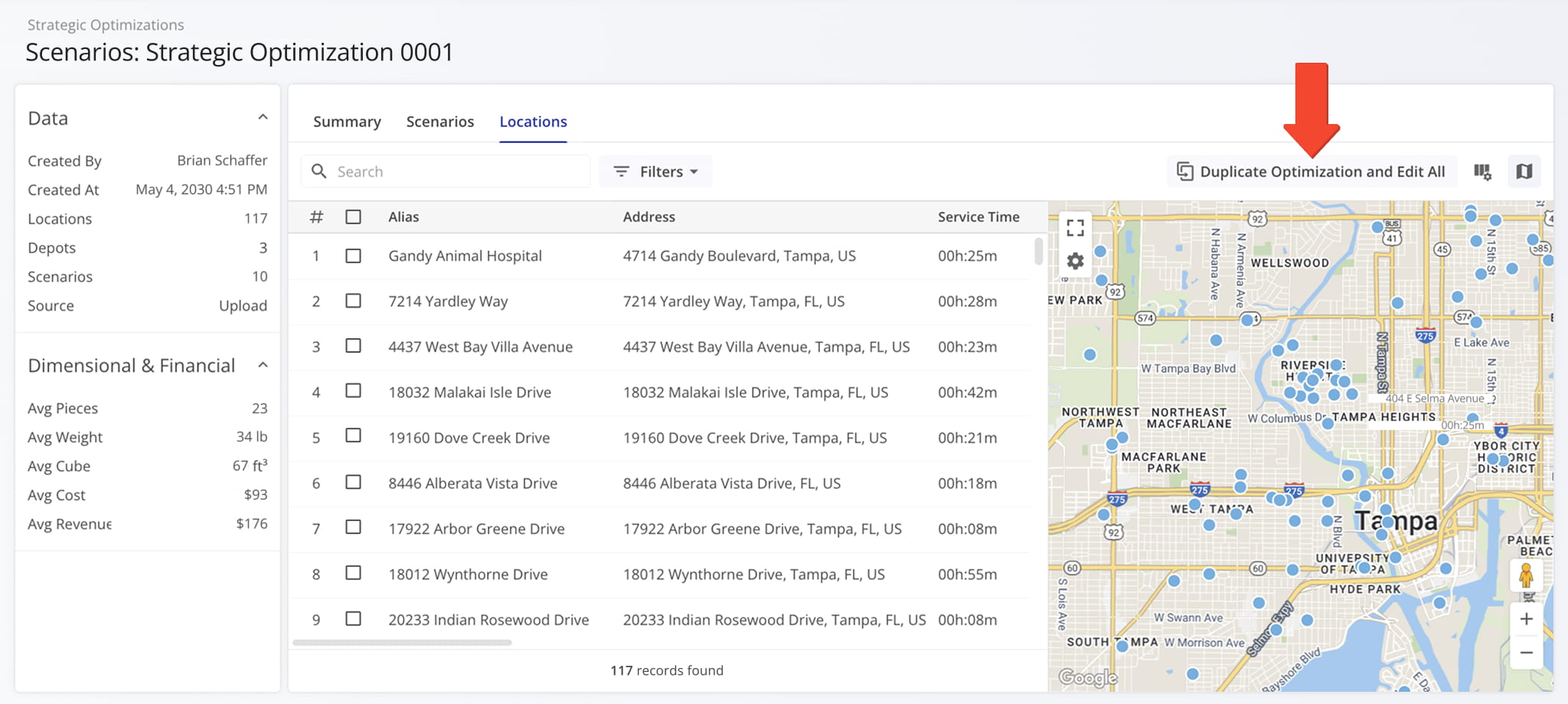
You can also do the same with only specific locations by selecting them and clicking “Bulk Actions” to access the “Duplicate Optimization and Edit Selected” option to create an editable draft based on the current optimization with the selected locations.
A new route edit action menu was added to Route Snapshots when you click the Down Arrow next to the “Edit Route” button in the top-right. This enables you to make quick edits to a route without opening the Route Editor.
See the list below to learn more about the new quick edit actions.
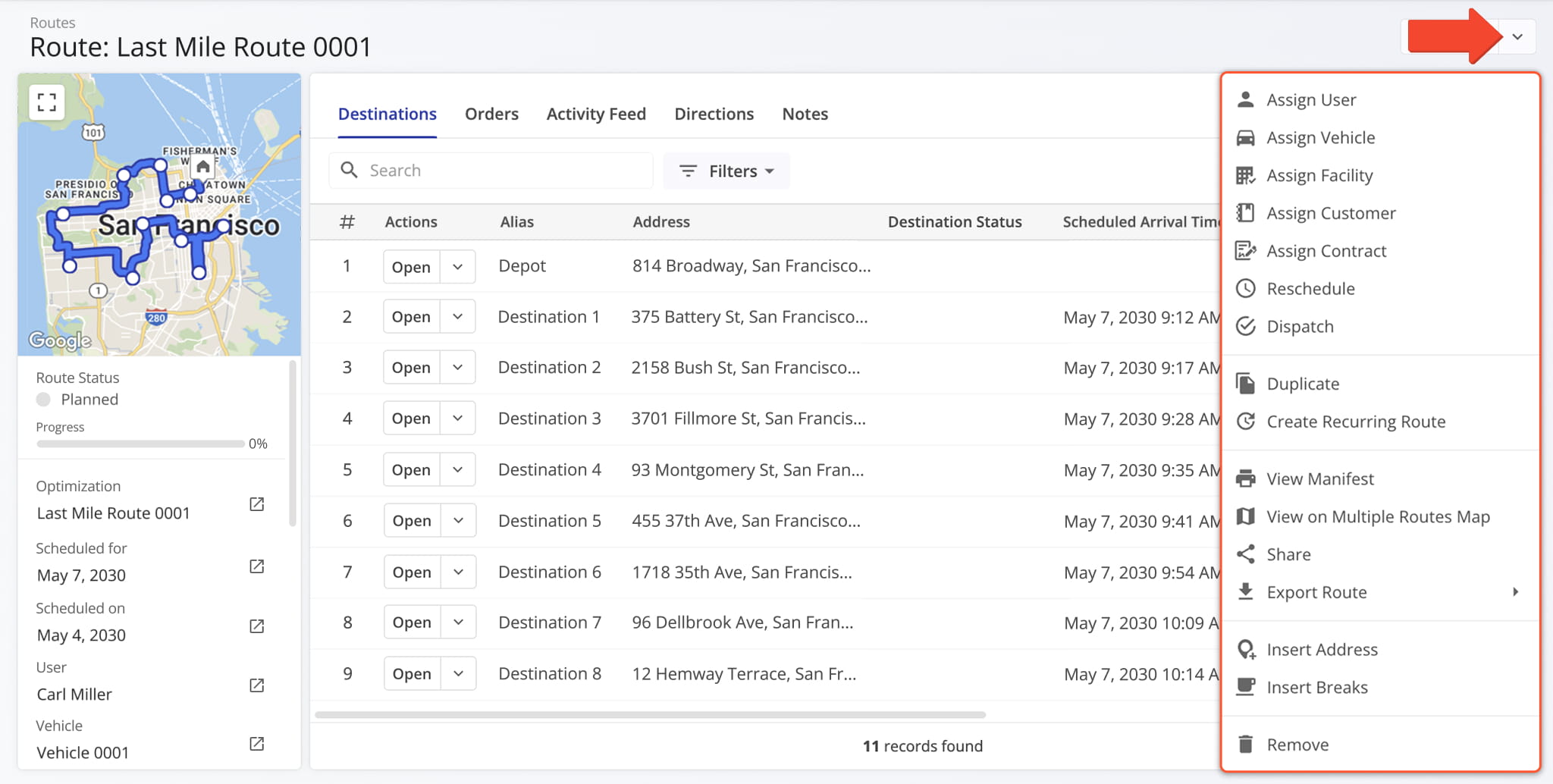
Assign User: Assign a driver or team member to the route.
Assign Vehicle: Assign a vehicle to the route from your homogeneous or mixed fleet of vehicles.
Assign Facility: Assign a specific facility to the route, linking it to a warehouse, depot, or other facility.
Assign Customer: Assign a specific customer to the route, ensuring that visits are accurately linked to the correct client.
Assign Contract: Assign a contract to the route to tie route activities to a specific contractual obligations.
Reschedule: Change the date and time of the day the route is scheduled to start.
Dispatch: Dispatch the route to send automated SMS and Email customer notifications.
Duplicate: Create a copy of the route. The new route will have “(Duplicate)” added to the end of its name.
Create Recurring Route: Create a new Master Route for use when planning recurring schedule routes.
View Manifest: Download or print a detailed Route Manifest. This manifest includes all available route data.
View on Multiple Routes Map: Open the route on the Routes Map.
Share: Share the route with other Users by direct link or send a link via Email.
Export Route: Export route data as a CSV spreadsheet or navigation data file for import into navigation devices.
Insert Address: Insert an address into the route by typing or searching the address in the “Address” field.
Insert Breaks: Add driver breaks on the route with customizable break duration and break trigger type.
Remove: Permanently delete the route.
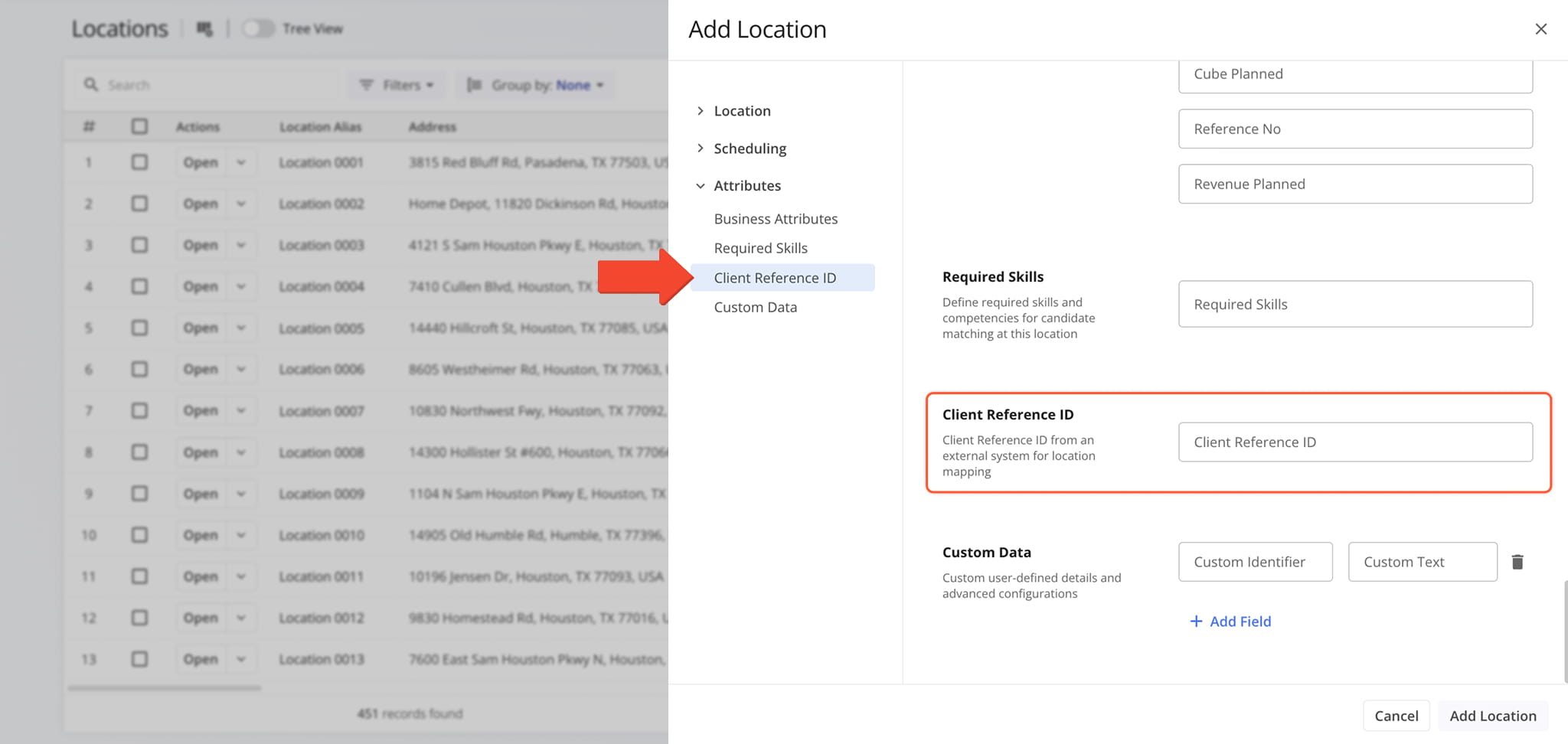
A new “Client Reference ID” field was added to the supported fields with adding and editting Customer Locations. This enables you to add Client Reference IDs from external systems to your locations for better integrated location mapping.
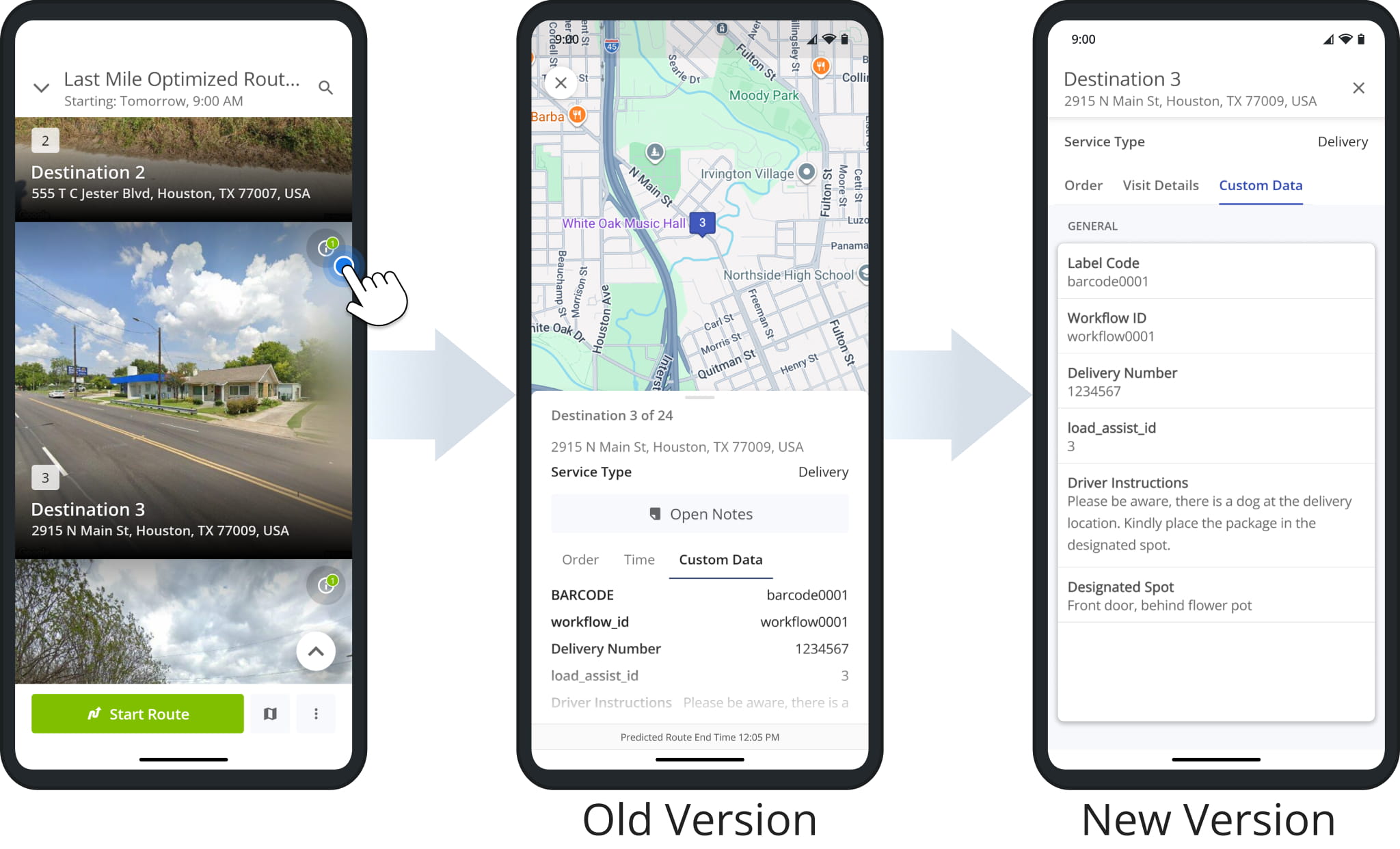
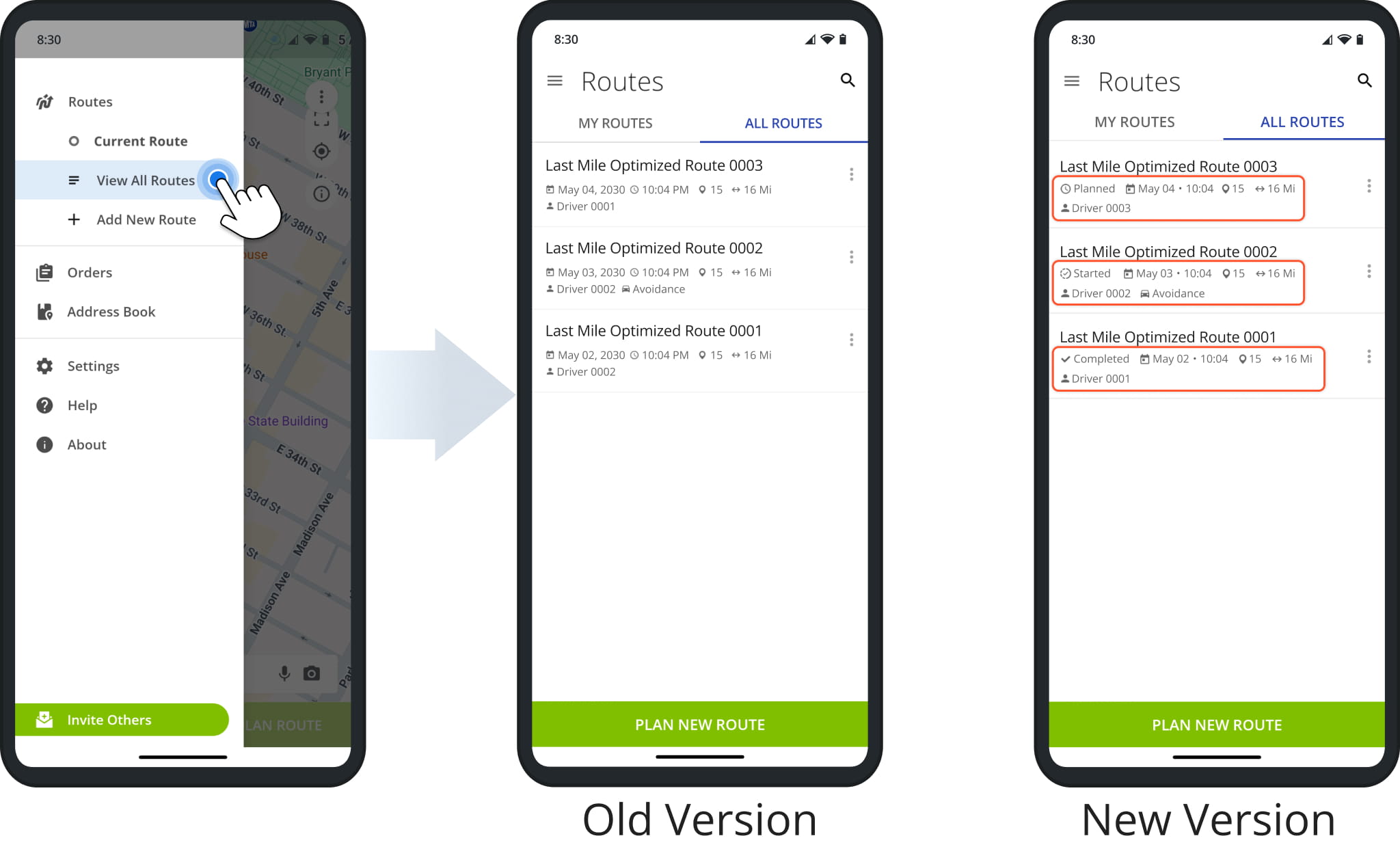
Route4Me’s Android App received multiple enhancements, including a redesigned Destination Info screen, Destination Groups in Visually Immersive Mode, new Routes List functionality, and the release of Visually Immersive Mode for Android tablets.
The image shows the new Destination Info screen. Previously, users would have to drag the information panel up to see all fields. The new Destination Info screen shows more information in a way that’s easier to read and navigate for users.
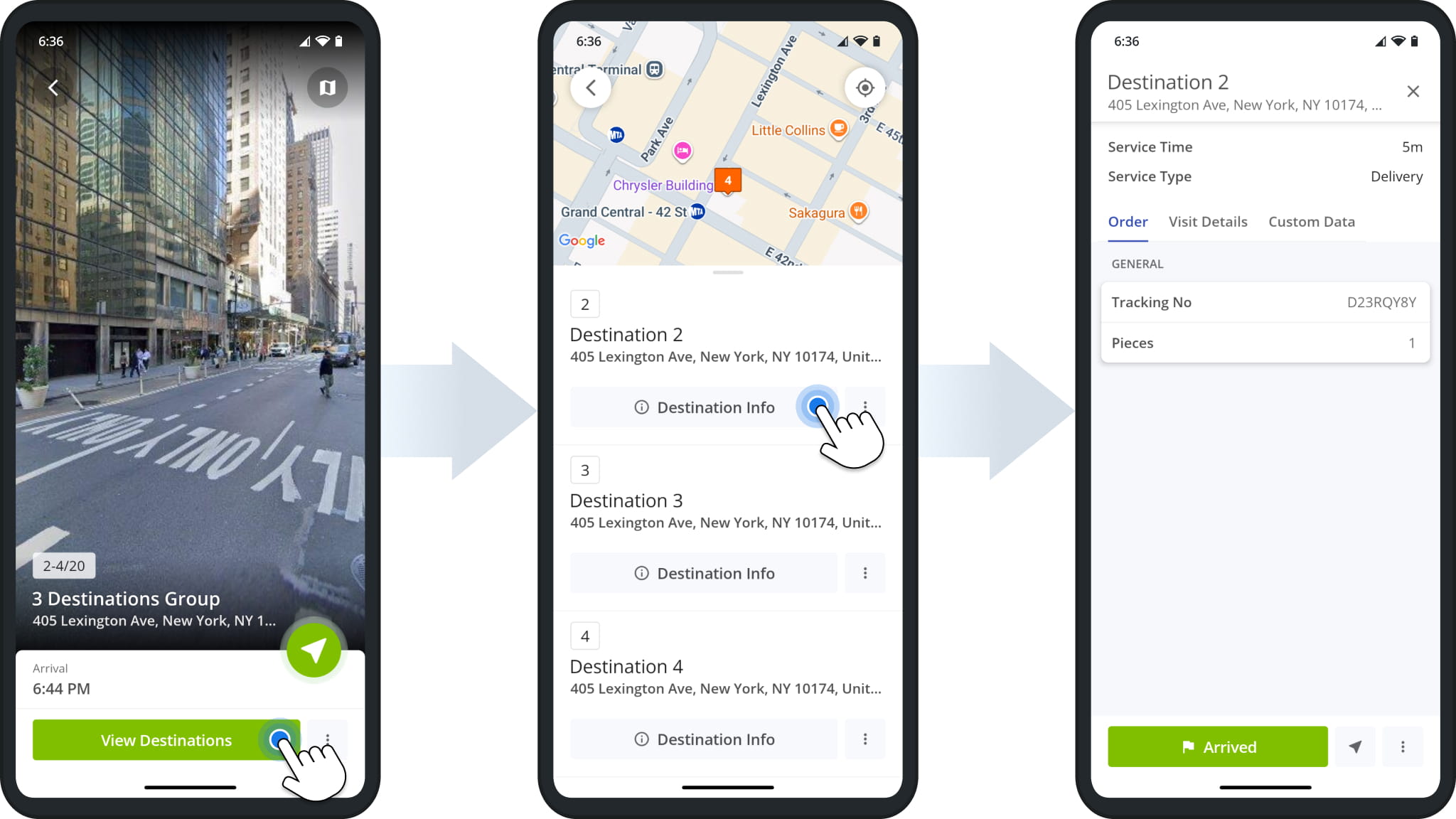
Additionally, Grouped Destinations are now available in Visually Immersive Mode, enabling users to access destination details when multiple destination share a single address.
The “Destination Info” button in Destination Groups opens the updated Destination Info described above.
Furthermore, the Mobile Routes List on the Route4Me App has been updated to show route statuses and condensed schedule information. This makes it easier to see the current status of a route, and combining the scheduled date and time into one field makes it easier to see exactly when routes are scheduled to start.
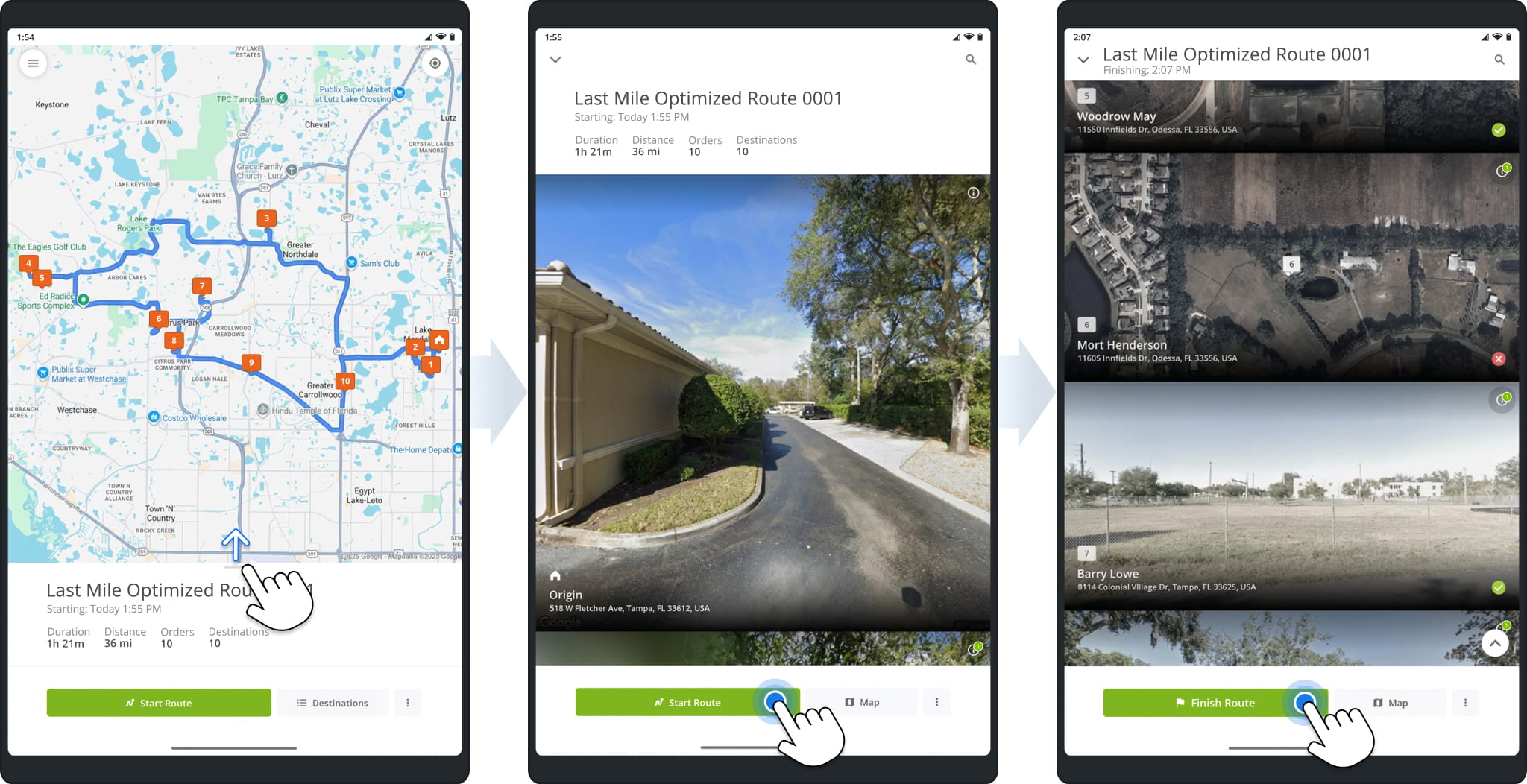
This version of the Route4Me App brings Visually Immersive Mode to tablets for the first time. It enables users to get more context for destinations with immersive street views and streamlines starting, navigating, and completing routes.
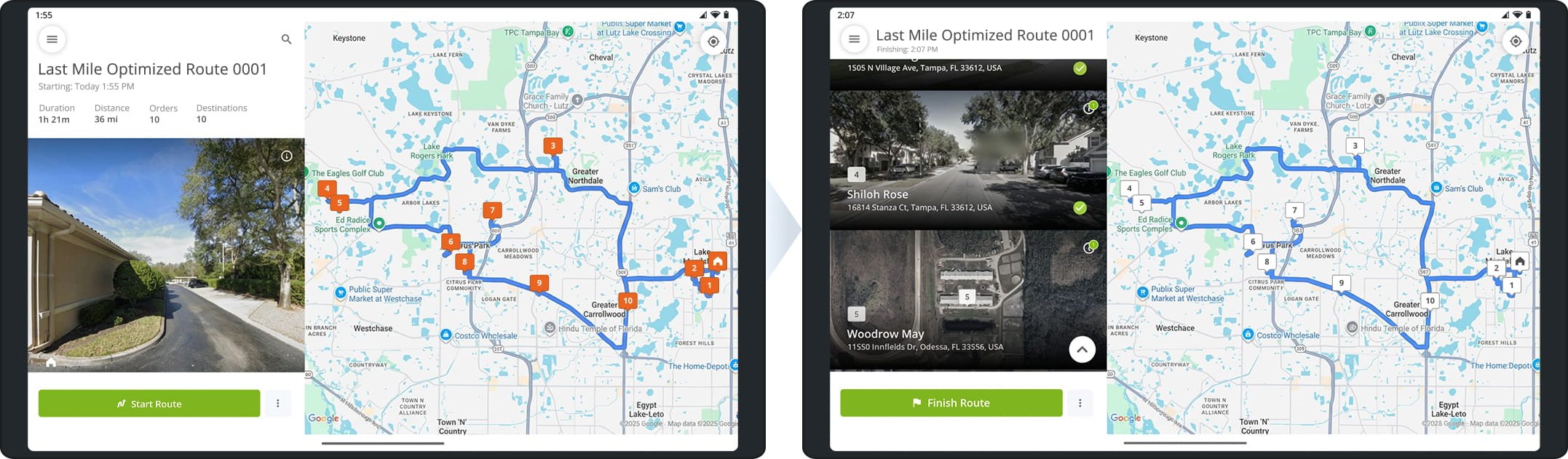
Landscape orientation is also supported and allows the app to display the immersive destinations list next to the route screen, providing more information and functionality than previous versions of the Route4Me tablet route planner app.
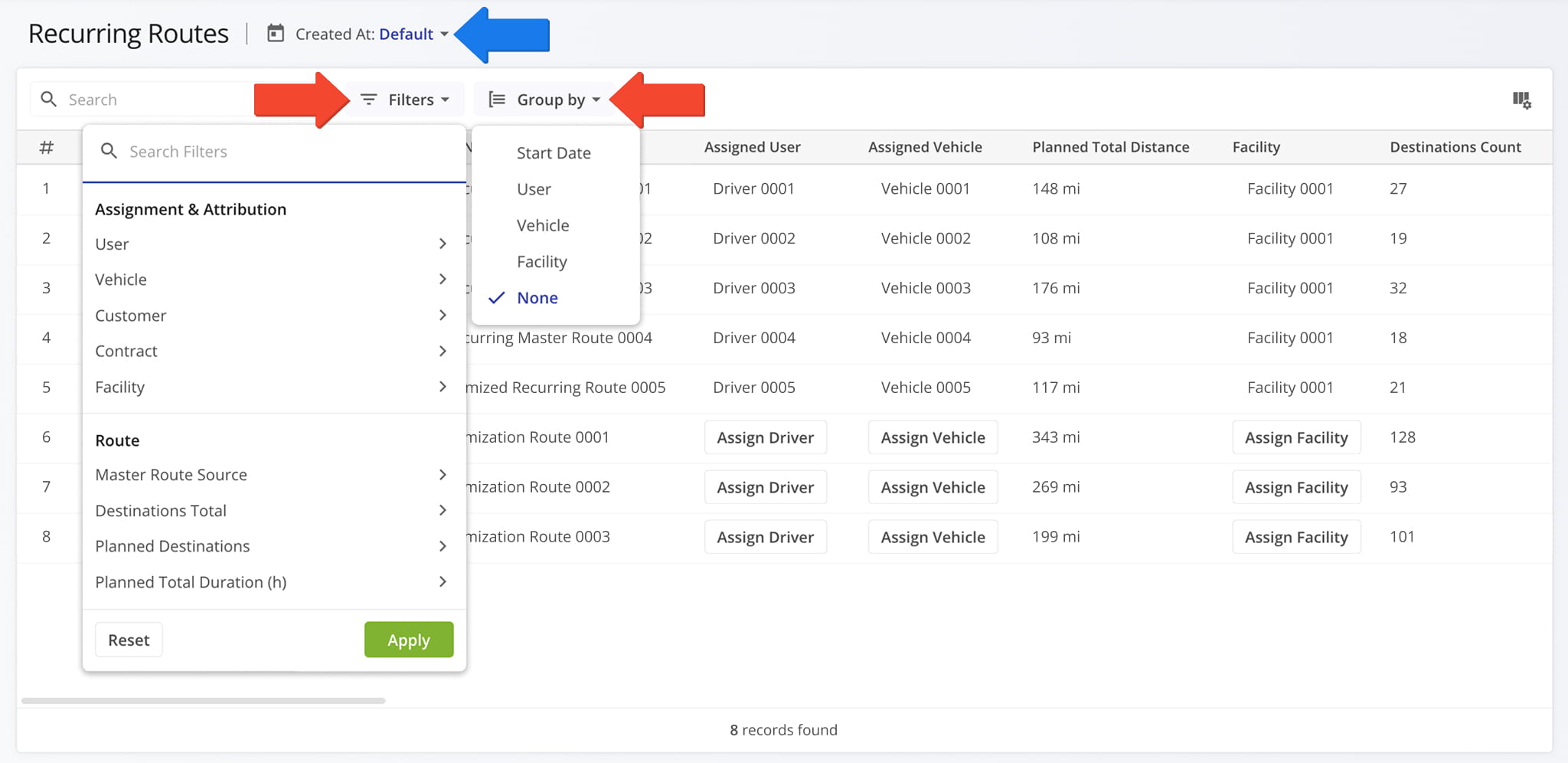
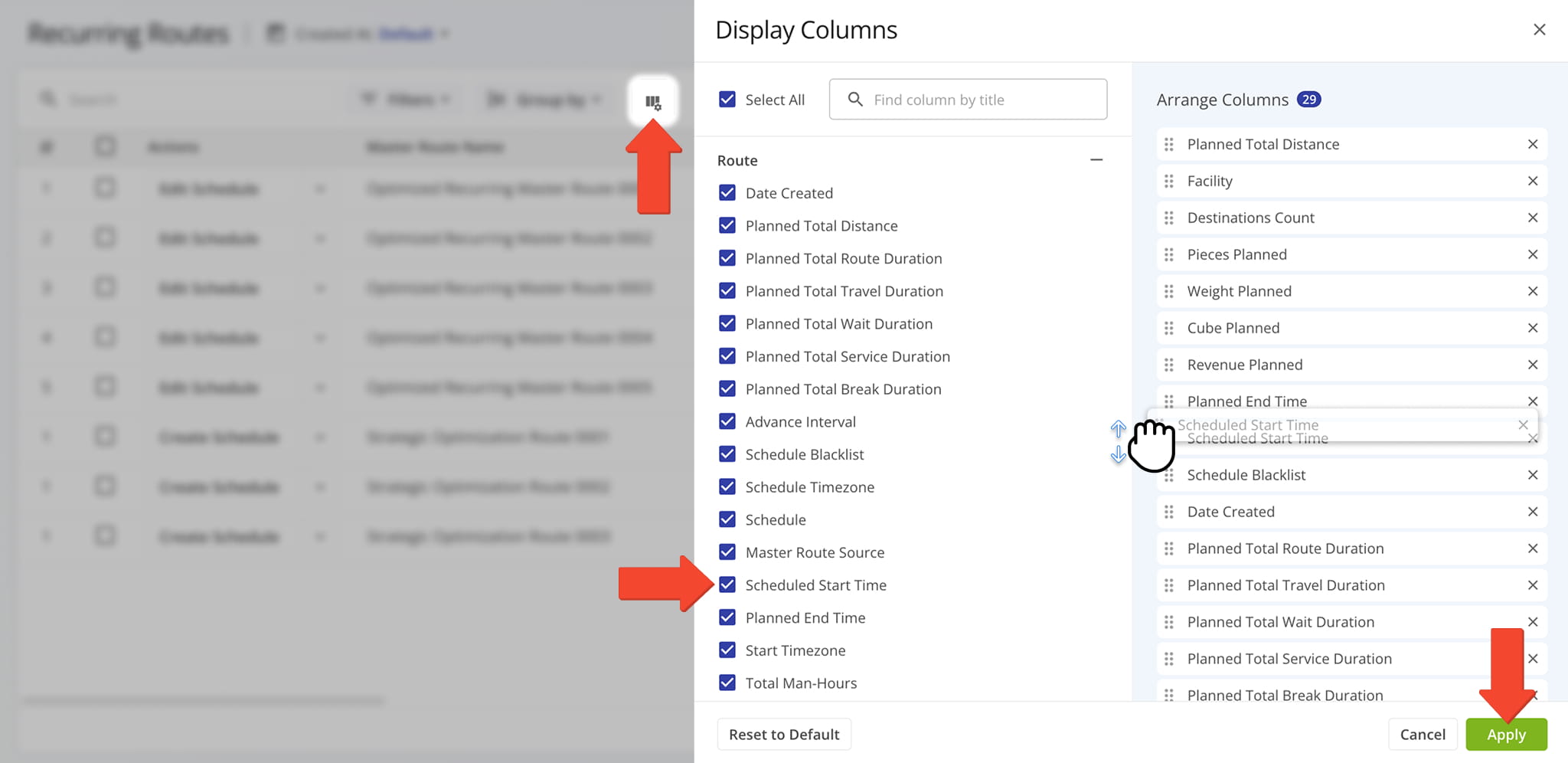
The Recurring Routes interface has been enhanced with new filters, grouping options, management actions, display columns, and column customization. This update brings the Recurring Routes page in line with the most recent Route4Me TMS releases and provides many more options for recurring routing management than before.
The image below shows the new filter options and grouping menu along with the newly added date filter.
For the first time, you can now customize the data columns available for your Recurring Routes. This new functionality helps you see only the data relevant to your needs. More columns have also been added, providing additional depth and detail to the information available for your Recurring Schedules and Master Routes.
A new management action menu was added to your Recurring Routes, enabling you to make quick edits to Master Routes without opening the Route Editor. You can also directly assign users, vehicles, facilities, customers, and contracts from the data table by clicking the corresponding field. See the list below to learn more about the new quick edit actions.
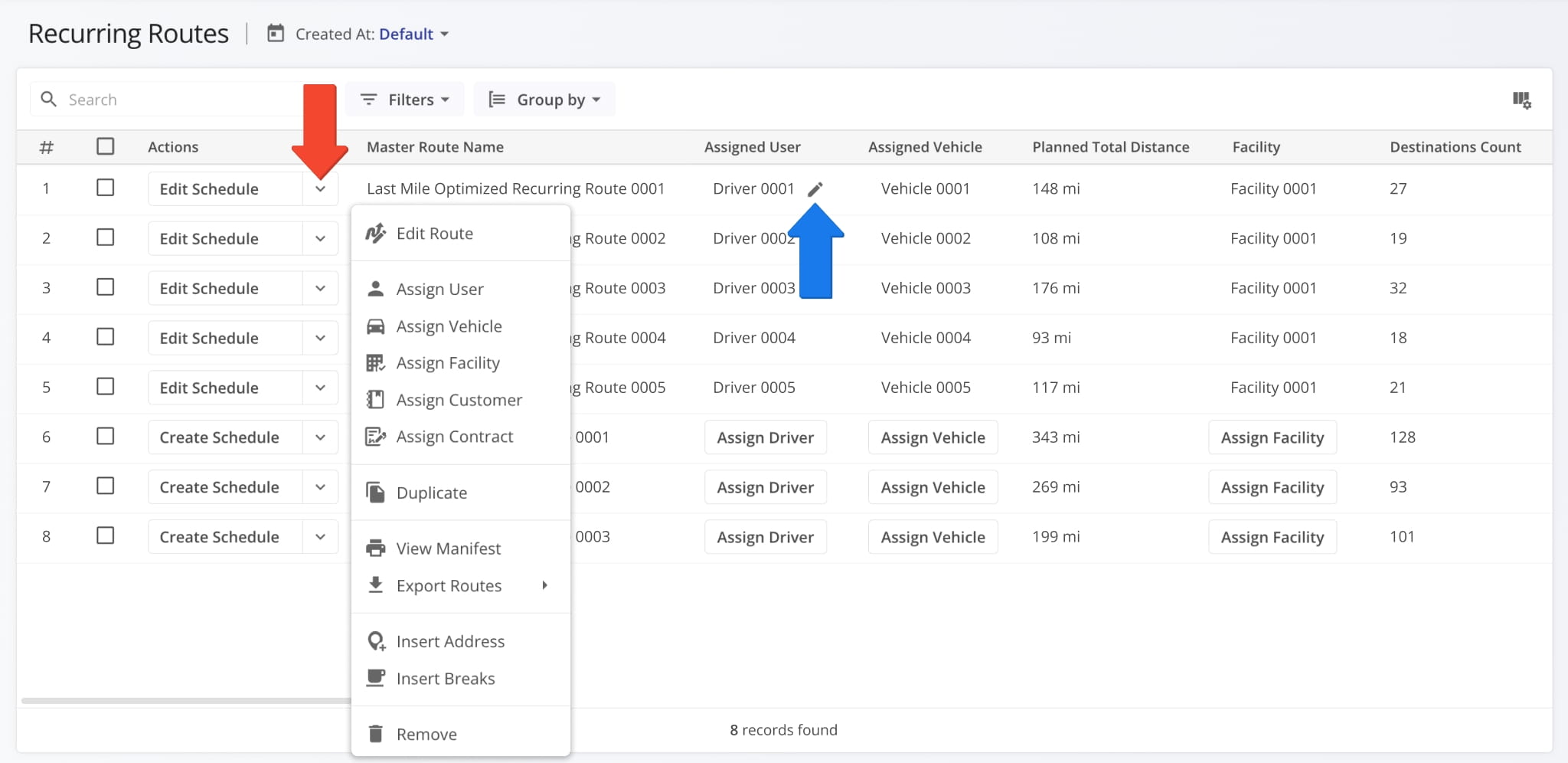
Edit Route: Open a master route in the Route Editor.
Assign User: Assign a driver or team member to the route.
Assign Vehicle: Assign a vehicle to the route from your homogeneous or mixed fleet of vehicles.
Assign Facility: Assign a specific facility to the route, linking it to a warehouse, depot, or other facility.
Assign Customer: Assign a specific customer to the route, ensuring that visits are accurately linked to the correct client.
Assign Contract: Assign a contract to the route to tie route activities to a specific contractual obligations.
Reschedule: Change the date and time of the day the route is scheduled to start.
Dispatch: Dispatch the route to send automated SMS and Email customer notifications.
Duplicate: Create a copy of the route. The new route will have “(Duplicate)” added to the end of its name.
Create Recurring Route: Create a new Master Route for use when planning recurring schedule routes.
View Manifest: Download or print a detailed Route Manifest. This manifest includes all available route data.
View on Multiple Routes Map: Open the route on the Routes Map.
Share: Share the route with other Users by direct link or send a link via Email.
Export Route: Export route data as a CSV spreadsheet or navigation data file for import into navigation devices.
Insert Address: Insert an address into the route by typing or searching the address in the “Address” field.
Insert Breaks: Add driver breaks on the route with customizable break duration and break trigger type.
Remove: Permanently delete the route.
You can also manage multiple Master Routes at the same time. Just like any other Route4Me interface, simply check the boxes next to them and use the “Bulk Actions” menu. See the list below to learn more about the new bulk actions.
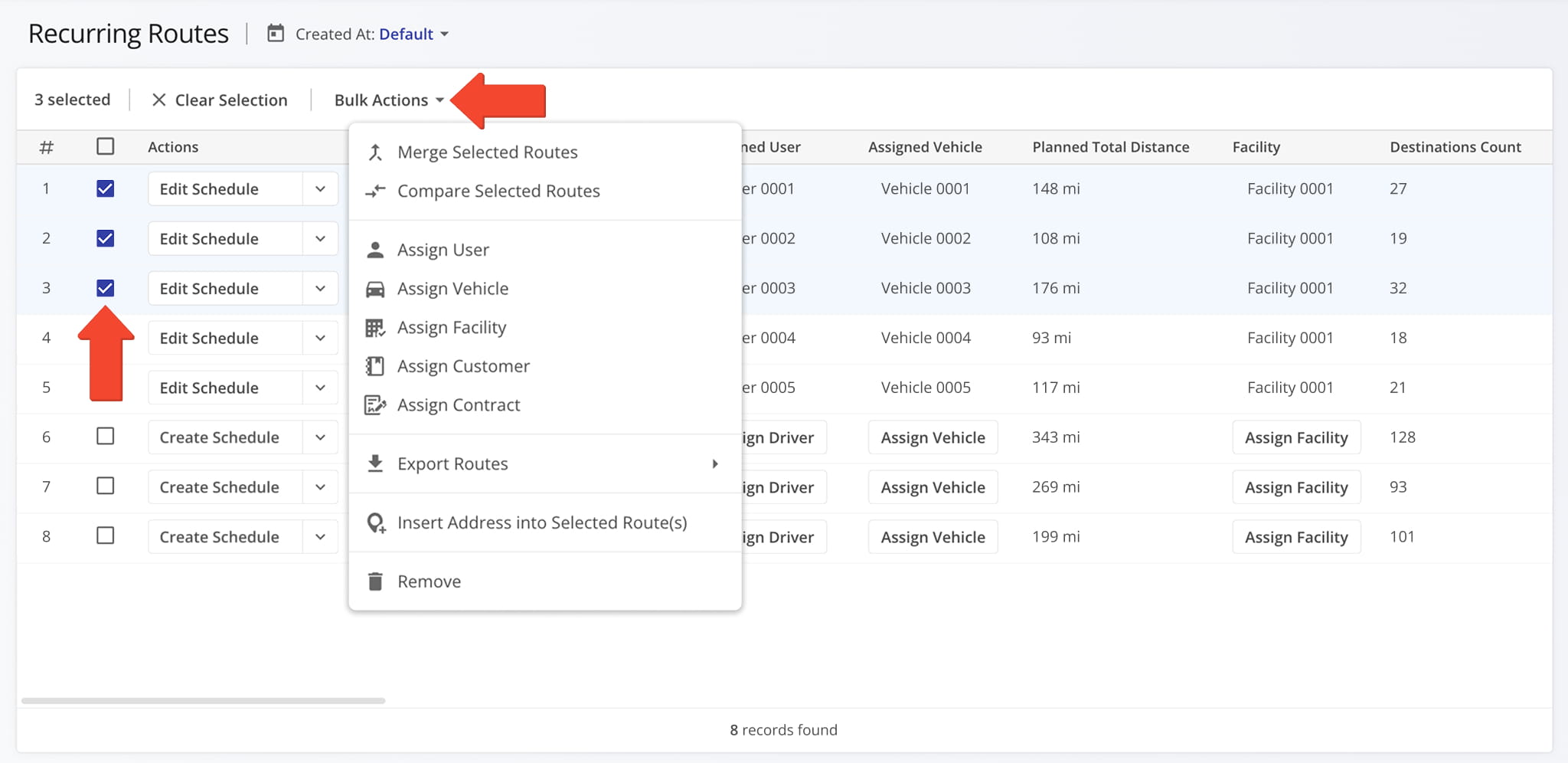
Merge Routes: Create a new, combined route while keeping the original routes intact.
Assign User: Assign a driver or team member to the routes.
Assign Vehicle: Assign a vehicle to the routes from your homogeneous or mixed fleet of vehicles.
Assign Facility: Assign a specific facility to the routes, linking them to a warehouse, depot, or other facility.
Assign Customer: Assign a specific customer to the routes, ensuring that visits are accurately linked to the correct client.
Assign Contract: Assign a contract to the routes to tie route activities to a specific contractual obligations.
Export Routes: Export route data as a CSV spreadsheet or navigation data file.
Insert Address into Selected Route(s): Insert an address into the routes.
Remove: Permanently delete the selected Master Routes.
You can now define custom Geozones around Customer Locations to account for irregularly-shaped buildings with difficult to find access areas and other potential issues. Geozones function as custom location-based Route4Me Geofences.
You can contat Route4Me support to set up custom geozones on your account.
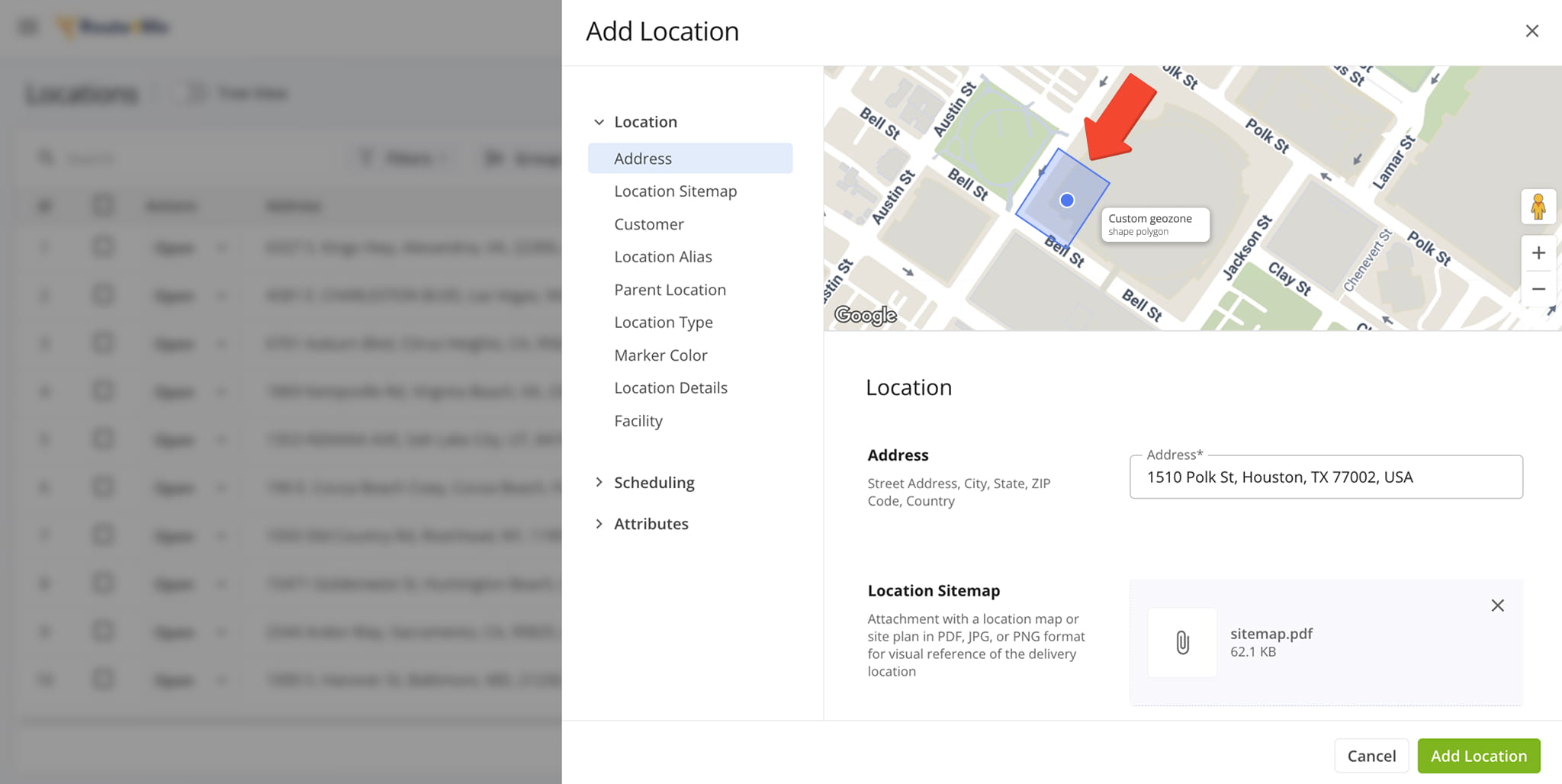
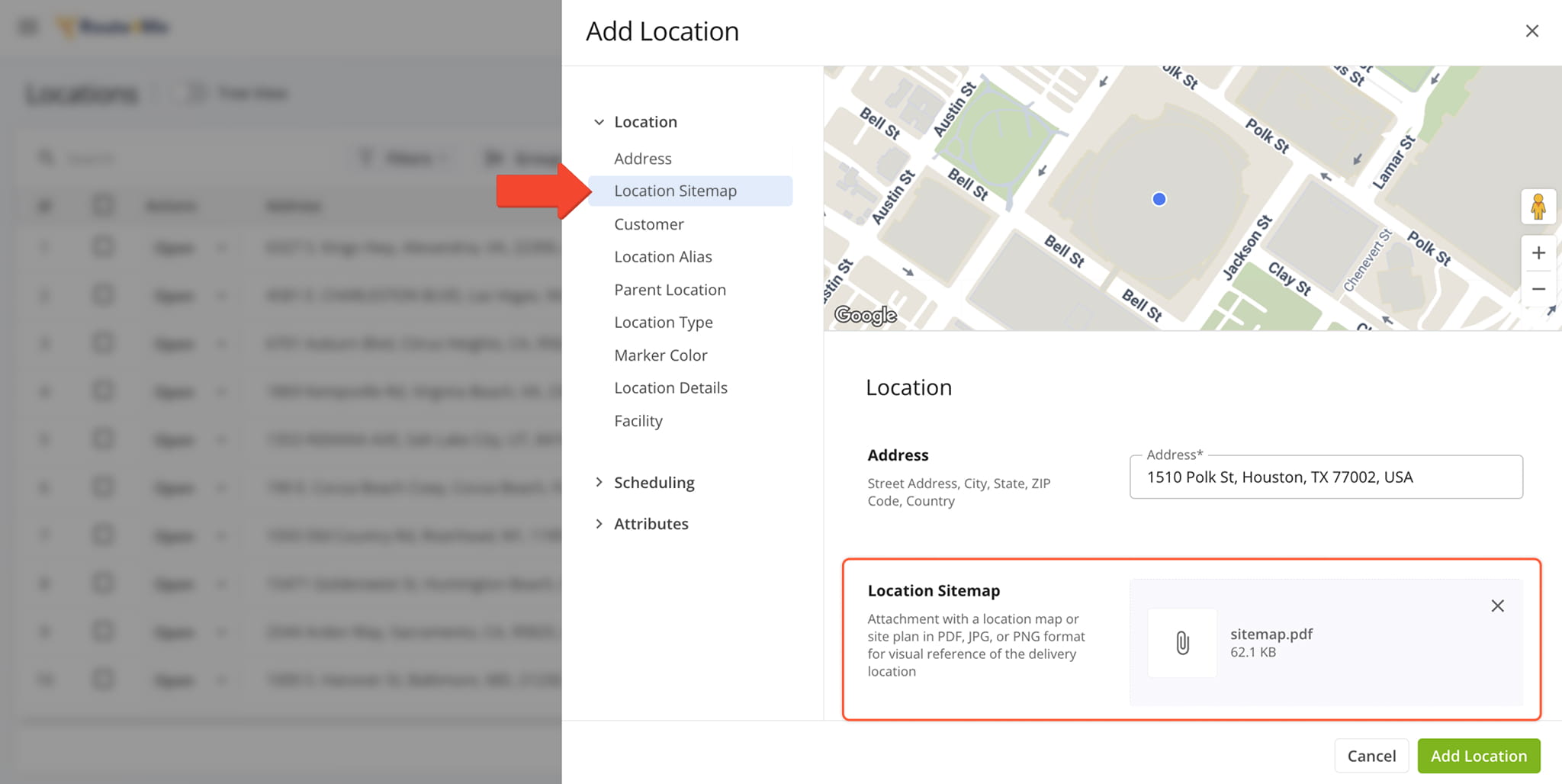
A new “Location Sitemap” field was added when you add and edit Customer Locations. It enables you to upload sitemap images for location previews that users assigned to routes can view on the mobile app.
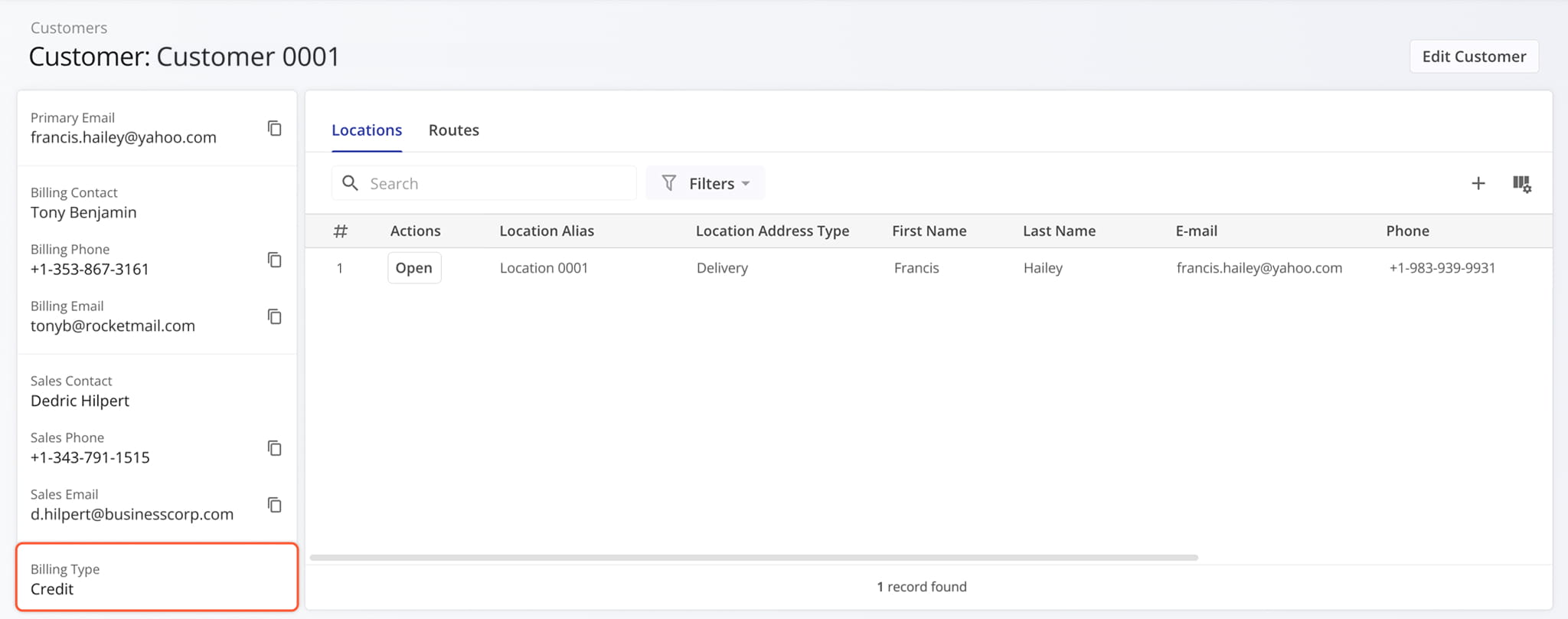
The new “Billing Type” customer data field was added to the summary panel in Customer Snapshots.
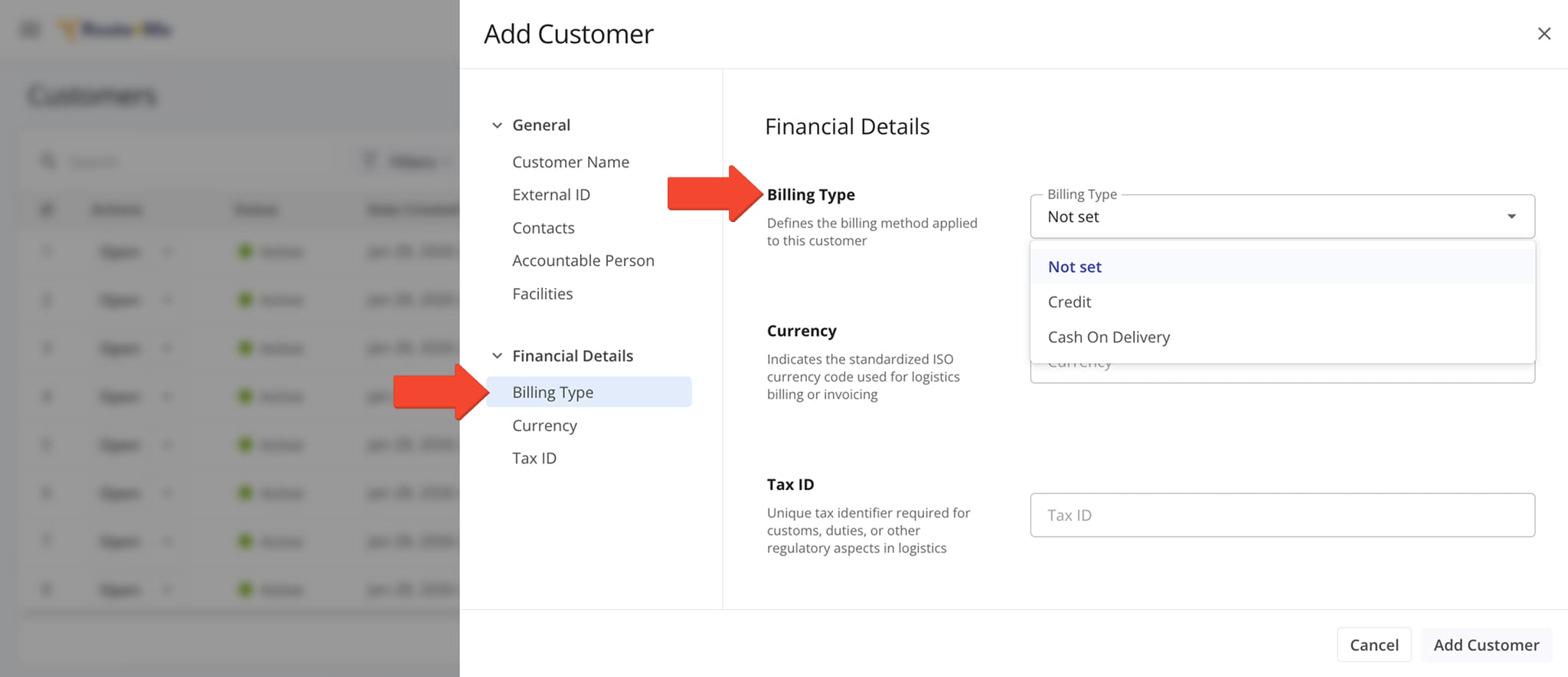
Billing Type information was added to the available customer data when creating or editing Customers on your account.
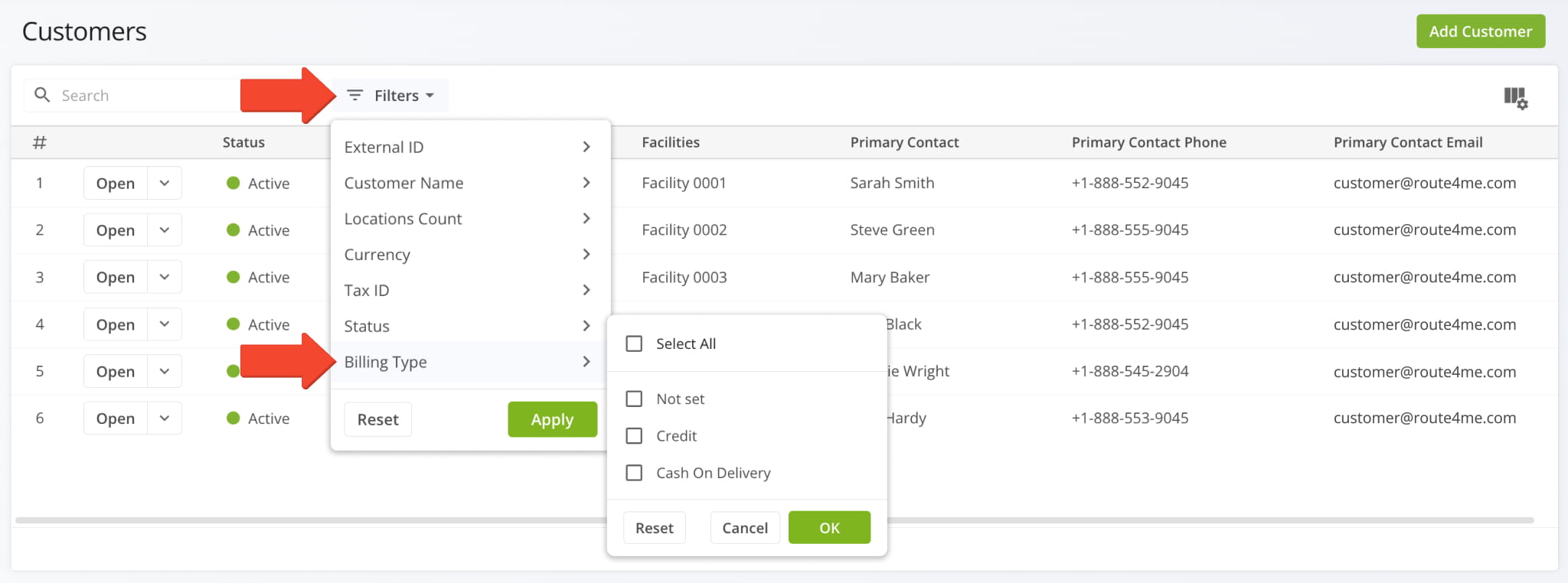
Additionally, Billing Type is also available as a Filter on your Customers Page.
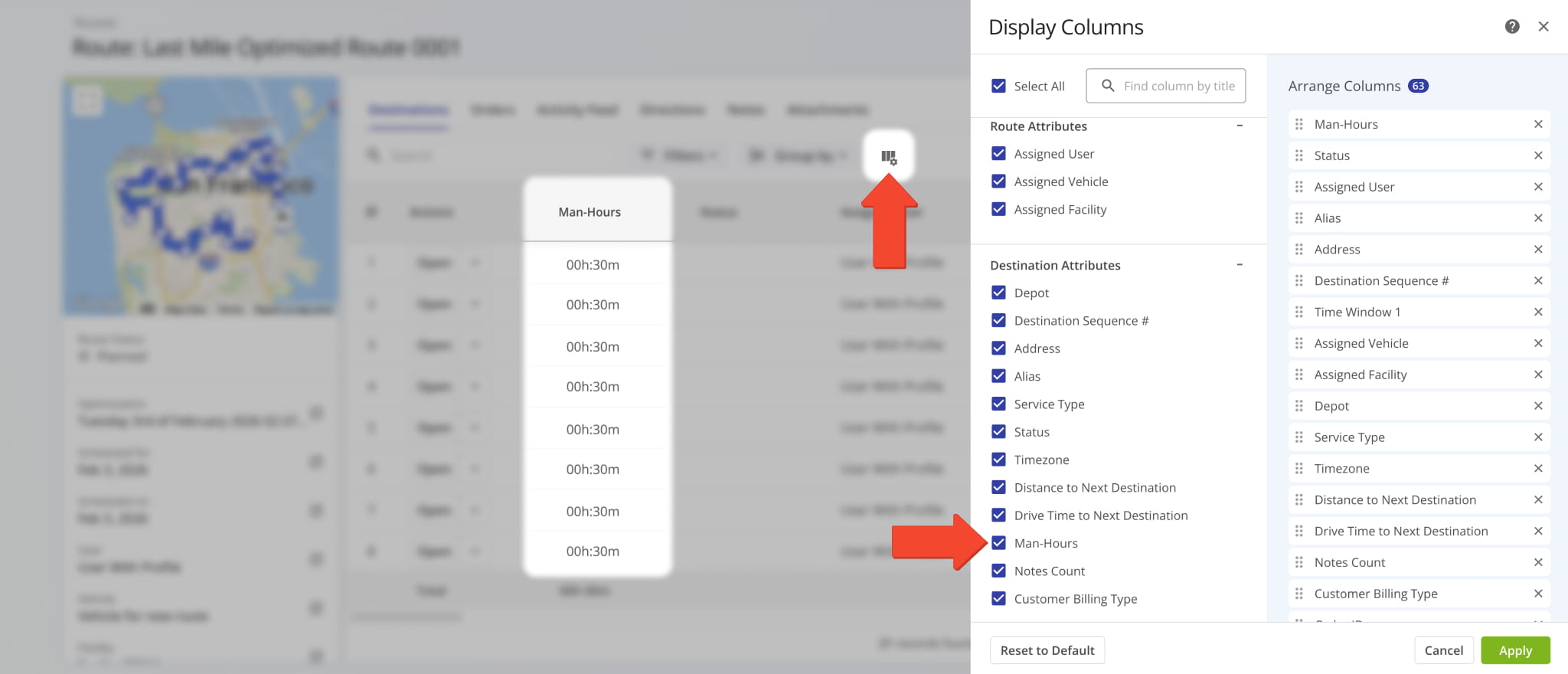
Man-Hours can now be enabled in Route Snapshots for the “Destinations” and “Orders” categories. These new data columns give you a clear overview of the person hours required at any specific destination or to complete any order on a given route.
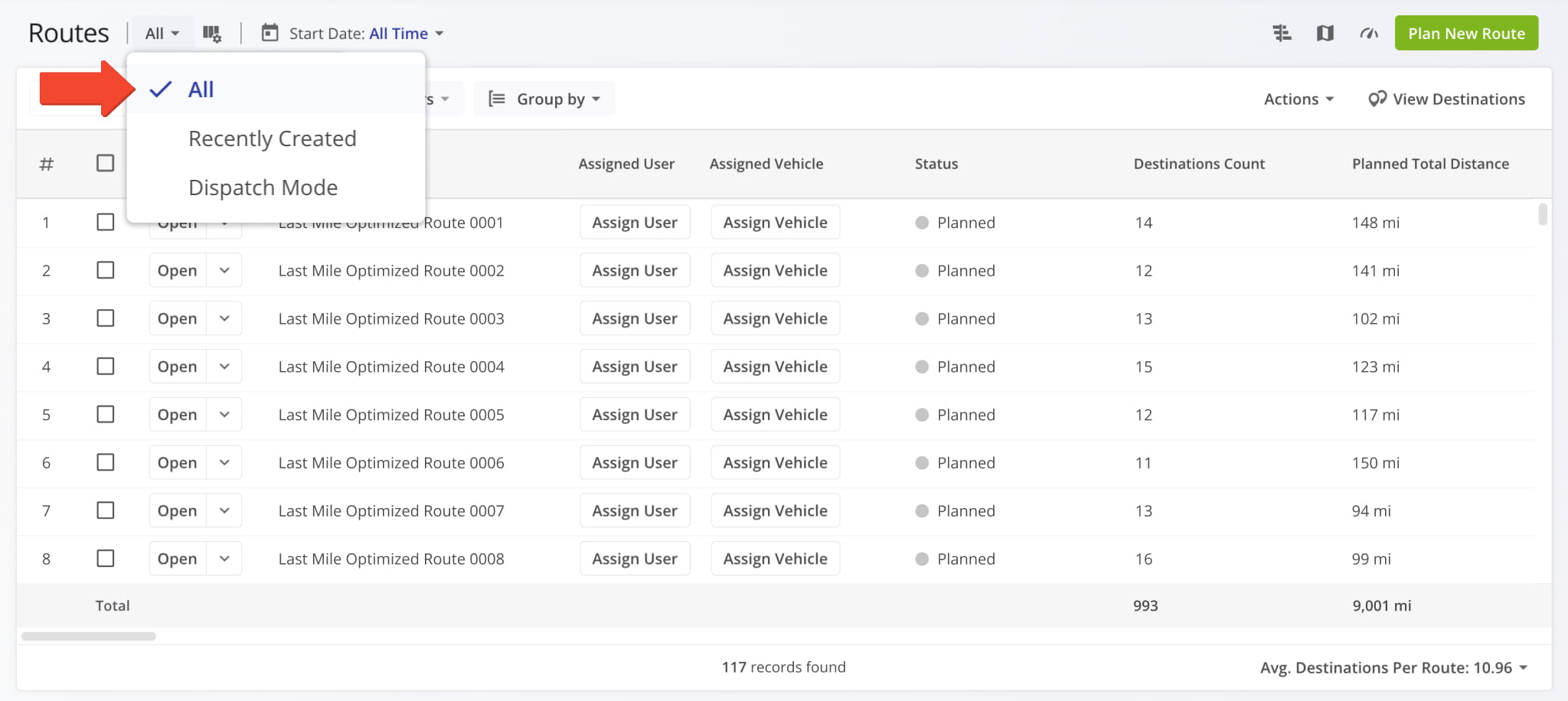
A new “All” View Mode was added to the Routes Page. When selected, it uses the “All Time” setting for the date filter and displays all routes on the account. Previously, only “Recently Created” and “Dispatch Mode” were available.
2026 Planned Releases & Product Updates
Explore Route4Me’s 2026 Planned Releases. Below you’ll find upcoming features, enhancements, and improvements scheduled for release throughout the year.
| Release | Category | Description |
|---|---|---|
| Route4Me Developers Hub | Platform | The new Route4Me Developers Hub will run on a more flexible and robust platform. The updated API portal will include multiple new API endpoints and a redesigned interface that allows developers to easily test endpoints directly within the Developers Hub. |
| Strategic Optimizations | Feature | Strategic Optimizations will automate multi-frequency delivery and last-mile routing schedules, allowing users to import addresses with predefined rules and generate multiple optimized routing scenarios. |
| Dispatch Dashboard | Feature | The Dispatch Dashboard will provide a real-time detailed overview of your routes, destinations, and orders. You will be able to track route progress and performance, check order statuses, make instant route adjustments, drag and drop destinations and orders between routes, and synchronize route updates in real-time. |
| Assets | Feature | The Assets page will allow you to add, organize, and manage physical assets such as containers, trailers, and equipment. It will centralize your enterprise asset database, simplify filtering and grouping, and show asset locations on a live map to better support logistics operations. |
| Invoices | Feature | The Invoices page will centralize customer invoice management within Route4Me’s last-mile platform. Users will be able to review invoice details, filter and group records, and track invoice status to streamline billing and financial workflows. |
| Item & Service Master | Feature | The Item & Service Master page will centralize ERP-integrated management of your item and service catalog. Users will be able to view, organize, and maintain product and service details to ensure accurate routing, pricing, and operational consistency. |
| Plan New Route UI/UX | UI/UX | The Plan New Route interface will be updated and refined to meet the latest UI standards, offering easier manual route optimization settings and a more streamlined route planning process. |
| Optimizations Page (Version 3) | Enhancement | The Optimization Management page will be refined and updated with more detailed optimization information (including additional columns) and the ability to open Optimization Snapshots. |
| Customer Notifications | UI/UX | The Customer Notifications page will be redesigned for improved usability and visual consistency. The Order Tracking Portal will also be updated for a cleaner, more intuitive customer experience. |
| Company Snapshot | Feature | The Company Snapshot will provide detailed insights into your company or organization’s metrics, performance, KPIs, and more. |
| Vehicle Inventory | Feature | The Vehicle Inventory feature will allow users to manage custom inventory directly on vehicles, helping optimize fleets, products, and services. Users will be able to add, track, and organize inventory to improve route planning, operational efficiency, and service delivery. |
About author: Alex Yasko

