
Company Snapshot – Real-Time Business Data And Performance Summary
Route4Me’s Company Snapshot gives enterprise businesses a clear, organized view of data and analytics across their entire operation. Built for businesses managing last mile route optimization at scale, it helps you monitor performance, spot trends, and stay on top of operations without switching between individual tools or records. With everything organized into a single set of tabs, you can quickly review company-wide performance and make informed decisions that improve efficiency.
Table of Contents
Open Company Snapshot – Access Company Data And Analytics Overview
To open your Company Snapshot, go to “Business Operations” > “Company Snapshot” from the Navigation Menu.
From your Company Snapshot, you can review all data and analytics associated with your company’s overall operations. The Snapshot is organized into multiple tabs, each corresponding to a specific category of company-wide data.
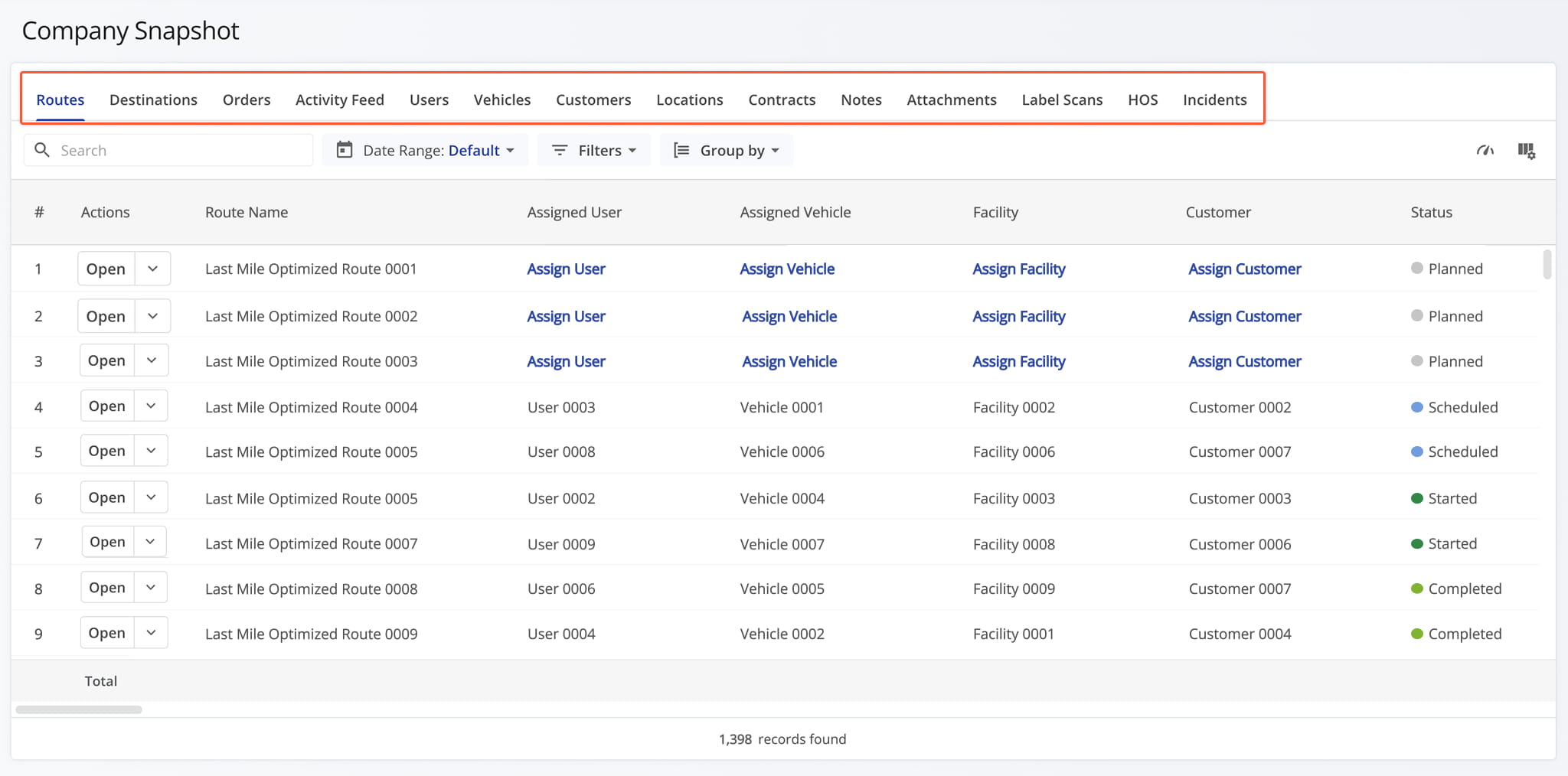
Company Snapshot Categories – Company Analytics Data Tabs
Routes Tab – Company-Wide Route Data Overview
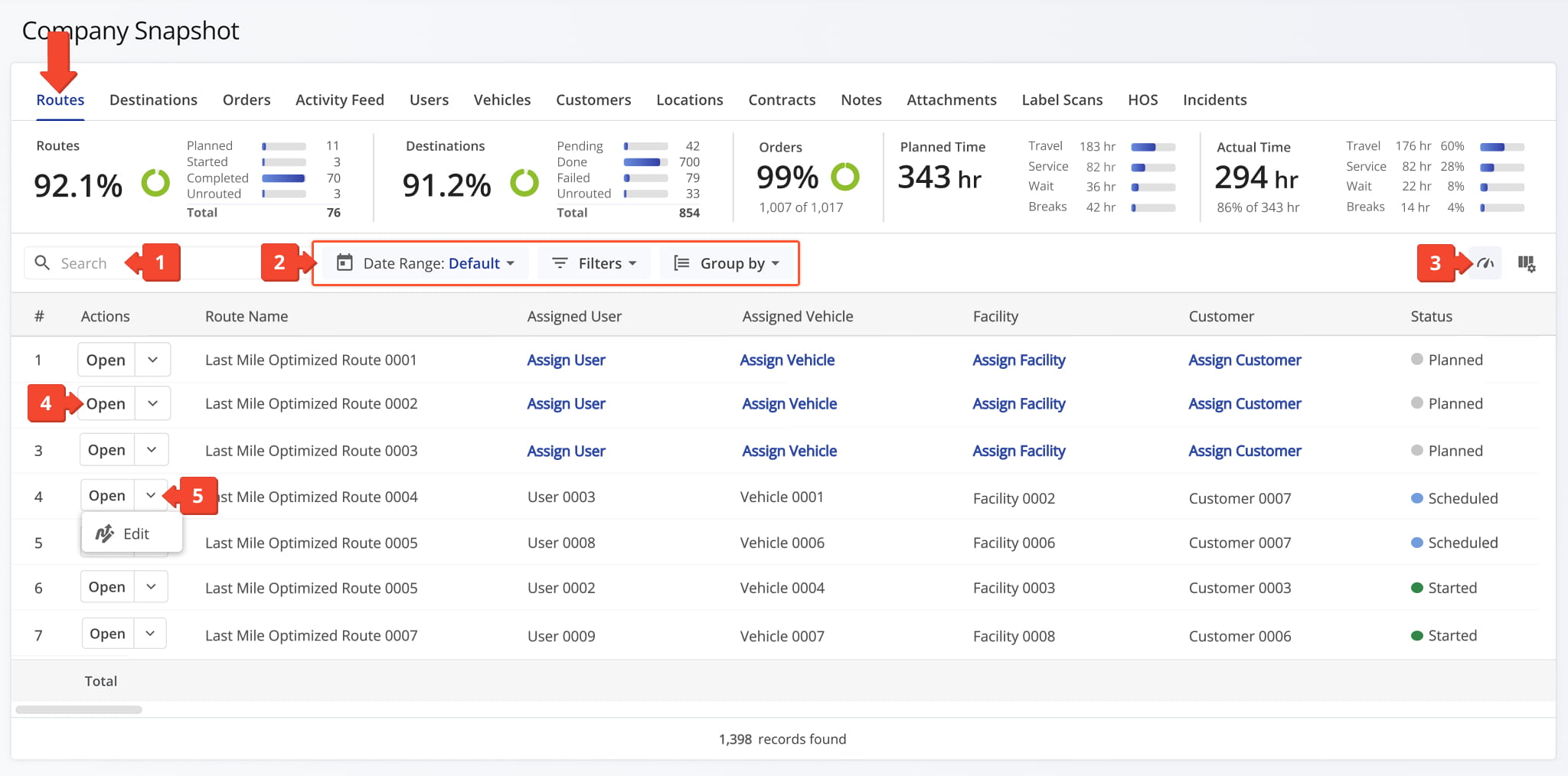
The Routes Tab provides a detailed analytics table of every route across your company, giving you real-time performance metrics you can filter and drill into as needed.
Instead of opening each route individually, you can quickly compare performance across your entire operation, uncover trends, and make informed decisions that improve efficiency company-wide. From this tab, you can:
- Use the Search field to locate specific routes.
- Apply Date Range and other Filter and Group By options, detailed below, to narrow down which data appears in the table.
- Click the Metrics Icon to view real-time performance insights for your routes.
- Click “Open” next to a route to access its Routes Snapshot.
- Click the Down Arrow button and select “Edit” to modify the Route in the Route Editor.
Company Snapshot – Routes Tab Filters
Filter by the user assigned to the route.
Filter by the vehicle assigned to the route.
Filter by the facility linked to the route.
Filter by the customer linked to the route.
Filter by the contract linked to the route.
Filter by the region associated with the route.
Strategic Optimization Name
Filter by the name of the strategic optimization used to generate or modify the route.
Filter by the scenario applied during strategic route planning.
Status
Filter by the current progress or completion state of the route: Planned, Scheduled, Started, or Completed.
Planned Total Route Duration (h)
Filter by the total estimated duration, in hours, planned for completing the route.
Planned Total Distance (mi)
Filter by the total planned distance, in miles, for completing all stops on the route.
Filter by custom key-value data added to the route.
Destinations Arrived (Progress %) (User Actioned)
Filter by the percentage of planned destinations the driver has arrived at. Select a preset percentage or enter a custom range.
Sequence Adherence (%)
Filter by the percentage of destinations visited in the planned sequence. Select a preset percentage or enter a custom range.
Continuous Sequence Adherence (%)
Filter by the percentage of consecutive destinations visited in the planned sequence without interruption. Select a preset percentage or enter a custom range.
Destinations Count
Filter by the total number of destinations assigned to the route.
Pending Destinations
Filter by destinations not yet started or completed by the driver.
Failed Destinations
Filter by destinations marked as failed due to inability to complete service.
Skipped Destinations
Filter by destinations the driver intentionally skipped or bypassed.
Completed Destinations
Filter by destinations successfully completed on the route.
Filter by the number of notes added to the route by users or automated processes.
Destinations Arrived Late (User Actioned)
Filter by destinations where the driver arrived after the scheduled time window.
Destinations Arrived Early (User Actioned)
Filter by destinations where the driver arrived earlier than the scheduled time window.
Destinations Arrived On Time (User Actioned)
Filter by destinations where the driver arrived within the scheduled time window.
Out of Sequence Destinations (#)
Filter by the number of destinations visited in an order different from the planned sequence.
Actual Total Distance (Mobile App) (mi)
Filter by the total distance, in miles, recorded by the mobile app during the route.
Actual Total Distance (Telematics) (mi)
Filter by the total distance, in miles, recorded from the assigned vehicle's telematics device.
Pieces Planned
Filter by the total planned Pieces (units) amount of all destinations on the route.
Pieces Completed
Filter by the total number of completed pieces or units.
Pieces Completed (%)
Filter by the percentage of pieces or units completed. Select a preset percentage or enter a custom range.
Pieces Remaining At End (%)
Filter by the percentage of pieces or units still remaining when the route ended.
Weight Planned
Filter by the total planned Weight amount of all destinations on the route.
Weight Completed
Filter by the total weight completed across all serviced destinations.
Weight Completed (%)
Filter by the percentage of planned weight completed. Select a preset percentage or enter a custom range.
Weight Remaining At End (%)
Filter by the percentage of planned weight still remaining at the route's end.
Cube Planned
Filter by the total planned Cube (volume) amount of all destinations on the route.
Cube Completed
Filter by the total cubic volume completed across all serviced destinations.
Cube Completed (%)
Filter by the percentage of the planned volume completed. Select a preset percentage or enter a custom range.
Cube Remaining At End (%)
Filter by the percentage of planned volume remaining at the route's end.
Revenue Planned
Filter by the total revenue to be generated from servicing all route destinations.
Revenue Completed
Filter by the total revenue generated from the destinations completed on the route.
Revenue Completed (%)
Filter by the percentage of planned revenue achieved. Select a preset percentage or enter a custom range.
Revenue Remaining At End (%)
Filter by the percentage of revenue still unfulfilled at route end.
Cost Planned
Filter by the estimated cost associated with completing all stops on the route.
Cost Completed
Filter by the actual cost incurred from completed stops on the route.
Cost Completed (%)
Filter by the percentage of planned cost incurred so far. Select a preset percentage or enter a custom range.
Cost Remaining At End (%)
Filter by the percentage of planned cost remaining at the route's end.
Search Address Book contacts by contact alias, address, order details, or customer details.
Scheduled Start Date
Group the data by the route's scheduled start date.
Group the data by the user assigned to the route.
Group the data by the vehicle assigned to the route.
Route Status
Group the data by the route's current status.
Group the data by the customer linked to the route.
Group the data by the contract linked to the route.
Group the data by the facility linked to the route.
You can also customize the data displayed in the table. Click the Column Icon in the upper right corner to select which route data fields appear and adjust their order to suit your operational needs.
The table below provides an overview of all available data columns, which you can reorder by dragging them into place.
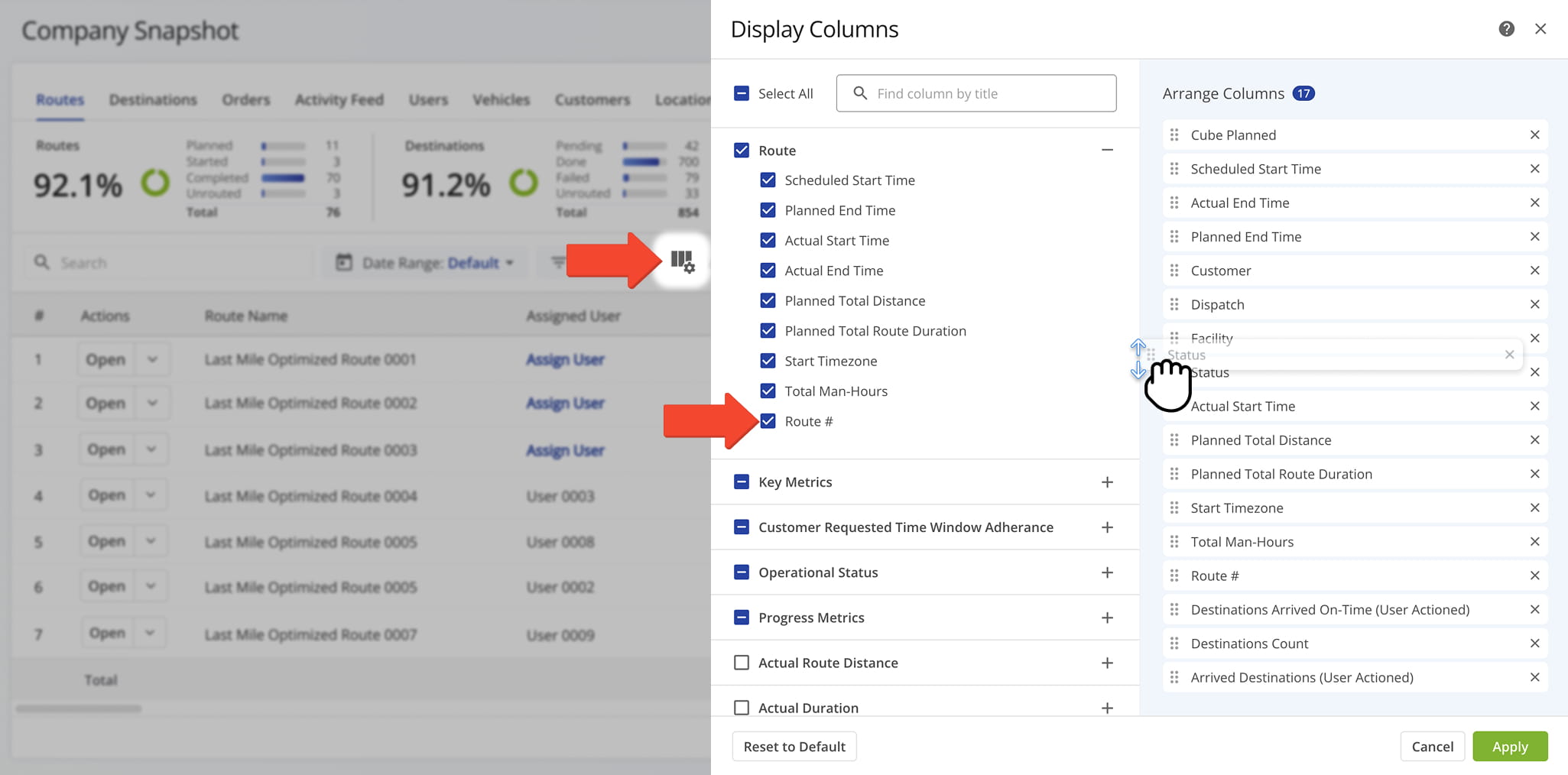
Company Snapshot – Routes Tab Data Columns
Arrived Destinations (User Actioned)
Number of destinations marked as arrived based on manually confirmed visit data.
Destinations Arrived (Progress %) (User Actioned)
Percentage of destinations marked as arrived based on manually confirmed visit data.
Sequence Adherence (%)
Percentage of destinations visited in the same order as originally planned.
Continuous Sequence Adherence (%)
Percentage of consecutive destinations visited in the planned sequence without interruption.
SLA Score (%)
Overall score representing how well the route met its service-level agreement requirements.
Duration Progress (%)
Percentage of the route's planned duration that has elapsed or been completed.
Service Time Progress (%)
Percentage of the route's planned service time that has elapsed or been completed.
Actual Total Distance (Mobile App)
Total distance traveled as recorded by the mobile app during route execution.
Actual Total Distance (Telematics)
Total distance traveled as recorded by the telematics system during route execution.
Actual Total Distance (Merged)
Total distance traveled as recorded by combining data from both the mobile app and the telematics system.
Actual Route Duration (User Actioned)
Total actual duration of the route based on manually confirmed start and end times.
Actual Total Route Duration (Grand Total of All Sub-Durations)
The combined total of all recorded route sub-durations, including travel, service, wait, and break time.
Actual Total Travel Duration (User Actioned)
Total time spent traveling between destinations, based on manually confirmed visit data.
Actual Total Service Duration (User Actioned)
Total time spent providing service at destinations, based on manually confirmed visit data.
Actual Total Wait Duration (User Actioned)
Total time spent waiting at destinations or during stops, based on manually confirmed visit data.
Actual Total Breaks Duration (User Actioned)
Total time spent on driver breaks during the route, based on manually confirmed visit data.
Actual Total Unattributed Duration (User Actioned)
Total time during the route that could not be attributed to travel, service, wait, or break activity.
Actual Total Service Time (Auto Detected)
Total service time spent at each stop, automatically detected based on vehicle or device activity during route execution.
Actual Total Duration (Mobile App)
Total duration of the route, as recorded by the mobile app, including driving and stop times.
Actual Total Duration (Telematics)
Total duration of the route, as recorded by the telematics system, including driving and stop times.
Planned Route Duration
Total planned duration for completing the entire route.
Planned Total Travel Duration
Total planned time allotted for traveling between destinations on the route.
Planned Total Wait Duration
Total planned wait duration for the route, representing the estimated time spent waiting at destinations or during stops.
Planned Total Service Duration
Total planned service time for the route, representing the estimated time spent at each destination for services or deliveries.
Planned Total Break Duration
Total planned driver break duration for the route, representing the estimated time allotted for breaks during the route.
Out of Sequence Destinations (#)
Number of destinations that were visited in an order different from the planned sequence.
Out of Sequence Destinations (%)
Percentage of destinations that were visited in an order different from the planned sequence.
Facility
The facility or service point associated with the route.
Assets
Vehicles, trailers, or other equipment assigned to the route.
Region
The geographic region associated with the route.
Customer
The customer or account associated with the route.
Contract
The contract associated with the route, if applicable.
Crew
The crew or team of drivers/field members assigned to the route.
Telematics Connection
The Telematics Connection used to sync tracking and vehicle data for the route.
Pieces Planned
Total number of pieces planned for delivery within the route.
Pieces Completed
Total number of pieces successfully delivered or completed within the route.
Pieces Completed (%)
Percentage of the planned pieces that have been successfully completed or delivered.
Pieces Remaining At End (%)
Percentage of planned pieces that remain incomplete or undelivered at the end of the route.
Weight Planned
Total weight of items planned for delivery on the route.
Weight Completed
Total weight of items completed during the delivery on the route.
Weight Completed (%)
Percentage of the planned weight that has been completed during the delivery.
Weight Remaining At End (%)
Percentage of the planned weight that remains incomplete at the end of the delivery.
Cube Planned
Total cubic volume planned for delivery.
Cube Completed
Total cubic volume completed for delivery.
Cube Completed (%)
Percentage of total cubic volume completed for delivery.
Cube Remaining At End (%)
Percentage of total cubic volume remaining at the end of the route.
Revenue Planned
Planned revenue for the route based on the scheduled deliveries.
Revenue Completed
Revenue generated from completed deliveries on the route.
Revenue Completed (%)
Percentage of planned revenue that has been completed based on deliveries made.
Revenue Remaining At End (%)
Percentage of planned revenue remaining at the end of the route or delivery process.
Cost Planned
Planned cost for completing the route based on the scheduled deliveries.
Cost Completed
Cost accumulated from completed deliveries or activities on the route.
Cost Completed (%)
Percentage of the planned cost that has been accumulated based on completed activities.
Cost Remaining At End (%)
Percentage of the planned cost remaining at the end of the route.
Strategic Optimization Name
The name of the Strategic Optimization associated with the route.
Scenario Name
The name of the scenario, within a Strategic Optimization, that generated the route.
Custom Data
Custom fields and values added to the route for additional tracking or reference.
Destinations Tab – Destinations And Service Data Overview
The Destinations Tab provides a detailed table of every destination associated with routes across your company, giving you visibility into delivery and service data at the individual stop level.
Instead of checking destination details route by route, you can review this information across your entire operation in one place. From this tab, you can:
- Use the Search field to locate specific destinations.
- Apply Date Range and other Filter and Group By options, detailed below, to narrow down which data appears in the table.
- Click the Down Arrow next to a route to view all associated destination details.
- Click “Open” next to a destination to access its Destination Snapshot.
- Click the Down Arrow button next to a destination to access additional options: select “Edit” to modify the destination’s details, “Open Route” to open its associated Route Snapshot, or “Edit Route” to open the Route Editor and modify the destination’s associated route.
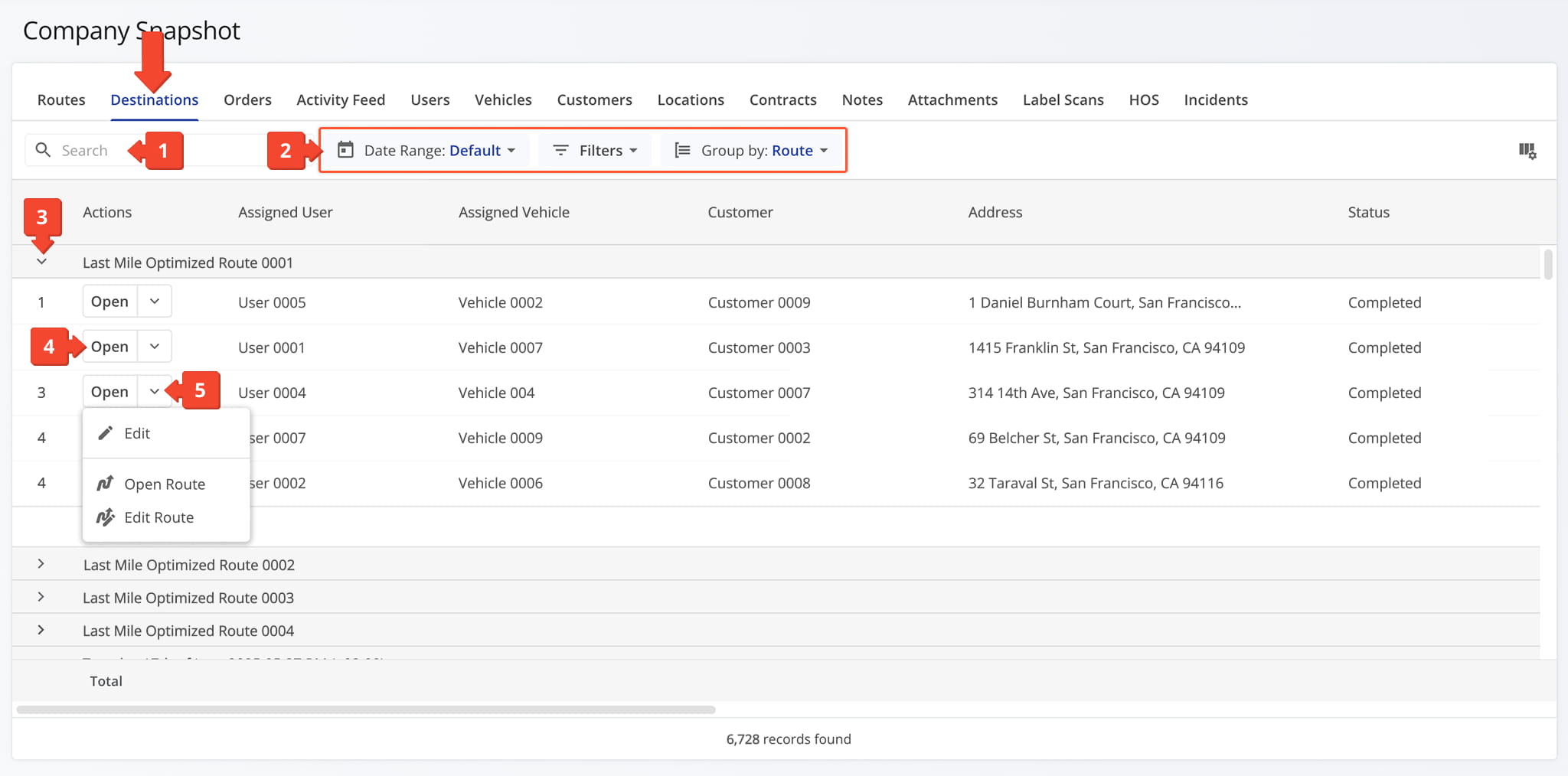
Company Snapshot – Destinations Tab Filters
User
Filter by the user assigned to the route.
Vehicle
Filter by the vehicle assigned to the route.
Customer
Filter by the customer linked to the route.
Route
Filter by the route the destination belongs to.
Facility
Filter by the facility linked to the route.
Destination
Filter by the specific destination.
Service Category
Filter by type of service, such as pickup, delivery, break, meetup, service, visit, or drive by.
Alias
Filter by alias associated with the destination.
Destination Sequence #
Filter by the destination's scheduled placement within a route.
Arrived
Filter by whether the destination has been marked “Arrived.”
Departed
Filter by whether the destination has been marked “Departed.”
Destination Status
Filter by the current progress or completion state of the destination (e.g., Pending, Skipped, Failed, Completed).
Notes Count
Filter by the number of notes added to the route by users or automated processes.
Tracking Number
The tracking number associated with a destination.
Order Number
The order number associated with a destination.
Invoice Number
The invoice number associated with a destination.
Reference Number
The reference number associated with a destination.
Cube
Filter by the total cubic volume planned for delivery.
Pieces / Units
Filter by the total number of pieces planned for delivery.
Weight
Filter by the total weight of items planned for delivery.
Priority
Filter orders by their Priority. Priority can be set when importing, uploading, or creating orders.
Revenue
Filter orders by their Revenue value. Revenue can be added when importing, uploading, or creating orders.
Cost
Filter orders by their Cost value.
First Name
Customer's first name for identification and communication purposes.
Last Name
Customer's last name for identification and communication purposes.
Phone
Customer's phone number, used for notifications or communication.
Customer's email address, used for notifications or tracking updates.
Customer PO
The customer's purchase order number associated with the order.
Group
A classification or grouping of the customer, often used for reporting or filtering.
Route
Group the data by the route the destination belongs to.
Facility
Group the data by the facility linked to the route.
You can also customize the data displayed in the table. Click the Column Icon in the upper right corner to select which destinations data fields appear and adjust their order to suit your operational needs.
The table below provides an overview of all available data columns, which you can reorder by dragging them into place.
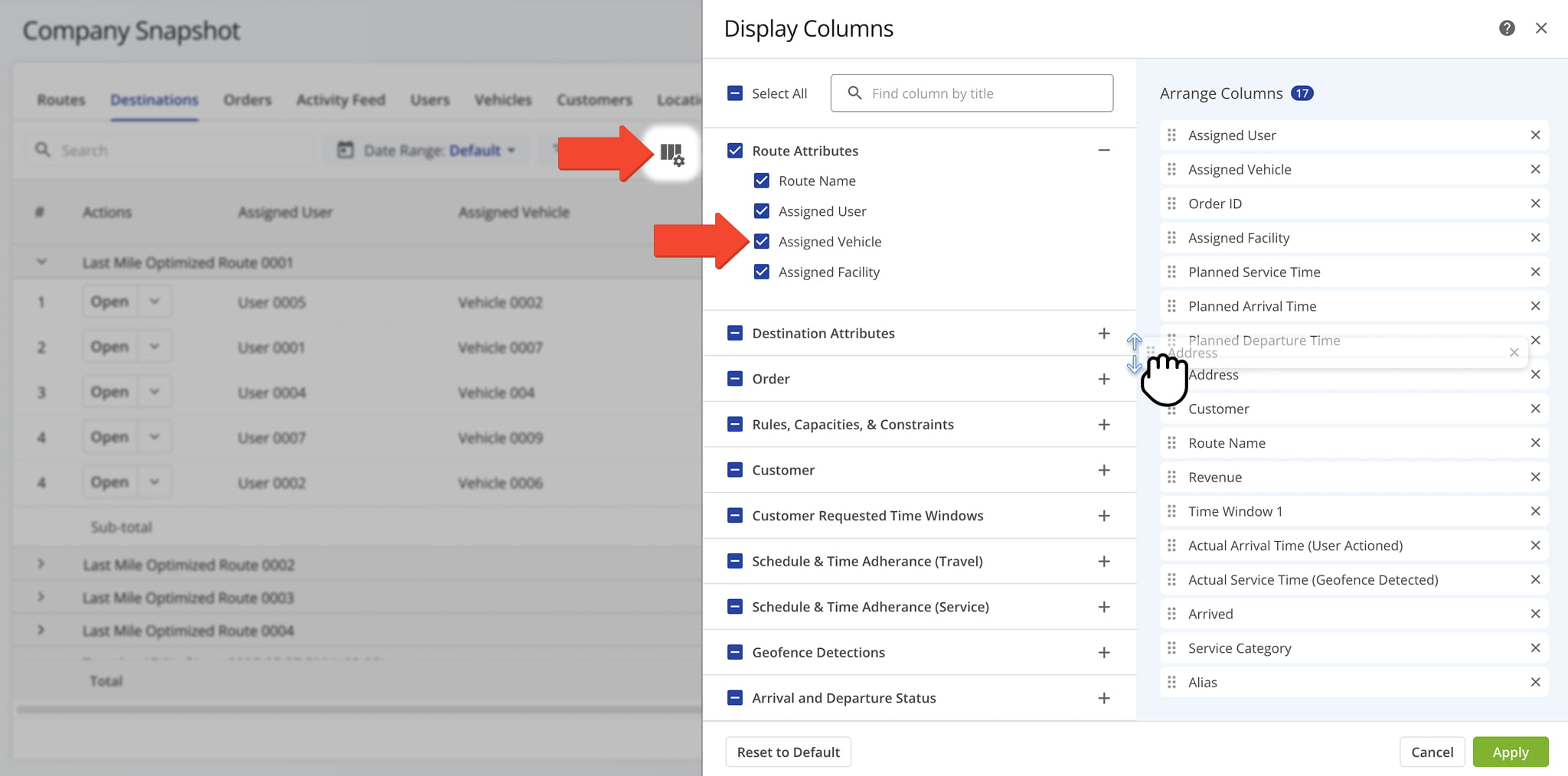
Destinations Data Columns
Orders Tab – Order Details And Fulfillment Overview
The Orders Tab provides a detailed table of every order associated with routes across your business, giving you visibility into order status, fulfillment details, and key order data in one place.
Instead of tracking orders through individual routes, you can review and manage this information across your entire operation. From this tab, you can:
- Use the Search field to locate specific orders.
- Apply Date Range and other Filter options, detailed below, to narrow down which data appears in the table.
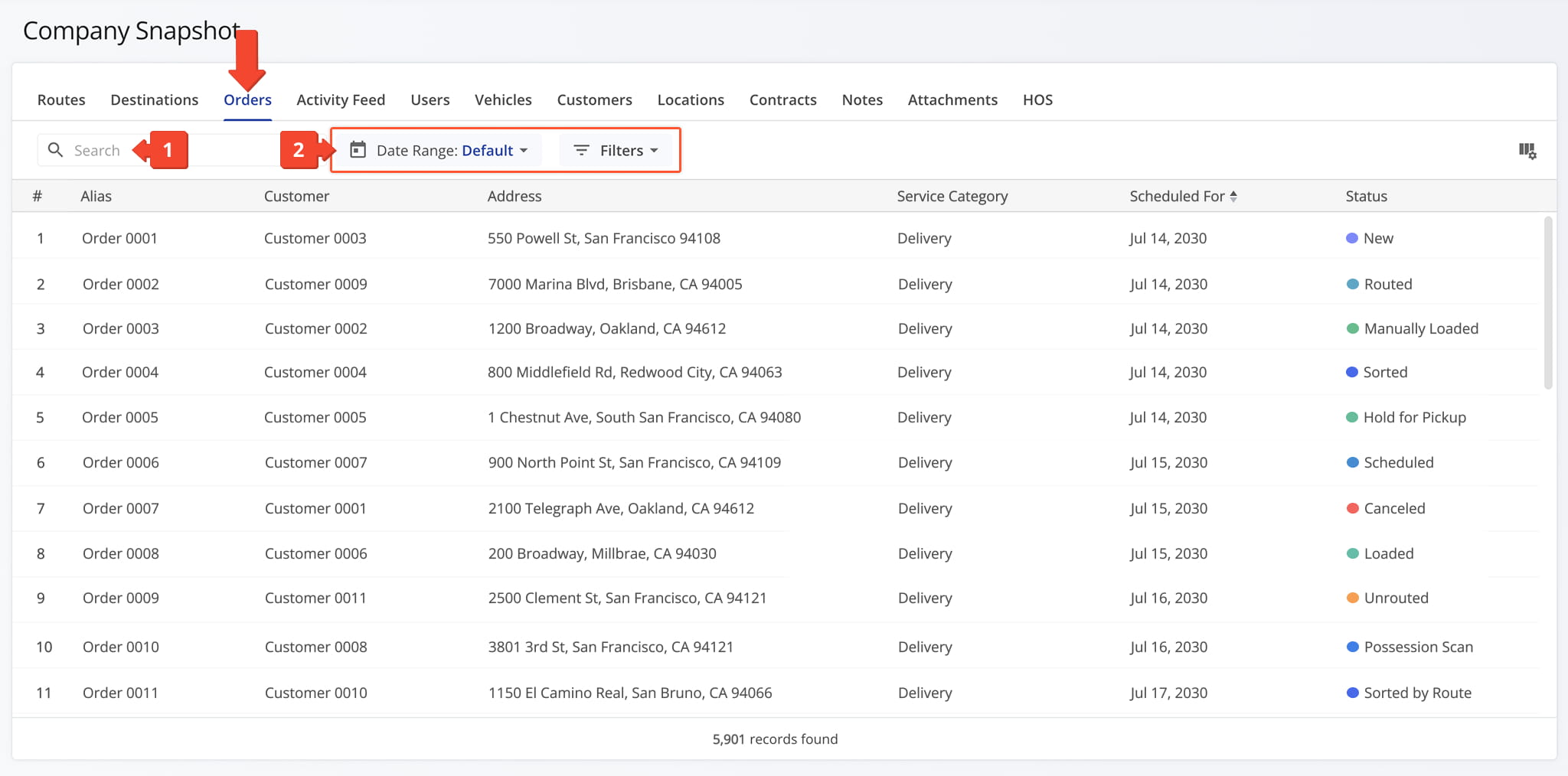
Company Snapshot – Orders Tab Filters
Filter orders by their current status, such as New, Scheduled, Sorted, Accepted, and more.
Filter orders by their assigned Label Code (barcode).
Filter orders by their assigned order Group.
Filter orders by the Territory containing the order's address.
Filter orders by their assigned Aggregation Group.
Filter orders by a minimum and/or maximum Revenue value.
Filter orders by a minimum and/or maximum Weight value.
Filter orders by a minimum and/or maximum Cube value.
Filter orders by a minimum and/or maximum Pieces value.
Filter orders by a minimum and/or maximum Cost value.
Priority
Filter orders by a minimum and/or maximum Priority value.
You can also customize the data displayed in the table. Click the Column Icon in the upper right corner to select which orders data fields appear and adjust their order to suit your operational needs.
The table below provides an overview of all available data columns, which you can reorder by dragging them into place.
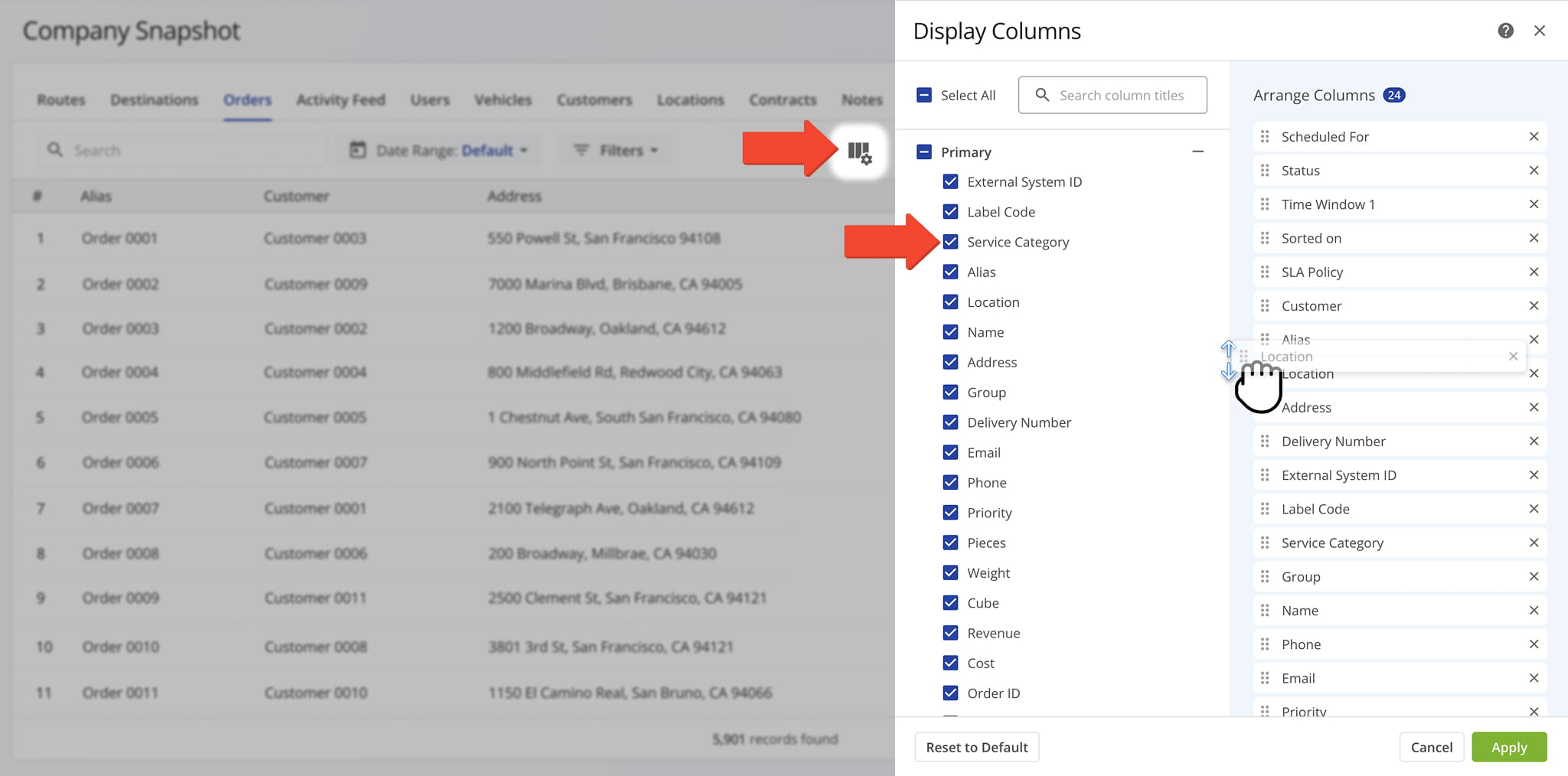
Company Snapshot – Orders Tab Data Columns
External System ID
Unique identifier assigned to an order by an outside CRM or ERP system.
Label Code
Barcode used to quickly add, sort, and manage orders via scanning for efficient processing.
Service Category
The general category of service associated with the order, used for classification and reporting.
Alias
Unique name or identifier for filtering and recognizing the order.
Location
The geographic location associated with the order's address.
Name
Customer name associated with the order.
Address
Street address, city, state, ZIP code, and country of the order.
Group
Custom order group ID for filtering related orders.
Delivery Number
A unique number assigned to identify and track the delivery for this order.
Email address of the contact or customer associated with the order.
Phone
Phone number of the contact or customer associated with the order.
Priority
Indicates the importance or urgency of the order, used to influence route planning and scheduling.
Pieces
Pieces optimization constraint value of the order. NOTE: Learn more about the Pieces route optimization constraint.
Weight
Weight optimization constraint value of the order. NOTE: Learn more about the Weight route optimization constraint.
Cube
Cube optimization constraint value of the order. NOTE: Learn more about the Cube route optimization constraint.
Revenue
Revenue optimization constraint value of the order. NOTE: Learn more about the Revenue route optimization constraint.
Cost
The estimated or recorded cost associated with fulfilling the order.
Order ID
Unique automatically generated identification number of the order.
Assigned User
Team member (manager, planner, dispatcher, or driver) assigned to manage and complete the route.
Facility
The name of the facility assigned to the route associated with the order.
Required skills
Specifies any special skills or certifications needed to complete the order at the destination.
Man-Hours
The combined time spent by all drivers or users on the selected route, including travel and service time.
Customer
Customer name associated with the order.
Service Type
The type of service associated with a destination (e.g. pickup, delivery, break, meetup, service, visit, or drive by).
SLA Policy
The Service Level Agreement policy applied to the order, defining expected service timeframes.
Scheduled For
Date the order is scheduled for route planning. NOTE: learn more about the Scheduled For order status.
Created
Date and time when the route was created.
Sorted on
Date and time when the order was sorted or prioritized within the route planning system.
Closed Date
The date and time when the order was completed, finalized, or marked as closed.
Last Known Route
Displays the most recent route the order was assigned to, including the associated date and time.
Possession Scan Date
Timestamp when the order was scanned and assigned “Possession Scan” status. NOTE: Learn more about scanning order barcodes.
Time Window 1
The primary customer-requested time window during which the destination is scheduled to be serviced.
Time Window 2
The secondary customer-requested time window during which the destination is scheduled to be serviced.
Accepted Time
Timestamp when the order was accepted by the assigned user or driver.
Service Time
Duration required to complete the order on-site. Learn more about Destination Service Time.
SLA Start
The start of the Service Level Agreement window for the order, defining when service should begin.
SLA End
The end of the Service Level Agreement window for the order, defining when service should be completed.
Elapsed Time
Total time elapsed since the order began processing or was assigned, including travel and service.
Remaining Time
Time remaining to complete the order based on planned schedule, SLA, or route optimization.
Status
Most recent status assigned to the order.
Territory
Name of the Order Territory containing the order's address. NOTE: Learn more about Order Territories.
Activity Feed Tab – Activity And Event History Overview
The Activity Feed Tab displays a chronological log of activity across your company, organized by date, including the activity type, a brief description, and the username and email of the person associated with each activity. From this tab, you can:
- Apply “Activity Type” filters, detailed in the table below, to narrow down which activity data is shown.
- Click the Down Arrow button next to a date to expand the list of activities that took place that day.
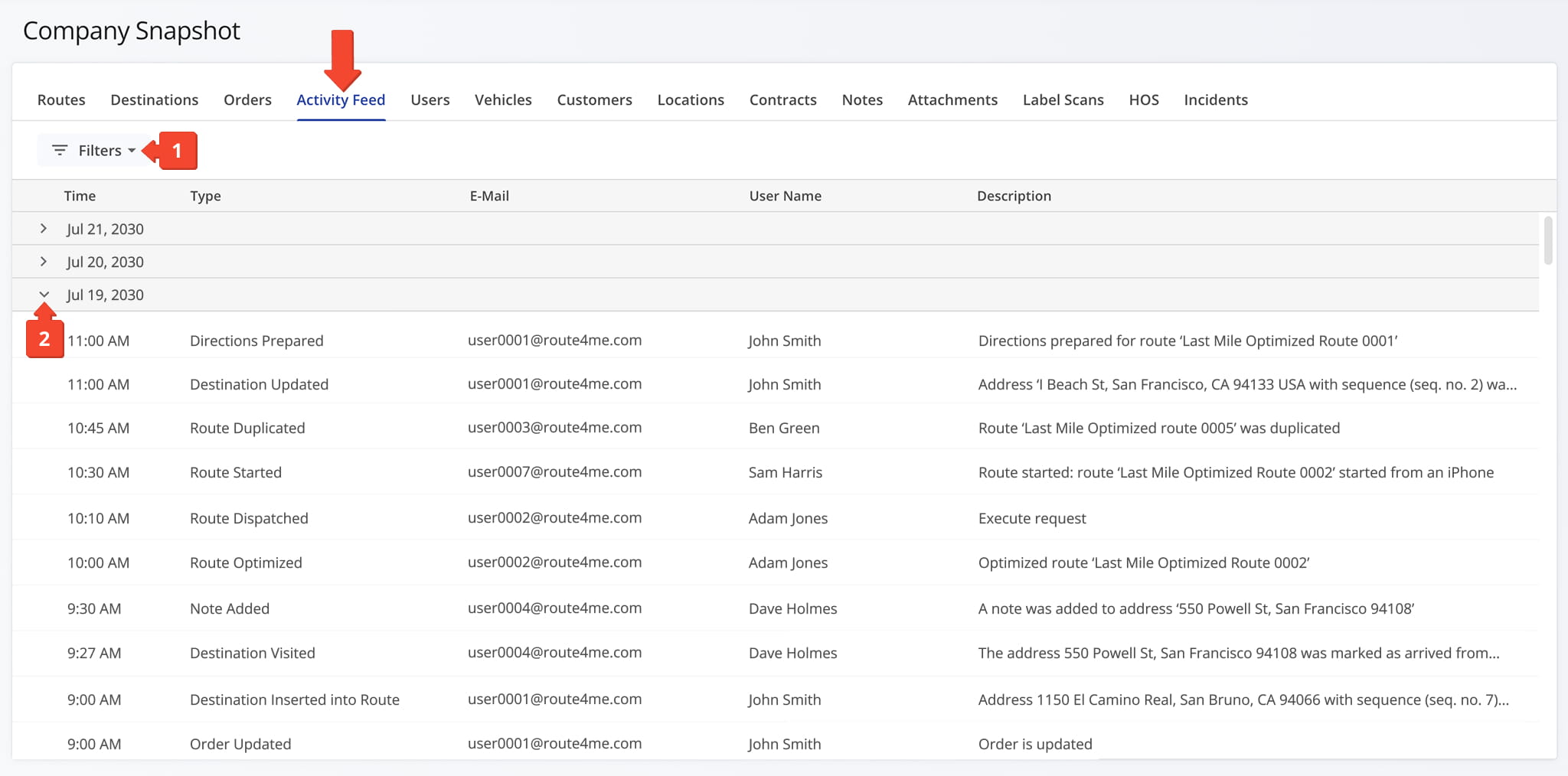
Company Snapshot – Activity Feed Filters
Note Added
A note was added to the route or destination.
Route Dispatched
A route was dispatched to its assigned users.
Route Un-Dispatched
A route was unassigned or canceled.
Destination Inserted into Route
A destination was added to a route.
Destination Visited Out of Sequence
A destination was visited out of its planned sequence.
Destination Deleted
A destination was removed from a route.
Route Duplicated
A route was duplicated.
Routes Merged
Multiple routes were merged together.
Route Optimized
A route was optimized for efficiency.
Route Updated
A route received a general update.
Route Rated
A route was assigned a rating.
Destination Updated
A destination was updated.
Early Arrival
A driver arrived at a destination earlier than planned.
Late Arrival
A driver arrived at a destination later than planned.
On-Time Arrival
A driver arrived at a destination within the scheduled window.
Messages via Activity Feed
A message or note was posted via the Activity Feed.
Vehicle Assigned to Route
A vehicle was assigned to a route.
User Assigned to Route
A user was assigned to a route.
Destination Moved Sequence
A destination's sequence was changed.
Destination Departed
A driver departed a destination.
Destination Visited
A driver completed a visit to a destination.
Check-In Geofence Triggered
A driver entered a geofence.
Check-Out Geofence Triggered
A driver exited a geofence.
Route Shared
A route was shared with users or teams.
Route Started
A route was started.
Route Paused
A route was paused.
Route Ended
A route was completed.
Pickup Label Code Scanned
A pickup order barcode was scanned.
Destination Status Updated
A destination's status was updated.
Users Tab – Company User Data Overview
The Users Tab provides a detailed table of every user associated with your company, giving you visibility into account details, roles, and access levels in one place.
Instead of managing users through individual routes or settings pages, you can review and administer your entire team’s accounts from a single, centralized view. From this tab, you can:
- Use the Search field to locate specific users.
- Apply filters, detailed in the table below, to narrow down which users appear in the data table.
- Click “Open” next to a user to access their User Snapshot.
- Click the Down Arrow button next to a user and select “View Assigned Routes” to view their assigned routes.
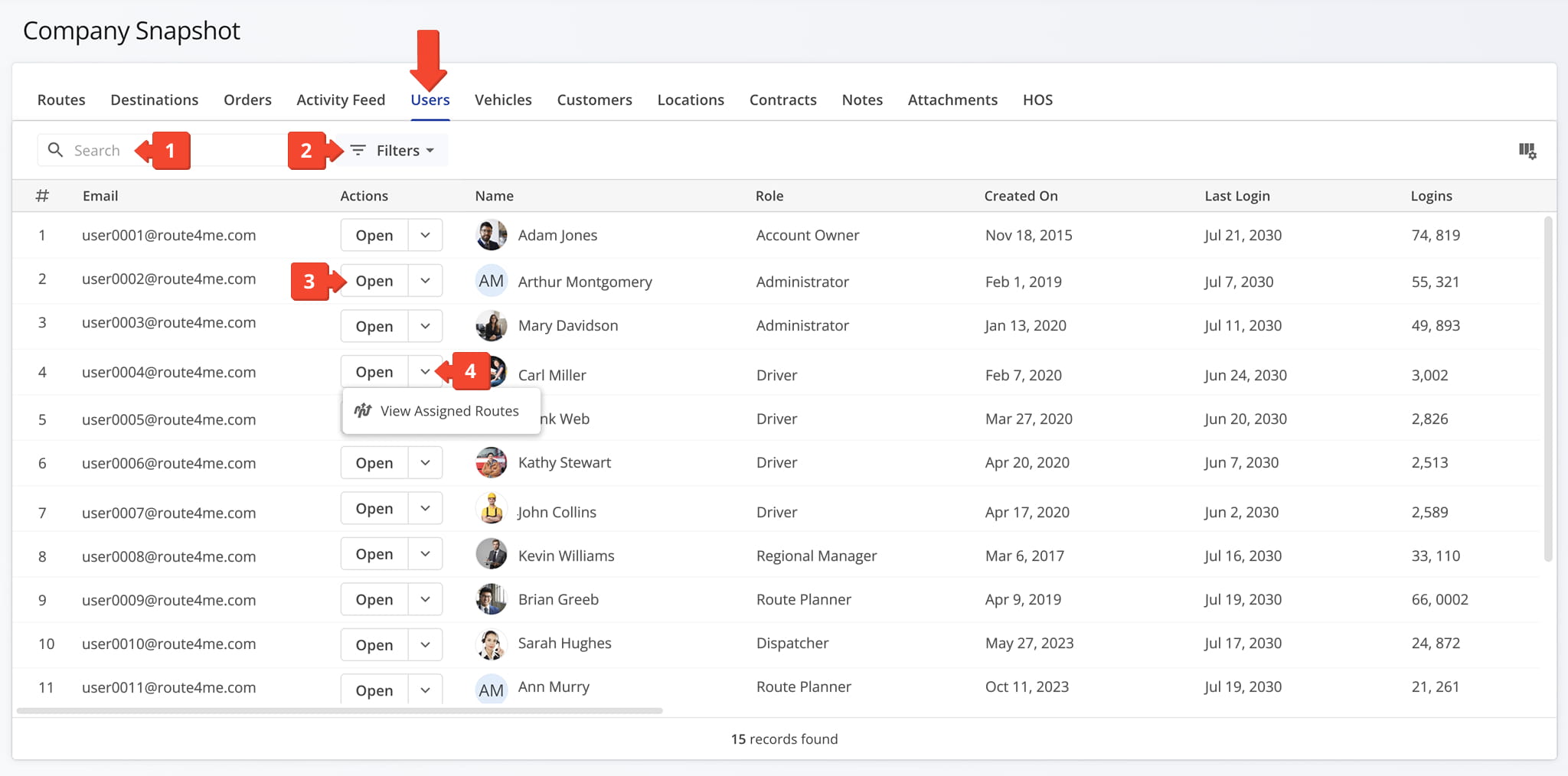
Company Snapshot – Users Tab Filters
Role
Filter by a specific role, such as Route Planner, Driver, Administrator, or Account Owner.
Logins
Filter by a minimum and/or maximum number of logins.
Location
Filter by specific countries.
Date of Birth
Filter by date of birth.
Reporting To
Filter by selecting from a list of names to whom the user reports.
Hourly Rate
Filter by a minimum and/or maximum hourly rate.
Driving Rate
Filter by a minimum and/or maximum driving rate.
Service Time Rate
Filter by a minimum and/or maximum service time rate.
Wait Time Rate
Filter by a minimum and/or maximum wait time rate.
Search Optimization Profiles by name.
Search Facilities by alias or address.
You can also customize the data displayed in the table. Click the Column Icon in the upper right corner to select which users data fields appear and adjust their order to suit your operational needs.
The table below provides an overview of all available data columns, which you can reorder by dragging them into place.
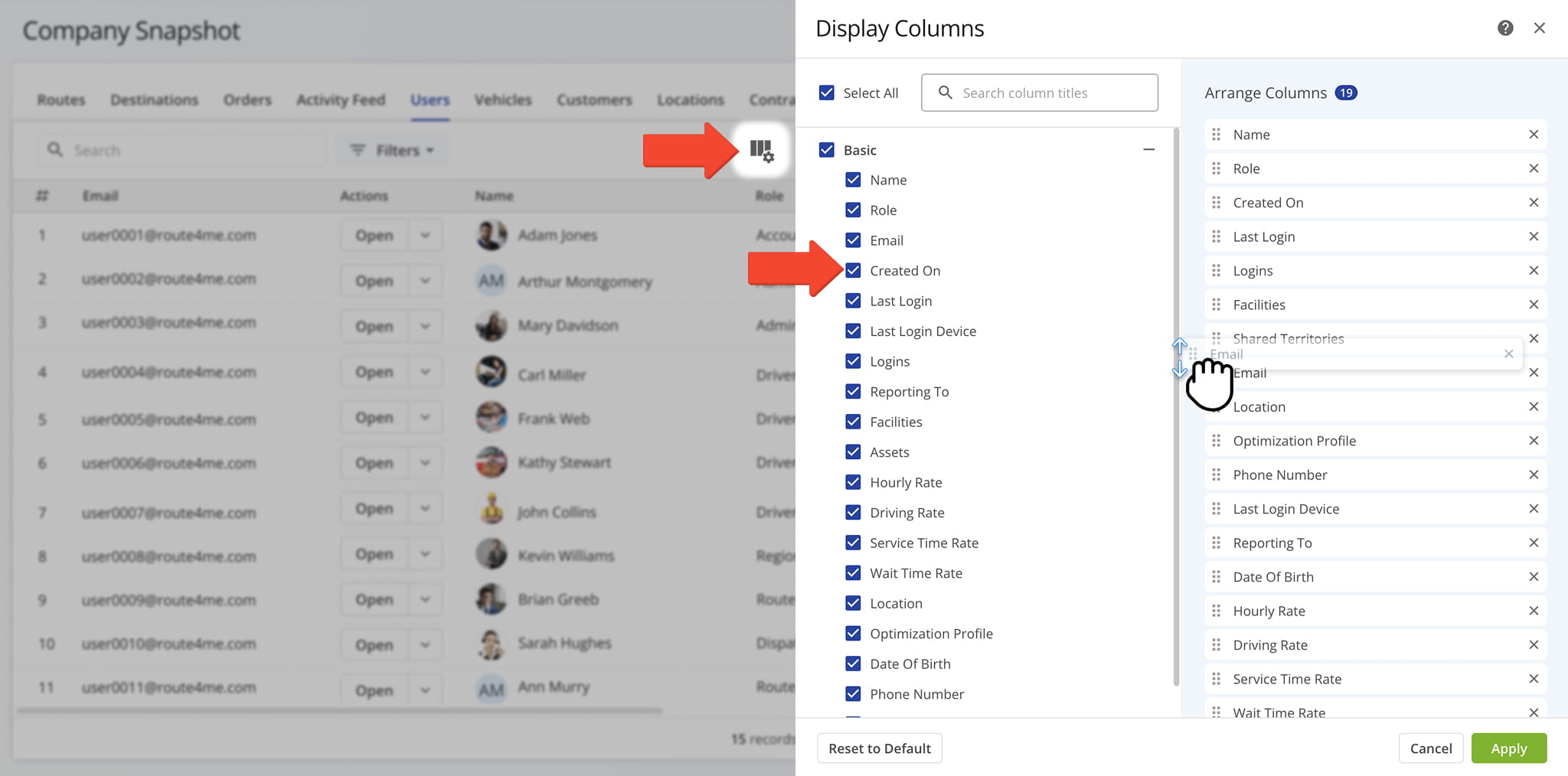
Company Snapshot – Users Tab Data Columns
Name
The name of the user.
Role
The role assigned to the user, such as Route Planner, Driver, Administrator, or Account Owner.
The email address associated with the user's account.
Created On
The date and time when the user's account was created.
Last Login
The date and time of the user's most recent login.
Last Login Device
The type of device used during the user's most recent login.
Logins
The total number of times the user has logged into their account.
The user or manager that this user reports to.
The facilities associated with the user.
The assets associated with the user.
Hourly Rate
The user's hourly rate of pay.
Driving Rate
The user's rate of pay for time spent driving.
Service Time Rate
The user's rate of pay for time spent servicing destinations.
Wait Time Rate
The user's rate of pay for time spent waiting.
Location
The country or location associated with the user.
The Optimization Profile associated with the user.
Date Of Birth
The user's date of birth.
Phone Number
The phone number associated with the user.
The Territories shared with the user.
Vehicles Tab – Vehicle Data And Fleet Overview
The Vehicles Tab provides a detailed table of every vehicle in your company’s fleet, giving you visibility into vehicle details, assignments, and status in one place.
This gives you a complete, up-to-date picture of your fleet’s availability and utilization, so you can make faster decisions about vehicle assignments and maintenance needs. From this tab, you can:
- Use the Search field to locate specific vehicles.
- Apply Filter and Group By options, detailed in the table below, to narrow down which vehicles appear in the data table.
- Click “Open” next to a vehicle to access its Vehicle Snapshot.
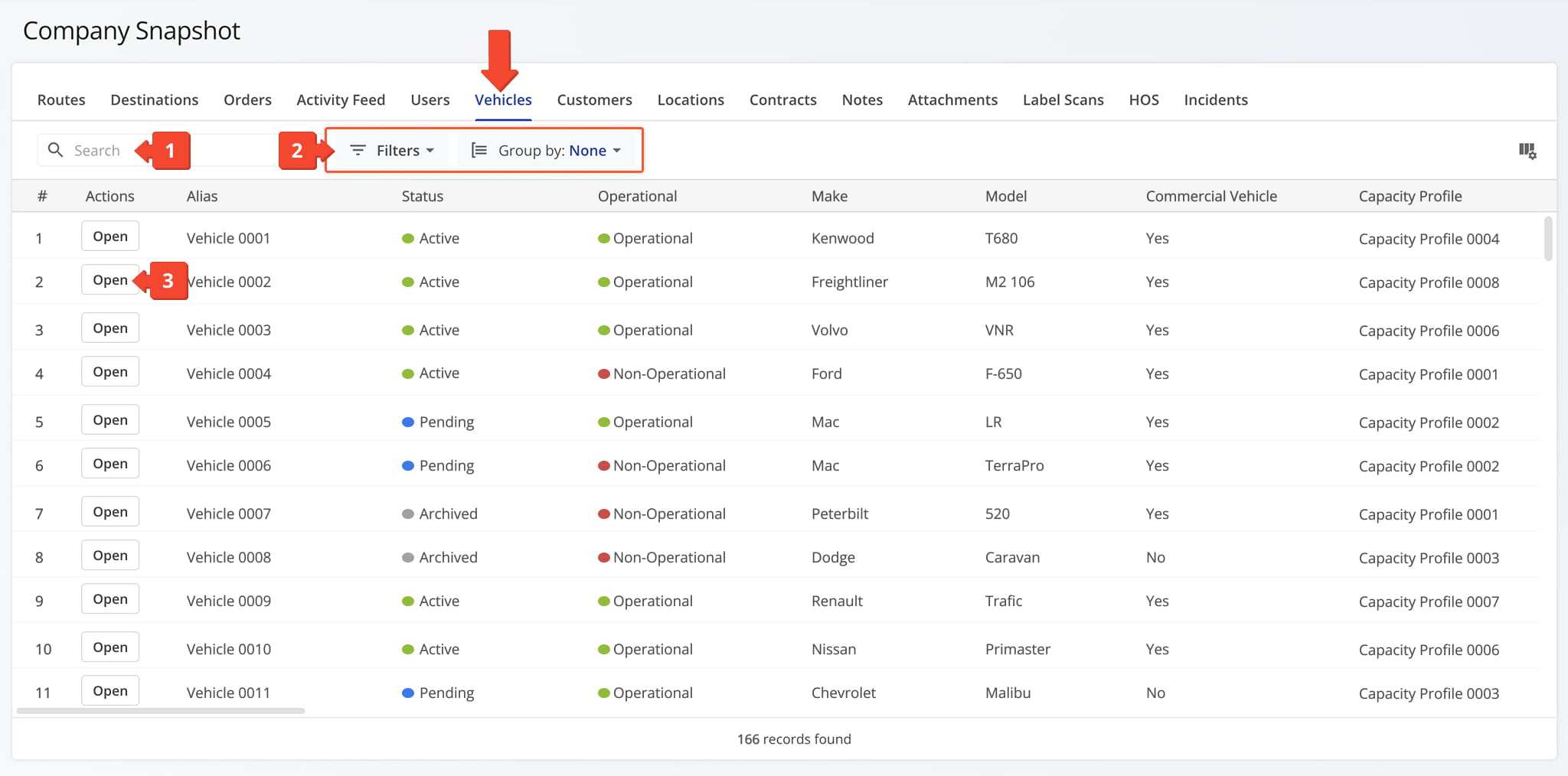
Company Snapshot – Vehicles Tab Filters
Default User
Filter by the default user assigned to the vehicle.
Model Year
Filter by the vehicle's model year.
Model
Filter by the vehicle's model.
Country
Filter by the country where the vehicle is registered.
Make
Filter by the vehicle's manufacturer or brand.
State
Filter by the state where the vehicle is registered.
Status
Filter by the vehicle's current status, such as Active, Pending, or Archived.
Operational
Filter by whether the vehicle is currently available for routing.
Attributes
Filter by the vehicle's assigned Attributes.
Profile
Filter by the vehicle's assigned Vehicle Profile.
Capacity Profile
Filter by the vehicle's assigned Capacity Profile.
Status
Group the data by the vehicle's current status.
Default User
Group the data by the default user assigned to the vehicle.
Make
Group the data by the vehicle's manufacturer or brand.
Model
Group the data by the vehicle's model.
Model Year
Group the data by the vehicle's model year.
State
Group the data by the state where the vehicle is registered.
Country
Group the data by the country where the vehicle is registered.
Facility
Group the data by the facility associated with the vehicle.
Attributes
Group the data by the vehicle's assigned Attributes.
Profile
Group the data by the vehicle's assigned Vehicle Profile.
Capacity Profile
Group the data by the vehicle's assigned Capacity Profile.
You can also customize the data displayed in the table. Click the Column Icon in the upper right corner to select which vehicles data fields appear and adjust their order to suit your operational needs.
The table below provides an overview of all available data columns, which you can reorder by dragging them into place.
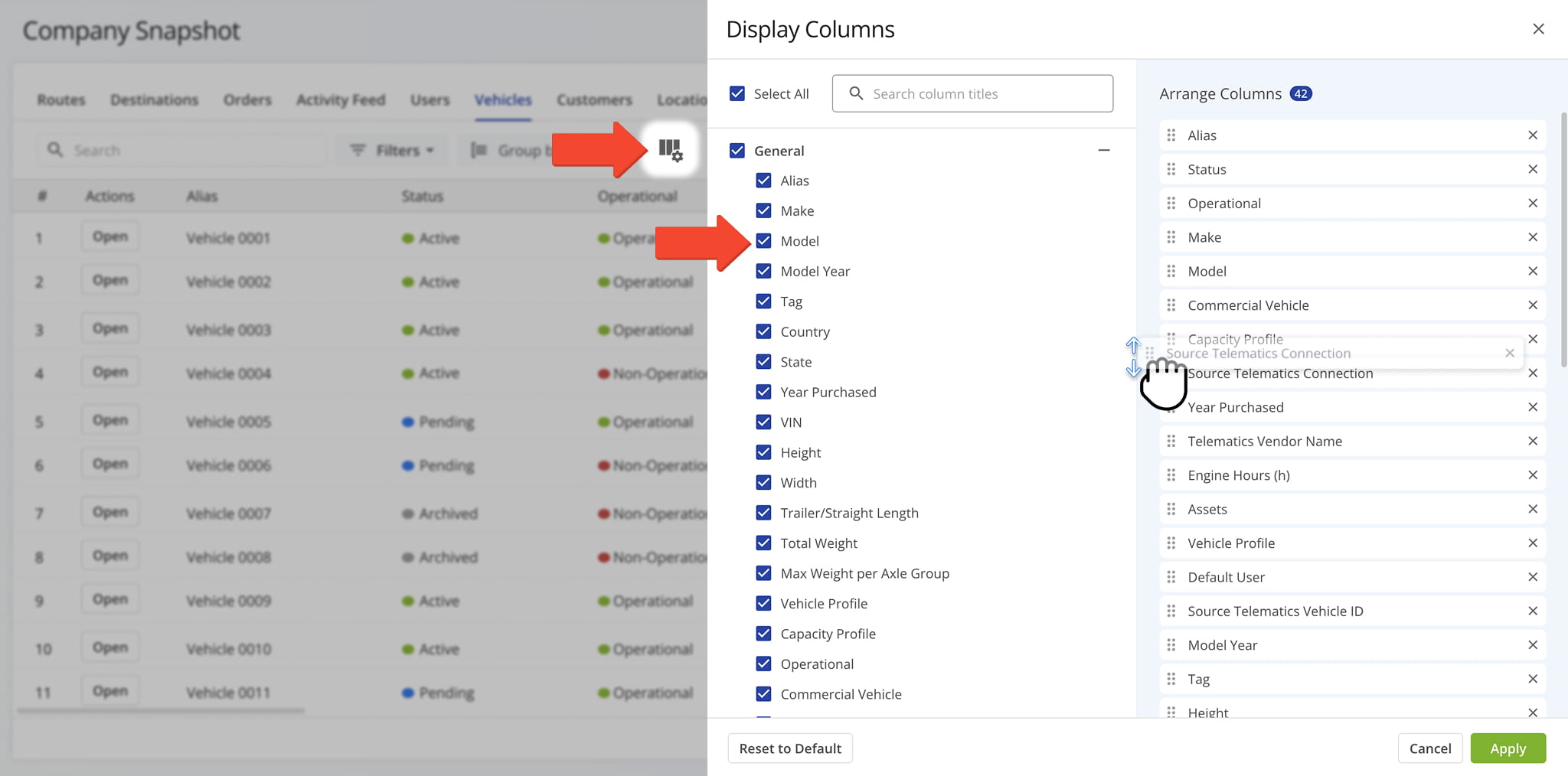
Company Snapshot – Vehicles Tab Data Columns
Alias
An internal user-defined name assigned to the vehicle.
Make
Vehicle manufacturer or brand.
Model
Specific vehicle model name or designation.
Model Year
Year the vehicle model version was manufactured.
Tag
Vehicle license plate number used for identification.
Country
Country where the vehicle is registered.
State
State where the vehicle is registered.
Year Purchased
Year the vehicle was purchased.
VIN
Vehicle Identification Number (VIN), a unique identifier assigned to the vehicle.
Height
Maximum vehicle height.
Width
Maximum vehicle width.
Trailer/Straight Length
Total vehicle or trailer length.
Total Weight
Vehicle's total weight.
Max Weight per Axle Group
Maximum allowable weight per axle group.
Configured vehicle dimensions, usage settings, and applicable restrictions.
Maximum load capacity by weight, volume, quantity, or other limits.
Operational
Indicates whether the vehicle is currently available for routing.
Indicates whether the vehicle is designated for commercial use.
Associated facilities used to optimize routes based on proximity to operational locations.
Assets associated with the vehicle.
Vehicle capabilities used for Driver Skills and Vehicle Attributes-based route planning.
Default User
User automatically associated with the vehicle.
Source Telematics Vehicle ID
Unique vehicle identifier assigned by the telematics provider.
Name of the telematics connection syncing this vehicle's data.
Name of the telematics provider supplying vehicle data.
Fuel Type
Vehicle fuel type (e.g., gasoline, diesel, electric, hybrid).
Fuel Consumption City
Fuel efficiency for city driving conditions.
Fuel Consumption Highway
Fuel efficiency for highway driving conditions.
Fuel Level (%)
Remaining fuel level, expressed as a percentage of full capacity.
Status
Vehicle status: Active, Pending, or Archived.
Odometer (mi)
Total distance traveled at the time of the last tracking update.
Engine Hours (h)
Vehicle's last synced engine hour meter reading in hours.
Speed (mph)
Current or last recorded vehicle speed.
Engine RPM
Engine revolutions per minute.
Engine Coolant Temperature (°F)
Engine coolant temperature used to monitor operating conditions.
Battery Health (%)
Remaining battery health expressed as a percentage.
Battery Temperature (°F)
Current battery temperature.
Battery Level (%)
Remaining battery charge percentage.
Charge Status
Indicates whether the battery is charging, discharging, or fully charged.
Engine Status
Indicates whether the engine is running or off.
Driver Seatbelt Status
Indicates whether the driver's seatbelt is fastened.
Last Update Received At
Date and time of the most recent telematics data transmission.
Customers Tab – Customer Records And Account Overview
The Customers Tab provides a detailed table of every customer associated with your company, giving you visibility into customer details, contact information, and account data in one place.
This lets you quickly look up a specific customer’s information, review their account history, or confirm contact details without searching through individual routes or orders. From this tab, you can:
- Use the Search field to locate specific customers.
- Apply filters, detailed in the table below, to narrow down which customers appear in the data table.
- Click “Open” next to a customer to access their Customer Snapshot.
- Click the Down Arrow to access additional actions: “Edit“, “Assign Facilities“, and “Archive“.
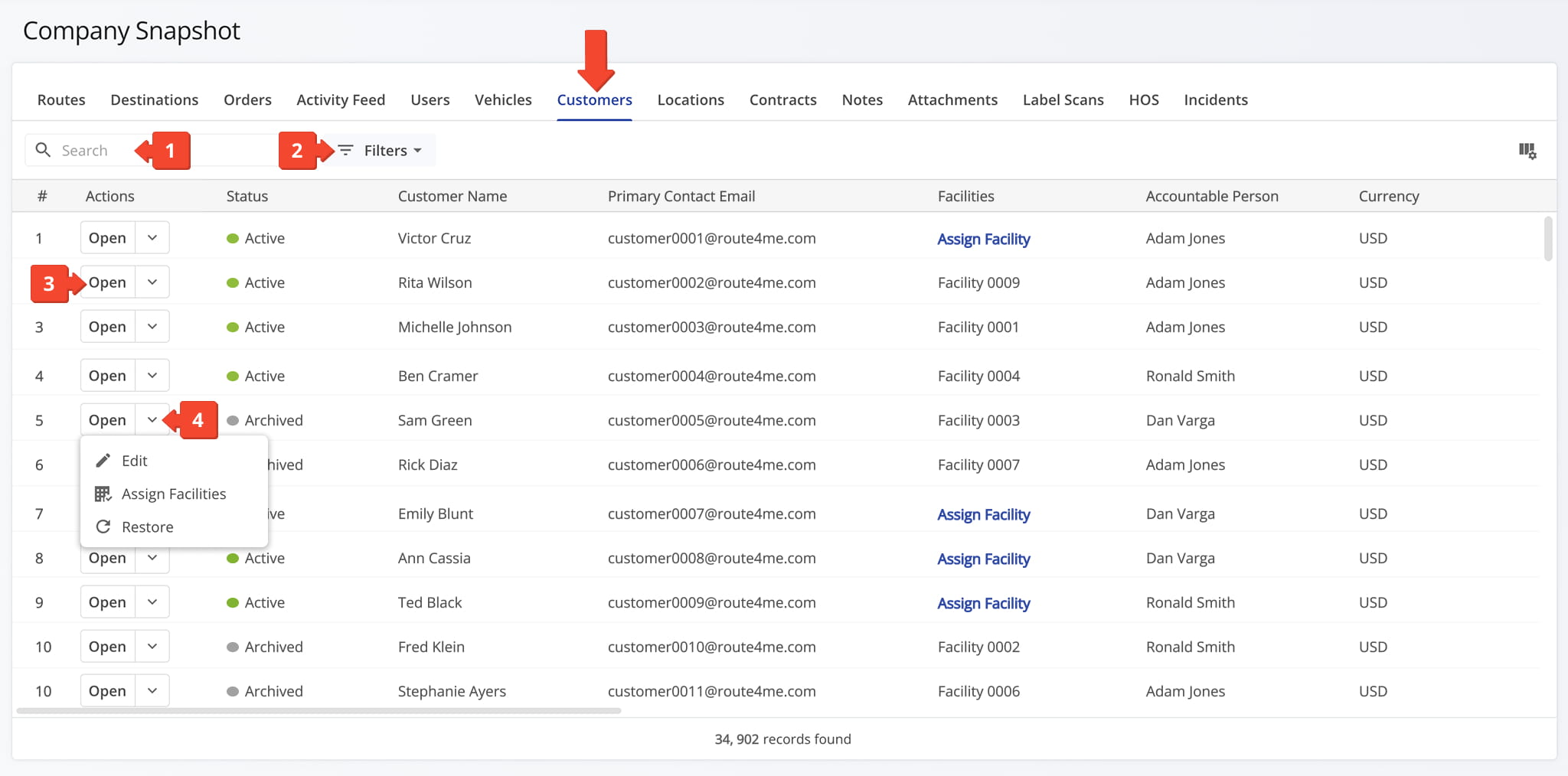
Company Snapshot – Customers Tab Filters
External ID
Filter by the customer's External ID number.
Customer Name
Filter by customer name.
Location Count
Filter by a minimum and/or maximum number of locations.
Currency
Search for and select a specific currency.
Tax ID
Filter by the customer's Tax ID.
Status
Filter by status: Active, Archived, or All.
Billing Type
Filter by billing type: Not Set, Credit, Cash on Delivery, or All.
Search for and filter by specific contract.
Search for and filter by specific facilities.
You can also customize the data displayed in the table. Click the Column Icon in the upper right corner to select which customers data fields appear and adjust their order to suit your operational needs.
The table below provides an overview of all available data columns, which you can reorder by dragging them into place.
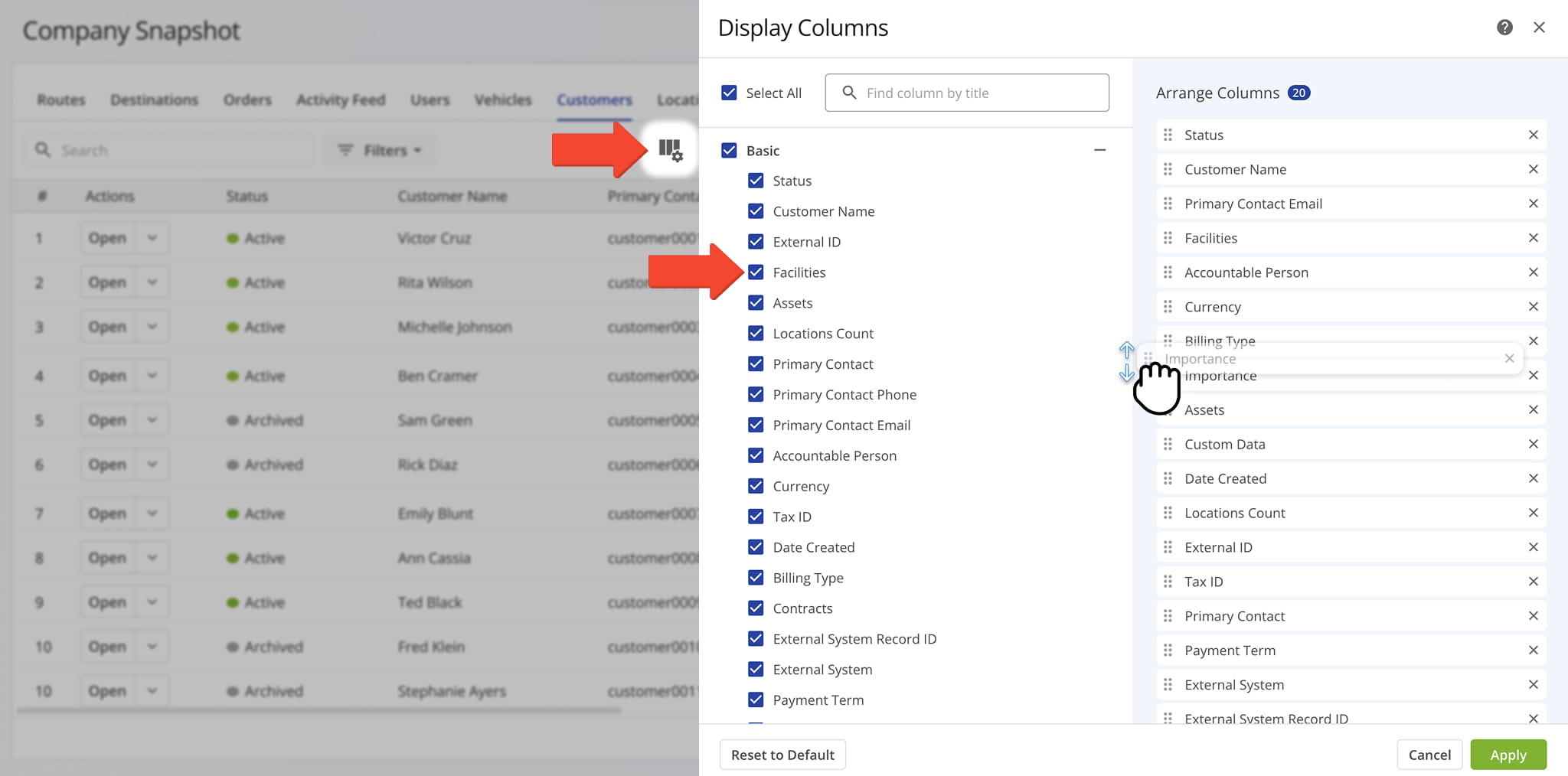
Company Snapshot – Customers Tab Data Columns
Status
The current status of the customer, such as Active or Inactive.
Customer Name
The name of the customer.
External ID
Unique identifier assigned to the customer by an outside CRM or ERP system.
Facilities associated with the customer.
Assets associated with the customer.
Locations Count
Total number of locations associated with the customer.
Primary Contact
The name of the customer's primary point of contact.
Primary Contact Phone
The phone number of the customer's primary point of contact.
Primary Contact Email
The email address of the customer's primary point of contact.
Accountable Person
The internal team member responsible for managing the customer relationship.
Currency
The currency used for financial transactions with the customer.
Tax ID
The customer's tax identification number.
Date Created
The date and time when the customer record was created.
Billing Type
The billing classification applied to the customer.
Contracts associated with the customer.
External System Record ID
The unique identifier assigned to the customer in a connected external system.
External System
The name of the external system the customer record originated from or is synced with.
Payment Term
The agreed-upon payment terms for the customer, such as Net 30 or Due on Receipt.
Importance
A ranking or priority level assigned to the customer, which may influence route sequencing or service prioritization.
Custom fields and values added to the customer record for additional tracking or reference.
Locations Tab – Delivery And Service Location Overview
The Locations Tab provides a detailed table of every location your company delivers to or services, giving you visibility into address details, service history, and related data in one place.
Whether you’re confirming an address, reviewing service history at a specific location, or checking which locations are tied to upcoming routes, you can access all the data you need from this tab. Here, you can:
- Use the Search field to locate specific locations.
- Apply Filter and Group By options, detailed below, to narrow down the data that appears in the table.
- Click “Open” next to a location to access its Location Snapshot.
- Click “Add Location” to add a new location to your database.
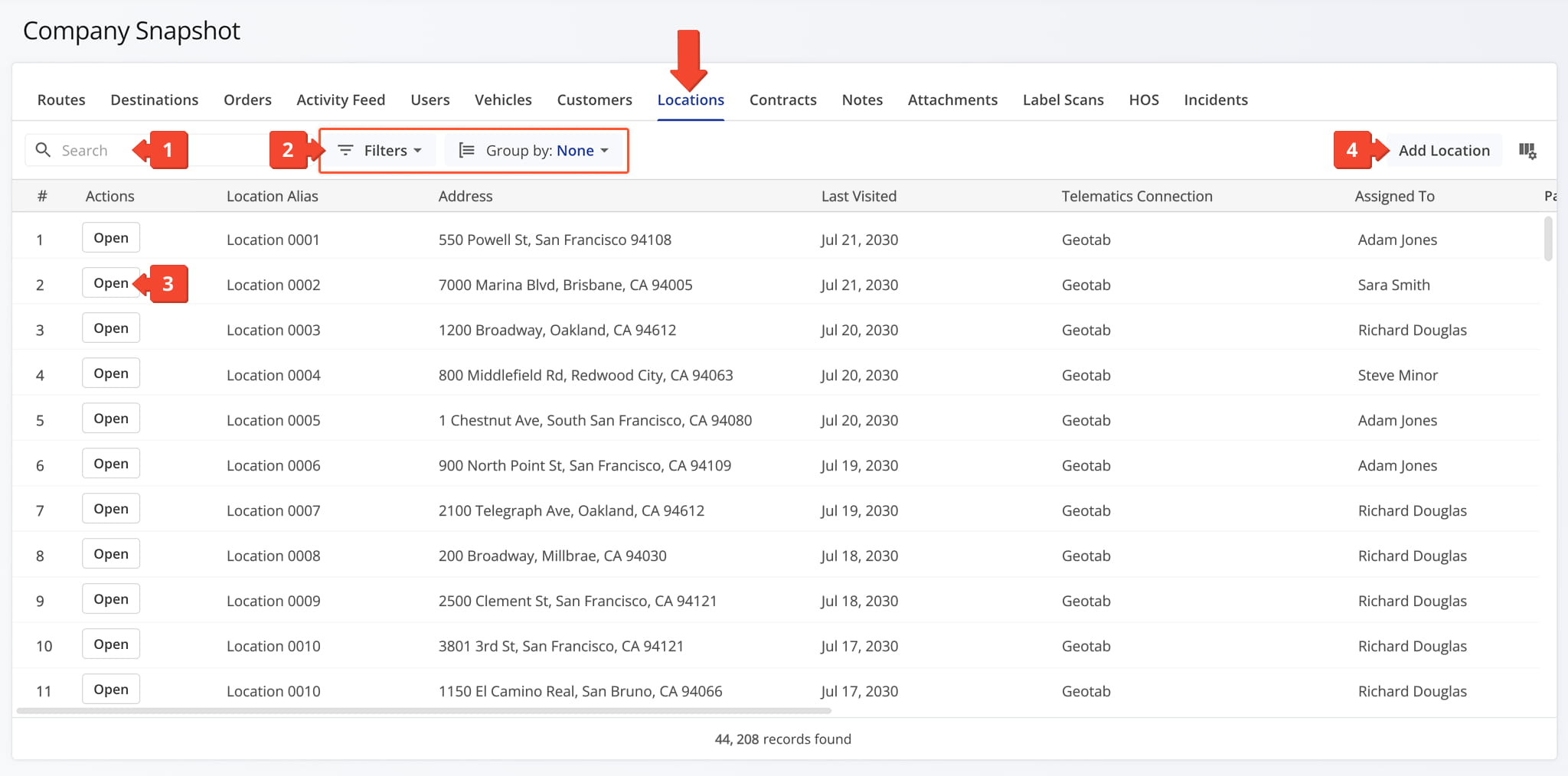
Company Snapshot – Location Tab Filters
Keywords
Search by keywords to filter locations.
Location Type
Filter by one or more Location Types.
Routing Status
Filter by routing status: Routed, Unrouted, or All.
Search by name or email to filter by the assigned user.
Filter by one or more Telematics Connections.
Search for and select a Telematics Vendor to filter by.
Number of Routes
Filter by a minimum and/or maximum number of routes.
Number of Visits
Filter by a minimum and/or maximum number of visits.
Search for and filter Territories by name.
Last Visited
Filter by a specific date or date range.
Search for and filter by customer name.
Group the data by customer.
You can also customize the data displayed in the table. Click the Column Icon in the upper right corner to select which locations data fields appear and adjust their order to suit your operational needs.
The table below provides an overview of all available data columns, which you can reorder by dragging them into place.
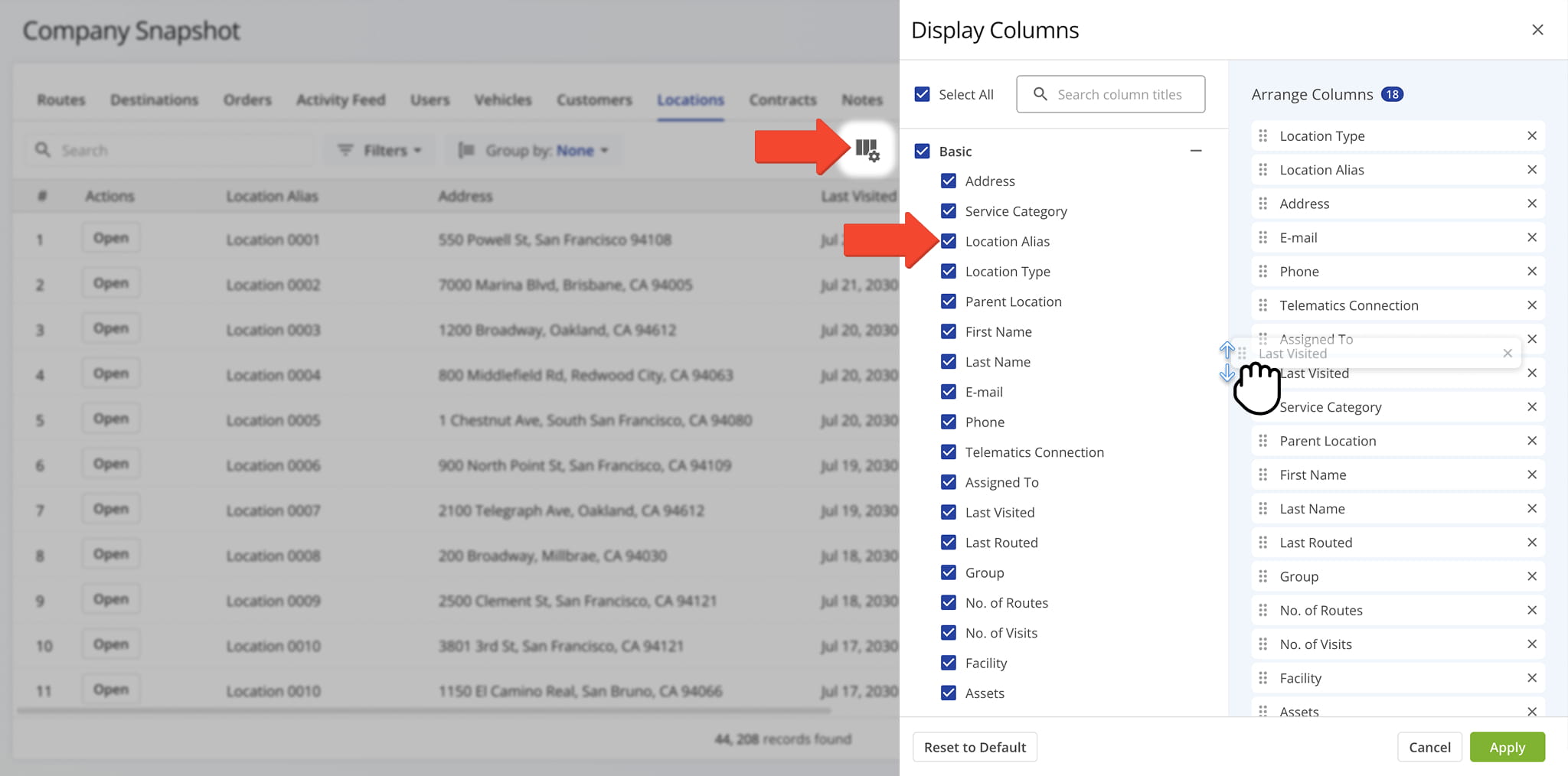
Company Snapshot – Location Tab Data Columns
Address
Street address of the Location used for routing. May be geocoded into latitude and longitude coordinates.
Service Category
Category of service required at the Location defining the Location's purpose and function.
Location Alias
Custom alias or name that can be used when searching for the Customer Location.
Location Type
Category of service required at the Location defining the Location's purpose and function.
Parent Location
Main Location under which other Locations can be grouped as Sub-Locations.
First Name
First name of the customer or point of contact associated with the address.
Last Name
Last name of the customer or point of contact associated with the address.
Email address of the customer or point of contact associated with the address.
Phone
Phone number of the customer or point of contact associated with the address.
Telematics Connection
The name of the Telematics system linked to the Customer's address, used for tracking vehicle location and activity data.
Assigned To
The name of the team member the address is assigned to. When you assign an address to a team member, this address becomes available on that member's Route4Me account. They can use the address for planning routes, edit the address, etc.
Last Visited
The automatically generated timestamp of the last instance when the address was marked as “Visited” via Route4Me's Mobile Route Planner App.
Last Routed
The most recent date and time when the address was included in a planned route, regardless of whether the route was completed.
Group
A custom Group ID you have created and assigned to the address.
No. of Routes
The number of times the address has been inserted into a route.
No. of Visits
The number of times the address was marked as “Visited” via Route4Me's Mobile Route Planner App.
Facilities associated with the Location.
Physical assets and equipment associated with the Location.
Contracts Tab – Contract Details And Agreement Overview
The Contracts Tab provides a detailed table of every contract associated with your company, giving you visibility into contract terms, status, and related data in one place.
This makes it easy to stay on top of active agreements, track renewal or expiration dates, and confirm contract details tied to specific customers or routes. From this tab, you can:
- Use the Search field to locate specific contracts.
- Apply filters, detailed in the table below, to narrow down which contracts appear in the data table.
- Click “Open” next to a contract to access its Contract Snapshot.
- Click the Down Arrow to edit or delete the contract.
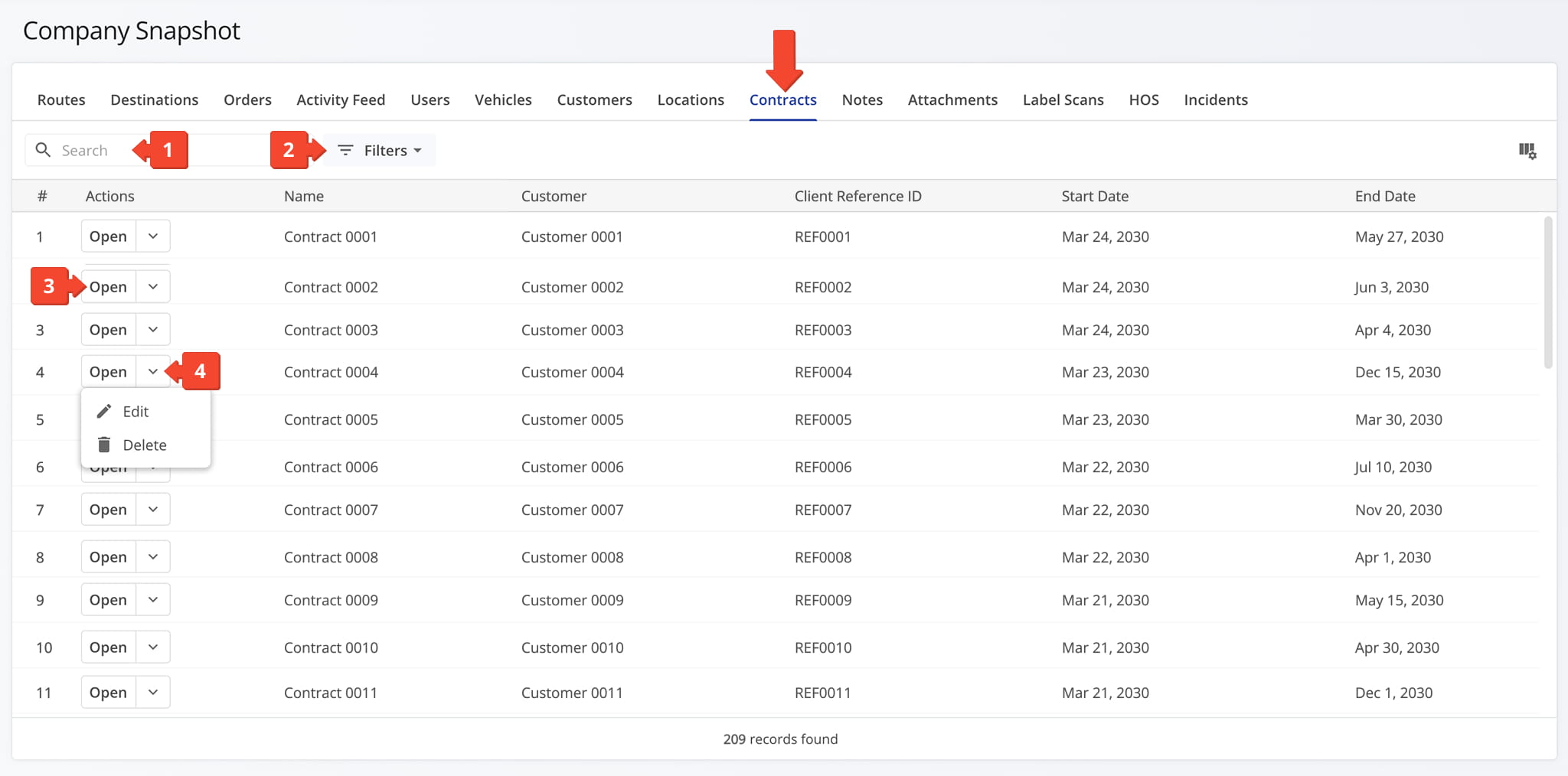
Company Snapshot – Contract Tab Filters
You can also customize the data displayed in the table. Click the Column Icon in the upper right corner to select which contracts data fields appear and adjust their order to suit your operational needs.
The table below provides an overview of all available data columns, which you can reorder by dragging them into place.
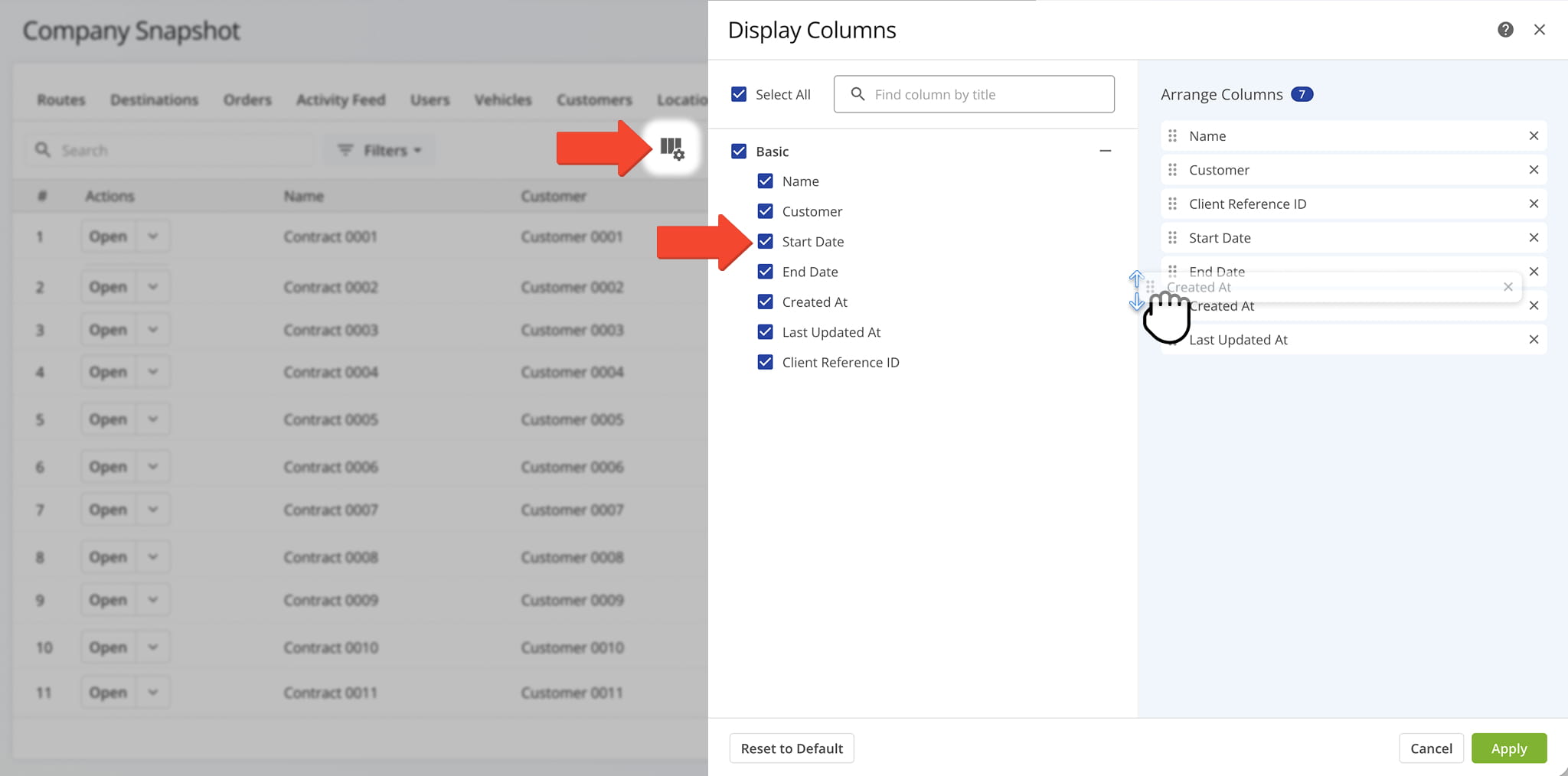
Company Snapshot – Contract Tab Data Columns
Name
The name of the contract.
The customer associated with the contract.
Start Date
The date the contract begins.
End Date
The date the contract ends.
Created At
The date and time when the contract was created.
Last Updated At
The date and time when the contract was last updated.
Client Reference ID
Client Reference ID from an external system for contract mapping.
Notes Tab – Delivery And Service Note Overview
The Notes Tab provides a detailed table of every note logged during delivery or service calls across your company, giving you visibility into note content, the location where it was recorded, and the device or source used to capture it.
This makes it easy to trace exactly where and how a note was left, whether you’re verifying a driver’s location at the time or confirming which device was used to record it. From this tab, you can:
- Use the Search field to locate specific notes.
- Apply Date Range and Filter options, detailed in the table below, to narrow down which notes appear in the data table.
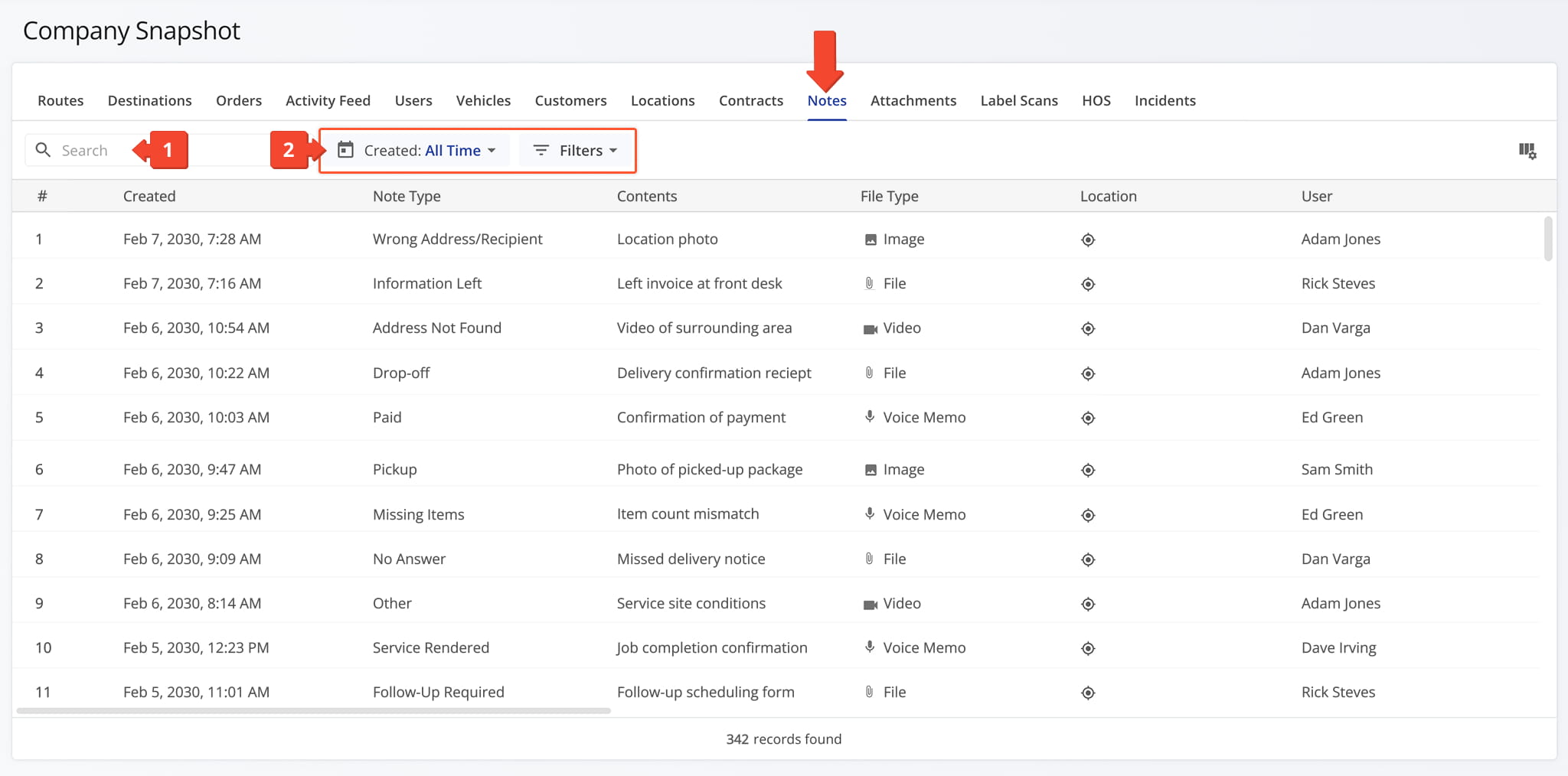
Company Snapshot – Notes Tab Filters
Note Type
Filter by note type, such as Pickup, No Answer, Wrong Delivery, and many other options.
Device Type
Filter by device type, such as Web, iPhone, Android, and more.
File Type
Filter by attached file type: Image, XLS, CSV, or Other.
File Size
Filter by a minimum and/or maximum file size.
Route
Search for and filter by one or more specific routes.
Destination
Search for and filter by one or more specific destinations.
Search for and filter by one or more specific orders.
Search for and filter by customers.
Search for and filter by one or more users.
You can also customize the data displayed in the table. Click the Column Icon in the upper right corner to select which notes data fields appear and adjust their order to suit your operational needs.
The table below provides an overview of all available data columns, which you can reorder by dragging them into place.
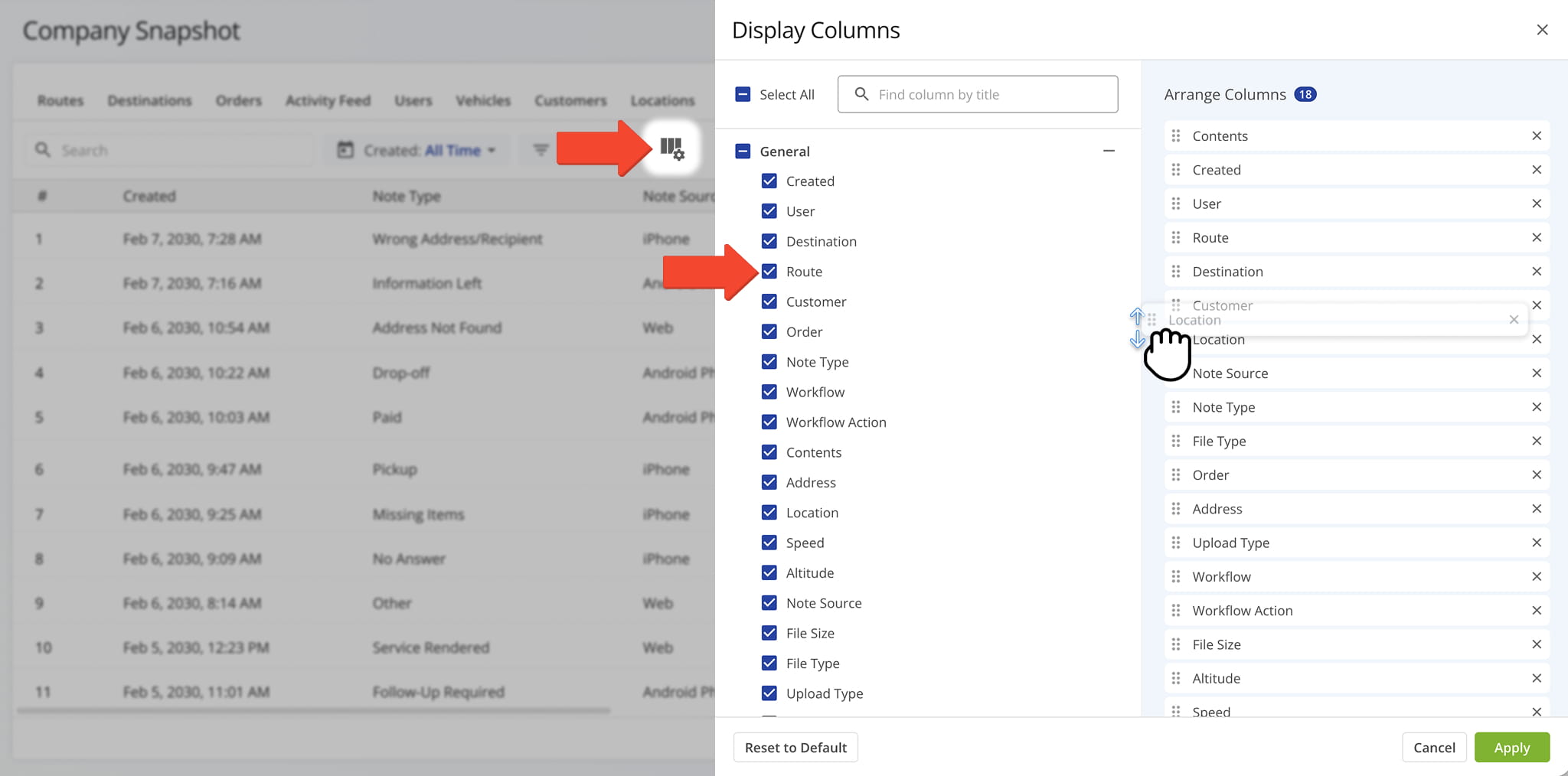
Company Snapshot – Notes Tab Data Columns
Created
Date and time when the note was created.
The team member who created the note.
Destination
The destination associated with the note.
The route associated with the note.
The customer associated with the note.
The order associated with the note.
The type of note, such as Pickup, No Answer, or Wrong Delivery.
The workflow associated with the note.
Workflow Action
The specific action performed within the workflow for this note.
Contents
Text content or details recorded in the note.
Address
The address associated with the note.
Location
The geographic location where the note was recorded.
Speed
The speed of the device at the time the note was recorded.
Altitude
The altitude of the device when the note was recorded.
Note Source
The source from which the note was created, such as Web or a mobile device.
File Size
The size of the file attached to the note.
File Type
The type of file attached to the note, such as Image, XLS, or CSV.
Upload Type
The method by which the note's file was uploaded.
Custom Types
Custom note types defined for the account.
Outside Geoposition Flag
Indicates whether the note was recorded outside the expected geoposition or geofence.
Attachments Tab – Attached Files And Proof Of Visit Overview
The Attachments Tab provides a centralized view of every file attached to a delivery or service call across your company, including images, videos, and signatures.
This makes it easy to locate proof of visit or service documentation without having to search through individual notes or destinations. From this tab, you can:
- Use the Search field to locate specific attachments.
- Apply filters, detailed in the table below, to narrow down which attachments appear in the data table.
- Hover over an image to access the Download button or double-click the image to view a full-screen version.
- Hover over the Information Icon to view an attachment’s details.
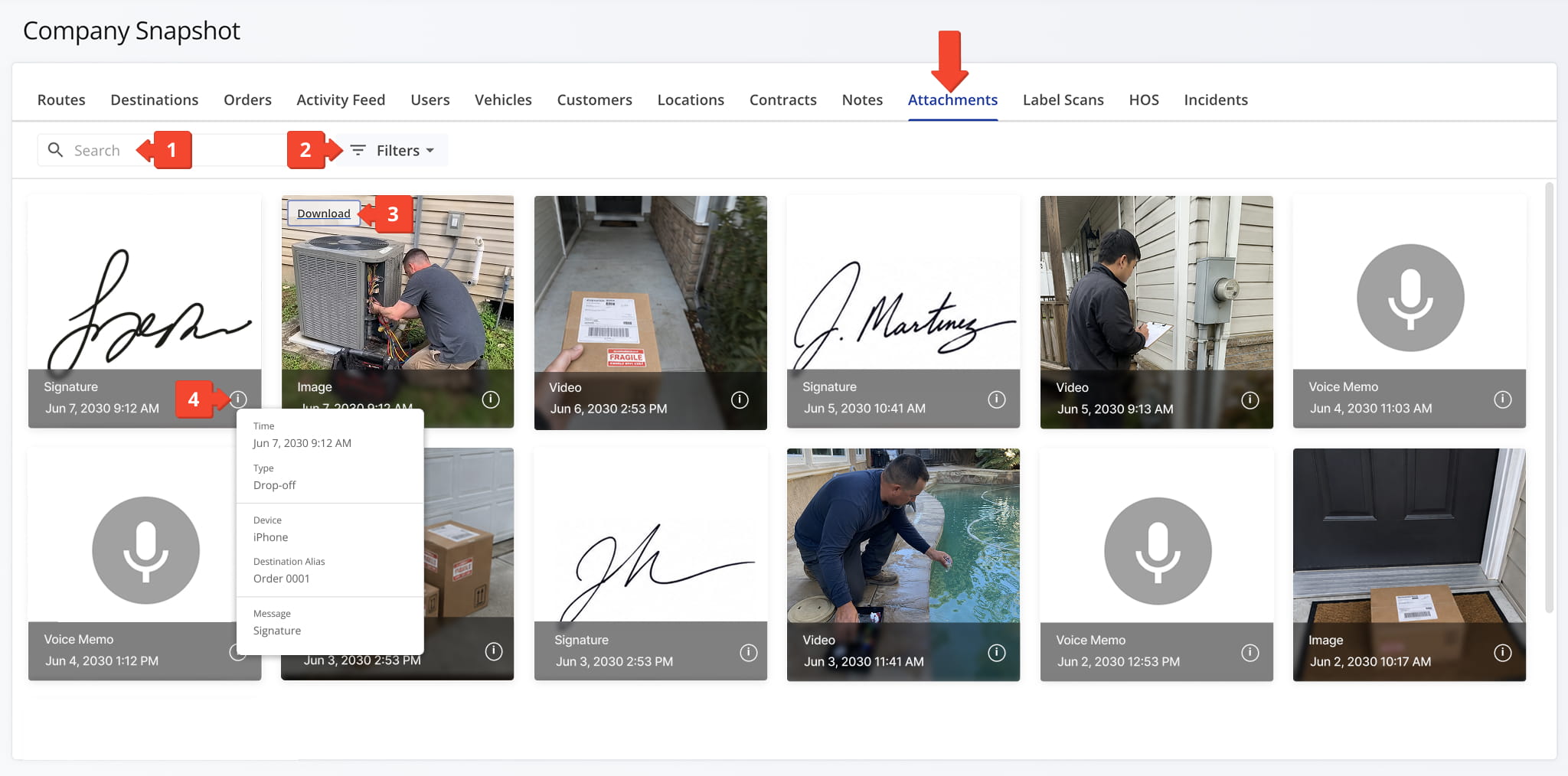
Company Snapshot – Attachments Tab Filters
Search for users by name or email to filter which attachments appear on the page.
File Type
Filter by attached file type: Image, XLS, CSV, or Other.
Note Type
Search for and select specific note types, such as Missing Item, Service Rendered, Information Left, and many other options.
Device
Filter by device type, such as Web, iPhone, Android, and many other options.
File Size (MB)
Filter by a minimum and/or maximum file size, in MB.
Label Scans Tab – Scan Activity Overview
The Label Scans Tab displays all label scan activity associated with your company in a preset data table, including timestamp, action, scan type, latitude, longitude, and label type.
Hover over the Information Icon next to a scan to view the exact latitude and longitude of where it took place.
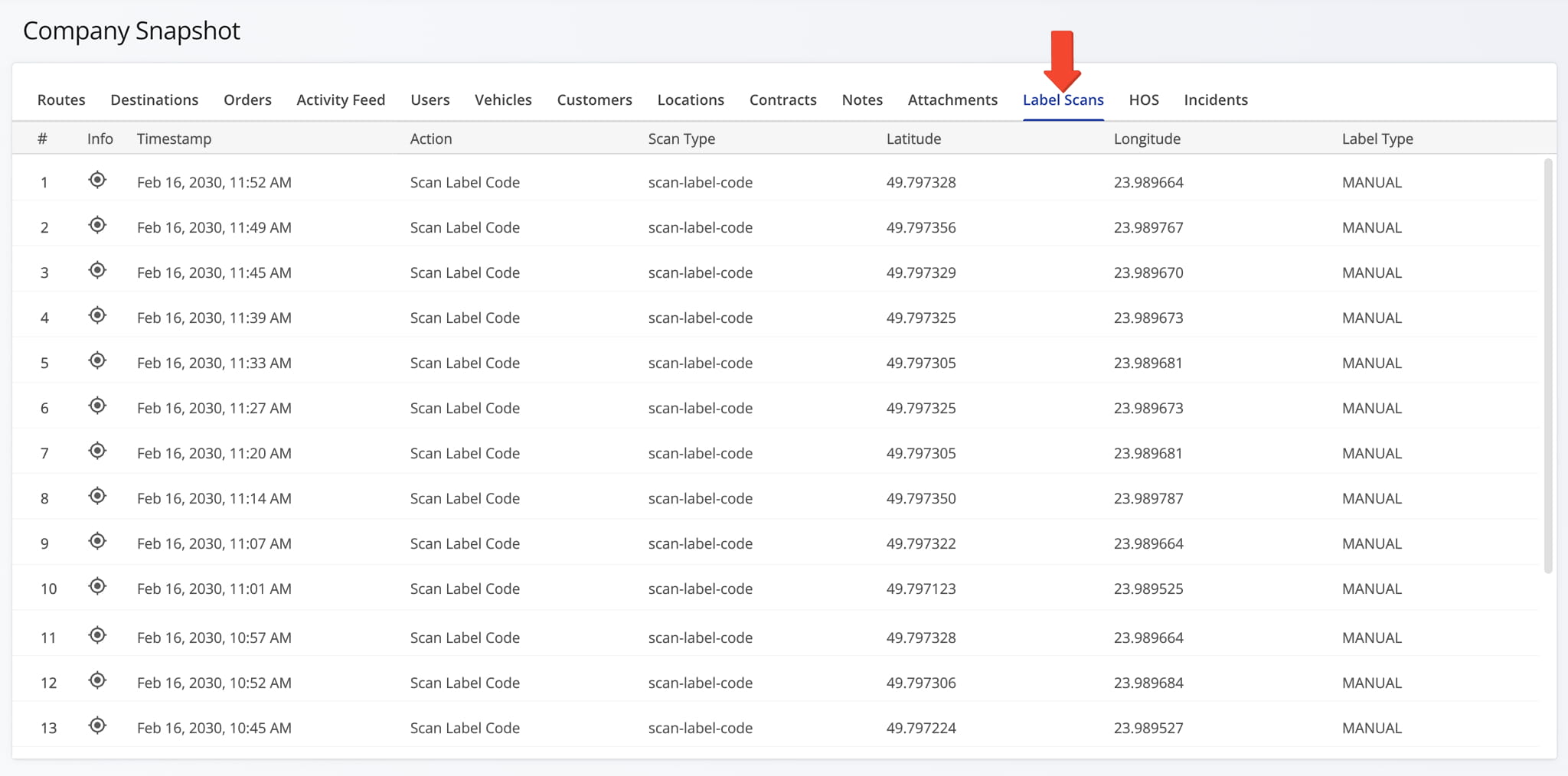
HOS Tab – Hours Of Service Activity And Compliance Overview
The HOS Tab provides a detailed breakdown of Hours of Service data for drivers and field team members across your company, including activity type, duration, and source.
This makes it easy to monitor compliance, review driving and off-duty time, and confirm HOS activity without switching between individual driver or vehicle records. From this tab, you can:
- Use the Search field to locate specific attachments.
- Apply Date Range and Filter options, detailed in the table below, to narrow down which HOS data appears in the data table.
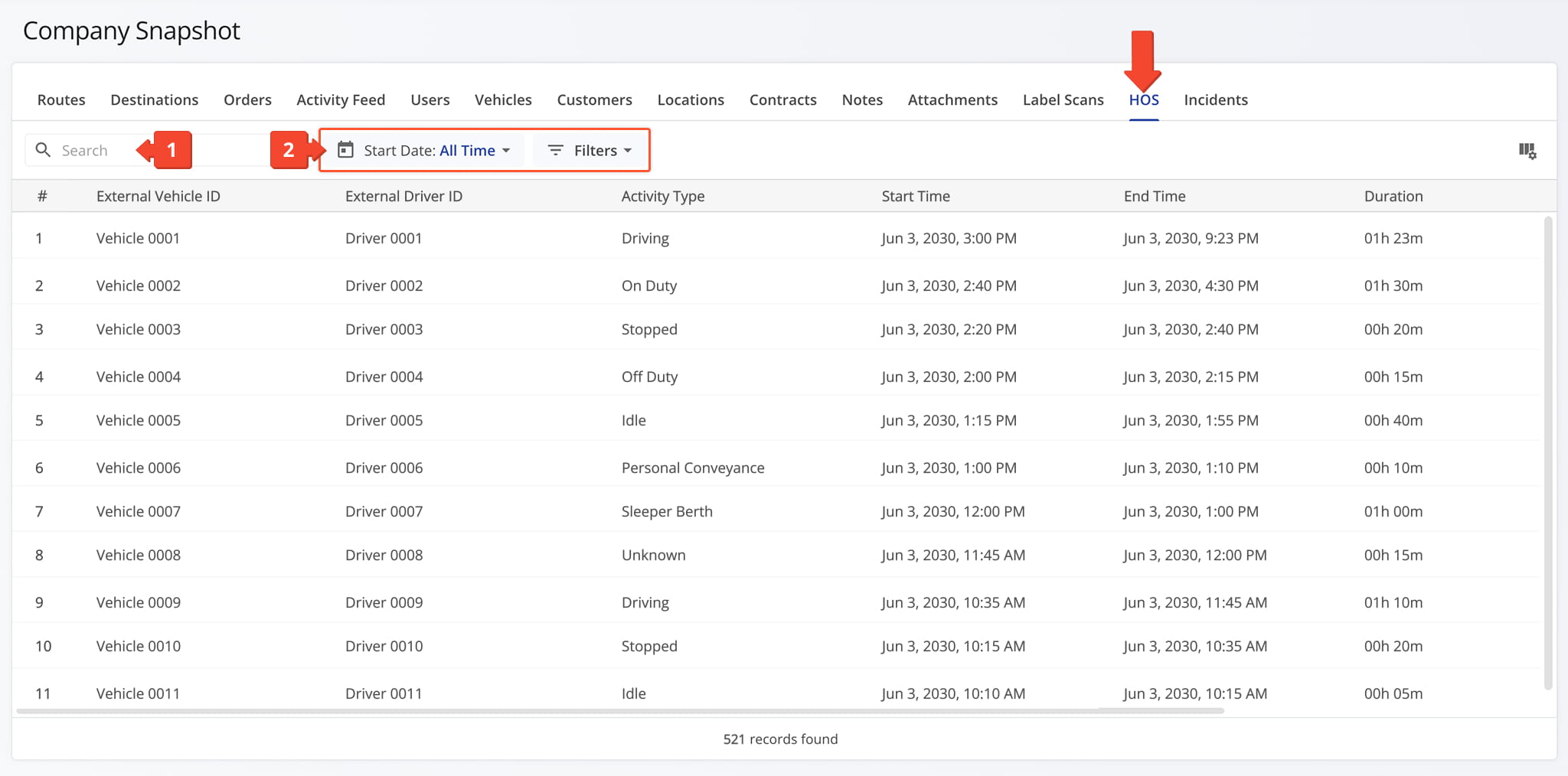
Company Snapshot – HOS Tab Filters
External Vehicle ID
Filter by the vehicle's external identifier from the connected telematics system.
External Driver ID
Filter by the driver's external identifier from the connected telematics system.
Activity Type
Filter by the type of HOS activity, such as Driving, On Duty, Idle, and many other options.
Source
Filter by the telematics source that generated the HOS activity data.
You can also customize the data displayed in the table. Click the Column Icon in the upper right corner to select which HOS data fields appear and adjust their order to suit your operational needs.
The table below provides an overview of all available data columns, which you can reorder by dragging them into place.
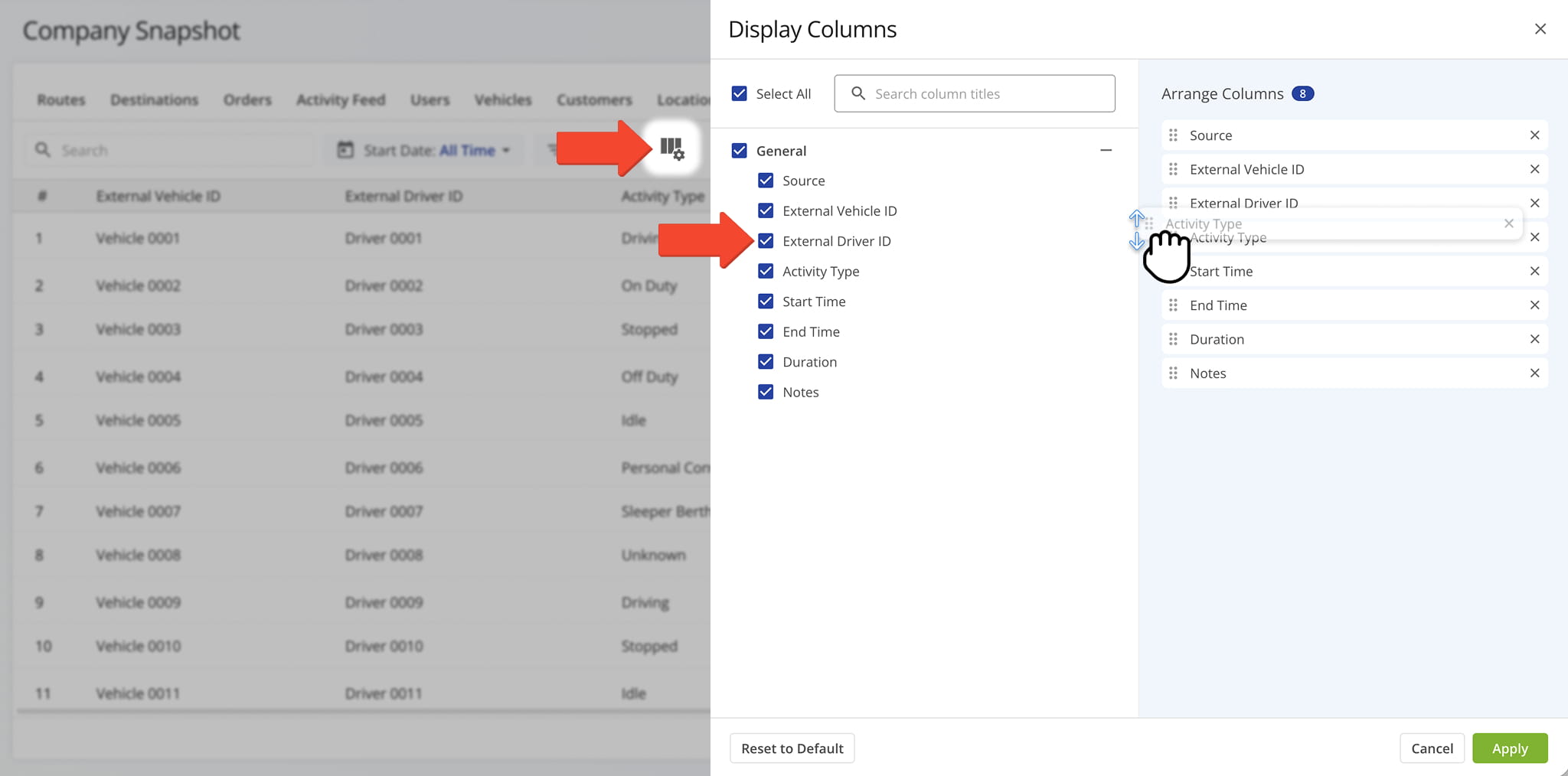
Company Snapshot – HOS Tab Data Columns
The telematics source that generated the HOS activity data.
External Vehicle ID
Identifier of the vehicle associated with the HOS activity.
External Driver ID
Identifier of the driver associated with the HOS activity.
Activity Type
Type of HOS activity recorded, such as driving or off-duty events.
Start Time
Timestamp when the HOS activity began.
End Time
Timestamp when the HOS activity ended.
Duration
Total length of the HOS activity.
Notes
Additional information or comments associated with the HOS activity.
Incidents Tab – Recorded Safety Incidents Overview
The Incidents Tab displays all recorded safety incidents across your company, pulled from telematics connections and dash cams installed on your vehicles, along with their details.
This gives you a centralized view of safety events, so you can review incident severity, investigate what happened, and identify patterns across your fleet. From this tab, you can:
- Use the Search field to locate specific incidents.
- Apply Date Range and Filter options, detailed in the table below, to narrow down which incidents appear in the data table.
- Click the “View Media” button to open the media player and inspect the recording associated with an incident.
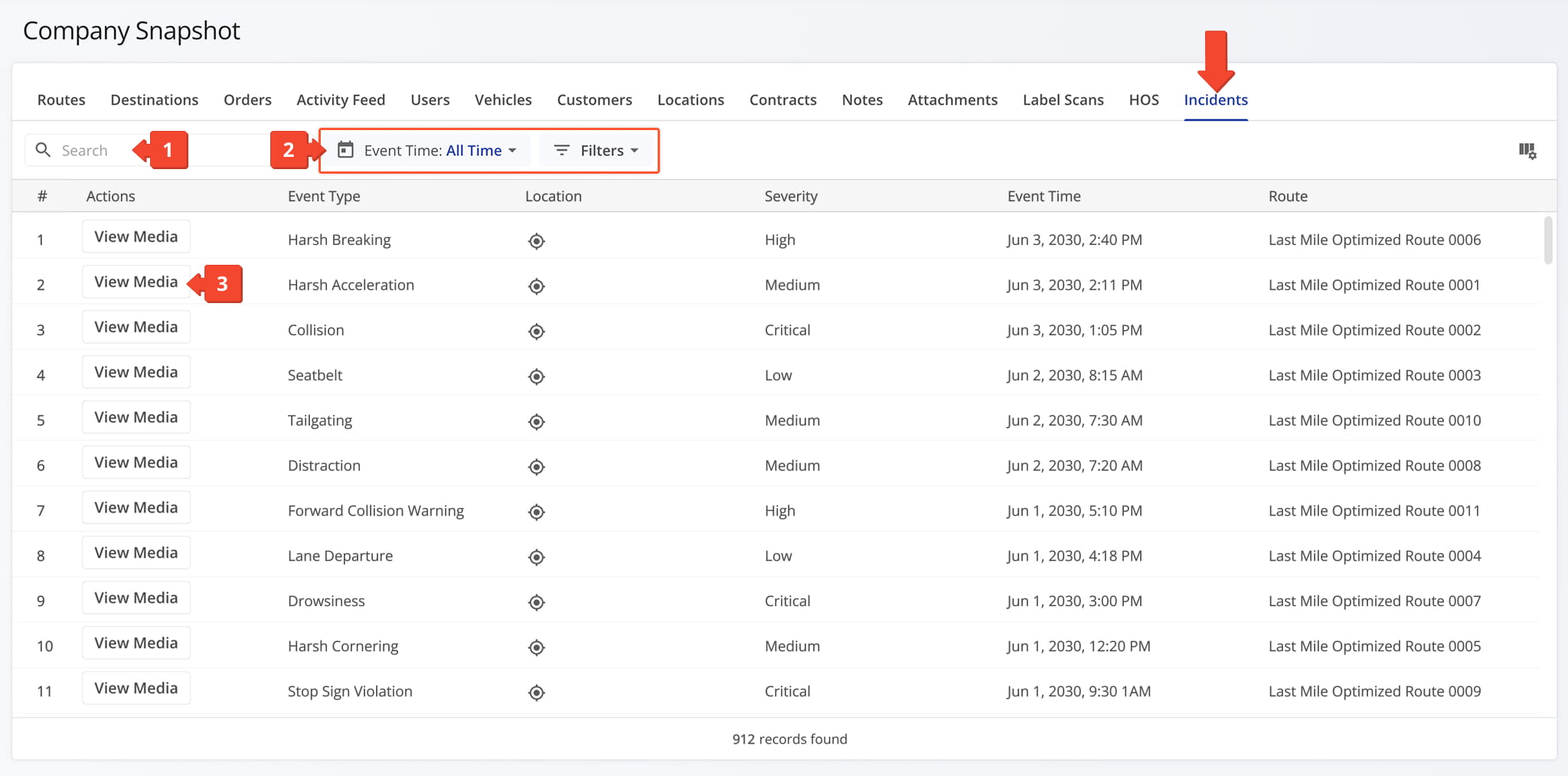
Company Snapshot – Incidents Tab Filters
Event Type
Filter by the type of event detected, such as Harsh Braking, Collision, Speeding, and many other options.
Severity
Filter by severity level: Low, Medium, High, Critical, or Select All.
Duration (s)
Filter by a minimum and/or maximum duration, in seconds.
Search vehicles by tag, make, model, or alias.
Search users by name or email.
Search routes by name.
You can also customize the data displayed in the table. Click the Column Icon in the upper right corner to select which incidents data fields appear and adjust their order to suit your operational needs.
The table below provides an overview of all available data columns, which you can reorder by dragging them into place.
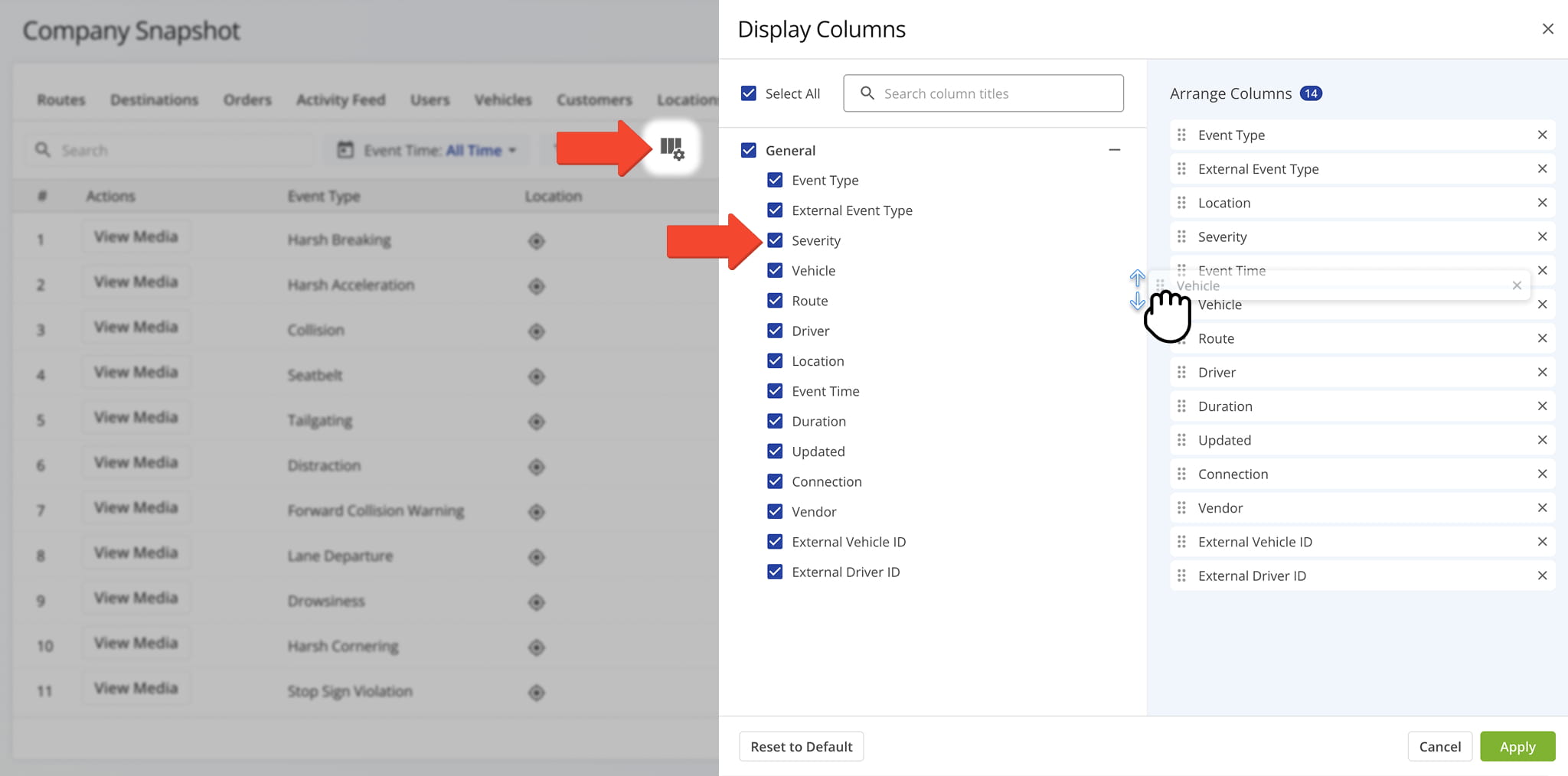
Incidents Data Columns
Visit Route4Me's Marketplace to Check out Associated Modules:
- Operations
Audit Logging and Activity Stream
- Operations
Custom Data Add-On
- Operations
Advanced Team Management Add-On
Last Updated:
About author: Daniel Archer

