
Optimization Profiles – Route Planning And Optimization Settings Templates
Route4Me’s Route Optimization Profiles simplify route planning and last mile optimization by letting you create reusable settings that automatically apply to any route. You can configure profiles for specific vehicles, drivers, field services, seasonal services, or other business scenarios, and set rules and constraints to guide route optimization. When shared with team members, a profile ensures everyone uses the same settings, with Route4Me automatically applying its rules – including vehicle and driver assignments and scheduled start times – to each planned route. These profiles make managing complex routing operations faster, more accurate, and easier to scale.
Table of Contents
Create And Manage Route Optimization Profiles On Your Route4Me Account
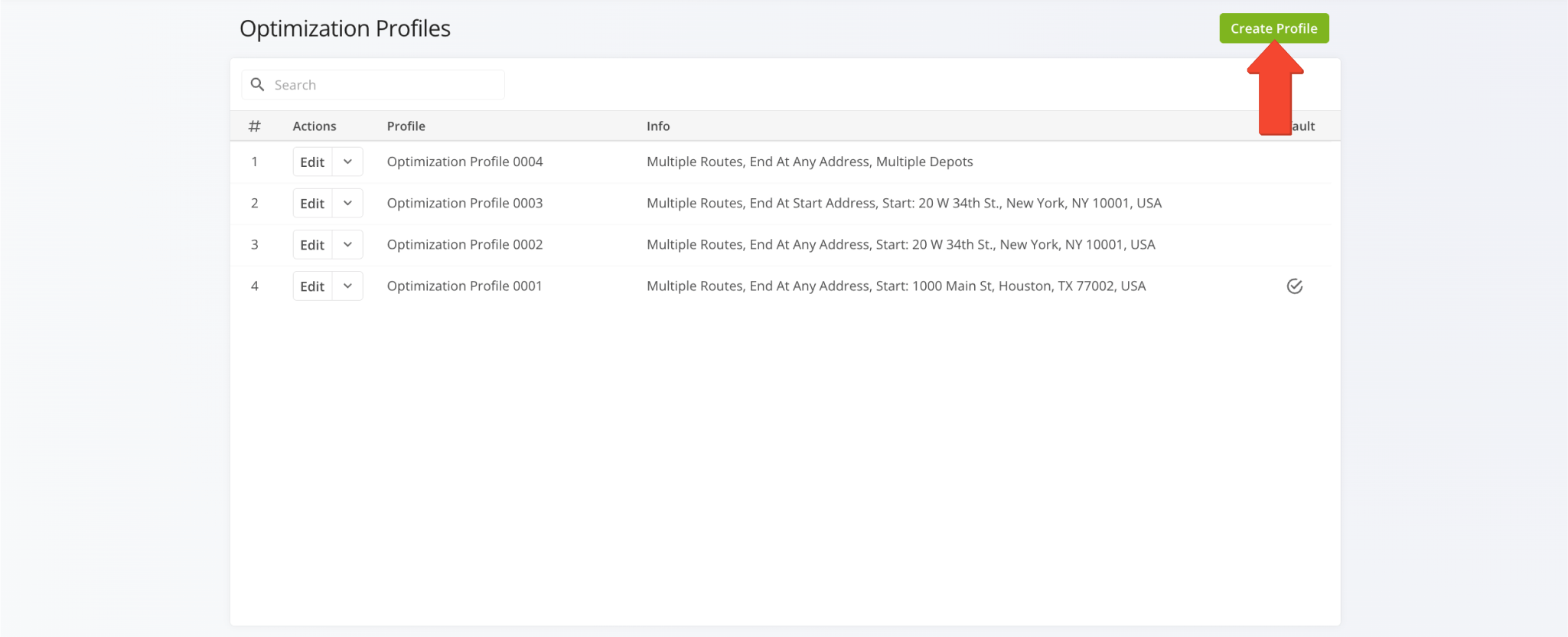
To create a new Route Optimization Profile, go to “Optimization Settings” > “Optimization Profiles” from the Navigation Menu. Then, click the “Create New Profile” button.
You’ll be redirected to the “Create Profile” editor here you can customize your new Optimization Profile’s settings.
Open Your Optimization Profiles
Manage And Edit Route Optimization Profiles
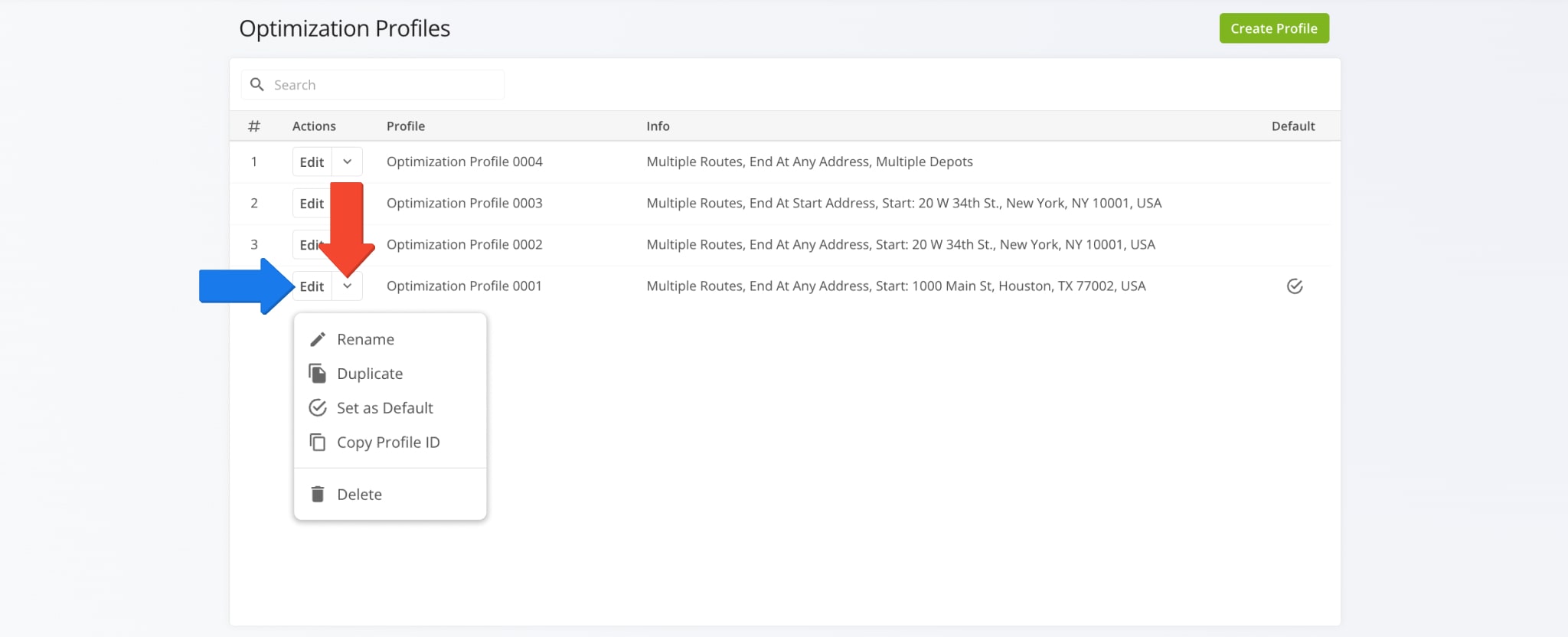
To edit an Optimization Profile, click the Arrow Button next to the profile, then select your preferred action. You can also click the “Edit” button to adjust any of the optimization settings described in this guide.
NOTE: Sub-users can access, edit, and use the Optimization Profiles of the users they report to, and you can likewise access the profiles created by your manager. Learn more about user permissions and Route4Me’s user types and team hierarchy.
| Actions | Description |
|---|---|
| Rename | Change the name of the Optimization Profile. |
| Duplicate | Create a copy of the Optimization Profile. |
| Set as Default | Set the profile as the Default Optimization Profile. The Default Optimization Profile is automatically pre-selected when planning routes. |
| Copy Profile ID | Copy the Optimization Profile’s ID to the clipboard on your device. This ID is the unique internal identification code of the profile and can be used for troubleshooting and auditing. |
| Delete | Delete the Optimization Profile. This action can’t be undone. NOTE: You can’t delete the Default Optimization Profile. If you want to delete the Default Optimization Profile, set another profile as the default first. |
General – Set Route Name, Assign Users, Vehicles And Facilities
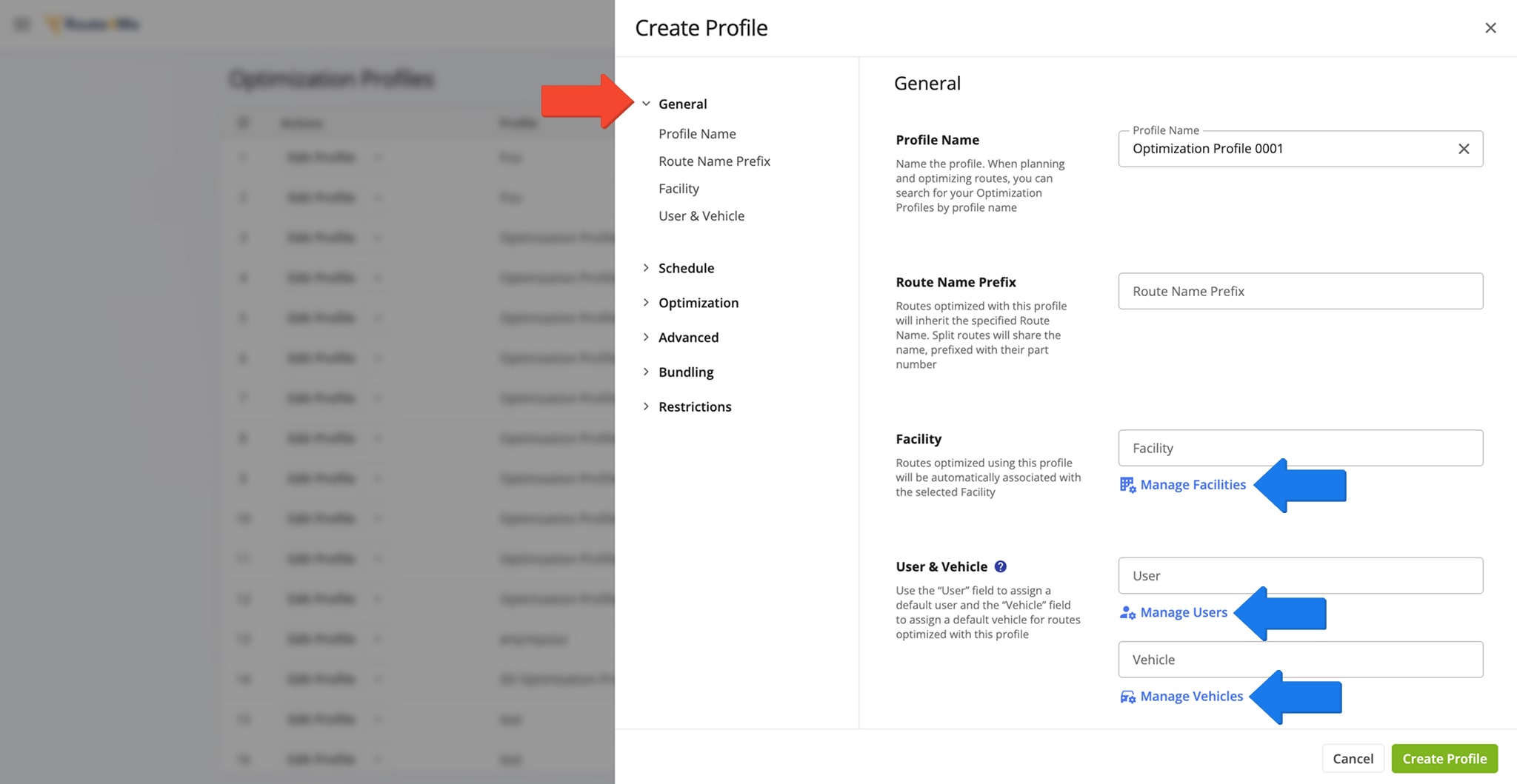
The “General” tab is selected by default when creating a new profile, where you can configure route optimization settings. Detailed descriptions of all settings in each tab are provided in the tables below.
You can also open the “Manage Facilities“, “Manage Users“, and “Manage Vehicles” pages from this panel.
| General Settings | Description |
|---|---|
| Profile Name | Name the profile. When planning and optimizing routes, you can search for your Optimization Profiles by profile name. |
| Route Name Prefix | Routes optimized using this profile will automatically inherit the specified Route Name. Additionally, when splitting a set of addresses into multiple routes, each will have the same Route Name, prefixed with its respective route part number. |
| Facility | Routes optimized using this profile will be automatically associated with the selected Facility. |
| User & Vehicle | In the “User” field, you can select the User that will be automatically assigned to routes optimized using this profile. Similarly, in the “Vehicle” field, you can select the Vehicle that will be automatically assigned to routes optimized using this profile. Learn more about dispatching routes to drivers and dispatching routes to vehicles. |
Schedule – Set Route Start Time And Destination Service Time
From the “Schedule” tab, you can specify the Route Start Time and Destination Service Time for routes optimized with the respective Optimization Profile.
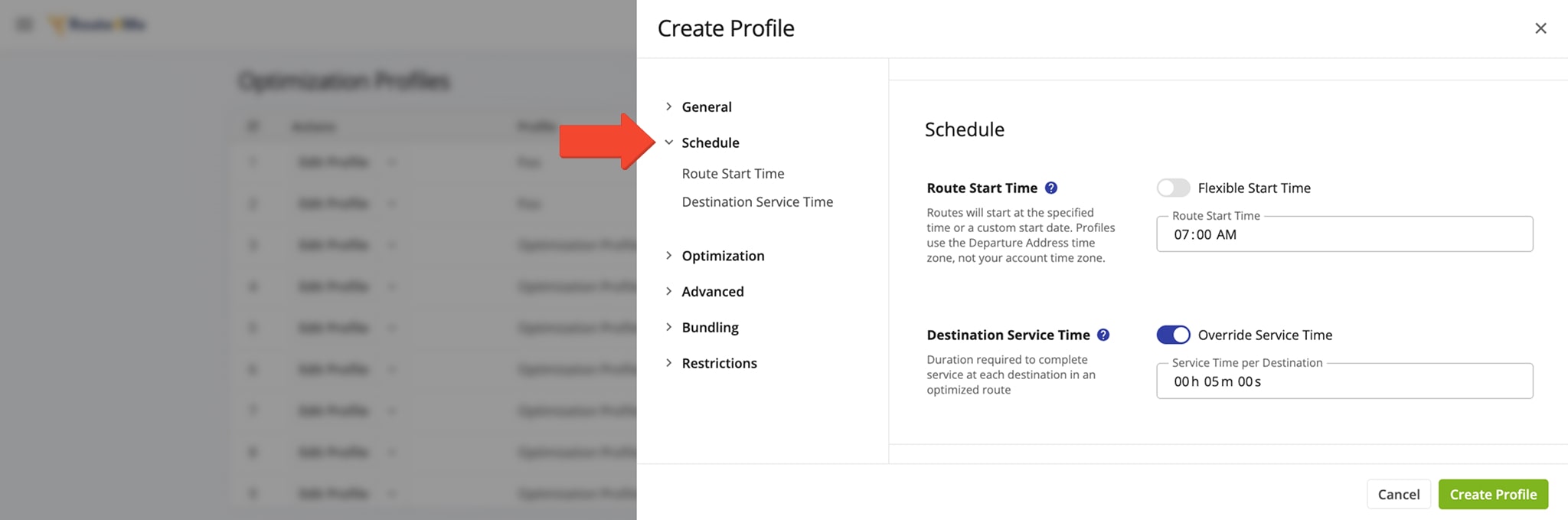
| Schedule Settings | Description | |
|---|---|---|
| Route Start Time | ||
| Flexible Start Time | When enabled, Route4Me will schedule routes for the most optimal dynamic start time within the specified timeframe, accounting for the available Time Windows on your Destinations. NOTE: Optimization Profiles use the time zone of their Departure Address – not the time zone from your Account Settings. | |
| Route Start Time | Routes optimized using this profile will start at the specified time. NOTE: Optimization Profiles use the time zone of their Departure Address – not the time zone from your Account Settings. | |
| Destination Service Time | ||
| Override Service Time | This option enables you to set a time in the “Service Time per Destination” field which will be applied to all route Destinations, replacing any existing Service Time durations with the one you enter. | |
| Service Time per Destination | The time needed to complete a Destination or Customer Order. | |
Optimization – Schedule Routes And Set Business Rules
From the “Optimization” tab, you can customize the main Optimization Profile settings.
NOTE: Optimization Profiles can support multiple features and constraints enabled through the add-ons and modules. To enable additional features for your Optimization Profiles, use the Feature Manager or contact Route4Me Support.
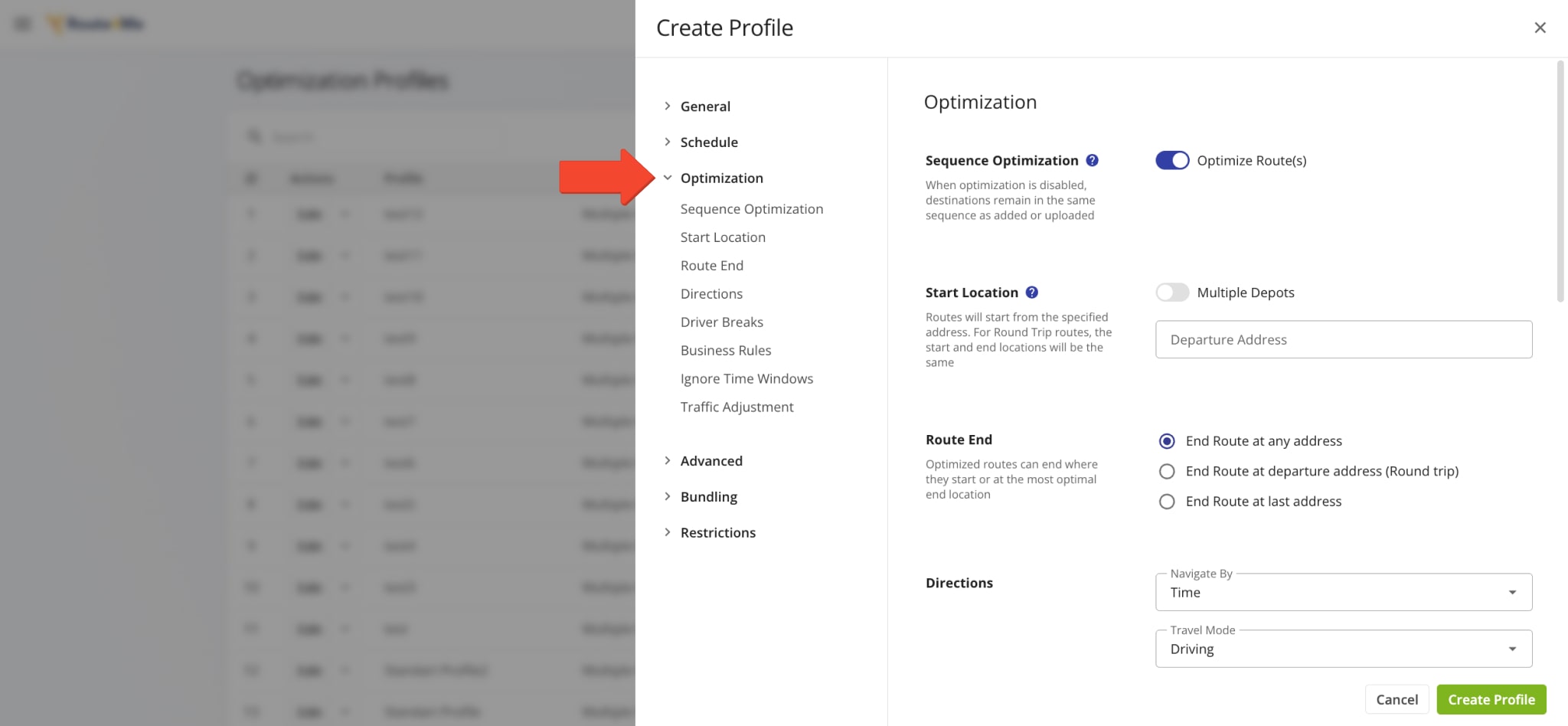
| Optimization Settings | Description | |
|---|---|---|
| Sequence Optimization | ||
| Optimize Route(s) | This option is enabled by default. When optimization is enabled, Destinations are sequenced in the optimal order according to your settings. When optimization is disabled, Destinations remain in the same sequence as added or uploaded. | |
| Start Location | ||
| Multiple Depots | When enabled, this option lets you set multiple Departure Addresses that can be used when optimizing routes with the respective profile. The software will then sequence Destinations into routes starting from the most optimal Departure Address according to your settings. | |
| Departure Address | Routes optimized using this profile will start from the specified address. Respectively, Round Trip routes will start and end at the same address. When “Multiple Depots” is enabled, you’ll see multiple “Departure Address” fields. | |
| Route End | ||
| End route at any address | Routes optimized with this Optimization Profile can end at any address. With this setting, Route4Me will plan the most optimal routes and select the most logical address as the final route Destination. | |
| End route at departure address (Round trip) | Routes optimized with this Optimization Profile will always end at the departure address, completing a round trip from a facility such as a depot and returning there once the route is finished. | |
| End route at last address | Routes optimized with this Optimization Profile will always end at the address that’s last in your address import spreadsheet or that you’ve manually added last. | |
| Insert Breaks | ||
| Insert Breaks | Add customizable Hours of Service Driver Breaks to the route. | |
| Break Type | Select the frequency type of Driver Breaks associated with the respective profile. Available Break Types: Elapsed Time, Travel Time, Location Number. | |
| Insert Break Every | Set the interval for automatically inserting Driver Breaks. For example, you can use the “Location Number” Break Type and set the break interval to automatically insert Driver Breaks after every fifth Destination visit on the route. | |
| Break Duration | The duration of the automatically-inserted Driver Breaks. | |
| Business Rules | ||
| Minimize Routes | Sequence addresses and optimize for as few routes as possible, including optimization constraints. | |
| Balance Routes | Distribute Destinations as evenly as possible among a specified number of routes | |
| Maximum Number of Routes | Input the maximum number of routes that will be planned from a single set of addresses when using this Optimization Profile. | |
| Maximum Route Duration | Input the maximum Total Route Time that will be planned from a single set of addresses when using this Optimization Profile. | |
| Maximum Distance | Define the maximum distance that can be traveled per route. NOTE: The “Maximum Route Duration” constraint is required to use constraints available in the “Business Rules” tab. To set the “Maximum Route Duration” value, go to the “Schedule” tab. | |
| Maximum Weight | Define the maximum weight of orders or parcels that can be loaded and delivered per route. NOTE: The “Maximum Route Duration” constraint is required to use constraints available in the “Business Rules” tab. To set the “Maximum Route Duration” value, go to the “Schedule” tab. | |
| Maximum Revenue | Define the maximum revenue of orders or units that can be loaded and delivered per route. NOTE: The “Maximum Route Duration” constraint is required to use constraints available in the “Business Rules” tab. To set the “Maximum Route Duration” value, go to the “Schedule” tab. | |
| Maximum Pieces | Define the maximum number of pieces or units that can be loaded and delivered per route. NOTE: The “Maximum Route Duration” constraint is required to use constraints available in the “Business Rules” tab. To set the “Maximum Route Duration” value, go to the “Schedule” tab. | |
| Maximum Volume | Define the maximum cubic volume of customer orders that can be loaded and delivered per route. NOTE: The “Maximum Route Duration” constraint is required to use constraints available in the “Business Rules” tab. To set the “Maximum Route Duration” value, go to the “Schedule” tab. | |
| Maximum Distance Between Destinations | Input the maximum distance between two addresses that the software is allowed to include in planned routes. | |
| Maximum Destinations | Define the maximum number of customer locations that can be visited and serviced per route. NOTE: The “Maximum Route Duration” constraint is required to use constraints available in the “Business Rules” tab. To set the “Maximum Route Duration” value, go to the “Schedule” tab. | |
| Ignore Time Windows | ||
| Ignore Time Windows (If Present) | When this option is enabled, Route4Me will ignore any specified customer Time Windows when planning and optimizing routes with the respective Optimization Profile. | |
| Traffic Adjustment | ||
| Service Time Slowdown | Increase the Service Time of route Destinations by the specified percentage. This may reduce the total number of Destinations on each optimized route. | |
| Travel Time Slowdown | Increase the Total Route Time of optimized routes by the specified percentage. This may reduce the total number of Destinations on each optimized route. | |
Advanced – Set Distance, Travel Time Or Waiting Time Priority When Optimizing Routes
From the “Advanced” tab, you can apply a distance, travel time, or wait time priority to fine-tune your optimization.
A higher percentage means that the variable takes priority over others when Route4Me calculates the optimal Destination sequence with the Optimization Profile.
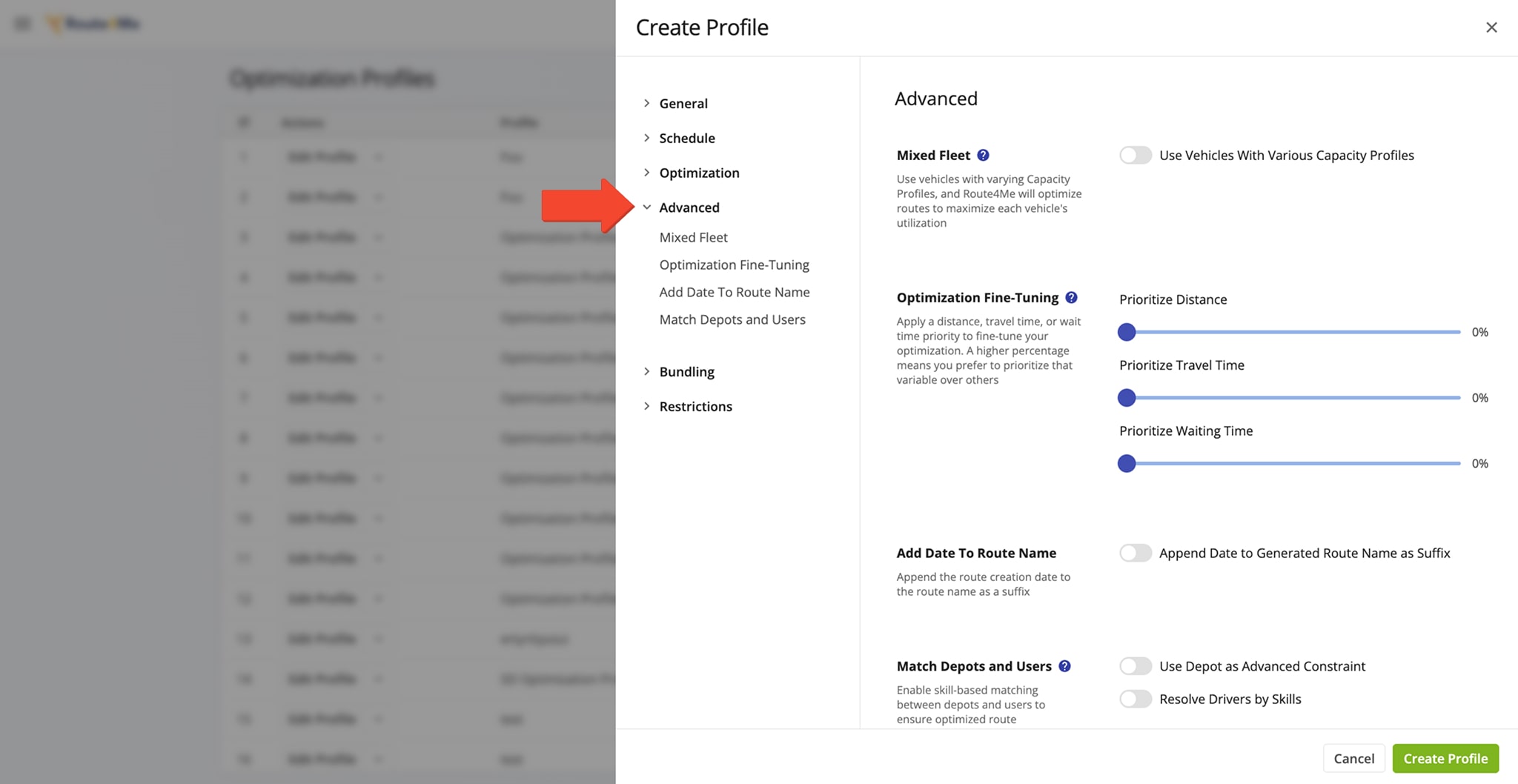
| Advanced Settings | Description | |
|---|---|---|
| Prioritize Distance | Set the distance priority percentage. The higher the priority, the more Route4Me will prioritize planning the shortest possible route with your Destination addresses. | |
| Prioritize Travel Time | Set the distance priority percentage. The higher the priority, the more Route4Me’s fastest route optimization API will prioritize planning the quickest possible route with your Destination addresses. | |
| Prioritize Waiting Time | Set the distance priority percentage. The higher the priority, the more Route4Me will prioritize minimizing wait time per Destination when planning routes with the respective Optimization Profile. Wait time per Destination works with customer Time Windows. | |
| Add Date To Route Name | When this option is enabled, the date a route is created will be added to the Route Name as a suffix. | |
| Match Depots And Users | ||
| Use Depot As Advanced Constraint | Use the Departure Address from the “Optimization” section and any required Driver Skills as an advanced constraint for optimizing routes with this profile. | |
| Resolve Drivers by Skills | Use the associated Driver Skills of Users to assign routes optimized using this profile to the optimal User. | |
Bundling – Group Stops On Route Optimization Software
From the “Bundling” tab, you can enable and customize destination bundling. Bundling groups Destinations with the same address or coordinates so that locations in the same area can be visited and serviced together.
To set this up, check the “Enabled” box under “Bundle Locations“, choose your preferred grouping method, and adjust the “Bundle Settings” and “Service Time Bundling” options.
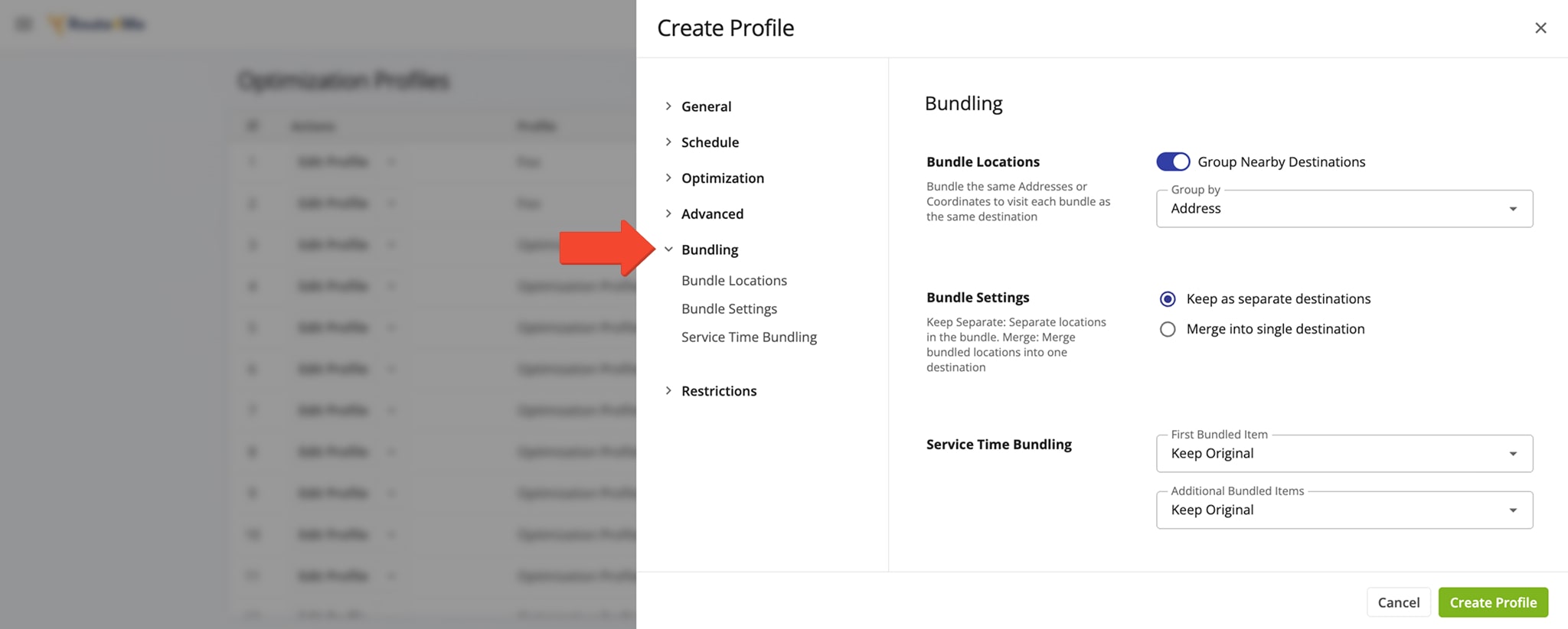
| Bundling Settings | Description | |
|---|---|---|
| Bundle Locations | ||
| Group Nearby Destinations | Enable this toggle to to bundle Destinations with the same address into a single customer Destination. | |
| Group by | Select the preferred grouping method from location bundling the dropdown menu. Specifically, you can bundle Destinations by address, coordinates, or ID. | |
| Bundle Settings | ||
| Keep as separate destinations | Keep separate locations with the same address in the bundle as separate route Destinations. | |
| Merge into single destination | Merge separate locations with the same address into a single route Destination. | |
| Service Time Bundling | ||
| First Bundled Item | Set whether the Service Time of the first location will be maintained as it was before bundling or set a custom Service Time. | |
| Additional Bundled Items | Select whether further locations in the same bundle will keep their original Service Time, get a custom Service Time, or inherit the Service Time of the “First Bundled Item“. | |
Restrictions – Avoid Highways And Tolls On Last Mile Routes
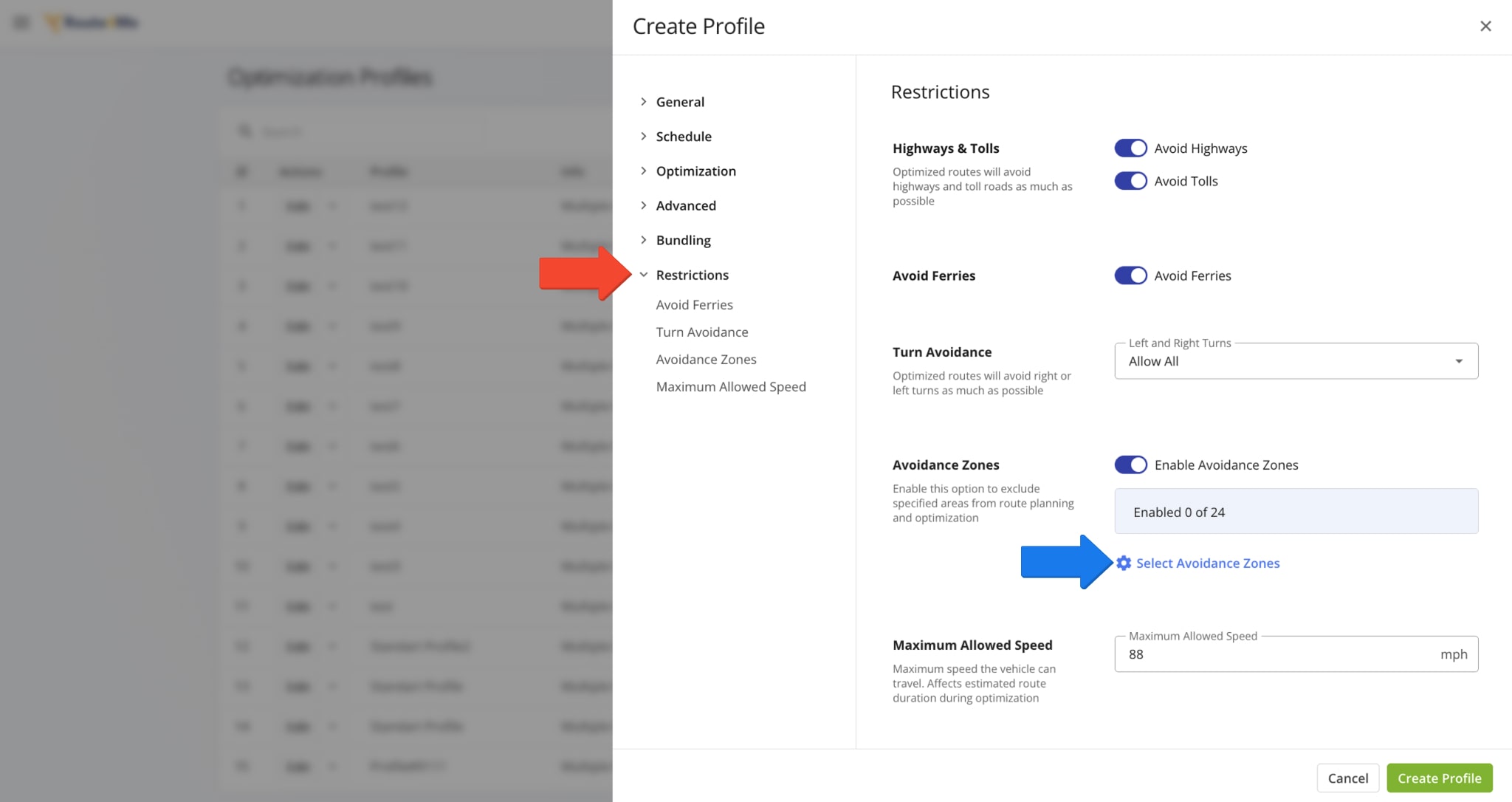
From the “Restrictions” tab, you can set limits and avoidance options to plan safer, more efficient, and cost-effective routes. These options are detailed in the table below.
| Restrictions Settings | Description |
|---|---|
| Highways & Tolls | When enabled, routes planned with this Optimization Profile will avoid highways and toll roads, helping reduce costs and tailor routes to specific vehicle or driver requirements. |
| Avoid Ferries | When this option is enabled in the Optimization Profile, the route will be planned without using include ferries. |
| Turn Avoidance | Choose whether routes using this Optimization Profile can include only right or left turns, or both. Avoiding left turns (or right turns in left-driving countries) can improve safety, efficiency, and overall route performance. |
| Avoidance Zones | Click the “Enable Avoidance Zones” toggle and then select Avoidance Zones to make sure routes planned with this Optimization Profile avoid the selected zones. |
| Maximum Speed Allowed | Sets the top speed that routes will follow when using this Optimization Profile. Any route planned with this profile will automatically respect this speed limit. |
Use Route Optimization Profiles To Optimize Last Mile Routes
After creating your Optimization Profiles, they instantly become available for planning and optimizing routes.
The first Optimization Profile you create automatically becomes your Default Optimization Profile. Your sub-users can also see and use your Optimization Profiles.
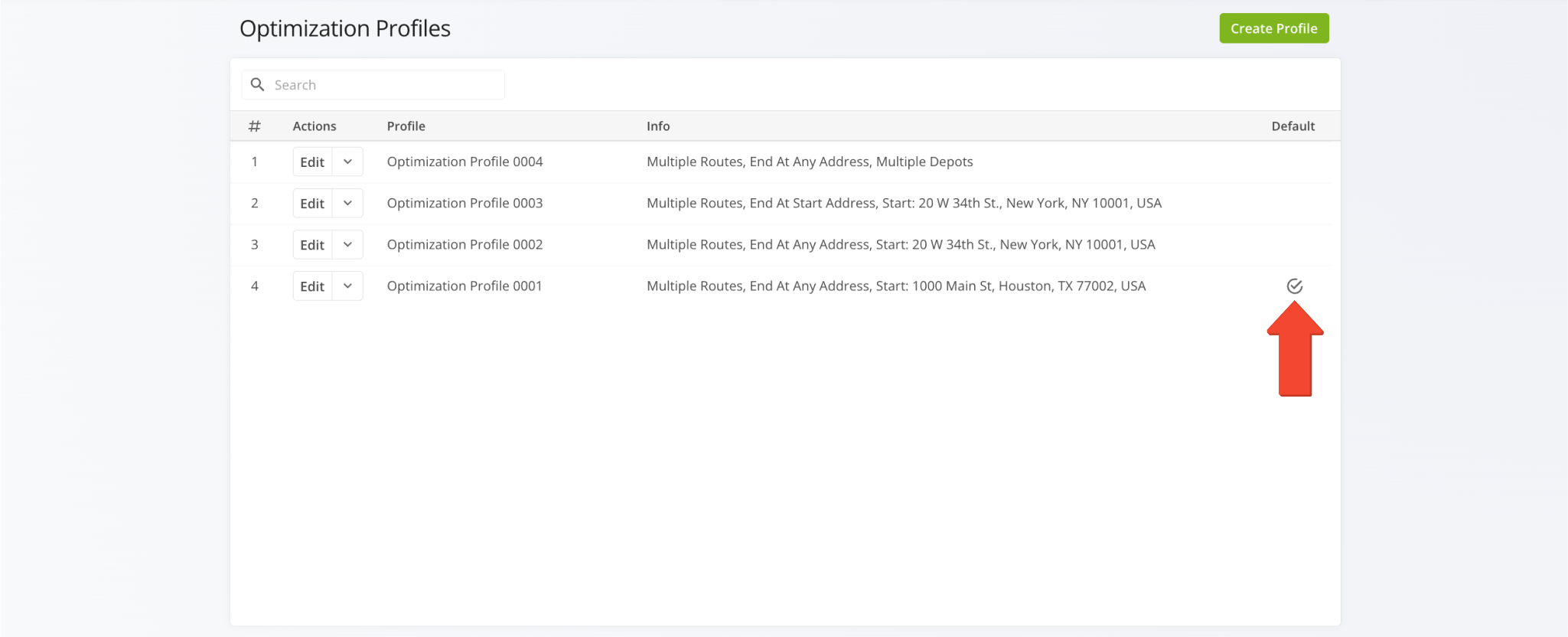
First, go to “Dynamic Routing” > “Plan New Route” from the Navigation Menu and then select the preferred method for adding or uploading addresses: Interactive Map Editor, Copy and Paste, Upload a File, or Import Data.
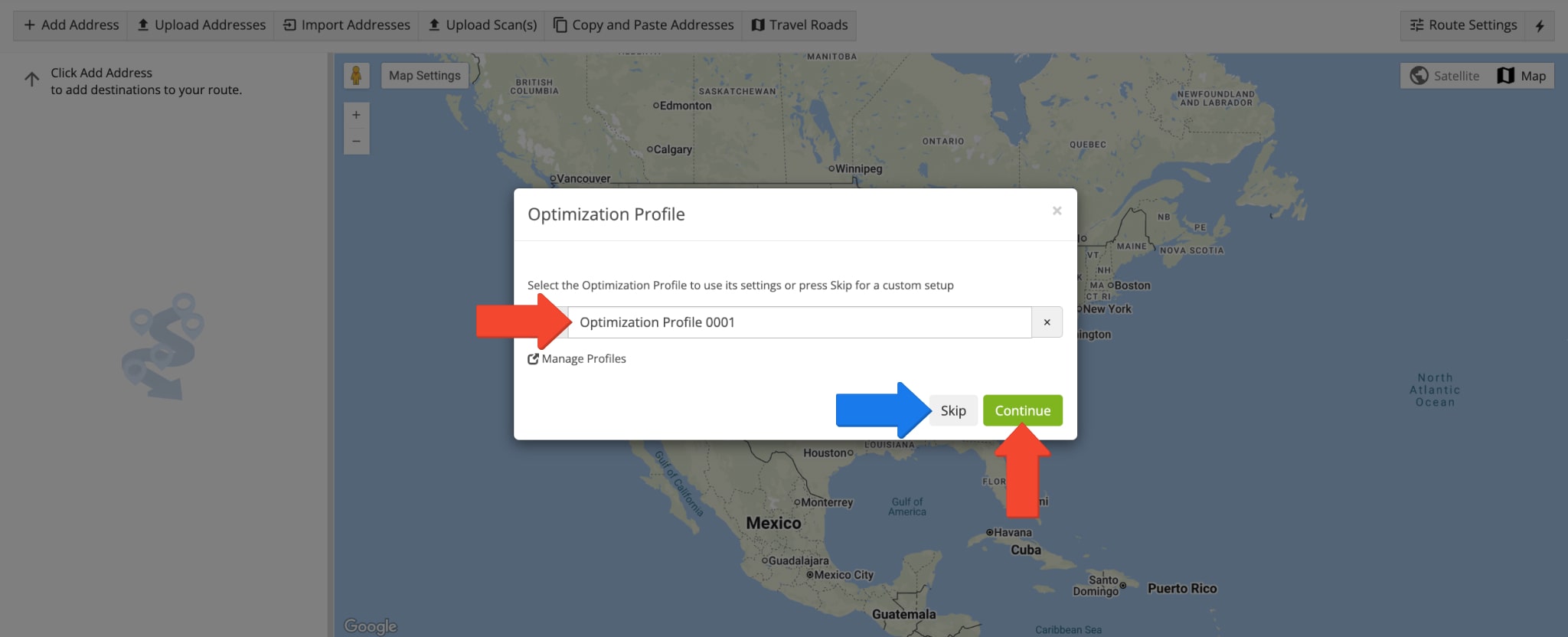
Next, you can use the pre-selected Default Optimization Profile or select another preferred Optimization Profile from the list. You can select and use only one Optimization Profile per the set of added or uploaded addresses.
If you don’t want to use Optimization Profiles, you can click the “Skip” button and manually customize your optimization settings.
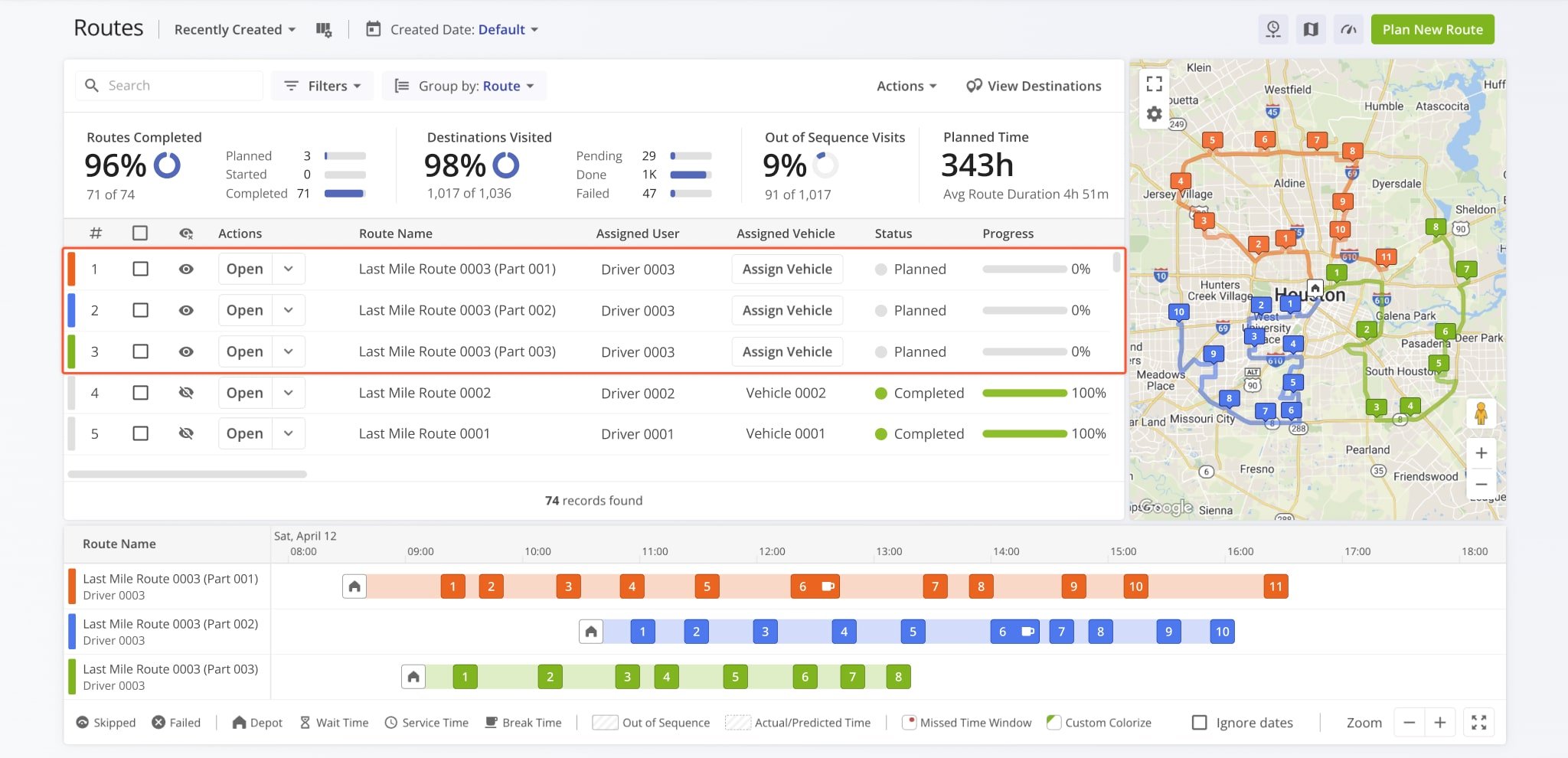
Optimized routes inherit the Route Name and are scheduled for the Start Time specified in the Optimization Profile.
Additionally, optimized routes are dispatched to the selected User (driver) and Vehicle. You can dispatch routes to other drivers and dispatch routes to other vehicles by re-assigning them.
Visit Route4Me's Marketplace to Check out Associated Modules:
- Route Optimization
Stops Bundling
- Route Optimization
Mixed Vehicles Routing
- Route Optimization
Max Weight per Route
- Route Optimization
Max Stops Per Route
About author: Kristian Andreev

