
Routes Map – View And Manage Multiple Routes With Dynamic Routes Map
The Interactive Map on the Routes Page provides enterprise teams with a clear way to review routes, destinations, and route-level details. This guide explains how to access the map, use navigation controls, and configure display settings to visualize routes and monitor operational data. Using the map helps teams spot routing inefficiencies and improve last-mile performance.
Table of Contents
Routes Map Overview – Reviewing Routes On The Interactive Map
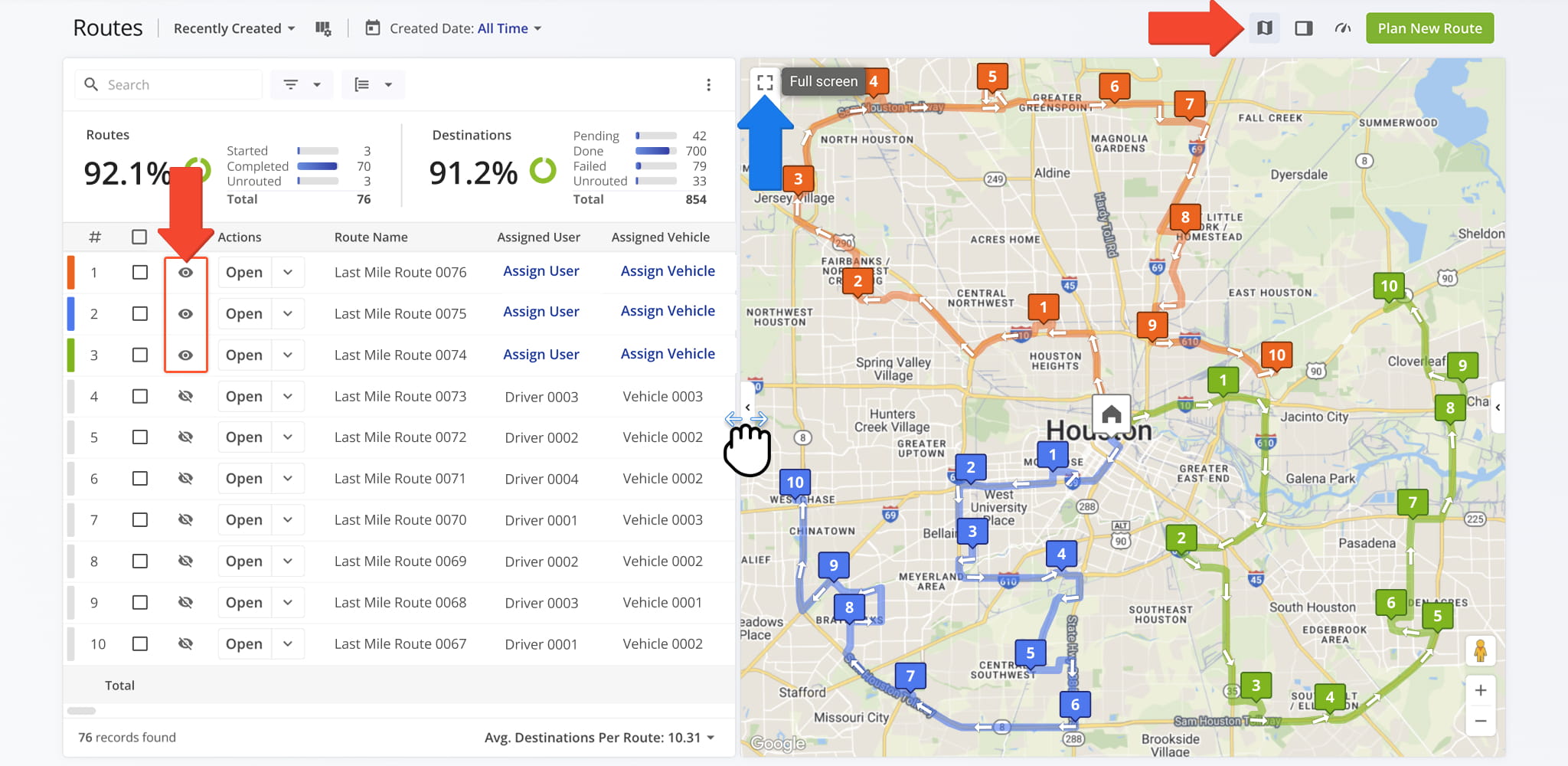
To get started, open your Routes Page by navigating to “Dynamic Routing” > “Routes” from the Navigation Menu or by clicking the button below. Then, to view routes on the map, click the Map Icon in the upper-right corner.
You can expand the map using the side sliders or enable Full Screen for better visibility. Routes that are currently enabled appear automatically on the map. To display a specific route, click the Eye Icon next to it in the Routes List.
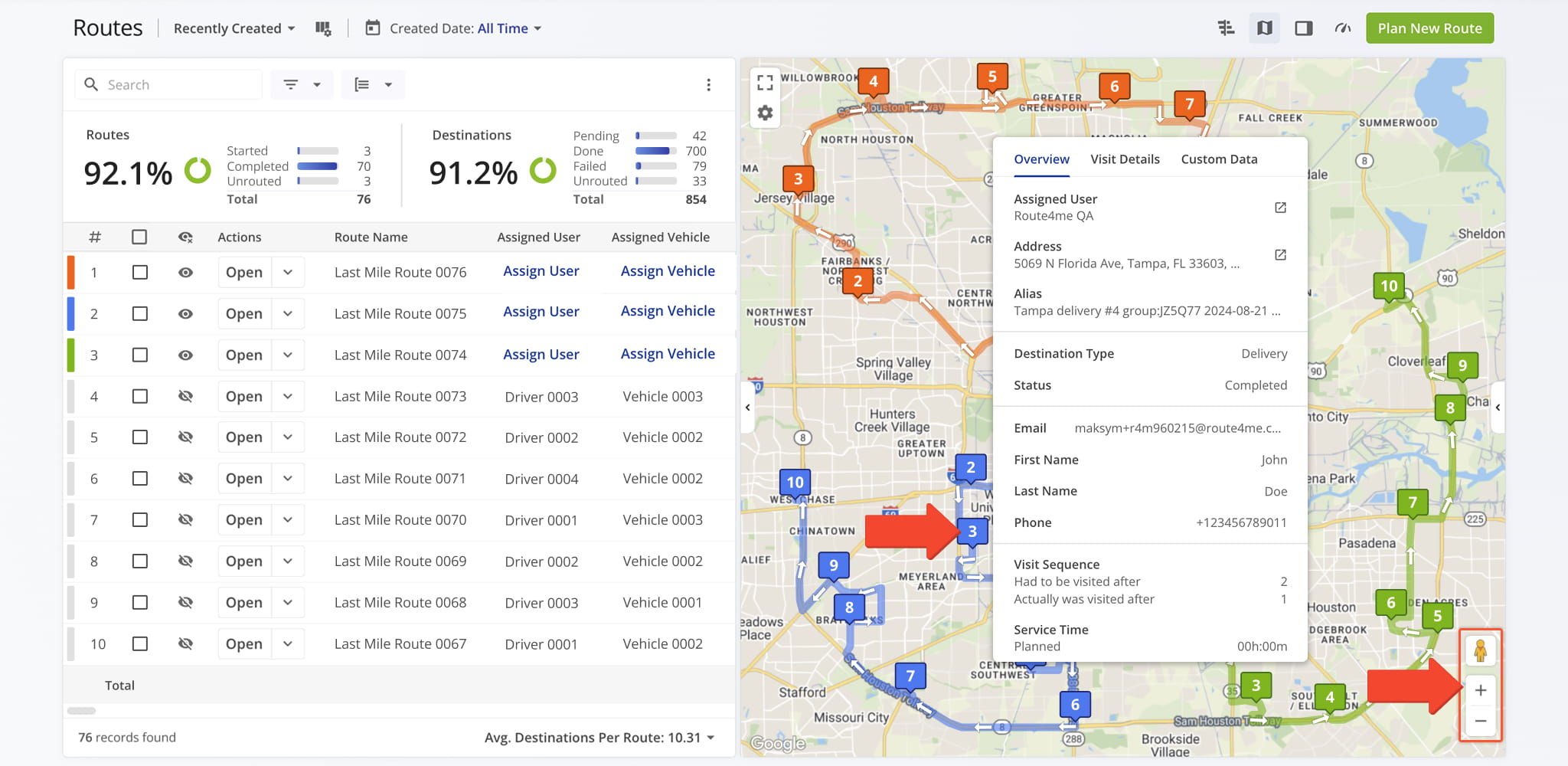
The map uses standard Google Maps controls for navigation. Use the Zoom In and Zoom Out buttons in the bottom-right corner to adjust the map scale. Select the Pegman Icon to explore locations using Google Street View.
Hover over any destination to view its key details. The table below summarizes all destination details available from the Map.
| Destination Details | Description | |
|---|---|---|
| Overview | ||
| Assigned User | Team member responsible for completing the destination. | |
| Assigned Vehicle | Vehicle designated for the stop. | |
| Address | Customer address of the destination. | |
| Alias | Alternative name for the destination. | |
| Destination Type | Purpose of the stop, such as delivery, pickup, or drop-off. | |
| Status | Current visit status: Pending, Completed, Failed, or Skipped. | |
| Customer First Name | First name of the contact associated with the destination. | |
| Customer Last Name | Last name of the contact associated with the destination. | |
| Customer Email | Email address used for notifications and contact related to the destination. | |
| Customer Phone | Phone number associated with the destination contact. | |
| Visit Sequence | Displays the planned visit order compared to the actual visit order to show sequencing changes if any. | |
| Service Time | Planned duration to complete the stop; also shows actual time spent on-site after completion. | |
| Visit Details | ||
| Planned Arrival & Departure | Scheduled arrival and departure times based on route planning parameters. | |
| Predicted Arrival & Departure | System-estimated arrival and departure times calculated during route execution. | |
| Reported Arrival & Departure | Arrival and departure times manually reported by the assigned user via the Route4Me mobile driver app. | |
| Detected Arrival & Departure | Automatically detected arrival and departure times based on GPS location data. | |
| Custom Data | ||
| Custom Data | Custom destination fields such as latitude and longitude, barcode values, order groups, and other user-defined data. See our dedicated Custom Data article for more on adding Custom Data to route destinations. | |
Map Types – View Routes In Classic Or Satellite Mode
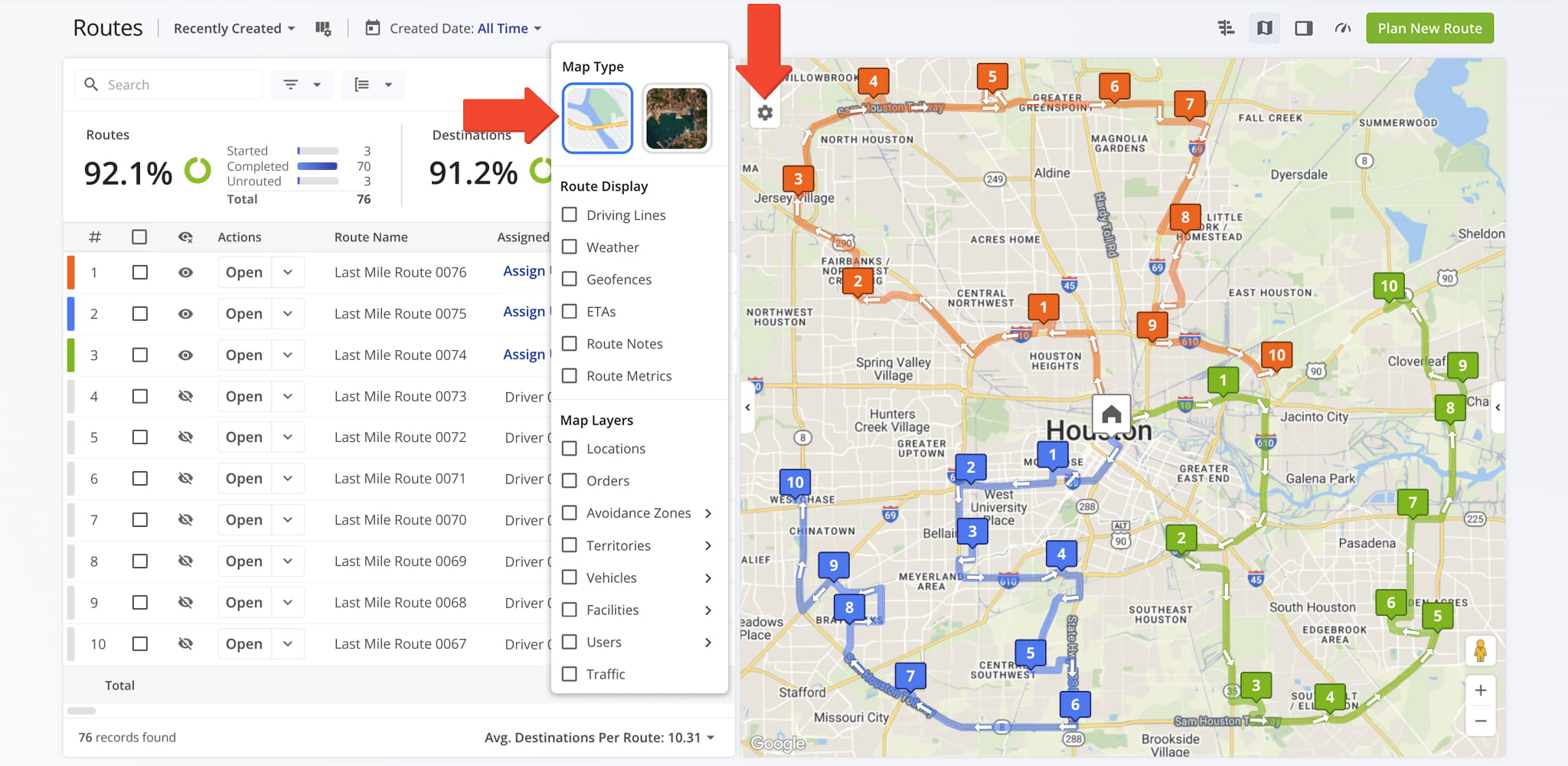
The base view of the map can be adjusted to match your planning needs. To select a Map Type, click the Gear Icon.
The Classic Map provides a standard road network view for navigation while Satellite View offers aerial imagery of landmarks, terrain, and property layouts, all helping to improve situational awareness and route visualization.
Route Display Settings – Customize How Routes Appear On The Map
Use Route Display settings, accessed via the Gear Icon in the upper-left corner, to customize how routes and destinations appear on the map. Display settings can be combined or used individually to suit your workflow and make route review more efficient.
Driving Lines Display – Directions Path Vs. Straight-Line Path
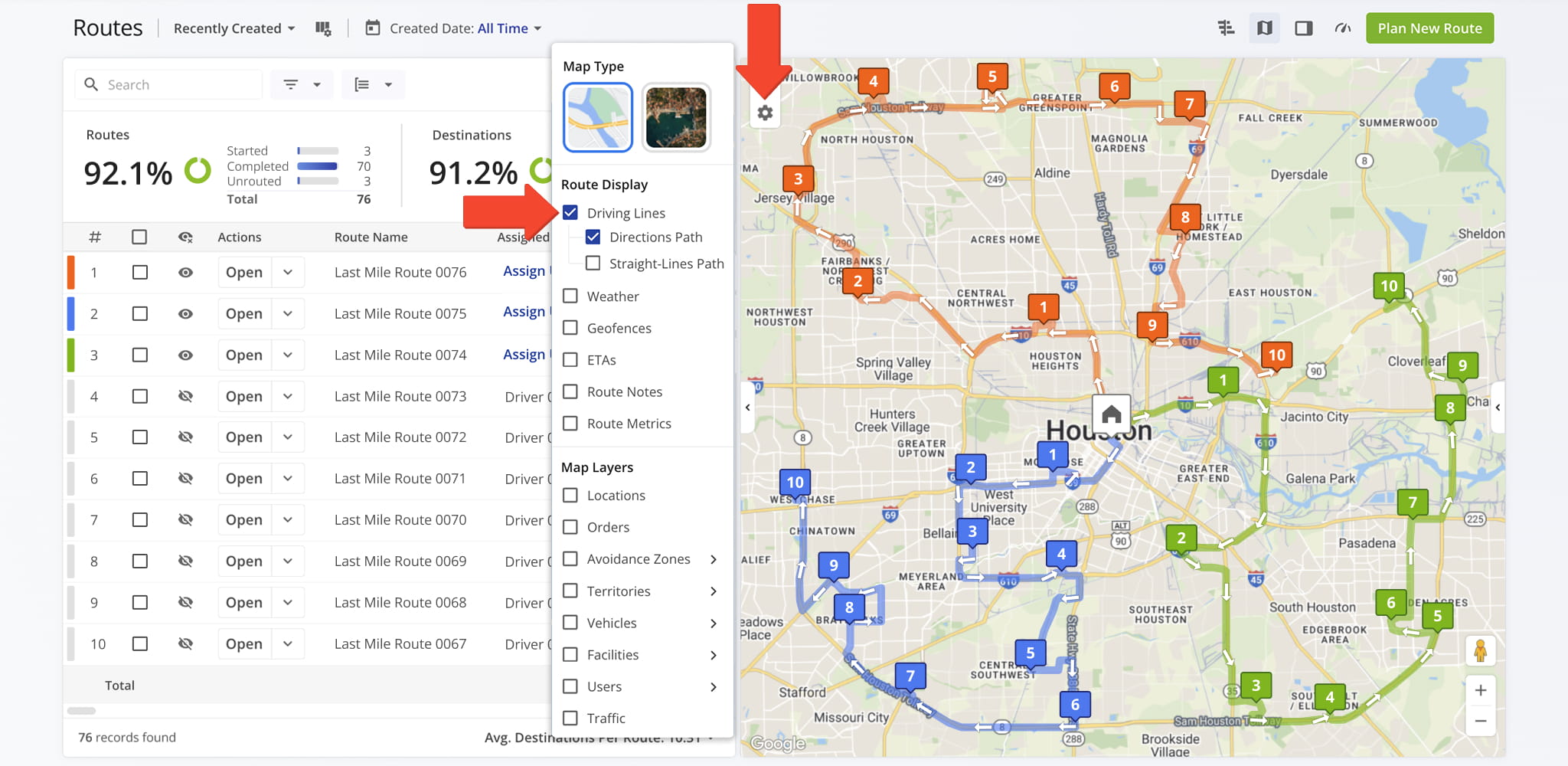
Driving Lines visually connect destinations on the map using either a directions-based path, a straight-line path, or both overlaid together. These views help you understand the actual road route, compare direct distances, and evaluate route efficiency.
Weather Display – Radar, Storms, And Temperatures
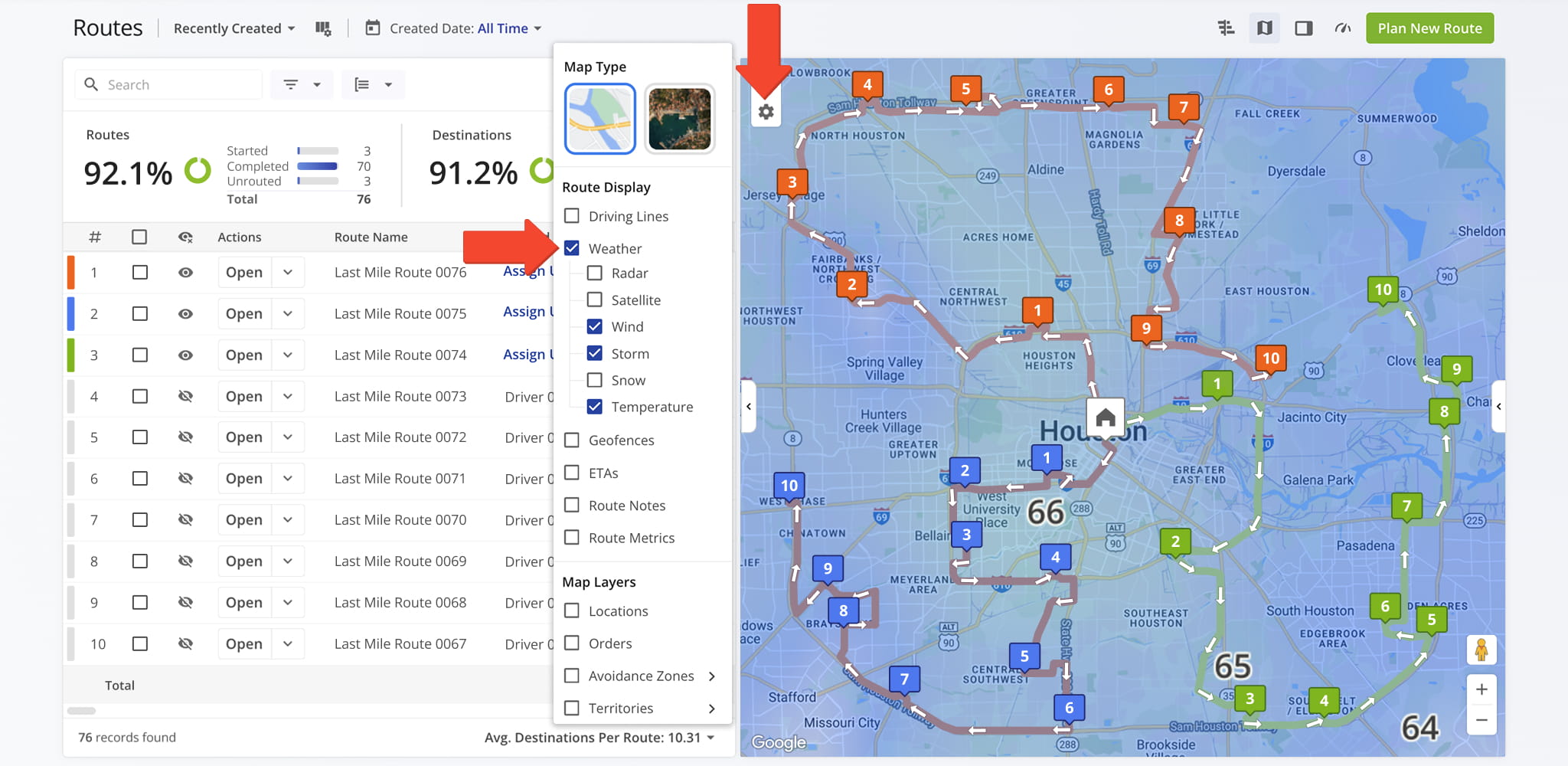
The Weather display overlays one or multiple weather-related displays on the map. View radar or satellite imagery, monitor wind patterns, track storms, see snow coverage, and display temperature to anticipate how weather will impact routes.
Geofences Display – Visual Boundaries For Route Locations
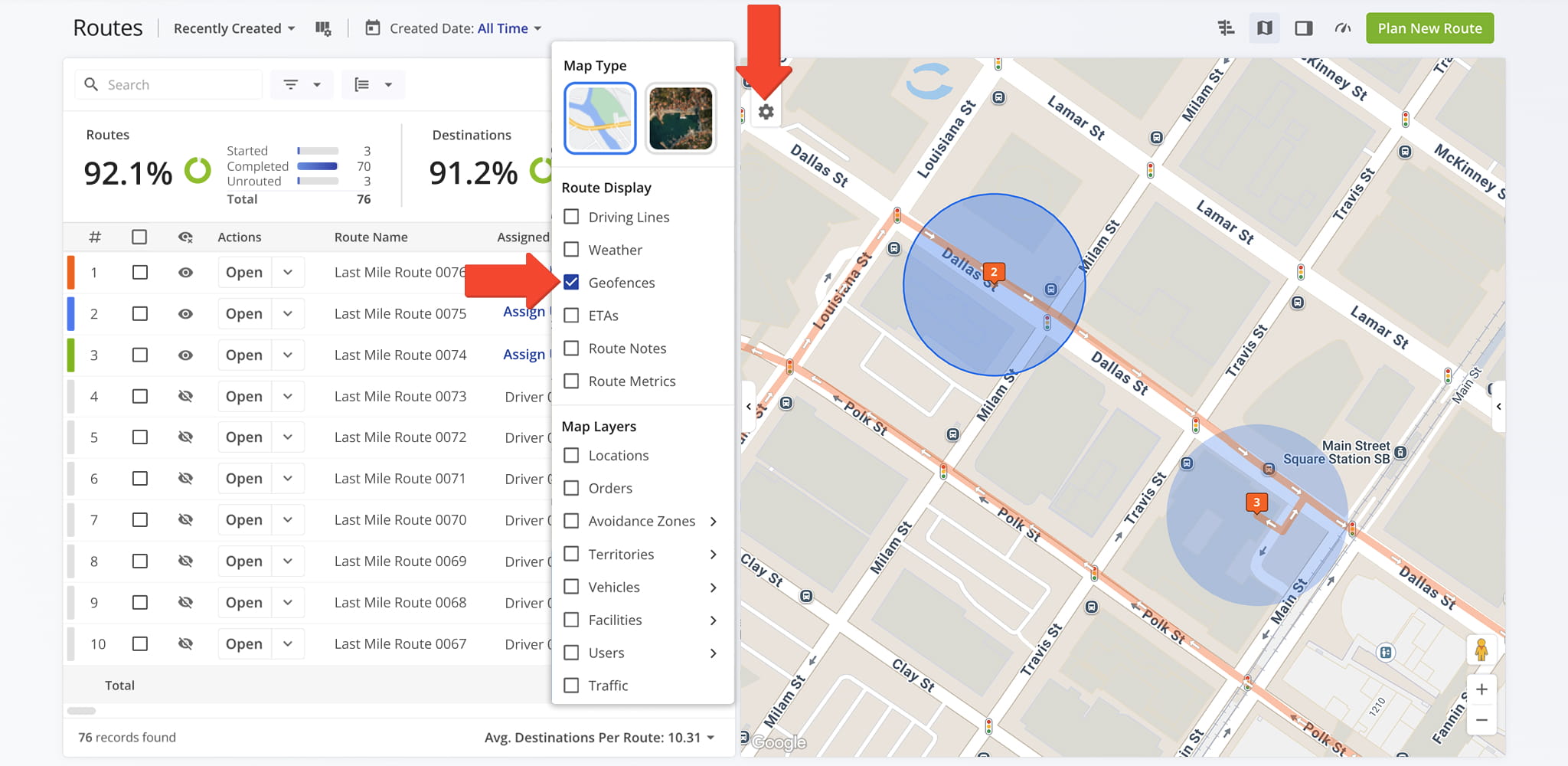
The Geofences feature overlays geofence boundaries directly on the map, allowing you to see exactly where each geofenced area is located. This provides a clear visual reference for route planning and monitoring arrivals or departures.
ETA Display – Estimated Arrivals And Departures
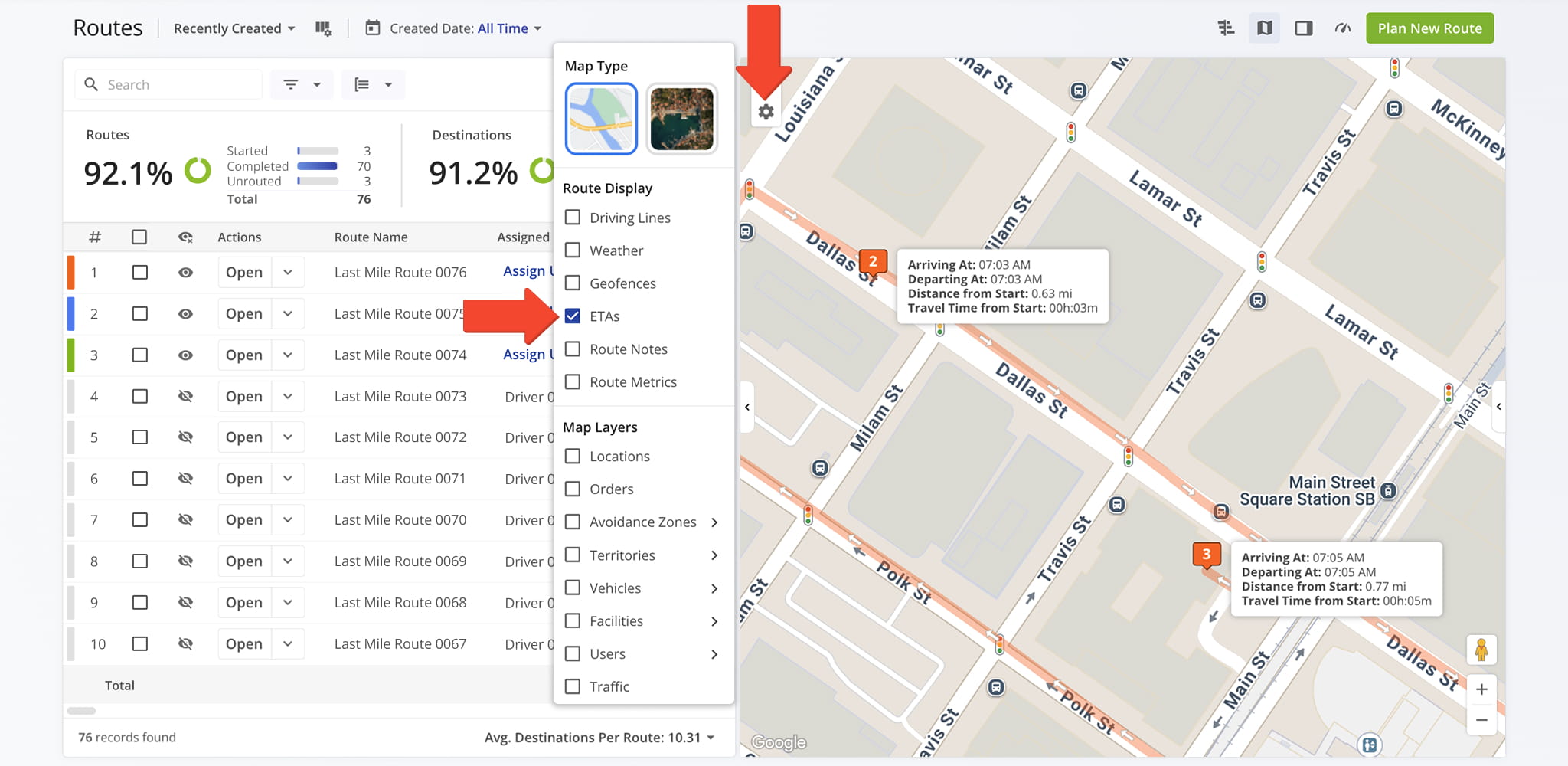
You can display estimated arrival and departure times for each destination, along with additional travel time details. This helps you quickly spot early or late stops and assess overall schedule feasibility at a glance.
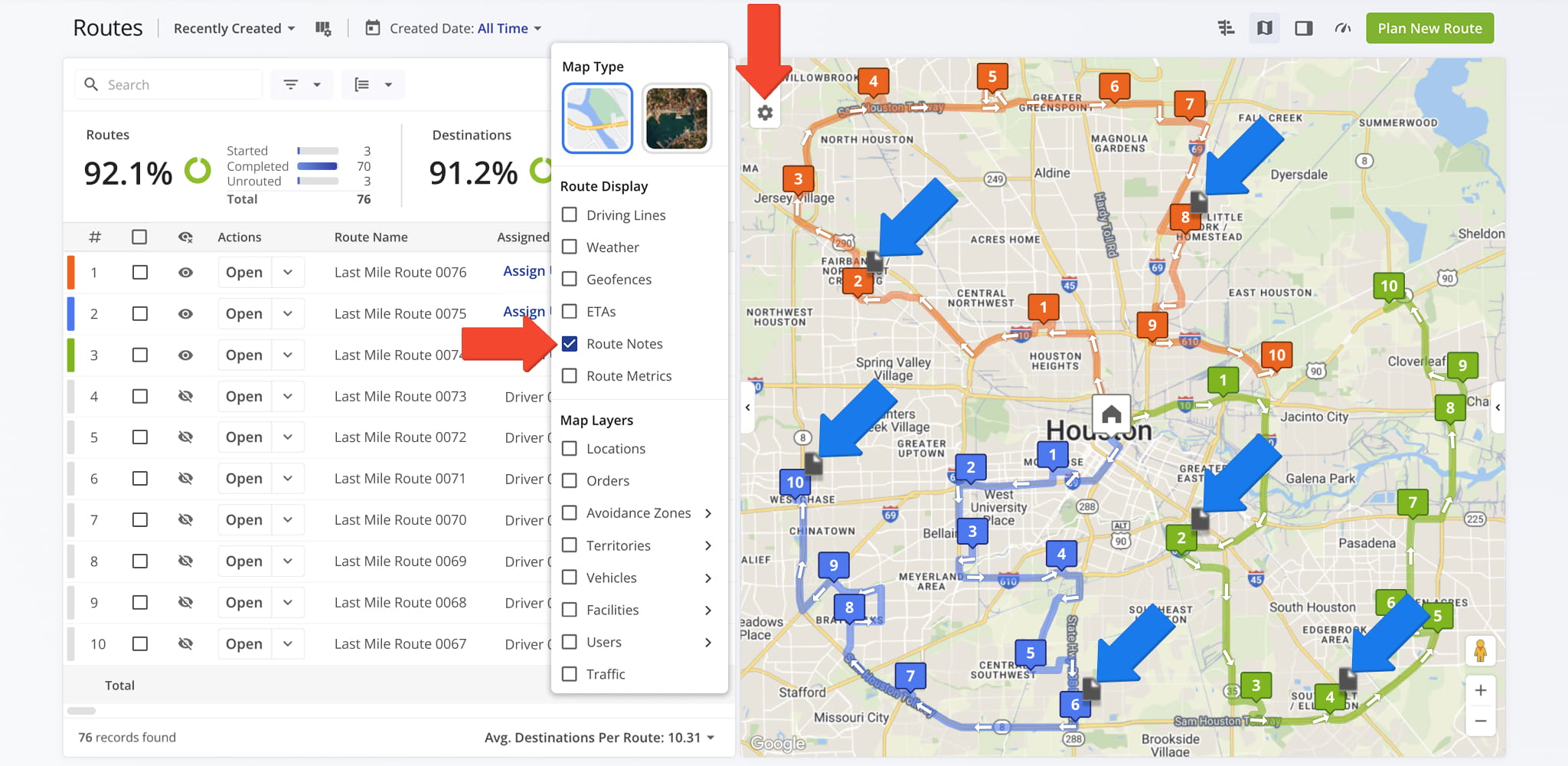
Route Notes Display – View Destination Annotations On The Map
Route Notes display directly on the map important instructions or annotations associated with destinations. Having this information immediately visible ensures critical route details are not overlooked.
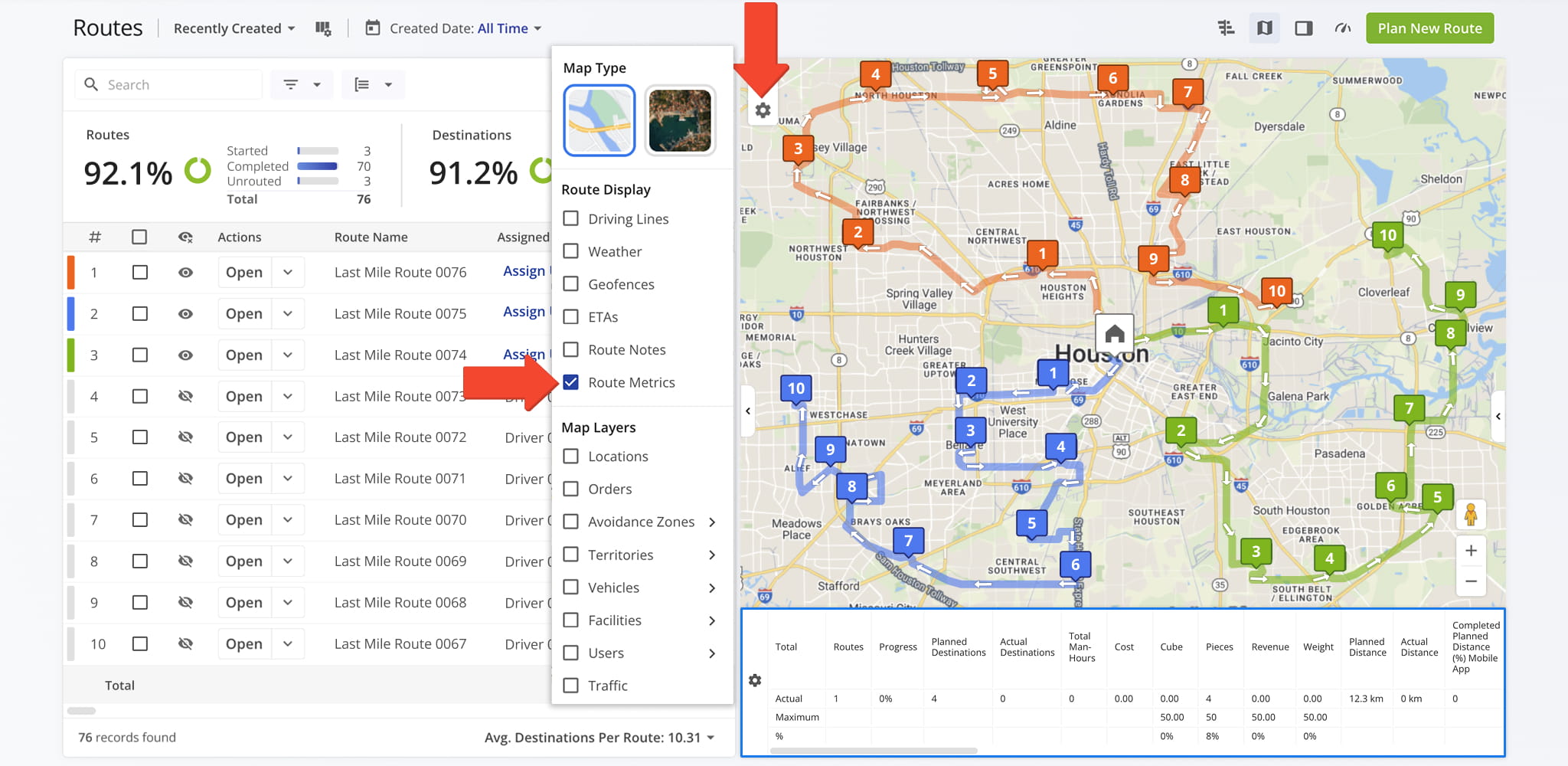
Route Metrics Display – Track Performance And Operational Efficiency
Route Metrics show high-level information such as total distance, route duration, or number of stops. This allows for a quick assessment of route performance and improved workload planning. See the Routes Page Catalog for an overview of all metrics.
Map Layers – Overlay Locations, Vehicles, Facilities, And More
Map Layers, accessed via the Gear Icon, overlay contextual and operational data on the map, including locations, orders, vehicles, and other critical elements. You can select one or multiple layers depending on your needs.
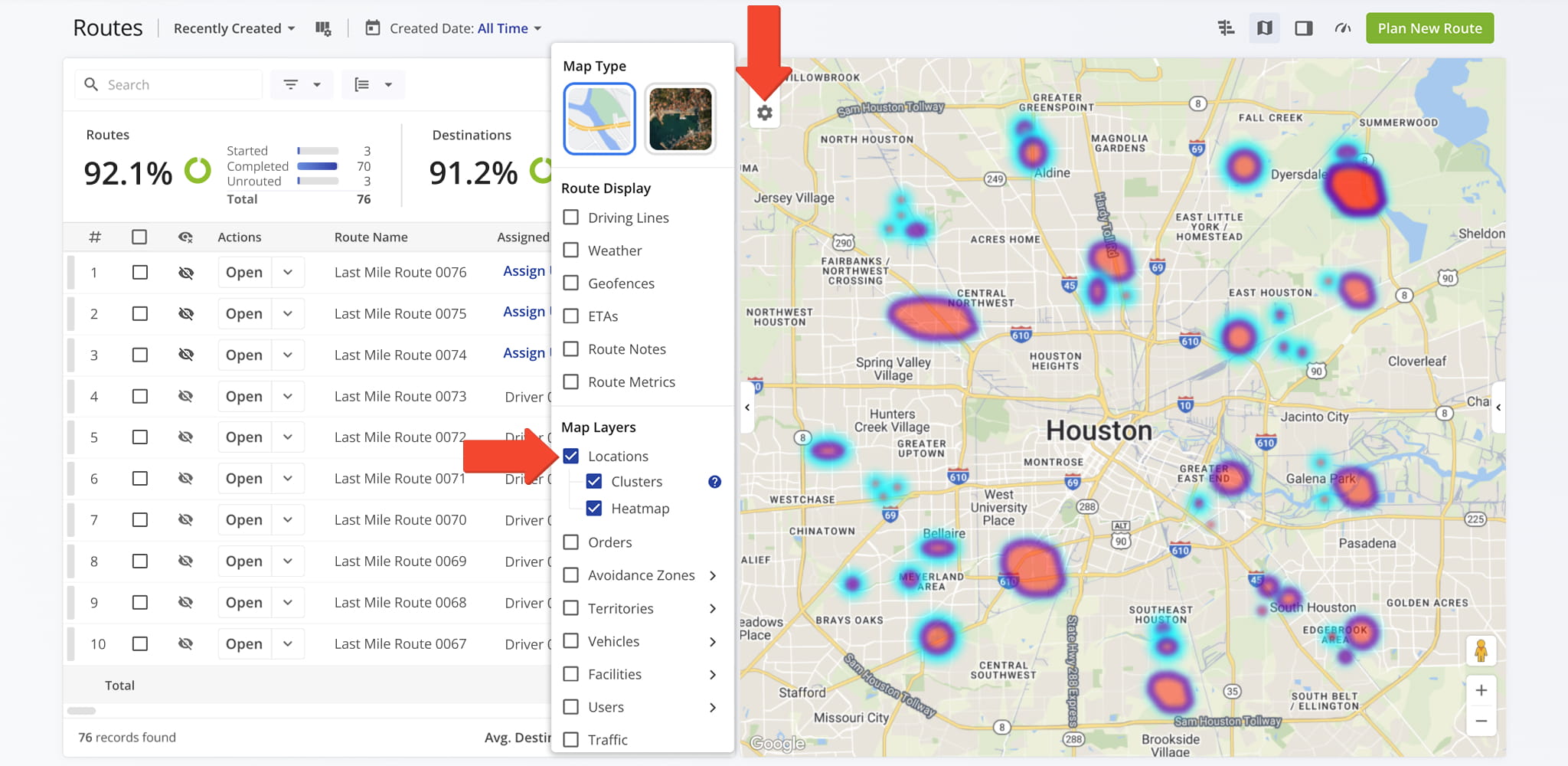
Locations Layer – Clustering And Heat Maps
The Locations layer lets you view location clusters, a density heat map, or both to see where routes are concentrated. Clustering activates automatically for large datasets, with the heat map highlighting high-density areas to help you identify patterns.
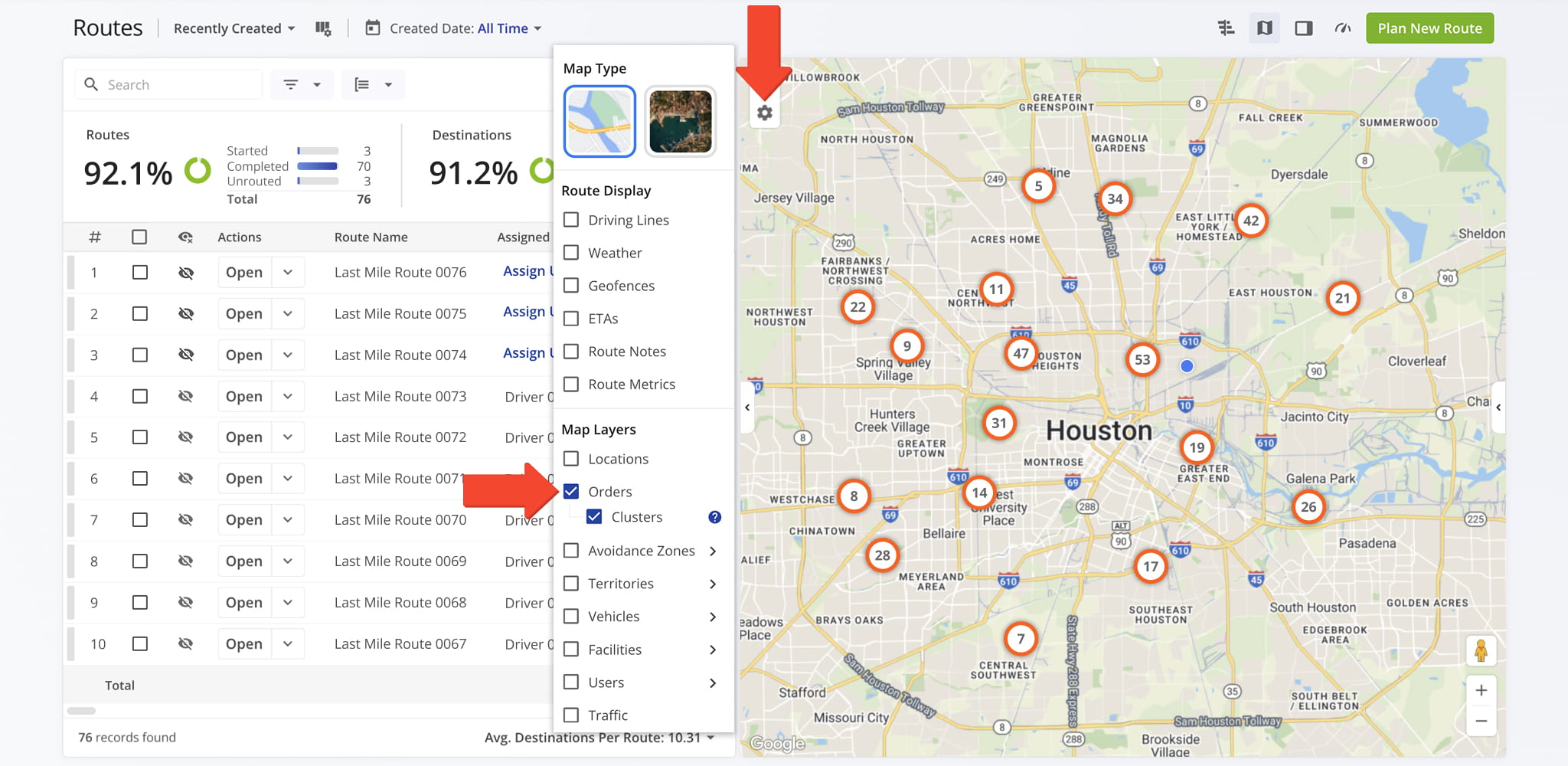
Orders Layer – Visualize Distribution Across Routes
The Orders layer displays individual order locations or clusters of orders to visualize distribution across routes and destinations. This provides insight into workload distribution and supports more efficient route management.
Avoidance Zones Layer – Ensure Compliance And Safety
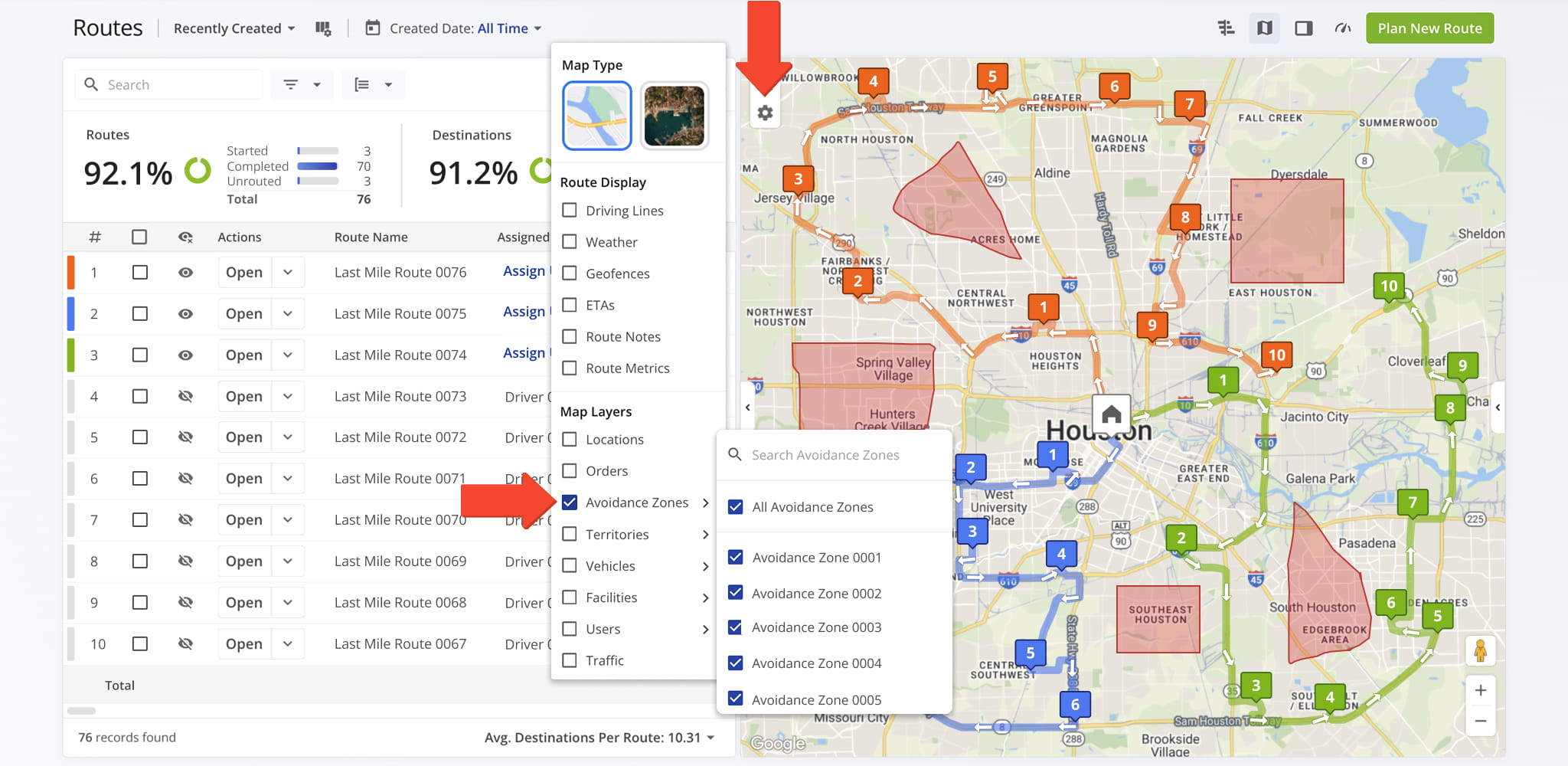
The Avoidance Zones layer displays all defined restricted areas. From the Avoidance Zones menu, you can select, deselect, or search for specific zones, ensuring that routes comply with operational or regulatory constraints.
Territories Layer – Display And Manage Route Coverage Areas
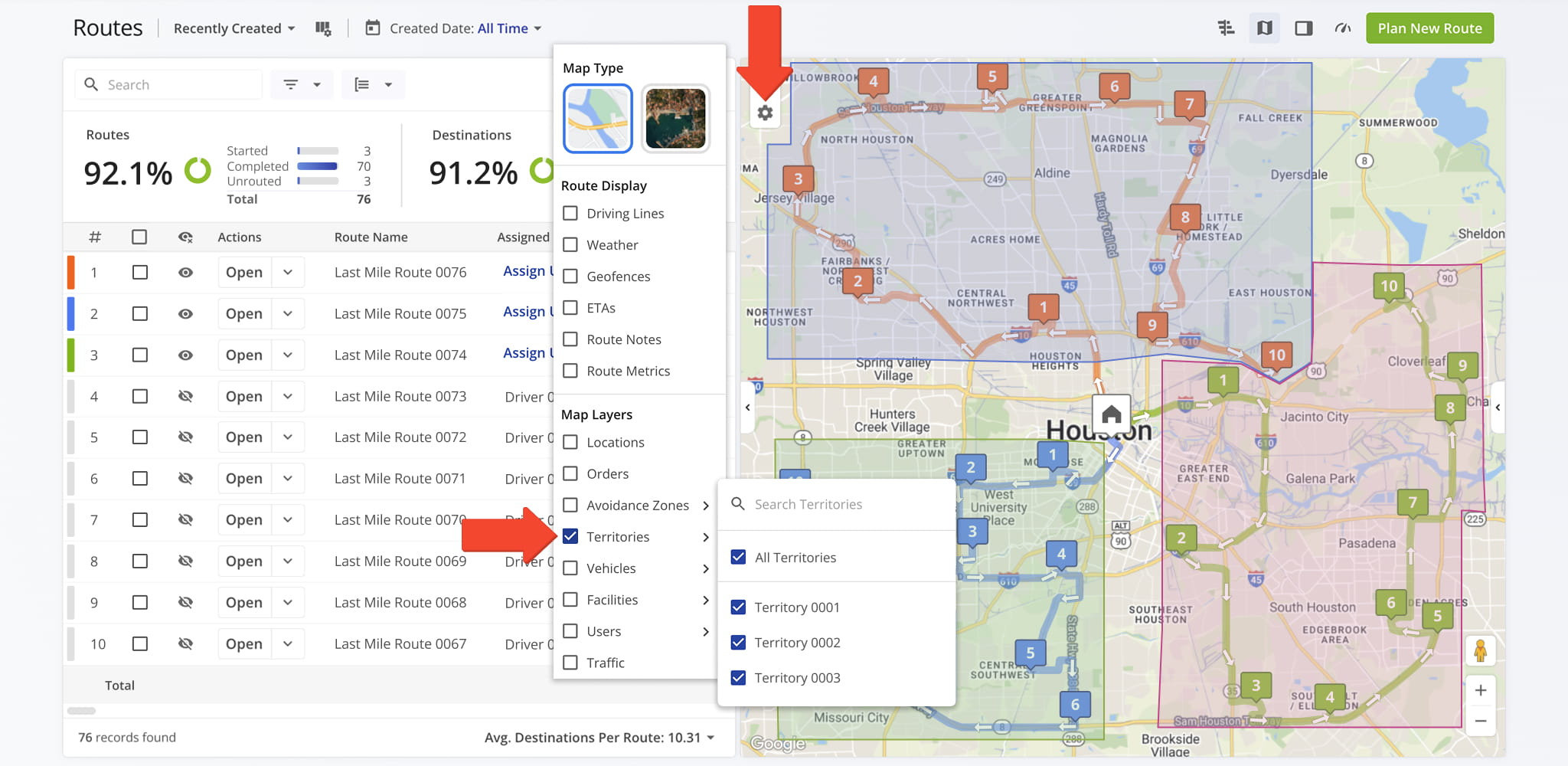
The Territories layer shows all configured territories. From the Territories menu, you can select or search for specific territories, which helps ensure that route planning aligns with assigned coverage areas.
Vehicles Layer – Track Vehicles On The Route Map
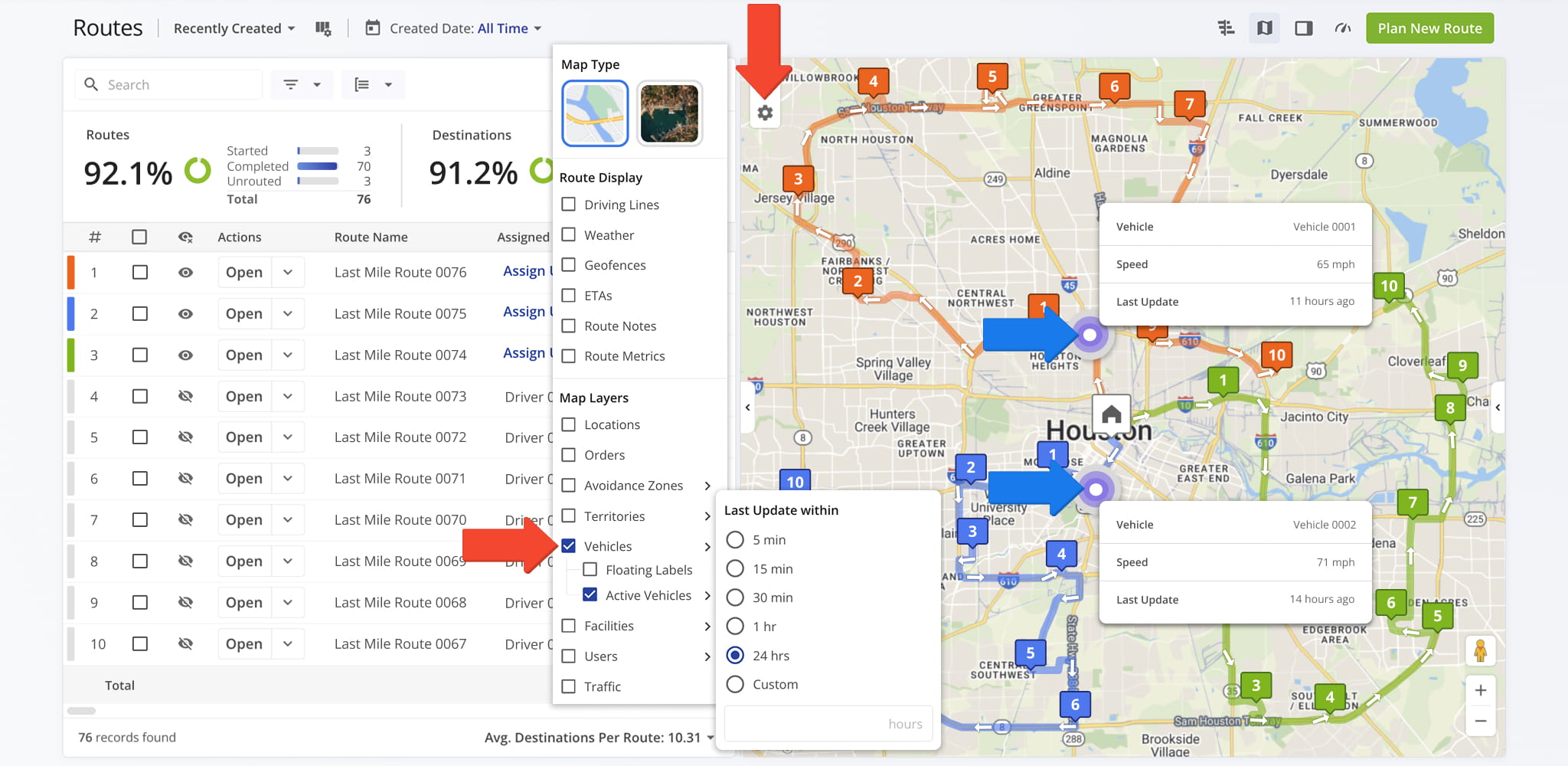
The Vehicles layer helps you track vehicles. “Floating Labels” displays a pop-up with each vehicle’s Alias, while “Active Vehicles” can be filtered by last update time for precise monitoring of activity. Hover over any Vehicle to view its details.
Facilities Layer – Route Depot Information And Coordinates
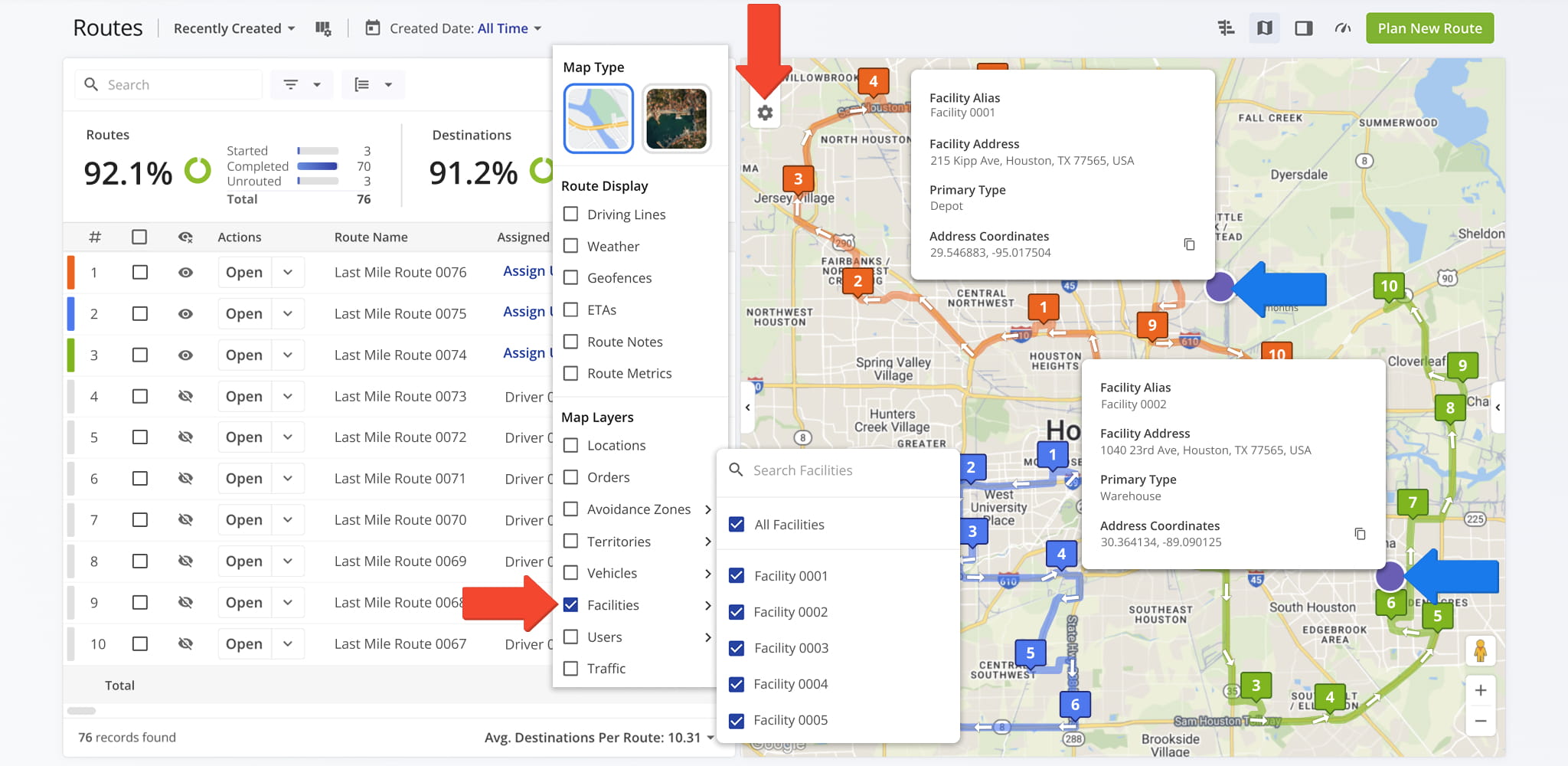
The Facilities layer shows depot locations, which you can select, deselect, or search for via the Facilities menu. Hover over any Facility icon to view its alias, address, type, and coordinates, which can be copied and saved using the Copy Icon.
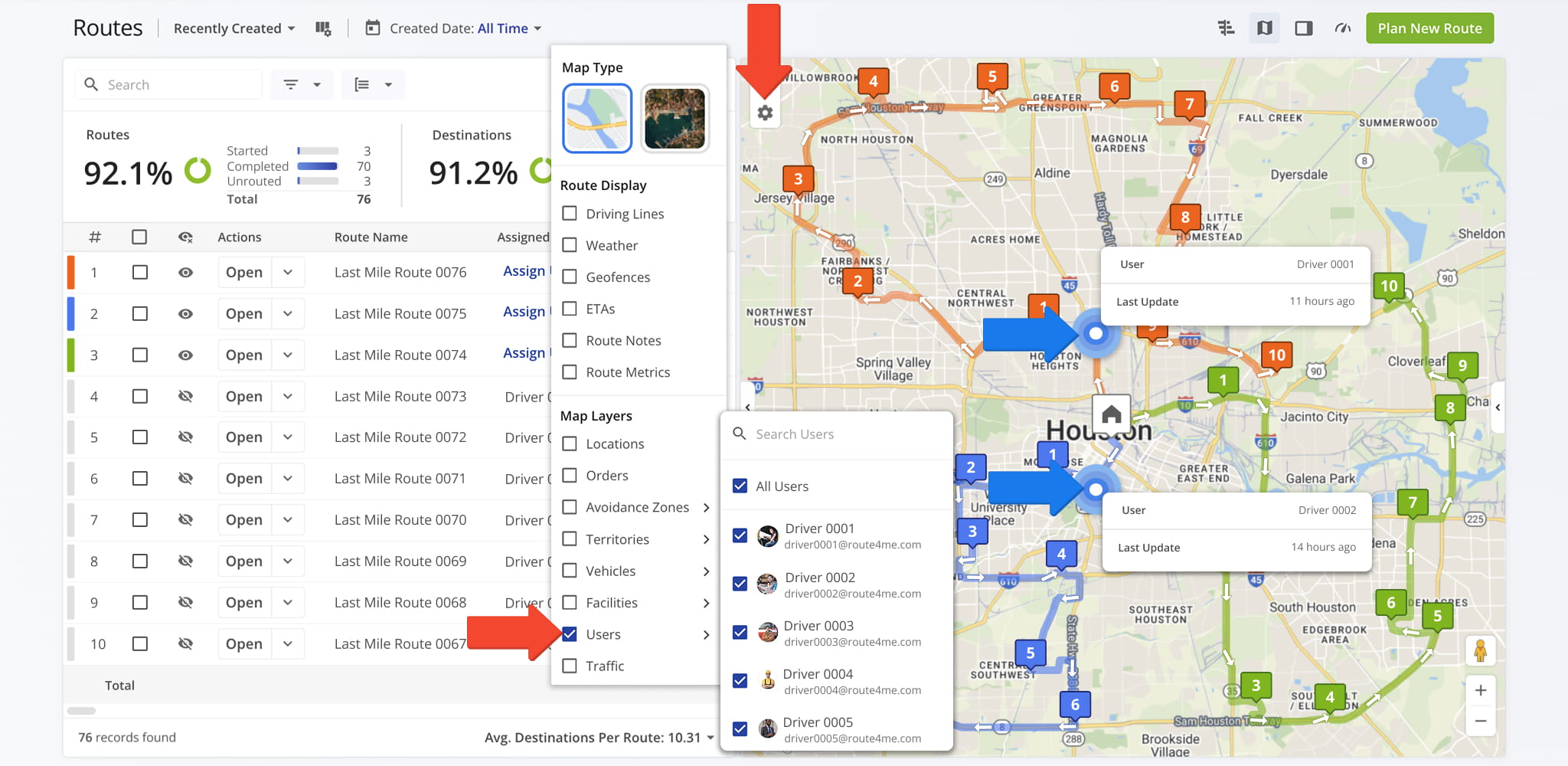
Users Layer – Monitor Assigned Team Members
The Users layer displays assigned users or drivers on the map. You can filter or search for specific users through the Users menu, improving visibility into workforce allocation and route assignments.
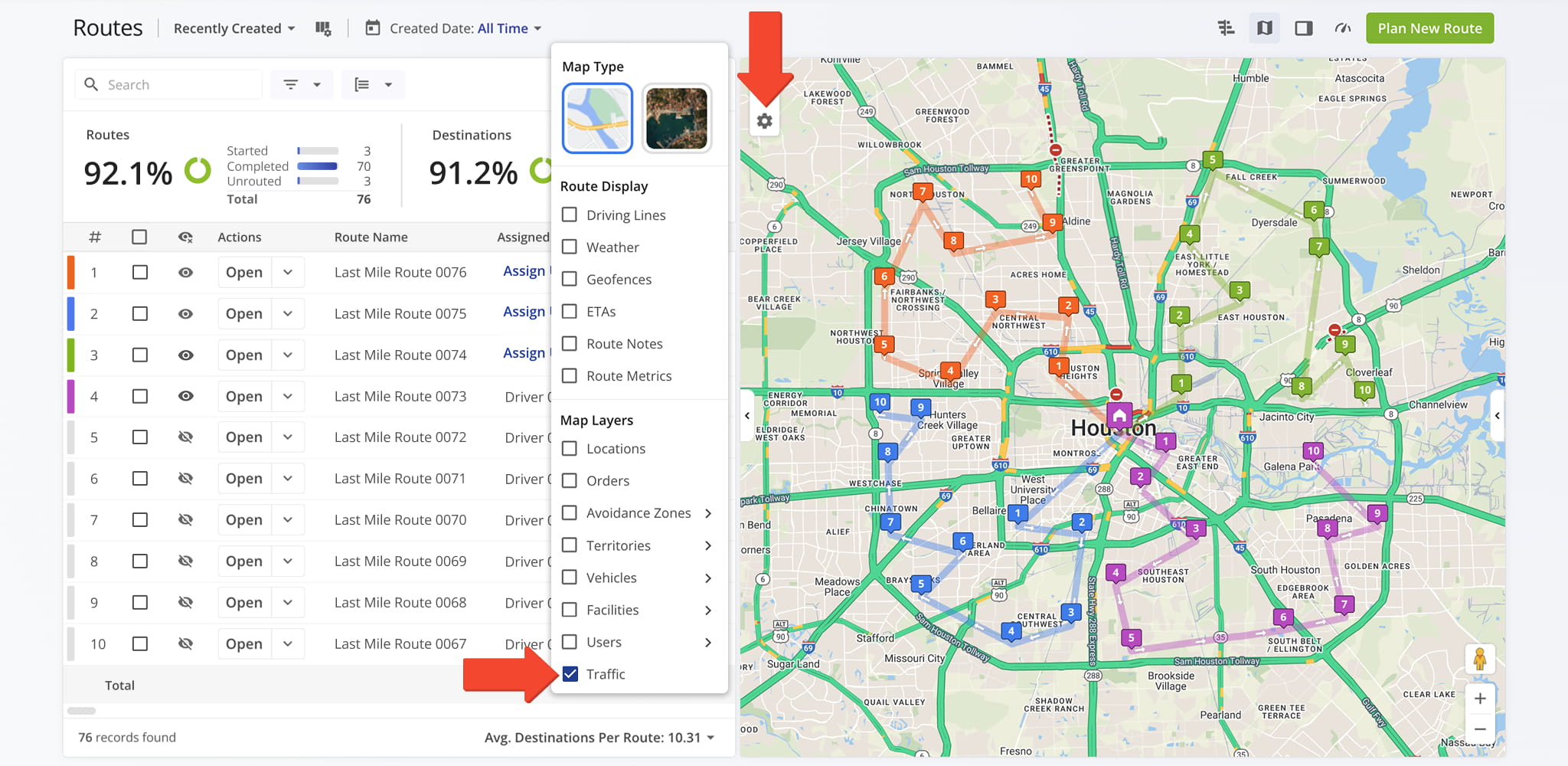
Live Traffic Layer – Identify Congestion And Delays
The Traffic layer overlays current traffic conditions on the map. This helps you identify congestion and adjust route planning to minimize delays and improve on-time performance.
Visit Route4Me's Marketplace to Check out Associated Modules:
- Operations
Custom Data Add-On
- Operations
Advanced Team Management Add-On
About author: Daniel Archer

