
Route4Me Route Management – Essential Tools For Planning And Oversight
Efficient route management is essential for enterprise businesses to keep deliveries, appointments, and service calls on schedule. Route4Me’s Route Page provides a centralized hub to view, update, and optimize routes, assign resources, and collaborate with team members in real time. This overview highlights the main route management actions available from the Routes Page, from editing and rescheduling to duplicating, sharing, and deleting routes.
Table of Contents
Managing Routes – Core Tools For Route Oversight And Updates
Route4Me gives enterprise teams centralized control over all route management tasks. From updating routes to duplicating, sharing, or deleting routes, teams can maintain accurate schedules and resources while minimizing administrative work.
Manage A Single Route – Edit, Assign, And Reschedule
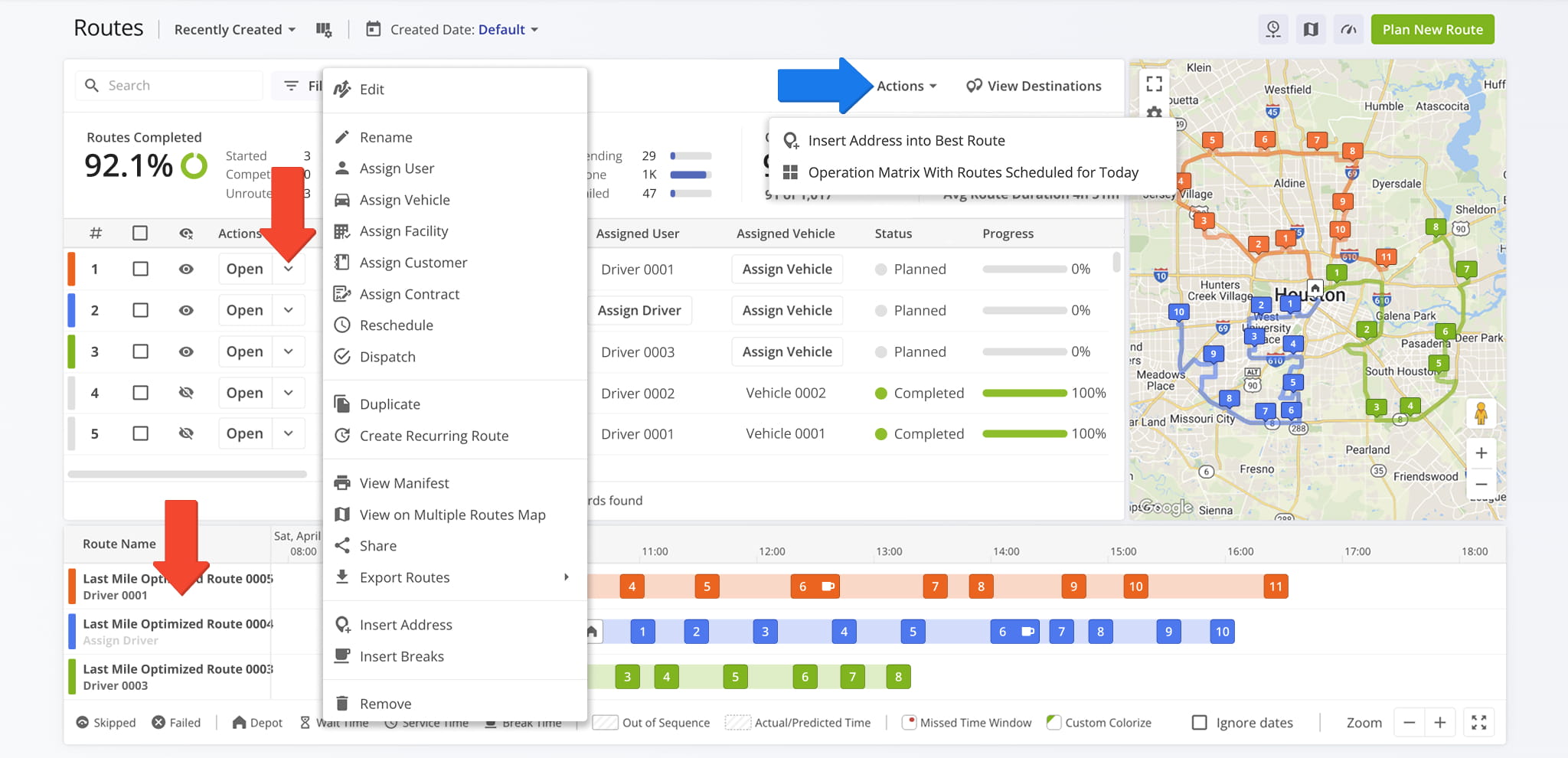
Route4Me makes it easy to manage individual routes from a single, centralized view. Planners can update route details, assign drivers, vehicles, facilities, customers, or contracts, and make last-minute adjustments without affecting other routes.
These tools help ensure accurate scheduling, efficient resource allocation, and smooth route execution throughout the day. See the table below to review the full list of tasks you can you can perform when managing a single route.
| Action | Description |
|---|---|
| Edit | Open a route in the Route Editor. |
| Rename | Change the route’s name or alias to make it easier to search and identify. |
| Assign User | Assign a driver or team member to the route. The assigned user can start, navigate, and complete the route using the Route4Me Driver Mobile App. |
| Assign Vehicle | Assign a vehicle to the route from your homogeneous or mixed fleet of vehicles. |
| Assign Facility | Assign a specific facility to the route, linking it to a warehouse, depot, or service center for tracking, routing, and operational planning. |
| Assign Customer | Assign a specific customer to the route, ensuring that deliveries, services, or visits are accurately linked to the correct client. |
| Assign Contract | Assign a contract to the route to tie route activities to a specific service agreement, recurring schedule, or contractual obligations. |
| Reschedule | Change the date and time of the day the route is scheduled to start. |
| Dispatch | Dispatch routes to send automated SMS and Email customer notifications. |
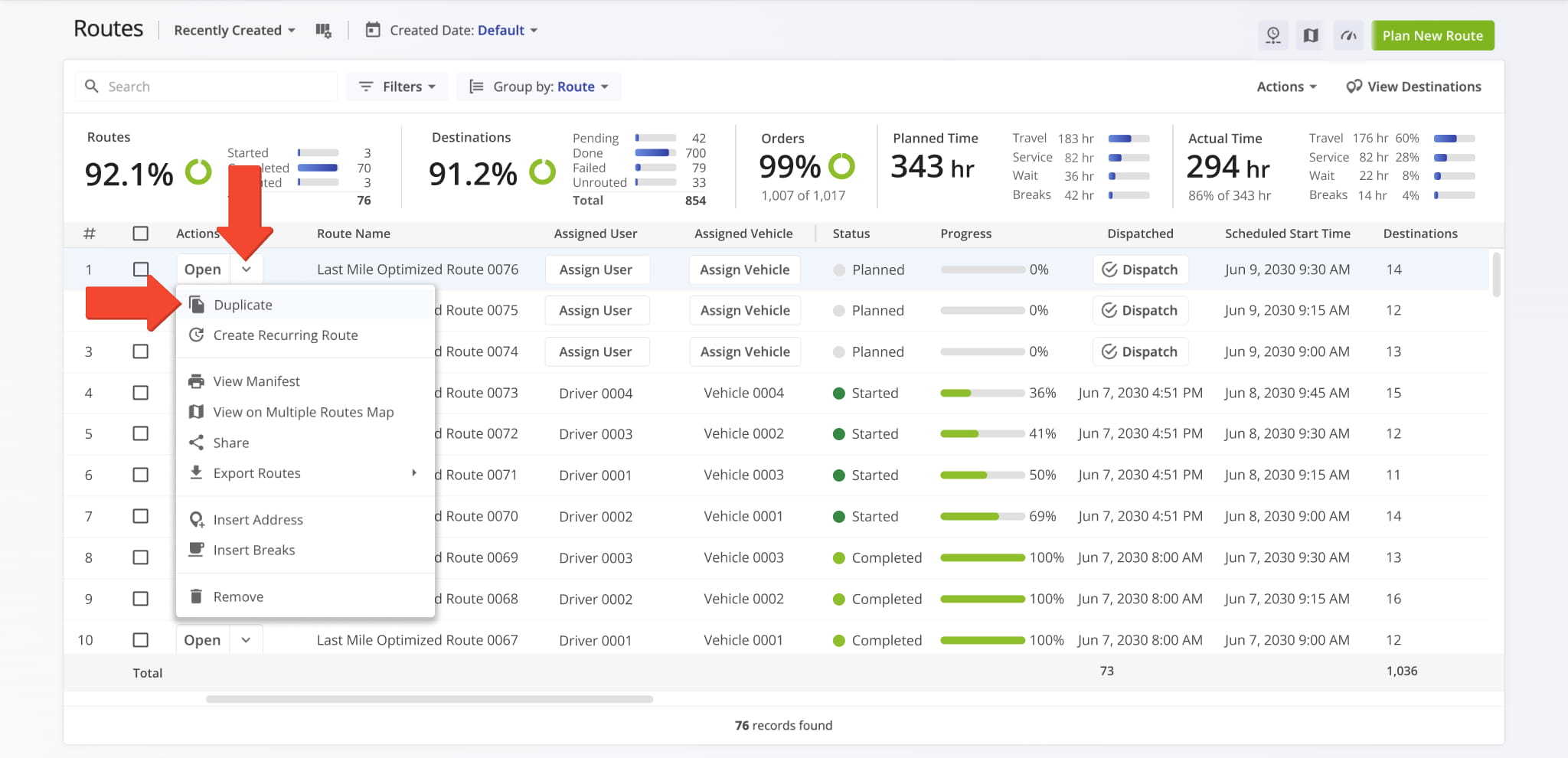
| Duplicate | Create a copy of the route. The new route will have “(Duplicate)” added to the end of its name. |
| Create Recurring Route | Create a new Master Route for use when planning recurring schedule routes. |
| View Manifest | Download or print a detailed dynamic Route Manifest. This manifest includes all available route and destination data and details. |
| View on Multiple Routes Map | Open the selected routes on the Routes Map. |
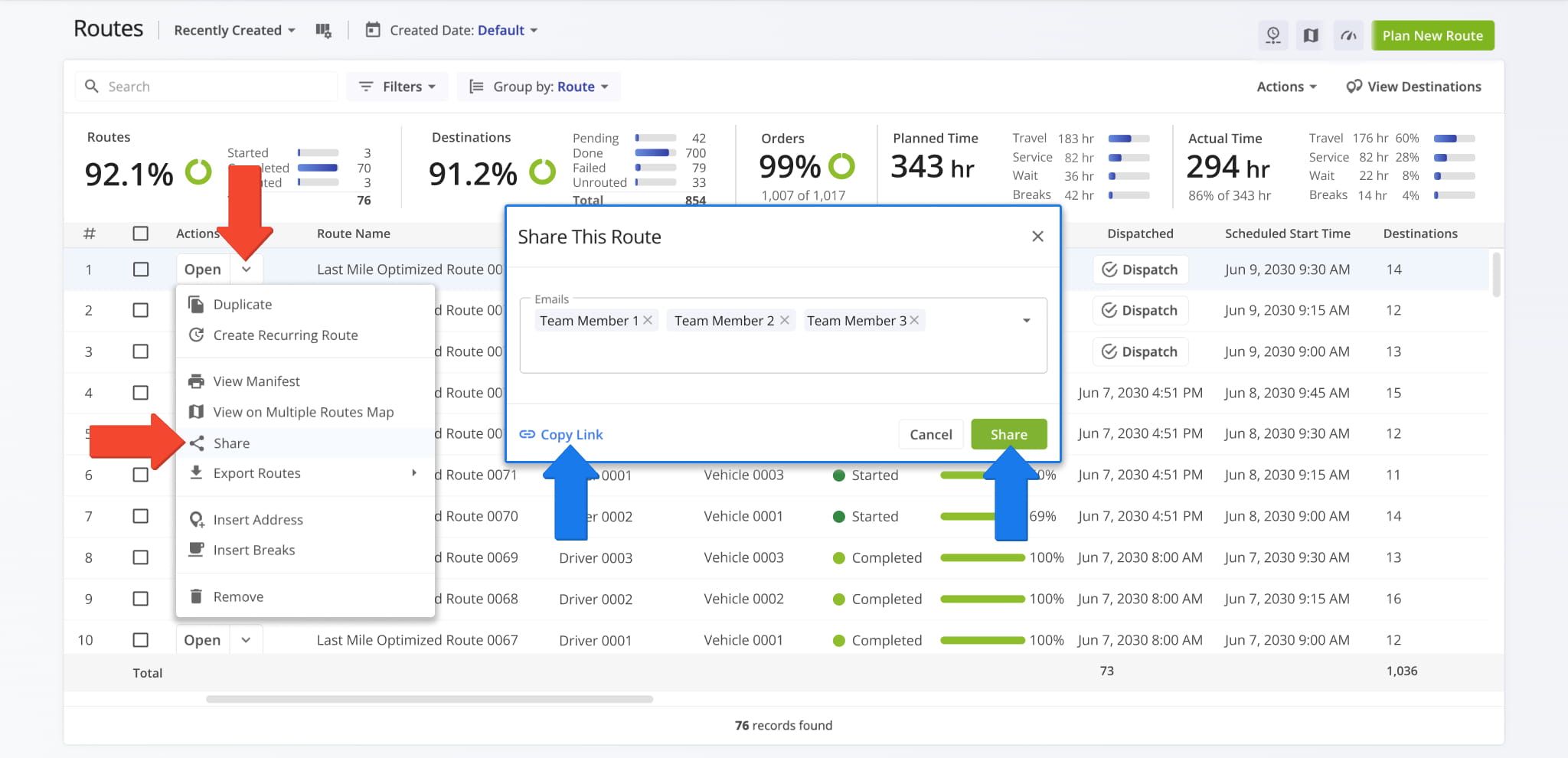
| Share | Share the route with other Users by direct link or send a link via Email. |
| Export Routes | Export route data as a CSV spreadsheet or navigation data file for import into navigation devices such as Garmin, TomTom, and more. |
| Insert Address | Insert an address into the route by typing or searching the address in the “Address” field. |
| Insert Breaks | Add driver breaks on the route with customizable break duration and break trigger type. |
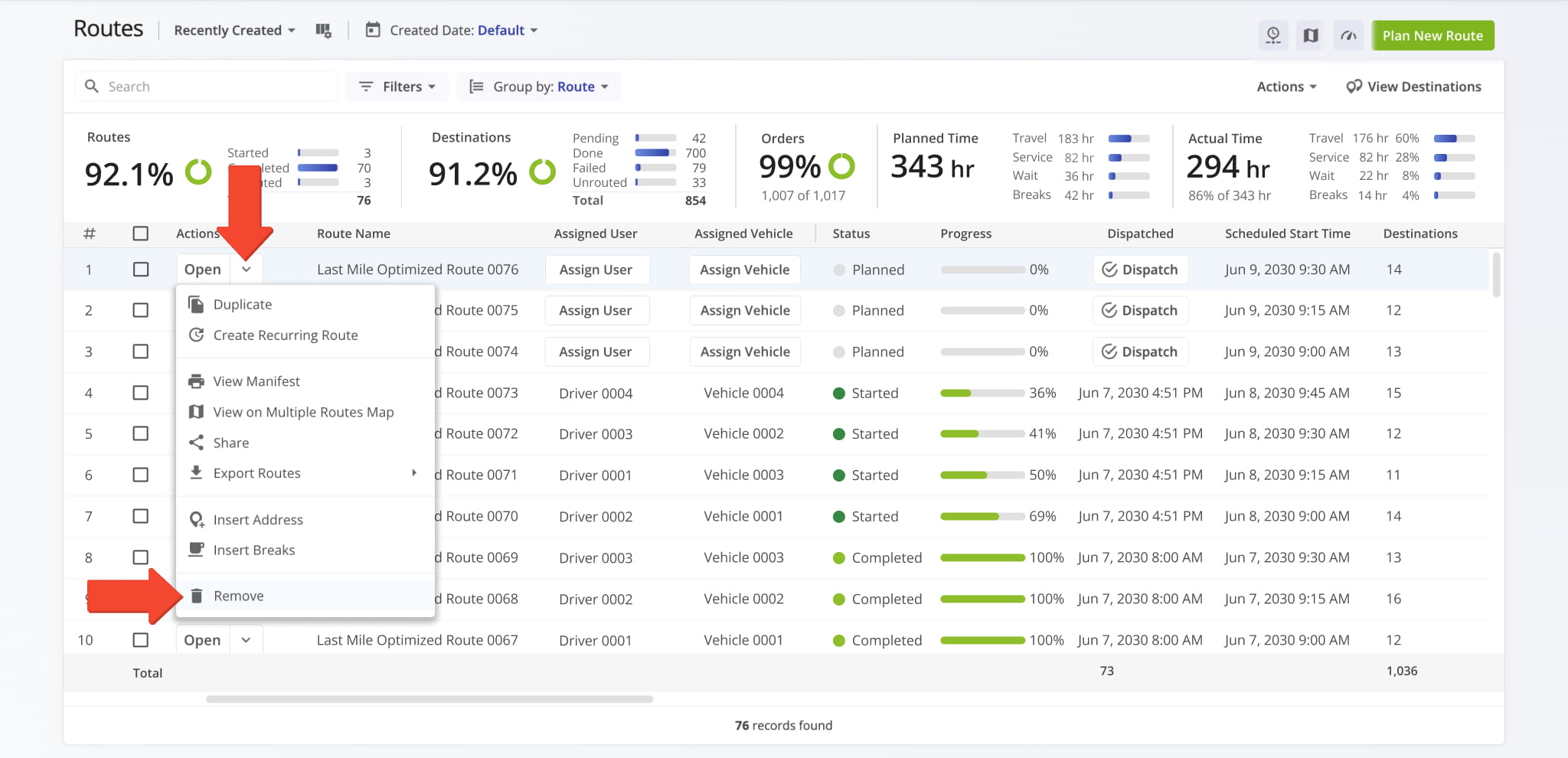
| Remove | Permanently delete the selected routes. |
Bulk Route Management – Edit And Manage Multiple Routes At Once
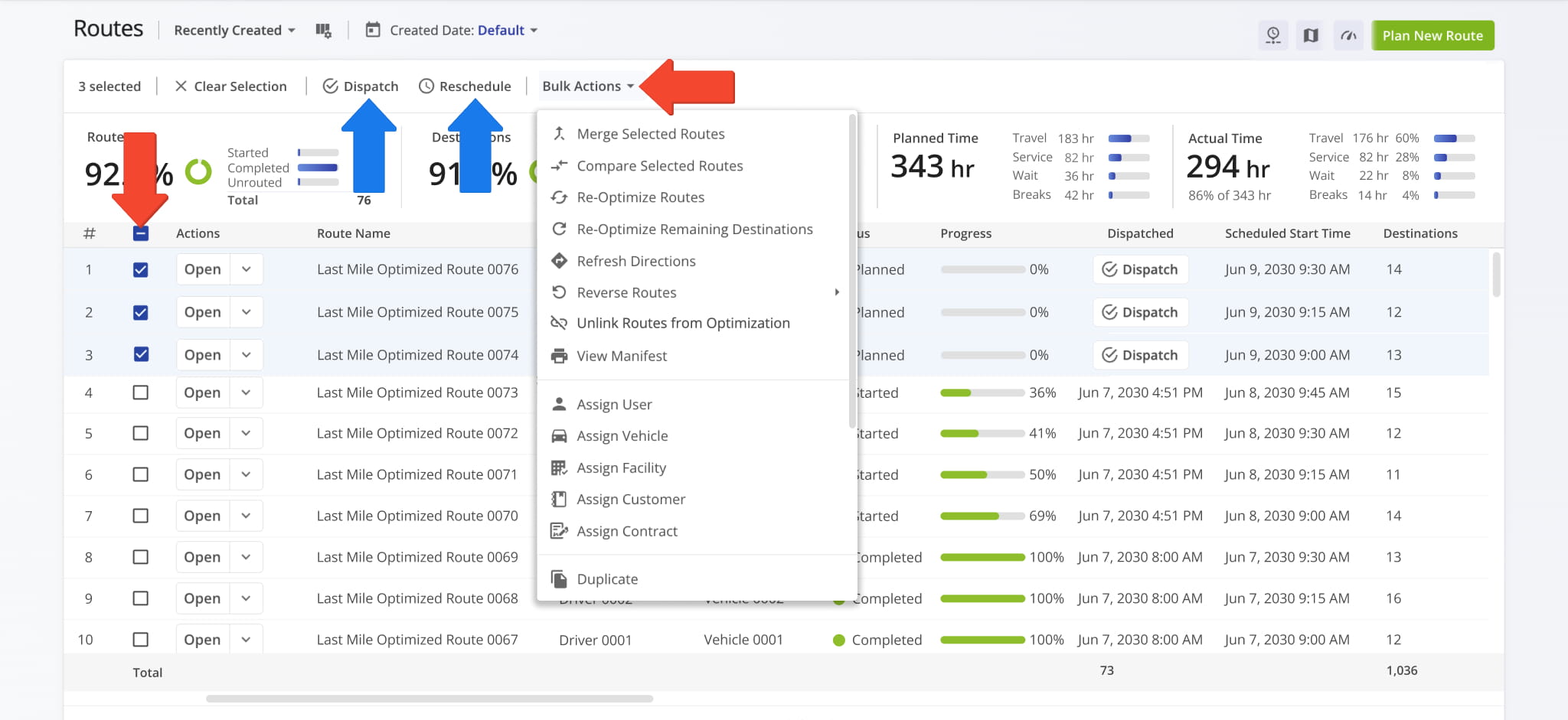
Route4Me supports bulk route management. You can update, re-optimize, duplicate, assign resources, or remove multiple routes simultaneously, among other actions, while maintaining consistency across large route networks.
Bulk actions are especially useful when making schedule changes, reallocating resources, or managing high-volume operations. See the table below to review the full list of tasks you can you can perform when managing routes in bulk.
| Bulk Action | Description |
|---|---|
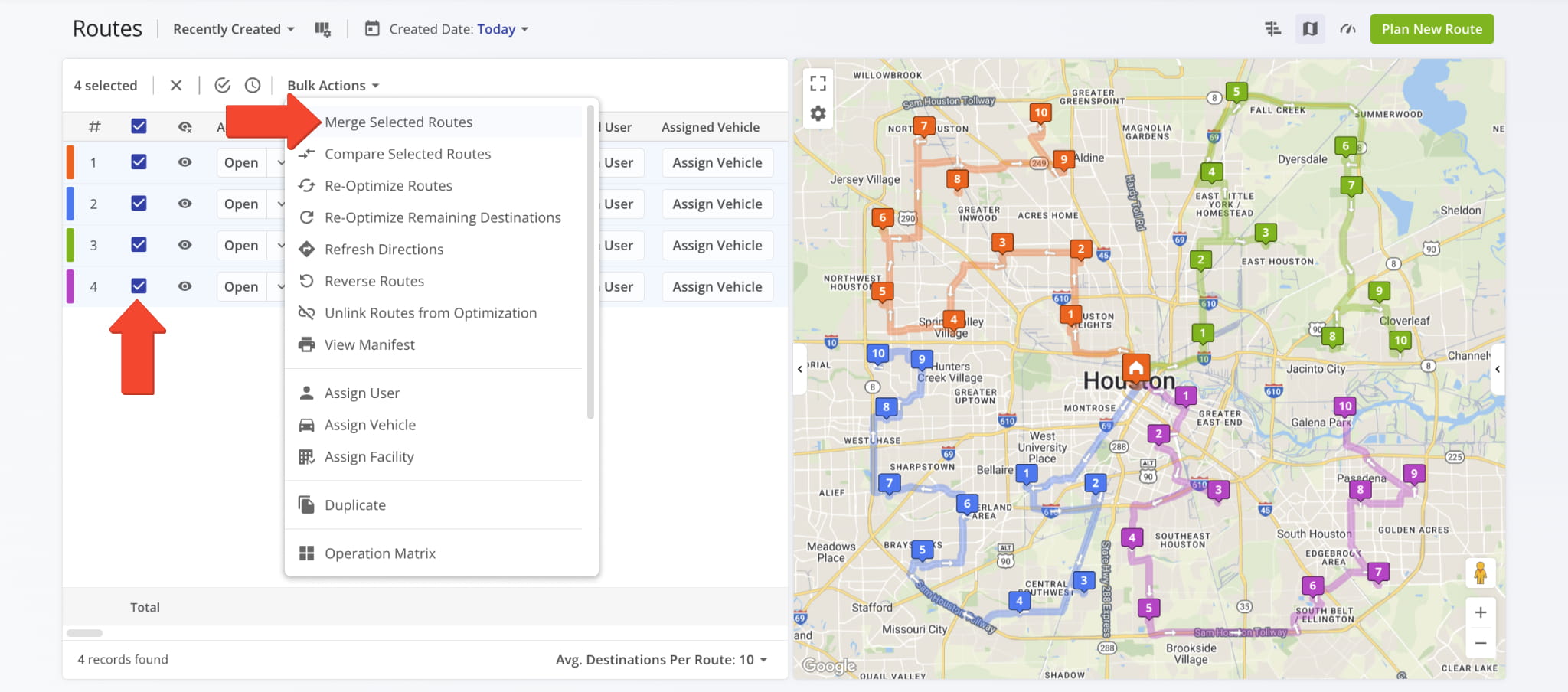
| Merge Selected Routes | Combine multiple routes into one without deleting the originals. The assigned user and vehicle from the first selected route will apply. |
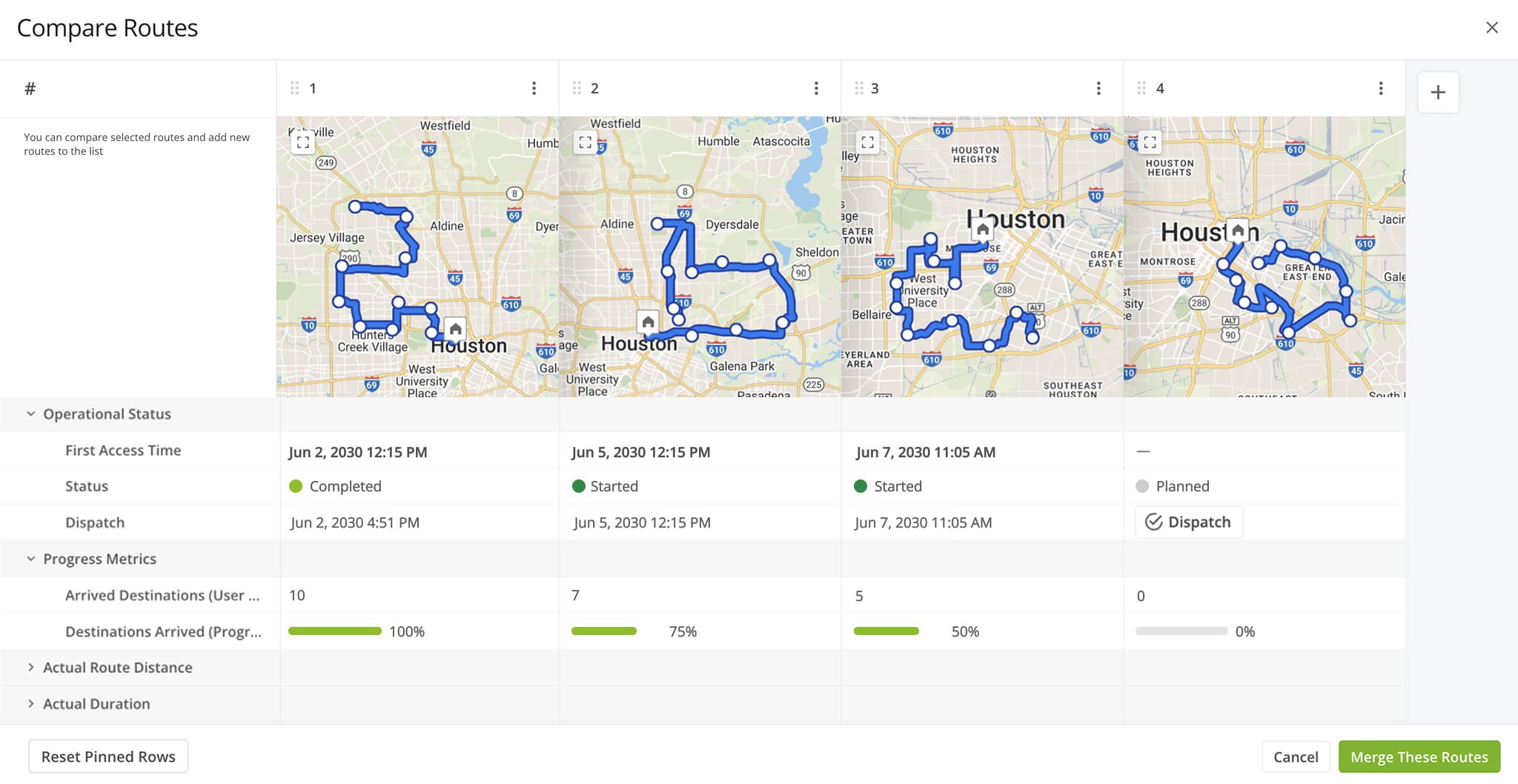
| Compare Selected Routes | View multiple routes side by side, including maps, directions, schedule, travel time, distance, and real-time progress. |
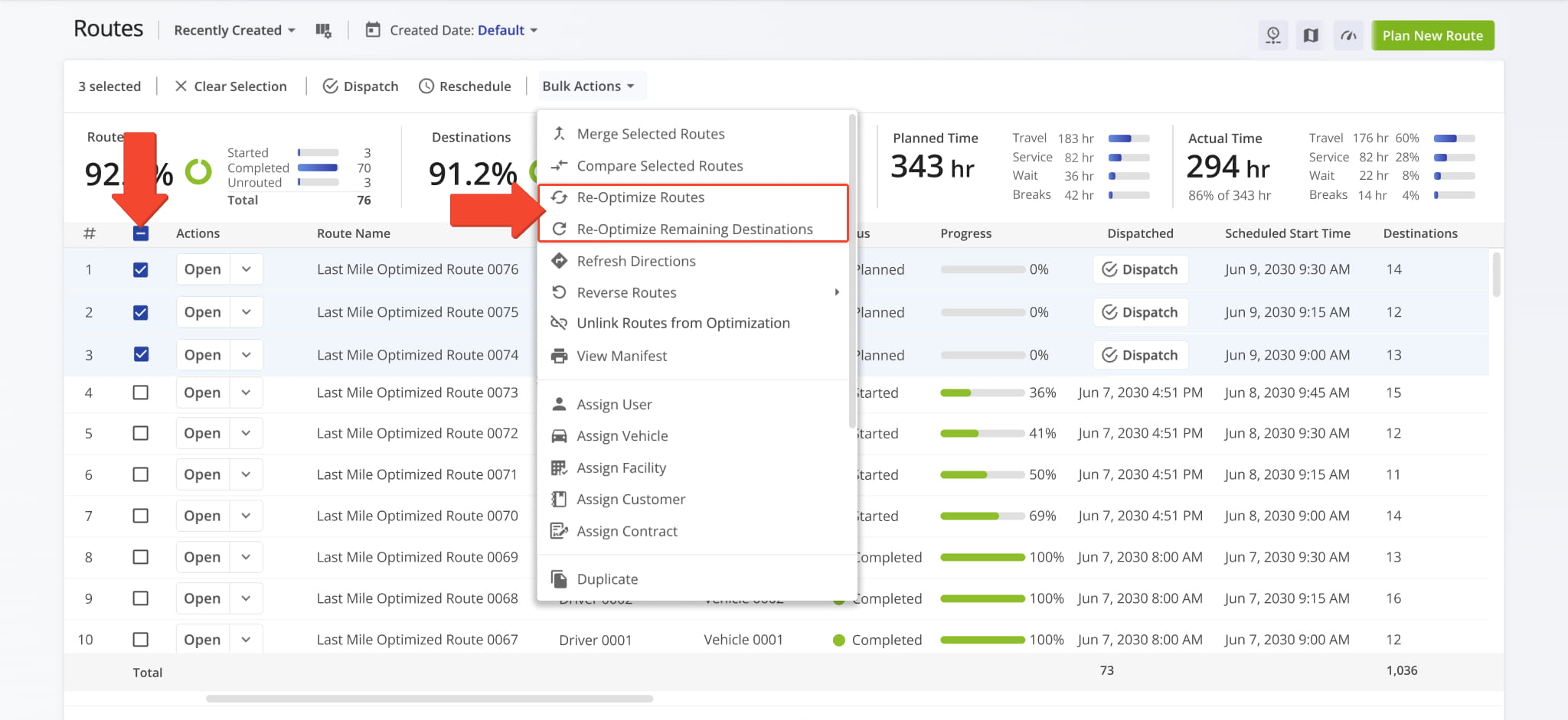
| Re-Optimize Routes | Re-optimize all selected routes after making changes, such as adding or removing addresses. |
| Re-Optimize Remaining Destinations | Automatically re-optimize all unvisited destinations on active routes, adjusting the route sequence for optimal efficiency while keeping already visited stops in place. |
| Refresh Directions | Optimize route directions without changing the stop sequence. |
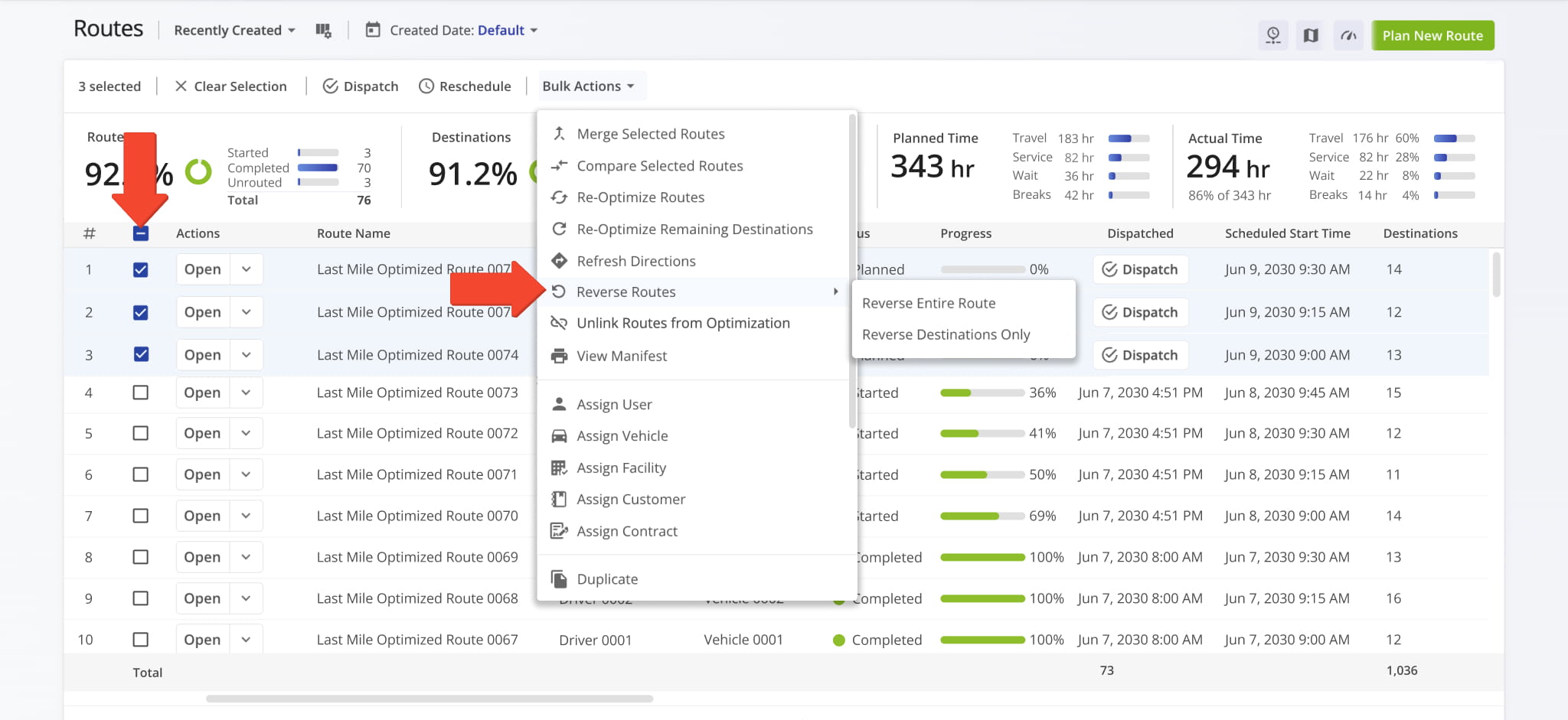
| Reverse Routes | Reverse the route sequence and directions for return trips. |
| Unlink Routes from Optimization | Remove selected routes from their current optimization, allowing you to make changes without restrictions from existing optimization settings. Learn more about unlinking routes from optimizations. |
| View Manifest | Download or print a detailed Route Manifest, which includes all route and destination information. |
| Assign User | Assign a driver or team member to the selected routes. The assigned user can start, navigate, and complete the routes using the Route4Me Mobile App. |
| Assign Vehicle | Assign a vehicle to the selected routes to ensure proper route execution and tracking |
| Assign Facility | Assign a specific facility, warehouse, or service center to the selected routes for operational planning and routing purposes. |
| Assign Customer | Assign a customer profile to the selected routes to link deliveries or services to a specific account for tracking and reporting. |
| Assign Contract | Assign a contract to the selected routes to link them to a specific service agreement, recurring schedule, or client obligations. |
| Duplicate | Create a copy of the selected routes. The new routes will have “(Duplicate)” added to the end of their names. |
| Operation Matrix | Open a multiple routes operation matrix to view the visitation progress of routes with color-coded metrics. |
| View on Multiple Routes Map | Open the selected routes on the Routes Map. |
| Export Routes | Export route data as a CSV spreadsheet or navigation data file for import into navigation devices such as Garmin, TomTom, and more. |
| Insert Address into Selected Route(s) | Insert an address into the selected routes by typing or searching the address in the “Address” field. |
| Insert Breaks | Add driver breaks on the routes with customizable break duration and break type. |
| Remove | Permanently delete the selected routes. |
Reschedule Routes – Update Route Start Times
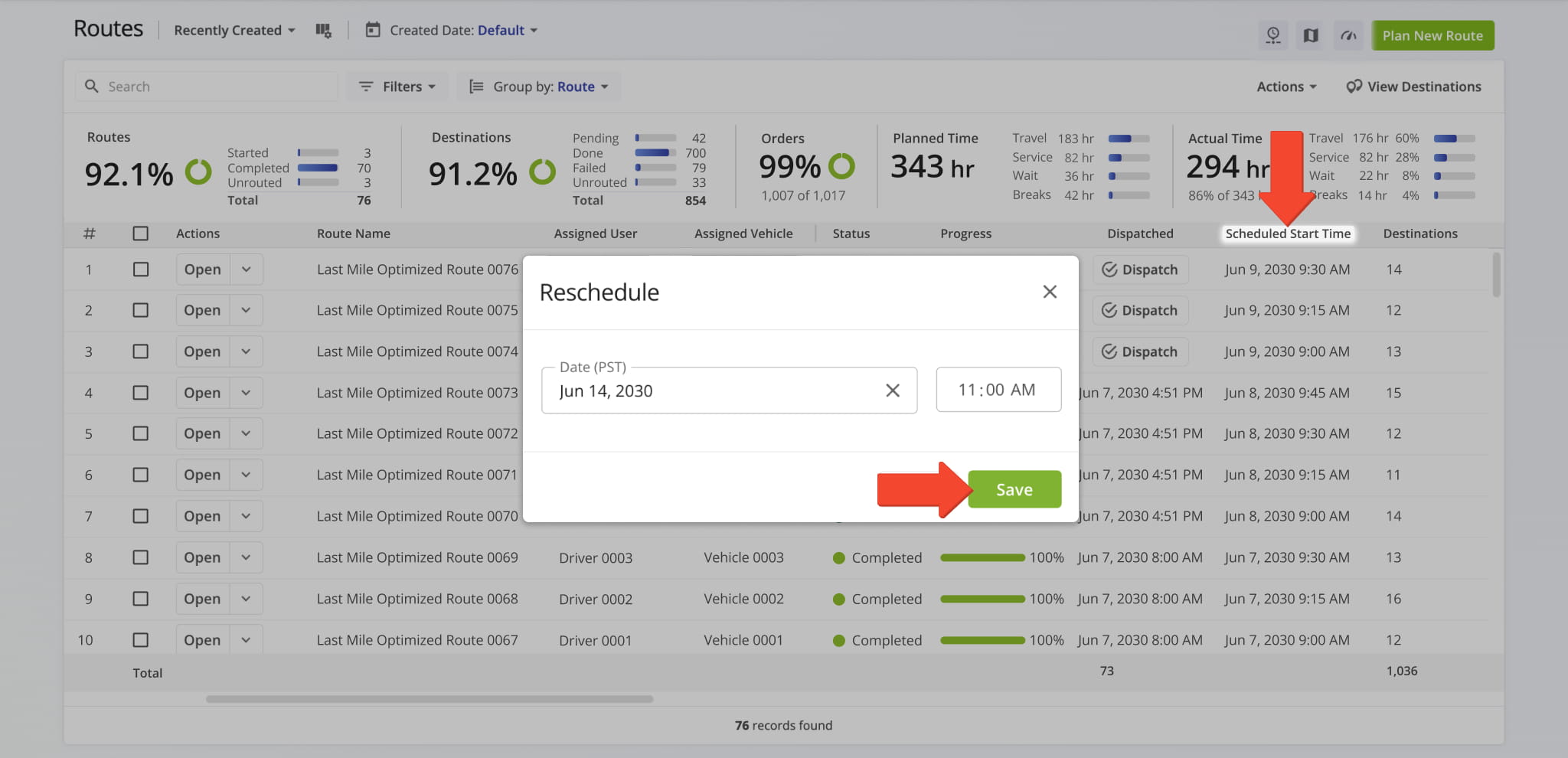
From the Routes Page, you can reschedule one route or multiple routes to update start dates and times. This helps enterprise teams stay flexible when priorities change while keeping schedules aligned with driver availability.
See our dedicated guide to learn more about rescheduling routes.
Duplicate Routes – Copy Already Planned Routes For Future Use
Duplicating routes saves time when planning recurring schedules or adjusting operations. You can duplicate a single route or multiple routes at once, with copies automatically labeled for easy identification.
This allows teams to replicate optimized routes quickly while maintaining operational consistency. See our dedicated guide to learn more about duplicating routes.
Share Routes – Collaborate With Team Members Or Partners
Routes can be shared via email or read-only links, allowing team members or external partners to view route information without editing access. This differs from assigning a route, which grants permission to manage, edit, and complete the route.
Sharing routes improves collaboration while maintaining control over who can modify route details. See our dedicated guide to learn more about sharing routes.
Compare Routes – View Route Metrics Side-By-Side
Route4Me enables enterprise teams to compare routes side-by-side. Comparing routes gives teams clear insight into workload distribution, real-time progress, and vehicle capacity utilization.
The comparison view updates in real time, helping teams make faster routing decisions as conditions change. See our dedicated guide to learn more about comparing routes.
Merge Routes – Combine Multiple Routes Into One Optimized Route
You can merge multiple routes into a single, optimized route, combining stop sequences and directions into one cohesive plan. This reduces redundancy and simplifies route management by consolidating workloads previously split across multiple routes.
Merging routes is especially useful when adjusting schedules or handling unexpected changes such as driver unavailability. See our dedicated guide to learn more about merging routes.
Reverse Routes – Flip Route Destination Order
Route4Me allow routes to be reversed from the Routes List. You can reverse the entire route (including start and end points) or reverse only destinations while keeping the departure address.
This is helpful for round-trip routes or when schedule changes require reversing the stop sequence. See our dedicated guide to learn more about reversing routes.
Re-Optimize Routes – Update Routes After Changes
Route4Me helps you update routes for maximum efficiency after you’ve made changes to destinations or settings. You can re-optimize an entire route or only remaining destinations that have not been completed.
This helps teams keep routes efficient even as priorities shift or new stops are added. See our dedicated guide to learn more about re-optimizing routes.
Delete Routes – Remove Outdated Or Unneeded Routes
From the Routes Page, teams can delete single or multiple routes from the Routes List or Timeline. Removing outdated or canceled routes keeps schedules accurate and prevents unnecessary clutter.
Deletions are permanent and affect all users with access to the route. See our dedicated guide to learn more about deleting routes.
Managing Destinations – Update, Add, Reorder, Or Move Stops
Managing destinations efficiently is key to keeping routes flexible and on schedule. Route4Me helps planners add new stops, update stop order, and move destinations between routes to adapt to changing priorities.
Insert Orders & Locations — Add New Destinations to Routes
Route4Me enables planners to insert new Orders or Locations into existing routes, making it easy to accommodate new deliveries, service calls, or last-minute changes without creating new routes.
New destinations can be assigned to the most efficient routes to maintain balanced workloads and on-time performance when priorities change. See our dedicated guides to learn more about inserting Orders and Locations.
Insert Destinations – Add Stops To Planned Routes
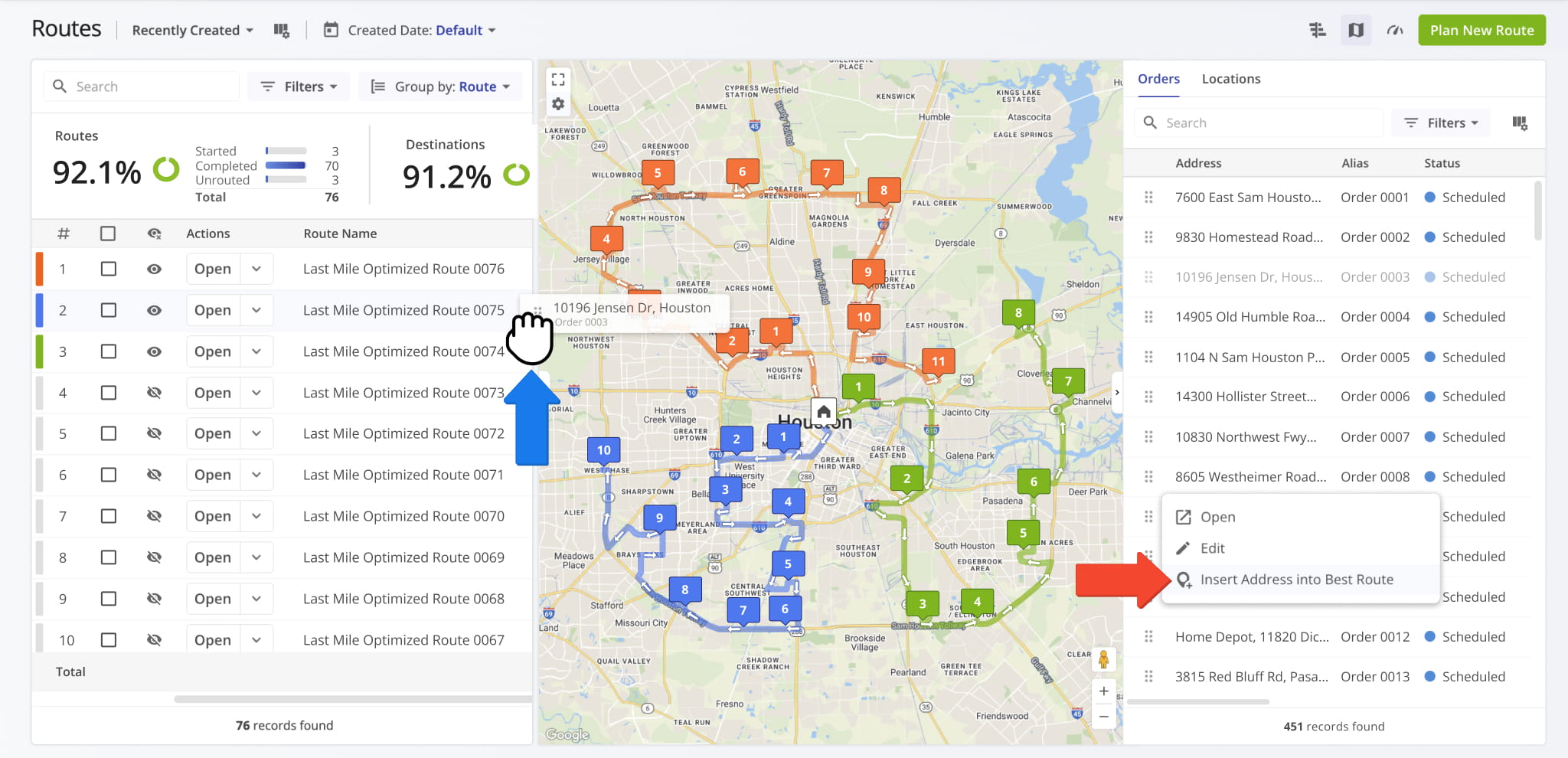
Route4Me enables planners to insert new destinations into existing routes and re-optimize them instantly, helping teams adjust to last-minute changes without creating new routes.
You can add one or multiple stops and choose the most efficient insertion point so the route remains optimized and balanced. See our dedicated guide to learn more about inserting destinations.
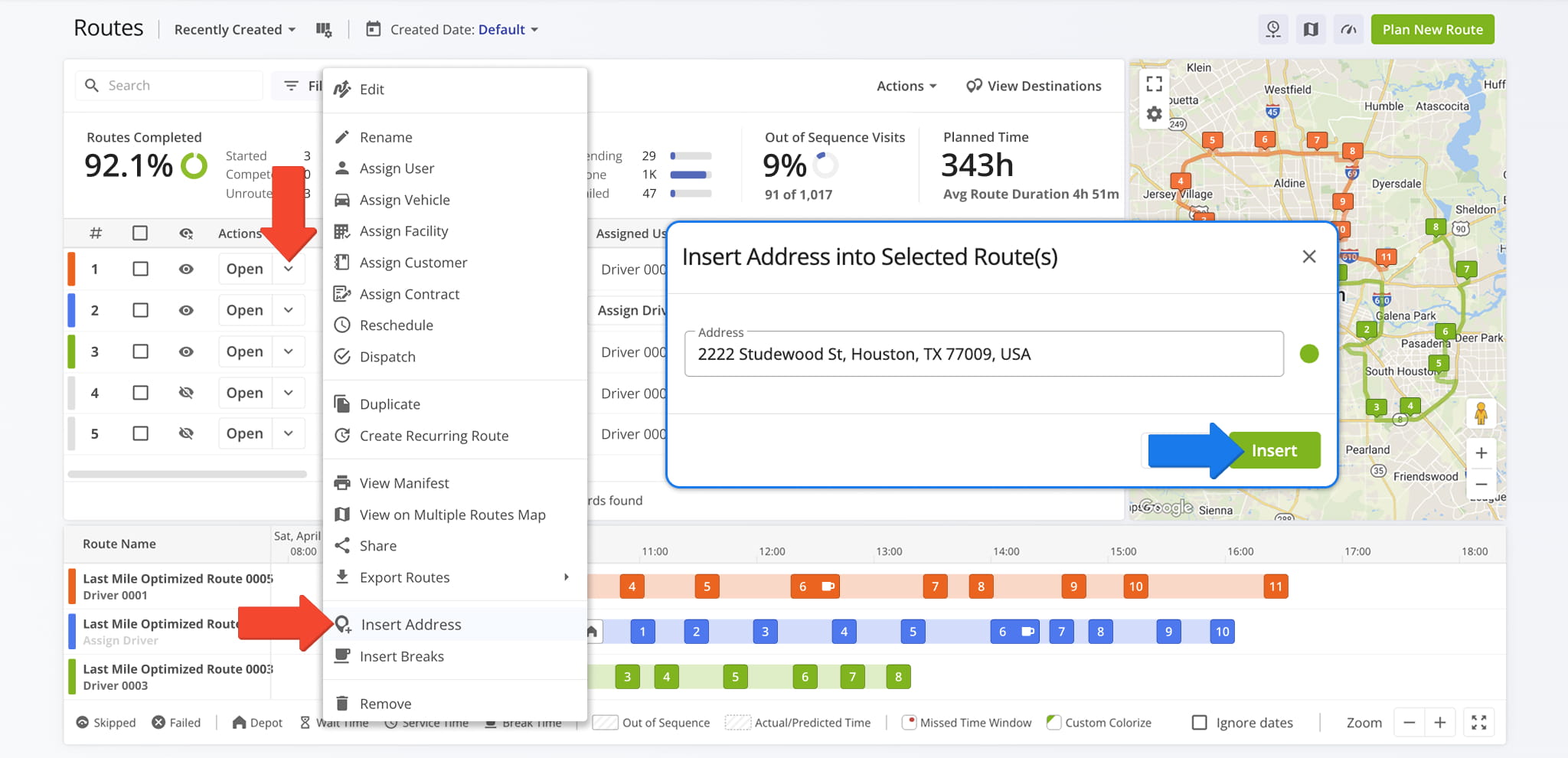
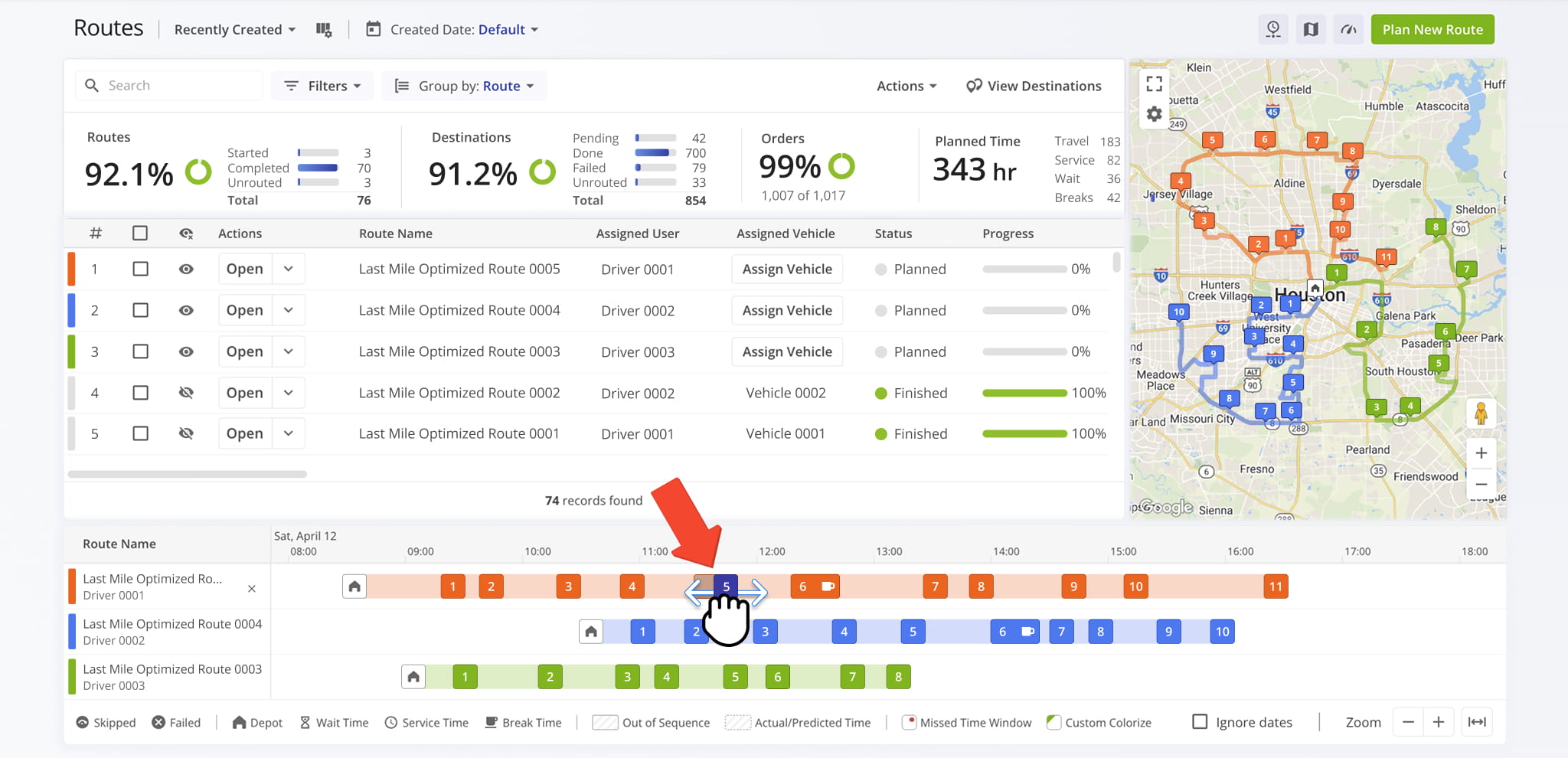
Reorder Stops Within A Route – Adjust Sequence Without Recreating Routes
You can adjust the order of stops directly within a route from the Routes Timeline. This makes it easy to update stop sequences to balance workloads, handle last-minute changes, or maintain on-time performance without recreating the route.
See our dedicated guide to learn more about re-sequencing route destinations.
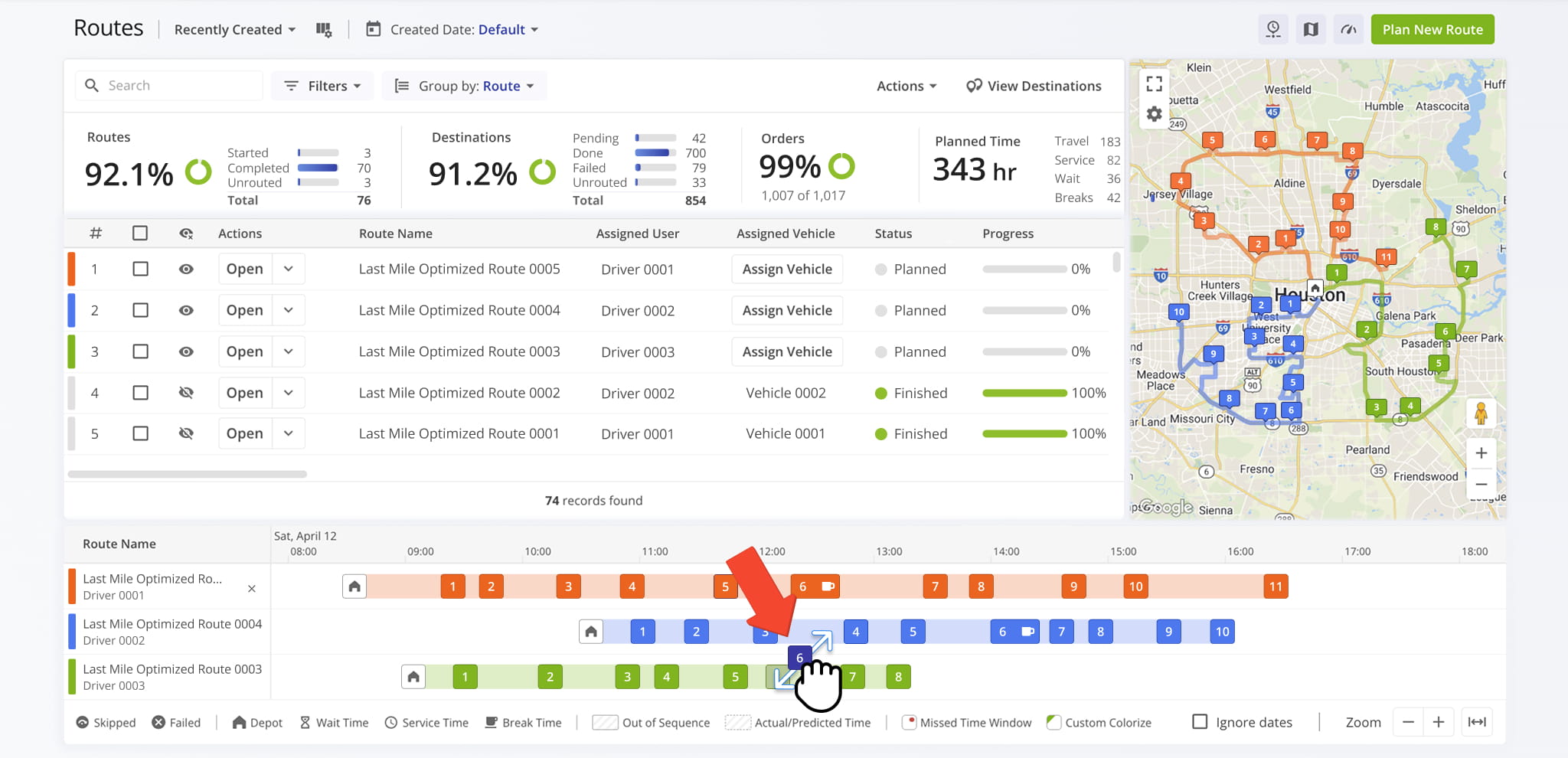
Move Destinations Between Routes – Shift Stops To Balance Workloads
Destinations can also be moved between routes to help balance workloads, add new stops to more efficient routes, or adjust schedules. This flexibility allows planners to keep routes optimized and teams on track without recreating routes.
See our dedicated guide to learn more about moving destinations between routes.
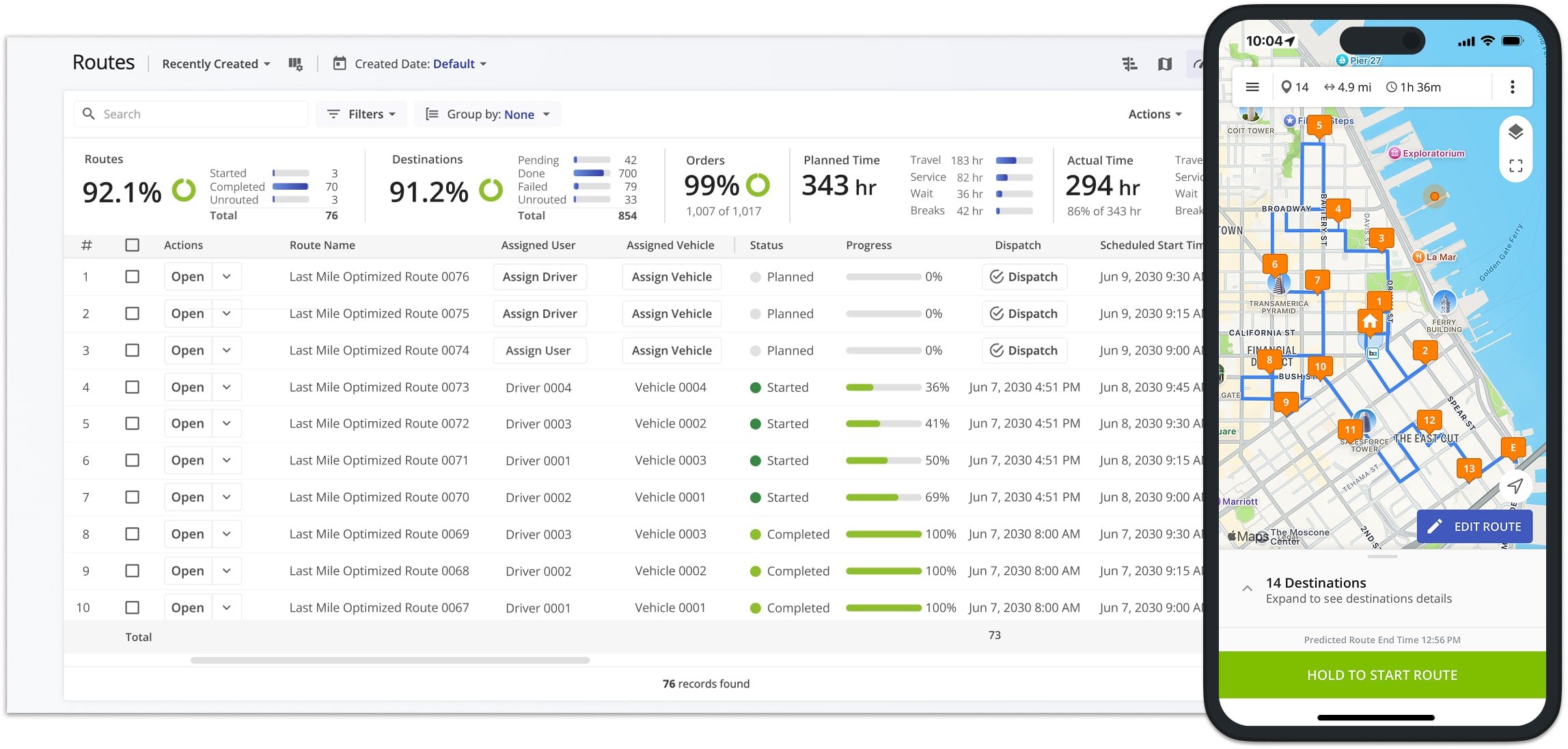
Mobile Driver App And Routes Page Real-Time Data Sync
Route4Me keeps your Routes Page and the Mobile Driver App fully synchronized in real-time.
Drivers and team members can use the Route4Me Android or iOS Driver Mobile App to navigate routes, update destination statuses, attach proof of delivery, and complete other route tasks, with all changes instantly reflected on the Routes Page.
Likewise, edits made on the Routes Page, like assigning drivers, rescheduling routes, or inserting addresses, are immediately visible on the mobile app, ensuring your entire team stays up to date.
Visit Route4Me's Marketplace to Check out Associated Modules:
- Route Optimization
Mixed Vehicles Routing
- Route Optimization
Route Optimization for Multiple Drivers Without Advanced Constraints
- Route Optimization
Commercial Vehicle Route Planning
About author: Daniel Archer

