
Destination Snapshot – Real-Time Route Destination Data Summary
Route4Me’s Destination Snapshot provide a centralized, easy-to-navigate view of all data related to a specific Destination. You can review order details, customer information, scheduled activities, Destination Activity history, and more. It also lets you view real-time updates, explore delivery events, status changes, and user actions. By consolidating this information, the Destination Snapshot helps improve efficiency, reduces service errors, and supports better decision-making. Learn more in this guide.
Table of Contents
Open Destination Snapshot – Destination Data And Analytics Overview
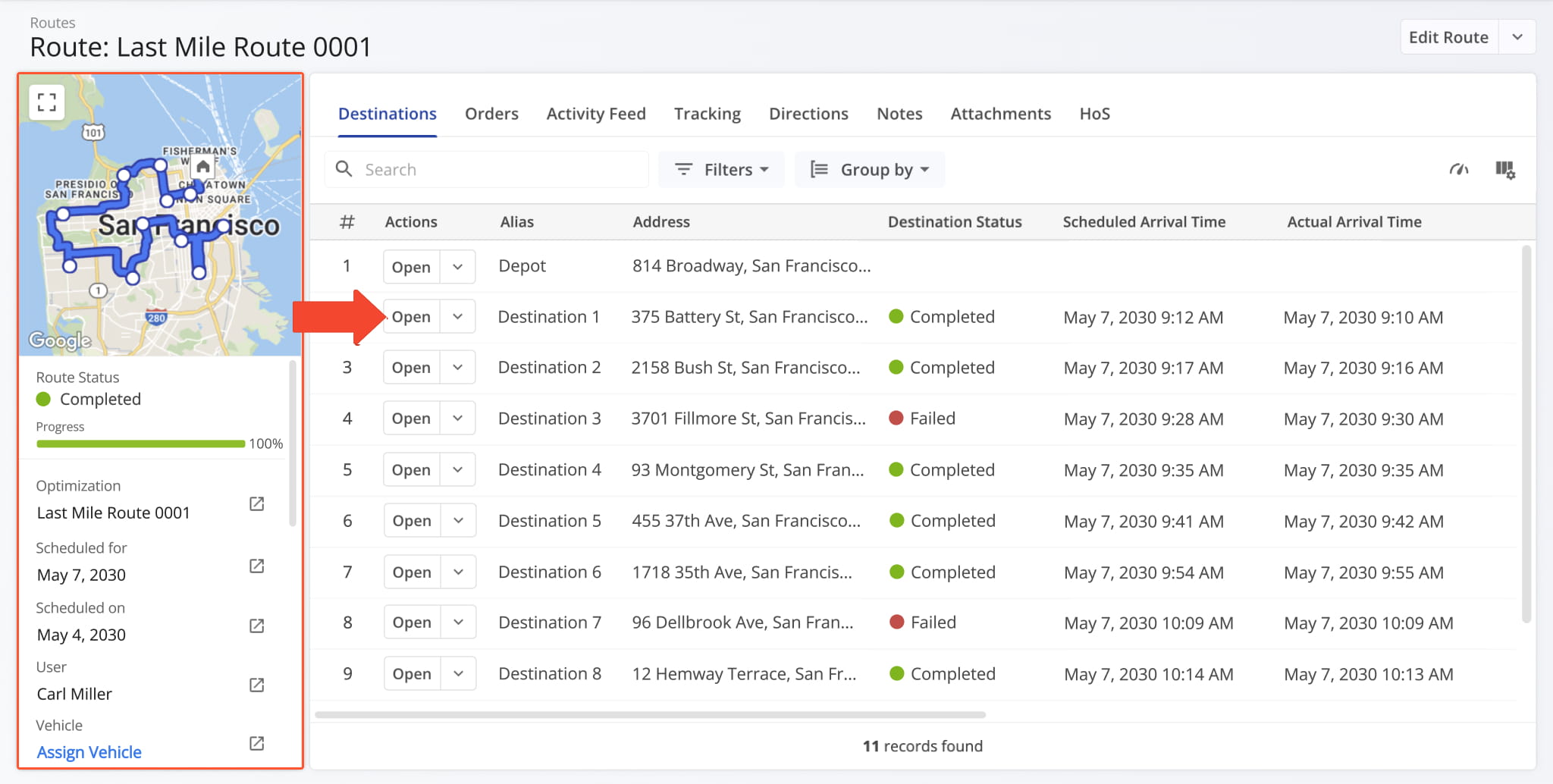
To open a Destination Snapshot, go to “Dynamic Routing” > “Routes” from the Navigation Menu and click “Open” next to a route. This opens the Route Snapshot. From the Snapshot, click “Open” next to a Destination to open its Destination Snapshot.
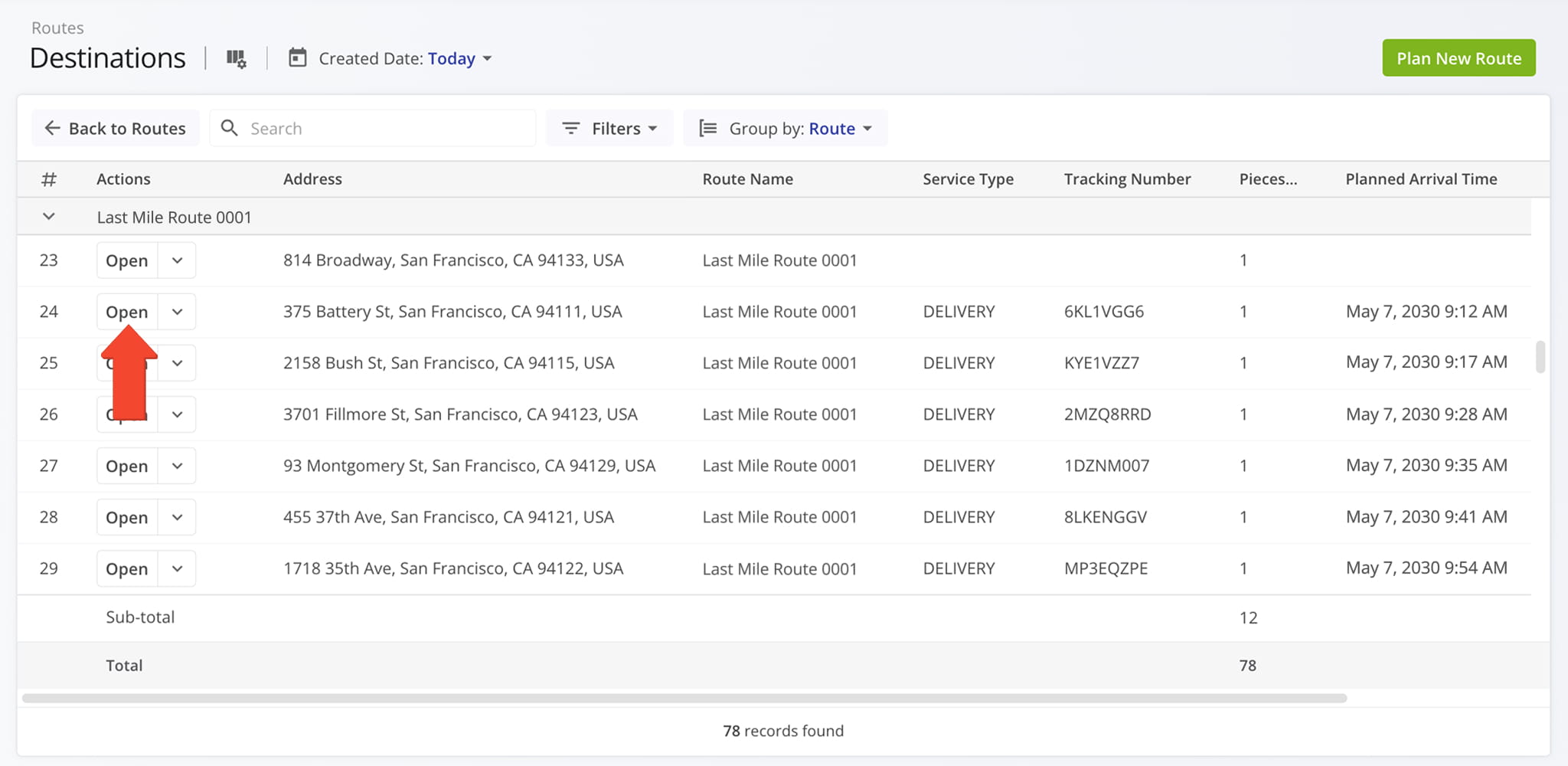
You can also open Destination Snapshots from your Destinations List by going to “Dynamic Routing” > “Destinations” in the Navigation Menu and clicking “Open” next to a destination.
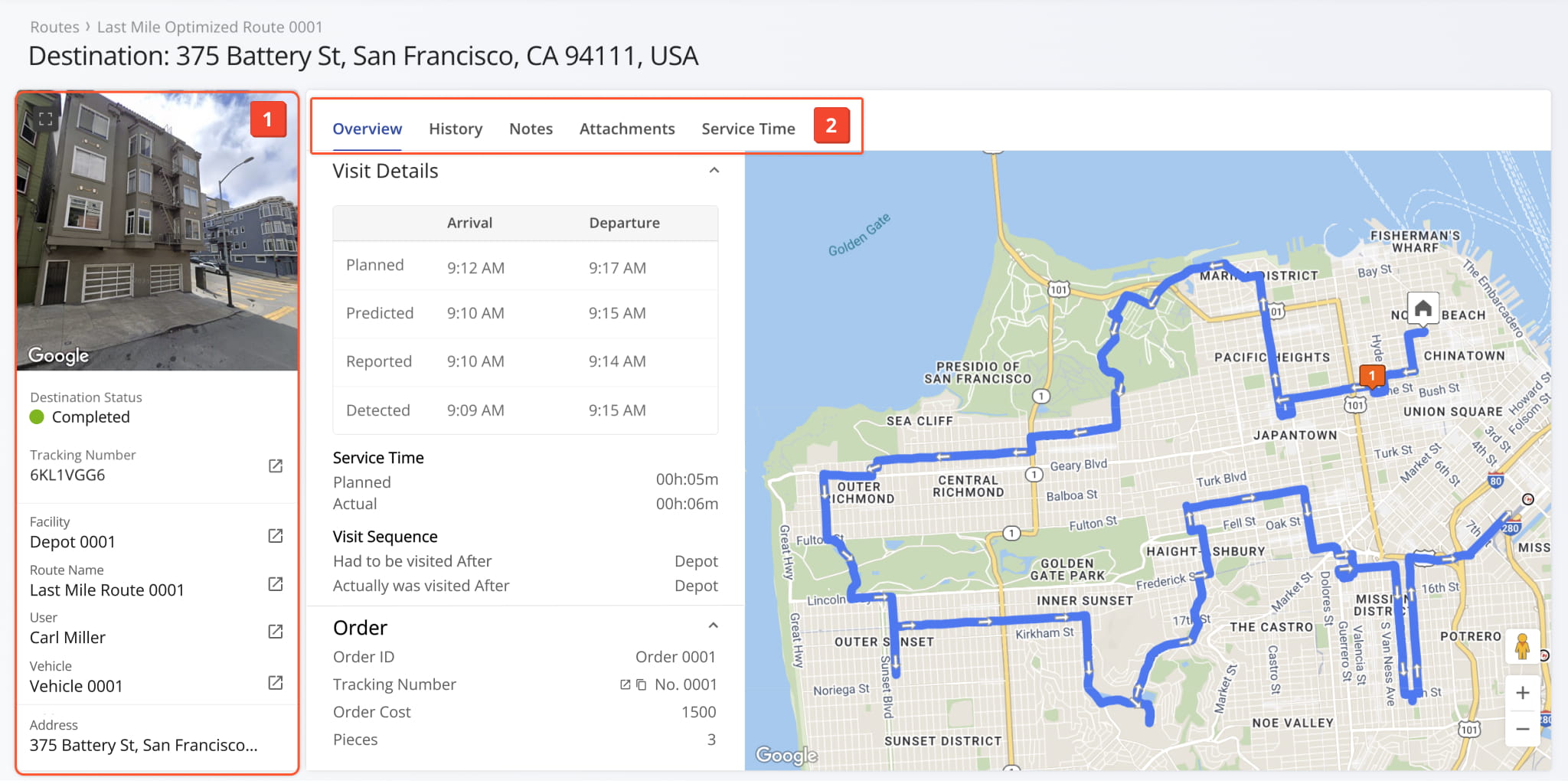
This opens the selected Destination Snapshot. From here, you can review all destination details and activity in one place:
- Destination Summary: Essential information such as the assigned User, Vehicle, Facility, Order tracking number, and more.
- Destination Data Tabs: Switch between Destination Snapshot categories to explore data which you can filter and customize as needed.
All data is centralized and accessible, making it easy to analyze Destination information and review activity history.
Destination Details Overview – Location, Assignments, And Attributes
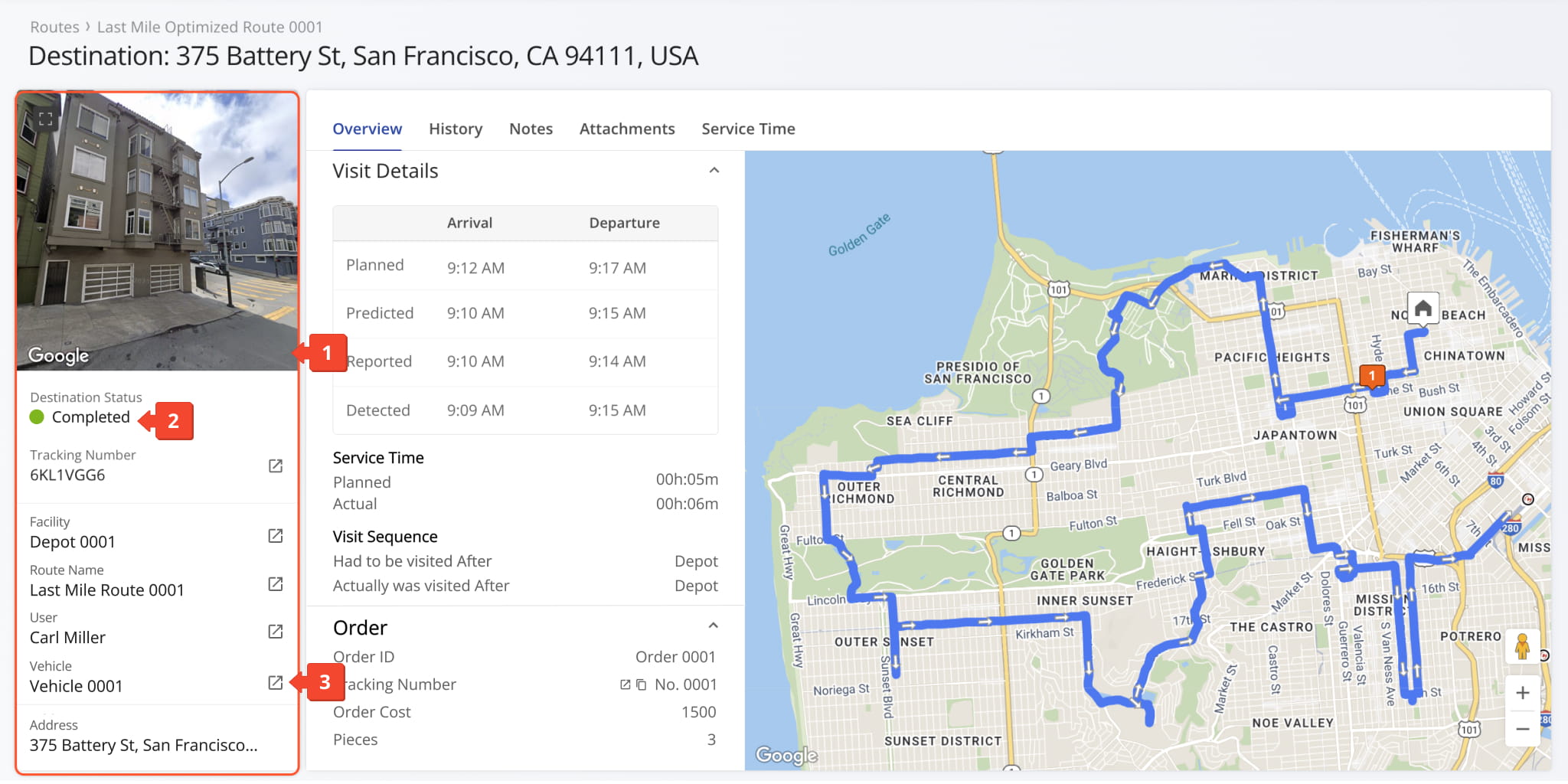
The Destination Information panel provides a summary of key details for the selected destination, including address, route, status, and order tracking information. From this panel, you can:
- View a dynamic Google Street View of the destination to get visual context of the location and surrounding area.
- Review destination status and scheduled route details, along with assigned user, vehicle, and facility information.
- Click the Go-To Icon next to any entity to open its snapshot, including Order, Facility, Route, User, or Vehicle Snapshot.
Destination Snapshot Categories – Analytics Overview Data Tabs
The Destination Snapshot is organized into multiple tabs, each corresponding to a specific data category, described below.
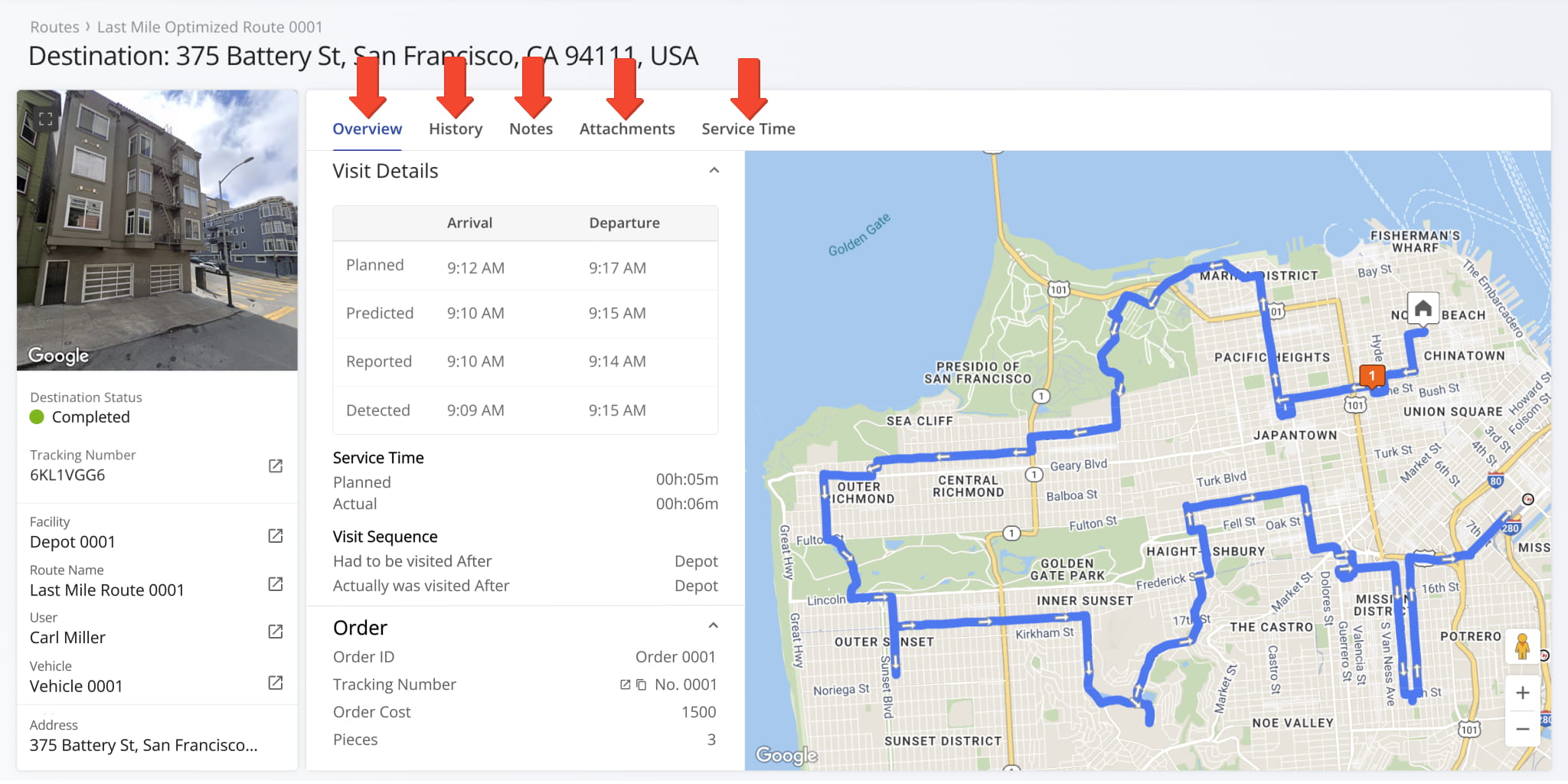
Overview Tab – Visit, Order, And Custom Data
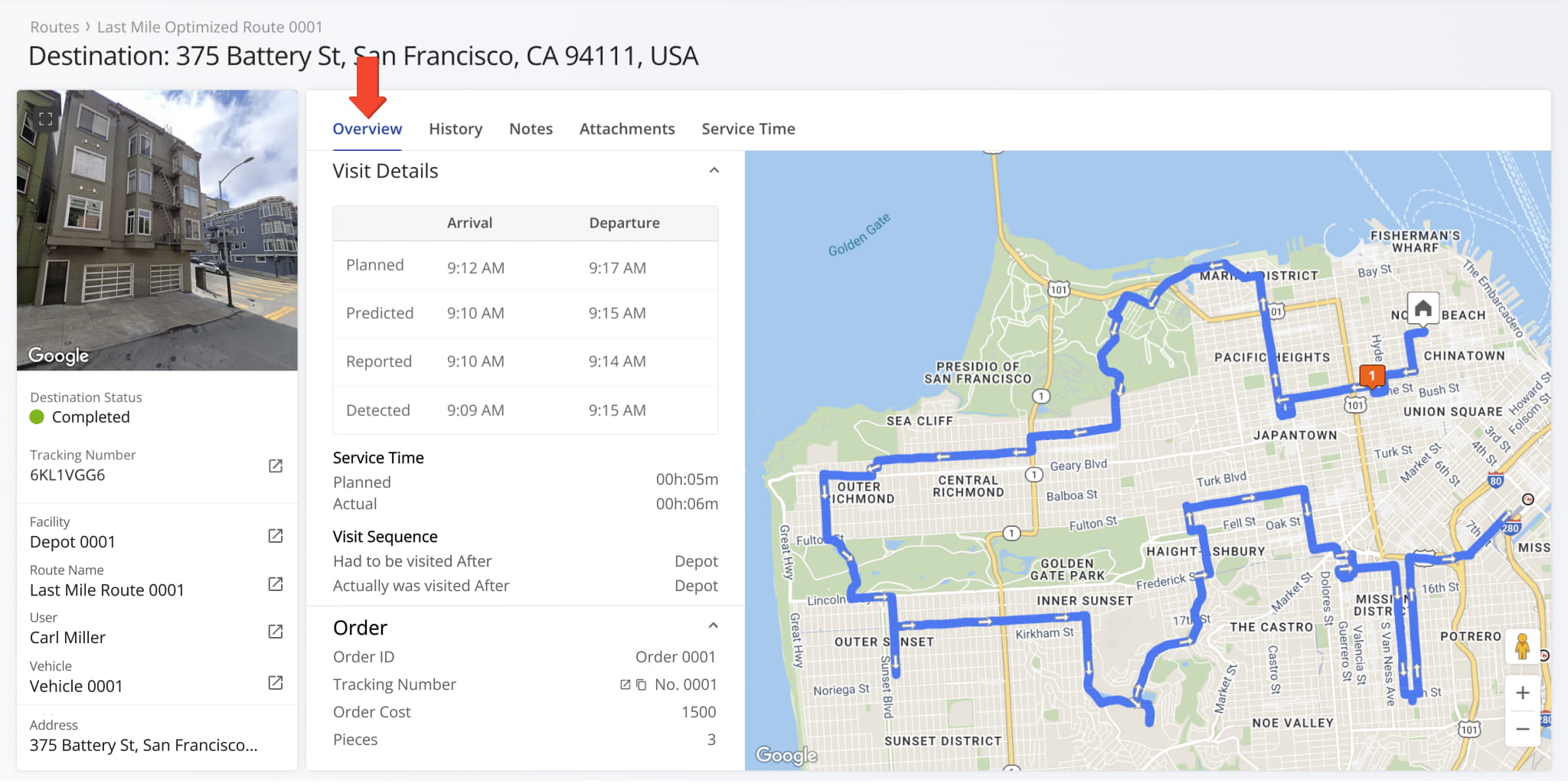
The Overview tab is selected by default when opening a Destination Snapshot. It shows the associated route and provides a detailed view of visit activity, including planned, predicted, user-reported, and geofence-detected arrival and departure.
You can also review Service Time, Order details, Custom Data fields, and a map of the route associated with the Destination.
History Tab – Destination Activities And Updates
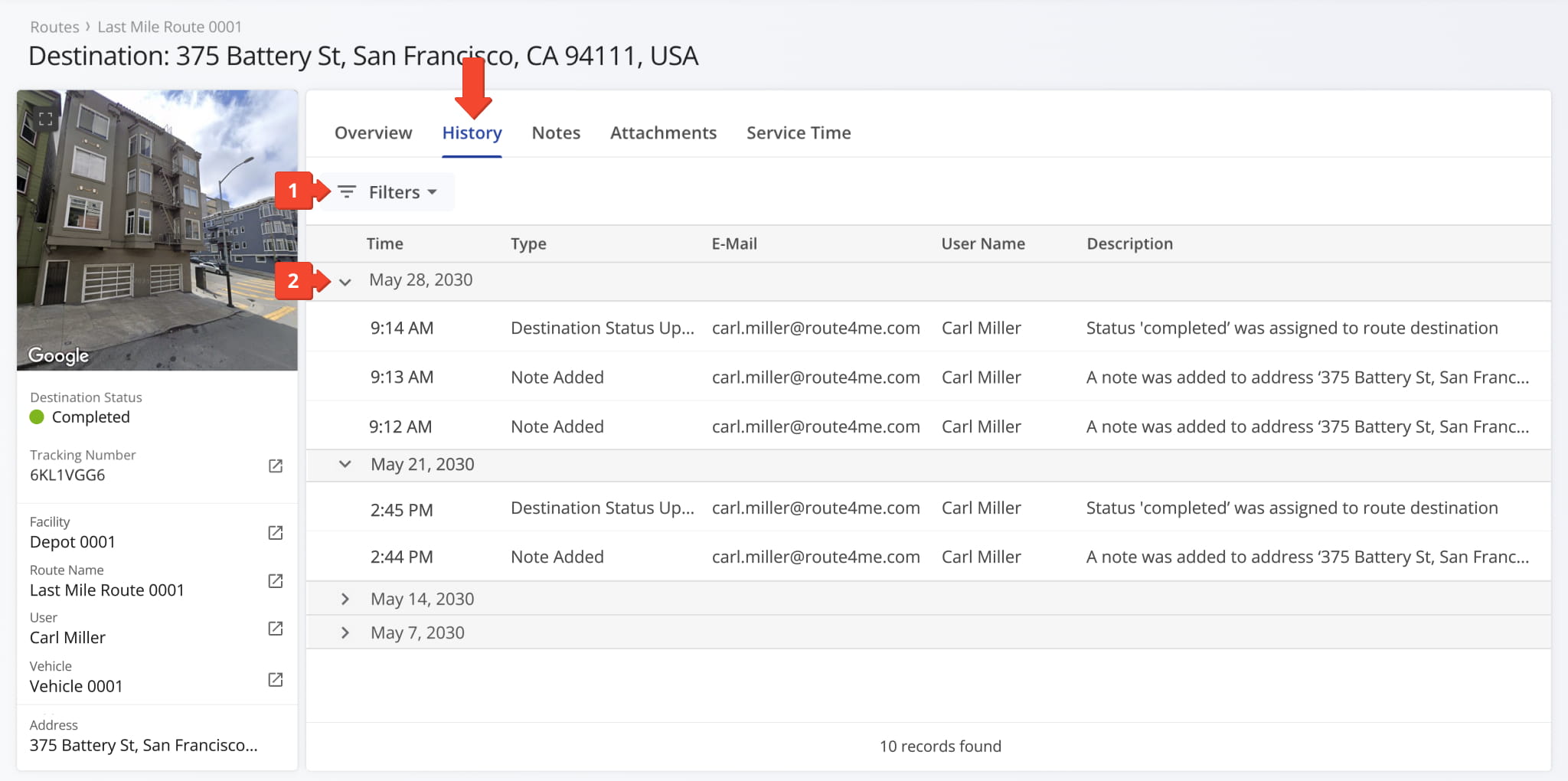
Click the History tab to view a chronological list of destination activity updates grouped by date. Each entry shows the exact time of the activity, the User responsible, and a detailed description of the event or change. From this tab, you can:
- Apply filters to quickly find specific activity updates. Ssee the table below for all available filter options.
- Click the Arrow Icon next to a date to expand or collapse activity details for that day.
| Filter | Description |
|---|---|
| Note Added | Filter activities by when a note or comment was added to the route or destination. |
| Route Dispatched | Filter activities by routes that were dispatched and assigned to a user or driver. |
| Route Un-dispatched | Filter activities by routes that were unassigned or canceled after being dispatched. |
| Destination Inserted into Route | Filter activities by destinations that were added to an existing route. |
| Destination Visited Out of Sequence | Filter activities by destinations that were serviced in a different order than planned. |
| Destination Deleted | Filter activities by destinations that were removed from a route. |
| Route Duplicated | Filter activities by routes that were copied to create a new route with the same stops. |
| Routes Merged | Filter activities by routes that were combined into a single route. |
| Route Optimized | Filter activities by routes that were recalculated to improve efficiency or travel time. |
| Route Updated | Filter activities by routes where details such as stops, times, or assigned users were modified. |
| Route Rated | Filter activities by routes that received a rating or feedback after completion. |
| Destination Updated | Filter activities by destinations where details such as address, time window, or notes were modified. |
| Early Arrival | Filter activities by destinations where the user arrived before the scheduled time. |
| Late Arrival | Filter activities by destinations where the user arrived after the scheduled time. |
| On-Time Arrival | Filter activities by destinations where the user arrived within the scheduled time window. |
| Messages via Activity Feed | Filter activities by messages sent or received via the route or destination activity feed. |
| Vehicle Assigned to Route | Filter activities by routes where a vehicle was assigned. |
| User Assigned to Route | Filter activities by routes where a user or driver was assigned. |
| Destination Moved Sequence | Filter activities by destinations whose order within the route was changed. |
| Destination Departed | Filter activities by destinations that the user marked as departed. |
| Destination Visited | Filter activities by destinations that the user marked as visited or completed. |
| Check-In Geofence Triggered | Filter activities by destinations where a geofence check-in was triggered. |
| Check-Out Geofence Triggered | Filter activities by destinations where a geofence check-out was triggered. |
| Route Shared | Filter activities by routes that were shared with another user or team. |
| Route Started | Filter activities by routes that were started by the assigned user or driver. |
| Route Paused | Filter activities by routes that were temporarily paused. |
| Route Ended | Filter activities by routes that were completed or ended by the user. |
| Pickup Label Code Scanned | Filter activities by pickups where the barcode or label was scanned and recorded. |
| Destination Status Updated | Filter activities by destinations where the status was updated, such as in-progress, completed, or missed. |
Notes Tab – Proof Of Visit And Destination Notes
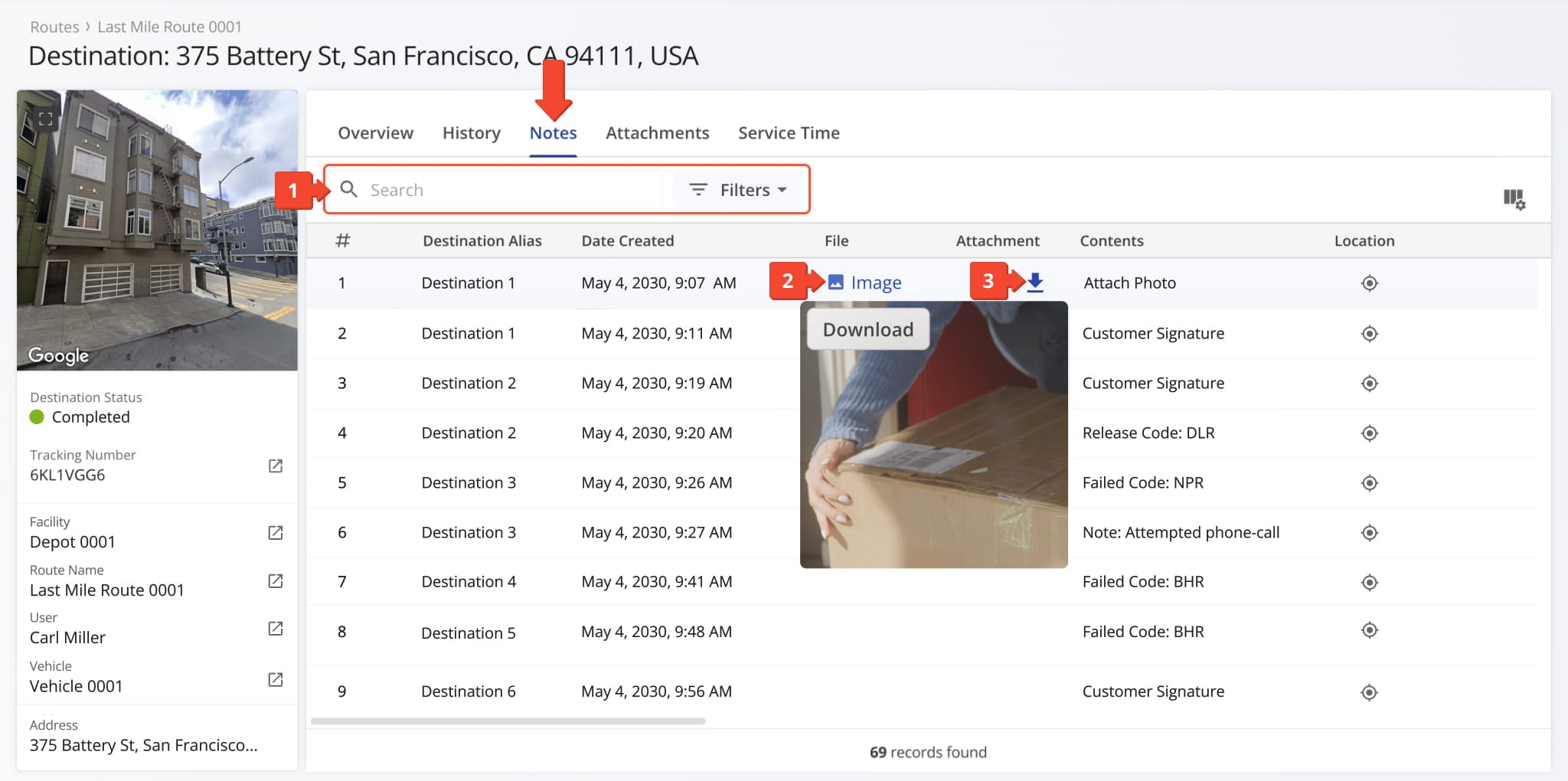
Click the Notes tab to view all proof of visit, service, and delivery Notes attached to the Destination by the assigned User. Each Note includes timestamps, location details, and attached media. From the tab, you can:
- Use the search field to quickly find specific Notes or apply filters, described below, to narrow results.
- Click any image, such as a signature or photograph, to view an enlarged version.
- Click the Download Arrow Icon to save the image.
| Filter | Description |
|---|---|
| User | Search by the name or email address of the team member associated with the Order activity. |
| File Type | Filter by attached file type, including image, XLS, CSV, or other file formats. |
| Note Type | Filter by note type, such as “Pickup“, “Drop-off“, “No Answer“, “Address Not Found“, “Unpaid“, and many other options. |
| Device | Search by the type of device used to capture or upload the note: iPhone, Android, and more. |
| File Size (MB) | Search by the size of an attached file related to the note. |
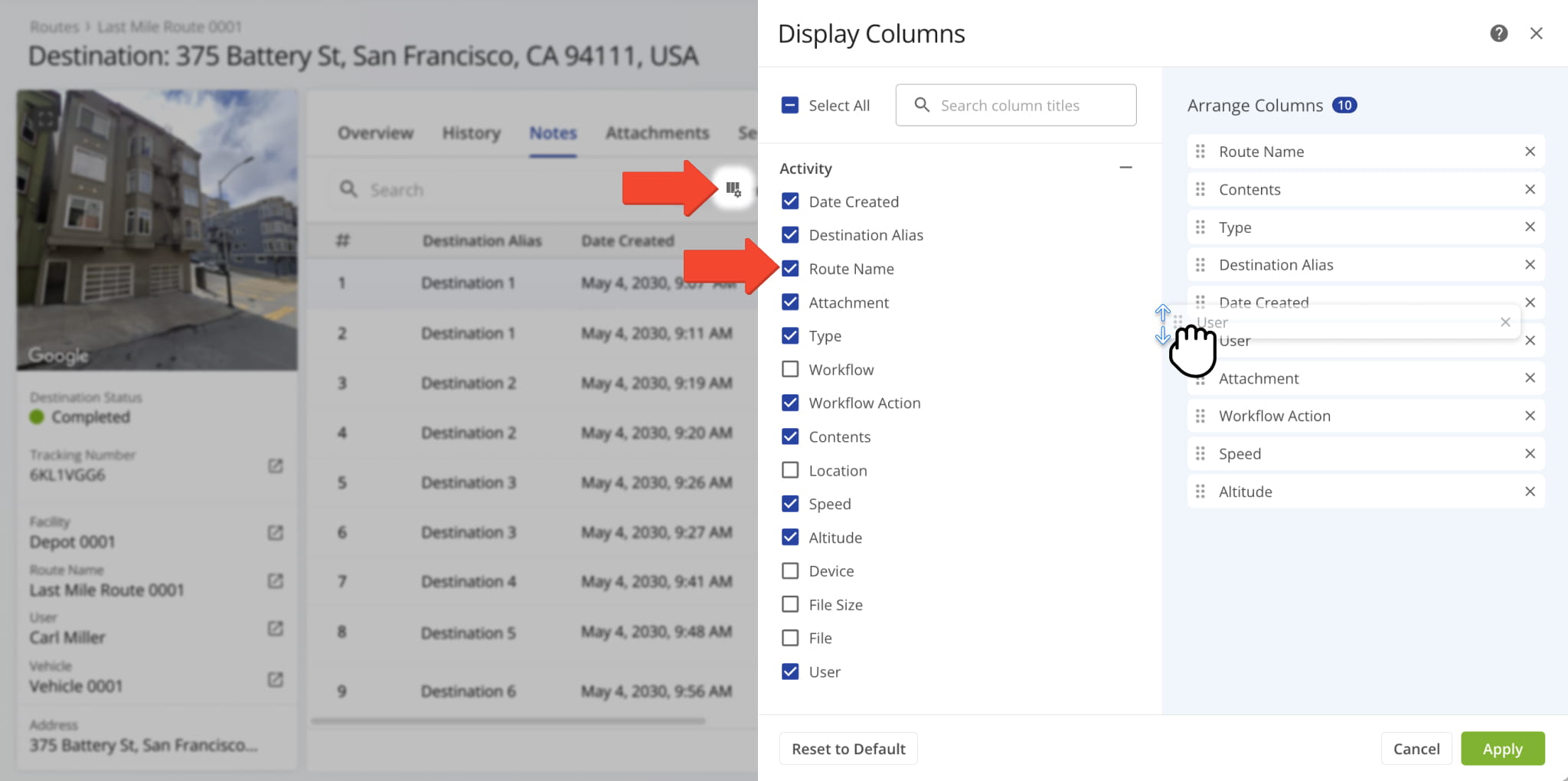
You can also customize the data displayed in the table. Click the Column Icon to select which route fields appear and adjust their order to suit your operational needs.
The table below provides an overview of all available data columns, which you can reorder by dragging them into place.
| Column | Description |
|---|---|
| Date Created | Date and time when an activity was recorded. |
| Destination Alias | Custom name used to identify an Order’s address. |
| Route Name | Name of the route containing the Order’s address. |
| Attachment | Attachment linked to an activity, such as images, videos, voice memos, and files. |
| Type | Type of activity, such as Pickup, Drop-off, or Missing Items. |
| Workflow | The specific workflow associated with the activity required to mark a destination as completed. |
| Workflow Action | The particular action performed within the workflow for this activity (e.g., Take a Picture, Release Code, Capture Signature). |
| Contents | Notes or details recorded for the activity. |
| Location | Verified, geocoded coordinates of the Order’s address. |
| Speed | Speed of the device at the time the activity was recorded. |
| Altitude | Altitude of the device when the activity was recorded. |
| Device | Device used to perform the activity (e.g., iPhone, Android, Web). |
| File Size | Size of the attached file for the activity. |
| File | Downloadable file related to the activity, often in CSV or image format. |
| User | Team member who performed the activity. |
Attachments Tab – Proof Of Visit Files
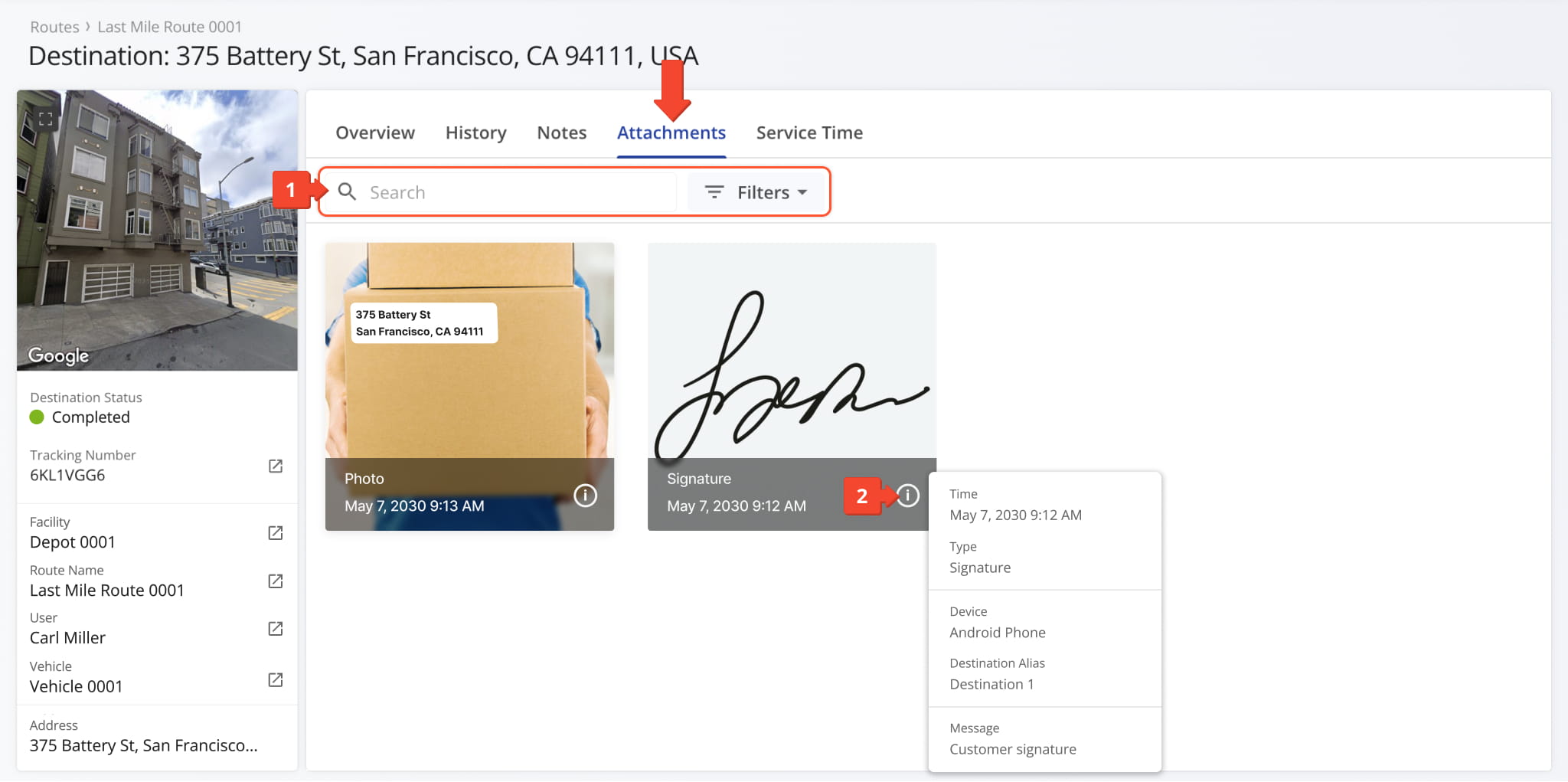
Click the Attachments tab to view all files linked to the Destination, including proof of visit workflow attachments created when the assigned User completes mandatory or optional tasks, such as uploading delivery photos or collecting customer signatures.
From this tab, you can:
- Use the search field to quickly find specific Notes or apply filters, described below, to narrow results.
- Hover over the Information Icon to view additional details for each file.
NOTE: Learn more about managing proof of visit.
| Filter | Description |
|---|---|
| User | The team member associated with the Destination activity. |
| File | The file type associated with the Destination activity: image, video, voice memo, or file. |
| Type | The purpose of or reason for the note: Pickup, Drop-off, Recipient Not Available, Address Not Found, Follow-Up Required, etc. |
| Device | The type of device used to capture or upload the note: iPhone, Android, and more. |
| File Size (MB) | The size of an attached file related to the note. |
Service Time – Service Time Distribution And Metrics
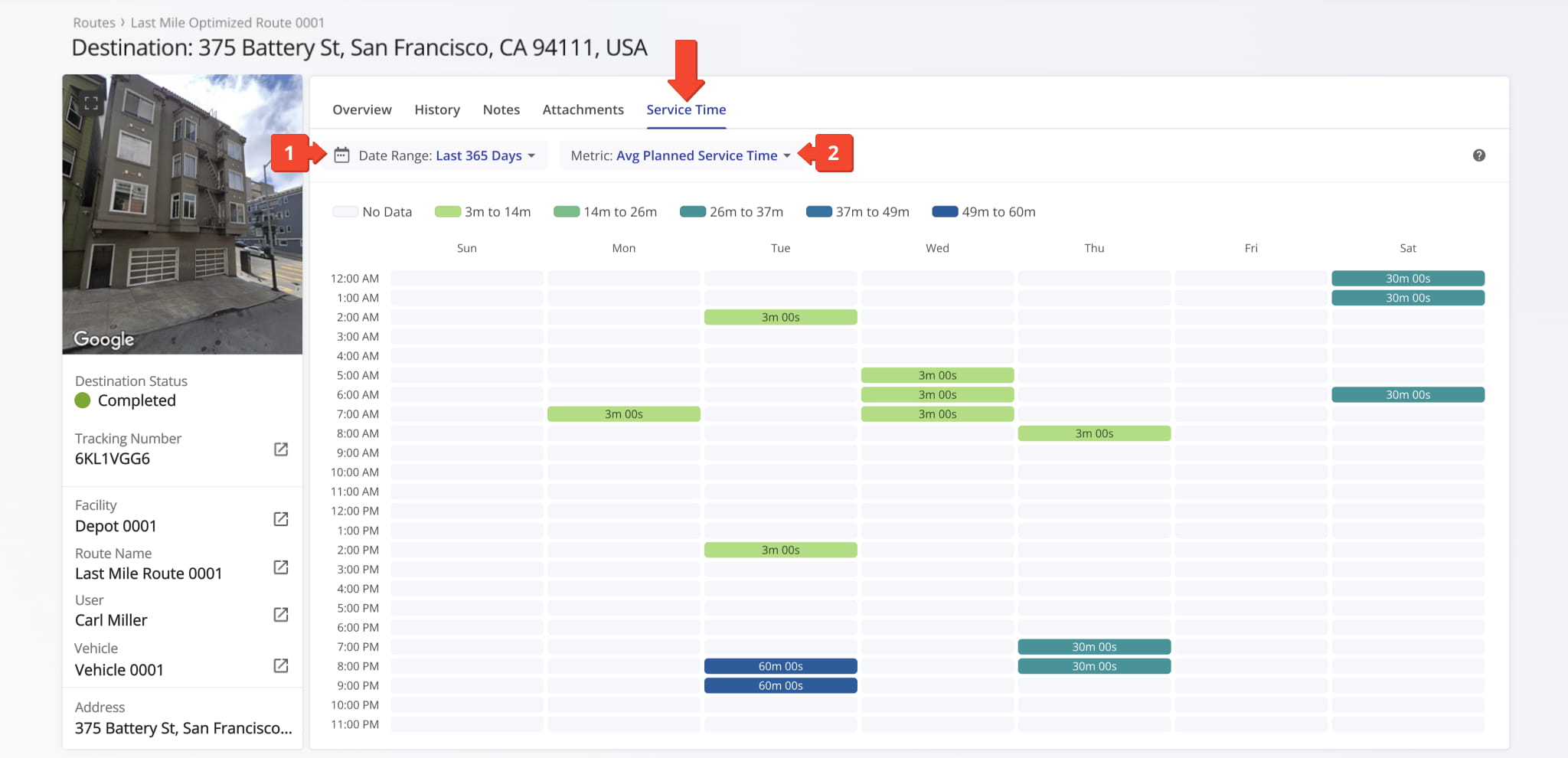
Click the Service Time tab to view how Service Time is distributed at the Destination across days of the week within a selected date range. The overview of planned, user-reported, and geofence-detected Service Time highlights performance patterns and trends.
From this tab, you can:
- Use the date range selector to analyze Service Time over a specific period.
- Sort and evaluate Service Time using available metrics, described in the table below.
| Metric | Description |
|---|---|
| Avg Reported Service Time | The average Service Time reported by users at the Destination over the selected date range. |
| Avg Detected Service Time | The average Service Time automatically detected at the Destination using geofence data. |
| Avg Planned Service Time | The average planned Service Time assigned to the Destination. |
| Avg Reported vs Planned Service Time (△) | The difference between reported and planned Service Time, with an option to filter by metric direction (lower is better, higher is better, or both higher and lower are bad). |
| Avg Reported vs Planned Service Time (%) | The percentage difference between reported and planned Service Time, with an option to filter by metric direction (lower is better, higher is better, or both higher and lower are bad). |
| Avg Detected vs Planned Service Time (△) | The difference between detected and planned Service Time, with an option to filter by metric direction (lower is better, higher is better, or both higher and lower are bad). |
| Avg Detected vs Planned Service Time (%) | The percentage difference between detected and planned Service Time, with an option to filter by metric direction (lower is better, higher is better, or both higher and lower are bad). |
Visit Route4Me's Marketplace to Check out Associated Modules:
- Operations
Audit Logging and Activity Stream
- Operations
Custom Data Add-On
- Operations
Advanced Team Management Add-On
About author: Kristian Andreev

