
Telematics Trip Snapshot – View and Manage Vendor Trips
Route4Me’s Telematics Trip Snapshot provides detailed data from trips recorded in your connected telematics system. Vendor trips capture the actual movement of a vehicle or driver, from engine start to engine shutdown or extended stops at a location. You can review each trip’s destinations, timing, and sequence, then convert it into a route for recurring route planning or dynamic route planning while either preserving the original plan or optimizing it for efficiency.
Table of Contents
Access Telematics Trip Snapshot – View Trip Data And Connection Details
You first need to access a Telematics Route Snapshot. Select “Settings” > “Organization Settings” from the Navigation Menu. From the Organization Settings Page, click “Connections” to view your list of Telematics Connections.
Find the desired connection and click “Open” to access its Telematics Snapshot.
Open Your Telematics Connections
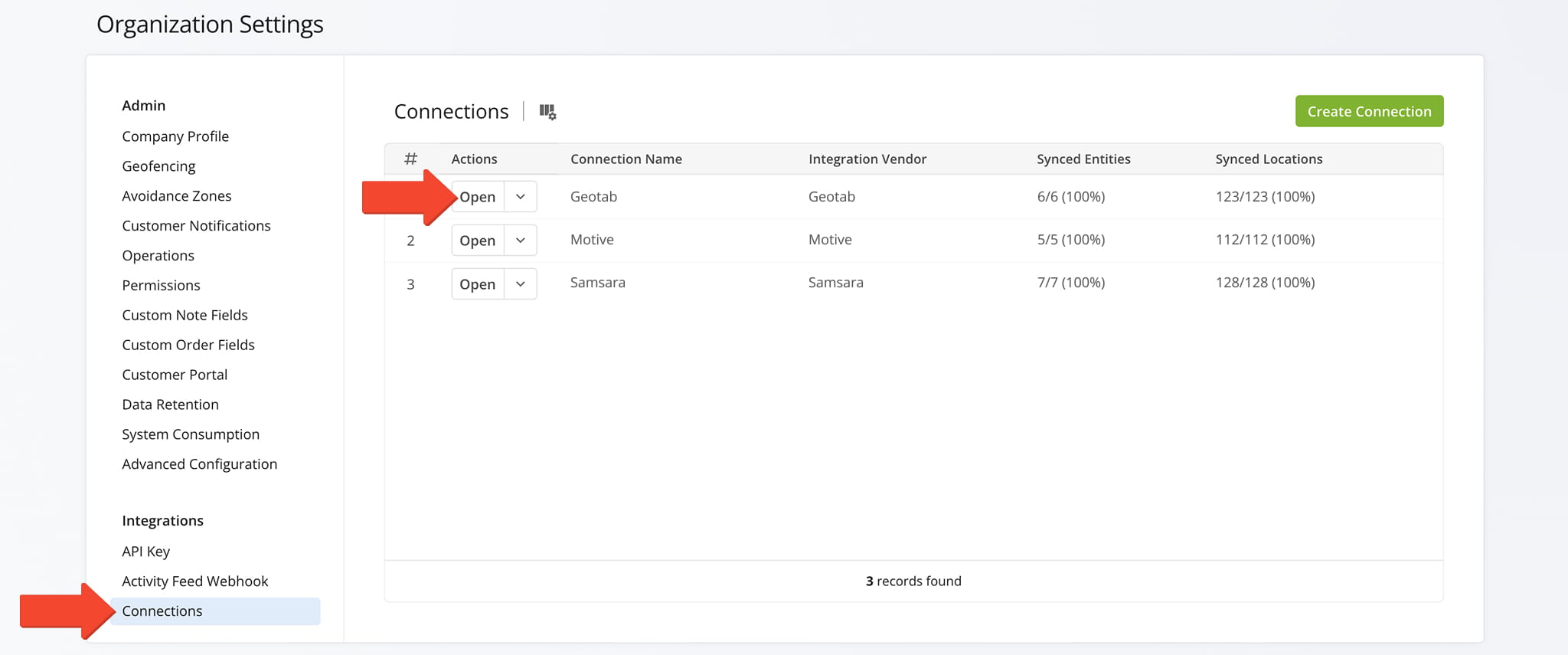
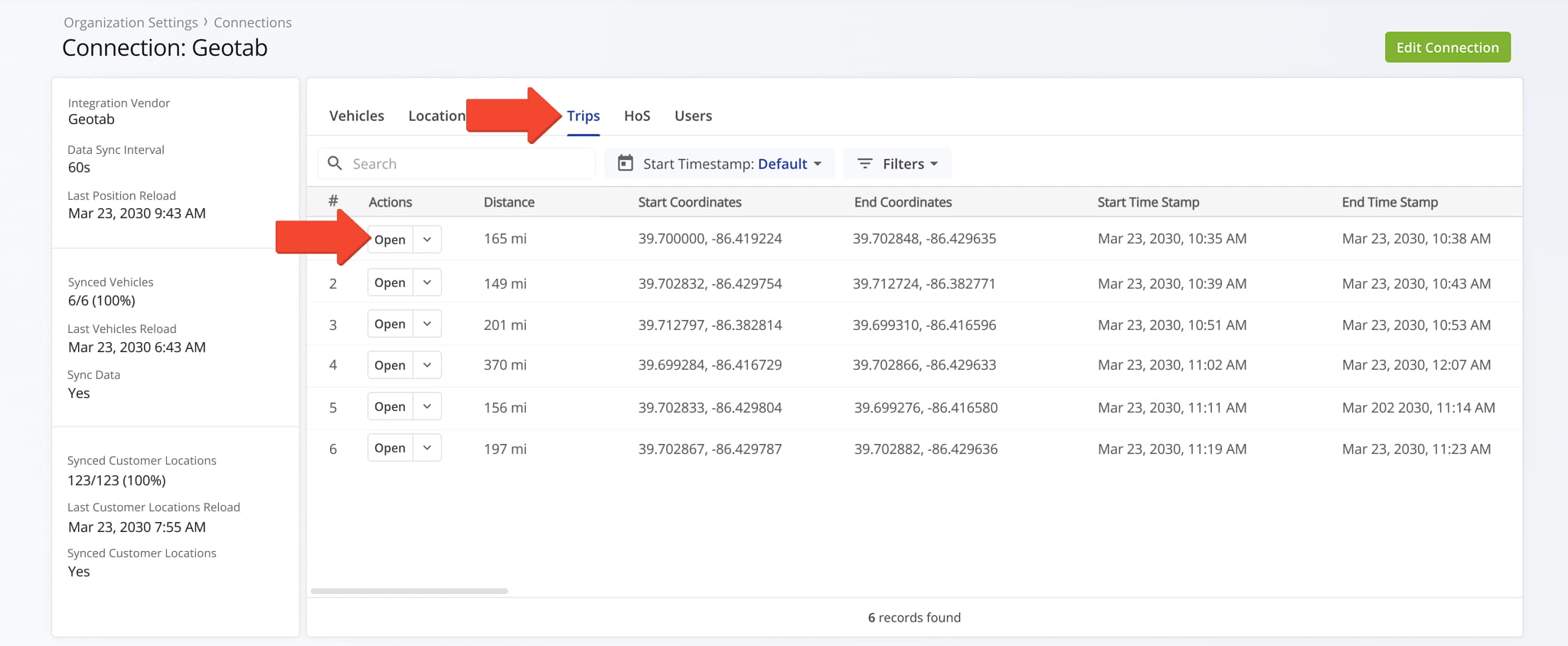
From the Snapshot’s “Trips” tab, click the “Open” button next to a trip to access its Telematics Trip Snapshot.
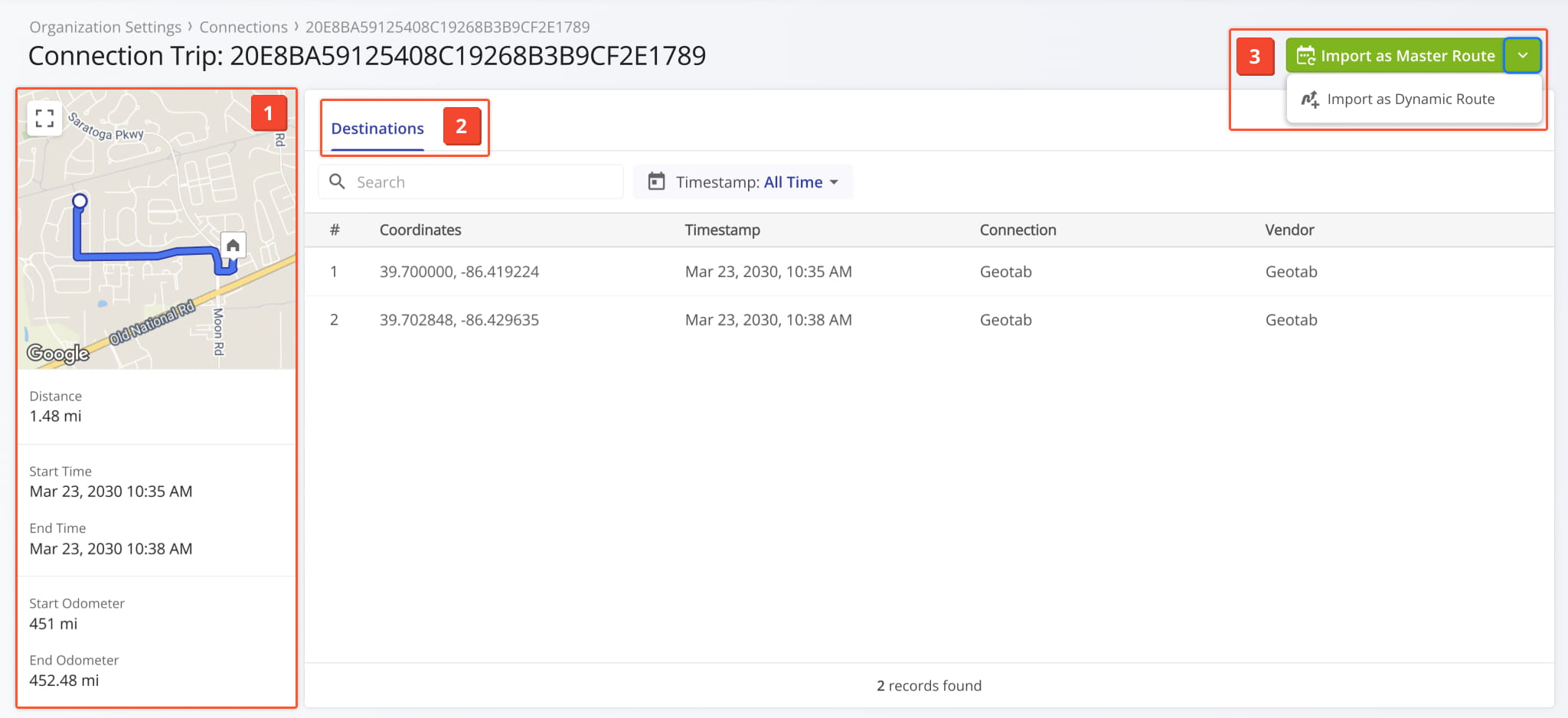
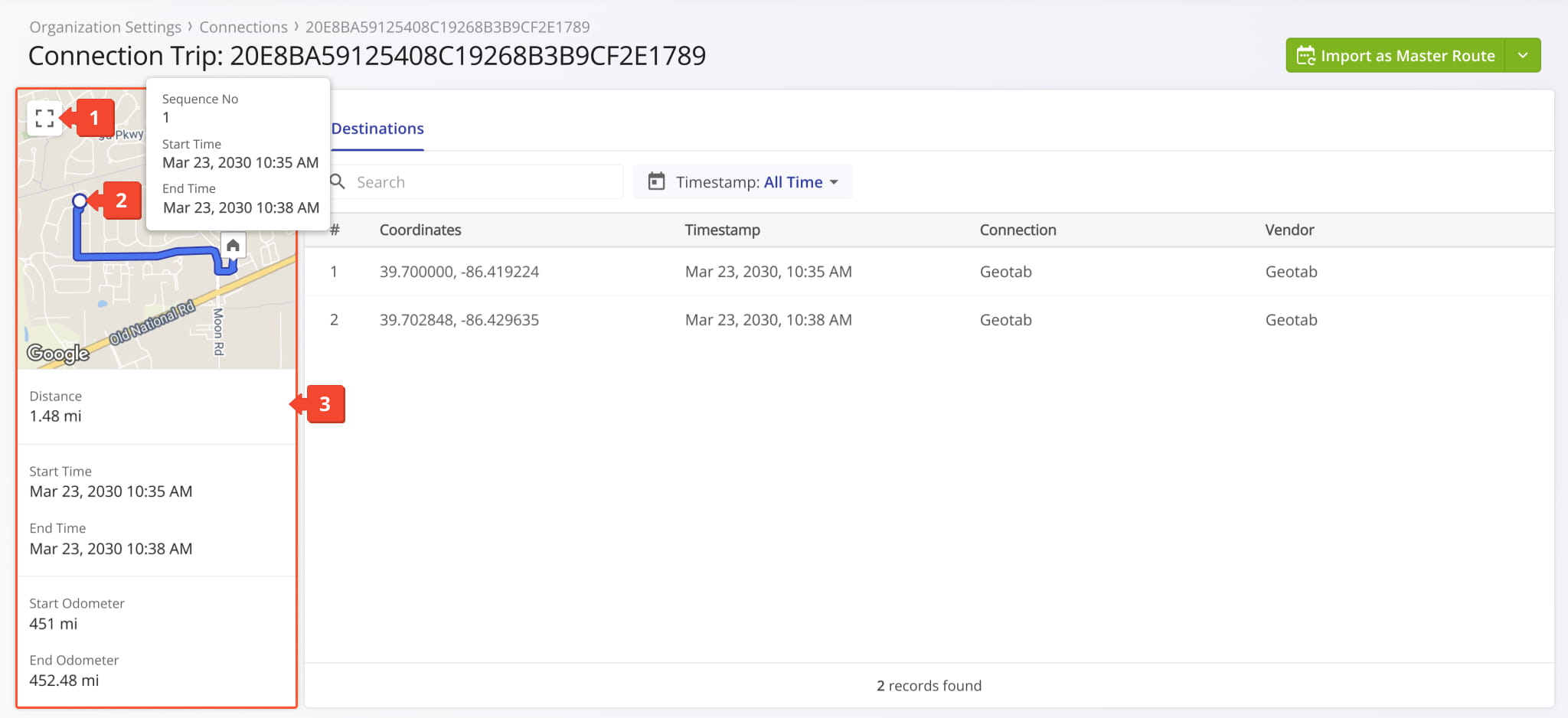
One the Snapshot is opened, you’ll see a detailed interface designed to help you review and manage all Telematics Trip data:
- Telematics Trip Summary: An overview of key details including the trip’s distance, start and end times, and more.
- Destinations Data Tabs: Explore data for each route destination which you can filter as needed.
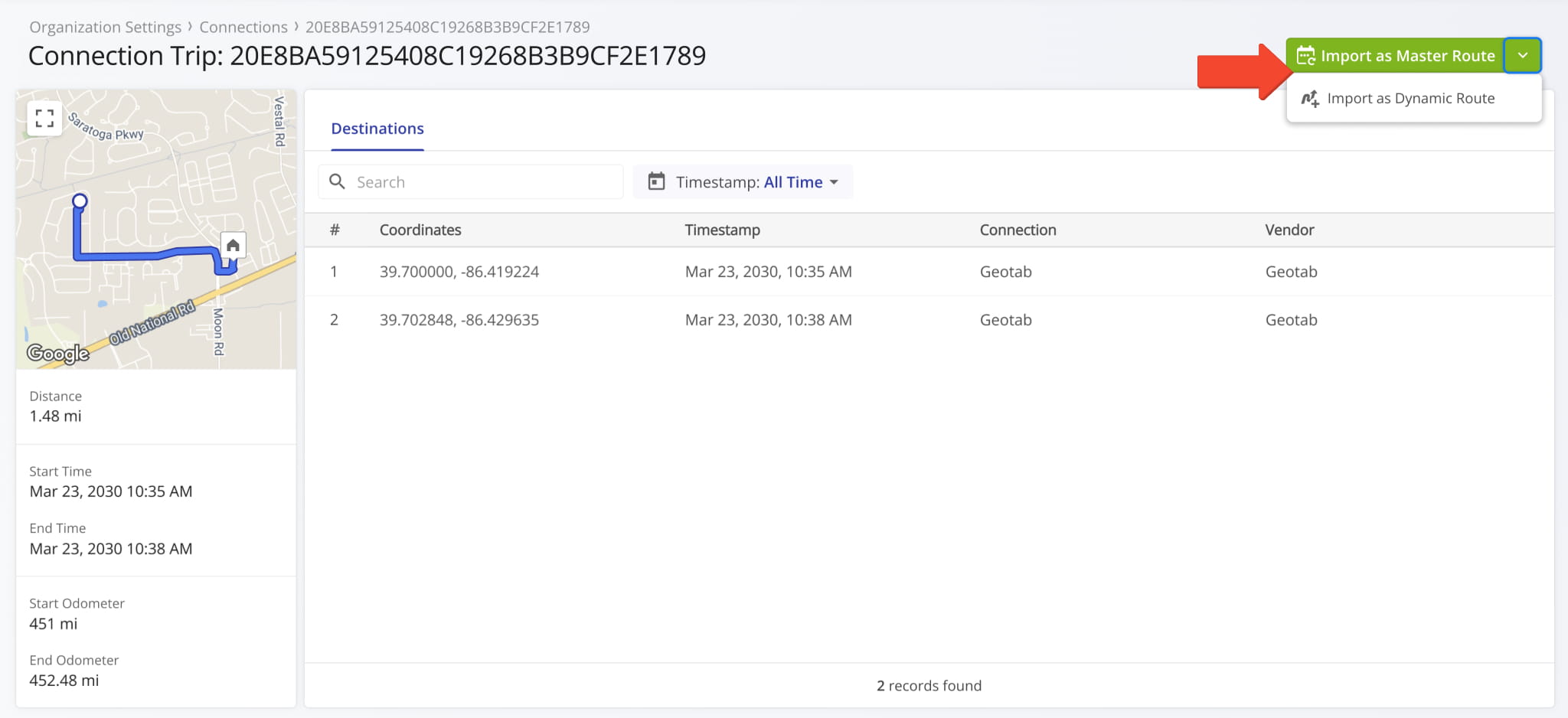
- Import Route Controls: Click the button to import the trip as a Master Route or as a Dynamic Route.
Telematics Trip Data Overview – Detailed Snapshot Information Panel
The Telematics Trip Summary Panel on the left provides an overview of a selected trip. From this panel you can:
- Click the Frame Icon to enlarge the map view.
- Hover over a destination on the map to view key details such as its sequence number and start and end times.
- Review key trip details as reported by your telematics vendor: distance, scheduled start and end times, start and end odometer readings, and associated Connection and Vendor names.
Telematics Trip Snapshot Data – Detailed Route Information
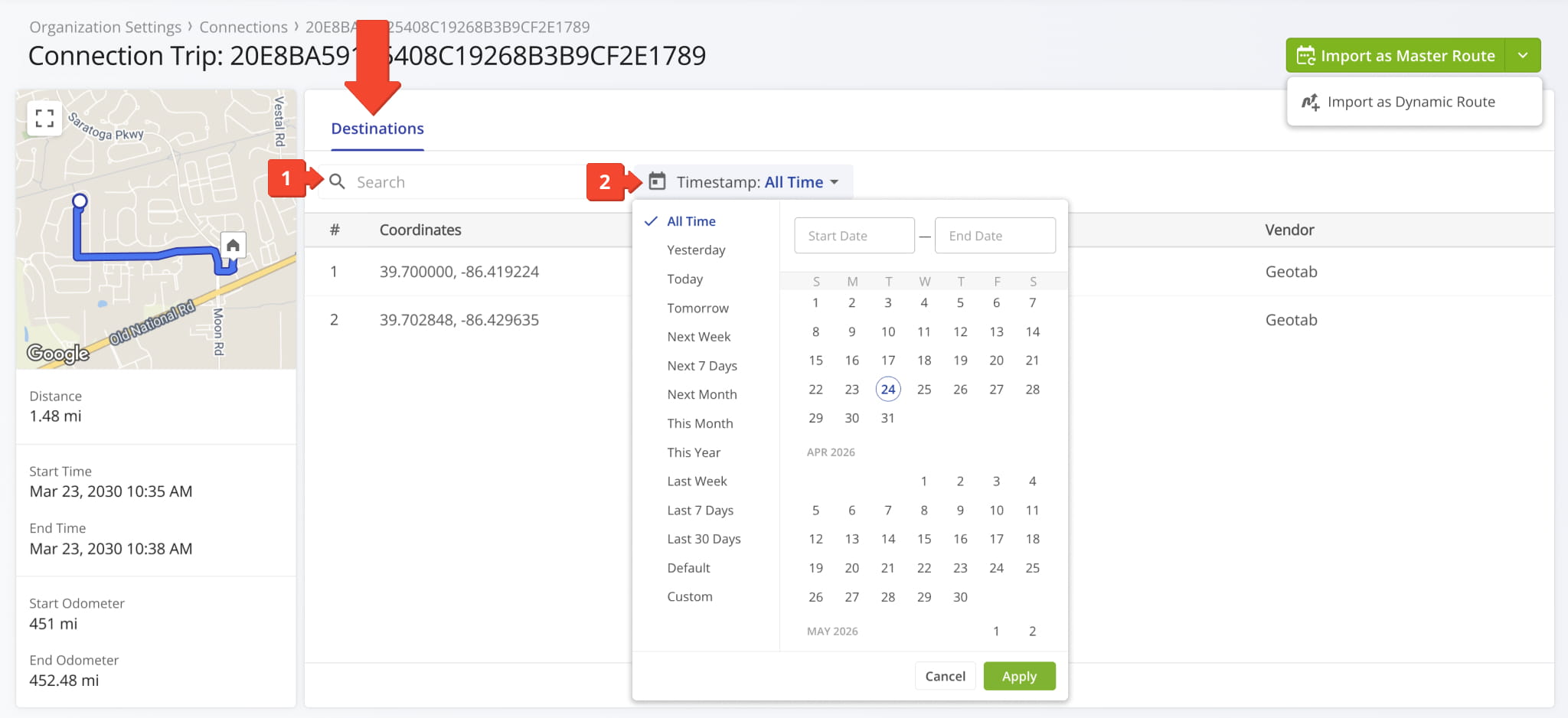
The Destinations tab displays a table with detailed trip information. See the table below for a full list of available data fields.
From this tab you can:
- Use the Search field to quickly find a specific trip destination.
- Apply timestamp date filters to narrow results based on your selected criteria.
| Data | Description |
|---|---|
| Coordinates | Displays the geographic latitude and longitude of the destination location. |
| Timestamp | Shows the exact date and time when the vehicle arrived at or departed from the destination. |
| Connection | Identifies the associated Telematics Connection used for the route. |
| Vendor | Displays the Telematics provider or vendor linked to the connection. |
Vendor Trip Import Options – Import As Master Route Or Dynamic Route
You can import trips directly from your connected telematics system. Imported trips reflect the original planning in your telematics platform, including the start location, the visit sequence, and associated location details.
You can choose if you want to preserve the trip exactly as planned or optimize it through Route4Me for improved efficiency. You can also choose how the trip should be used in Route4Me, either as a Master Route or as a Dynamic Route.
NOTE: Vendor trips must be imported before you can use them in Route4Me.
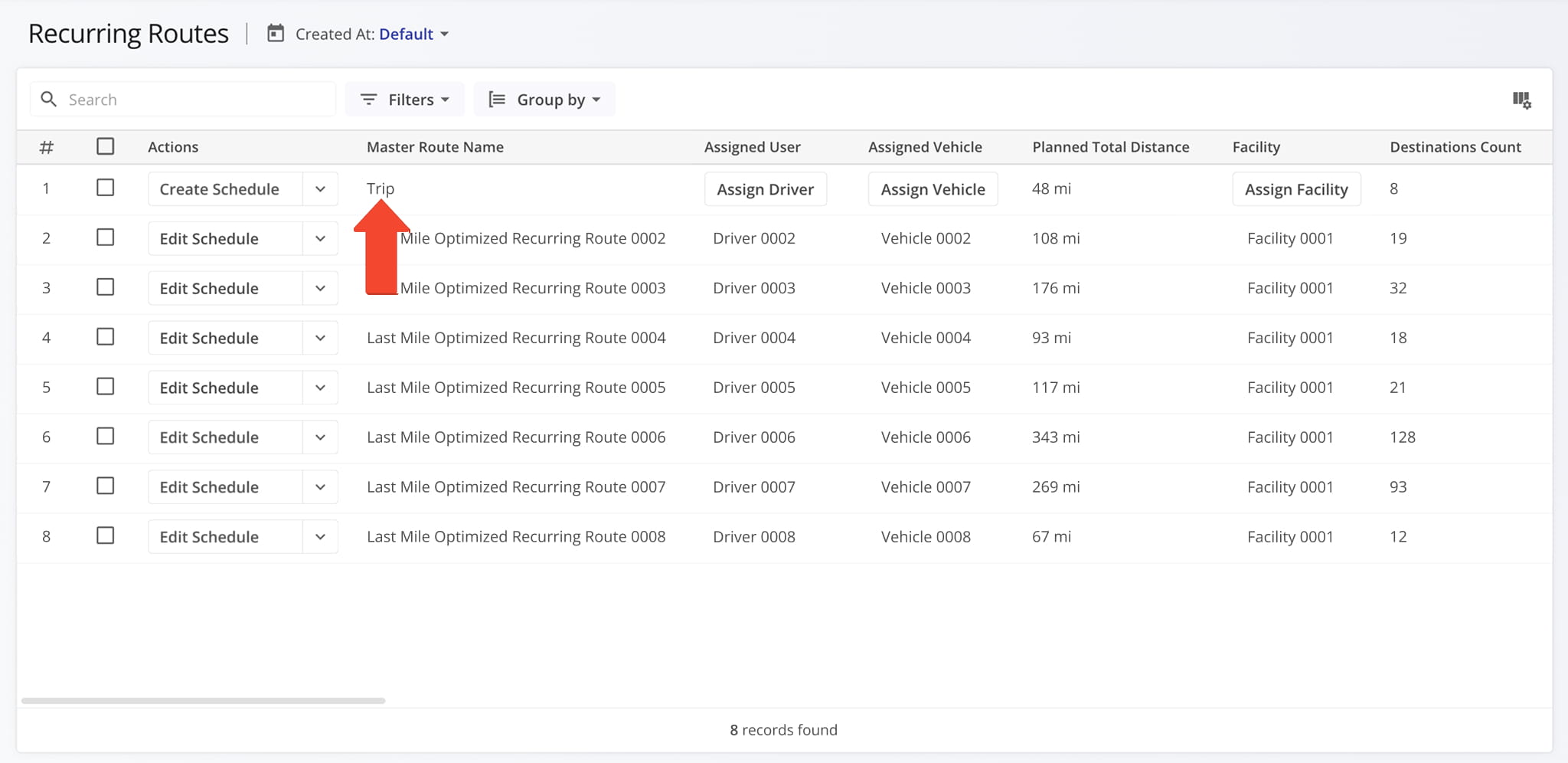
If you import the trip as a Master Route, it will automatically appear in your list of Recurring Routes. You can use it as is or adjust as needed to create a Recurring Route schedule. NOTE: Learn more about managing Master Routes.
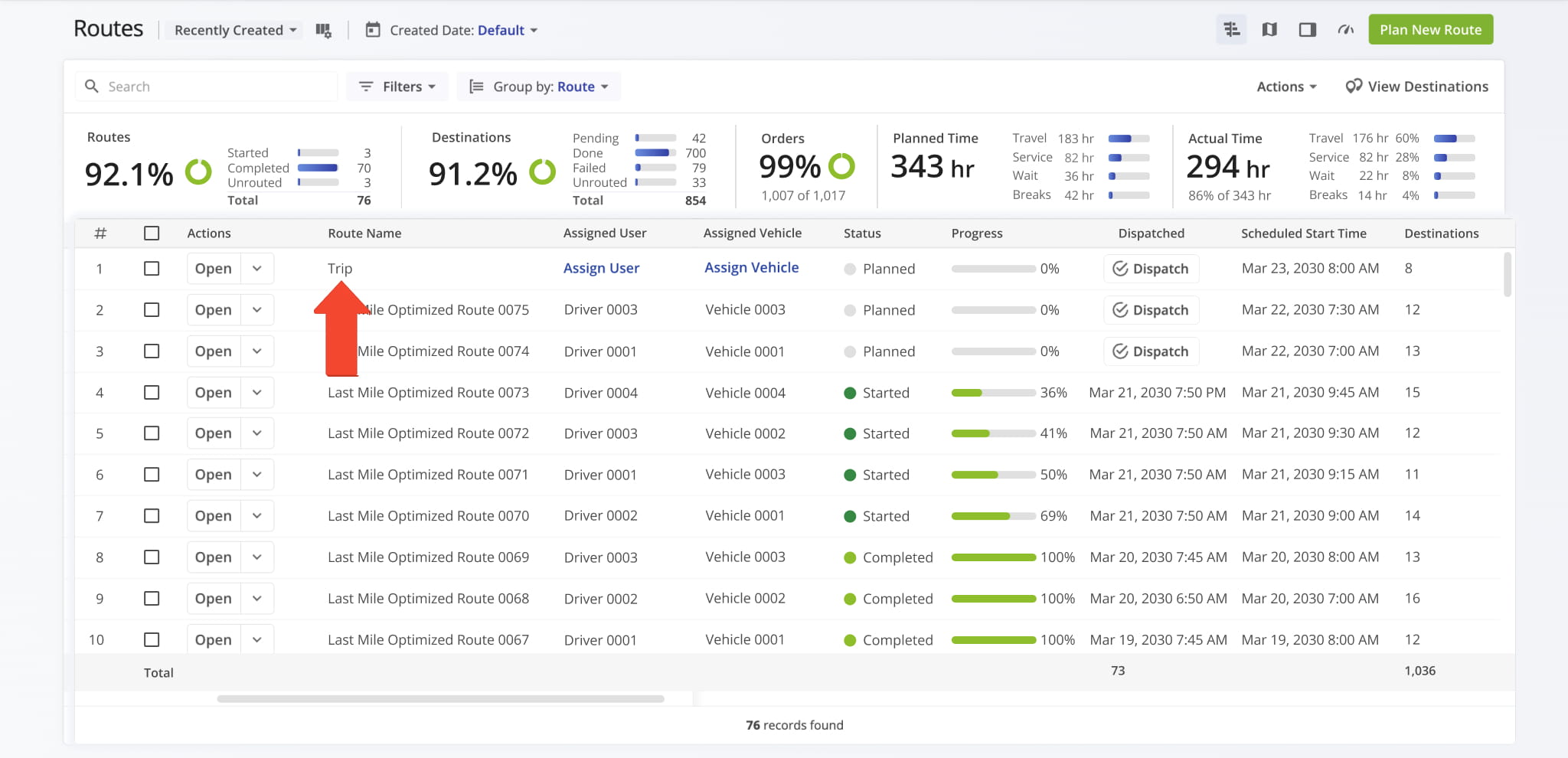
If you import the trip as a Dynamic Route, it will automatically appear in your Routes List. You can plan the route as is or make adjustments and optimize the route as needed. NOTE: Learn more about managing Dynamic Routes.
Visit Route4Me's Marketplace to Check out Associated Modules:
- Operations
Audit Logging and Activity Stream
- Operations
Custom Data Add-On
- Operations
Advanced Team Management Add-On
About author: Daniel Archer

