Routes List Guide – Last Mile Routes Page And Routes Management Database

Your Route4Me Routes Page is a centralized route database where you can manage millions of planned, optimized, and scheduled last mile routes. You can track route progress, assign drivers and vehicles to routes, dispatch, reschedule, and edit routes, all from one place. The Routes List allows you to open and modify routes planned by Route Planners, monitor routes dispatched by Dispatchers, and track progress for routes driven and completed via the Route4Me Mobile App. Additionally, you can leverage Route4Me’s Team Hierarchy and user permissions to manage access and responsibilities.

The Routes List is a centralized route database where you can search and filter routes by different attributes, track route progress and statuses in real-time, assign drivers and vehicles to routes, dispatch routes, reschedule routes, edit routes, and more.


Routes Page Overview – Open And Use Routes Page Tools

To open the Routes Page, go to “Dynamic Routing” > “Routes” from the Navigation Menu or click the green button below. You’ll see the Routes List, which is a customizable route data table with multiple filter and grouping options you can learn more about further in this guide.

Additionally, you can visualize routes using the Routes Page Map and Timeline and view route metrics in the Performance Metrics panel on the top. Keep reading to learn more.

Open Your Routes Page

The Routes List is a customizable route database with multiple filter and grouping options, a real-time map, routes timeline, and more.


Routes List – Route Data Table With Customizable Filters And Data Columns

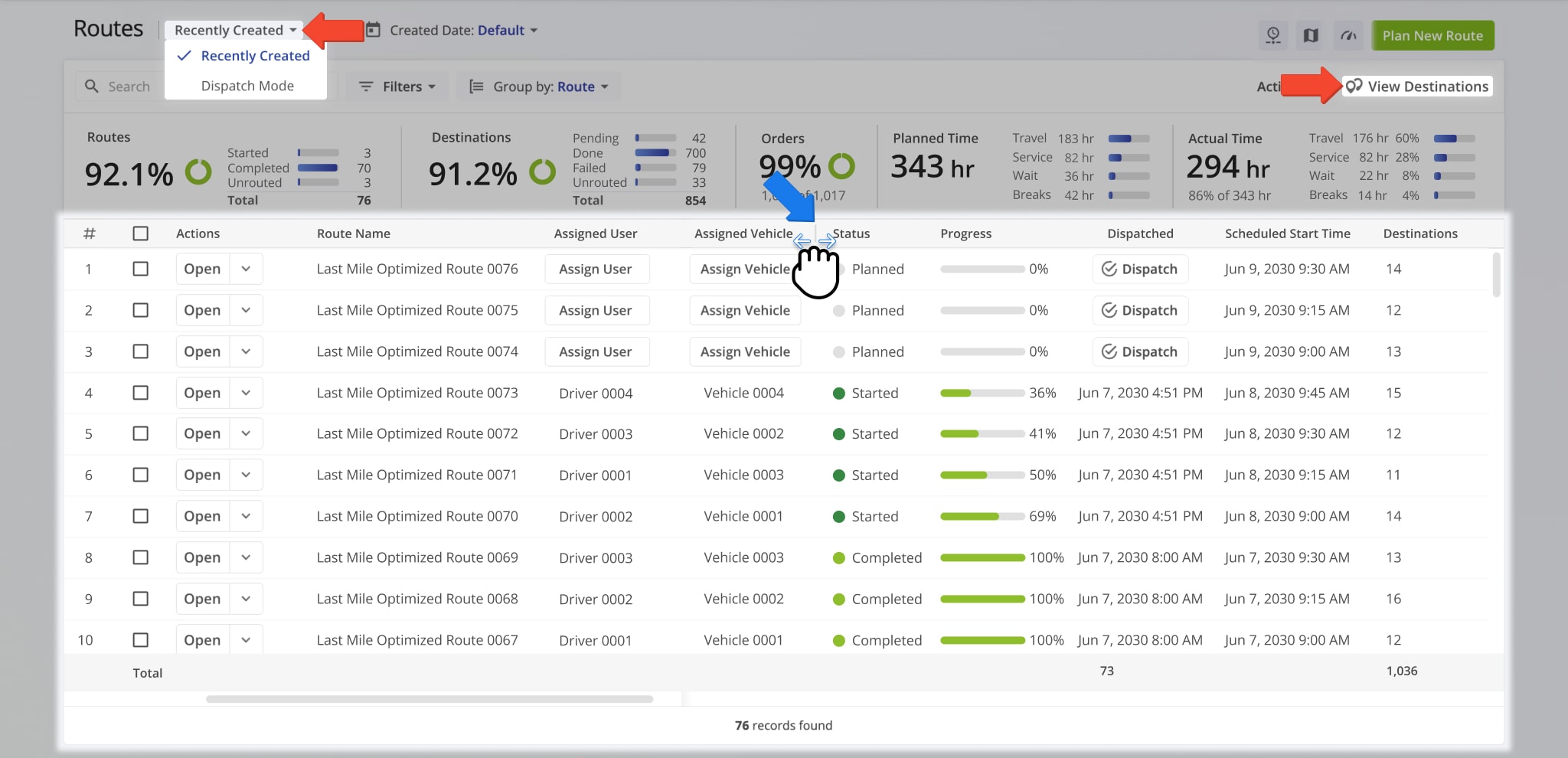
The primary tool on the Routes Page is your Routes List – a customizable data table with in-depth filters and configurable route data columns. The Routes List enables to easily find the routes you need and see and compare route data in a clear and easy-to-use format. Additionally, you can access route managements directly from the Routes List.

Your Routes List will always display all enabled route data columns. When there are more columns than can be viewed on the screen at one time, you can scroll horizontally through the Routes List. When the Routes List shows more routes than can be viewed simultaneously, scroll vertically to see all the routes that match your filters.

Furthermore, you can resize data columns on the Routes List by clicking and dragging the dividers between them. Columns can also be used to sort the Routes List. Simply click a column header to sort the table by the data contained in that column. Learn more about Routes List filters and settings further in this guide.

Scroll your Routes List horizontally and vertically to find any route or route data column. Additionally, resize route data columns to your preference.


Performance Metrics – Route Performance And Progress Summary

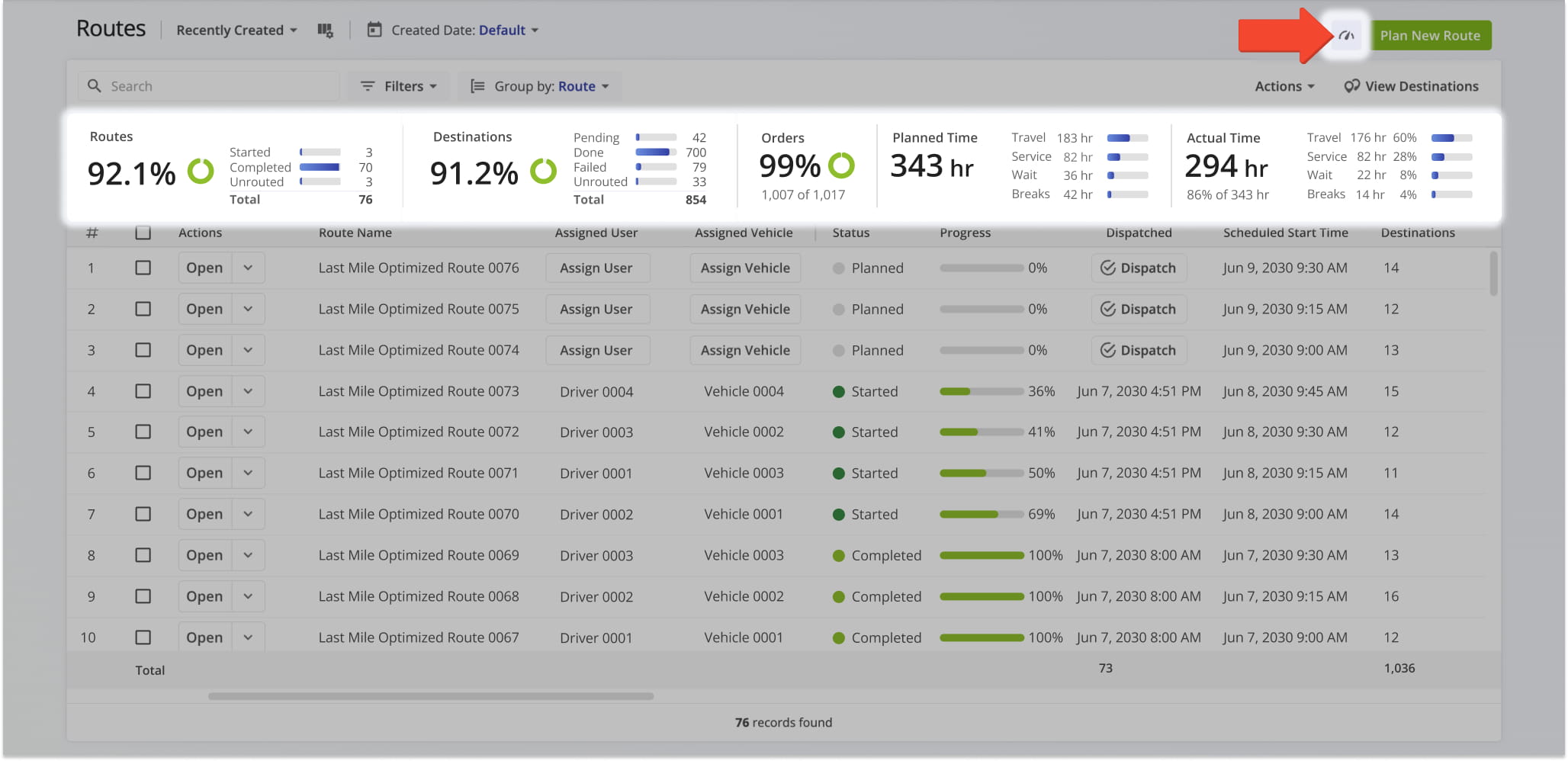
Use the Performance Metrics panel to get an overview of key route statistics and progress for filtered routes, summarized in the table below.

Click the Performance Metrics Icon in the top-right to open the Performance Metrics panel. NOTE: For convenience, the Performance Metrics panel is open by default. To close it, simply click the Performance Metrics Icon.

You can use the Performance Metrics panel to get an overview of key route statistics and progress for routes that match your filters.

MetricDescription
Routes CompletedDisplays the number and percentage of routes that are planned, started, and completed.
Destinations VisitedDisplays the number and percentage of destinations marked as done, failed, or still pending.
Orders CompletedDisplays the number and percentage of Customer Orders that have been completed.
Planned TimeDisplays the total planned route duration, including travel time, service time, wait time, and breaks. Also shows the average duration per route.
Labor HoursDisplays the total and average number of Driver hours planned across all routes.


You can view additional statistics by checking the box next to one or more routes. A button labeled “Avg. Destination Per Route” will appear in the bottom-right corner. Click it to see key metrics averaged per route if one route is selected, or sum totals for all selected routes combined if you select multiple routes.

Select routes to view key statistics for each route or all routes combined.


Routes Map – See Routes On The Map In Your Account Routes Page

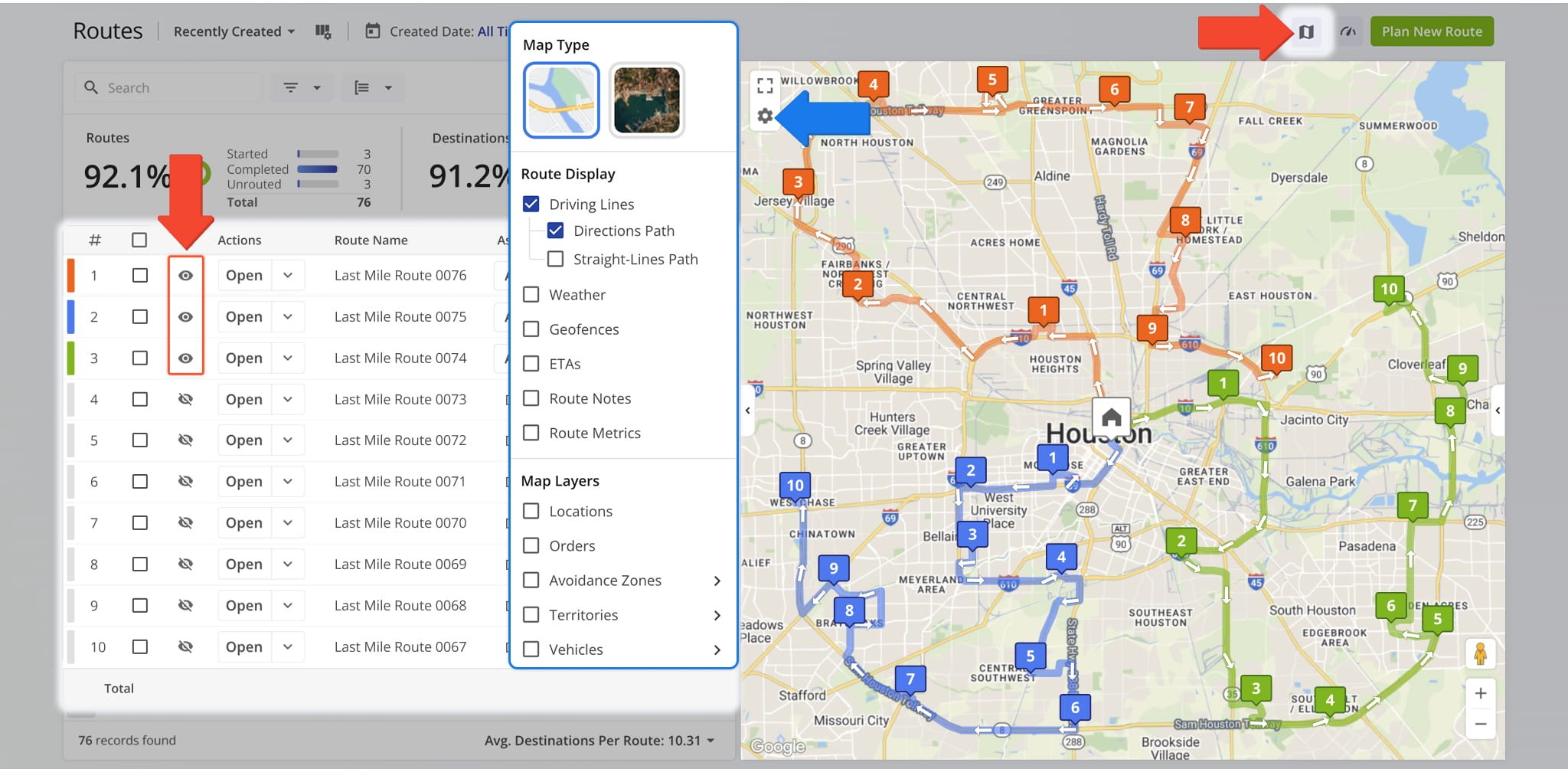
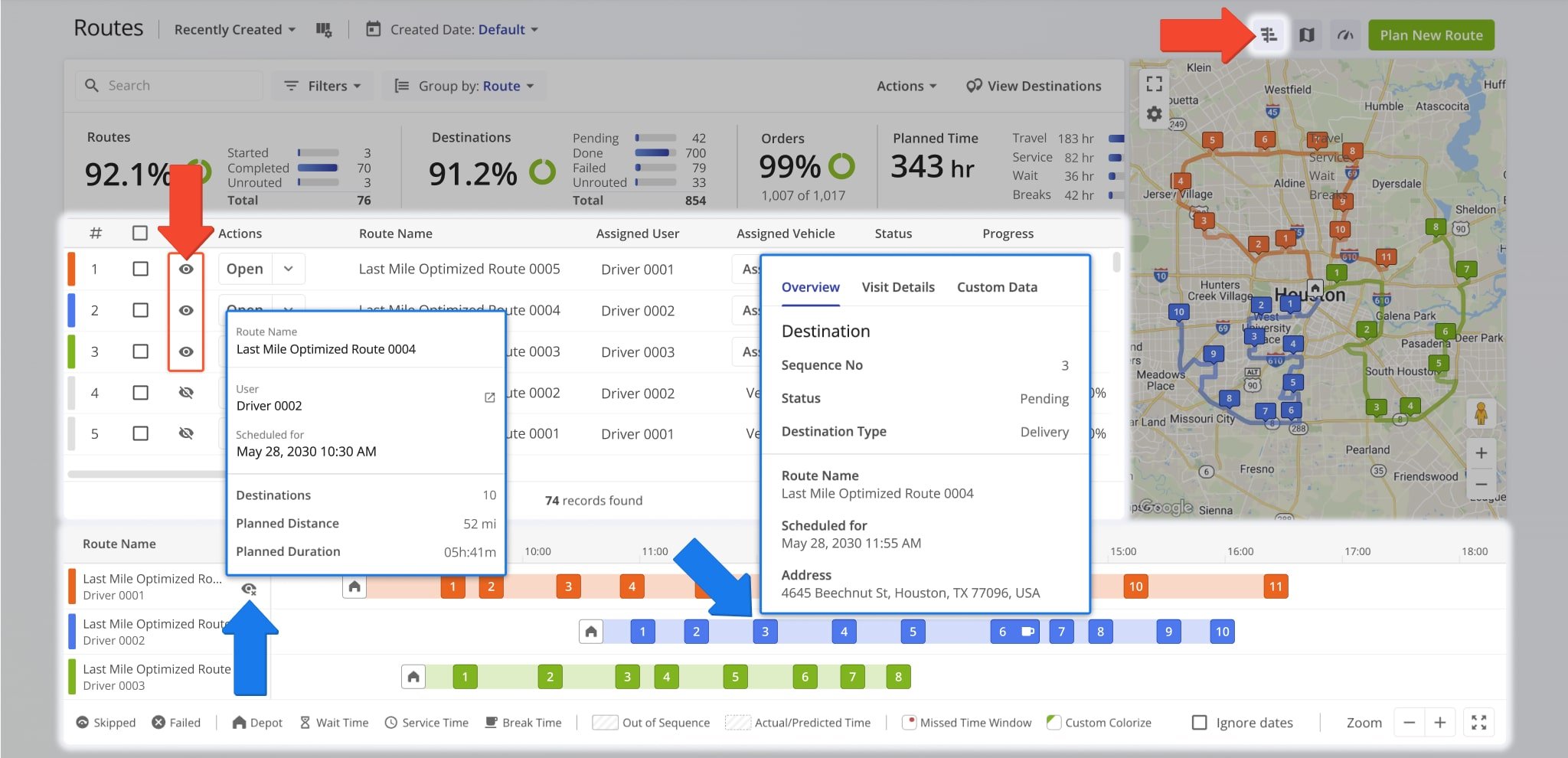
The Routes Page also enables you to view routes on a dynamic map, similar to the Routes Map interface. To do so, first click the Map Icon in the top-right. Then, click the Eye Icon next to routes you want to enable on the map.

Your Routes Page Map uses the same Google Maps controls you’re familiar with. Additionally, you can swap between satellite and road network map modes, enable Territories, Avoidance Zones, and Geofences by clicking the Gear Button.

The Routes Page enables you to view routes on a dynamic map, similar to the Routes Map interface.


Routes Timeline – Visualize Route Sequences And Schedules On The Timeline

The Routes Timeline gives you a visual overview of destination sequences for selected routes. Click the Timeline icon (top right) to open it, then use the Eye icon to display routes on the map.

Routes appear based on their scheduled start times. Drag, scroll, or zoom to navigate the timeline. To view routes from different dates together, check “Ignore Dates”. You can also use the Zoom All button to show the maximum number of destinations, regardless of their schedule.

Hover over any route or destination to see details. Refer to the table below for destination information accessible from the Timeline. Note: Applying filters or using search will deselect any routes in the Timeline and remove them from view. Reselect them afterward if needed.

You can get an overview of the destination sequences of your selected routes according to their respective schedules with the Routes Timeline.

Destination InfoDescription
Overview
Sequence NoSequence number of the destination on the route. Specifically, the first destination on a route will have a sequence number of “1“, the second – “2“, and so on.
StatusCurrent status of the destination indicating whether a visit is still pending, was successful, failed, or skipped, respectively.
Destination TypeThe purpose of the stop with a route, such as delivery, pickup, drop-off, etc.
Route NameAlias or name of the route the destination is associated with.
Scheduled forTimestamp of when the destination is planned to be visited.
Assigned UserThe team member responsible for completing the destination.
Assigned VehicleThe specific vehicle designated to the destination.
AddressCustomer address associated with the destination.
AliasName or alias of the destination.
OrderSubsection of the destination overview showing all associated order details such as tracking number, units, weight, etc.
Visit Details
Arrival and Departure TimetableTable showing the destinations planned, dynamically predicted, manually reported, and automatically detected arrival and departure times. Learn more about arrival and departure tracking in our GPS Tracking Guide.
Distance to NextPlanned distance from the highlighted destination to the next destination on the route.
Time to NextPlanned route time from the highlighted destination to the next destination on the route.
Service TimePlanned Service Time of the destination, i.e. the planned time it takes to complete the destination visit. After the destination is completed, this will also show the actual time spent on-site by the assigned User.
Visit SequenceThe planned or actual order in which destinations are visited on a route, indicating whether one stop was intended to occur after another.
Time WindowsThe specific time range during which a stop must be serviced, ensuring that deliveries or visits occur within customer or operational time constraints.
Pieces PlannedThe number of individual items, packages, or units scheduled for delivery or pickup at a specific destination.
Custom Data
Custom DataShows any associated Custom Data of the destination.


Likewise, right-click any destination on the Timeline to perform additional actions. From the context menu, you can change their destination status or sequence position, duplicate a destination, locate it on the map, and more.

You can easily move destinations to different sequence positions, even between routes, simply by dragging and dropping them.

Right-click any destination to change its status, adjust its sequence, duplicate it, or locate it on the map.


Destinations Mode – View Destination Data And KPIs On The Routes List

In addition to filtering and sorting routes and viewing route data, the Routes Page enables you to switch to Destinations Mode. Here, you can view data and information associated with individual customer destinations grouped by their respective routes. To switch to Destinations Mode, click the “View Destinations” button in the top-right of the Routes List.

For convenience, Destinations Mode shares the controls and functionality of the Routes List, including custom data columns. This way, you can quickly and easily view the most relevant destination data and KPIs. With the Destinations List, you can gather actionable intelligence on the performance of your business, vehicle utilization, etc. Learn more about Destinations View.

Switch the Routes List to Destinations Mode to view detailed customer destination data and information.


Filter & Sort Routes – Use Custom Filters And Route Sorting Options

Last mile businesses of all sizes benefit from efficient tools to easily find and manage specific routes. Medium and large businesses can have millions of planned and optimized routes, which are impossible to sort by hand. Route4Me’s Routes List enables you to seamlessly filter, sort, group, find, and manage your preferred routes in seconds.

After enabling the data columns most relevant to your routing operations, you can use customizable filters to sort millions of routes by virtually any attribute. Furthermore, you can use View Modes and grouping options to group routes by a preferred value or attribute and more.


Dispatch View Mode – View Routes By Scheduled Start

By default, the “Dispatch” mode sorts routes by their Scheduled Start Time. Specifically, this View Mode shows routes with the latest start date at the top of your Routes List and routes with the earliest start date at the bottom of the list. To enable this View Mode, select “Dispatch Mode” in the top-left of your Routes List. Then, click “Start Date” and select the date range for the scheduled routes you want to see.

Furthermore, in Dispatch Mode, routes are grouped by the same Start Date, and each section shows the number of routes that start on a given date. Accordingly, to collapse or expand a section, click the Arrow Icon next to it. Each date group also has its own respective “Sub-totals” row at the bottom of the group, showing the totals of any data columns for all routes in the group.

Dispatch View Mode sorts and groups routes by their Scheduled Start Date. Routes with the latest start date are at the top of your Routes List.


Recently Created – View Routes By Created Date

By default, “Recently Created” mode sorts routes by “Created Date“. Specifically, this View Mode shows the most recently created routes at the top of the Routes List and routes created earlier at the bottom. To enable this View Mode, select “Recently Created” in the top-left of your Routes List. Then, click “Created Date” and select the preferred created date range.

The Recently Created View Mode sorts routes according to their creation date.


Routes List Filters – Filter Routes By Route Attributes And Values

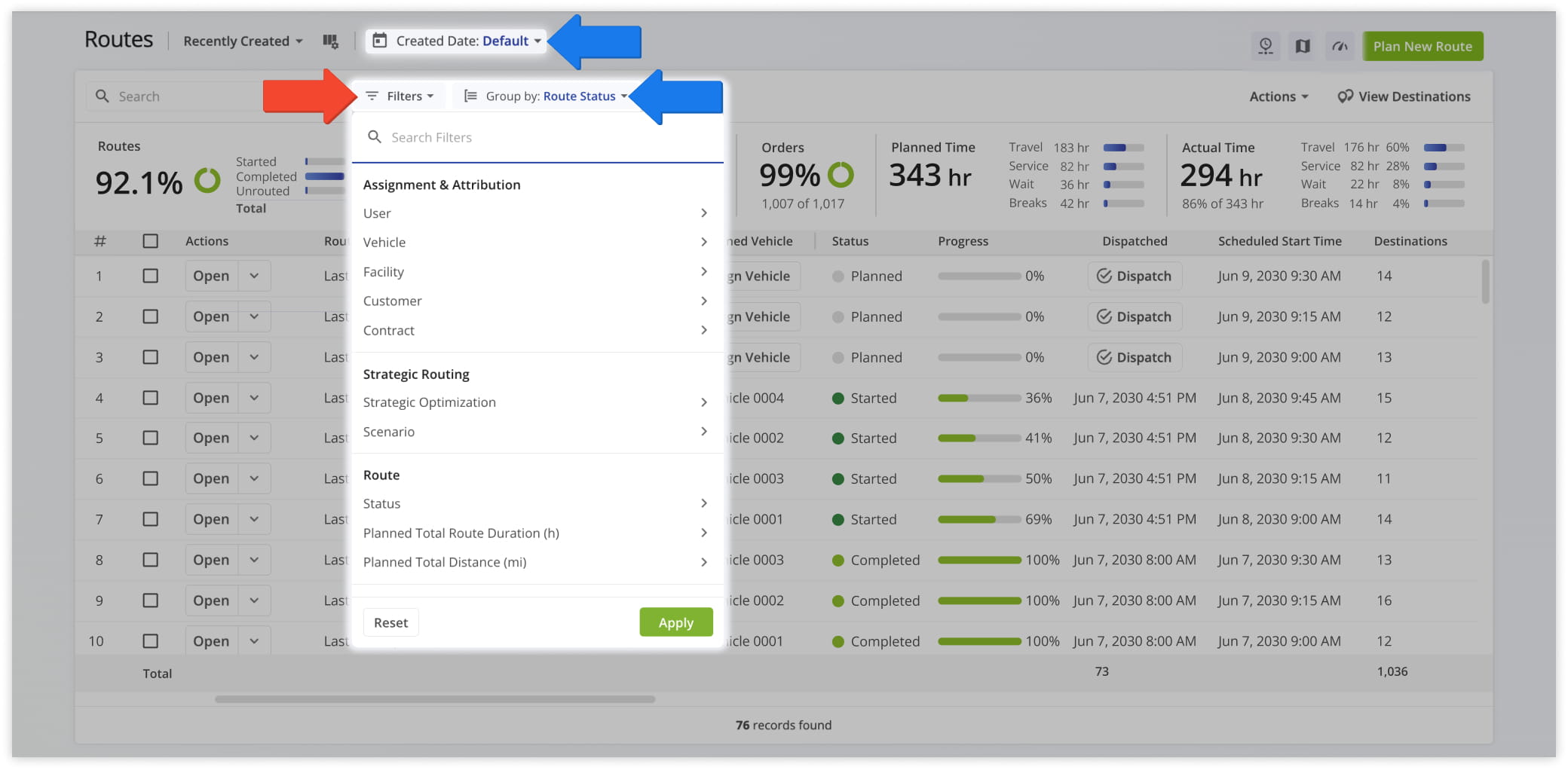
After selecting your preferred date range and time frame, you can narrow down the Routes List by applying filters to display only the most relevant routes.

Click “Filter” and enable the options you want to refine your results. The Routes List will then show only the routes that match your selected criteria.  To clear all applied filters, simply click “Reset“.

Below is a list of all available Routes List filters and their descriptions.

Filter routes by different attributes to see only the most relevant preferred routes from a list of millions.

FilterDescription
Assignment & Attribution
UserFilter routes by their assigned Users. Input the preferred User’s name or Email to filter routes by User.
VehicleFilter routes by Vehicle Details such as plate number, alias, make, or model. Input the preferred Vehicle details to filter routes by vehicle.
FacilityFilter routes by the Last Mile Facilities on your account they’re associated with.
Strategic Routing
Strategic OptimizationSelect routes created with Strategic Optimization to compare scenarios, evaluate constraints, or review long-term planning results.
ScenarioFilter routes by their associated Strategic Routing scenarios to quickly view runs tied to specific planning models or what-if analyses.
Route
StatusFilter routes by their current status. Specifically, routes can have one of the following statuses: “Planned“, “Scheduled“, “Started“, or “Finished“. When a route is optimized, it’s assigned the Planned route status. Next, the route can get the Started and Finished statuses from the assigned driver or team member from their connected Route4Me Mobile App.
Planned Total Duration (h)Total planned route time duration expressed in hours. Planned Route Duration = Total Travel Time + Total Service Time + Wait Time + Breaks. Select the minimum and maximum duration values to filter routes by planned duration.
Planned Total Distance (Mi)Total planned travel distance of the route expressed in miles. Select the minimum and maximum distance values to filter routes by planned distance.
Progress Metrics
Destinations Arrived (Progress %) (User Actioned)How many planned destinations have been visited by the assigned driver expressed as a percentage of the total planned route destinations. Select the minimum and maximum progress percentage values to filter routes by progress.
Key Metrics
Destinations CountThe total number of destinations with or without a status on the route. Select the minimum and maximum destination values to filter routes by total destinations.
Pending DestinationsNumber of destinations on the route that have not yet been visited or assigned a completion status.
Failed DestinationsNumber of destinations on the route marked as “Failed” by the driver or field employee.
Skipped DestinationsNumber of destinations on the route marked as “Skipped” by the driver or field employee.
Completed DestinationsNumber of destinations on the route marked as “Done” by the driver or field employee. If Client-Side Geofencing is enabled, destinations are marked as “Done” via Geofences.
Customer Requested Time Window Adherence
Destinations Arrived Late (User Actioned)Number of destinations visited after the Planned Visit Time, based on the driver’s arrival actions in the Route4Me Mobile App.
Destinations Arrived Early (User Actioned)Number of destinations visited before the Planned Visit Time. A destination is considered as being arrived at early when it’s marked as “Arrived” on the Route4Me Mobile App earlier than and up to 1 second before the Planned Visit Time.
Destinations Arrived On Time (User Actioned)Number of destinations visited within 90 seconds before or after the Planned Visit Time.
SLA
Out Of Sequence DestinationsNumber of Out of Sequence Destinations on the route.
Actual Route Distance
Actual Total Distance (Mobile App) (Mi)Actual distance traveled by the assigned User, calculated based on the received Mobile App GPS data.
Actual Total Distance (Telematics) (Mi)Total travel distance on the route detected by an installed telematics device from a Telematics Provider on a GPS vehicle.
Utilization – Pieces/Units
Pieces PlannedTotal planned Pieces amount of all destinations on the route. Additionally, learn more about setting maximum pieces per route.
Pieces Completed (%)Percentage of the total planned Pieces amount that has been completed. Destinations are completed when manually marked as “Done” via the Route4Me Mobile App.
Pieces CompletedTotal Pieces amount that has been completed. Destinations are completed when manually marked as “Done” via the Route4Me Mobile App.
Pieces Remaining At End (%)Percentage of the total planned Pieces amount that remains not completed at the end of the route. Destinations are completed when manually marked as “Done” via the Route4Me Mobile App.
Utilization – Weight
Weight PlannedTotal planned Weight amount of all destinations on the route. Additionally, learn more about setting maximum weight per route.
Weight Completed (%)Percentage of the total planned Weight amount that has been completed. Destinations are completed when manually marked as “Done” via the Route4Me Mobile App.
Weight CompletedTotal Weight amount that has been completed. Destinations are completed when manually marked as “Done” via the Route4Me Mobile App.
Weight Remaining At End (%)Percentage of the total planned Weight amount that remains not completed at the end of the route. Destinations are completed when manually marked as “Done” via the Route4Me Mobile App.
Utilization – Cube
Cube PlannedTotal planned Cube amount (volume) of all destinations on the route. Additionally, learn more about setting maximum volume per route.
Cube Completed (%)Percentage of the total planned Cube amount (volume) that has been completed. Destinations are completed when manually marked as “Done” via the Route4Me Mobile App.
Cube CompletedTotal Cube amount (volume) that has been completed. Destinations are completed when manually marked as “Done” via the Route4Me Mobile App.
Cube Remaining At End (%)Percentage of the total planned Cube amount (volume) that remains not completed at the end of the route. Destinations are completed when manually marked as “Done” via the Route4Me Mobile App.
Utilization – Revenue
Revenue PlannedTotal planned Revenue amount of all destinations on the route. Additionally, learn more about setting maximum Revenue per route.
Revenue Completed (%)Percentage of the total planned Revenue amount that has been completed. Destinations are completed when manually marked as “Done” via the Route4Me Mobile App.
Revenue CompletedTotal Revenue amount that has been completed. Destinations are completed when manually marked as “Done” via the Route4Me Mobile App.
Revenue Remaining At End (%)Percentage of the total planned Revenue amount that remains not completed at the end of the route. Destinations are completed when manually marked as “Done” via the Route4Me Mobile App.
Address Book Details
Address Book DetailsFilter routes by Address Book details such as address, contact alias, order details, customer details, and more. Input the preferred details to filter routes by Address Book details.


Group Routes By Start Date, User, Vehicle, Status And More

Your filtered Routes List can be refined further by grouping routes according to shared attributes or details.

To do so, click the “Group by” field and select the preferred attribute to group routes by. Then, routes will be grouped by the selected attribute. Each group is titled with the group attribute and shows the total number of routes in the group.

Accordingly, to collapse or expand a group, click the Arrow Icon next to it. In detail, you can group routes by the attributes described in the table below.

Your filtered Routes List can be refined further by grouping routes according to shared attributes or details. Group routes by driver, vehicle, scheduled start date, and route status.

Group byDescription
Scheduled Start DateGroup routes by their Start Date. This is the date on which a route is scheduled to begin. By default, routes are automatically grouped by Scheduled Start Date in “Dispatch Mode“. Additionally, it’s also possible to manually group routes by Start Date in “Recently Created” mode.
UserGroup routes by their assigned User or driver. This option will also group all routes without an assigned User together in a “No User Assigned” group.
VehicleGroup routes by their assigned Vehicle. This option will also group all routes without an assigned Vehicle together in a “No Vehicle Assigned” group.
Route StatusGroup routes by their respective Route Status. Specifically, routes can have one of the following statuses: “Planned“, “Scheduled“, “Started“, or “Finished“. When a route is optimized, it’s assigned the Planned route status. Next, the route can get the Started and Finished statuses from the assigned driver or team member from their connected Route4Me Mobile App.
FacilityGroup routes by their associated Last Mile Facilities.
RouteRoutes are not grouped, and each route appears as an individual entry. This is the default grouping for the “Recently Created” View Mode.


Find Routes By Route Attributes With Routes List Search Bar

Route4Me’s flexible route search enables you to quickly search through millions of routes and find the ones you need in seconds. You can search for your routes by route details, order information, customer details, etc. To search for a route, input a specific attribute associated with the route into the Search Field.

If you need to search for multiple values at once, just separate them with commas. For example, you can enter several invoice numbers to find all associated routes in a single search. Below is a list of available attributes you can use to search for routes.

Route4Me

Search DetailsAvailable Attributes
Route DetailsRoute name, route ID, and assigned vehicle ID.
Order DetailsInvoice number and reference number.
Destination DetailsDestination alias, destination address, note contents, and custom note contents.
Customer DetailsFirst name, last name, phone number, Email address, customer PO, custom Group ID.
Custom DataAny Custom Data attached to any destination. Learn more about destination Custom Data.


Access Optimization Snapshots – View Detailed Snapshot Information Panel

An Optimization Snapshot is a user-friendly analytics tool that provides insights into your Optimizations, consolidating key metrics and data in one place. You’ll see all routes associated with an Optimization along with a summary of each route’s completed Destinations, Distance, Duration, Service Time, Travel Time, and Wait Time. NOTE: Learn more about Optimization Snapshots.

To access it from your Routes List, click the Down Arrow button next to a route and select “Open Optimization“.

Access Optimization Snapshots to view key metrics and insights.


Customize Routes List – Route Data Column Customization

The Routes List lets you view routes and related data relevant to your business. You can easily customize which data is displayed and how it appears for maximum efficiency.

To customize your view, click the Display Columns Button, then check the boxes next to the items you want to show. You can also reorder columns by dragging and dropping them to your preferred position.

NOTE: Your column selection and order are saved automatically and applied each time you sign in. Keep in mind that Dispatch Mode and Recently Created View Modes have separate column settings and must be configured individually. Learn more about Routes List View Modes later in this guide.

For efficiency, you can easily customize the data on your Routes List with custom route data columns and adjust the sequence of these columns.

Below is an overview of all available Routes List columns. NOTE: The “Route Name“, “Assigned User” and “Assigned Vehicle” columns cannot be deselected or rearranged when customizing your Routes List.

ColumnDescription
Route
Date CreatedDate the route was originally planned and optimized.
Scheduled Start TimeTime and date when the route is scheduled to start (“Scheduled For” date). In “Dispatch Mode“, the column shows time only. In “Recently Created” mode, the column shows the date and time.
Planned End TimeTime when the route is estimated to end based on its associated optimization. Planned Route End Time = Scheduled Start Time + Planned Route Duration
Actual Start TimeTimestamp of when the route was started by the assigned User.
Actual End TimeTimestamp of when the route was completed by the assigned User.
Planned Total DistanceTotal planned travel distance of routes.
Planned Total Route DurationTotal planned route time duration. Total Planned Route Duration = Total Travel Time + Total Service Time + Wait Time + Breaks.
Start TimezoneThe timezone associated with the route’s scheduled start time, based on the route’s optimization settings.
Key Metrics
Destinations CountNumber of addresses included in the route, excluding the route’s start address or depot and including the route’s final destination.
Pending DestinationsText
Failed DestinationsNumber of destinations on the route marked as “Failed” by the driver or field employee.
Skipped DestinationsNumber of destinations on the route marked as “Skipped” by the driver or field employee.
Completed DestinationsNumber of destinations on the route marked as “Done” by the driver or field employee. If Client-Side Geofencing is enabled, destinations are marked as “Done” via Geofences.
Customer Requested Time Window Adherence
Destinations Arrived On Time (User Actioned)Number of destinations visited within 90 seconds before or after the Planned Visit Time.
Destinations Arrived Early (User Actioned)Number of destinations visited before the Planned Visit Time. A destination is considered as being arrived at early when it’s marked as “Arrived” on the Route4Me Mobile App earlier than and up to 1 second before the Planned Visit Time.
Destinations Arrived Late (User Actioned)Number of destinations visited 90 seconds or more after the Planned Visit Time.
Operational Status
First Access TimeDate and time when the route was first opened by the assigned driver on the Route4Me Mobile App. Applies only to the “DriverUser Type.
StatusCurrent status of the route. Specifically, routes can have one of the following statuses: “Planned“, “Scheduled“, “Started“, or “Finished“. When a route is optimized, it’s assigned the Planned route status. Next, the route can get the Started and Finished statuses from the assigned driver or team member from their connected Route4Me Mobile App.
DispatchAllows marking routes as “Dispatched” and shows when routes were marked as “Dispatched“. Dispatch routes to send automated SMS and Email notifications to customers on the route. Additionally, routes can be dispatched and sent to the connected telematics vendors.
Progress Metrics
Arrived Destinations (User Actioned)Shows how many destinations have been visited by the assigned driver. Specifically, when a destination is marked as Arrived by the assigned driver from their connected mobile app, the route’s progress is automatically updated on your Routes List in real-time. Furthermore, route progress can be updated when destinations are Detected as Visited via Geofences.
Destinations Arrived (Progress %) (User Actioned)Percentage of planned destinations the driver has marked as Arrived from the Route4Me Mobile App.
Actual Route Distance
Actual Total Distance (Mobile App)Actual distance traveled by the assigned User, calculated based on the received Mobile App GPS data.
Actual Total Distance (Telematics)Total travel distance on the route detected by an installed telematics device from a Telematics Provider on a GPS vehicle.
Actual Total Distance (Mobile App + Telematics)Total GPS travel distance on the route detected by the Mobile App and telematics device. This value reflects the total travel distance, including segments where only the Mobile App or the telematics device was in use. NOTE: When both the Mobile App and the telematics device are used simultaneously, the distance is detected only once to avoid duplication.
Actual Duration
Actual Route Duration (User Actioned)Total time spent on the route based on when the driver manually started and ended the route in the Mobile App.
Actual Total Route Duration (Grand Total Of All Sub-Durations)Total actual time on the route calculated as the sum of travel, service, wait, break, and unattributed durations.
Actual Total Travel Duration (User Actioned)Total time duration on the route detected by the Route4Me Mobile App. This value is the duration between the first and last detected tracking coordinates and includes the total travel and service time of the route.
Actual Total Service DurationActual Total Service Time of visited destinations only, calculated based on the reported and Geofence-detected Time On Site. Works only for visited destinations.
Actual Total Wait DurationTotal time spent waiting at destinations or between stops, based on Mobile App and Geofence time-on-site data.
Actual Total Break DurationTotal break time recorded on the route, based on detected or manually reported breaks.
Actual Total Unattributed DurationPortion of the route’s total time that cannot be categorized as travel, service, wait, or break time.
Actual Service Time
Actual Total Service Time (Auto Detected)Automatically detected total time-on-site at visited destinations, calculated using Geofence entry and exit events.
Actual Travel Duration
Actual Total Duration (Mobile App)Total actual time on the route detected by the Mobile App. This value reflects the total travel time, including segments where only the Mobile App was in use, and is the duration between the first and last detected tracking coordinates, and includes the total travel and service time of the route.
Actual Total Duration (Telematics)Total time duration on the route detected by an installed telematics device from a Telematics Provider on a GPS vehicle. This value is the duration between the first and last detected tracking coordinates and includes the total travel and service time of the route.
Planned Durations
Planned Route DurationTotal planned travel time duration of routes.
Planned Total Travel DurationThe total estimated driving time for the route, excluding service time, wait time, and breaks.
Planned Total Wait DurationTotal planned wait time duration of routes.
Planned Total Service DurationTotal planned Service Time duration of routes.
Planned Total Break DurationTotal planned break time allocated for the route based on optimization settings.
SLA
Out of Sequence Destinations (#)Number of destinations visited out of sequence on the route.
Out of Sequence Destinations (%)Percentage of destinations visited out of sequence on the route.
Assignment & Attribution
FacilityThe Last Mile Facility (hub, depot, or warehouse) associated with the route.
Utilization – Pieces
Pieces PlannedTotal planned Pieces amount of all destinations on the route. Additionally, learn more about setting maximum pieces per route.
Pieces CompletedTotal Pieces amount that has been completed. Destinations are completed when manually marked as “Done” via the Route4Me Mobile App.
Pieces Completed (%)Percentage of the total planned Pieces amount that has been completed. Destinations are completed when manually marked as “Done” via the Route4Me Mobile App.
Pieces Remaining At End (%)Percentage of the total planned Pieces amount that remains not completed at the end of the route. Destinations are completed when manually marked as “Done” via the Route4Me Mobile App.
Utilization – Weight
Weight PlannedTotal planned Weight amount of all destinations on the route. Additionally, learn more about setting maximum Weight per route.
Weight CompletedTotal Weight amount that has been completed. Destinations are completed when manually marked as “Done” via the Route4Me Mobile App.
Weight Completed (%)Percentage of the total planned Weight amount that has been completed. Destinations are completed when manually marked as “Done” via the Route4Me Mobile App.
Weight Remaining At End (%)Percentage of the total planned Weight amount that remains not completed at the end of the route. Destinations are completed when manually marked as “Done” via the Route4Me Mobile App.
Utilization – Cube
Cube PlannedTotal planned Cube amount (volume) of all destinations on the route. Additionally, learn more about setting maximum volume per route.
Cube CompletedTotal Cube amount (volume) that has been completed. Destinations are completed when manually marked as “Done” via the Route4Me Mobile App.
Cube Completed (%)Percentage of the total planned Cube amount (volume) that has been completed. Destinations are completed when manually marked as “Done” via the Route4Me Mobile App.
Cube Remaining At End (%)Percentage of the total planned Cube amount (volume) that remains not completed at the end of the route. Destinations are completed when manually marked as “Done” via the Route4Me Mobile App.
Utilization – Revenue
Revenue PlannedTotal planned Revenue amount of all destinations on the route. Additionally, learn more about setting maximum Revenue per route.
Revenue CompletedTotal Revenue amount that has been completed. Destinations are completed when manually marked as “Done” via the Route4Me Mobile App.
Revenue Completed (%)Percentage of the total planned Revenue amount that has been completed. Destinations are completed when manually marked as “Done” via the Route4Me Mobile App.
Revenue Remaining At End (%)Percentage of the total planned Revenue amount that remains not completed at the end of the route. Destinations are completed when manually marked as “Done” via the Route4Me Mobile App.
Strategic Optimization
Strategic Optimization NameName of the Strategic Optimization model used to generate the route.
Scenario NameName of the Scenario under which the route was created or analyzed within Strategic Routing.
Note Custom Field Sum
Sum DecimalsTotal sum of all decimal-formatted values from selected Note Custom Fields across the route’s destinations.
Sum Whole NumbersTotal sum of all whole-number values from selected Note Custom Fields across the route’s destinations.


Manage Routes – Edit Routes, Route Settings, Export Routes And More

In addition to tracking route progress, team performance, fleet utilization, and more, the Routes List is one of your most powerful tools for route management.

Before managing and editing routes, use filters to make sure the routes shown on your Routes List are those you want to manage or edit. After filtering routes, you can then manage individual routes or manage multiple routes simultaneously with bulk actions.

Specifically, you can assign drivers and vehicles, insert addresses, re-optimize routes after making changes, adjust scheduling details, export route data, dispatch routes and notifications, and much more.


Individual Route Management – Edit And Manage Single Routes

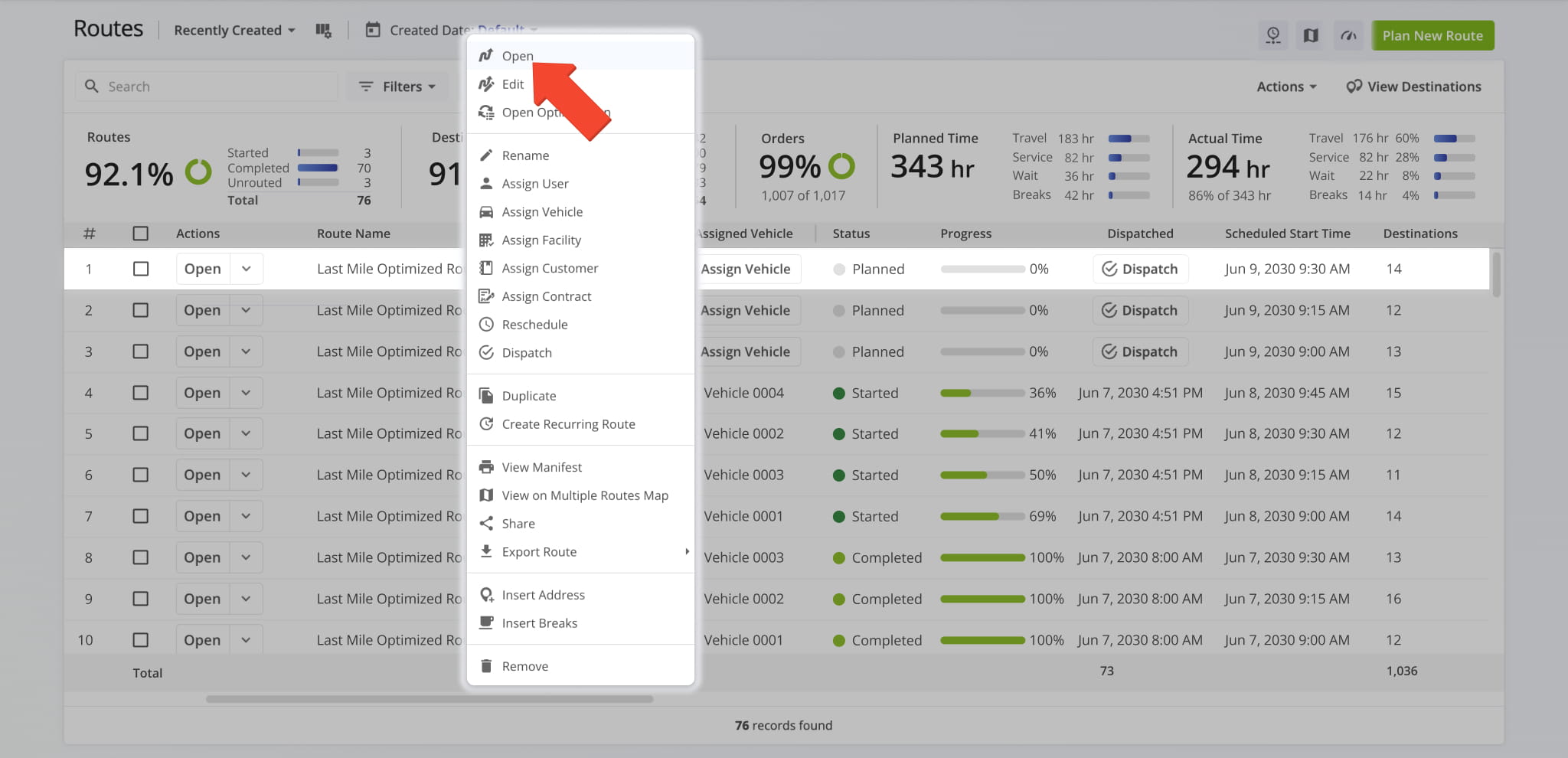
You can access many of the same route management options as the Route Editor directly from your Routes List. Click the Down Arrow next a route or right-click a route to open the route management actions menu. You can learn more about each individual route management option in the table below.

Additionally, click the “Actions” button to insert an address into the most optimal route or open the Route Operation Matrix for routes scheduled for the current date.

To access all available individual route management options such as real-time tracking, detailed address and destination editing, and destination details, open a route in the Route Editor. Learn more about managing and editing routes.

Access route management options directly from your Routes List by clicking the Down Arrow next to Open Route or right-clicking the preferred route.

ActionDescription
EditOpen a route in the Route Editor.
Open OptimizationOpen a route’s associated Optimization Snapshot.
RenameChange the route’s name or alias. Route names can be used to quickly find routes with the search function.
Assign UserAssign a user to the route. The assigned User can then open, start, and finish the route on the Route4Me Mobile App.
Assign VehicleAssign a vehicle to the route from your mixed fleet or homogeneous vehicle fleet.
RescheduleChange the date and time of the day the route is scheduled to start.
DispatchDispatch routes to send automated SMS and Email customer notifications.
DuplicateCreate a copy of the route. The new route will have “(Duplicate)” added to the end of its name.
Create Recurring RouteCreate a new Master Route for use when planning recurring schedule routes.
View ManifestDownload or print a detailed dynamic Route Manifest. This manifest includes all available route and destination data and details.
View on Multiple Routes MapOpen the selected routes on the Routes Map.
ShareShare the route with other Users by direct link or send a link via Email.
Export RoutesExport route data as a CSV spreadsheet or navigation data file for import into navigation devices such as Garmin, TomTom, and more.
Insert AddressInsert an address into the route by typing or searching the address in the “Address” field.
Insert BreaksAdd driver breaks on the route with customizable break duration and break trigger type.
Remove RoutesPermanently delete the selected routes.


Bulk Route Management – Edit And Manage Multiple Routes Simultaneously

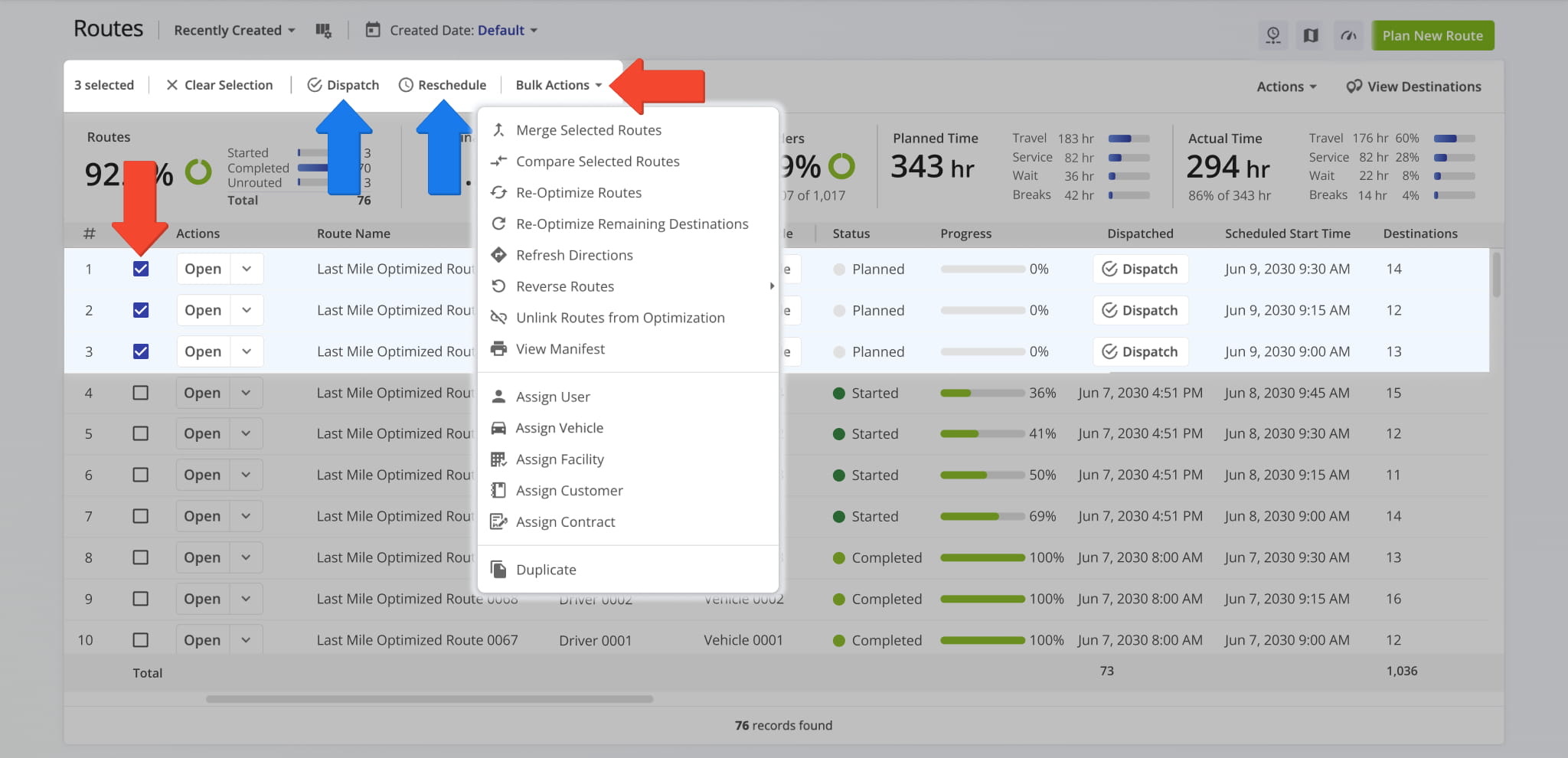
Managing multiple routes at once is just as straightforward as managing a single route. To use bulk route management actions, start by selecting the routes you want to modify by checking the boxes next to them.

Then, from the menu bar above the Routes List, click “Dispatch” to dispatch routes and customer notifications, “Reschedule” to update route dates, or “Bulk Actions” to open the full list of bulk management options, detailed in the table below.

NOTE: You can apply Bulk Route Management actions to up to 100 routes at the same time.

Use bulk actions to manage multiple routes at the same time from the Routes List.

Bulk ActionDescription
Merge Selected RoutesMerge multiple selected routes into a new combined route without removing the original sub-routes. Additionally, learn more about merging multiple routes. NOTE: When merging routes with different assigned Users and Vehicles, the assigned User and Vehicle of the first selected route will be used.
Compare Selected RoutesCompare multiple routes side by side. Specifically, you can compare route maps and directions, scheduled time and date, travel time and distance, data totals, vehicle utilization, real-time progress, and more.
Re-Optimize RoutesDynamically re-optimize routes after making changes (adding or removing addresses, changing destination sequence, etc.). It’s recommended to always re-optimize routes after making changes to route settings, route sequence, or other attributes that can affect optimization.
Re-Optimize Remaining DestinationsRe-optimize unvisited destinations on active routes. For instance, if there are destinations visited out of sequence or if you insert addresses into routes, this option will move all visited destinations to the top and sequence all not-visited destinations into the best-optimized route sequence.
Refresh DirectionsOptimize route directions without changing the destination address sequence.
Reverse RoutesReverse route sequence and directions. For example, when you complete particular routes and you need to travel back visiting the exact same stops in the exact same sequence in reverse.
Unlink Routes from OptimizationUnlink routes from their associated optimizations. This enables you to make changes to the selected routes without restrictions from existing optimization settings or constraints. Additionally, learn more about unlinking routes from optimizations.
View ManifestView a detailed dynamic Route Manifest. This route data manifest includes all available route and destination data and details.
Assign UserAssign a user to the routes. The assigned User can then open, start, and finish the route on the Route4Me Mobile App.
Assign VehicleAssign a vehicle to the routes from your mixed fleet or homogeneous vehicle fleet.
RescheduleReschedule the selected routes for another date or start time.
DispatchDispatch routes to send automated SMS and Email customer notifications.
DuplicateCreate a copy of the selected routes. The new routes will have “(Duplicate)” added to the end of their names.
Operation MatrixOpen a multiple routes operation matrix to view the visitation progress of routes with color-coded metrics.
View on Multiple Routes MapOpen the selected routes on the Routes Map.
Export RoutesExport route data as a CSV spreadsheet or navigation data file for import into navigation devices such as Garmin, TomTom, and more.
Insert Address into Best RouteInsert a specific address into the most optimal route by typing or searching the address in the “Address” field.
Insert Address into Selected Route(s)Insert an address into the selected routes by typing or searching the address in the “Address” field.
Insert BreaksAdd driver breaks on the routes with customizable break duration and break type.
Remove RoutesPermanently delete the selected routes.


Drag And Drop Orders And Locations Into The Best Route

From the Routes List, you can also manage your routes by adding Orders and Locations to the best routes. To do this, slide the right-side panel open so you can access your unrouted Orders and Locations.

Then, right-click an Order or Location to open a menu from which you can insert it into the best route, edit it, or open a Location or Order Snapshot so you can review its details.

Alternatively, left-click on the Six-dot Icon to access a copy of the Order or Location that you can drag and drop into any route that appears in your Routes List.

Drag and drop Orders and Locations into routes that appear on your Routes List.


Mobile Driver App And Routes List Real-Time Data Sync

Route4Me seamlessly synchronizes updates between the Mobile Driver App and the best route software.

In detail, drivers and field members can use Route4Me’s Mobile Android Route Planner and iOS Route Planner apps to navigate routes, add destination statuses, attach proof of visit and delivery, etc. Route4Me automatically synchronizes changes made on the mobile app, and you can instantly see route updates on the Web Software Routes List in real-time.

Similarly, managers, route planners, or dispatchers can use the trusted route optimizer Route Editor to insert or remove route stops, resequence addresses, reschedule routes, and make other route modifications. Accordingly, drivers and field team members will instantly get route updates on the mobile app in real-time.

Route4Me seamlessly synchronizes updates between the Mobile Driver App and Web Software.


Visit Route4Me's Marketplace to Check out Various Modules and Add-Ons:

Last Updated:

About author: Kristian Andreev

Kristian is a Technical Writer at Route4Me. With over a decade of experience in writing and localization, he's an expert at communicating complex technical data in a clear, concise, and user-friendly way. Passionate about bridging the gap between engineers and users, he specializes in creating documentation to streamline onboarding, enhance product usability, and support global teams on the path to success.

Was this article helpful?
Still can't find what you're looking for? Contact us
Route4Me

About Route4Me

Route4Me has over 40,000 customers globally. Route4Me's Android and iPhone mobile apps have been downloaded over 2 million times since 2009. Extremely easy-to-use, Route4Me's apps create optimized routes, synchronize routes to mobile devices, enable communication with drivers and customers, offer turn-by-turn directions, delivery confirmation, and more. Behind the scenes, Route4Me's operational optimization platform combines high-performance algorithms with data science, machine learning, and big data to plan, optimize, and analyze routes of almost any size in real-time.