
Time Zones – Managing Route Start Times And Time-Based Settings
Understanding how time zones work in Route4Me is essential for accurate route planning and scheduling. This guide explains the platform’s time zone logic and shows how times are calculated, displayed, and referenced across key features. By understanding this behavior, enterprise teams can make the most of Route4Me’s last mile route optimization software to coordinate routes and manage schedules across multiple regions.
Table of Contents
Default Time Zone – Browser-Based Time Conversion
By default, Route4Me uses your browser’s time zone to display dates and times across the platform.
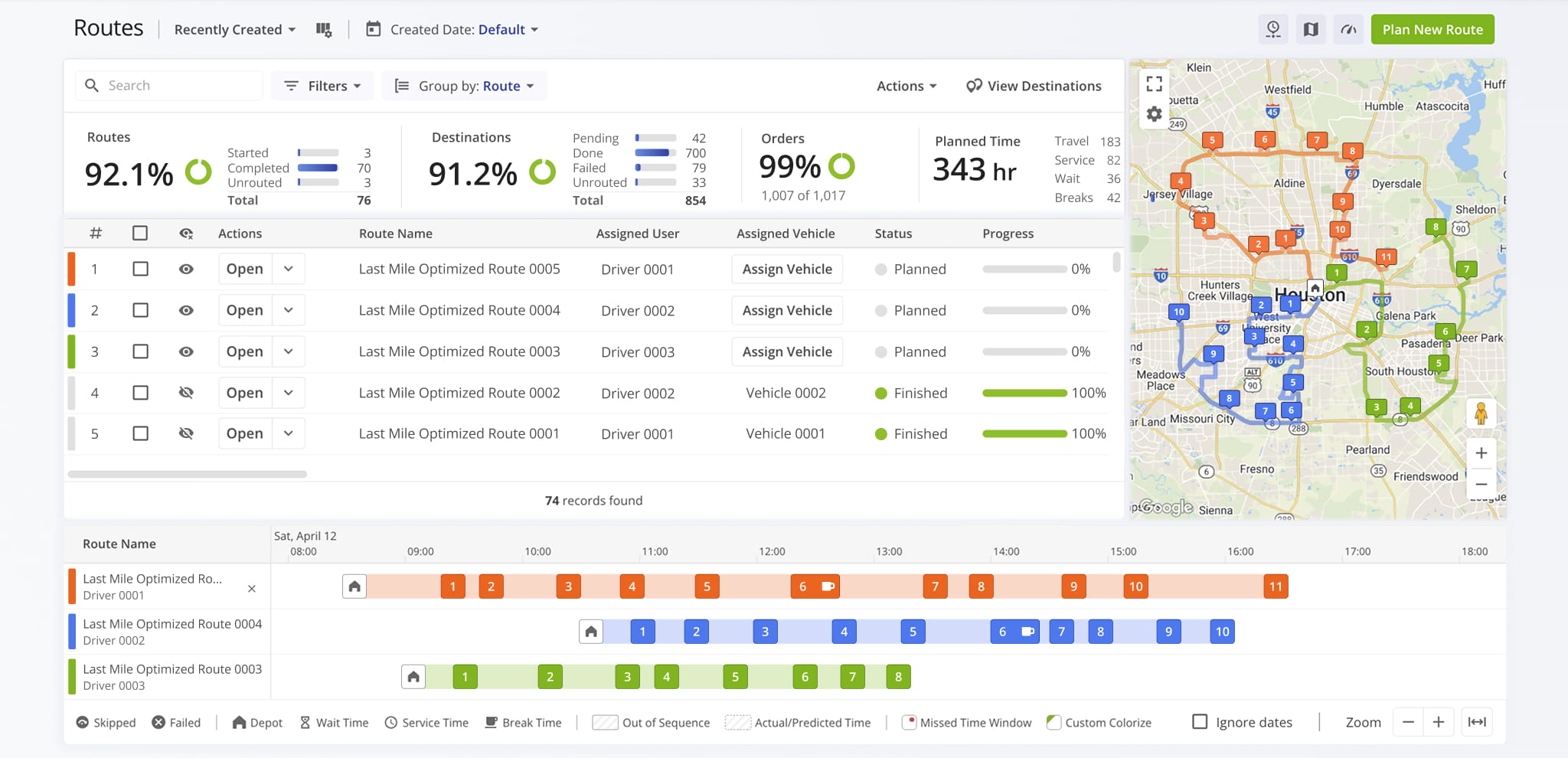
All route data, orders, and timestamps are automatically converted to your local time, even when routes are executed in other regions.
It’s important to keep this in mind when working with routes, drivers, or addresses in different regions, as the displayed times may differ from the actual local time where the route is being executed.
Account Settings – Account Time Zone Preferences
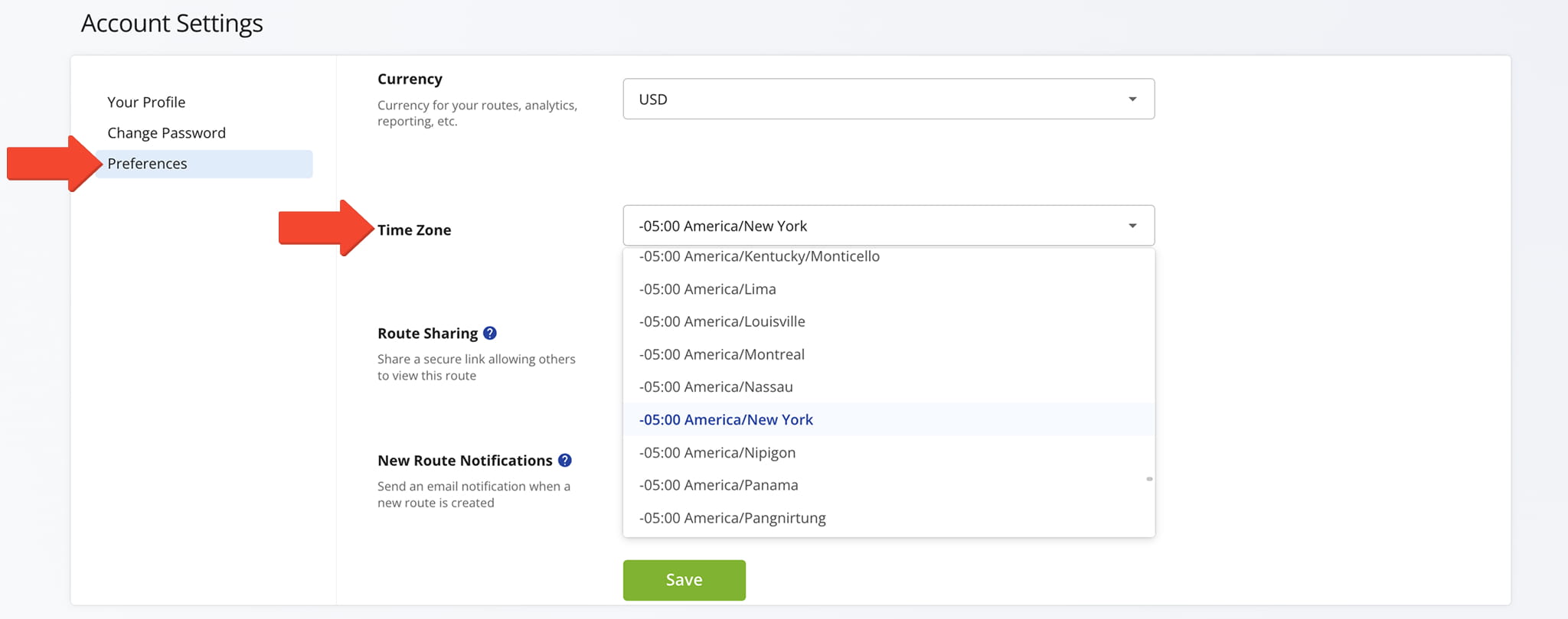
You can select a time zone in your account settings, but this setting is for reference only. It does not affect route start times, scheduling, or time-based calculations, which follow default browser-based time zone logic.
To view or update this setting, go to “Settings” > “Account Settings”. Then, from the “Preferences” tab, select “Time Zone” and make your selection from the drop down menu.
Route Planning And Optimization – Route Start Times
Dynamic Route Planning – Local Time Zone Start Time
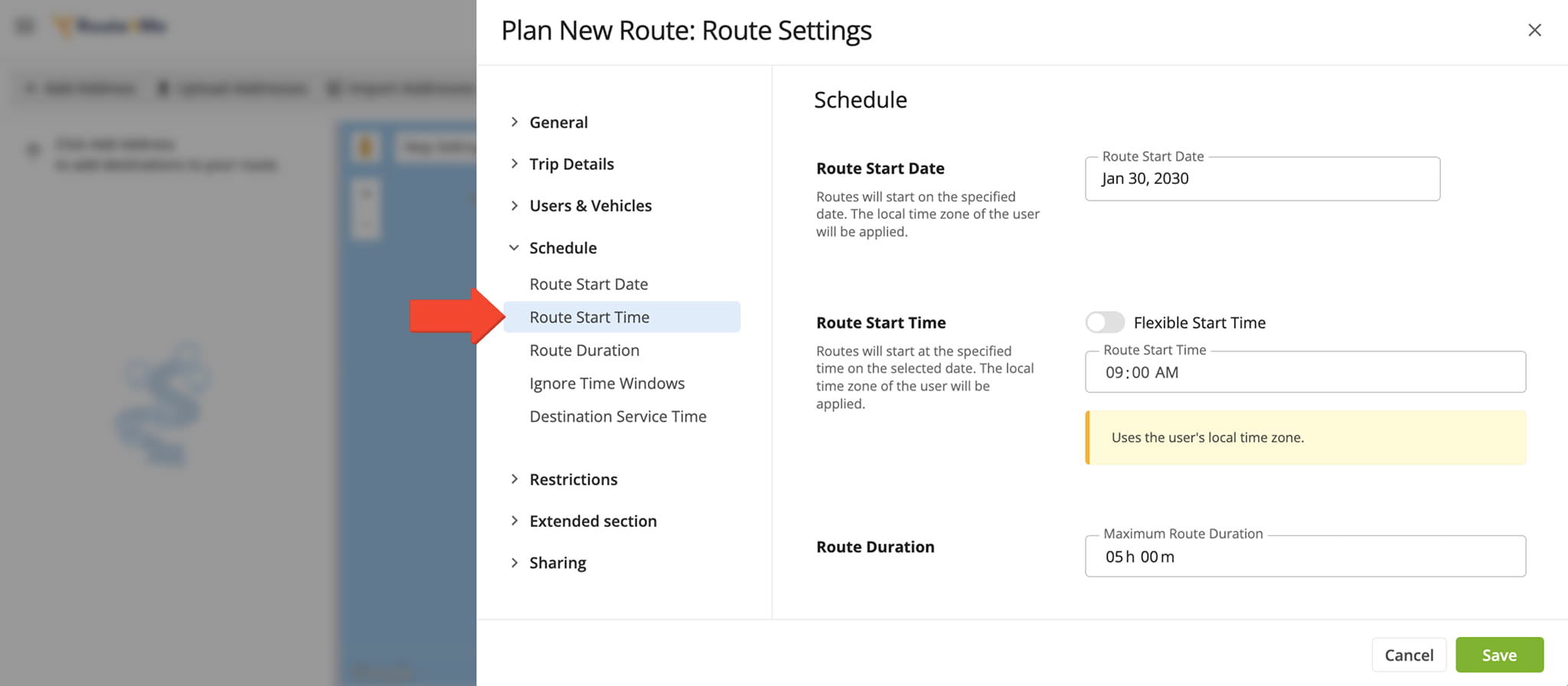
Start times in the Route Planner are based on your browser’s time zone. To set a route start time, go to “Dynamic Routing” > “Plan New Routes” from the Navigation Menu, then click “Skip” to bypass using an optimization profile.
From the “Schedule” tab, manually enter the start time. The time you enter is interpreted using your local time zone, not the route’s geographic location.
Strategic Optimizations – Optimization Scenario Time Zone
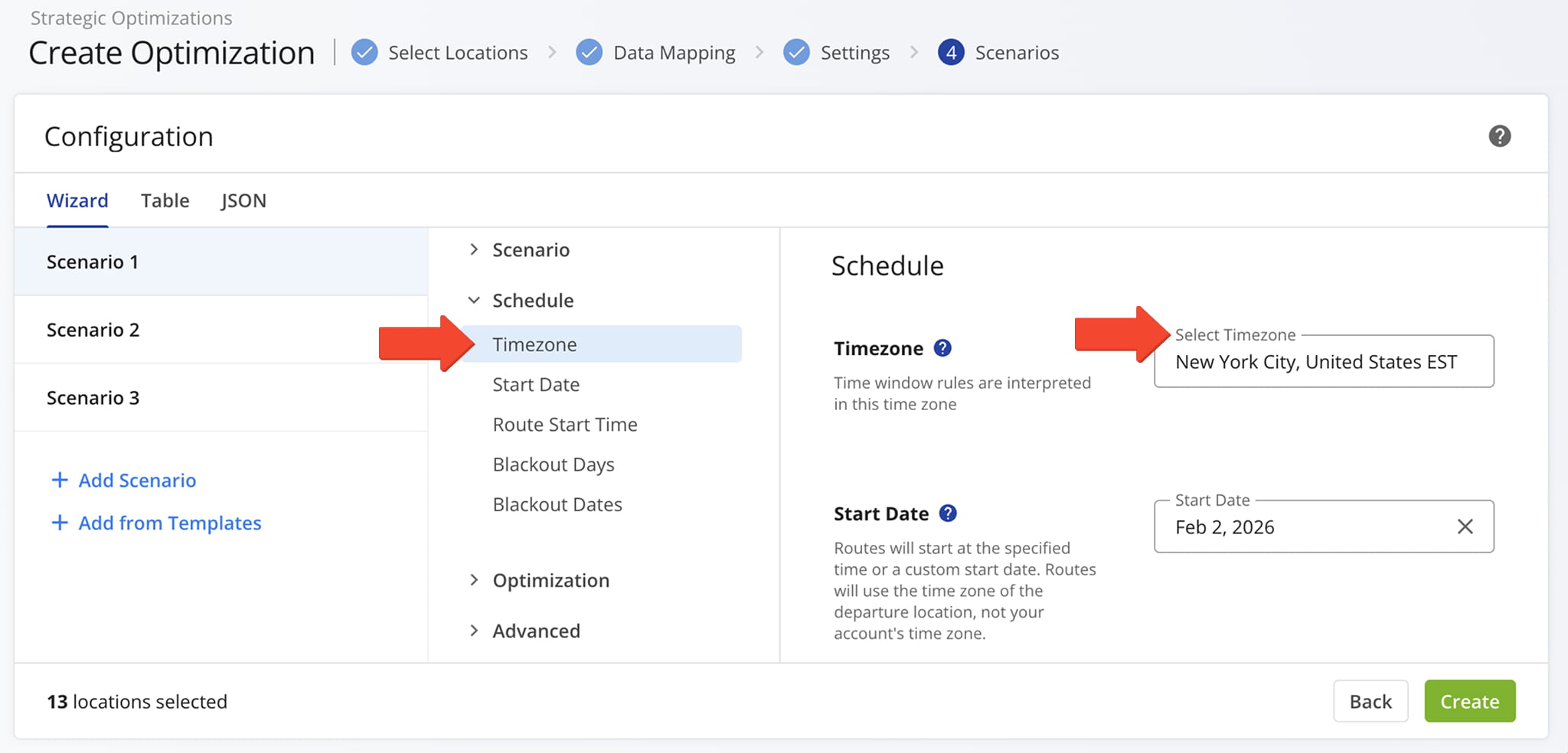
When creating Strategic Optimizations, time-related settings are based on the selected depot or start location. This time zone is used during Scenario planning and for all customer time windows.
To set the time zone for an Optimization Scenario, go to “Strategic Routing” > “Scenarios“, click the “Create Optimization” button (or open an existing Scenario), and define the time zone in the Configuration settings.
Open Your Strategic Optimizations
Optimization Profiles – Scheduled Route Start Time
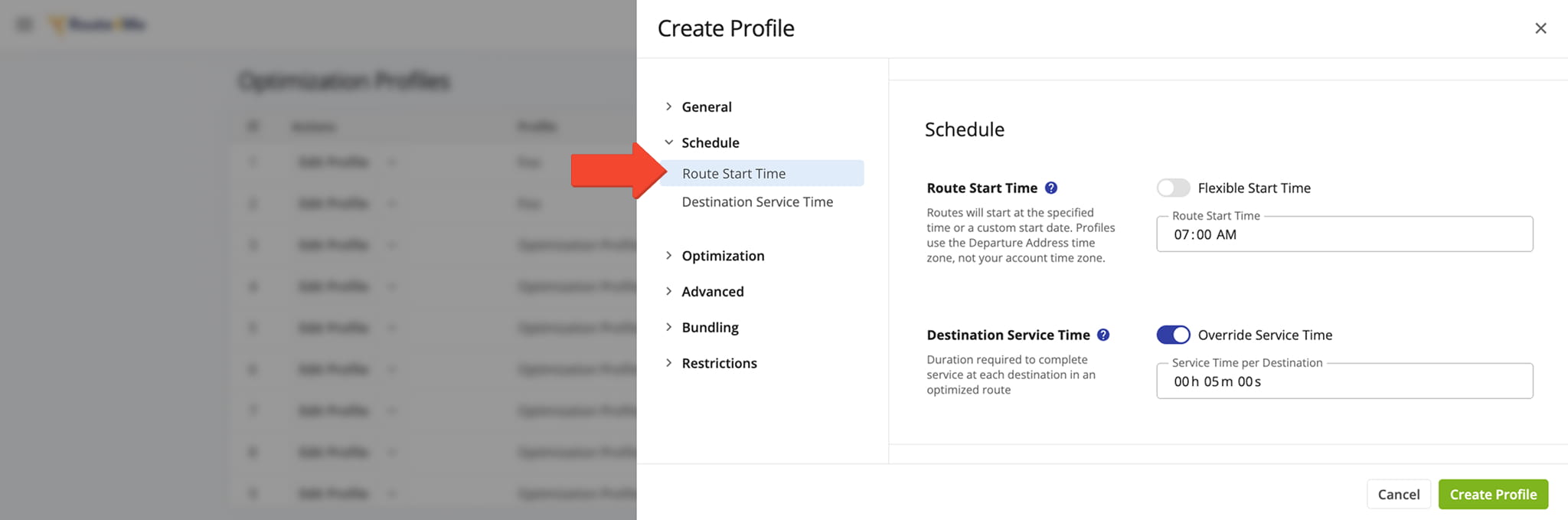
When creating Optimization Profiles, start times are based on your browser’s time zone. To define a Profile’s start time, go to “Optimization Settings” > “Optimization Profiles” from the Navigation Menu, then open or create a profile.
From the “Schedule” tab, enter the route start time. The time you enter is interpreted using your local time zone, rather than the time zone of the scheduled stops.
Open Your Optimization Profiles
Recurring Routing – Master Route Time Zones
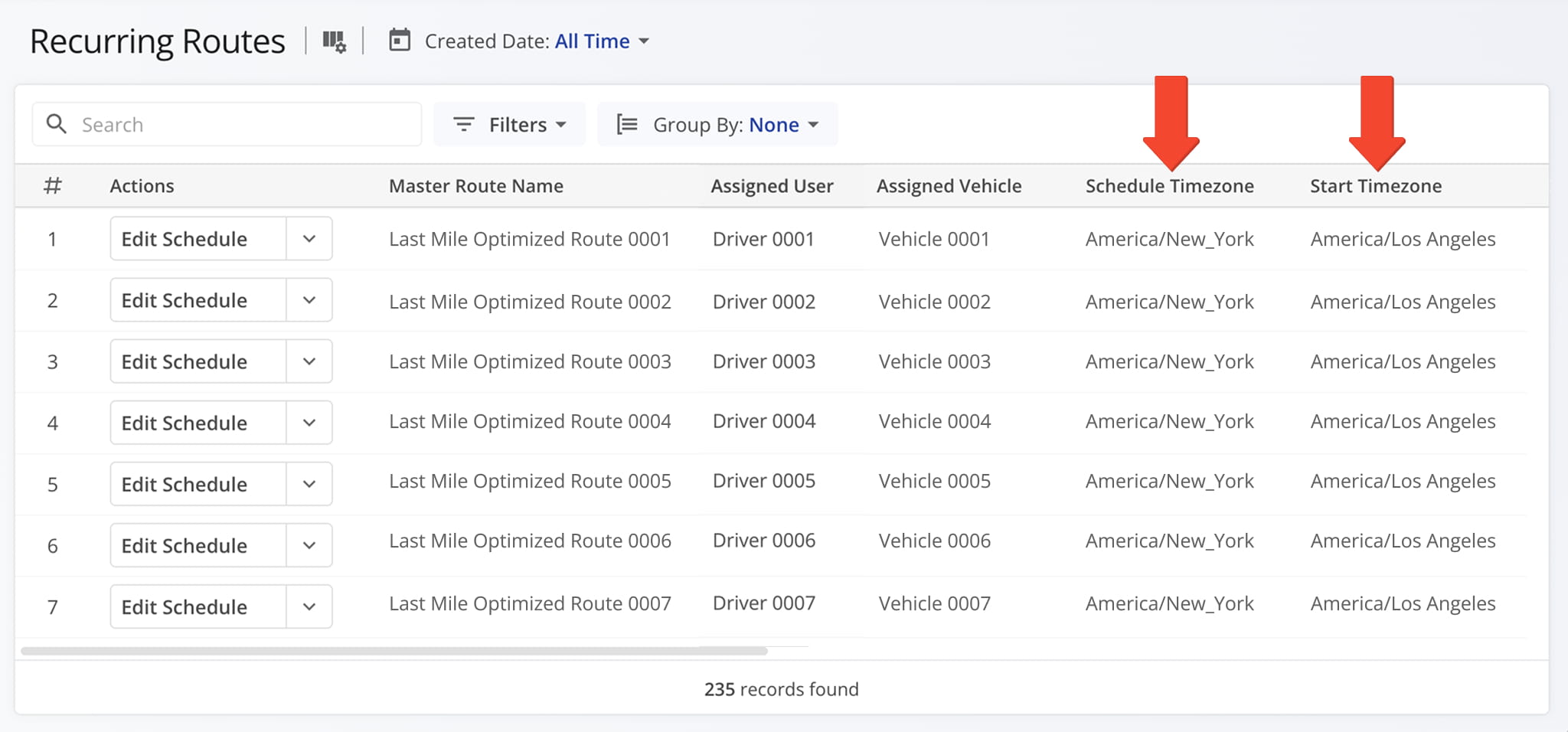
Master Routes used for Recurring Routes include a “Schedule Time Zone” based on your account settings and a “Start Time Zone” based on your browser, which determines when the route begins.
To view Master Routes time zone details, go to “Strategic Routing” > “Recurring Routes” from the Navigation Menu. Then search for the “Scheduled Time Zone” and “Start Time Zone” data columns.
Destinations – Destination Time Zone Data Column
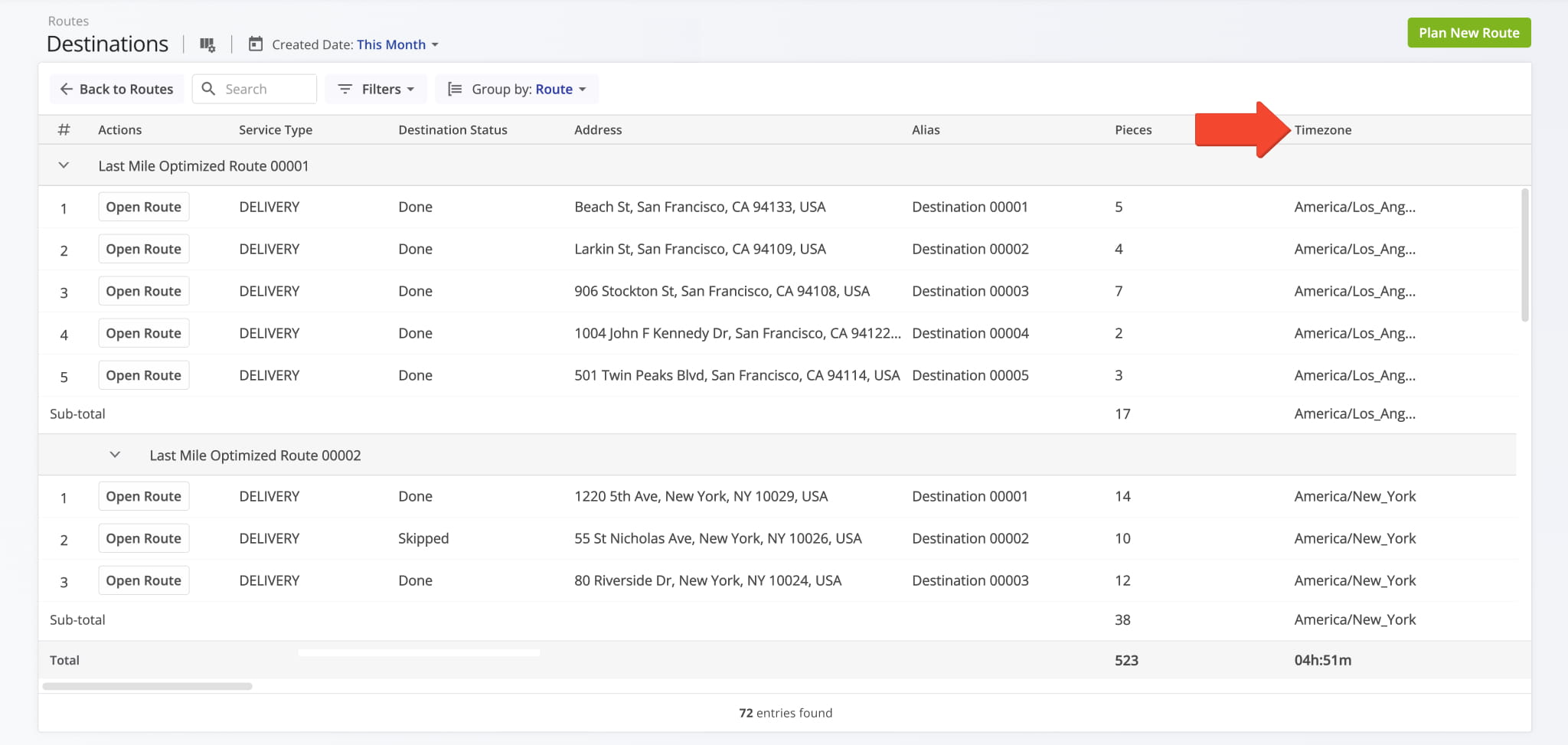
From the Destinations page, you can view all your route destinations in one place. The “Timezone” column shows which time zone each destination is located in, making it easy to understand regional differences.
To access your Destinations page, go to “Dynamic Routing” > “Destinations” from the Navigation Menu.
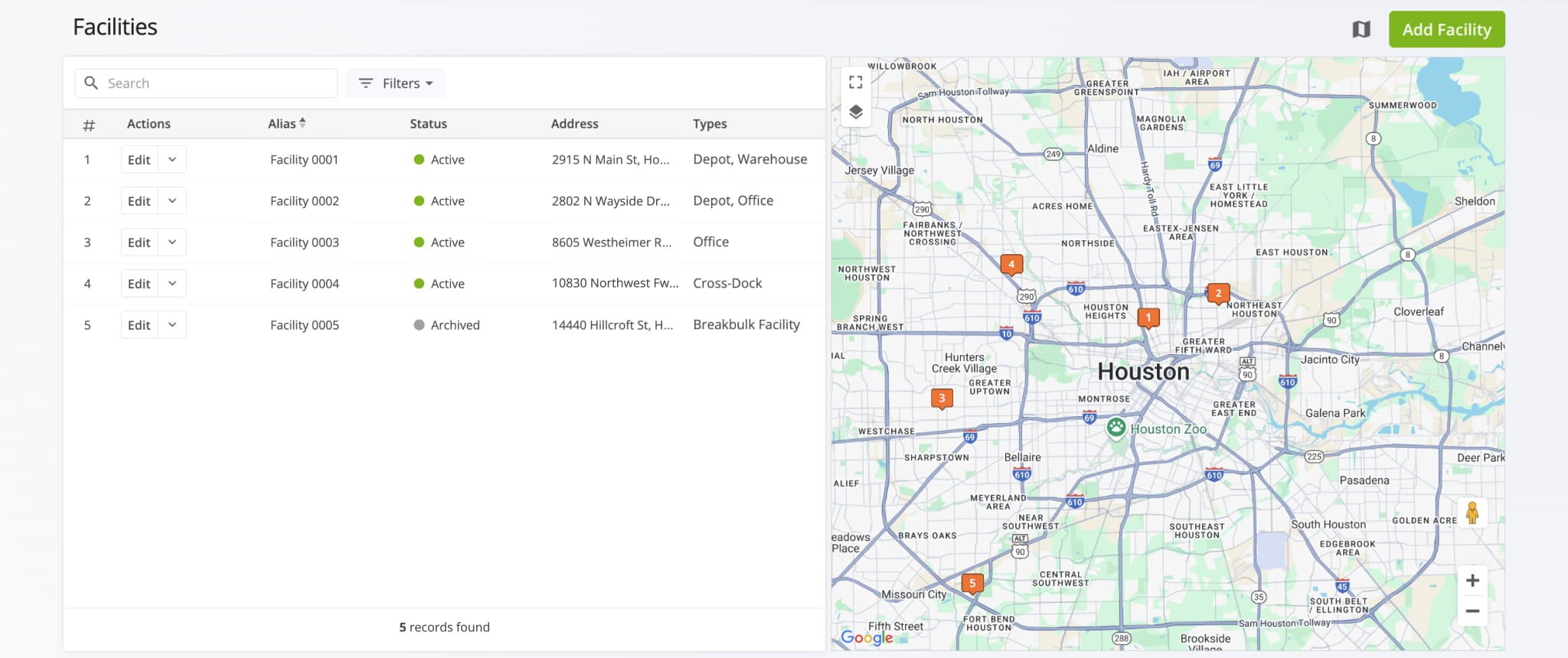
Facilities – Facility Time Zone Logic
Facilities don’t have a separate time zone setting. Routes planned from a Facility use the route’s start time, which follows your browser’s time zone.
This can cause confusion when a Facility is in a different time zone or a route crosses regions, which is important to consider when planning multi-region routes. To access facilities, go to “Database” > “Facilities” from the Navigation Menu.
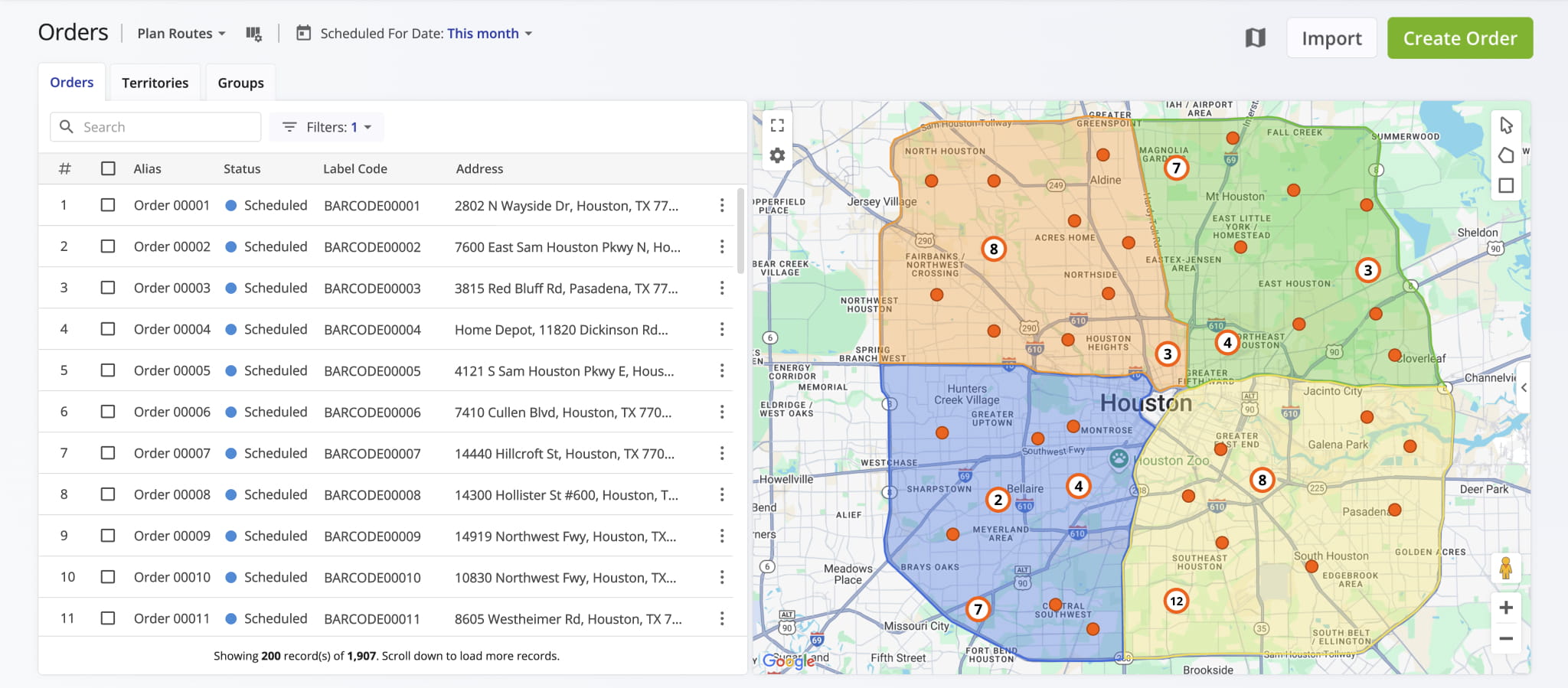
Orders – Order Time Zone Behavior
Orders don’t have their own time zone. Routes created from orders use your browser’s time zone to determine start times. To access orders, go to “Business Operations” > “Orders“, where you can view existing orders or create new ones.
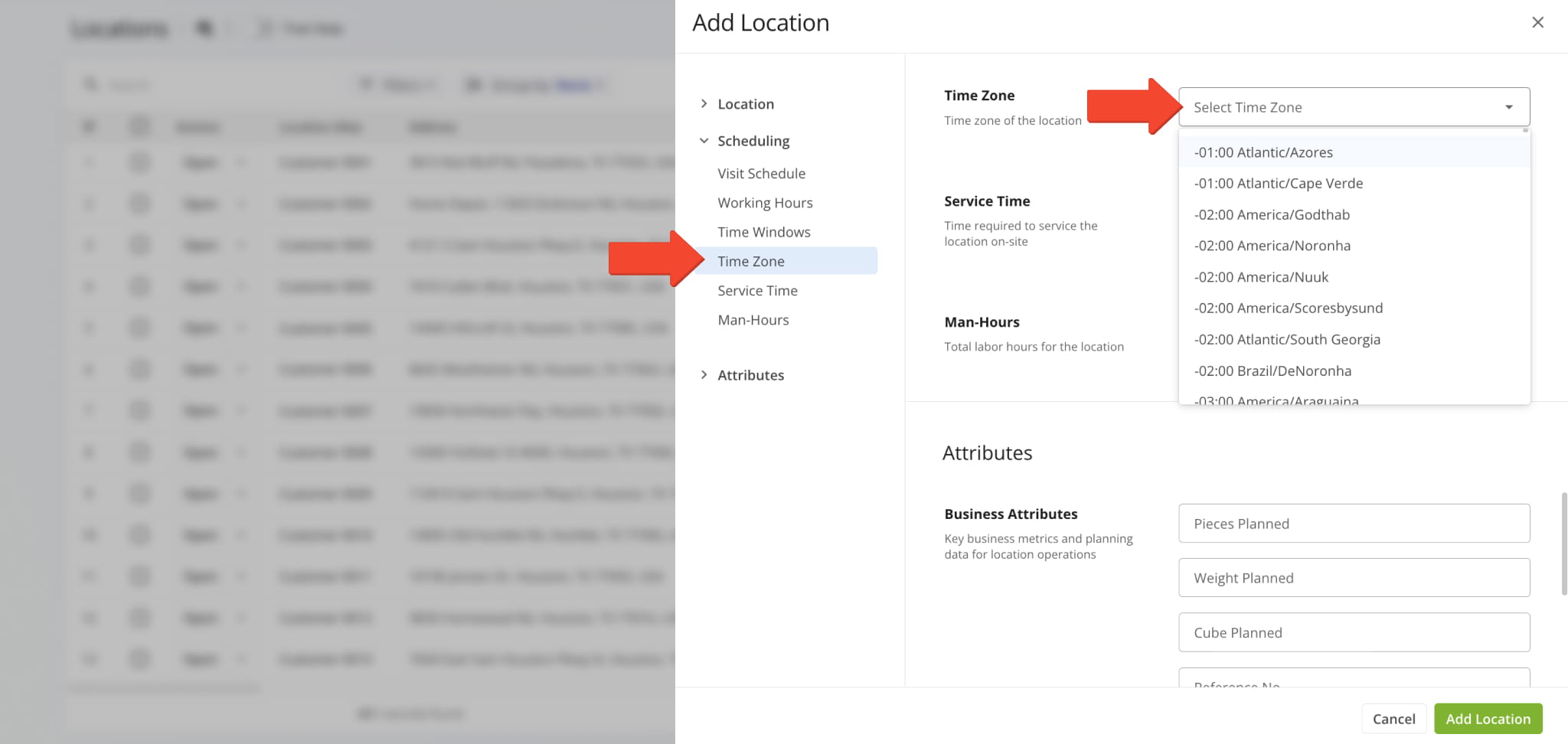
Locations – Location Time Zone Settings
Locations allow you to specify a time zone, but the time zone you define does not affect route planning. When you use a Location to plan routes, the routes follow the default time zone logic, based on your browser.
The time zone in a Location is for reference only. You can set it and view it, but it won’t change how routes are scheduled. To access Location settings, go to “Database” > “Locations” from the Navigation Menu.
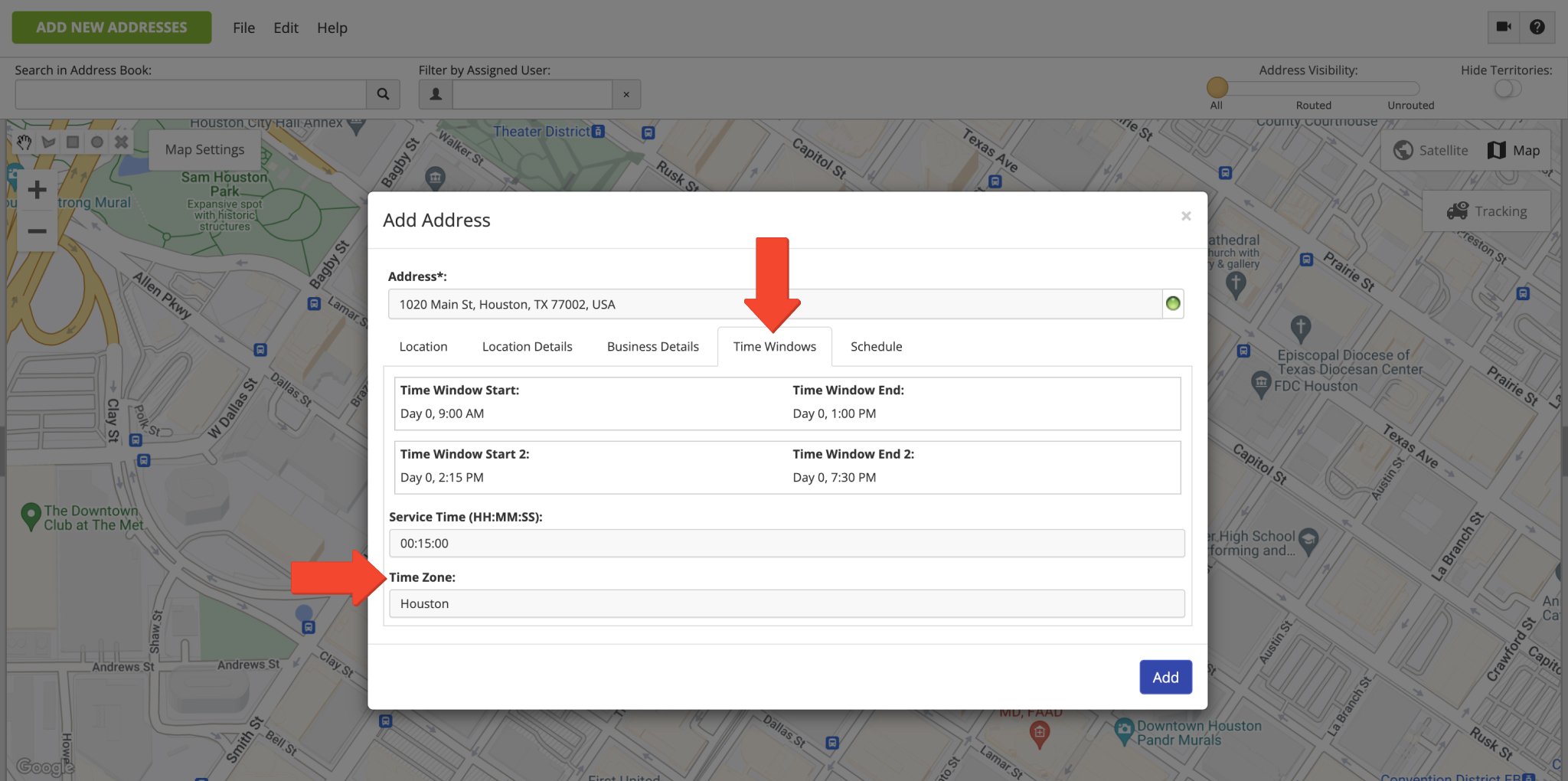
Address Book – Address Book Map Time Zone Settings
In the Address Book, you can specify a custom time zone for each address, which is for reference only and does not affect route planning. Routes always follow your browser’s time zone.
You can set and manage address time zones, but default browser-based logic is used when planning routes. To access your Address Book, go to “Database” > “Address Book Map” from the Navigation Menu.
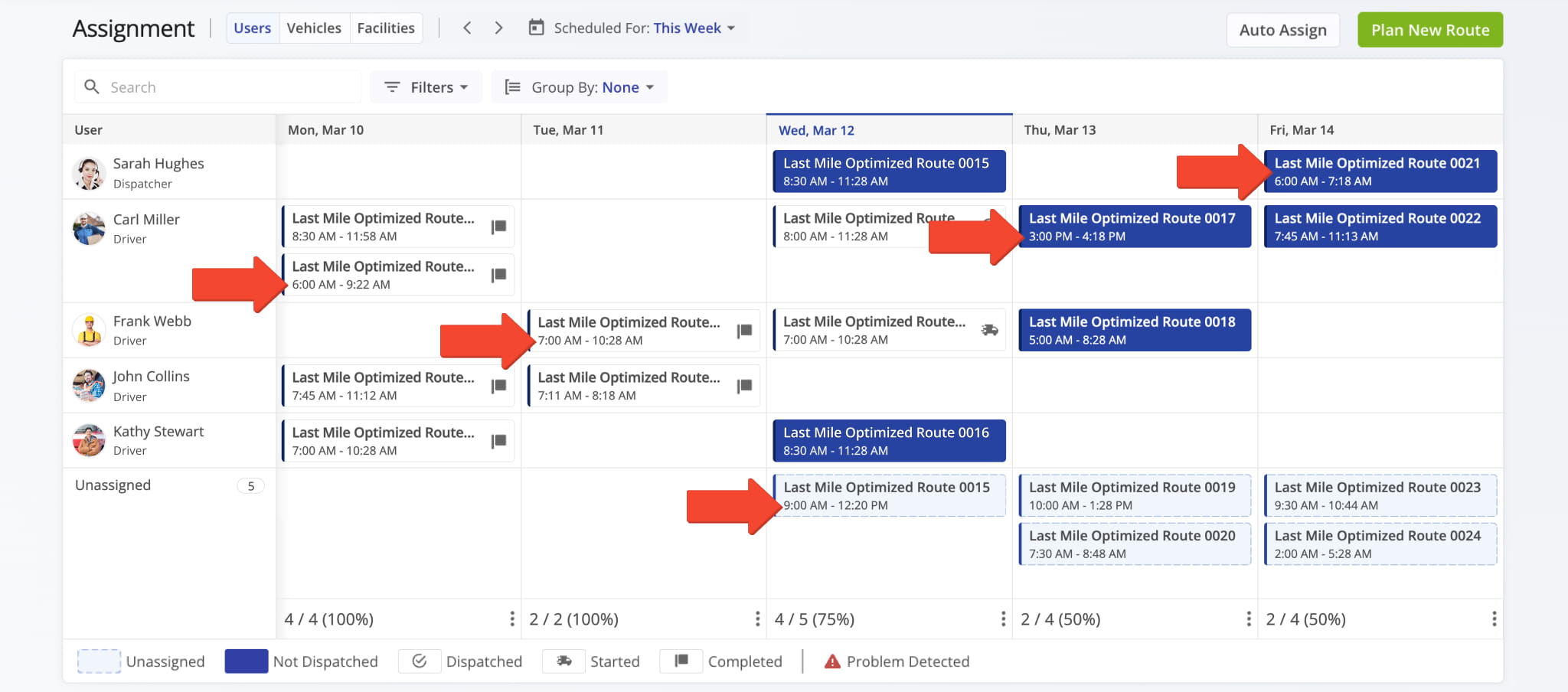
Assignment Board – Scheduling Route Start Times
On the Assignment Board, you can view route start times, which are based on your browser’s time zone and are for reference only. If you have routes across multiple time zones, the displayed times still follow your local time zone.
Scheduling is relative to your assigned time zone, so drivers should be aware that times may not match the local time of their routes. To access your Assignment Board, go to “Dispatch & Tracking” > “Assignment Board“.
Dispatch Board – Route Schedule Times
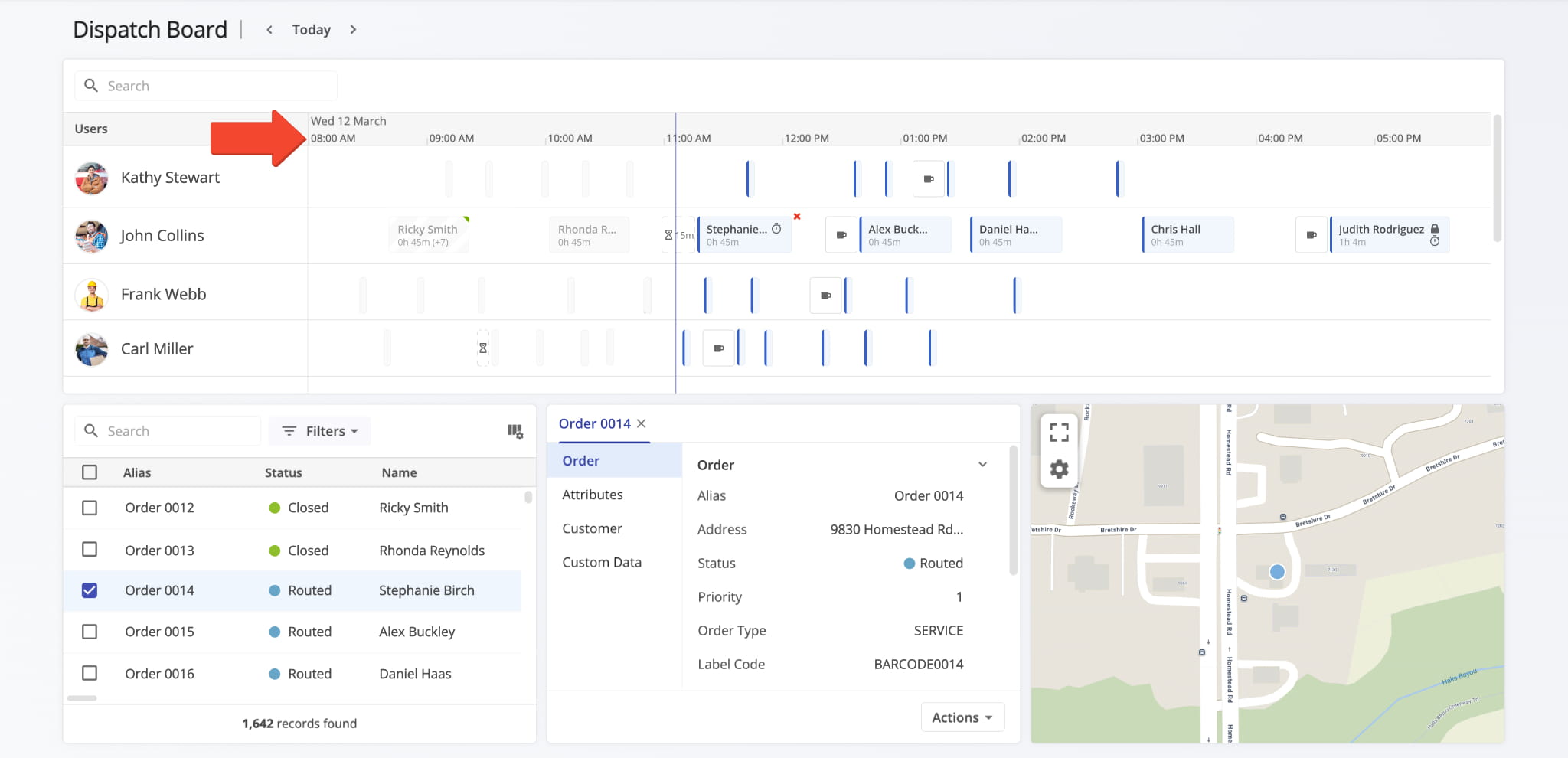
The Dispatch Board shows route schedules, which are based on your browser’s time zone. If you manage routes across multiple time zones, the times you see will still reflect your local time, not the local time of the routes.
Scheduling is always relative to your time zone, so it’s important to communicate to drivers that displayed times may not match local stop time. To access your Dispatch Board, go to “Dispatch & Tracking” > “Dispatch Board“.
Business Insights – Data Timestamp Display
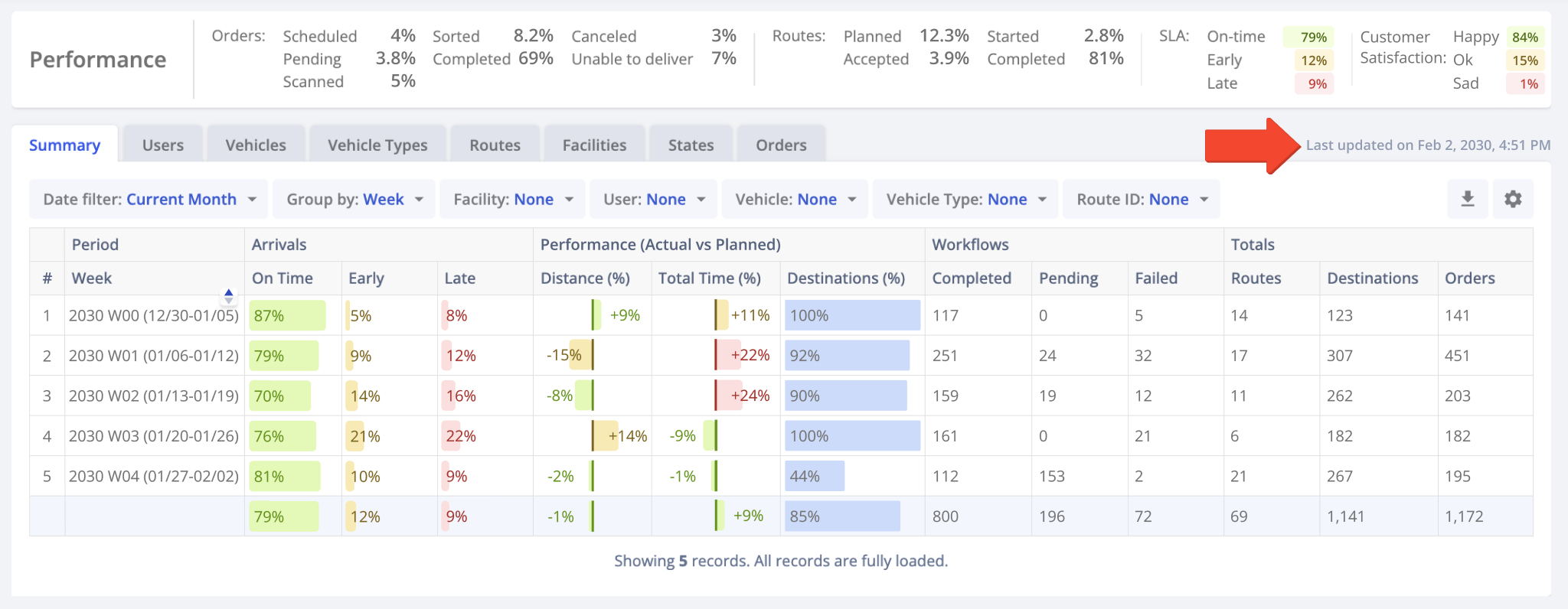
Data on the Business Insights page is based on your browser’s time zone, with the “Last Updated” timestamp on your dashboard shown in your local time.
If drivers completed routes in other time zones, the reported times will match your browser’s time zone, not the local time at the stops. To access Business Insights, go to “Business Operations” > “Business Insights” from the Navigation Menu.
Open Your Business Insights Page
Export History – Exported Route Timestamps
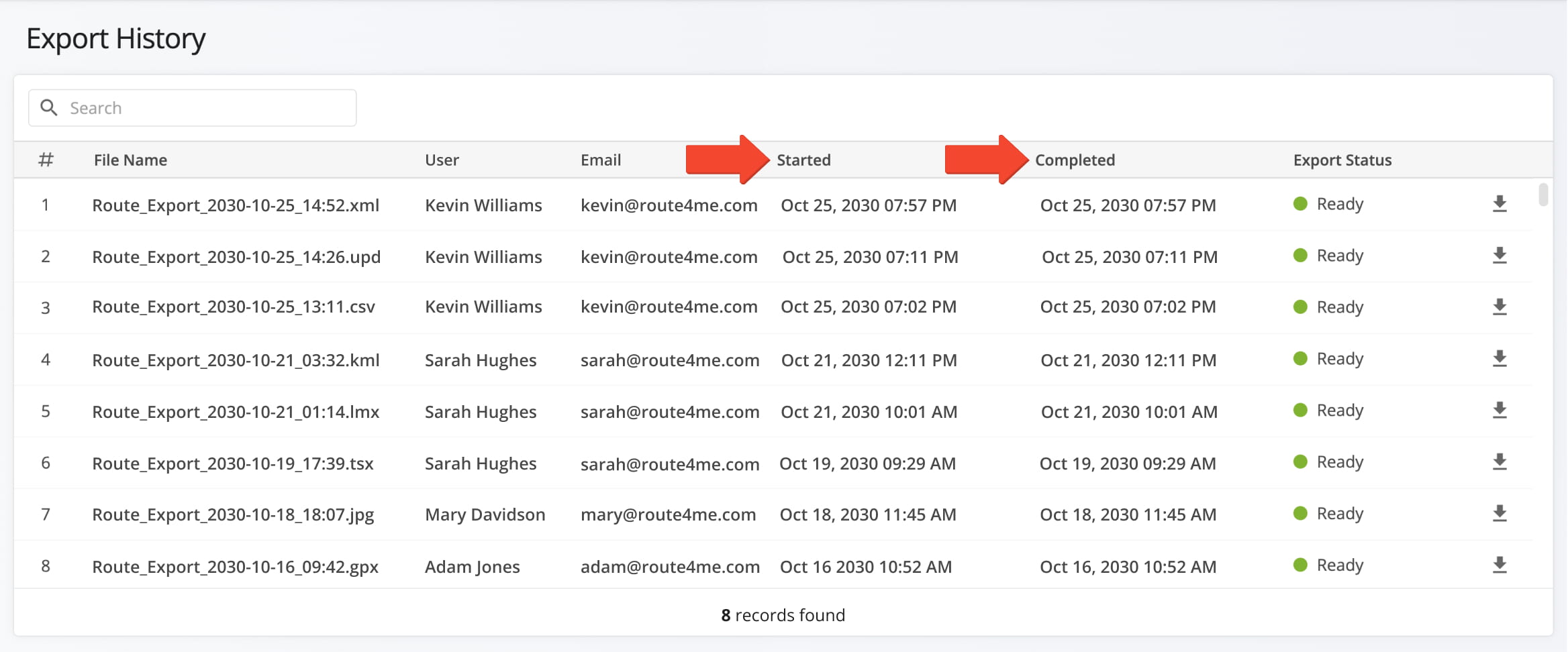
On the Export History page, the “Started” and “Completed” column shows when a route was exported. This time is based on your browser’s time zone and does not affect any route data. It is for reference only.
To access your Export History, go to “Security” > “Export History” from the Navigation Menu.
Visit Route4Me's Marketplace to Check out Various Modules and Add-Ons:
- Route Optimization
Time Windows
- Operations
Advanced Team Management Add-On

