
Lytx Integration With Route4Me
The Lytx telematics platform helps fleet managers protect drivers and optimize fleet operations. With AI-powered video telematics, real-time GPS tracking, and driver behavior insights, Lytx makes it easier to reduce risky driving and improve efficiency. Combined with proactive alerts and actionable feedback, it helps lower accidents, downtime, and operational risk. ntegrate Lytx with your Route4Me account for smarter route planning and unified fleet management.
Table of Contents
Sync Your Lytx Integration With Route4Me
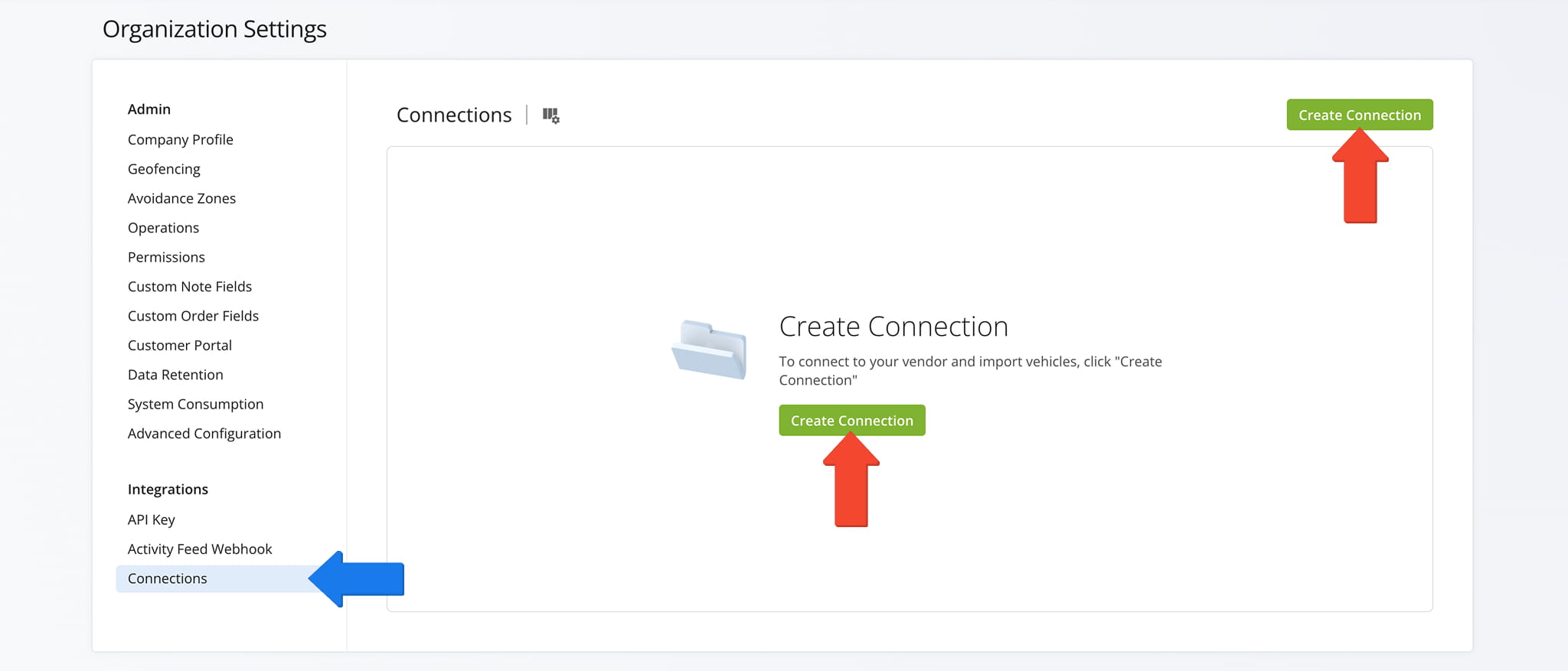
To establish a telematics connection and integrate Lytx, click “Settings” > “Organization Settings” in the Navigation Menu. Then, from your Account Settings page, click “Connections” > “Create Connection” button.
Open Your Telematics Connections
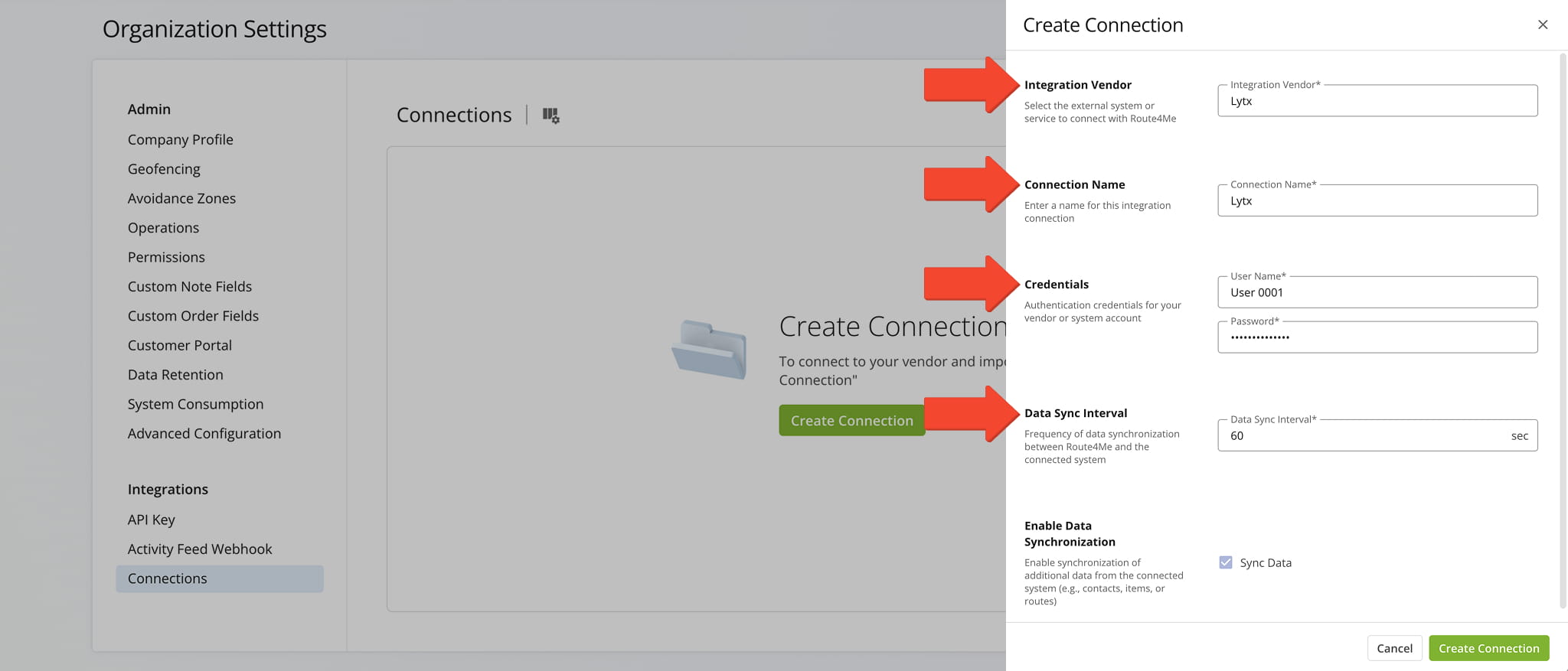
Select Lytx from the Integration Vendor drop down menu. Then, provide a connection name (for example, the name of the telematics vendor or product), and enter your credentials.
Lastly, set your desired Data Sync Interval, the frequency at which Route4Me’s Telematics Gateway retrieves vehicle tracking data from the corresponding telematics partner.
While most telematics vendors store tracking data every 1–5 minutes, Route4Me allows you to specify your preferred interval and retrieve updates as often as every second. NOTE: Data synchronization is automatically enabled for Lytx.
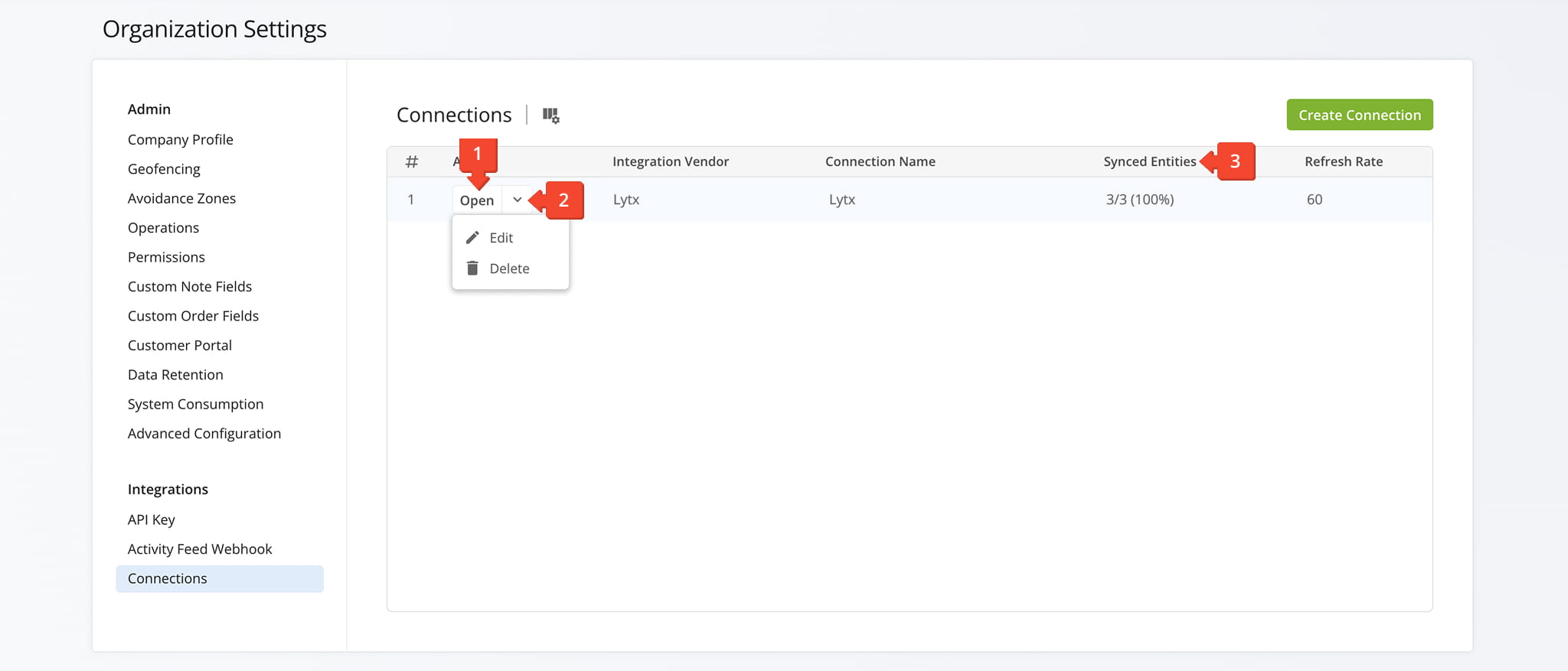
After establishing the connection, it will appear on your Telematics Connections page. From here you can:
- Click “Open” to access the connection’s Telematics Snapshot.
- Click the Down Arrow and and select “Edit” to make modifications or “Delete” to remove the connection.
- Confirm the percentage of vehicles successfully synchronized via the “Synced Entities” data column.
You can also customize the data displayed in the table. Click the Column Icon to select which telematic connection field appear and adjust the order to suit your operational needs.
The table below provides an overview of all available data columns, which you can reorder by dragging them into place.
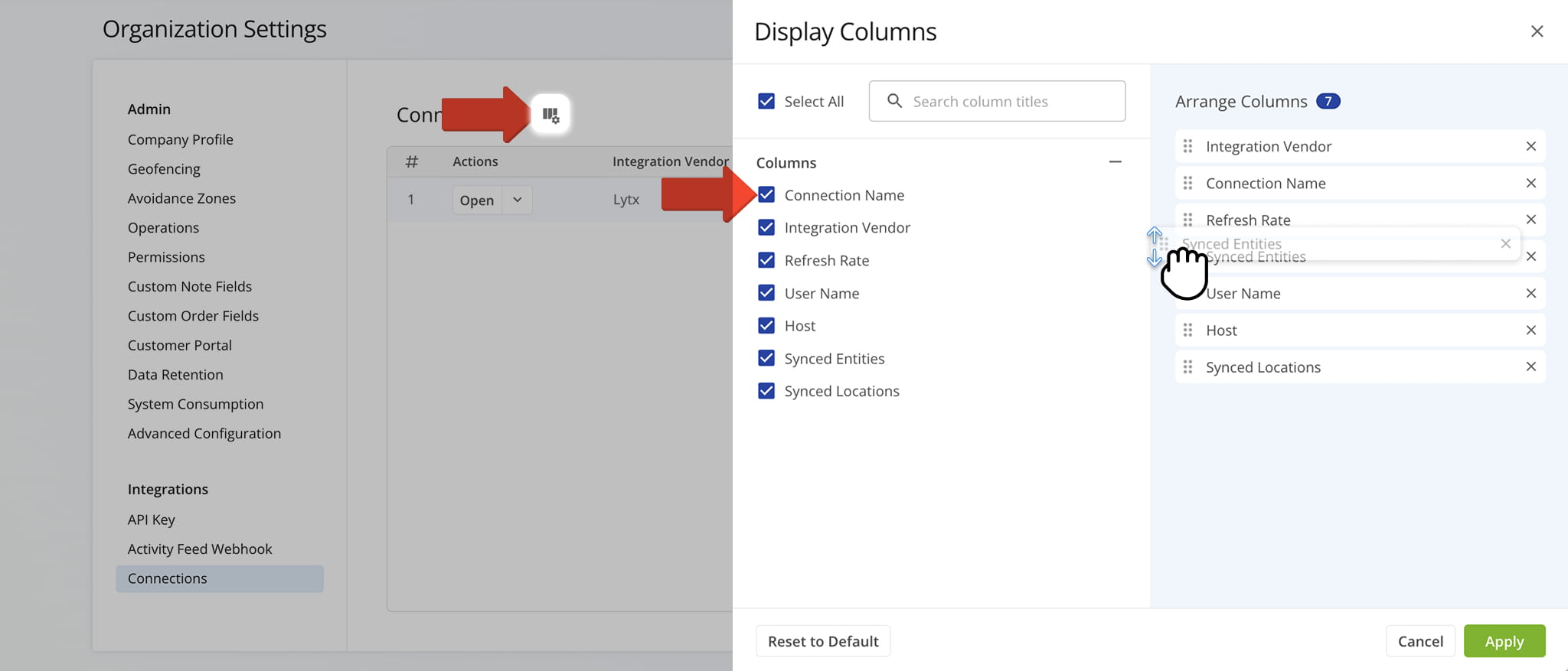
| Data | Description |
|---|---|
| Connection Name | The custom name you assign to this telematics connection for easy identification. |
| Integration Vendor | The telematics provider associated with this connection. |
| Refresh Rate | The interval at which Route4Me retrieves data from the telematics platform. |
| User Name | The user name used to authenticate the connection with the telematics vendor. |
| Host | The server address or endpoint used to establish the telematics connection. |
| Synced Entities | Lists the types of assets, such as vehicles or drivers, that are being synced from the telematics platform. |
| Synced Locations | Shows the number of locations or tracking points that have been retrieved and synced for this connection. |
Activate Lytx Vehicles In Your Route4Me Account
Once connected to your Lytx account, vehicles are automatically imported and re-synchronized with your Route4Me account.
To view your Vehicles Page, where you can edit and manage all Route4Me and telematics vehicles linked to your account, go to “Team & Equipment” > “Vehicles” in the Navigation Menu.
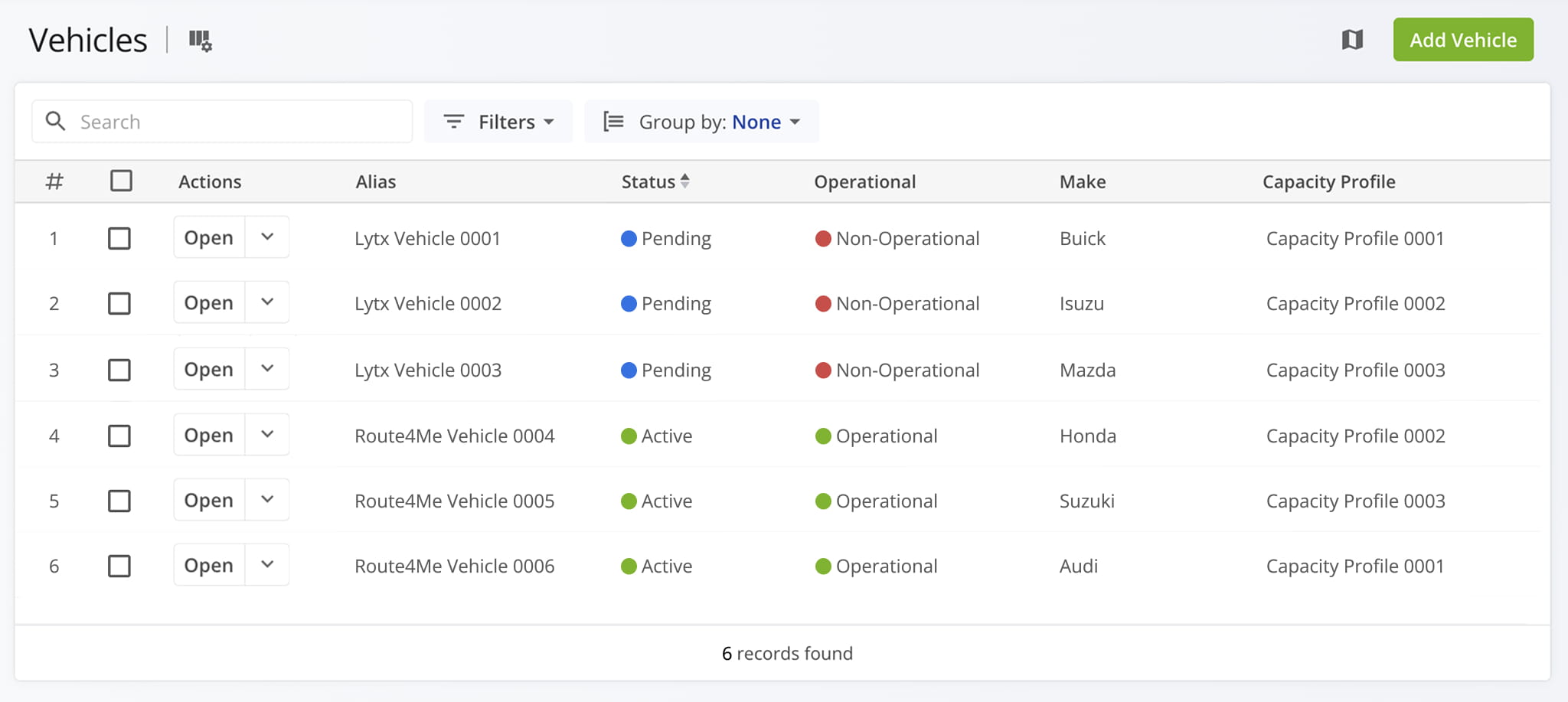
Imported vehicles from Lytx or other telematics vendors will appear in your list with either a “Pending” or “Active” status.
To enable multiple pending vehicles, check the box next to each and click the “Activate” button above the list. To enable a single pending vehicle, click the Down Arrow button next to it and select “Activate“.
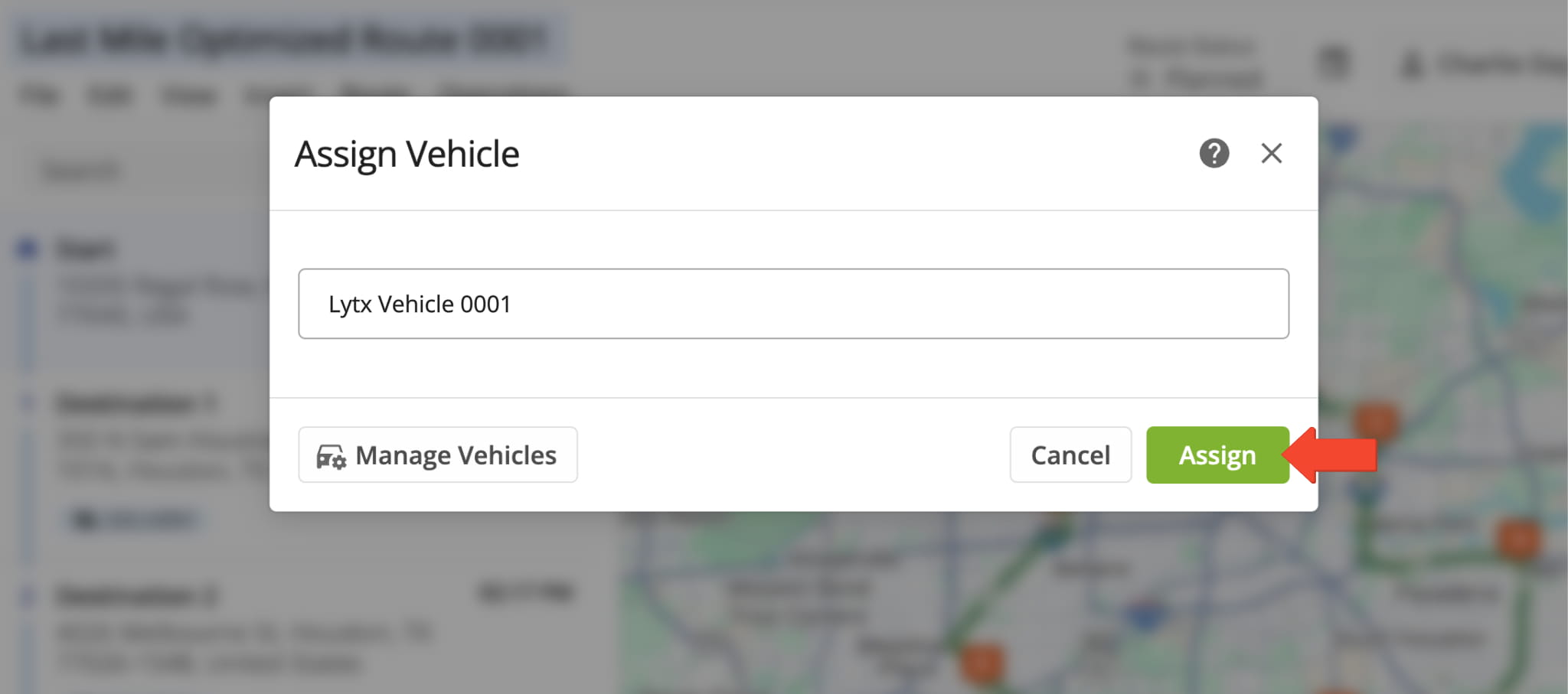
Once activated, you can assign imported vehicles to routes you’ve already planned or are in the process of planning.

Dispatch Routes – Assign Lytx Vehicles To Routes
To dispatch a route to a Lytx vehicle, simply assign the vehicle to a route. But, before doing this, make sure the vehicle you wish to assign has the Lytx GPS device installed and that your Route4Me account is connected to your Lytx account.
Then, from the Routes Map, Routes List, or Route Editor, you can assign the vehicle.
Track Lytx Vehicles – Gather GPS Route Tracking Data
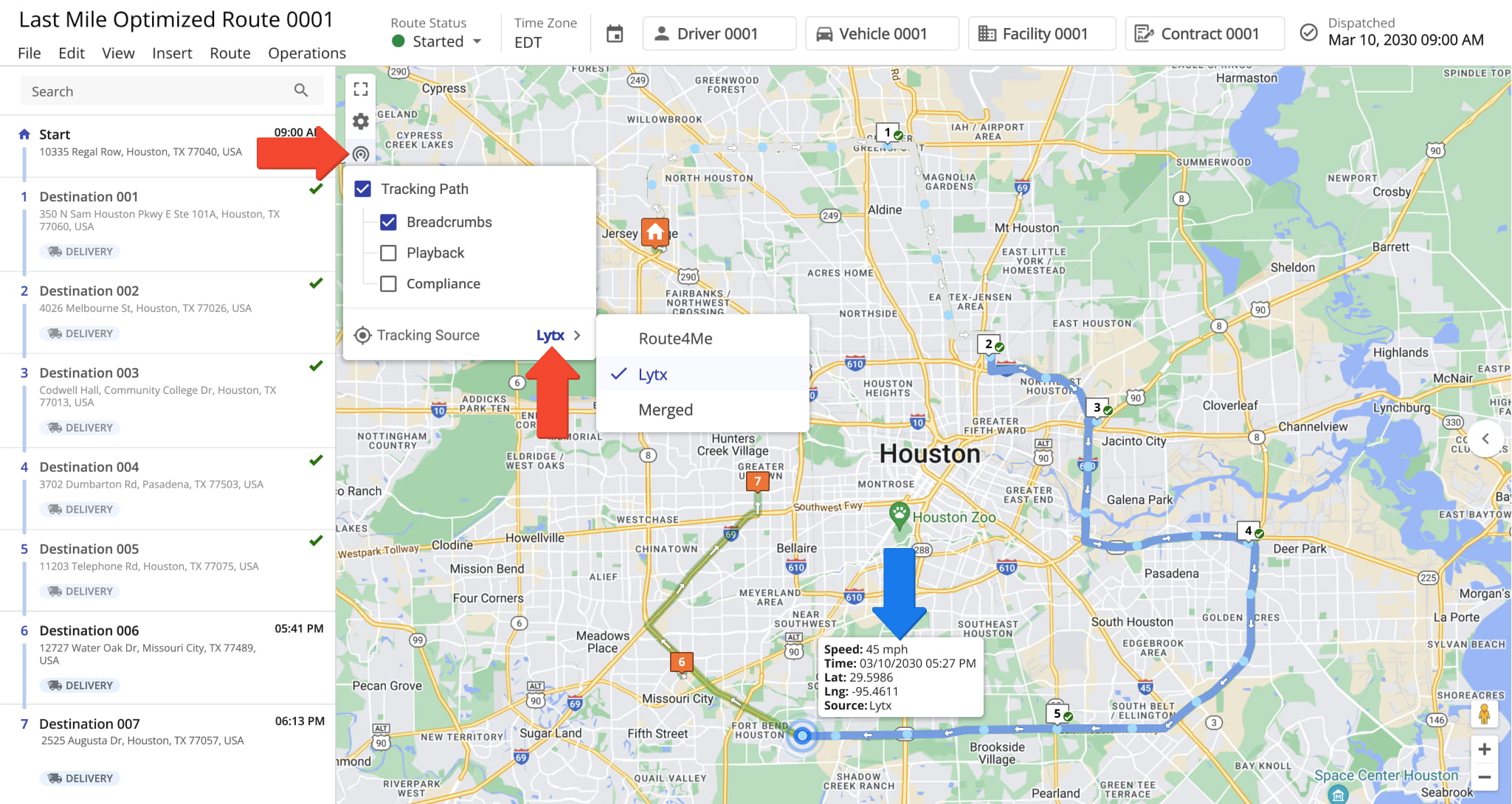
After assigning a Lytx telematics vehicle to a route, Lytx will collect GPS tracking data associated with that vehicle, sharing with you all collected GPS data, from route start to completion, for real-time insights into your fleet vehicles.
To track a vehicle on the map, click the tracking icon in the map’s upper left corner and check the “Tracking Path” box. Then, check “Breadcrumbs” and select as your “Tracking Source” Lytx. NOTE: Learn more about GPS tracking data.
Explore Route4Me’s Telematics4Me Solution
Route4Me’s Telematics4Me solution offers a comprehensive list of all vehicle telematics vendors worldwide.
Explore detailed information and key vendor features, which you can compare side by side, so you can select the vendors that best meet the specific needs of your business or business model.
All the trademarks, logos, and brand names on this page are for identification purposes only. We do not endorse these trademarks, logos, and brand names. All the trademarks, logos, and brand names are the property of their respective owners. If any of the trademarks, logos, and brand names are your property or the property of your company, and you would like us to remove them from our website, please contact us at [email protected] to submit your request.
Visit Route4Me's Marketplace to Check out Associated Telematics Modules:
- Telematics
Telematics Gateway
- Telematics
Geofencing Analytics
- Telematics
Route4Me Smartphone App GPS Tracking
About author: Daniel Archer

