
Recurring Routes Guide – Create Master Routes And Recurring Schedules
Efficient route planning is essential for enterprise businesses managing recurring deliveries, pickups, and service visits. Route4Me’s Recurring Routes feature streamlines planning with Master Route Templates. You can create routes that inherit the same destinations, customer details, timing, and other parameters as the Master. By automating scheduling, you’ll reduce repetitive planning, simplify operations, and minimize missed or delayed visits. Learn more in this guide.
Table of Contents
Recurring Routing Overview With Master Routes And Schedules
To streamline the complexity of multi-frequency recurring route planning, the process follows these steps:
- Plan a route: plan and optimize a route you want to use with Recurring Schedules. You can also use any of your existing routes.
- Create a Master Route: select a route for Recurring Routing to create a Master Route which the system will use as a template for creating Recurring Routes according to your schedule settings. Editting a Master Route will affect its associated Recurring Routes.
- Create a Recurring Schedule: add schedule rules and exceptions to define when Recurring Routes will be scheduled to start.
Keep reading to learn more about each step in detail and how to manage your Recurring Schedules and routes.
Create And Manage Recurring Schedules Based On Master Routes
To create a Recurring Schedule, you need a Master Route to use as a template. You can plan a new route or use an existing one as a Master Route. To set up an existing route as a Master Route, you can use the Routes List or Route Editor.
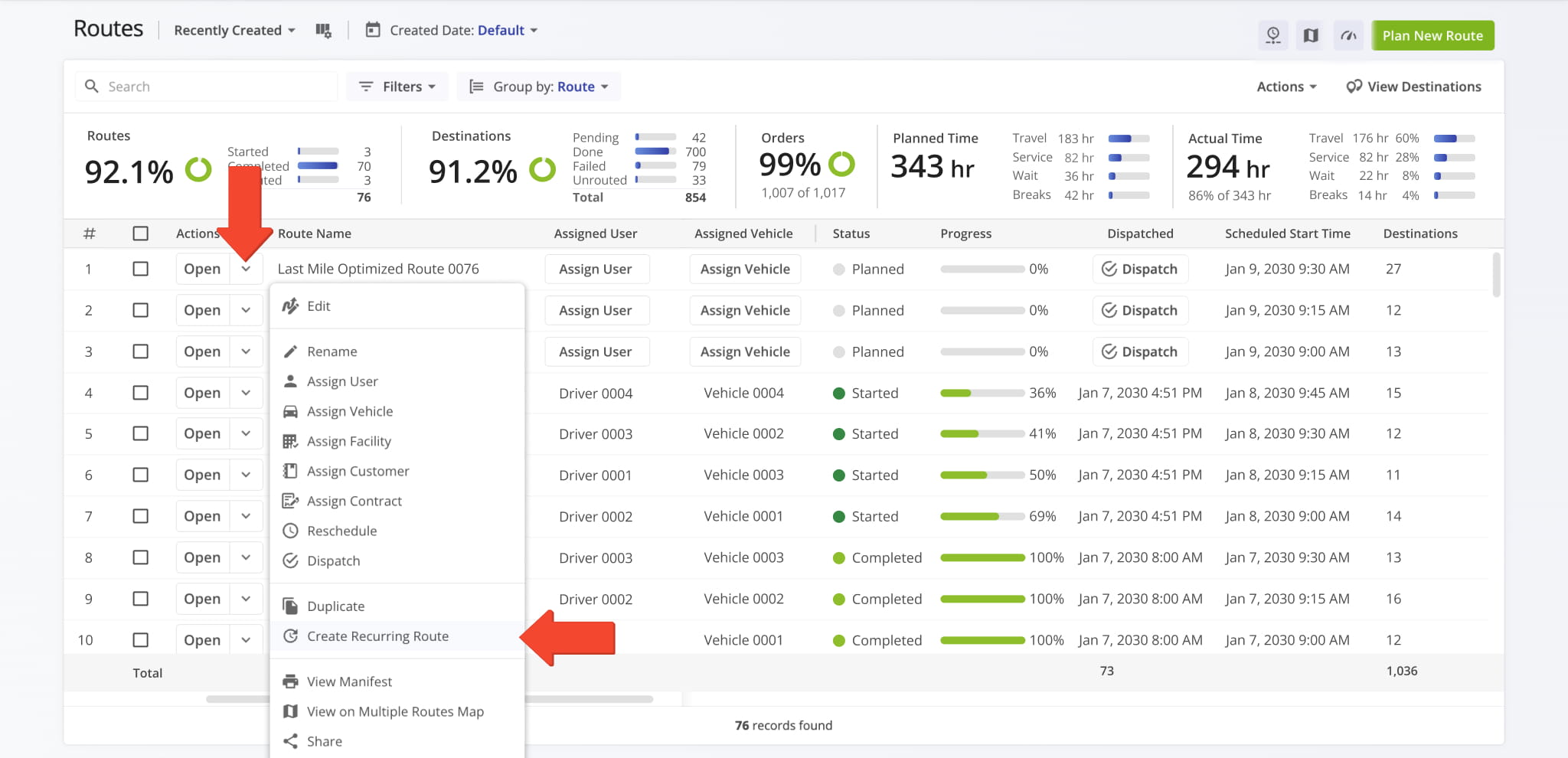
For the Routes List, go to “Dynamic Routing” > “Routes” from the Navigation Menu. Then, click the Down Arrow next to a route and select “Create Recurring Route” to use it as a Master Route.
Create A Recurring Route Schedule
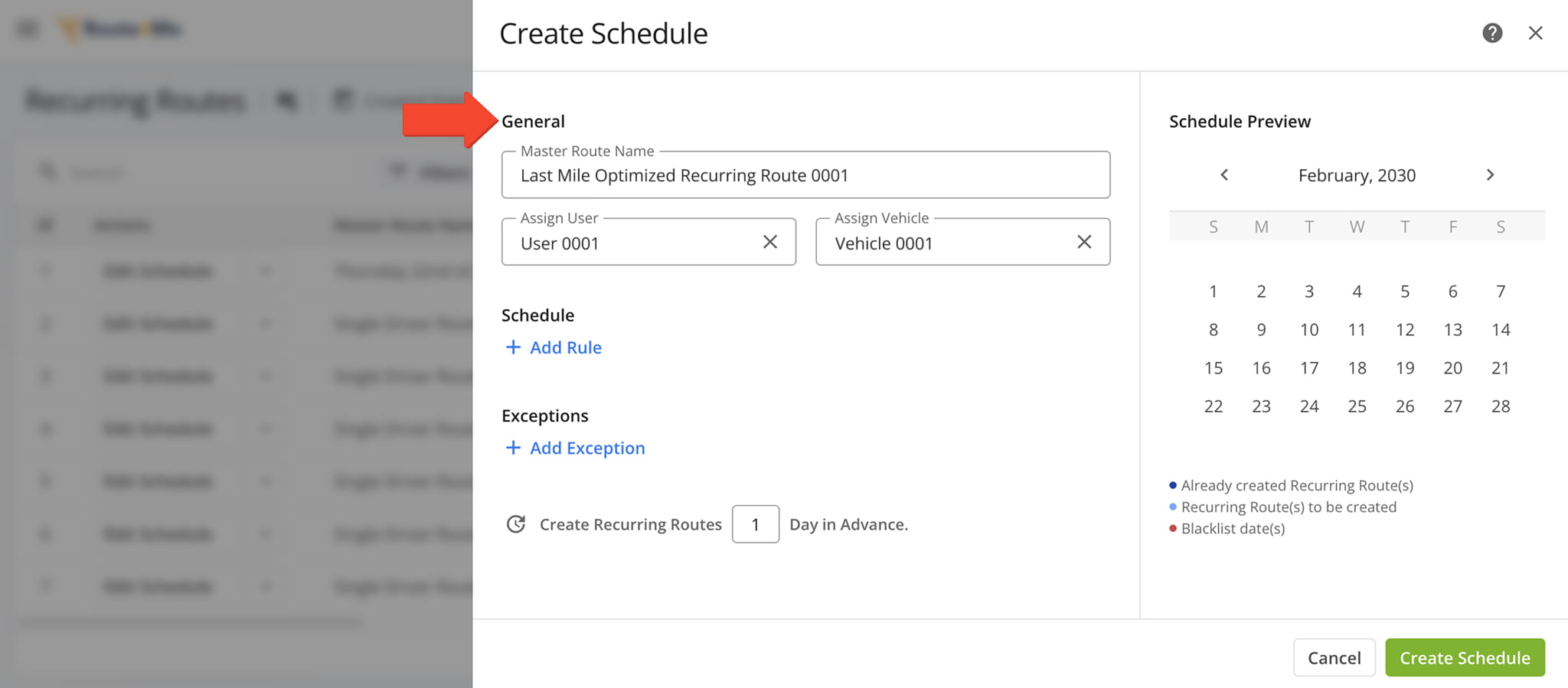
Use the Recurring Routes Schedule Editor to configure a Recurring Schedule.
To start, complete the fields in the “General” section: “Master Route Name“, “Assign User“, and “Assign Vehicle“. Detailed information about these fields can be found in the table below.
| General Field | Field Description |
|---|---|
| Master Route Name | The Master Route automatically inherits the name of the template route. However, you can rename the Master Route if you wish. |
| Assign User | Designate a specific driver or field team member to the recurring schedule. Once assigned, this User will automatically be linked to all Recurring Routes generated from this Schedule. |
| Assign Vehicle | Select a specific vehicle for the Recurring Schedule. The vehicle will automatically be linked to every Recurring Route created from this Schedule. |
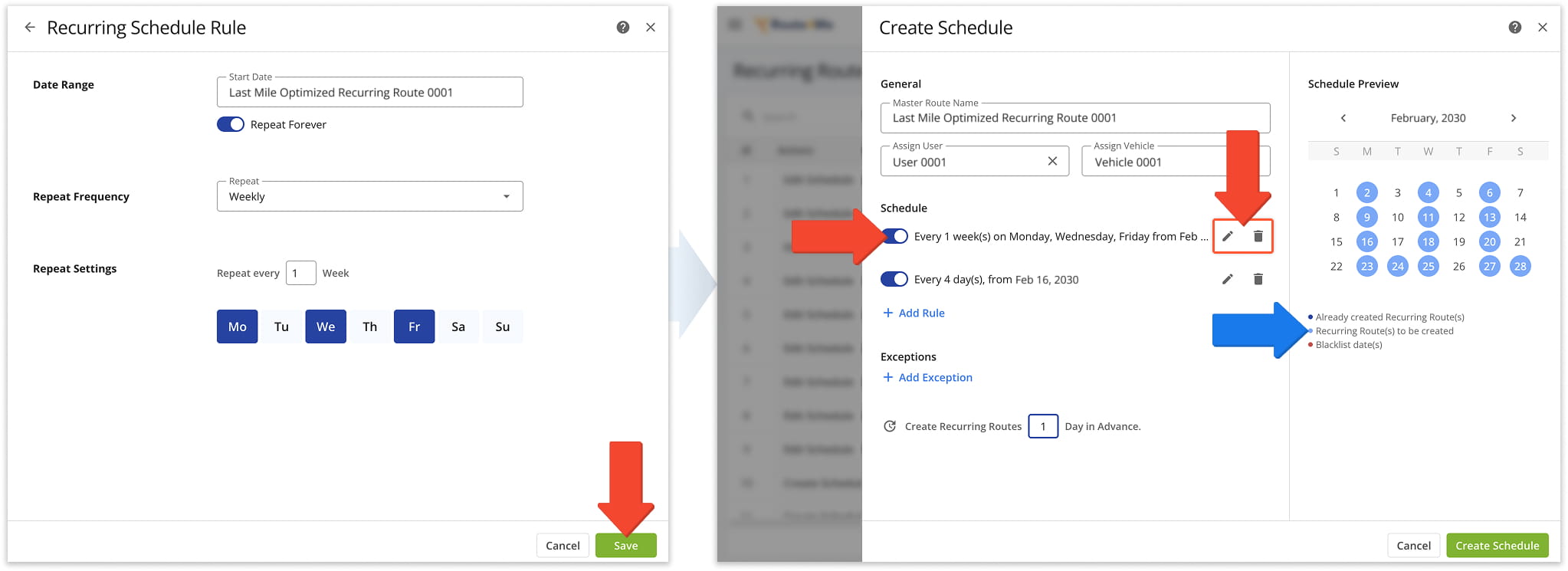
Then, to add a rule, complete the fields in the “Schedule” section: “Date Range“, “Repeat Frequency“, and “Repeat Settings“. Detailed information about these fields can be found in the table below.
After clicking “Save“, the rule will appear in the Recurring Routes Schedule Editor. You can deactivate it any time using the Toggle, edit it by clicking the Pencil Icon, or or delete it by clicking the Trash Icon.
The Schedule Preview displays all dates on which Recurring Routes will be scheduled, highlighted in light blue.
| Schedule Field | Field Description |
|---|---|
| Date Range | Add a rule to specify dates on which the Recurring Schedule should begin and end. If you do not want to specify an end date, toggle “Repeat Forever“. Note: You can add more than one Date Range rule to the same Schedule. This ensures that different schedules can co-exists for the same route (daily, weekly, or monthly) and that you can make seasonal or time-specific adjustments without creating separate schedules. |
| Repeat Frequency | Add a rule to define how frequently Routes should be scheduled: daily, weekly, monthly, or annually. |
| Repeat Settings | Add a rule to define how often a Route Schedule should be repeated: every day, every 2 days, every 3 days, or so forth. |
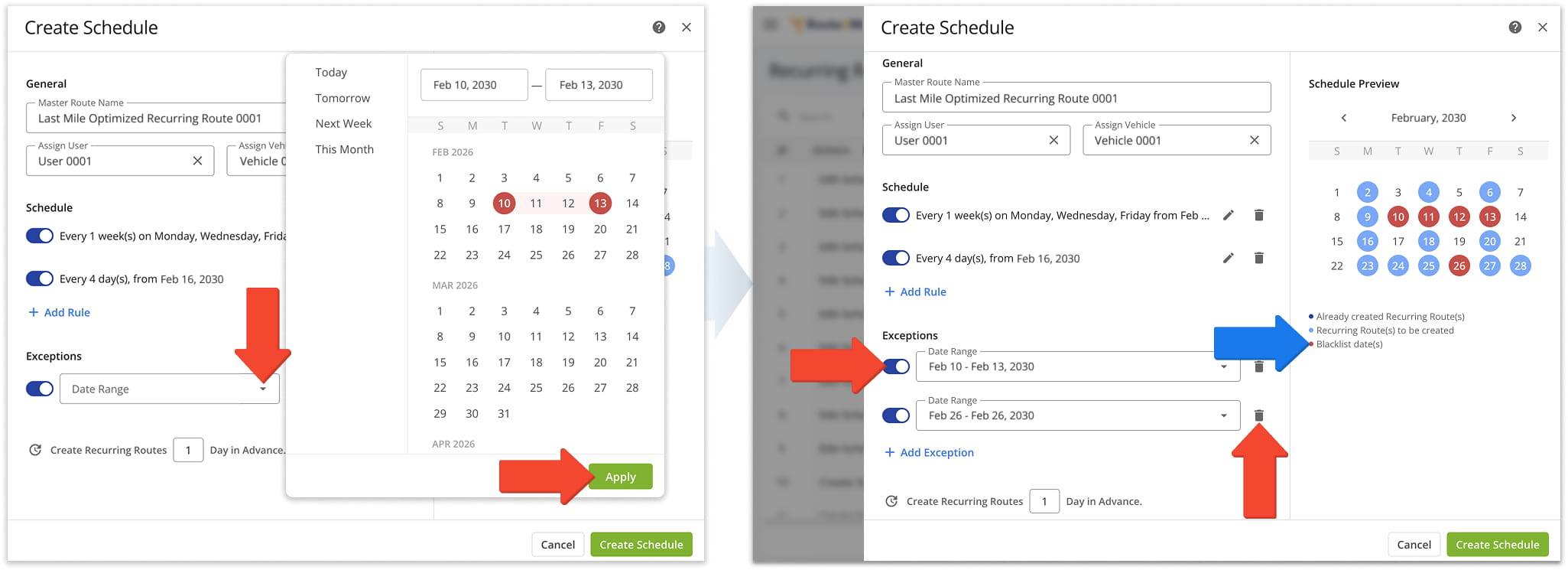
To add exceptions to your rules, specify any dates you want to exclude from the Recurring Schedule. These are days when a Recurring Route will not run. You can add multiple dates, which will appear in the Schedule Preview in red.
This allows different schedules (daily, weekly, or monthly) to coexist for the same route and makes it easy to apply seasonal or time-specific adjustments without creating separate schedules.
Use the Toggle to deactivate an exception, or click the Trash icon to permanently delete it.
Lastly, specify how many days in advance you want Recurring Routes to be created from this schedule, then click “Create Schedule” to finalize it.
NOTE: Dark blue dates in the Schedule Preview represent Recurring Routes that have already been created, allowing you to quickly see which dates are already scheduled.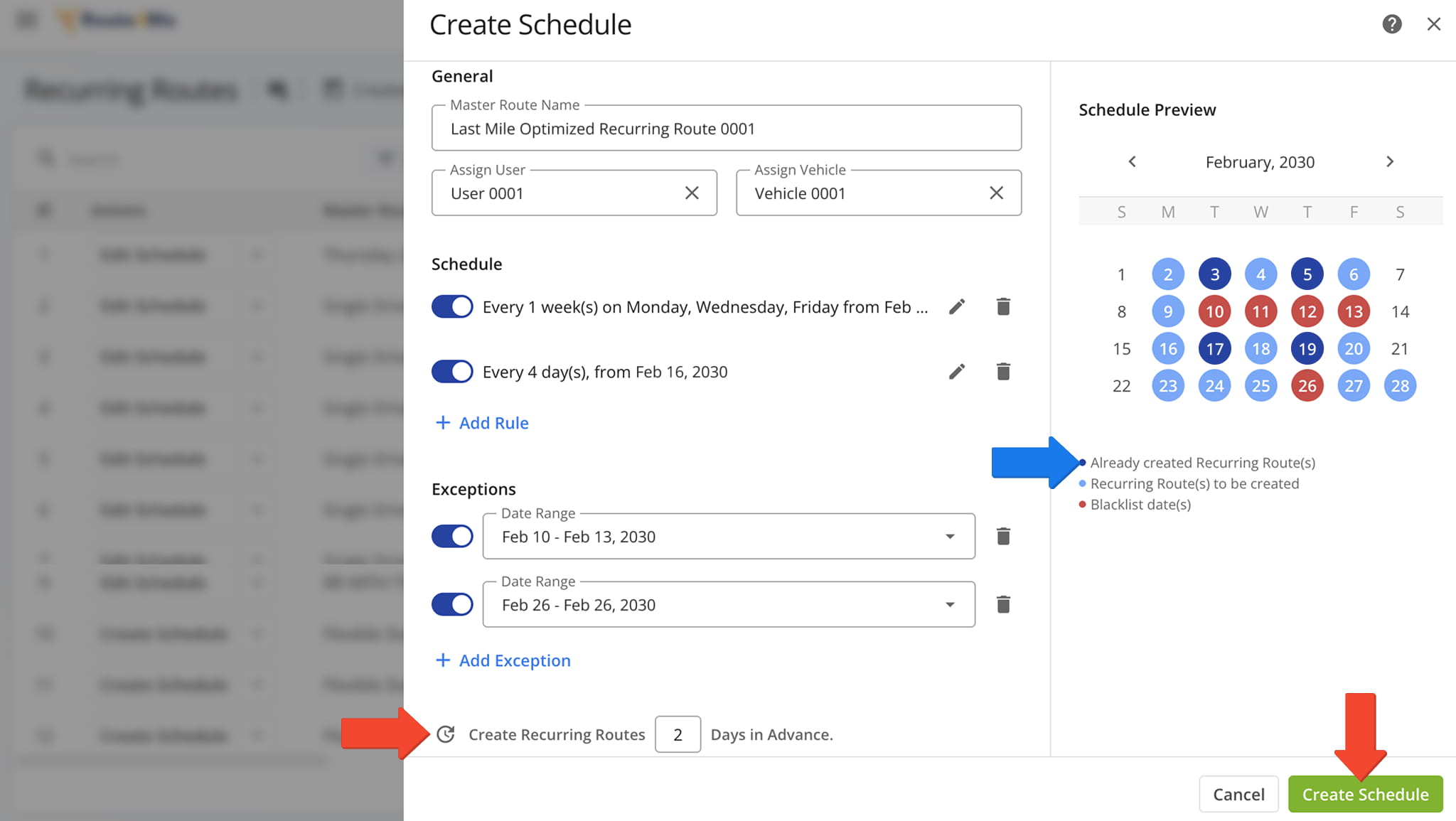
Manage Recurring Route Schedules
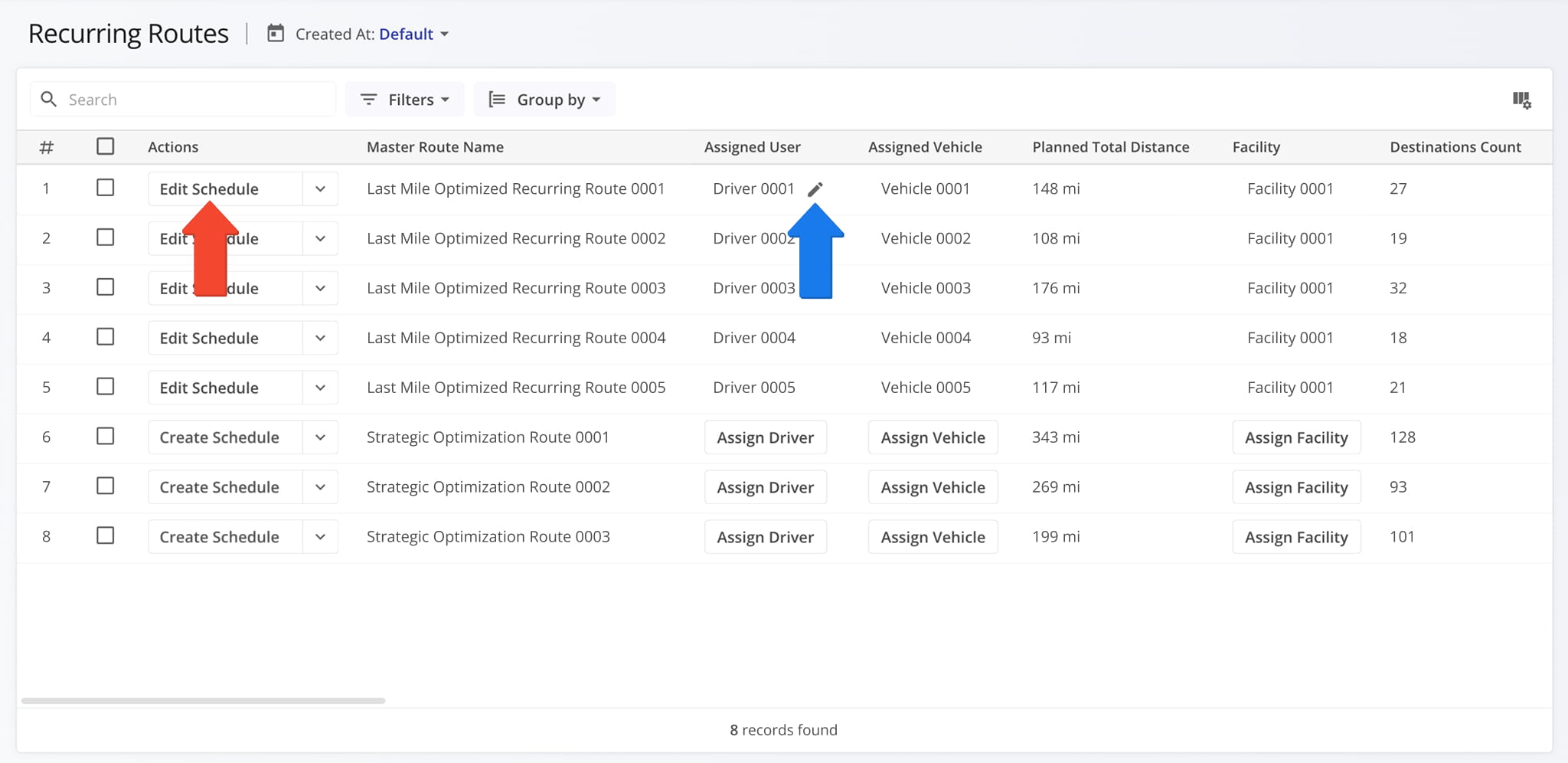
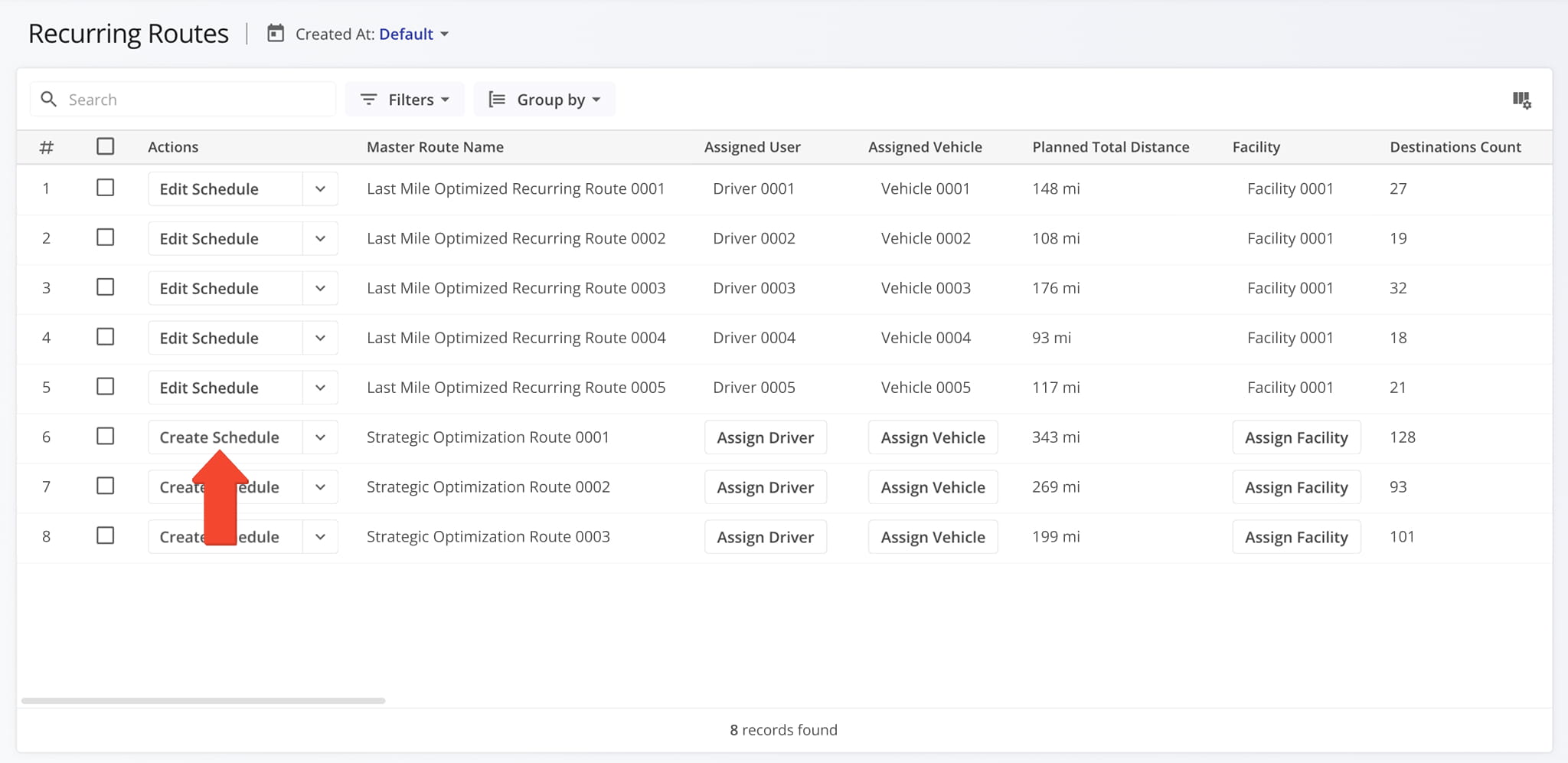
You can view all of your Recurring Schedules on the Recurring Routes page.
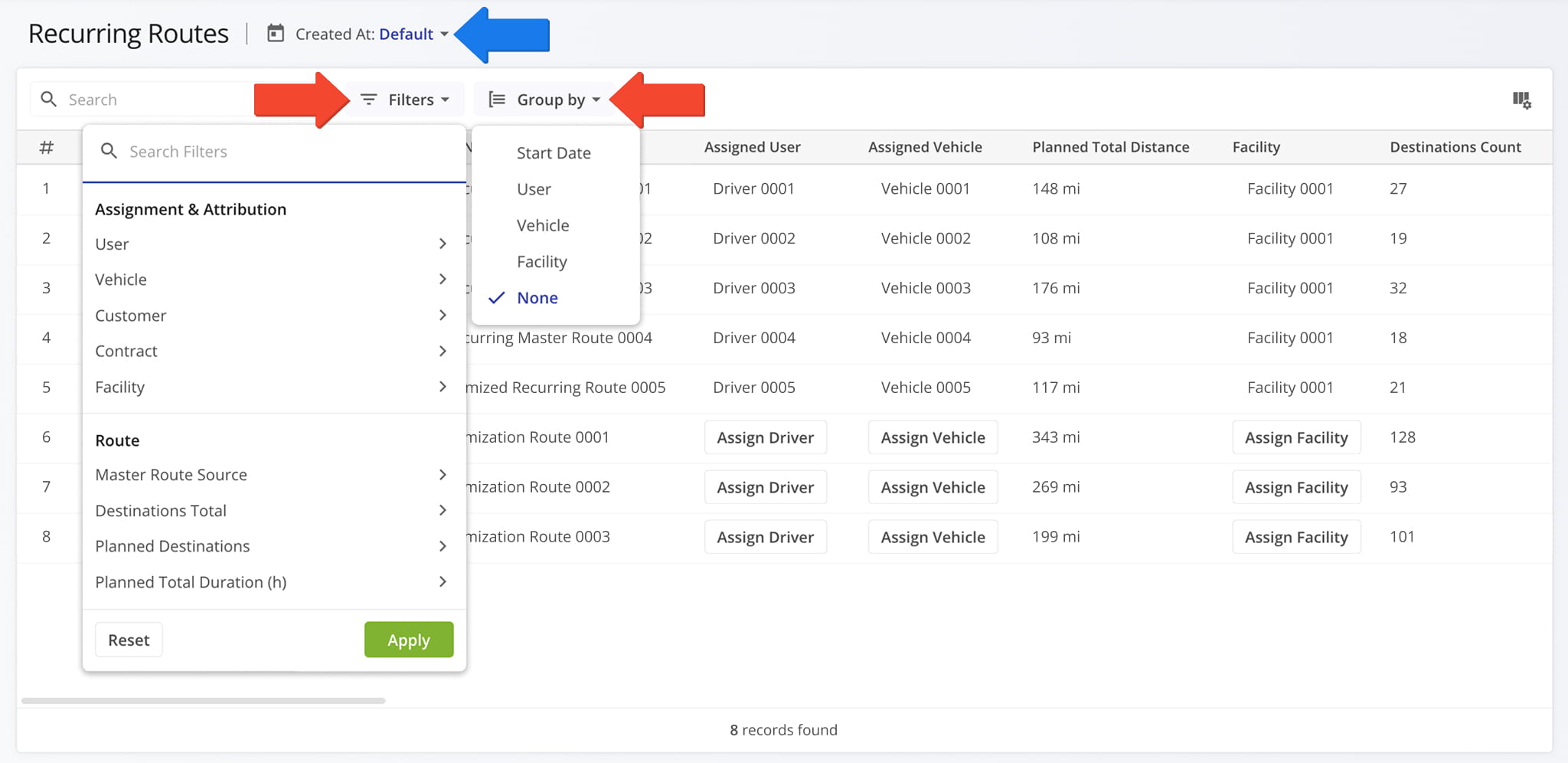
Route4Me’s in-depth filters and grouping options enable you to customize which Recurring Route Schedules are shown on the Recurring Routes Page. You can also use the “Created At” calendar to filter Recurring Schedules by their creation date.
See the table below for a full overview of all available filters.
| Filter | Description | |
|---|---|---|
| Assignment & Attribution | ||
| User | Filter by user assigned to the route. | |
| Vehicle | Filter by vehicle assigned to the route. | |
| Customer | Filter by customer linked to the route. | |
| Contract | Filter by contract linked to the route. | |
| Facility | Filter by facility linked to the route. | |
| Strategic Optimization | ||
| Master Route Source | Filter by the source used to create the route, such as Telematics, API, Route Planner, AMP Job, or Website. | |
| Destinations Total | Filter by the total number of destinations assigned to the route. | |
| Planned Destinations | Filter by the total number of destinations planned during route optimization. | |
| Planned Total Duration (h) | Filter by the total estimated duration, in hours, planned for completing the route. | |
| Planned Total Distance (mi) | Filter by the total planned distance, in miles, for completing all stops on the route. | |
| Planned Total Wait Duration (h) | Filter by the total planned wait time, in hours, across all destinations on the route. | |
| Planned Total Service Time (h) | Filter by the total planned service time, in hours, required to complete all route destinations. | |
| Planned Total Drivers Break Duration (h) | Filter by the total planned driver break time, in hours, scheduled within the route. | |
| Planned Average Service Time (h) | Filter by the average planned service time, in hours, per destination on the route. | |
| Scheduling | ||
| Advanced Interval | Filter by routes that use an advanced scheduling interval configuration. | |
| Advanced Schedule Interval Days | Filter by the number of days defined in the advanced scheduling interval. | |
| Dimensional & Financial | ||
| Cube Planned | Filter by total planned Cube (volume) amount of all Destinations on the planned route. | |
| Pieces Planned | Filter by total planned Pieces (units) amount of all Destinations on the planned route. | |
| Weight Planned | Filter by total planned Weight amount of all Destinations on the planned route. | |
| Revenue Planned | Filter by total revenue to be generated from servicing all route Destinations. | |
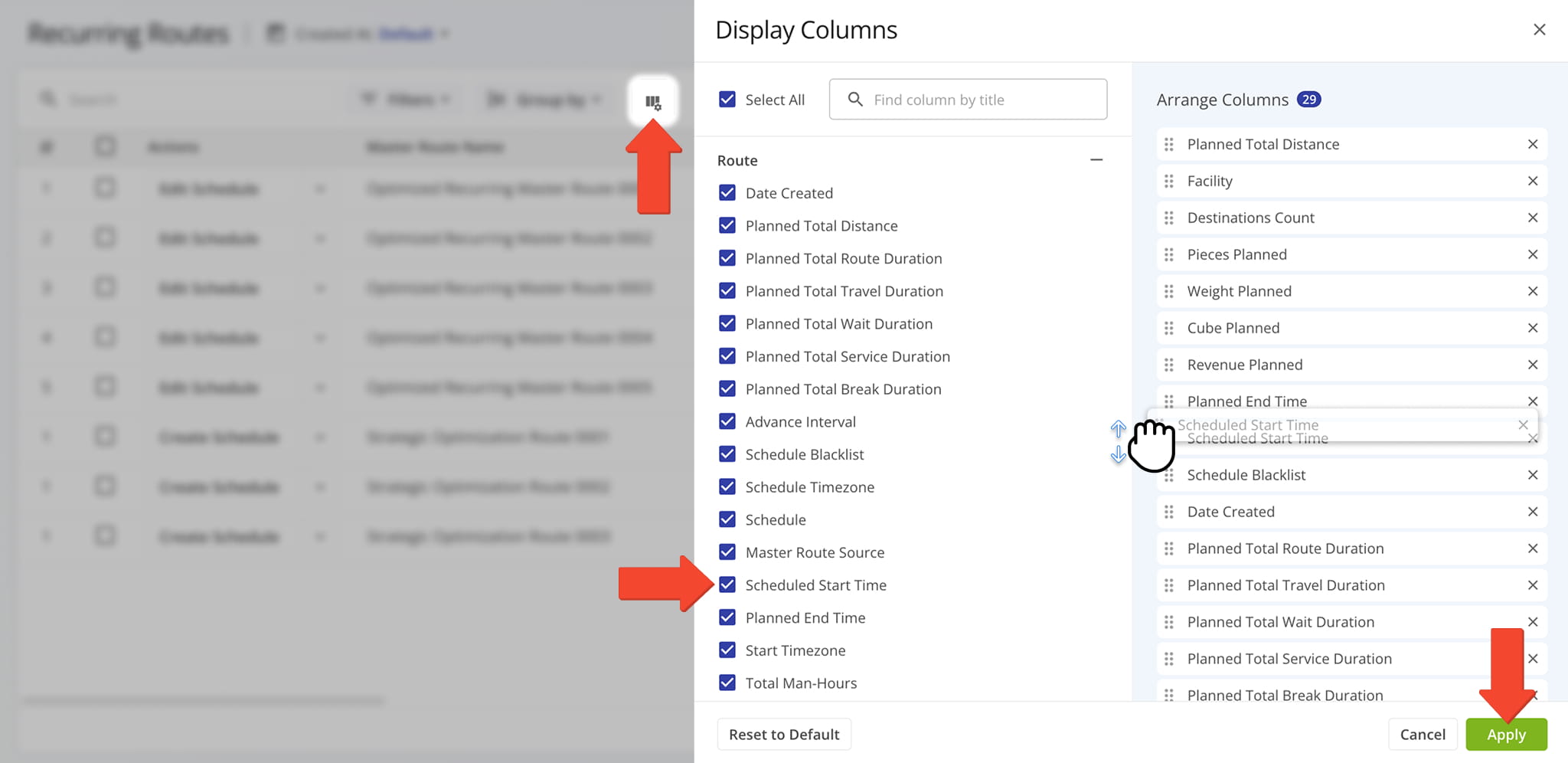
You can also customize the data columns shown on your Recurring Routes page. To do so, click the Display Columns button and check the boxes next to the columns you want to enable.
On the right, you can drag column names to arrange them and customize your Recurring Routes page data table. When finished, click “Apply” to save your changes. See the table below for a full overview of all available data columns.
| Data Column | Description | |
|---|---|---|
| Route | ||
| Date Created | Date and time when the route was created. | |
| Planned Total Distance | Total distance planned for the route, including all stops. | |
| Planned Total Route Duration | Estimated total duration for completing the route. | |
| Planned Total Wait Duration | Estimated total wait time during the route. | |
| Planned Total Service Duration | Estimated total service time at destinations. | |
| Actual Total Breaks Duration | Total break time taken by drivers during the route. | |
| Advanced Interval | Number of days defined in advanced scheduling for creating future routes. | |
| Schedule Blacklist | Dates when routes should not be scheduled (e.g., holidays or blocked days). | |
| Schedule Timezone | Time zone used for interpreting scheduled route dates and repeat patterns. | |
| Schedule | Recurring schedule settings that define how often and on what dates the route repeats. | |
| Master Route Source | Source used to create the route (e.g., Telematics, API, Route Planner, AMP Job, Website). | |
| Scheduled Start Time | Scheduled start time for the route. | |
| Planned End Time | Planned end time for the route. | |
| Start Timezone | Time zone associated with the route’s planned start location. | |
| Total Man-Hours | Combined estimated man-hours required for all planned route tasks. | |
| Route # | Unique identifier number for the route. | |
| Assignment & Attribution | ||
| Facility | Location or service point assigned to the route. | |
| Customer | Customer assigned to the route. | |
| Contract | Contract associated with the route. | |
| Key Metrics | ||
| Destinations Count | Total number of destinations planned for the route. | |
| Pending Destinations | Number of destinations not yet visited. | |
| Notes Count | Total number of notes added to the route, destinations, or stops. | |
| Utilization | ||
| Pieces Planned | Total number of pieces planned for delivery. | |
| Weight Planned | Total weight of items planned for delivery. | |
| Cube Planned | Total cubic volume planned for delivery. | |
| Revenue Planned | Planned revenue for the route based on scheduled deliveries. | |
| Strategic Optimization Name | Name of the strategic optimization applied to the route. | |
| Scenario Name | Scenario associated with the strategic optimization. | |
From this page, you can also make edits to Recurring Schedules. Click the corresponding “Edit Schedule” button to open the Recurring Routes Schedule Editor described above.
To change an assigned User, Vehicle, or Facility, hover over the field, and click the Pencil Icon to make your modification.
Manage Master Routes From Recurring Route Schedules Page
To manage a Master Route, click the Down Arrow next to it to open the Action Menu.
From here, you can open Master Routes in the Route Editor, change assignment settings, export routes, insert addresses, and remove Master Routes from your account. See the table below for a full overview of available actions.
Any changes you’ve made to a Master Route will be automatically reflected in it associated Recurring Routes.
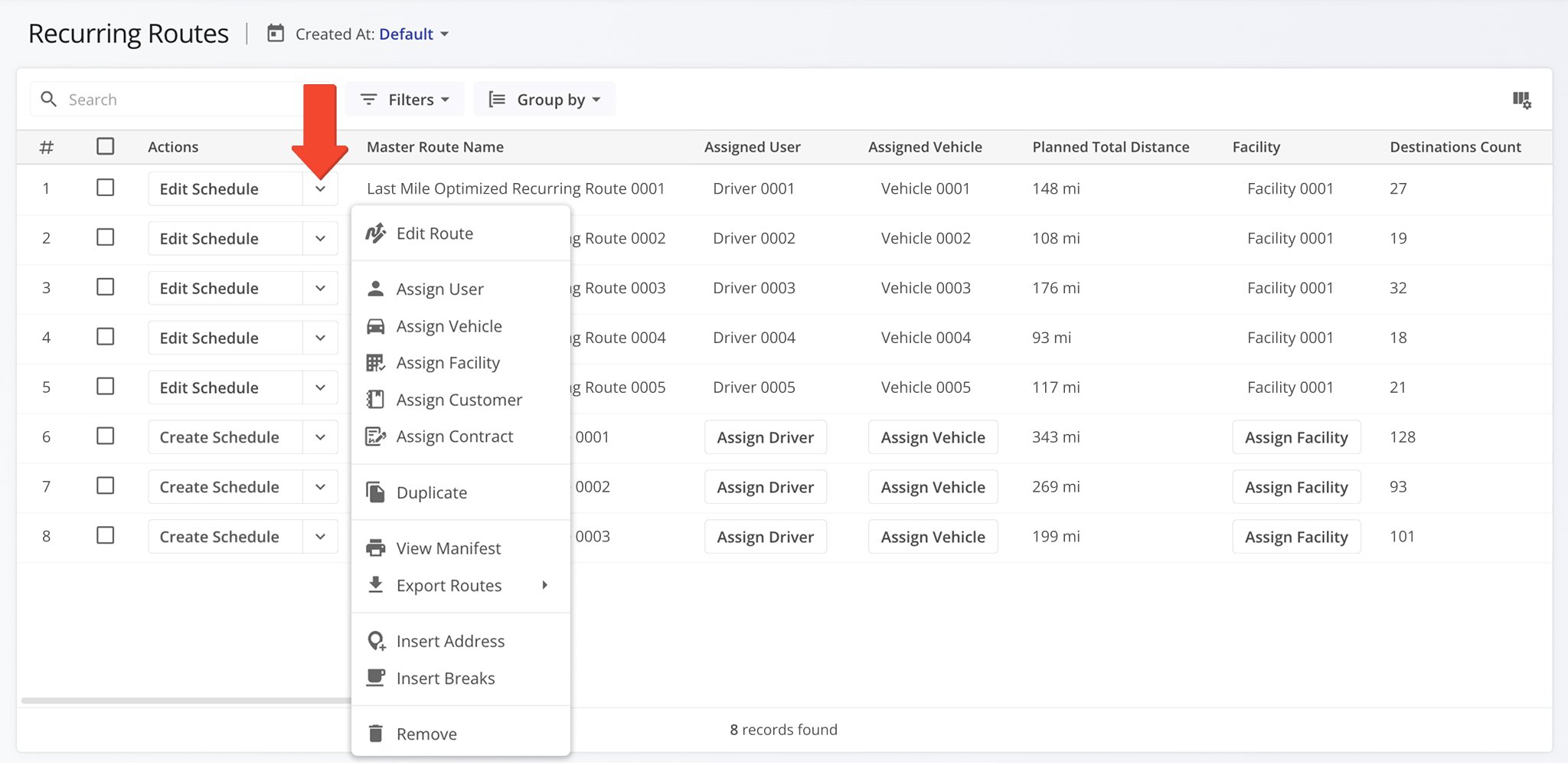
| Action | Description |
|---|---|
| Edit Route | Open a route in the Route Editor to change settings, sequence, or optimization. |
| Assign User | Assign a team member (such as a driver or planner) to the route. |
| Assign Vehicle | Assign a vehicle from your fleet to the route. |
| Assign Facility | Assign a facility to be used as the route’s start/end location. |
| Assign Customer | Associate a customer with the route for billing/reporting and service context. |
| Assign Contract | Assign contract terms or service rules to the route. |
| Duplicate | Create a copy of the route; the new route includes “(Duplicate)” in its name. |
| View Manifest | Open or download a detailed Route Manifest showing route and destination data. |
| Export Routes | Export route data as a CSV or navigation file for external use. |
| Insert Address | Add a customer address to the route by typing or searching for the address. |
| Insert Breaks | Add driver break destinations with configurable duration and trigger conditions. |
| Remove | Permanently delete the selected route from your account. |
To manage multiple Master Routes at the same time, check the boxes next to them and click “Bulk Actions“. See the table below for a full overview of available Bulk Actions.
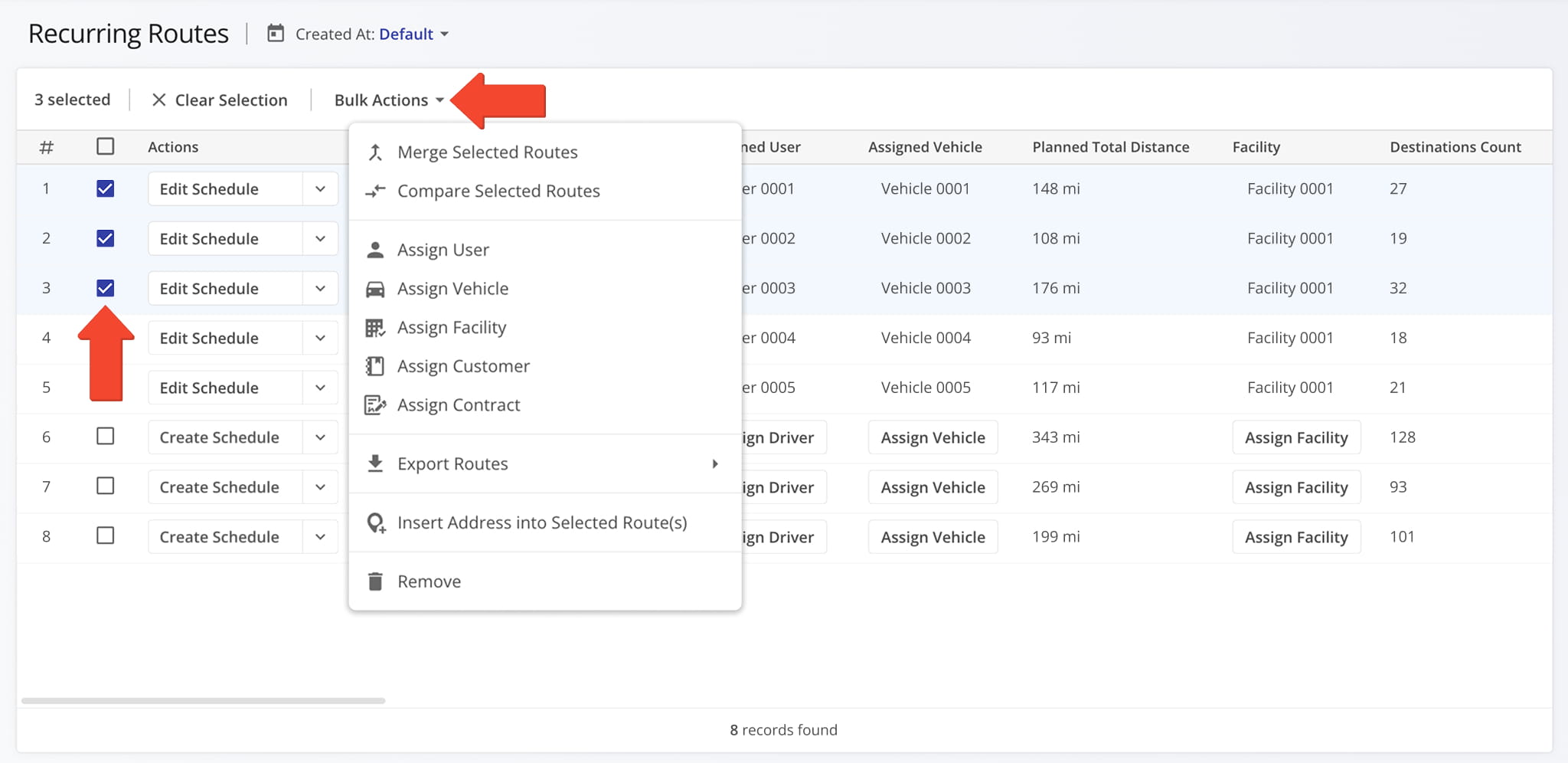
| Action | Description |
|---|---|
| Merge Selected Routes | Combine multiple selected routes into a new route with an optimized destination sequence. |
| Compare Selected Routes | View selected routes side by side to compare schedules, distance, travel time, and vehicle usage. |
| Re-Optimize Routes | Recalculate route optimization for all selected routes based on updated destinations, settings, or constraints. |
| Refresh Directions | Rebuild turn-by-turn directions for all selected routes to reflect the most current routing data. |
| Reverse Routes | Reverse the stop sequence of all selected routes or their destinations to change travel order. |
| View Manifest | Open or download a detailed Route Manifest for all selected routes showing route and destination data. |
| Assign User | Assign a team member (such as a driver or planner) to all selected routes. |
| Assign Vehicle | Assign a vehicle from your fleet to all selected routes. |
| Assign Facility | Assign a facility to be used as the start/end location for all selected routes. |
| Assign Customer | Associate a customer with all selected routes for billing and reporting purposes. |
| Assign Contract | Assign contract terms or service rules to all selected routes. |
| Duplicate | Create a copy of all selected routes; the new routes includes “(Duplicate)” in their name. |
| Export Routes | Export route data as a CSV or navigation file for external use. |
| Insert Address into Selected Route(s) | Add a new address to one or more selected routes. |
| Insert Breaks | Add driver break destinations with defined duration and conditions to all selected routes. |
| Remove | Permanently delete the selected routes from your account. |
Manage Recurring Routes – Make Modifications From Your Routes List
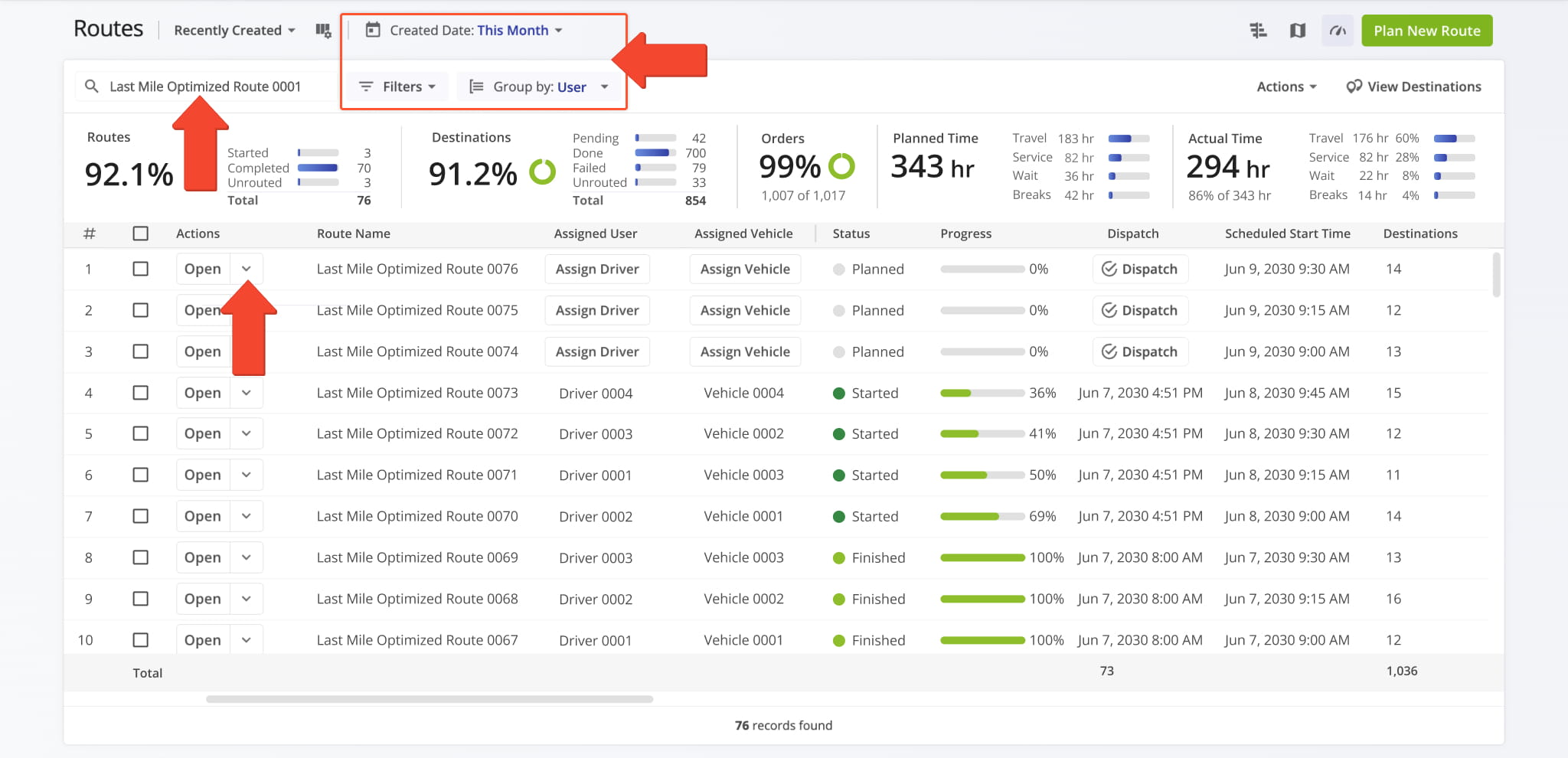
From your Routes List, you can view all Recurring Routes. To find a specific Recurring Route, search for it by its Master Route name.
If you have a large number of Recurring Routes, you can expedite your search for a specific Route by using the search field or by adjusting your “Filters“, “Group By“, and/or “Created Date” options.
To edit a Recurring Route, click the Down Arrow button and select “Edit“. NOTE: When you edit an individual Recurring Route, no changes are made to its associated Master Route or to other Recurring Routes.
The following table details which data fields are transferred from the Master Route to the Recurring Route during route creation:
| Data | Master Route | Recurring Route | |
|---|---|---|---|
| Route | |||
| Date Created | |||
| Planned Total Distance | |||
| Planned Total Route Duration | |||
| Planned Total Travel Duration | |||
| Planned Total Wait Duration | |||
| Planned Total Service Duration | |||
| Planned Total Break Duration | |||
| Schedule Timezone | |||
| Master Route Source | |||
| Scheduled Start Time | |||
| Planned End Time | |||
| Start Timezone | |||
| Total Man Hours | |||
| Assignment & Attribution | |||
| Facility | |||
| Customer | |||
| Contract | |||
| Key Metrics | |||
| Destinations Count | |||
| Pending Destinations | |||
| Failed Destinations | |||
| Skipped Destinations | |||
| Completed Destinations | |||
| Customer Requested Time Window Adherence | |||
| Destinations Arrived On-Time (User Actioned) | |||
| Destinations Arrived Early (User Actioned) | |||
| Destinations Arrived Late (User Actioned) | |||
| Operational Status | |||
| First Access Time | |||
| Status | |||
| Dispatch | |||
| Progress Metrics | |||
| Arrived Destinations (User Actioned) | |||
| Destinations Arrived (Progress %) (User Actioned) | |||
| Actual Route Distance | |||
| Actual Total Distance (Mobile App) | |||
| Actual Total Distance (Telematics) | |||
| Actual Total Distance (Merged) | |||
| Actual Duration | |||
| Actual Route Duration (User Actioned) | |||
| Actual Total Route Duration (Grand Total Of All Sub-Durations) | |||
| Actual Total Travel Duration (User Actioned) | |||
| Actual Total Service Duration (User Actioned) | |||
| Actual Total Wait Duration (User Actioned) | |||
| Actual Total Breaks Duration (User Actioned) | |||
| Actual Total Unattributed Duration (User Actioned) | |||
| Actual Service Time | |||
| Actual Total Service Time (Auto Detected) | |||
| Actual Travel Duration | |||
| Actual Total Duration (Mobile App) | |||
| Actual Total Duration (Telematics) | |||
| SLA | |||
| Out Of Sequence Destinations (#) | |||
| Out Of Sequence Destinations (%) | |||
| Utilization – Pieces / Unit | |||
| Pieces Planned | |||
| Pieces Completed | |||
| Pieces Completed (%) | |||
| Pieces Remaining At End (%) | |||
| Utilization – Weight | |||
| Weight Planned | |||
| Weight Completed | |||
| Weight Completed (%) | |||
| Weight Remaining At End (%) | |||
| Utilization – Cube | |||
| Cube Planned | |||
| Cube Completed | |||
| Cube Completed (%) | |||
| Cube Remaining At End (%) | |||
| Utilization – Revenue | |||
| Revenue Planned | |||
| Revenue Completed | |||
| Revenue Completed (%) | |||
| Revenue Remaining At End (%) | |||
| Strategic Optimization | |||
| Strategic Optimization Name | |||
| Scenario Name | |||
Strategic Routes – Create Schedules For Imported Strategic Optimization Routes
When you use Route4Me’s automated strategic cycle planning to optimize strategic scenario routes, you can import them as Master Routes for Recurring Routing.
You’ll find your imported Strategic Routes on your Recurring Routes page. If they were imported without corresponding Recurring Schedules, simply click “Create Schedule” and follow the steps described above to create a new Recurring Schedule.
Visit Route4Me's Marketplace to Check out Associated Modules:
- Operations
Audit Logging and Activity Stream
- Operations
Custom Data Add-On
- Operations
Advanced Team Management Add-On
About author: Kristian Andreev

