
Service Types – Add And Manage Customizable Service Categories
Service Types can be used to define work requirements across your operations, such as different types of delivery or specialized services. In addition to Service Categories (Delivery, Service, Visit, etc.) that can be assigned to Destinations, Locations, Orders, and more, Service Types offer more in-depth customization. This enables you to create specific work classifications by extending standard categories with unique codes, aliases, and descriptions and assign them when importing data.
Table of Contents
Add Service Types With Customizable Service Categories
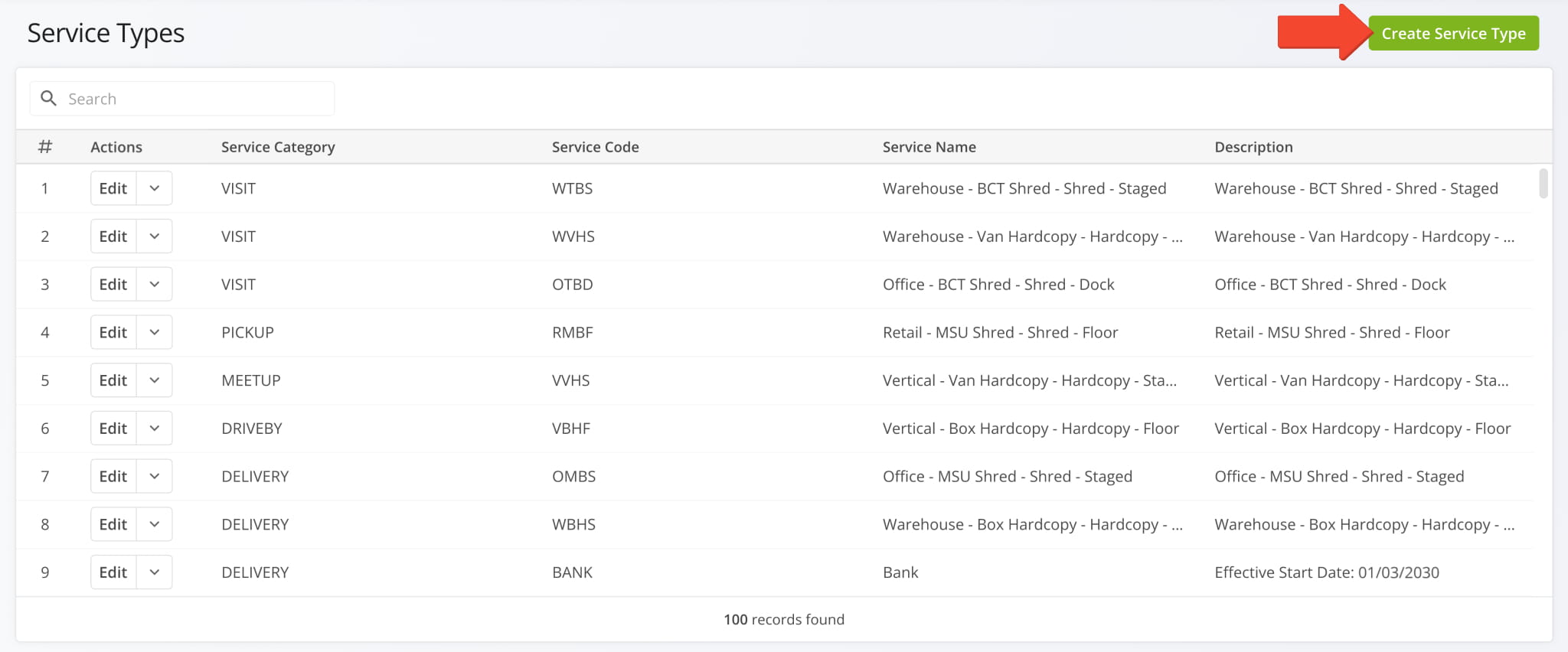
To open the Service Types Page, go to “Business Operations” > “Service Management” in the Navigation Menu. From there, you can add new Service Types by clicking the green “Create Service Type” button in the top-right.
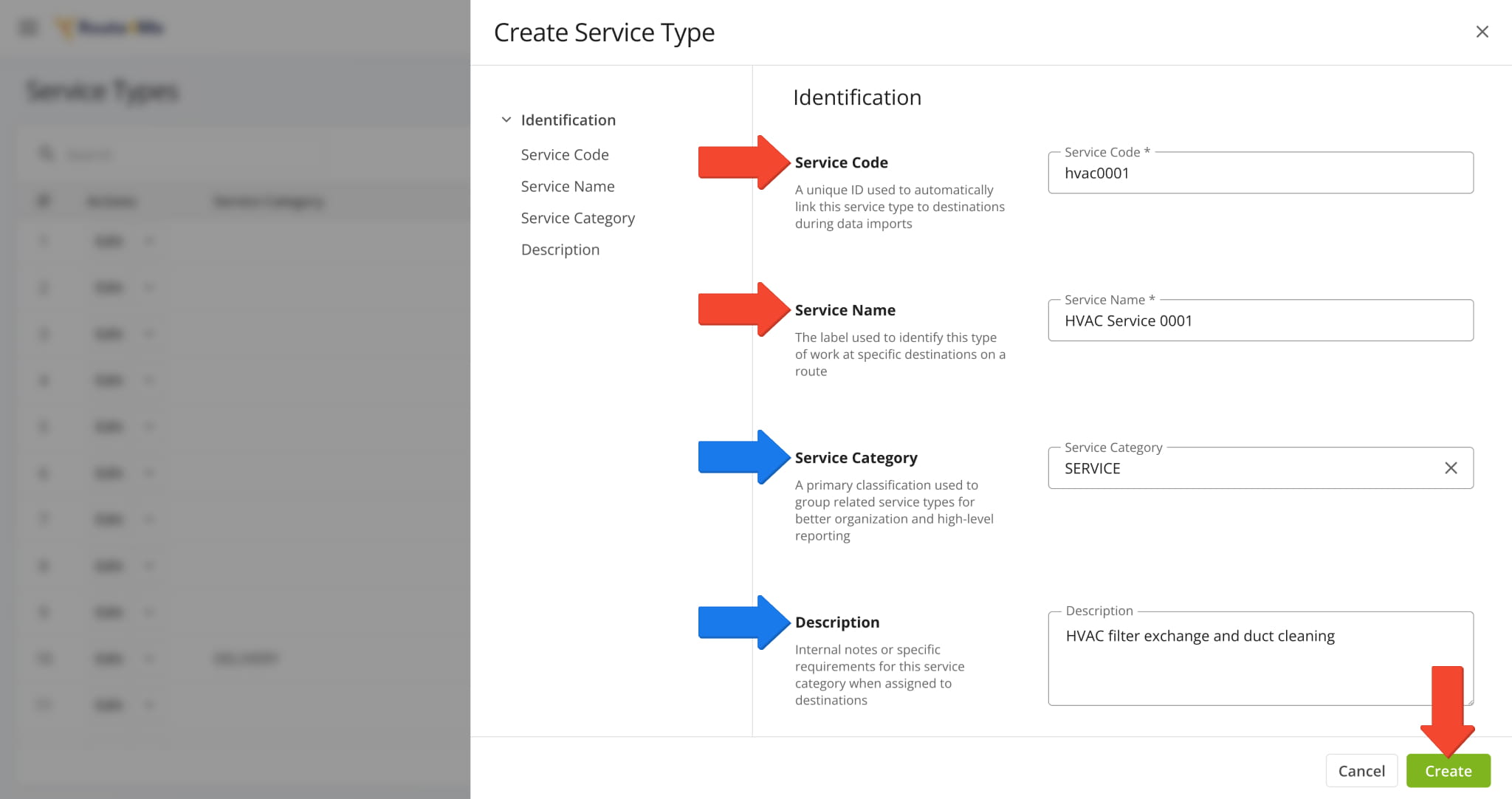
Then, fill in the mandatory “Service Code” and “Service Name” fields and any preferred optional fields. When finished, click “Create” to finalize. See the table below for more information on each field.
NOTE: Service Categories are primary, high-level work and destination categories.
| Text Fields | Description | |
|---|---|---|
| Service Code | Unique ID used to automatically link a Service Type to destinations and other entities during data import. | |
| Service Name | Label or alias used to more easily identify or find a specific Service Type. | |
| Description | Specific work or visitation requirements for a Service Type when assigned to destinations | |
| Service Categories | ||
| PICKUP | Retrieve goods or items from a route destination. | |
| VISIT | Perform a scheduled stop at a destination without pickup or delivery requirements. | |
| DELIVERY | Drop off orders, goods, or items at a destination. | |
| MEETUP | Meet with a person at a location for handoff, coordination, or in-person interaction. | |
| BREAK | Scheduled stop for Hours of Service Driver Breaks or downtime during a route. | |
| DRIVEBY | Pass a destination without stopping for an extended period, typically for verification or monitoring purposes. | |
| SERVICE | Perform a specific task or job at a destination, such as installation, maintenance, or inspection. | |
View And Manage Service Types – Search, Edit, Delete Service Types
You can search for specific Service Types by entering into the Search Field a Service Category, Service Code, Service Name, or keyword from the Description. You can also sort entries by clicking the arrow above each column.
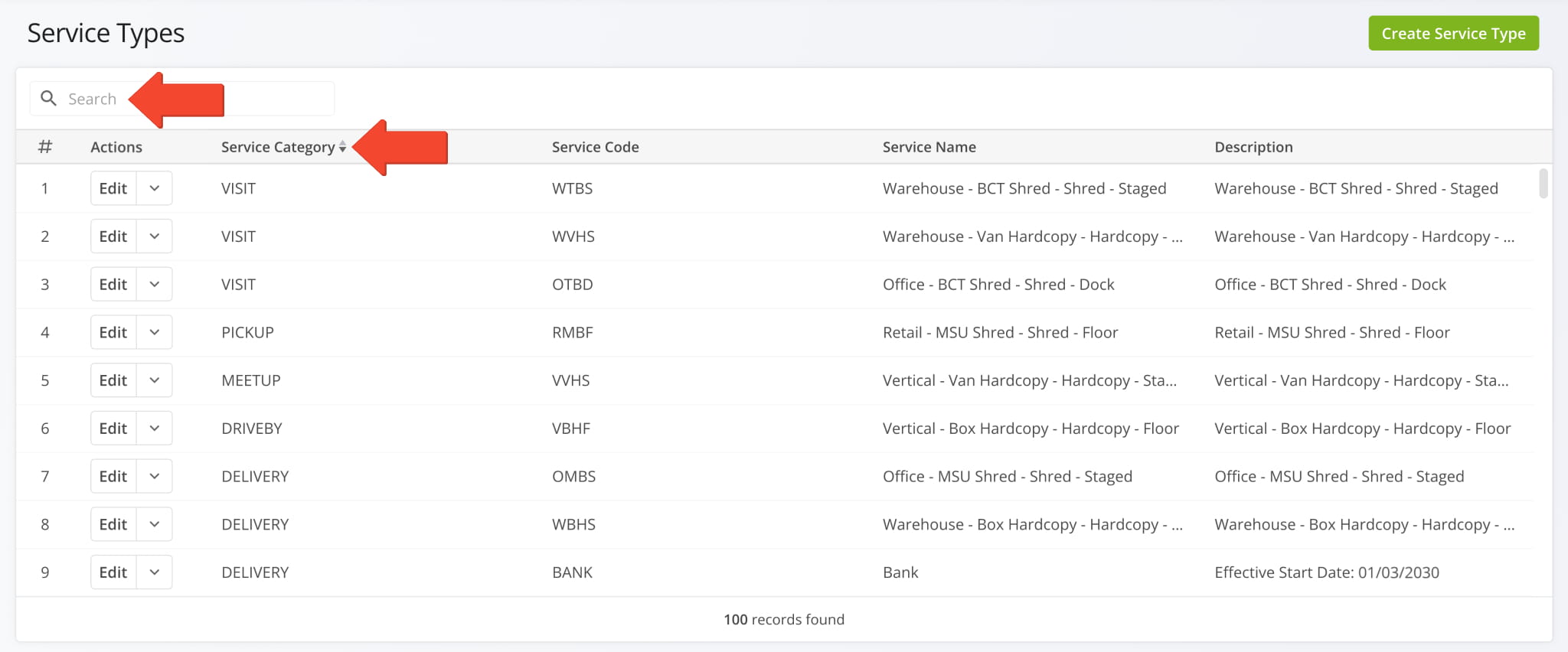
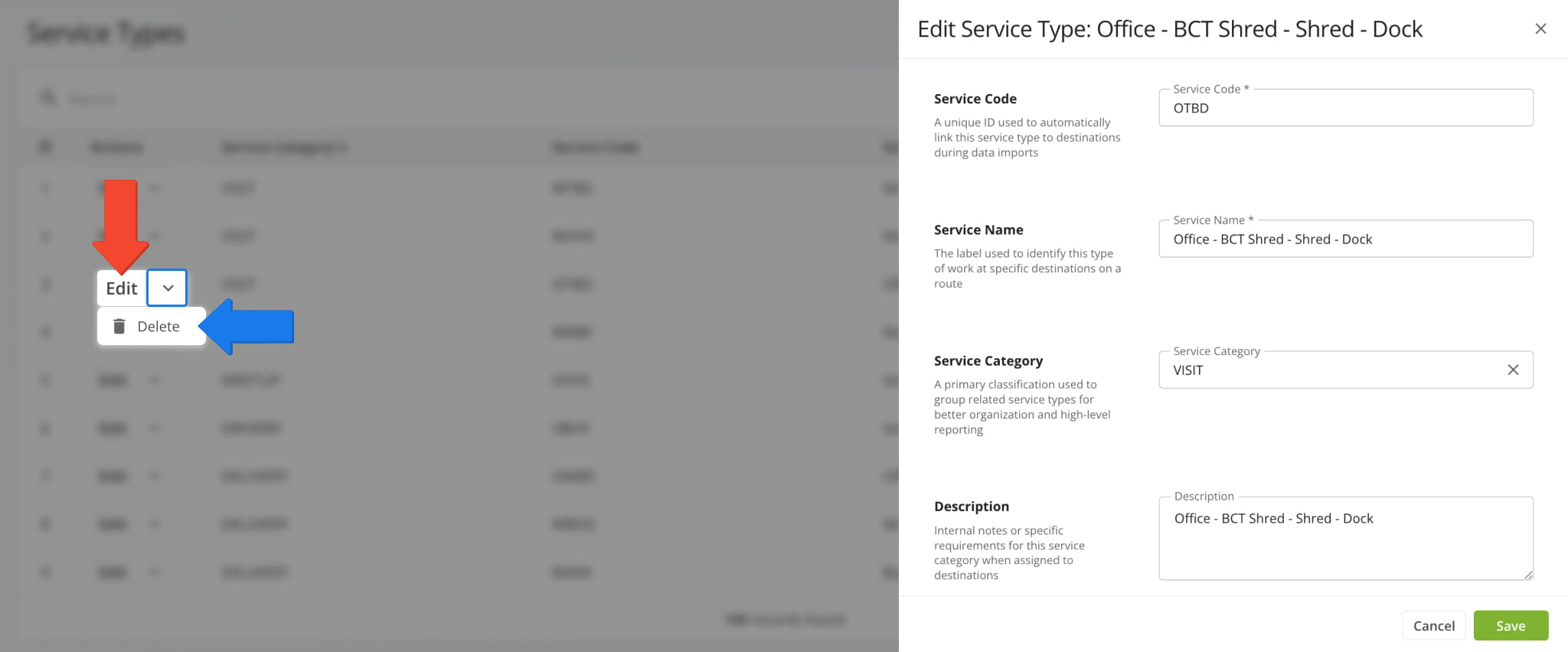
After locating the Service Type entry, click the “Edit” button to open the editor and modify the Service Type details. See the table below for a description of the editable fields. To delete a Service Type, click the Down Arrow and select “Delete“.
NOTE: If you need assistance accessing or using Service Types, contact Route4Me support.
| Field | Description |
|---|---|
| Service Code | Unique identifier used to automatically associate the Service Type with destinations during data imports. |
| Service Name | Name used to identify the type of work or service assigned to destinations on a route. |
| Service Category | Primary classification used to group related Service Types for organization and reporting purposes. |
| Description | Internal notes, instructions, or service requirements associated with the Service Type. |
See Destination Service Types On Route4Me’s Web Platform
To ensure consistent visibility of service information across your operations, Service Types and Service Categories are available anywhere you can view destinations and their associated data. This includes the Destinations List, Destination Snapshots, Route Snapshots, and the Route Editor.
Destinations List – Service Type And Service Category Visibility
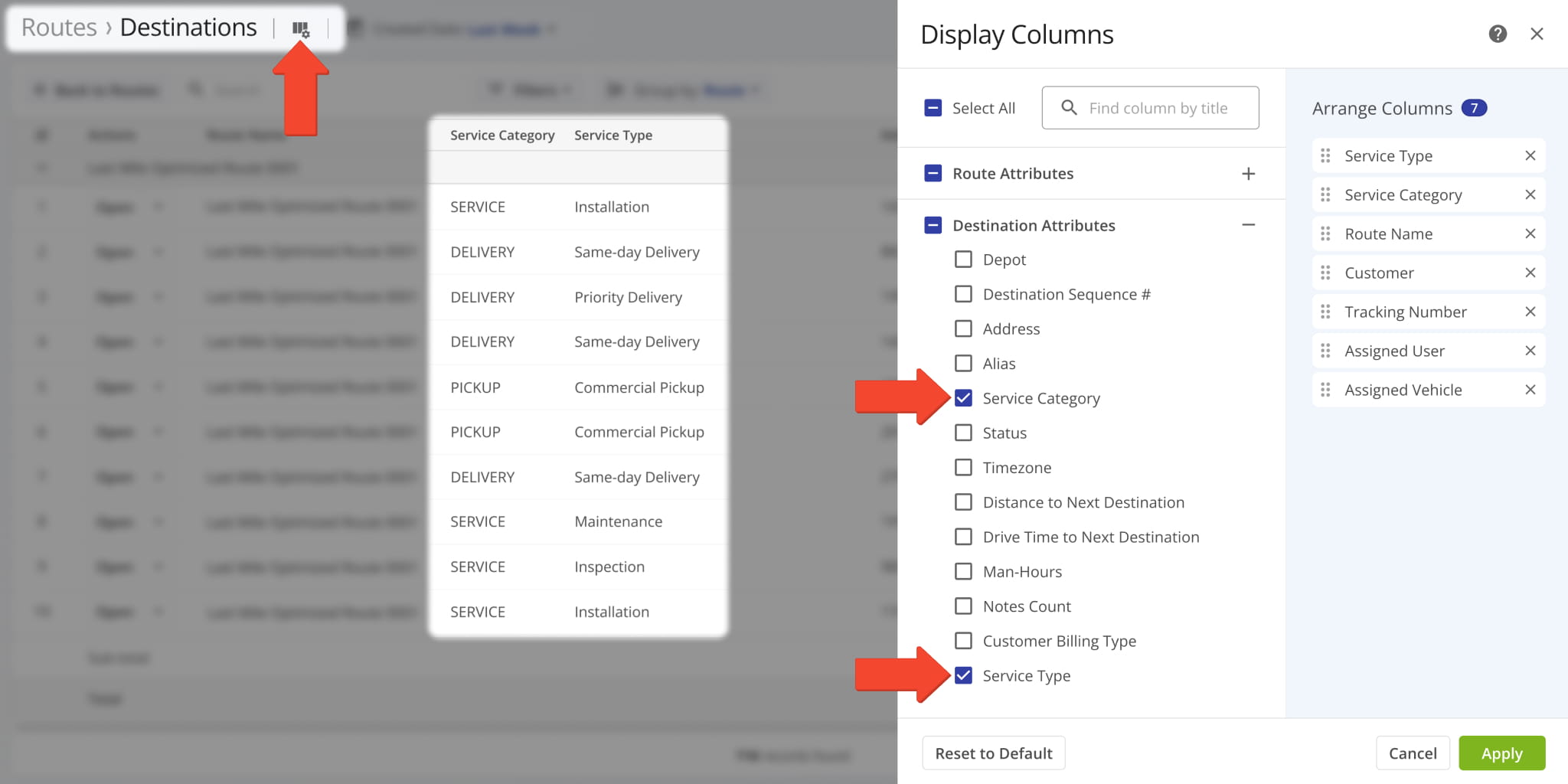
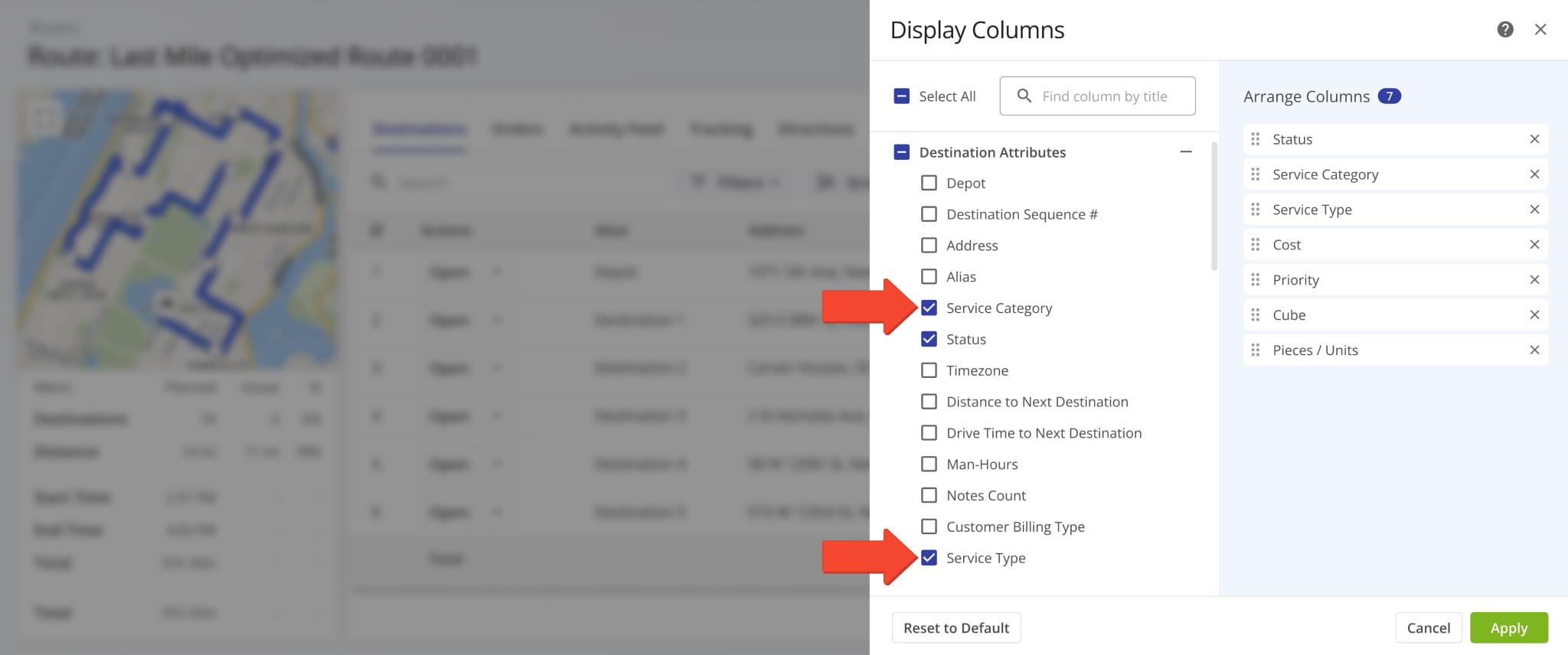
On the Destinations List, you can see the Service Category and Service Type associated with destinations. To enable service data columns, click the Display Columns Button and check the boxes next to “Service Category” and “Service Type“.
Destination Snapshot – Service Type And Service Category Visibility
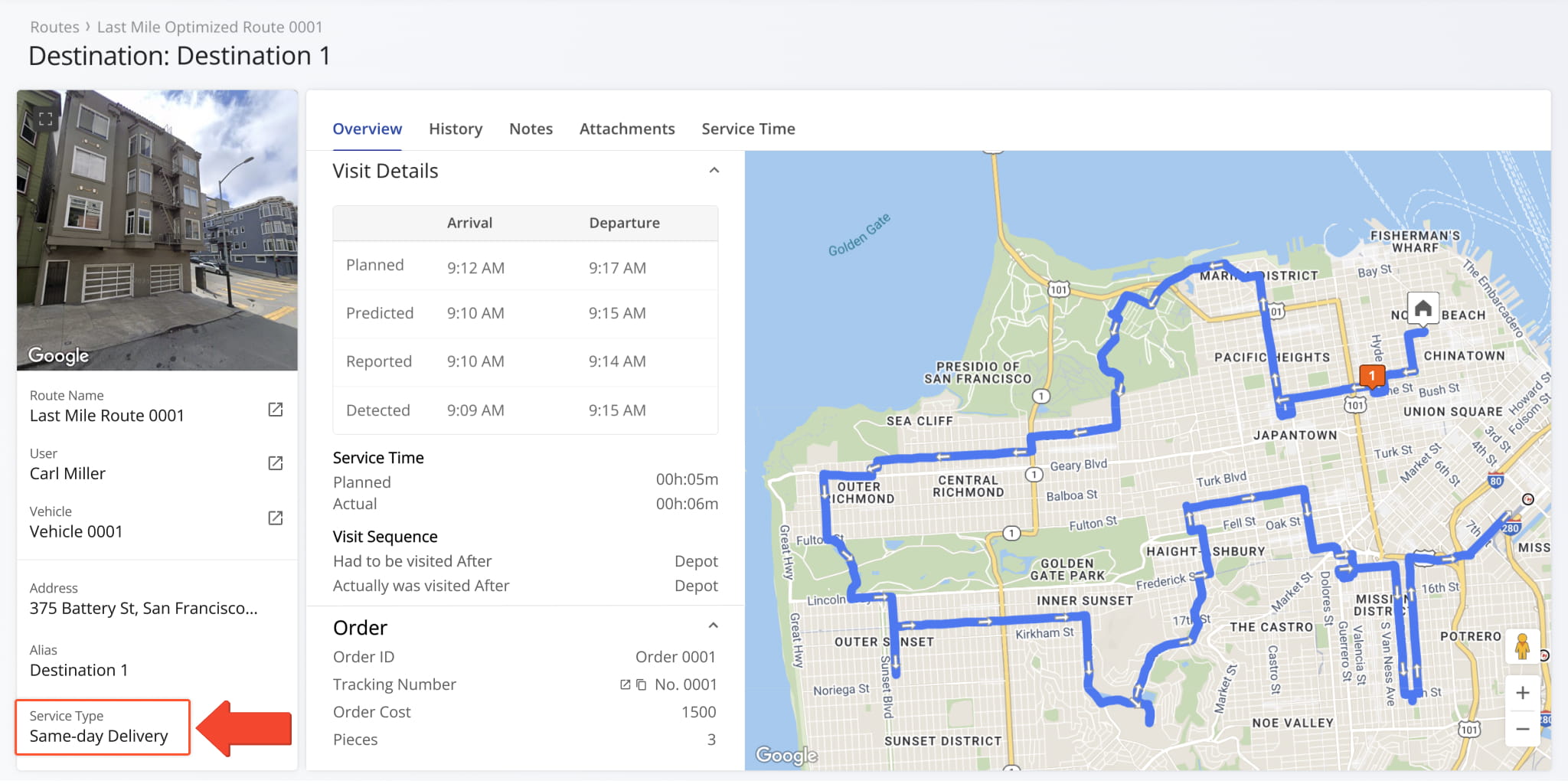
When you open a Destination Snapshot, you can see the destination’s respective Service Type or Service Category at the bottom of the Destination Info summary on the left.
Route Snapshot – Service Type And Service Category Visibility
In Route Snapshots, Service Categories and Service Types are available as data columns in the “Destinations” tab. To enable them, click the Display Columns Button.
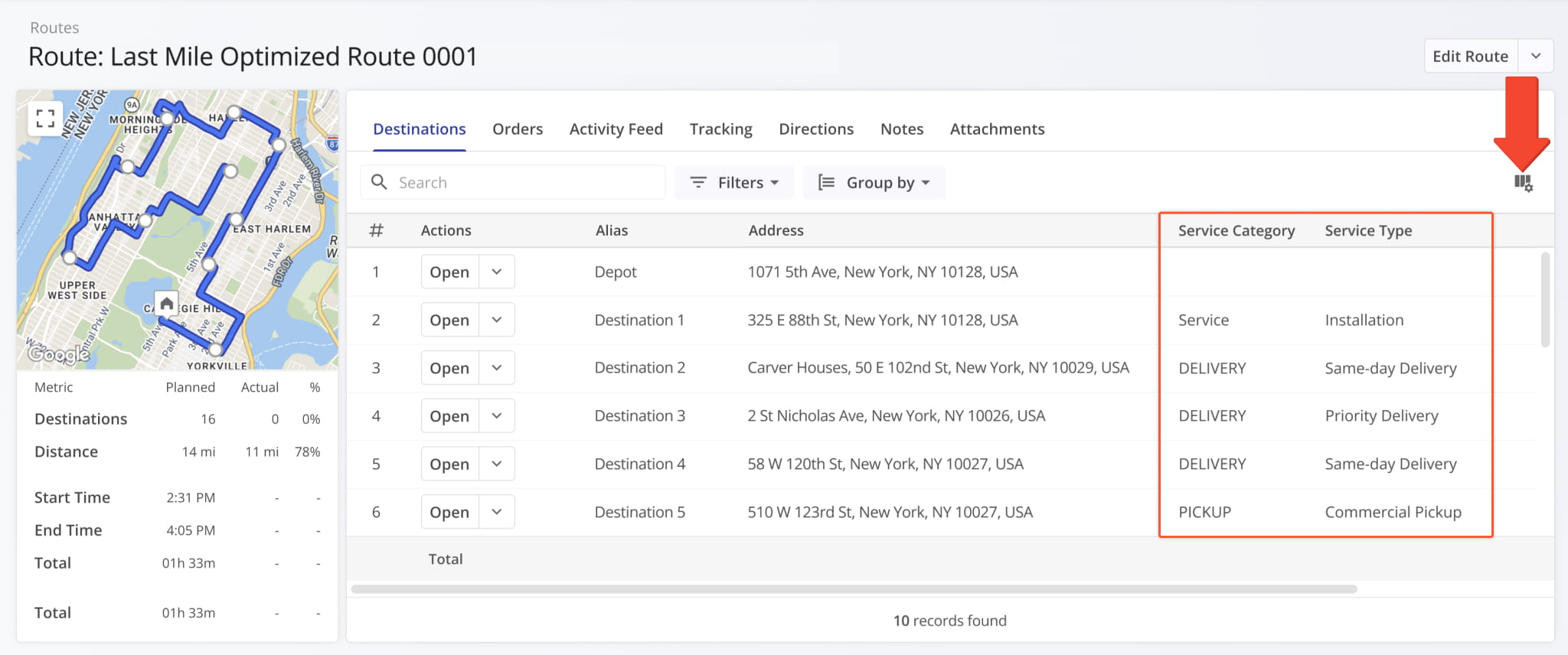
Then, check the boxes next to “Service Category” and “Service Type”
Route Editor – Service Category Visibility
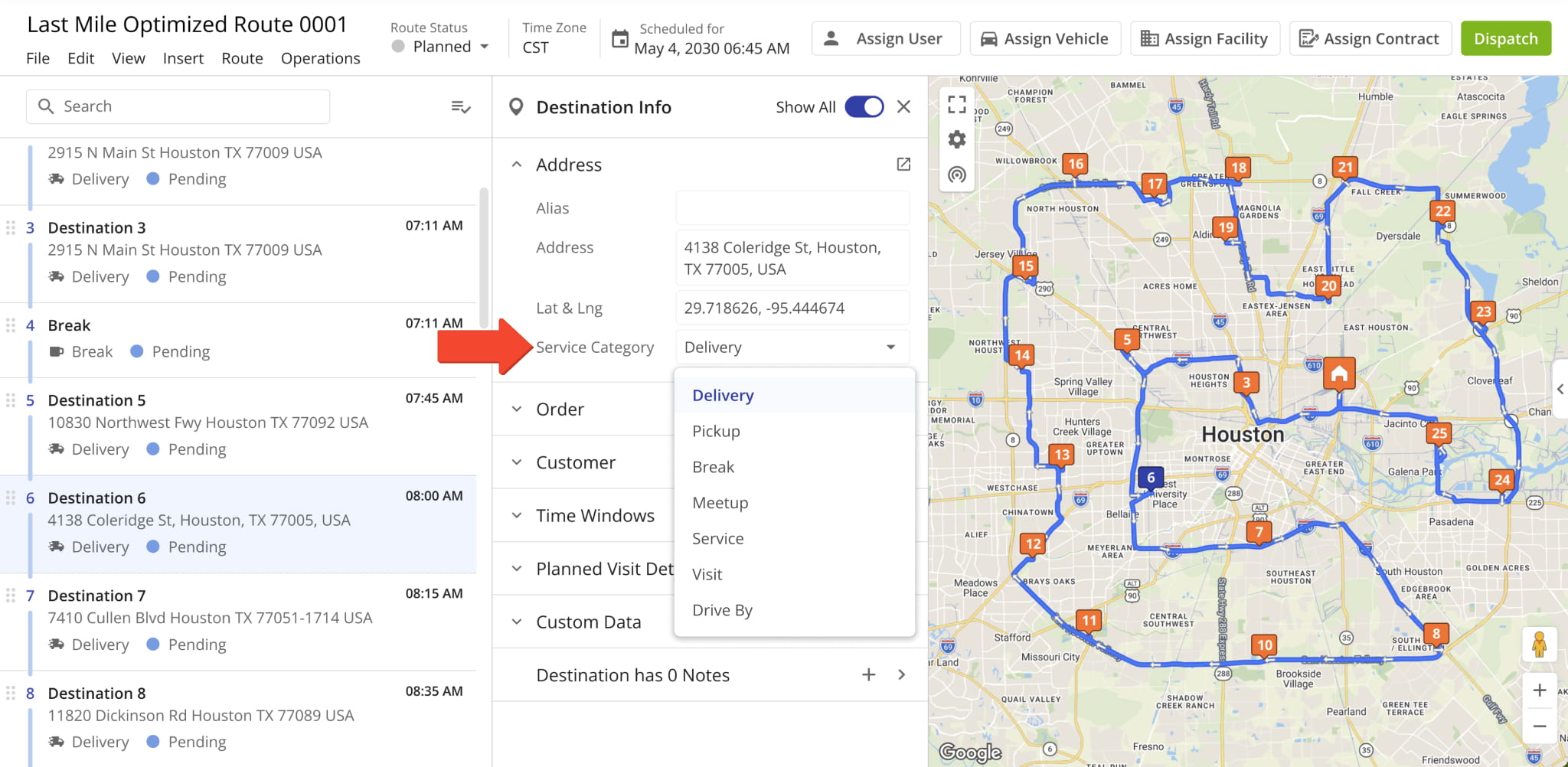
After opening a route in the Route Editor, you can click on a destination to open its Destination Info. In the “Address” section, you’ll find the “Service Category” field.
You can also click the field and select a different Service Category for a destination from the dropdown menu.
Mobile App Service Types For Planned Route Destinations
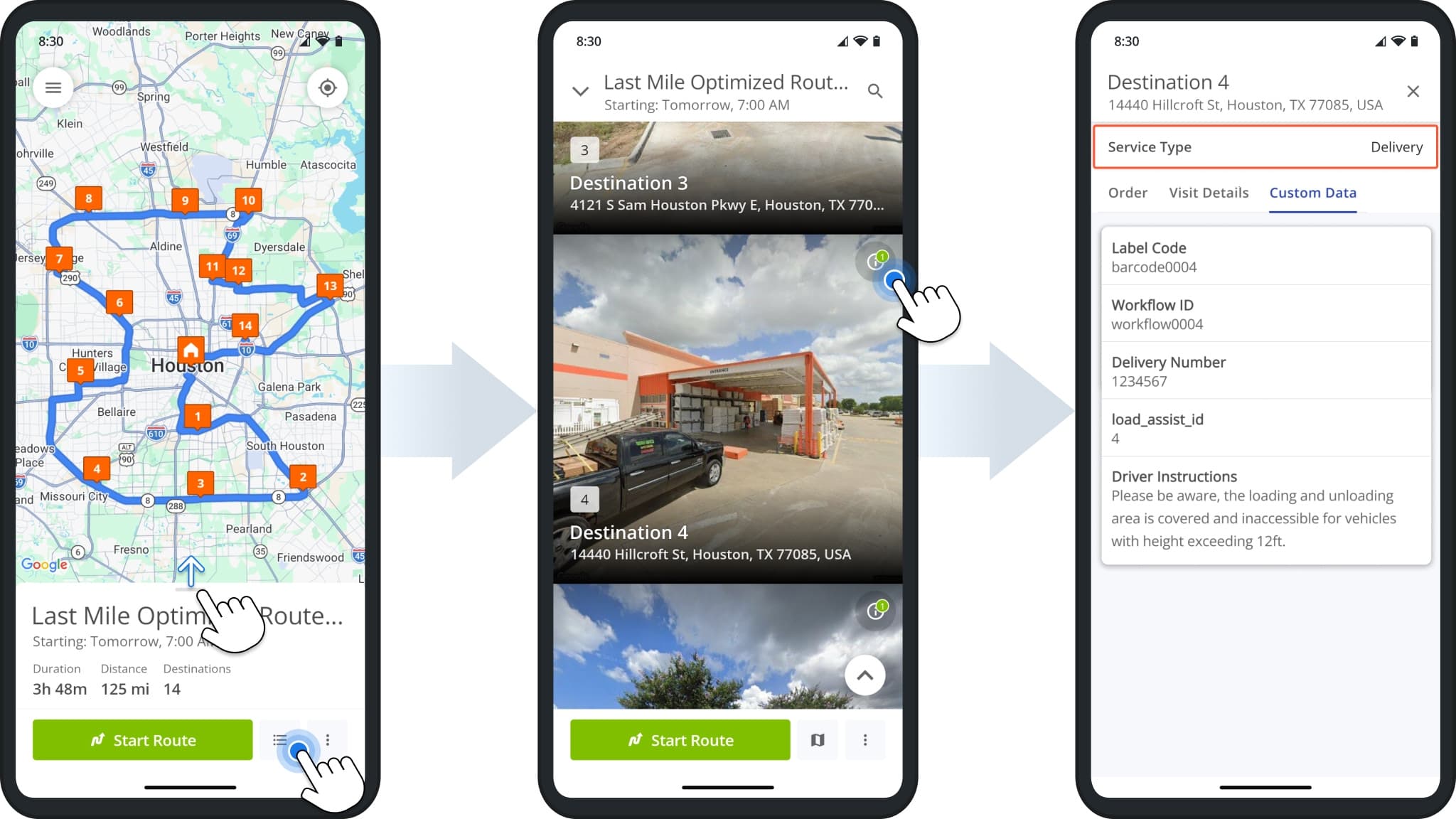
Service Types are also visible to users navigating routes on the Route4Me App. If you need to see or manage destinations on the app, first open a route. Then, swipe up or tap the Destinations Button to open the route’s Destination List. Next, tap the Info Icon for a destination to open its Destination Info.
Visit Route4Me's Marketplace to Check out Various Modules and Add-Ons:
- Route Optimization
Time Windows
- Operations
Advanced Team Management Add-On
About author: Kristian Andreev

