
Filter And Group Routes – Organize And Review Route Data
When managing large sets of routes, filtering and grouping tools help enterprise teams quickly find, organize, and analyze route data. This guide explains how to use filters, grouping options, view modes, and search on the Routes Page to efficiently review routes and gain clear operational insight.
Table of Contents
Filtering And Grouping Routes – Customize Your Routes Database
Your Routes Page shows all routes in one place and includes tools to sort, filter, and group them. Filters help you narrow the list by attributes like User or Status, while grouping organizes routes by shared values such as Vehicle or Facility.
At the same time, Dispatch and Recently Created View Modes sort and group routes automatically, letting you focus on start times or creation dates. Combined with filters and grouping, View Modes makes it easier to find, review, and manage routes.
To open your Routes Page, go to “Dynamic Routing” > “Routes” from the Navigation Menu or click the button below.
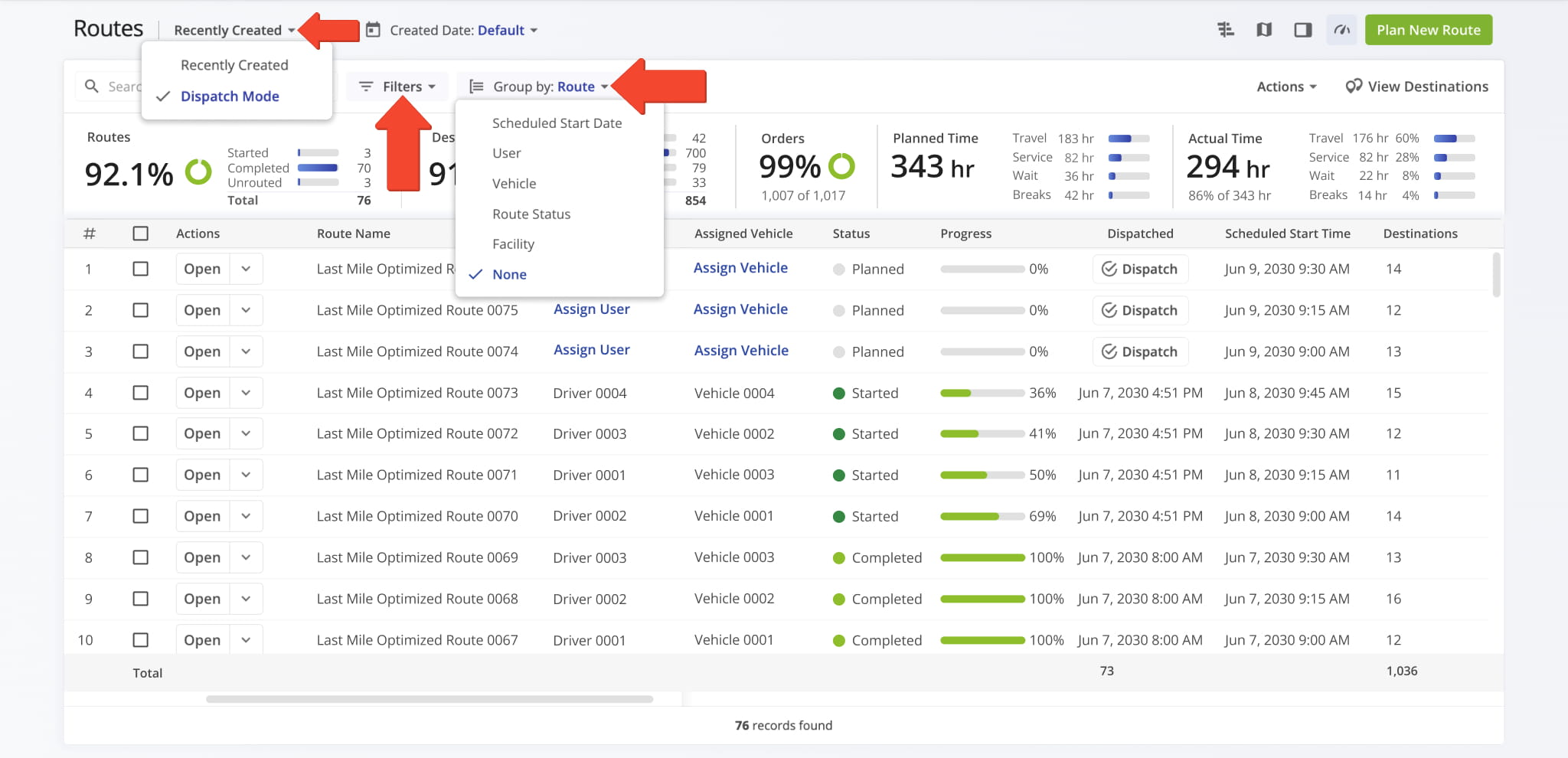
View Modes – Sorting Routes By Scheduled Start Or Created Date
Dispatch Mode – View Routes By Scheduled Start Date
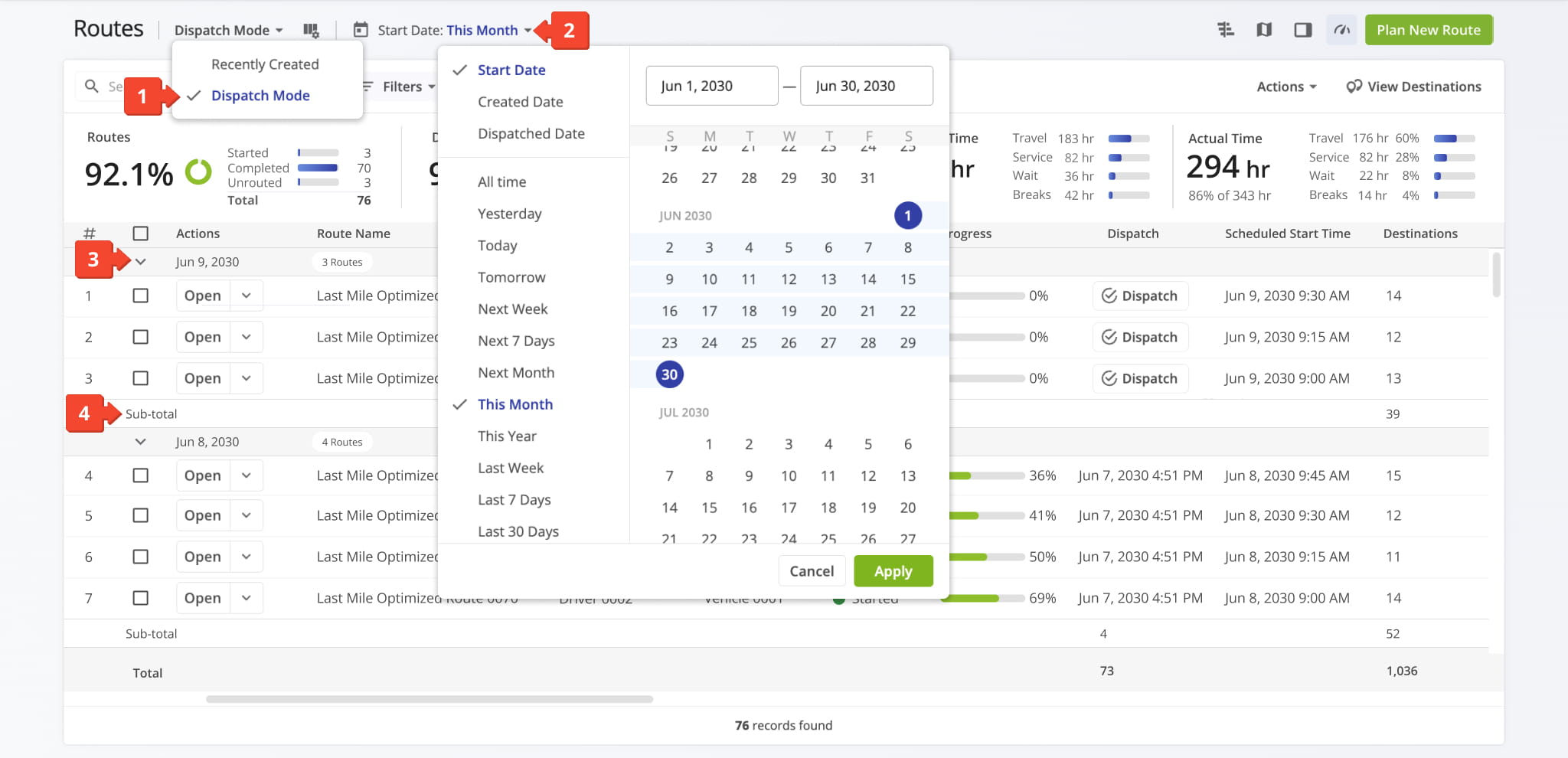
Dispatch Mode groups routes by Scheduled Start Date to simplify daily dispatch planning. This View Mode helps dispatchers quickly view upcoming routes and identify which routes are scheduled for each day.
In Dispatch Mode, routes are sorted and grouped by Scheduled Start Date, with the latest dates appearing at the top of your Routes List. To enable this view mode:
- Select “Dispatch Mode” from the top menu.
- Click “Start Date” to sort routes by scheduled start and set your desired date range.
- Expand or collapse date groups as needed to view routes.
- Review the Sub-total for each group to see the total number of routes.
Recently Created Mode – View Routes By Created Date
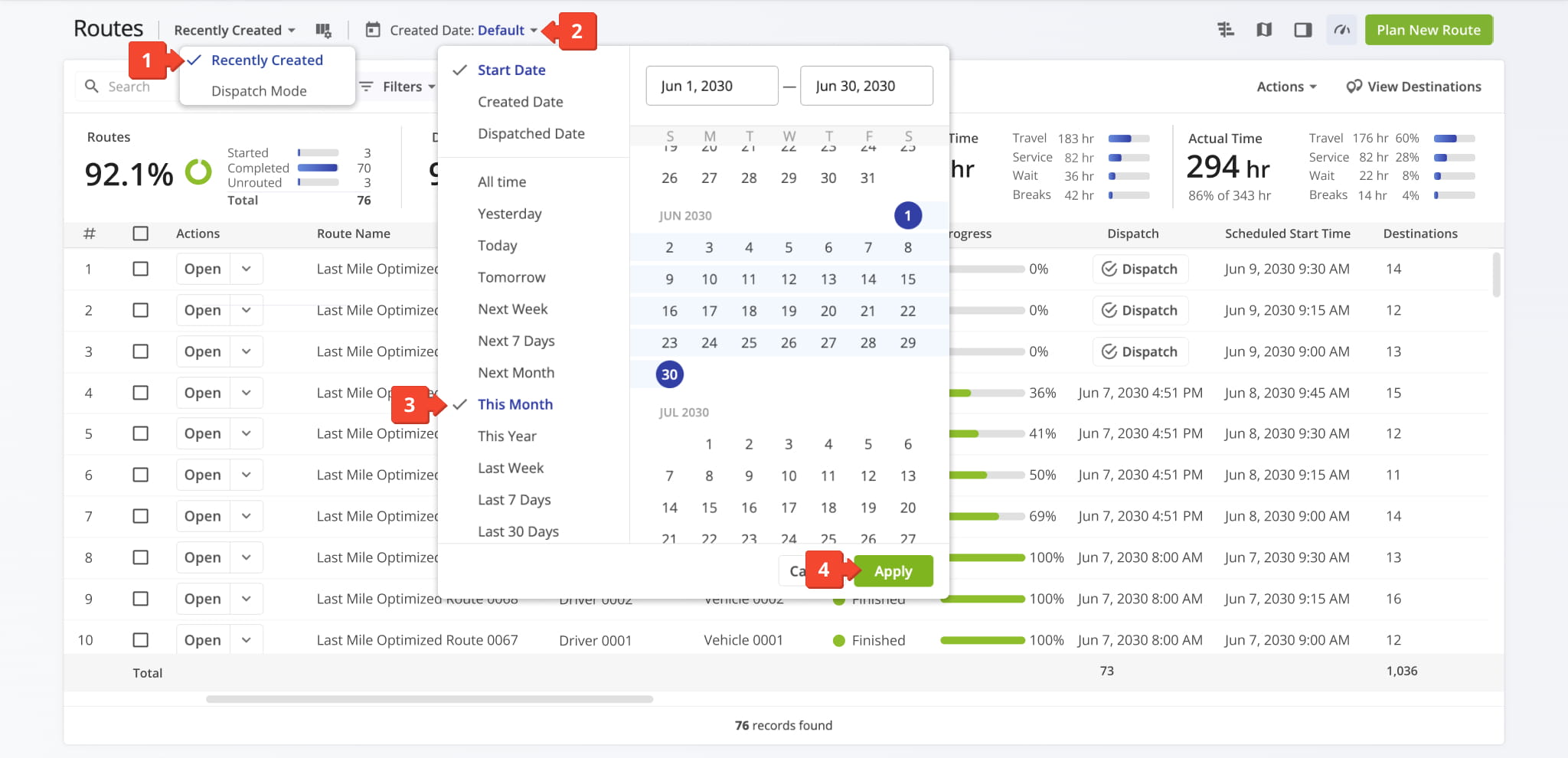
Recently Created Mode sorts routes by Created Date to help you monitor the newest routes added to your system. This View Mode makes it easy to see the most recent activity and quickly find newly created routes.
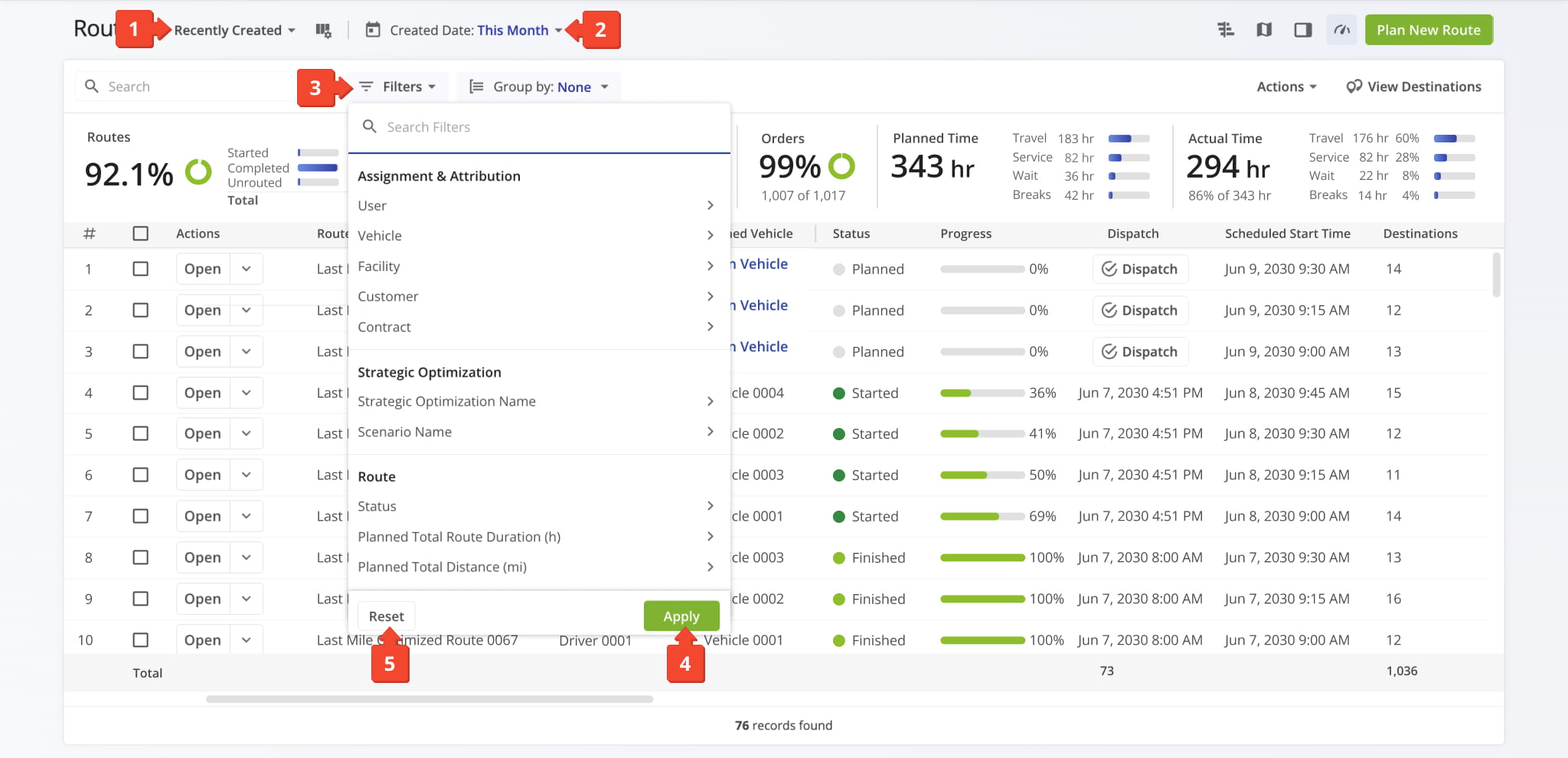
In Recently Created Mode, routes are sorted by Created Date, with the most recently created routes appearing at the top of the list. To enable this view mode:
- Select “Recently Created” from the top menu.
- Click “Created Date” to sort routes by creation date.
- Set your desired date range.
- Click “Apply“.
Filtering Routes – Narrow Down Your Routes List
After selecting a View Mode and date range, filters help you narrow your Routes List and quickly find specific routes. To filter routes:
- Select a View Mode
- Set your desired date range.
- Choose one or more filter criteria. You can apply multiple filters at the same time.
- Click “Apply” to display only routes that match your criteria.
- Click “Reset” to clear all filters and return to the full Routes List.
For a complete overview of all available filters, see the Routes Page Catalog.
Grouping Routes – Organizing Routes By Shared Attribute
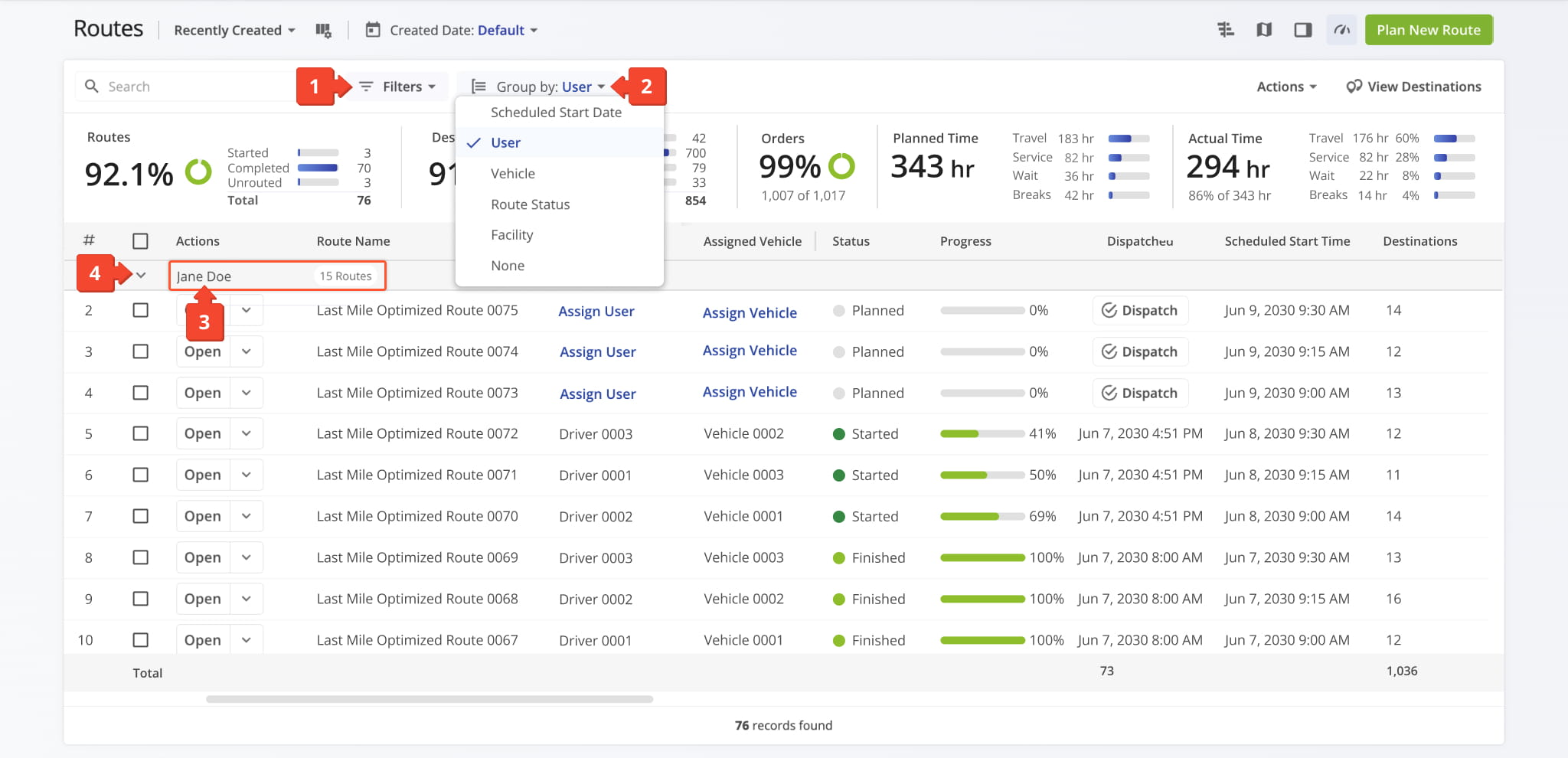
Grouping helps you further organize your Routes List by clustering routes that share a common attribute, making large datasets easier to review. To filter routes:
- Apply any desired filters to your Routes List.
- Click the “Group by” button and select the attribute you want to group routes by.
- View the group name and total number of routes displayed for each group.
- Click the Arrow Icon next to a group to expand or collapse it.
For a complete overview of all available “Group By” options, see the Routes Page Catalog.
Visit Route4Me's Marketplace to Check out Various Modules and Add-Ons:
- Route Optimization
Time Windows
- Operations
Advanced Team Management Add-On
About author: Daniel Archer

