
Duplicate Routes – Create Route Copies And Route Duplicates
Route4Me’s last mile route software helps enterprise teams save time and maintain accurate schedules by quickly duplicating routes. From your Routes Page or Route Editor you can recreate existing routes, making it easy to plan recurring routes or adjust operations without starting from scratch. Learn how to duplicate routes so you can scale planning without extra work.
Table of Contents
Duplicate Routes From Routes Page – Recreate Existing Routes
Duplicate A Single Route – Clone A Route For Re-Use
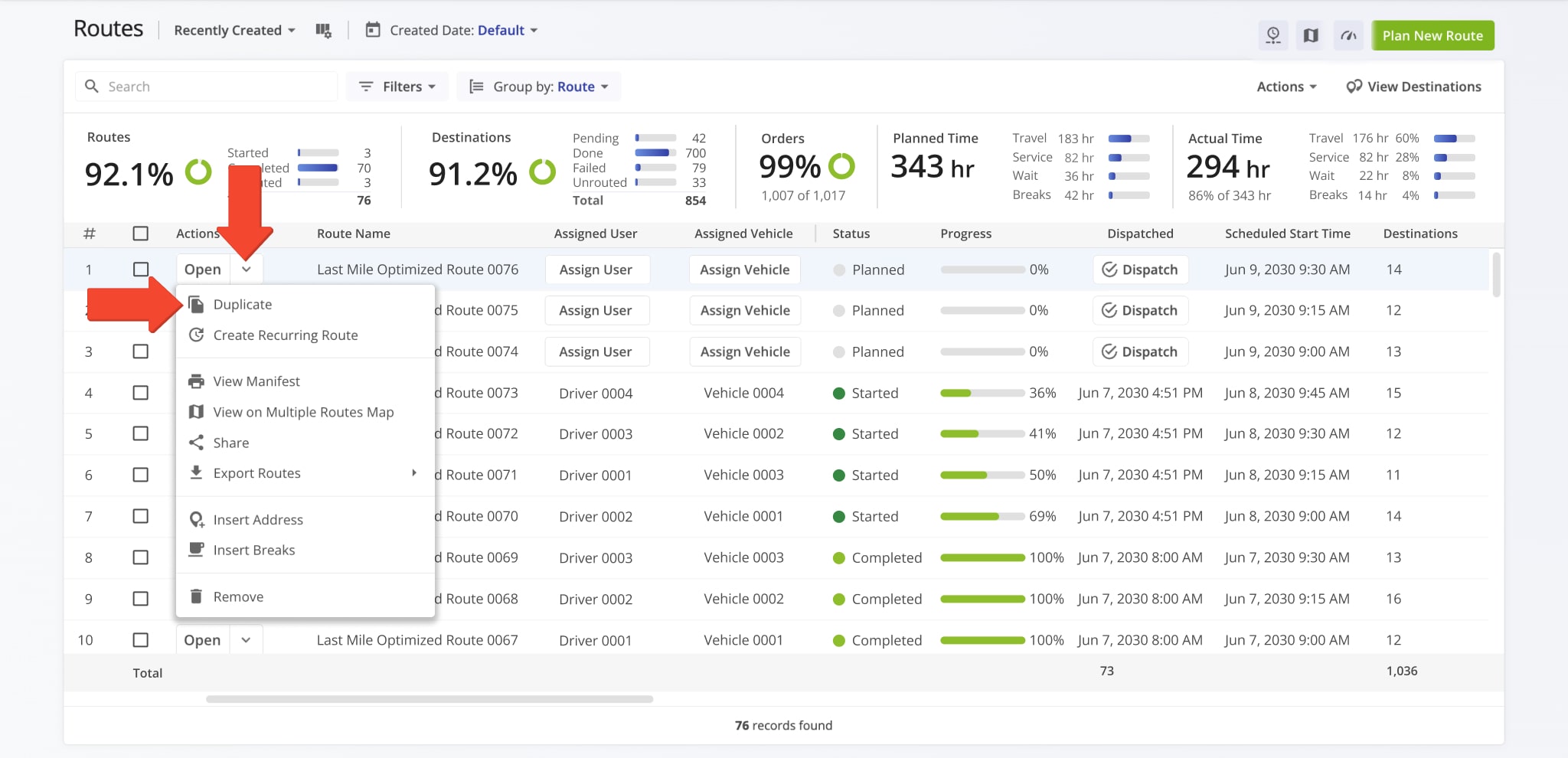
To reproduce a route from your Routes List, go to “Dynamic Routing” > “Routes” from the Navigation Menu. Locate the route you want to copy, click the Down Arrow next to it, and select “Duplicate“.
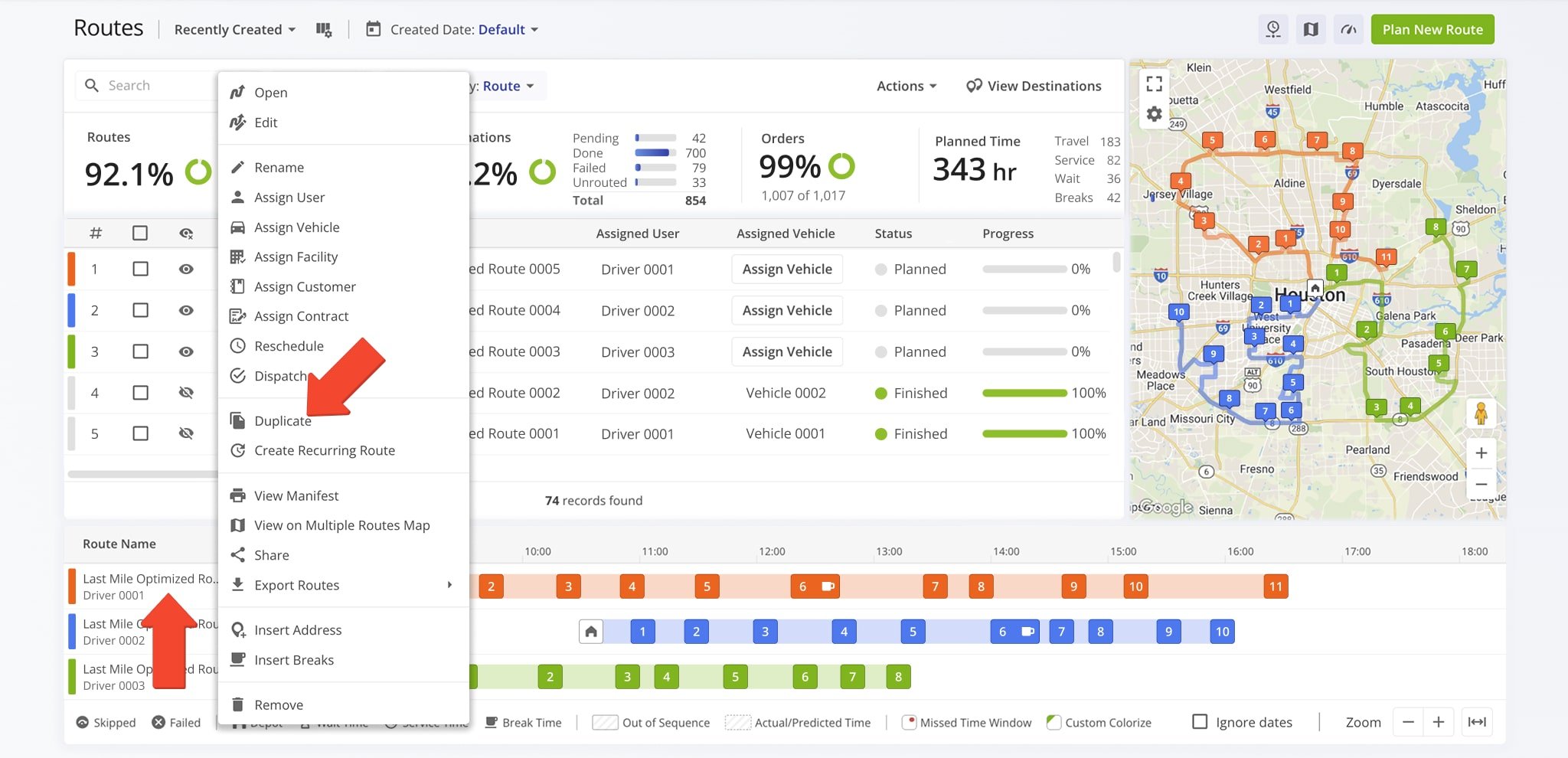
You can also duplicate a route from the Routes Timeline. Just right click the route you want to recreate and select “Duplicate“. The new route will appear in your Routes List with “(Duplicate)” added to the name.
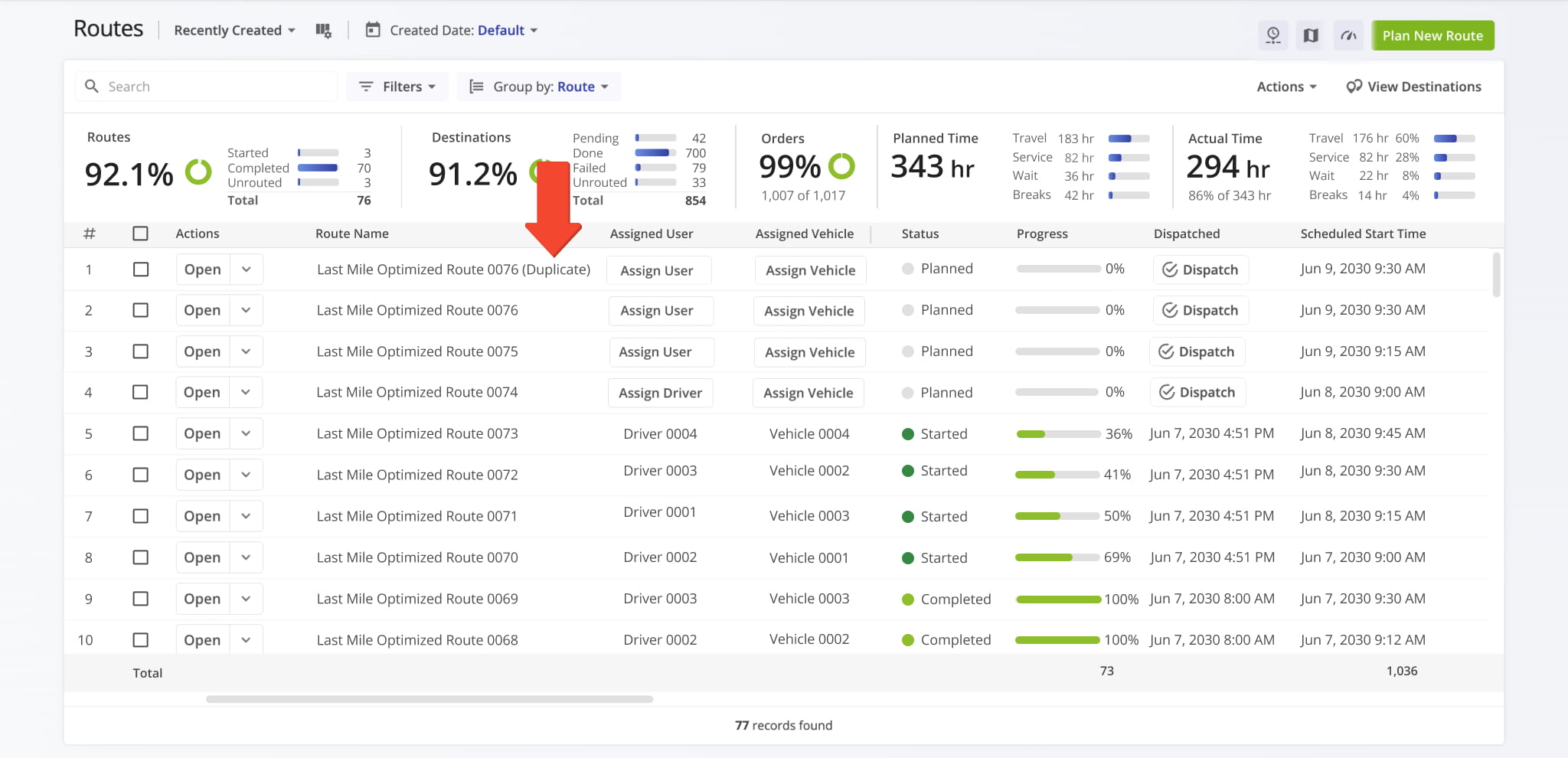
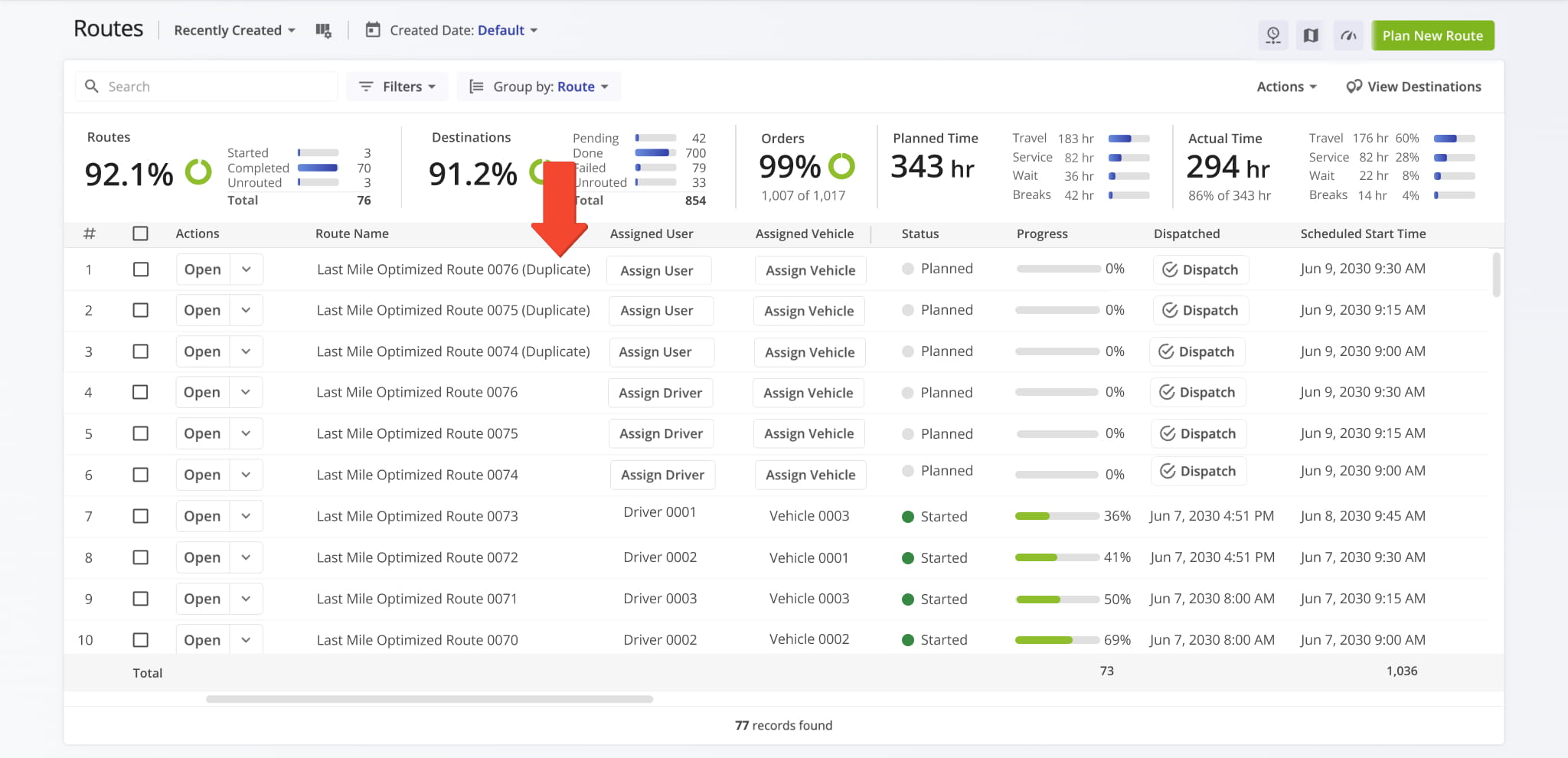
The duplicated route will automatically appear in your Routes List with “(Duplicate)” added to the route name.
Duplicate Multiple Routes – Save Time With Bulk Route Creation
To duplicate multiple routes at once, select the checkboxes next to the routes in your Routes List. Then, click “Bulk Actions” in the top menu and select “Duplicate” from the Actions Menu.
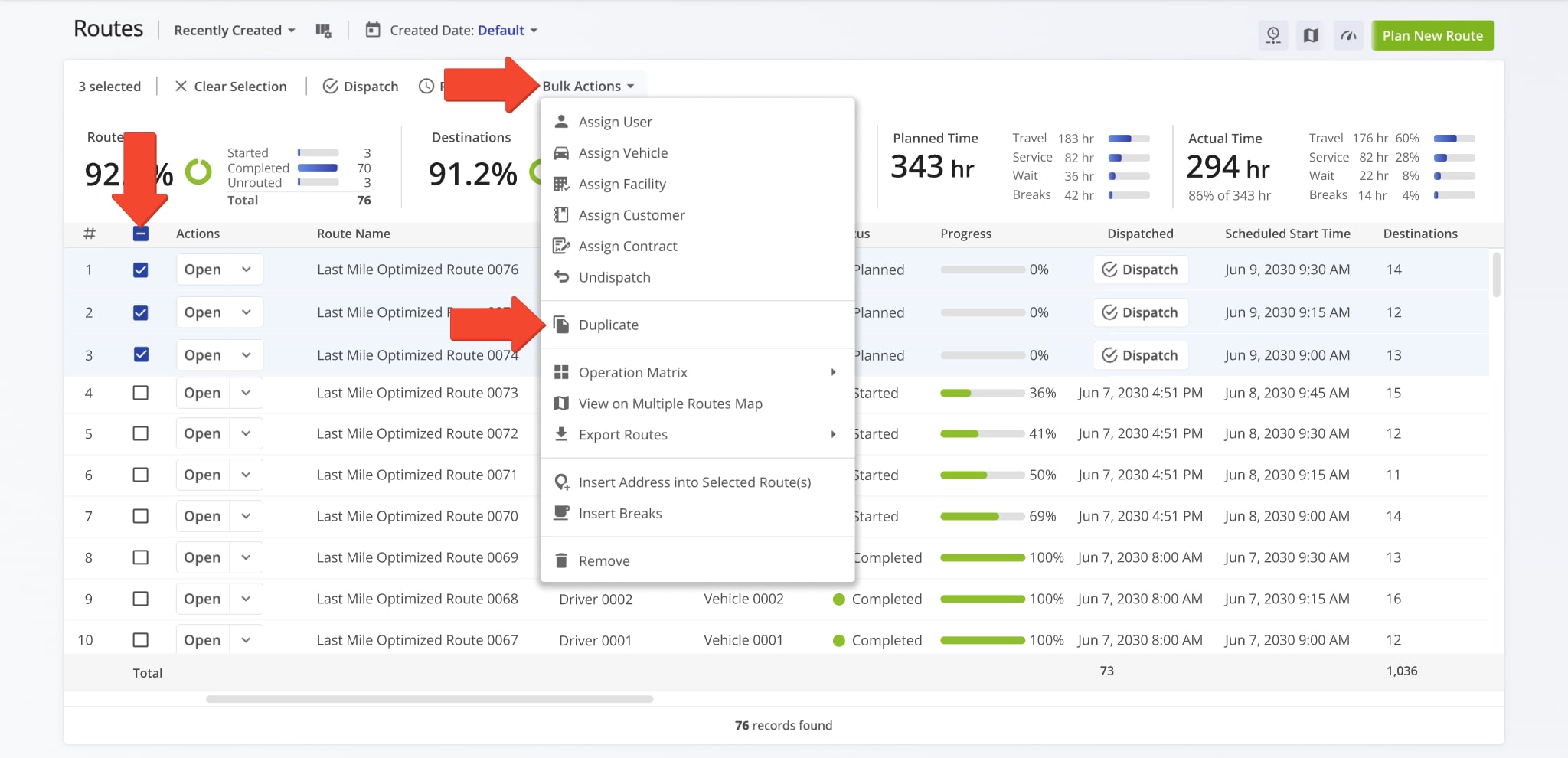
The duplicated routes will automatically appear in your Routes List with “(Duplicate)” added to the route names.
Duplicate Routes From Route Editor – Reuse Route Plans
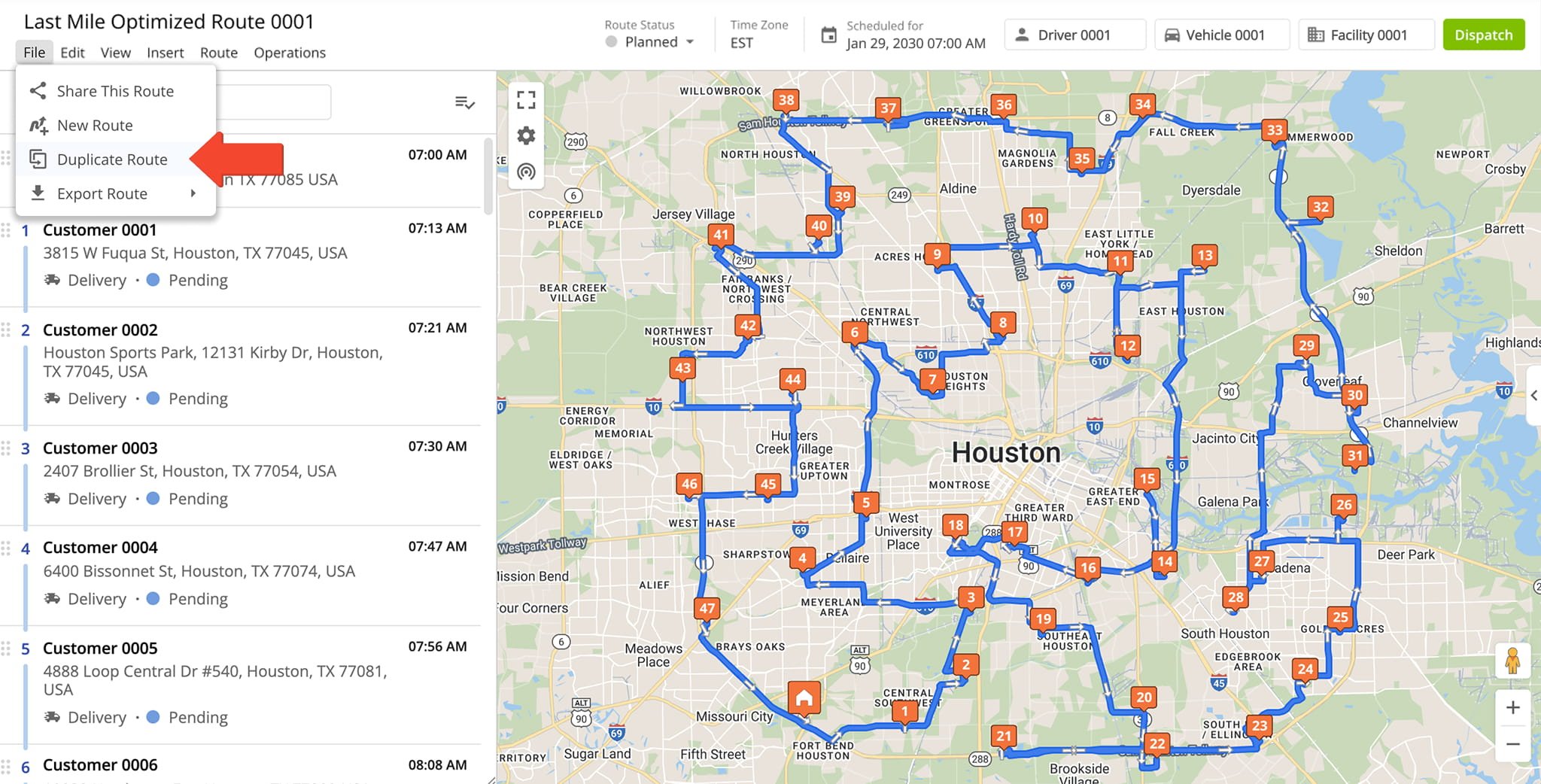
To duplicate a route from the Route Editor, click “File” > “Duplicate Route” in the Toolbar. The duplicated route will open in a new window with with “(Duplicate)” added to the route name.
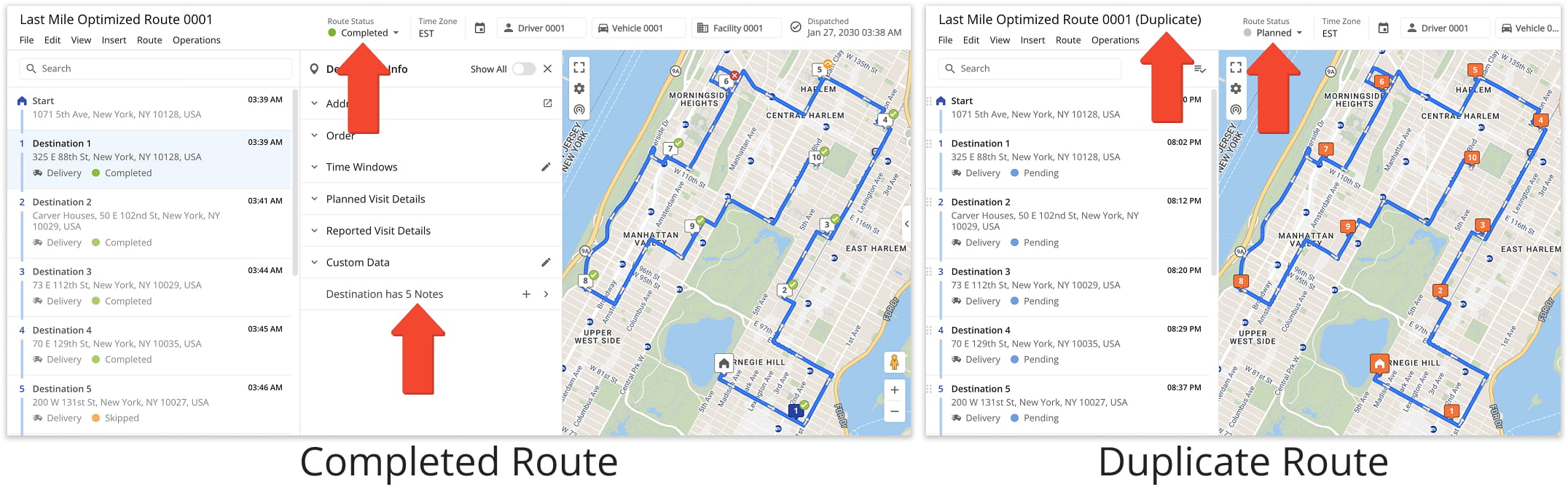
You can duplicate a scheduled route, or a route that has already been started or completed. If you duplicate a completed route, the new route will copy the stops and settings, but it will not include any notes or completion progress from the original route.
NOTE: Learn more about creating custom route destination notes.
Visit Route4Me's Marketplace to Check out Associated Modules:
- Route Optimization
Mixed Vehicles Routing
- Route Optimization
Route Optimization for Multiple Drivers Without Advanced Constraints
- Route Optimization
Commercial Vehicle Route Planning
About author: Daniel Archer

