
Customize Route Data – Configuring Data Columns On The Routes Page
You can customize the data columns on your Routes Page to focus on the route information that matters most to you. A well-organized layout helps teams streamline their workflow and supports enterprise-level route optimization, making route planning and analysis more efficient. This guide explains how to select and arrange columns and interpret the data they display.
Table of Contents
Route Data Columns – Customize Routes Page For Better Route Management
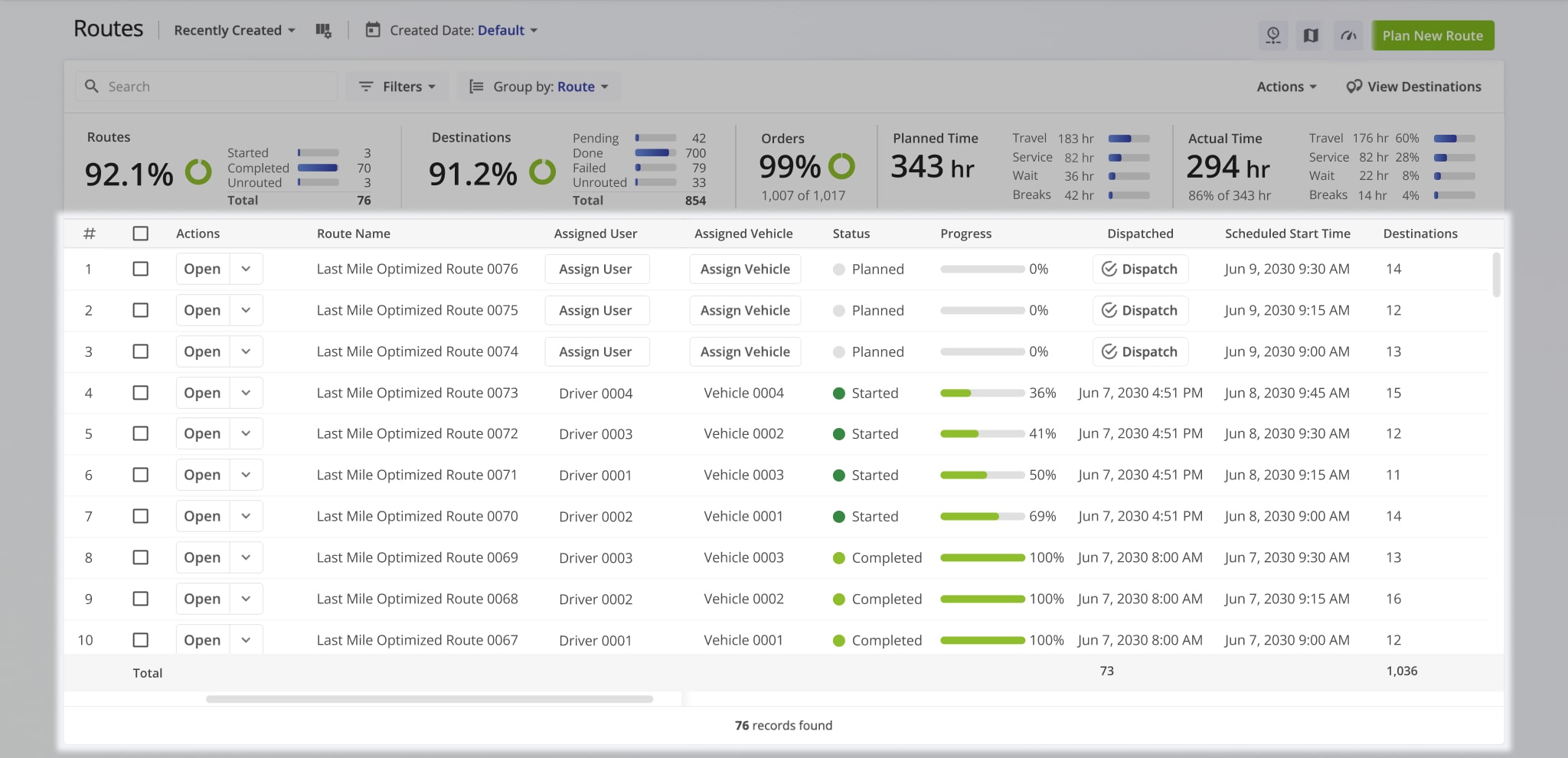
Route data columns show key details about your routes, including driver assignments, stop status, and destinations count. Customizing which columns appear helps you focus on the information most important to your workflow.
For example, you can highlight completed stops and planned arrival times to track route progress, or show total distance and duration to optimize efficiency. Adjusting your columns this way saves time and makes route planning and analysis faster.
Configuring Data Columns – Sort, Filter, And Manage Route Information
To open your Routes Page, go to “Dynamic Routing” > “Routes” from the Navigation Menu or click the button below. From your Routes Page, you can customize which data columns are visible.
Click the Columns Icon in the top-left to see all available fields. Then, check the columns you want to display and uncheck any you don’t need. You can also drag column headers to reorder them, creating a layout that best fits your workflow.
See the Route Page Catalog for an overview of all available data columns.
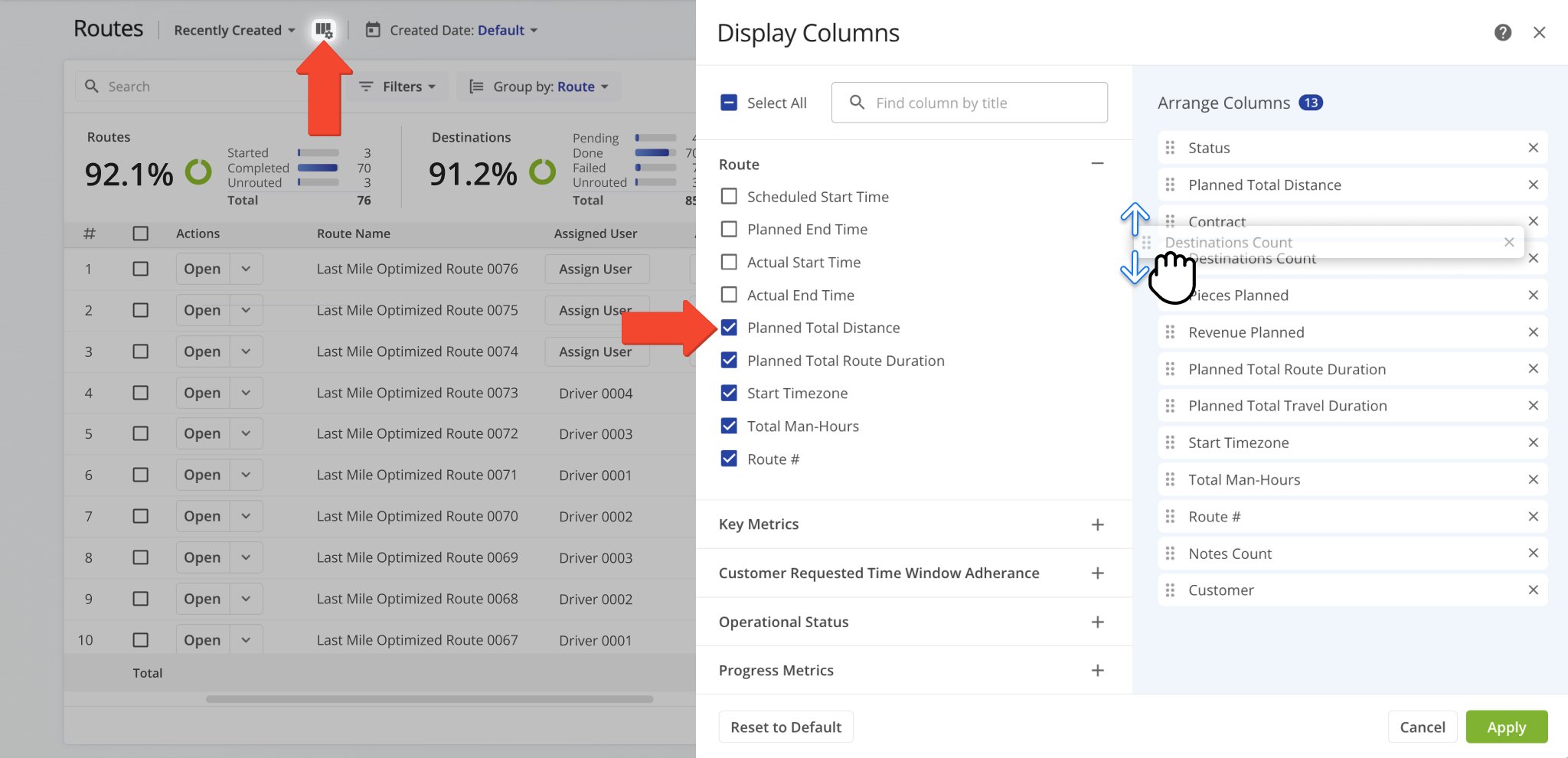
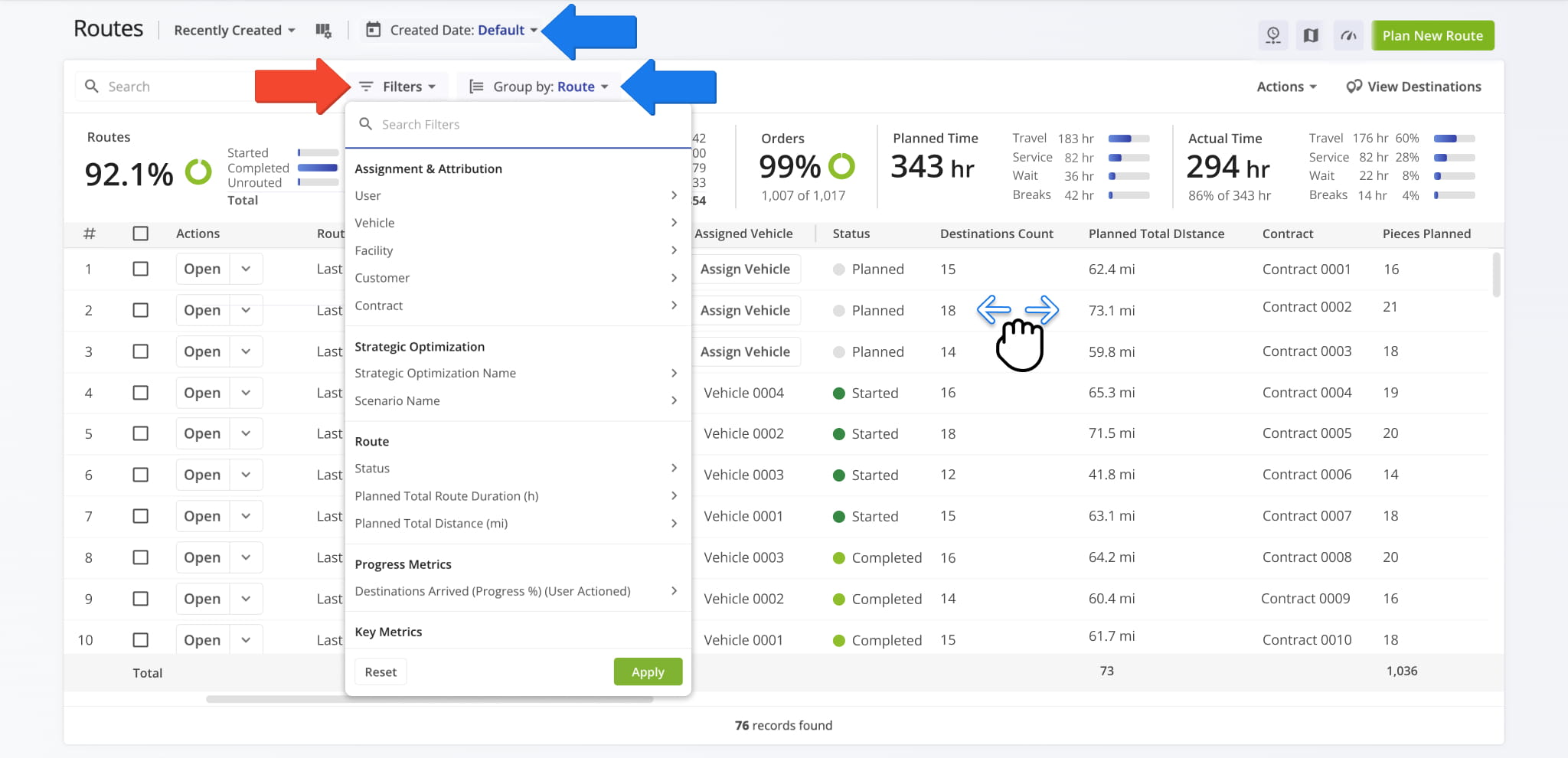
After clicking “Apply“, your updated column layout will automatically appear on the Routes Page. If you’ve selected many columns, scroll to the right to view additional fields that may not fit on the screen.
To narrow your view of route data even further, use filters, grouping, and date range options. These tools help you quickly find the specific routes, stops, or route details you wish to review.
Visit Route4Me's Marketplace to Check out Various Modules and Add-Ons:
- Route Optimization
Time Windows
- Operations
Advanced Team Management Add-On
About author: Daniel Archer

