
Configure Strategic Scenarios – Strategic Routing Scenario Optimization Settings
Route4Me’s Strategic Routing simplifies route planning with complex schedules over long planning periods. You add locations and schedules, configure Strategic Scenarios, and Route4Me automatically plans and optimizes strategic routes according to your preferences. In this guide, you’ll learn how to configure Scenarios when creating Strategic Optimizations using the intuitive configuration wizard or JSON code for in-depth manual settings, compare Scenarios, and more.
NOTE: Please refer to the main Strategic Route Planning guide to learn more about the Strategic Routing process.
Table of Contents
Strategic Scenario Configuration Overview
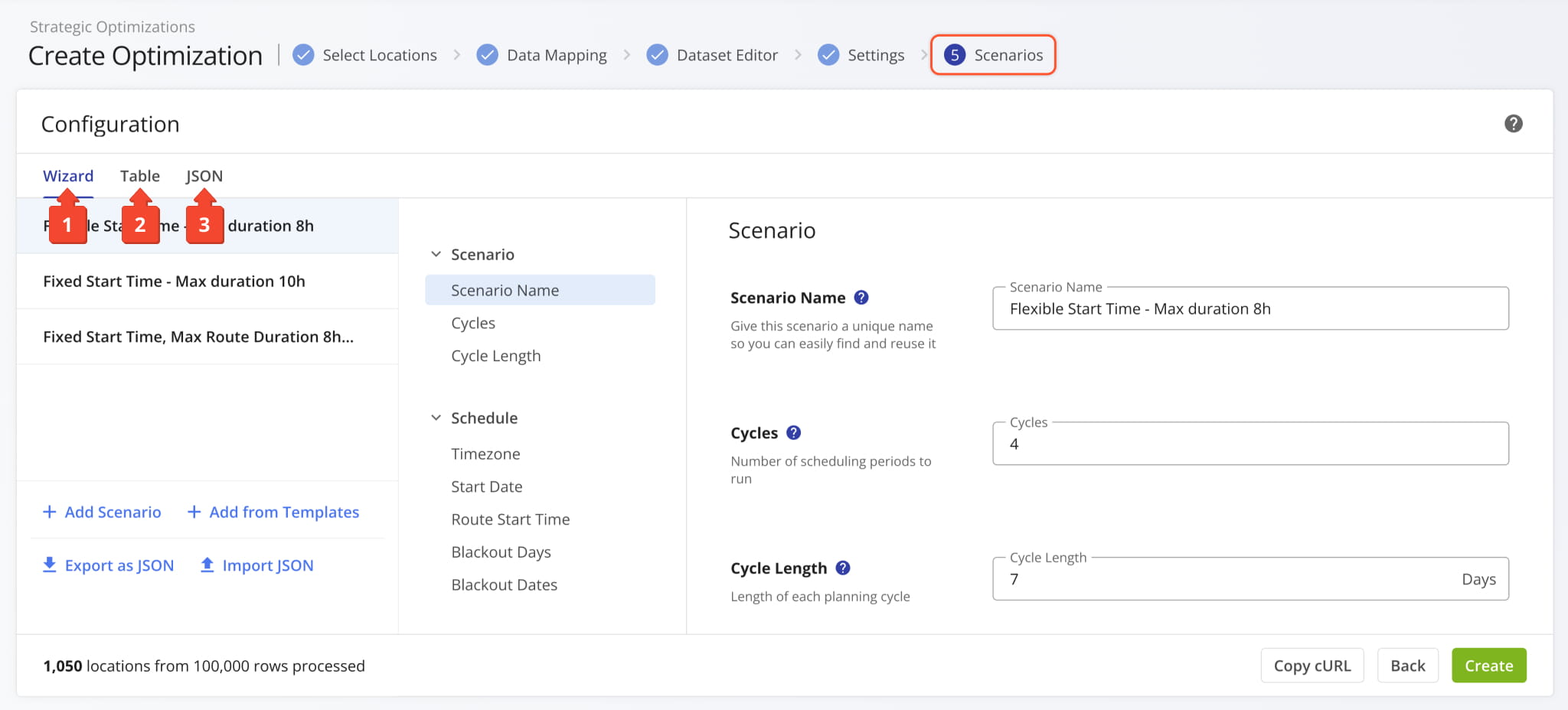
After importing data and setting departure addresses, you can configure Scenario. The page is divided into three sections:
- Wizard: Configure Scenarios using an intuitive interface.
- Table: Compare and adjust Scenario settings in a table.
- JSON: Manually configure Scenarios using structured JSON code.
Further in this guide, you’ll learn how to pick Scenario settings and use each of the above interface sections.
Strategic Routing Scenario Configuration Wizard
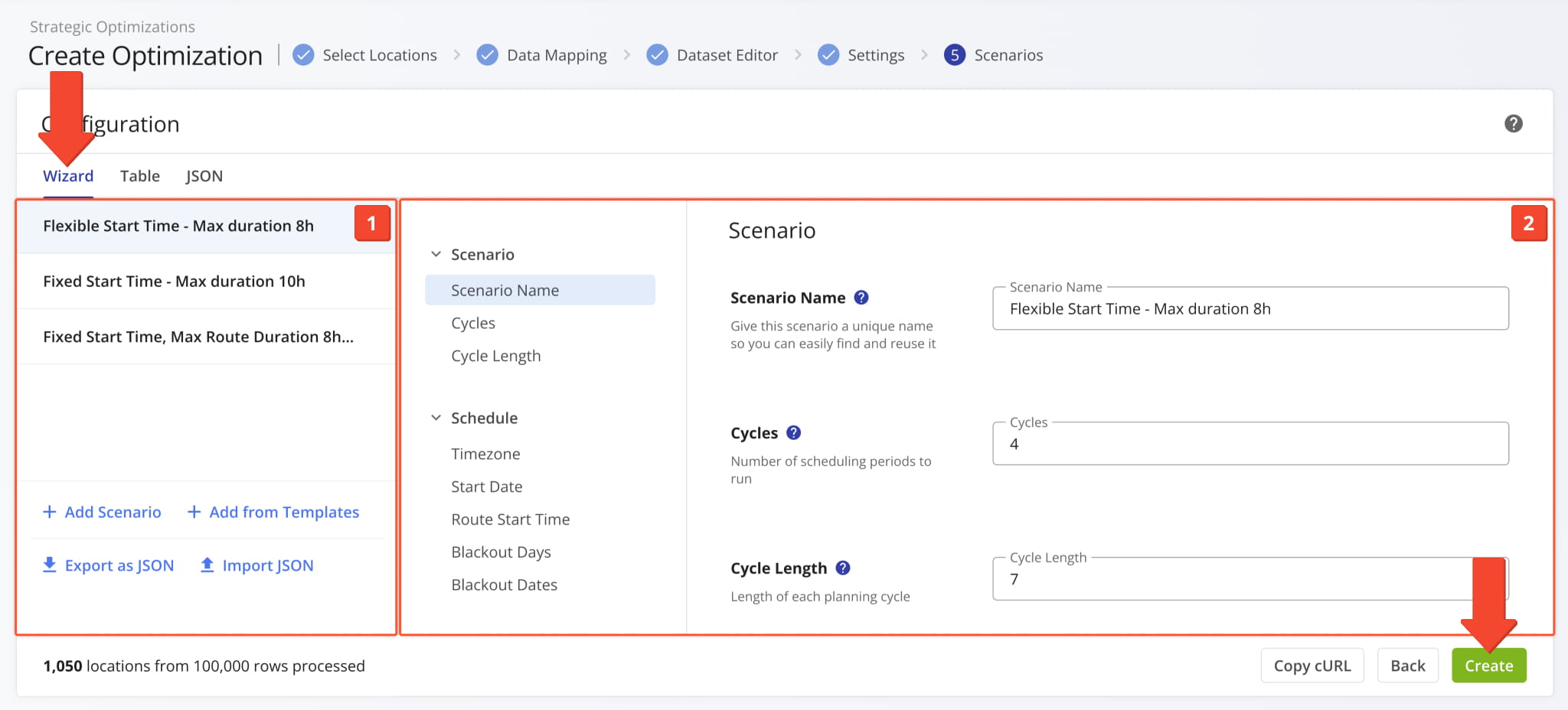
The “Configuration” window will automatically open with the “Wizard” tab selected and is divided into the following sections:
- Scenarios List: The Scenarios included in the Strategic Optimization.
You can select Scenarios, add or remove them, and export and import them as JSON code. - Scenario Settings: Scheduling and optimization settings for the selected Scenario.
Each Scenario represents a distinct collection of settings you can learn more about in the table below.
| Settings | Description | |
|---|---|---|
| Scenario | ||
| Scheduler Name | Name the scheduling scenario so it’s easy to find and reuse when planning cycles. | |
| Cycles | How many complete cycles to execute (cycle = 1 week by default). For example, enter “4” to plan 4 weeks. This determines how far ahead your routing schedule extends. | |
| Cycle Length | Length of each planning cycle in days. The default is 7 days (weekly). Adjust for custom planning periods – use “1” for daily, “14” for bi-weekly, or “30” for monthly cycles. Blackout Days still apply within each cycle. | |
| Schedule | ||
| Timezone | The timezone of your depot, facility, or departure address. Time Windows at customer destinations will use this timezone. | |
| Start Date | The first day of the planning period. The default is the current date (when optimizing). Set to a future date to prepare schedules in advance. | |
| Route Start Time | Routes will start at the specified time in the corresponding timezone (not your account timezone). | |
| Flexible Start Time | Set an earliest and latest time of day during which routes can start. Flexible Start Time enables optimal Time Windows route planning. | |
| Blackout Days | Weekdays to exclude from route planning, such as non-business days. | |
| Blackout Dates | Calendar dates to exclude from route planning, such as bank holidays, facility maintenance dates, etc. | |
| Optimization | ||
| Route Consistency | When enabled, the system will prioritize maintaining similar route structures across recurring cycles. | |
| Driver Breaks | Automatically schedule HOS breaks into optimized routes based on time, travel duration, or number of stops with adjustable break duration. | |
| Route End | Select the final destination type of routes in the scenario. Routes can end at any address for optimal route sequencing, end at the departure address for round trip routing, or end at the last address in the uploaded sequence. | |
| Business Rules | Input per-route constraint values such as maximum distance, vehicle capacity, number of destinations, etc. NOTE: “Max Route Duration” is required. | |
| Weather Adaptation | Automatically adjust Service Time and Travel Time based on real-time weather conditions along the route. | |
| Traffic Adjustment | Set Service Time and Travel Time Slowdown values to account for heavy traffic, service delays, etc. | |
| Advanced | ||
| Virtual Resource Profiles | Model scenario resources using generic profiles defined by skills, instead of assigning specific users. | |
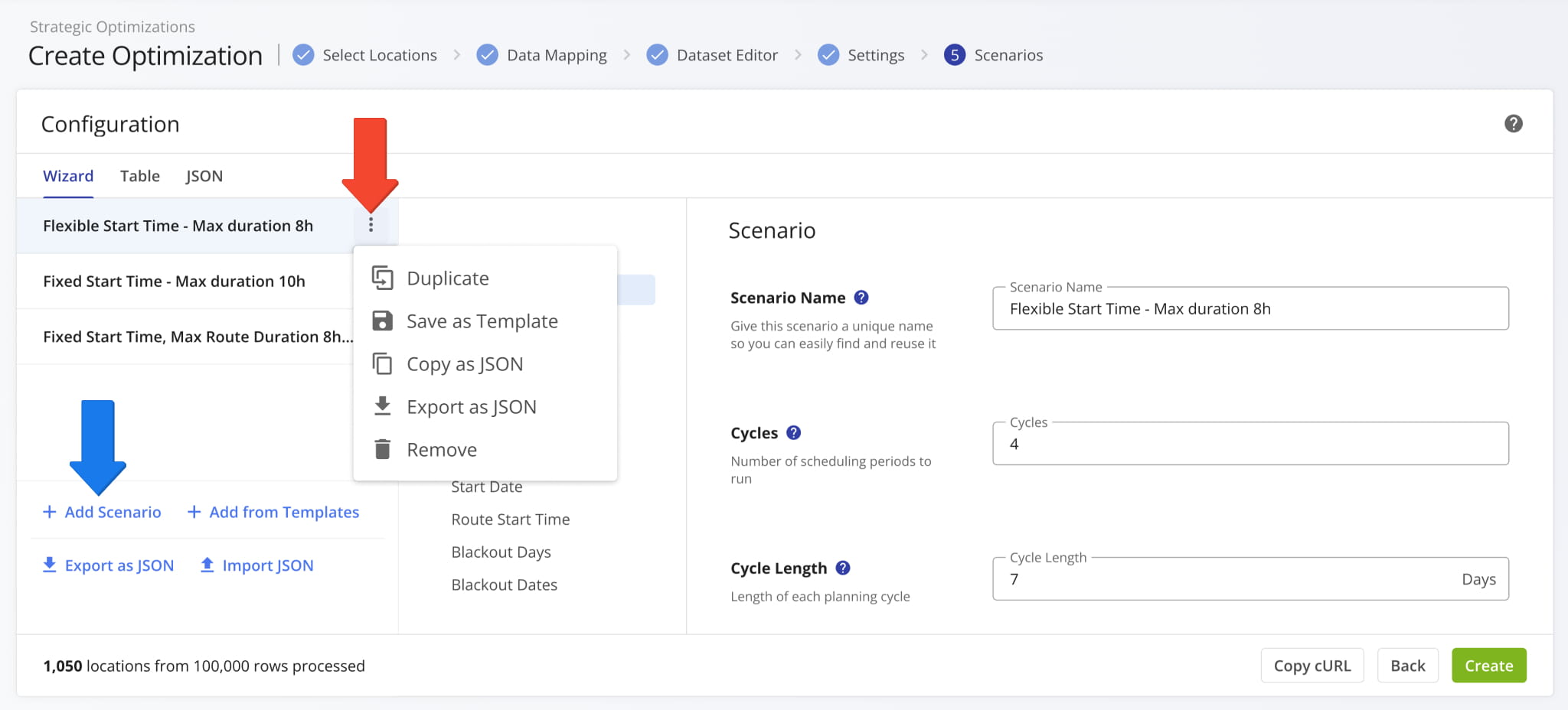
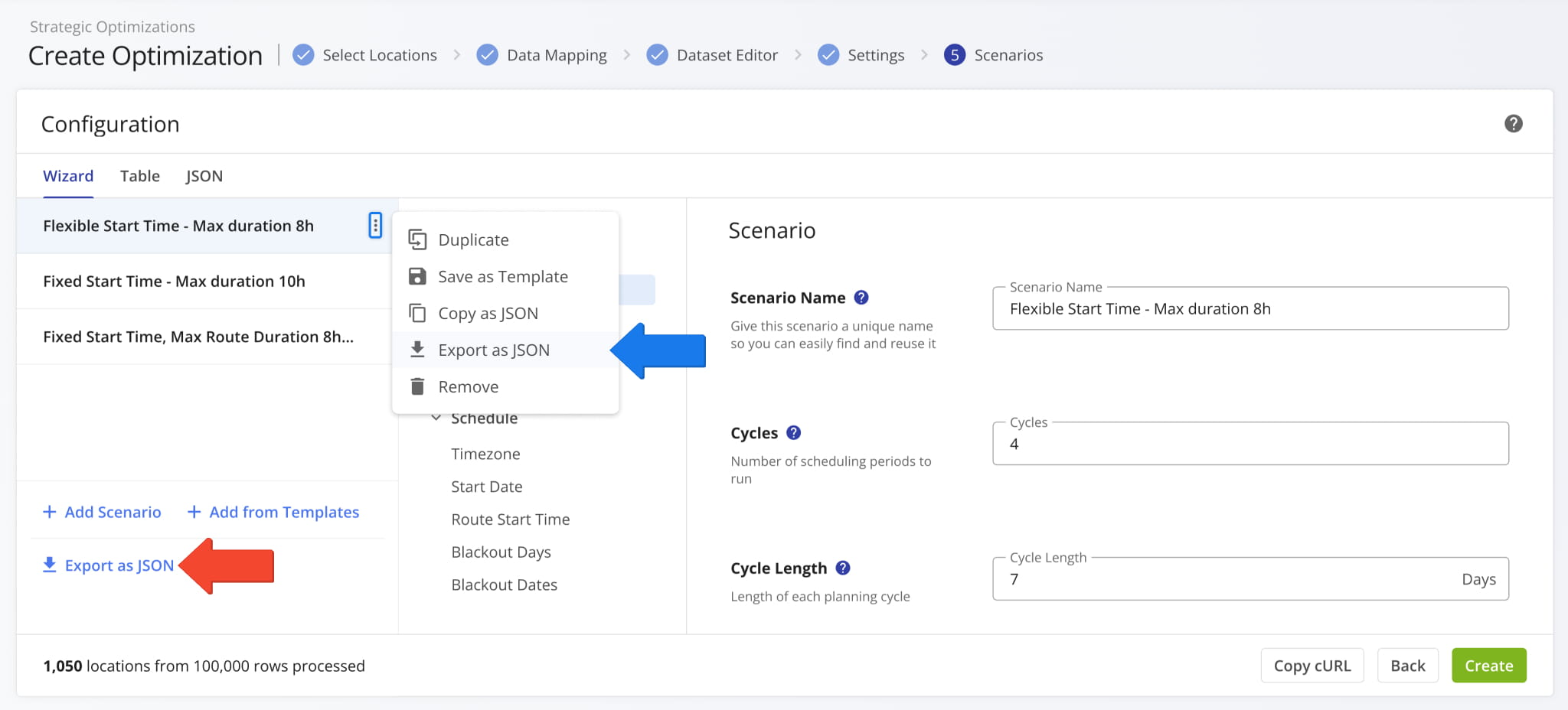
Use the Scenarios List to select and manage Scenarios during configuration. You can click the Three-Dot Icon to:
- Duplicate: Create a copy of a Scenario with the same settings and schedule rules.
- Save as Template: Save a Scenario as a template, which can be added as a new Scenario using the “Add from Templates” button.
- Copy as JSON: Copy a Scenario’s settings and schedule rules to your clipboard as JSON code.
- Export as JSON: Save a Scenario’s settings and schedule rules as a JSON file.
- Remove: Delete a Scenario from the list.
The “Add Scenario” button at the bottom of the list enables you to add more Strategic Scenarios to the list.
Optionally Export And Import Strategic Scenario Templates
Route4Me enables you to export and import Scenario Settings as JSON templates that can easily be reused as needed. Simply click the “Export as JSON” button in the Scenarios List to download a JSON file with your configured Scenarios.
To export a single Scenario, click the Three-Dot Icon and select “Export as JSON“.
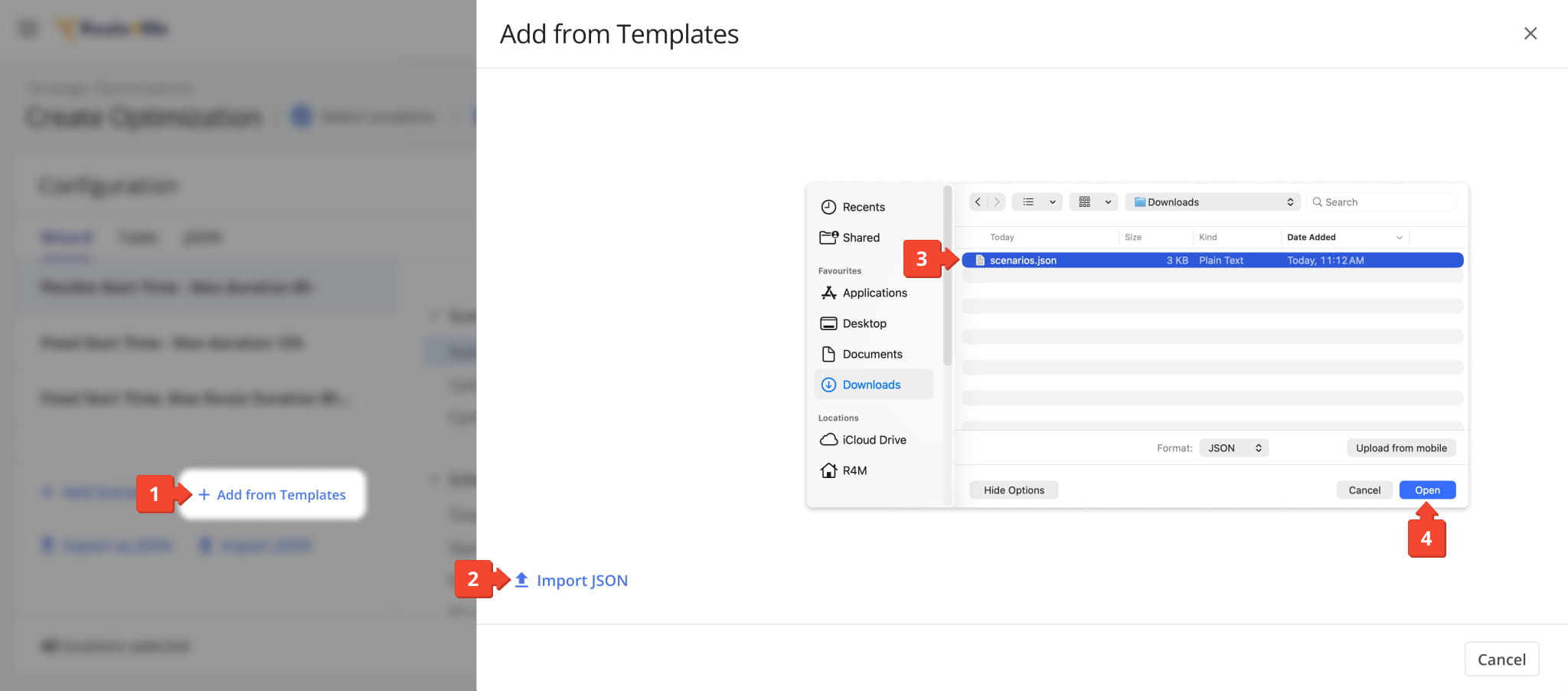
Once you’ve saved or exported a template, you can add its Scenarios to your configuration by following these steps:
- Click “Add from Templates” in the Scenarios List.
- Click “Import JSON“.
NOTE: If you’ve used the “Save as Template” option, the saved Scenario will automatically be added. - Find and select your previously exported JSON template with the file browser.
- Click “Open” to add the Scenarios from the template.
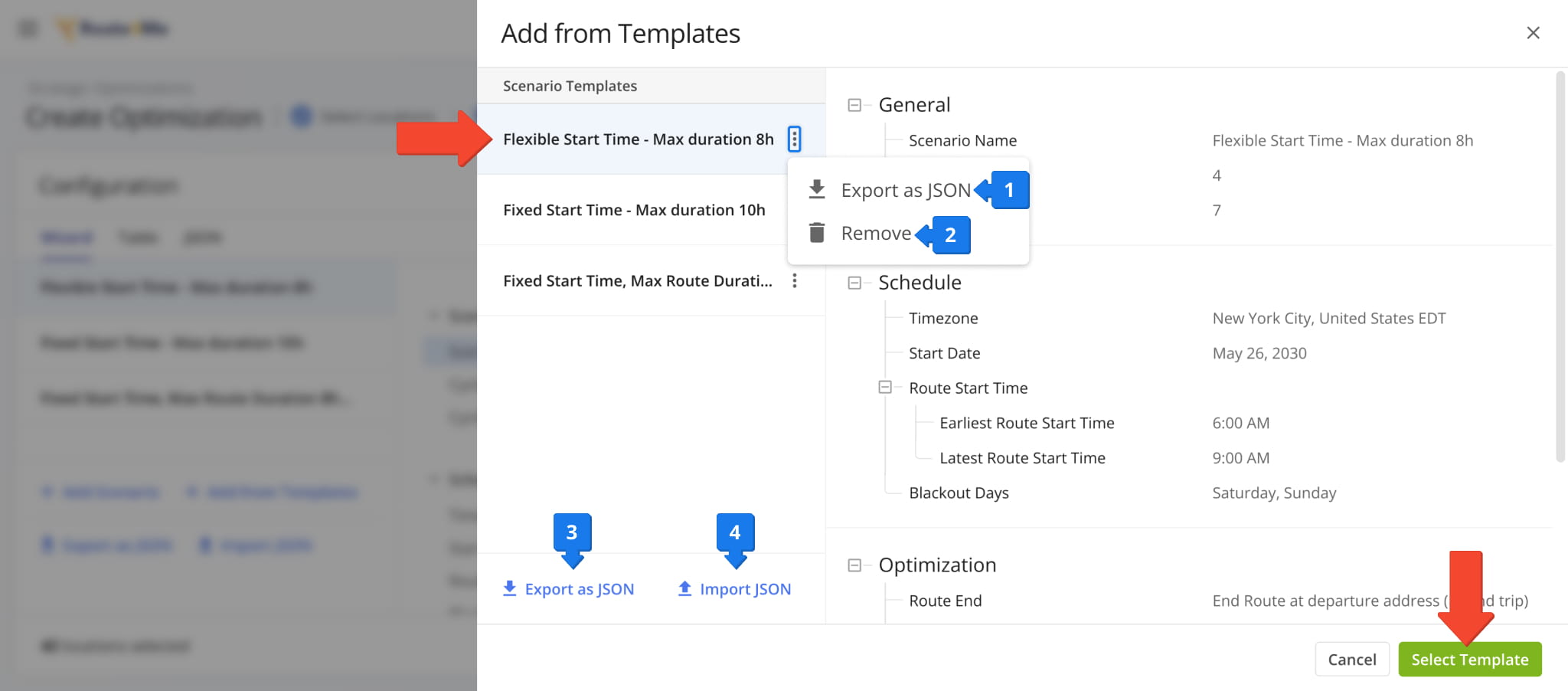
Next, you’ll see your “Scenario Templates” in the panel, along with their settings and schedule rules. Click a Scenario to check its settings and click “Select Template” to add the Scenario Templates to the Scenarios List.
The “Add from Templates” panel offers the following options to manage templates:
- Three Dot Icon > Export as JSON: Download a JSON file only with the selected Scenario from the template.
- Three Dot Icon > Remove: Remove the selected Scenario from the template.
- Export as JSON: Export the template as a new JSON file.
- Import JSON: Import a template with one or more Scenarios, as described above.
Compare Scenarios In The Configurator’s Table View Mode
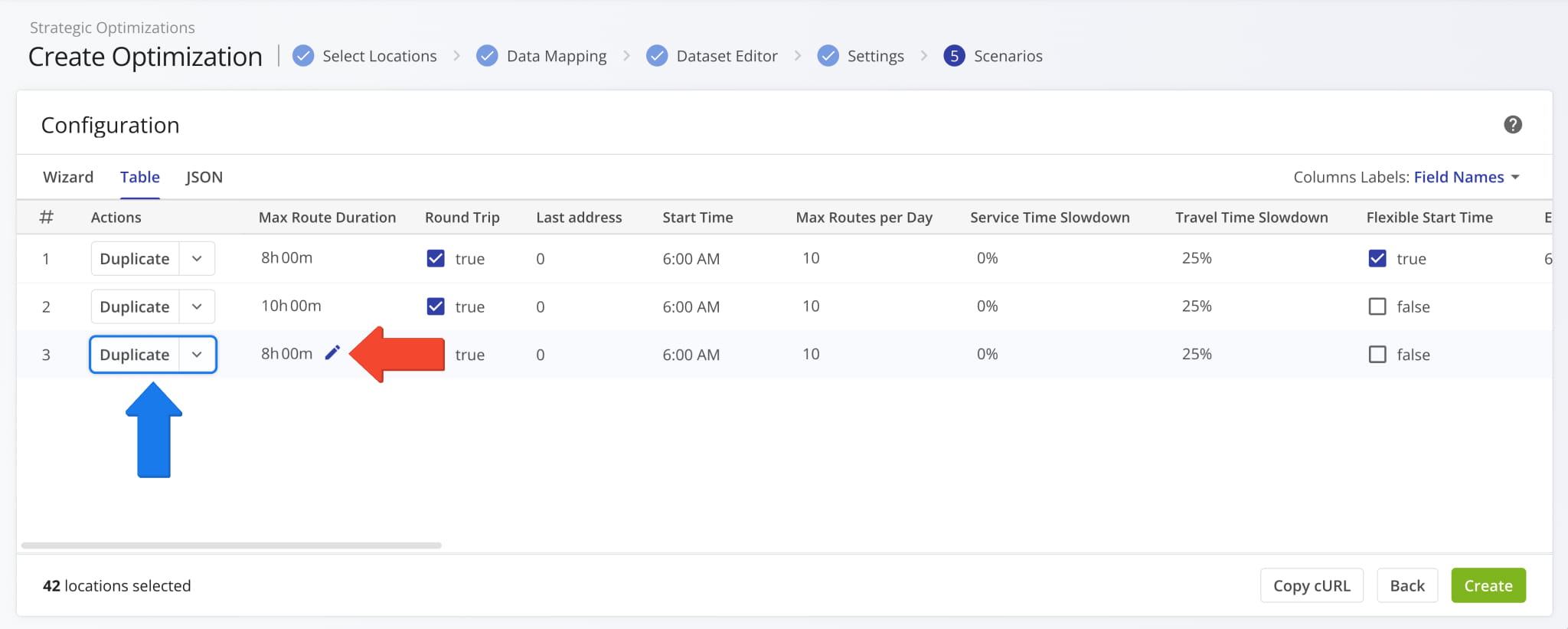
To easily compare the optimization settings across your Scenarios, click the “Table” tab. The table view maps Scenario settings as data columns, and you can use the “Column Labels” field to swap between field names and internal JSON identifiers.
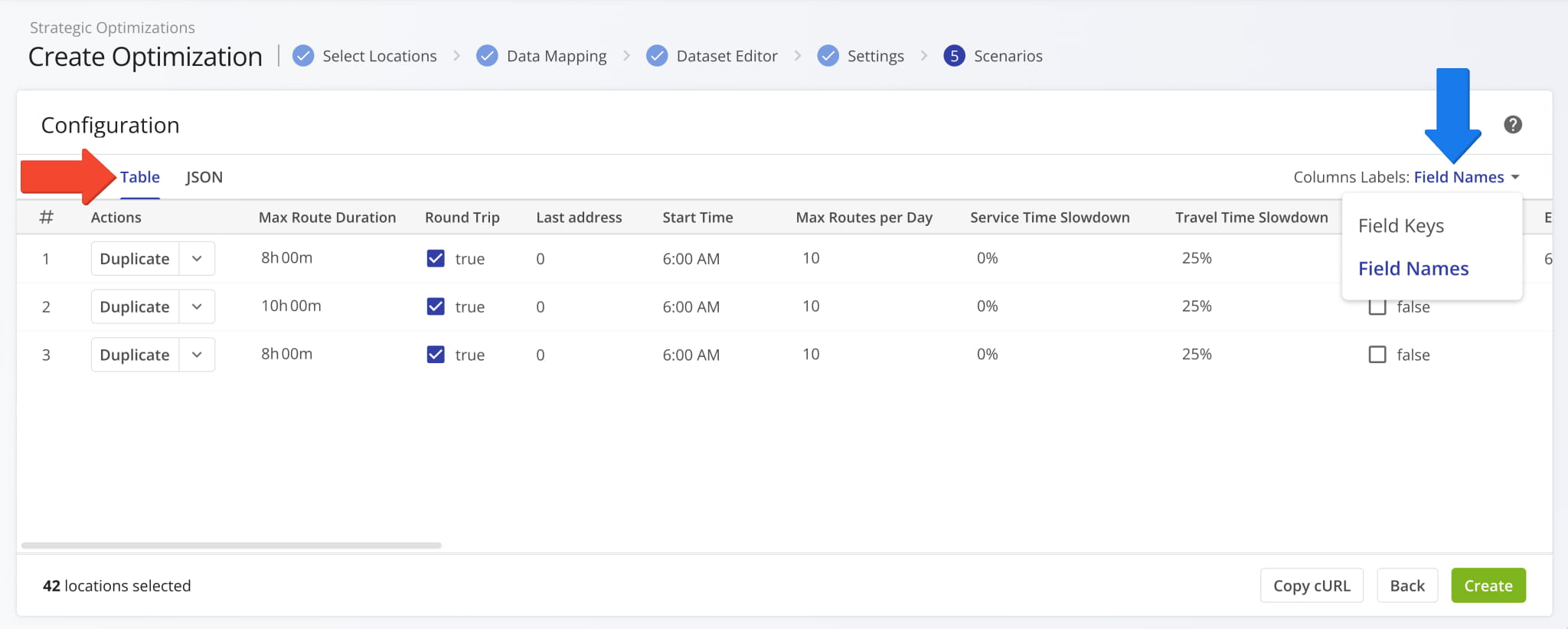
From the “Table” tab, you can adjust individual Scenario settings by clicking the Pencil Icon in the table. You can also click the “Duplicate” button to copy Scenarios or click the Down Arrow to remove Scenarios from the configurator.
Manually Input Strategic Scenario Settings In JSON Editor
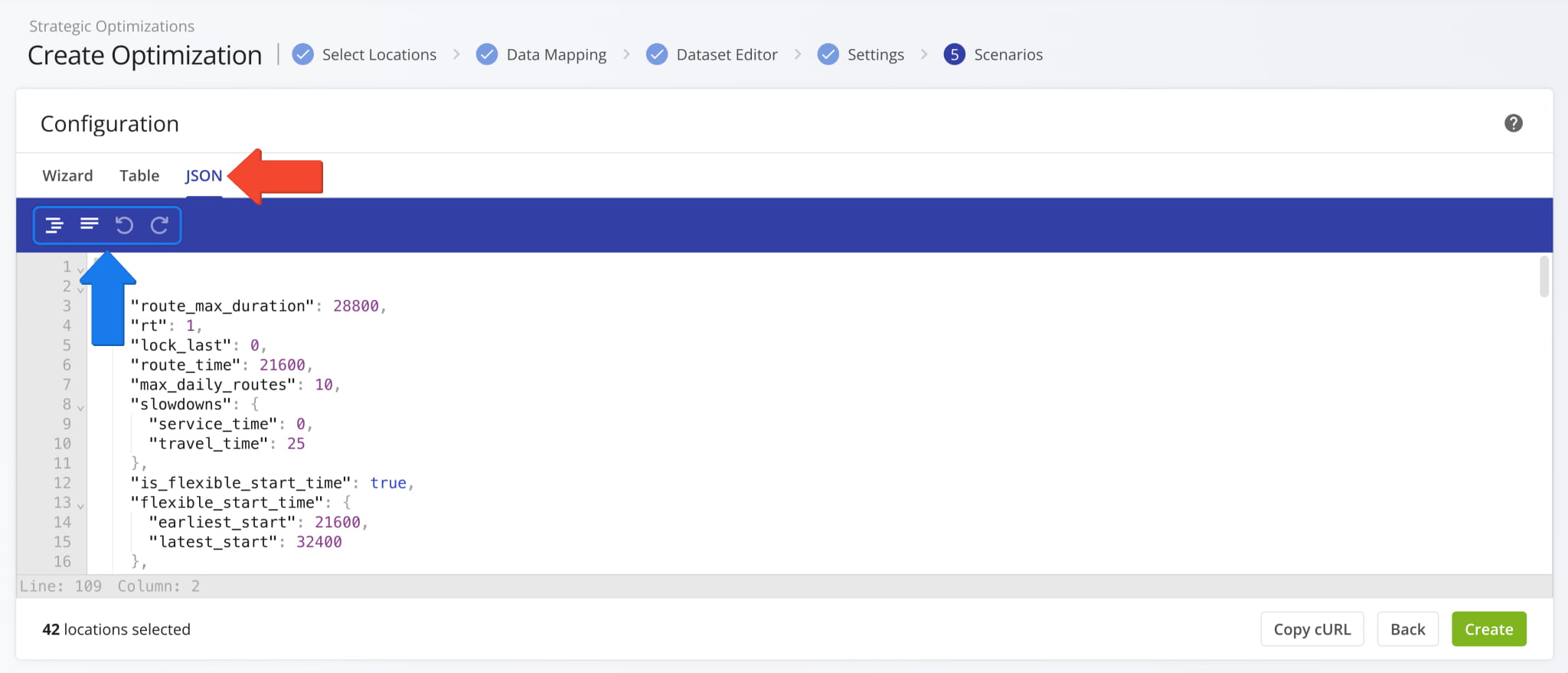
You can also configure Scenarios in a JSON editor, which you can open by clicking the “JSON” tab. Use the blue bar above the editor for formatting.
The table below shows a list of configuration parameters for recurring strategic cycle optimization, and you can find a JSON code snippet with the minimal necessary settings under the table.
| Configuration | Description | Example Value |
|---|---|---|
| route_max_duration | Maximum route duration in seconds. | ”28800” (8 hours) |
| route_date | Route start date expressed as a UTC unix timestamp in seconds. | ”1893452400” (01.01.2030) |
| rt | Round Trip configuration. Defines whether the route ends at the final destination or returns to the depot. | ”TRUE” or “FALSE“ |
| route_time | Scheduled route start time relative to “route_date” in seconds. | ”43200” (12PM) |
| parts | Limits the maximum number of routes that can be scheduled on the same day. | 99 |
| vehicle_capacity | Maximum number of units vehicles can carry. | 99 |
| vehicle_max_distance_mi | Maximum distance vehicles can travel (in miles) used as a constraint when planning routes. | 420 |
| vehicle_max_cargo_weight | Maximum vehicle weight capacity constraint used for planning routes. | 450 |
| vehicle_max_cargo_volume | Maximum vehicle cubic volume capacity constraint used for planning routes. | 1800 |
| max_tour_size | Maximum number of destinations for routes in a scenario. | 20 |
| lock_last | Determines if the final destination on the route will be fixed (same as final destination in the uploaded file). | ”TRUE” or “FALSE“ |
| breaks | Driver Breaks JSON list. Automatically inserts Break Destinations based on the “mode” value (0: Elapsed Time, 2: travel Time, 3: Locations Visisted) according to the variable parameters (see example). | {“mode”: 2,”mode_params”: [3600],”repeats_number”: 1,”duration”: 1800} |
| advanced_constraints | JSON list which contains advanced route planning constraints values such as “max_capacity“, “max_cargo_weight“, “max_cargo_volume“, “members_count“, “available_time_windows“ | [{“max_capacity”:50,”max_cargo_weight”:7200,”max_cargo_volume”:1000,”}] |
| balance | JSON object which defines a “mode” for route balancing, currently supports balancing routes based on destination count. | {“mode”: “destinations_count”} |
| subtour_max_revenue | Maximum revenue per route in the scenario. | 1200 |
| slowdowns | JSON object which includes Traffic Slowdown configurations (Service Time Slowdown, Travel Time Slowdown). | N/A |
| service_time | Service Time Slowdown expressed as a percentage value in the “slowdowns” JSON object. | ”25” (25%) |
| travel_time | Travel Time Slowdown expressed as a percentage value in the “slowdowns” JSON object. | ”25” (25%) |
| is_flexible_start_time | Defines whether planned routes will use Flexible Start Time scheduling. | ”true” or “false“ |
| flexible_start_time | JSON object which includes the earliest and latest start time values for dynamic route start time scheduling with time windows. | N/A |
| earliest_start | Earliest permitted route start time relative to “route_date” in seconds. | ”43200” (12PM) |
| latest_start | Latest permitted route start time relative to “route_date” in seconds. | ”46800” (1PM) |
| timezone | Time zone for route scheduling set in your Account Settings. | ”America/New York“ |
| scheduler | JSON object which contains route schedule data. | N/A |
| start_date | Calendar date on which the first strategic cycle is scheduled to begin. | ”2030-07-04“ |
| cycles | Number of planned strategic cycles to optimize routes for. | ”4“ |
| blackout_days | Days of the week to omit when creating recurring route cycles. | [“sat”, “sun”] |
| blackout_dates | Calendar dates, such as Holidays, to omit from recurring route cycles. | [“12-25”, “01-01”] |
| scheduler_name | Custom name of the configuration with your current settings. | ”Strategic Scheduler“ |
[
 {
  "route_max_duration": 28800,
  "rt": 1,
  "route_time": 43200,
  "parts": 99,
  "slowdowns": {
   "service_time": 10,
   "travel_time": 10
  },
  "is_flexible_start_time": false,
  "timezone": "America/New_York",
  "scheduler": {
   "start_date": "2030-01-01",
   "cycles": 4,
   "blackout_days": [],
   "blackout_dates": []
  },
  "scheduler_name": "Strategic Cycle Planning Configuration",
 }
]
Run Strategic Route Optimization With Your Scenario Settings
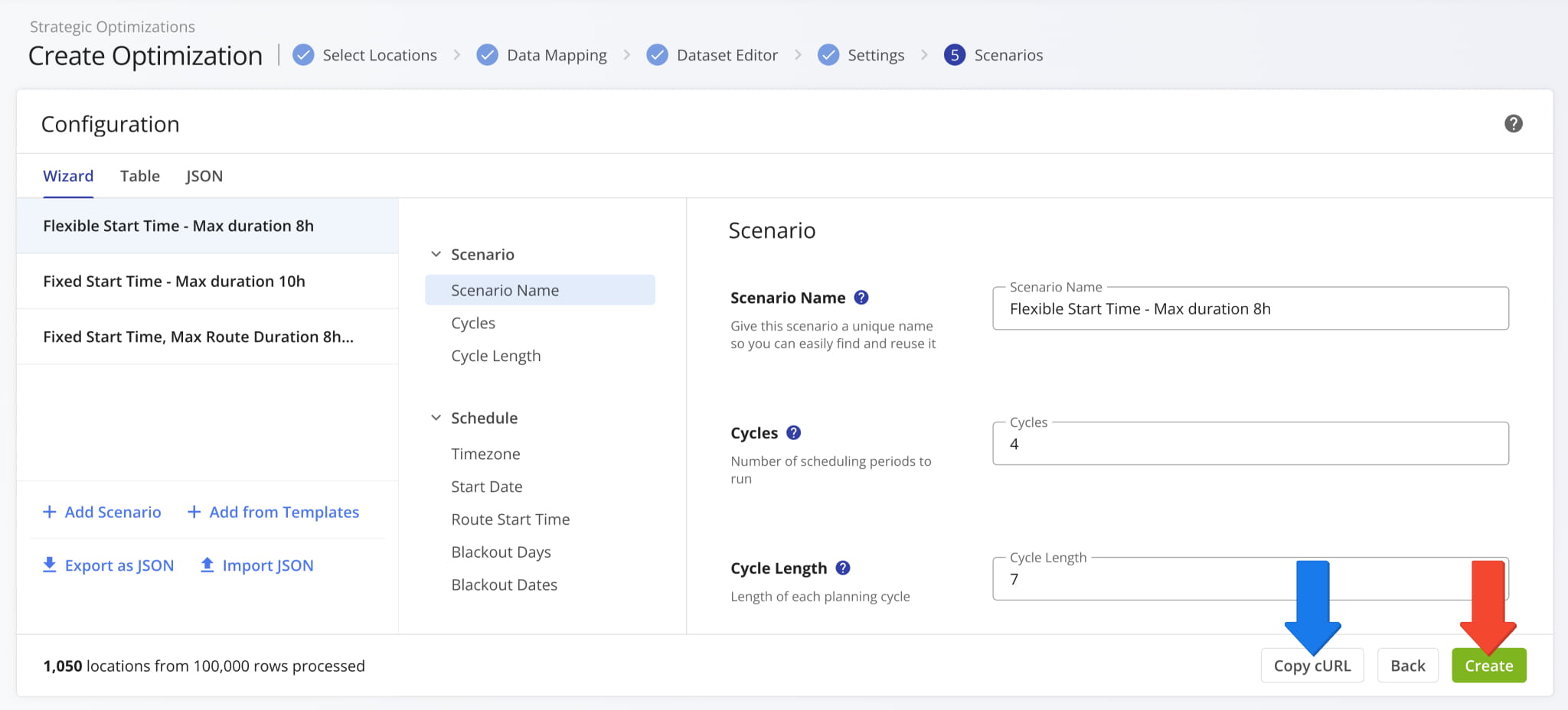
When you’re done setting up Scenarios, click “Create” to run the optimization and proceed to syncing strategic routes.
You can also copy a pre-formatted, executable request string with your Strategic Optimization setup, including all schedules, scenario settings, and address data by clicking the “Copy cURL” button.
Route4Me will automatically use your data and Scenario Settings to create the most optimal draft routes according to your preferences. The Strategic Scenarios and their respective routes will be grouped into a new Strategic Optimization.

The new Strategic Optimization will open with the “AI Summary” tab selected. You’ll see an automatically generated high-level overview and performance report. It compares draft routes to evaluate Scenario performance and provide suggestions.
From an open Strategic Optimization, you can review its AI Summary, check routing trends, manage Strategic Scenarios and Locations, etc. Learn more about Strategic Optimization Management.
Open Your Strategic Optimizations

Visit Route4Me's Marketplace to Check out Associated Modules:
- Operations
Audit Logging and Activity Stream
- Operations
Custom Data Add-On
- Operations
Advanced Team Management Add-On
About author: Kristian Andreev

