
Upload Locations For Strategic Route Planning And Optimization
Route4Me’s Strategic Routing simplifies route planning with complex schedules over long planning periods. You add locations and schedules, configure optimization settings, and Route4Me’s enterprise routing engine automatically plans and optimizes Strategic Scenarios and routes according to your preferences. In this guide, you’ll learn how to create new Strategic Optimizations by uploading Locations and schedule data as a spreadsheet.
NOTE: Strategic Optimization Routes are draft routes that can’t be assigned, started, and completed until they’ve been synced.
Table of Contents
Upload Locations Spreadsheet For Strategic Routing
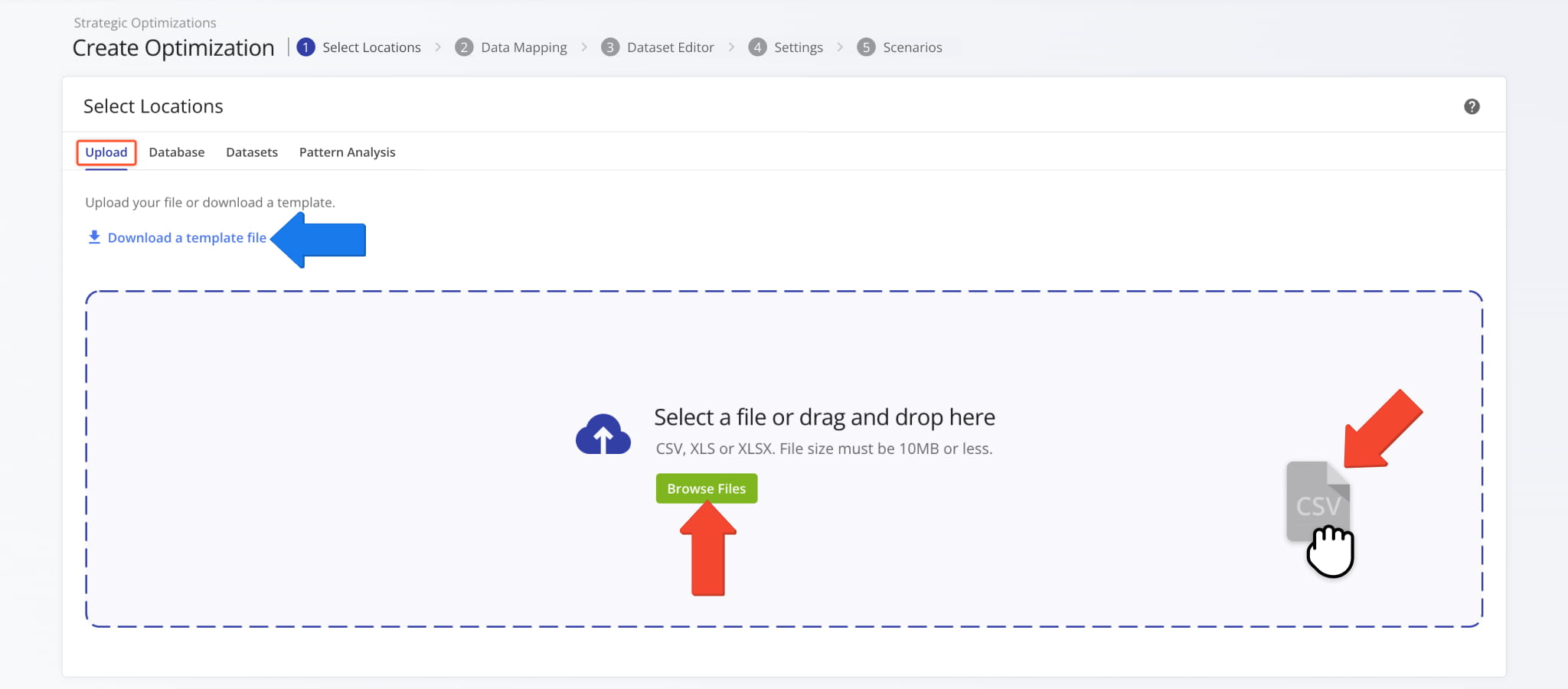
To start creating Strategic Optimizations, use the Navigation Menu and select “Strategic Routing” > “Plan New Scenarios“. In the “Upload” tab, click “Browse Files” to select a spreadsheet or simply drag and drop a file into the field.
You can also click “Download a template file” to get a pre-formatted sheet where you can input your Locations and schedules.
Create New Strategic Optimization
Location Data Mapping And Column Validation
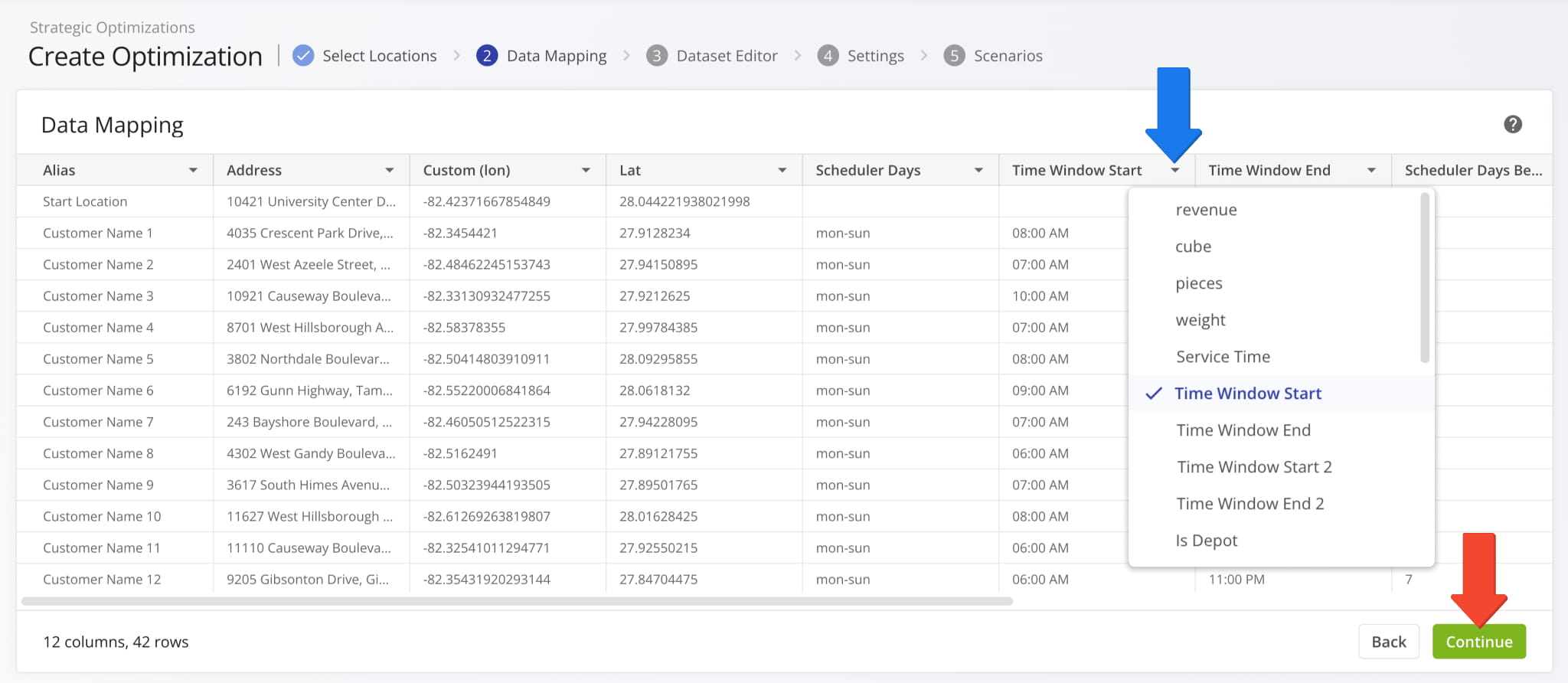
Route4Me will automatically validate your data and map it to internal variables for optimization. If a column wasn’t validated, click the Down Arrow and select the correct data type from the menu. Once you’ve confirmed your uploaded data, click “Continue“.
If a data column is necessary but not already listed, select “Custom” to map its data to destinations as Route4Me Custom Data.
NOTE: Especially large datasets with thousands of Locations and complex schedules may take slightly longer to process.
Formatting a spreadsheet for strategic planning is similar to regular Route4Me Spreadsheet Formatting. The table below outlines supported data values and shows mandatory columns for strategic optimization with recurring routing.
Download Example Locations Spreadsheet
NOTE: If a location has no specific schedule and should be visited once per cycle, all scheduling fields must be left blank.
| Column (Key) | Description | Mandatory | Expected Value |
|---|---|---|---|
| Address (address) | Street address of the location. Can be used alone or alongside coordinates. | Text | |
| Days (scheduler_days) | Days of the week of a planning cycle on which a location should be included in routes. | mon, tue, wed, thu, fri, sat, sun | |
| Starting Cycle (scheduler_starting_cycle) | On which cycle of the recurring schedule should the location first be included in routes. | Number | |
| Days Between Cycle (scheduler_days_between_cycle) | Number of days between planned visitation cycles. | Number | |
| Days Range (scheduler_days_range) | Adds days before and after the Days Between Cycle value to account for delays and scheduling specifics. | Number | |
| Visits Per Cycle (scheduler_visits_per_cycle) | Maximum number of times the location can be included in routes per recurring schedule cycle. | Number | |
| Days Between Visits (“scheduler_min_days_between_visits”) | Minimum number of days that must pass before the location can be scheduled for another visit. | Number | |
| Alias (alias) | Name of the location, used to easily identify locations and find them via search fields. | Text | |
| Depot (is_depot) | If the location is a route origin point (depot) or a destination location. | TRUE/FALSE | |
| Time Window Start (time_window_start) | Time of day from which the location is available for visit. | Time (hh:mm) | |
| Time Window End (time_window_end) | Time of day until which the location is available for visit. | Time (hh:mm) | |
| Service Time (service_time) | Duration of planned location visit in seconds. | Time (ss) | |
| Latitude (lat) | Coordinate indicator of the location. | Coordinate | |
| Longitude (lat) | Coordinate indicator of the location. | Coordinate | |
| Customer UUID (CustomerUUID) | Unique internal ID used to identify a unique Customer in the system | UUID String | |
| Frequency (frequency) | How often the location can be planned for visitation when scenario routes are accepted. | Number |
Fine-Tune Strategic Routing Locations With The Dataset Editor
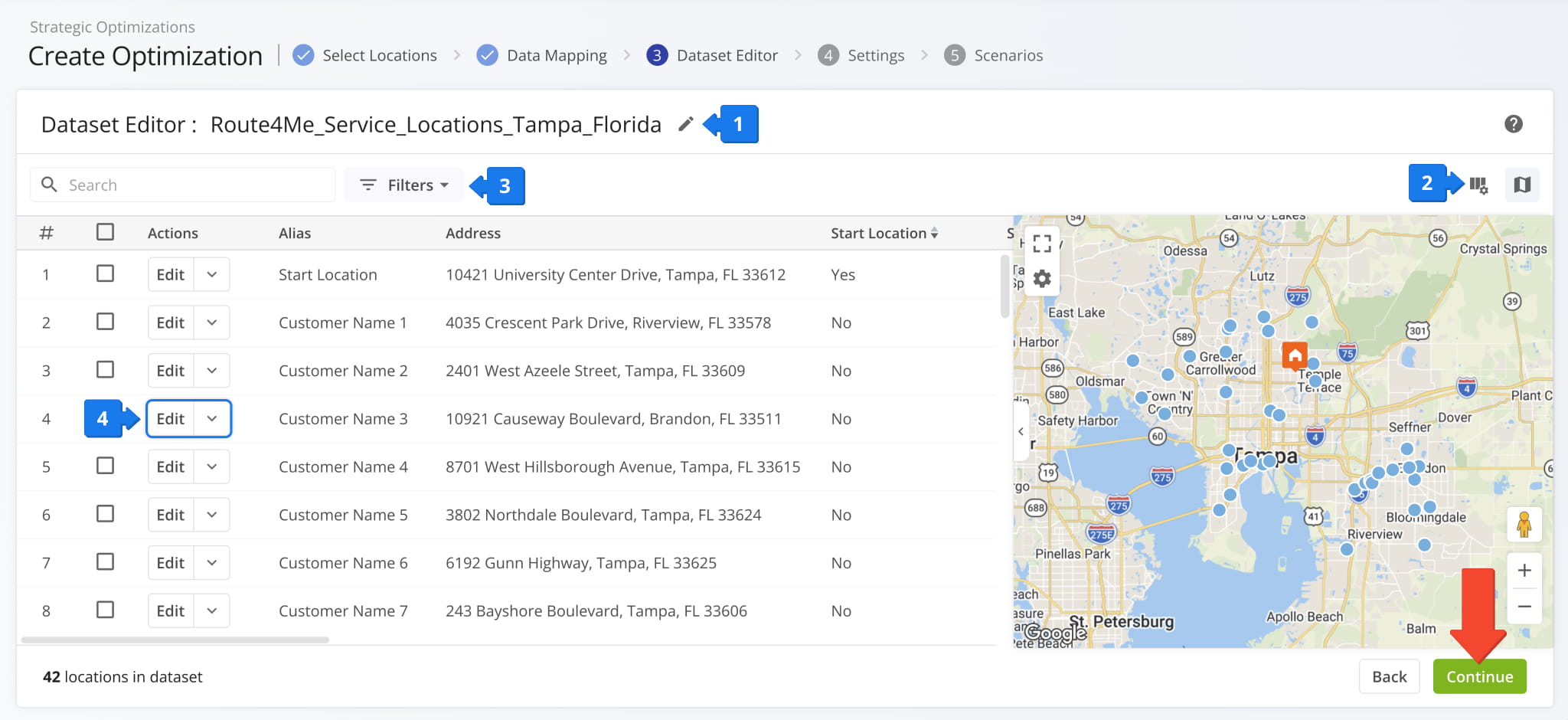
After confirming your uploaded data, you’ll see the “Dataset Editor“. This is where you can adjust and fine-tune your Strategic Dataset, Location details, and schedule rules. The Dataset Editor enables you to:
- Rename the dataset.
- Configure Location data columns.
- Use filters to find specific Locations.
- Edit Locations or remove them from the dataset.
When you’re done configuring dataset settings, click “Continue“. NOTE: Learn more about Strategic Routing Datasets.
Select Start Locations For Strategic Route Optimization
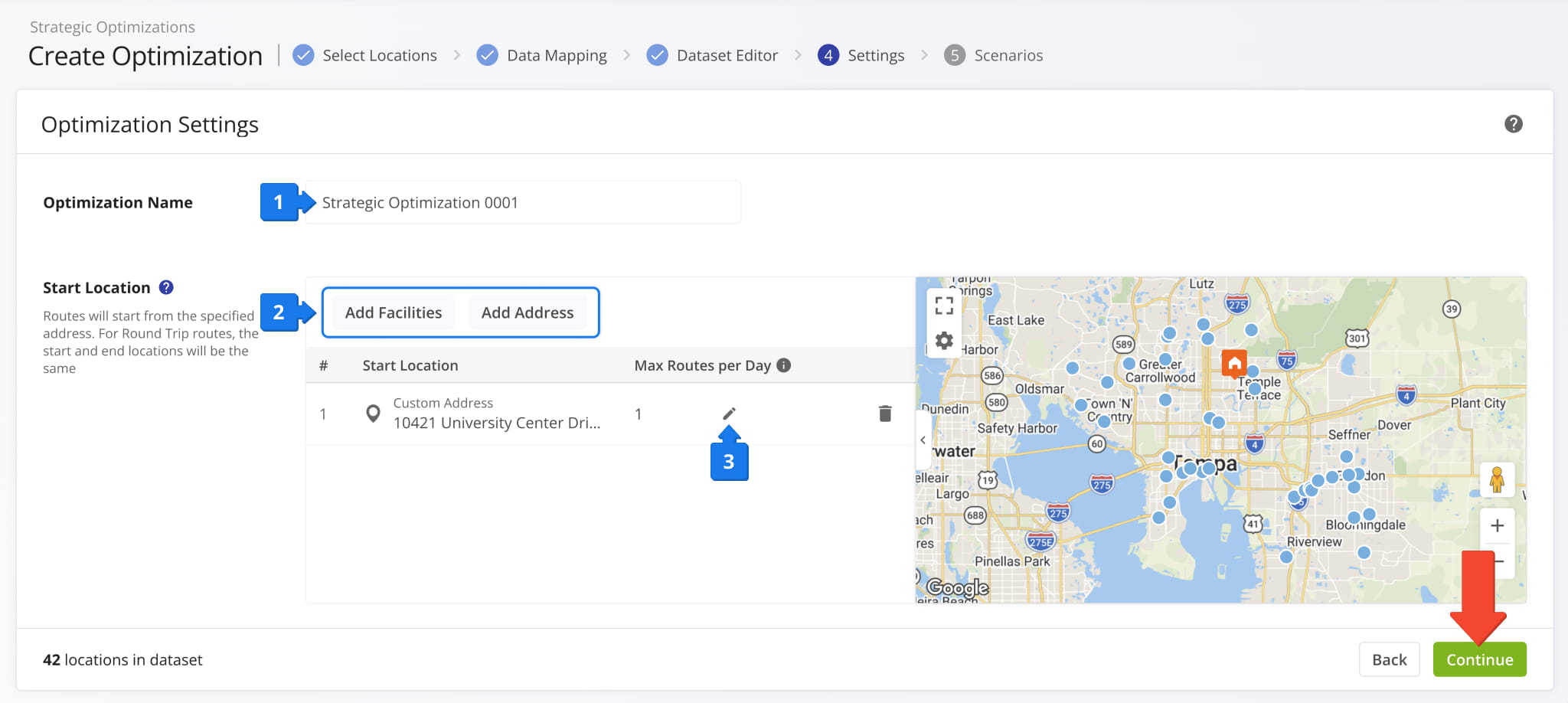
Finalizing your dataset takes you to the “Settings” section, where you can:
- Input a name for your Strategic Optimization in the “Optimization Name” field.
- Select route start locations (depots) for the Strategic Optimization.
The “Add Facilities” button lets you select from your Company Facilities, while “Add Address” allows manual address input. - Set a “Max Routes per Day” limit for how many routes can be scheduled on the same day from a specific start location.
The selected Facilities and addresses will be used as route origins when optimizing draft routes. Click “Continue” to proceed.
Configure Strategic Scenarios And Optimization Settings
Once you’ve uploaded your data and set departure addresses, you can configure Scenario Settings. The “Configuration” window will automatically open with the “Wizard” tab selected and is divided into the following main sections:
- Strategic Scenarios List: The scenarios included in the Strategic Optimization. You can select Scenarios, add or remove them, and export and import them as JSON code.
- Scenario Settings: Scheduling and optimization settings for the selected scenario.
Each Scenario represents a distinct collection of settings. When you’re done setting up Scenarios, click “Create“.

Route4Me will automatically use your data and Scenario Settings to create the most optimal draft routes according to your preferences. The Strategic Scenarios and their respective routes will be grouped into a new Strategic Optimization.

Open And Manage Strategic Optimizations
The new Strategic Optimization will open with the “AI Summary” tab selected. You’ll see an automatically generated high-level overview and performance report. It compares draft routes to evaluate Scenario performance and provide suggestions.
From an open Strategic Optimization, you can review its AI Summary, check routing trends, manage Strategic Scenarios and Locations, etc. Learn more about Strategic Optimization Management.
Open Your Strategic Optimizations

Visit Route4Me's Marketplace to Check out Associated Modules:
- Operations
Audit Logging and Activity Stream
- Operations
Custom Data Add-On
- Operations
Advanced Team Management Add-On
About author: Kristian Andreev

