
Reschedule Routes – Update Single Or Multiple Routes
Efficient route scheduling is crucial for keeping deliveries, appointments, and service calls on track. Route4Me makes it easy for enterprise businesses to update schedules via its powerful last mile route software. Whether you’re adjusting one or multiple routes at once, this guide will show you how to streamline the rescheduling process from your Routes List and Route Editor.
Table of Contents
Reschedule Routes From Routes Page
Reschedule A Single Route – Update A Delivery Or Appointment
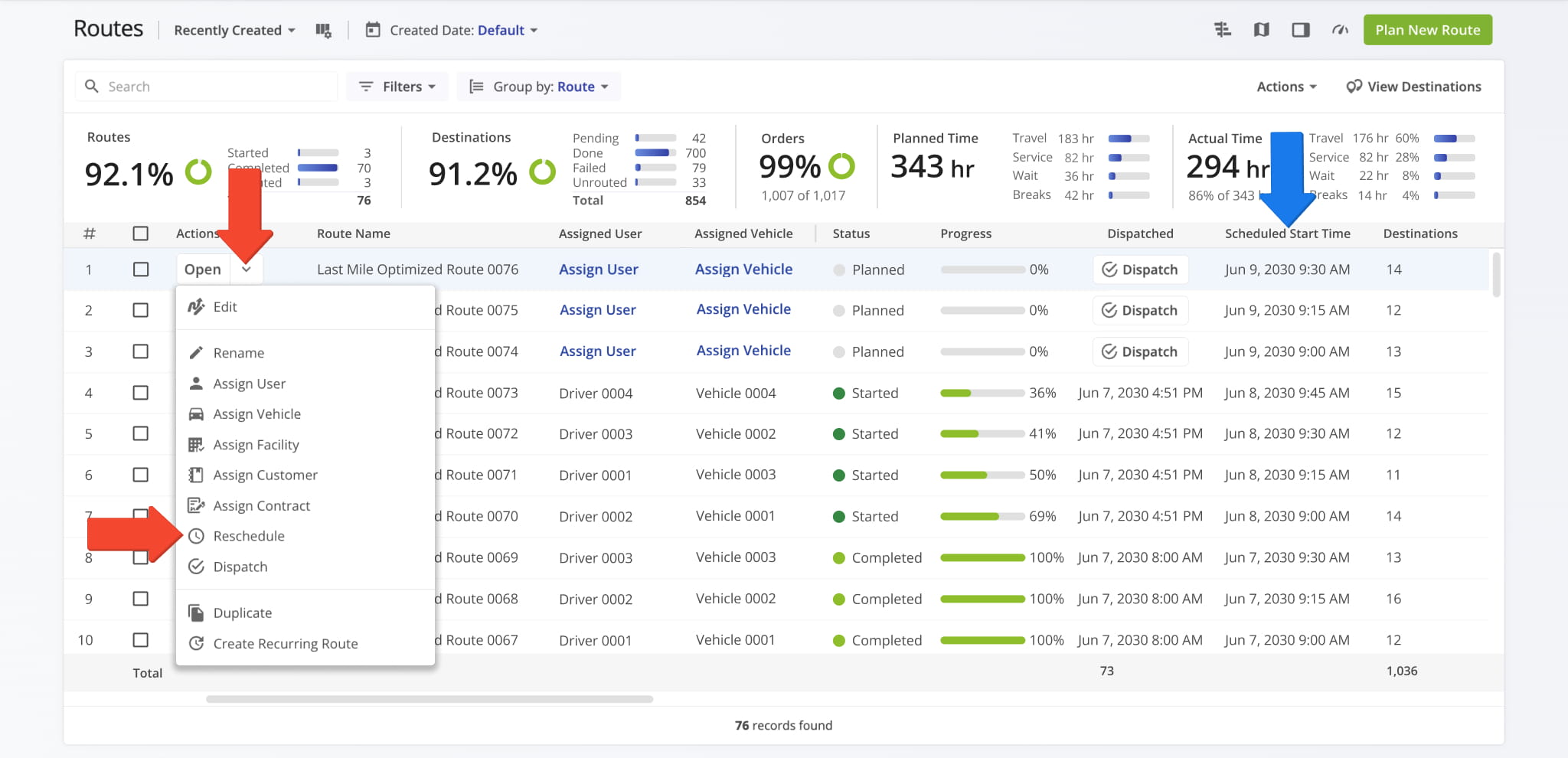
To reschedule a route from your Routes List, go to “Dynamic Routing” > “Routes” from the Navigation Menu. Locate the route you want to adjust, click the Down Arrow next to it, and select “Reschedule“.
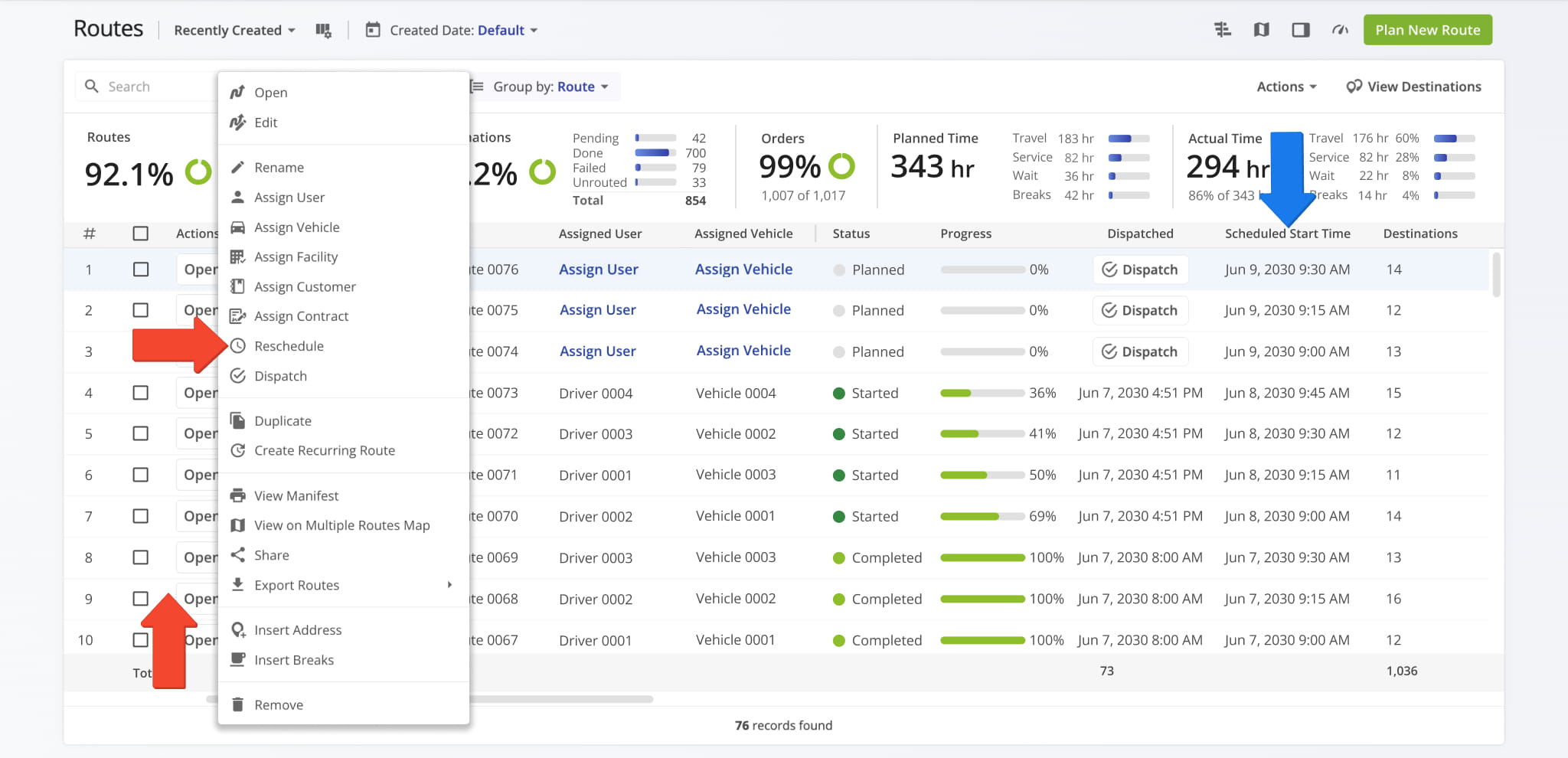
You can also reschedule a single route from the Routes Timeline. Right click the route you wish to update and select “Reschedule“.
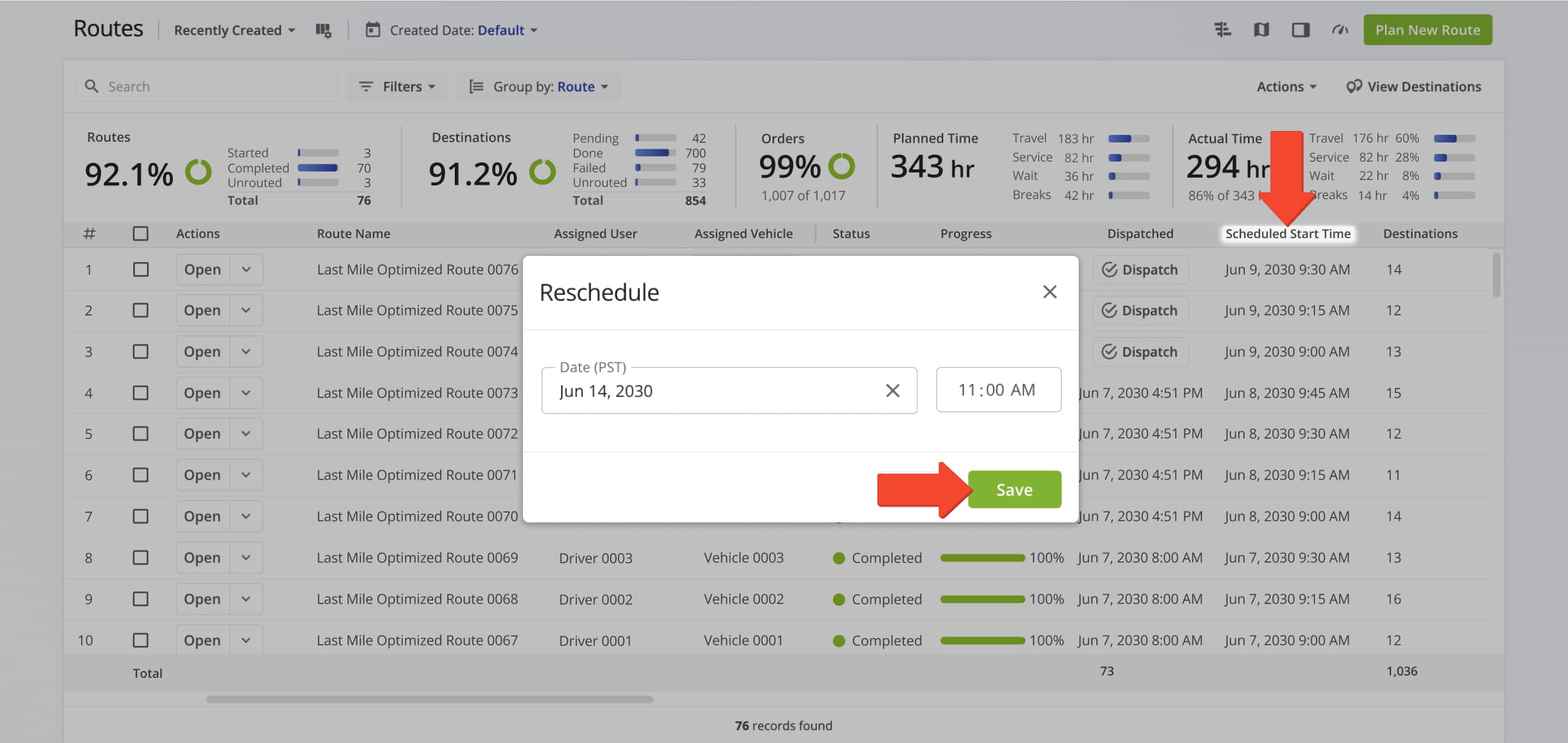
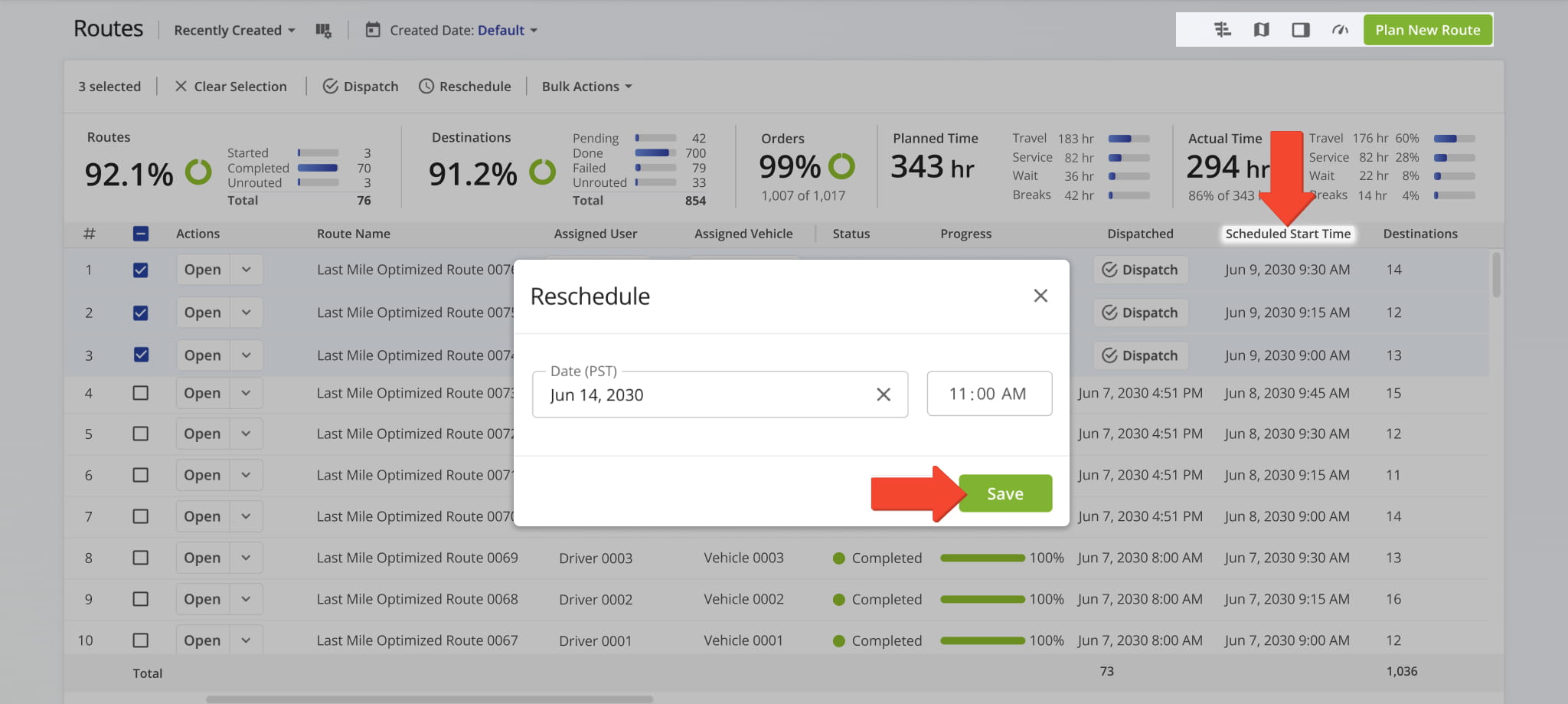
You can enter the new date and time into the Reschedule Window. After clicking “Save“, the system will update the route, displaying the revised start date and time in the “Scheduled Start Time” column.
NOTE: After rescheduling a route, double-check that the new date and start time align with your drivers’ availability and any other scheduled routes to avoid conflicts.
Reschedule Multiple Routes – Save Time With Batch Updates
To update multiple routes at once, select the checkboxes next to the desired routes in your Routes List and click “Reschedule“.
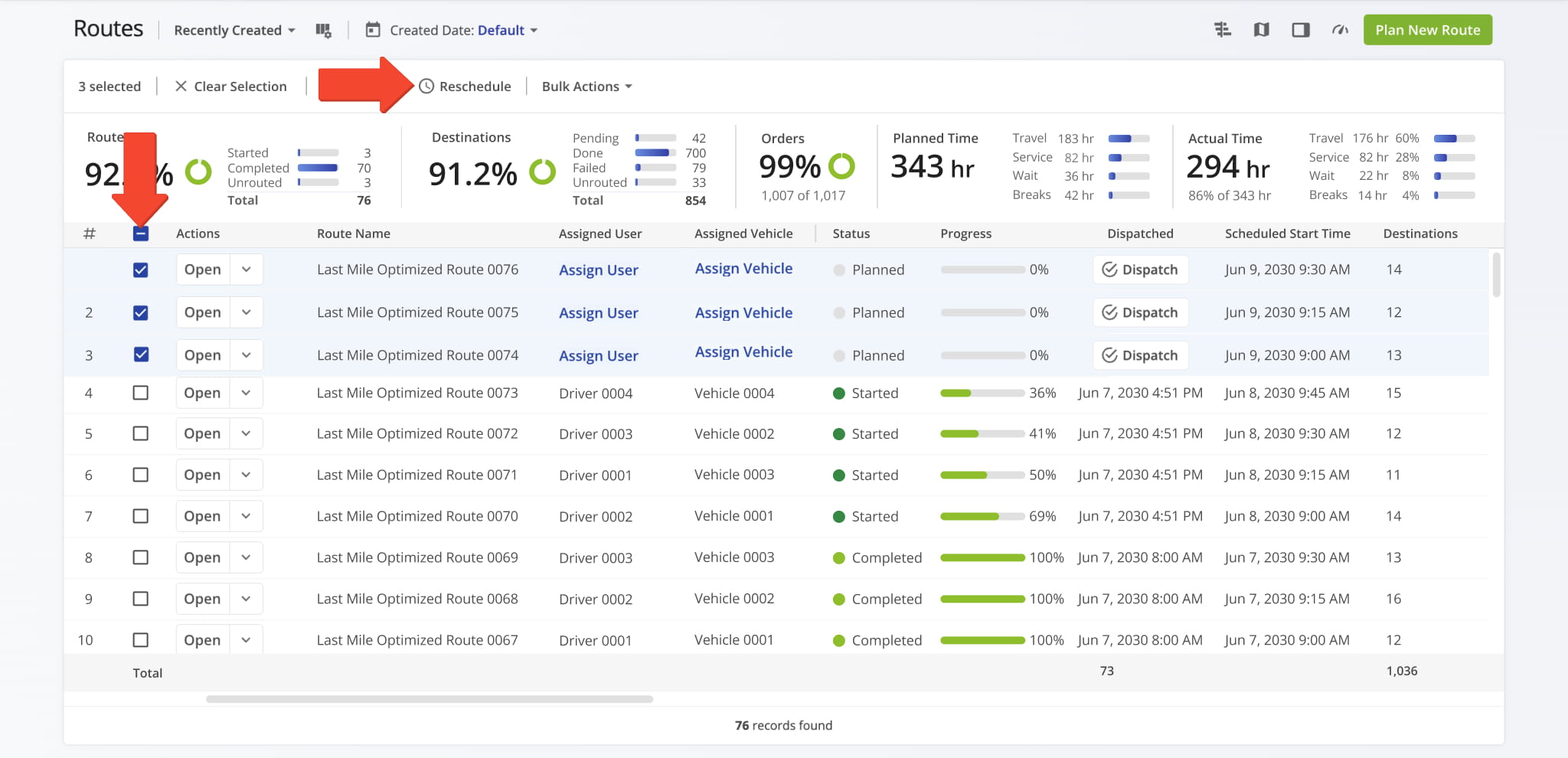
Enter the new date and time into the Reschedule Window and click “Save“. The system will update the route, displaying the revised start date and time in the “Scheduled Start Time” column.
NOTE: Batch rescheduling can save significant time when handling changes across multiple routes. However, Route4Me recommends reviewing updated schedules to ensure driver assignments and delivery sequences remain accurate and efficient.
Reschedule Route From Route Editor
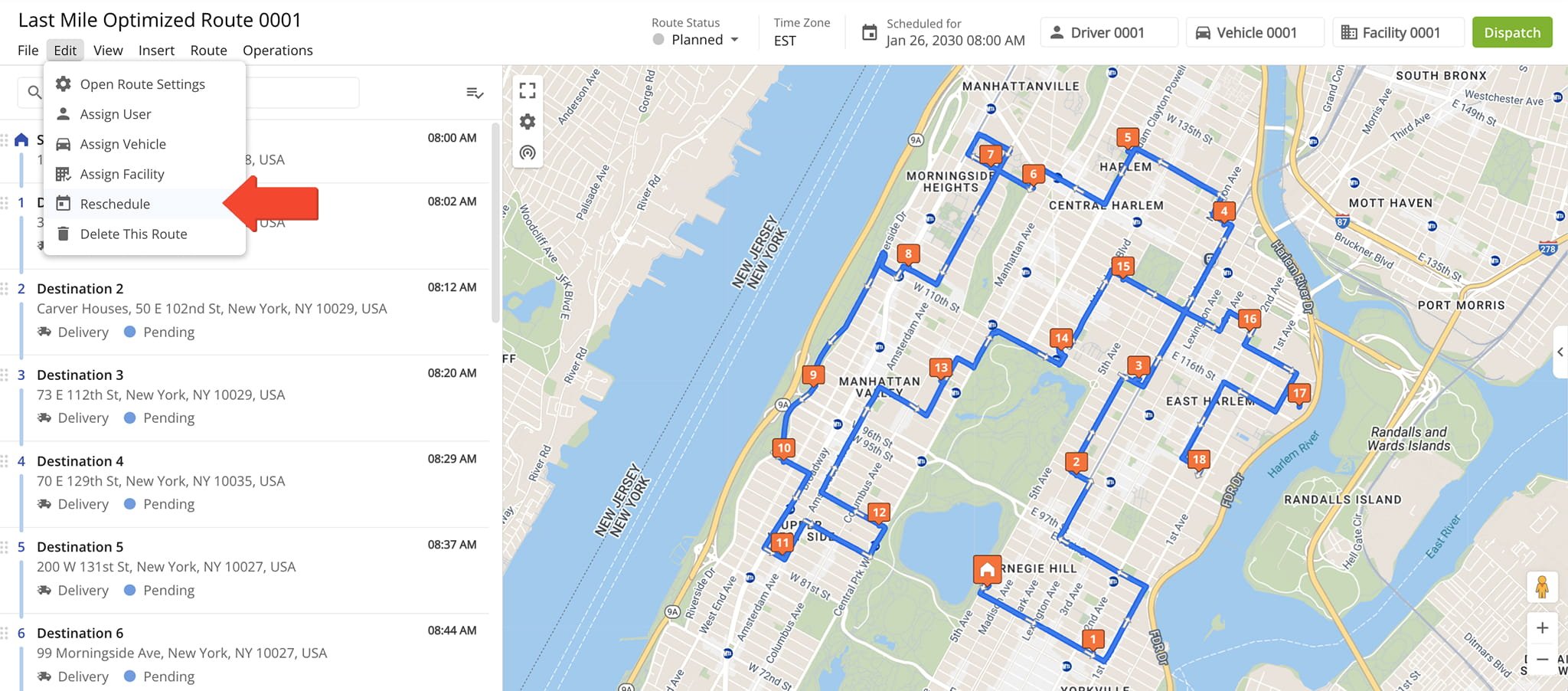
To reschedule a route from the Route Editor, click “Edit” > “Reschedule” in the Toolbar. Then, enter the new start date and/or time into the “Reschedule” pop up window.
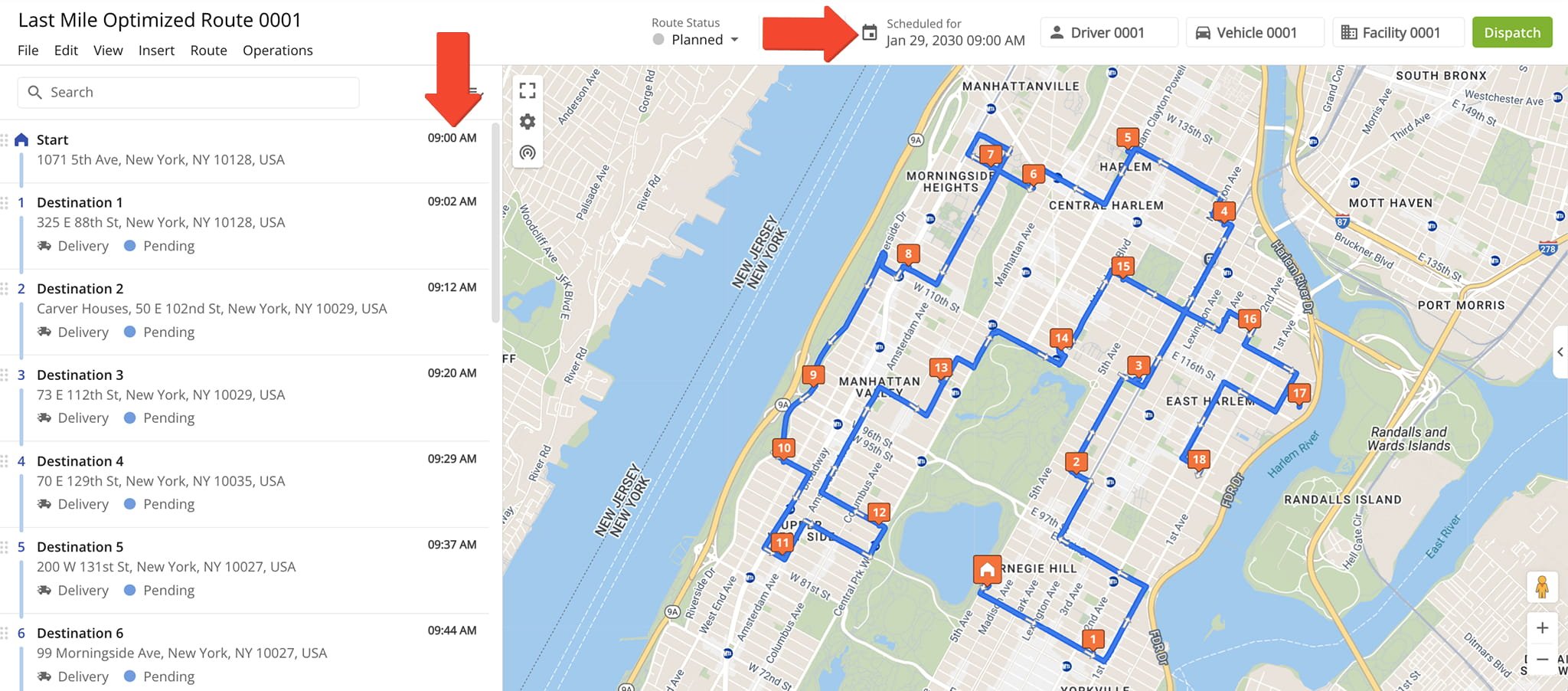
The system will update the schedule and display the revised time and date above the map. If the route has already been dispatched, the updated schedule is automatically reflected in the driver mobile app.
Visit Route4Me's Marketplace to Check out Associated Modules:
- Route Optimization
Mixed Vehicles Routing
- Route Optimization
Route Optimization for Multiple Drivers Without Advanced Constraints
- Route Optimization
Commercial Vehicle Route Planning
About author: Daniel Archer

