
User Snapshot – Customizable Team Member Data And Analytics Overview
Route4Me’s User Snapshot is an intuitive analytics tool that provides a detailed overview of any last-mile field team member. It combines route analytics, destinations data, orders, and proof of visit collection in one place, giving you visibility into key metrics and individual performance. With a User Snapshot, you can track route performance, analyze completed activities, and monitor execution trends to make informed decisions, optimize your field operations, and exceed customer expectations.
Table of Contents
Open User Snapshot – Access User Data And Analytics Overview Page
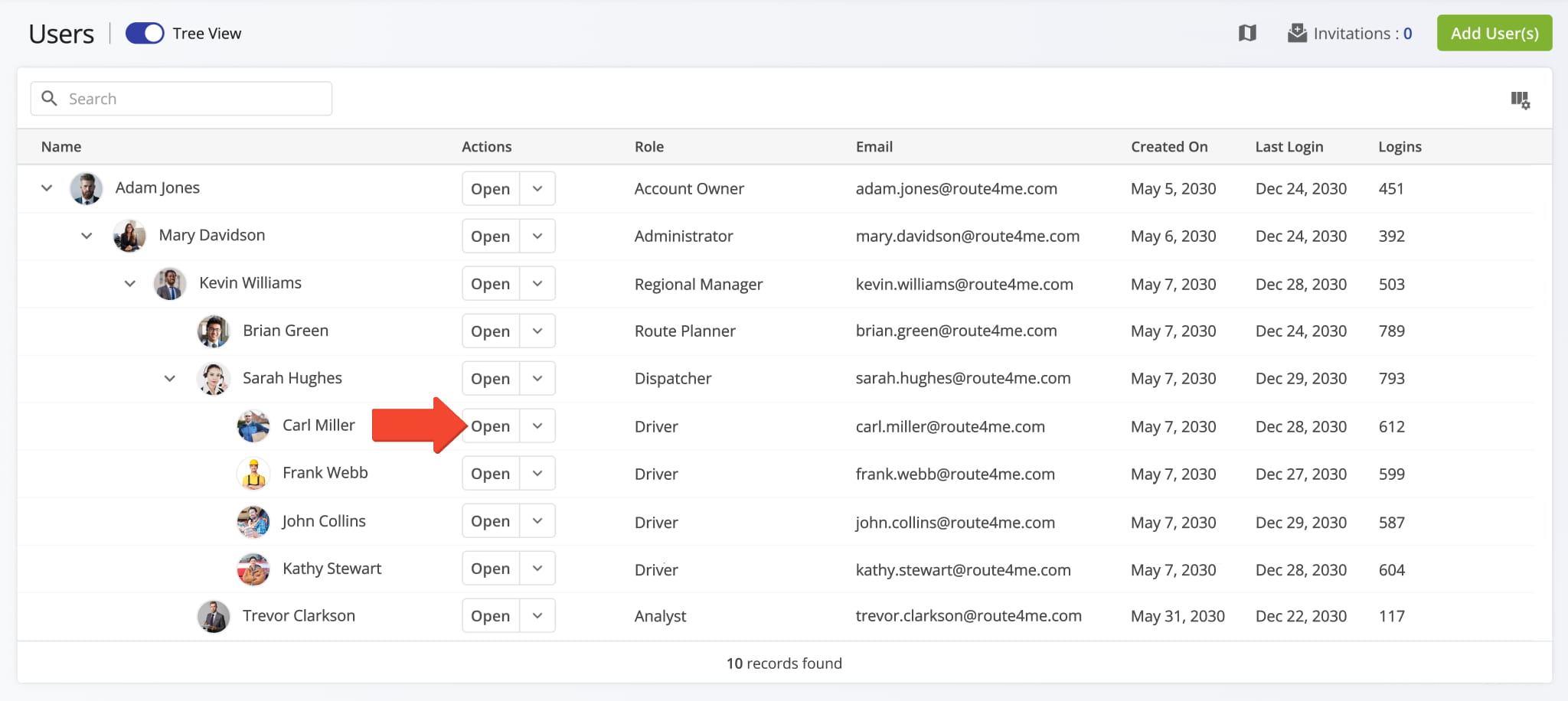
To open the User Snapshot for a final mile field team member, select “Team & Equipment” > “Users” from the Navigation Menu to open the Users page. Then, from the Users page, click “Open” next to the desired user.
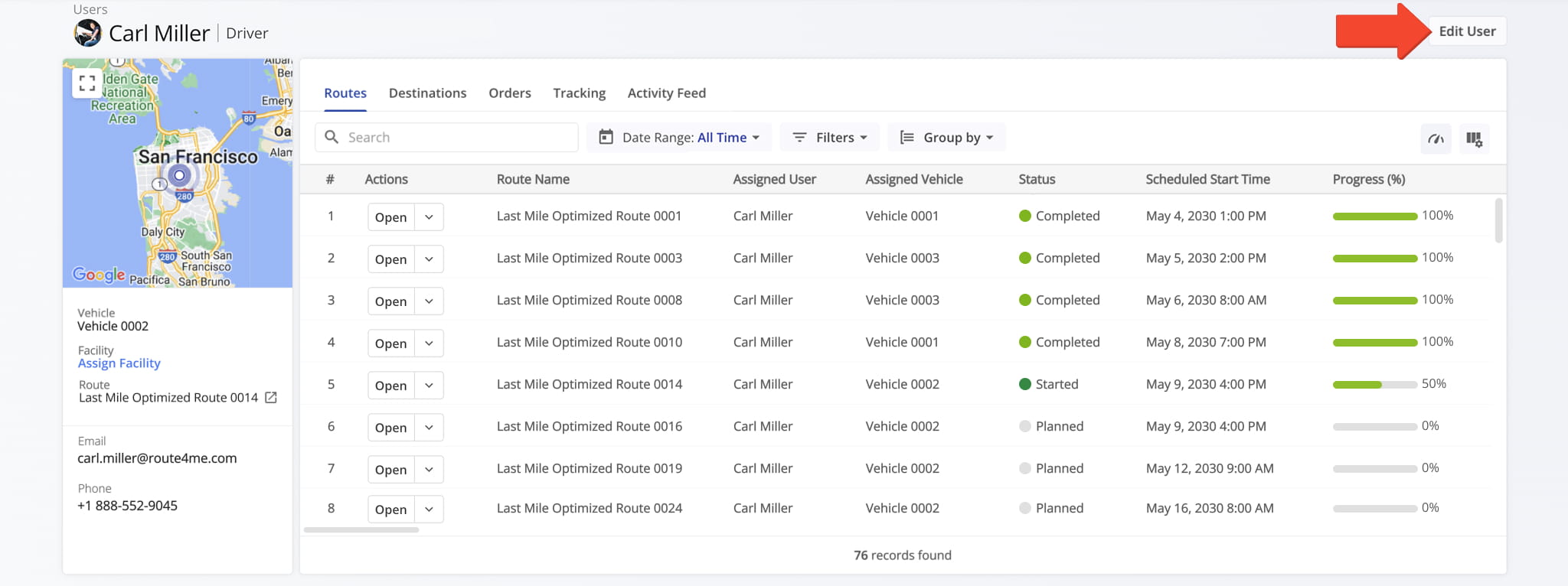
This opens the selected User Snapshot. From here, you can edit the user’s details, adjust company visibility and access permissions, manage team reporting structure, and more. To make changes, click the “Edit User” button.
User Profile Overview – Location, Assignments, Performance Metrics
User Details Summary – Dynamic Map And User Information Panel
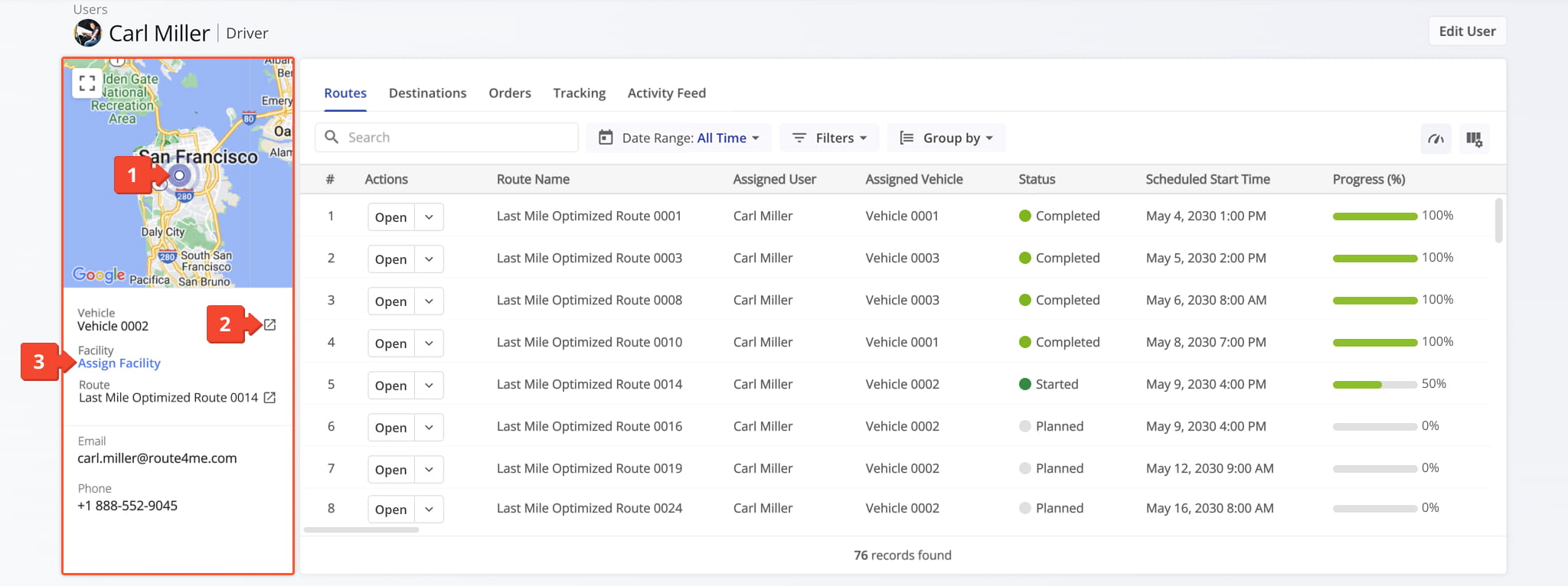
The User Summary panel displays key details about the user, including their assigned route, vehicle, and account contact information, alongside a map of their last synchronized location. From this panel, you can perform the following actions:
- View the map to see the user’s last synchronized location and track users and assets in real time using GPS.
- Click the Go-to Icon next to any field to open the corresponding Route4Me interface.
- Click “Assign Facility” to assign the user to a last mile facility. NOTE: Users can be assigned to multiple facilities.
Route Performance Metrics Panel – User Route And Time Performance Overview
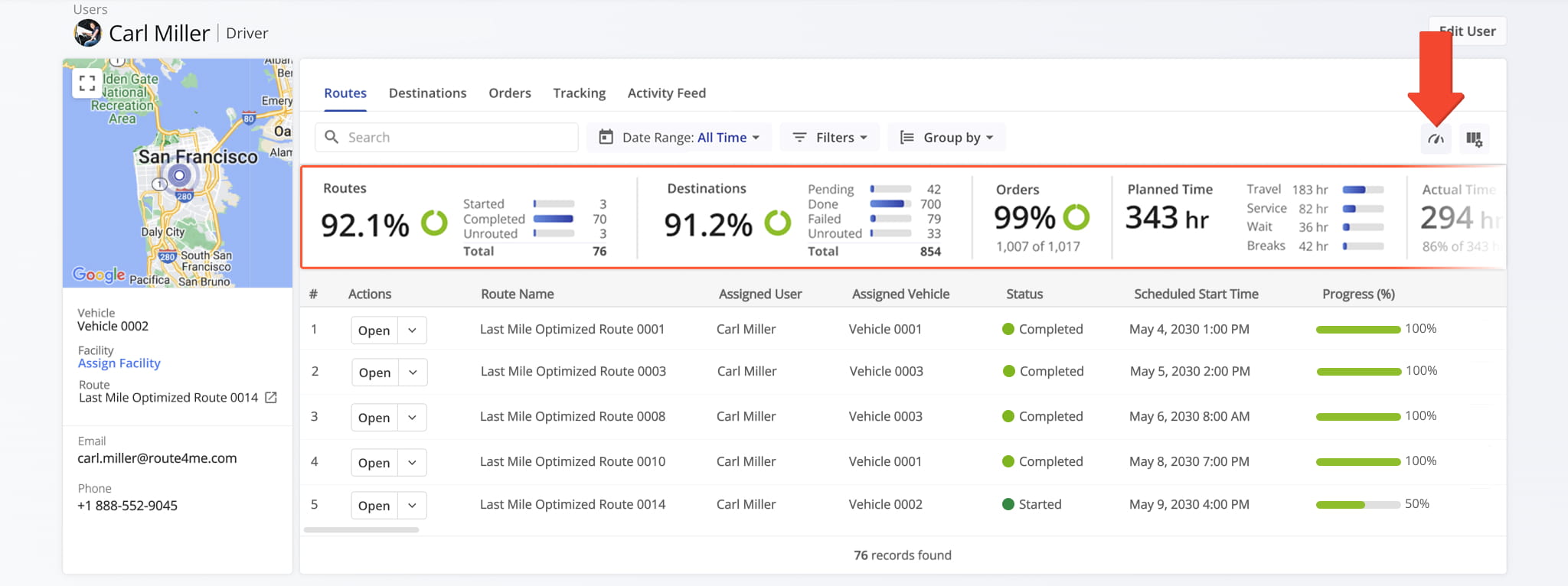
Click the Metrics Icon in the upper-right corner to open the user’s Route Performance Metrics panel. This panel provides a summary of the user’s planned and completed routes, destinations, orders, and time distribution.
It also enables you to monitor progress, track efficiency, and evaluate the user’s operational performance across routes using real-time data visualizations.
User Snapshot Categories – User Data Tabs On Analytics Overview Page
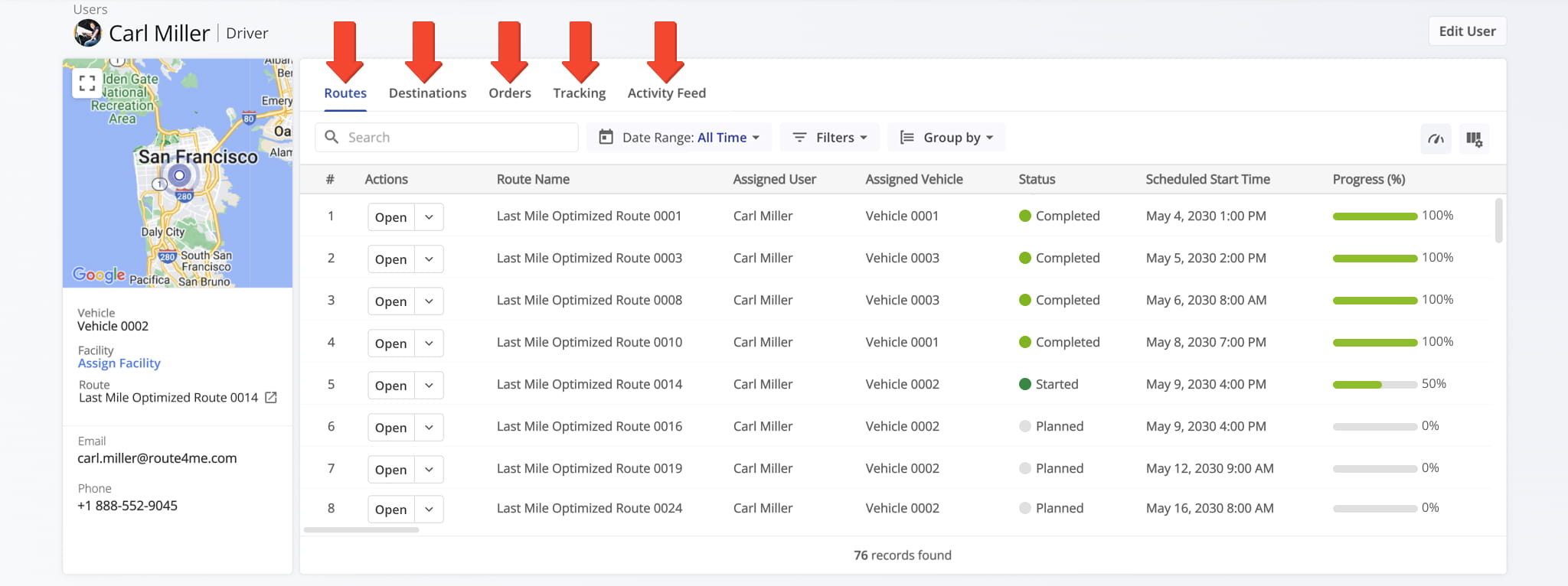
The User Snapshot is organized into multiple tabs, each corresponding to a specific category of associated data. Each tab is described in detail below.
Routes Tab – Assigned Routes And Route Data Overview
By default, the “Routes” tab opens when you access a User Snapshot, displaying all routes assigned to the user in a customizable data table. The route data is consistent with what appears on the Routes Page.
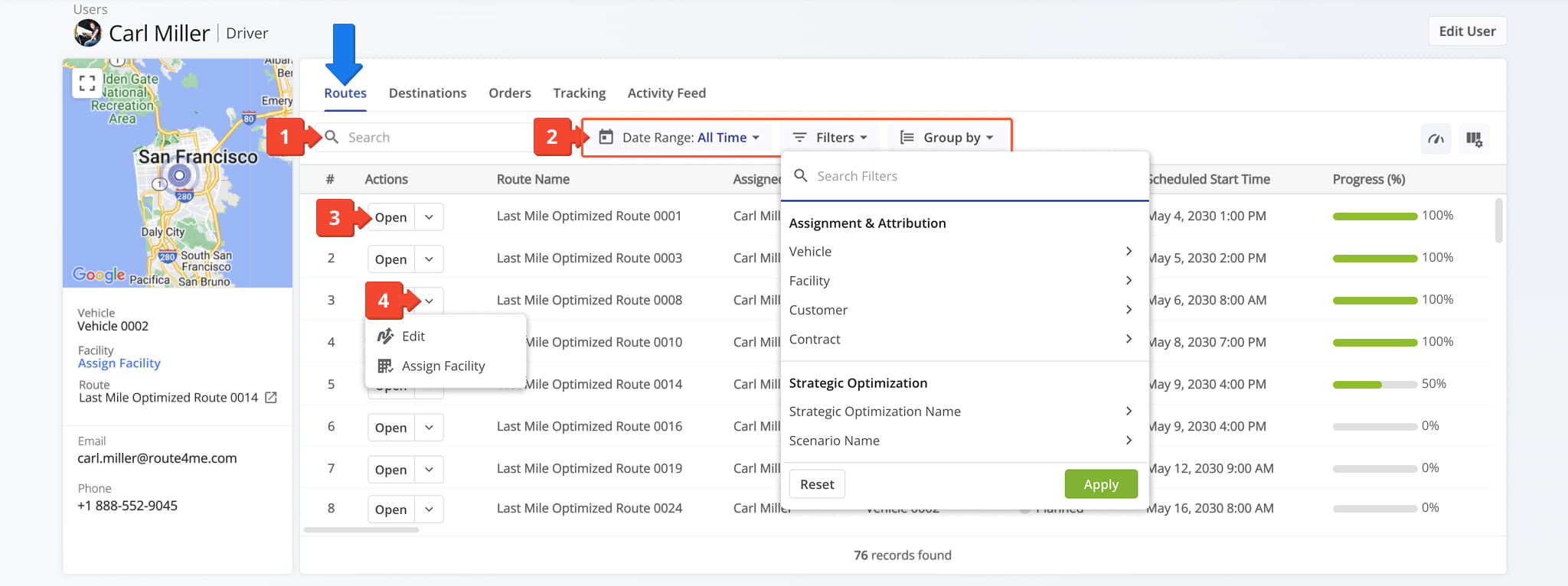
From the Routes tab, you can perform the following actions for each route associated with the user:
- Use the Search field to locate routes associated with the user.
- Filter routes by Date Range, Filters, or Group By options, as described in the table below.
- Click “Open” next to a route to access its Route Snapshot.
- Click the Down Arrow button to modify the route in the Route Editor or assign the route to a facility.
| Filter | Description | |
|---|---|---|
| Assignment & Attribution | ||
| Vehicle | Filter by vehicle assigned to the route. | |
| Facility | Filter by facility linked to the route. | |
| Customer | Filter by customer linked to the route. | |
| Contract | Filter by contract linked to the route. | |
| Strategic Optimization | ||
| Strategic Optimization Name | Filter by the name of the strategic optimization used to generate or modify the route. | |
| Scenario Name | Filter by the scenario applied during strategic route planning. | |
| Route | ||
| Status | Filter by the current progress or completion state of the route (e.g., Planned, Scheduled, Started, Completed). | |
| Planned Total Route Duration (h) | Filter by the total estimated duration, in hours, planned for completing the route. | |
| Planned Total Distance (mi) | Filter by the total planned distance, in miles, for completing all stops on the route. | |
| Progress Metrics | ||
| Destinations Arrived (Progress %) (User Actioned) | Filter by the percentage of planned destinations the driver has arrived at. | |
| Key Metrics | ||
| Destinations Count | Filter by the total number of destinations assigned to the route. | |
| Pending Destinations | Filter by destinations not yet started or completed by the driver. | |
| Failed Destinations | Filter by destinations marked as failed due to inability to complete service. | |
| Skipped Destinations | Filter by destinations the driver intentionally skipped or bypassed. | |
| Completed Destinations | Filter by destinations successfully completed on the route. | |
| Notes Count | Filter by number of notes added to the route by users or automated processes. | |
| Customer Requested Time Window Adherence | ||
| Destinations Arrived Late (User Actioned) | Filter by destinations where the driver arrived after the scheduled time window. | |
| Destinations Arrived Early (User Actioned) | Filter by destinations where the driver arrived earlier than the scheduled time window. | |
| Destinations Arrived On Time (User Actioned) | Filter by destinations where the driver arrived within the scheduled time window. | |
| SLA | ||
| Out of Sequence Destinations (#) | The number of destinations visited in an order different from the planned sequence. | |
| Actual Route Distance | ||
| Actual Total Distance (Mobile App) (mi) | Total distance in miles recorded by the mobile app during the route. | |
| Actual Total Distance (Telematics) | Total distance in miles recorded from the assigned vehicle’s telematics device. | |
| Utilization – Pieces/Units | ||
| Planned | Filter by total planned Pieces (units) amount of all Destinations on the planned route. | |
| Completed | Filter by total number of completed pieces or units. | |
| Completed (%) | Filter by percentage of pieces or units completed. | |
| Remaining At End (%) | Filter by percentage of pieces or units still remaining when the route ended. | |
| Utilization – Weight | ||
| Planned | Filter by total planned Weight amount of all Destinations on the planned route. | |
| Completed | Filter by total weight completed across all serviced destinations. | |
| Completed (%) | Filter by percentage of planned weight completed. | |
| Remaining At End (%) | Filter by percentage of planned weight still remaining at the route’s end. | |
| Utilization – Cube | ||
| Planned | Filter by total planned Cube (volume) amount of all Destinations on the planned route. | |
| Completed | Filter by total cubic volume completed across all serviced destinations. | |
| Completed (%) | Filter by percentage of the planned volume completed. | |
| Remaining At End (%) | Filter by percentage of planned volume remaining at the route’s end. | |
| Utilization – Revenue | ||
| Planned | Filter by total revenue to be generated from servicing all route Destinations. | |
| Completed | Filter by total revenue generated from the Destinations completed on the route. | |
| Completed (%) | Filter by percentage of planned revenue achieved. | |
| Remaining At End (%) | Filter by percentage of revenue still unfulfilled at route end. | |
| Address Book Details | ||
| Address Book Details | Filter by Route4Me Address Book contact aliases, addresses, order details, or customer details. | |
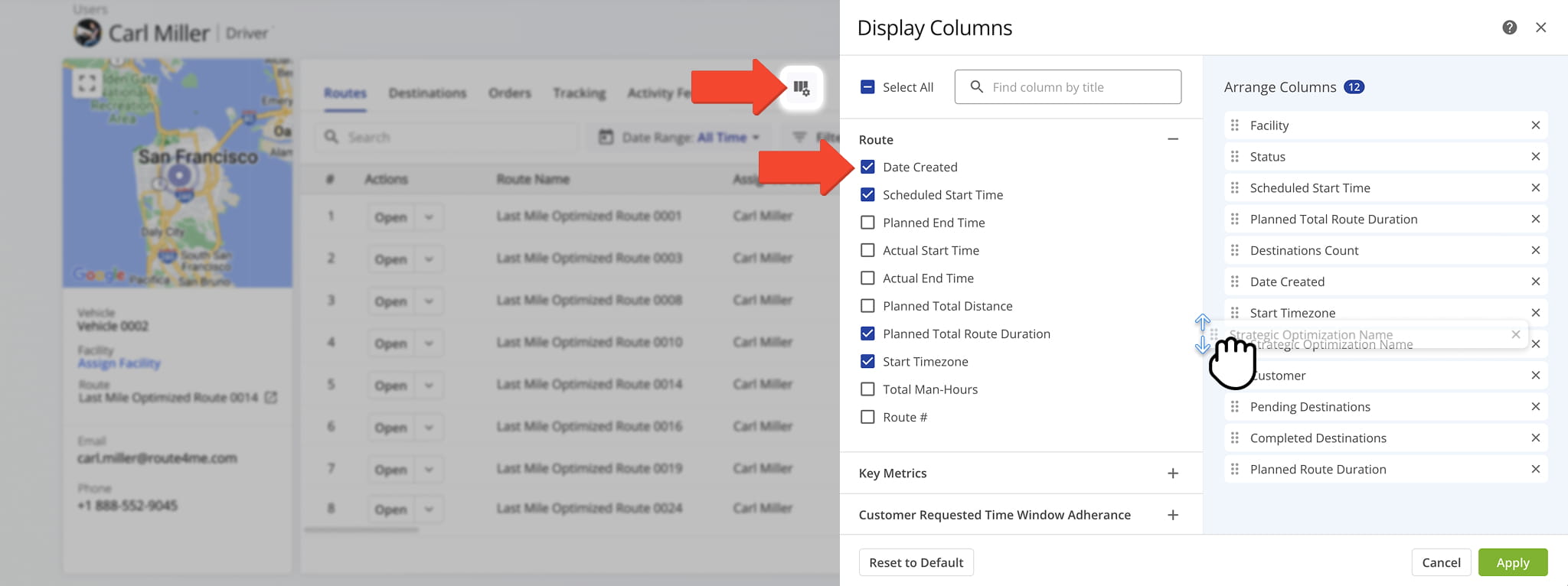
You can also customize the data displayed in the table. Click the Column Icon to select which route data fields appear and adjust their order to suit your operational needs.
The table below provides an overview of all available data columns, which you can reorder by dragging them into place.
| Item | Description | |
|---|---|---|
| Route | ||
| Date Created | Date and time when the route was created. | |
| Scheduled Start Time | Scheduled start time for the route. | |
| Planned End Time | Planned end time for the route. | |
| Actual Start Time | Time when the route actually started. | |
| Route Total Distance | Total distance planned for the route, including all stops. | |
| Planned Total Route Duration | Estimated total duration for completing the route. | |
| Start Time Zone | Timezone of the route’s start location. | |
| Total Man Hours | Total estimated working hours for completing the route. | |
| Route # | The route number. This is relevant when you are exporting multiple routes. | |
| Key Metrics | ||
| Destinations Count | Total number of destinations planned for the route. | |
| Pending Destinations | Number of destinations not yet visited. | |
| Failed Destinations | Number of destinations that could not be completed. | |
| Skipped Destinations | Number of destinations intentionally skipped. | |
| Completed Destinations | Number of destinations successfully completed. | |
| Notes Count | Total number of notes added to the route by users or automated processes. | |
| Route Start Odometer | The vehicle odometer reading at the beginning of the route. | |
| Route End Odometer | The vehicle odometer reading at the completion of the route. | |
| Customer Requested Time Window Adherence | ||
| Destinations Arrived On-Time (User Actioned) | Destinations where arrival matched the scheduled time, based on user input. | |
| Destinations Arrived Early (User Actioned) | Destinations reached earlier than scheduled, based on user input. | |
| Destinations Arrived Late (User Actioned) | Destinations reached later than scheduled, based on user input. | |
| Operational Status | ||
| First Access Time | Date and time the route was first viewed by a user. | |
| Status | Current progress or completion status of the route. | |
| Dispatch | Indicates whether the route has been assigned to a driver or team. | |
| Progress Metrics | ||
| Arrived Destinations (User Actioned) | Number of destinations marked as arrived by user actions. | |
| Destinations Arrived (Progress %) (User Actioned) | Percentage of destinations completed, based on user input. | |
| Actual Route Distance | ||
| Actual Total Distance (Mobile App) | Total distance traveled, recorded by the mobile app. | |
| Actual Total Distance (Telematics) | Total distance traveled, recorded by telematics. | |
| Actual Total Distance (Merged) | Combined distance from mobile app and telematics data. | |
| Actual Duration | ||
| Actual Route Duration (User Actioned) | Actual Route Duration is calculated based on the received Mobile App GPS data. Duration is measured from when the route was started to when the route was ended by the assigned User on the Mobile App. | |
| Actual Total Route Duration (Grand Total of All Sub-Durations) | The total time spent traveling the route, including all individual segments and stop durations. | |
| Actual Total Travel Duration (User Actioned) | The total time spent traveling the route, recorded from driver actions in the Mobile App. | |
| Actual Total Service Duration (User Actioned) | The total time drivers spent servicing stops, recorded from actions in the Mobile App. | |
| Actual Total Wait Duration (User Actioned) | Total amount of time that a driver spent being inactive while driving the route (i.e., a route started before the opening hours and a driver had to wait, a driver arrived at the address before the opening of the Time Window, etc.). | |
| Actual Total Break Duration | The total duration of all scheduled breaks for the route, calculated based on the planned stops and route schedule. | |
| Actual Total Unattributed Duration | Time not attributed to driving, service, or breaks. | |
| Actual Service Time | ||
| Actual Total Service Time (Auto Detected) | The total amount of the average Service Time of all destinations on the route. | |
| Actual Travel Duration | ||
| Actual Total Duration (Mobile App) | Total duration of route recorded via the mobile app. | |
| Actual Total Duration (Telematics) | Total duration of route recorded via telematics. | |
| Planned Durations | ||
| Planned Route Duration | Estimated total route duration. | |
| Planned Total Travel Duration | Estimated driving time for the route. | |
| Planned Total Wait Duration | Estimated total wait time during the route. | |
| Planned Total Service Duration | Estimated total service time at destinations. | |
| Planned Total Break Duration | Estimated total driver break time. | |
| SLA | ||
| Out of Sequence Destinations (#) | The number of destinations visited in an order different from the planned sequence. | |
| Out of Sequence Destinations (%) | The percentage of destinations visited in an order different from the planned sequence. | |
| Assignment & Attribution | ||
| Facility | The depot, warehouse, or starting point used for planning the route; serves as the origin for route sequencing and time calculations. | |
| Customer | The name of the customer associated with the route or destination, as defined in the account or order data. | |
| Contract | The name or identifier of the contract linked to the assigned customer, if applicable, used for tracking or reporting purposes. | |
| Utilization – Pieces/Units | ||
| Pieces Planned | Total number of pieces planned for delivery. | |
| Pieces Completed | Number of pieces successfully delivered. | |
| Pieces Completed (%) | Percentage of planned pieces delivered. | |
| Pieces Remaining At End (%) | Percentage of pieces undelivered at the route’s end. | |
| Utilization – Weight | ||
| Weight Planned | Total weight of items planned for delivery. | |
| Weight Completed | Weight of items successfully delivered. | |
| Weight Completed (%) | Percentage of planned weight delivered. | |
| Weight Remaining At End (%) | Percentage of weight remaining at the end of the route. | |
| Utilization – Cube | ||
| Cube Planned | Total cubic volume planned for delivery. | |
| Cube Completed | Cubic volume successfully delivered. | |
| Cube Completed (%) | Percentage of planned cubic volume delivered. | |
| Cube Remaining At End (%) | Percentage of cubic volume remaining at the end of the route. | |
| Utilization – Revenue | ||
| Revenue Planned | Planned revenue for the route based on scheduled deliveries. | |
| Revenue Completed | Revenue earned from completed deliveries. | |
| Revenue Completed (%) | Percentage of planned revenue achieved. | |
| Revenue Remaining At End (%) | Percentage of planned revenue remaining at the route’s end. | |
| Strategic Optimization | ||
| Strategic Optimization Name | Name of the strategic optimization applied to the route. | |
| Scenario Name | Scenario associated with the strategic optimization. | |
| Note Custom Field Sum | ||
| Sum Decimals | Revenue earned from completed deliveries. | |
| Sum Whole Numbers | Revenue earned from completed deliveries. | |
Destinations Tab – Assigned Destinations And Destination Data Overview
The “Destinations” tab displays all destinations associated with the user in a customizable data table. The available destination data matches what is shown in Destination View Mode on the Routes Page on the Routes page.
From the Destinations tab, you can perform the following actions for each destination associated with the user:
- Use the Search field to locate destinations assigned to the user.
- Filter destinations by Date Range, Filters, or Group By options, as described in the table below.
- Click “Open” next to a destination to access its Destinations Snapshot.
- Click the Down Arrow to open the associated Route Snapshot or edit the route in the Route Editor.
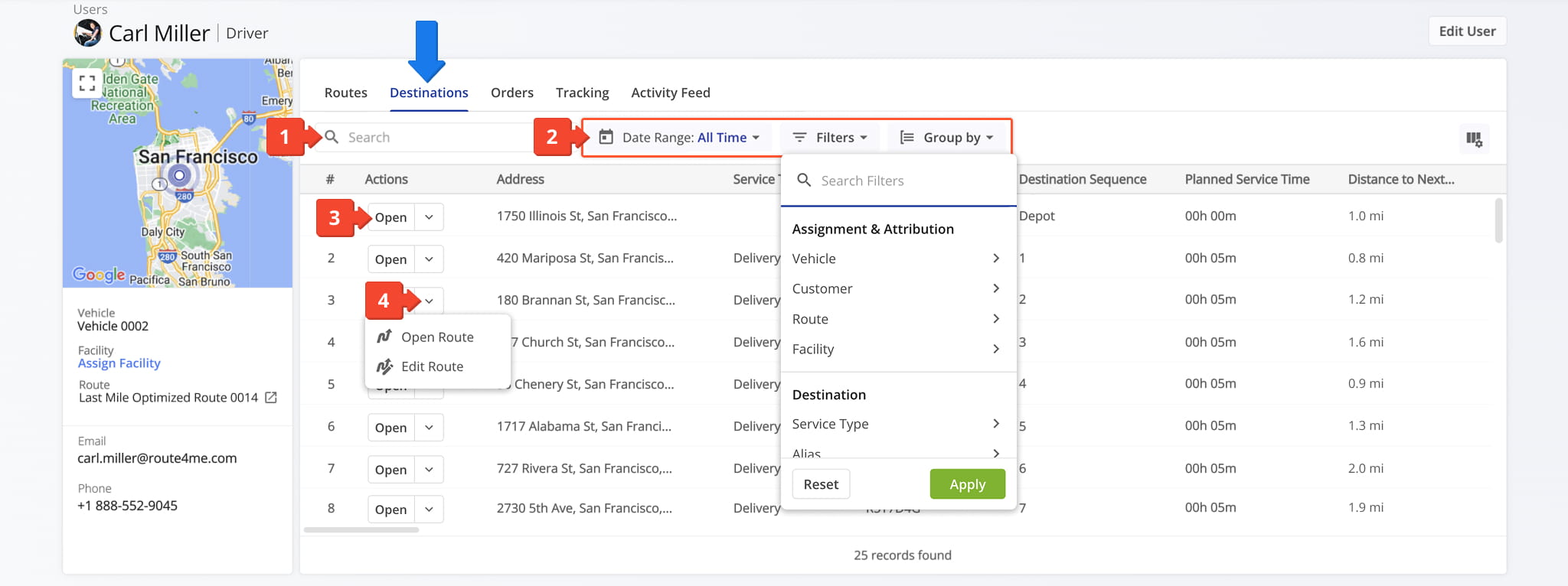
| Filter | Description | |
|---|---|---|
| Assignment & Attribution | ||
| Vehicle | Filter by vehicle assigned to the route. | |
| Customer | Filter by customer linked to the route. | |
| Route | Filter by route alias. | |
| Facility | Filter by facility linked to the route. | |
| Destination | Filter by destination-level attributes. | |
| Service Type | Filter by type of service (e.g., pickup, delivery, break, meetup, service, visit, or drive by). | |
| Alias | Filter by alias associated with the destination. | |
| Destination Sequence # | Filter by the destination’s scheduled placement within a route. | |
| Arrived | Filter by whether the destination has been marked “Arrived”. | |
| Departed | Filter by whether the destination has been marked “Departed”. | |
| Destination Status | Filter by the current progress or completion state of the destination (e.g., Pending, Skipped, Failed, Completed). | |
| Notes Count | Filter by the number of notes added to the route by users or automated processes. | |
| Order | Filter by order-related attributes. | |
| Tracking Number | Filter by the tracking number associated with a destination. | |
| Order Number | Filter by the order number associated with a destination. | |
| Invoice Number | Filter by the invoice number associated with a destination. | |
| Reference Number | Filter by the reference number associated with a destination. | |
| Dimensional & Financial | Filter by capacity, weight, and revenue attributes. | |
| Cube | Filter by total planned cube (volume) amount associated with a destination. | |
| Pieces/Units | Filter by total planned pieces (units) amount associated with a destination. | |
| Weight | Filter by total planned weight amount associated with a destination. | |
| Priority | Filter by the level of priority assigned to a destination. | |
| Revenue | Filter by total revenue to be generated from servicing a destination. | |
| Customer | Filter by customer-specific attributes. | |
| First Name | Filter by the first name of the customer associated with a destination. | |
| Last Name | Filter by the last name of the customer associated with a destination. | |
| Phone | Filter by the phone number associated with a destination. | |
| Filter by the email address associated with a destination. | ||
| Customer PO | Filter by the customer purchase order associated with a destination. | |
| Group | Filter by a group associated with a destination. | |
You can also customize which columns appear in the table. Click the Column Icon to select which data fields are displayed and adjust their order to fit your needs. The table below provides an overview of all available data fields in the “Destinations” tab.
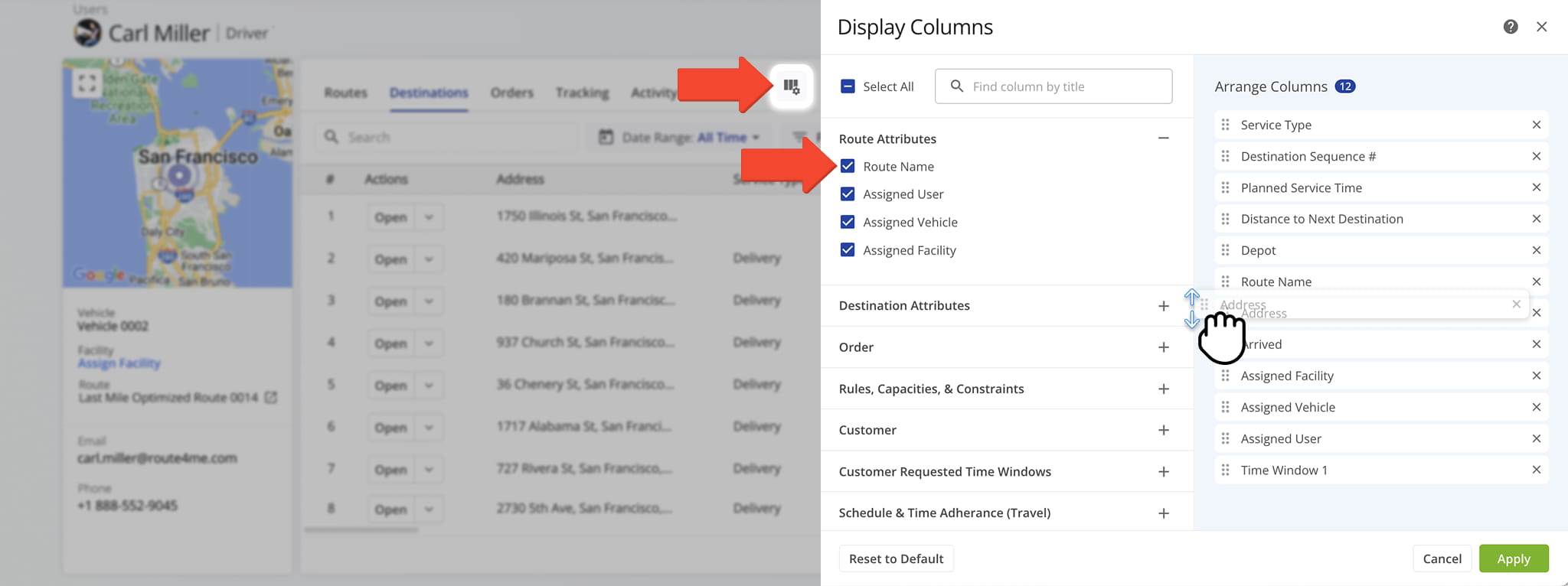
| Item | Description | |
|---|---|---|
| Route | ||
| Route Name | The alias assigned to the route associated with a destination. | |
| Assigned User | The name of the user assigned to the route associated with a destination. | |
| Assigned Vehicle | The name of the user assigned to the route associated with a destination. | |
| Assigned Facility | The name of the facility assigned to the route associated with a destination. | |
| Destination Attributes | ||
| Depot | The depot assigned to a destination | |
| Destination Sequence | A destination’s placement within a planned route. | |
| Address | The address associated with a destination. | |
| Alias | The alias associated with a destination. | |
| Service Type | The type of service associated with a destination (e.g. pickup, delivery, break, meetup, service, visit, or drive by). | |
| Status | Current progress or completion status of a destination. | |
| Time Zone | Time zone associated with a destination. | |
| Distance to Next Destination | The planned distance between the current destination and the next destination in the route sequence. | |
| Drive Time to Next Destination | The estimated driving time between the current destination and the next destination in the route sequence. | |
| Man Hours | Total estimated working hours associated with a destination. | |
| Notes Count | Total number of notes added to a destination by users or automated processes. | |
| Customer Billing Type | The billing classification applied to the customer associated with the destination. | |
| Order | ||
| Order ID | The order ID associated with a destination. | |
| Tracking Number | The tracking number associated with a destination. | |
| Order Number | The order number associated with a destination. | |
| Invoice Number | The invoice number associated with a destination. | |
| Reference Number | The reference number associated with a destination. | |
| Rules, Capacities & Constraints | ||
| Cube | Total cubic volume planned for delivery. | |
| Pieces/Units | Total number of pieces planned for delivery. | |
| Weight | Total weight of items planned for delivery. | |
| Customer | ||
| First Name | The first name of the customer associated with a destination. | |
| Last Name | The last name of the customer associated with a destination. | |
| Phone | The phone number associated with a destination. | |
| The email address associated with a destination. | ||
| Customer PO | The customer purchase order associated with a destination. | |
| Group | The group associated with a destination. | |
| Customer Requested Time Windows | ||
| Time Window 1 | The primary customer-requested time window during which the destination is scheduled to be serviced. | |
| Time Window 2 | The secondary customer-requested time window during which the destination is scheduled to be serviced. | |
| Schedule & Time Adherence (Travel) | ||
| Actual Arrival Time (User Actioned) | The time when the user marked their arrival at the destination during travel, recorded in the system. | |
| Actual Departure Time (User Actioned) | The time when the user marked their departure from the destination during travel, recorded in the system. | |
| Schedule & Time Adherence (Service) | ||
| Actual Arrival Time (User Actioned) | The time when the user began service at the destination, recorded in the system. | |
| Actual Departure Time (User Actioned) | The time when the user completed service at the destination, recorded in the system. | |
| Geofence Detections | ||
| Actual Service Time (Geofence Detected) | The total time spent servicing the destination, automatically calculated based on geofence entry and exit detection timestamps. | |
| Actual Arrival Time (Geofence Detected) | The time when the vehicle or device entered the destination’s geofenced area, automatically recorded by the system. | |
| Actual Departure Time (Geofence Detected) | The time when the vehicle or device exited the destination’s geofenced area, automatically recorded by the system. | |
| Entry Speed (Geofence Detected) | The vehicle’s recorded speed at the moment it entered the destination’s geofenced area. | |
| Entry Odometer (Geofence Detected) | The vehicle’s recorded odometer reading at the time of geofence entry. | |
| Exit Speed (Geofence Detected) | The vehicle’s recorded speed at the moment it exited the destination’s geofenced area. | |
| Exit Odometer (Geofence Detected) | The vehicle’s recorded odometer reading at the time of geofence exit. | |
| Device ID (Geofence Detected) | The unique identifier of the GPS device that triggered the geofence detection event. | |
| Vehicle ID (Geofence Detected) | The identifier of the vehicle associated with the geofence detection event. | |
| Telematics Vehicle ID (Geofence Detected) | The vehicle ID reported by the connected telematics system at the time of the geofence detection event. | |
| Arrival & Departure Status | ||
| Arrived | Indicates whether the user marked the stop as arrived. | |
| Departed | Indicates whether the user marked the stop as departed. | |
| Arrival & Departure Time | ||
| Planned Arrival Time | Shows the scheduled arrival time generated during route planning. | |
| Planned Departure Time | Shows the scheduled departure time generated during route planning. | |
| Planned Arrival Time (User Actioned) | Displays the planned arrival time recorded when the user marked the stop as arrived. | |
| Planned Departure Time (User Actioned) | Displays the planned departure time recorded when the user marked the stop as departed. | |
| Dynamic Arrival Time | Shows the recalculated arrival time based on route progress and real-time conditions. | |
| Dynamic Departure Time | Shows the recalculated departure time based on route progress and real-time conditions. | |
| Arrival/Departure Schedule Deviation | ||
| Time Window Violated (User Actioned) | Indicates whether the user marked an arrival or departure that fell outside the scheduled time window. | |
| Arrival Time Variance (-Early, +Late)(User Actioned) | Shows how early or late the user’s recorded arrival was compared to the planned arrival time. | |
| Departure Time Variance (-Early, +Late)(User Actioned) | Shows how early or late the user’s recorded departure was compared to the planned departure time. | |
| Planned Remaining Capacity | ||
| Planned Remaining Cube | Shows the remaining volume available on the route. | |
| Planned Remaining Pieces | Shows the remaining number of items or packages planned for delivery. | |
| Planned Remaining Revenue | Displays the remaining expected revenue from planned stops on the route. | |
| Planned Remaining Weight | Shows the remaining weight capacity available on the route. | |
Orders Tab – Assigned Orders And Order Data Overview
The Orders tab displays all orders associated with the user in a customizable data table. The available order data matches what is shown on the Orders Page, ensuring consistency across views.
From this tab, you can perform the following actions for each order associated with the user:
- Use the Search field to locate specific orders.
- Filter orders by Date Range or Filters, as described in the table below.
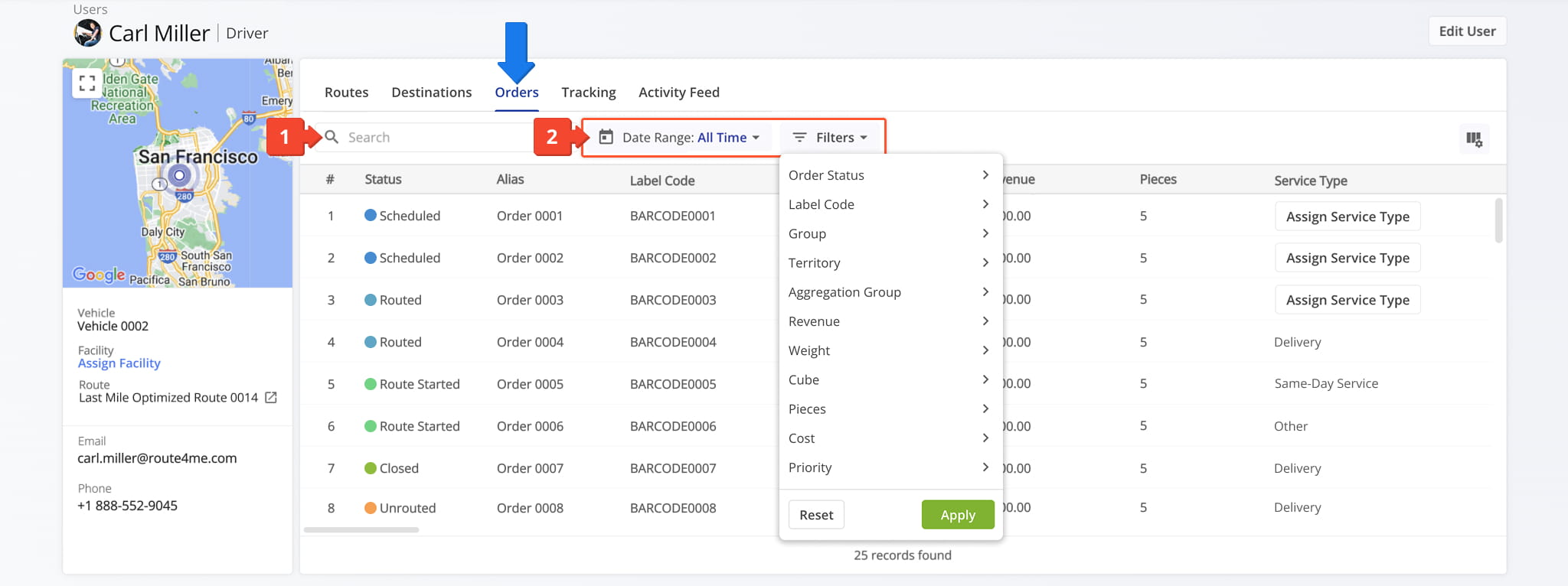
| Filter | Description |
|---|---|
| Order Status | Filter orders by their Order Status (e.g., New, Scheduled, Possession Scan, Accepted, Canceled, etc). |
| Label Code | Filter orders by entering a specific Label Code, making it easy to locate orders by their barcode. |
| Group | Filter orders by a specific Order Group name to view only orders within that group. |
| Territory | Filter orders by Territory by searching for its name or selecting it from the list. |
| Aggregation Group | Reserved filter. |
| Revenue | Filter orders by their Revenue value. Revenue can be added when importing, uploading, or creating orders. |
| Weight | Filter orders by their Weight value. Weight can be added when importing, uploading, or creating orders. |
| Cube | Filter orders by their Cube (volume) value. Cube can be added when importing, uploading, or creating orders. |
| Pieces | Filter orders by their Pieces value. Pieces can be added when importing, uploading, or creating orders. |
| Cost | Filter orders by their Cost value. Cost can be added when importing, uploading, or creating orders. |
| Priority | Filter orders by their Priority. Priority can be set when importing, uploading, or creating orders. |
You can also customize which columns appear in the table. Click the Column Icon to select which data fields are displayed and adjust their order to fit your needs. The table below provides an overview of all available data fields in the “Orders” tab.
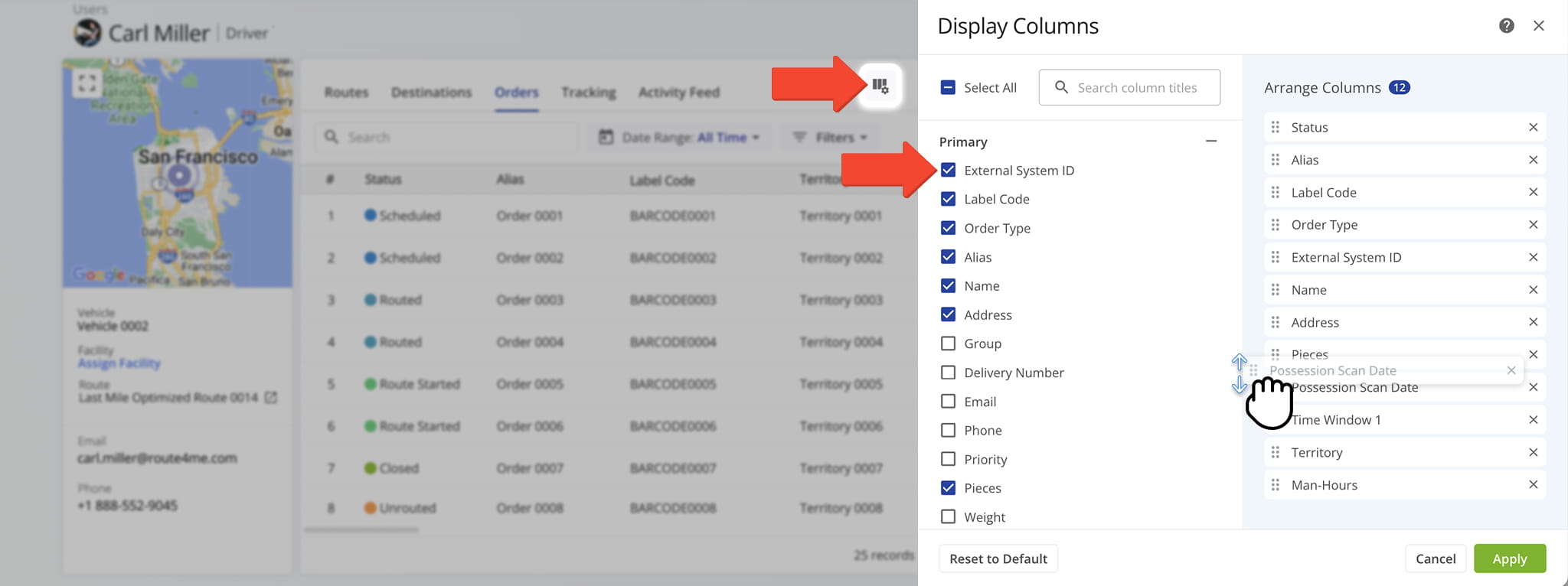
| Item | Description | |
|---|---|---|
| Primary | ||
| External System ID | Unique identifier assigned to an order by an outside CRM or ERP system. | |
| Label Code | Barcode used to quickly add, sort, and manage orders via scanning for efficient processing. | |
| Order Type | Type of visit required: Pickup, Delivery, Break, Meetup, Service, Visit, or Drive by. | |
| Alias | Unique name or identifier for filtering and recognizing the order. | |
| Name | Customer name associated with the order. | |
| Address | Street address, city, state, ZIP code, and country of the order. | |
| Group | Custom order group ID for filtering related orders. | |
| Delivery Number | A unique number assigned to identify and track the delivery for this order. | |
| Email address of the contact or customer associated with the order. | ||
| Phone | Phone number of the contact or customer associated with the order. | |
| Priority | Indicates the importance or urgency of the order, used to influence route planning and scheduling. | |
| Weight | Weight optimization constraint value of the order. NOTE: Learn more about the Weight route optimization constraint. | |
| Pieces | Pieces optimization constraint value of the order. NOTE: Learn more about the Pieces route optimization constraint. | |
| Cube | Cube optimization constraint value of the order. NOTE: Learn more about the Cube route optimization constraint. | |
| Revenue | Revenue optimization constraint value of the order. NOTE: Learn more about the Revenue route optimization constraint. | |
| Cost | The estimated or recorded cost associated with fulfilling the order. | |
| Order ID | Unique automatically generated identification number of the order. | |
| Assigned User | Team member (manager, planner, dispatcher, or driver) assigned to manage and complete the route. | |
| Facility | The name of the facility assigned to the route associated with the order. | |
| Required Skills | Specifies any special skills or certifications needed to complete the order at the destination. | |
| Man-Hours | The combined time spent by all drivers or users on the selected route, including travel and service time. | |
| Customer | Customer name associated with the order. | |
| Service Type | The type of service associated with a destination (e.g. pickup, delivery, break, meetup, service, visit, or drive by). | |
| Dates | ||
| Scheduled For | Date the order is scheduled for route planning. NOTE: learn more about the Scheduled For order status. | |
| Created | Date and time when the route was created. | |
| Sorted On | Date and time when the order was sorted or prioritized within the route planning system. | |
| Closed Date | The date and time when the order was completed, finalized, or marked as closed. | |
| Last Known Route | Displays the most recent route the order was assigned to, including the associated date and time. | |
| Possession Scan Date | Timestamp when the order was scanned and assigned “Possession Scan” status. NOTE: Learn more about scanning order barcodes. | |
| Time Window 1 | The primary customer-requested time window during which the destination is scheduled to be serviced. | |
| Time Window 2 | The secondary customer-requested time window during which the destination is scheduled to be serviced. | |
| Accepted Time | Timestamp when the order was accepted by the assigned user or driver. | |
| Service Time | Duration required to complete the order on-site. Learn more about Destination Service Time. | |
| SLA Start | The start of the Service Level Agreement window for the order, defining when service should begin. | |
| SLA End | The end of the Service Level Agreement window for the order, defining when service should be completed. | |
| Elapsed Time | Total time elapsed since the order began processing or was assigned, including travel and service. | |
| Remaining Time | Time remaining to complete the order based on planned schedule, SLA, or route optimization. | |
| State/Status | ||
| Status | Most recent status assigned to the order. | |
| Territory | Name of the Order Territory containing the order’s address. NOTE: Learn more about Order Territories. | |
Tracking Tab – User Location Updates Overview
The Tracking tab displays all location updates associated with a user, including telemetry data when available via Telematics Integration.
Click the Info Icon to view the user’s tracked location on a map, with key details such as latitude, longitude, speed, and timestamp. Refer to the table below for a detailed overview of all data available from the Tracking tab.
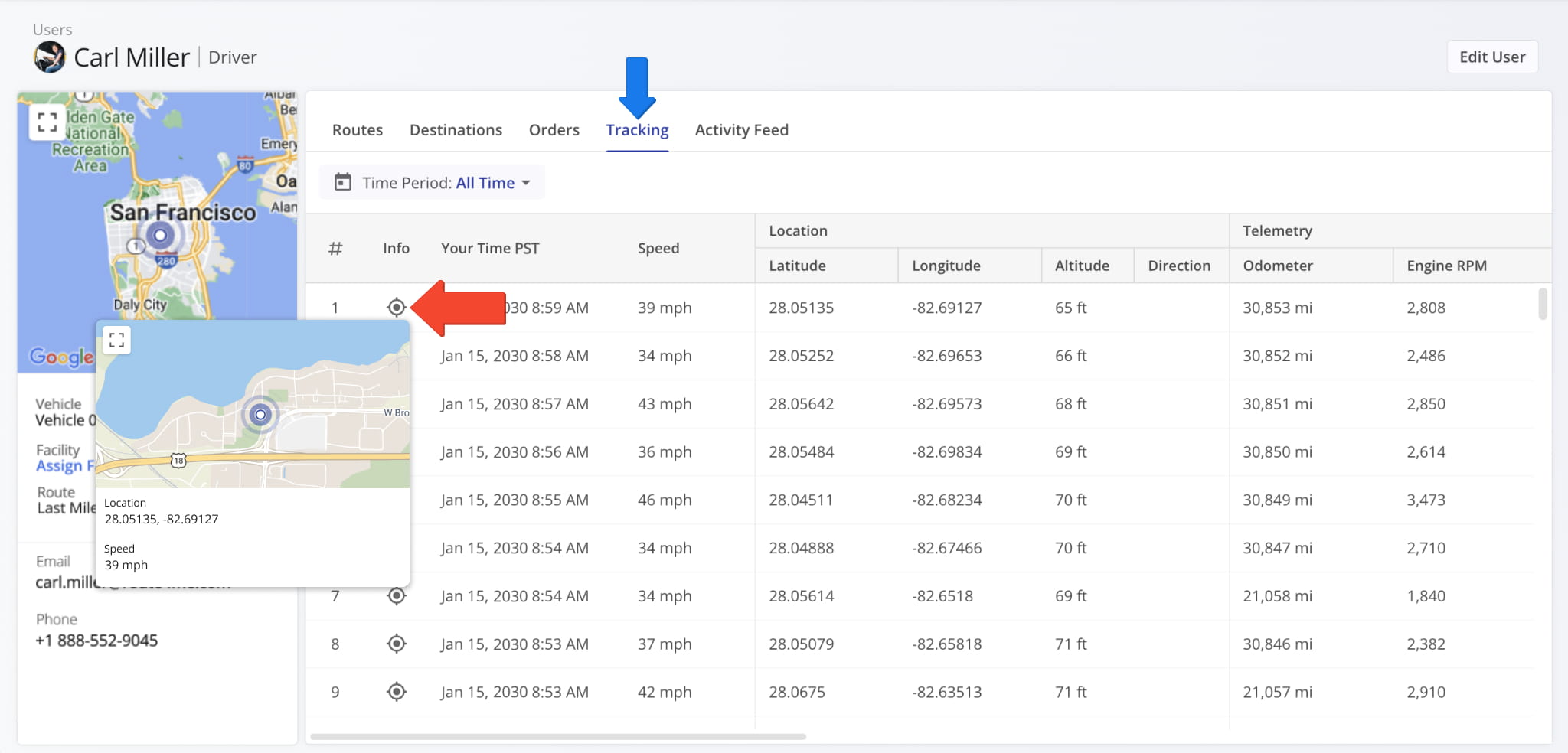
| Data | Description |
|---|---|
| # | Sequential tracking instance, representing the order in which the Vehicle was recorded during its route. |
| Info | Click to view the Vehicle’s location on the map, including location and speed at a specific date and time. |
| Your Time | Timestamp showing when this tracking record was captured. |
| Speed | Vehicle speed at the recorded time. |
| Latitude | Vehicle latitude at the recorded time. |
| Longitude | Vehicle longitude at the recorded time. |
| Altitude | Vehicle altitude at the recorded time. |
| Direction | Direction the vehicle is facing at the recorded time. |
| Odometer | The total distance the vehicle has traveled, as recorded by the vehicle’s odometer at the time of this tracking instance. |
| Engine RPM | The engine’s revolutions per minute, indicating how fast the engine is running at this moment. |
| Engine Coolant Temperature | he temperature of the engine’s coolant, helping monitor engine operating conditions and prevent overheating. |
| Battery Health | An overall assessment of the vehicle’s battery condition, showing its capacity to hold and deliver charge. |
| Battery Temperature | The current temperature of the vehicle’s battery, which can affect performance and longevity. |
| Battery Level | The remaining charge in the battery, expressed as a percentage of full capacity. |
| Charge Status | Indicates whether the battery is currently charging, discharging, or fully charged. |
| Engine Status | Shows whether the engine is currently running or off at the time of this tracking instance. |
| Driver Seatbelt Status | Indicates whether the driver’s seatbelt is fastened. |
| Fuel Level | The remaining fuel in the Vehicle’s tank. |
| Source | Origin of the data, e.g., Route4Me. |
| Device Time | Timestamp of the device recording the data. |
Activity Feed Tab – Route Activity And Event History Overview
The Activity Feed tab displays a chronological list of route activity events associated with the user. The available activity entries match what is shown in the standard Activity Feed, ensuring consistency across views.
From the Activity Feed tab, you can perform the following actions:
- Filter activity entries by Date Range or Filters, as described in the table below.
- Click the Arrow next to a specific date to expand or collapse the list of activities for that day.
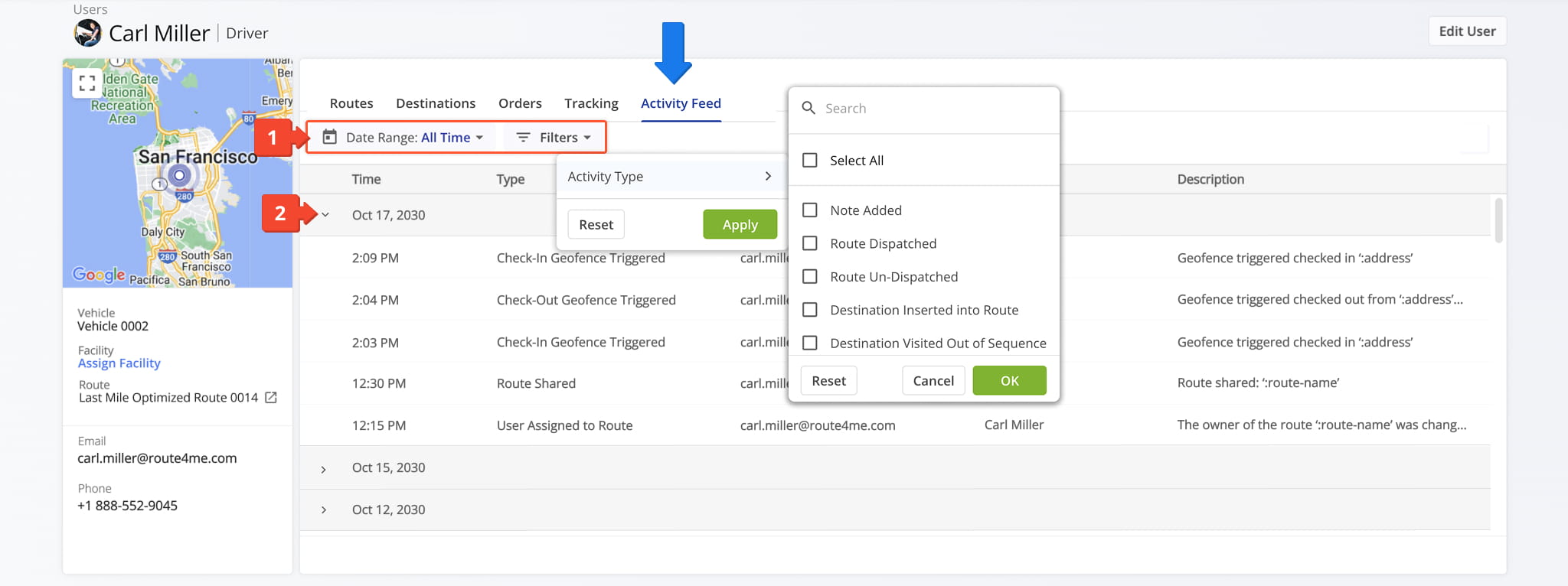
| Filter | Description |
|---|---|
| Note Added | Filter activities by when a note or comment was added to the route or destination. |
| Route Dispatched | Filter activities by routes that were dispatched and assigned to a user or driver. |
| Route Un-dispatched | Filter activities by routes that were unassigned or canceled after being dispatched. |
| Destination Inserted into Route | Filter activities by destinations that were added to an existing route. |
| Destination Visited Out of Sequence | Filter activities by destinations that were serviced in a different order than planned. |
| Destination Deleted | Filter activities by destinations that were removed from a route. |
| Route Duplicated | Filter activities by routes that were copied to create a new route with the same stops. |
| Routes Merged | Filter activities by routes that were combined into a single route. |
| Route Optimized | Filter activities by routes that were recalculated to improve efficiency or travel time. |
| Route Updated | Filter activities by routes where details such as stops, times, or assigned users were modified. |
| Route Rated | Filter activities by routes that received a rating or feedback after completion. |
| Destination Updated | Filter activities by destinations where details such as address, time window, or notes were modified. |
| Early Arrival | Filter activities by destinations where the user arrived before the scheduled time. |
| Late Arrival | Filter activities by destinations where the user arrived after the scheduled time. |
| On-Time Arrival | Filter activities by destinations where the user arrived within the scheduled time window. |
| Messages via Activity Feed | Filter activities by messages sent or received via the route or destination activity feed. |
| Vehicle Assigned to Route | Filter activities by routes where a vehicle was assigned. |
| User Assigned to Route | Filter activities by routes where a user or driver was assigned. |
| Destination Moved Sequence | Filter activities by destinations whose order within the route was changed. |
| Destination Departed | Filter activities by destinations that the user marked as departed. |
| Destination Visited | Filter activities by destinations that the user marked as visited or completed. |
| Check-In Geofence Triggered | Filter activities by destinations where a geofence check-in was triggered. |
| Check-Out Geofence Triggered | Filter activities by destinations where a geofence check-out was triggered. |
| Route Shared | Filter activities by routes that were shared with another user or team. |
| Route Started | Filter activities by routes that were started by the assigned user or driver. |
| Route Paused | Filter activities by routes that were temporarily paused. |
| Route Ended | Filter activities by routes that were completed or ended by the user. |
| Pickup Label Code Scanned | Filter activities by pickups where the barcode or label was scanned and recorded. |
| Destination Status Updated | Filter activities by destinations where the status was updated, such as in-progress, completed, or missed. |
Visit Route4Me's Marketplace to Check out Associated Modules:
- Operations
Audit Logging and Activity Stream
- Operations
Custom Data Add-On
- Operations
Advanced Team Management Add-On
About author: Daniel Archer

