
Arc Routing (Travel Roads) – Road Network & Arc Route Optimization
Route4Me’s Arc Route Optimization (Road Network Optimization) lets you quickly plan routes that cover all roads within a specific area. Simply draw a shape on the map to determine the best way to travel each stretch, and the system will calculate the most efficient route to minimize time and mileage. The Arc Routing Travel Roads feature allows you to focus on specific road types, factoring in speed limits, travel modes, and road conditions. Learn how to use this tool for smarter, more efficient route planning.
To plan a route using the Travel Roads feature, which uses street level arc routing to cover all road segments within a defined area, click “Dynamic Routing“ > “Plan New Route” from the Navigation Menu.
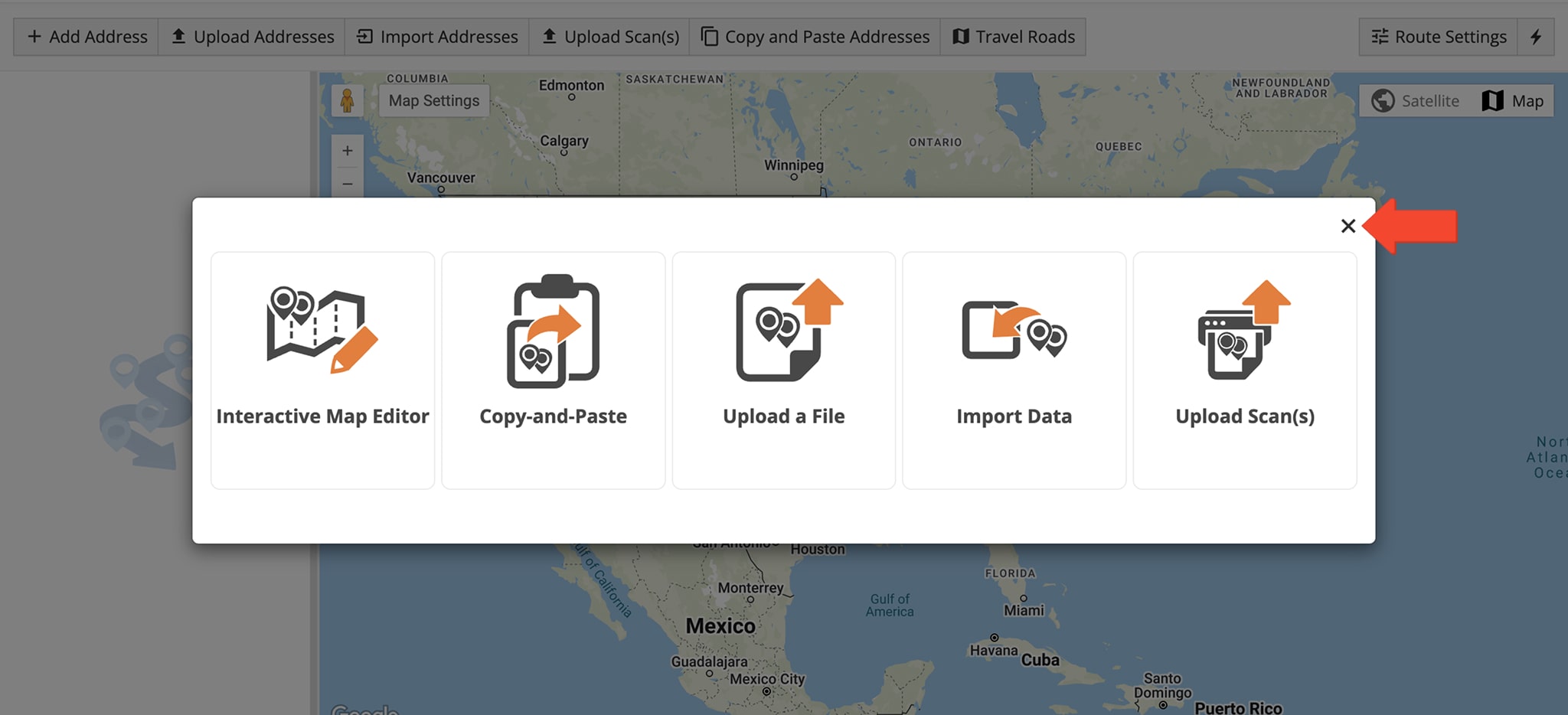
When prompted to select a route planning method, click the X in the upper right corner of the pop-up window.
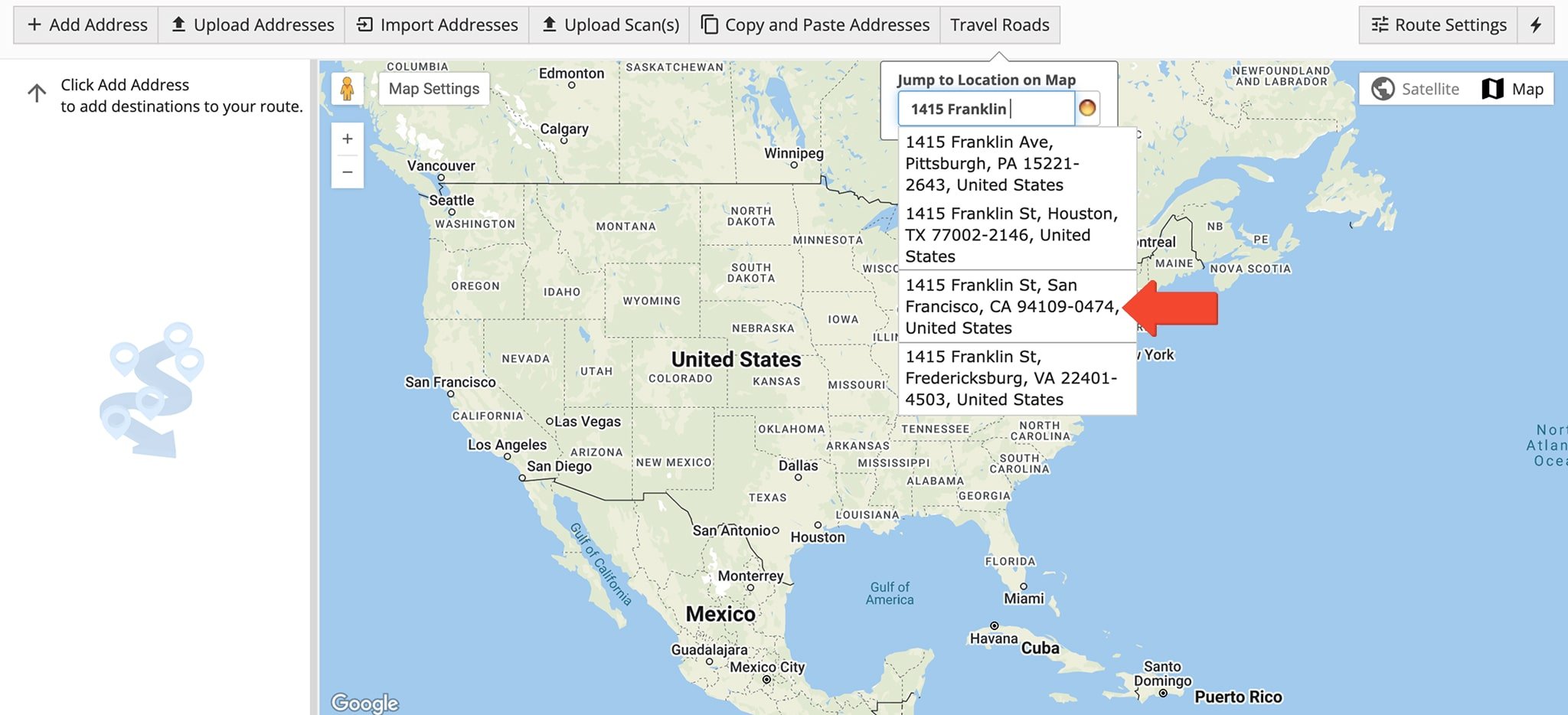
Then, hover over the Travel Roads button in the Toolbar to open the “Jump to Location on Map” tab. Enter the city or an exact address where you wish to plan a route, using the autocomplete list for quicker, more accurate selection.
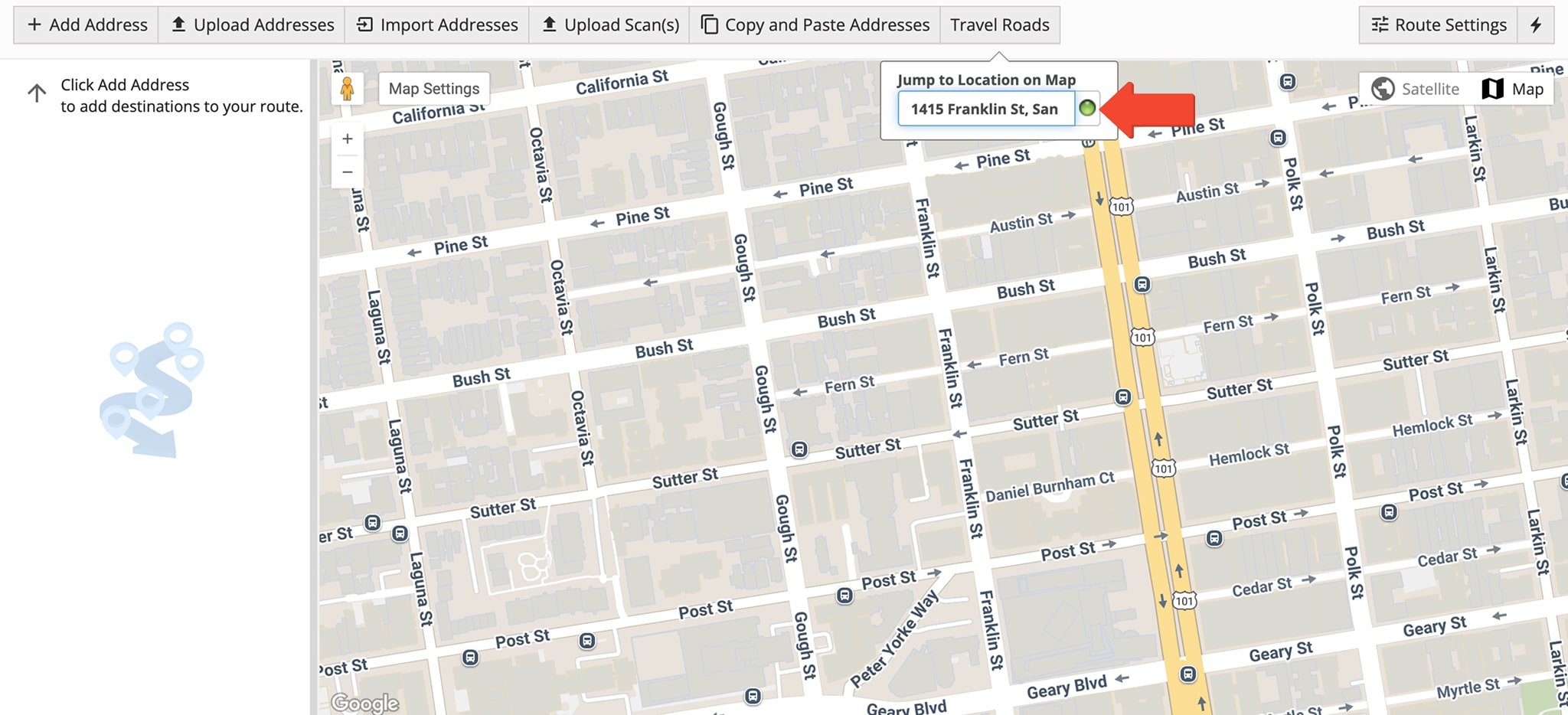
The green dot next to an entered address means the address has been geocoded with a high degree of confidence.
NOTE: Learn more about how to geocode addresses when planning routes.
From the map, adjust the map and zoom settings as needed. Then, click the “Travel Roads” button above the map and select the square to define a square or rectangular area by clicking and dragging across the map.
Alternatively, click the free form pentagon to create a custom shape. To define the shape, click anywhere to establish a point on the map and continue drawing the area point by point. Be sure to connect the first and last points to close the shape.
By defining a specific area, Route4Me can perform street network route optimization, calculating the most efficient way to travel each road within the selected boundary.
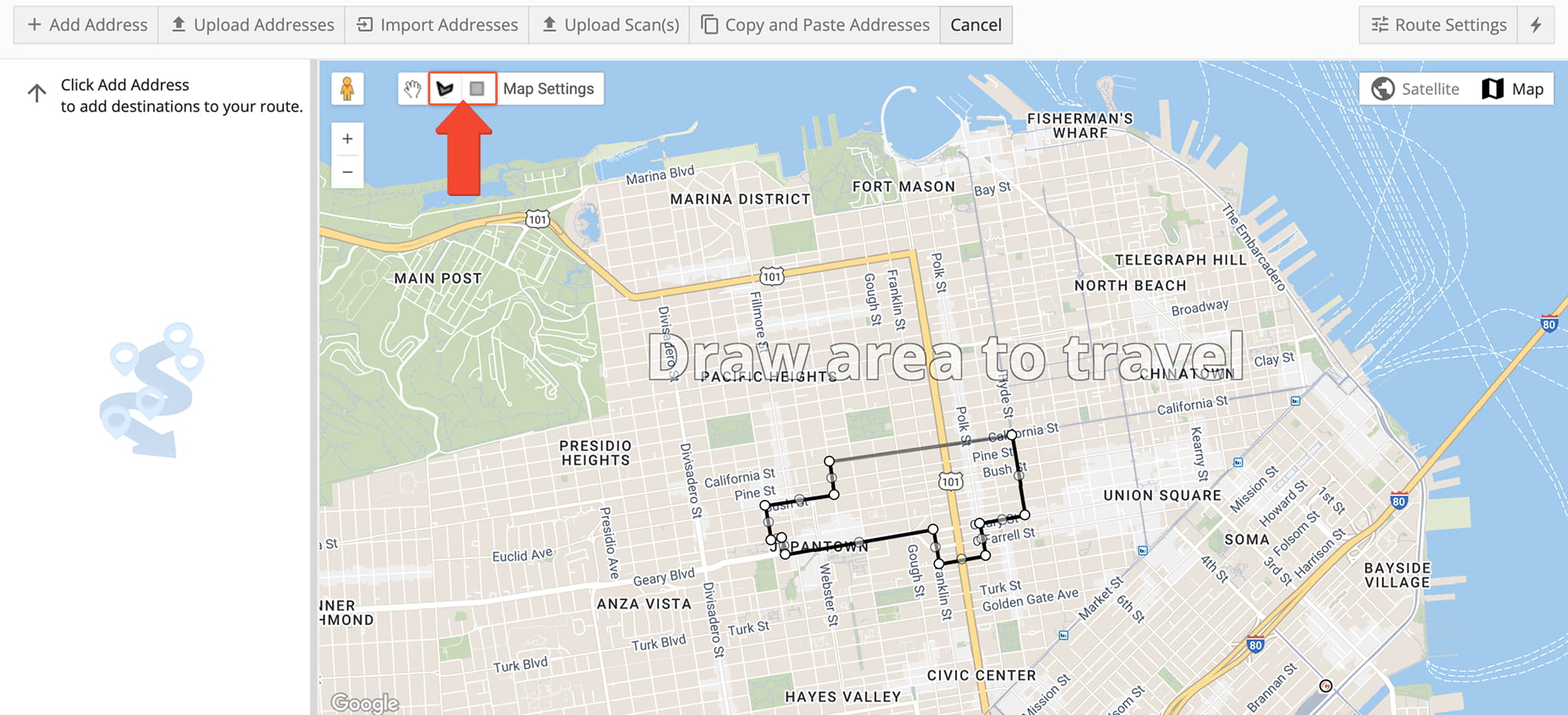
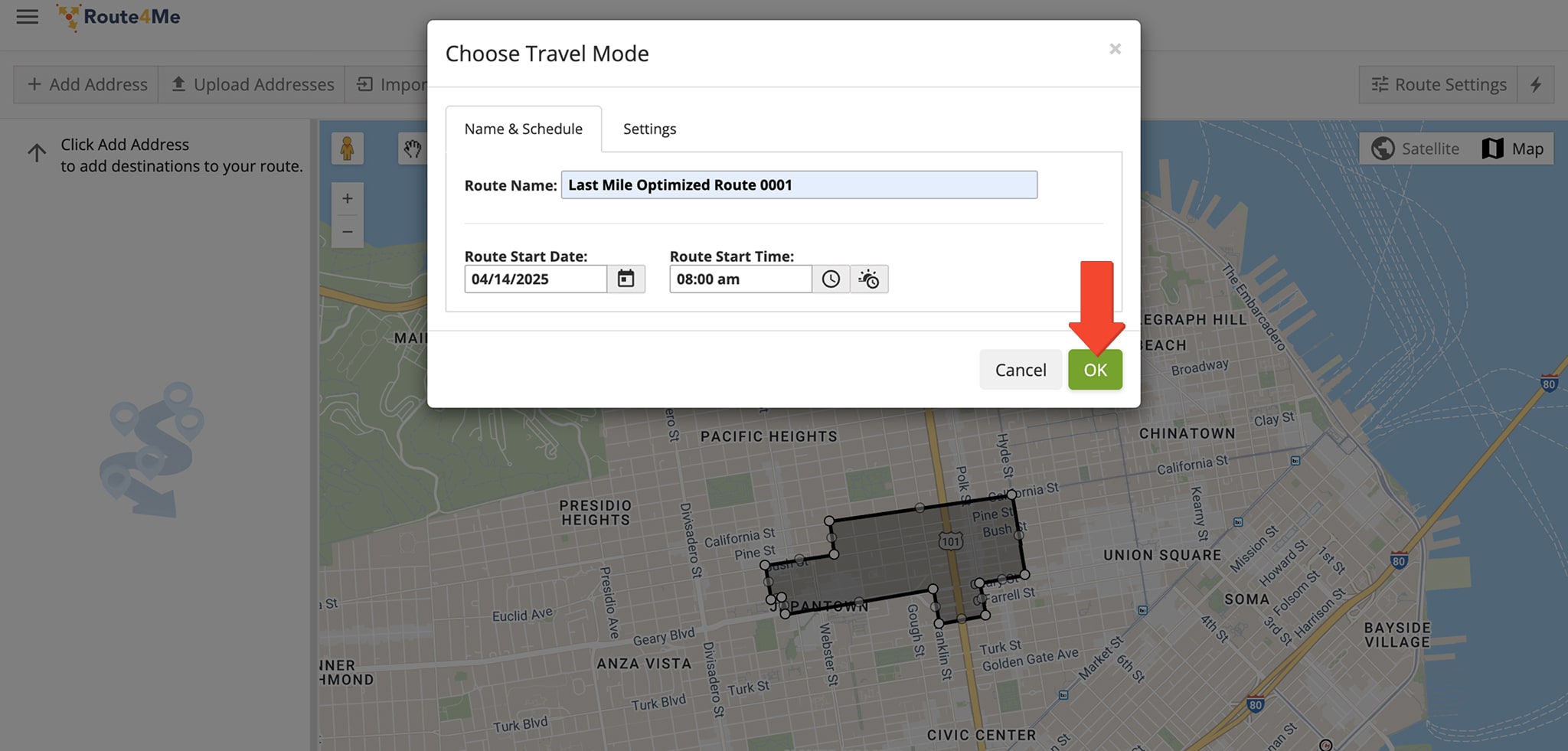
When finished, the “Choose Travel Mode” window will automatically appear. Enter the route’s name and schedule. In the “Settings” tab, specify how many Drivers you wish to assign to this route. Click “OK” when finished.
NOTE: Learn more about assigning Users and Drivers to routes.
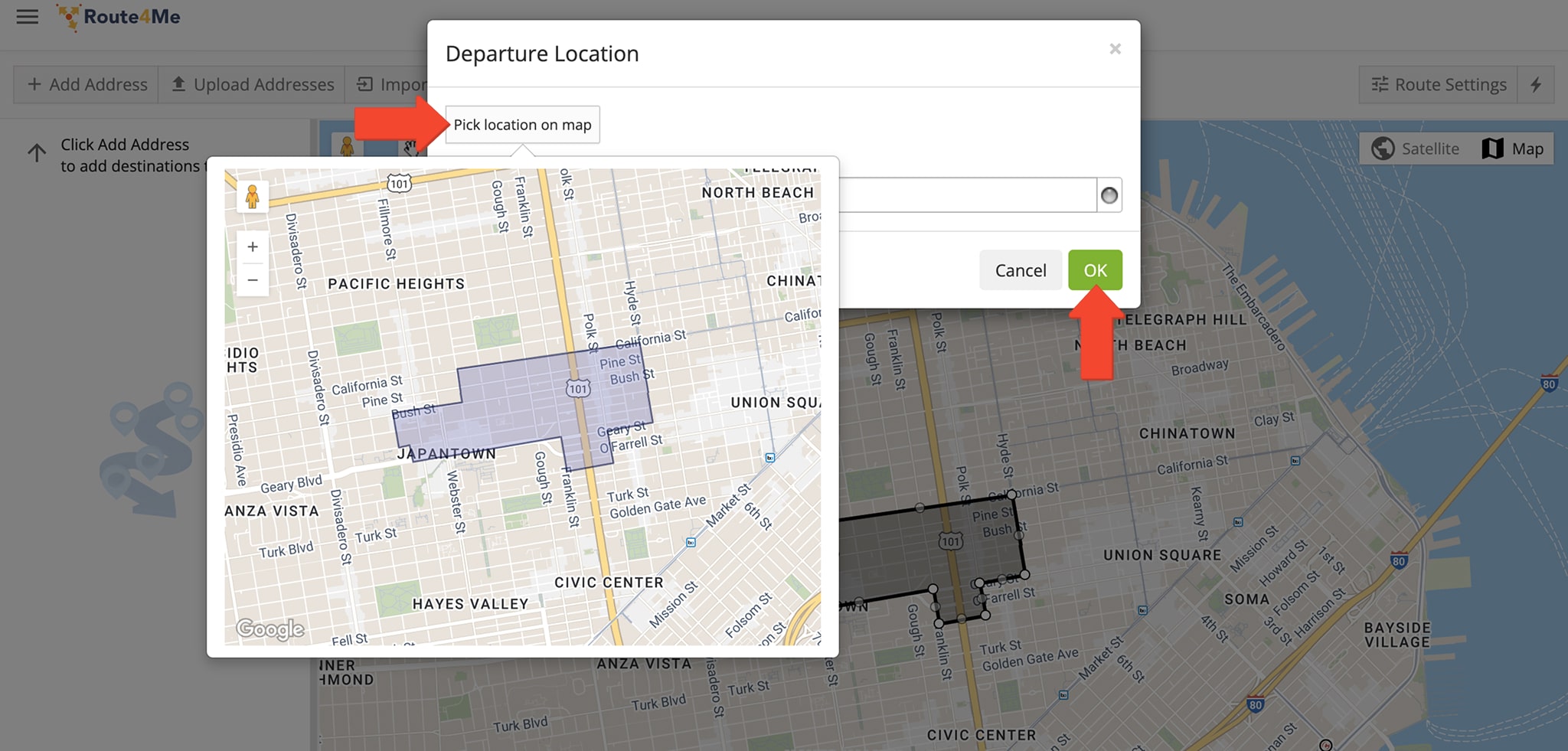
Next, enter the departure address in the “Departure Location” window by typing a full or partial address and selecting it from the auto-suggestions, or click “Pick Location on Map” to choose an address. Click “OK” when done.
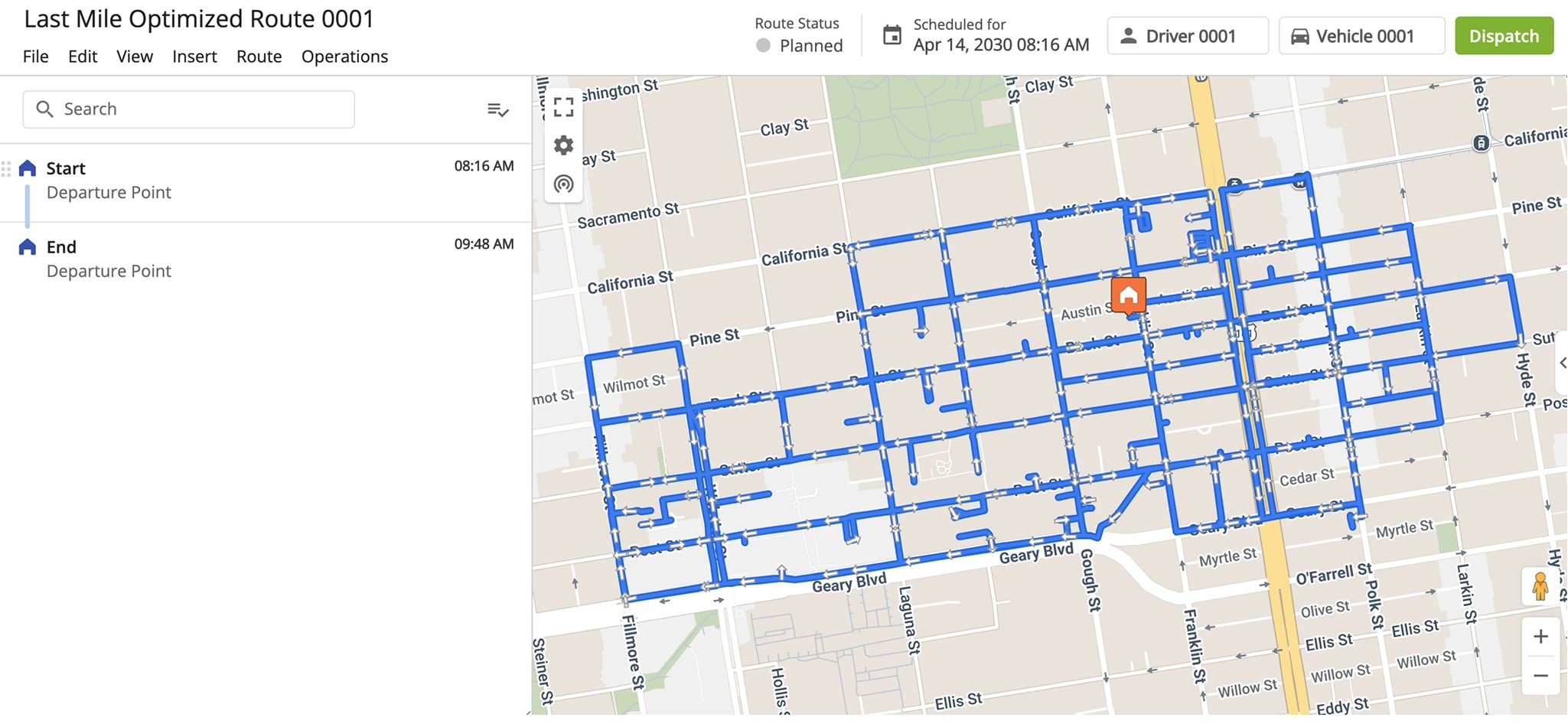
Route4Me analyzes road conditions, speed limits, and distance restrictions within the drawn area, then calculates a route that includes all roads matching your selected criteria.
This process applies arc routing route optimization principles commonly used to solve Arc Routing Problems (ARP), ensuring the most efficient coverage of road segments within the selected area.
You’ll be automatically redirected to your Routes Map where you can view the route. It will also be available in your Routes List.
Visit Route4Me's Marketplace to Check out Associated Modules:
- Routing
Road Network Optimization
About author: Daniel Archer

