Compare Routes – View Multiple Routes Side By Side
With Route4Me’s Routes List and Routes Map, you can compare multiple aspects of your routes side by side, including maps, directions, schedules, travel time, distance, and vehicle usage. This gives you clear insight into workload distribution, real-time progress, and vehicle capacity utilization. Powered by Route4Me’s dynamic optimization engine, the route comparison view updates in real time, helping you make smarter, faster routing decisions as conditions change. 
Table of Contents
Open Routes To Compare Them Side-By-Side
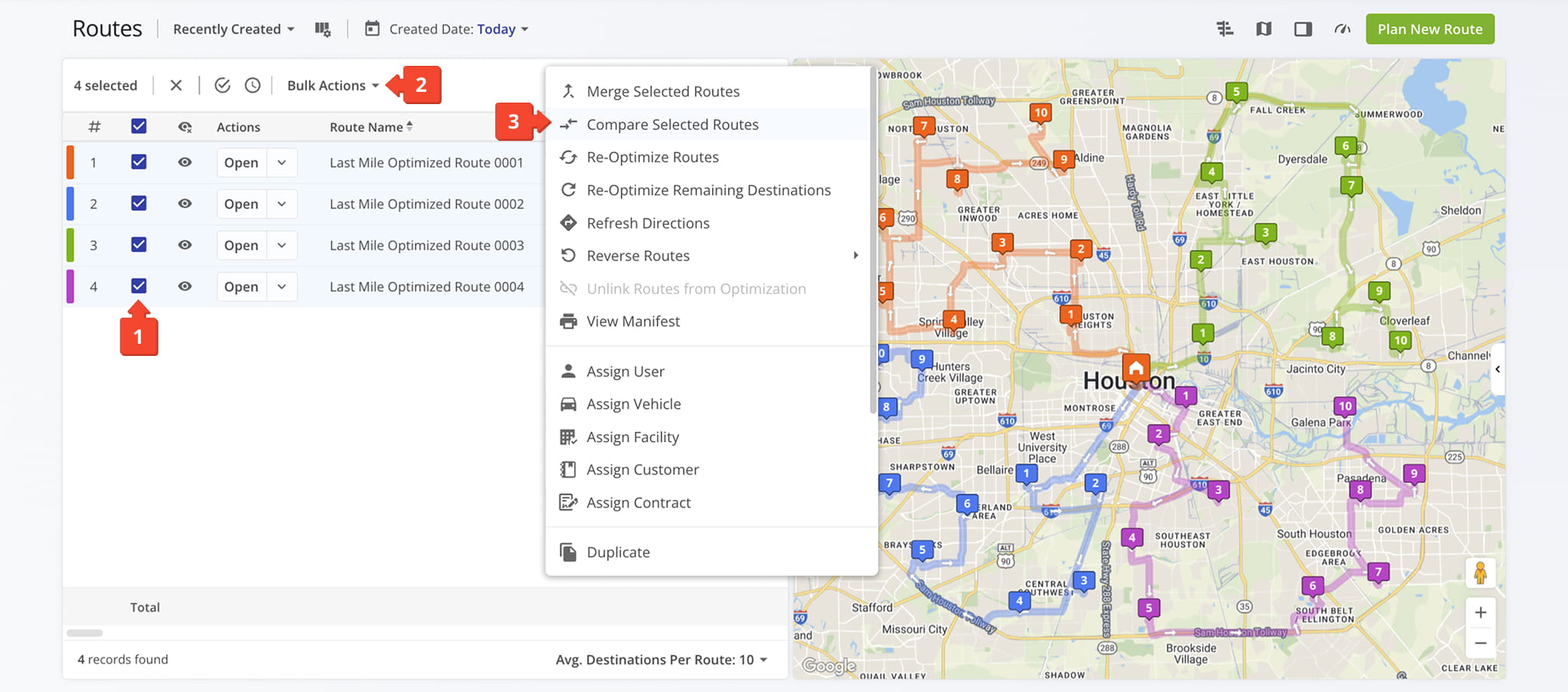
To compare routes from your Routes List, go to “Dynamic Routing” > “Routes” in the Navigation Menu. Then, follow the steps below:
- Check the boxes next to the routes you want to compare.
- Click “Bulk Actions” to open the route management actions menu.
- Select “Compare Selected Routes“.
To compare routes from your Routes Map, go to “Dynamic Routing” > “Routes Map” in the Navigation Menu and follow these steps:
- Check the boxes next to the routes you want to compare.
- Click “File” in the top menu bar.
- Click. “Compare Selected Routes“.
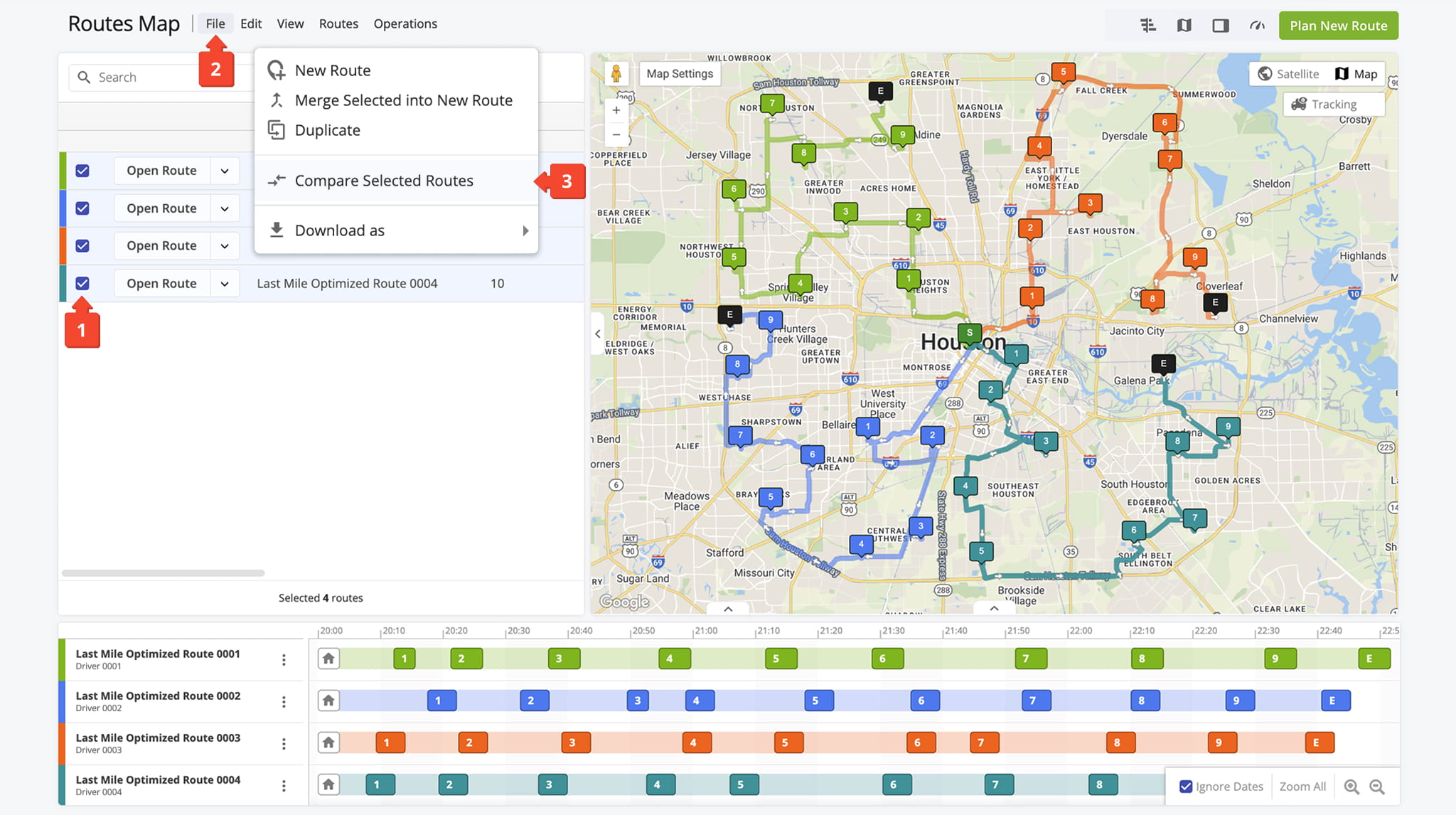
Compare Optimized Routes And Route Data, Analytics And Utilization Details
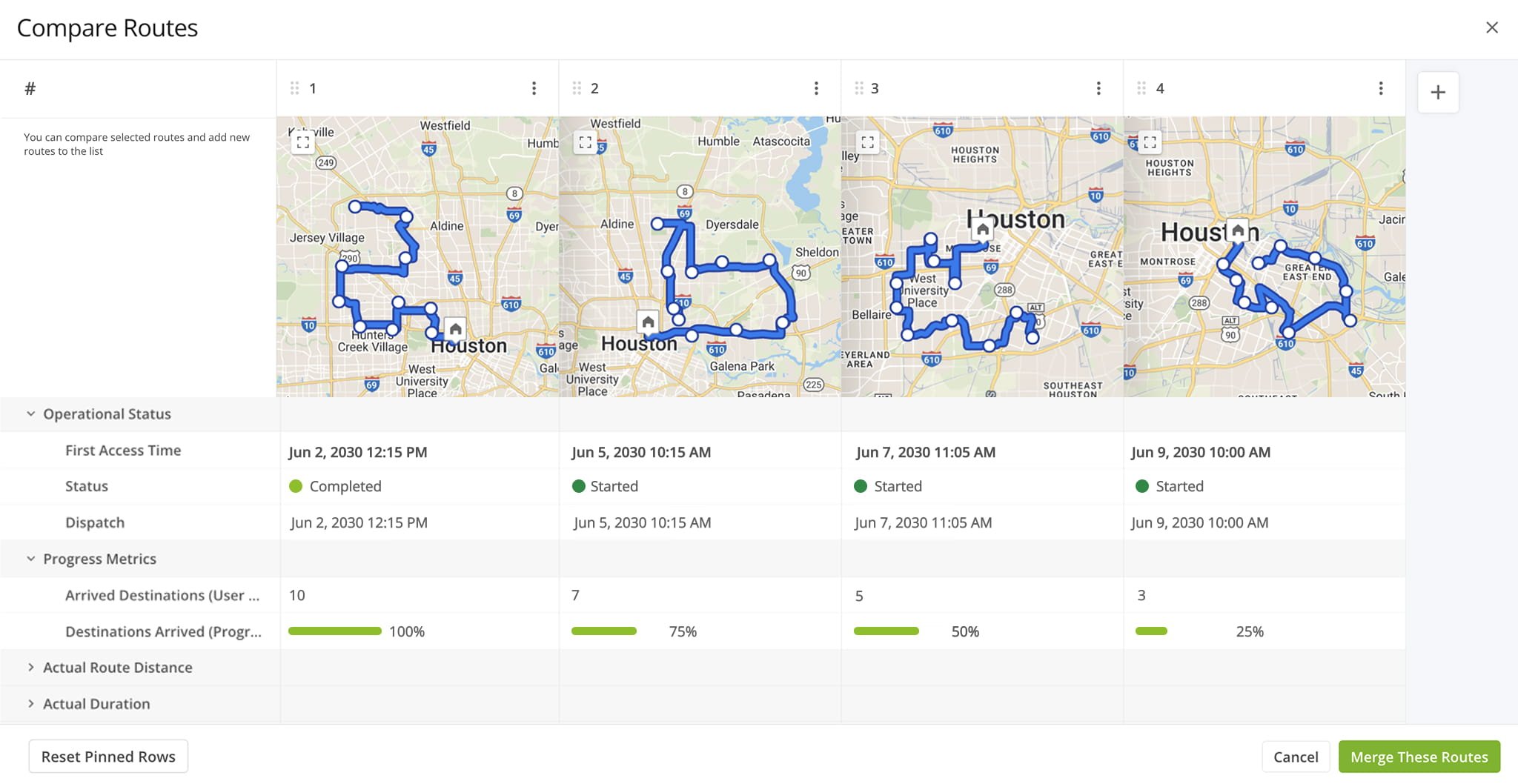
You can compare routes using operational status, progress metrics, and other real-time indicators. These fields update automatically as routes change, giving you an always-current view of performance.
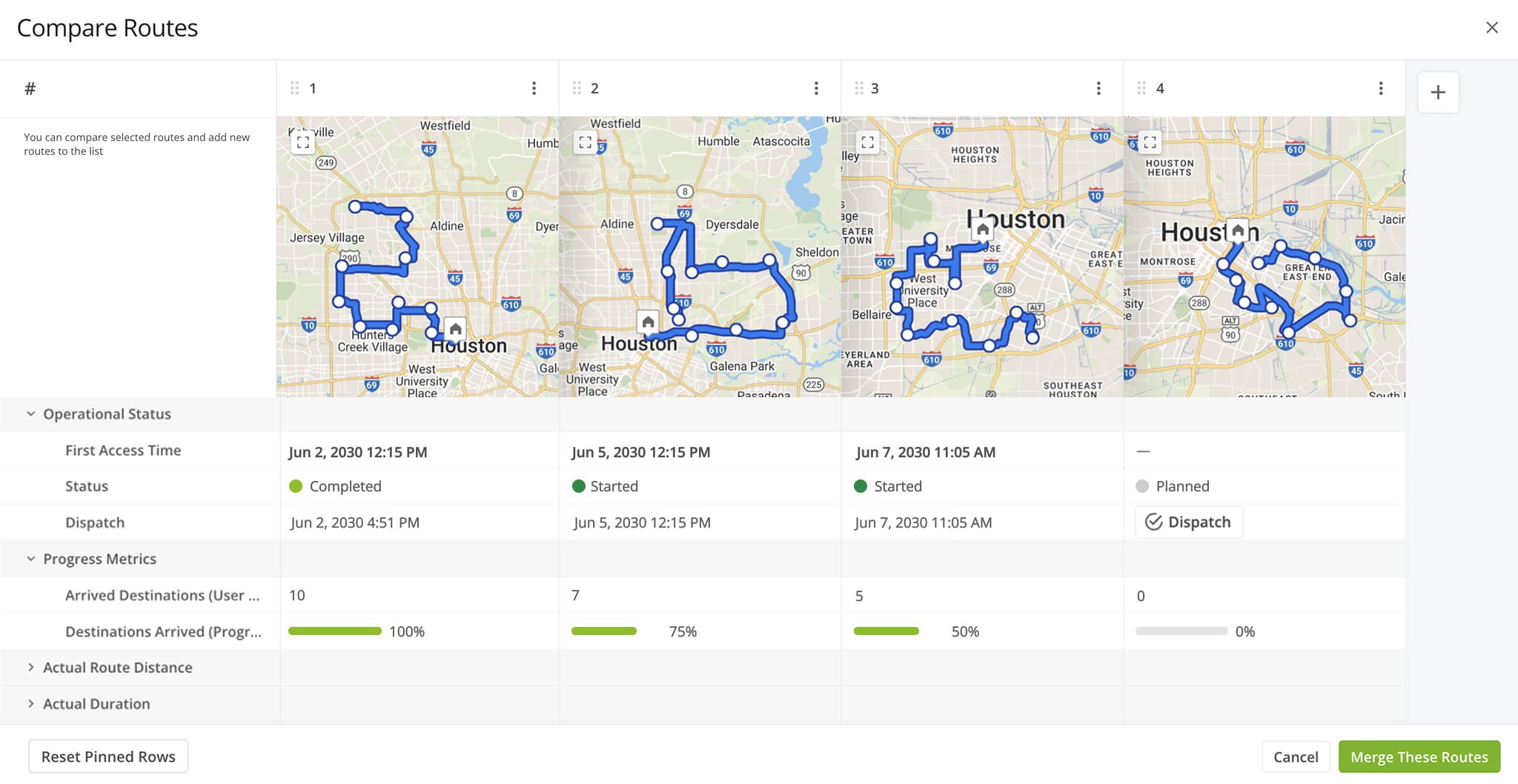
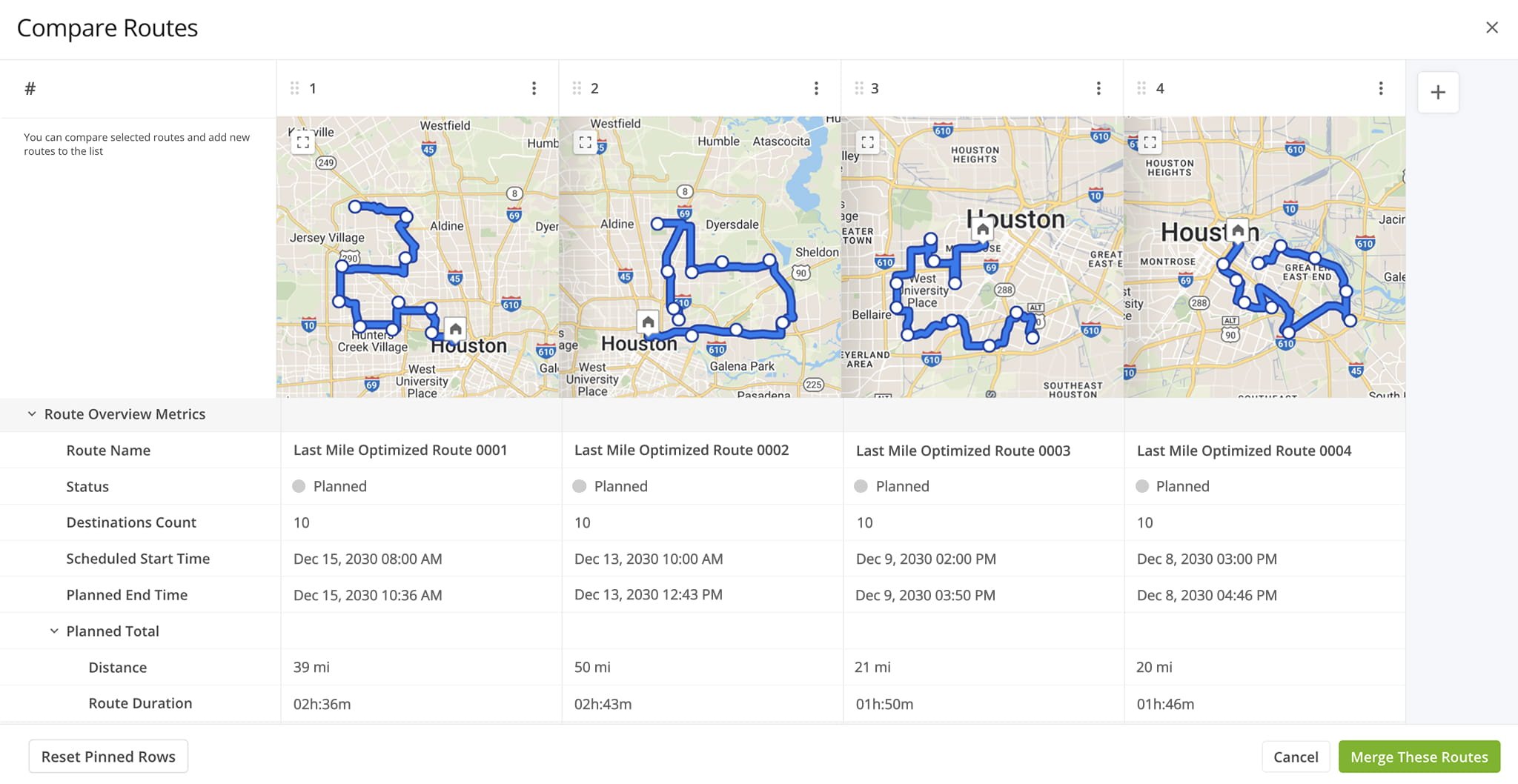
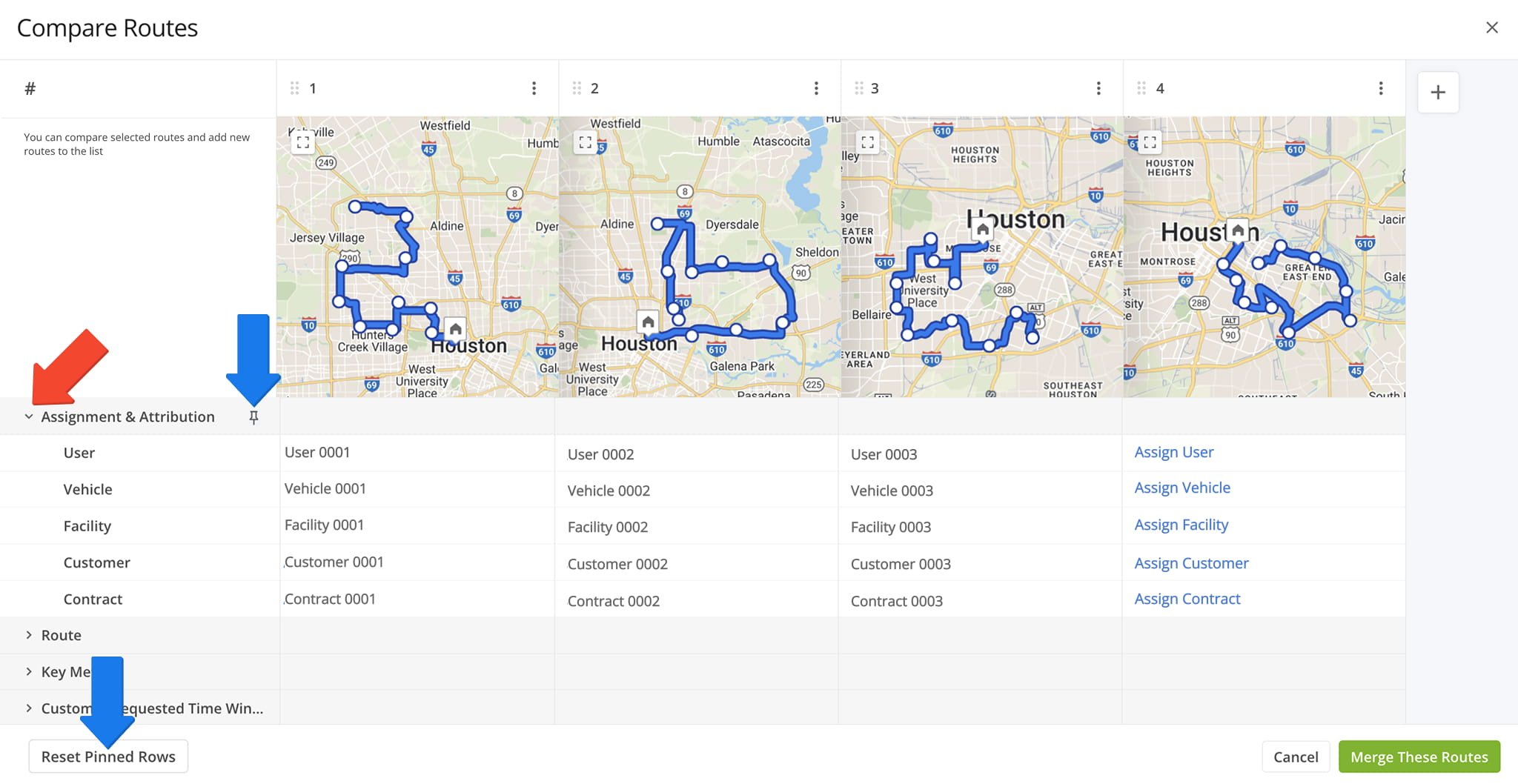
After opening the “Compare Routes” screen, you’ll see each route’s map along with key metrics organized into clear categories. Click the Down Arrow button next to a category to see all metrics associated with it.
The table below provides a full list of all available metrics.
| Data | Description | |
|---|---|---|
| Assignment & Attribution | ||
| User | The user assigned to the route; if unassigned, you can assign or edit the user from this column. | |
| Vehicle | The vehicle assigned to the route; if unassigned, you can assign or edit the vehicle from this column. | |
| Facility | The facility linked to the route; if unassigned, you can assign or edit the facility from this column. | |
| Customer | The customer linked to the route; if unassigned, you can assign or edit the contract from this column. | |
| Contract | The contract linked to the route; if unassigned, you can assign or edit the contract from this column. | |
| Route | ||
| Date Created | The date the route was created in the system. | |
| Scheduled Start Time | The time of day (in the timezone of the route depot) when the route is planned to start. | |
| Planned End Time | The time the route is expected to finish based on the planned schedule. | |
| Actual Start Time | The time the driver actually began the route. | |
| Actual End Time | The time the driver actually completed the route. | |
| Planned Total Distance | The total distance the route is expected to cover. | |
| Planned Total Route Duration | The total amount of time the route is expected to take from start to finish. | |
| Start Time Zone | The time zone of the route’s starting location. | |
| Key Metrics | ||
| Destinations Count | Total number of destinations assigned to the route. | |
| Pending Destinations | Destinations not yet started or completed by the driver. | |
| Failed Destinations | Destinations marked as failed due to inability to complete service. | |
| Skipped Destinations | Destinations the driver intentionally skipped or bypassed. | |
| Completed Destinations | Destinations successfully completed on the route. | |
| Customer Requested Time Window Adherence | ||
| Destinations Arrived On Time (User Actioned) | Destinations where the driver arrived within the scheduled time window. | |
| Destinations Arrived Early (User Actioned) | Destinations where the driver arrived earlier than the scheduled time window. | |
| Destinations Arrived Late (User Actioned) | Destinations where the driver arrived after the scheduled time window. | |
| Operational Status | ||
| First Access Time | The timestamp of the first recorded GPS or app activity on the route. | |
| Status | The current operational status of the route (e.g., planned, in progress, completed). | |
| Dispatch | Indicates whether the route has been dispatched, with an option to dispatch if not. | |
| Progress Metrics | ||
| Arrived Destinations (User Actioned) | Total number of destinations where arrival was recorded by the user. | |
| Destinations Arrived (Progress %) (User Actioned) | Percentage of planned destinations the driver has arrived at. | |
| Actual Route Distance | ||
| Actual Total Distance (Mobile App) | Total distance recorded by the mobile app during the route. | |
| Actual Total Distance (Telematics) | Total distance recorded from the assigned vehicle’s telematics device. | |
| Actual Total Distance (Merged) | Combined distance data from both mobile app and telematics sources. | |
| Actual Duration | ||
| Planned Route Duration (User Actioned) | The planned total duration of the route, based on user-adjusted or manually updated values. | |
| Actual Total Route Duration | Actual Travel Time is calculated based on the on-road Travel Time between Destinations based on the received GPS data, from the first to the last received GPS signal on the route. This does not include time spent inside customer Geofences. | |
| Actual Total Travel Duration | Actual total duration of route time spent traveling between destinations. | |
| Actual Total Service Duration | Actual Service Time of all Destinations across routes scheduled for the specified timeframe. Actual Service Time is the time assigned Users spend inside Destination Geofences. | |
| Actual Total Wait Duration | Total amount of time that a driver spent being inactive while driving the route (i.e., a route started before the opening hours and a driver had to wait, a driver arrived at the address before the opening of the Time Window, etc.). | |
| Actual Total Break Duration | Actual duration the assigned User spent at Driver Break destinations. | |
| Actual Total Unattributed Duration | Actual total duration of route time that couldn’t be associated with another metric. | |
| Actual Service Time | ||
| Actual Total Service Time (Auto Detected) | Automatically detected time the driver spent servicing all destinations. | |
| Actual Travel Duration | ||
| Actual Total Duration (Mobile App) | Total route duration calculated from mobile app GPS data. | |
| Actual Total Duration (Telematics) | Total route duration calculated from telematics GPS data. | |
| Planned Durations | ||
| Planned Route Duration | The original system-generated planned duration of the route before any user adjustments. | |
| Planned Total Travel Duration | Planned Travel Time of the route. This is the estimated time the assigned User will spend traveling between Destinations and doesn’t include Service Time, Wait Time, etc. | |
| Planned Total Wait Duration | Total planned duration of Wait Time on the route. | |
| Planned Total Service Duration | Planned Service Time of the route. This is the estimated time the assigned User will spend at customer Destinations to complete them. That doesn’t include Wait Time related to customer Time Windows. | |
| Planned Total Break Duration | Total combined planned duration of Driver Breaks on the route. | |
| SLA | ||
| Out of Sequence Destinations (#) | The number of destinations visited in an order different from the planned sequence. | |
| Out of Sequence Destinations (%) | The percentage of route destinations completed out of the planned sequence. | |
| Utilization – Pieces/Units | ||
| Planned | Total planned Pieces (units) amount of all Destinations on the planned route. | |
| Completed | Total number of completed pieces or units. | |
| Completed (%) | Percentage of pieces or units completed. | |
| Remaining At End (%) | Percentage of pieces or units still remaining when the route ended. | |
| Utilization – Weight | ||
| Planned | Total planned Weight amount of all Destinations on the planned route. | |
| Completed | Total weight completed across all serviced destinations. | |
| Completed (%) | Percentage of planned weight completed. | |
| Remaining At End (%) | Percentage of planned weight still remaining at the route’s end. | |
| Utilization – Cube | ||
| Planned | Total planned Cube (volume) amount of all Destinations on the planned route. | |
| Completed | Total cubic volume completed across all serviced destinations. | |
| Completed (%) | Percentage of the planned volume completed. | |
| Remaining At End (%) | Percentage of planned volume remaining at the route’s end. | |
| Utilization – Revenue | ||
| Planned | Revenue to be generated from servicing route Destination. | |
| Completed | Total revenue generated from the destinations completed on the route. | |
| Completed (%) | Percentage of planned revenue achieved. | |
| Remaining At End (%) | Percentage of revenue still unfulfilled at route end. | |
| Strategic Optimization | ||
| Strategic Optimization Name | The name of the strategic optimization used to generate or modify the route. | |
| Scenario Name | The scenario applied during strategic route planning. | |
| Note Custom Field Sum | ||
| Sum Number With Decimals | Sum of all custom note field values that include decimals. | |
| Sum Only Integers | Sum of all custom note field values that are whole numbers. | |
| Sum 1 | Total of the first custom numeric field configured for notes. | |
| Sum 2 | Total of the second custom numeric field configured for notes. | |
From the Compare Routes page, you can perform a variety of useful actions:
- To add more routes for comparison, click the Plus Button on the right side of the screen.
- To remove or delete routes, click the Three-dot Button next to a specific route.
- You can zoom in or out on the maps and drag panels to adjust their layout.
- Hover over an address pin to access detailed information about the destination.
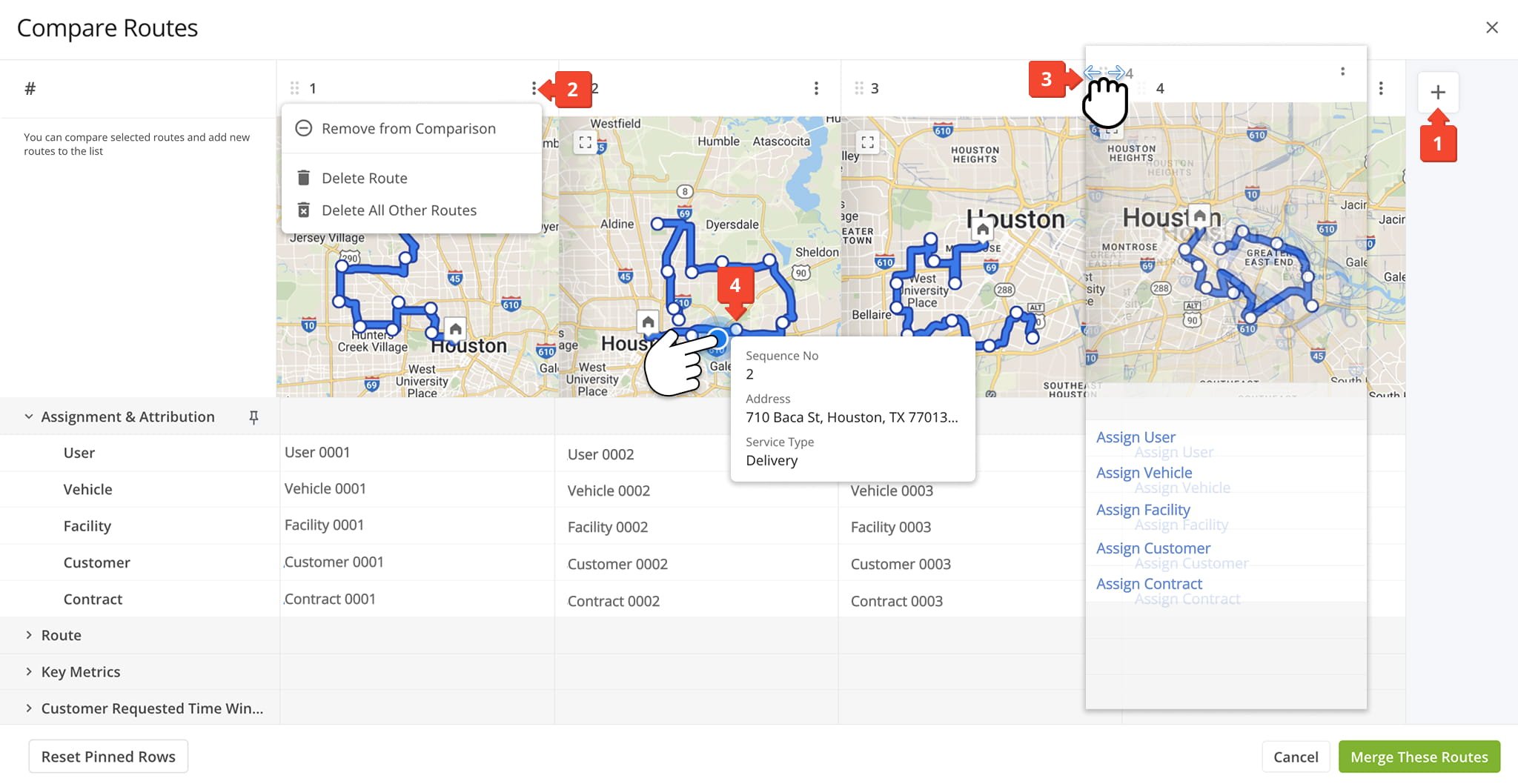
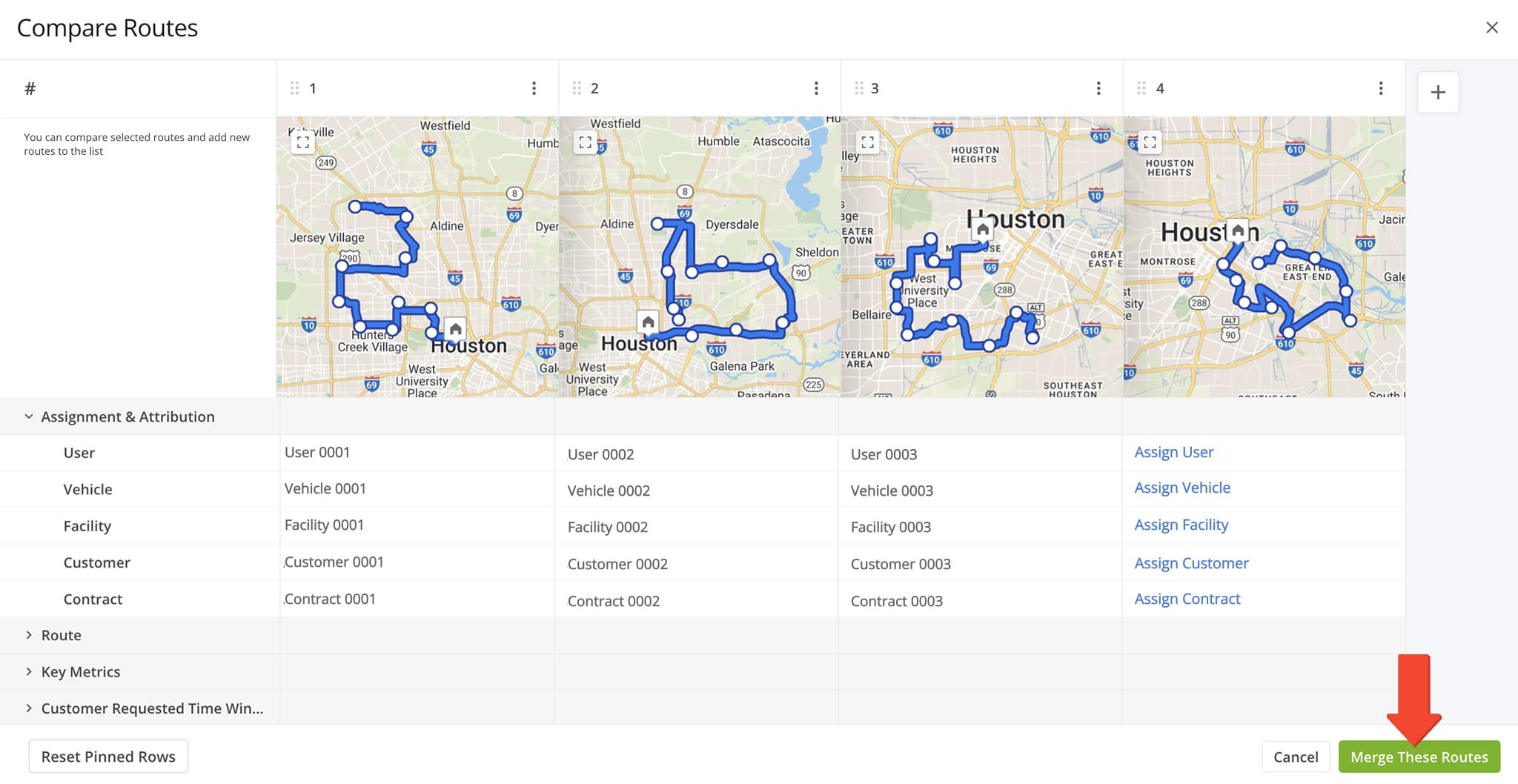
Compare Routes And Merge Multiple Optimized Routes To Combine Address Sequences
After you open a route comparison with several routes, you can click the “Merge These Routes” button to merge them into a single, combined route with a new, optimized destination sequence and directions.
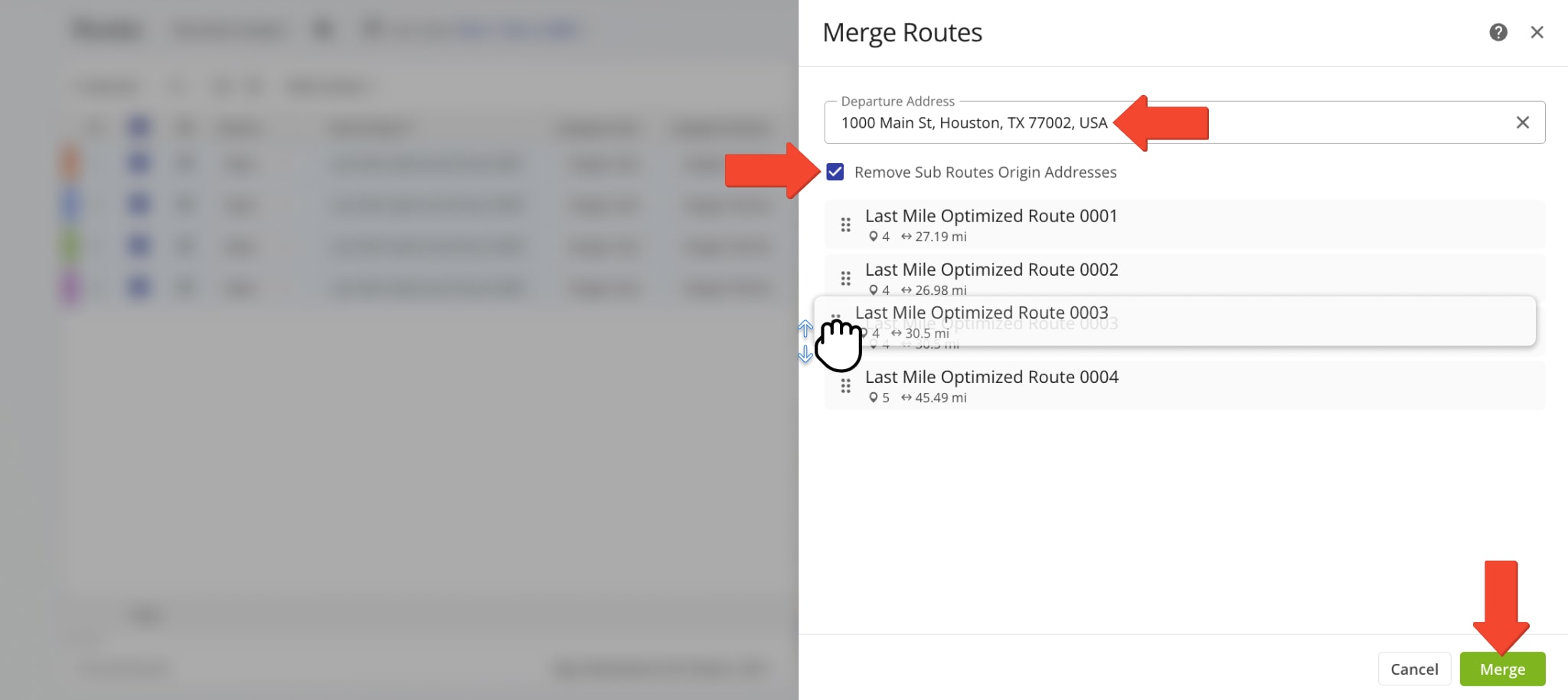
In the “Merge Routes” editor panel, you can specify a Departure Address by entering it into the designated field. When finished, click “Remove Sub Routes Origin Addresses” and click “Merge” to finalize.
If you do not enter a new Departure Address, Route4Me will automatically select the Departure Address of the first sub-route selected for merging. To use the Departure Address from a different sub-route, simply drag it to the top of the sequence.
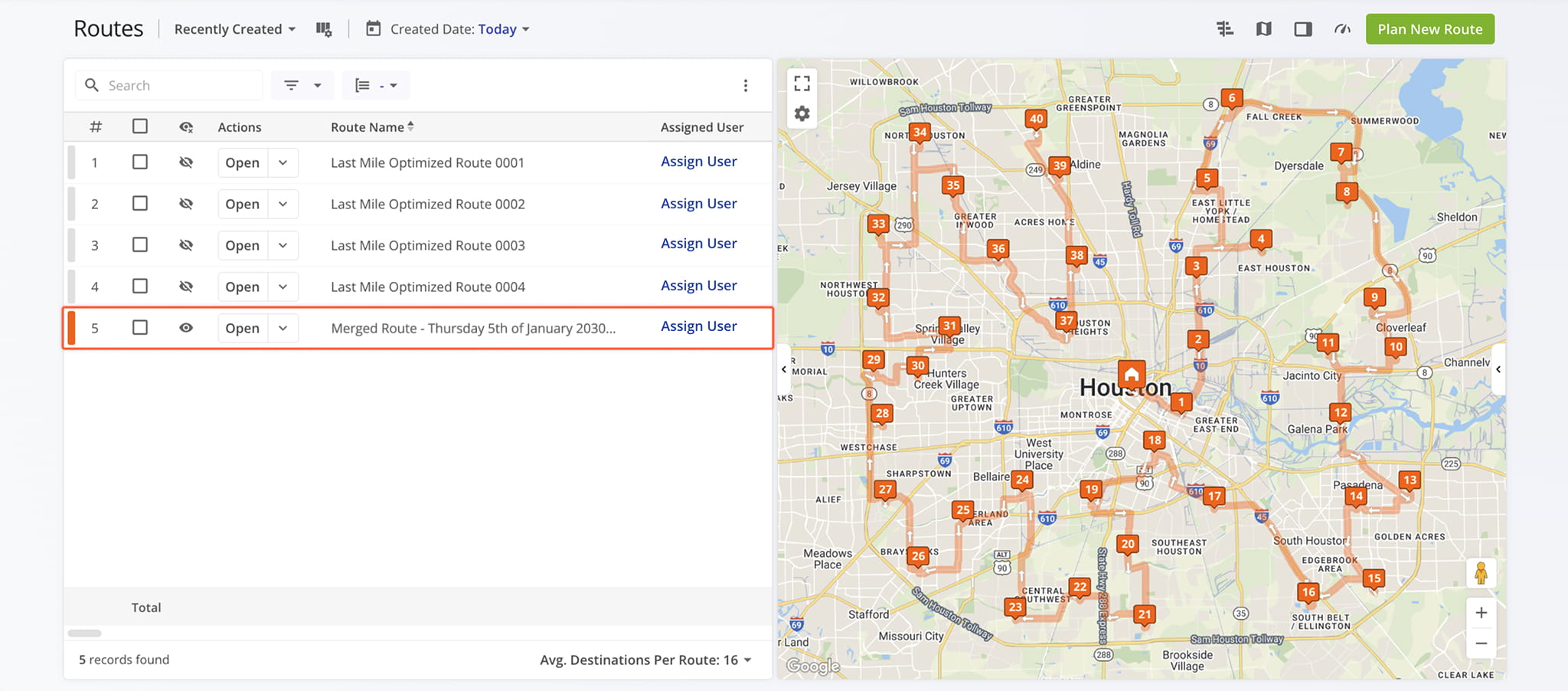
When finished, the merged route will appear in your Routes List. Newly merged routes are always named “Merged Route” followed by the date and time of merging. Learn more about other available options when you merge routes.
Visit Route4Me's Marketplace to Check out Associated Modules:
- Route Optimization
Address Book and Territories Planning
- Operations
Custom Data Add-On