
Manage Strategic Optimizations – Automated Strategic Cycle Planning With Recurring Routing
Strategic Routing simplifies recurring route planning with complex schedules over long planning periods. You add locations and schedules, configure optimization settings, and Route4Me’s enterprise routing engine automatically plans and optimizes Strategic Scenarios and routes according to your schedules, rules, and preferences. In this guide, you’ll learn how to open, filter, and manage your Strategic Optimizations and their associated Scenarios and Strategic Optimization Locations.
Table of Contents
Strategic Optimizations And Scenarios With Recurring Route Schedules
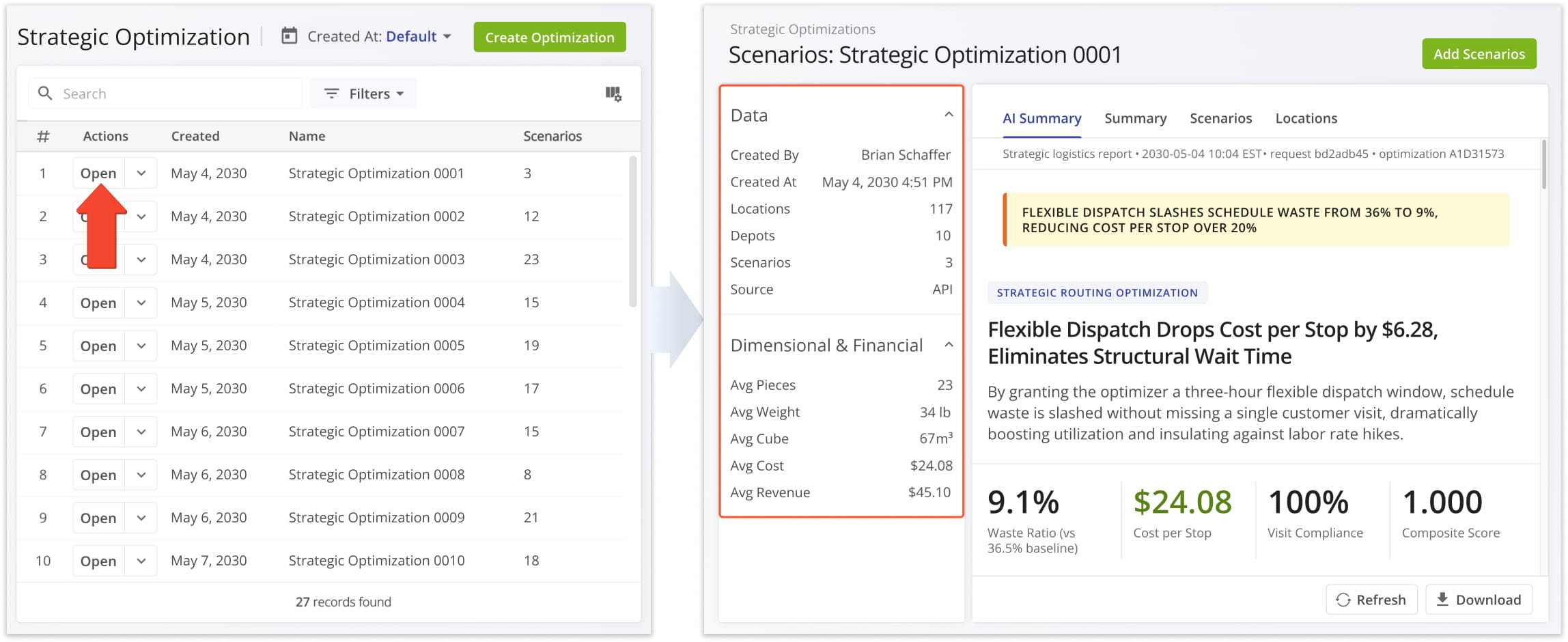
When you create Strategic Optimizations, Route4Me will automatically generate the most efficient recurring route cycles and Scenarios according to your settings. You can find them in your account’s Strategic Optimizations.
Go to “Strategic Routing” > “Scenarios” from the Navigation Menu to manage Strategic Optimizations and their Scenarios.
Open Your Strategic Optimizations
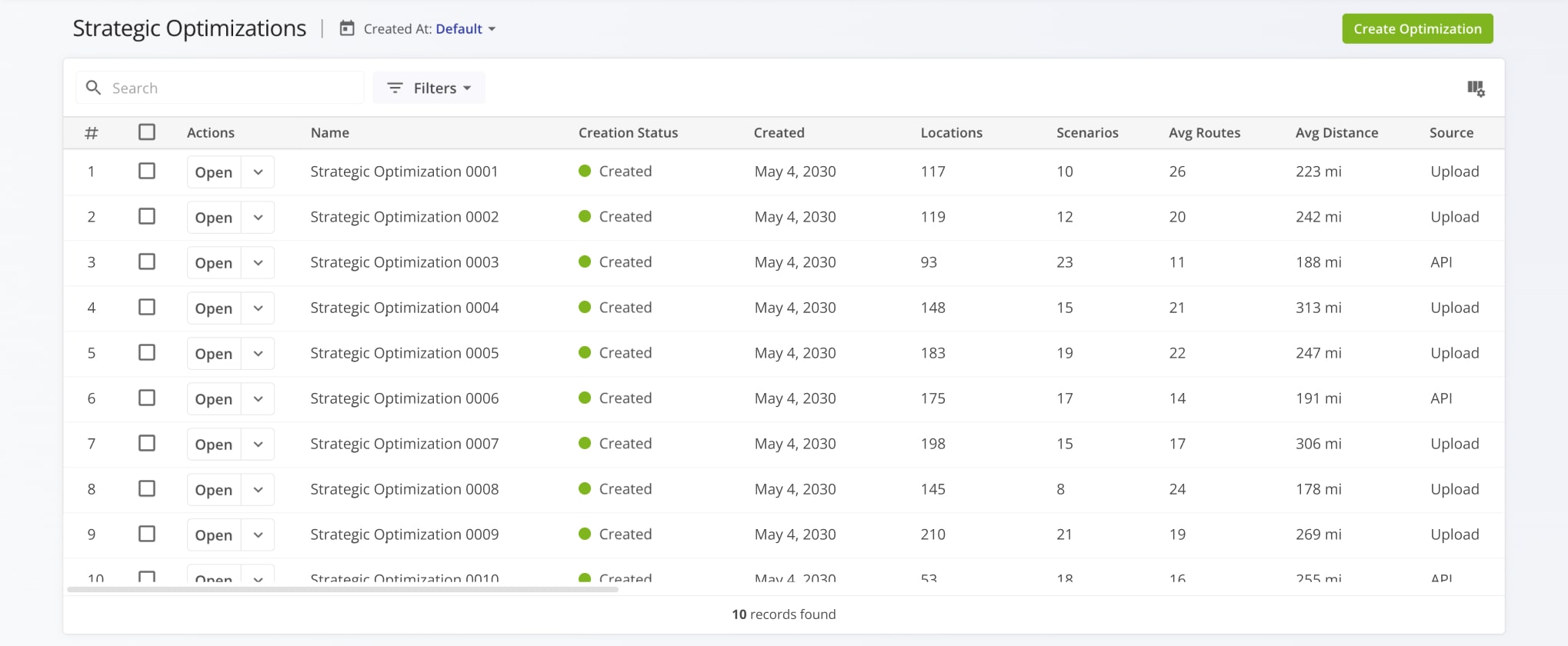
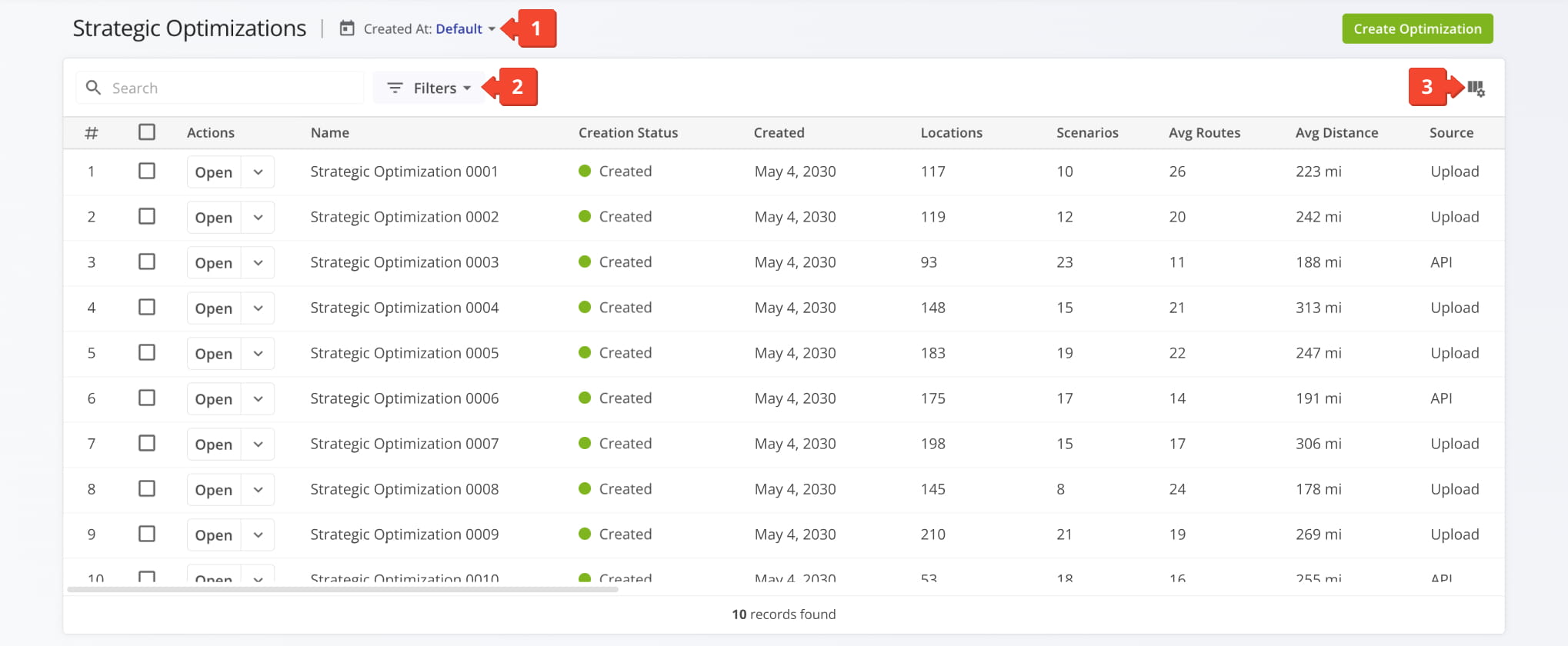
To find Strategic Optimizations and see the data relevant to your needs, you can:
- Use the “Created At” menu to filter Strategic Optimizations by their creation date.
- Find and filter Strategic Optimization Locations using the “Search” and “Filters” options.
- Customize the data columns displayed on your Strategic Optimizations Page by clicking the Columns Button.
See the tables below for a list of Filters and Columns. Keep reading to learn about Strategic Optimization Management.
Strategic Optimizations Filters
Strategic Optimizations Display Columns
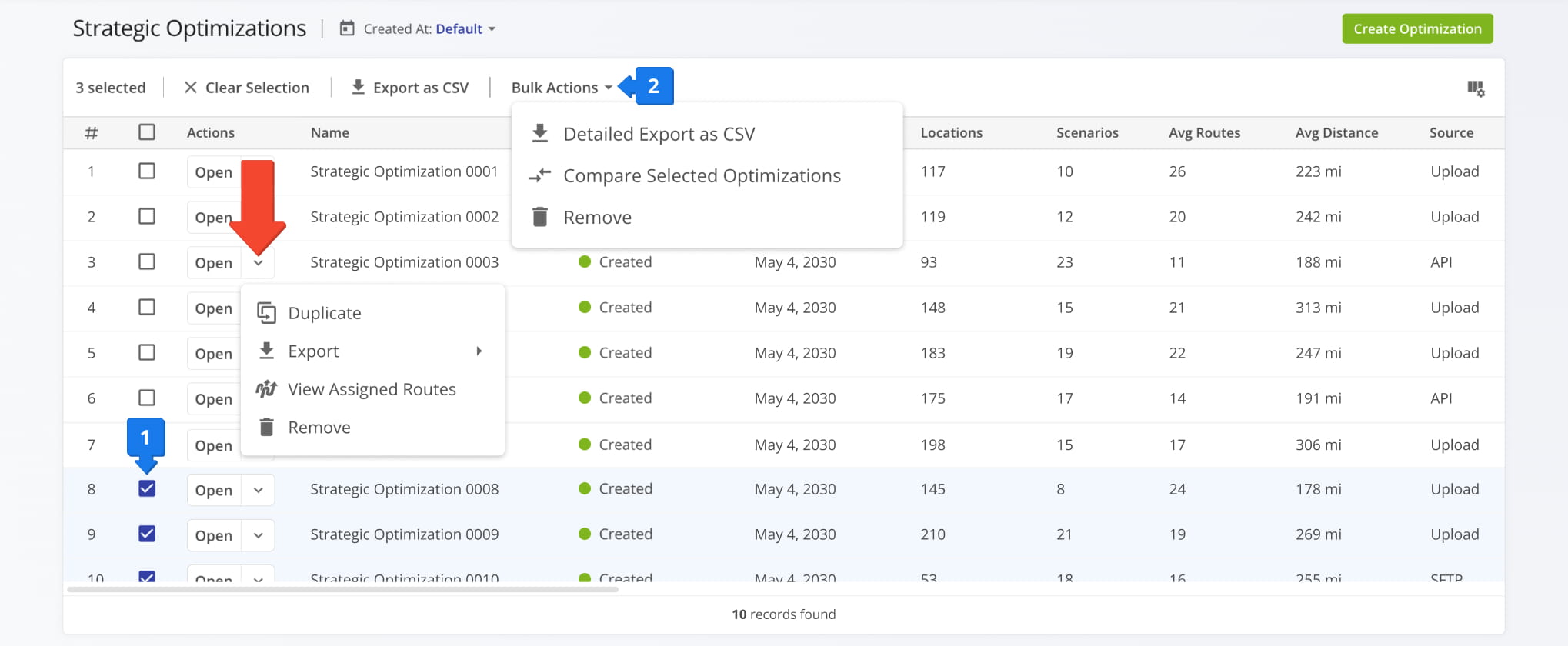
To manage Strategic Optimizations, click the Down Arrow, and you’ll see the following options:
- Duplicate: Create a copy of a Strategic Optimization you can safely edit.
- Export: Download a Strategic Optimization, including options for in-depth customization.
- View Assigned Routes: Go to the Routes Page, pre-filtered to show only routes associated with the Optimization.
- Remove: Delete the Strategic Optimization, its Scenarios, and their draft routes from your account.
You can also select multiple Strategic Optimizations and use the “Bulk Action” menu to export, compare, or remove them.
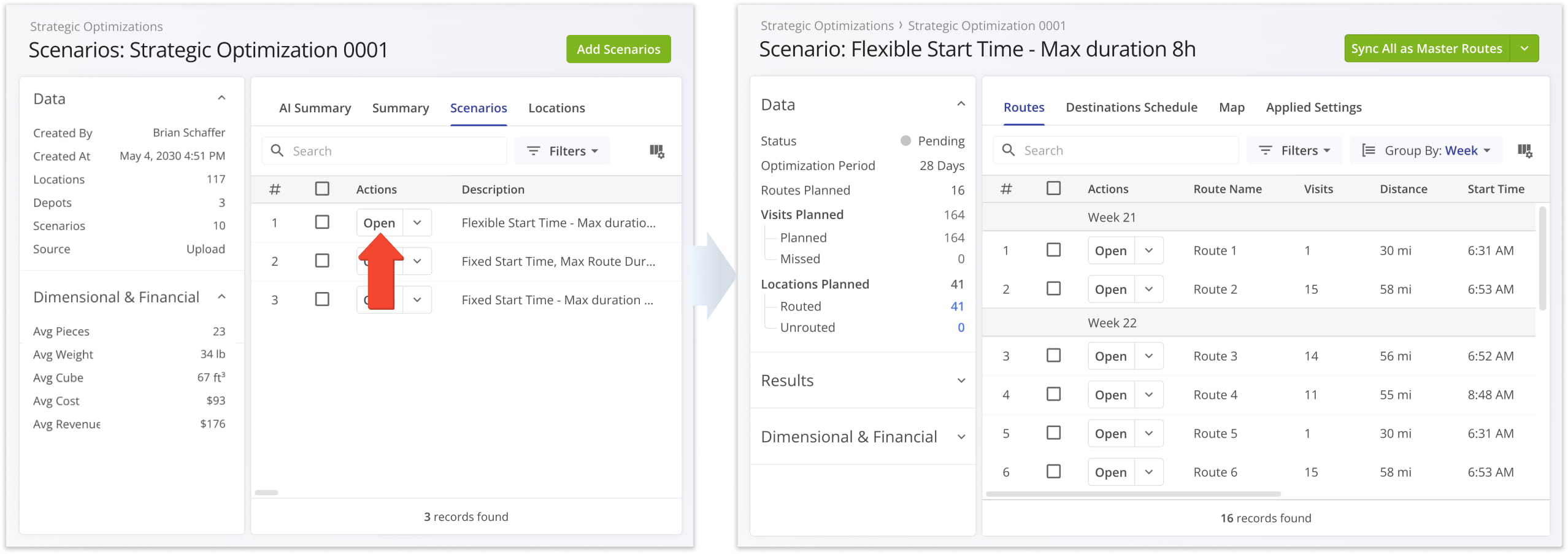
Strategic Optimizations provide an overview of your Recurring Routing Scenarios bundled into Optimizations. To view more detailed data about a specific Optimization and its associated Scenarios, click the “Open” button next to it.
When you open a Strategic Optimization for the first time, the system instantly generates a clear, scannable performance review using Route4Me’s advanced routing AI. You can also see a summary graph of Scenario Data on the left.
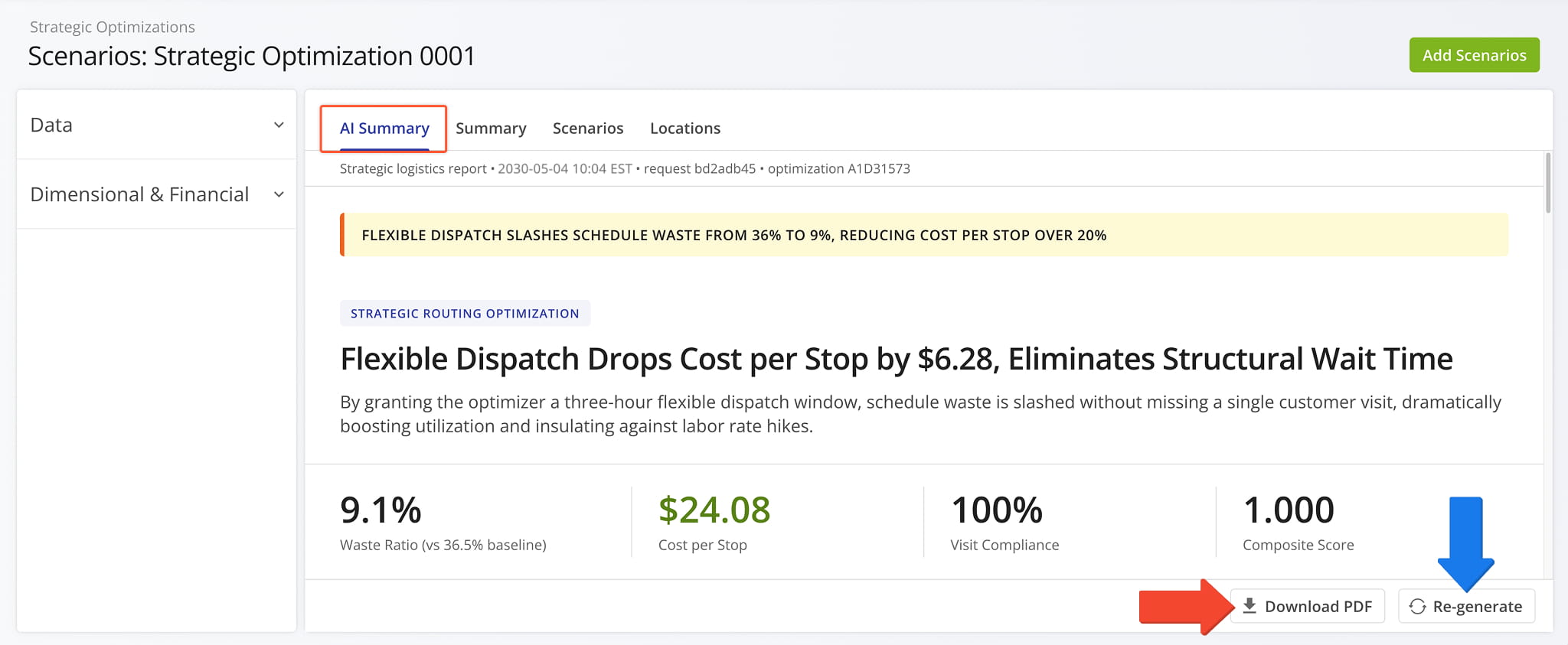
AI Summary – Intelligent Performance Review And Recommendations
The “AI Summary” tab is selected by default and shows the most recently generated summary. Under the tabs bar, you’ll see a timestamp of when the summary was generated along with its associated request and optimization IDs.
On the bottom, you’ll find buttons to download the summary as PDF or generate a new AI Summary.
Learn more about AI Summary Reports for Strategic Routing.
Open Your Strategic Optimizations
Optimization Summary – Customizable Strategic Scenario Data Graph
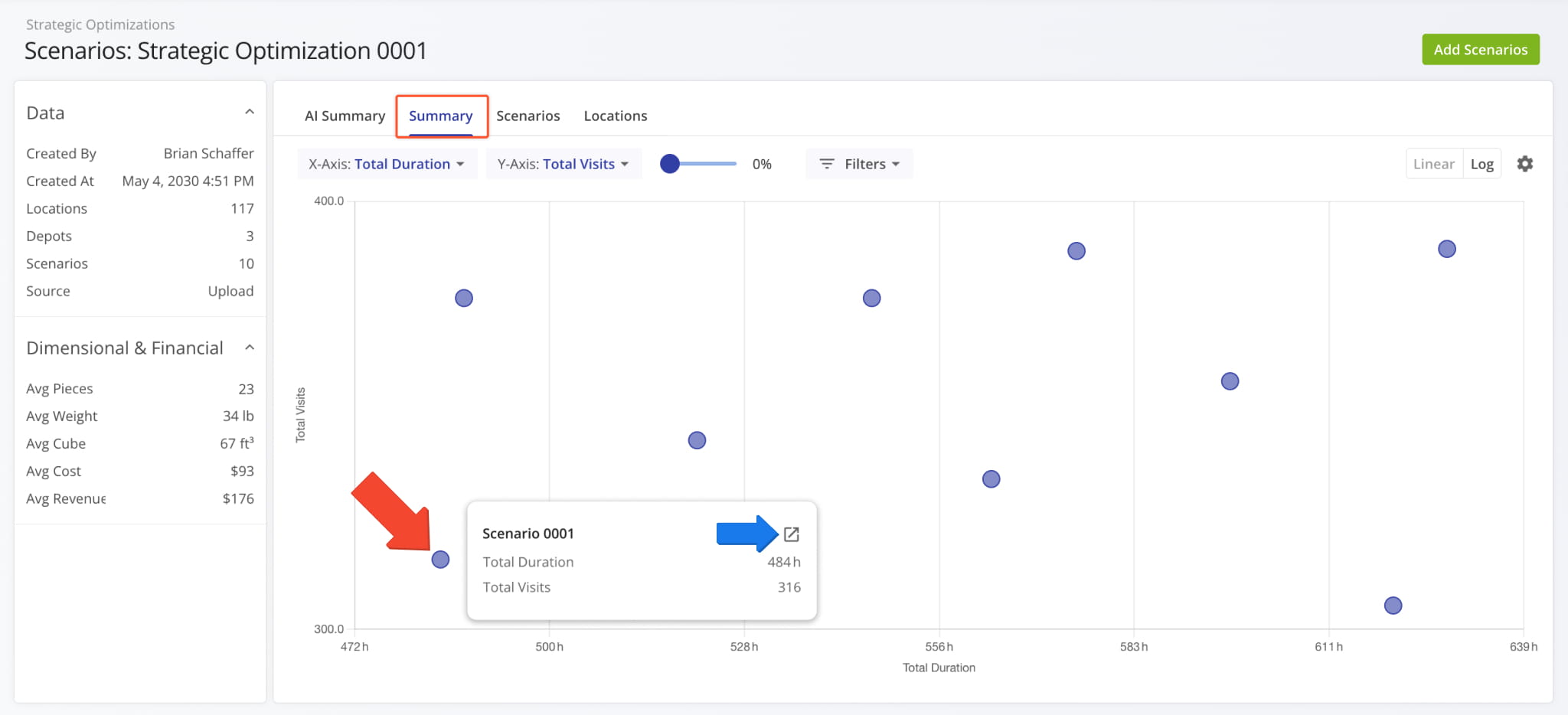
Select the “Summary” tab to see a customizable graph that maps and compares the Strategic Scenarios.
Hover over any point to see the values associated with that Scenario. You can also click the “Open” icon to open the Scenario.
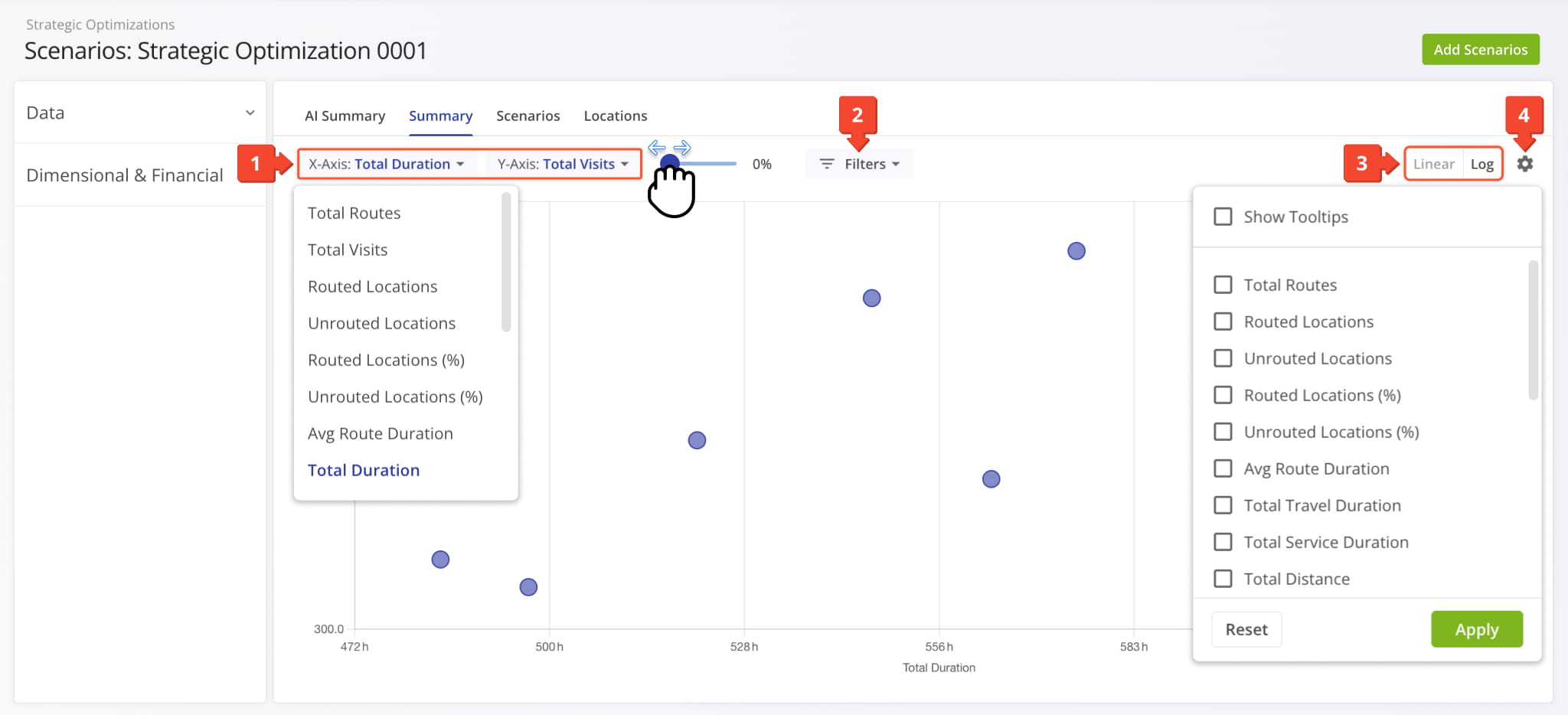
You can use the following controls to customize the graph:
- Use the “X-Axis” and “Y-Axis” dropdown menus to select values as graph axes
See the table below for a full list of available graph values. - Use the “Filters” field to select Strategic Scenario Filters.
- Switch between linear and logarithmic graph modes.
- Click the Gear Icon to customize which values are shown when you hover over a Scenario in the graph.
Next to the axis controls, you’ll also find the scale slider, which you can use to zoom in and out on the graph. Keep reading to learn more about filtering and customizing your Strategic Optimization data.
Scenario Summary Graph Values
Optimization Scenarios – Customizable Strategic Optimization Scenarios Data Table
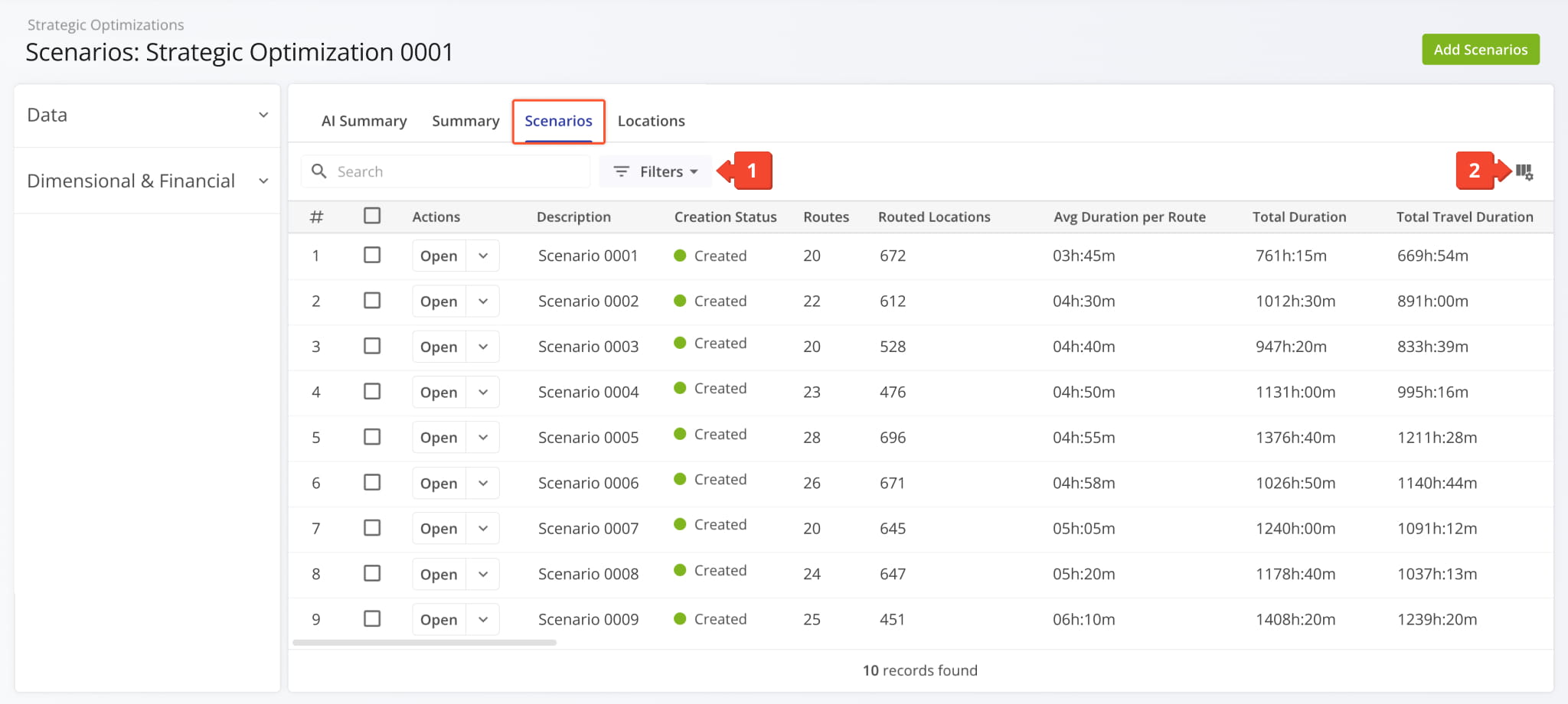
Click the “Scenarios” tab to see a customizable list of all Scenarios included in the open Strategic Optimization. You can use the following options to filter and customize the Scenarios List:
- Click “Filters” to filter the list and see only the Strategic Scenarios relevant to your needs.
- Click the Columns Button to customize the data columns shown in the Scenarios List.
From here, you can manage the Scenarios included in the Strategic Optimization. See the tables below for a list of Filters and Columns. You can also refer to the dedicated guide for Scenario Management.
Strategic Scenarios Filters
Strategic Scenarios Display Columns
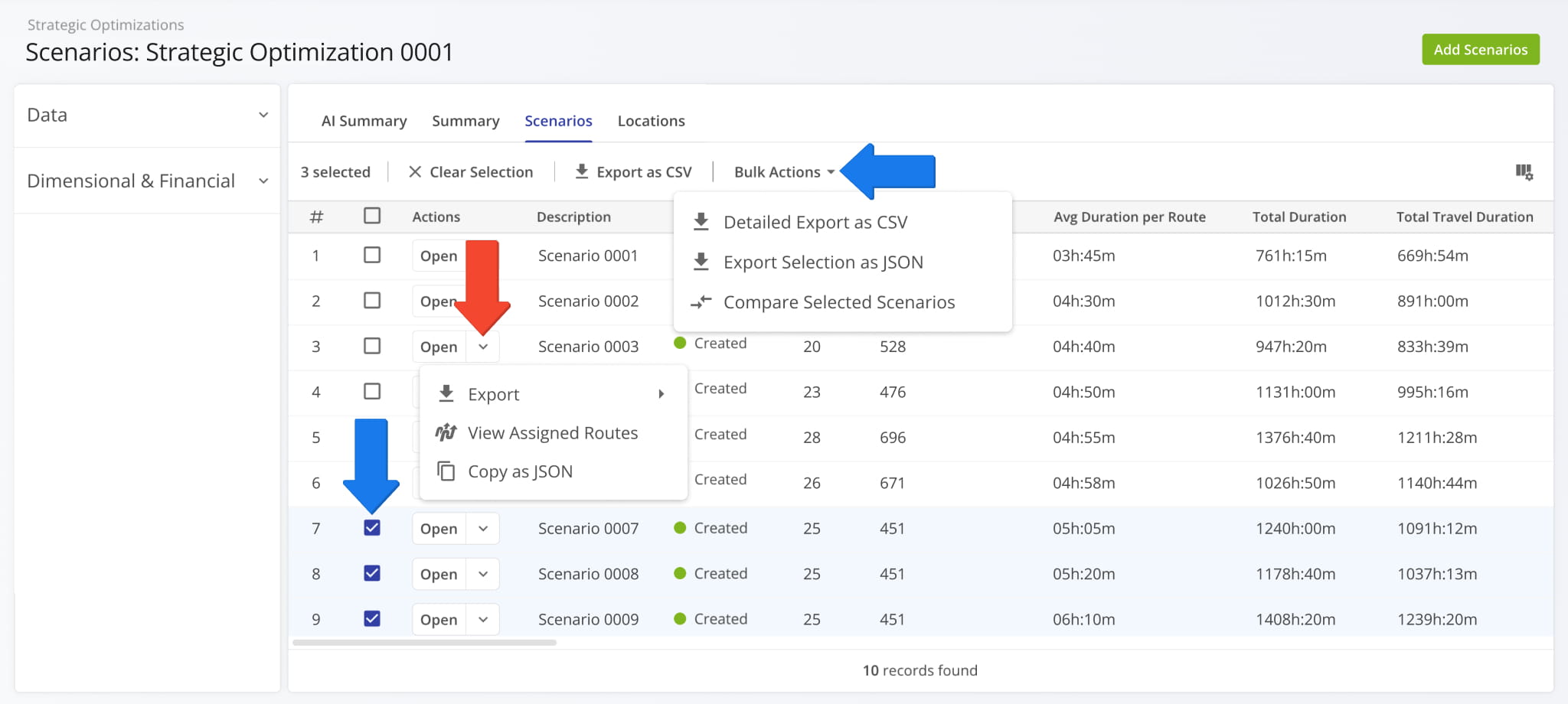
The “Scenarios” section enables you to compare and export Scenarios. Click the Down Arrow to access the following options:
- Export: Download a Scenario as a CSV spreadsheet.
- View Assigned Routes: Go to the Routes Page, pre-filtered to show only routes associated with the Scenario.
- Copy as JSON: Copy the Scenario’s settings and data to your clipboard as JSON code.
To compare, export, or copy them as JSON from multiple Scenarios, check boxes next them and click “Export as CSV” or “Bulk Actions” from the action menu above the table. Learn more about Strategic Scenario Management and Export.
Optimization Locations – Customizable Strategic Optimization Locations Database
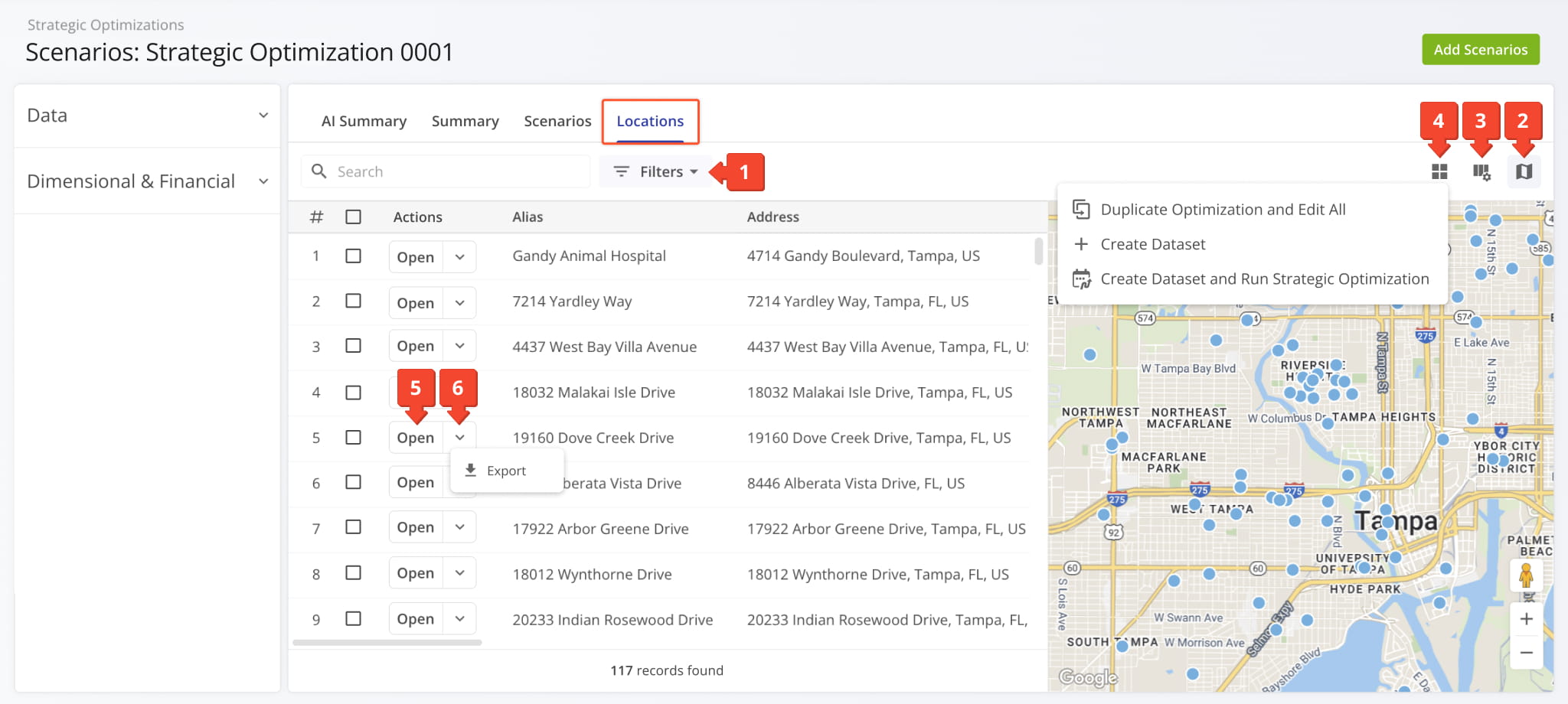
Click the “Locations” tab to access and manage the Locations associated with an Optimization and its Scenarios. Here, you can:
- Find and filter Strategic Optimization Locations using the “Search” and “Filters” options.
- Toggle the map with the Map Button. (the map is open by default)
- Customize the data columns displayed in the Locations List on the left.
- Use the Dataset Button to:
- Duplicate Optimization and Edit All: Make a copy of the Optimization which you can safely edit.
- Create Dataset: Use the Optimization’s Locations to create a new Strategic Routing Dataset.
- Create Dataset and Run Strategic Optimization: Re-optimize the dataset into a new Strategic Optimization
- Click the “Open” button next to a Location to open its Strategic Location Snapshot.
- Click the Down Arrow next to a Location and select “Export” to download its data.
All the options from the Dataset Action Menu and Location export are also available when selecting multiple Locations and using Bulk Actions. See the tables below for a list of Filters and Columns.
Strategic Locations Filters
Strategic Locations Display Columns
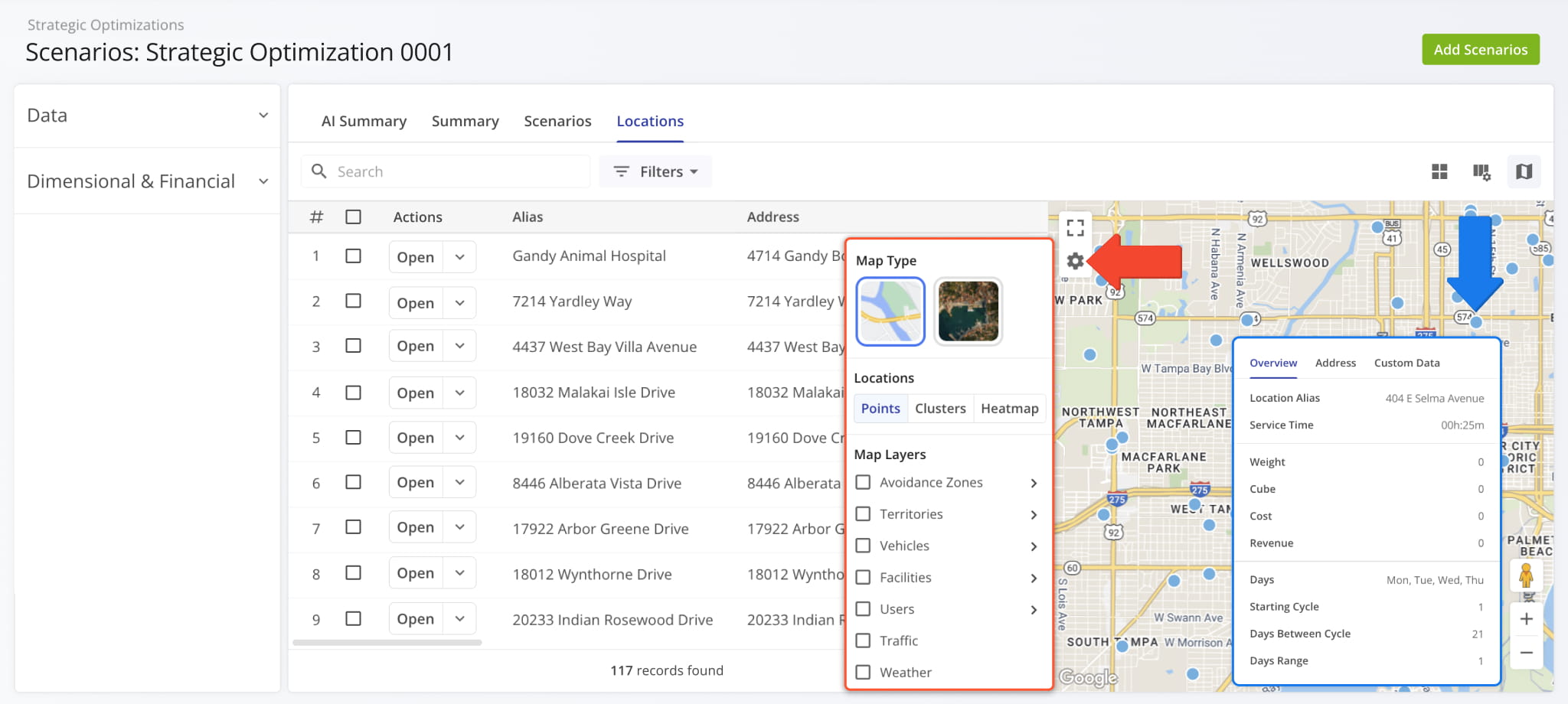
On the Locations Map, you can hover over a Location to view its address and scheduling details in the Strategic Optimization.
Click the Gear Icon on the Locations Map to open the Map Settings. See the table below for more details.
Scenario Locations Map Settings
Add Strategic Scenarios – Plan New Scenarios With Optimization Locations
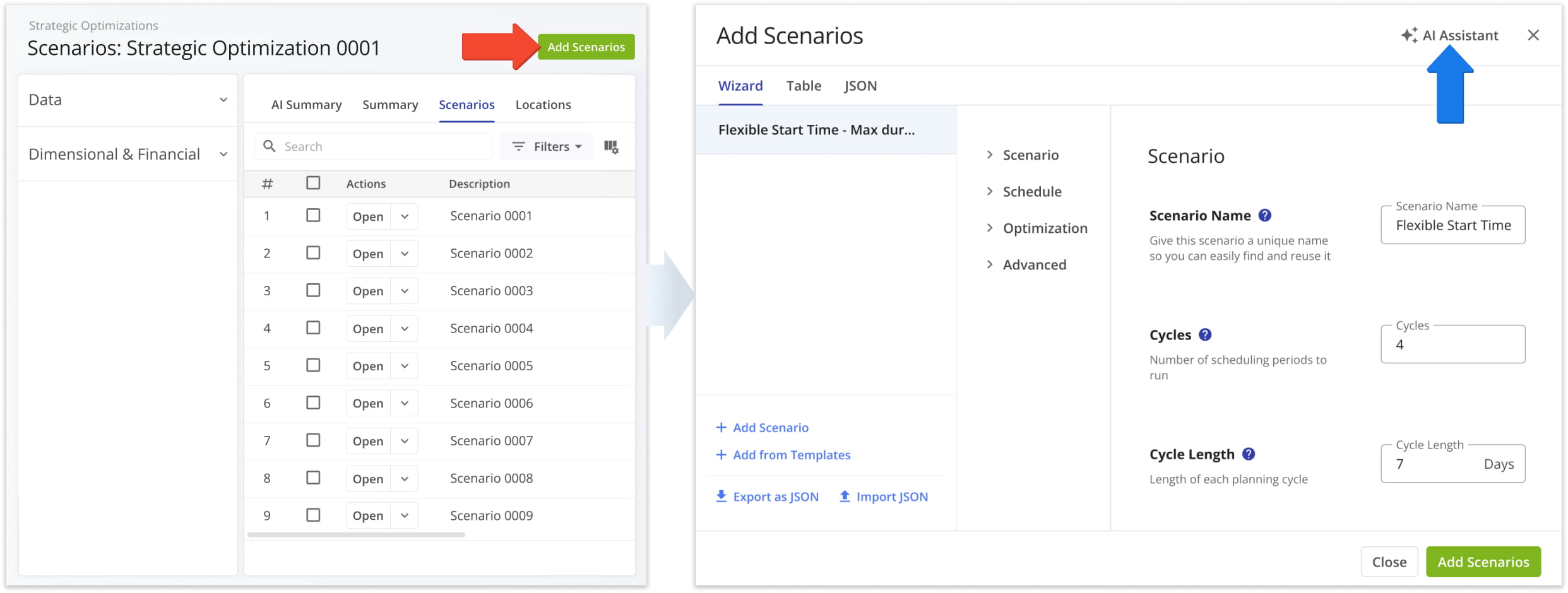
To add a new Strategic Scenario to a Strategic Optimization, click the “Add Scenarios” button. From here, you can follow the usual process for setting up Strategic Scenarios with all the same settings available as when you create Strategic Optimizations.
For convenience, you can click “AI Assistant” and describe your Scenario preferences, and our smart AI routing agent will automatically configure Scenarios according to your description. NOTE: Make sure to always verify AI outputs.
Compare Optimization With In-Depth Side-By-Side Comparison
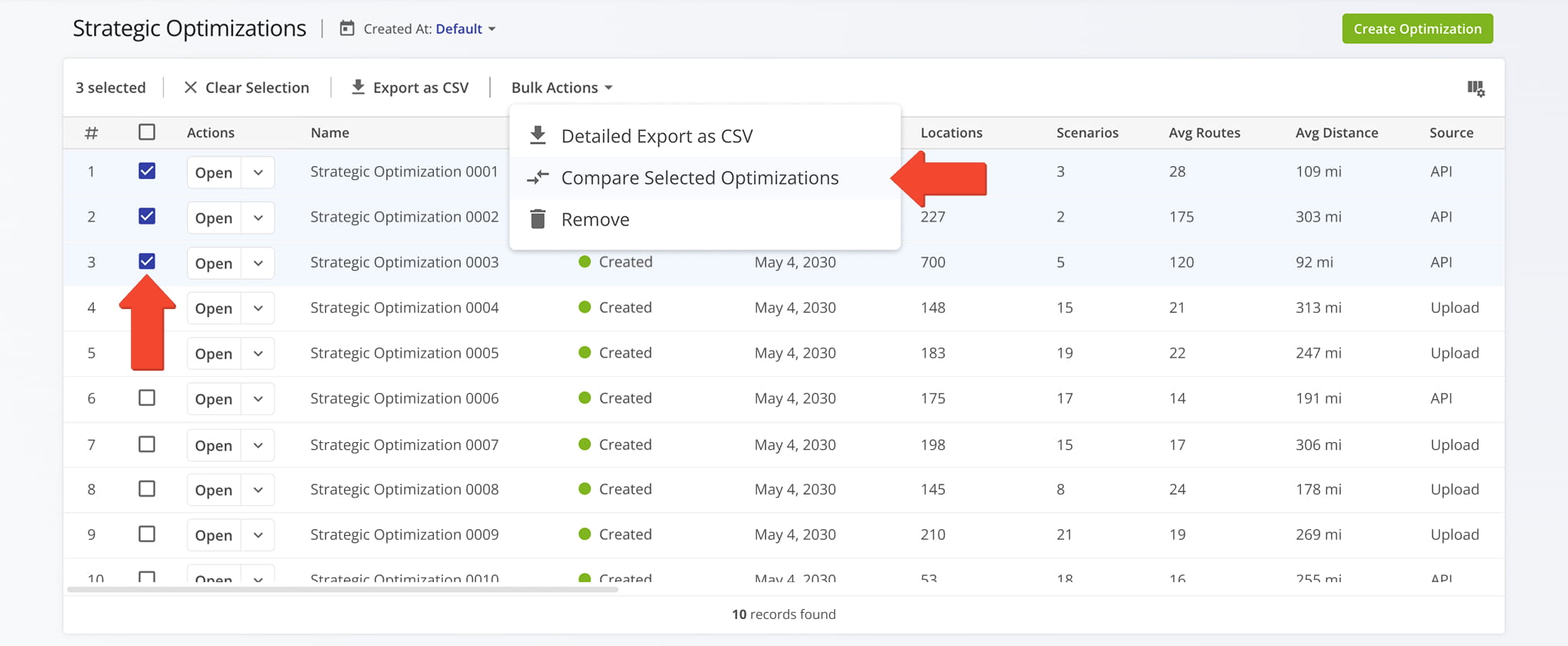
Your Strategic Optimizations Page provides a customizable data table for comparing Optimizations. You can also access a more in-depth comparison page. Select Strategic Optimizations and use the “Compare Selected Optimizations” option from the “Bulk Actions” menu.
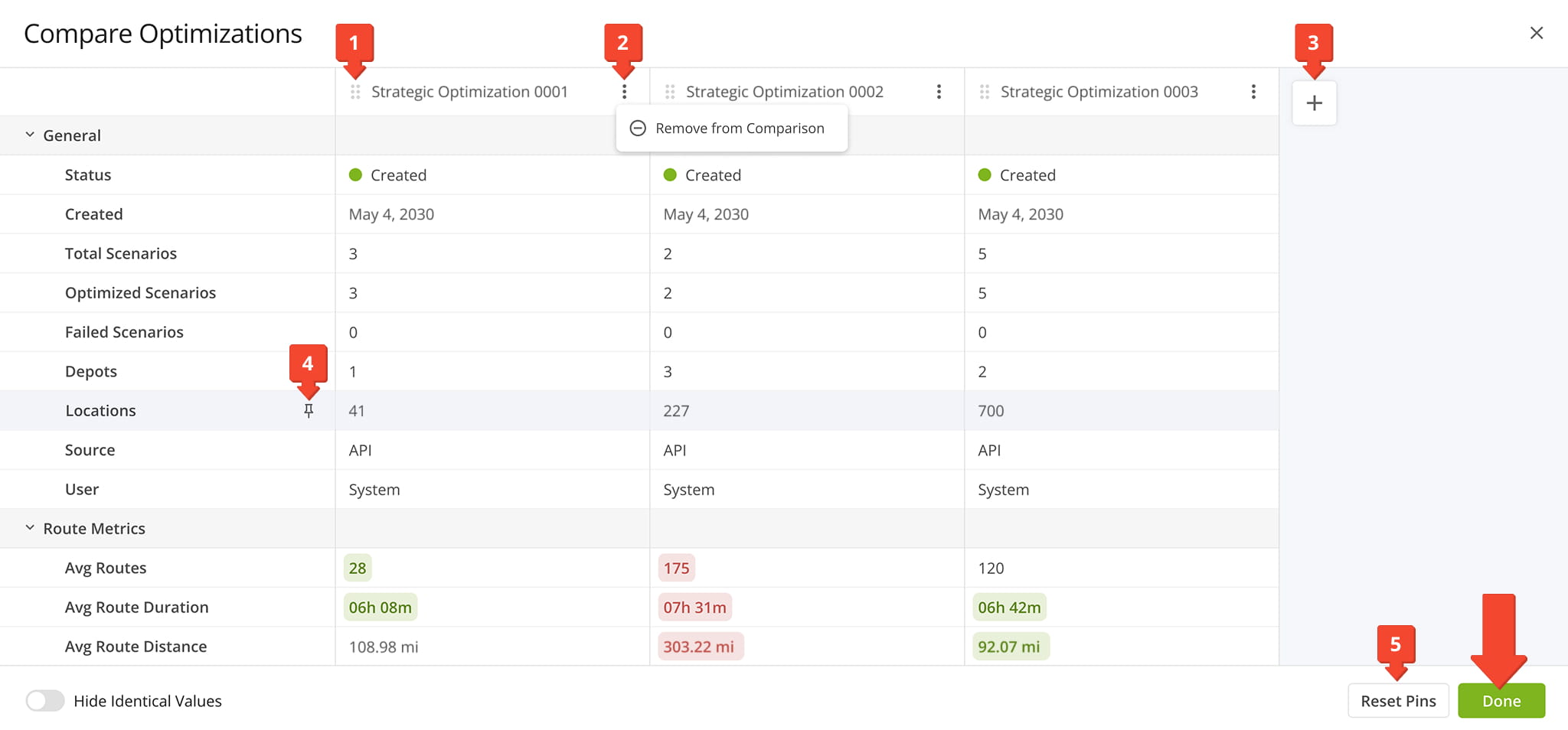
The Optimizations you selected will be arranged side-by-side, making it easy to compare their details and metrics. You can customize the comparison page by:
- Arrange Optimizations by clicking and dragging to change their order.
- Remove Optimizations from the comparison by using the Three-dot Menu.
- Add Optimizations to the comparison by clicking the Plus Button.
- Pin rows by clicking the Pin Icon. This keeps rows static while scrolling.
- Disable pinned rows by clicking the “Reset Pins” button.
When you’re finished comparing Optimizations, click the “Done” button to return to the Strategic Optimizations page.
Export Optimizations – Download Strategic Optimization Data
To download Strategic Optimization data, you can export one or more Strategic Optimizations.
Either click the Down Arrow next to an Optimization or select multiple Optimizations by checking the boxes next to them and use the “Bulk Actions” menu above the data table to access export options.
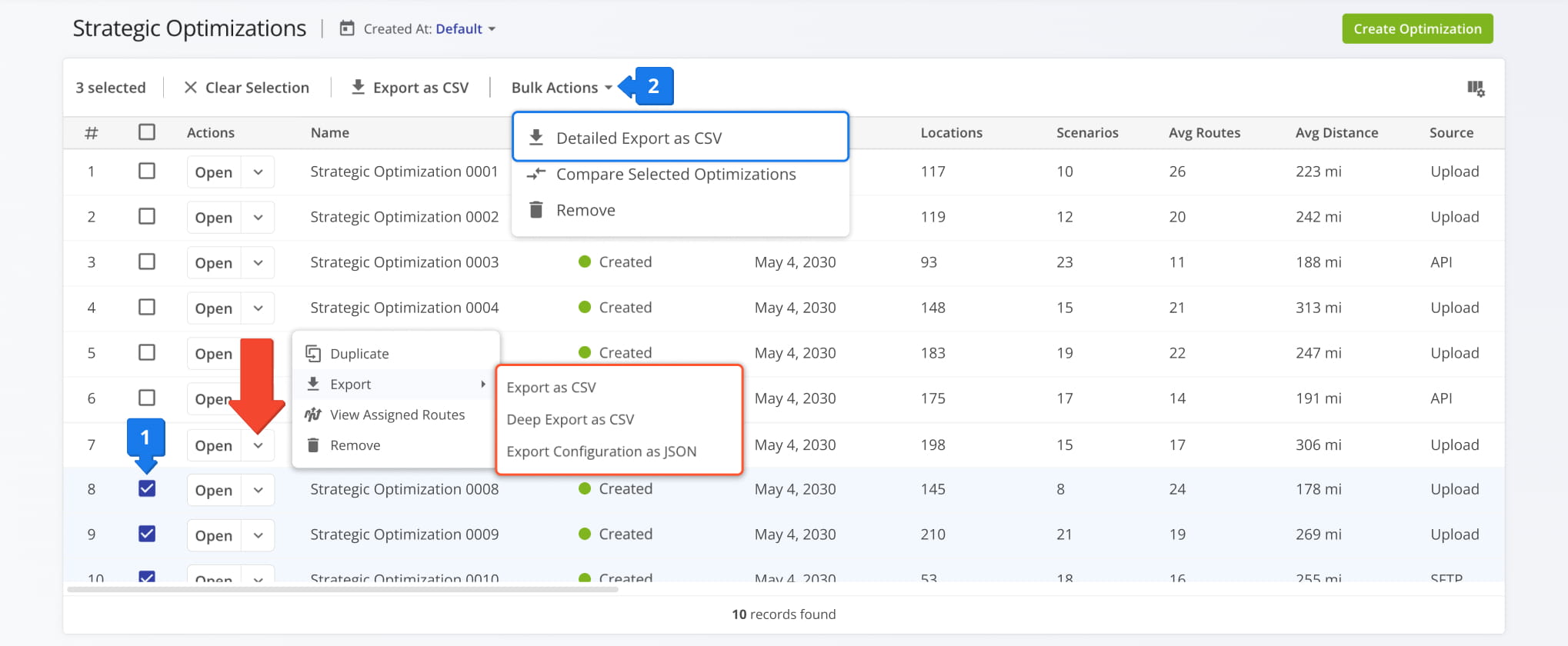
The “Export as CSV” option enables you to customize an export file by checking boxes next to data items you want to include. Just like display columns, you can re-arrange your export columns by dragging their names up or down on the right. After you’ve configured your export file, click “Export” to download a CSV spreadsheet.
You can also save your export settings as a template using the toolbar at the top of the export panel.
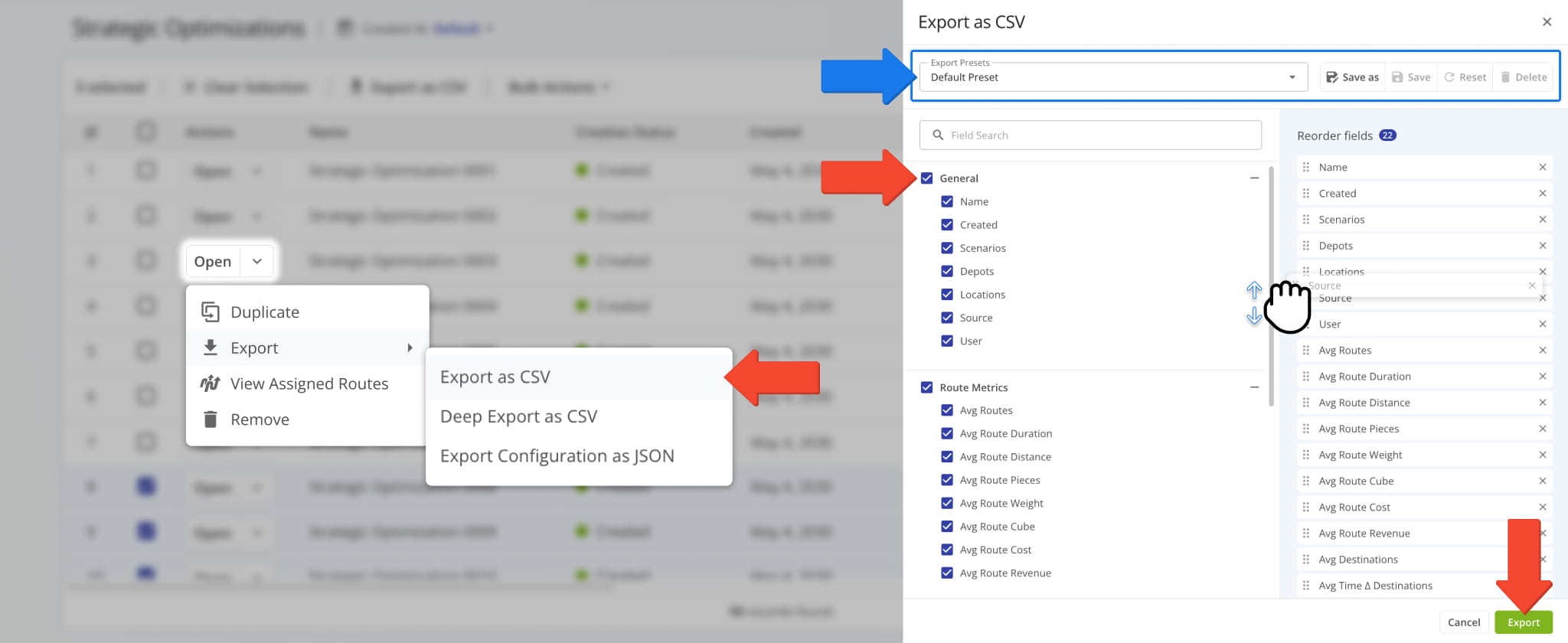
NOTE: Export data column options are the same as Display Column options when selecting “Export as CSV“.
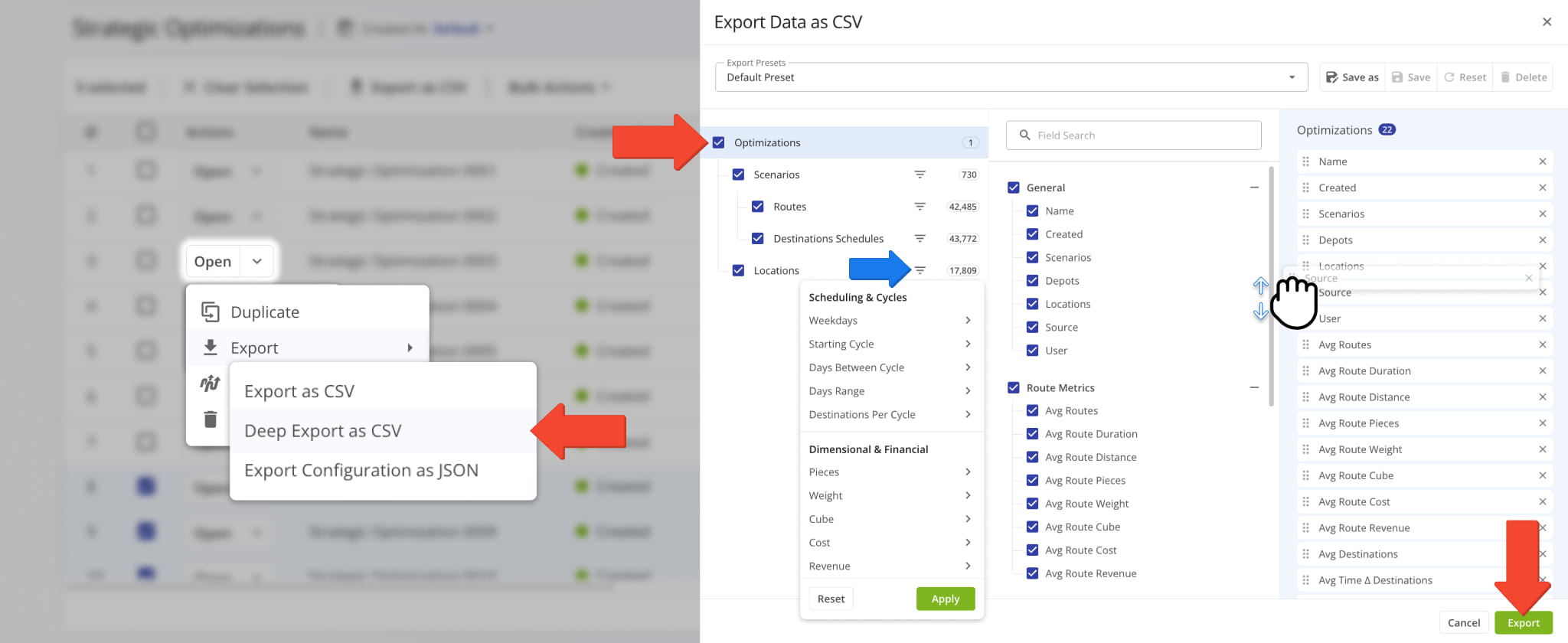
If you need more in-depth customization, select “Deep Export as CSV” to access more complex settings. Deep Export provides access to all the data items described in this guide, divided into the same Strategic Optimization categories.
In addition to the two familiar sections, you’ll see a hierarchy on the left. It corresponds to the structure of a Strategic Optimization. Each item in the hierarchy is a category with data types and filters, which match those of the Strategic Optimization, i.e. the “Locations” export category has the same data and filter options as the “Locations” tab in an Optimization.
Enable and arrange items to customize your export file as usual and click “Export” to download the CSV.
Duplicate Optimizations – Create New Optimizations By Duplicating Locations
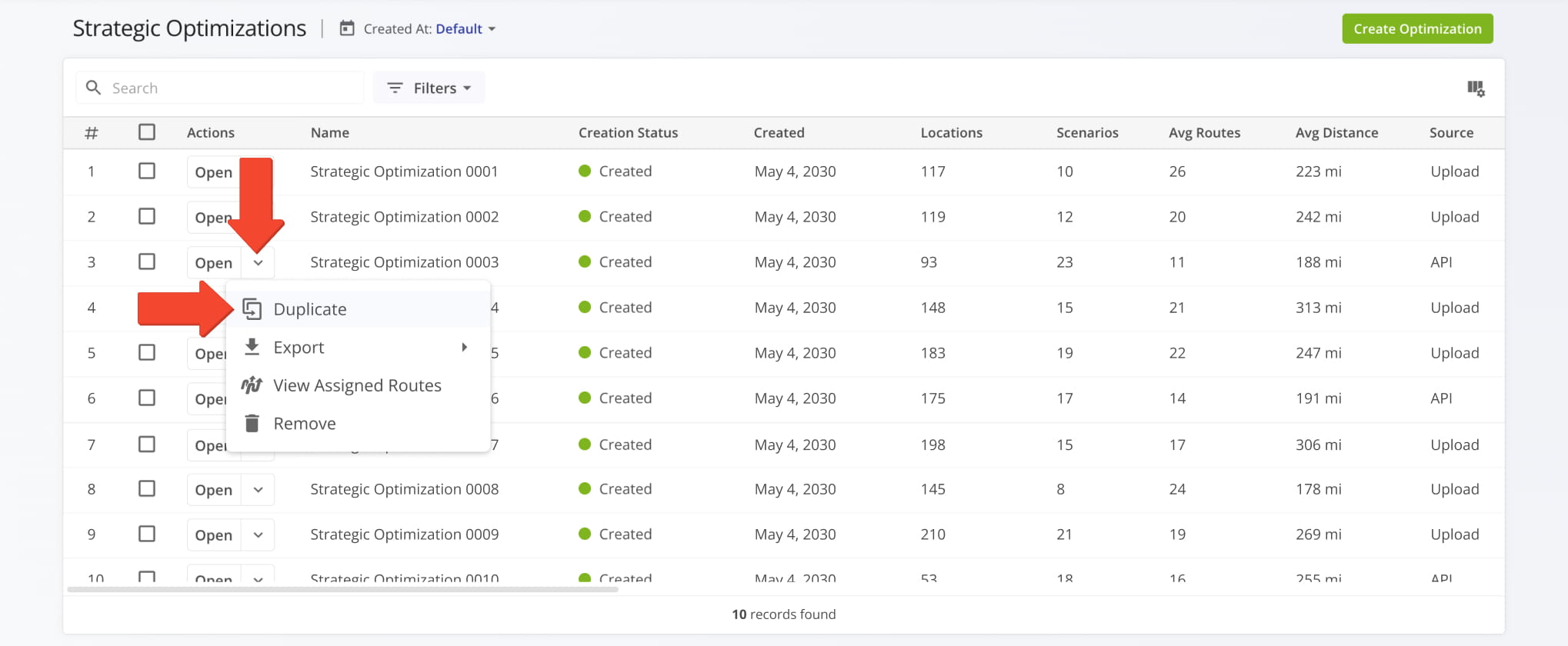
Route4Me enables you to easily duplicate complex Strategic Optimizations. Instead of going through the process of Strategic Route Planning, you can simply click the Down Arrow next an Optimization and select “Duplicate” from the menu.
The duplicated Strategic Optimization is identical to the original and can be edited safely without changing the original.
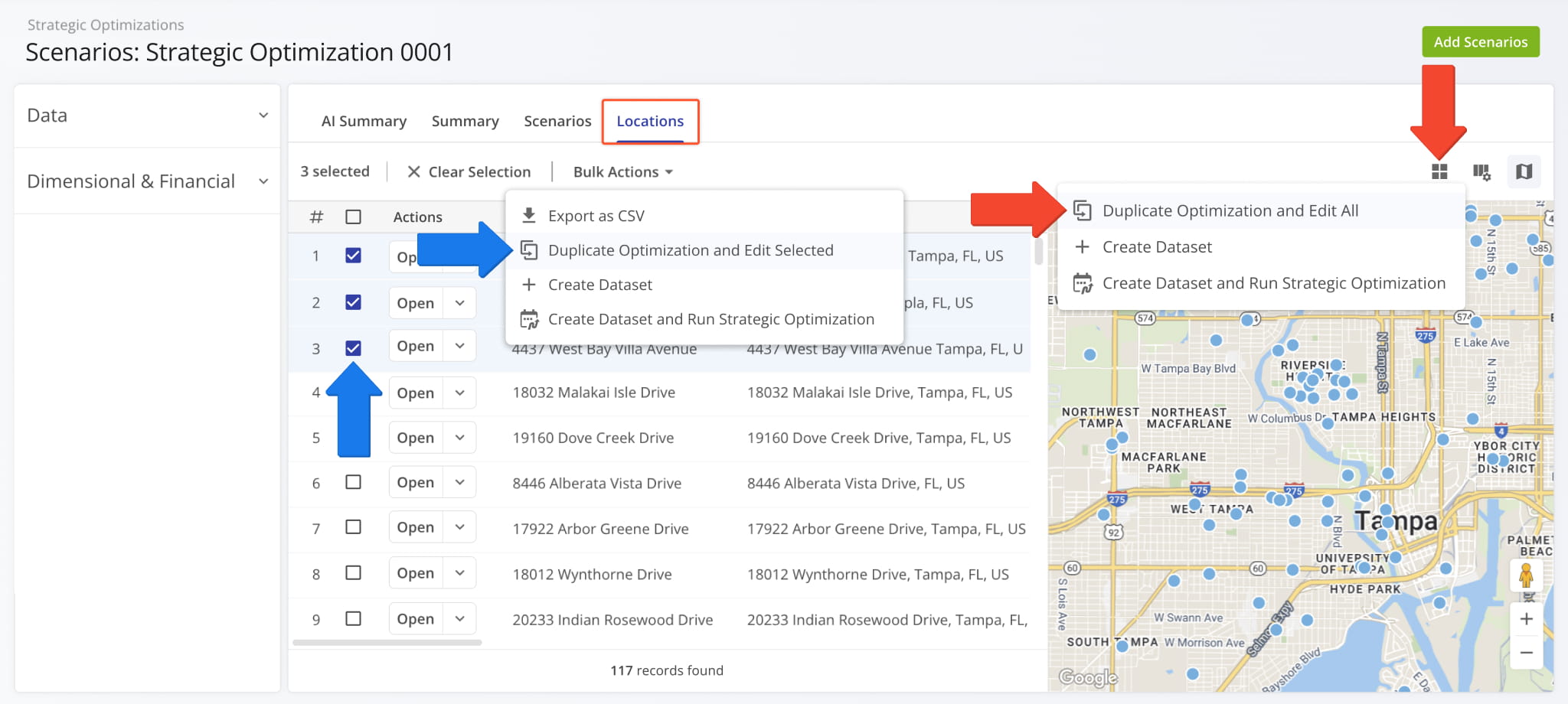
Duplicating an Optimization is also possible from the “Locations” section. Simply click the Dataset Button and select “Duplicate Optimization and Edit All“. This creates an editable draft based on the current optimization with all its Locations.
You can also select specific Locations by checking the boxes next to them and duplicate the Optimization only with the selected Locations by selecting the “Duplicate…” option from the “Bulk Actions” menu.
Manage Scenarios And Routes In Strategic Optimizations
To delve deeper into strategic cycle planning and management, you can view and manage scenarios and Scenario Routes. Simply click the “Open” button next to a Scenario from an open Strategic Optimization.
The Scenario Page is also where you can see and customize Scenario Routes, view a detailed destination schedule, preview routes on the map, and sync draft routes for Recurring Routing. Learn more about Strategic Scenario Management.
Strategic Optimizations Data Catalog And Reference Tables
Filters and Display Columns on the Strategic Optimizations Page.
Open Your Strategic Optimizations
Strategic Optimizations Filters
Strategic Optimizations Display Columns
When you open a Strategic Optimization, you can see and customize a summary graph in the “Summary” section.
The table below lists all supported values for the summary graph.
Scenario Summary Graph Values
Filters and Display Columns in a Strategic Optimization’s “Scenarios” section.
Strategic Scenarios Filters
Strategic Scenarios Display Columns
Filters, Display Columns, and Map Settings in a Strategic Optimization’s “Locations” section.
Strategic Locations Filters
Strategic Locations Display Columns
Scenario Locations Map Settings
Visit Route4Me's Marketplace to Check out Associated Modules:
- Operations
Audit Logging and Activity Stream
- Operations
Custom Data Add-On
- Operations
Advanced Team Management Add-On
About author: Kristian Andreev

